
Wireframe to Corporate Web Banner
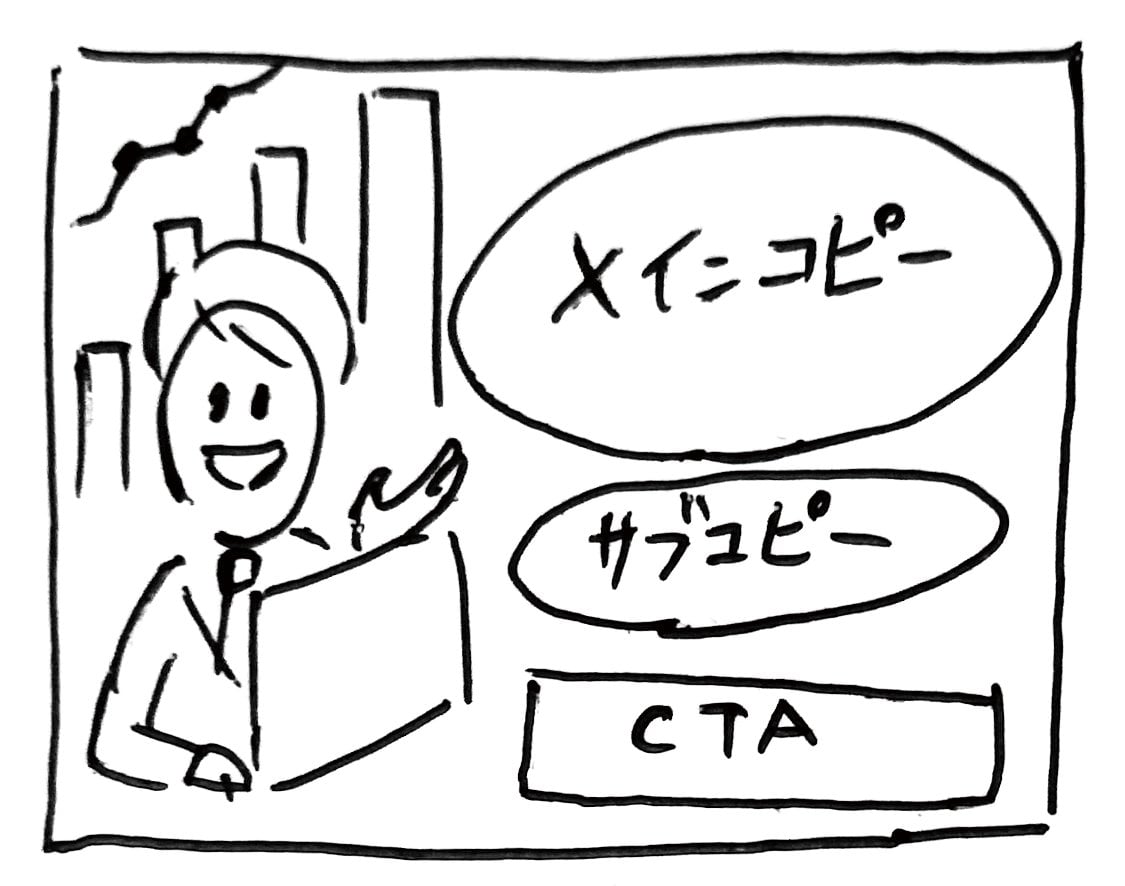
Transforms a rough hand-drawn wireframe into a polished, professional web banner ad with photorealistic subjects, vector graphics, and customizable Japanese copy.

- Prompt included
- Model and format preset
- Free template
The prompt behind this image
Copy the exact prompt behind Wireframe to Corporate Web Banner, or open it in the studio and make it yours.
Using REFERENCE_0 as a wireframe layout, generate a polished, professional corporate web banner ad for an AI sales tool. Use a clean blue, white, and orange color palette. Transform the sketched character into a photorealistic image of 2 smiling Japanese business professionals (a man and a woman in suits) looking at a silver laptop in a bright office. In the top left, add a logo for {argument name="brand name" default="KAWAISALES"} with a small tagline 'AIを活用した新しい営業支援ツール'. Map the wireframe's text bubbles as follows: replace the top bubble with a white oval containing the blue text {argument name="main copy" default="その営業、AIで「飛躍」しませんか?"}; replace the middle bubble with {argument name="sub copy" default="リード獲得からクロージングまでAIがあなたの営業活動を強力サポート!"}. Replace the bottom CTA box with a bright orange pill-shaped button reading {argument name="cta text" default="今すぐ 無料デモを体験する >"}. In the lower-right center, add a blue 3D-style bar chart with an upward arrow, accompanied by a target icon showing 3 user silhouettes and a white UI card with 4 checkmarked bullet points. Finally, add a white panel in the bottom left containing exactly 3 blue line-art icons (a clock, a rising chart, and a laptop) with short captions below each.
Reference images included
Wireframe to Corporate Web Banner needs input media to work. They load alongside the prompt when you open it in the studio.
How to use Wireframe to Corporate Web Banner in 3 steps
- 1Upload ImagePNG, JPG or paste
Add your photo
Upload the photo the template builds on. The prompt, model and format are already set.
- 2…a portrait of your subject in softgolden-hour light, 85mm…
Personalize
Edit the subject and creative details for your destination.
- 3Generate
Generate
Press Generate — your image is created in PicX Studio, so you can compare it with the original and refine one variable at a time.
More like this
Templates with the same subject, style or setup. Open one to see its prompt.

Web Design Course Promotional Banner
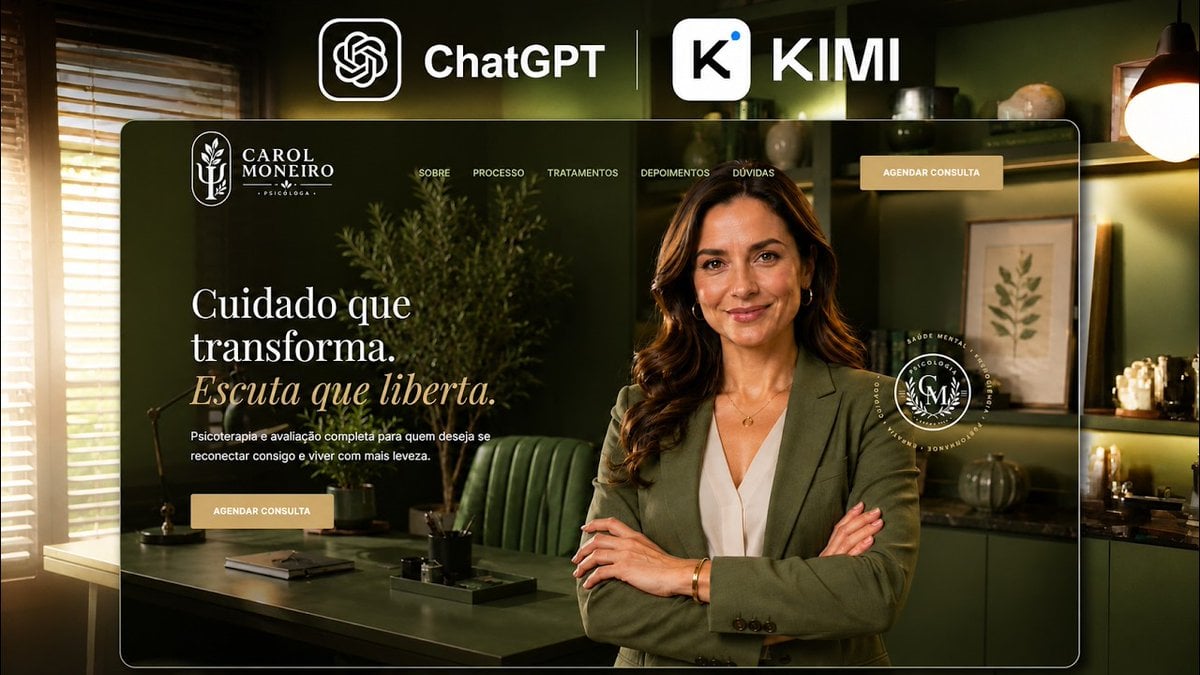
Premium Psychology Website AI Banner

Cosmetics Promotional Web Banner
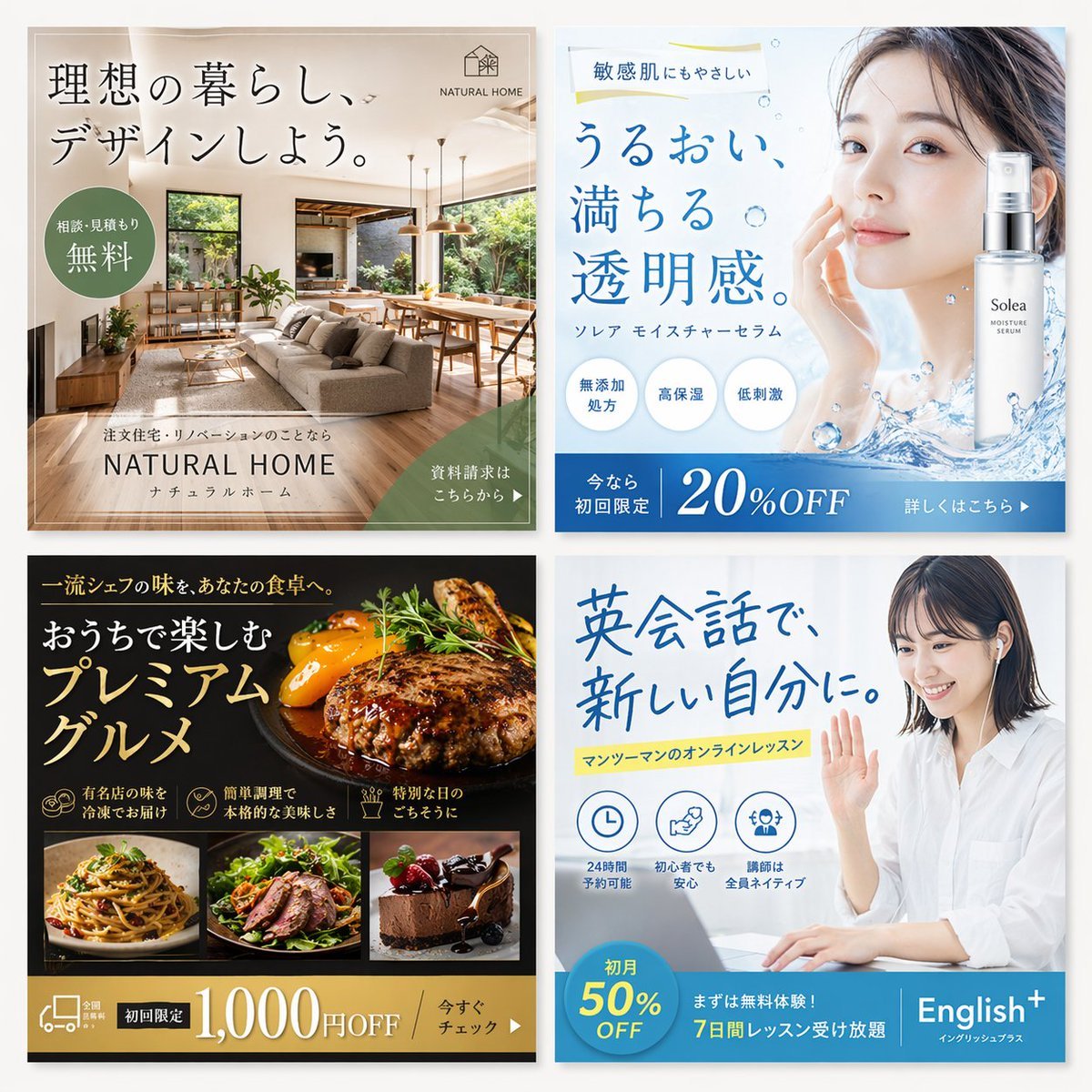
2x2 Japanese Web Banner Ad Grid

Travel Advertisement Web Banner
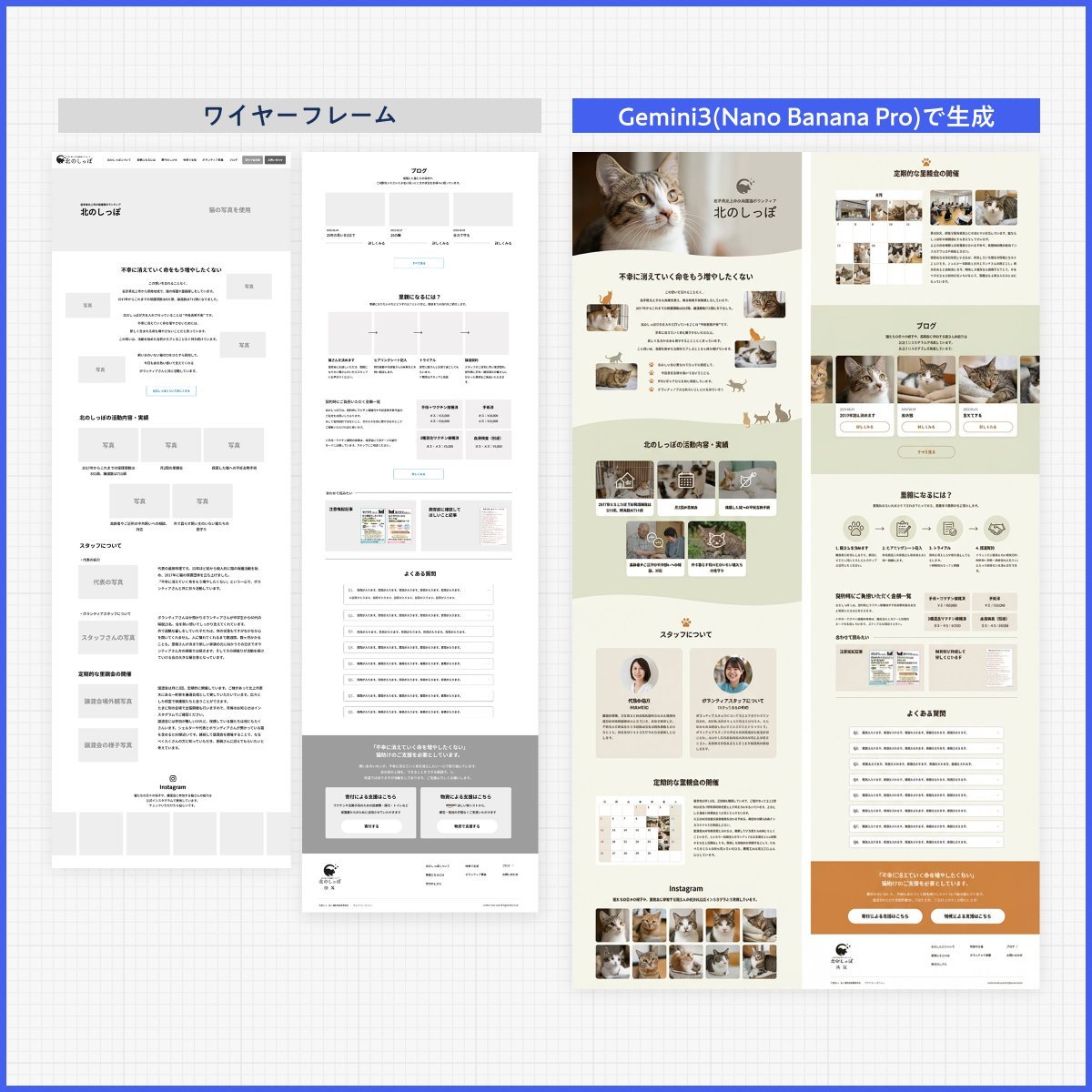
Web page design from reference wireframe
Coffee Boba Product Poster
Cinematic Product Advertisement with Spider Web
Holographic Car Blueprint Wireframe
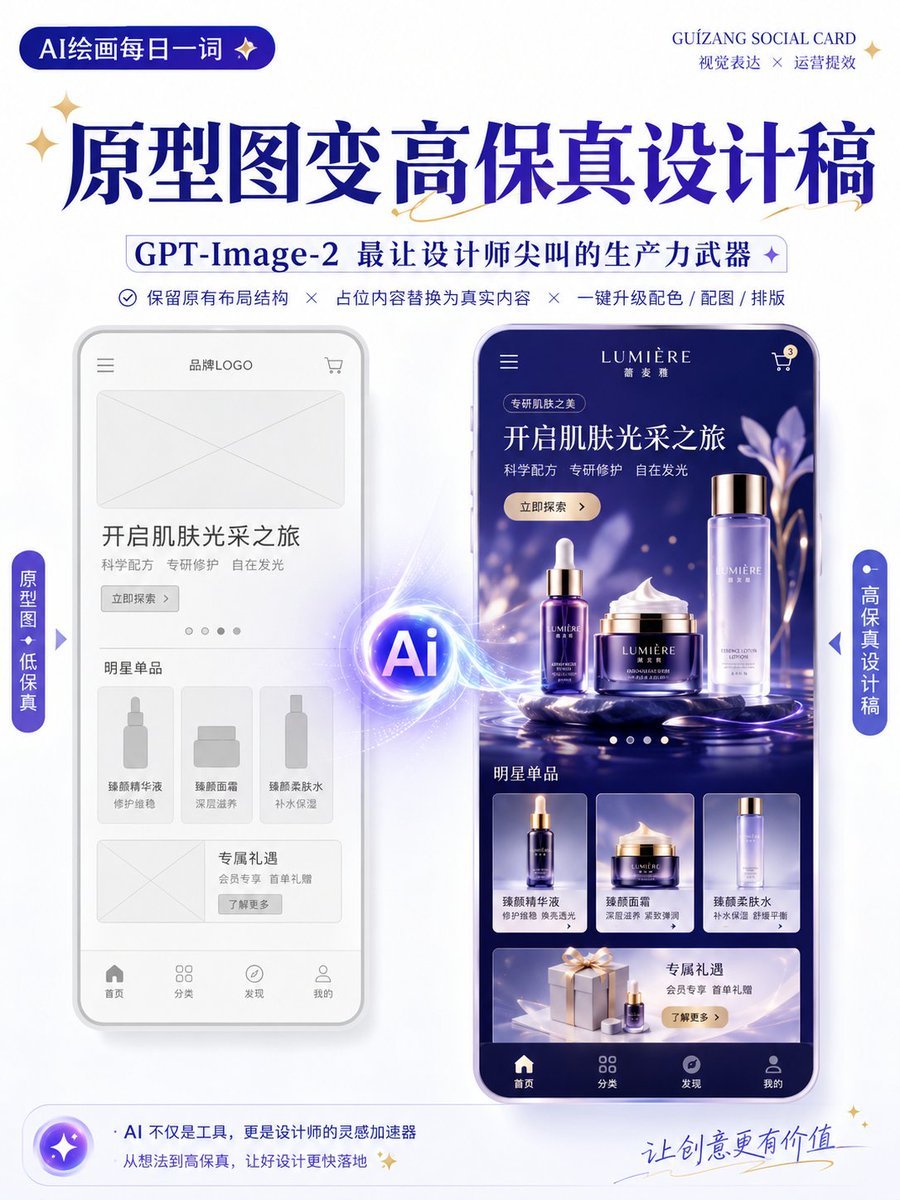
Wireframe to High-Fidelity UI Design

Futuristic Neon Wireframe Athlete Portrait
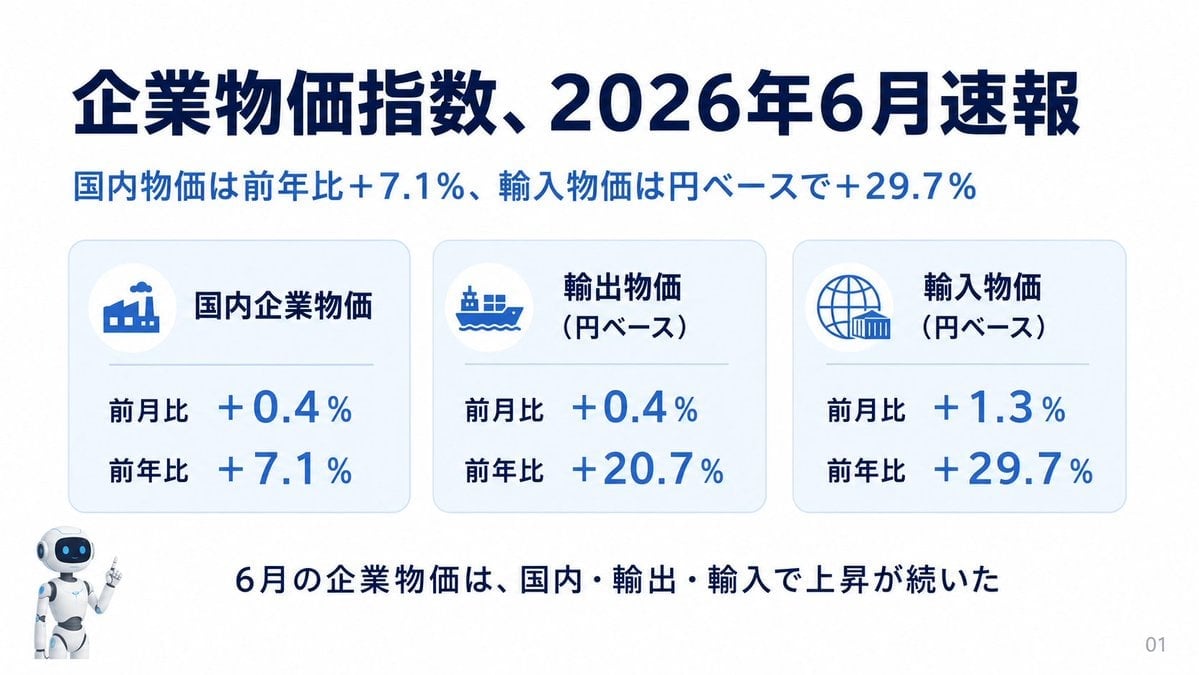
Japanese Corporate Price Index Slide
Make it yours
Wireframe to Corporate Web Banner works as-is. These are the safest ways to change it without losing the look.
Change one field
Copy a single group, rewrite it, and generate again so you can see what that field is doing.
Keep the frame, change the subject
Hold the composition and light of Wireframe to Corporate Web Banner, then swap wardrobe, props or the person for a new take.
| If the result… | Why | Fix |
|---|---|---|
| The result drifts from the preview | Too many fields changed at once. | Reuse Wireframe to Corporate Web Banner as-is first, then change one group — subject, light, or setting. |
| The model over-stylizes the scene | The prose prompt leaves finish and camera underspecified. | Add one camera or lighting sentence and stay on GPT Image 2. |
More GPT Image 2 templates
Other prompts made for GPT Image 2.

Six VTuber Japanese Logo Sheet

Realistic Portrait of Woman and Deer

The Vista Modular Condo Poster

AI Model Routing Comparison Infographic

2.5D Anime Art Board

Isometric Productivity Desk Scene

New York Double Exposure Poster

Four-Panel AI Landscape Comparison

Japanese Tatami Lifestyle Magazine Cover

NESCAFÉ Coffee Map Poster
More image prompts
Fresh picks from across the catalog.
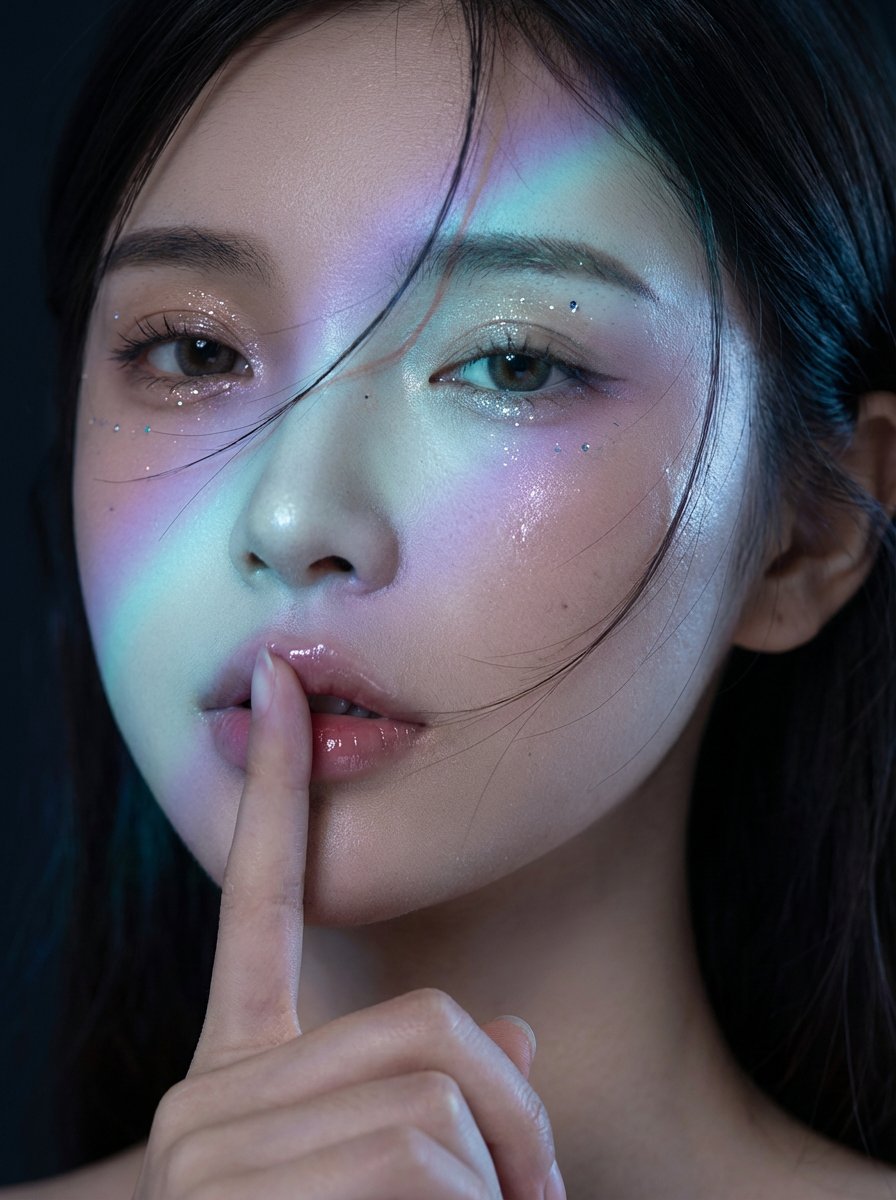
Midnight K-Fashion Editorial Portrait from Reference Image
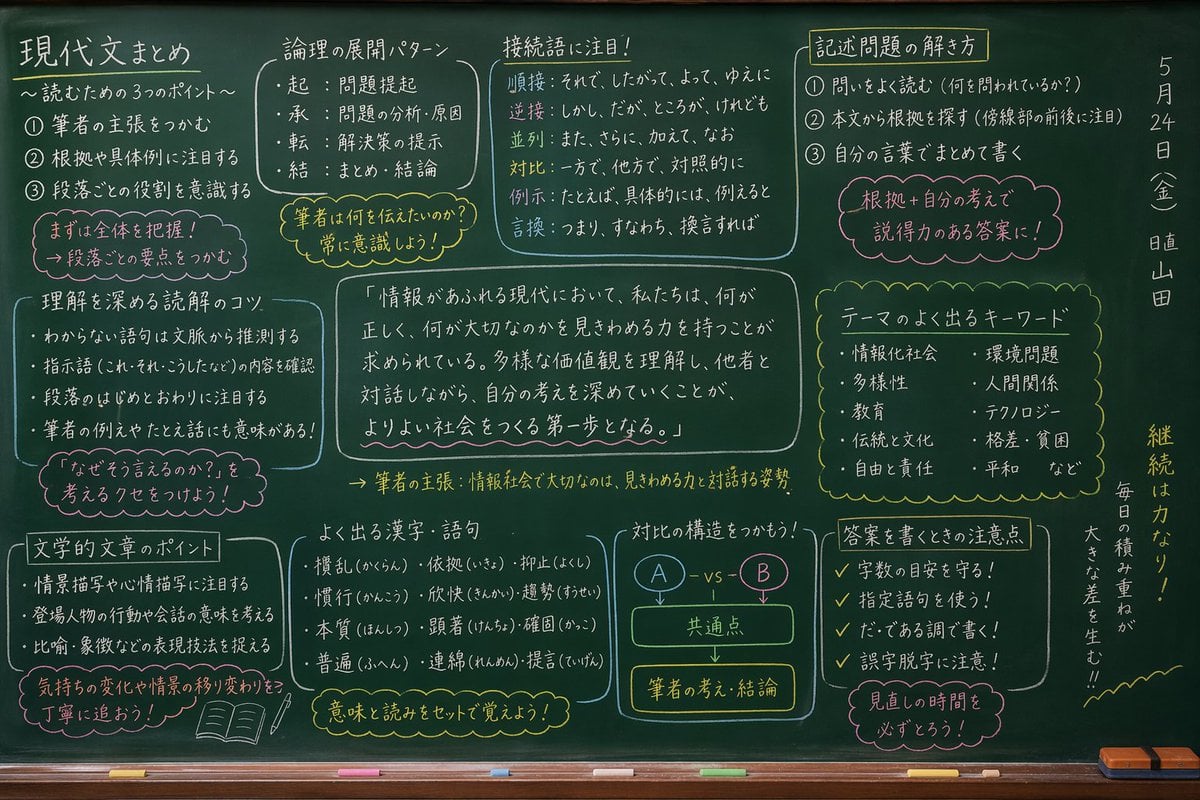
Japanese Classroom Chalkboard Notes
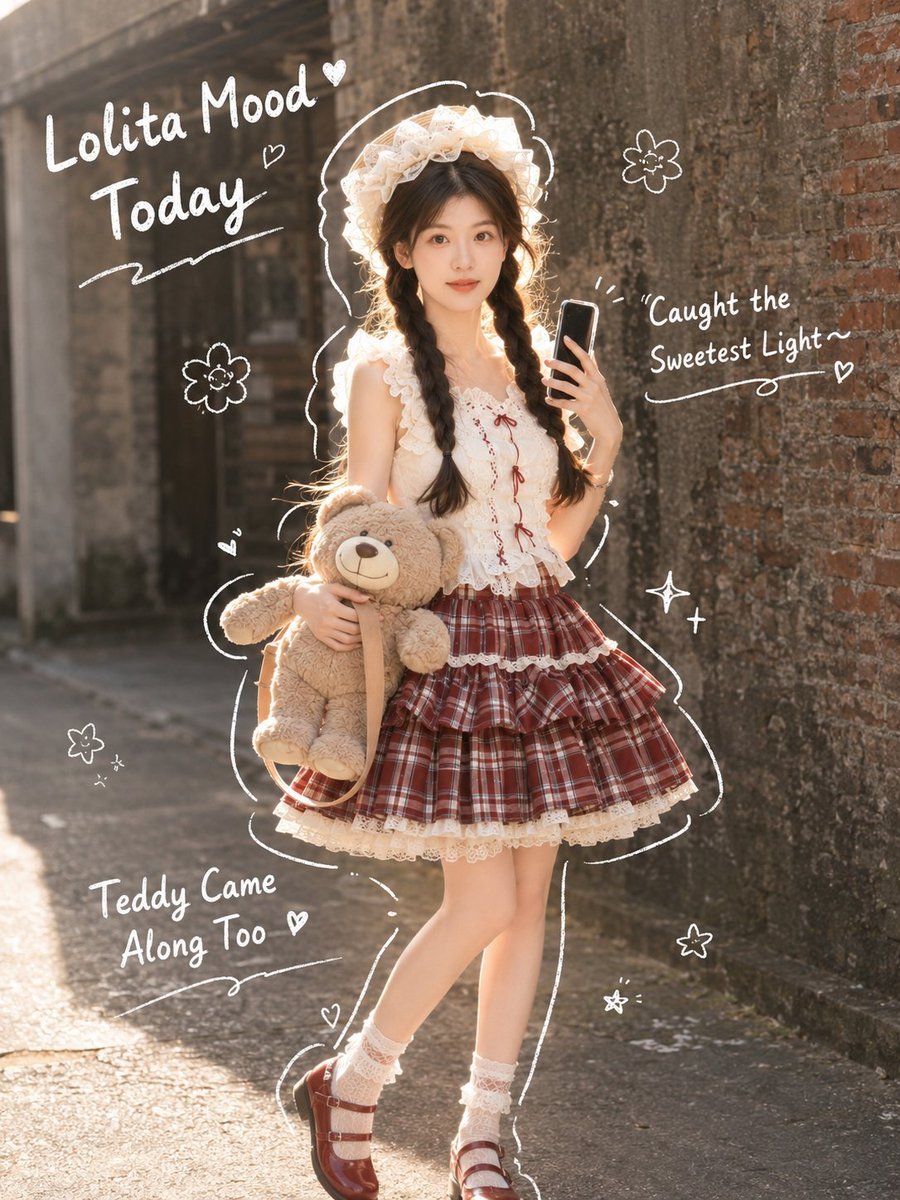
Japanese Lolita Street Style Selfie
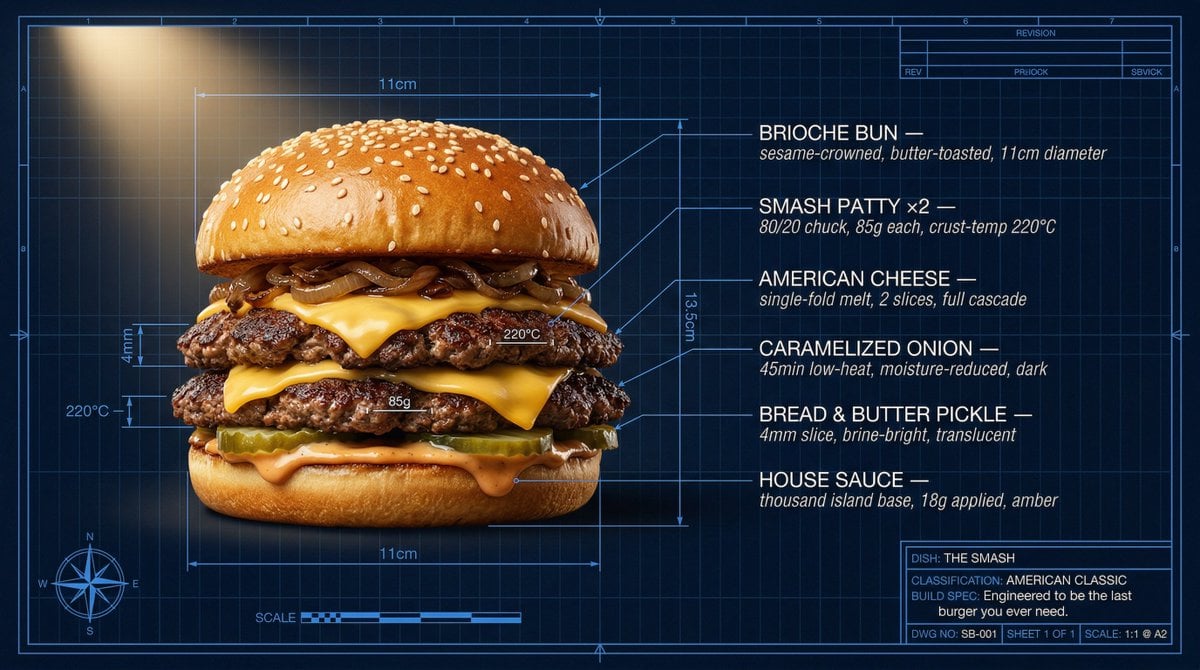
Technical Architectural Blueprint of a Smash Burger
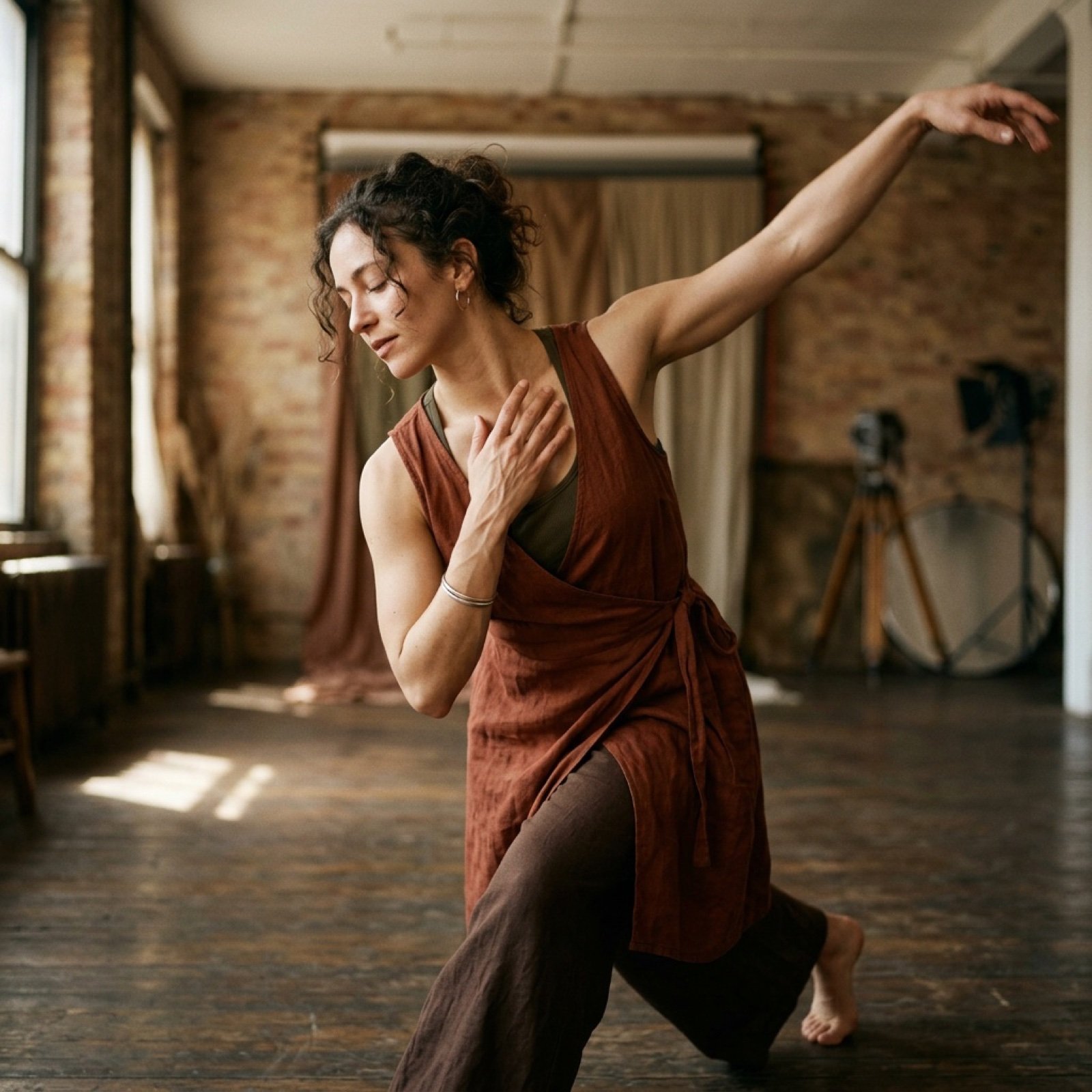
Cinematic Dance Video Prompt (Image and Video Generation)
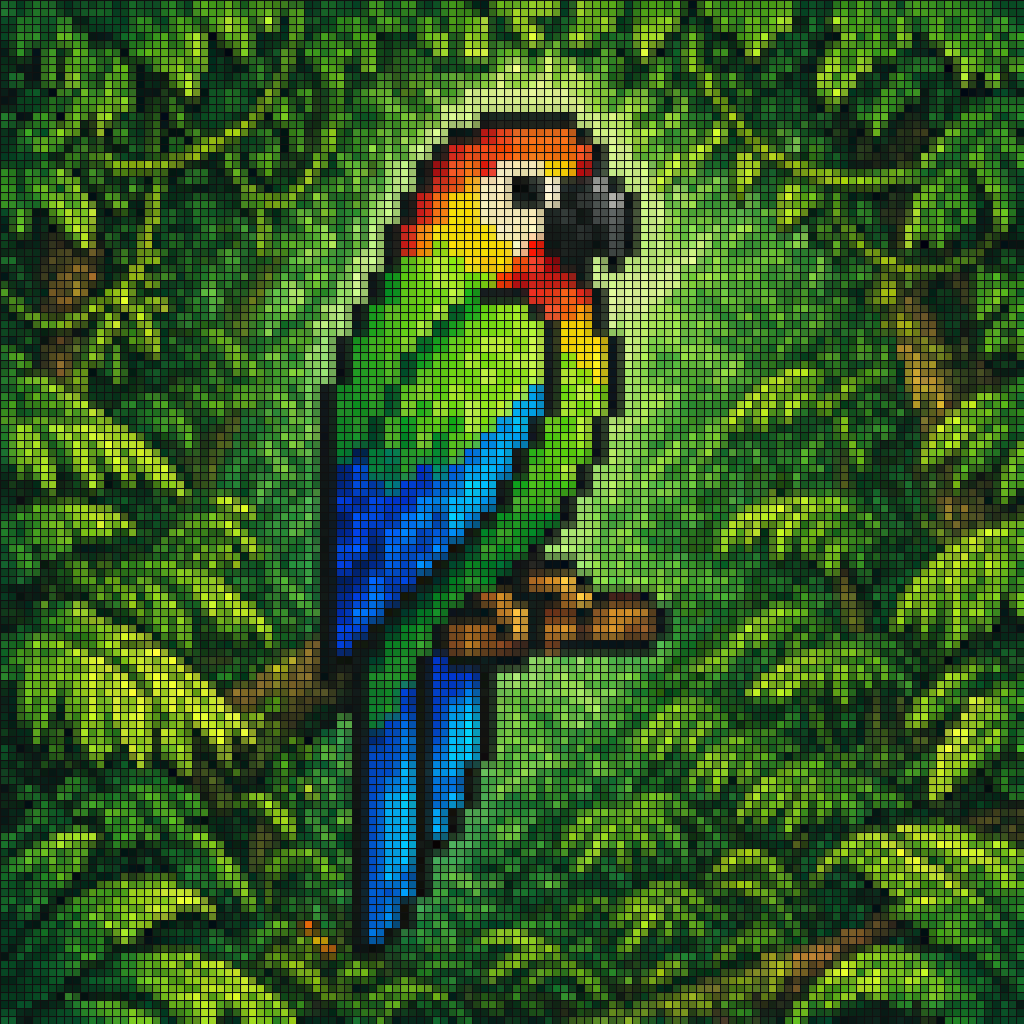
Gpt2 Social Media Post Tropical Parrot Pixel Mosaic
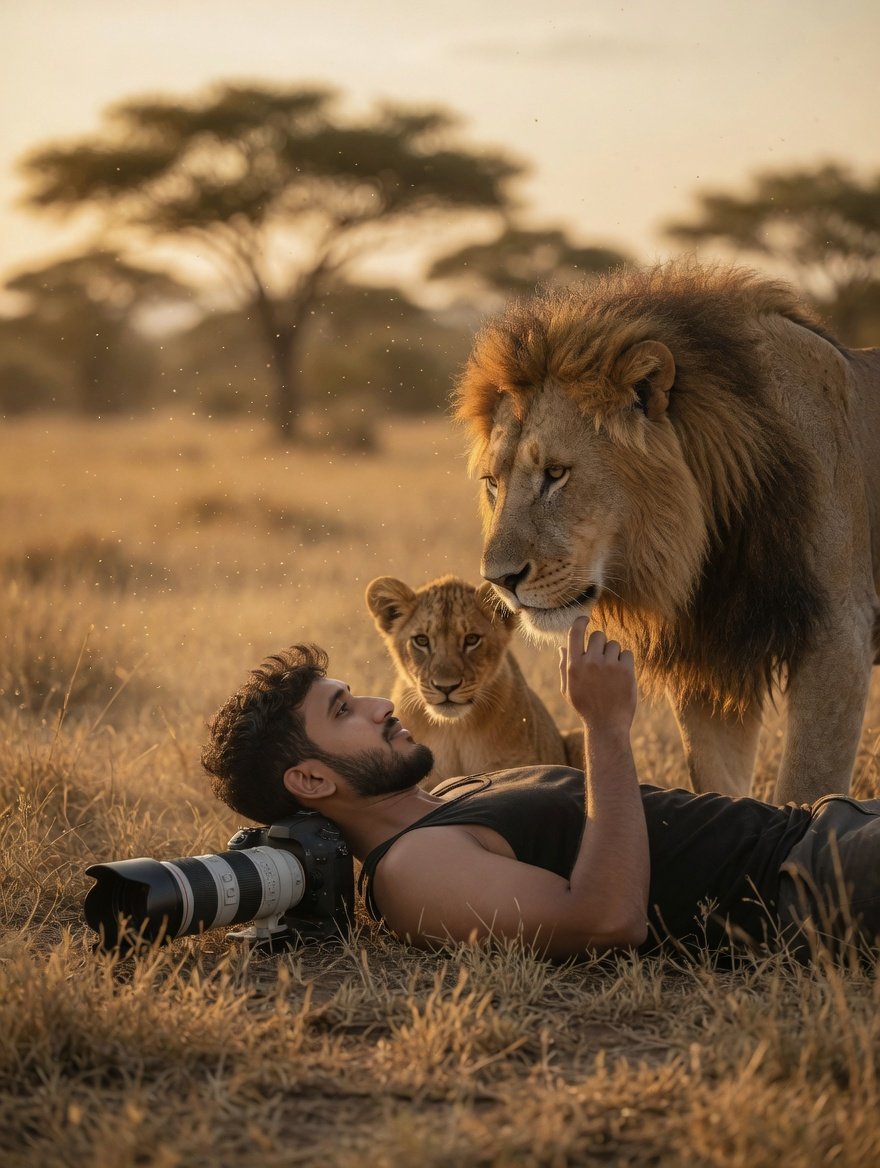
Savanna Portrait with Lions
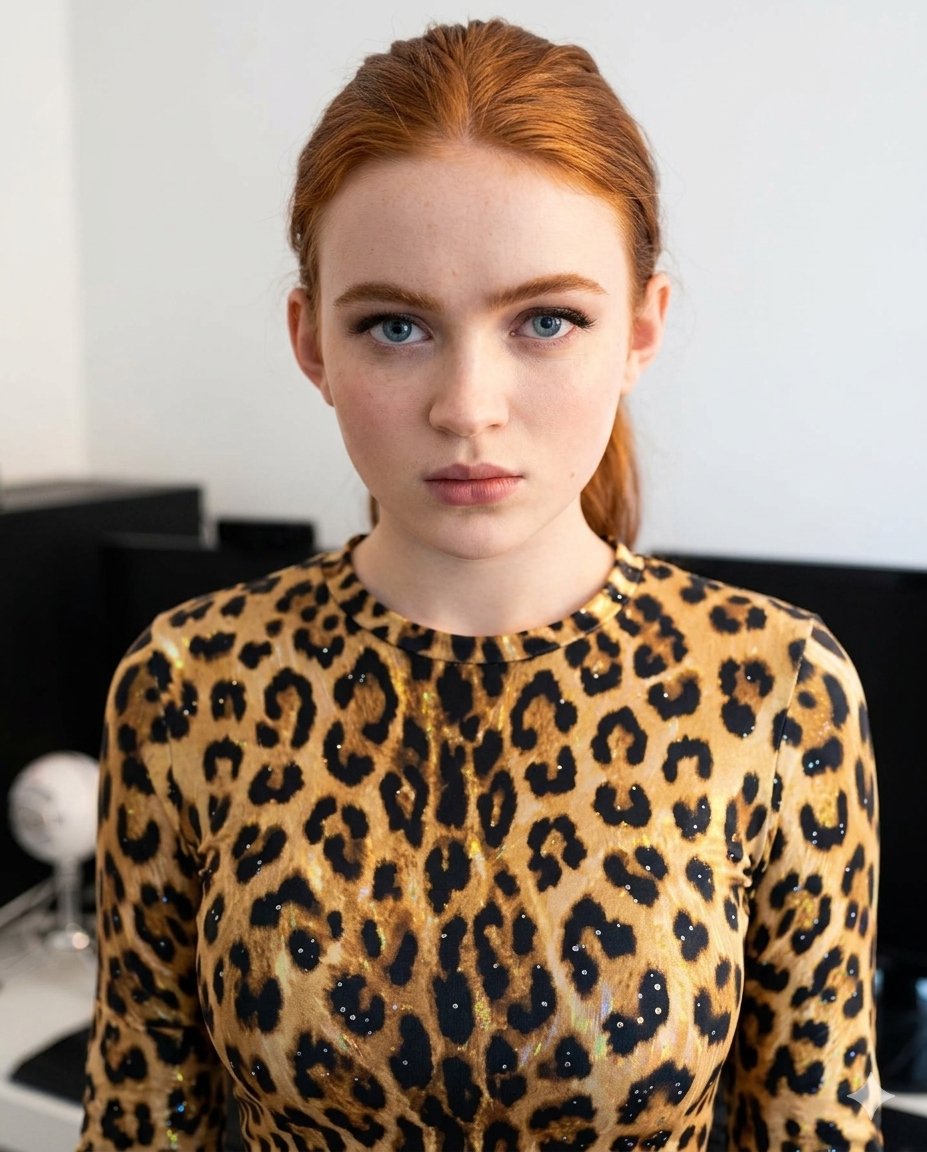
Sparkling Cheetah Portrait Prompt for Gemini Nano Banana Pro
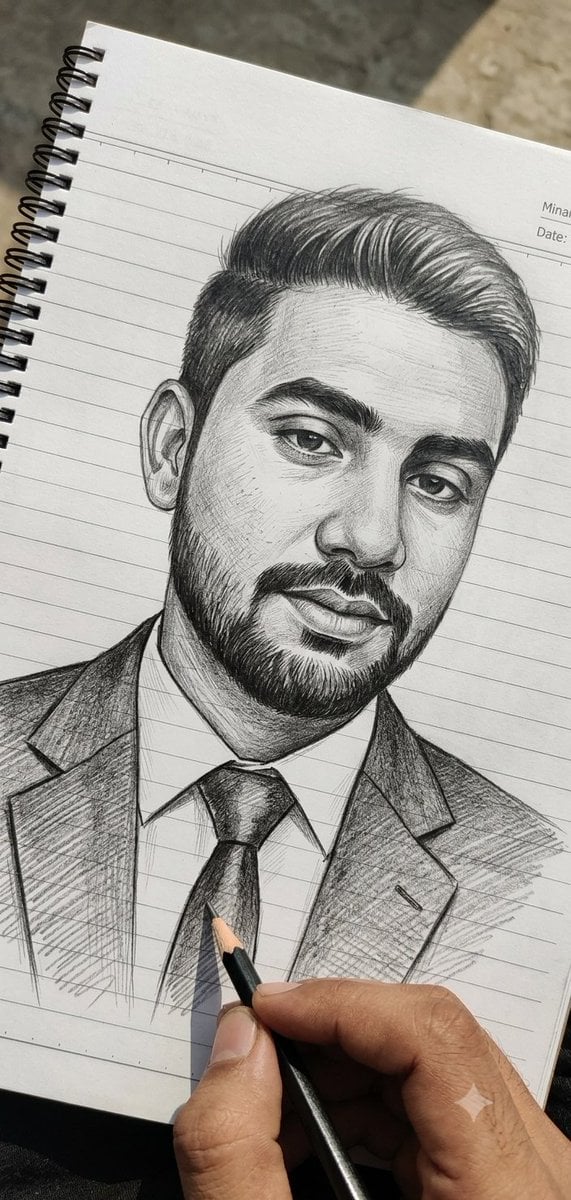
Hand-Drawn Pencil Sketch Portrait
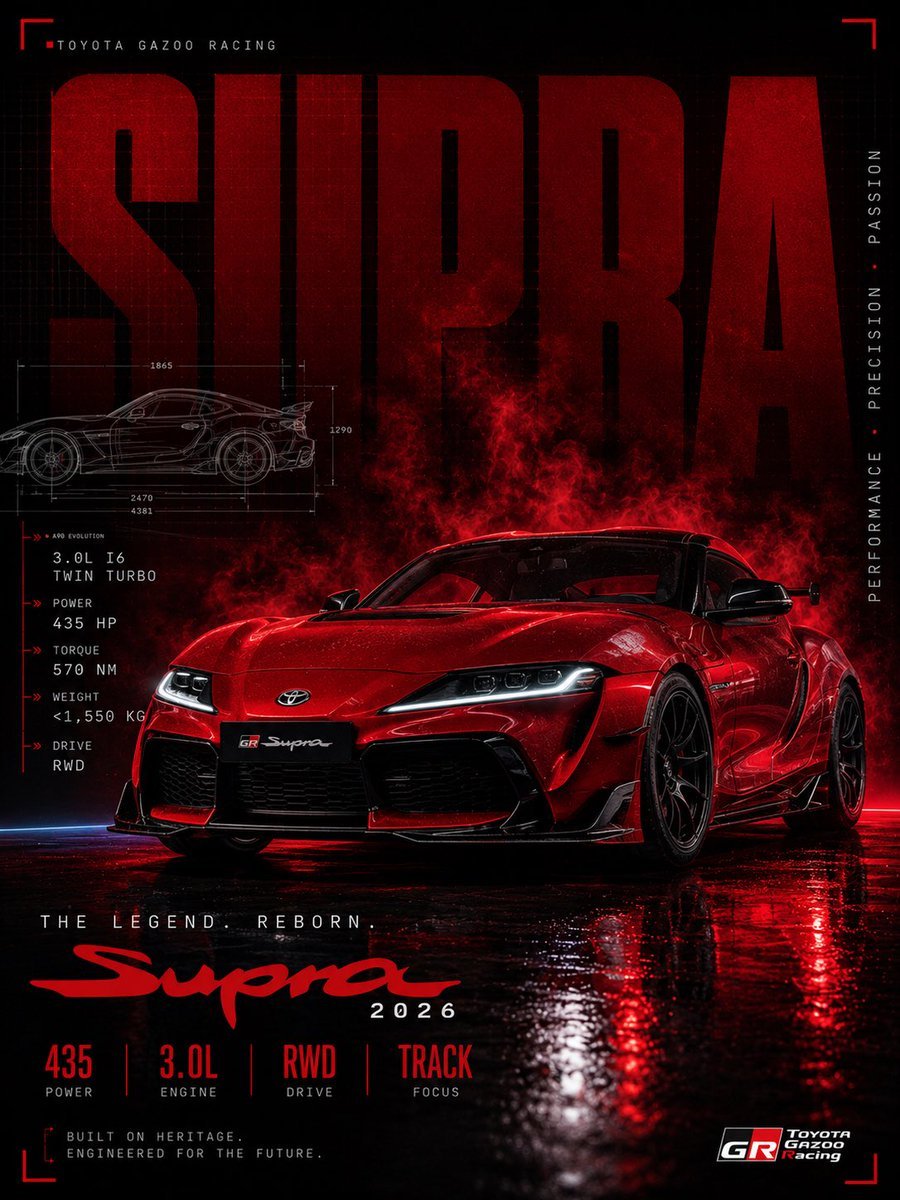
Red Toyota GR Supra Motorsport Poster
Browse template categories
Wireframe to Corporate Web Banner questions
How do I use the Wireframe to Corporate Web Banner template?
Add your photo if the template asks for one, edit the prompt if you like — the template's model and format are already selected — and press Generate. Your version opens in PicX Studio.
Can I customize the Wireframe to Corporate Web Banner template?
Yes. You can change the subject, setting, lighting, mood, format, and available model controls before creating your image.
Is the Wireframe to Corporate Web Banner template free?
Opening and editing this template is free. Generating uses credits, shown on the Generate button when you are signed in.
Which AI model should I use?
Start with GPT Image 2, which is the model associated with this template. You can compare another compatible model for a different finish.
Looking for something else? Browse all templates.

Your photo, any look
Thousands of ready templates for every top image and video model, from one credit balance.