
Dark AI Viewer with Course Website Preview
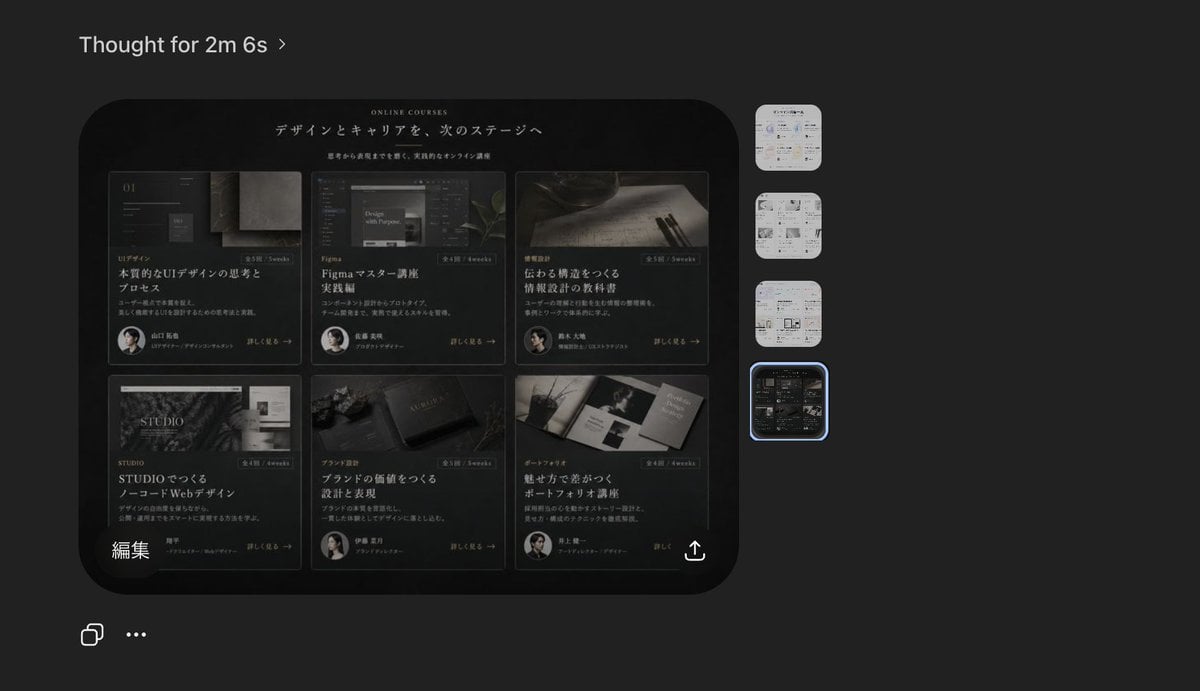
This generates a realistic dark-theme AI image viewer screenshot featuring a premium Japanese online-course landing page concept, useful for product mockups, social posts, and design workflow presentations.
- Prompt included
- Model and format preset
- Free template
The prompt behind this image
Copy the exact prompt behind Dark AI Viewer with Course Website Preview, or open it in the studio and make it yours.
A dark-mode desktop screenshot of an AI image viewer interface showing a generated website design preview. The overall canvas is charcoal gray with a minimal modern app UI. At the top left, place the heading “Thought for 2m 6s” in small white sans-serif text with a subtle chevron. Center-left, show one large rounded-rectangle preview image with a glossy black luxury editorial web landing page for online courses in Japanese. Inside that preview, the website hero area has a black background, elegant serif and sans-serif typography, and the small English heading “ONLINE COURSES” above a large Japanese headline that reads “デザインとキャリアを、次のステージへ”. Beneath it is a smaller Japanese subheading. The main content area of the website contains exactly 6 course cards arranged in a 3-column by 2-row grid. Each card is dark, cinematic, and premium, with a moody photo, category label, Japanese title, short description, a small circular instructor portrait, and a “詳しく見る →” style link. Card 1 shows UI design imagery and the large title “本質的なUIデザインの思考とプロセス”. Card 2 shows a Figma-related screen image and the title “Figmaマスター講座 実践編”. Card 3 shows writing tools on paper and the title “伝わる構造をつくる 情報設計の技術”. Card 4 shows a STUDIO-themed visual and the title “STUDIOでつくる ノーコードWebデザイン”. Card 5 shows a branding or book-like object and the title “ブランドの価値をつくる 設計と表現”. Card 6 shows a portfolio booklet spread and the title “魅せ方で差がつく ポートフォリオ講座”. Add subtle gold-gray highlights, thin borders, soft reflections, and a refined high-end Japanese design aesthetic. At the lower left inside the preview image, include the white Japanese label “編集”. At the lower right inside the preview image, add a small white share/export icon. On the far right side of the app interface, place exactly 4 vertically stacked rounded-square thumbnails representing alternate generated images; the top 3 thumbnails are pale light-theme page designs, and the 4th thumbnail matches the dark course-grid design. Highlight the 4th thumbnail with a glowing blue selection outline. At the bottom left of the overall screenshot, add exactly 2 small white interface icons: a copy icon and a horizontal three-dots menu. The composition should feel like a real product screenshot from a creative AI tool, with crisp UI spacing, subtle shadows, and accurate screen-capture realism.
How to use Dark AI Viewer with Course Website Preview in 3 steps
- 1Upload ImagePNG, JPG or paste
Add your photo
Upload the photo the template builds on. The prompt, model and format are already set.
- 2…a portrait of your subject in softgolden-hour light, 85mm…
Personalize
Edit the subject and creative details for your destination.
- 3Generate
Generate
Press Generate — your image is created in PicX Studio, so you can compare it with the original and refine one variable at a time.
More like this
Templates with the same subject, style or setup. Open one to see its prompt.

Selective Color Monochrome Football Poster
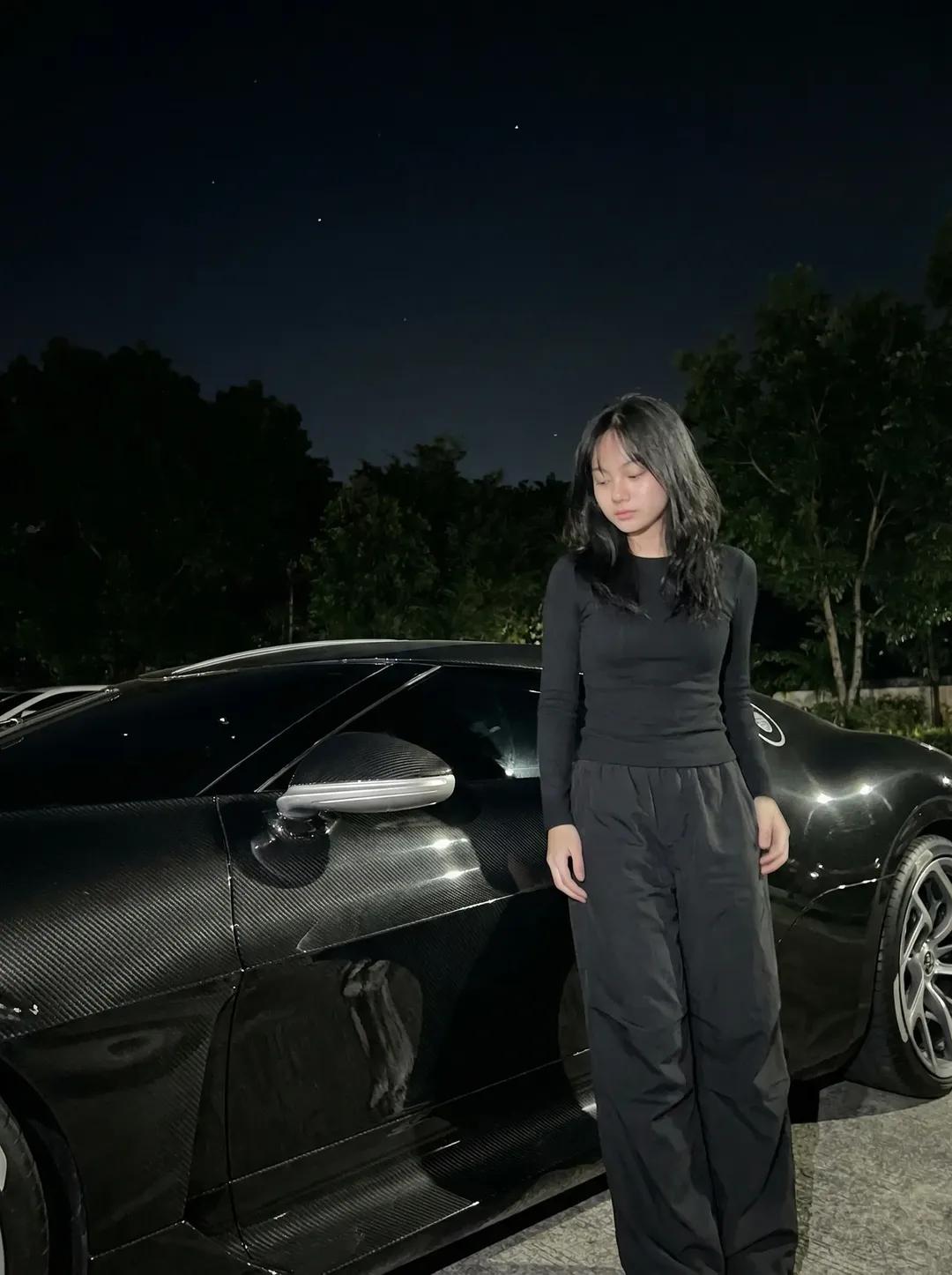
Night Sports Car Portrait — Cinematic Moody
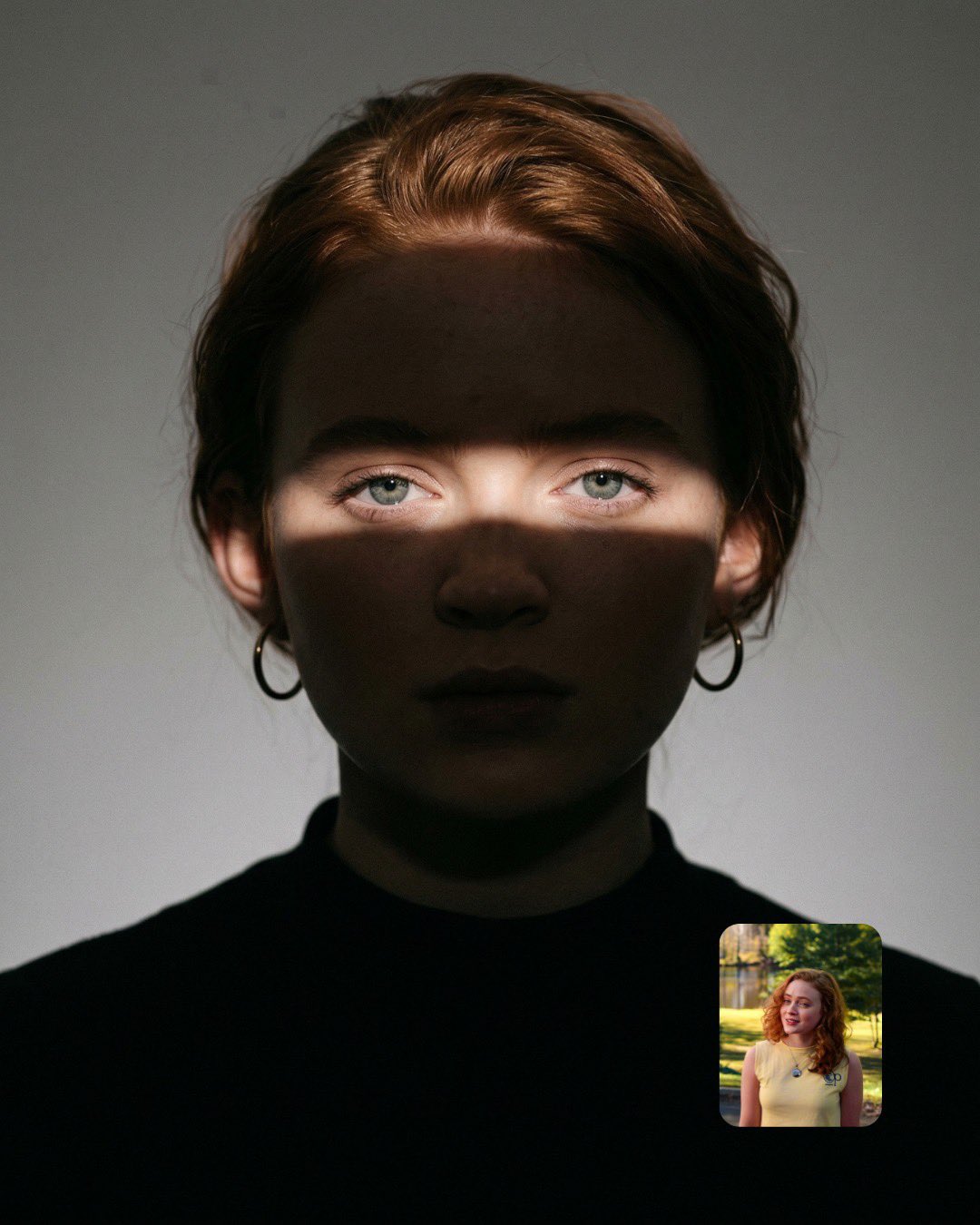
Cinematic Eye Light Portraits — 3 Nano Banana Prompts
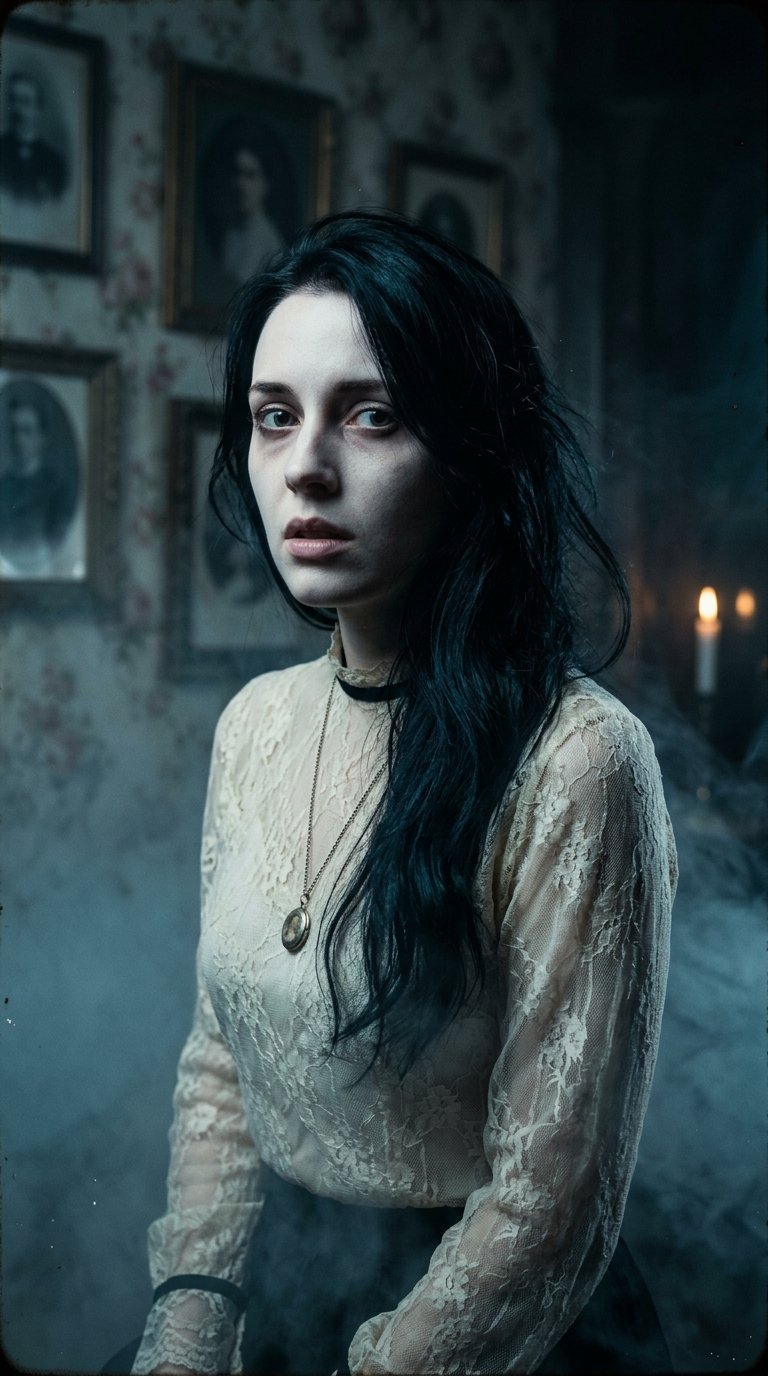
Horror Cinematic Portrait

Glossy 3D Website Category Icons

Web Design Course Promotional Banner
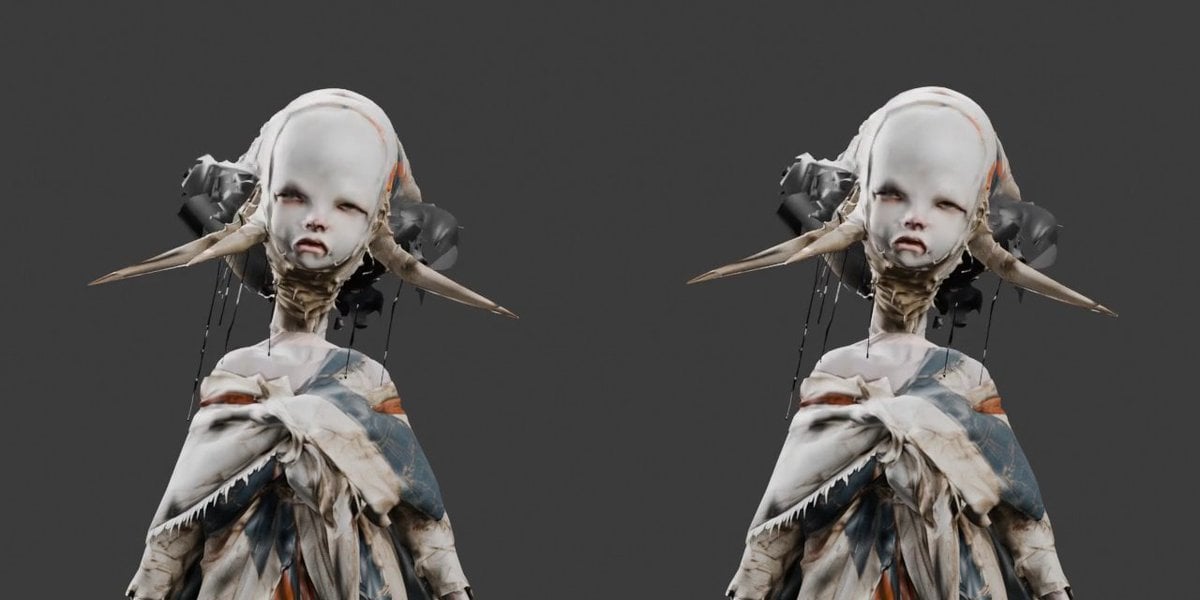
Side-by-Side 3D Character Bust Preview
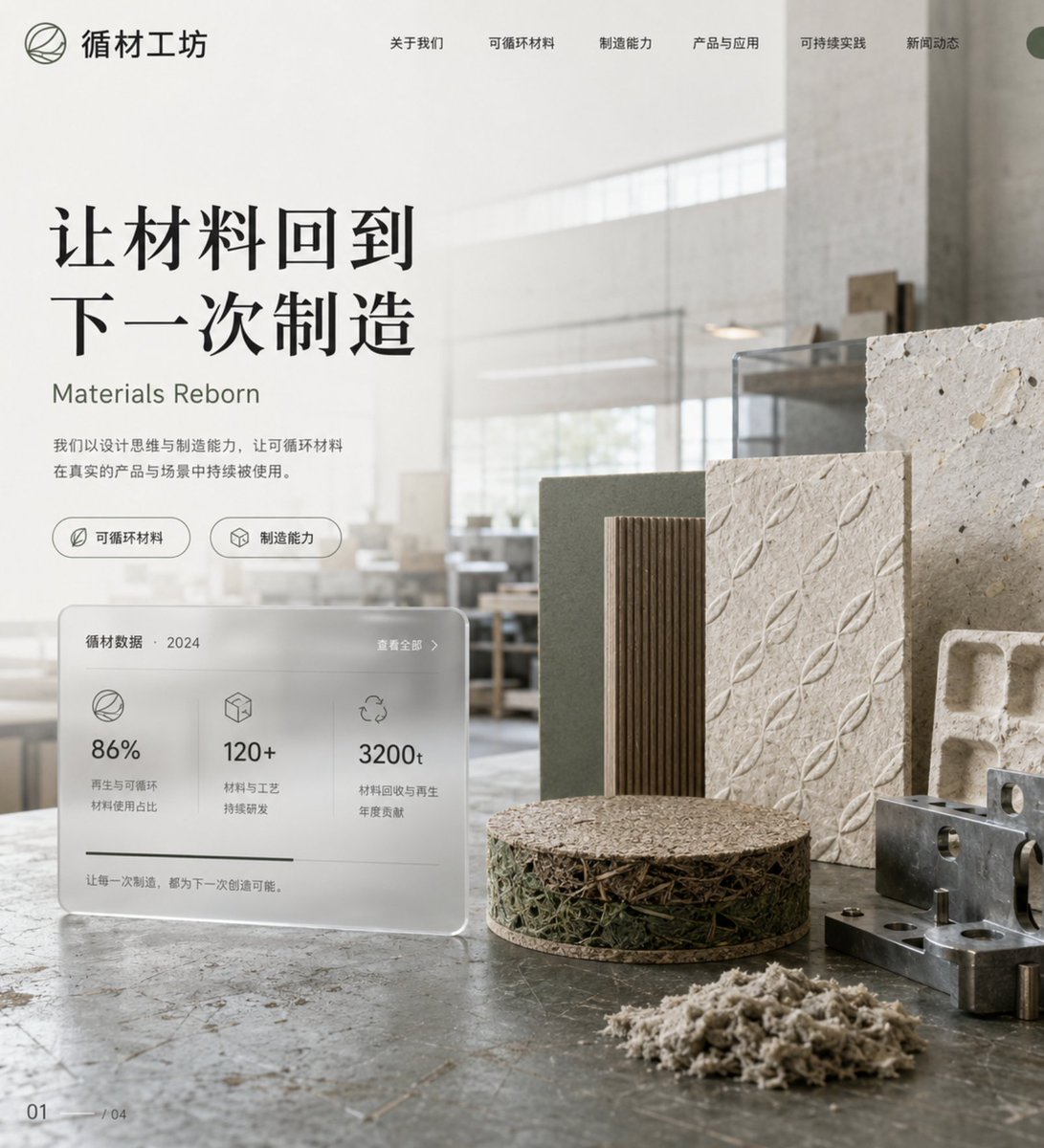
Eco-Material Workshop Website Hero

Multiple dark purple berries erupting from inside the can
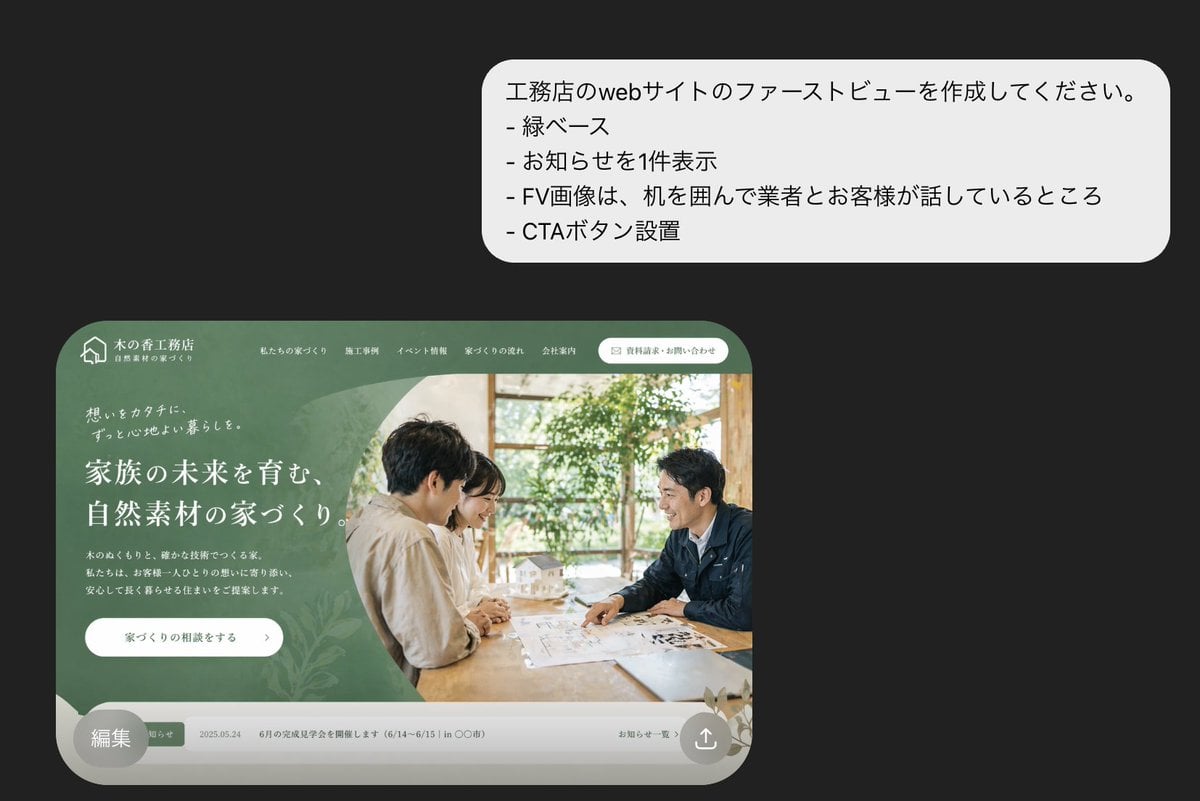
Japanese Builder Website Hero Mockup

Premium Psychology Website AI Banner
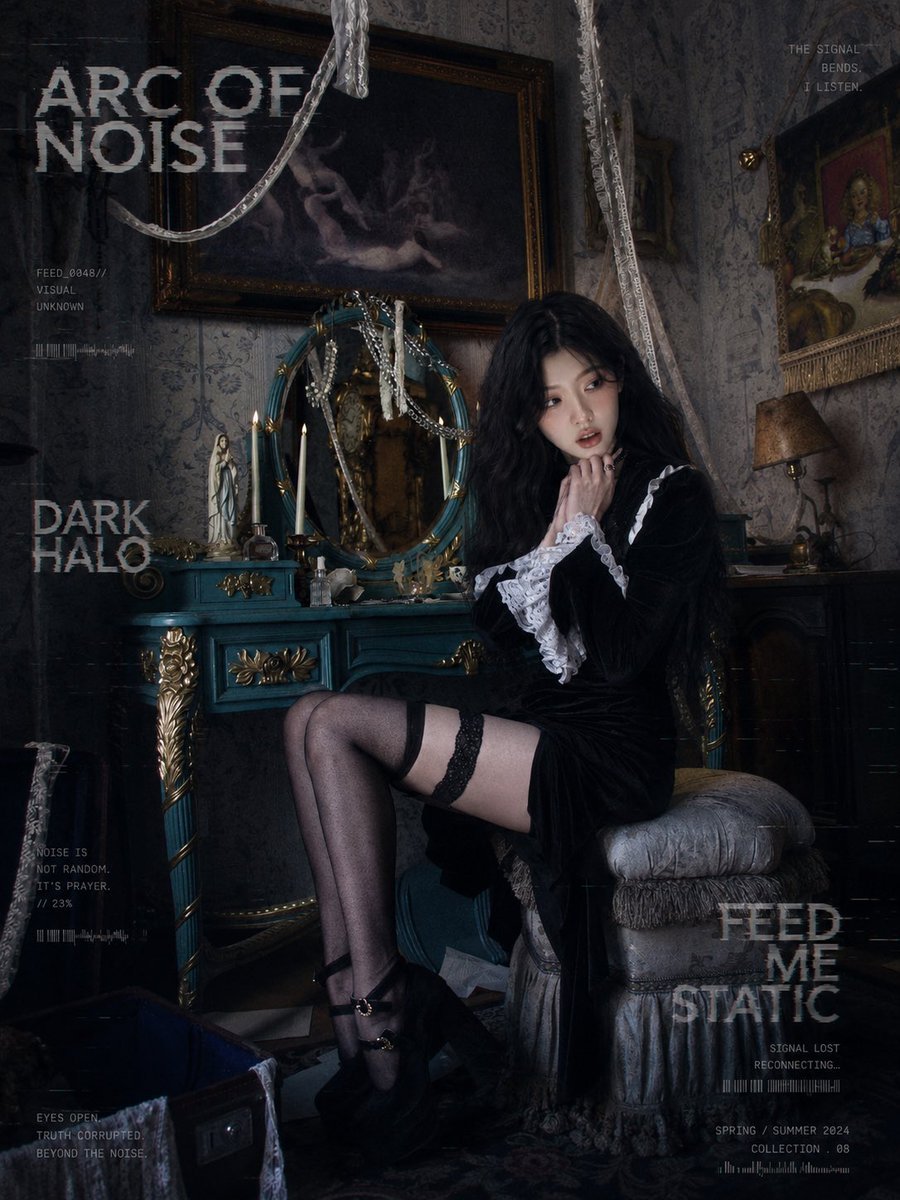
Dark Gothic Lolita Static Portrait
Make it yours
Dark AI Viewer with Course Website Preview works as-is. These are the safest ways to change it without losing the look.
Change one field
Copy a single group, rewrite it, and generate again so you can see what that field is doing.
Keep the frame, change the subject
Hold the composition and light of Dark AI Viewer with Course Website Preview, then swap wardrobe, props or the person for a new take.
| If the result… | Why | Fix |
|---|---|---|
| The result drifts from the preview | Too many fields changed at once. | Reuse Dark AI Viewer with Course Website Preview as-is first, then change one group — subject, light, or setting. |
| The model over-stylizes the scene | The prose prompt leaves finish and camera underspecified. | Add one camera or lighting sentence and stay on GPT Image 2. |
More GPT Image 2 templates
Other prompts made for GPT Image 2.

Six VTuber Japanese Logo Sheet

Realistic Portrait of Woman and Deer

The Vista Modular Condo Poster

AI Model Routing Comparison Infographic

2.5D Anime Art Board

Isometric Productivity Desk Scene

New York Double Exposure Poster

Four-Panel AI Landscape Comparison

Japanese Tatami Lifestyle Magazine Cover

NESCAFÉ Coffee Map Poster
More image prompts
Fresh picks from across the catalog.
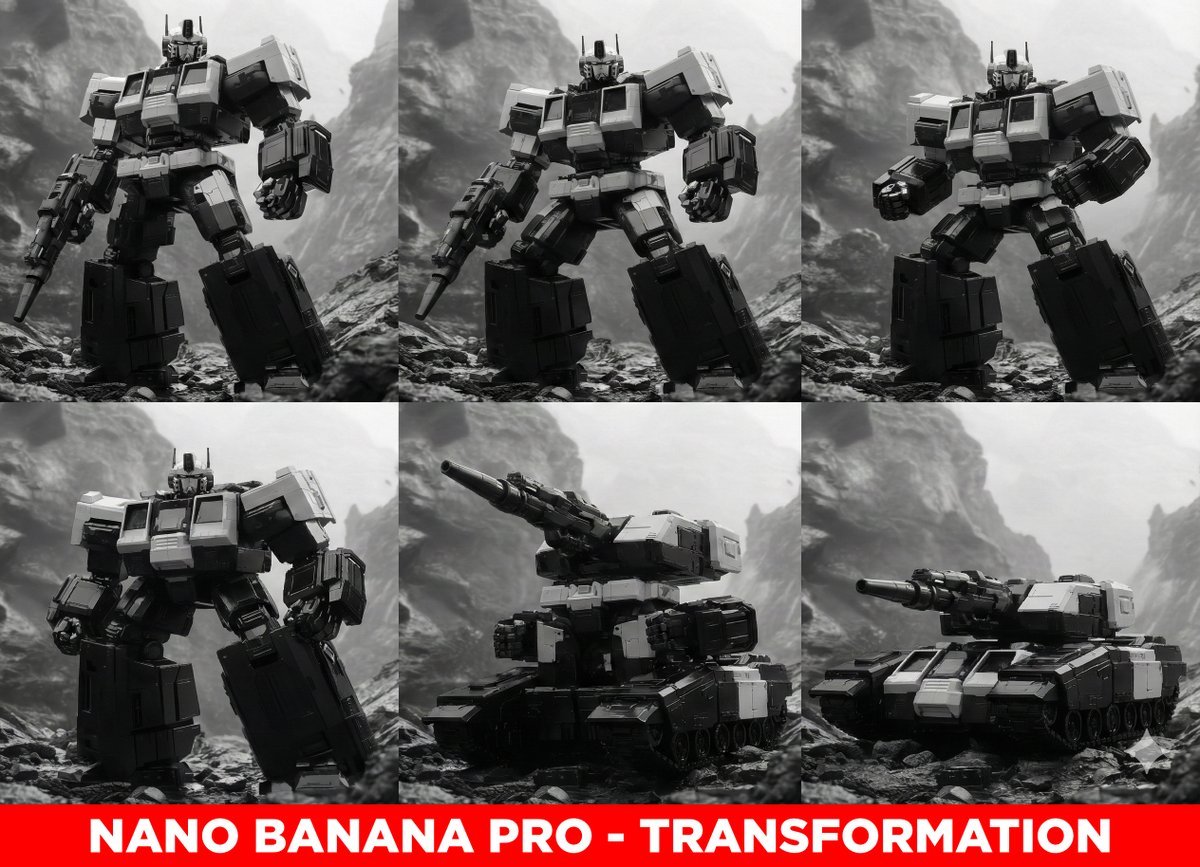
Midjourney Prompt for Transformers

Surreal High-Fashion Portrait with Liquid Gold and Classical Architecture

Futuristic City Singularity
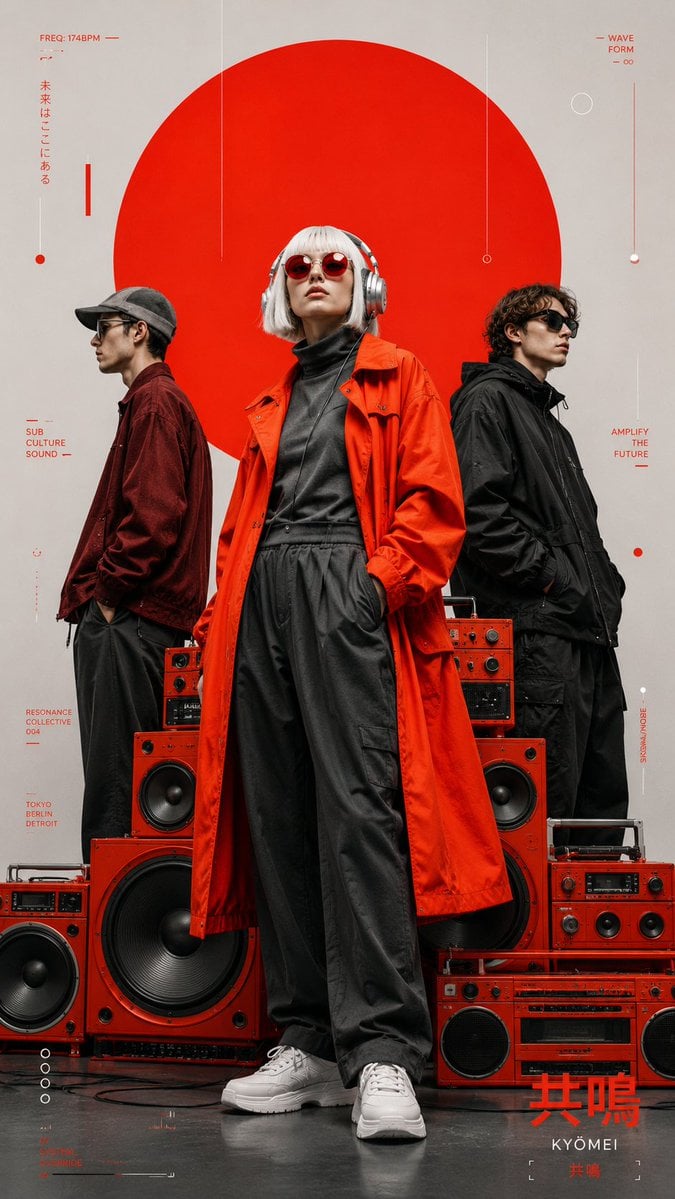
Avant-Garde Electronic Music Poster
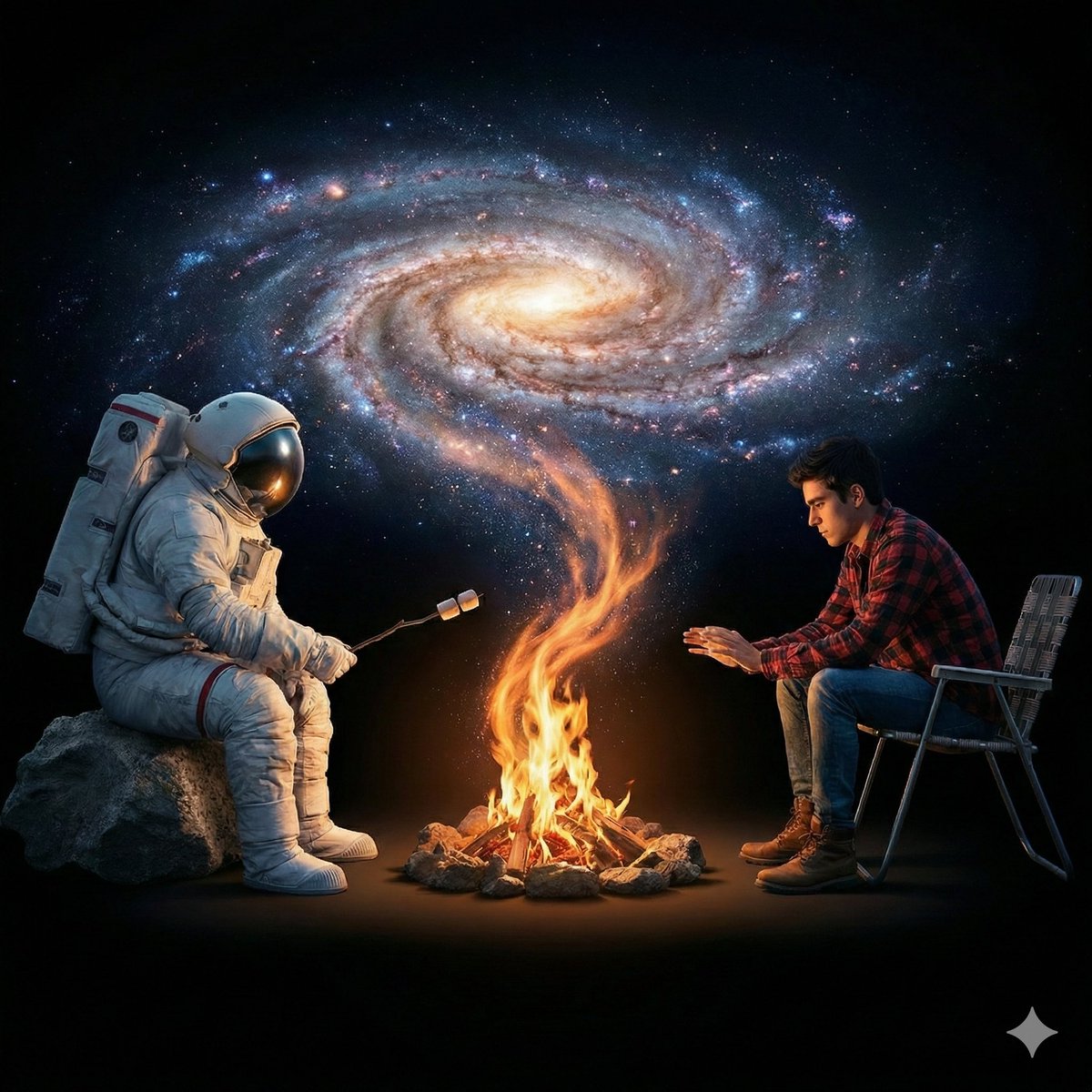
Surreal Cinematic Campfire in Cosmic Void

Hyper-Realistic Mirror Selfie Prompt
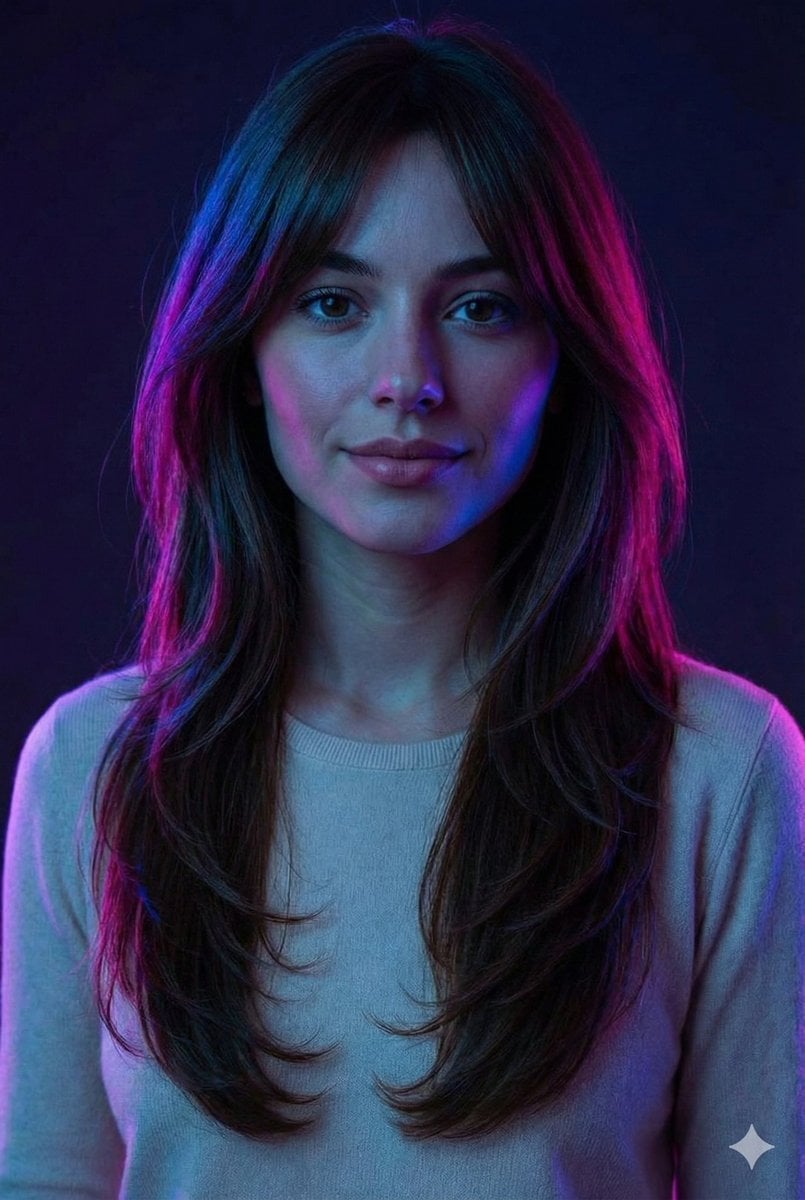
Neon Accent Lighting Portrait Prompt (Image Reference)

Thought-Leader Aesthetic Headshot Prompt (Image-to-Image)

Miniature Diorama in a Glass Bottle
Constructivist AI Artist Editorial Poster
Browse template categories
Dark AI Viewer with Course Website Preview questions
How do I use the Dark AI Viewer with Course Website Preview template?
Add your photo if the template asks for one, edit the prompt if you like — the template's model and format are already selected — and press Generate. Your version opens in PicX Studio.
Can I customize the Dark AI Viewer with Course Website Preview template?
Yes. You can change the subject, setting, lighting, mood, format, and available model controls before creating your image.
Is the Dark AI Viewer with Course Website Preview template free?
Opening and editing this template is free. Generating uses credits, shown on the Generate button when you are signed in.
Which AI model should I use?
Start with GPT Image 2, which is the model associated with this template. You can compare another compatible model for a different finish.
Looking for something else? Browse all templates.

Your photo, any look
Thousands of ready templates for every top image and video model, from one credit balance.