
Glossy 3D Website Category Icons
Generates a cute pastel 3D icon set for website category headers, landing pages, or app navigation assets.
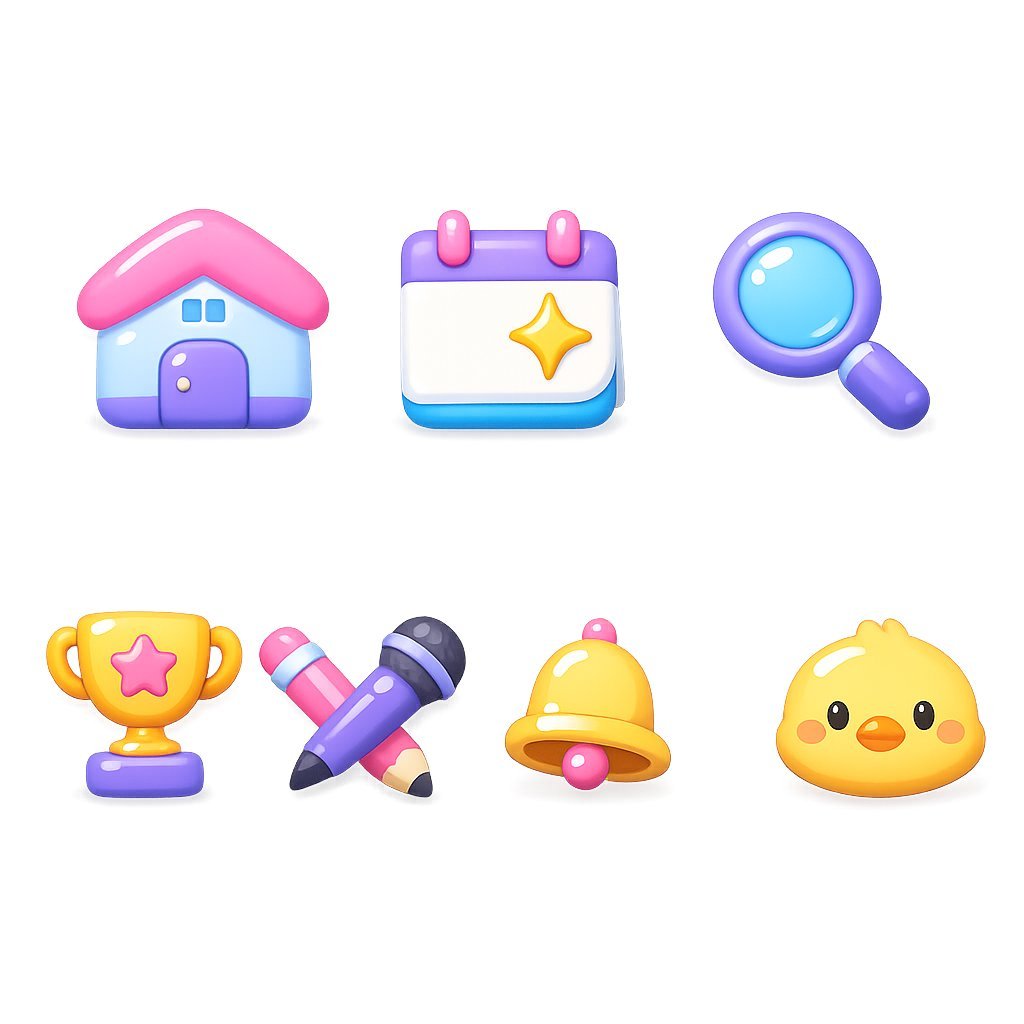
- Prompt included
- Model and format preset
- Free template
The prompt behind this image
Copy the exact prompt behind Glossy 3D Website Category Icons, or open it in the studio and make it yours.
Create a clean asset-style icon set on a pure white background, arranged in a balanced grid with exactly 7 glossy 3D clay icons. Use a cute rounded toy-like style with soft shadows, high saturation pastel colors, smooth gradients, specular highlights, and no text. Canvas is square 1:1, about 768×768, with generous whitespace and each icon isolated as if for a website category header. The 7 icons are: 1) a rounded house with a pink roof, pale blue walls, purple base and door, two small blue windows, and glossy white highlights; 2) a calendar card with a purple top bar, two pink binder rings, white page area, cyan bottom edge, and a yellow sparkle star in the center; 3) a magnifying glass with a purple handle and rim, cyan blue lens, and bright reflections; 4) a gold trophy with side handles, purple base, and a pink star badge on the cup; 5) crossed writing tools, one purple microphone-like pen with dark tip and black cap details, crossed with a pink pencil with pale wood tip; 6) a golden yellow notification bell with a pink knob and clapper, rounded highlights, viewed slightly from the front; 7) a cute yellow chick face icon with small black eyes, orange beak, blush cheeks, and a tiny tuft on top. Keep all icons evenly spaced in two rows: top row has 3 icons, bottom row has 4 icons. Use {argument name="icon style" default="glossy 3D clay app icons"}, {argument name="background color" default="pure white"}, {argument name="primary palette" default="pink, purple, cyan, yellow pastel colors"}, {argument name="icon count" default="7"}, and {argument name="layout" default="two rows, 3 icons on top and 4 icons on bottom"}. Avoid outlines, labels, UI frames, watermarks, and extra objects.
How to use Glossy 3D Website Category Icons in 3 steps
- 1Upload ImagePNG, JPG or paste
Add your photo
Upload the photo the template builds on. The prompt, model and format are already set.
- 2…a portrait of your subject in softgolden-hour light, 85mm…
Personalize
Edit the subject and creative details for your destination.
- 3Generate
Generate
Press Generate — your image is created in PicX Studio, so you can compare it with the original and refine one variable at a time.
More like this
Templates with the same subject, style or setup. Open one to see its prompt.
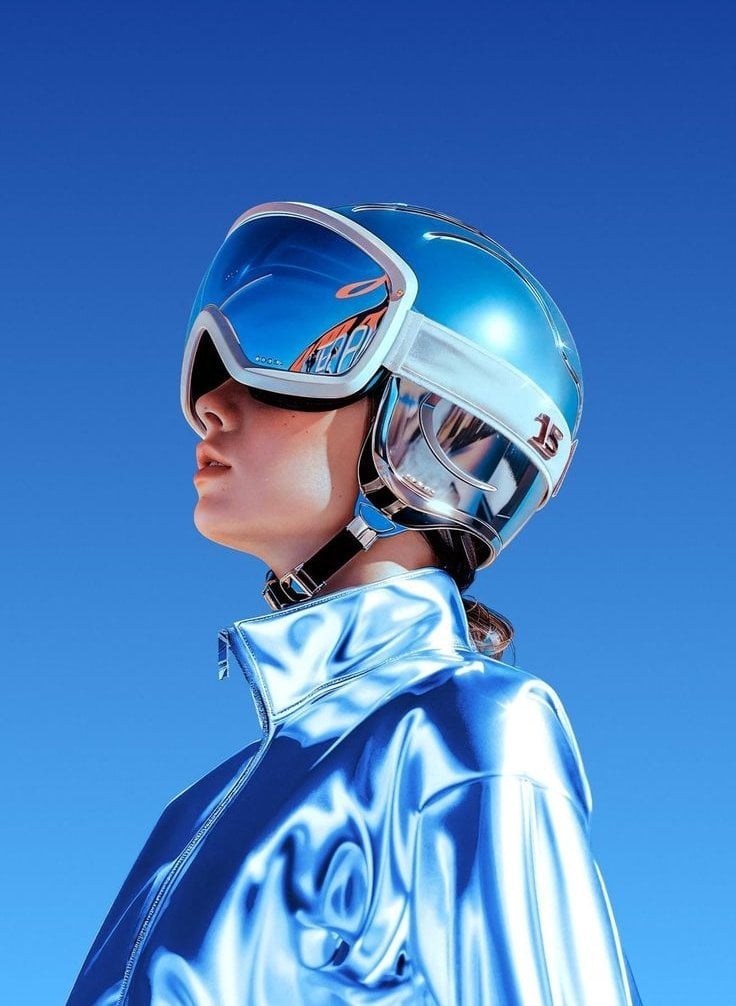
Futuristic Chrome Helmet Fashion Portrait

Glossy Potted Plant Asset
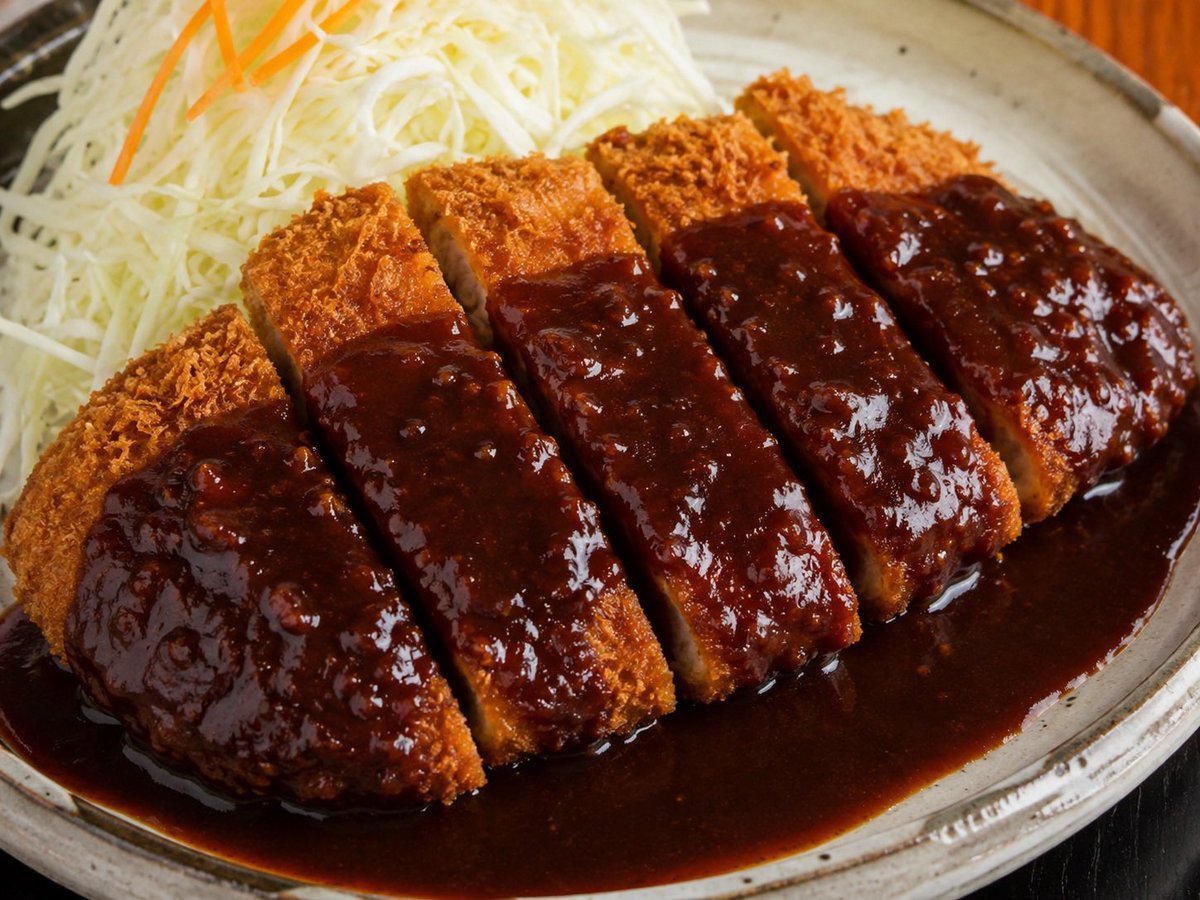
Glossy Tonkatsu Food Photo

Glossy Designer Toy Floating Head
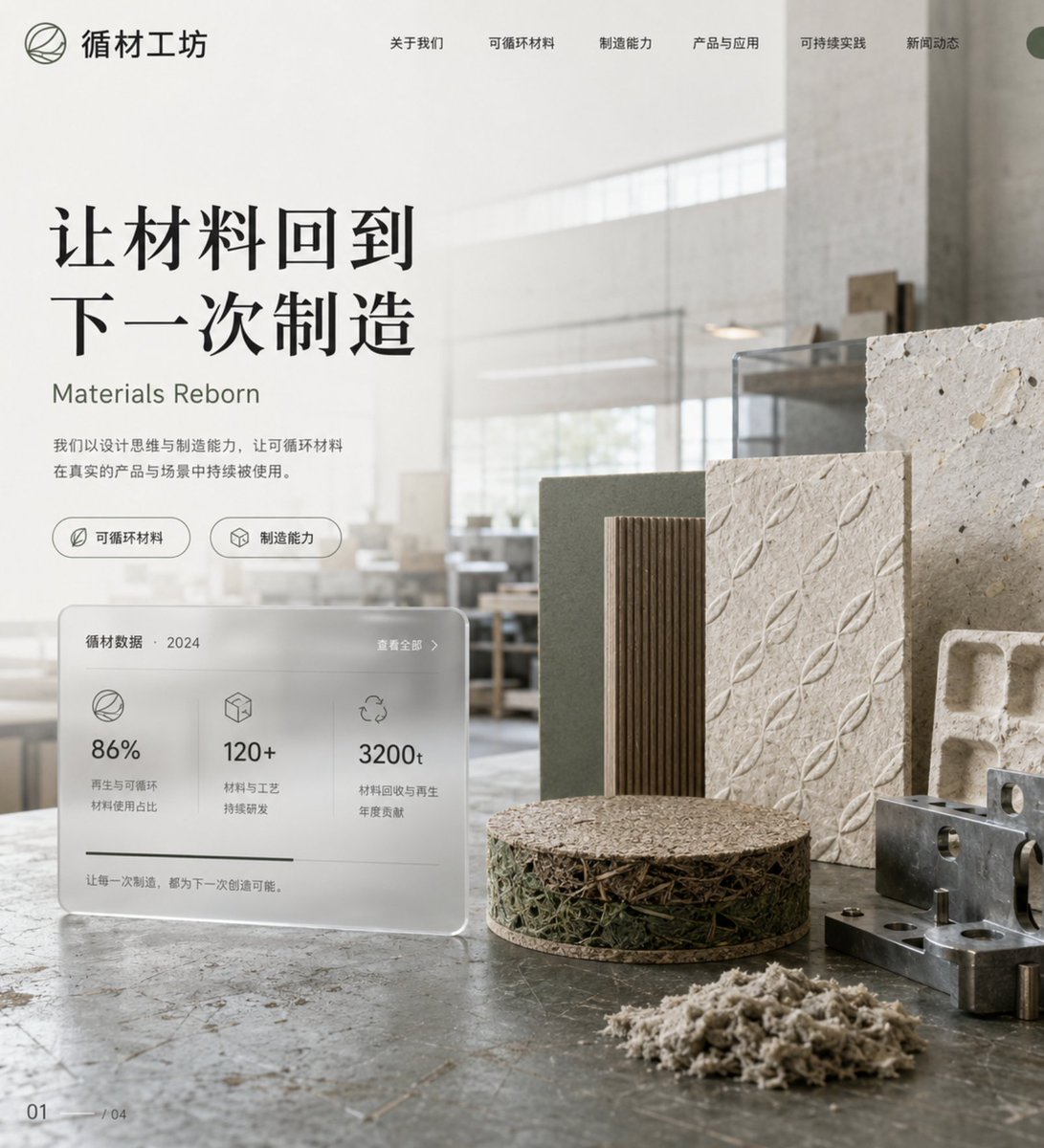
Eco-Material Workshop Website Hero
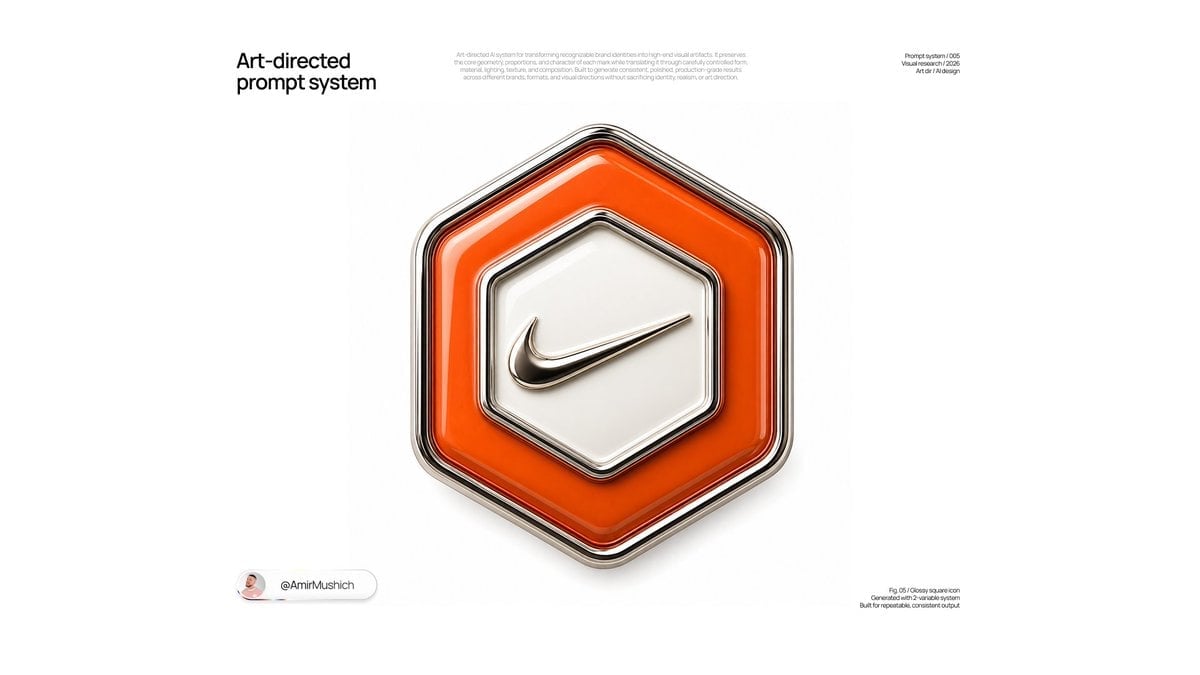
Glossy Brand Achievement Badge

Cute Floating Glossy Space Tabby Cat
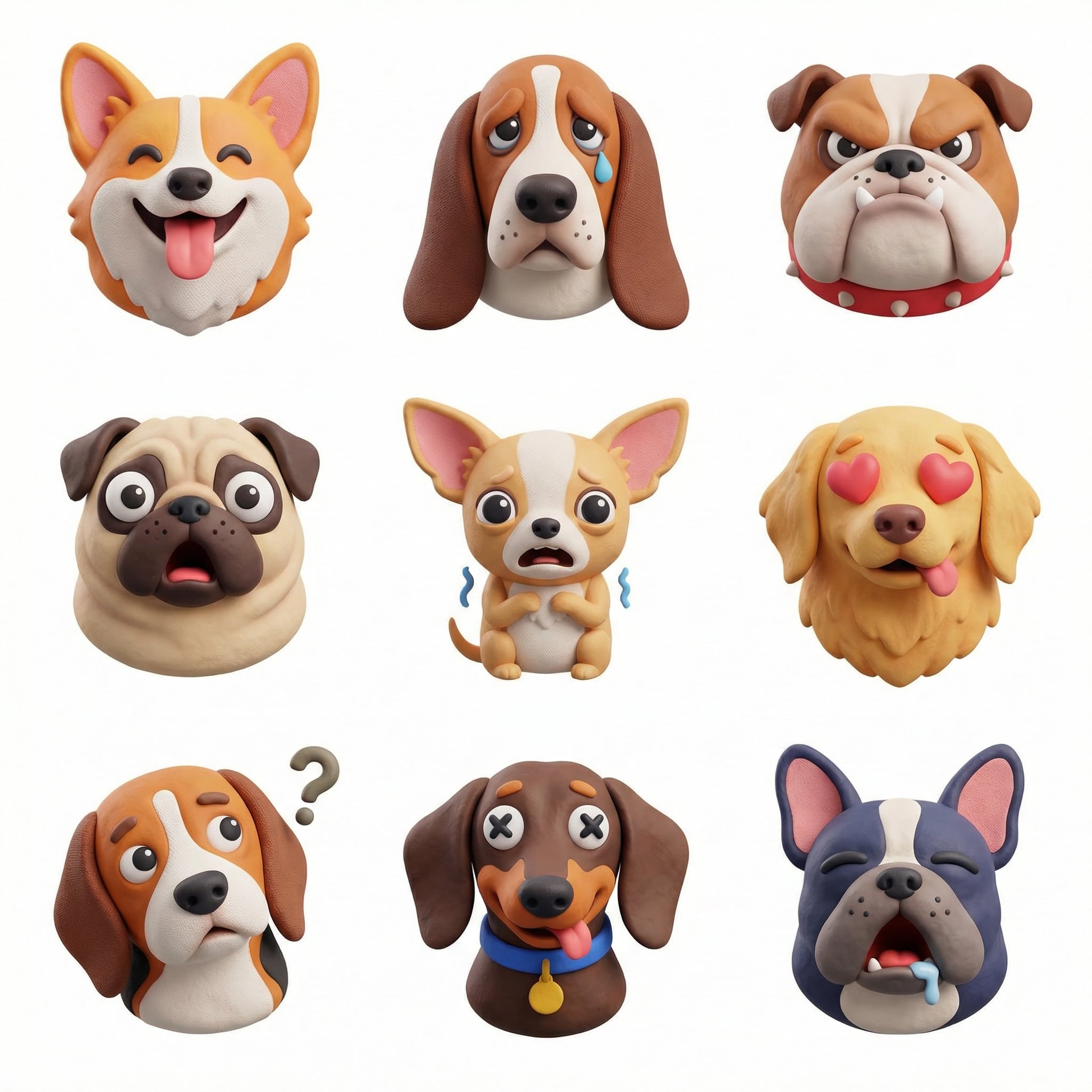
Collection of icons representing, they belong together as a single theme
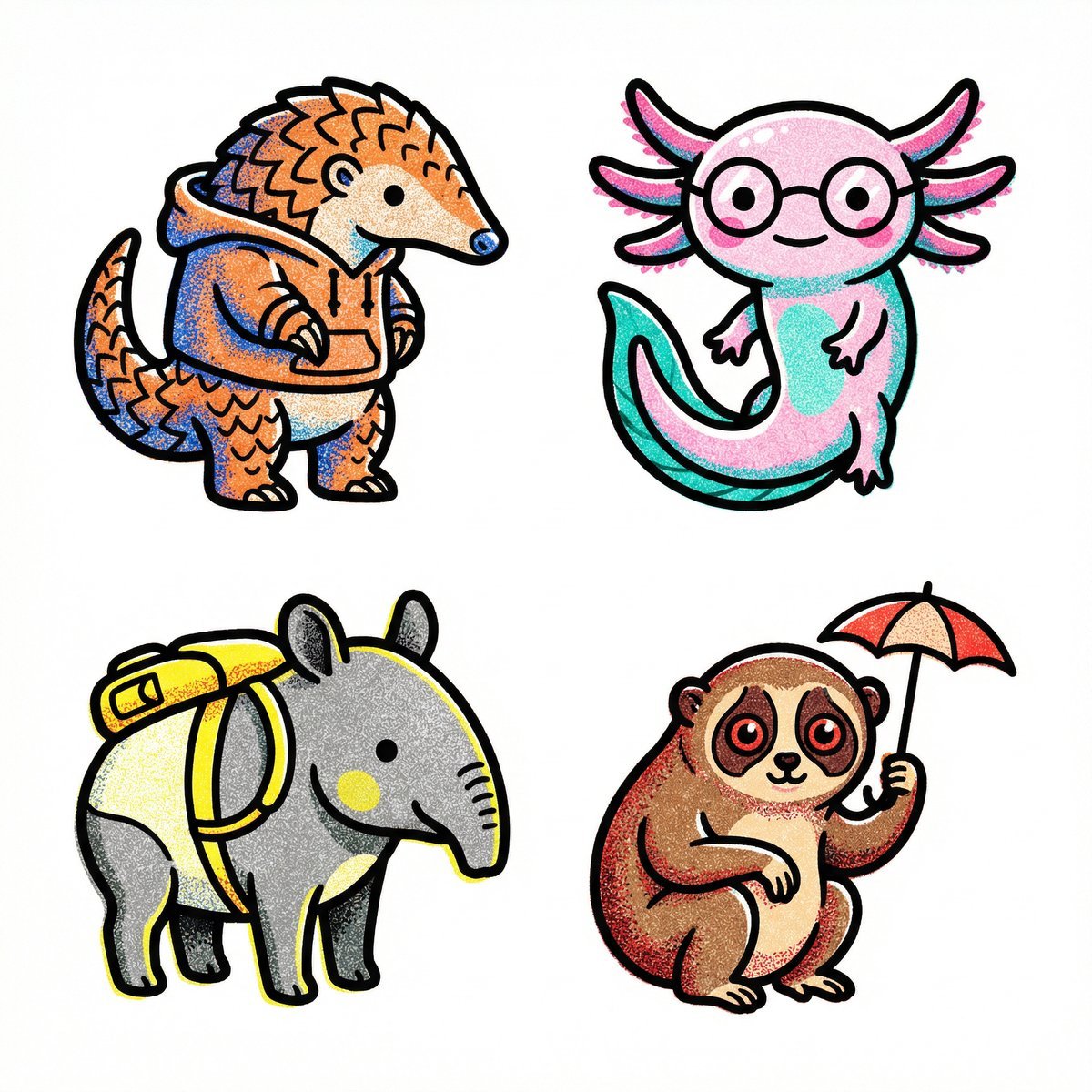
Collection of icons representing, they belong together as a single theme

A small chili plant with glossy green leaves and one tiny white flower
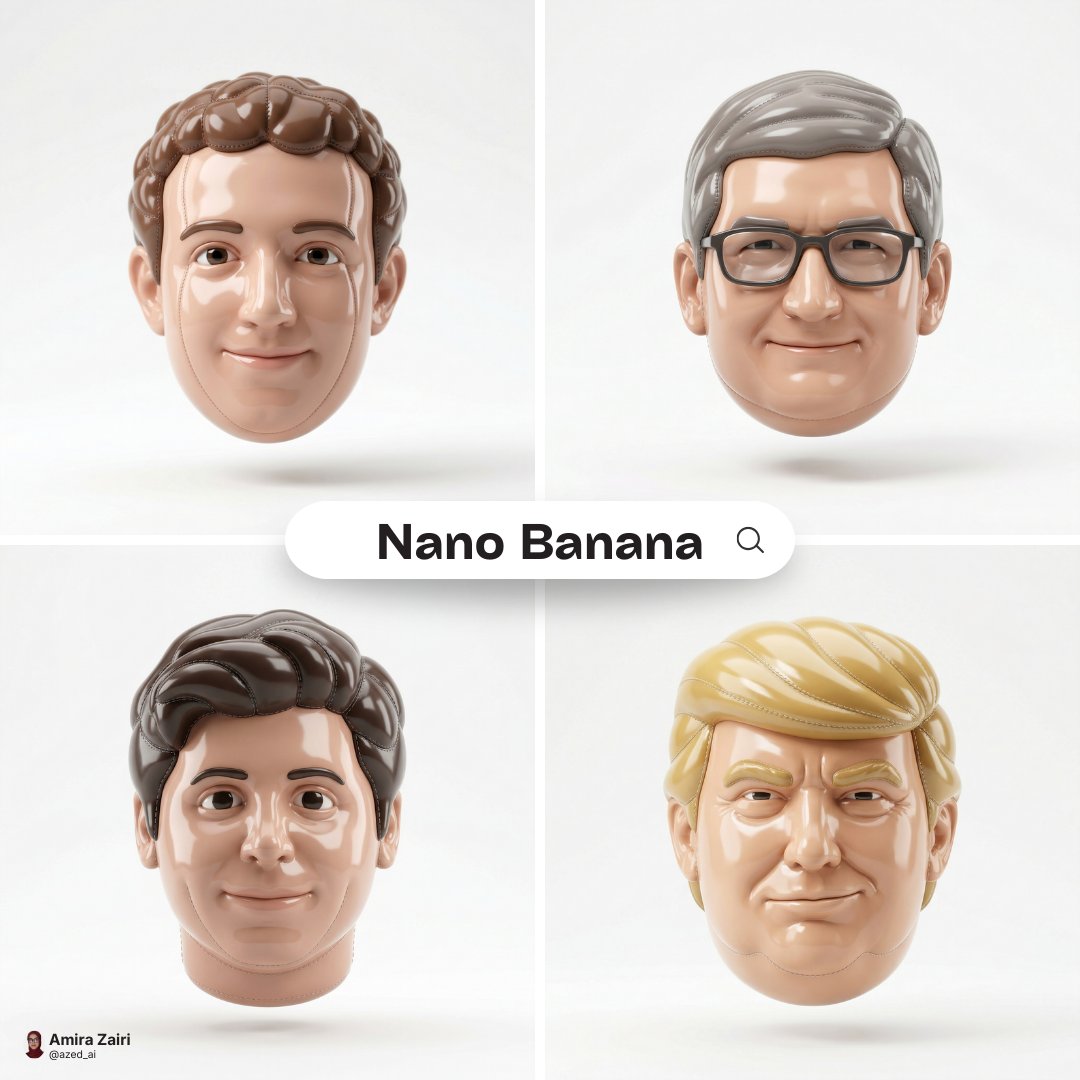
Made of smooth inflated glossy vinyl plastic, ultra-realistic 3D render

Collection of icons representing through objects, symbols, and moods
Make it yours
Glossy 3D Website Category Icons works as-is. These are the safest ways to change it without losing the look.
Change one field
Copy a single group, rewrite it, and generate again so you can see what that field is doing.
Keep the frame, change the subject
Hold the composition and light of Glossy 3D Website Category Icons, then swap wardrobe, props or the person for a new take.
| If the result… | Why | Fix |
|---|---|---|
| The result drifts from the preview | Too many fields changed at once. | Reuse Glossy 3D Website Category Icons as-is first, then change one group — subject, light, or setting. |
| The model over-stylizes the scene | The prose prompt leaves finish and camera underspecified. | Add one camera or lighting sentence and stay on GPT Image 2. |
More GPT Image 2 templates
Other prompts made for GPT Image 2.

Six VTuber Japanese Logo Sheet

Realistic Portrait of Woman and Deer

The Vista Modular Condo Poster

AI Model Routing Comparison Infographic

2.5D Anime Art Board

Isometric Productivity Desk Scene

New York Double Exposure Poster

Four-Panel AI Landscape Comparison

Japanese Tatami Lifestyle Magazine Cover

NESCAFÉ Coffee Map Poster
More image prompts
Fresh picks from across the catalog.

Hyper-Realistic Cinematic Portrait of Elemental Balance (Fire and Water)
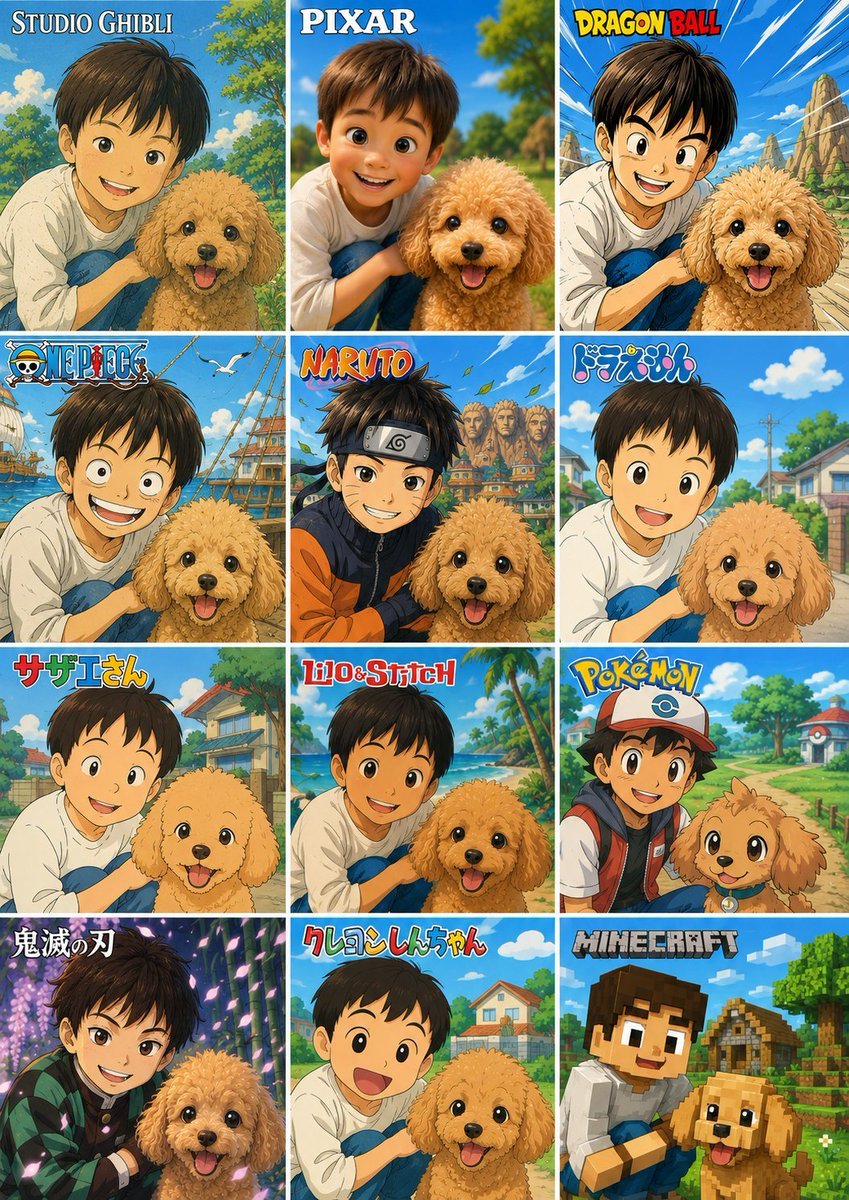
Style Anime Pet Collage
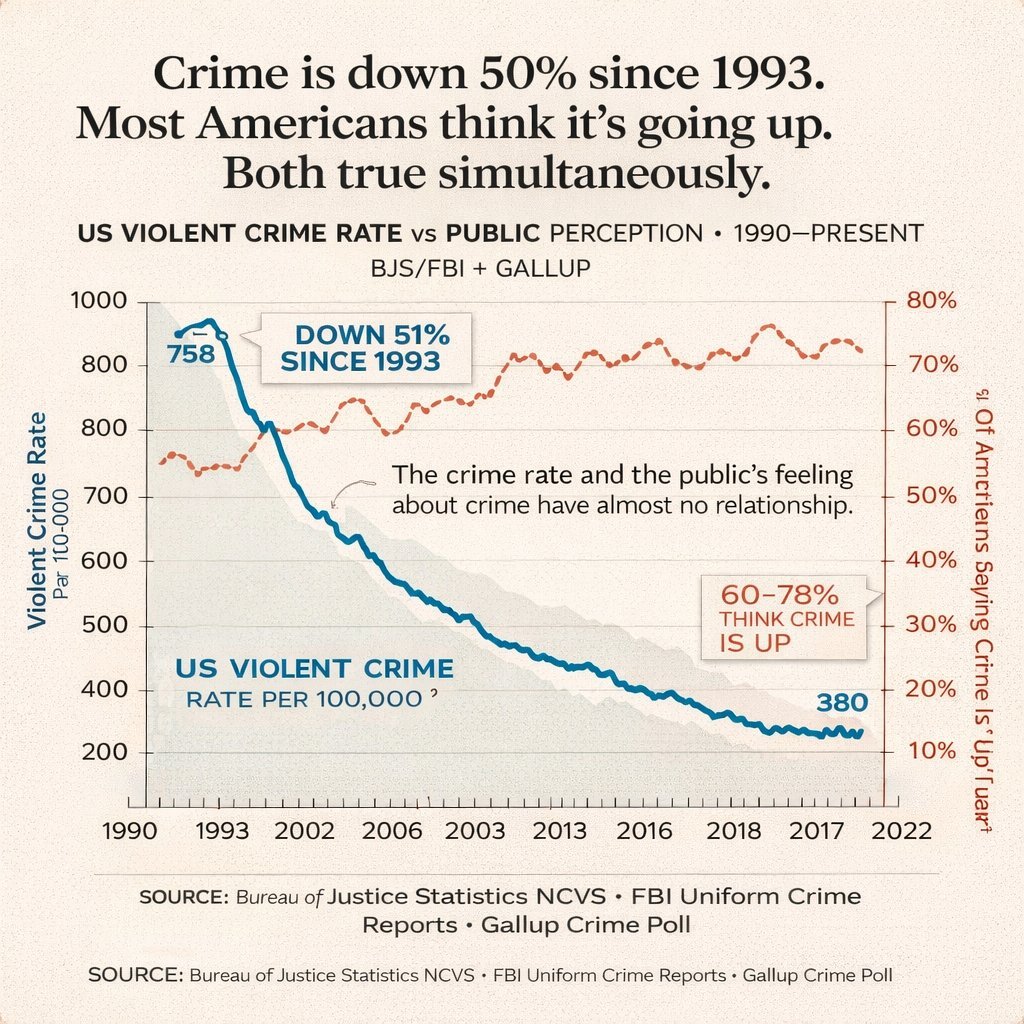
Editorial Dual-Axis Line Chart

Flash Mirror Selfie in Retro Bathroom
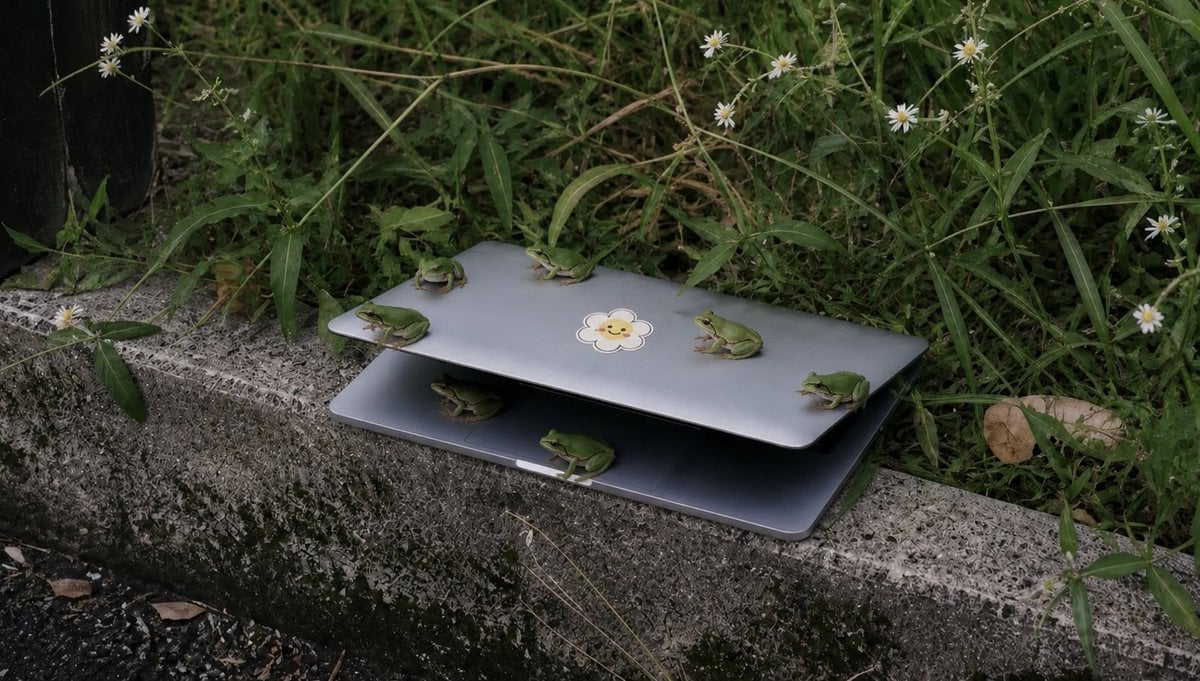
Frogs on a Laptop in Wild Grass

Woman on Oversized Milkshake Cup

Lavender Fantasy Mage Portrait

Ultra-Realistic Streetwear Couple Portrait
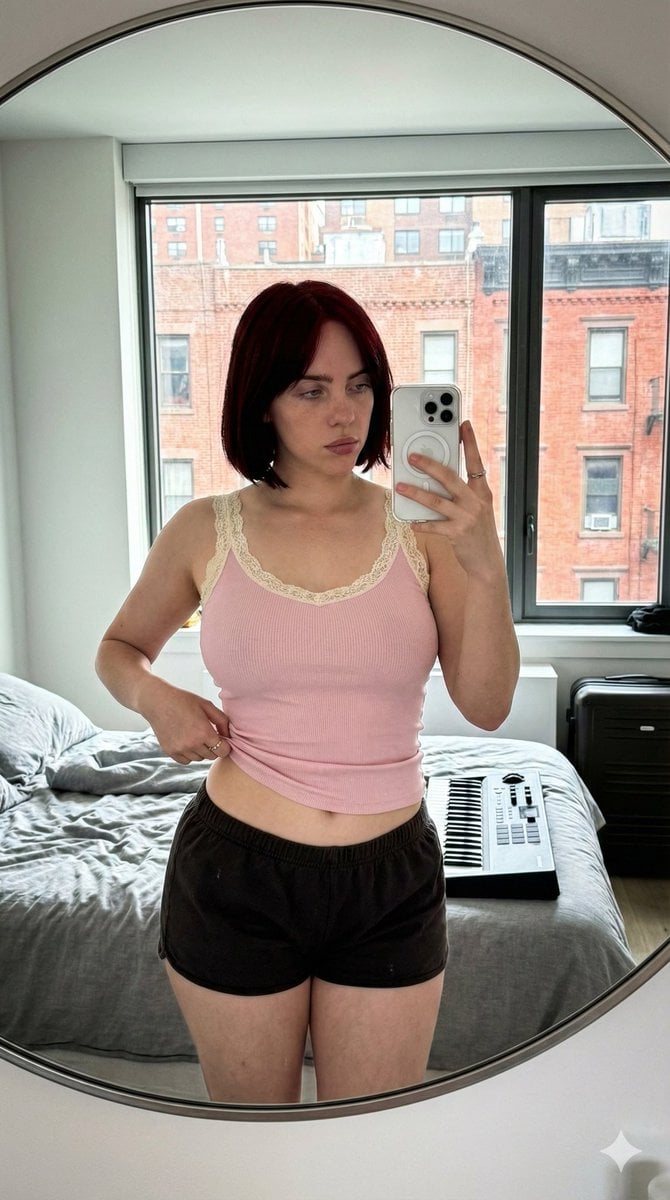
Ultra-Wide Candid Mirror Documentation Portrait Prompt
Cyber-Noir Stylized Portrait
Browse template categories
Glossy 3D Website Category Icons questions
How do I use the Glossy 3D Website Category Icons template?
Add your photo if the template asks for one, edit the prompt if you like — the template's model and format are already selected — and press Generate. Your version opens in PicX Studio.
Can I customize the Glossy 3D Website Category Icons template?
Yes. You can change the subject, setting, lighting, mood, format, and available model controls before creating your image.
Is the Glossy 3D Website Category Icons template free?
Opening and editing this template is free. Generating uses credits, shown on the Generate button when you are signed in.
Which AI model should I use?
Start with GPT Image 2, which is the model associated with this template. You can compare another compatible model for a different finish.
Looking for something else? Browse all templates.

Your photo, any look
Thousands of ready templates for every top image and video model, from one credit balance.