
GPT Image 2 Cooking Prompt Banner
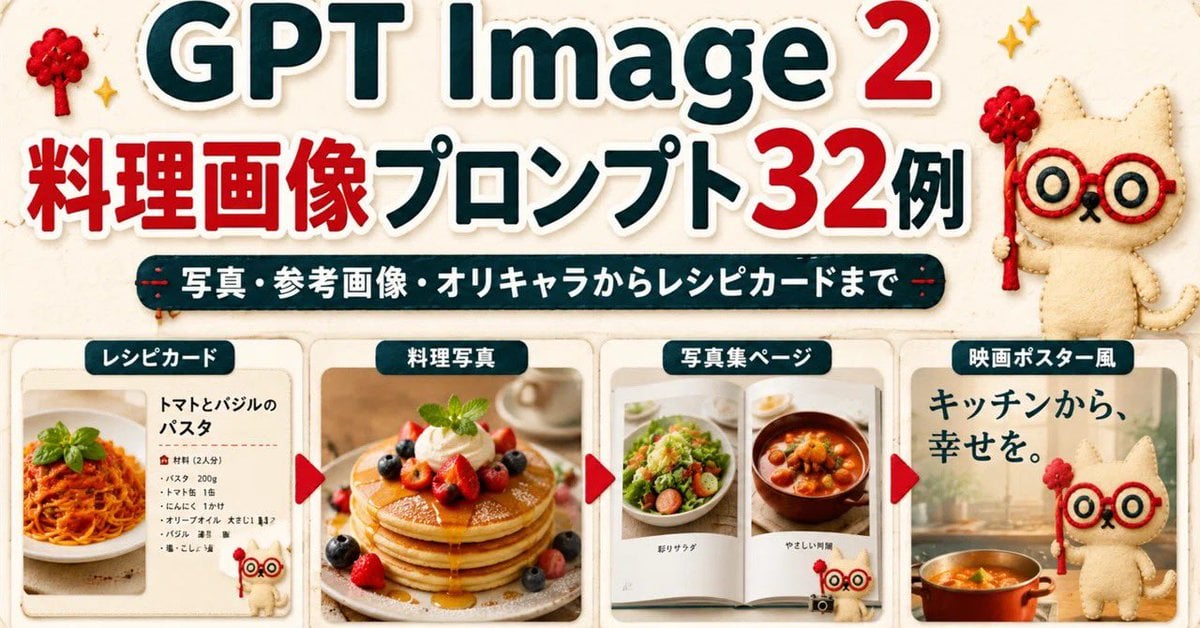
A cute Japanese promotional banner showing four cooking-image prompt examples for recipe cards, food photos, photo books, and movie-poster visuals.
- Prompt included
- Model and format preset
- Free template
The prompt behind this image
Copy the exact prompt behind GPT Image 2 Cooking Prompt Banner, or open it in the studio and make it yours.
Goal: Create a wide Japanese promotional thumbnail/banner for {argument name="headline topic" default="GPT Image 2 cooking image prompts"}, designed like a cute handmade recipe-craft collage. Canvas: Horizontal 16:9-ish social media banner, warm cream paper background with subtle fabric texture, rounded sticker-like shapes, soft shadows, red and dark teal color palette, high readability. Main headline area: At the top, place a huge bold title reading “GPT Image 2” with “GPT Image” in dark teal and the number “2” in bright red, all with thick white sticker outlines and slight drop shadow. Below it, add a large Japanese headline reading “料理画像プロンプト32例”, with “料理画像” and “32” in red and the remaining text in dark teal, also outlined in white. Under the headline, add a dark teal rounded pill banner with white Japanese text: “写真・参考画像・オリキャラからレシピカードまで”. Mascot and decorations: Add exactly 3 appearances of a cute beige stitched cat mascot with red round glasses and a small red wand: one large mascot standing at the upper right, one tiny mascot near the bottom of the first recipe card, and one large mascot on the right movie-poster card. Add exactly 2 small red yarn-tree decorations near the top left and top right, plus small golden sparkle icons around the headline. Bottom layout: Create exactly 4 rounded rectangular showcase cards in a row across the lower half, separated by exactly 3 red triangular arrow markers pointing right between the cards. Each card has a dark teal label tab with white text at the top. Card 1: Label tab “レシピカード”. Show a clean recipe card layout with a photo of tomato basil pasta on the left and Japanese recipe text on the right. The title should read “トマトとバジルのパスタ”, followed by a small ingredient list with bullet-like lines. Include the tiny mascot at the lower right of this card. Card 2: Label tab “料理写真”. Show a warm professional food photograph of stacked pancakes topped with berries, whipped cream, mint, and syrup, centered in the card. Card 3: Label tab “写真集ページ”. Show an open photo book spread with exactly 2 visible food photos: a salad on the left page and a stew or soup bowl on the right page, with small Japanese captions beneath each photo. Card 4: Label tab “映画ポスター風”. Create a cinematic kitchen-poster style card with large Japanese copy “キッチンから、幸せを。” at the top left, a warm kitchen background, a pot of orange soup at the bottom, and the large cat mascot standing on the right. Visual style: Bright, cute, polished Japanese blog-thumbnail design; realistic food photos inside craft-paper frames; sticker outlines, rounded corners, subtle shadows, soft beige background, clean hierarchy. Keep the composition dense but readable, with no extra cards, no extra arrows, and no watermark.
How to use GPT Image 2 Cooking Prompt Banner in 3 steps
- 1Upload ImagePNG, JPG or paste
Add your photo
Upload the photo the template builds on. The prompt, model and format are already set.
- 2…a portrait of your subject in softgolden-hour light, 85mm…
Personalize
Edit the subject and creative details for your destination.
- 3Generate
Generate
Press Generate — your image is created in PicX Studio, so you can compare it with the original and refine one variable at a time.
More like this
Templates with the same subject, style or setup. Open one to see its prompt.
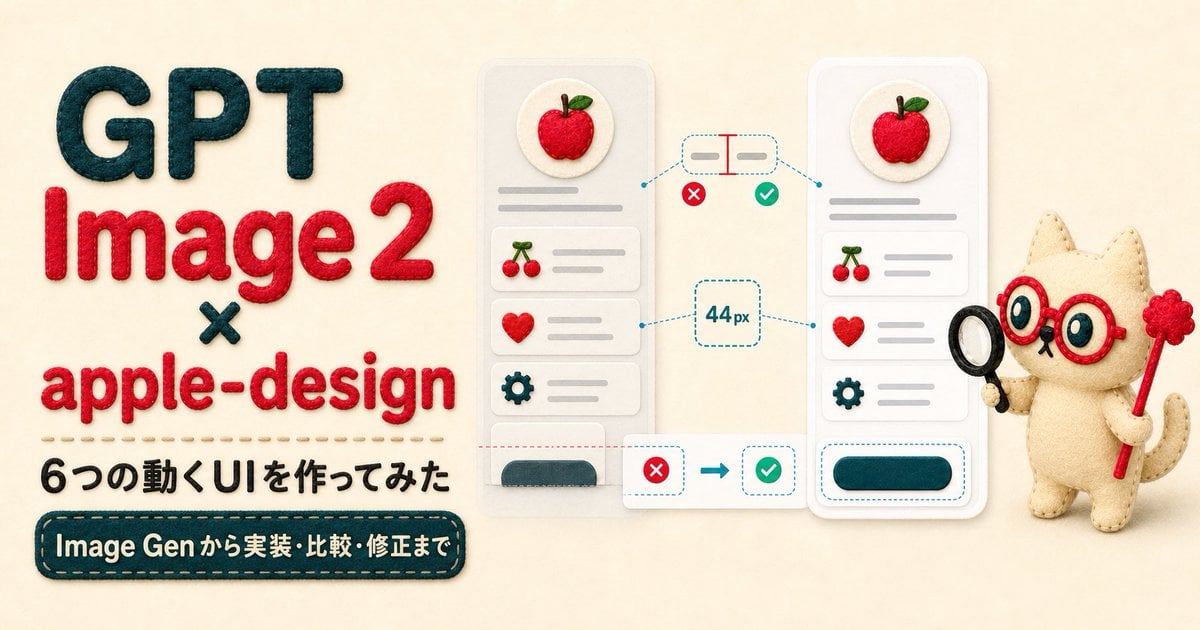
Felt GPT Image 2 Apple Design Banner

ChatGPT Bonus Banner Screenshot

GPT-Image2 E-Commerce Course Banner
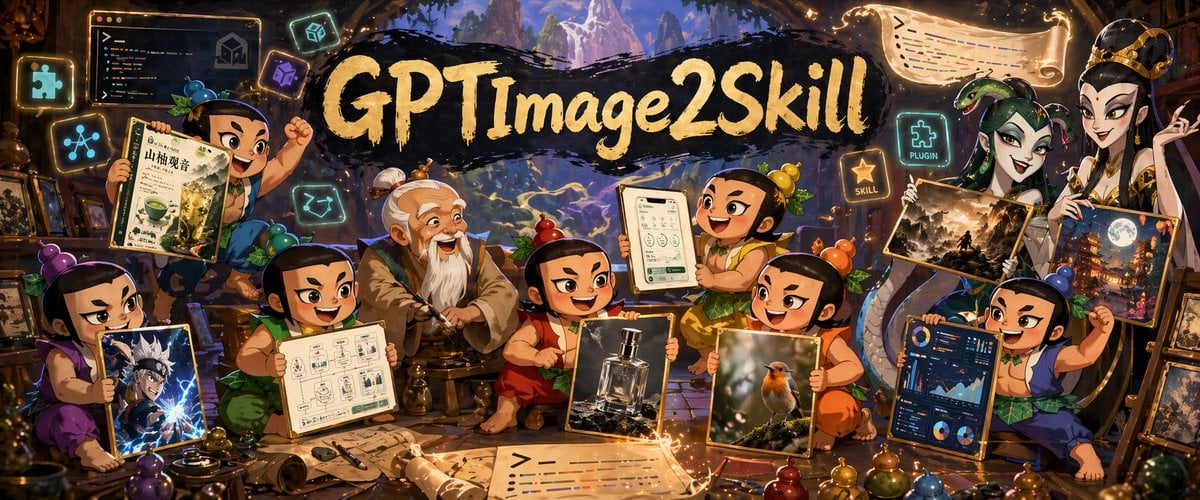
Fantasy GPTImage2 Skill Banner
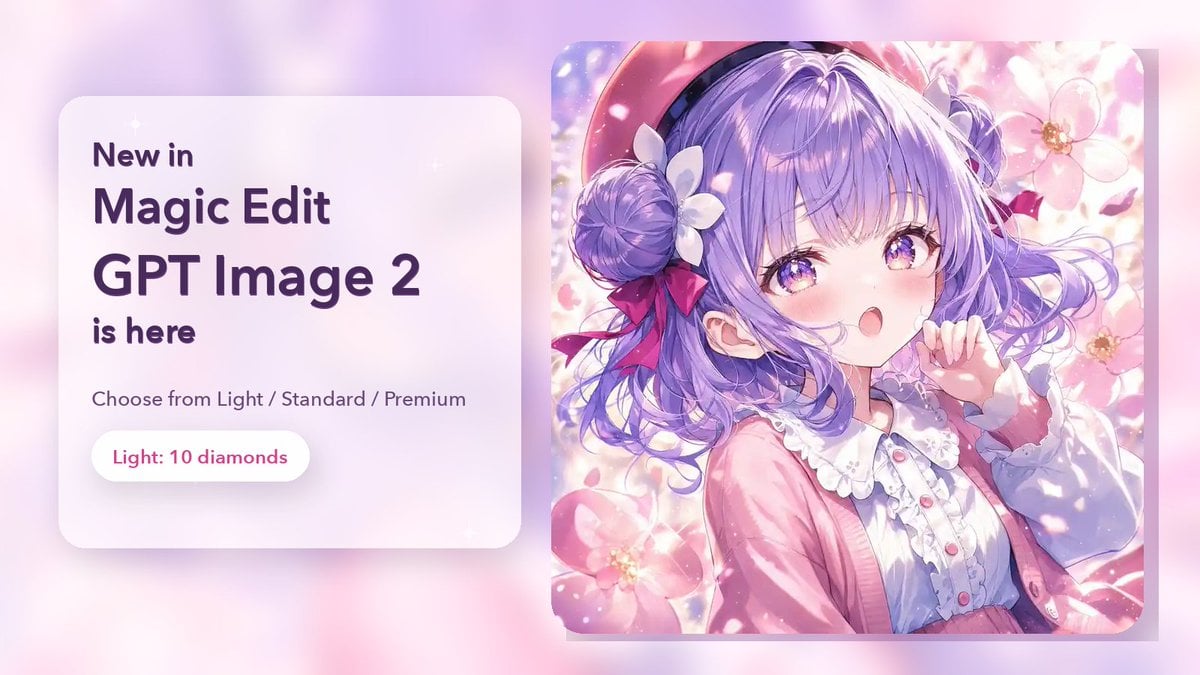
Magic Edit GPT Image 2 Promo Banner
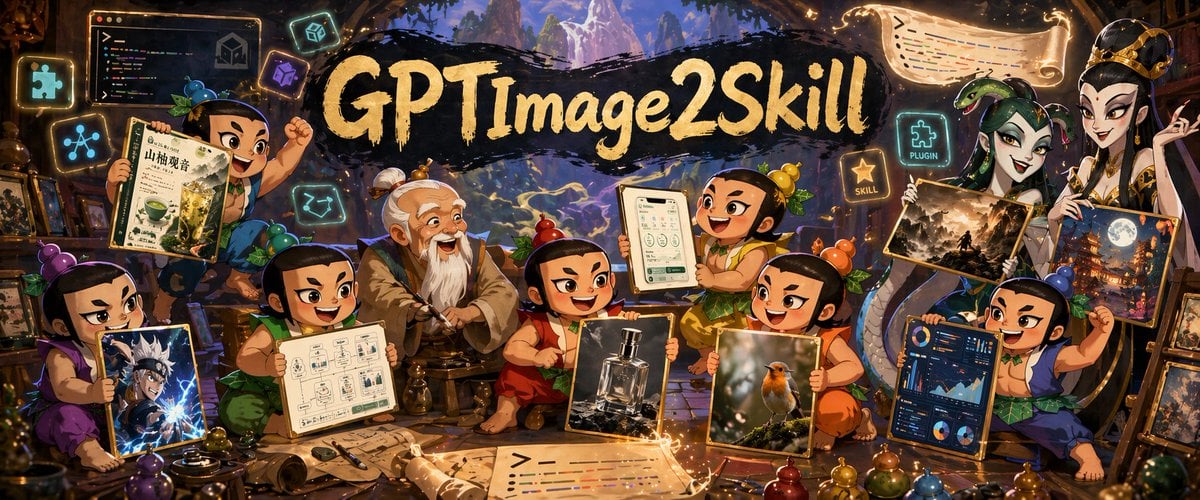
Fantasy GPT Image 2 Skill Banner

Gpt2 Social Media Post 4 Panel Japanese Digital Ad Banner Grid
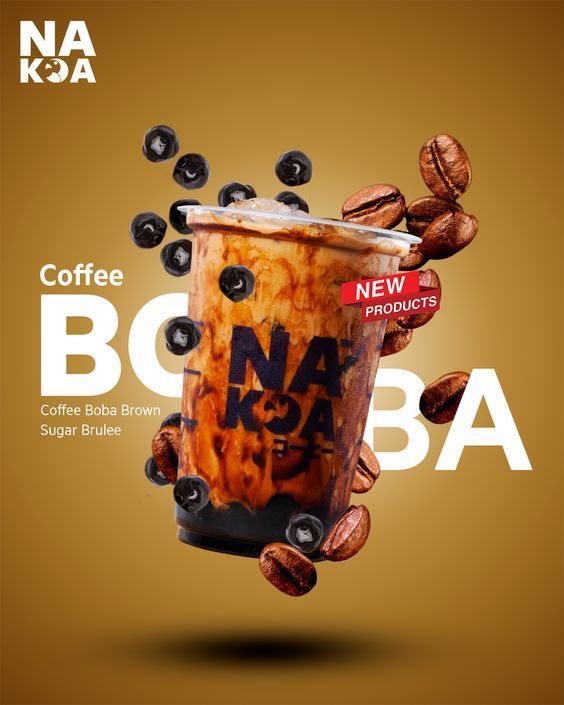
Coffee Boba Product Poster
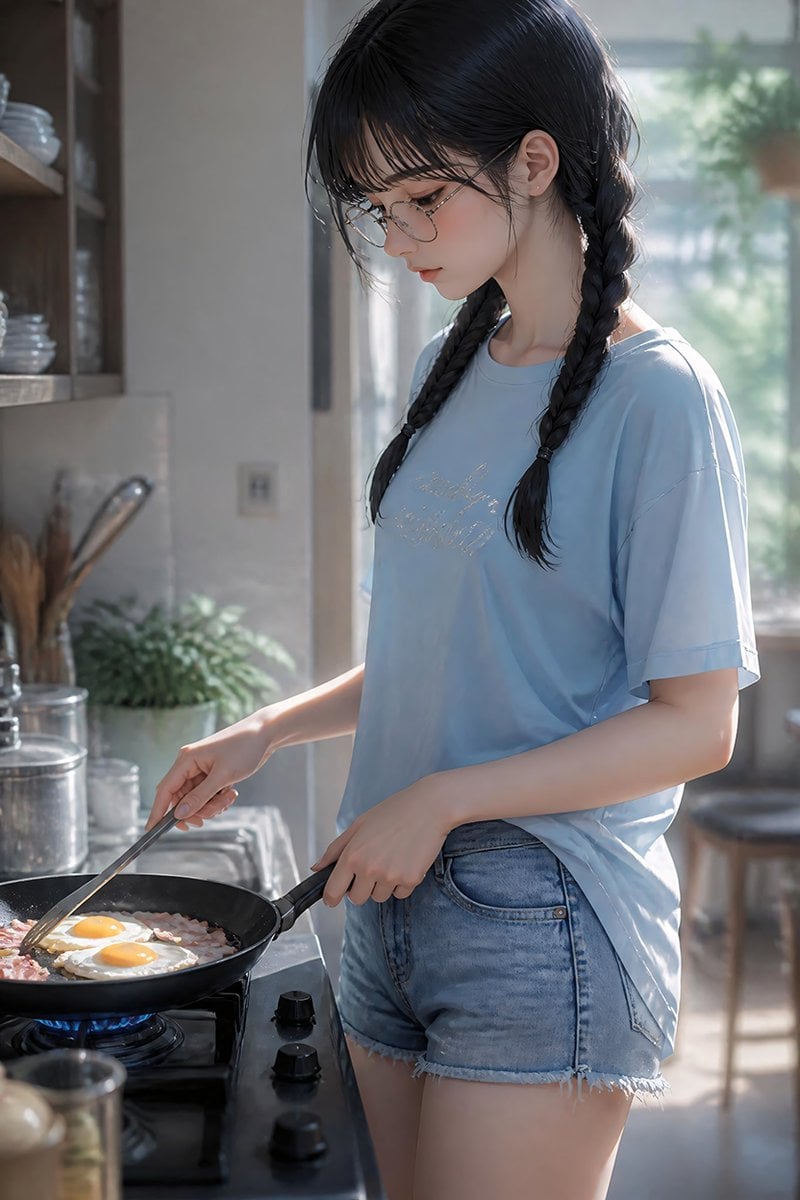
Anime Girl Cooking Bacon and Eggs
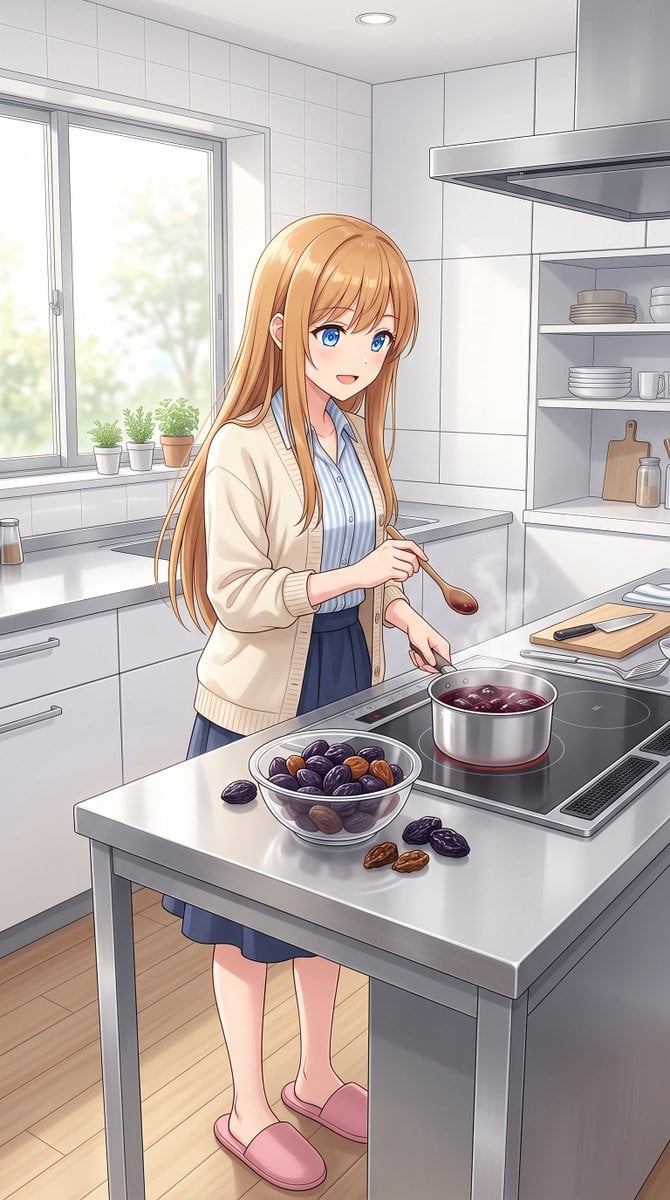
Anime Girl Cooking Prunes
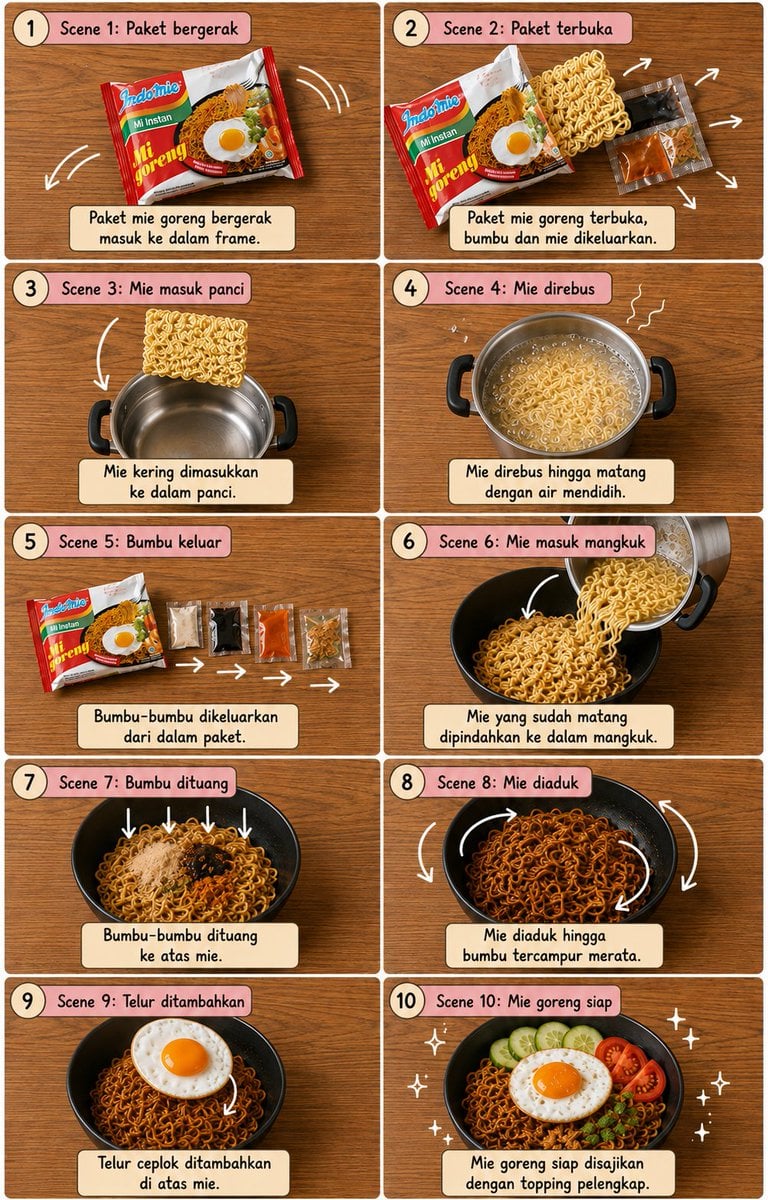
Editorial Cooking Storyboard Layout

ChatGPT Image 1 5 Google Veo 3 1
Make it yours
GPT Image 2 Cooking Prompt Banner works as-is. These are the safest ways to change it without losing the look.
Change one field
Copy a single group, rewrite it, and generate again so you can see what that field is doing.
Keep the frame, change the subject
Hold the composition and light of GPT Image 2 Cooking Prompt Banner, then swap wardrobe, props or the person for a new take.
| If the result… | Why | Fix |
|---|---|---|
| The result drifts from the preview | Too many fields changed at once. | Reuse GPT Image 2 Cooking Prompt Banner as-is first, then change one group — subject, light, or setting. |
| The model over-stylizes the scene | The prose prompt leaves finish and camera underspecified. | Add one camera or lighting sentence and stay on GPT Image 2. |
More GPT Image 2 templates
Other prompts made for GPT Image 2.

Six VTuber Japanese Logo Sheet

Realistic Portrait of Woman and Deer

The Vista Modular Condo Poster

AI Model Routing Comparison Infographic

2.5D Anime Art Board

Isometric Productivity Desk Scene

New York Double Exposure Poster

Four-Panel AI Landscape Comparison

Japanese Tatami Lifestyle Magazine Cover

NESCAFÉ Coffee Map Poster
More image prompts
Fresh picks from across the catalog.
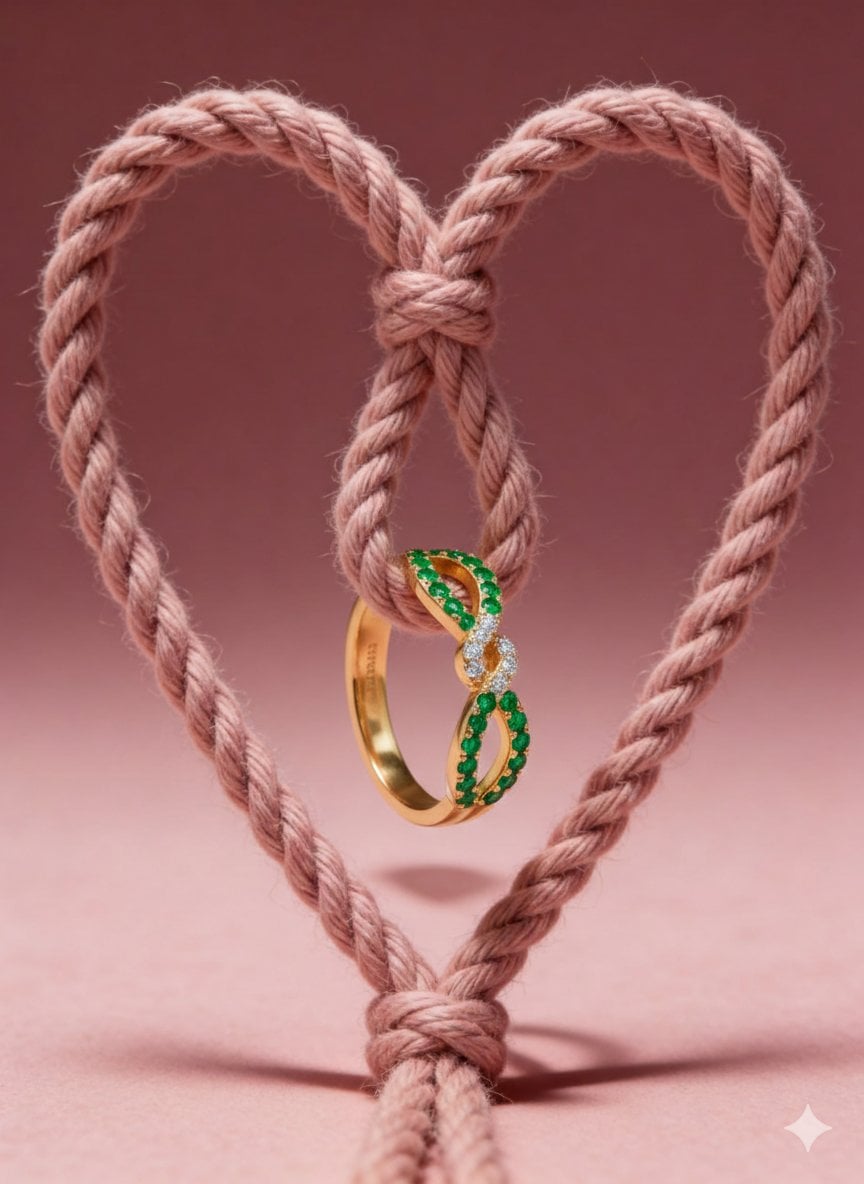
Ultra-Premium Jewelry Product Photography Prompt
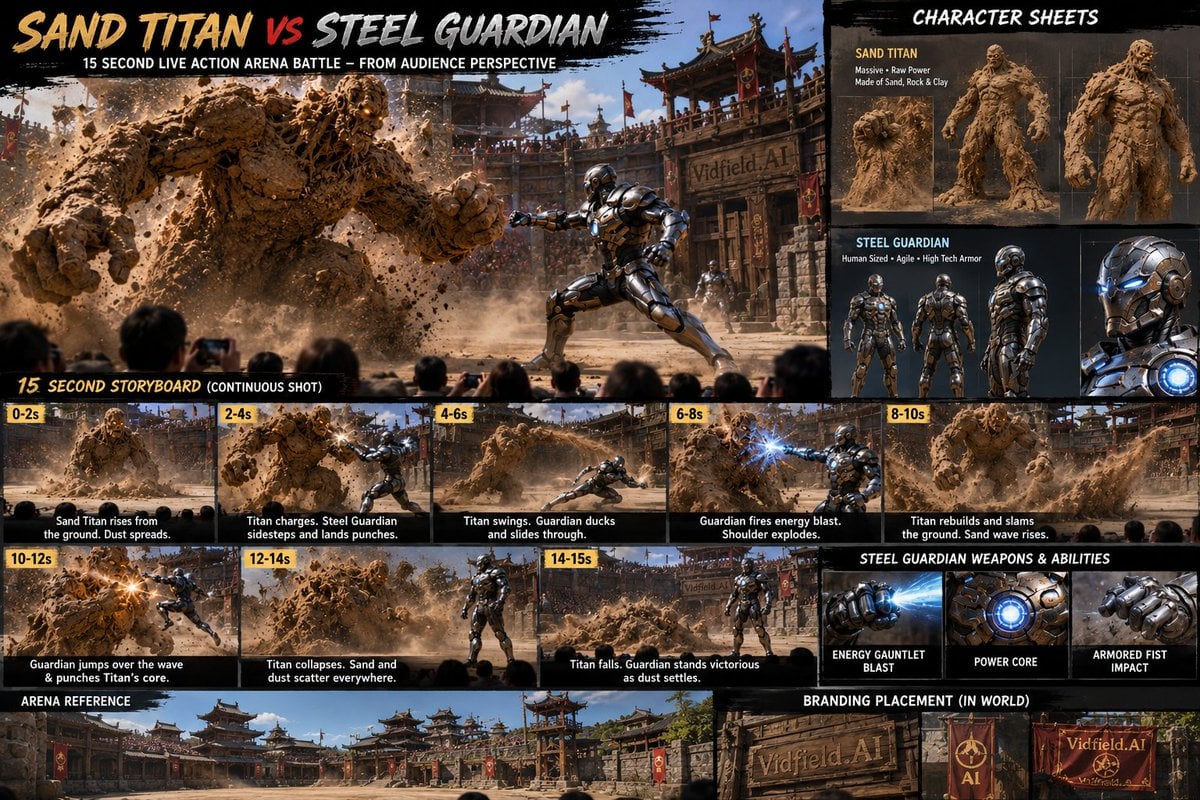
Vertical Cinematic Storyboard Sheet

Psychological Surrealism Fashion Portrait
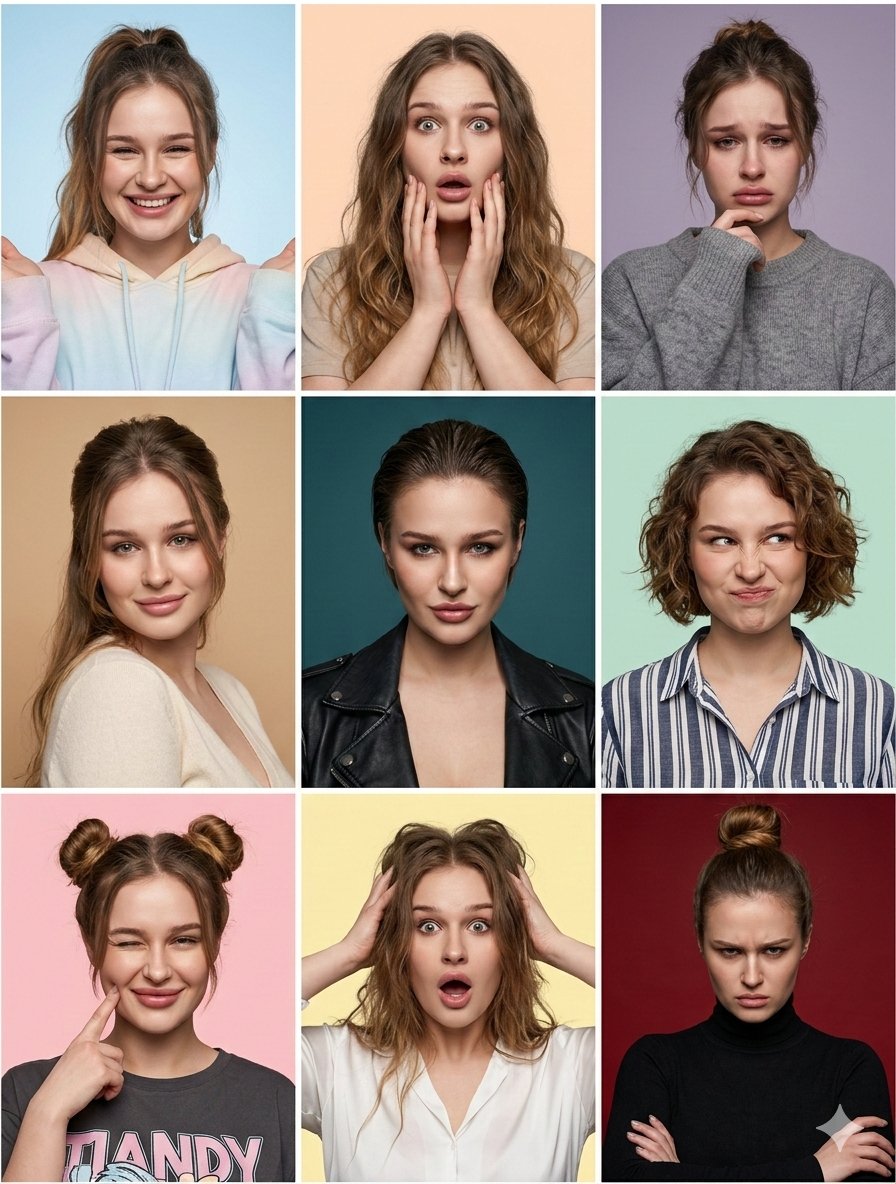
Nine Moods Grid Portrait with Identity Lock
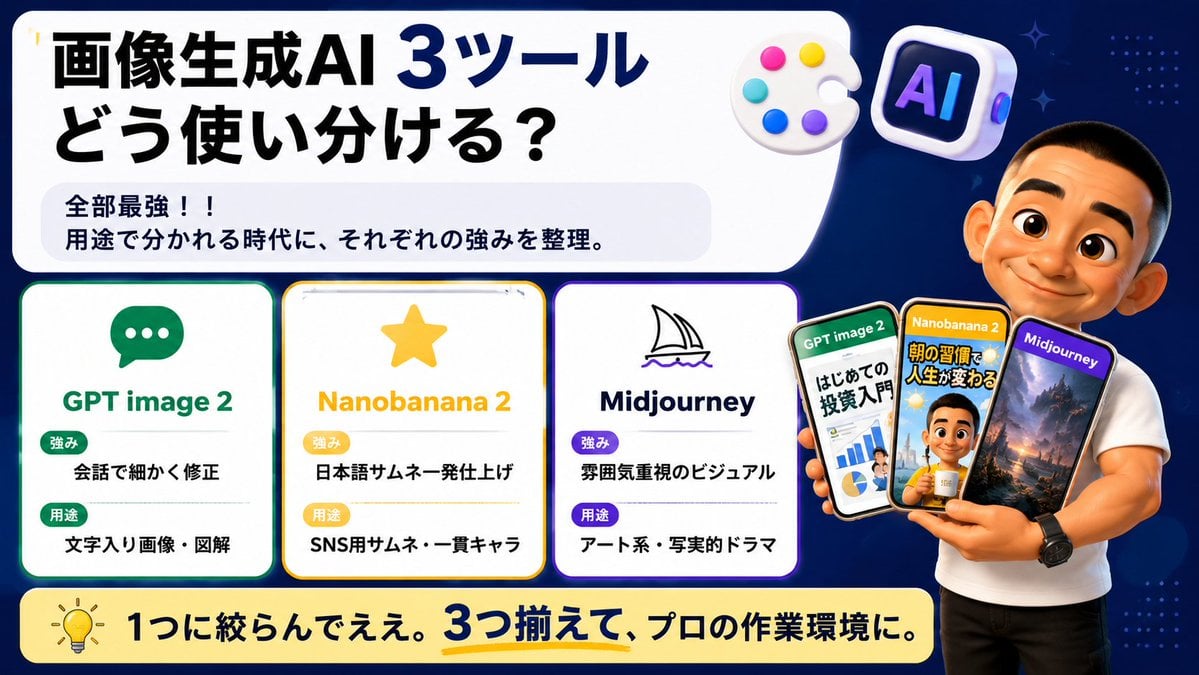
Japanese AI Tool Comparison Thumbnail
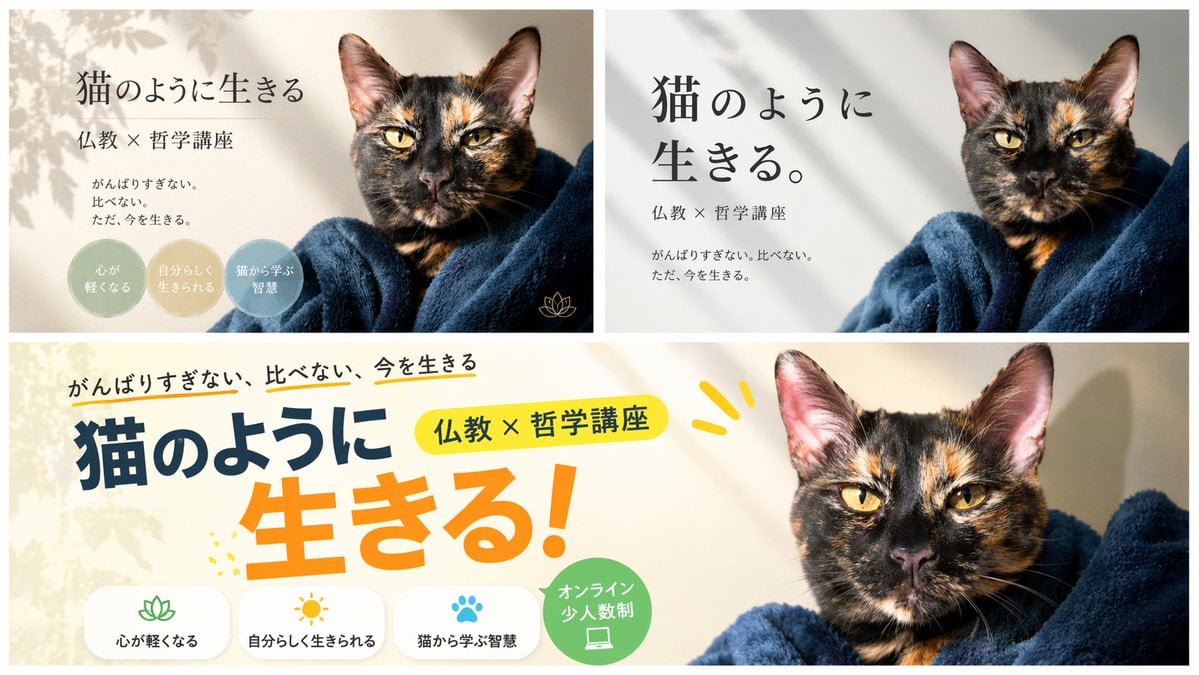
A/B Testing Banner Variations
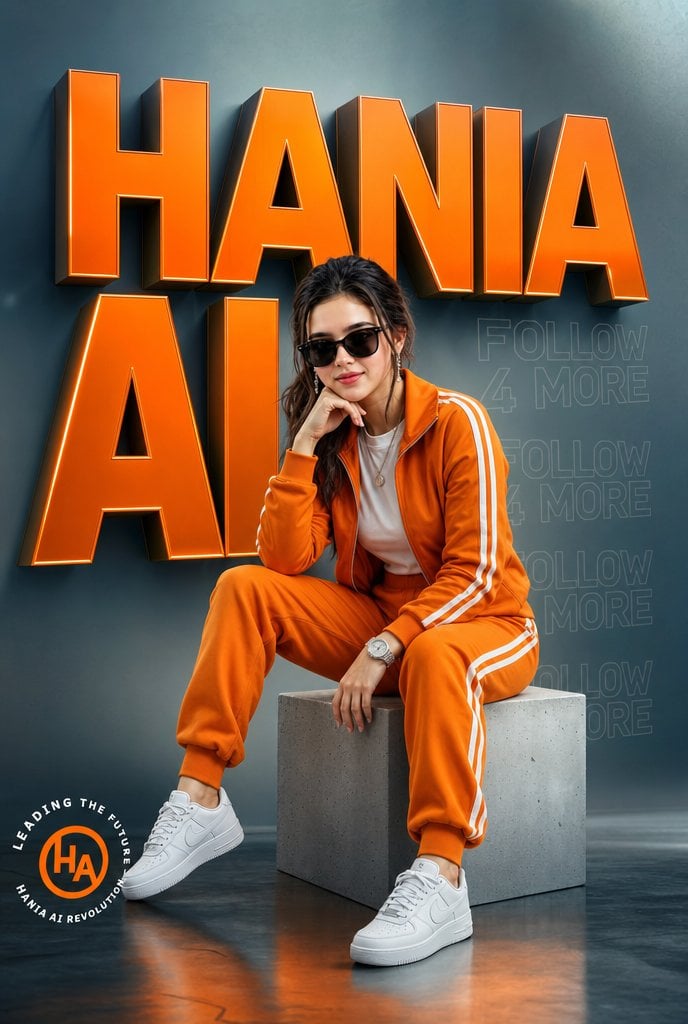
Orange Tracksuit Studio Poster
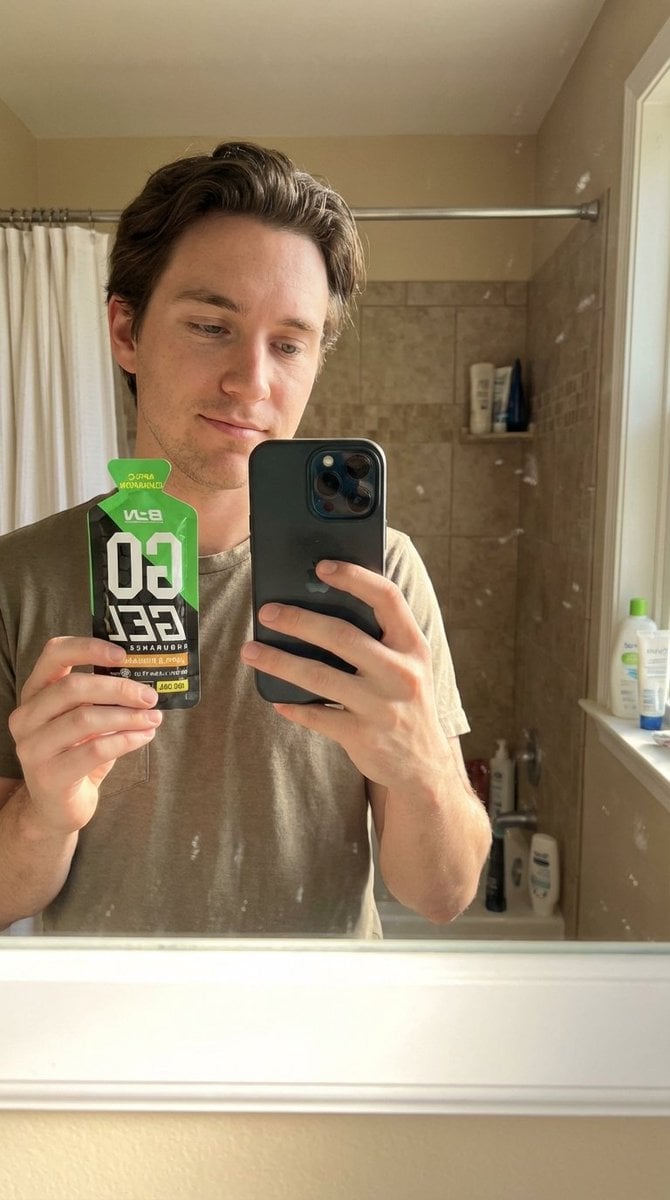
Hyper-Realistic Mirror Selfie with Product
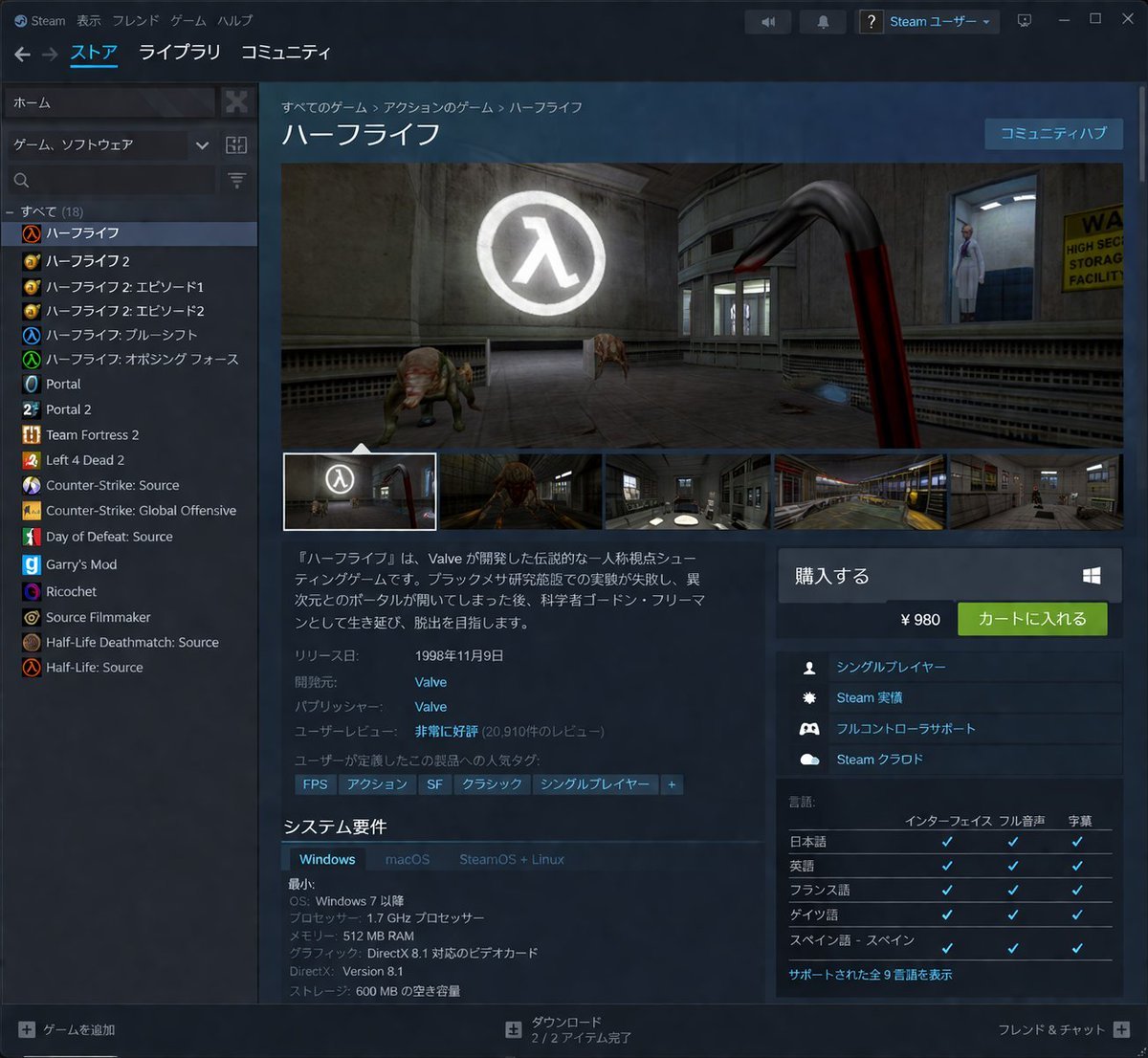
Steam Store Page UI Mockup
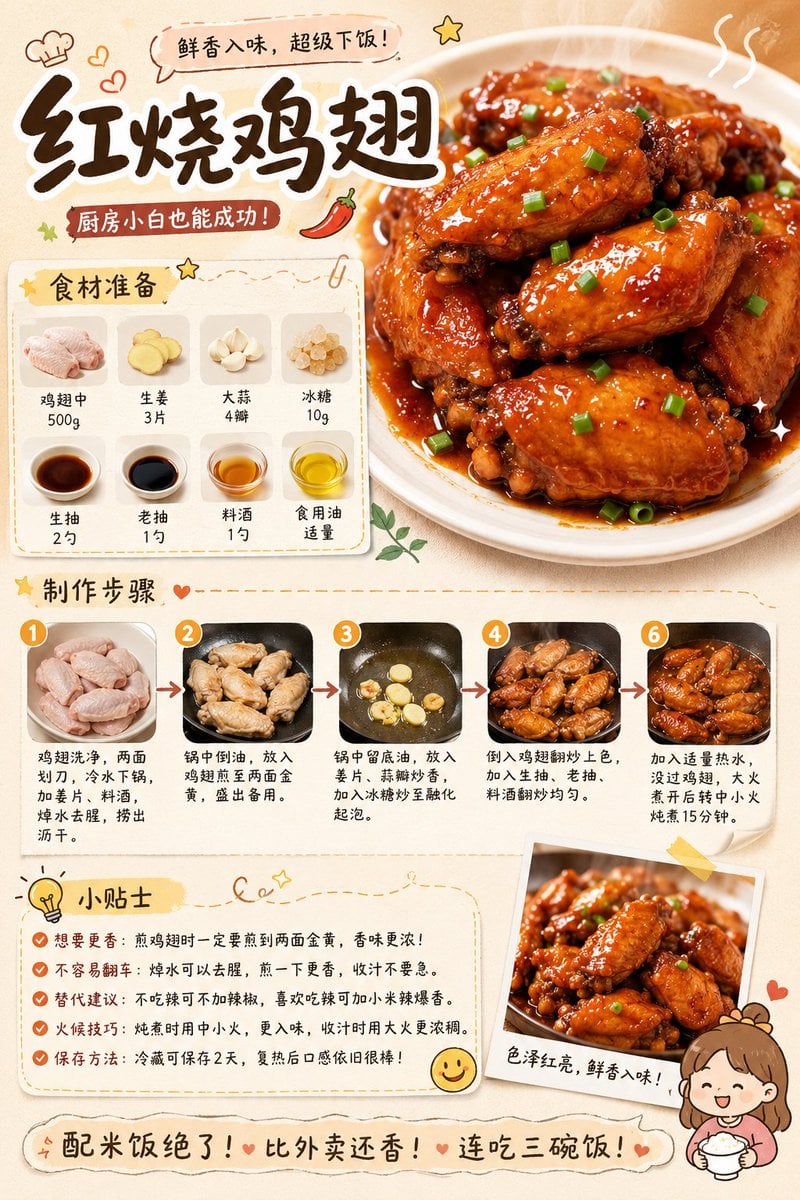
Gourmet Recipe Visual Note Poster
Browse template categories
GPT Image 2 Cooking Prompt Banner questions
How do I use the GPT Image 2 Cooking Prompt Banner template?
Add your photo if the template asks for one, edit the prompt if you like — the template's model and format are already selected — and press Generate. Your version opens in PicX Studio.
Can I customize the GPT Image 2 Cooking Prompt Banner template?
Yes. You can change the subject, setting, lighting, mood, format, and available model controls before creating your image.
Is the GPT Image 2 Cooking Prompt Banner template free?
Opening and editing this template is free. Generating uses credits, shown on the Generate button when you are signed in.
Which AI model should I use?
Start with GPT Image 2, which is the model associated with this template. You can compare another compatible model for a different finish.
Looking for something else? Browse all templates.

Your photo, any look
Thousands of ready templates for every top image and video model, from one credit balance.