
Japanese AI Tool Comparison Thumbnail
Generates a bold Japanese social-media thumbnail comparing three image-generation AI tools with cards, phone examples, and a presenter.
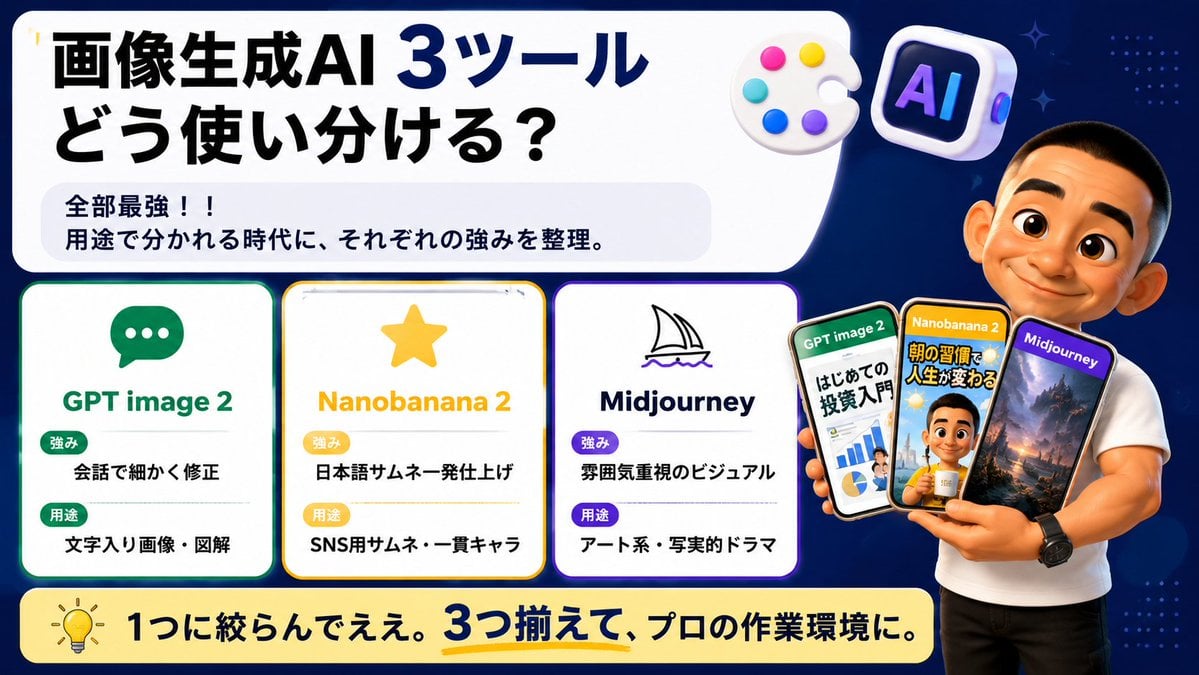
- Prompt included
- Model and format preset
- Free template
The prompt behind this image
Copy the exact prompt behind Japanese AI Tool Comparison Thumbnail, or open it in the studio and make it yours.
Goal: Create a wide Japanese social-media comparison thumbnail about how to use three image-generation AI tools, with a clean tech infographic look and a presenter holding example phone screens. Canvas: 16:9 horizontal banner, dark navy blue background with subtle dotted patterns and small sparkle accents. Use a large rounded white headline panel across the upper left and center, leaving the right side for the presenter. Bright, high-contrast, polished YouTube/X thumbnail style with crisp vector text, soft shadows, rounded cards, and glossy 3D icons. Main headline area: In the large white rounded rectangle, place bold Japanese headline text: {argument name="headline text" default="画像生成AI 3ツール\nどう使い分ける?"}. Make “3ツール” extra large and dark blue, with the rest in heavy black. Under it, add a pale gray rounded sub-box containing two lines: “全部最強!!” and “用途で分かれる時代に、それぞれの強みを整理。” Top decorative icons: Include exactly 2 floating 3D icons near the top right of the headline panel: 1 white artist palette with 5 colored paint dots, and 1 rounded square AI app icon with the letters “AI” in purple-blue neon. Comparison section: Place exactly 3 rounded white tool cards aligned horizontally across the lower left/middle, each with a colored border, an icon, a title, and two labeled rows. Card 1 has a green border and chat bubble icon, title “GPT image 2”, label “強み” with text “会話で細かく修正”, label “用途” with text “文字入り画像・図解”. Card 2 has a yellow border and star icon, title “Nanobanana 2”, label “強み” with text “日本語サムネ一発仕上げ”, label “用途” with text “SNS用サムネ・一貫キャラ”. Card 3 has a purple border and simple sailboat line icon, title “Midjourney”, label “強み” with text “雰囲気重視のビジュアル”, label “用途” with text “アート系・写実的ドラマ”. Use green/yellow/purple pill badges for the labels and keep all Japanese text bold and readable. Presenter and phones: On the right side, show a muscular casually dressed male presenter in a fitted white T-shirt and black pants, cropped from head to thighs, standing in front of the navy background. His face should be intentionally covered by a plain skin-tone rectangular blur/censor block. He holds exactly 3 smartphones fanned in his hand. Phone 1 is labeled “GPT image 2” and shows an investment beginner infographic with charts and Japanese text; phone 2 is labeled “Nanobanana 2” and shows a Japanese morning-routine thumbnail with a person and bold yellow text; phone 3 is labeled “Midjourney” and shows a cinematic fantasy landscape with mountains and dramatic lighting. The phones should overlap slightly and have glossy black bezels. Bottom banner: Add a long rounded pale yellow banner across the bottom with a lightbulb icon on the left and bold Japanese text: {argument name="bottom message" default="1つに絞らんでええ。3つ揃えて、プロの作業環境に。"}. Emphasize “3つ揃えて” in dark blue with a yellow underline. Visual style: Japanese creator thumbnail, modern infographic, clean rounded rectangles, thick bold typography, high readability, dark blue/white/yellow/green/purple palette, subtle glow around cards, professional but friendly. Avoid extra cards, extra phones, watermarks, or unreadable small text.
How to use Japanese AI Tool Comparison Thumbnail in 3 steps
- 1Upload ImagePNG, JPG or paste
Add your photo
Upload the photo the template builds on. The prompt, model and format are already set.
- 2…a portrait of your subject in softgolden-hour light, 85mm…
Personalize
Edit the subject and creative details for your destination.
- 3Generate
Generate
Press Generate — your image is created in PicX Studio, so you can compare it with the original and refine one variable at a time.
More like this
Templates with the same subject, style or setup. Open one to see its prompt.
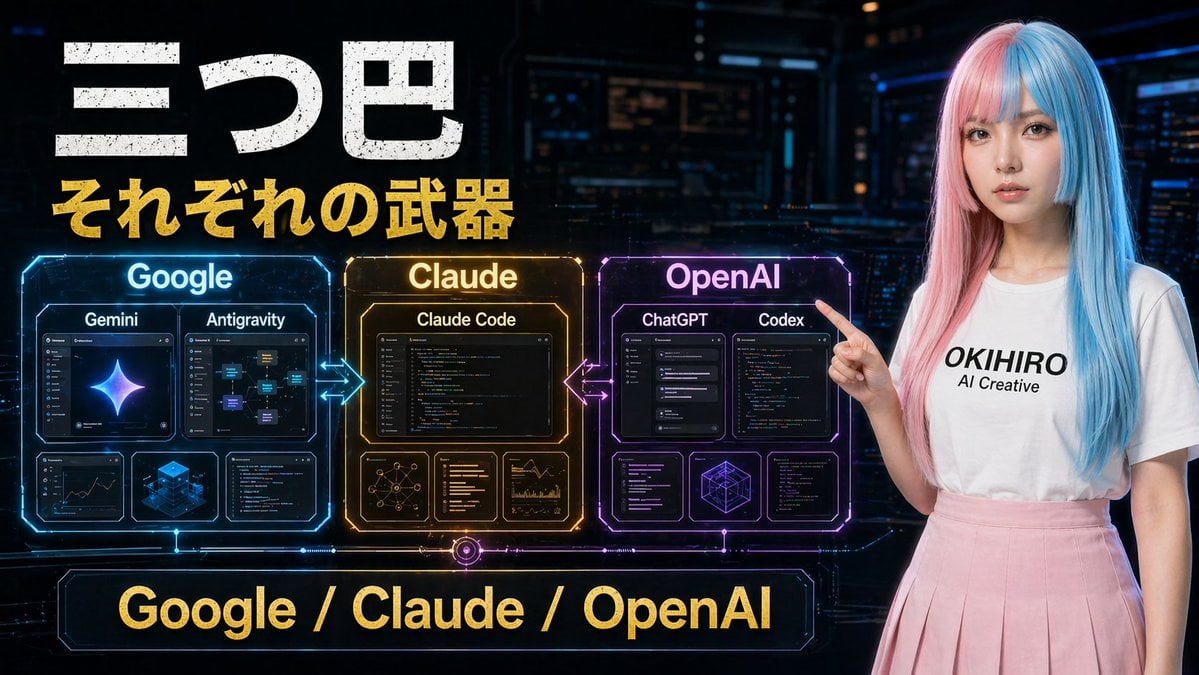
Gpt2 Youtube Thumbnail Cyberpunk Ai Tools Comparison Poster

Minecraft Japanese Research Lab Exploration

Japanese Architectural Concrete Studio Fashion Campaign

Japanese Minimalist Concrete Studio Fashion Editorial

Blue Backdrop Luxury Fashion Portrait Campaign
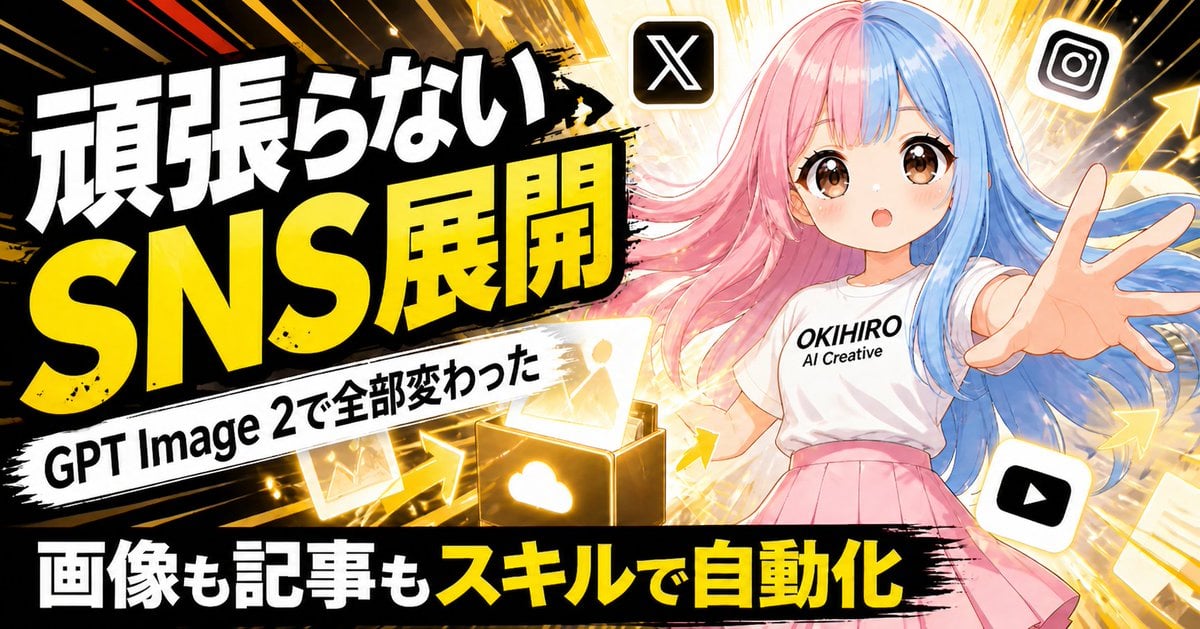
Japanese SNS Automation Thumbnail
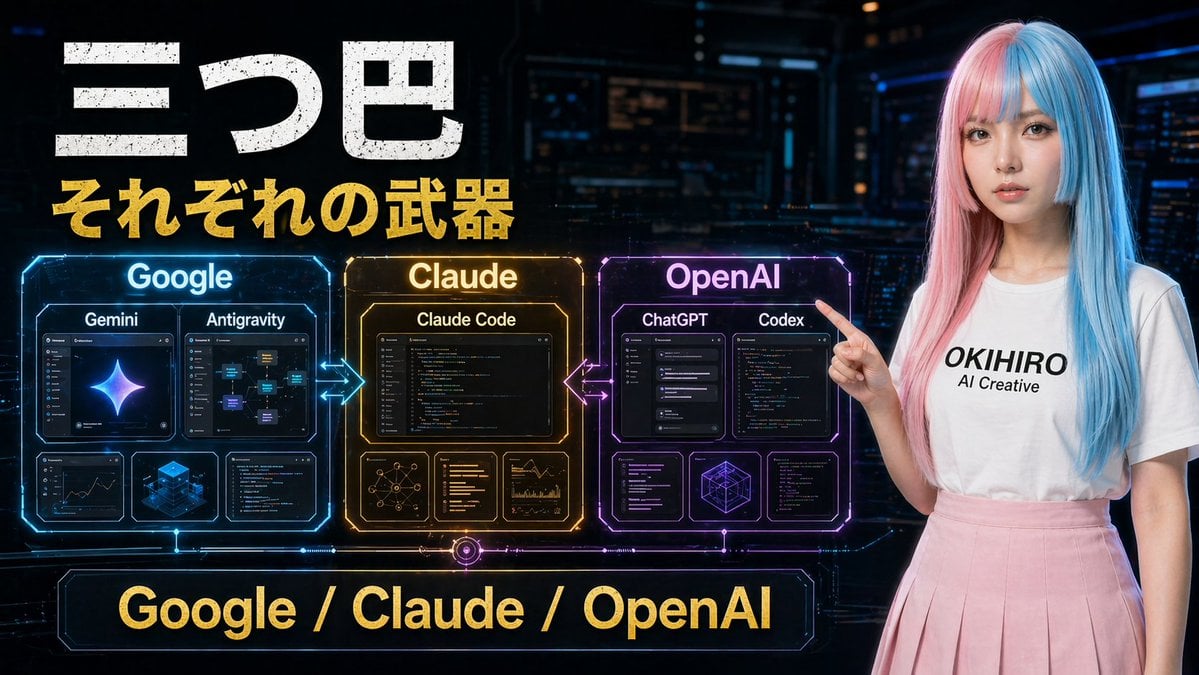
Cyberpunk AI Tools Comparison Poster
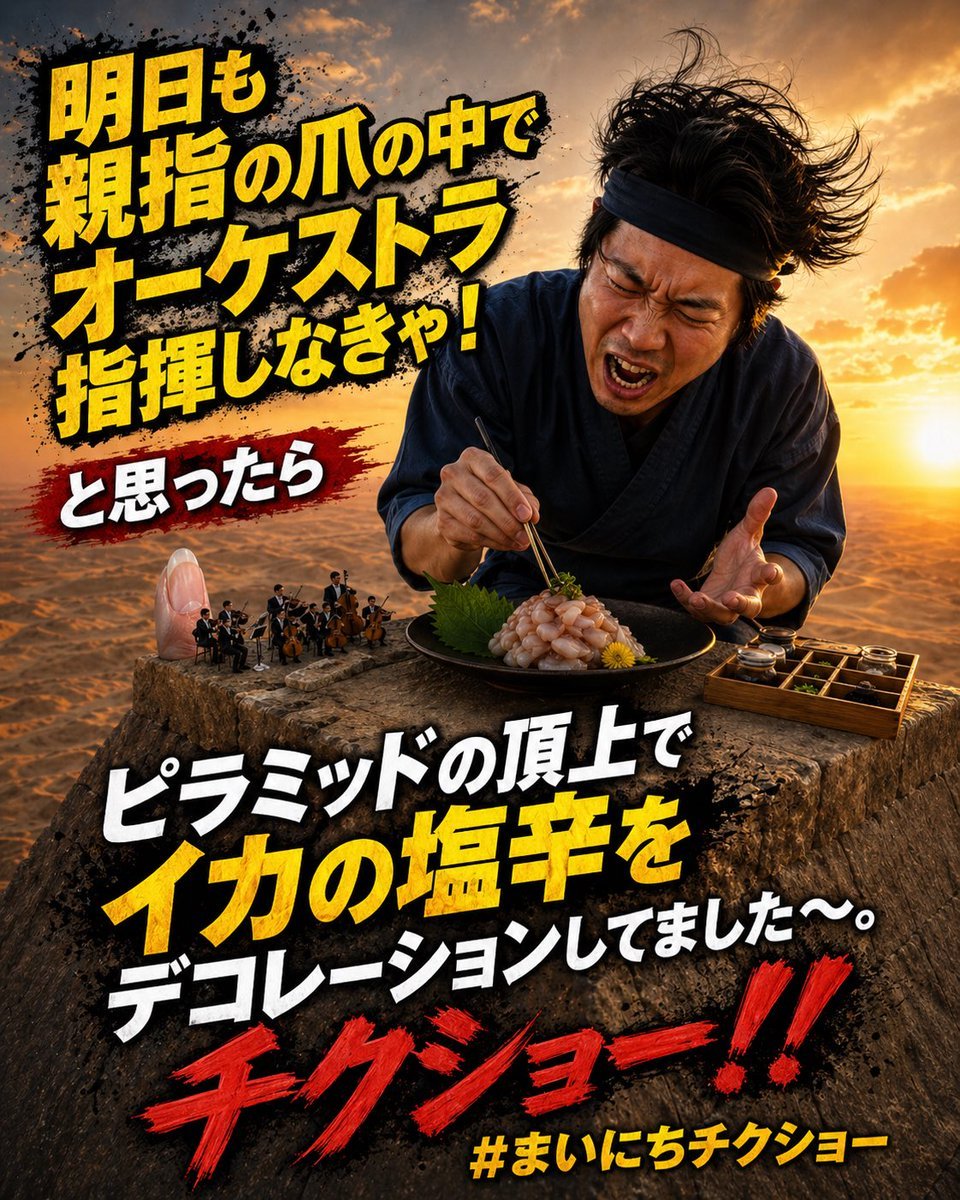
Surreal Japanese Meme Thumbnail at Pyramid

Explosive Japanese X Monetization Thumbnail

Japanese X Monetization Thumbnail

Japanese Udemy Course Sale Thumbnail
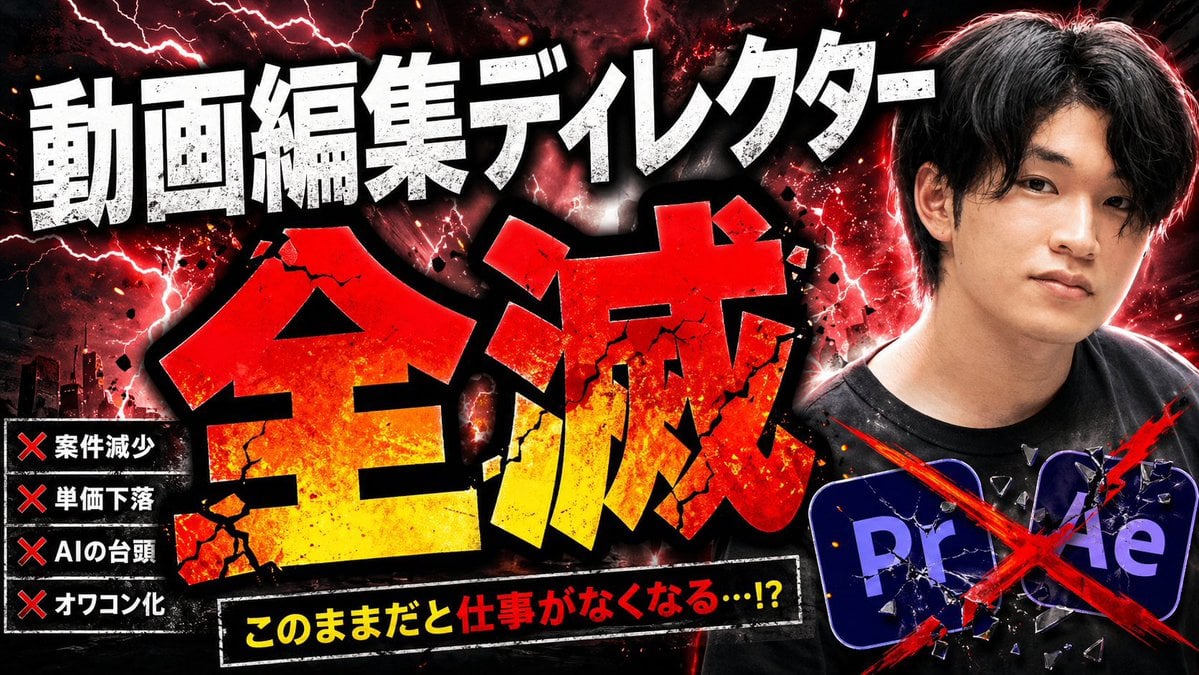
Explosive Japanese AI Threat Thumbnail
Make it yours
Japanese AI Tool Comparison Thumbnail works as-is. These are the safest ways to change it without losing the look.
Change one field
Copy a single group, rewrite it, and generate again so you can see what that field is doing.
Keep the frame, change the subject
Hold the composition and light of Japanese AI Tool Comparison Thumbnail, then swap wardrobe, props or the person for a new take.
| If the result… | Why | Fix |
|---|---|---|
| The result drifts from the preview | Too many fields changed at once. | Reuse Japanese AI Tool Comparison Thumbnail as-is first, then change one group — subject, light, or setting. |
| The model over-stylizes the scene | The prose prompt leaves finish and camera underspecified. | Add one camera or lighting sentence and stay on GPT Image 2. |
More GPT Image 2 templates
Other prompts made for GPT Image 2.

Six VTuber Japanese Logo Sheet

Realistic Portrait of Woman and Deer

The Vista Modular Condo Poster

AI Model Routing Comparison Infographic

2.5D Anime Art Board

Isometric Productivity Desk Scene

New York Double Exposure Poster

Four-Panel AI Landscape Comparison

Japanese Tatami Lifestyle Magazine Cover

NESCAFÉ Coffee Map Poster
More image prompts
Fresh picks from across the catalog.
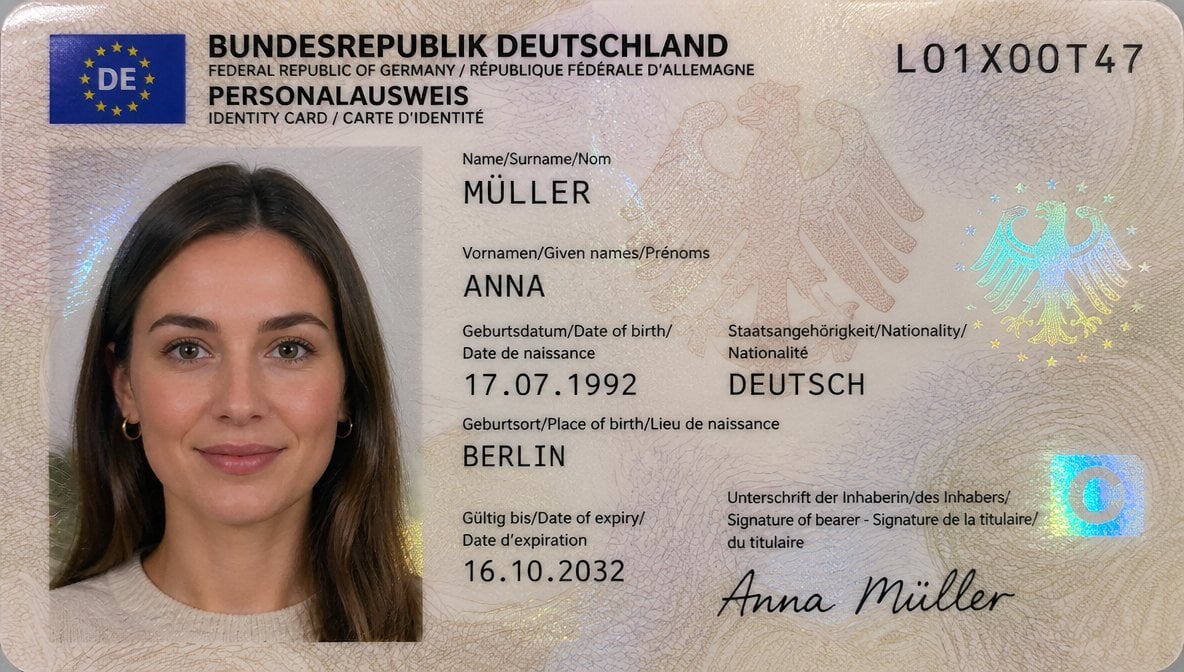
German ID Card Scan Transformation
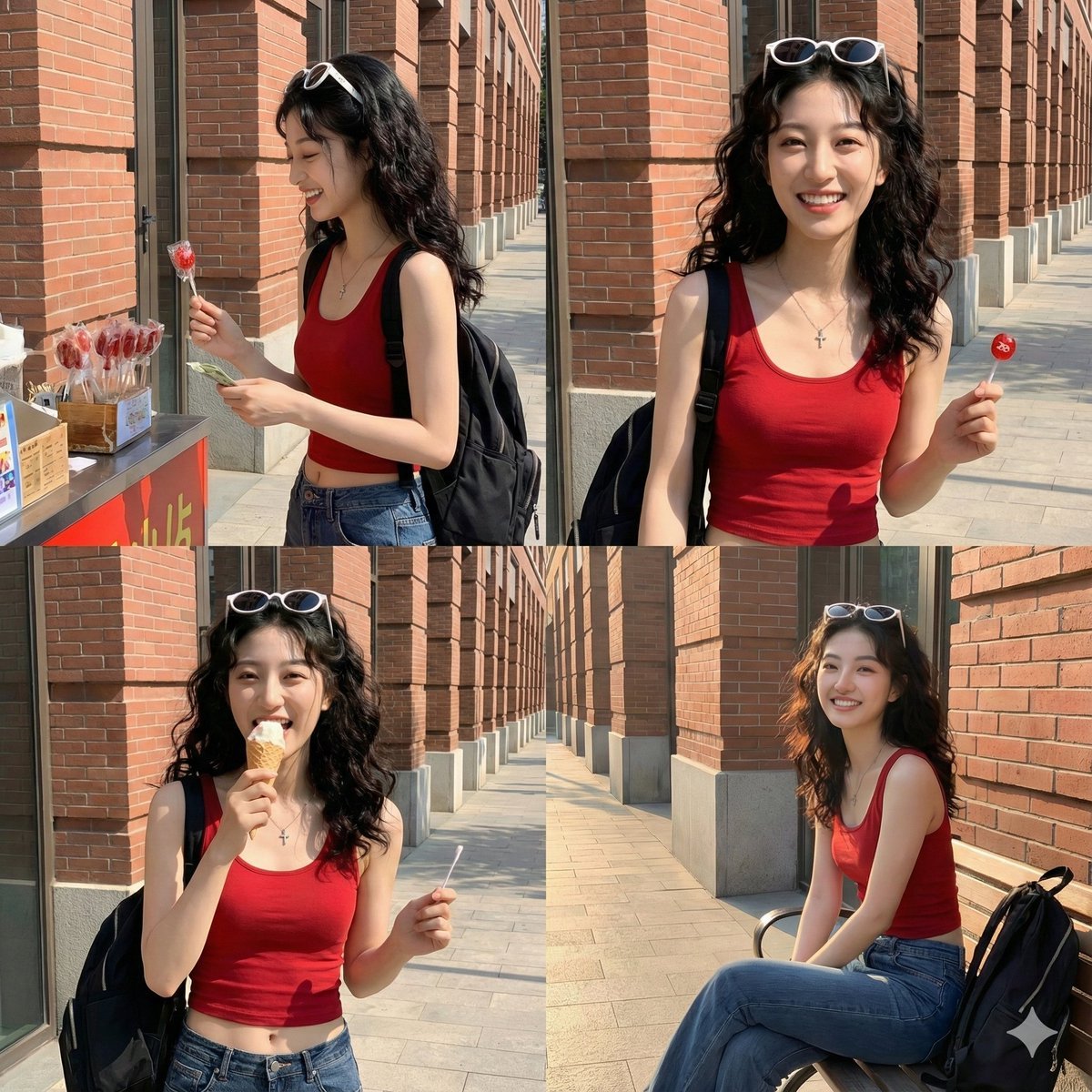
Time Progression Image Generation Prompt
Ethereal Long Exposure Cinematic Portrait Prompt
Cyber-Aesthetic Neon Portrait

Anime Character Vogue Cover

Melancholic Portrait Looking Over Shoulder Prompt
Co-branded IP Ice Cream Design
Generic Prompt for Shape-Shaped Cave Entrance

Photorealistic Egg with Map of Africa Crack
Dark Stand Guardian Profile Poster
Browse template categories
Japanese AI Tool Comparison Thumbnail questions
How do I use the Japanese AI Tool Comparison Thumbnail template?
Add your photo if the template asks for one, edit the prompt if you like — the template's model and format are already selected — and press Generate. Your version opens in PicX Studio.
Can I customize the Japanese AI Tool Comparison Thumbnail template?
Yes. You can change the subject, setting, lighting, mood, format, and available model controls before creating your image.
Is the Japanese AI Tool Comparison Thumbnail template free?
Opening and editing this template is free. Generating uses credits, shown on the Generate button when you are signed in.
Which AI model should I use?
Start with GPT Image 2, which is the model associated with this template. You can compare another compatible model for a different finish.
Looking for something else? Browse all templates.

Your photo, any look
Thousands of ready templates for every top image and video model, from one credit balance.