
Wall of Death Fisheye Documentary
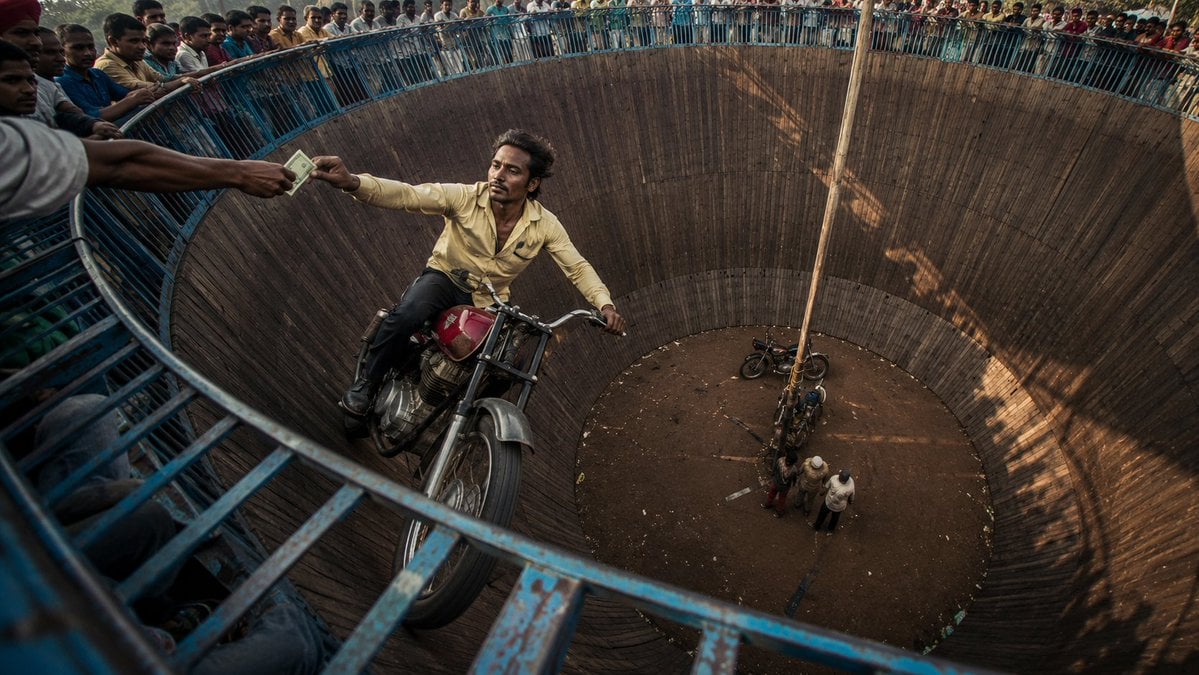
A documentary photography prompt using extreme fisheye perspective to capture a daring motorcycle stunt inside a circular arena with gritty, authentic textures.
- Prompt included
- Model and format preset
- Free template
The prompt behind this image
Copy the exact prompt behind Wall of Death Fisheye Documentary, or open it in the studio and make it yours.
A cinematic wide-angle documentary photograph of a daring motorcycle stunt rider performing inside a massive circular Wall of Death arena. The rider is captured near the upper edge of the wooden vertical wall, balancing on a {argument name="vehicle" default="vintage red and silver motorcycle"} while reaching out to take money from a spectator’s hand. The composition uses an {argument name="lens" default="extreme fisheye perspective"} from the rim of the arena, creating a dramatic circular bowl shape that pulls the eye toward the deep center below. The environment is crowded and energetic, with spectators standing all around the top railing, watching the stunt from above. The arena walls are dark wooden planks with visible texture, scratches, dust, and motion worn surfaces. Blue metal railings frame the top and bottom foreground, adding strong leading lines and a sense of danger. The rider’s expression is calm, focused, and fearless, showing confidence while performing at high speed. His body posture feels relaxed but controlled, creating contrast with the risky environment. Color palette should feel realistic and slightly gritty: warm golden sunlight hitting the inside of the arena, deep brown wooden walls, faded blue railings, dusty shadows, and muted crowd colors. Add a natural cinematic color gradient with warm highlights on the rider and motorcycle, darker shadow tones along the right side of the wall, and a slightly desaturated documentary look. The image should feel raw, authentic, dangerous, and thrilling, like a real-life stunt captured at the perfect moment.
How to use Wall of Death Fisheye Documentary in 3 steps
- 1
Open
The prompt is already in the box next to the preview, with the template's model and format selected.
- 2…a portrait of your subject in softgolden-hour light, 85mm…
Personalize
Edit the subject and creative details for your destination.
- 3Generate
Generate
Press Generate — your image is created in PicX Studio, so you can compare it with the original and refine one variable at a time.
More like this
Templates with the same subject, style or setup. Open one to see its prompt.
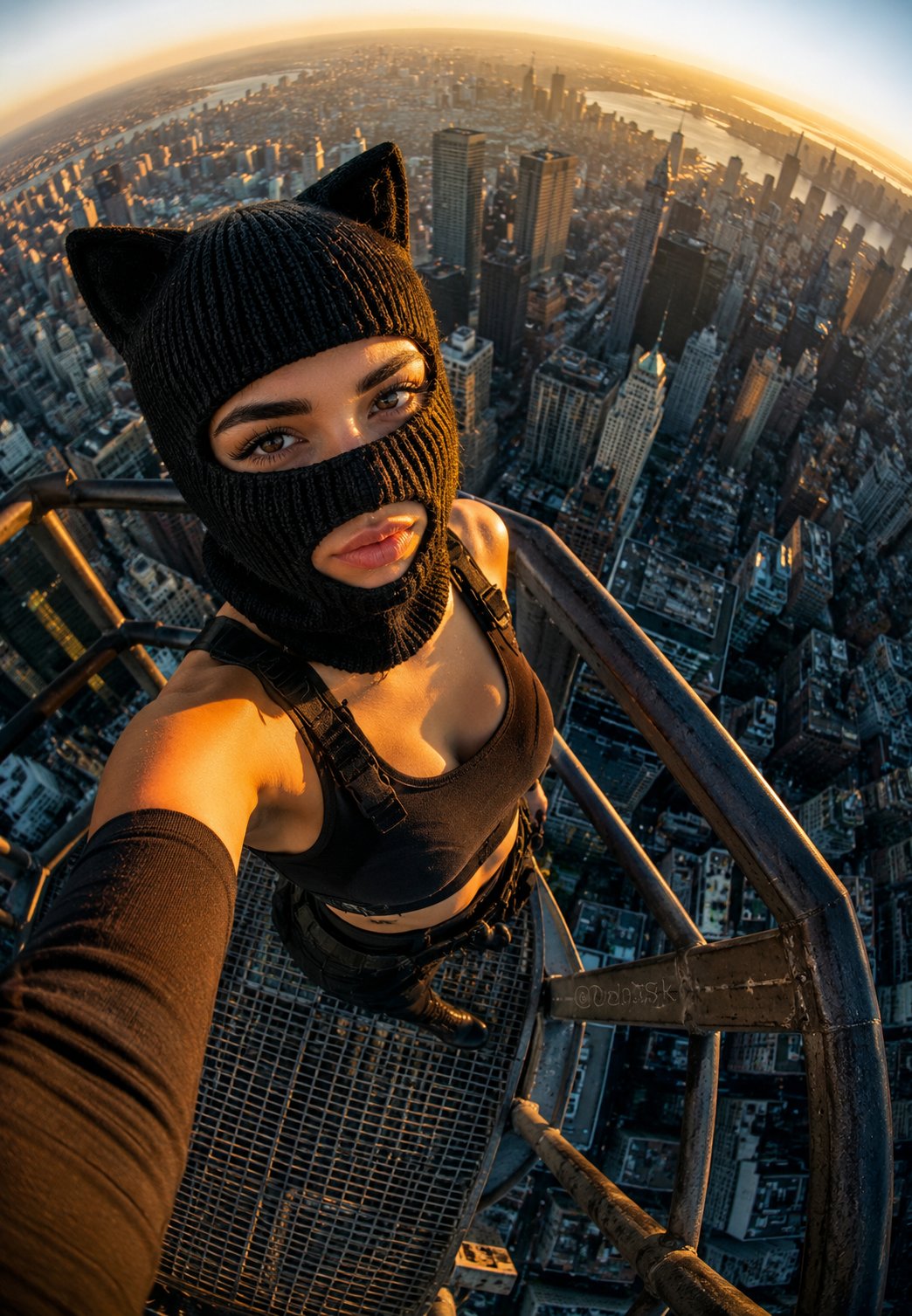
Rooftop Fisheye — Cat-Ear Balaclava at Golden Hour
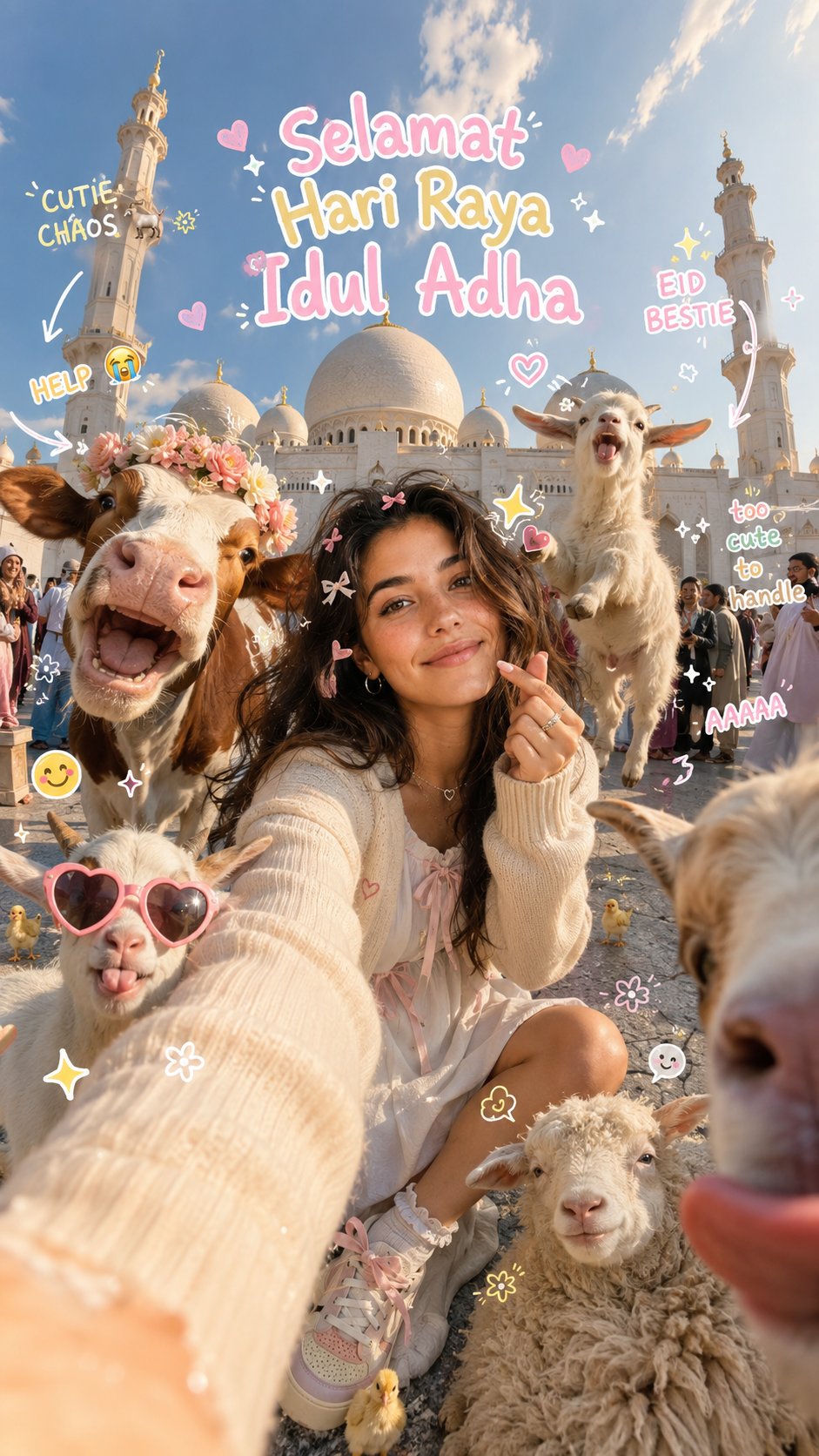
Eid al-Adha Cute Chaos — Fisheye Selfie with Farm Selfie, Mosque & Animals
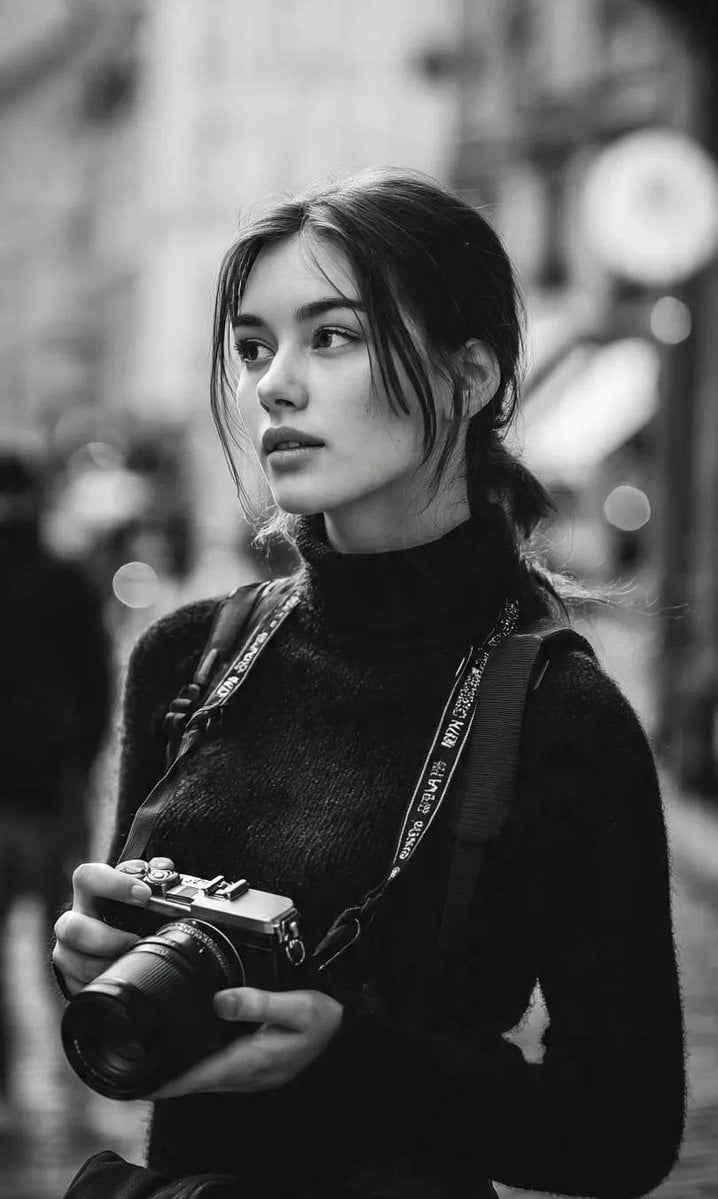
Cinematic Street Fashion Photographer Portrait

Gpt2 Fisheye Sky Crouch Portrait
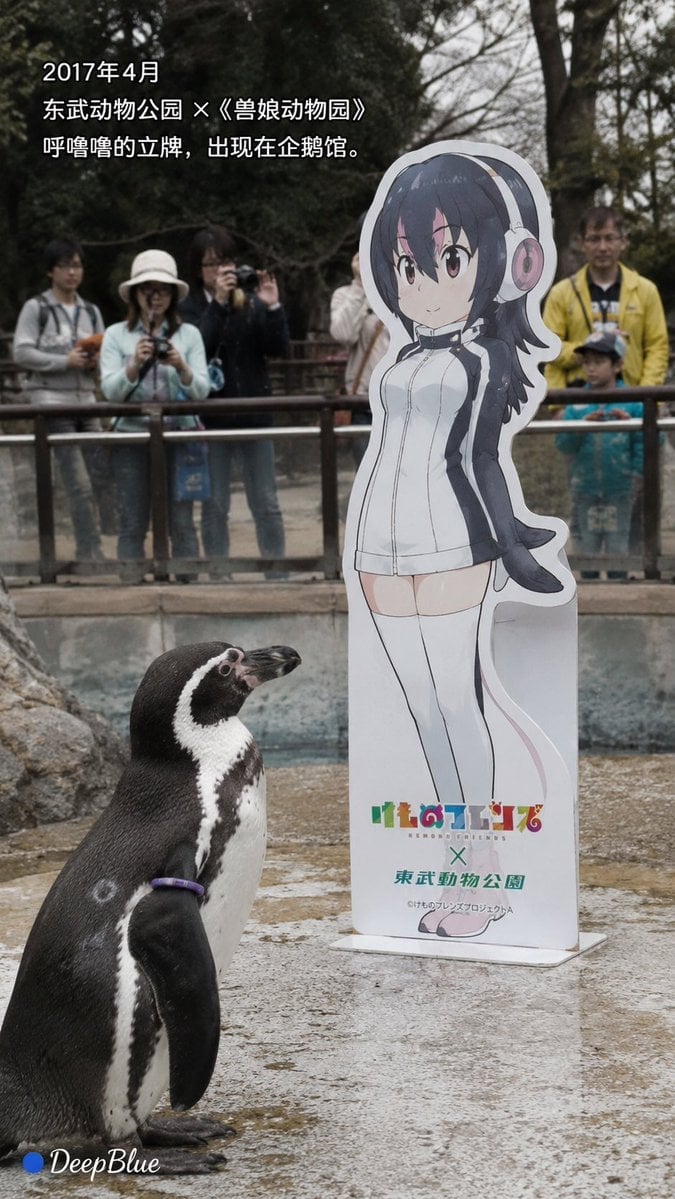
Documentary Photo Sequence of Penguin Story
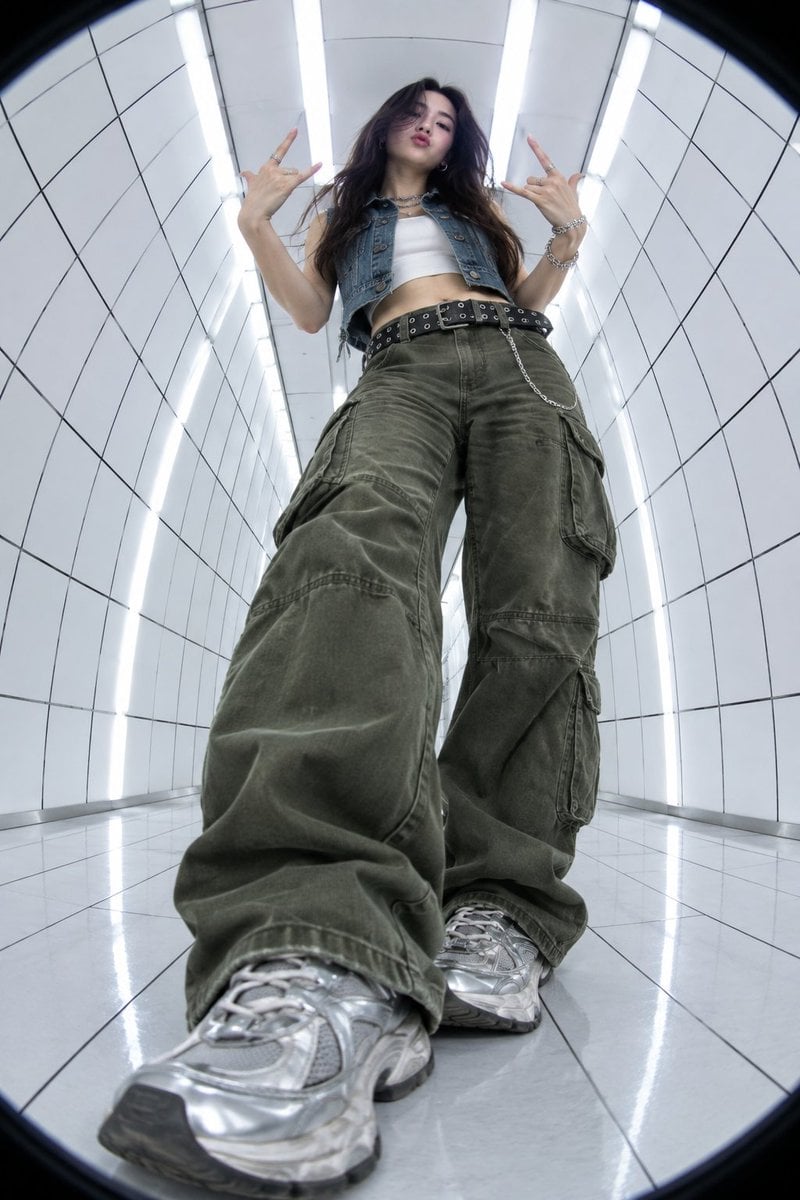
Y2K Fisheye Streetwear Portrait
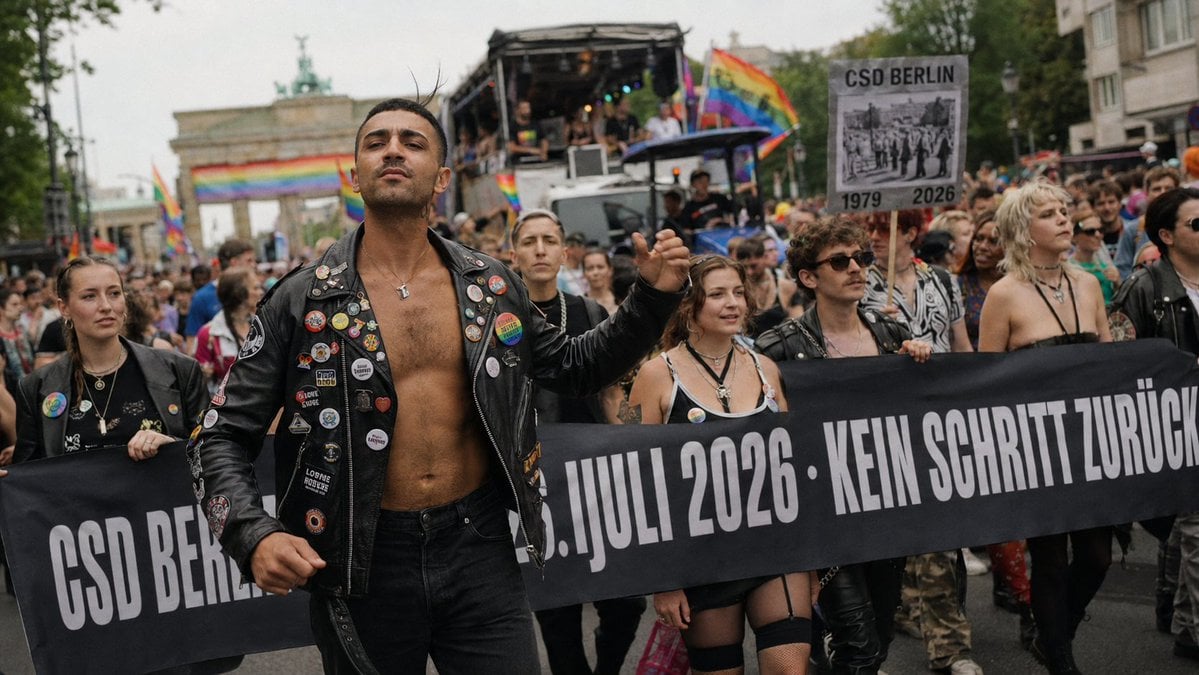
Berlin Pride Documentary Street Photography
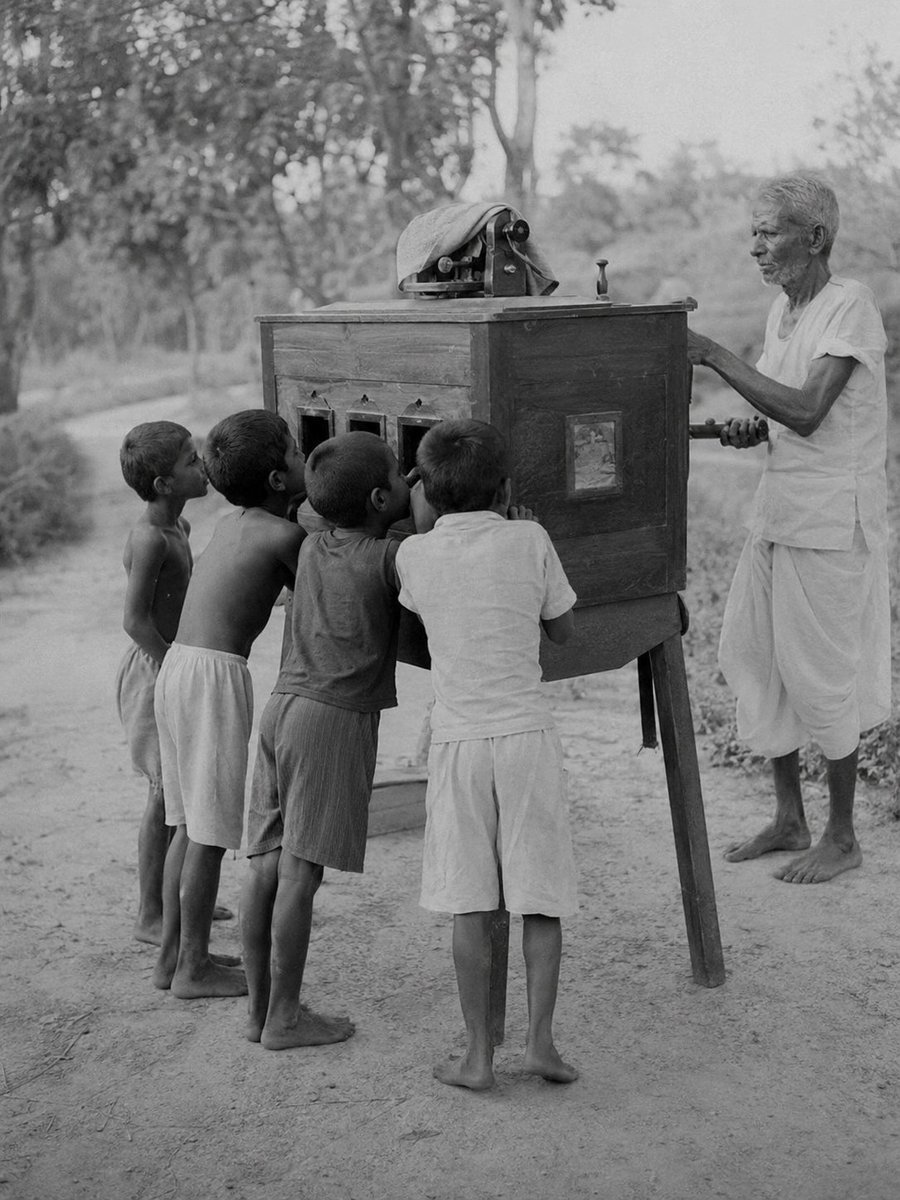
South Asian Rural Bioscope Documentary
Model With Manga Wall Sketch
Fisheye Vintage Hotel Lobby Portrait
VR Kimono Fashion With Manga Wall Art
Modern Home Gym Wall Makeover
Make it yours
Wall of Death Fisheye Documentary works as-is. These are the safest ways to change it without losing the look.
Change one field
Copy a single group, rewrite it, and generate again so you can see what that field is doing.
Keep the frame, change the subject
Hold the composition and light of Wall of Death Fisheye Documentary, then swap wardrobe, props or the person for a new take.
| If the result… | Why | Fix |
|---|---|---|
| The result drifts from the preview | Too many fields changed at once. | Reuse Wall of Death Fisheye Documentary as-is first, then change one group — subject, light, or setting. |
| The model over-stylizes the scene | The prose prompt leaves finish and camera underspecified. | Add one camera or lighting sentence and stay on GPT Image 2. |
More GPT Image 2 templates
Other prompts made for GPT Image 2.

Six VTuber Japanese Logo Sheet

Realistic Portrait of Woman and Deer

The Vista Modular Condo Poster

AI Model Routing Comparison Infographic

2.5D Anime Art Board

Isometric Productivity Desk Scene

New York Double Exposure Poster

Four-Panel AI Landscape Comparison

Japanese Tatami Lifestyle Magazine Cover

NESCAFÉ Coffee Map Poster
More image prompts
Fresh picks from across the catalog.
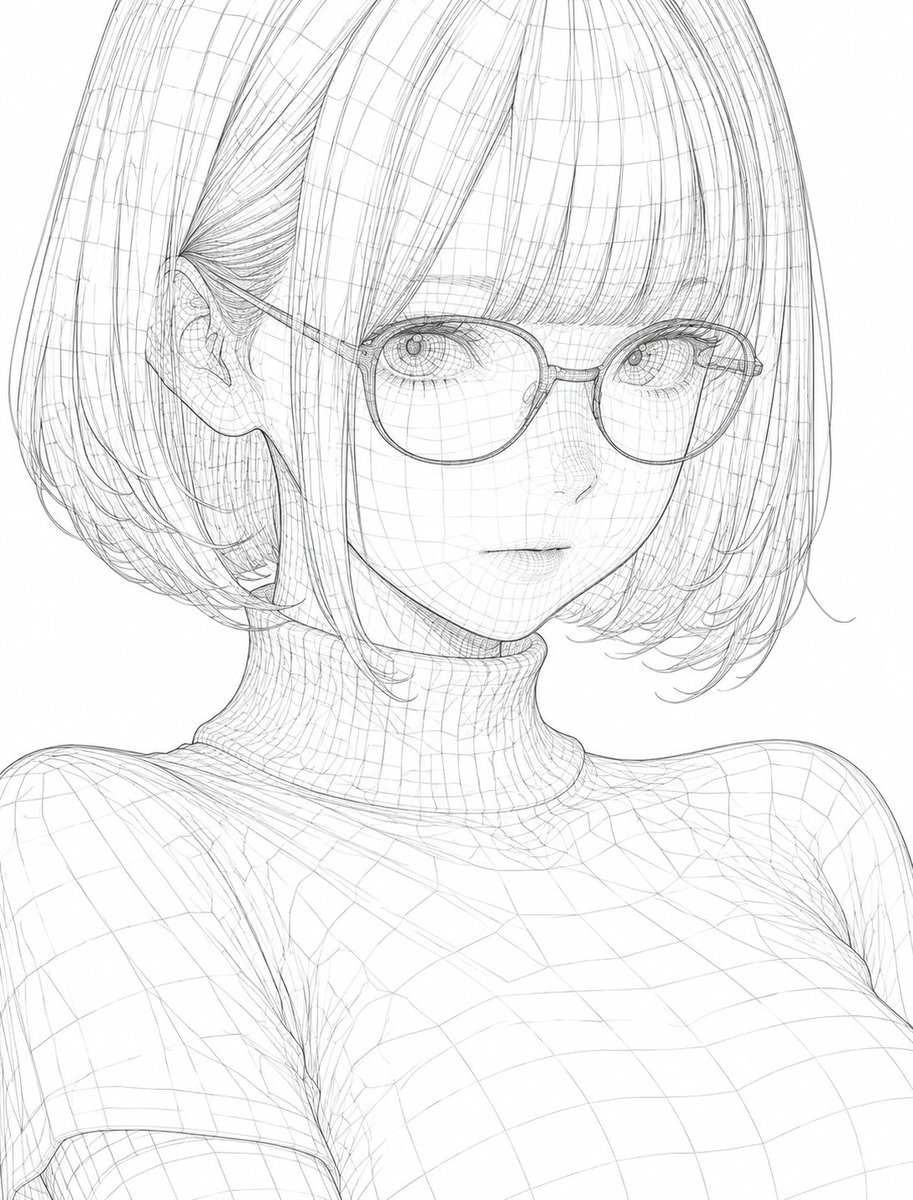
3D Wireframe Illustration Transformation
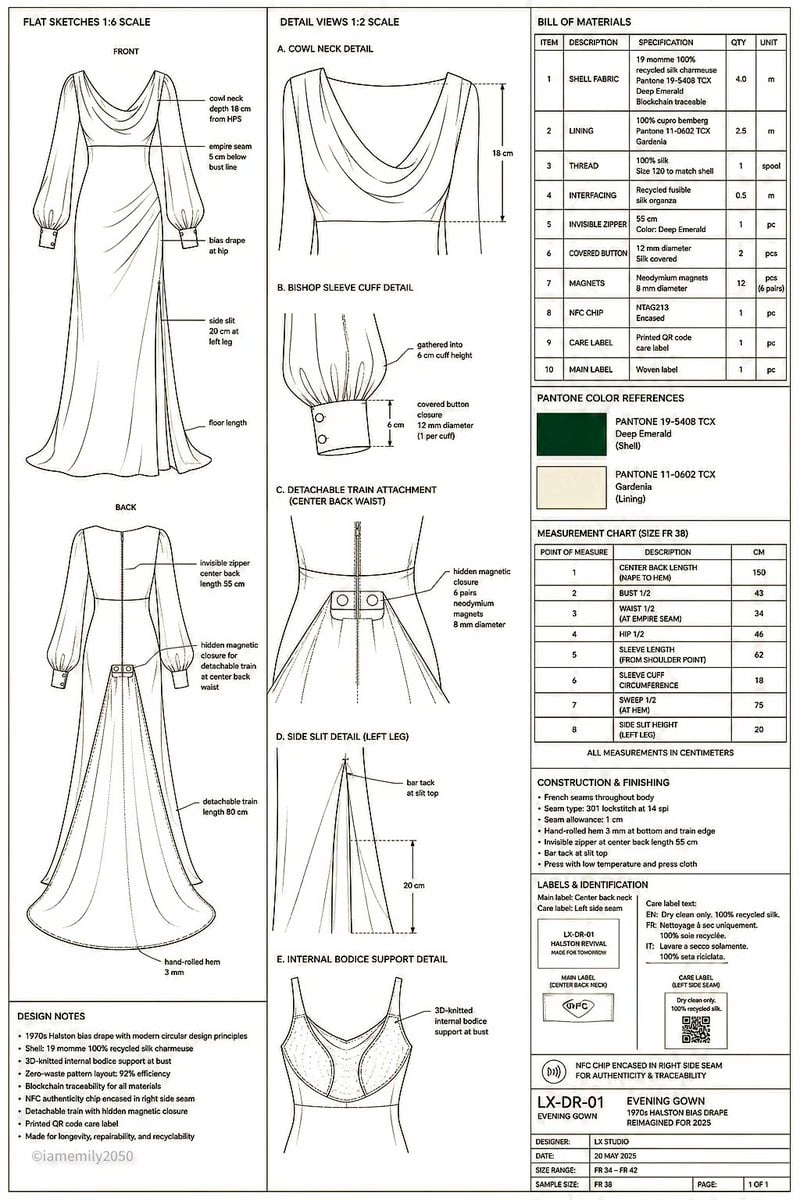
Technical Fashion Specification Sheet
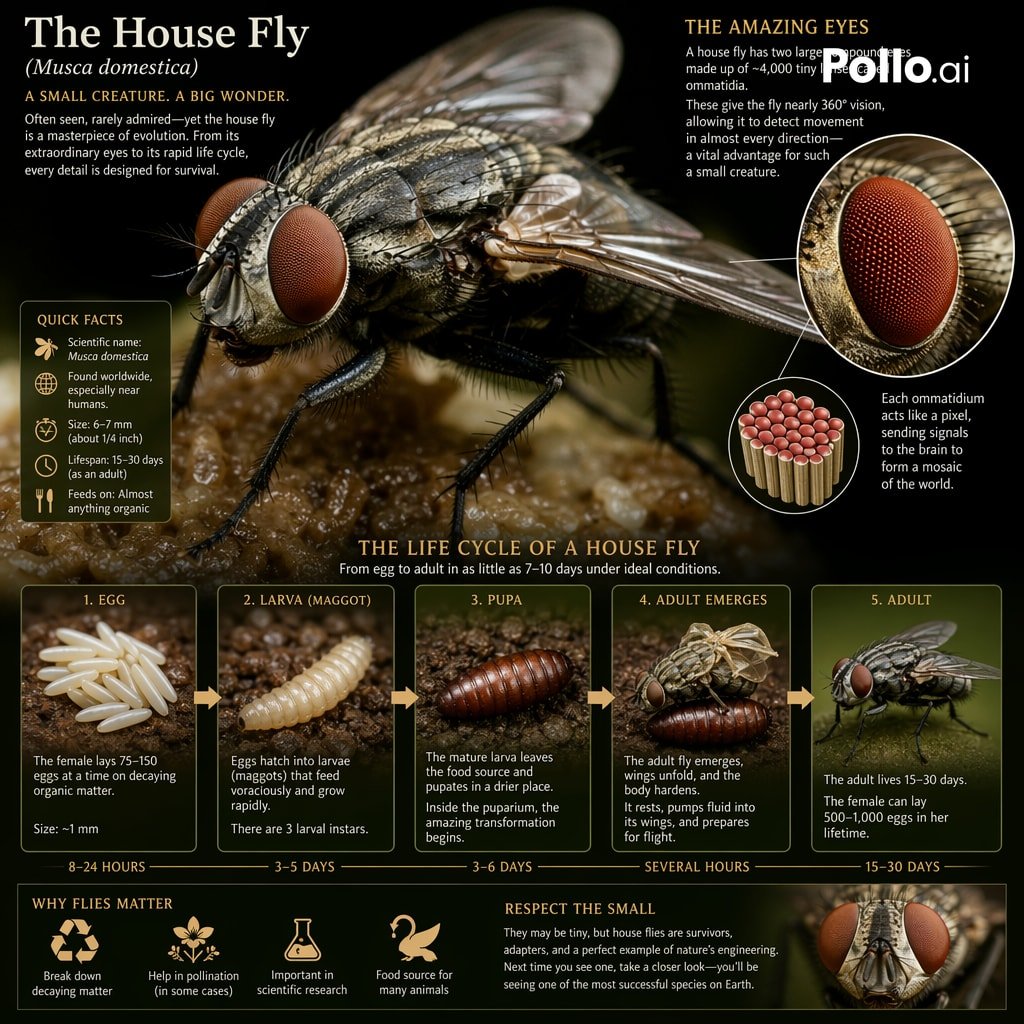
Biological Life Cycle Diagram

Cute Oil Pastel Schoolgirl Portrait
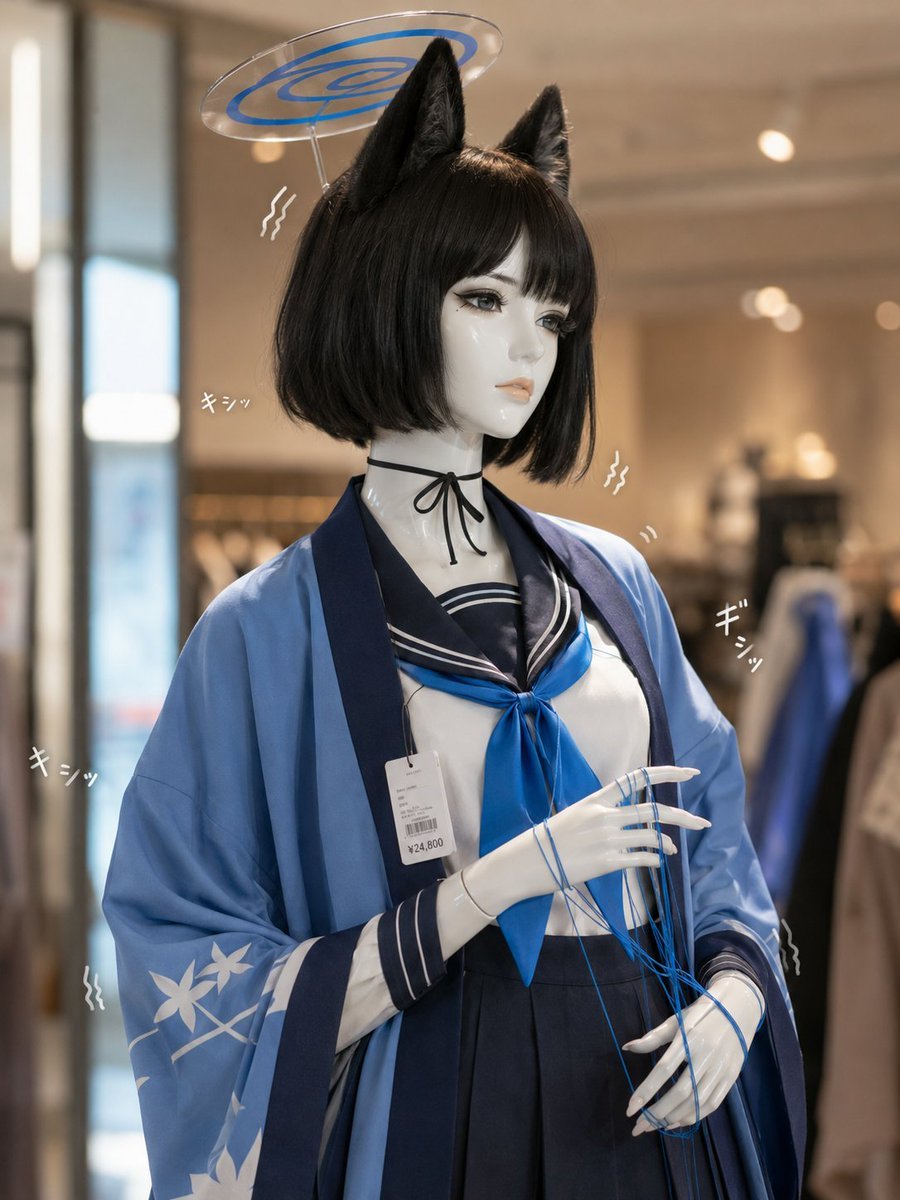
Photoreal Anime Mannequin Display
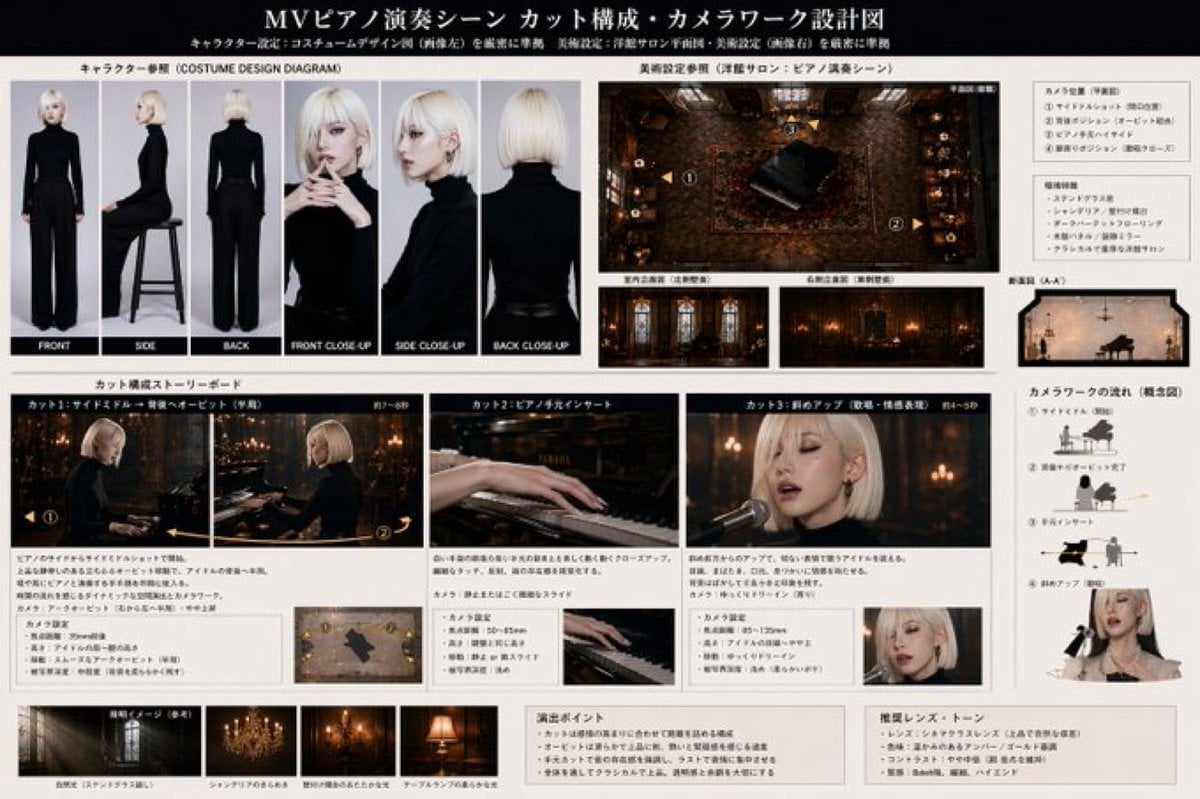
MV Pre-visualization Blueprint
Luxury Korean Beauty Editorial

Y2K City Girl Magazine Cover
14 Napa Valley Vineyard — California Series
World Cup Soccer Girl High Fashion Poster
Browse template categories
Wall of Death Fisheye Documentary questions
How do I use the Wall of Death Fisheye Documentary template?
Add your photo if the template asks for one, edit the prompt if you like — the template's model and format are already selected — and press Generate. Your version opens in PicX Studio.
Can I customize the Wall of Death Fisheye Documentary template?
Yes. You can change the subject, setting, lighting, mood, format, and available model controls before creating your image.
Is the Wall of Death Fisheye Documentary template free?
Opening and editing this template is free. Generating uses credits, shown on the Generate button when you are signed in.
Which AI model should I use?
Start with GPT Image 2, which is the model associated with this template. You can compare another compatible model for a different finish.
Looking for something else? Browse all templates.

Your photo, any look
Thousands of ready templates for every top image and video model, from one credit balance.