
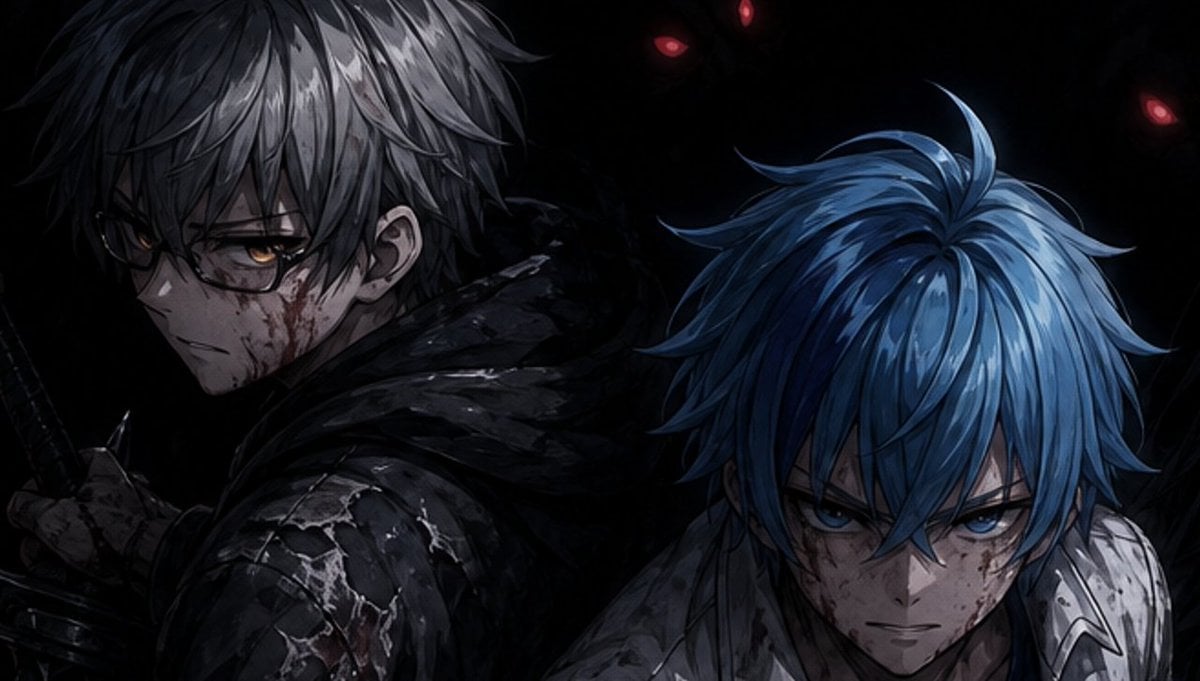
Dark Anime Warriors with Censored Faces
A widescreen dark fantasy anime scene of two back-to-back armored warriors with obscured faces and ominous red eyes in the shadows.
- Prompt included
- Model and format preset
- Premium template
The prompt behind this image
Copy the exact prompt behind Dark Anime Warriors with Censored Faces, or open it in the studio and make it yours.
Create a dark cinematic anime illustration in a gritty semi-realistic style, widescreen 16:9. Show exactly 2 male fantasy warriors from the chest up, standing back-to-back in a nearly black void. The left warrior has {argument name="left character hair color" default="messy silver-gray hair"}, pale skin, a visible ear with a small earring, and wears a tattered black hooded cloak over cracked dark armor; his left hand grips the hilt of a katana or short sword near the lower-left corner. The right warrior has {argument name="right character hair color" default="vivid layered blue hair"}, leans forward slightly, and wears scratched white-silver armor with dark cloth at the neck. Cover each character's face with a large opaque rectangular censor block: exactly 2 blocks total, one dark charcoal square over the left character's face in the upper-left center, and one dark blue-gray vertical rectangle over the right character's face in the lower-right center. In the background, hide shadowy demonic silhouettes with exactly 3 visible glowing red eyes: two near the upper center and one near the upper right. Use dramatic low-key lighting, high contrast, sharp painted hair strands, wet highlights on armor, scratches, grime, and a somber blue-black color palette. No text, no watermark, no extra characters, keep the composition cropped tightly and moody.
How to use Dark Anime Warriors with Censored Faces in 3 steps
- 1Upload ImagePNG, JPG or paste
Add your photo
Upload the photo the template builds on. The prompt, model and format are already set.
- 2…a portrait of your subject in softgolden-hour light, 85mm…
Personalize
Edit the subject and creative details for your destination.
- 3Generate
Generate
Press Generate — your image is created in PicX Studio, so you can compare it with the original and refine one variable at a time.
More like this
Templates with the same subject, style or setup. Open one to see its prompt.
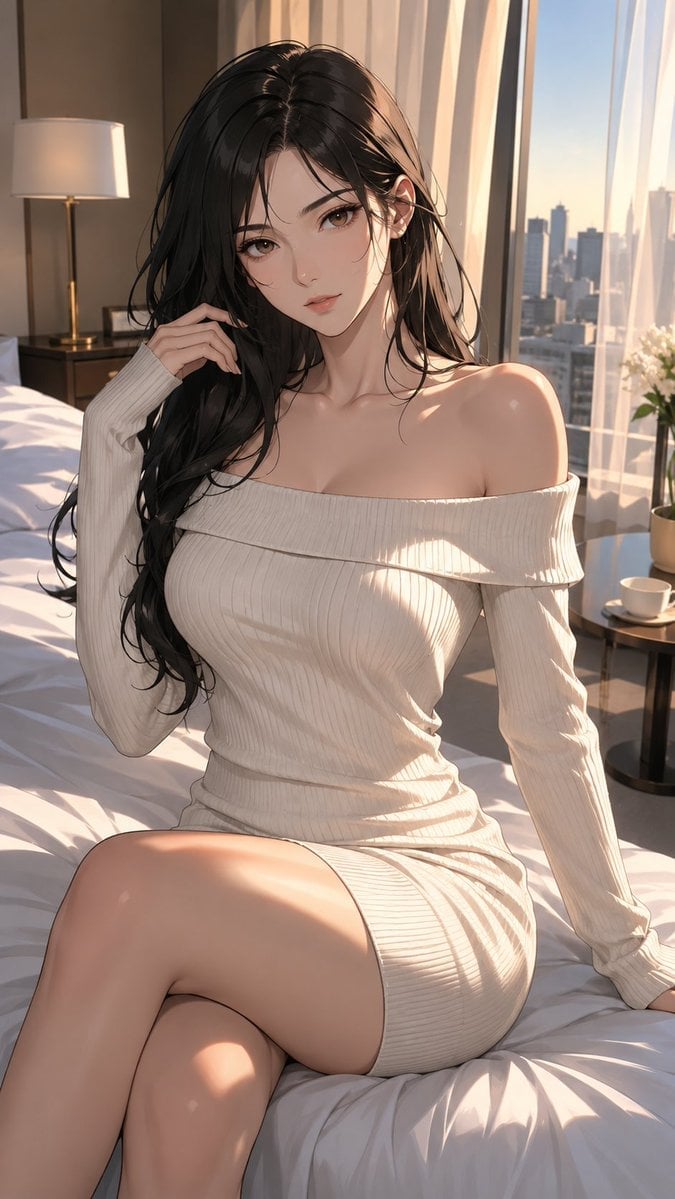
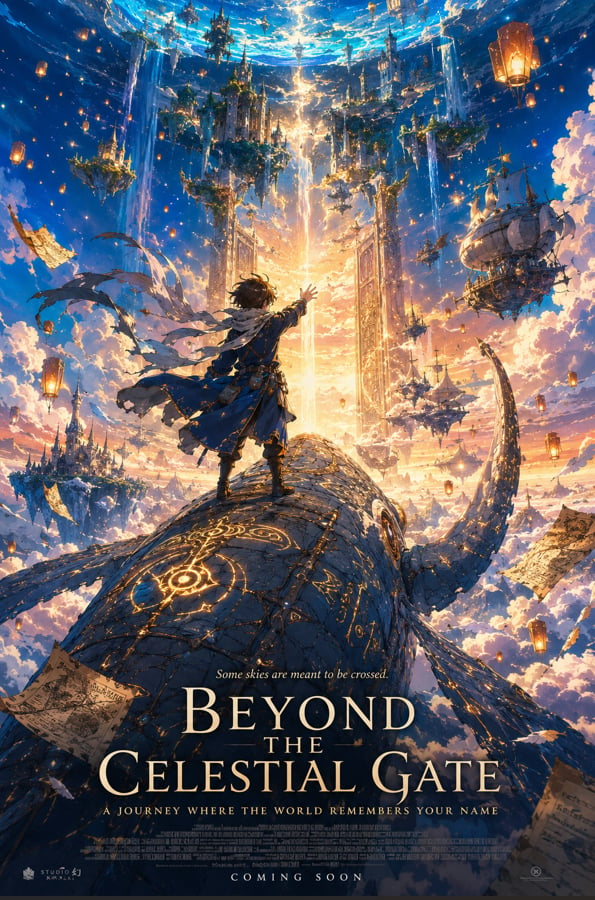
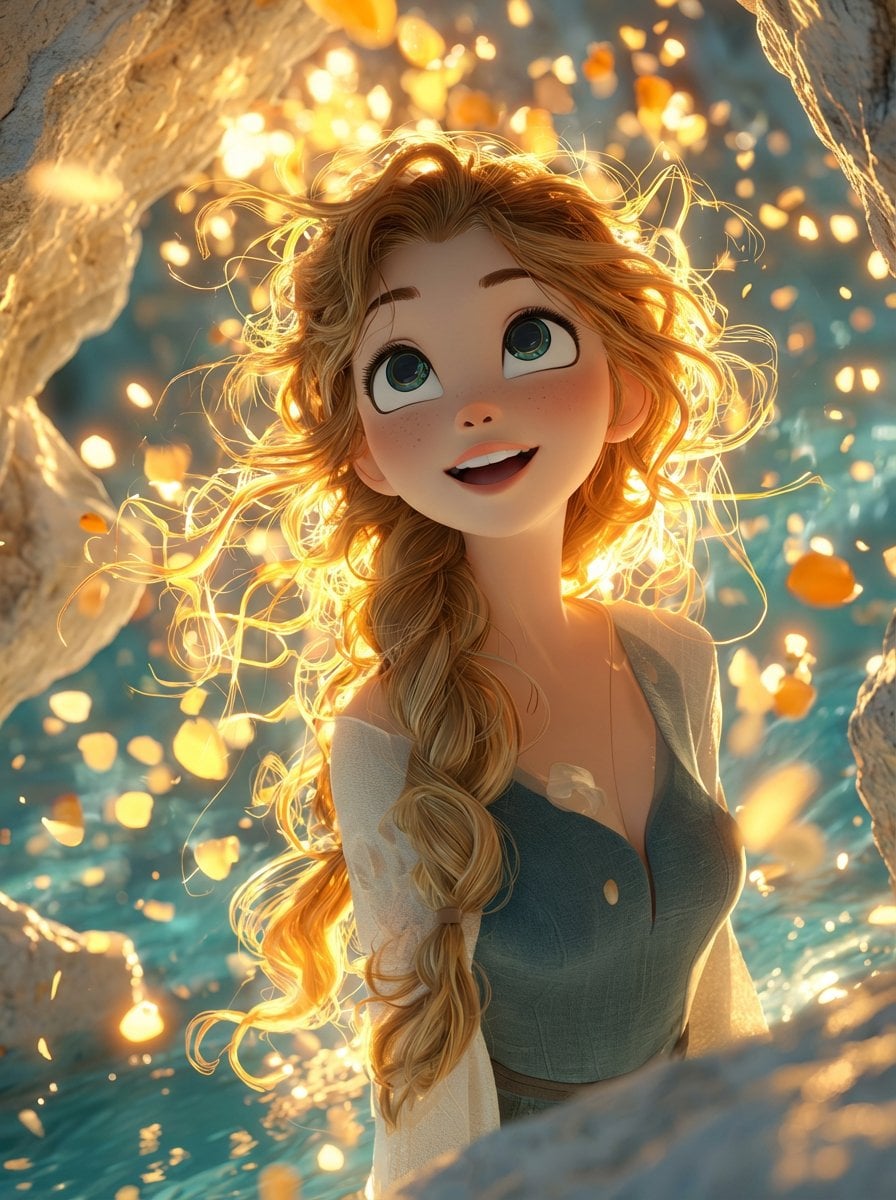
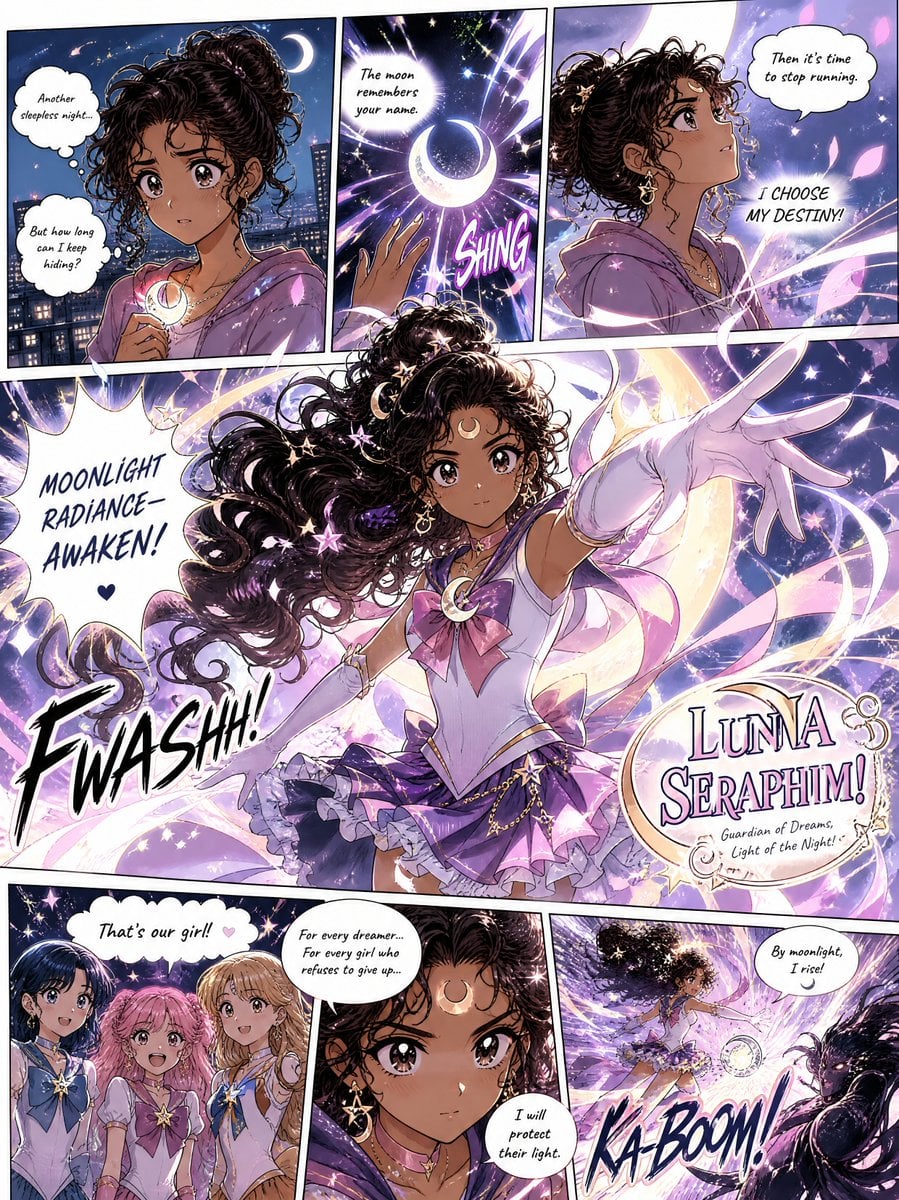
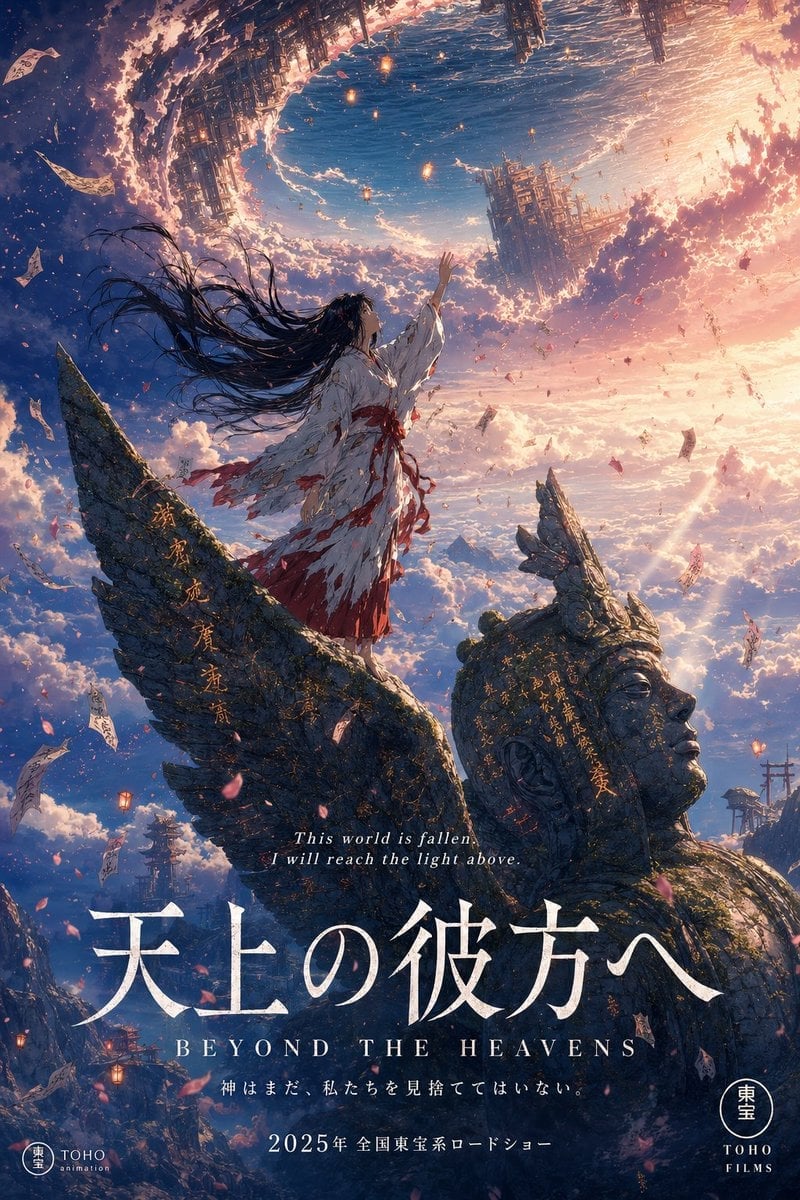
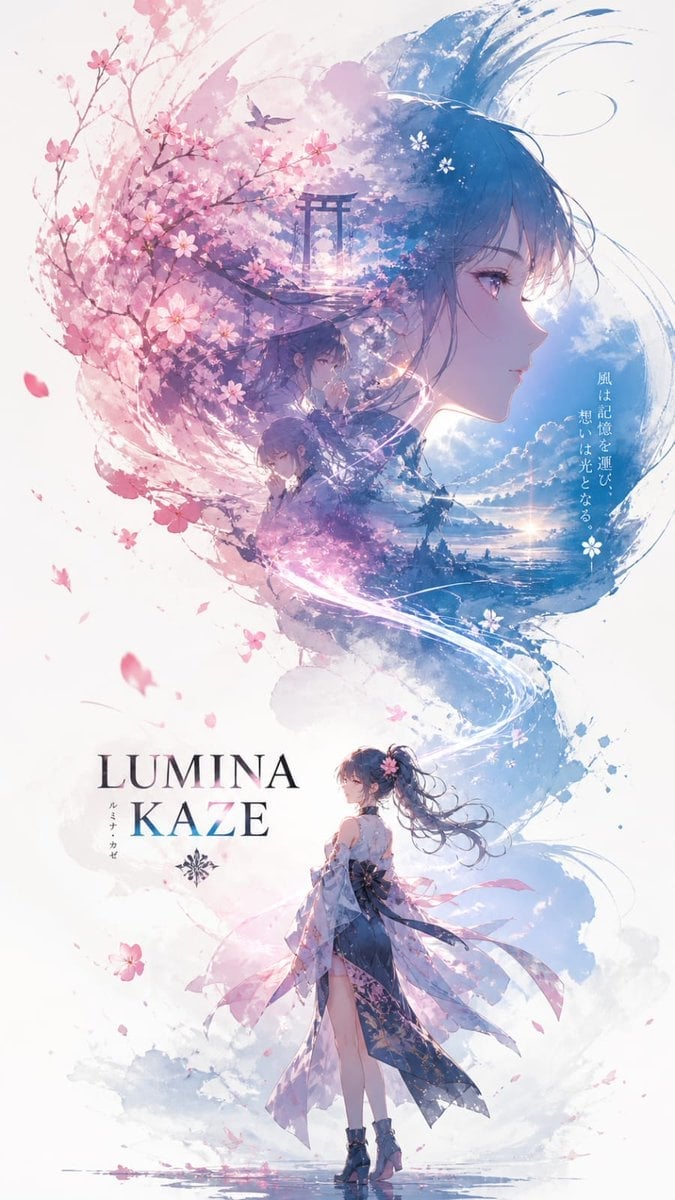
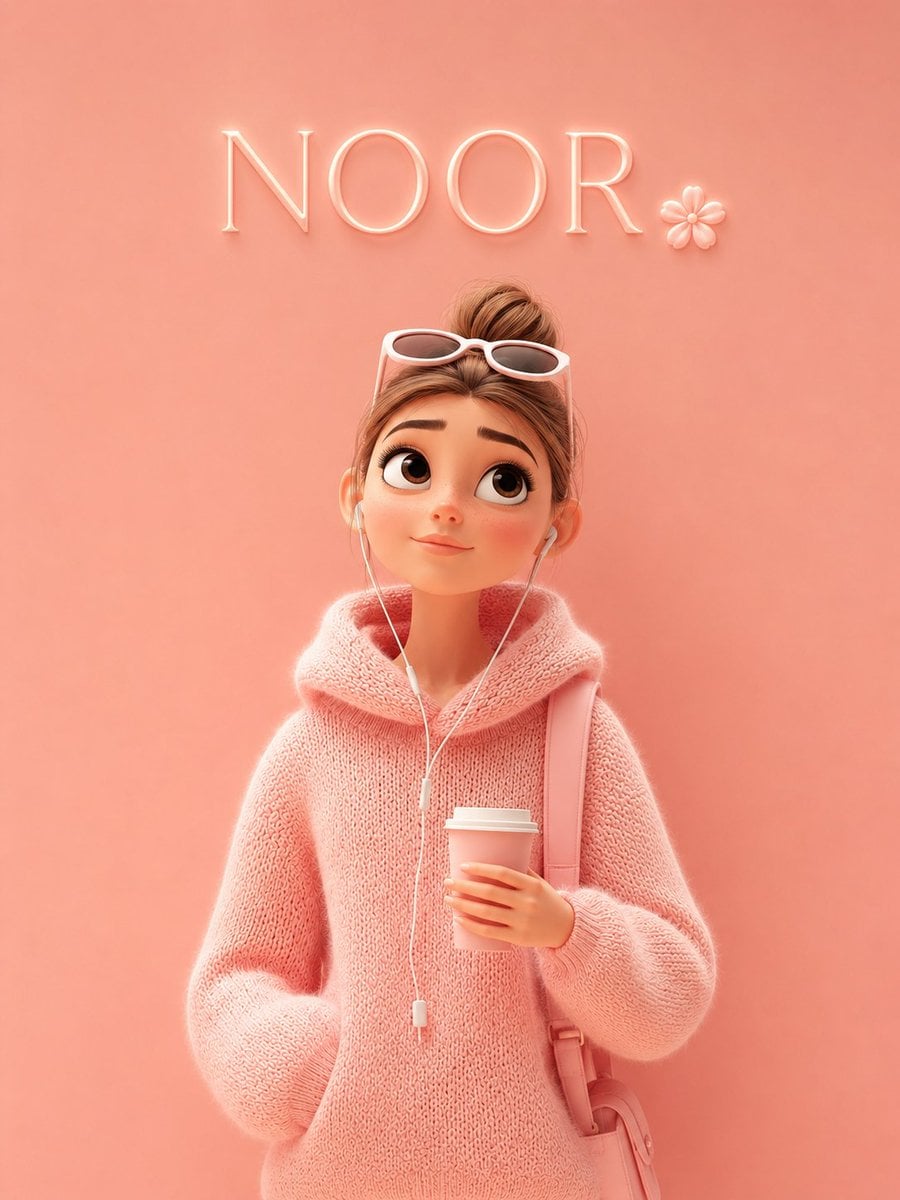
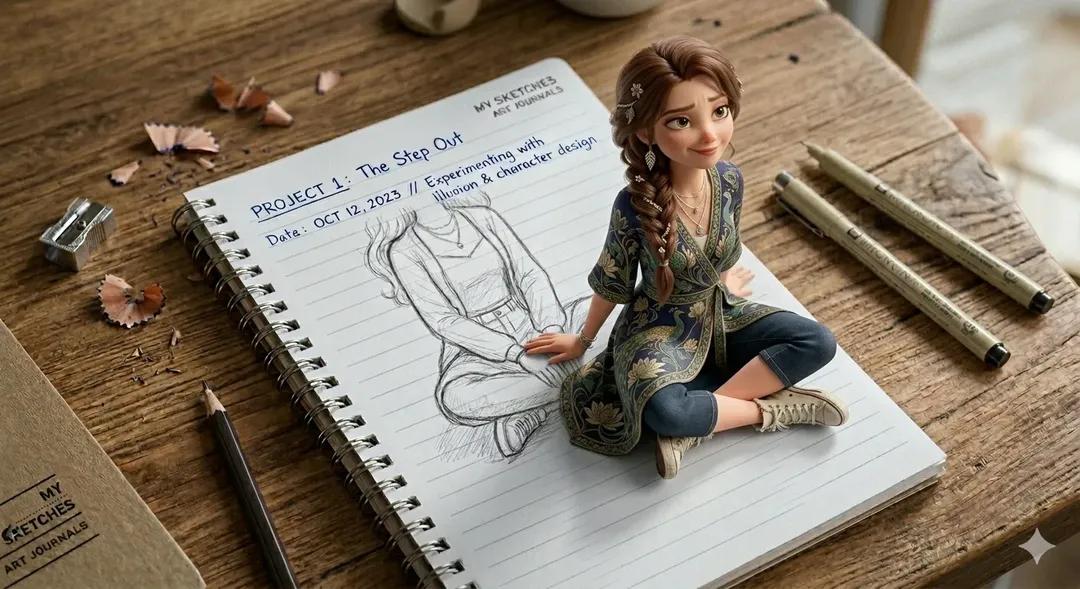
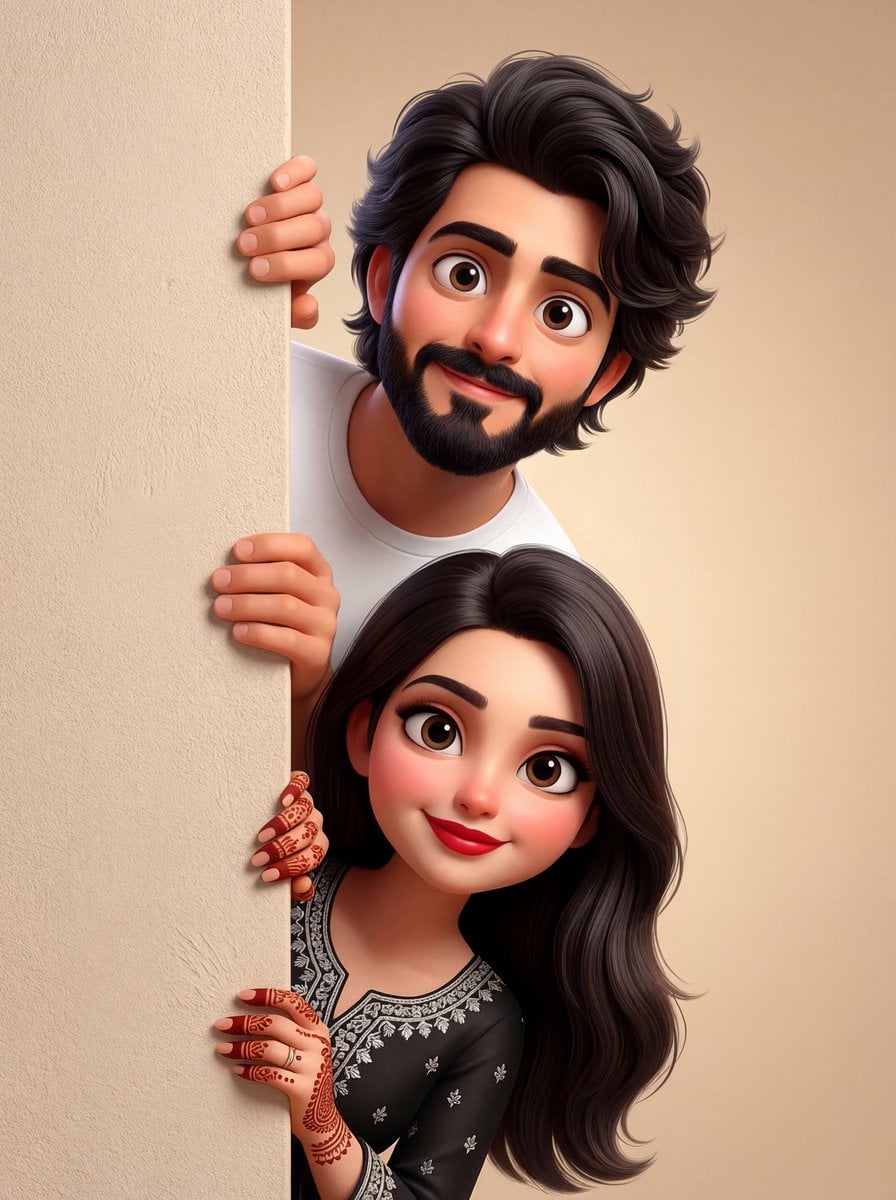
Make it yours
Dark Anime Warriors with Censored Faces works as-is. These are the safest ways to change it without losing the look.
Change one field
Copy a single group, rewrite it, and generate again so you can see what that field is doing.
Keep the frame, change the subject
Hold the composition and light of Dark Anime Warriors with Censored Faces, then swap wardrobe, props or the person for a new take.
| If the result… | Why | Fix |
|---|---|---|
| The result drifts from the preview | Too many fields changed at once. | Reuse Dark Anime Warriors with Censored Faces as-is first, then change one group — subject, light, or setting. |
| The model over-stylizes the scene | The prose prompt leaves finish and camera underspecified. | Add one camera or lighting sentence and stay on GPT Image 2. |
More GPT Image 2 templates
Other prompts made for GPT Image 2.

Six VTuber Japanese Logo Sheet

Realistic Portrait of Woman and Deer

The Vista Modular Condo Poster

AI Model Routing Comparison Infographic

2.5D Anime Art Board

Isometric Productivity Desk Scene

New York Double Exposure Poster

Four-Panel AI Landscape Comparison

Japanese Tatami Lifestyle Magazine Cover

NESCAFÉ Coffee Map Poster
More image prompts
Fresh picks from across the catalog.
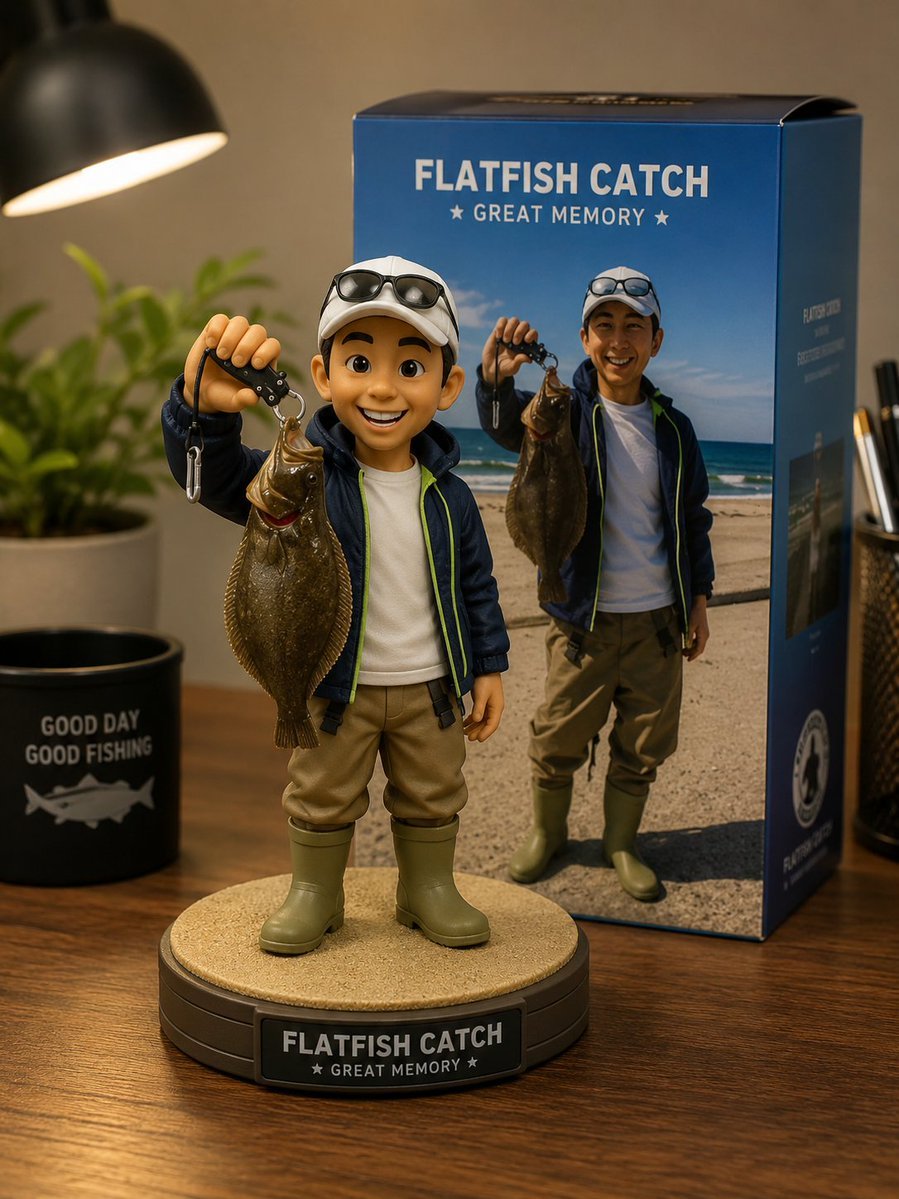
Toy Figure Character Transformation
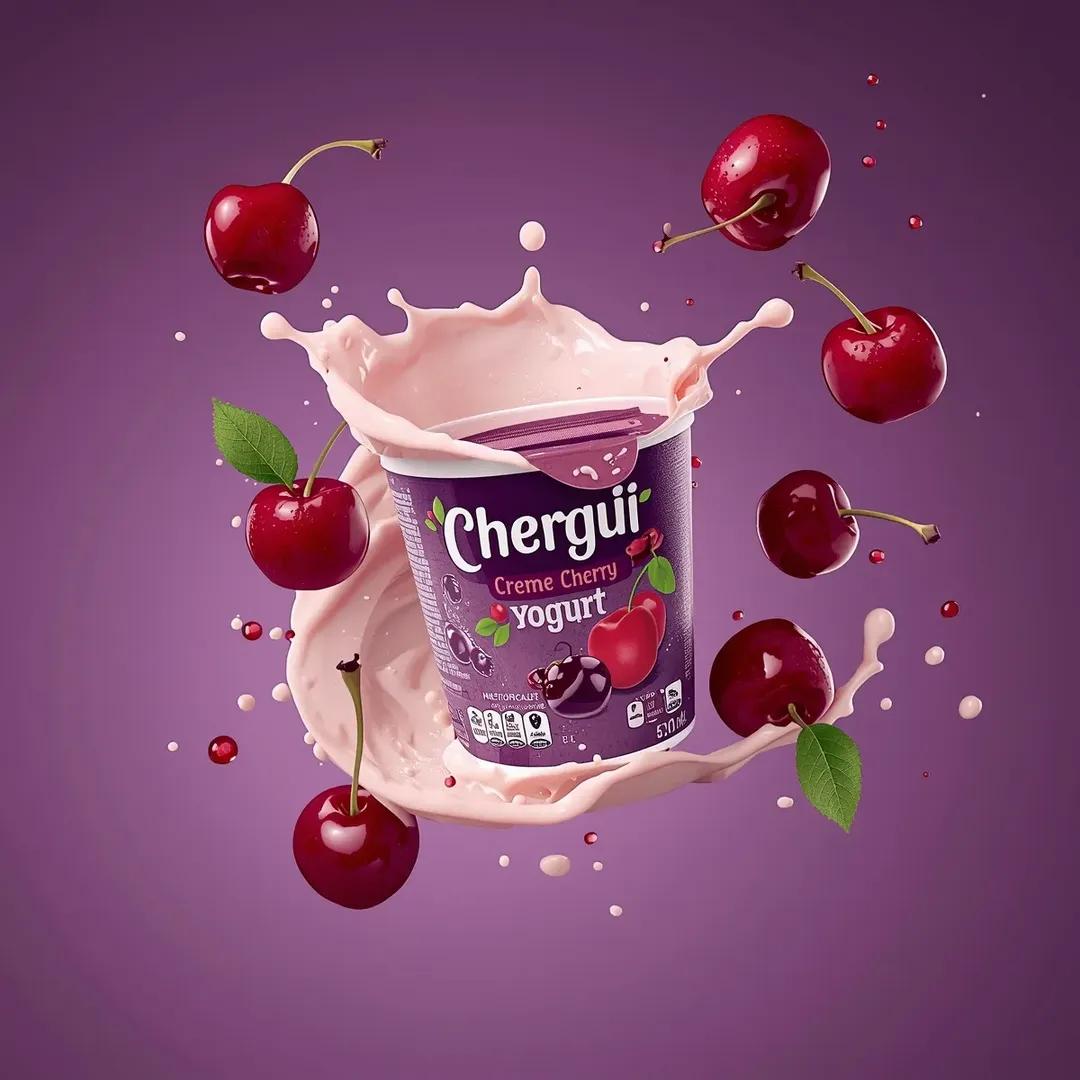
High-End Commercial Yogurt Product Photography Prompt for Nano Banana Pro
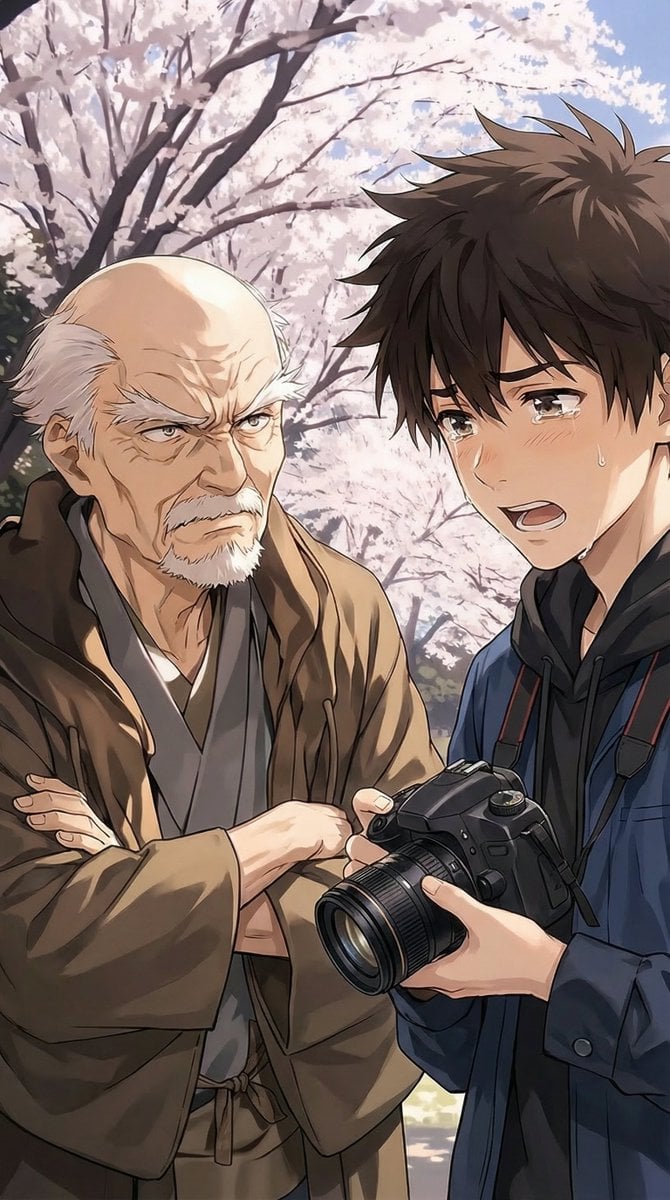
Image Transformation Instruction
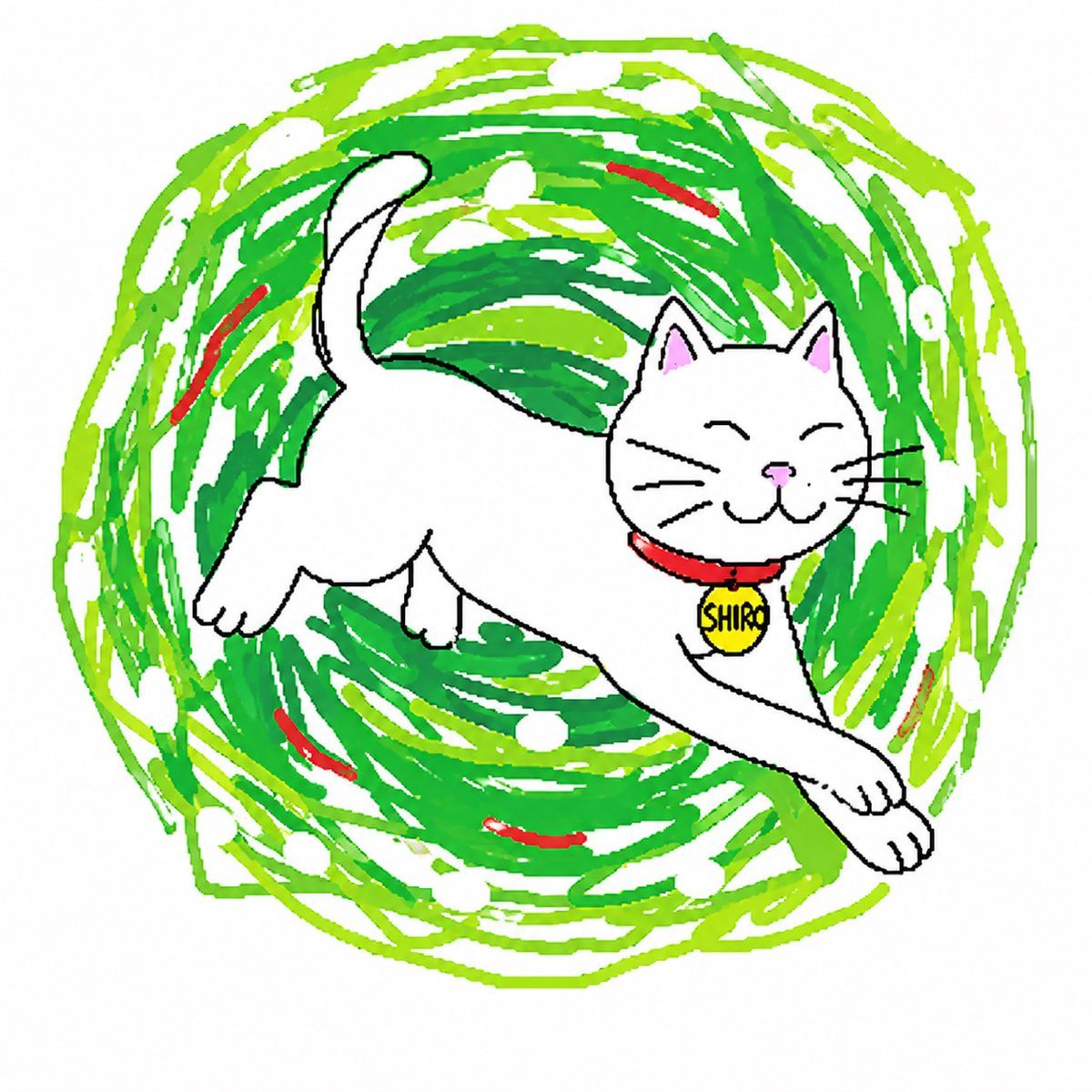
Clumsy Scribble Cat Doodle
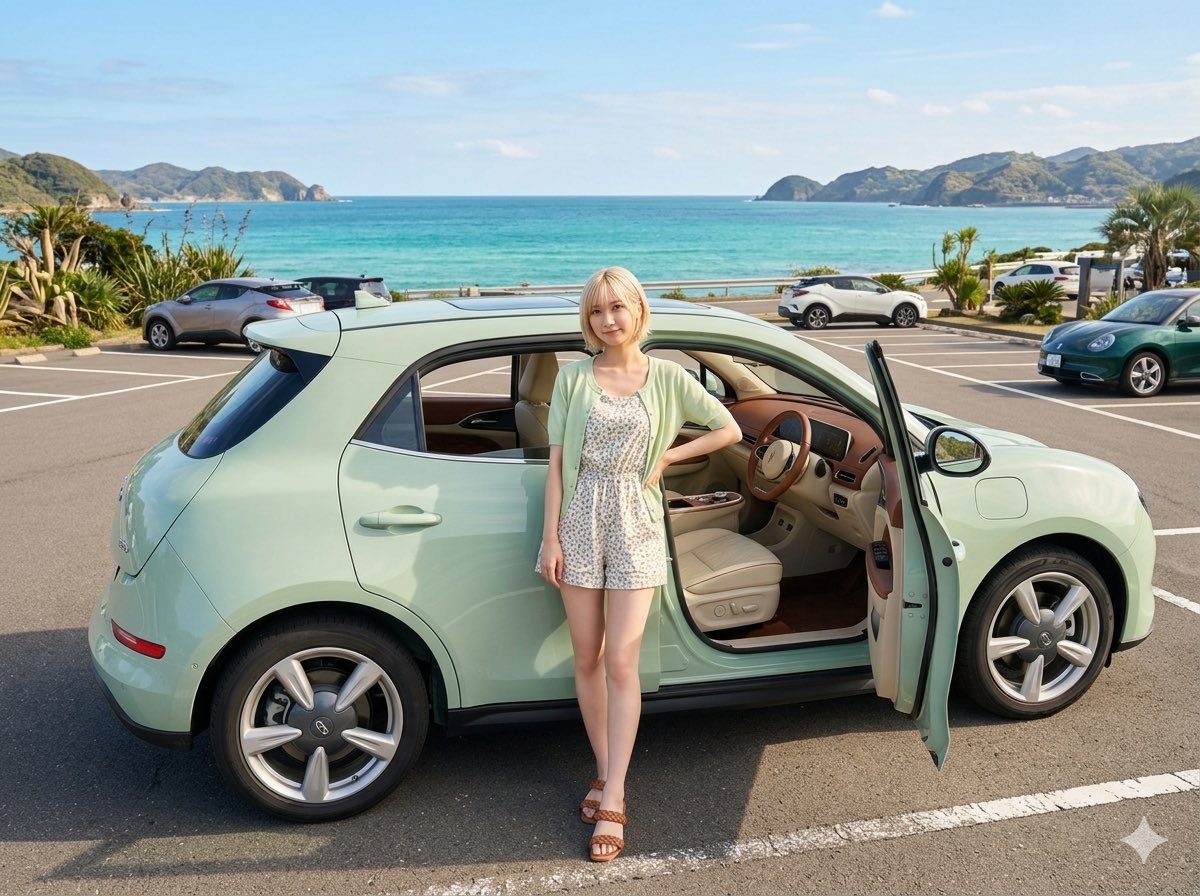
Mint Green Coastal Car Portrait
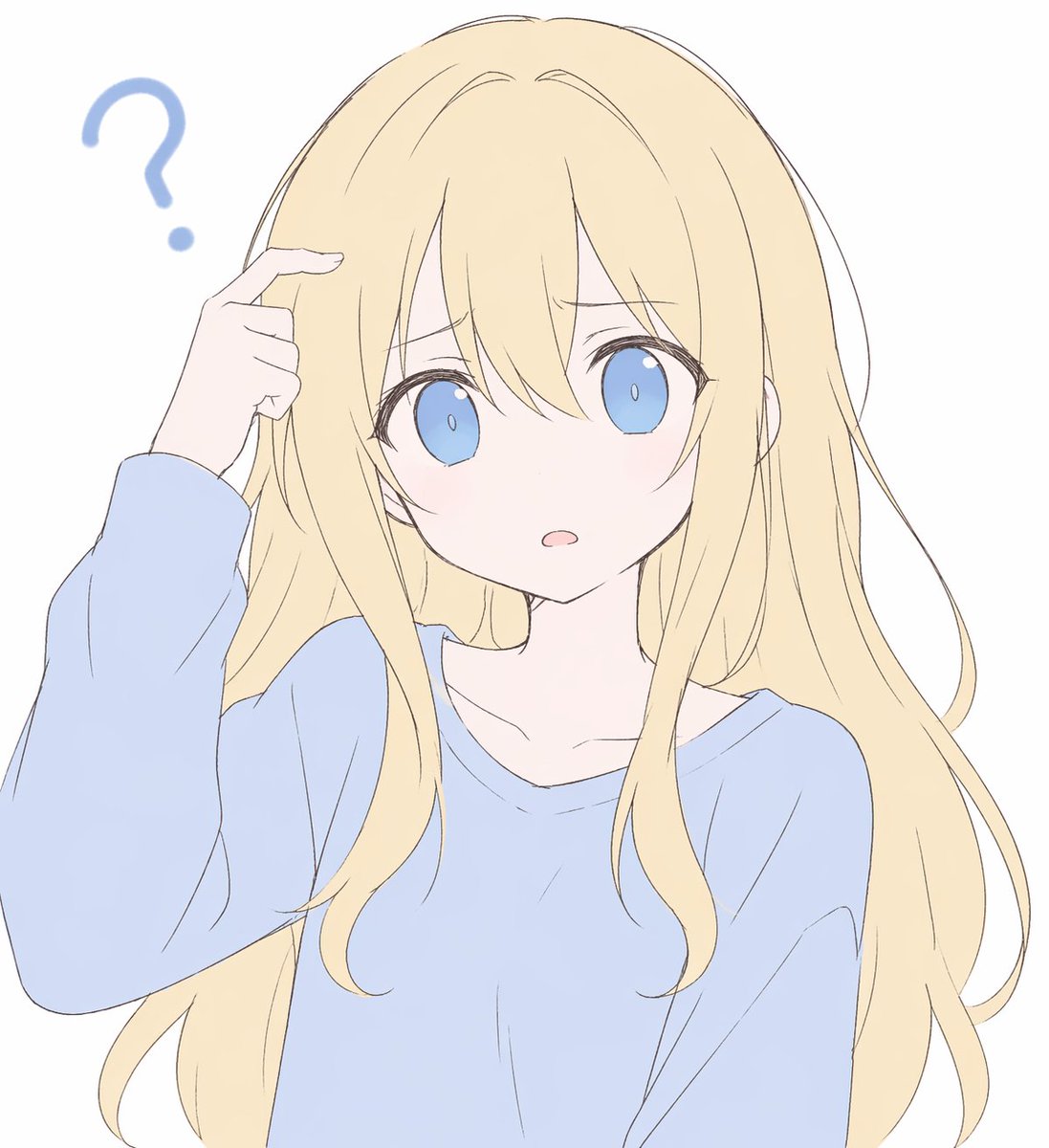
Confused Blonde Anime Girl Portrait
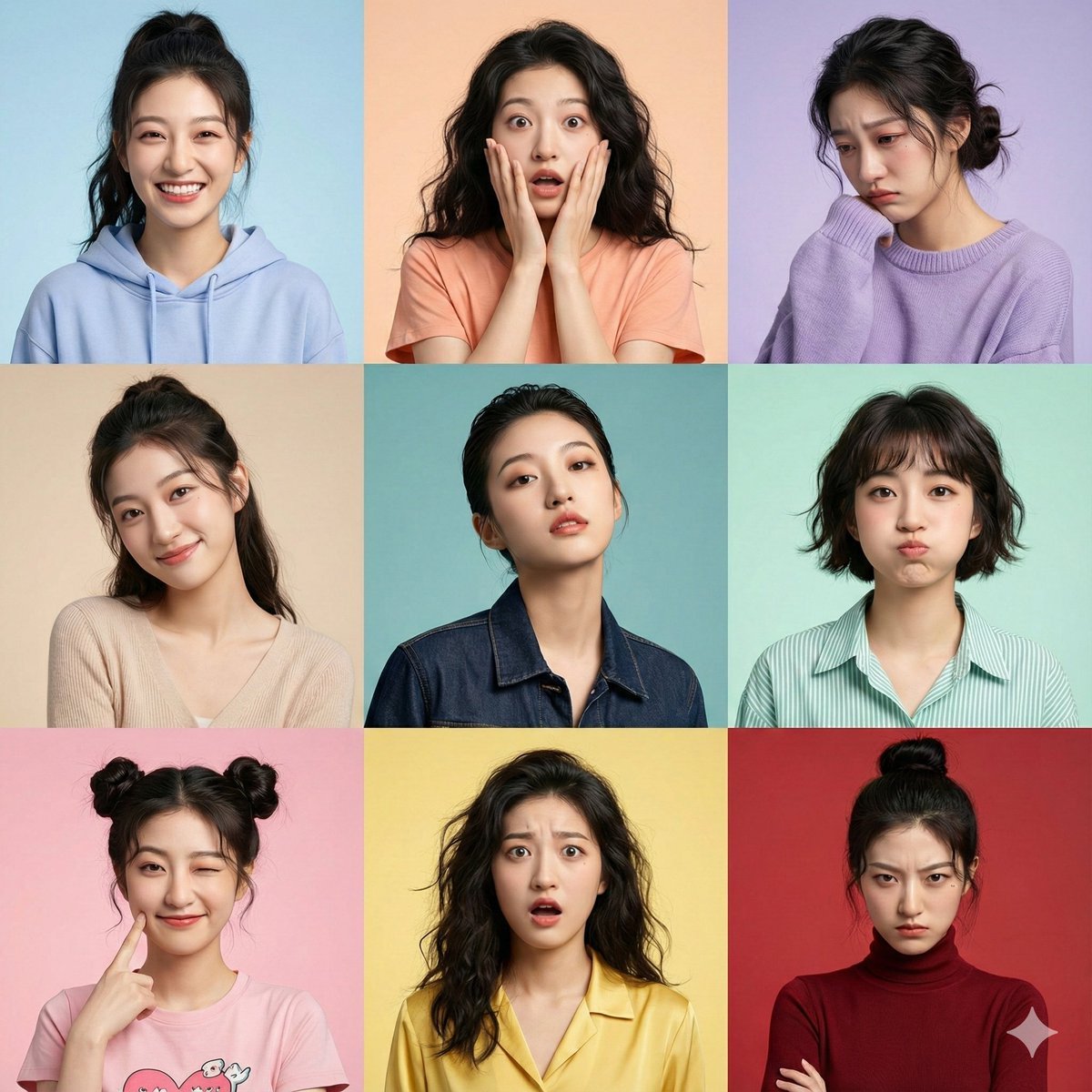
Hyper-Realistic 3x3 Grid Portrait with Fixed Identity
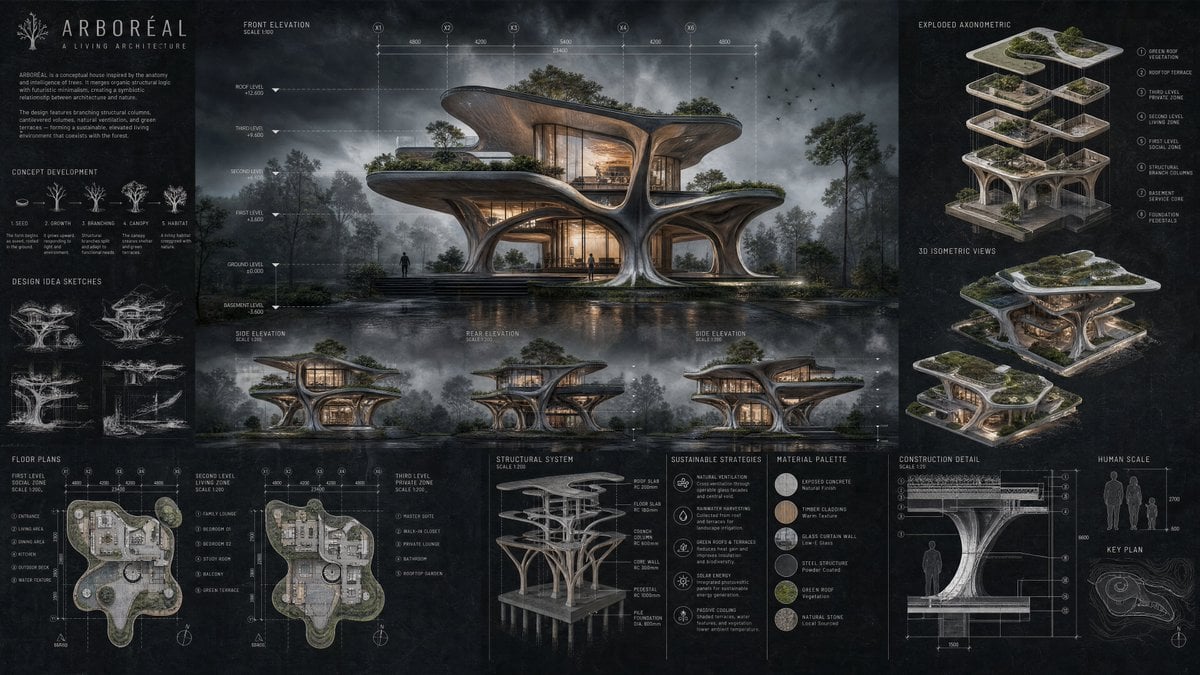
Arboreal Architecture Presentation Board
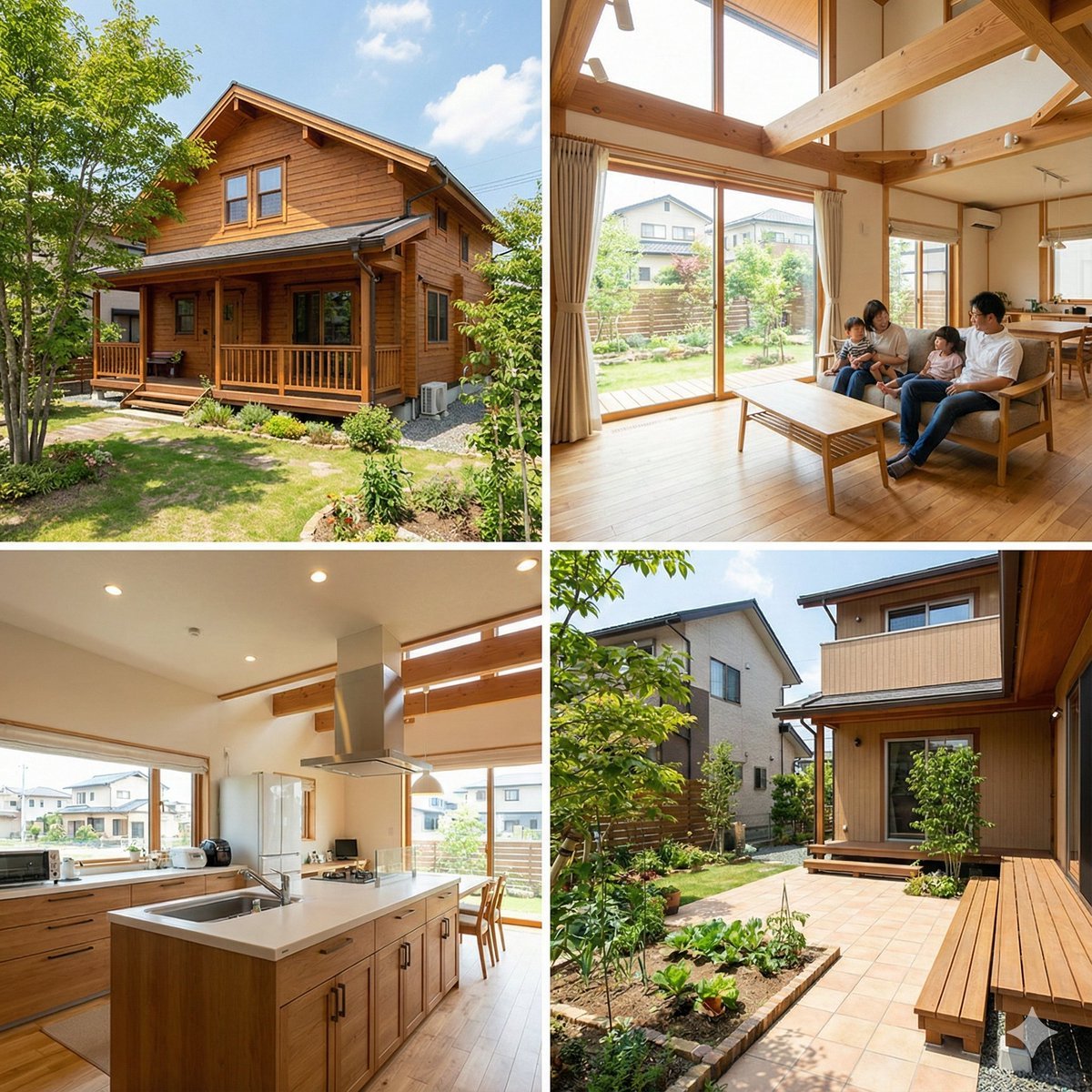
Generating Real Estate Flyers with Nano Banana Pro
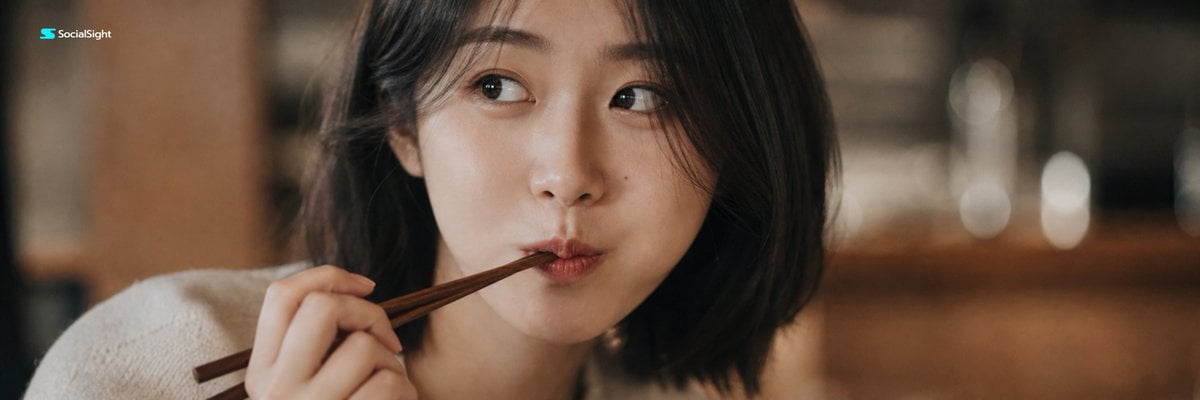
Playful Intimate Portrait Photography
Browse template categories
Dark Anime Warriors with Censored Faces questions
How do I use the Dark Anime Warriors with Censored Faces template?
Add your photo if the template asks for one, edit the prompt if you like — the template's model and format are already selected — and press Generate. Your version opens in PicX Studio.
Can I customize the Dark Anime Warriors with Censored Faces template?
Yes. You can change the subject, setting, lighting, mood, format, and available model controls before creating your image.
Is the Dark Anime Warriors with Censored Faces template free?
Opening and editing this template is free. Generating uses credits, shown on the Generate button when you are signed in.
Which AI model should I use?
Start with GPT Image 2, which is the model associated with this template. You can compare another compatible model for a different finish.
Looking for something else? Browse all templates.

Your photo, any look
Thousands of ready templates for every top image and video model, from one credit balance.