How do I use the Style hyper-realistic commercial product photography template?
Edit the prompt in the box under the preview — the template's model and format are already selected — and press Generate. Your version appears right on this page.
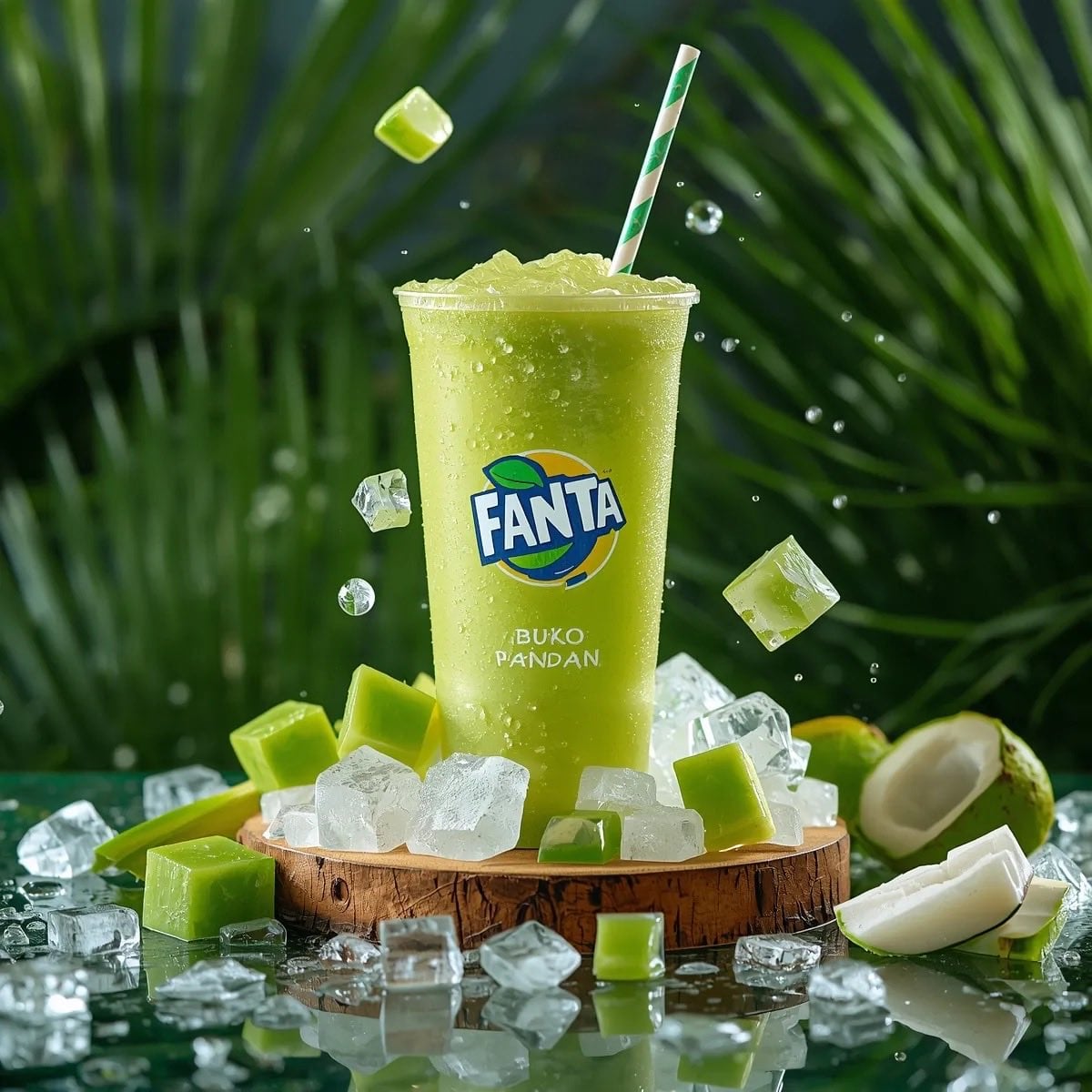
{ "resolution": "8K", "style": "hyper-realistic commercial product photography", "composition": { "subject": "carbonated beverage can", "position": "center frame, floating mid-air", "orientation": "slightly tilted…

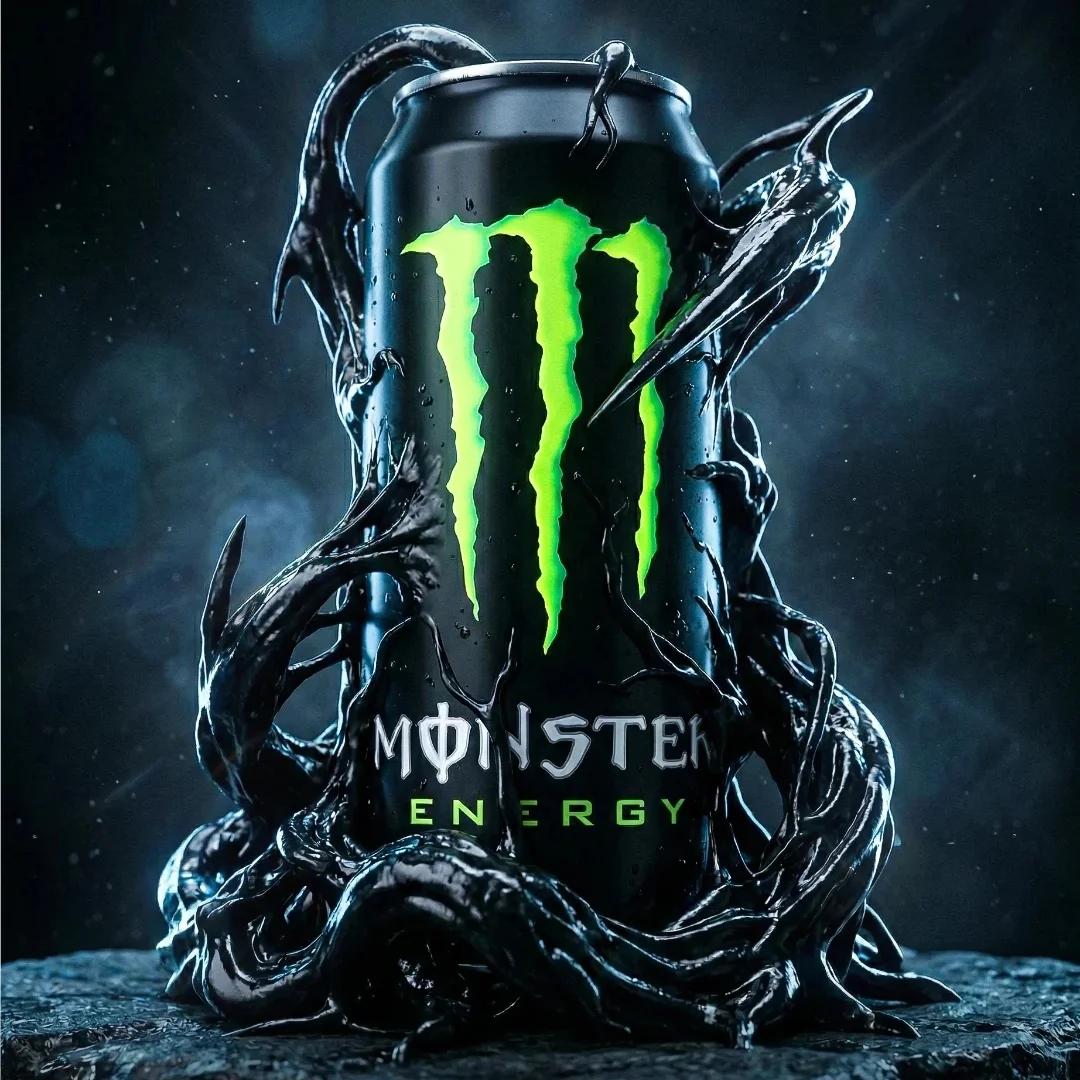
{ "resolution": "8K", "style": "hyper-realistic commercial product photography", "composition": { "subject": "carbonated beverage can", "position": "center frame, floating mid-air", "orientation": "slightly tilted vertical", "framing": "tight hero shot" }, "can_details": { "material": "metallic aluminum", "top_bottom": "silver with visible pull tab", "surface": "glossy with condensation droplets", "label": { "text": "{{BRAND_NAME}}", "font": "bold uppercase sans-serif", "color": "white", "background_band": "deep blue", "placement": "wrapped around center of can" } }, "liquid_effects": { "color": "bright green", "type": "carbonated liquid splash", "motion": "frozen mid-explosion", "details": [ "semi-transparent fluid", "fine droplets suspended in air", "dynamic curved splash arcs", "visible carbonation bubbles" ] }, "fruit_elements": { "type": "sliced fruit", "motion": "floating around the can", "texture": "fresh, juicy, glossy" }, "lighting": { "type": "studio lighting", "highlights": "strong reflections", "shadows": "soft" }, "background": { "color": "smooth gradient matching liquid tone", "environment": "clean studio backdrop" }, "render_quality": { "sharpness": "ultra-sharp", "contrast": "high", "realism": "photorealistic" } }
Edit the prompt in the box under the preview — the template's model and format are already selected — and press Generate. Your version appears right on this page.
Yes. You can change the subject, setting, lighting, mood, format, and available model controls before creating your image.
Opening and editing this template is free. Generating uses credits, shown on the Generate button when you are signed in.
Start with GPT Image 2, which is the model associated with this template. You can compare another compatible model for a different finish.
Follow a topic to a crawlable collection of related PicX Studio templates.