
Japanese Fantasy RPG Battle UI
Generates a polished anime-style Japanese turn-based RPG battle screen with four demons, three party members, and a detailed command menu.
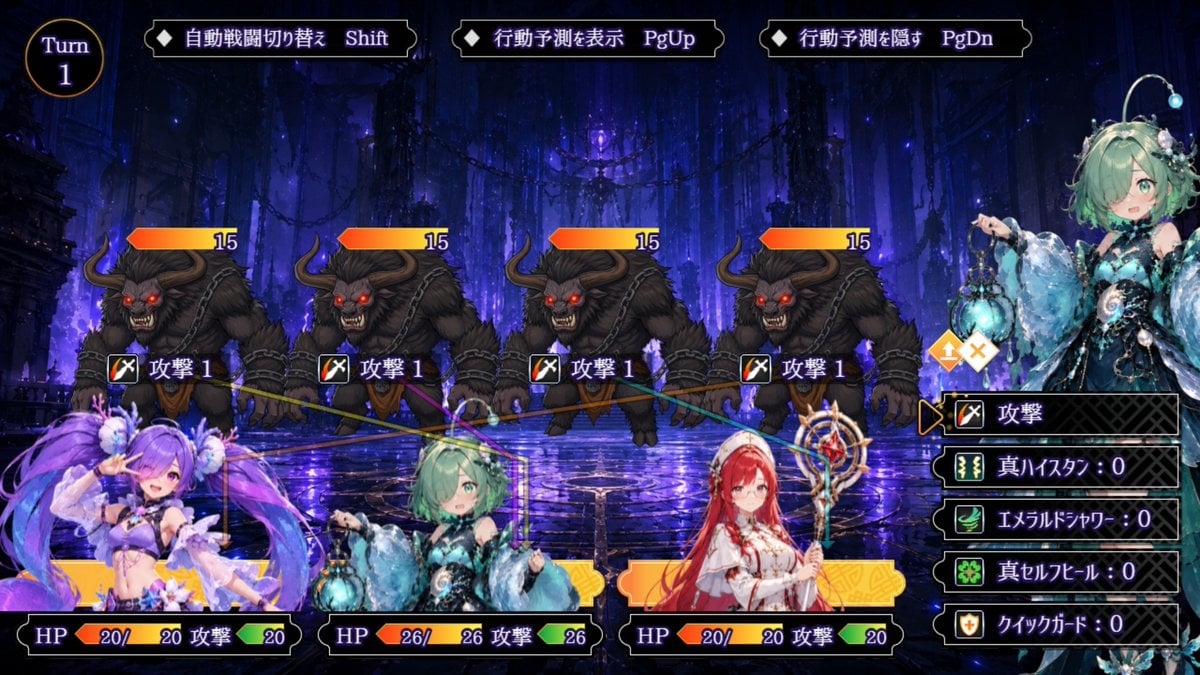
- Prompt included
- Model and format preset
- Free template
The prompt behind this image
Copy the exact prompt behind Japanese Fantasy RPG Battle UI, or open it in the studio and make it yours.
Goal: Create a 16:9 Japanese fantasy RPG battle screen UI for {argument name="game engine style" default="RPG Maker-style"}, showing a turn-based combat encounter in a dark magical dungeon. Canvas: 1200×675 widescreen game screenshot composition, crisp 2D anime game art, high-quality but not overly detailed, readable UI, no watermark. Background: A deep blue and violet ruined cathedral or underground temple with towering columns, dangling chains, glowing purple crystals, mist, and a reflective wet stone floor. The scene should feel dark, magical, and battle-ready. Layout: Top-left has a circular turn badge reading “Turn” above “1”. Across the top are exactly 3 black beveled control tabs with small diamond icons and Japanese labels: 1) 「自動戦闘切り替え」 with “Shift”, 2) 「行動予測を表示」 with “PgUp”, 3) 「行動予測を隠す」 with “PgDn”. Enemies: Place exactly 4 identical horned beast enemies in the midground, evenly spaced from left to right. Each enemy is a black-furred minotaur-like demon with curved horns, glowing red eyes, snarling mouth, muscular hunched body, chains around the shoulders, and clawed hands. Above each enemy is an orange-to-yellow HP bar with the number “15”. In front of each enemy is a small sword icon and the Japanese action label 「攻撃 1」. Thin colored targeting lines should connect enemies to party members. Player party: Along the bottom foreground place exactly 3 visible allied anime girls as character busts with UI status panels: 1) left ally is a purple-haired fairy-like girl in a revealing purple-and-white outfit with large fluffy ornaments and translucent purple wings, 2) center ally is {argument name="main character" default="a mint-green-haired aquatic/forest fairy girl"} wearing ornate teal and black clothing, holding a glowing blue lantern, with floral and shell-like accessories, 3) right ally is a red-haired priestess or mage in a white-and-red outfit holding a decorative staff. Each ally has a bottom HP/action panel: left shows “HP 20/20” and 「攻撃」 with “20”; center shows “HP 26/26” and 「攻撃」 with “26”; right shows “HP 20/20” and 「攻撃」 with “20”. Add yellow/orange selection bars behind the allies. Active character and command menu: On the right side, show a large portrait of the mint-green-haired ally cropped from mid-body upward, with face area softly blurred or obscured. Next to her are two small diamond buttons, one with an upward arrow and one with an X. Below is a vertical black command menu with exactly 5 selectable rows, each with an icon and Japanese text: 1) sword icon 「攻撃」 highlighted with an orange pointer, 2) green lightning icon 「真ハイスクタ:0」, 3) green feather/wind icon 「エメラルドシャワー:0」, 4) green clover icon 「真セルフヒール:0」, 5) shield icon 「クイックガード:0」. Visual style: Polished 2D anime fantasy RPG battle UI, luminous purple-blue lighting, ornate beveled black panels with gold trim, white and lavender text, colorful HP bars, strong contrast, readable Japanese UI labels, no extra characters, no extra enemies, no extra menu options.
How to use Japanese Fantasy RPG Battle UI in 3 steps
- 1Upload ImagePNG, JPG or paste
Add your photo
Upload the photo the template builds on. The prompt, model and format are already set.
- 2…a portrait of your subject in softgolden-hour light, 85mm…
Personalize
Edit the subject and creative details for your destination.
- 3Generate
Generate
Press Generate — your image is created in PicX Studio, so you can compare it with the original and refine one variable at a time.
More like this
Templates with the same subject, style or setup. Open one to see its prompt.

Minecraft Japanese Research Lab Exploration
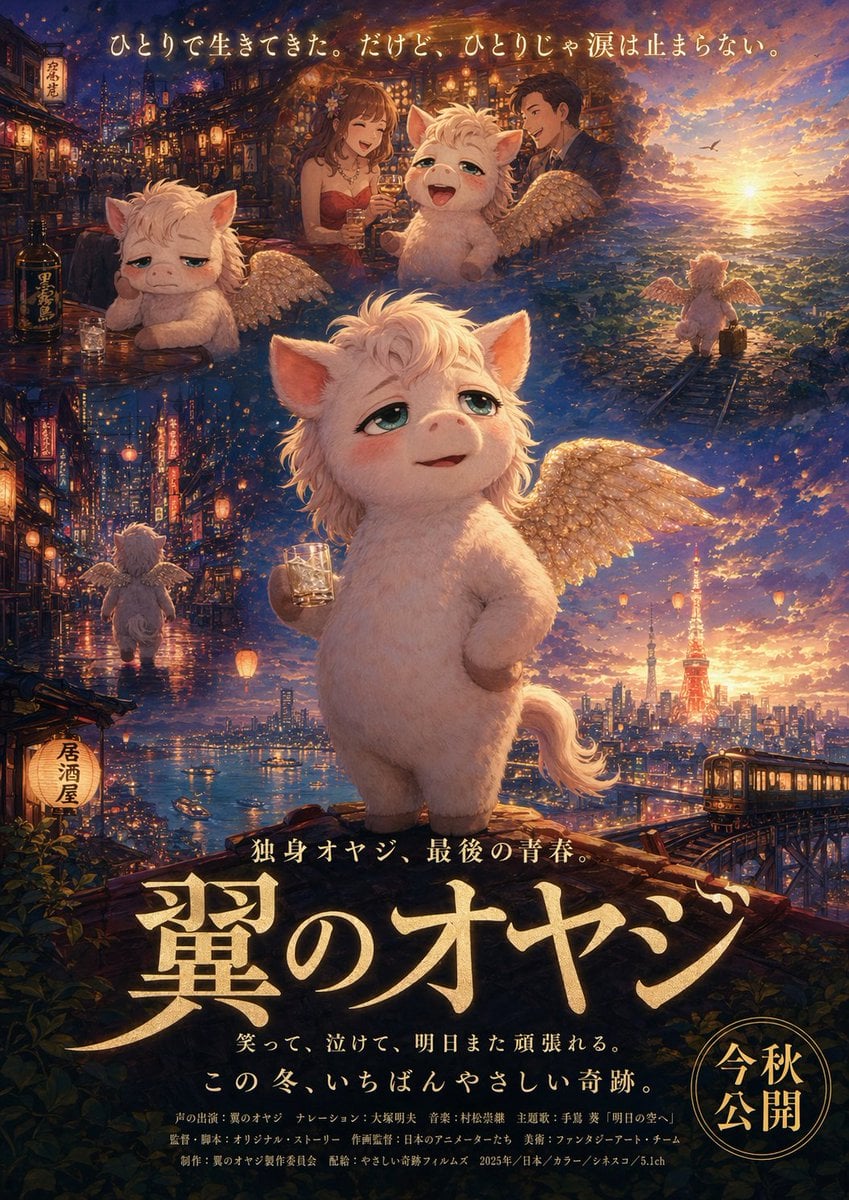
Japanese Fantasy Winged Pig Film Poster
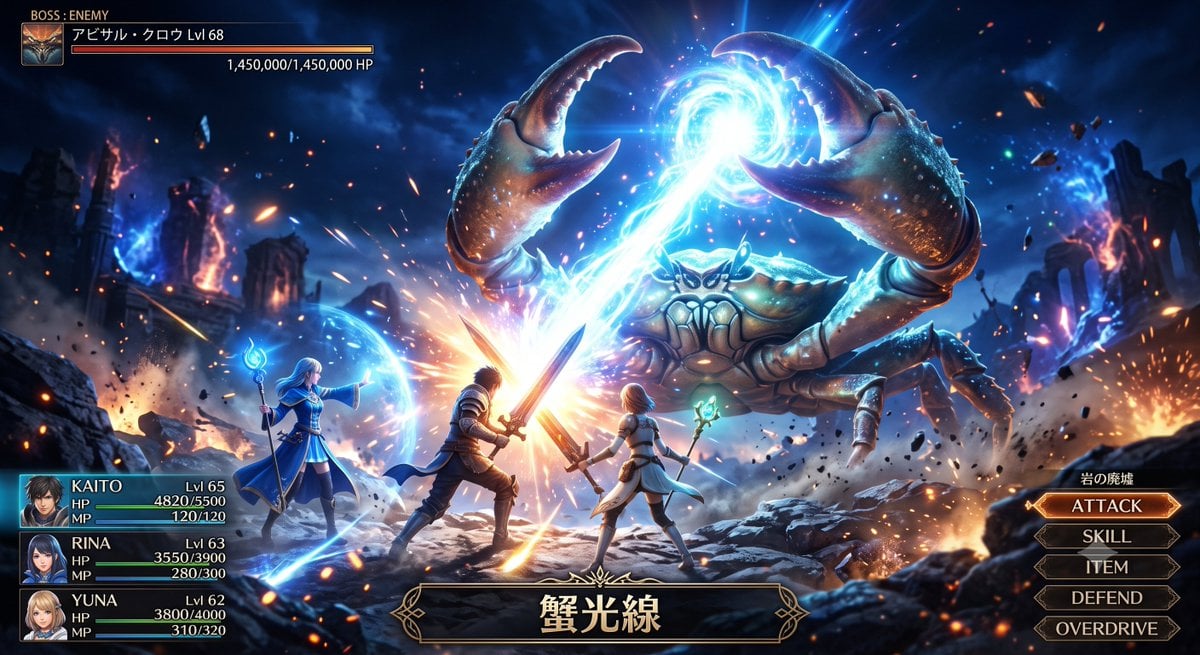
Fantasy Crab Boss Battle UI
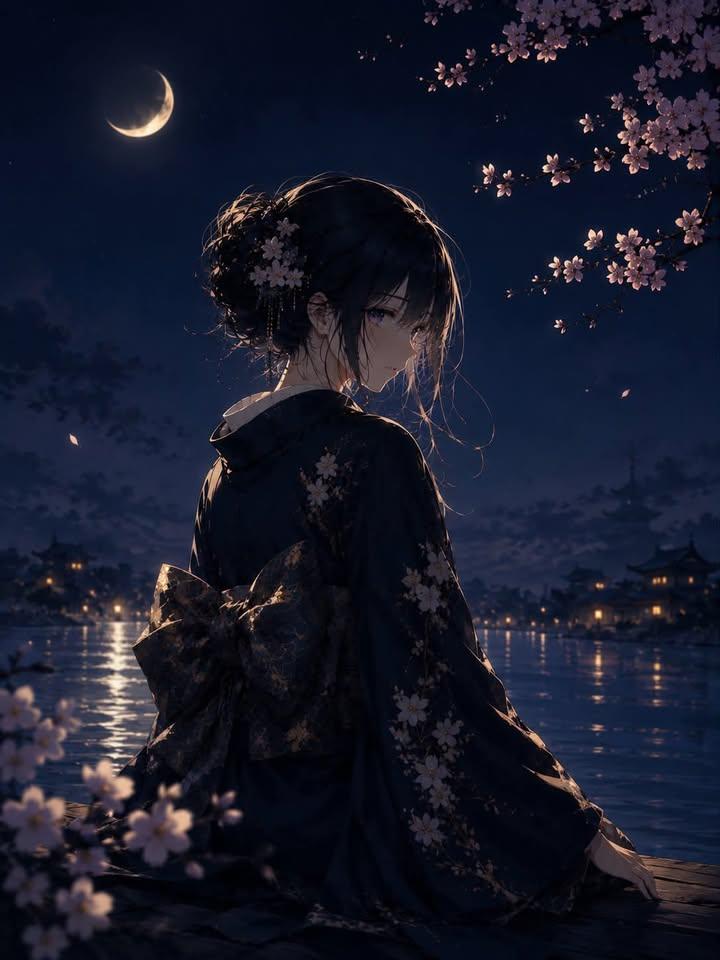
Luxury Japanese Fantasy Anime Kimono
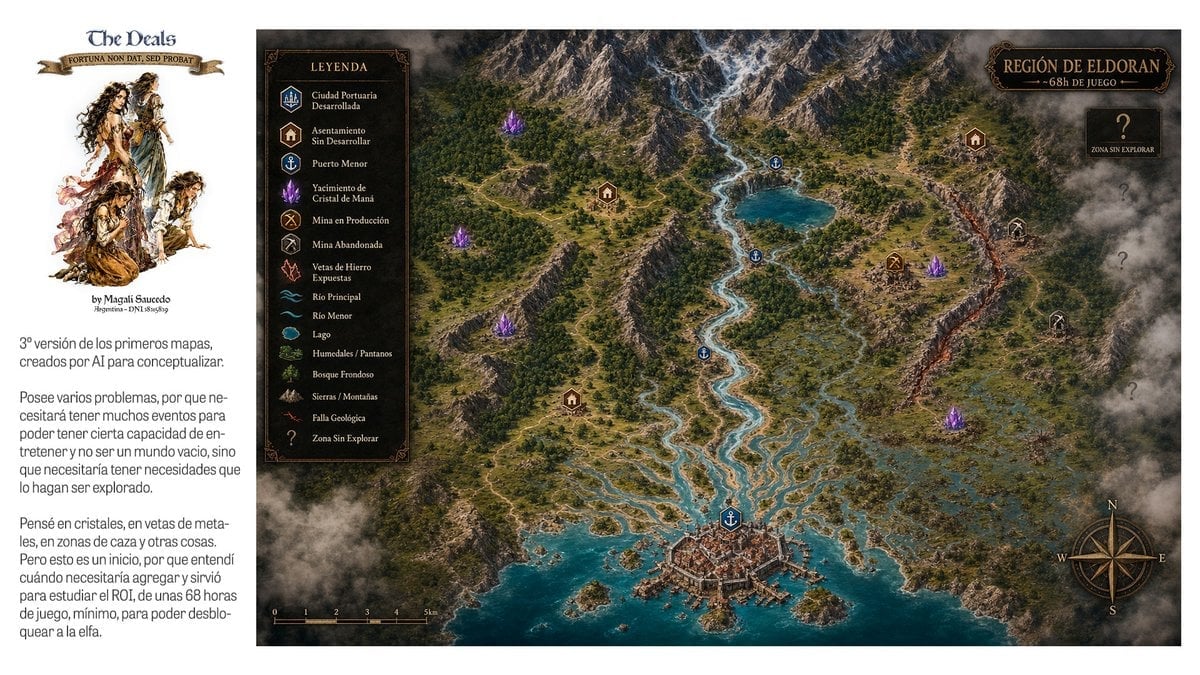
Fantasy RPG Region Map Sheet
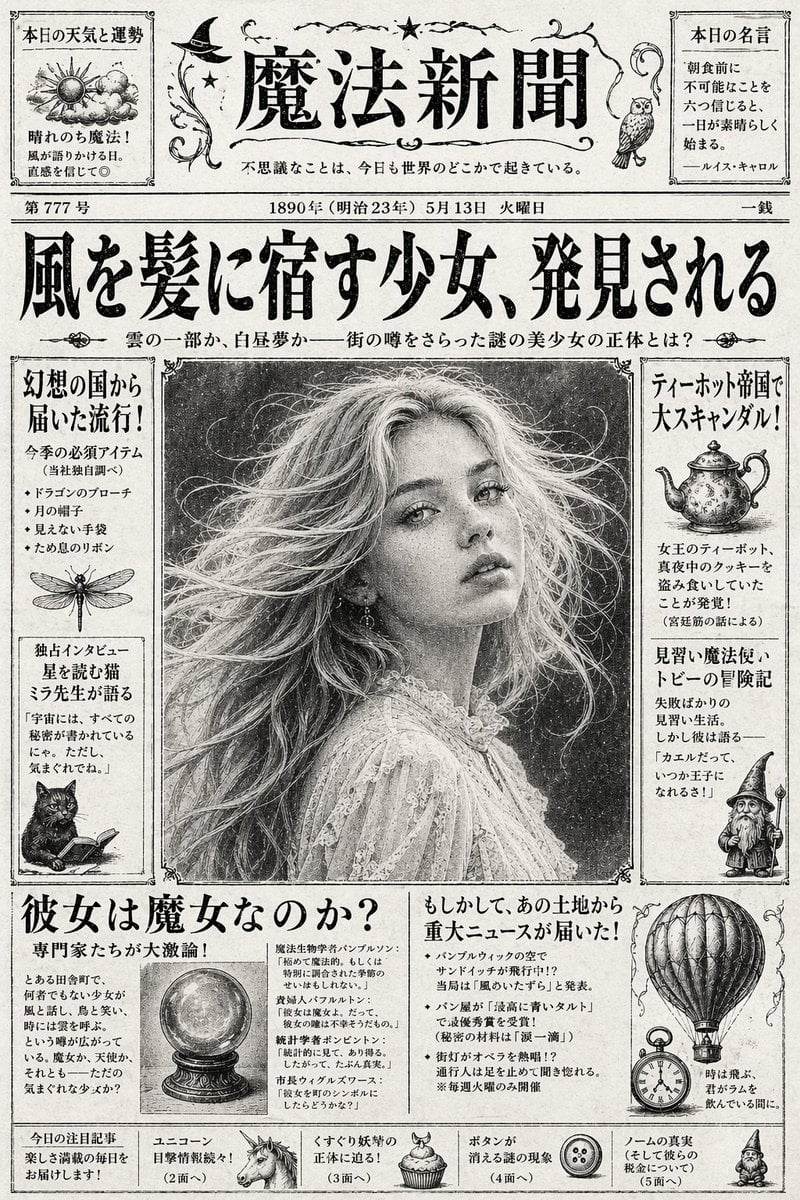
Vintage Japanese Fantasy Magic Newspaper
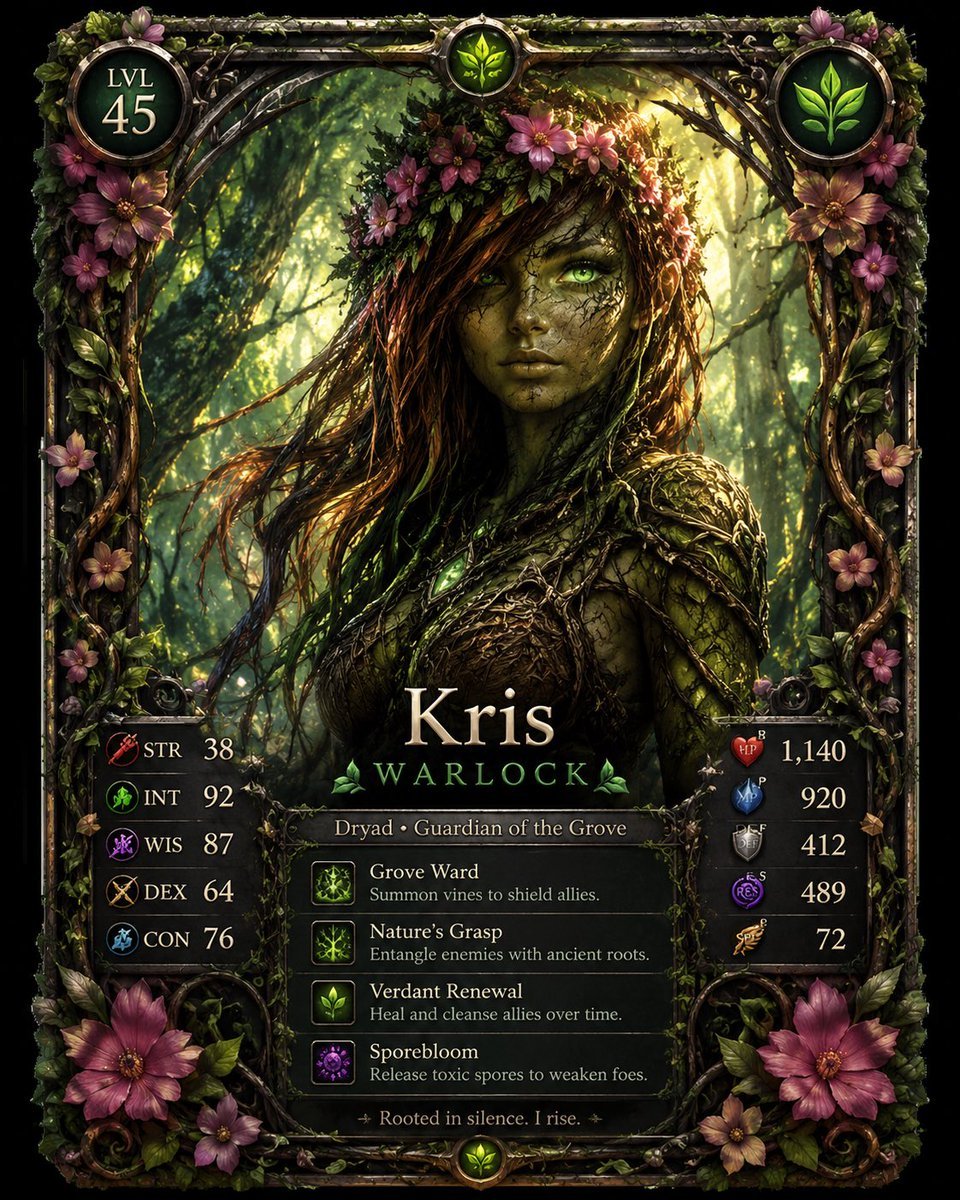
Fantasy Dryad RPG Character Card
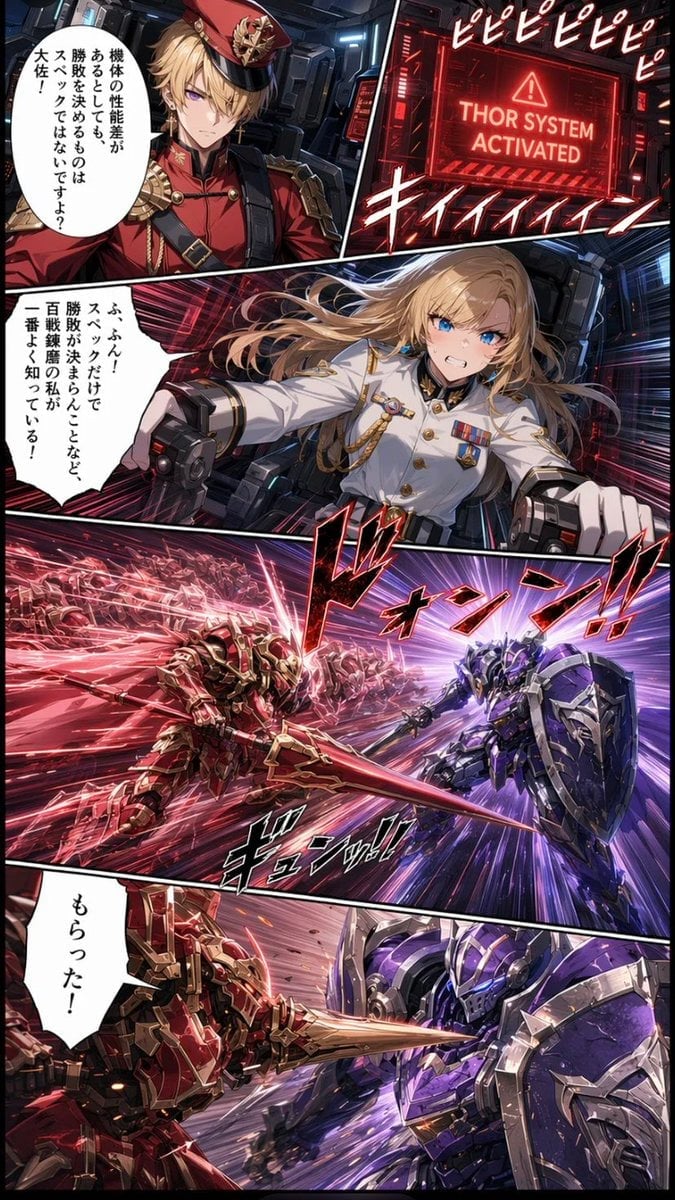
Japanese Webtoon Mecha Battle Page

Japanese Architectural Concrete Studio Fashion Campaign

Japanese Minimalist Concrete Studio Fashion Editorial

Blue Backdrop Luxury Fashion Portrait Campaign
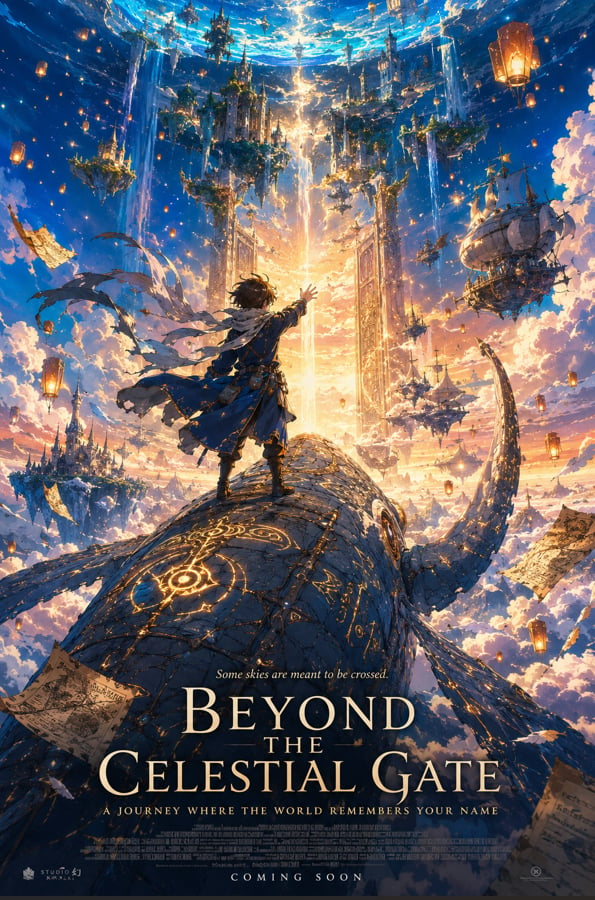
Anime Fantasy Celestial Movie Poster
Make it yours
Japanese Fantasy RPG Battle UI works as-is. These are the safest ways to change it without losing the look.
Change one field
Copy a single group, rewrite it, and generate again so you can see what that field is doing.
Keep the frame, change the subject
Hold the composition and light of Japanese Fantasy RPG Battle UI, then swap wardrobe, props or the person for a new take.
| If the result… | Why | Fix |
|---|---|---|
| The result drifts from the preview | Too many fields changed at once. | Reuse Japanese Fantasy RPG Battle UI as-is first, then change one group — subject, light, or setting. |
| The model over-stylizes the scene | The prose prompt leaves finish and camera underspecified. | Add one camera or lighting sentence and stay on GPT Image 2. |
More GPT Image 2 templates
Other prompts made for GPT Image 2.

Six VTuber Japanese Logo Sheet

Realistic Portrait of Woman and Deer

The Vista Modular Condo Poster

AI Model Routing Comparison Infographic

2.5D Anime Art Board

Isometric Productivity Desk Scene

New York Double Exposure Poster

Four-Panel AI Landscape Comparison

Japanese Tatami Lifestyle Magazine Cover

NESCAFÉ Coffee Map Poster
More image prompts
Fresh picks from across the catalog.
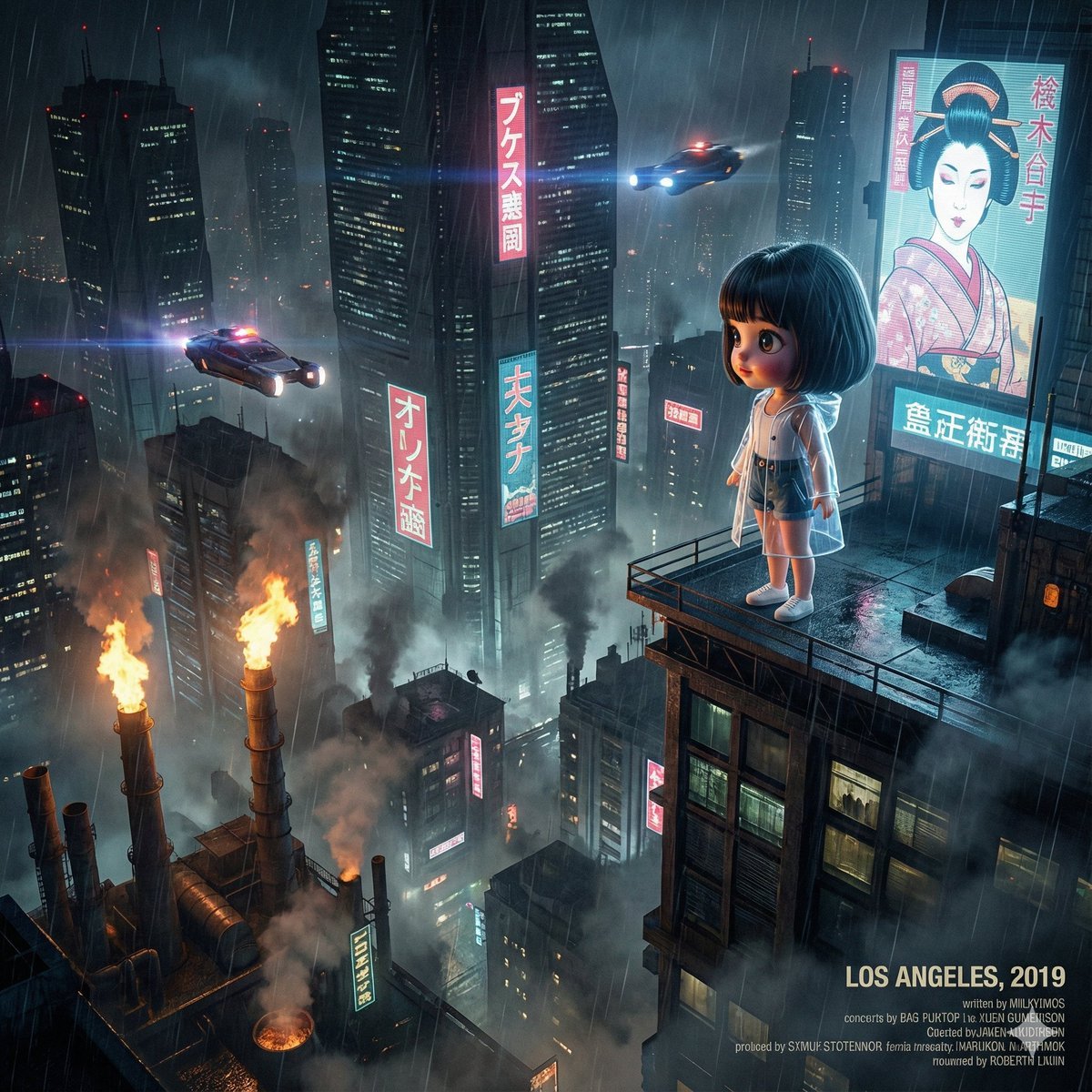
Blade Runner Opening Style Image

Luxury Spain Sunset Travel Poster
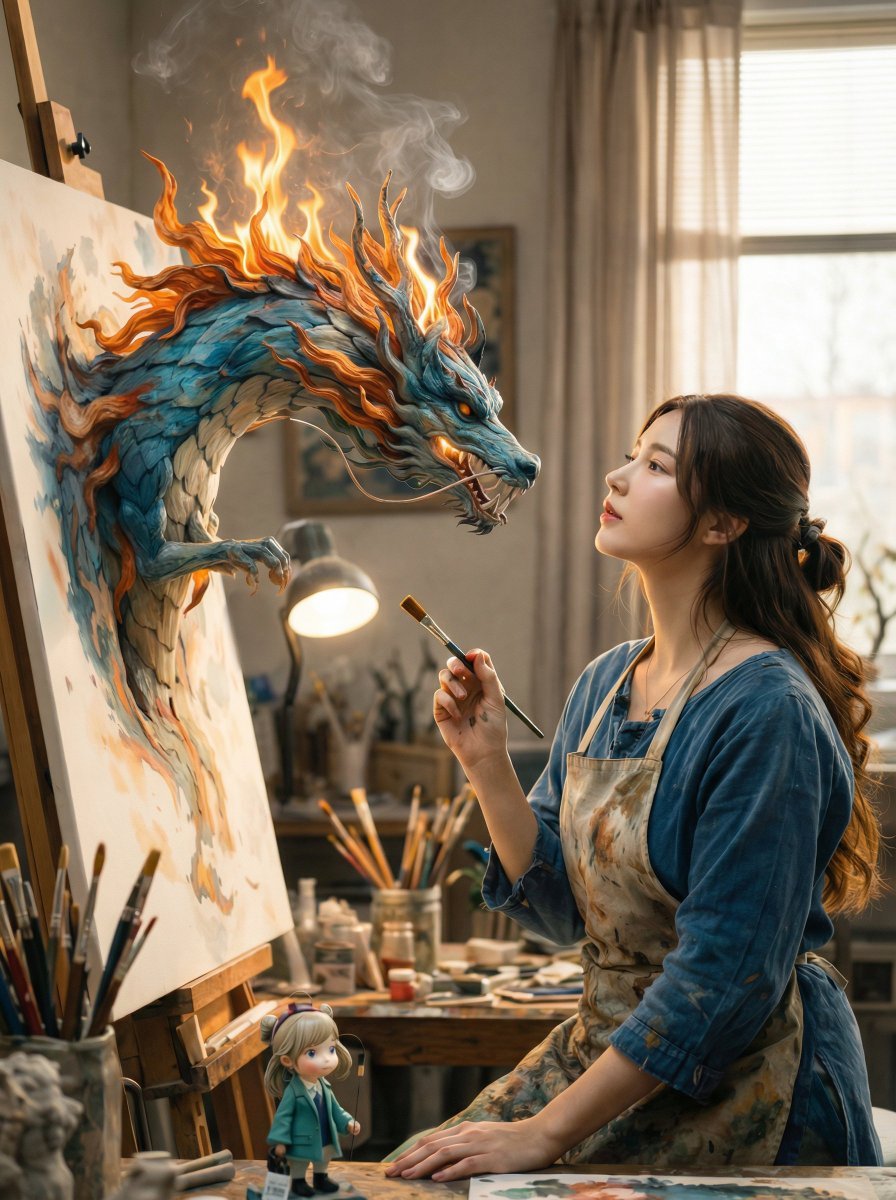
Magical Realism: Dragon Emerging from Canvas
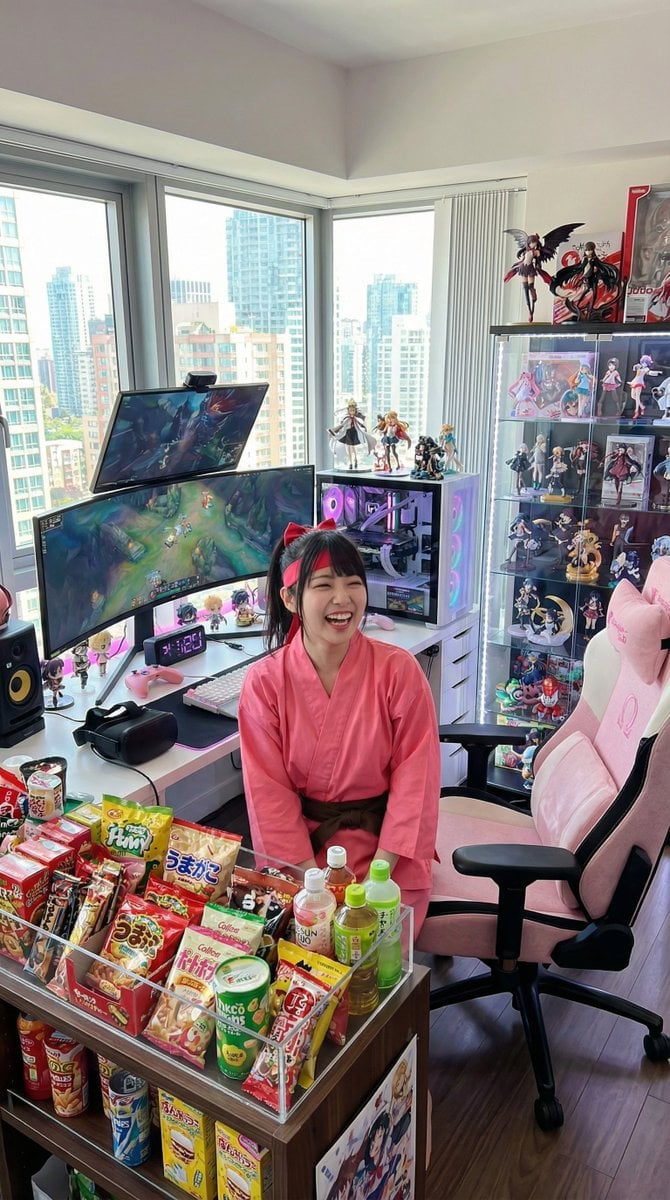
Generate a room that looks like life is being enjoyed to the fullest

Sophisticated Fashion Portrait Reconstruction
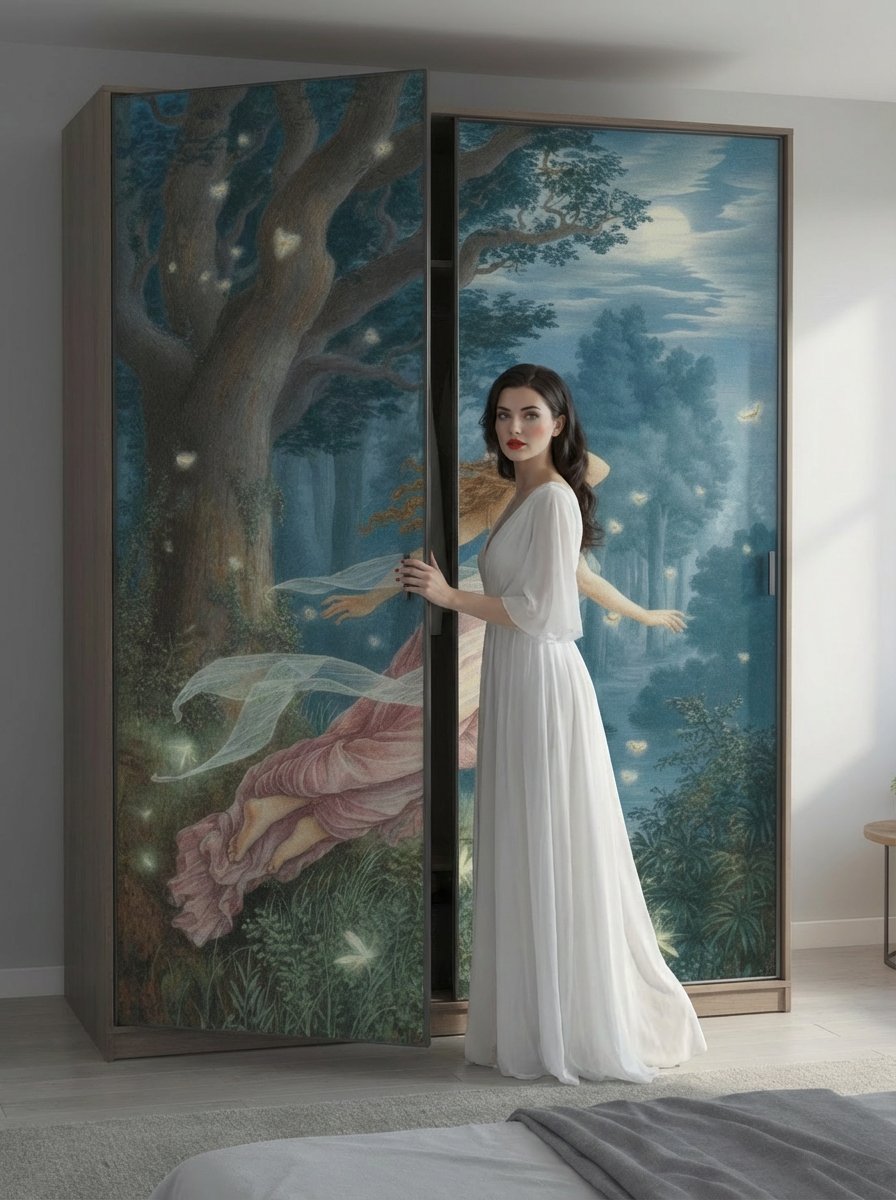
Image Generation Prompt for Nano Banana Pro
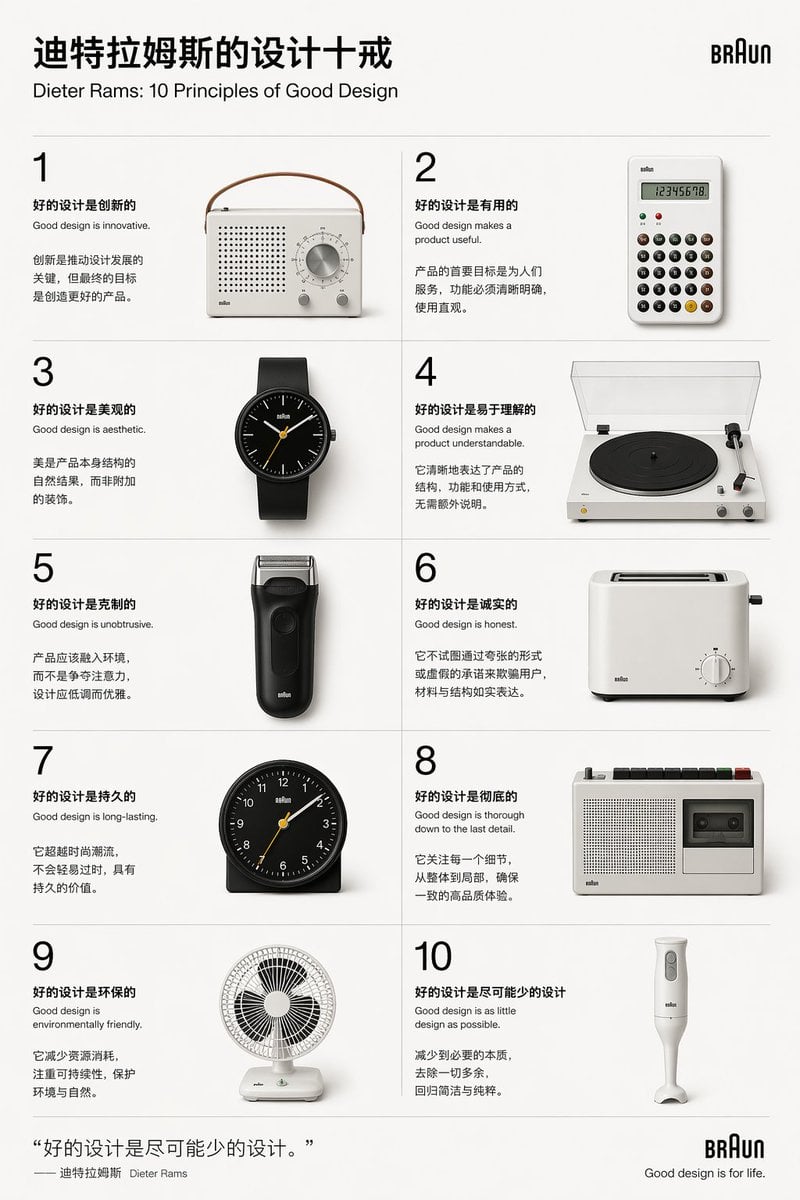
Dieter Rams Design Principles Poster
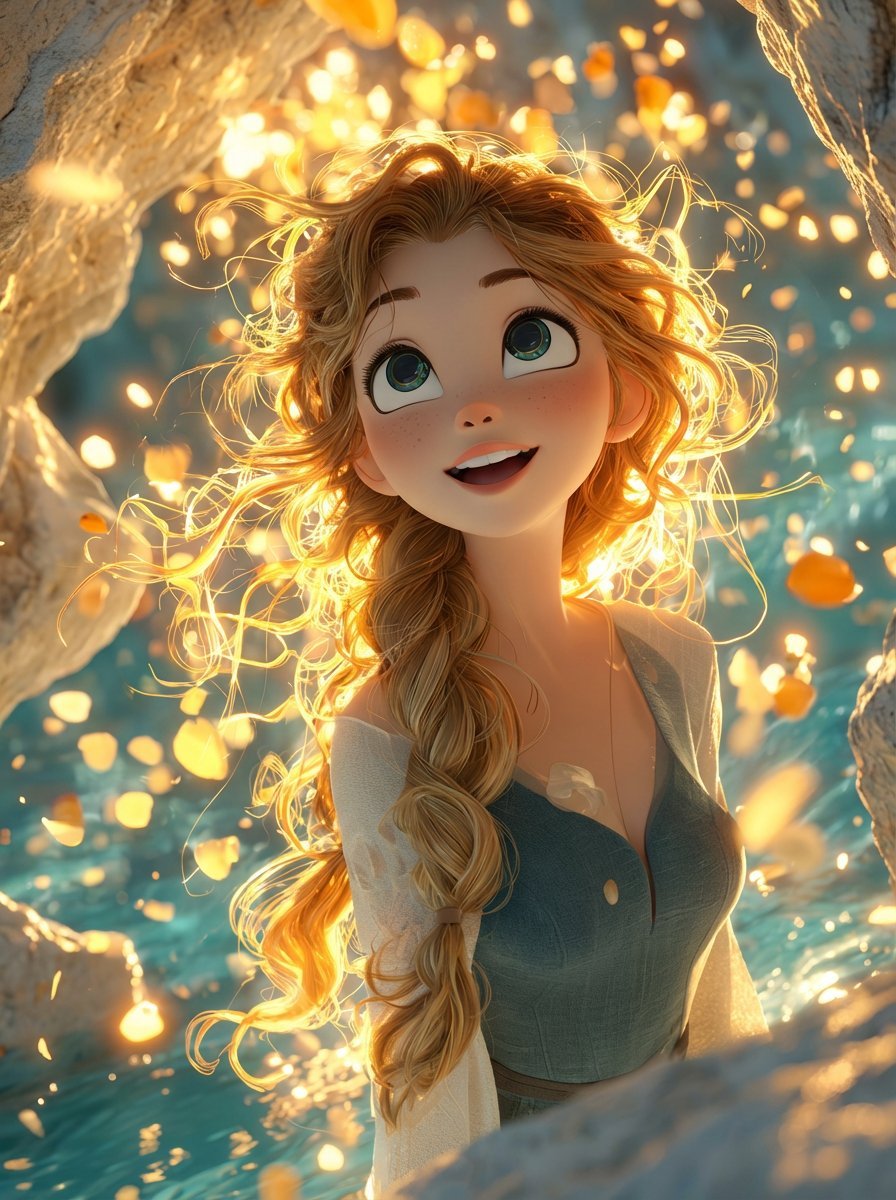
Dreamy 3D Animated Girl in Magical Cave
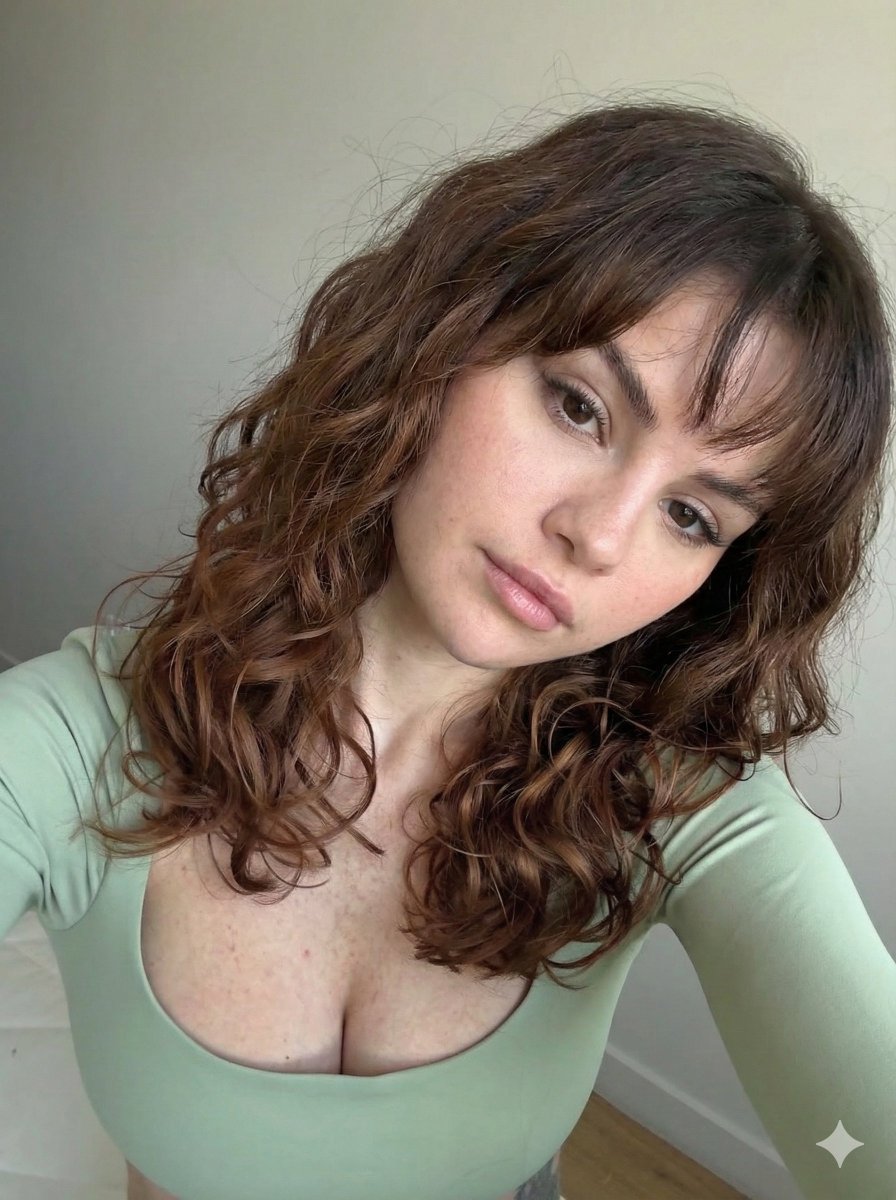
Ultra Photorealistic Selfie with Auburn Hair and Freckles

Luis Miguel as a Russian Man in Red Square
Browse template categories
Japanese Fantasy RPG Battle UI questions
How do I use the Japanese Fantasy RPG Battle UI template?
Add your photo if the template asks for one, edit the prompt if you like — the template's model and format are already selected — and press Generate. Your version opens in PicX Studio.
Can I customize the Japanese Fantasy RPG Battle UI template?
Yes. You can change the subject, setting, lighting, mood, format, and available model controls before creating your image.
Is the Japanese Fantasy RPG Battle UI template free?
Opening and editing this template is free. Generating uses credits, shown on the Generate button when you are signed in.
Which AI model should I use?
Start with GPT Image 2, which is the model associated with this template. You can compare another compatible model for a different finish.
Looking for something else? Browse all templates.

Your photo, any look
Thousands of ready templates for every top image and video model, from one credit balance.