
Split Pixel Art Canvas
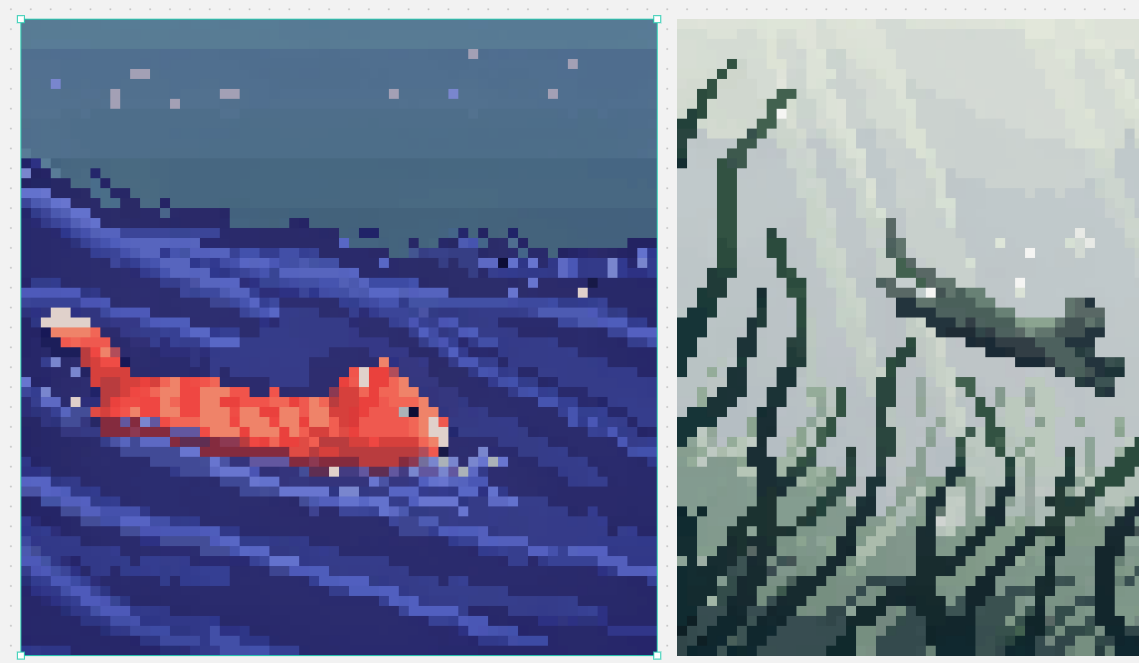
Generates a two-panel pixel art comparison canvas with a selected ocean fish scene and a misty mountain landscape.
- Prompt included
- Model and format preset
- Free template
The prompt behind this image
Copy the exact prompt behind Split Pixel Art Canvas, or open it in the studio and make it yours.
Goal: Create a split-screen pixel art comparison image in the style of a design canvas, showing exactly 2 square pixel-art panels side by side. Canvas: Wide horizontal canvas, about 1139×671 px, light gray workspace background with tiny scattered gray speckles. Place two large square artworks aligned horizontally with a narrow vertical gap between them. Add a thin bright cyan selection outline with small square corner/edge handles around the left artwork only, as if it is selected in an editor. Layout: Left panel occupies slightly more than half the canvas width and is framed by the cyan selection box. Right panel is the same height but slightly narrower in the visible crop, flush to the right side. Keep both artworks rendered as low-resolution blocky pixel art with crisp square pixels and no antialiasing. Left panel subject: A night ocean scene in deep indigo and blue pixel art. A small orange-red koi or goldfish swims from left to right in the lower left-to-center area, with a pale cream tail tip and lighter orange highlights on its segmented body. The water is dark navy with diagonal wave streaks and layered horizontal bands in violet, periwinkle, and electric blue. The upper third is a muted blue-gray night sky with exactly 8 small square star-like pixels scattered across it in pale lavender, pink, and blue. Mood: calm, retro game scene, underwater/night seascape. Right panel subject: A misty mountainous landscape rendered in desaturated green-gray pixel art. Tall jagged mountain ridges and cliff faces fill the frame, with dark teal outlines and angular snowy or misty white planes. Include a winding dark ridge or branch-like ledge crossing the mid-right area, and pale foggy atmosphere in the upper background. Use muted sage, gray, off-white, and dark forest-green tones. Visual style: authentic 16-bit pixel art, large visible square pixels, limited color palettes, high contrast silhouettes, no smooth gradients except stepped pixel dithering. Make the two panels feel like examples from different pixel-art models: left colorful and aquatic, right monochrome misty fantasy landscape. Customizable details: left fish color {argument name="fish color" default="orange-red"}; left scene theme {argument name="left scene theme" default="night ocean"}; right landscape theme {argument name="right landscape theme" default="misty green-gray mountains"}; pixel art scale {argument name="pixel art scale" default="large crisp square pixels"}; selection outline color {argument name="selection outline color" default="bright cyan"}. Constraints: Show exactly 2 main image panels. Do not add text, logos, characters, UI menus, or watermarks. Preserve the editor-like cyan selection border only around the left panel.
How to use Split Pixel Art Canvas in 3 steps
- 1Upload ImagePNG, JPG or paste
Add your photo
Upload the photo the template builds on. The prompt, model and format are already set.
- 2…a portrait of your subject in softgolden-hour light, 85mm…
Personalize
Edit the subject and creative details for your destination.
- 3Generate
Generate
Press Generate — your image is created in PicX Studio, so you can compare it with the original and refine one variable at a time.
More like this
Templates with the same subject, style or setup. Open one to see its prompt.
Pixel Limited Finale Fireworks
Pixel Limited Garden Maze
Pixel Limited Rooftop Concert
Pixel Limited Bicycle Coast
Pixel Limited Castle Gate

Pixel Limited Kitchen Chaos
Pixel Limited Carnival Ride
Pixel Limited Rainy Bus Stop

Pixel Limited Space Dock
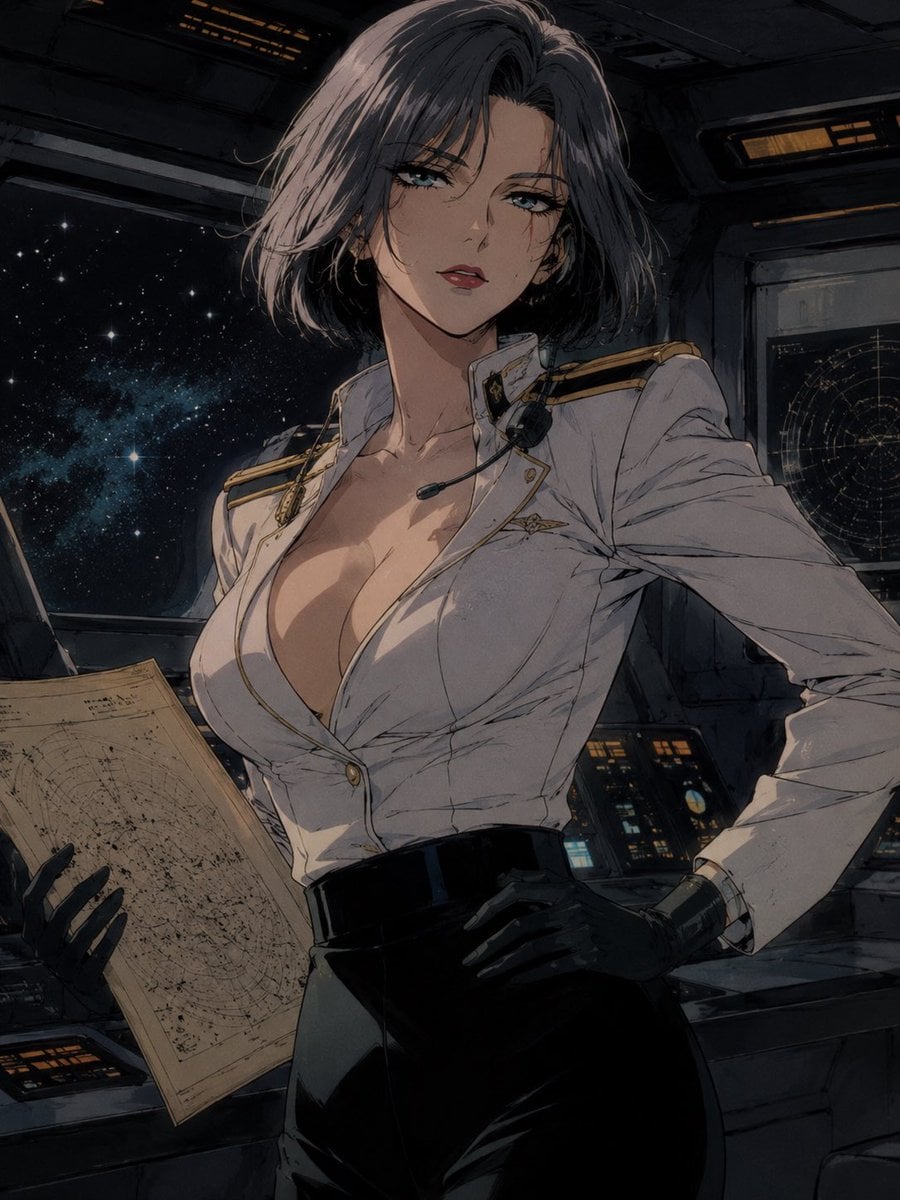
Pixel Limited Cafe Morning
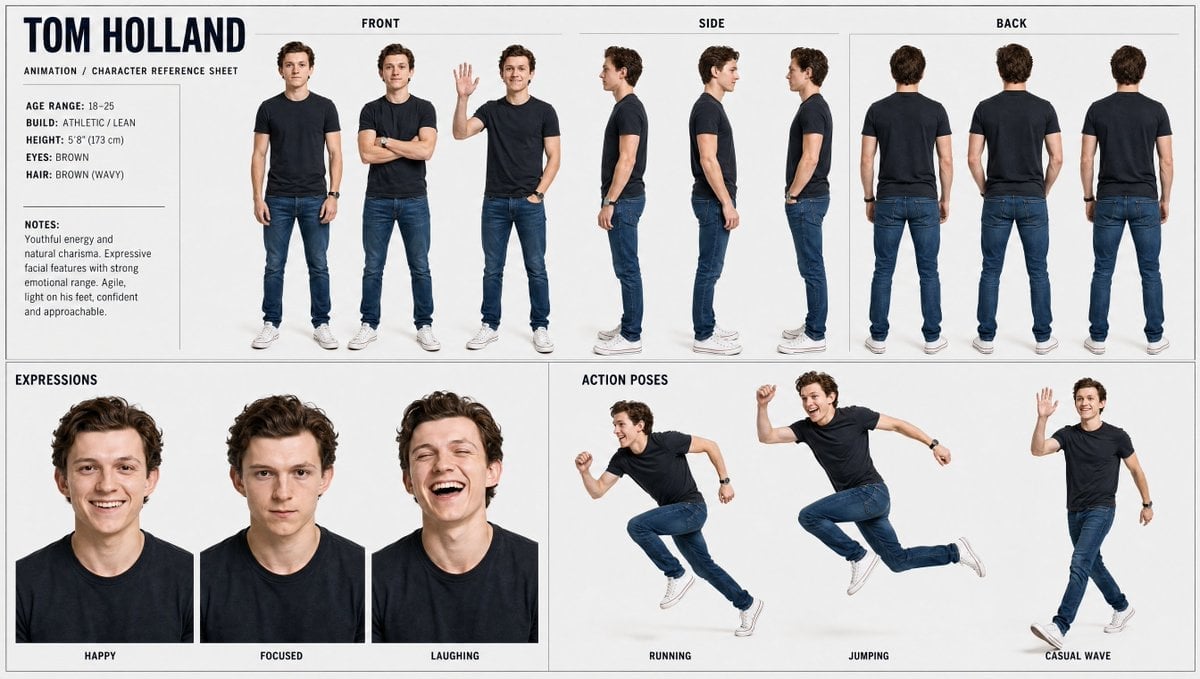
Pixel Limited Mountain Summit
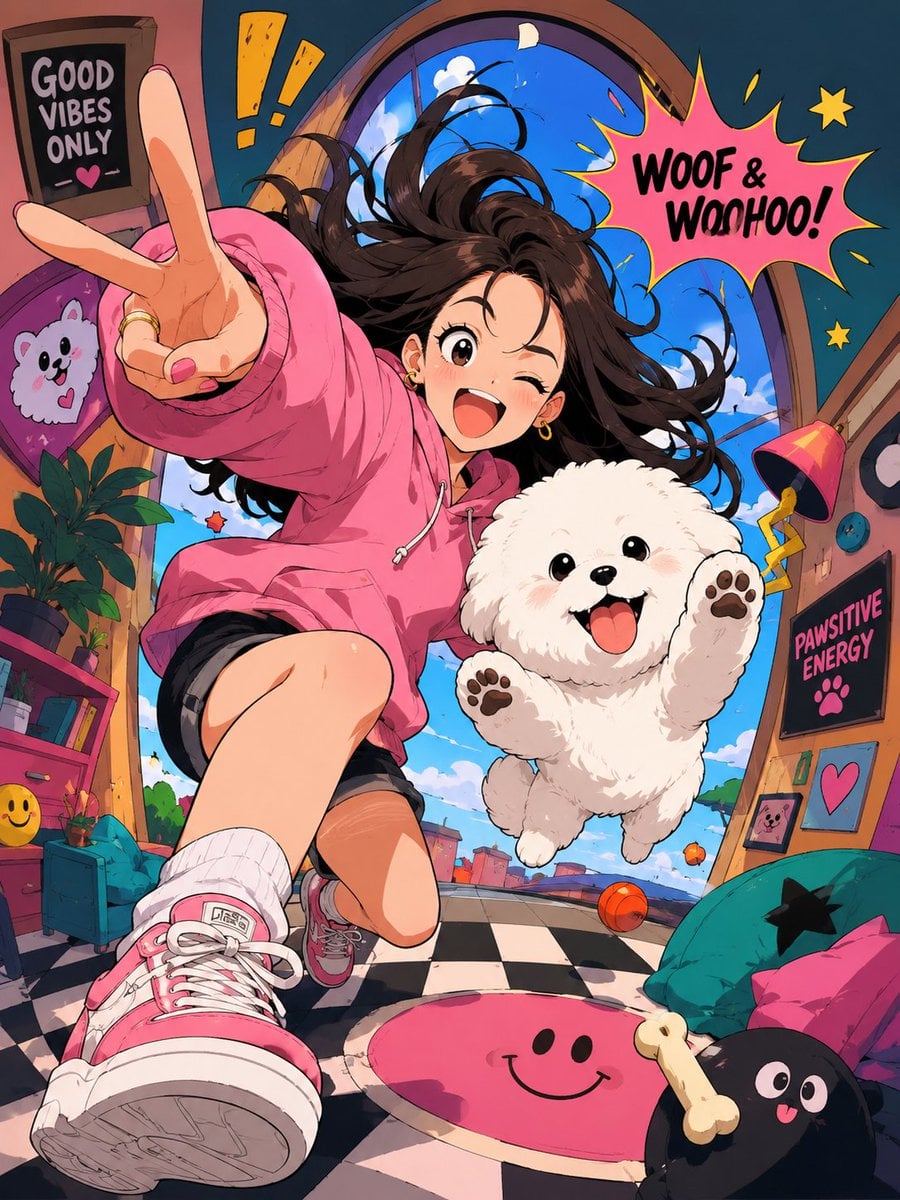
Pixel Limited Underwater Reef
Make it yours
Split Pixel Art Canvas works as-is. These are the safest ways to change it without losing the look.
Change one field
Copy a single group, rewrite it, and generate again so you can see what that field is doing.
Keep the frame, change the subject
Hold the composition and light of Split Pixel Art Canvas, then swap wardrobe, props or the person for a new take.
| If the result… | Why | Fix |
|---|---|---|
| The result drifts from the preview | Too many fields changed at once. | Reuse Split Pixel Art Canvas as-is first, then change one group — subject, light, or setting. |
| The model over-stylizes the scene | The prose prompt leaves finish and camera underspecified. | Add one camera or lighting sentence and stay on GPT Image 2. |
More GPT Image 2 templates
Other prompts made for GPT Image 2.

Six VTuber Japanese Logo Sheet

Realistic Portrait of Woman and Deer

The Vista Modular Condo Poster

AI Model Routing Comparison Infographic

2.5D Anime Art Board

Isometric Productivity Desk Scene

New York Double Exposure Poster

Four-Panel AI Landscape Comparison

Japanese Tatami Lifestyle Magazine Cover

NESCAFÉ Coffee Map Poster
More image prompts
Fresh picks from across the catalog.
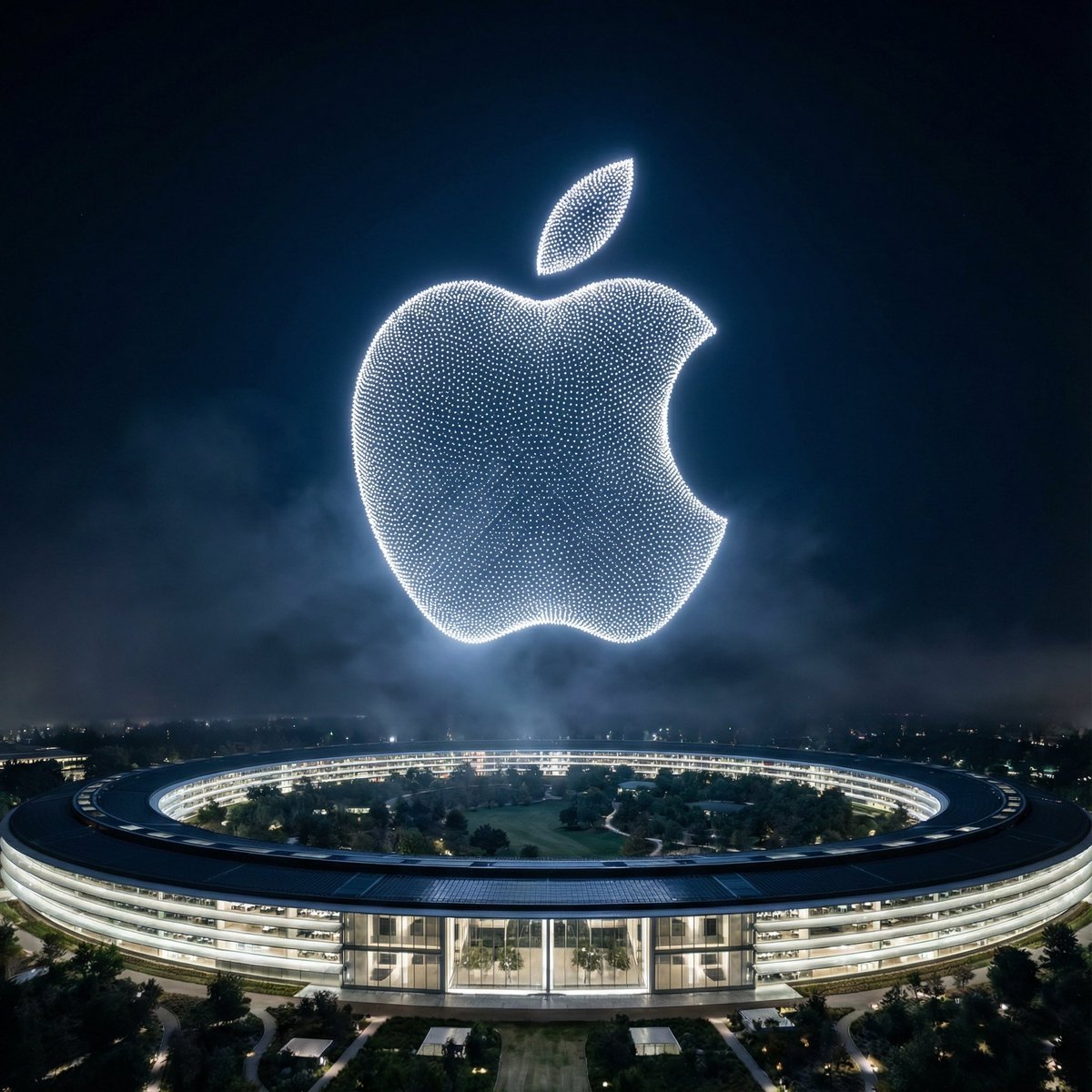
Night Sky Brand Canvas Prompt
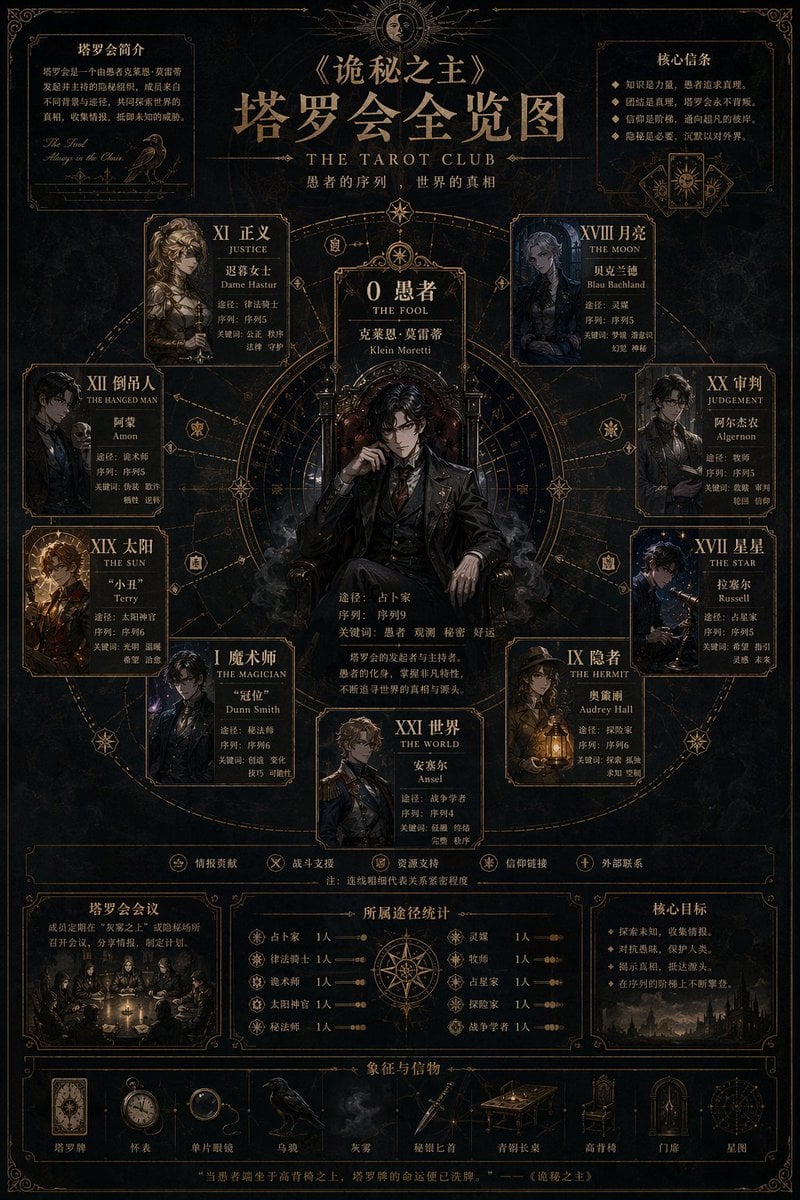
Occult Tarot Club Map
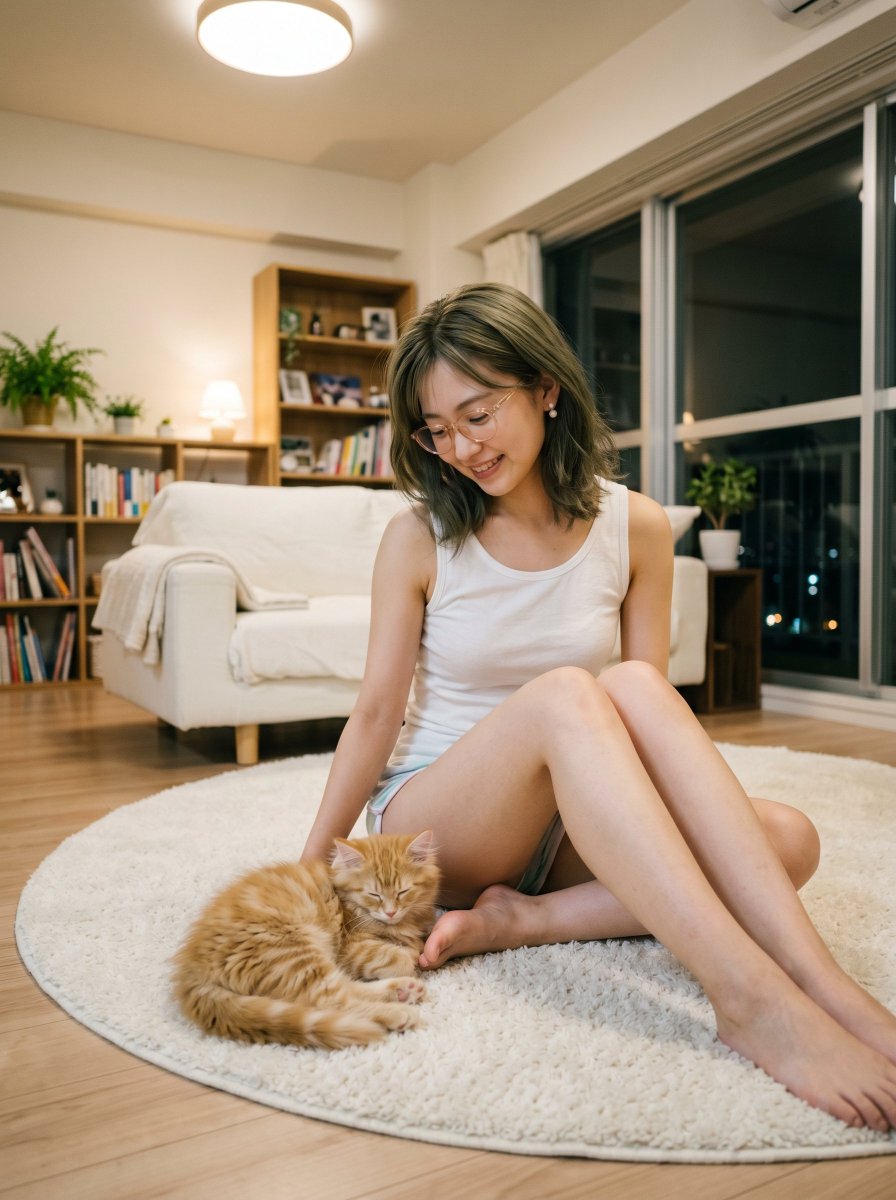
Cozy Apartment Woman With Kitten
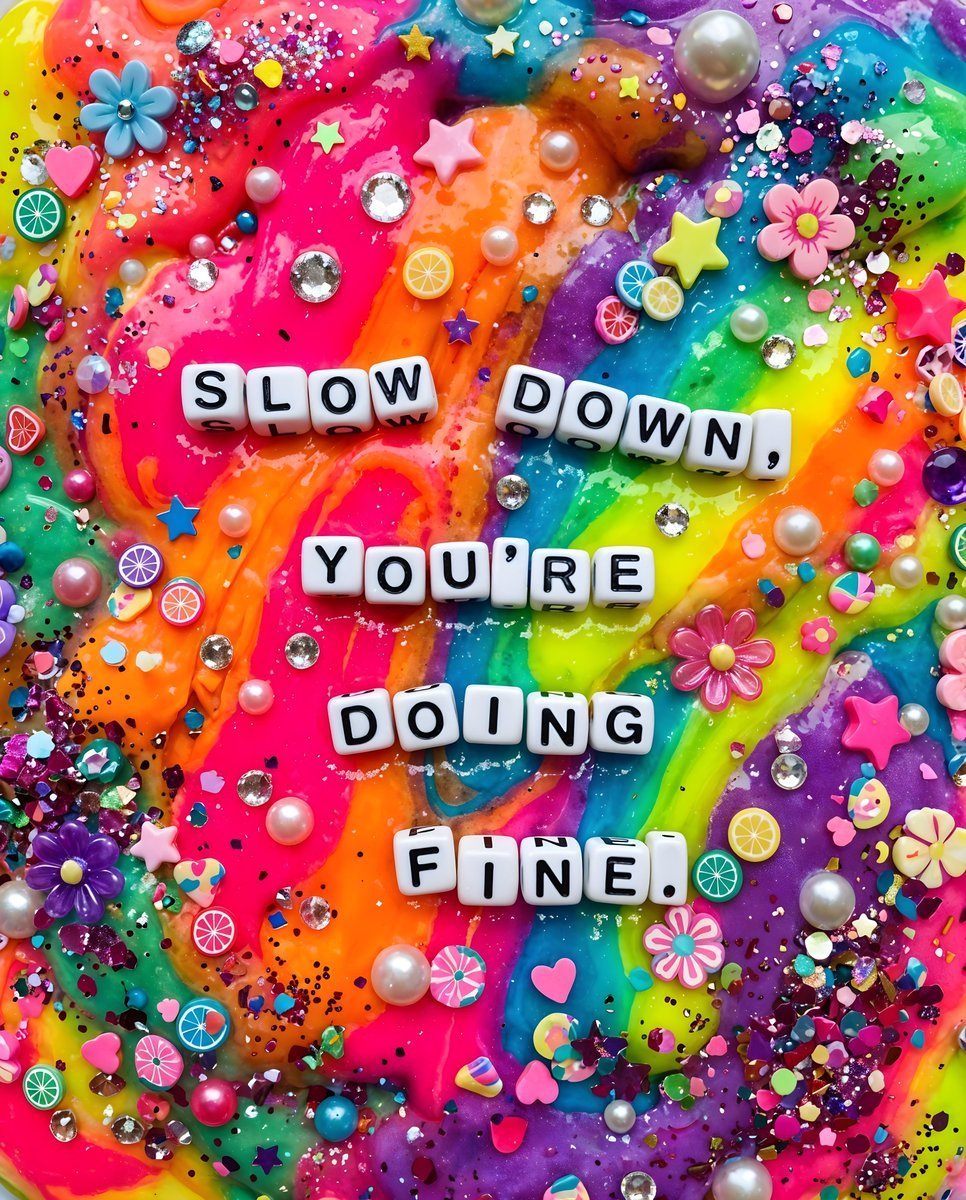
Vibrant Chaotic Slime Collage
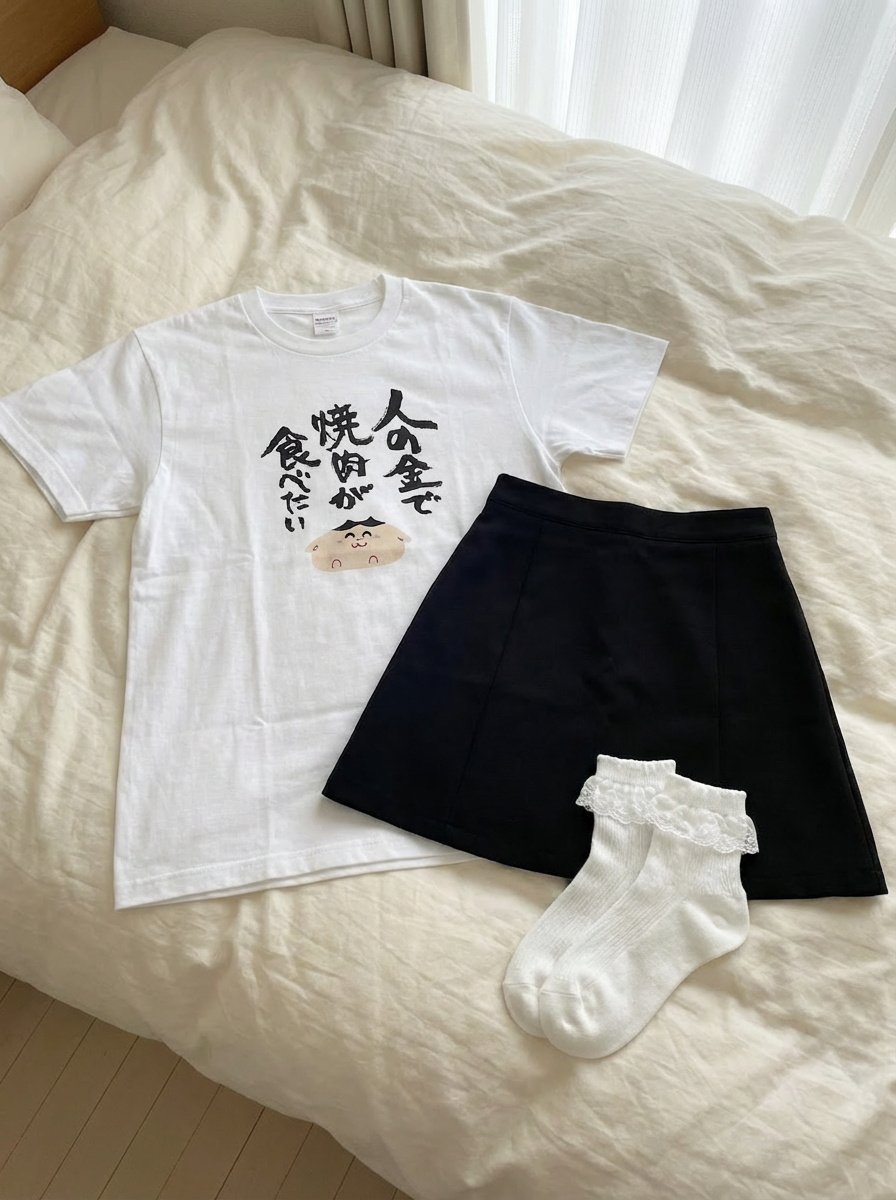
Clothing separated on the bed
RetroCarbon Levitating Product Void Prompt
Nano Banana - Paris Balcony Night Eiffel
Giant Hugging Tokyo Tower Photo Prompt
BMW Transformer Robot Advertisement
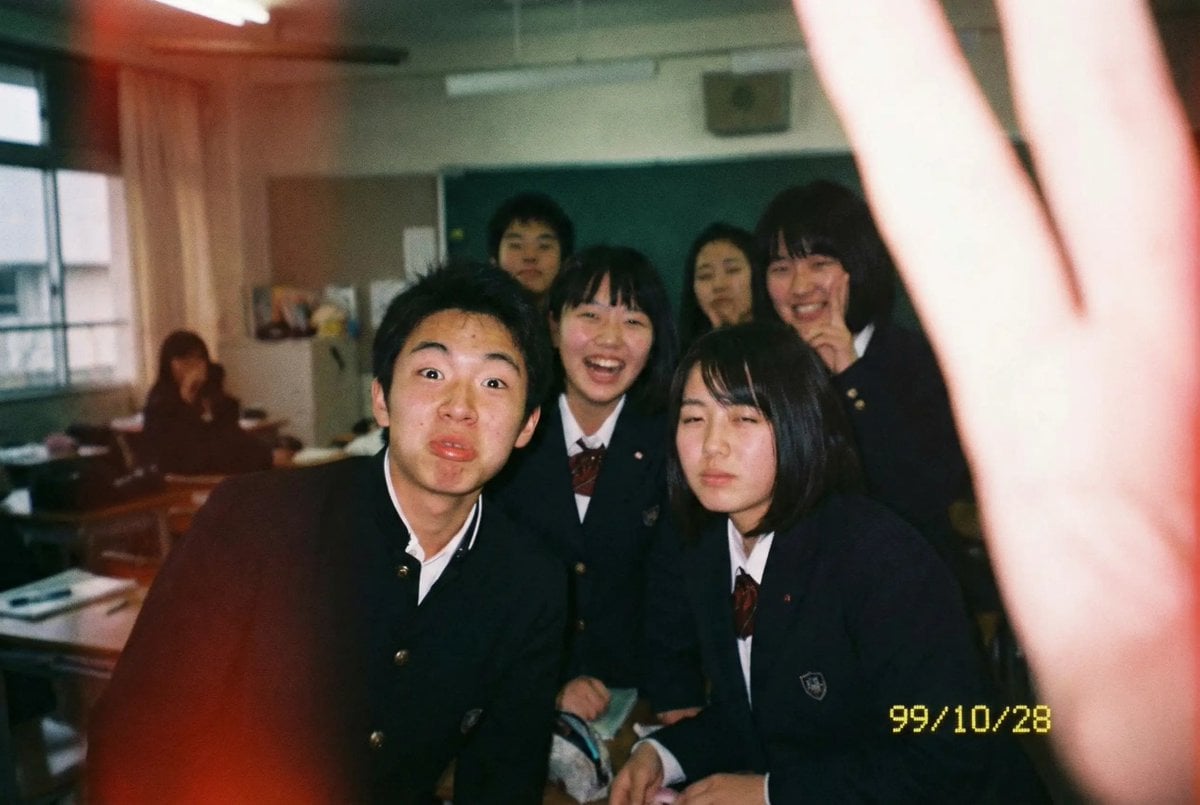
Low-quality disposable camera high school snapshot prompt
Browse template categories
Split Pixel Art Canvas questions
How do I use the Split Pixel Art Canvas template?
Add your photo if the template asks for one, edit the prompt if you like — the template's model and format are already selected — and press Generate. Your version opens in PicX Studio.
Can I customize the Split Pixel Art Canvas template?
Yes. You can change the subject, setting, lighting, mood, format, and available model controls before creating your image.
Is the Split Pixel Art Canvas template free?
Opening and editing this template is free. Generating uses credits, shown on the Generate button when you are signed in.
Which AI model should I use?
Start with GPT Image 2, which is the model associated with this template. You can compare another compatible model for a different finish.
Looking for something else? Browse all templates.

Your photo, any look
Thousands of ready templates for every top image and video model, from one credit balance.