
Canva Asset Creation and Style Matching Prompt
A prompt used to generate missing numbered assets (11 and 12) for a Canva design, ensuring the AI matches the style, texture, and color of the existing assets (1-10) provided as a reference image.
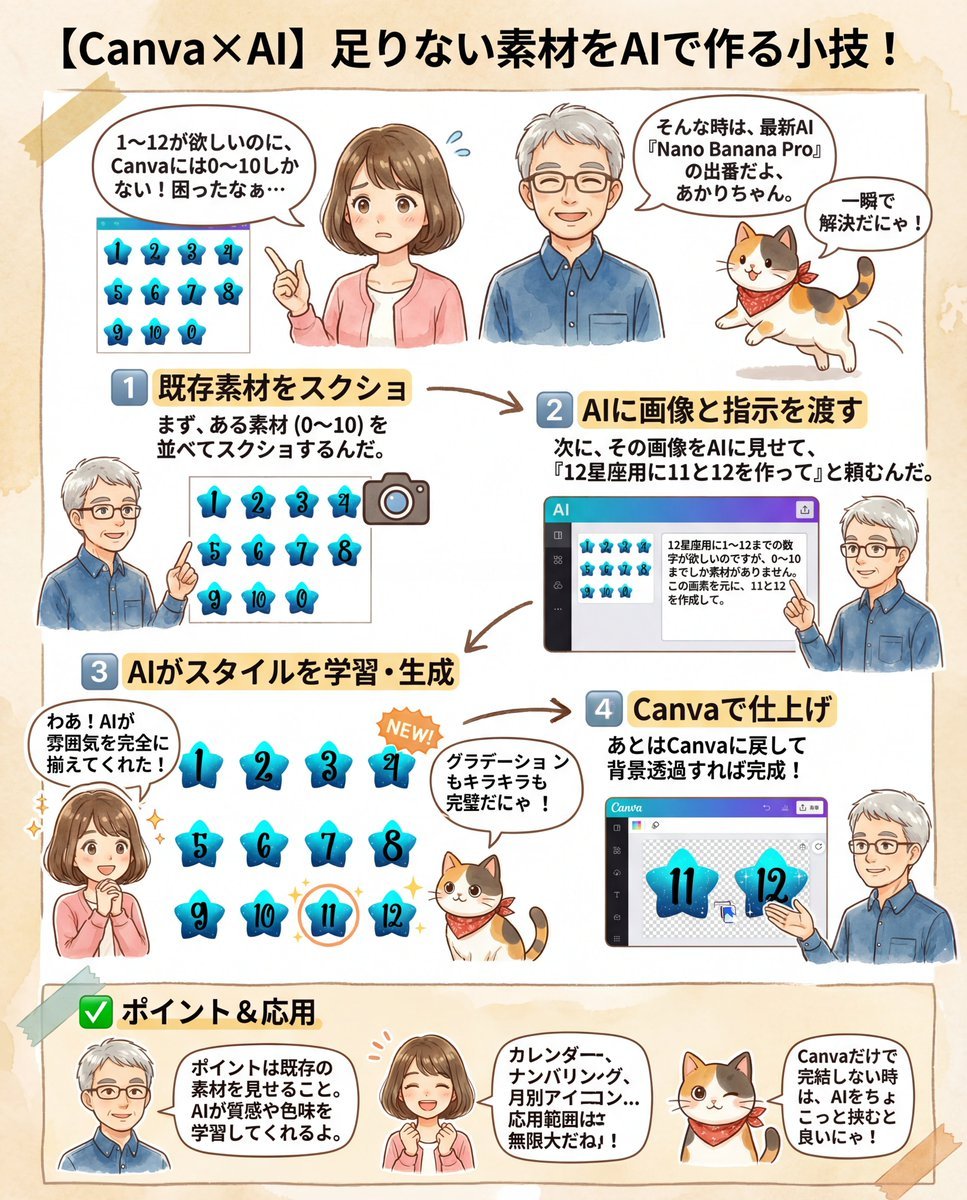
- Prompt included
- Model and format preset
- Free template
The prompt behind this image
Copy the exact prompt behind Canva Asset Creation and Style Matching Prompt, or open it in the studio and make it yours.
I want the numbers 1 through 12 for {argument name="theme" default="the 12 zodiac signs"}, but I only have material for 0 through 10. Based on this image, please create 11 and 12.
How to use Canva Asset Creation and Style Matching Prompt in 3 steps
- 1Upload ImagePNG, JPG or paste
Add your photo
Upload the photo the template builds on. The prompt, model and format are already set.
- 2…a portrait of your subject in softgolden-hour light, 85mm…
Personalize
Edit the subject and creative details for your destination.
- 3Generate
Generate
Press Generate — your image is created in PicX Studio, so you can compare it with the original and refine one variable at a time.
More like this
Templates with the same subject, style or setup. Open one to see its prompt.
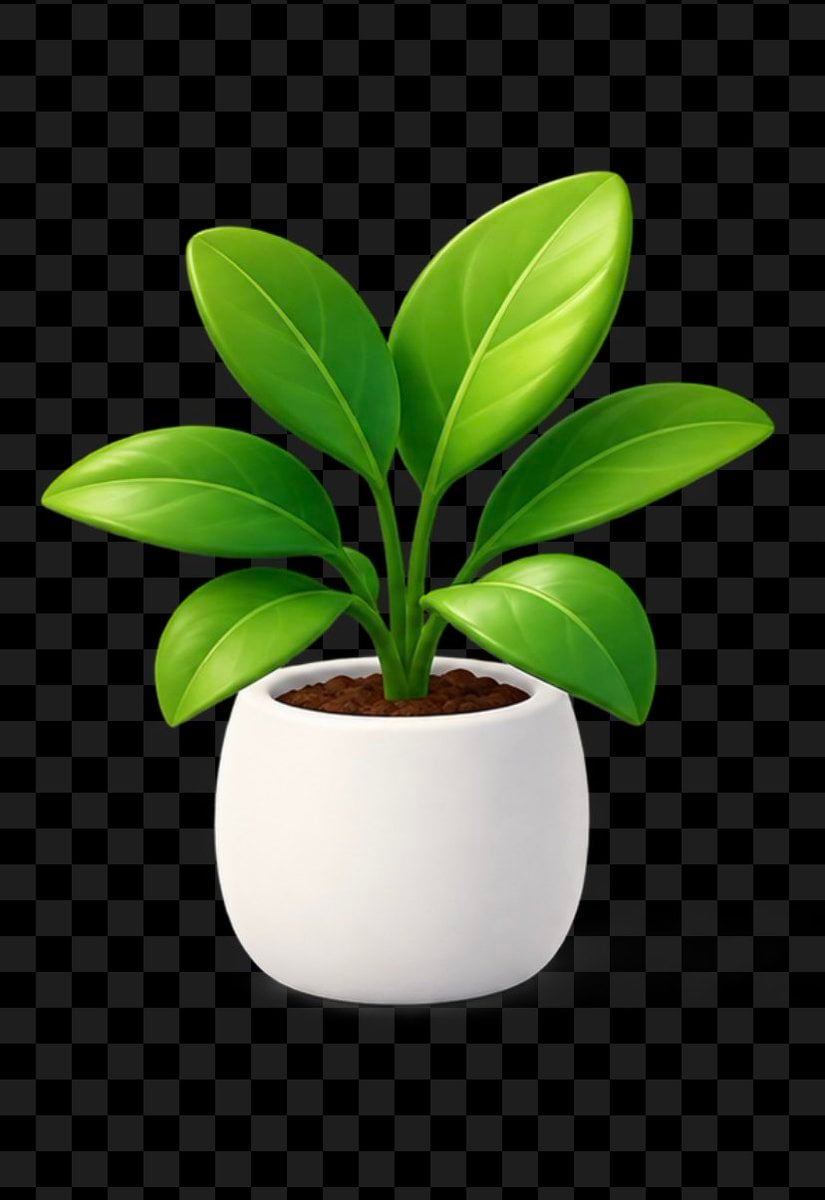
Glossy Potted Plant Asset

Three Character Asset Comparison Board
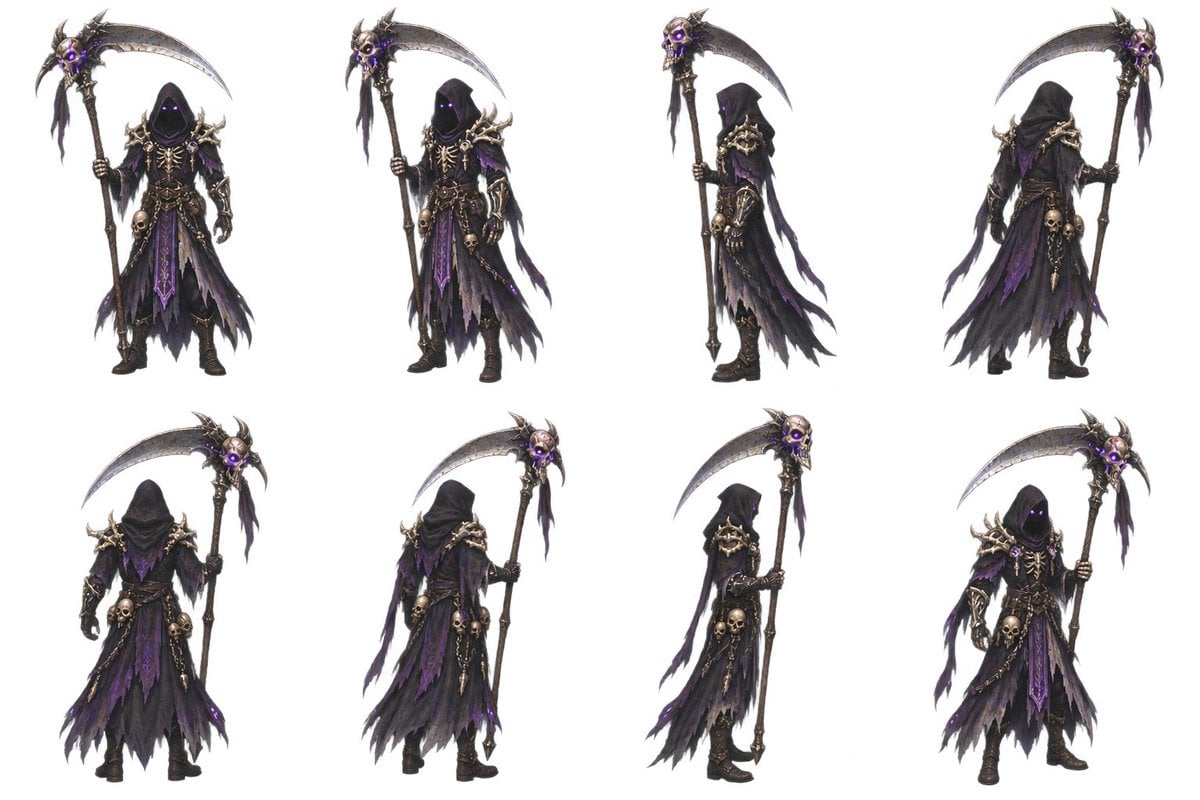
2D Necromancer Game Asset Sprite
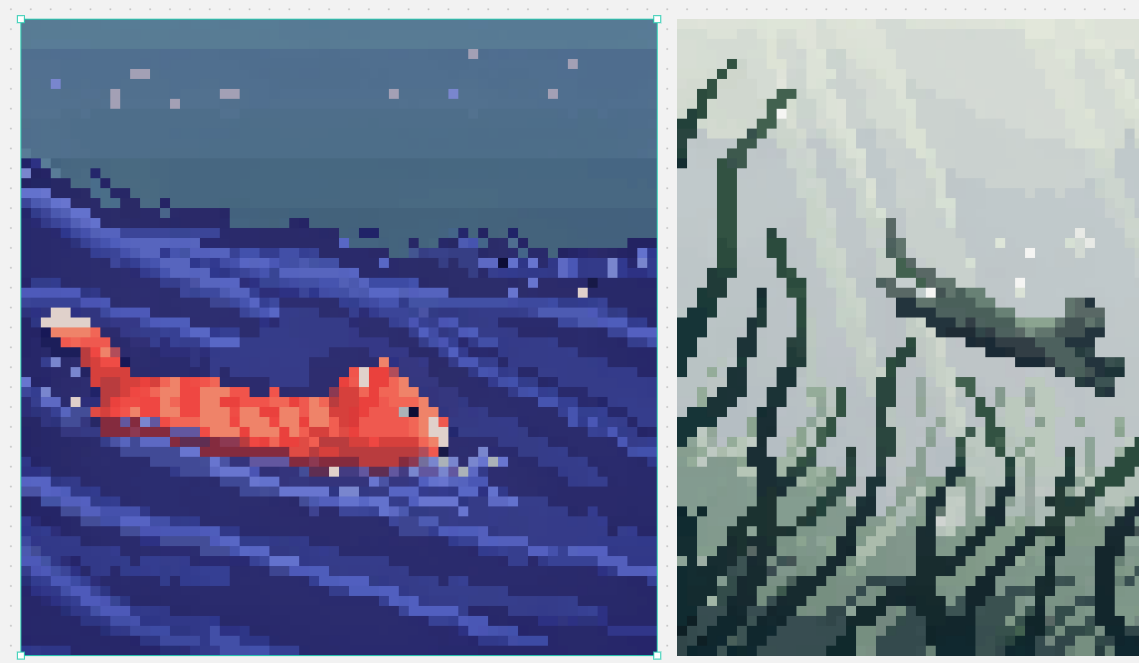
Split Pixel Art Canvas
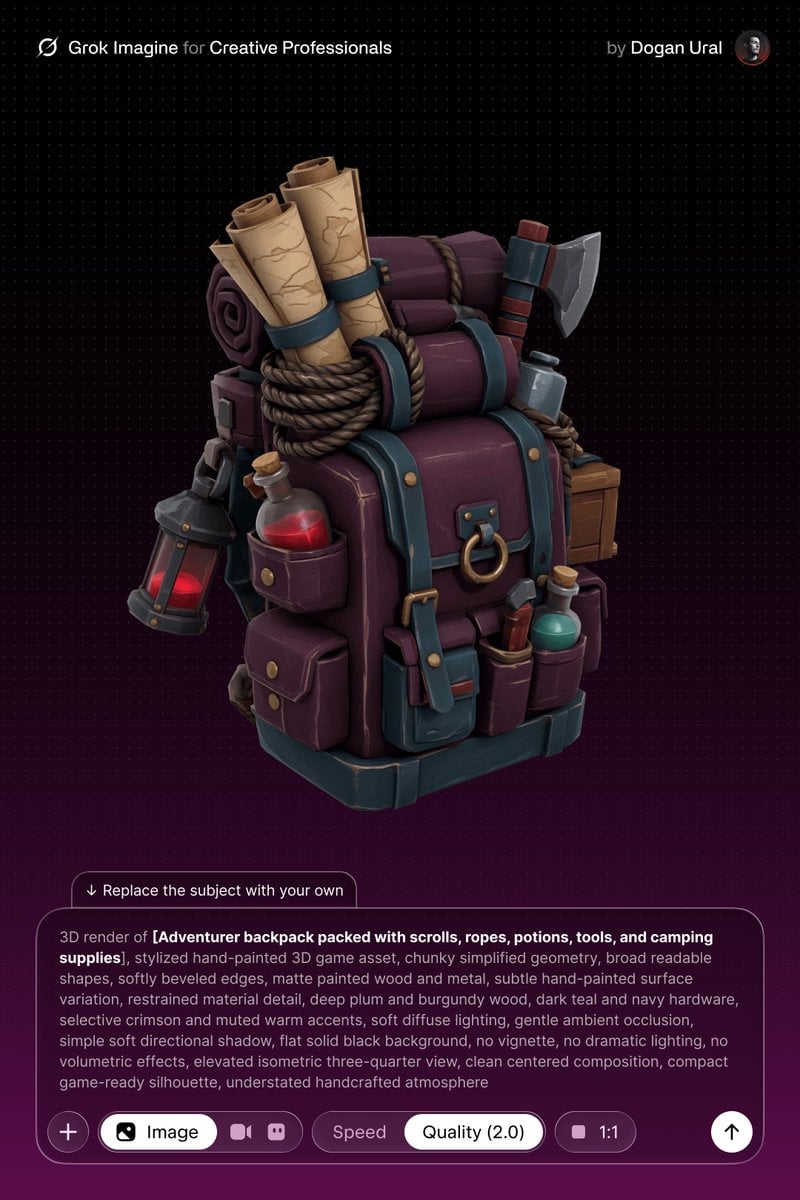
Stylized Hand-Painted 3D Game Asset
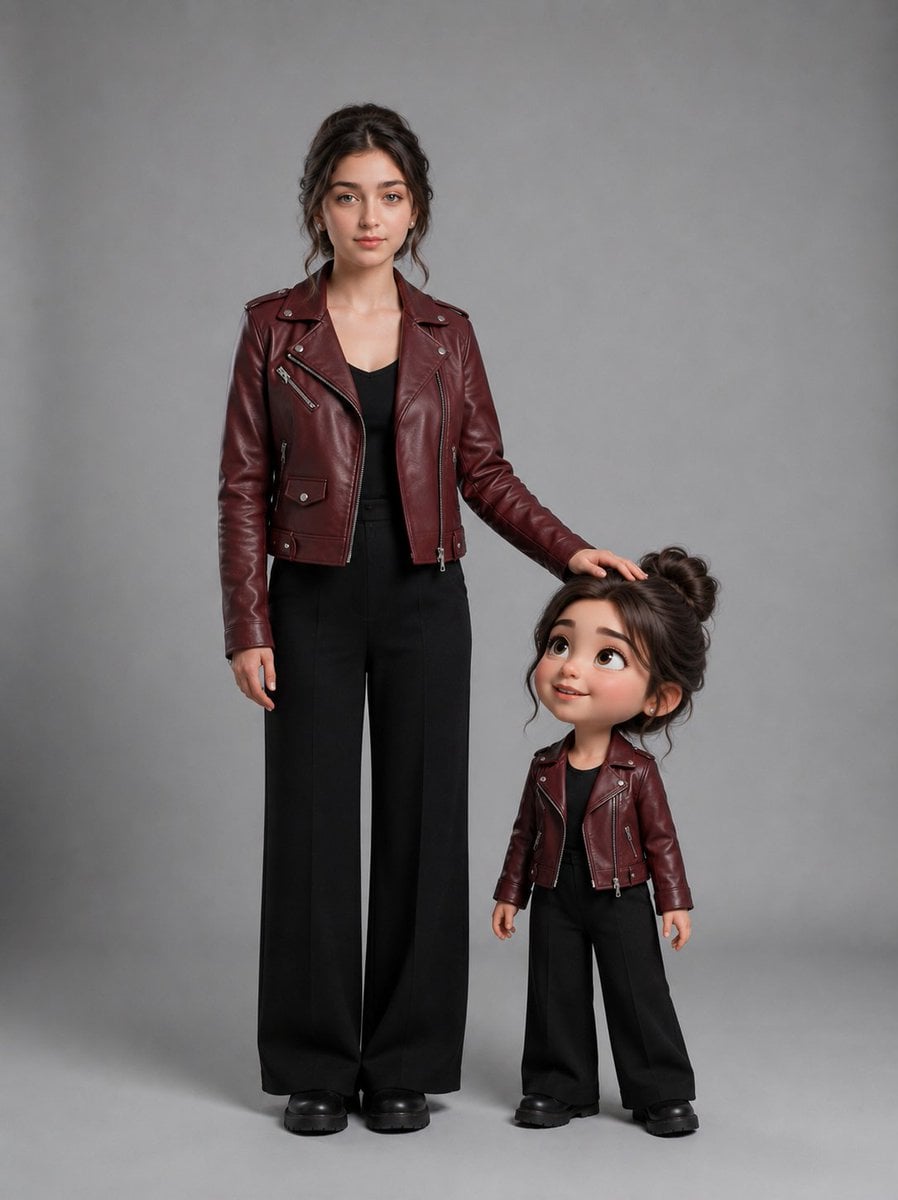
Woman With Matching Chibi Portrait
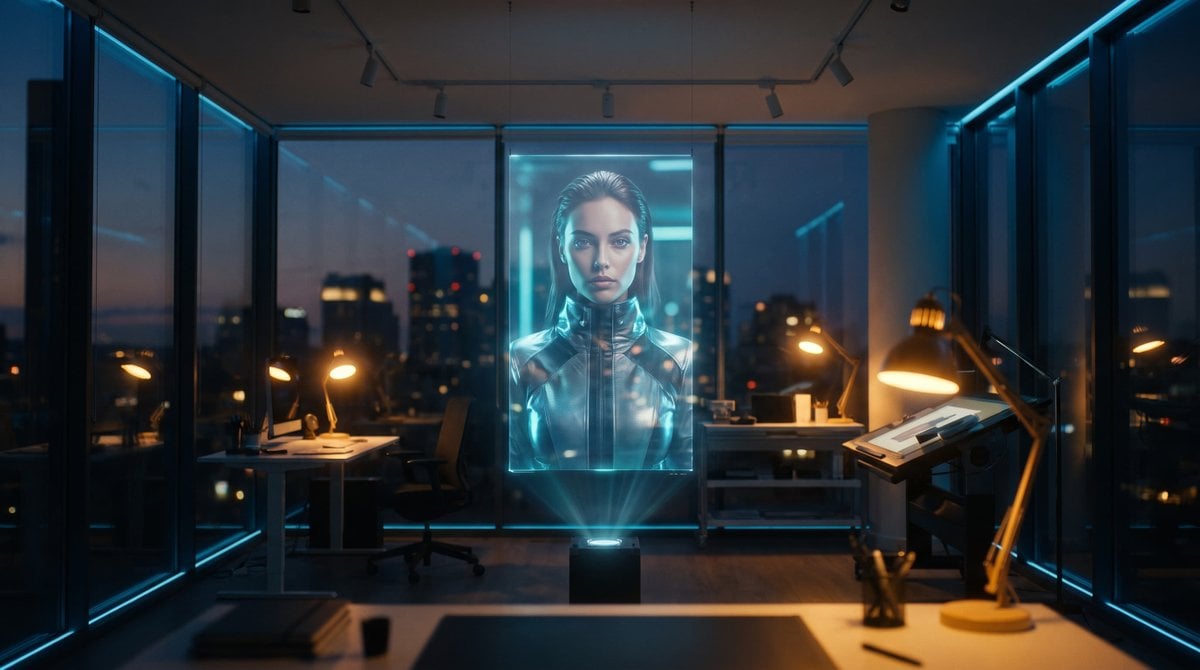
Holographic Canvas Glass Studio
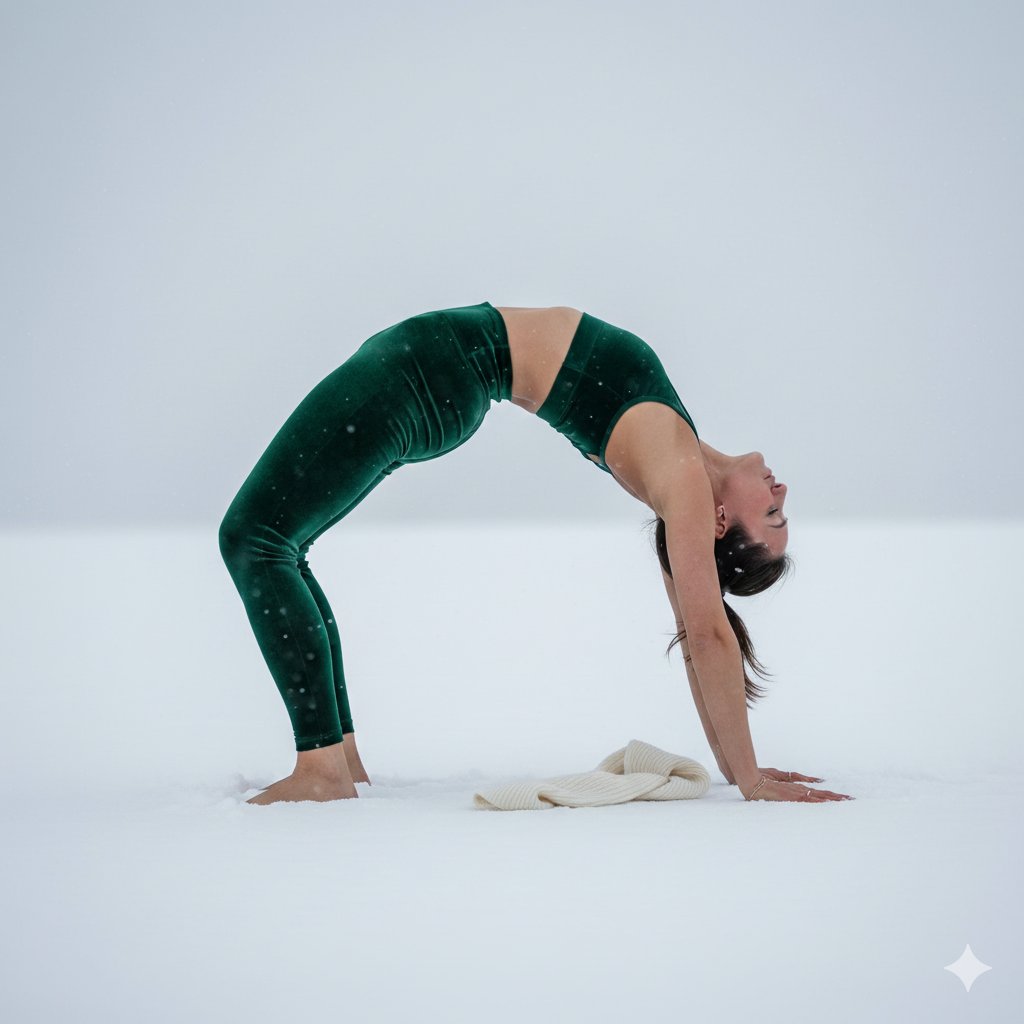
Premium emerald green velvet high-waist yoga leggings matching velvet
Macro Oil Paint Brush on Canvas
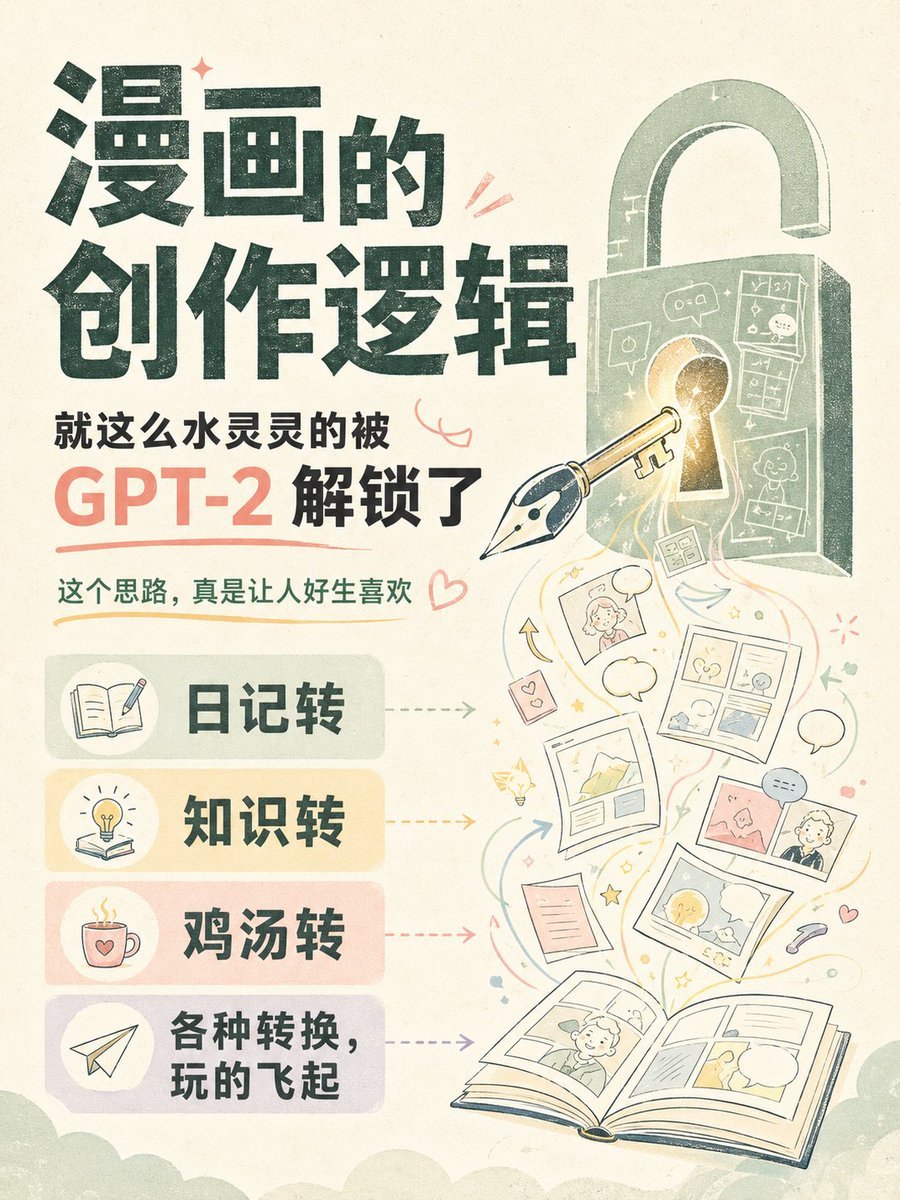
GPT-2 Comic Creation Logic Poster
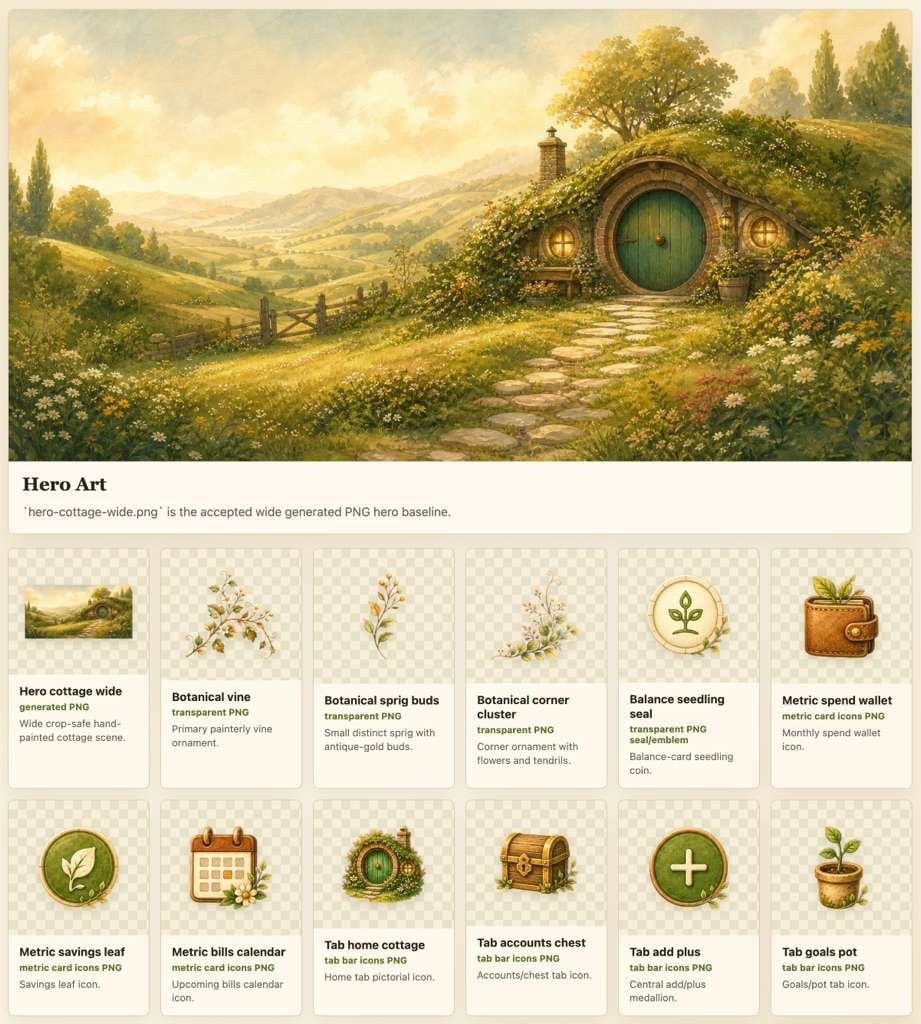
Cozy Hobbit App Asset Sheet
Matching Pajamas Mirror Selfie
Make it yours
Canva Asset Creation and Style Matching Prompt works as-is. These are the safest ways to change it without losing the look.
Change one field
Copy a single group, rewrite it, and generate again so you can see what that field is doing.
Keep the frame, change the subject
Hold the composition and light of Canva Asset Creation and Style Matching Prompt, then swap wardrobe, props or the person for a new take.
| If the result… | Why | Fix |
|---|---|---|
| The result drifts from the preview | Too many fields changed at once. | Reuse Canva Asset Creation and Style Matching Prompt as-is first, then change one group — subject, light, or setting. |
| The model over-stylizes the scene | The prose prompt leaves finish and camera underspecified. | Add one camera or lighting sentence and stay on Nano Banana 2. |
More Nano Banana 2 templates
Other prompts made for Nano Banana 2.

Photorealistic Leaf Shaped Like a Dragon

K-Pop Idol Portrait Grid for Rapid Selection

Poetic Rain Forest Portrait During Golden Hour

Urban Street Portrait with Cartoon Inner Self Duo

Candid Nighttime Photo with Cat Prompt

High-Concept 3D Diorama Generation Prompt

Cinematic Futuristic Studio Portrait Template

Skincare Editorial Photography Collage Prompt

Hyper-Realistic Commercial Product Photography (Splash Effect)

Hyper-Realistic Nightclub Portrait Prompt
More image prompts
Fresh picks from across the catalog.
Hand-Drawn Storyboard Previs Sketch
Wooden Beer Mug Render
Akita Dog Embroidered Patch Design
Retro Pop Riverbank Key Visual
Ultra Detailed 3d Plush Cartoon Characte
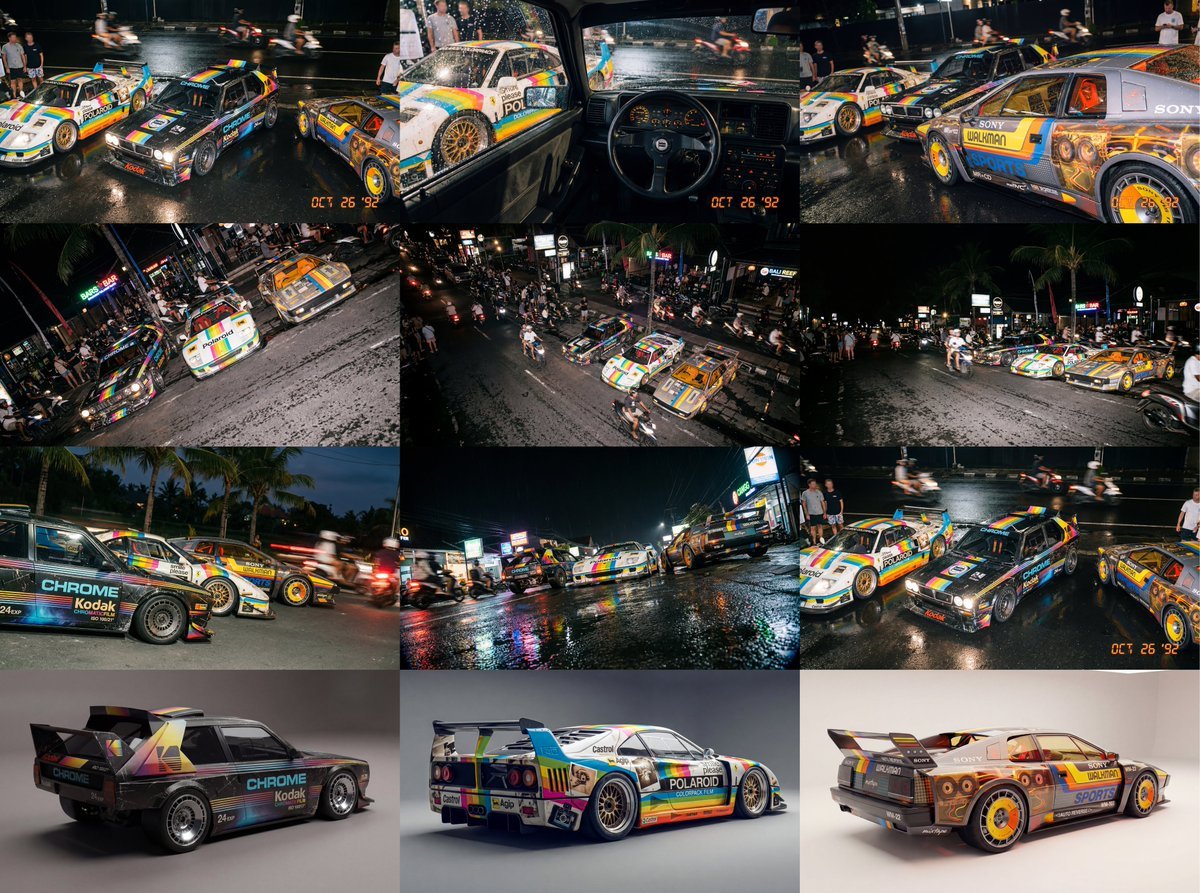
Composite Racing Car Shot with Vintage Film Branding
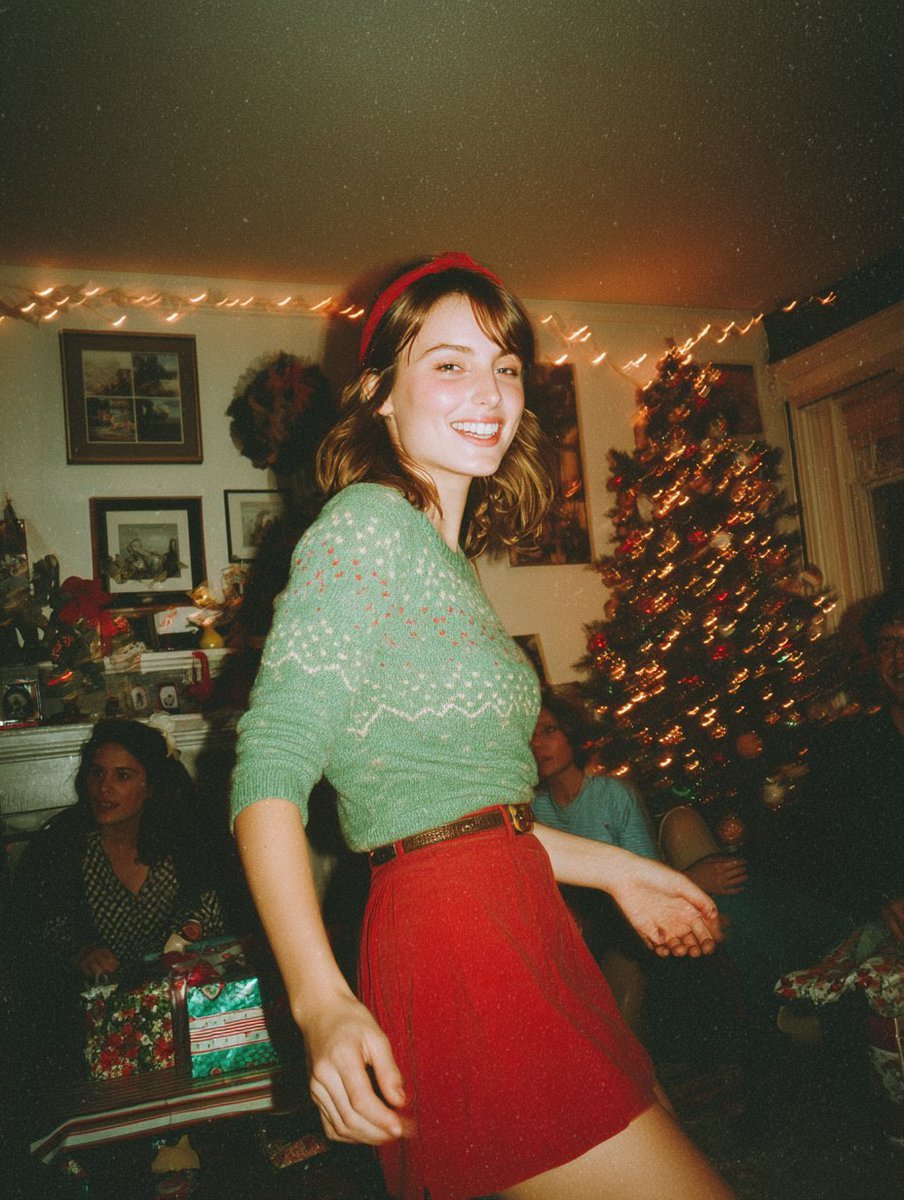
Candid Vintage Holiday Scene Photography Prompt
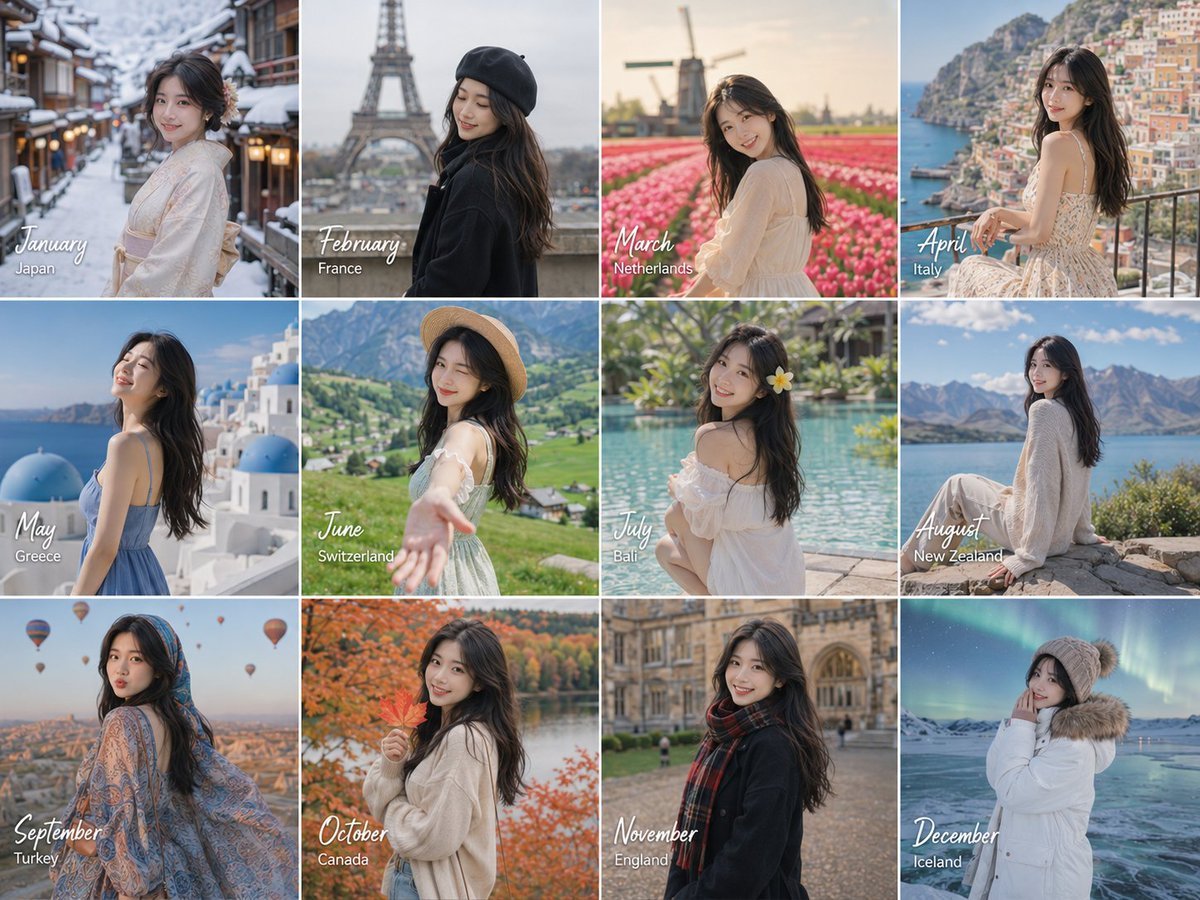
Month Travel Memory Grid
Hyper-Realistic Portrait of a Woman in a Studio (from ALT text)
Luxury Perfume Counter Office Lady Scene
Browse template categories
Canva Asset Creation and Style Matching Prompt questions
How do I use the Canva Asset Creation and Style Matching Prompt template?
Add your photo if the template asks for one, edit the prompt if you like — the template's model and format are already selected — and press Generate. Your version opens in PicX Studio.
Can I customize the Canva Asset Creation and Style Matching Prompt template?
Yes. You can change the subject, setting, lighting, mood, format, and available model controls before creating your image.
Is the Canva Asset Creation and Style Matching Prompt template free?
Opening and editing this template is free. Generating uses credits, shown on the Generate button when you are signed in.
Which AI model should I use?
Start with Nano Banana 2, which is the model associated with this template. You can compare another compatible model for a different finish.
Looking for something else? Browse all templates.

Your photo, any look
Thousands of ready templates for every top image and video model, from one credit balance.