
Cozy Hobbit App Asset Sheet
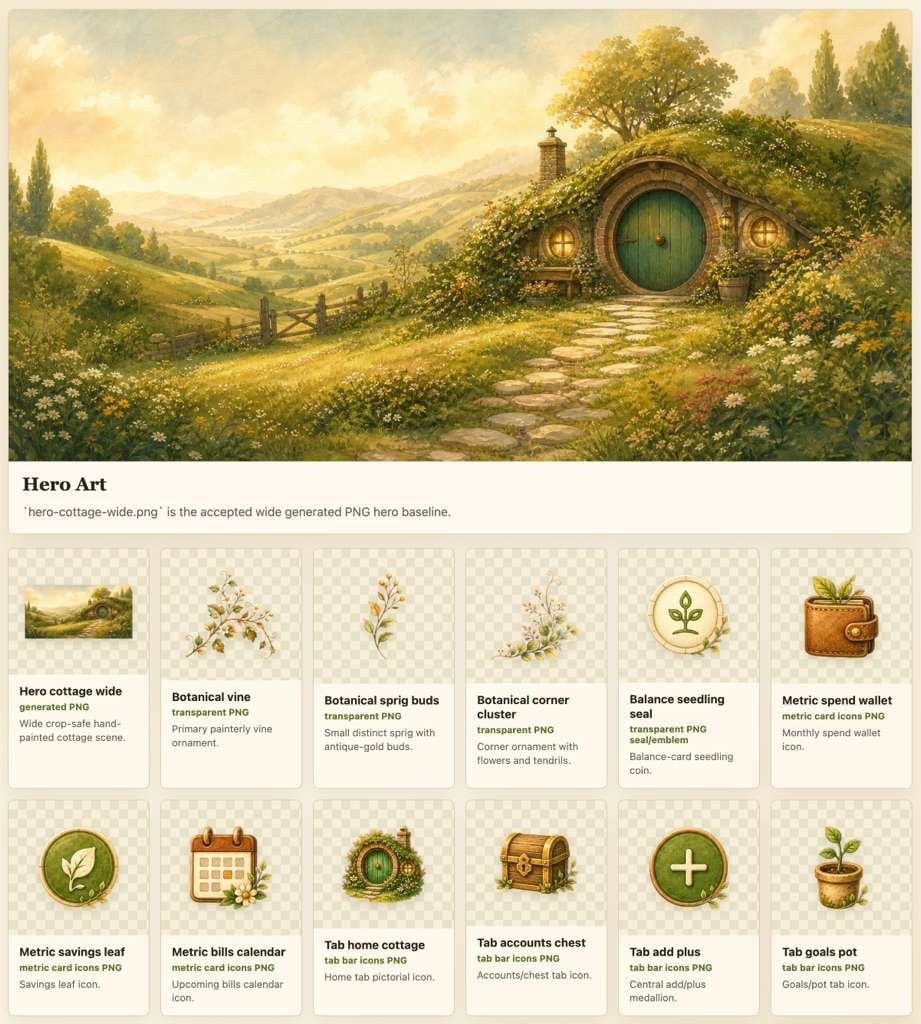
Creates a polished fantasy UI asset presentation sheet with a wide cottage hero image and twelve transparent PNG-style app icons.
- Prompt included
- Model and format preset
- Premium template
The prompt behind this image
Copy the exact prompt behind Cozy Hobbit App Asset Sheet, or open it in the studio and make it yours.
Goal: Create a polished fantasy app asset sheet for a cozy budgeting or productivity app, showing one wide hero illustration and exactly 12 transparent PNG-style icon assets beneath it. Canvas: Square presentation board, about 768×768 px, warm cream background with subtle paper texture and soft shadows. Use a clean app-design showcase layout with rounded cards, muted beige dividers, and a handcrafted storybook aesthetic. Hero section: At the top, place a wide panoramic illustration labeled Hero Art. The hero image should depict a whimsical hobbit-style hillside cottage in a golden countryside at sunset: a mossy green grass roof, round teal-green wooden door, two glowing circular windows, stone path leading toward the door, wildflowers and vines around the entrance, rolling hills and valleys in the background, a rustic fence on the left, soft warm sky, painterly watercolor/gouache finish. Under the hero title, include the line: '{argument name="hero filename" default="hero-cottage-wide.png"}' is the accepted wide generated PNG hero baseline. Asset grid: Below the hero section, create exactly 12 rounded asset cards arranged in 2 rows of 6. Each card has a checkerboard transparency preview area on top and a white/cream label area at the bottom. The icons should be isolated, painterly, warm fantasy UI assets with transparent PNG presentation. The 12 cards, in order from left to right, top row then bottom row: 1. Hero cottage wide generated PNG — miniature wide crop of the cottage landscape; description: Wide crop-safe hand-painted cottage scene. 2. Botanical vine transparent PNG — delicate flowering vine branch; description: Primary painterly vine ornament. 3. Botanical sprig buds transparent PNG — small vertical sprig with antique-gold buds; description: Small distinct sprig with antique-gold buds. 4. Botanical corner cluster transparent PNG — corner ornament with white flowers and tendrils; description: Corner ornament with flowers and tendrils. 5. Balance seedling seal transparent PNG — circular gold coin/seal with a simple green seedling symbol; description: Balance-card seedling coin. 6. Metric spend wallet metric card icons PNG — small brown leather wallet with a strap, coin, and sprout; description: Monthly spend wallet icon. 7. Metric savings leaf metric card icons PNG — round green medallion with white leaf symbol and tiny sparkles; description: Savings leaf icon. 8. Metric bills calendar metric card icons PNG — small calendar icon with golden binding and flowers; description: Upcoming bills calendar icon. 9. Tab home cottage tab bar icons PNG — small round-door cottage entrance icon; description: Home tab pictorial icon. 10. Tab accounts chest tab bar icons PNG — small golden treasure chest with green accents; description: Accounts/chest tab icon. 11. Tab add plus tab bar icons PNG — green circular medallion with a cream plus sign; description: Central add/plus medallion. 12. Tab goals pot tab bar icons PNG — terracotta flower pot with a small green sprout; description: Goals/pot tab icon. Visual style: Soft storybook watercolor and gouache rendering, warm golden lighting, earthy greens, cream, ochre, moss, and teal accents. Icons should look like cohesive app assets from the same design system, with subtle shadows, hand-painted edges, and high readability at small sizes. Text style: Use clear bold dark serif or semi-serif titles on each card, with smaller gray descriptive text beneath. Keep the filename/category phrasing readable and aligned consistently. Constraints: Use exactly one top hero panel and exactly 12 asset cards. Keep all icon previews on checkerboard transparency backgrounds. No extra assets, no people, no watermark. The app theme should feel like {argument name="app theme" default="cozy hobbit finance app"}, with the main door color {argument name="door color" default="teal green"} and overall palette {argument name="color palette" default="warm golden countryside greens and creams"}.
How to use Cozy Hobbit App Asset Sheet in 3 steps
- 1Upload ImagePNG, JPG or paste
Add your photo
Upload the photo the template builds on. The prompt, model and format are already set.
- 2…a portrait of your subject in softgolden-hour light, 85mm…
Personalize
Edit the subject and creative details for your destination.
- 3Generate
Generate
Press Generate — your image is created in PicX Studio, so you can compare it with the original and refine one variable at a time.
More like this
Templates with the same subject, style or setup. Open one to see its prompt.
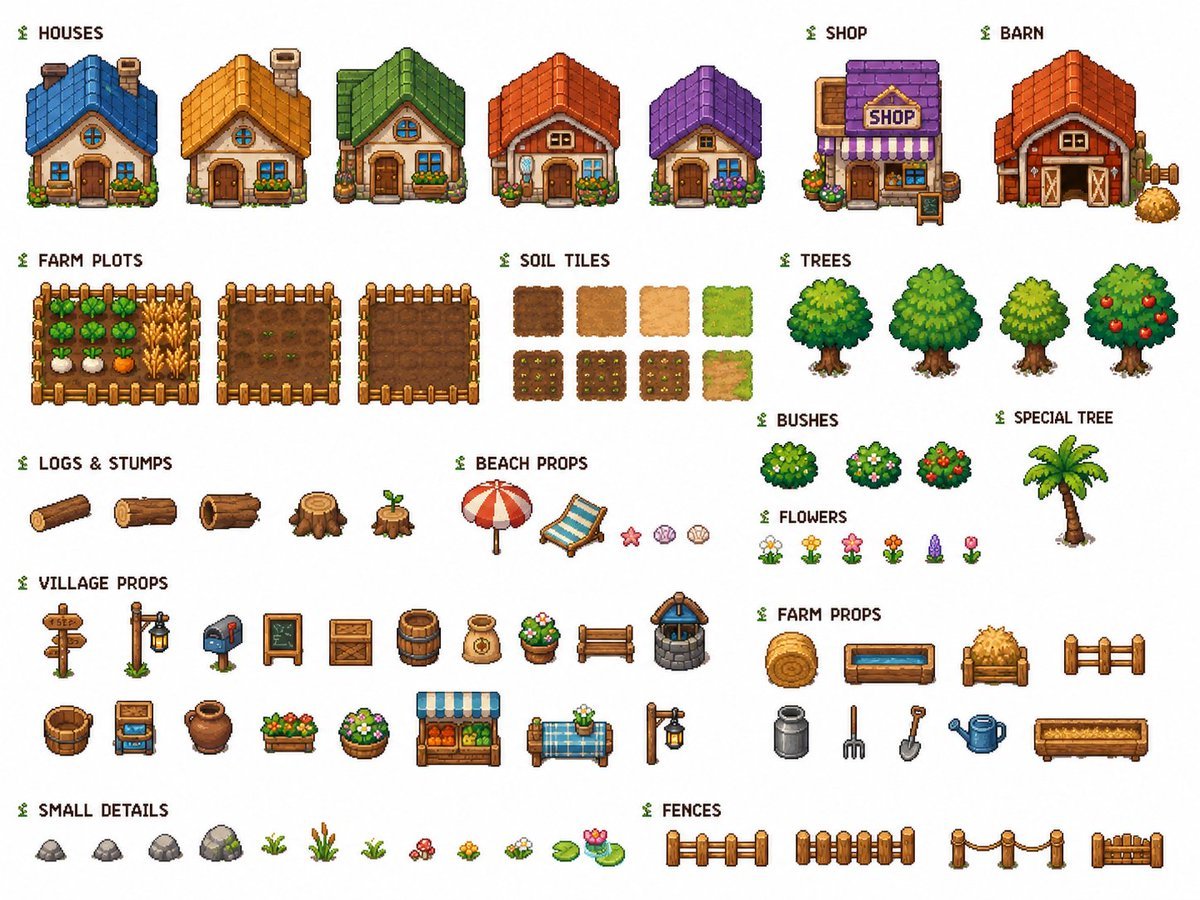
Cozy Farming Village Pixel Asset Sheet

Nostalgic Digicam Café Afternoon Portrait

Pixar-Style Chibi Café Morning Scene
Japanese Café Sketch Duo Illustration
Delicate Japanese Café Lifestyle Illustration
Parisian Outdoor Café Silver-Hair Portrait
Pixar-Style Chibi Café Morning Scene
Japanese Café Sketch Duo Illustration
Delicate Japanese Café Lifestyle Illustration
Cozy Café Ice Cream Hands Close-Up
Watercolor Café Cheesecake Editorial Illustration

Rainy Café Window Moody Portrait
Make it yours
Cozy Hobbit App Asset Sheet works as-is. These are the safest ways to change it without losing the look.
Change one field
Copy a single group, rewrite it, and generate again so you can see what that field is doing.
Keep the frame, change the subject
Hold the composition and light of Cozy Hobbit App Asset Sheet, then swap wardrobe, props or the person for a new take.
| If the result… | Why | Fix |
|---|---|---|
| The result drifts from the preview | Too many fields changed at once. | Reuse Cozy Hobbit App Asset Sheet as-is first, then change one group — subject, light, or setting. |
| The model over-stylizes the scene | The prose prompt leaves finish and camera underspecified. | Add one camera or lighting sentence and stay on GPT Image 2. |
More GPT Image 2 templates
Other prompts made for GPT Image 2.

Six VTuber Japanese Logo Sheet

Realistic Portrait of Woman and Deer

The Vista Modular Condo Poster

AI Model Routing Comparison Infographic

2.5D Anime Art Board

Isometric Productivity Desk Scene

New York Double Exposure Poster

Four-Panel AI Landscape Comparison

Japanese Tatami Lifestyle Magazine Cover

NESCAFÉ Coffee Map Poster
More image prompts
Fresh picks from across the catalog.
Cinematic Food Infographic of Levengi Chicken

Drone Art Character Projection over Night Sea
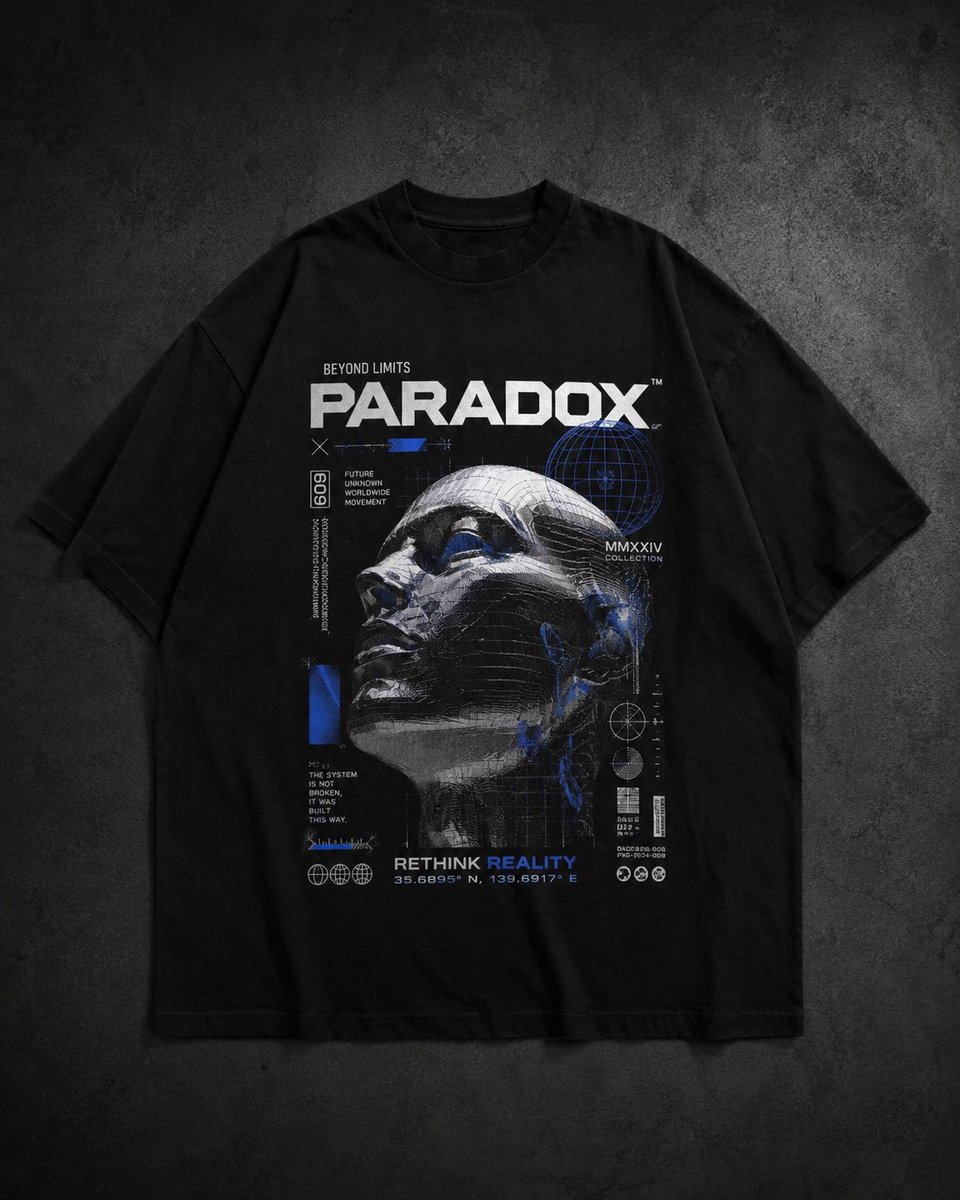
Modern Streetwear and Luxury T-Shirt Designs
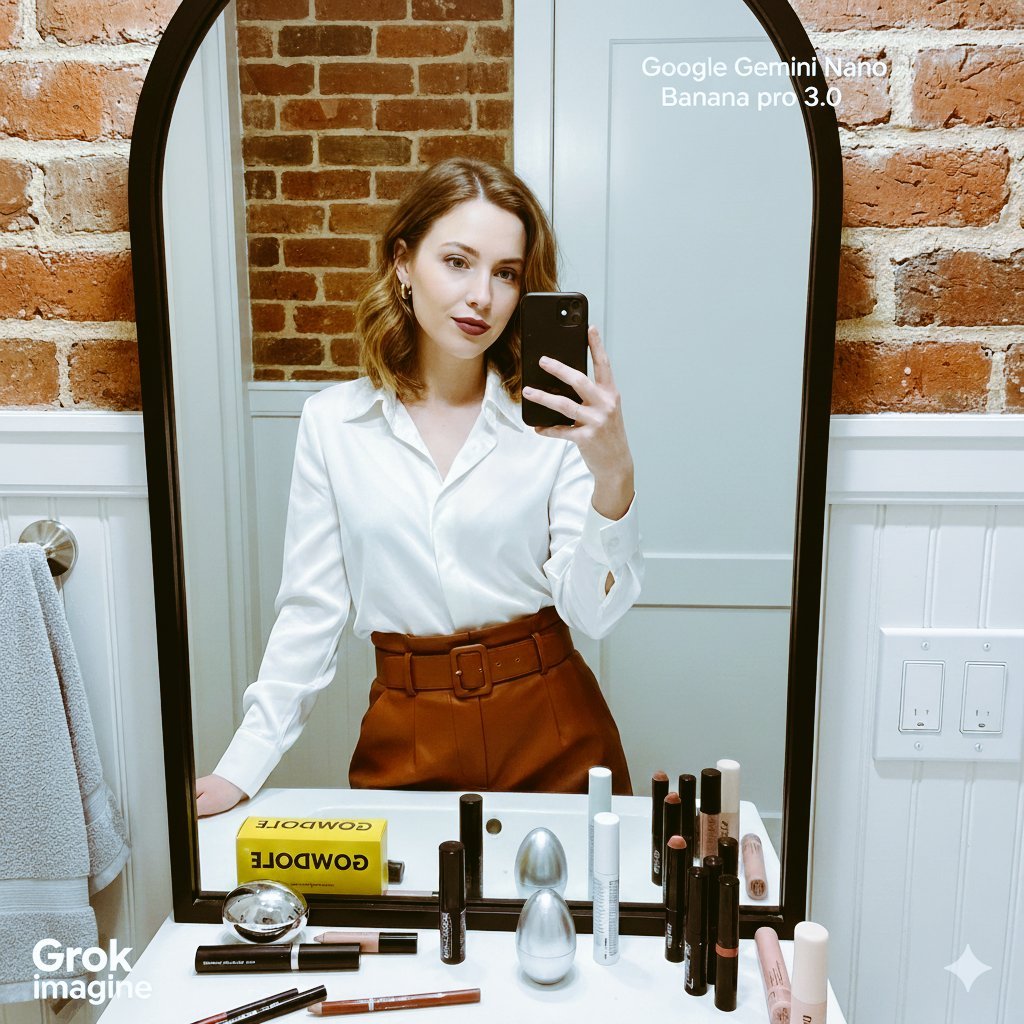
Detailed Mirror Selfie/Indoor Portrait Prompt
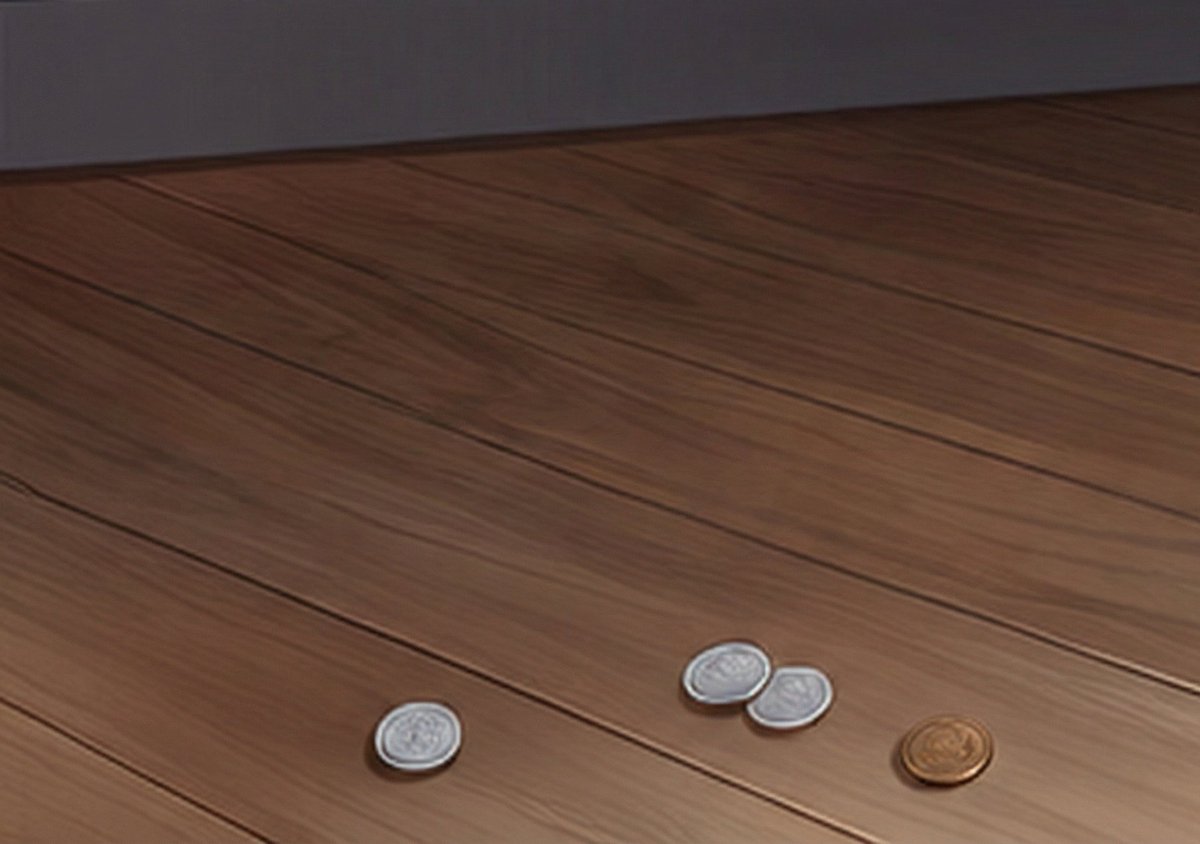
Generating Realistic Japanese Currency on a Floor
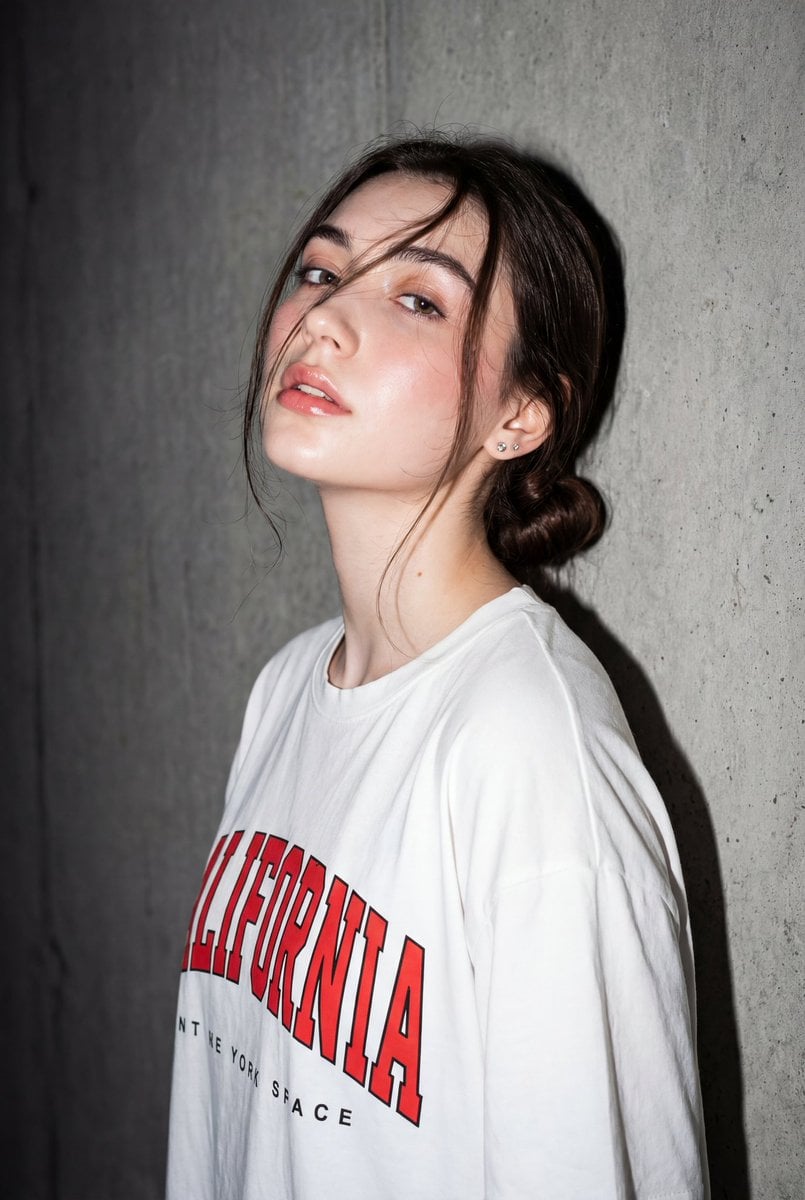
High-Contrast Flash Portrait with Identity Lock

Neon-Outlined Skateboarder Action Shot
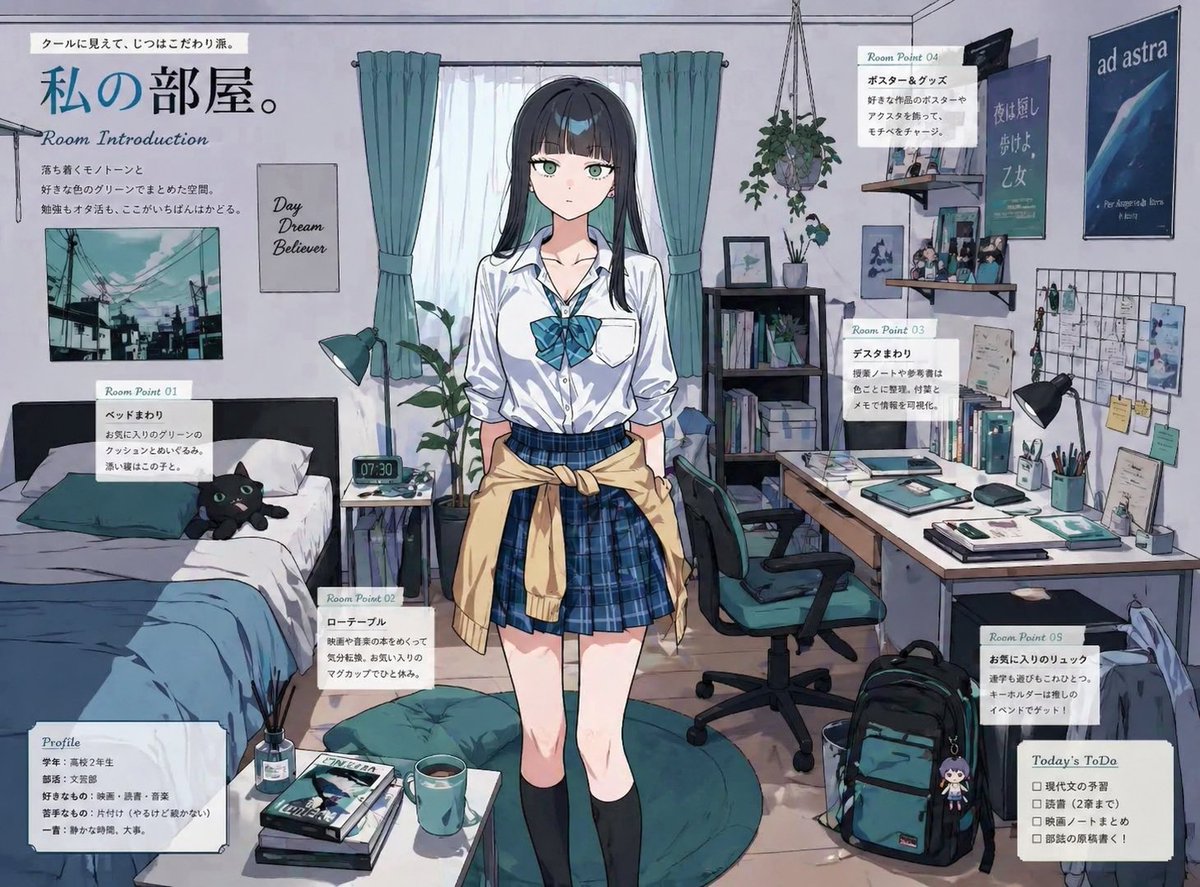
Character Room Visualization Prompt
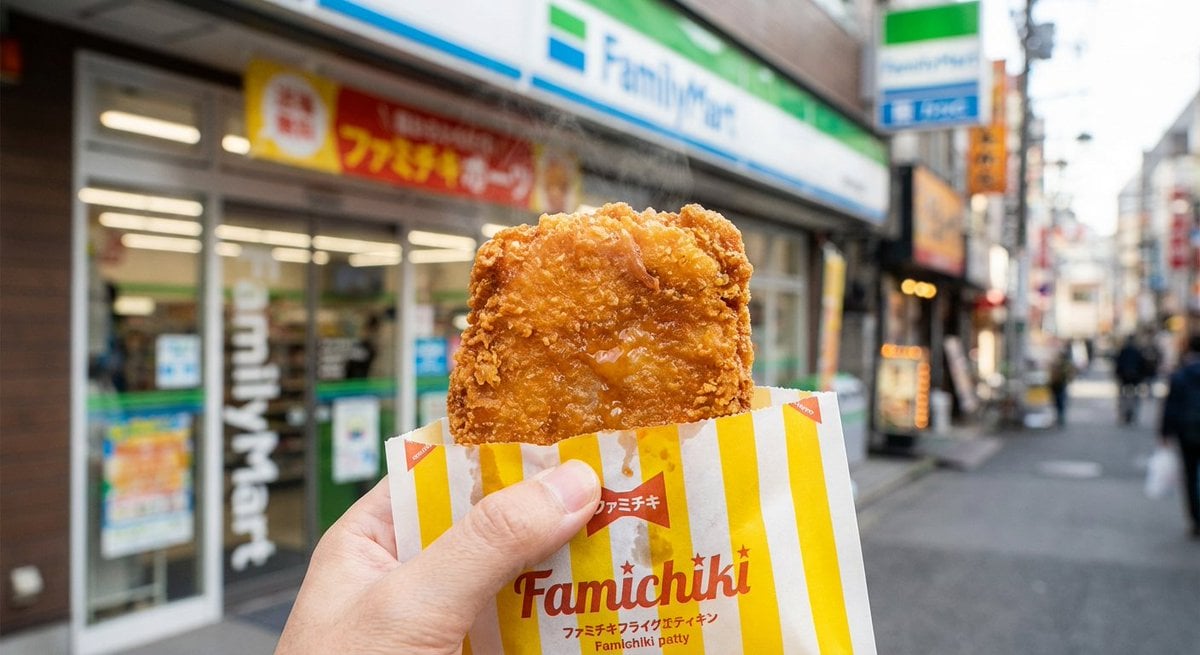
Generating 'Famichiki' Image with Nano Banana Pro
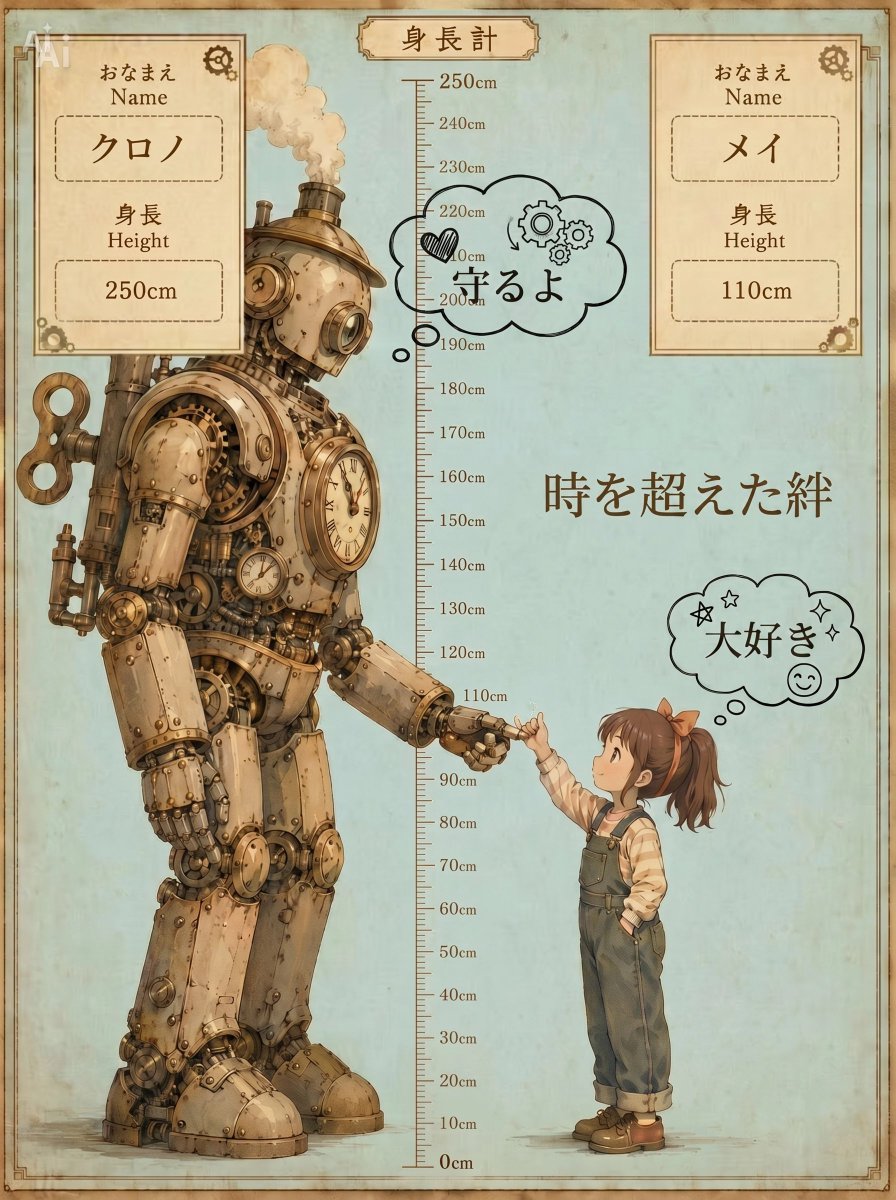
Steampunk Height Difference Poster
Browse template categories
Cozy Hobbit App Asset Sheet questions
How do I use the Cozy Hobbit App Asset Sheet template?
Add your photo if the template asks for one, edit the prompt if you like — the template's model and format are already selected — and press Generate. Your version opens in PicX Studio.
Can I customize the Cozy Hobbit App Asset Sheet template?
Yes. You can change the subject, setting, lighting, mood, format, and available model controls before creating your image.
Is the Cozy Hobbit App Asset Sheet template free?
Opening and editing this template is free. Generating uses credits, shown on the Generate button when you are signed in.
Which AI model should I use?
Start with GPT Image 2, which is the model associated with this template. You can compare another compatible model for a different finish.
Looking for something else? Browse all templates.

Your photo, any look
Thousands of ready templates for every top image and video model, from one credit balance.