How do I use the Hybrid Workflow for Scene and Pose Variation template?
Choose the primary action to open PicX Studio with the available template settings. Review the model and format, personalize the creative direction, and generate when ready.
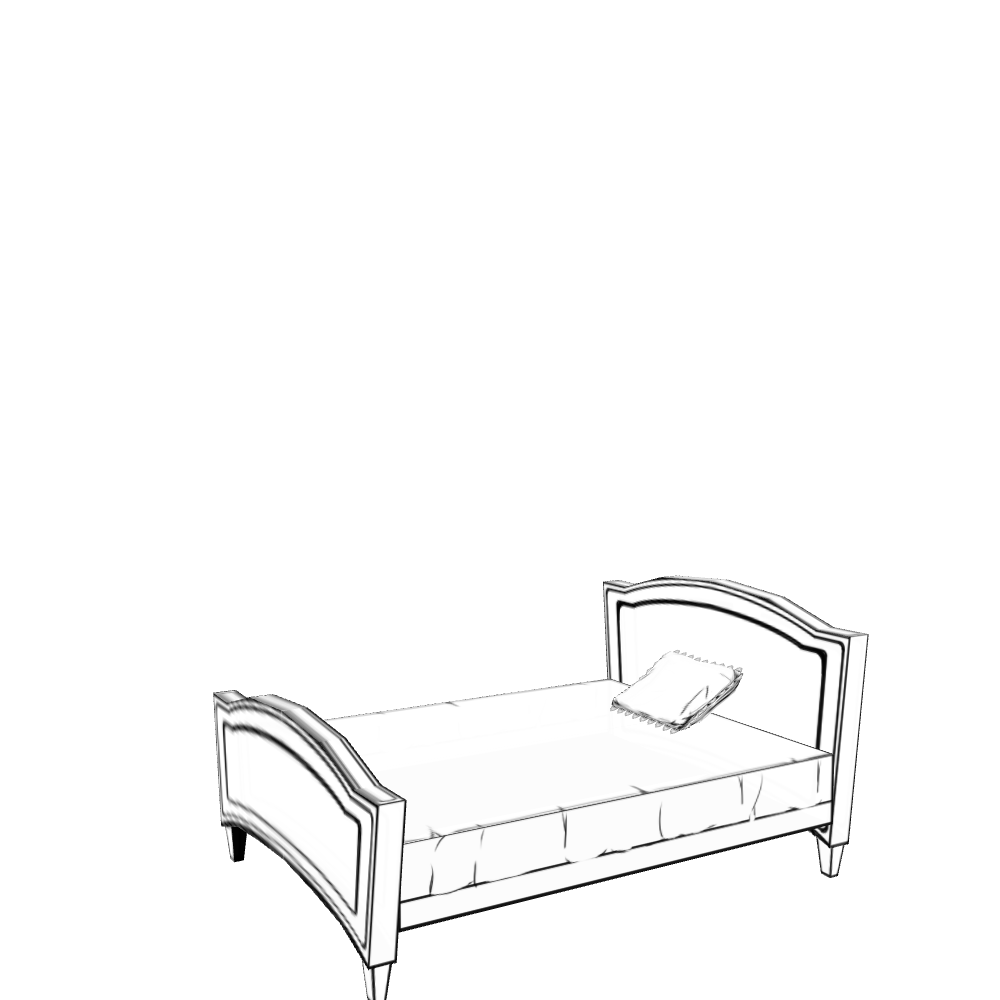
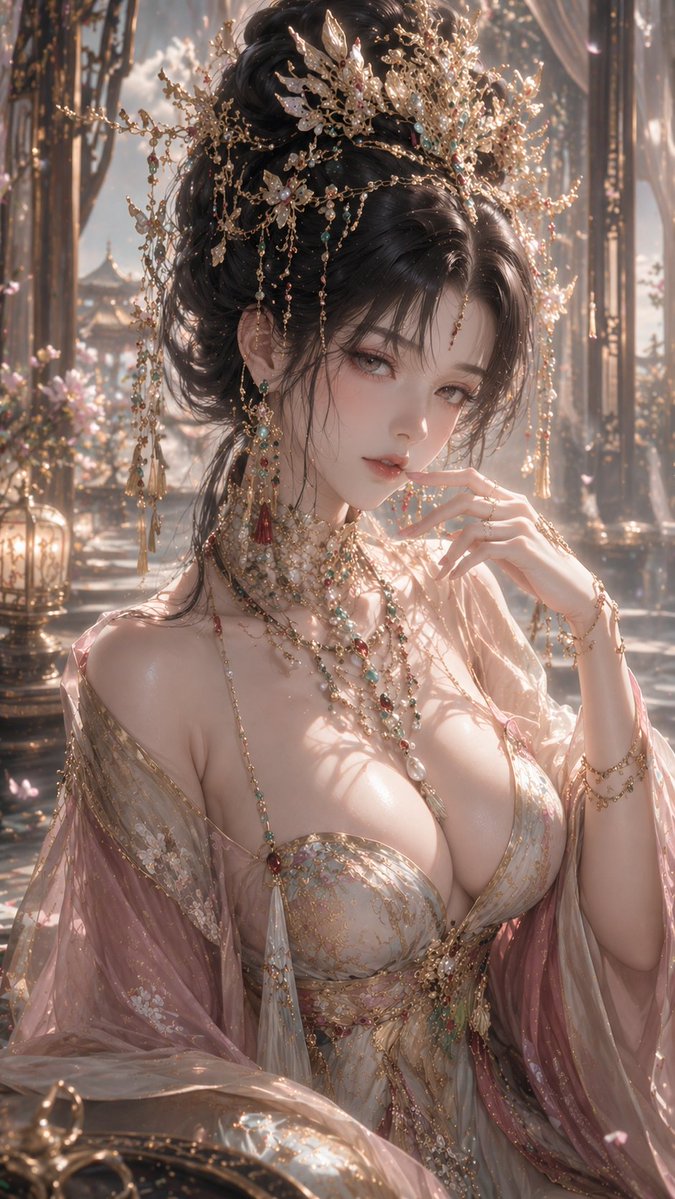
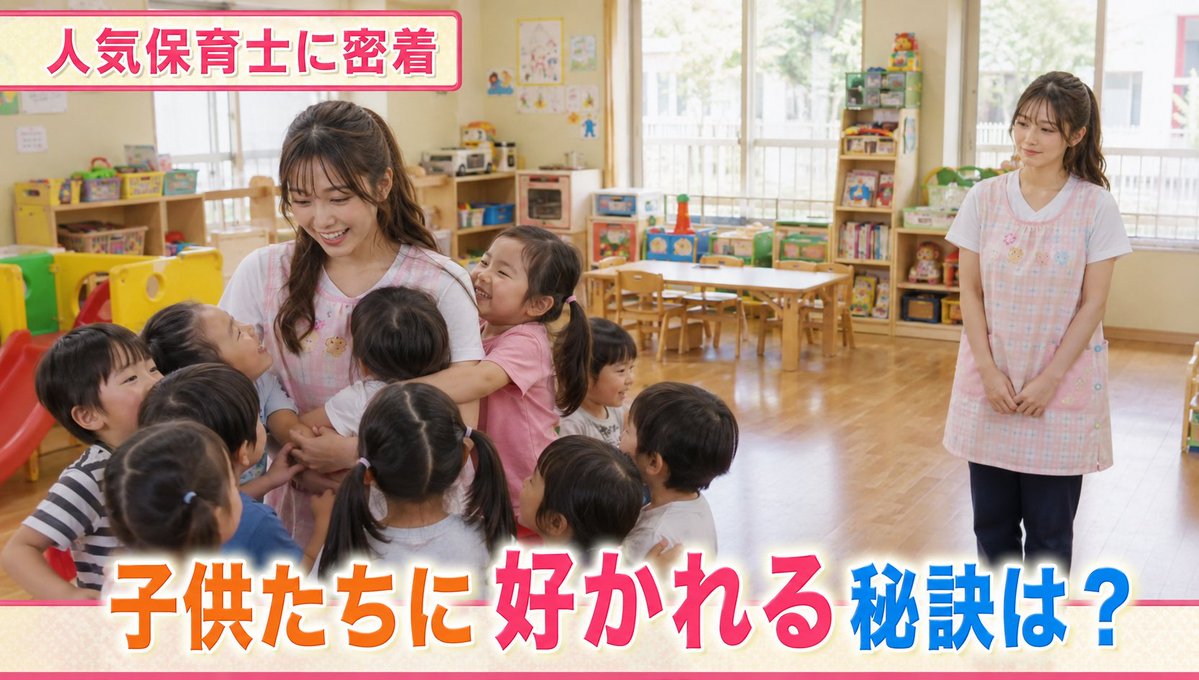
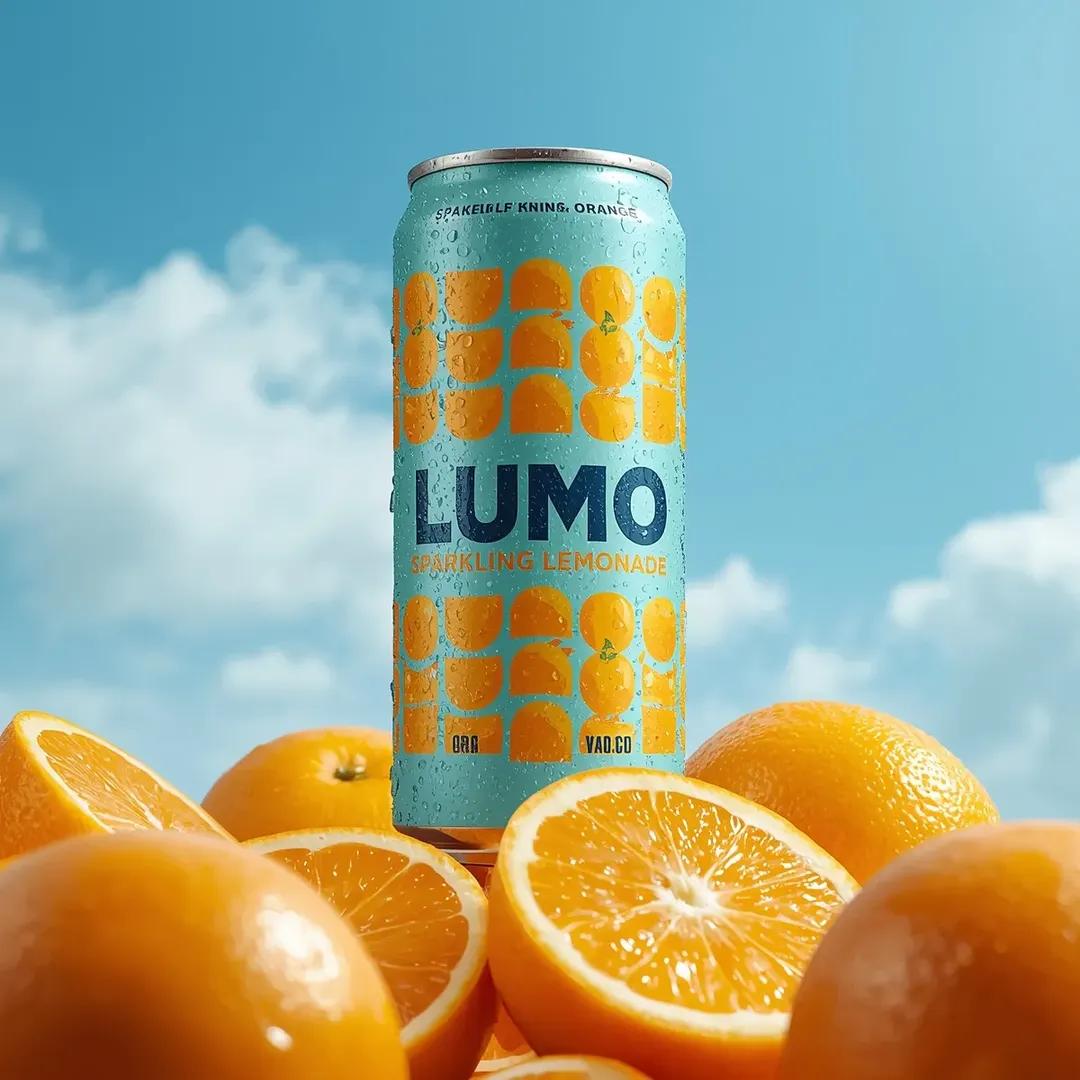
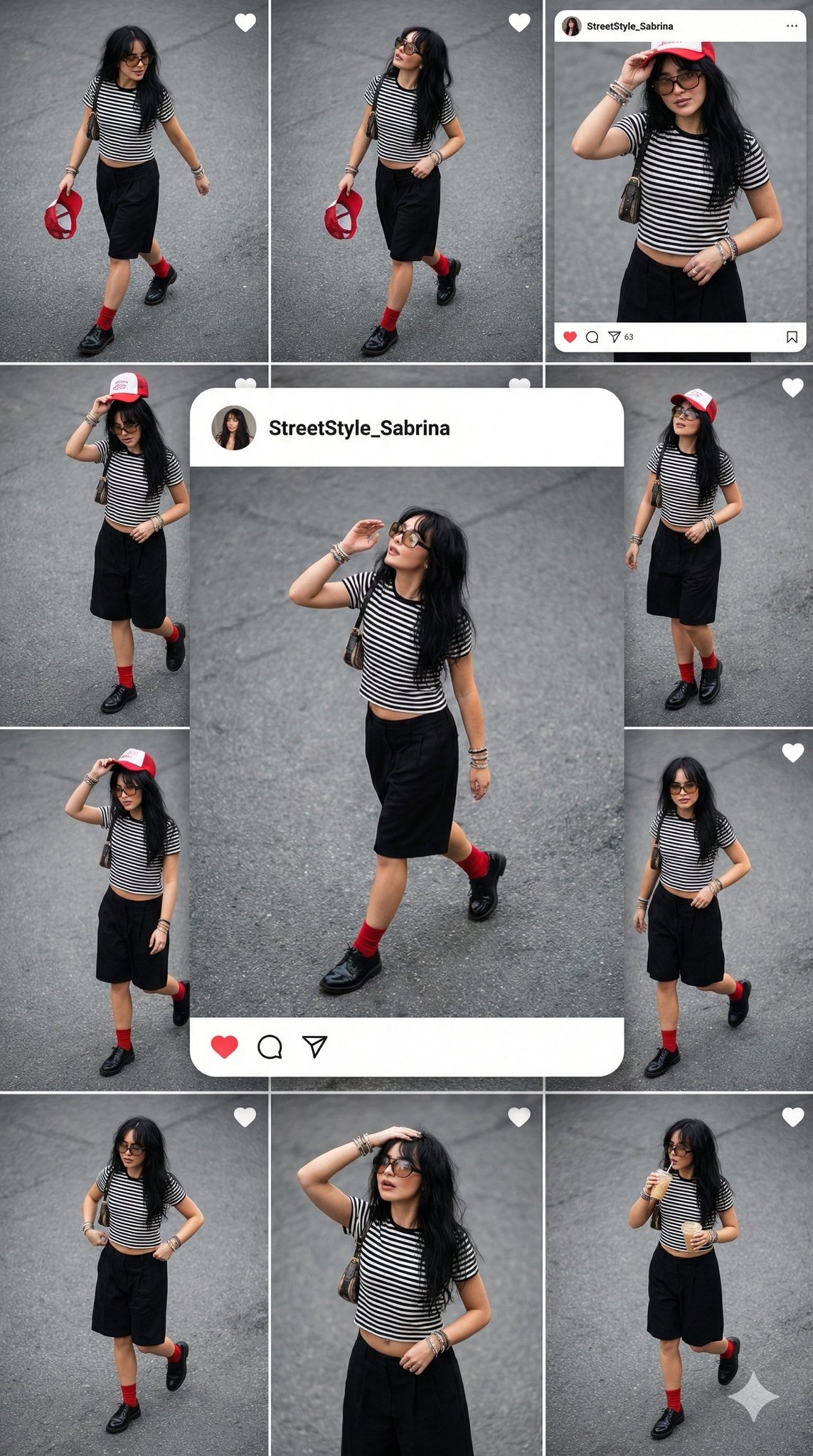
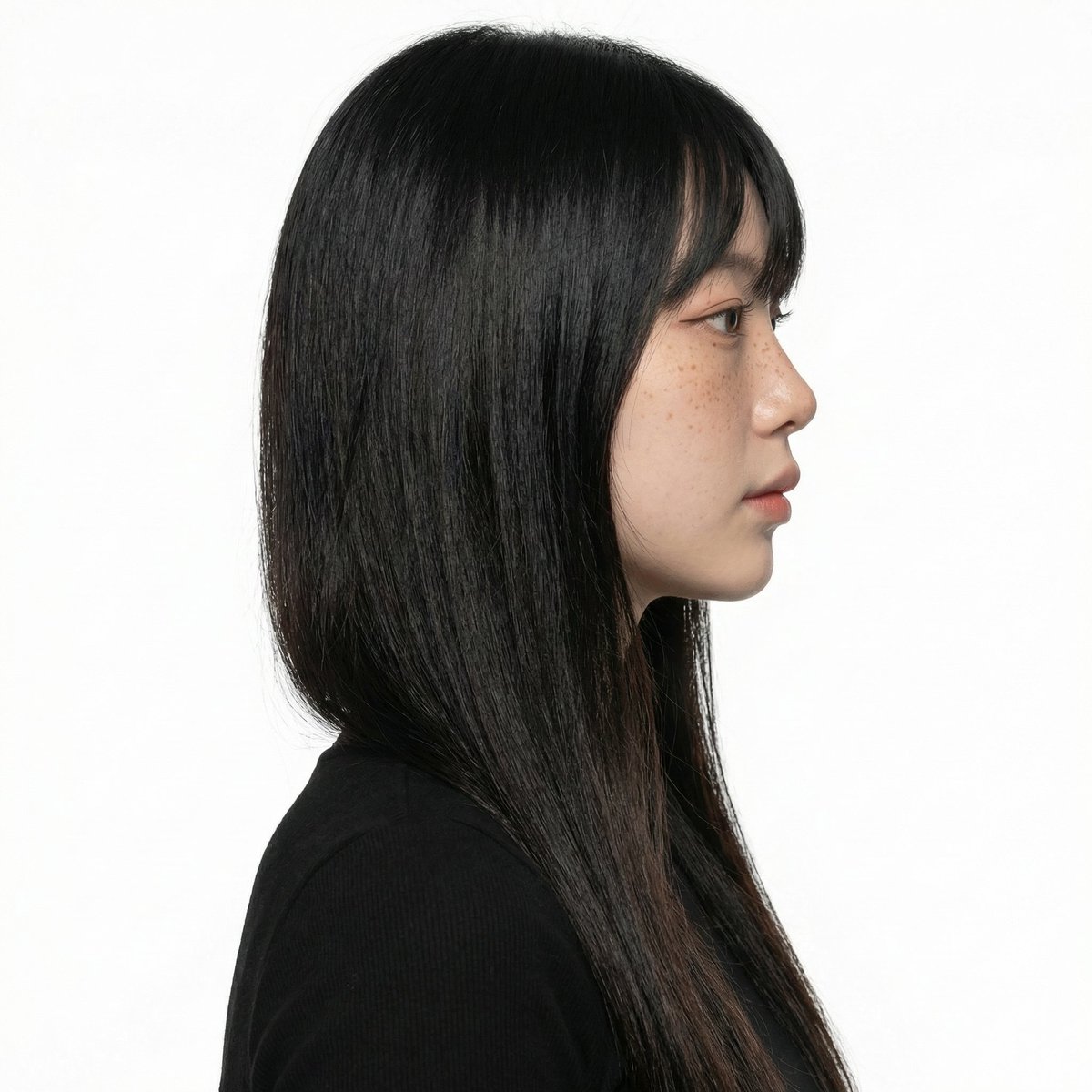
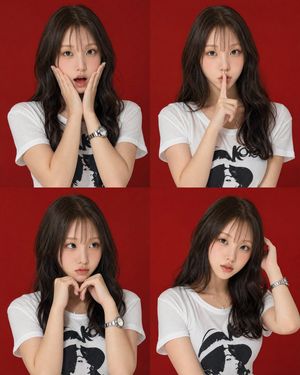
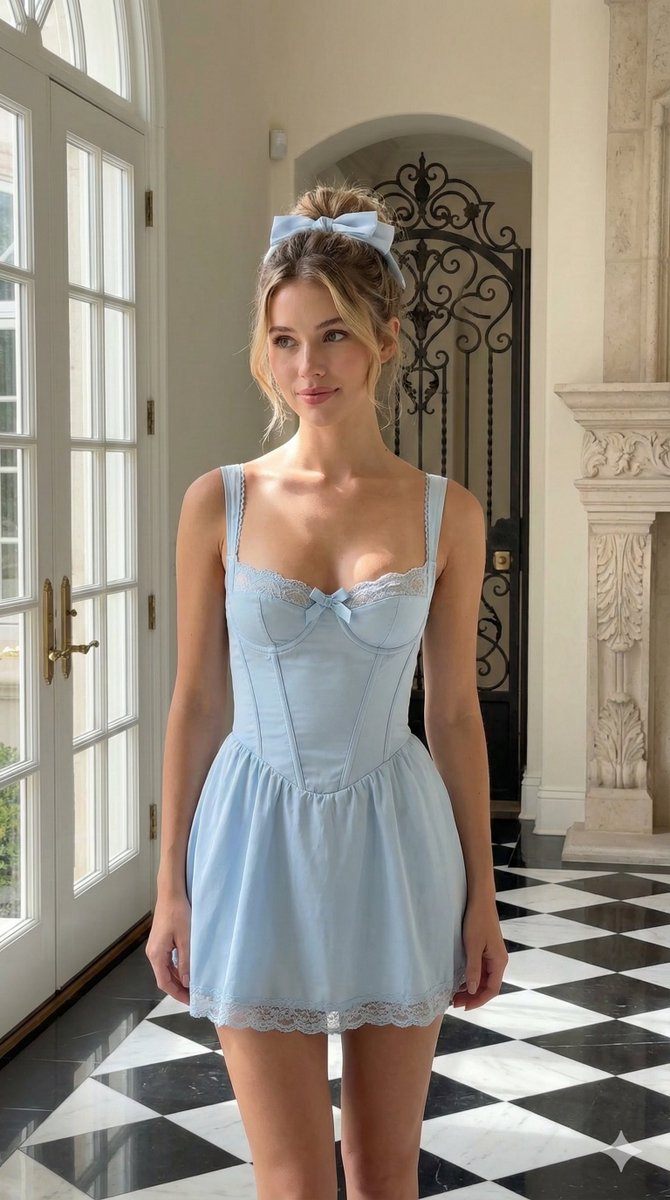
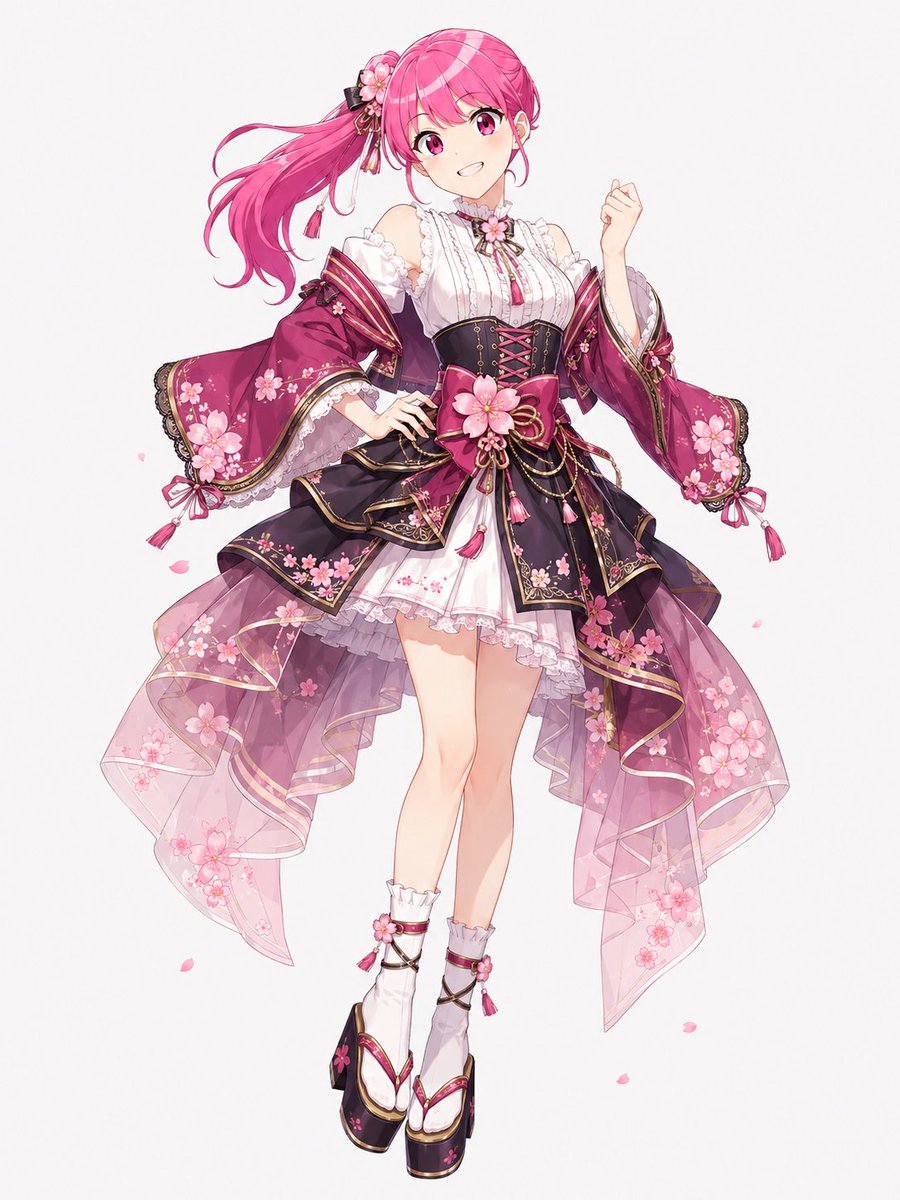
This post describes a hybrid workflow for generating varied images: first, a base image is created using Gemini's Nano Banana Pro (NBP), and then the scene and pose are varied using the Grok platform. Change the subject, setting, or lighting one variable at a time.

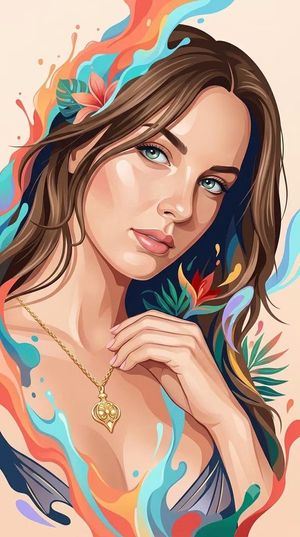
This is a SFW AI-generated illustration, algorithm please be kind!
Choose the primary action to open PicX Studio with the available template settings. Review the model and format, personalize the creative direction, and generate when ready.
Yes. You can change the subject, setting, lighting, mood, format, and available model controls before creating your image.
This template is free to open and customize. Generation usage is shown in PicX Studio before you create.
Start with Nano Banana 2, which is the model associated with this template. You can compare another compatible model for a different finish.
© 2026 PicX Studio. All rights reserved.

Follow a topic to a crawlable collection of related PicX Studio templates.
43,474 public templates available. Verified via the PicX Studio public templates API; refreshed hourly.














![Naive doodle-style subject illustration — A doodle-style {argument name="subject" default="[subject]"}, naive lines, humorous shape exaggeration](https://pbs.twimg.com/media/G6Wl2YxbsAARB2b.jpg)












![Product Photography Poster with Liquid Splash and Text Overlays — Exact uploaded [BOTTLE_NAME] bottle (label unchanged). Vertical poster. Center bottle w/ conde](https://pbs.twimg.com/media/G-eN5ldboAApFi1.jpg)








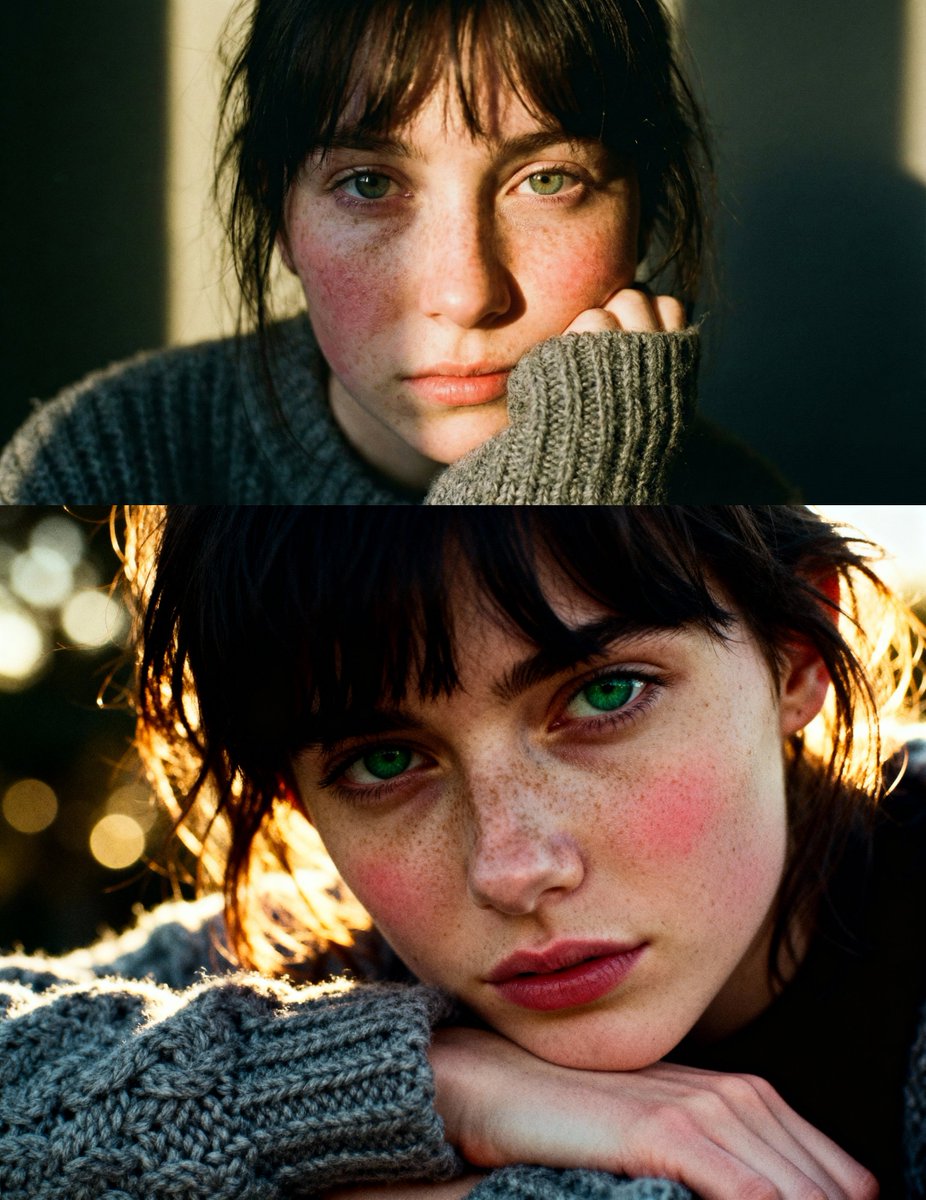
![Existential Exhaustion Photorealistic Portrait — photorealistic. {argument name="character" default="[character]"}. sitting at {argument name="environment" defa](https://cms-assets.youmind.com/media/1778315758811_qwcsq6_HH1TZMaXkAgHkGN.jpg)