
Technical Infographic Overlay on a Photorealistic Object
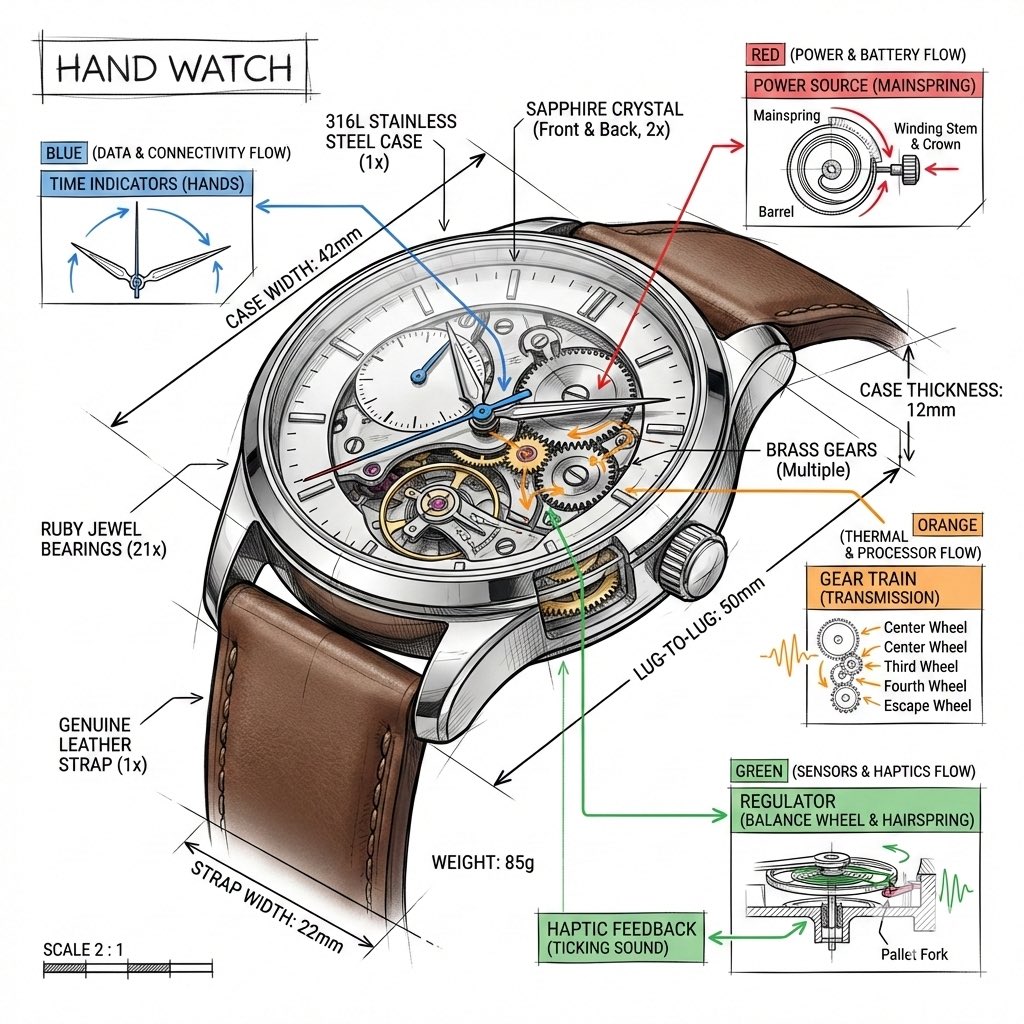
A prompt template for generating an infographic image that combines a photorealistic render of an object with technical annotation overlays.
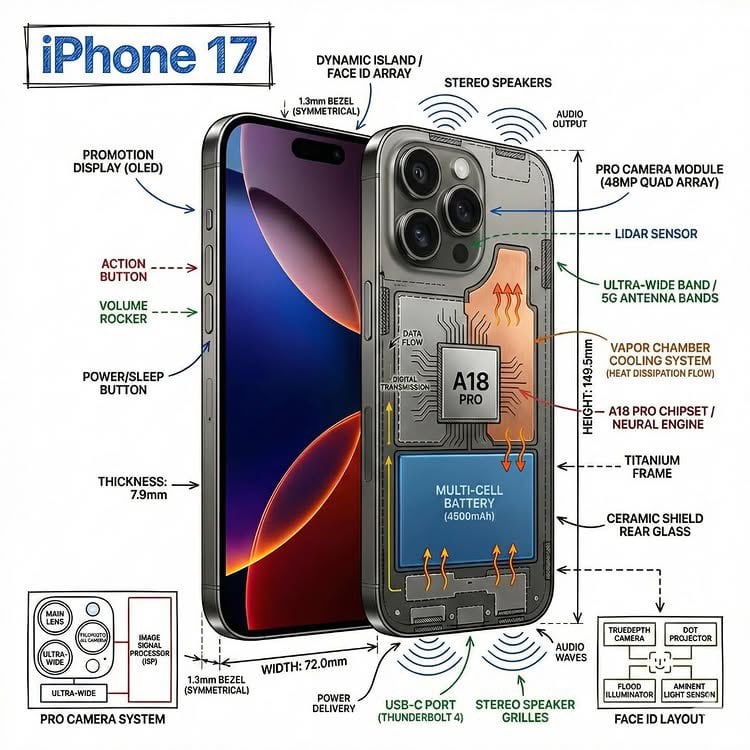
- Prompt included
- Model and format preset
- Premium template
The prompt behind this image
Copy the exact prompt behind Technical Infographic Overlay on a Photorealistic Object, or open it in the studio and make it yours.
Create an infographic image of {argument name="object" default="[OBJECT]"}, combining a realistic photograph or photorealistic render of the object with technical annotation overlays placed directly on top. Use black ink–style line drawings and text (technical pen / architectural sketch look) on a pure white studio background. Include: •Key component labels •Internal cutaway or exploded-view outlines (where relevant) •Measurements, dimensions, and scale markers •Material callouts and quantities •Arrows indicating function, force, or flow (air, sound, power, pressure, movement) •Simple schematic or sectional diagrams where applicable Place the title {argument name="object title" default="[OBJECT]"} inside a hand-drawn technical annotation box in one corner. Style & layout rules: •The real object remains clearly visible beneath the annotations •Annotations look hand-sketched, technical, and architectural •Clean composition with balanced negative space •Educational, museum-exhibit / engineering-manual vibe Visual style: Minimal technical illustration aesthetic. Black linework layered over realistic imagery. Precise but slightly hand-drawn feel. Color palette: Pure white background. Black annotation lines and text only. No colors. Output: 1080 × 1080 resolution Ultra-crisp Social-feed optimized No watermark
How to use Technical Infographic Overlay on a Photorealistic Object in 3 steps
- 1
Open
The prompt is already in the box next to the preview, with the template's model and format selected.
- 2…a portrait of your subject in softgolden-hour light, 85mm…
Personalize
Edit the subject and creative details for your destination.
- 3Generate
Generate
Press Generate — your image is created in PicX Studio, so you can compare it with the original and refine one variable at a time.
More like this
Templates with the same subject, style or setup. Open one to see its prompt.

Isometric Vehicle Teardown Infographic Template
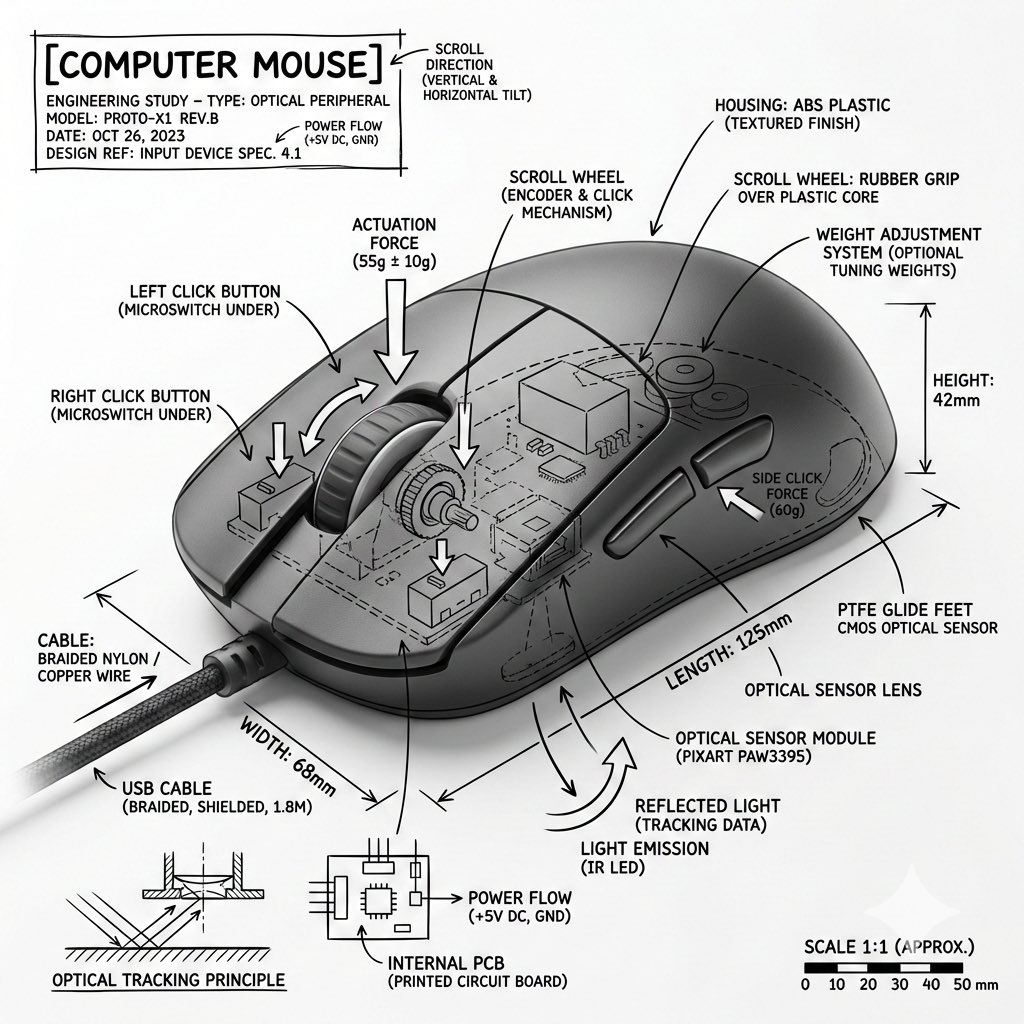
Technical Infographic Overlay for Object Annotation
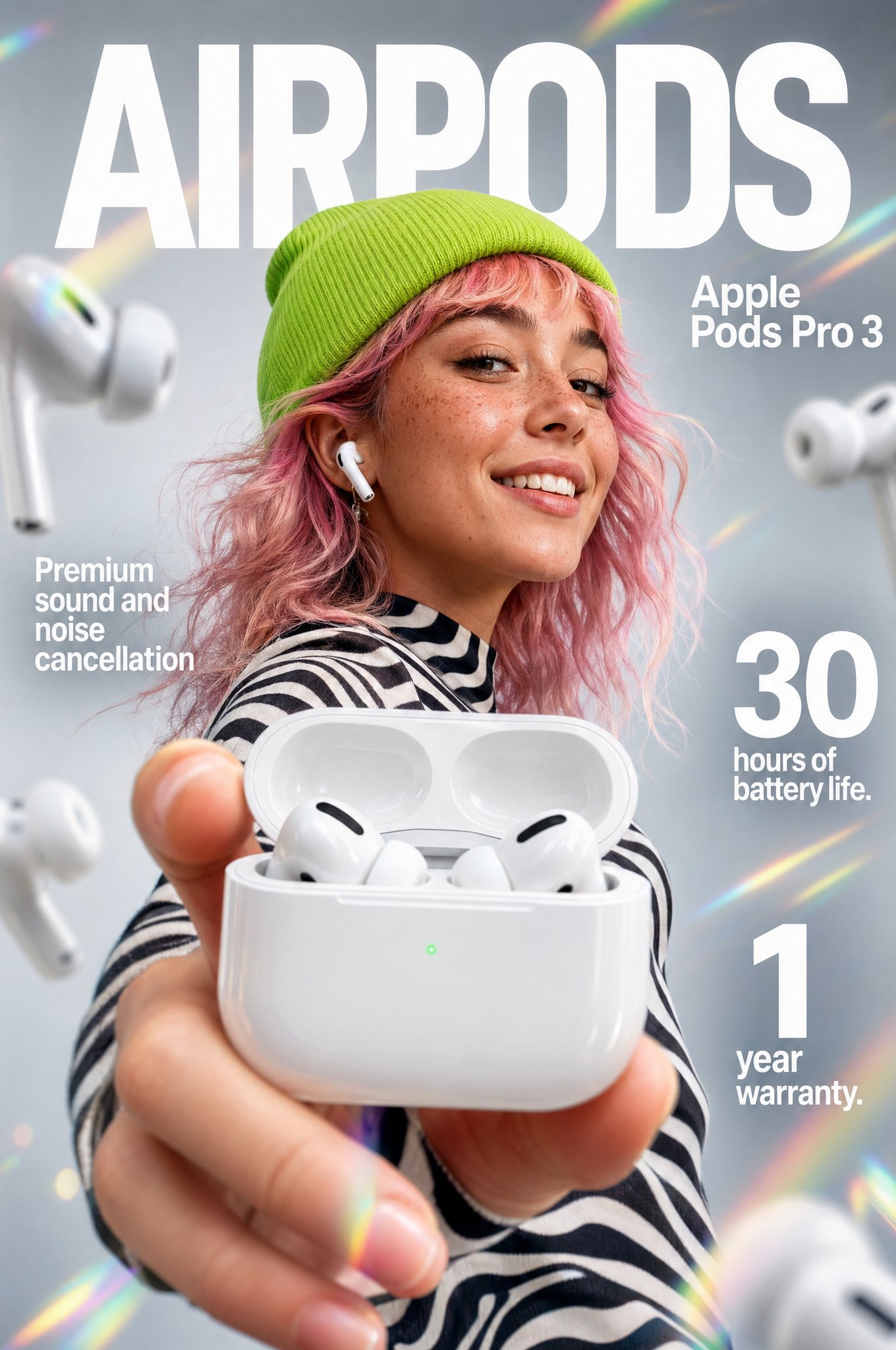
Gpt2 Apple Pods Pro 3 Infographic
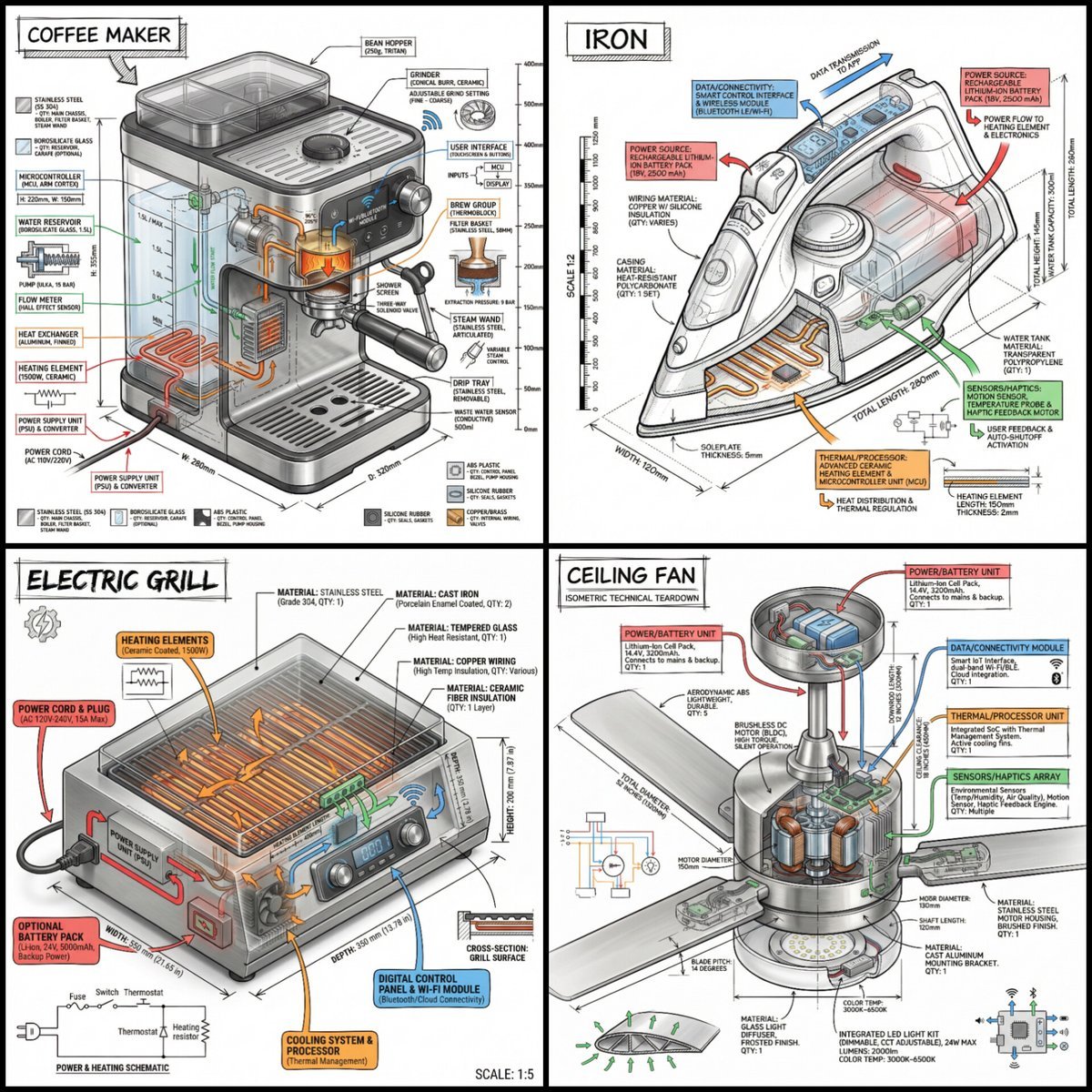
Technical Infographic of an Object with Isometric 3D View
Technical Infographic Template for Objects

Japan Travel Brochure Poster
Cozy Knit Sweater Window Portrait
Gen Z Triple Selfie Collage — Y2K Flash Photography
Mountain Lake Sunset Landscape
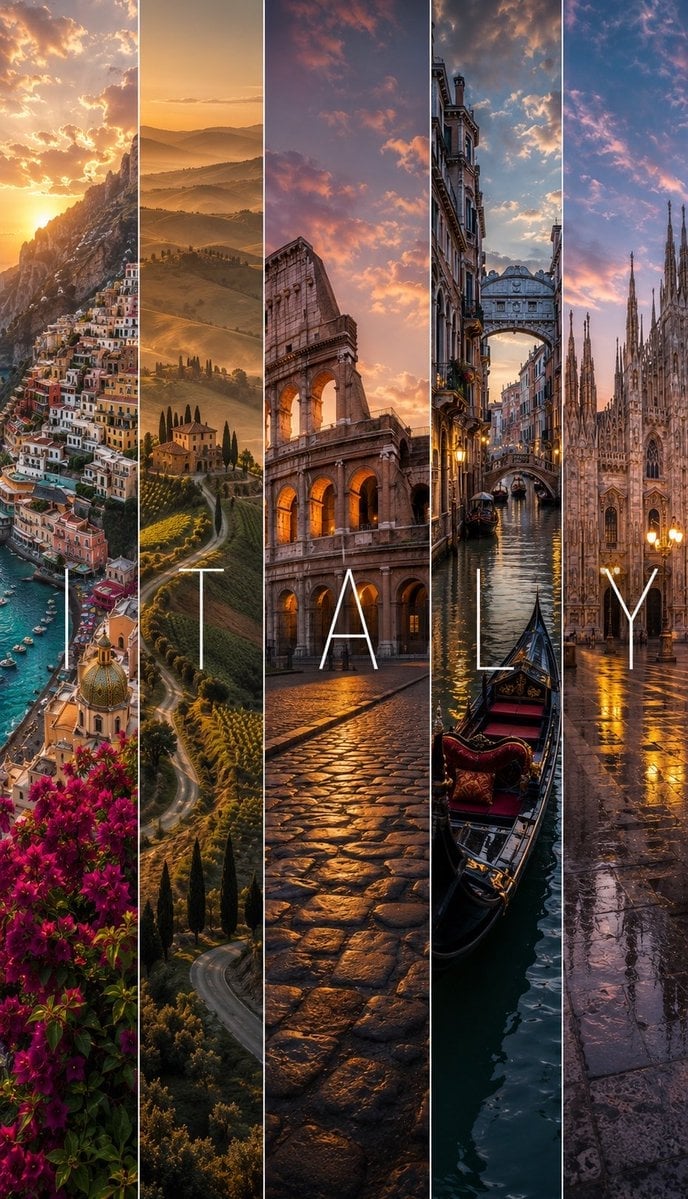
Cinematic Destination Letter Panel Poster

Spider-Man Rooftop Golden Hour Cinematic Photo

Isometric Process Educational Diorama
Make it yours
Technical Infographic Overlay on a Photorealistic Object works as-is. These are the safest ways to change it without losing the look.
Change one field
Copy a single group, rewrite it, and generate again so you can see what that field is doing.
Keep the frame, change the subject
Hold the composition and light of Technical Infographic Overlay on a Photorealistic Object, then swap wardrobe, props or the person for a new take.
| If the result… | Why | Fix |
|---|---|---|
| The result drifts from the preview | Too many fields changed at once. | Reuse Technical Infographic Overlay on a Photorealistic Object as-is first, then change one group — subject, light, or setting. |
| The model over-stylizes the scene | The prose prompt leaves finish and camera underspecified. | Add one camera or lighting sentence and stay on Nano Banana 2. |
More Nano Banana 2 templates
Other prompts made for Nano Banana 2.

Photorealistic Leaf Shaped Like a Dragon

K-Pop Idol Portrait Grid for Rapid Selection

Poetic Rain Forest Portrait During Golden Hour

Urban Street Portrait with Cartoon Inner Self Duo

Candid Nighttime Photo with Cat Prompt

High-Concept 3D Diorama Generation Prompt

Cinematic Futuristic Studio Portrait Template

Skincare Editorial Photography Collage Prompt

Hyper-Realistic Commercial Product Photography (Splash Effect)

Hyper-Realistic Nightclub Portrait Prompt
More image prompts
Fresh picks from across the catalog.
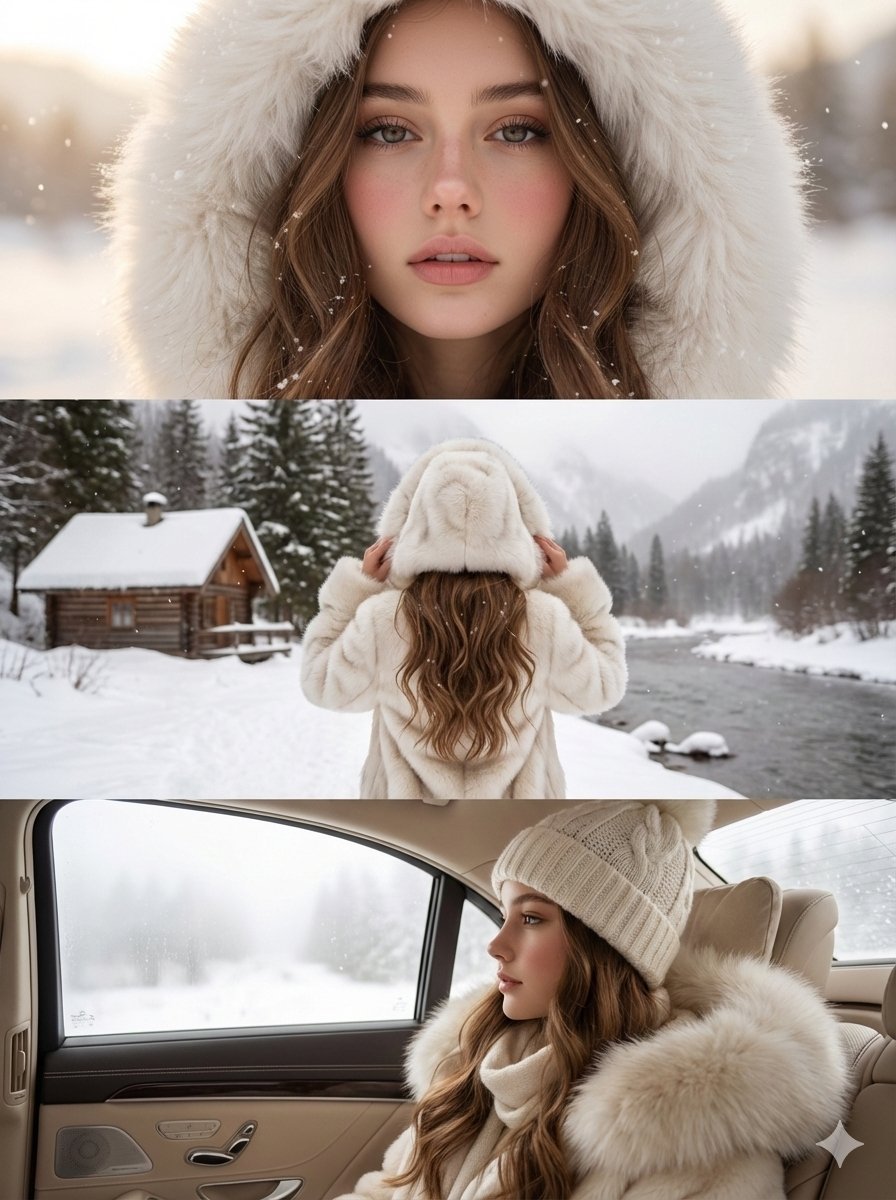
High-Quality Vertical Collage of a Young Woman in Luxury Winter Style
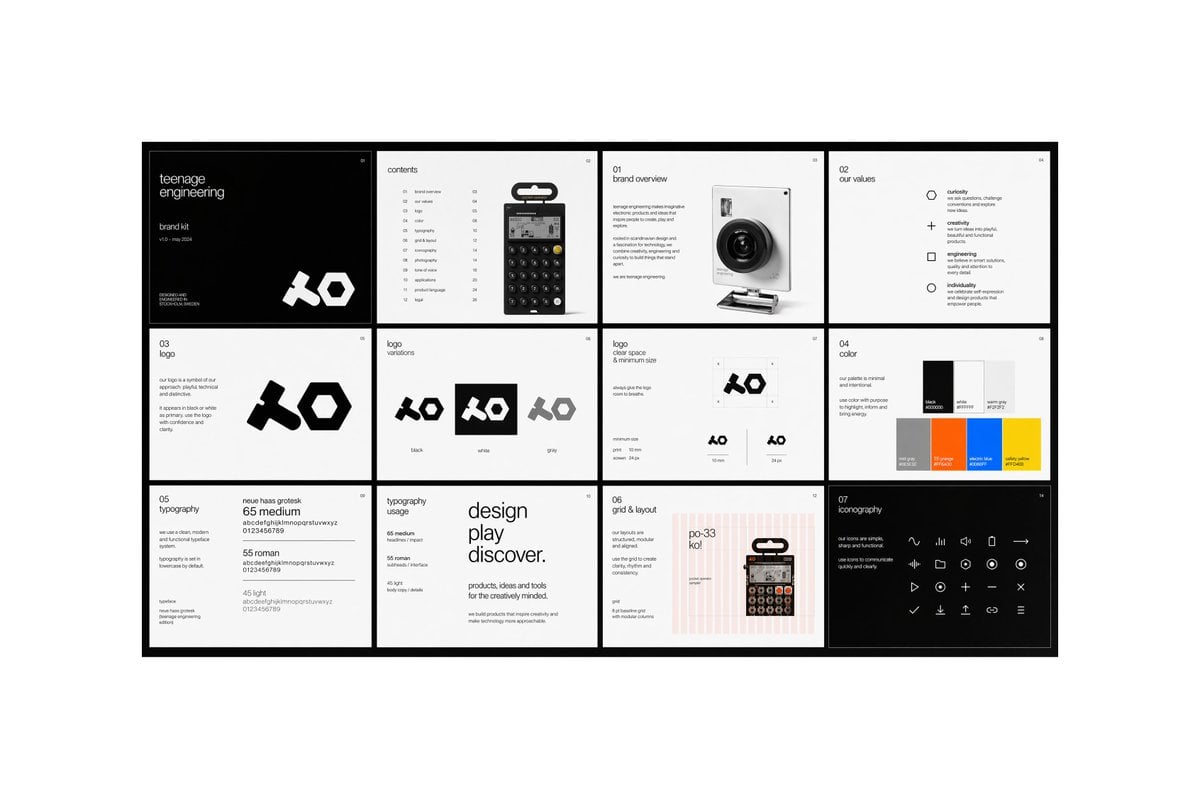
Multi-page Brand Kit Generator
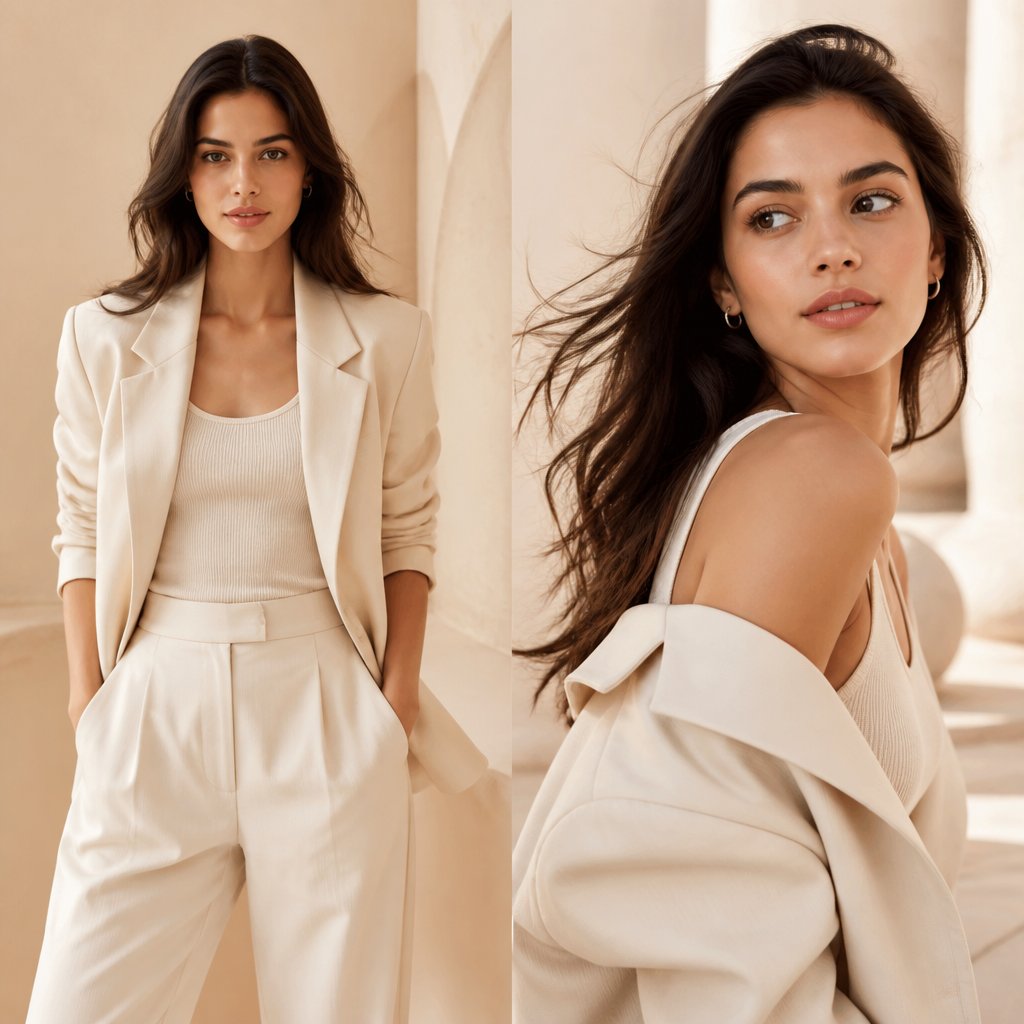
Neutral Luxury Fashion Editorial

Technical Ink Sketch Portrait
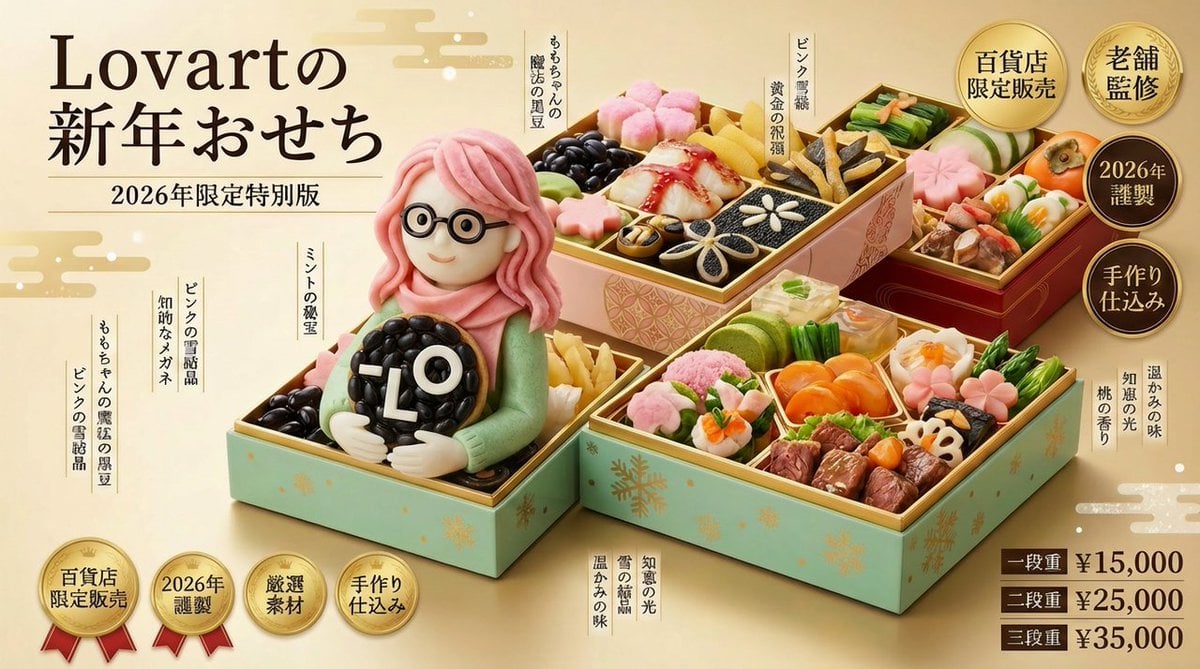
New Year's Osechi Dish Advertisement Key Visual Generation Prompt
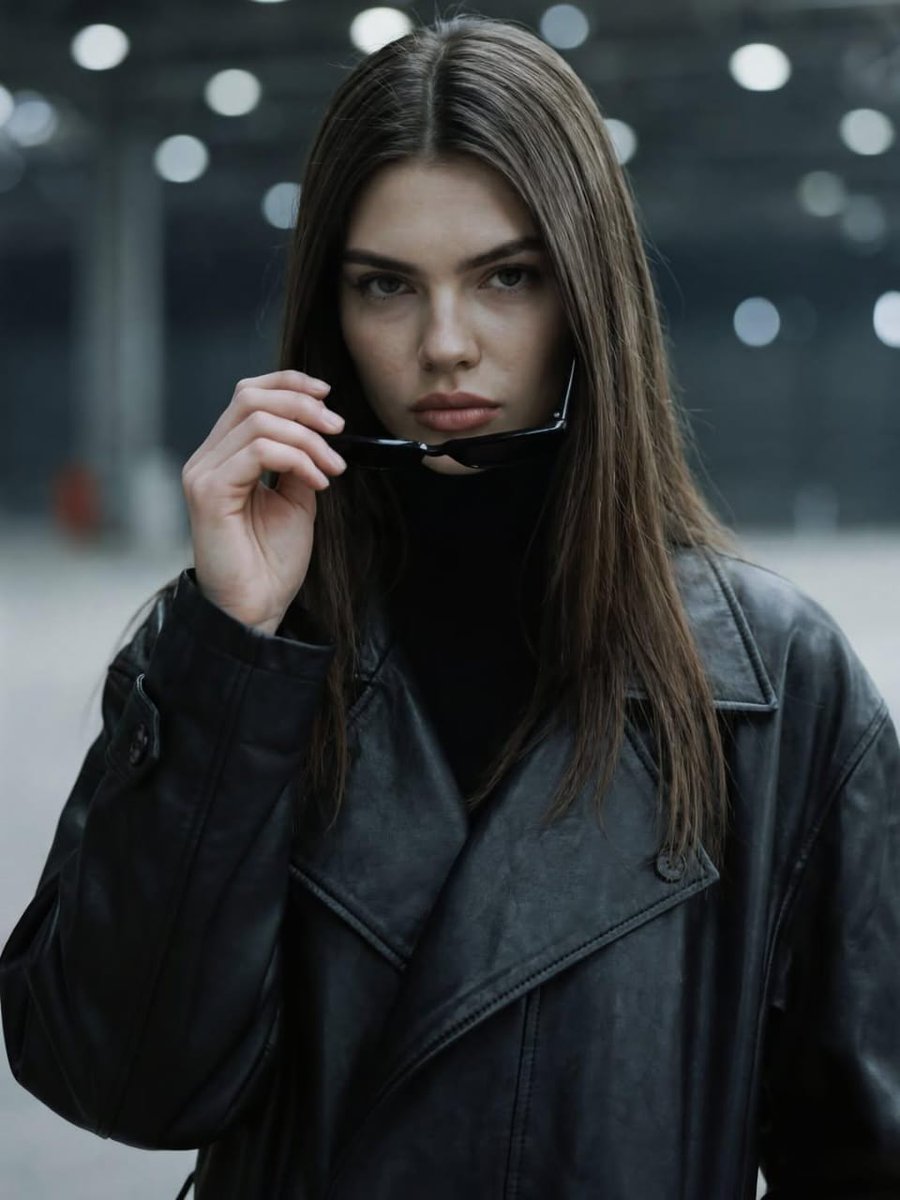
Dramatic Cinematic Portrait of a Confident Woman
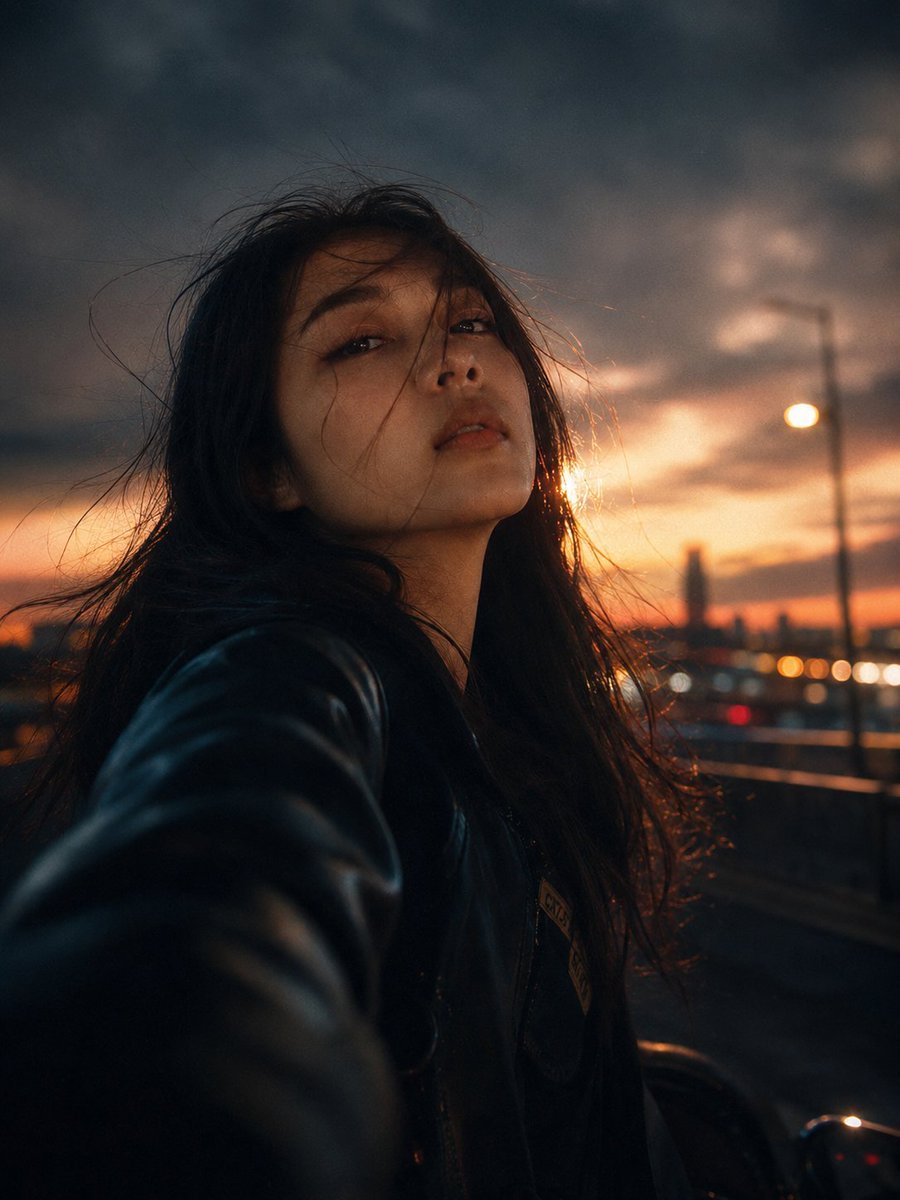
Night City Motion Blur Selfie

Candid Travel Portrait in Seoul

Romantic Valentine's Day Influencer Portrait
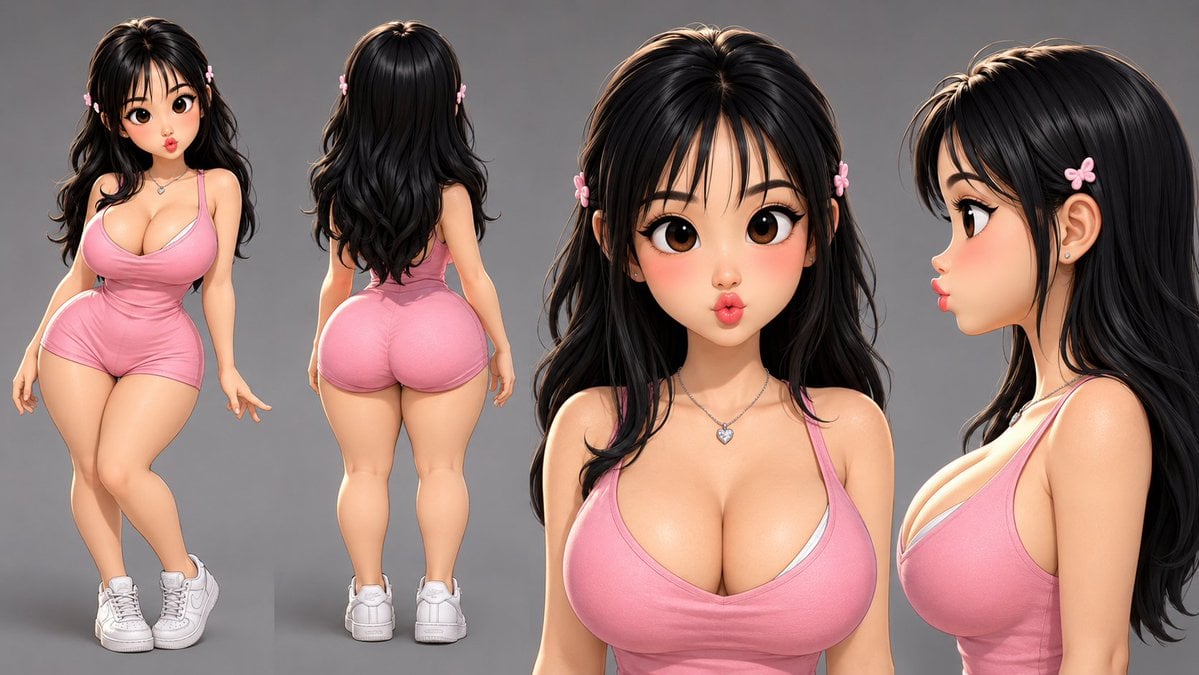
Consistent Character Reference Sheet
Browse template categories
Technical Infographic Overlay on a Photorealistic Object questions
How do I use the Technical Infographic Overlay on a Photorealistic Object template?
Add your photo if the template asks for one, edit the prompt if you like — the template's model and format are already selected — and press Generate. Your version opens in PicX Studio.
Can I customize the Technical Infographic Overlay on a Photorealistic Object template?
Yes. You can change the subject, setting, lighting, mood, format, and available model controls before creating your image.
Is the Technical Infographic Overlay on a Photorealistic Object template free?
Opening and editing this template is free. Generating uses credits, shown on the Generate button when you are signed in.
Which AI model should I use?
Start with Nano Banana 2, which is the model associated with this template. You can compare another compatible model for a different finish.
Looking for something else? Browse all templates.

Your photo, any look
Thousands of ready templates for every top image and video model, from one credit balance.