
Backlit Censored Portrait
A dreamy vertical close-up portrait of a long-haired woman with her face obscured by a square censor block, suitable for privacy-themed or atmospheric editorial visuals.
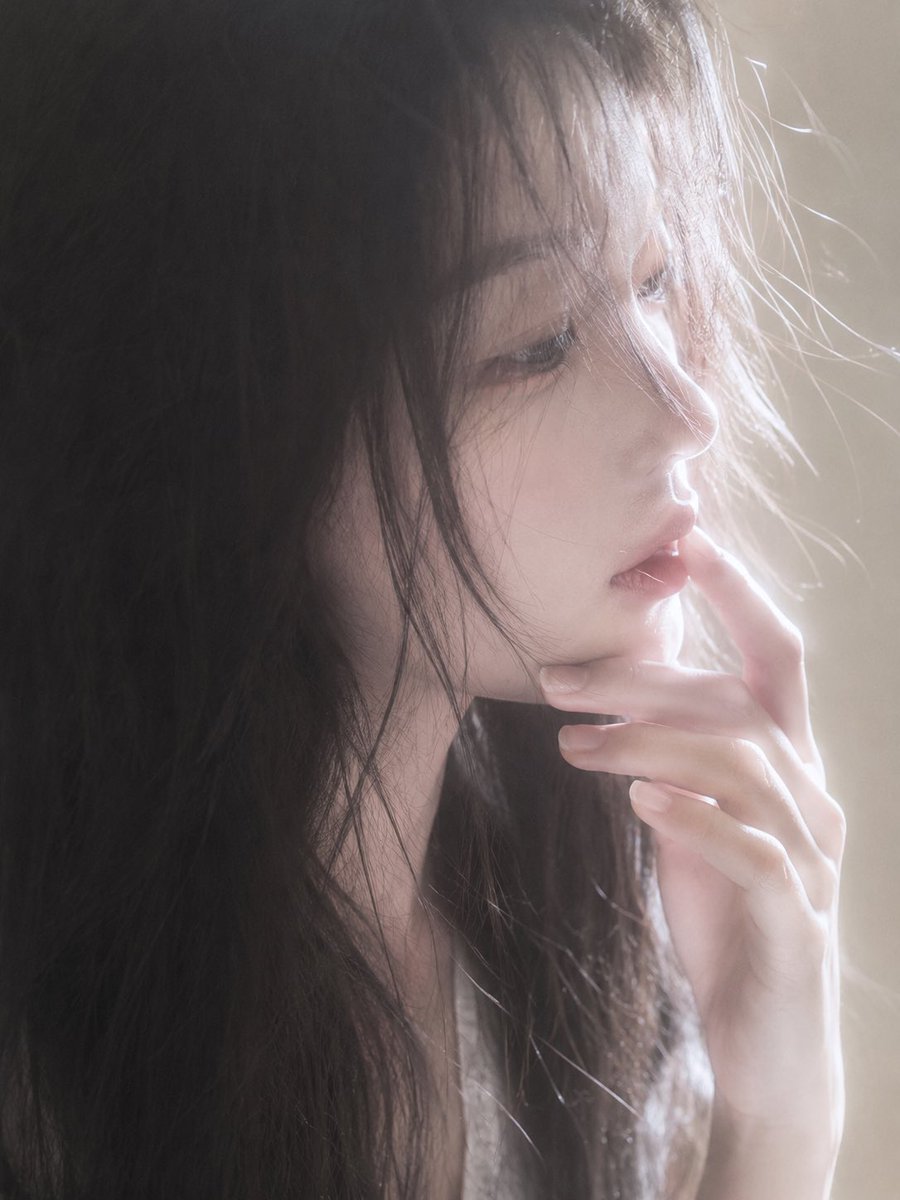
- Prompt included
- Model and format preset
- Free template
The prompt behind this image
Copy the exact prompt behind Backlit Censored Portrait, or open it in the studio and make it yours.
Create a soft, intimate vertical close-up portrait photo of a young woman with {argument name="hair color" default="long black hair"} in warm backlight. She is framed from the shoulders up, facing slightly right, with loose messy strands falling around her neck and over one side of her face. Her facial features are intentionally hidden by a large centered square privacy censor block covering the entire face area from forehead to mouth, colored with a muted gray-to-pale-rose gradient and no text. One delicate hand is raised near her lips and cheek, fingers gently curled, nails natural and pale. She wears a simple light-colored top barely visible at the bottom. Lighting is dreamy and overexposed from the right side, creating glowing rim light on hair strands, a hazy beige background, soft bloom, low contrast, shallow depth of field, and a candid film-photography mood. Use a 3:4 vertical canvas, realistic photographic texture, natural skin tones, no jewelry, no visible eyes, no typography, no watermark.
How to use Backlit Censored Portrait in 3 steps
- 1Upload ImagePNG, JPG or paste
Add your photo
Upload the photo the template builds on. The prompt, model and format are already set.
- 2…a portrait of your subject in softgolden-hour light, 85mm…
Personalize
Edit the subject and creative details for your destination.
- 3Generate
Generate
Press Generate — your image is created in PicX Studio, so you can compare it with the original and refine one variable at a time.
More like this
Templates with the same subject, style or setup. Open one to see its prompt.

Found Photograph: Us, 1970

80s Couple Studio Portrait
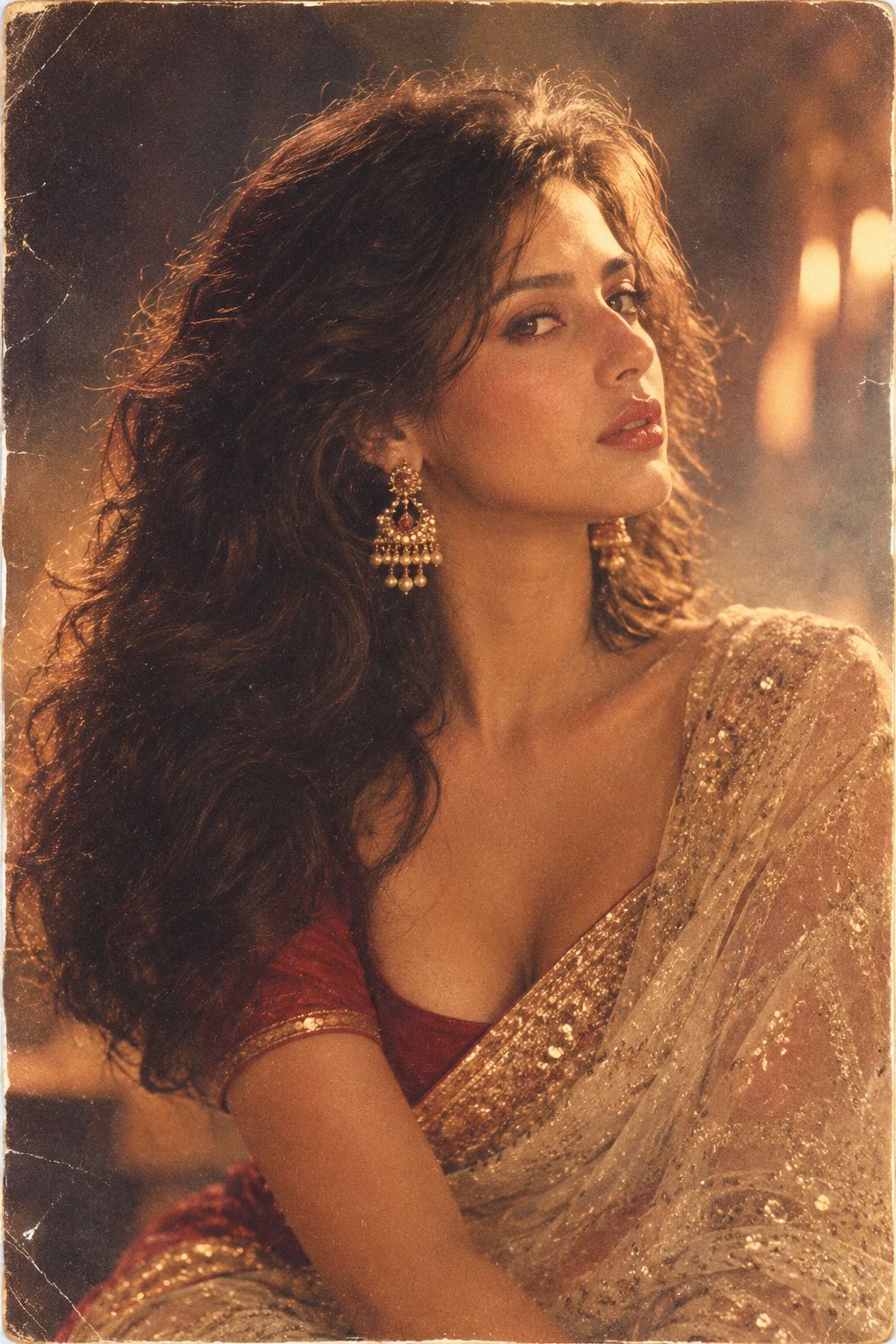
80s Bollywood Star
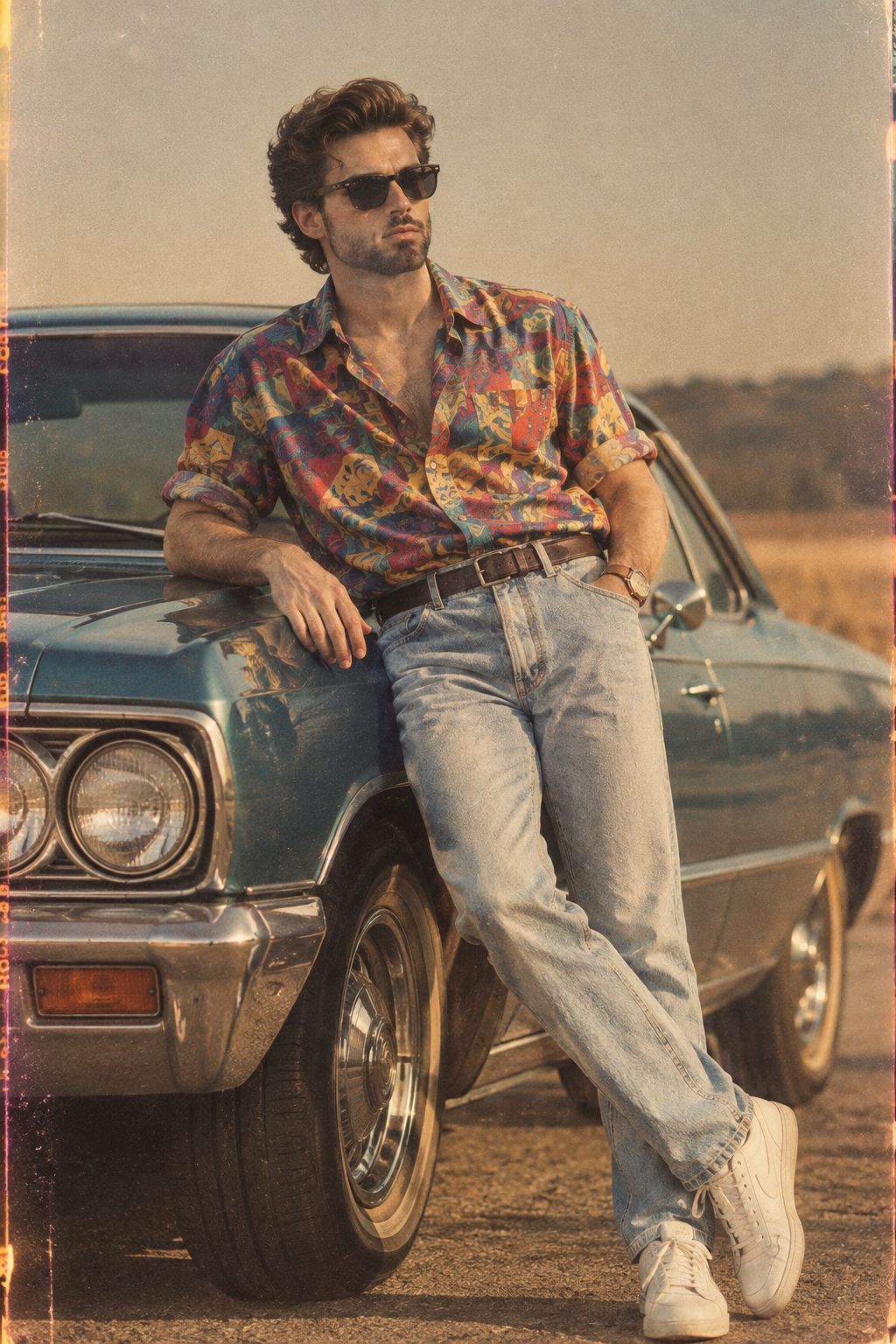
80s Golden Hour Cinema
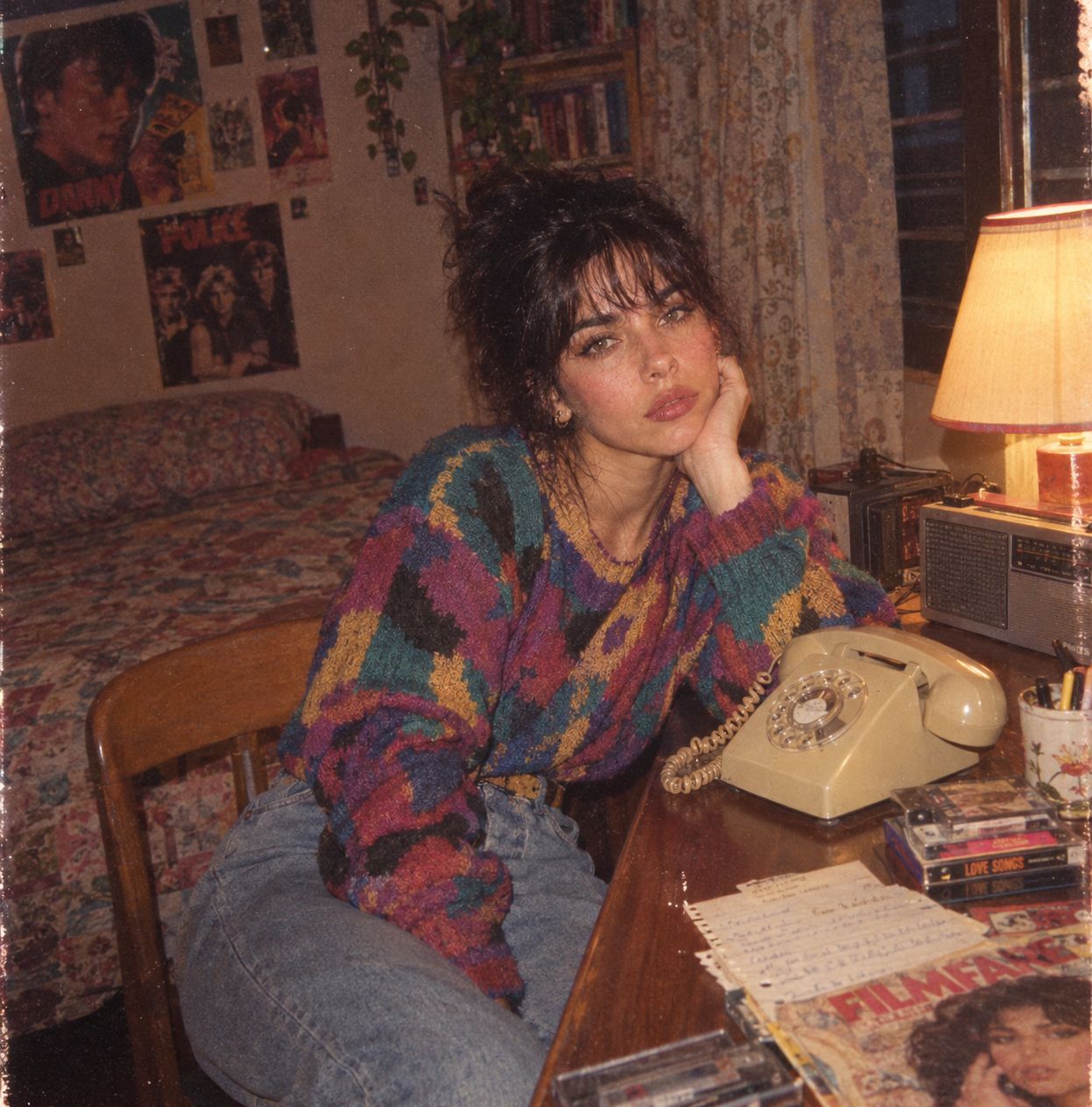
Me in 1985
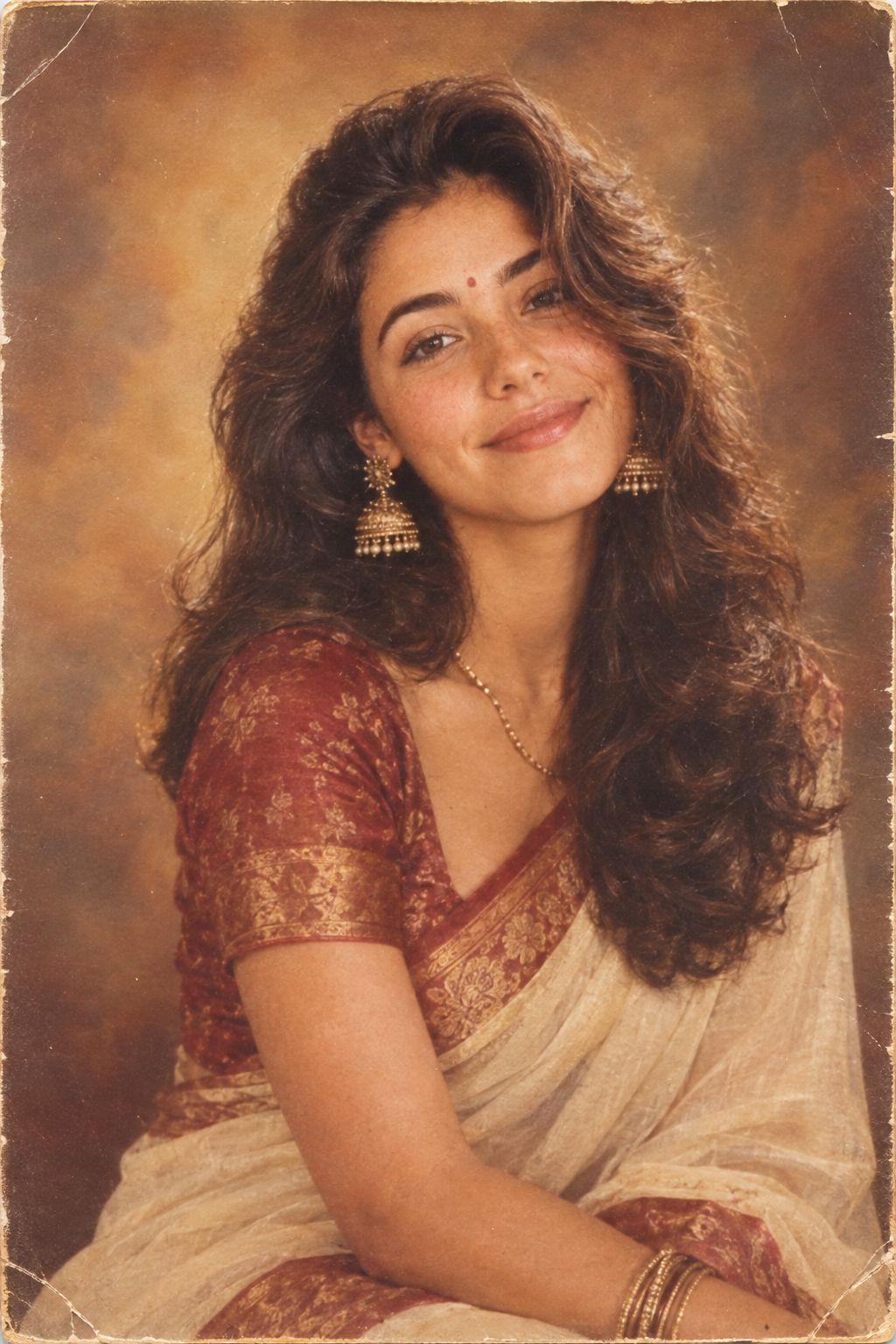
1985 Studio Portrait

Hyper-Realistic Minecraft POV Portrait
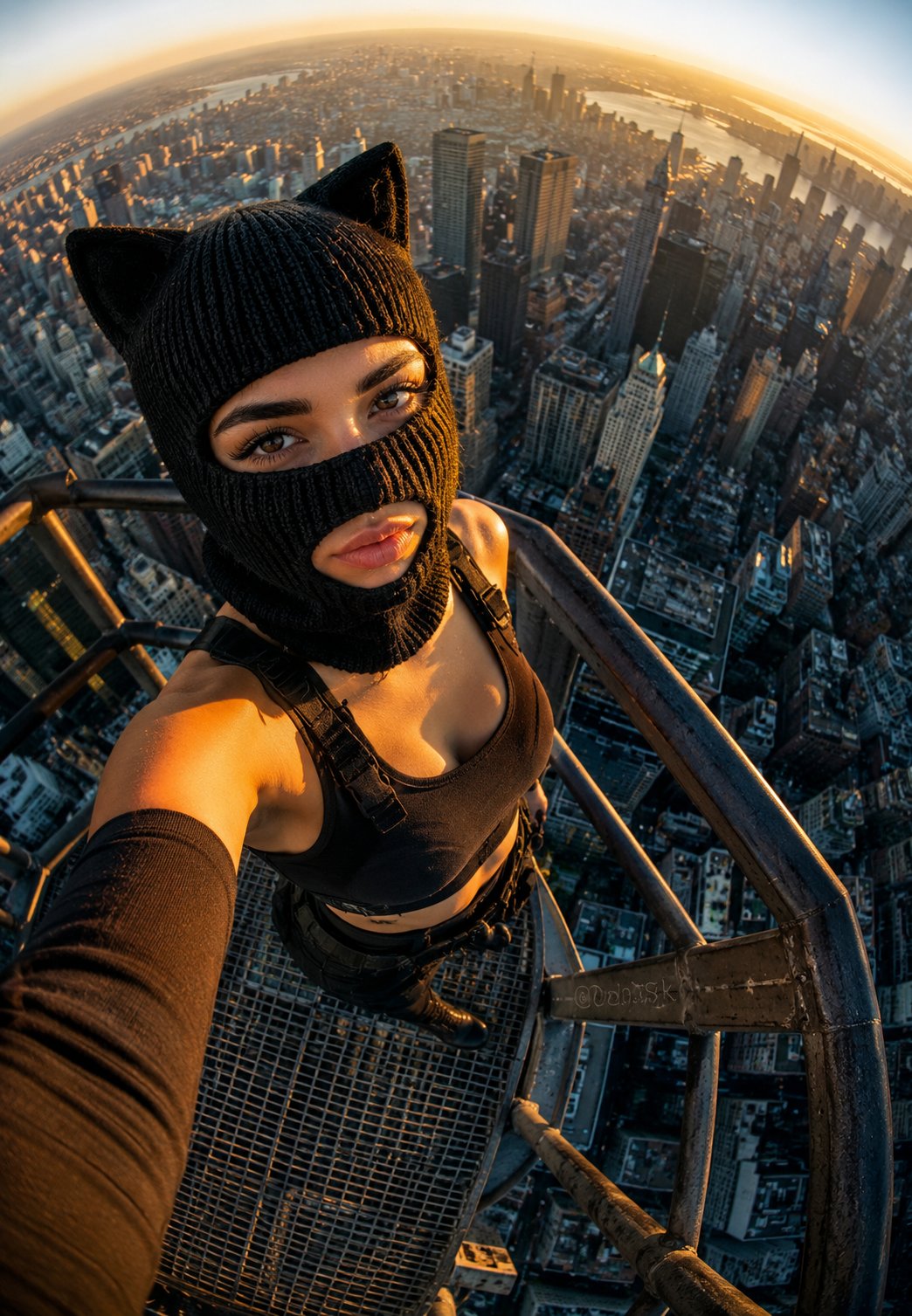
Rooftop Fisheye — Cat-Ear Balaclava at Golden Hour
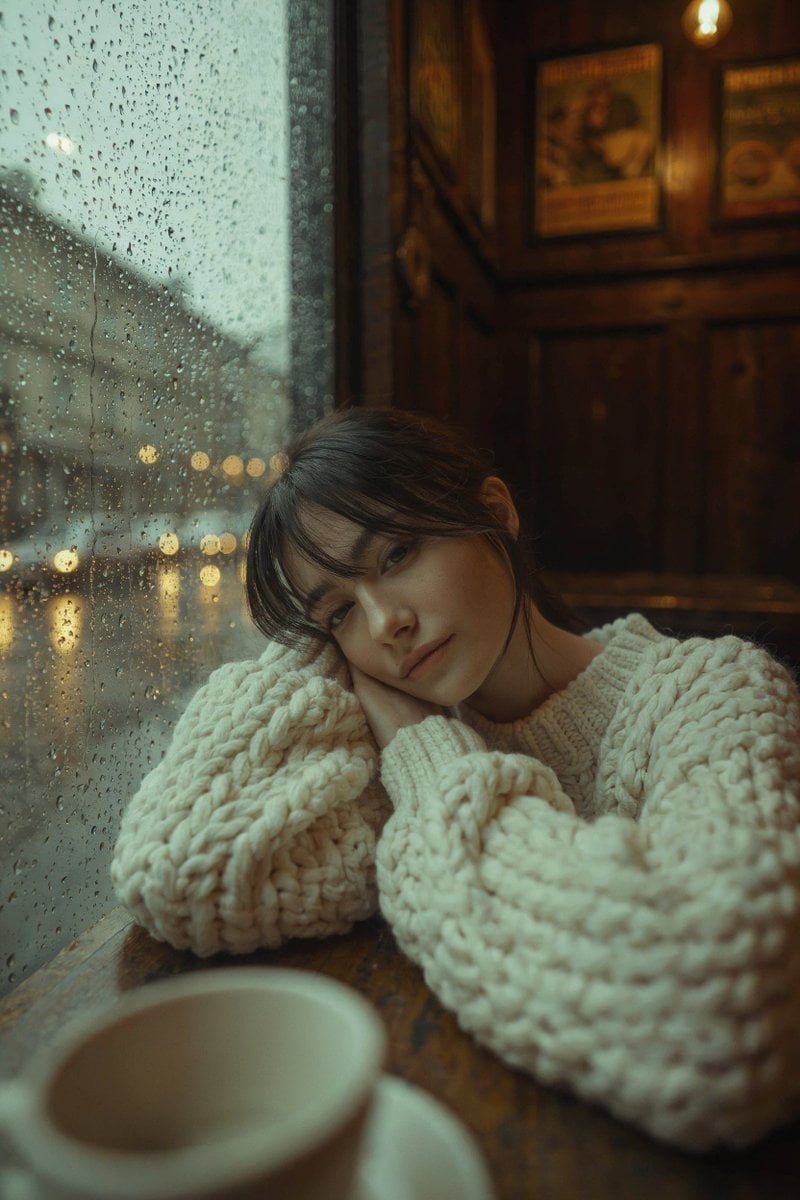
Rainy Café Window Moody Portrait

untitled
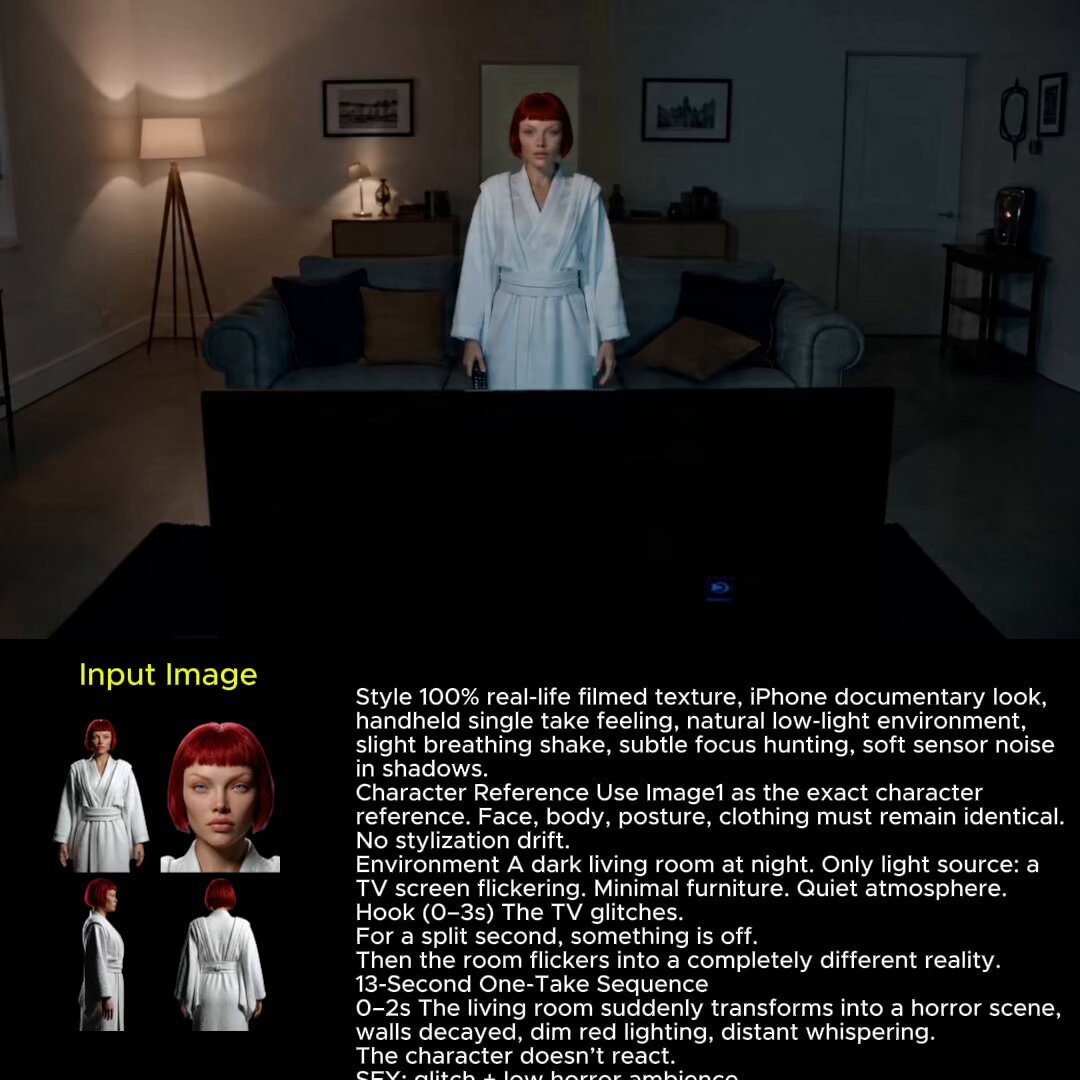
2025 Aesthetic Photography
Nano Banana Is So Addictive
Make it yours
Backlit Censored Portrait works as-is. These are the safest ways to change it without losing the look.
Change one field
Copy a single group, rewrite it, and generate again so you can see what that field is doing.
Keep the frame, change the subject
Hold the composition and light of Backlit Censored Portrait, then swap wardrobe, props or the person for a new take.
| If the result… | Why | Fix |
|---|---|---|
| The result drifts from the preview | Too many fields changed at once. | Reuse Backlit Censored Portrait as-is first, then change one group — subject, light, or setting. |
| The model over-stylizes the scene | The prose prompt leaves finish and camera underspecified. | Add one camera or lighting sentence and stay on GPT Image 2. |
More GPT Image 2 templates
Other prompts made for GPT Image 2.

Six VTuber Japanese Logo Sheet

Realistic Portrait of Woman and Deer

The Vista Modular Condo Poster

AI Model Routing Comparison Infographic

2.5D Anime Art Board

Isometric Productivity Desk Scene

New York Double Exposure Poster

Four-Panel AI Landscape Comparison

Japanese Tatami Lifestyle Magazine Cover

NESCAFÉ Coffee Map Poster
More image prompts
Fresh picks from across the catalog.
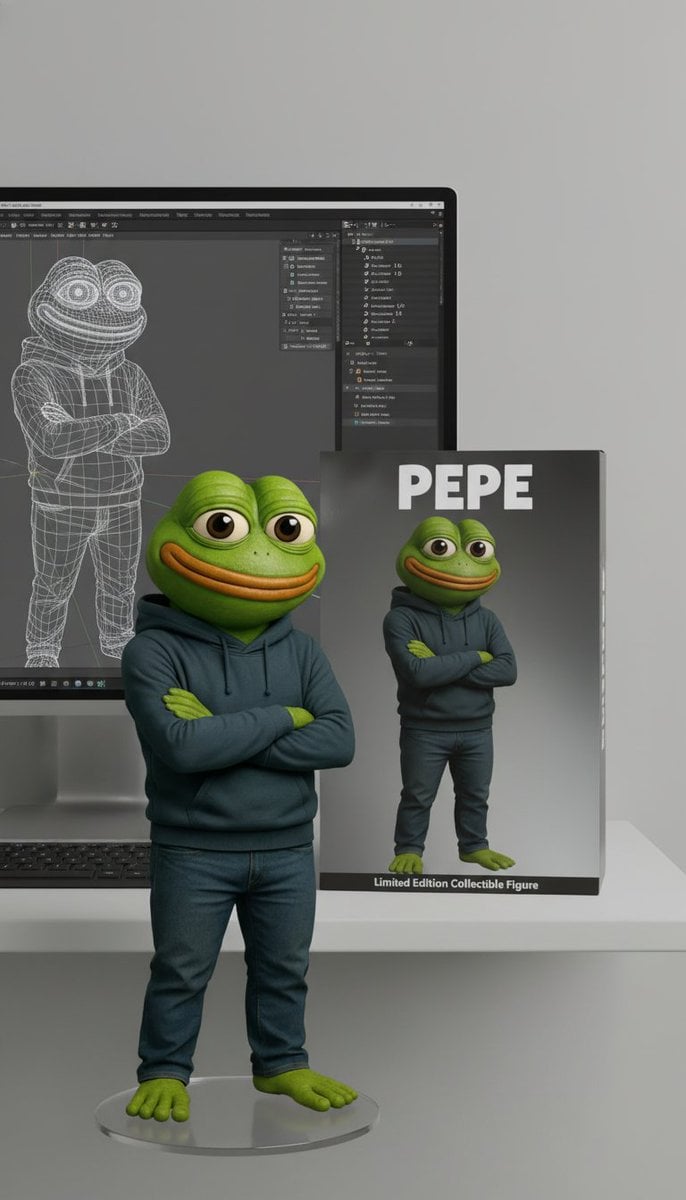
Collectible Figure Product Showcase Prompt

Elegant Japanese Divorce Law LP Hero
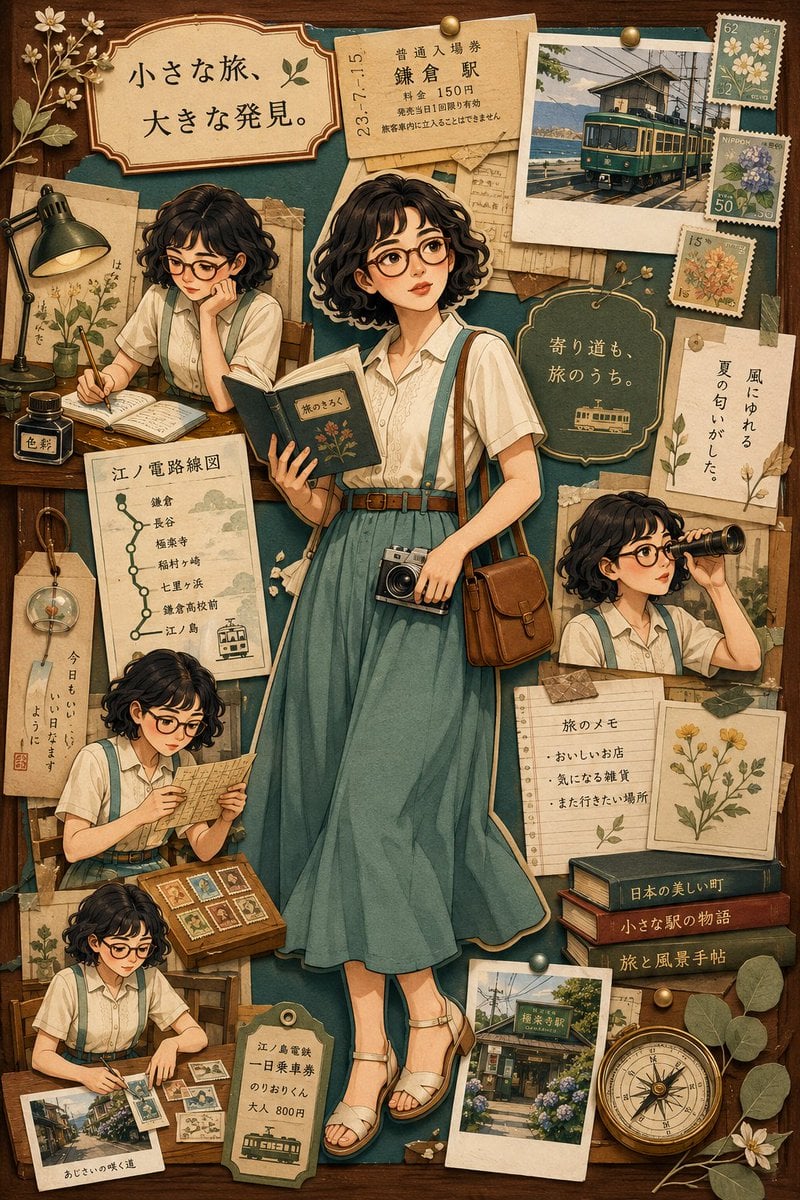
Nostalgic Travel Collage Scrapbook
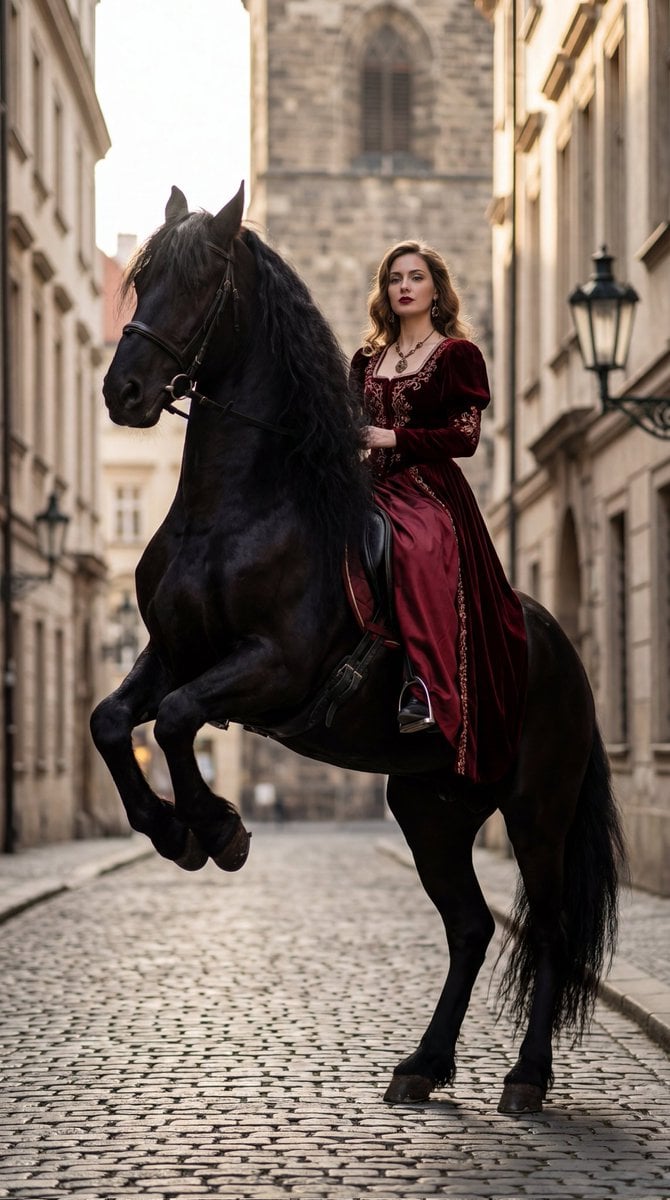
High-Fashion Horseback Portrait on Vintage Street
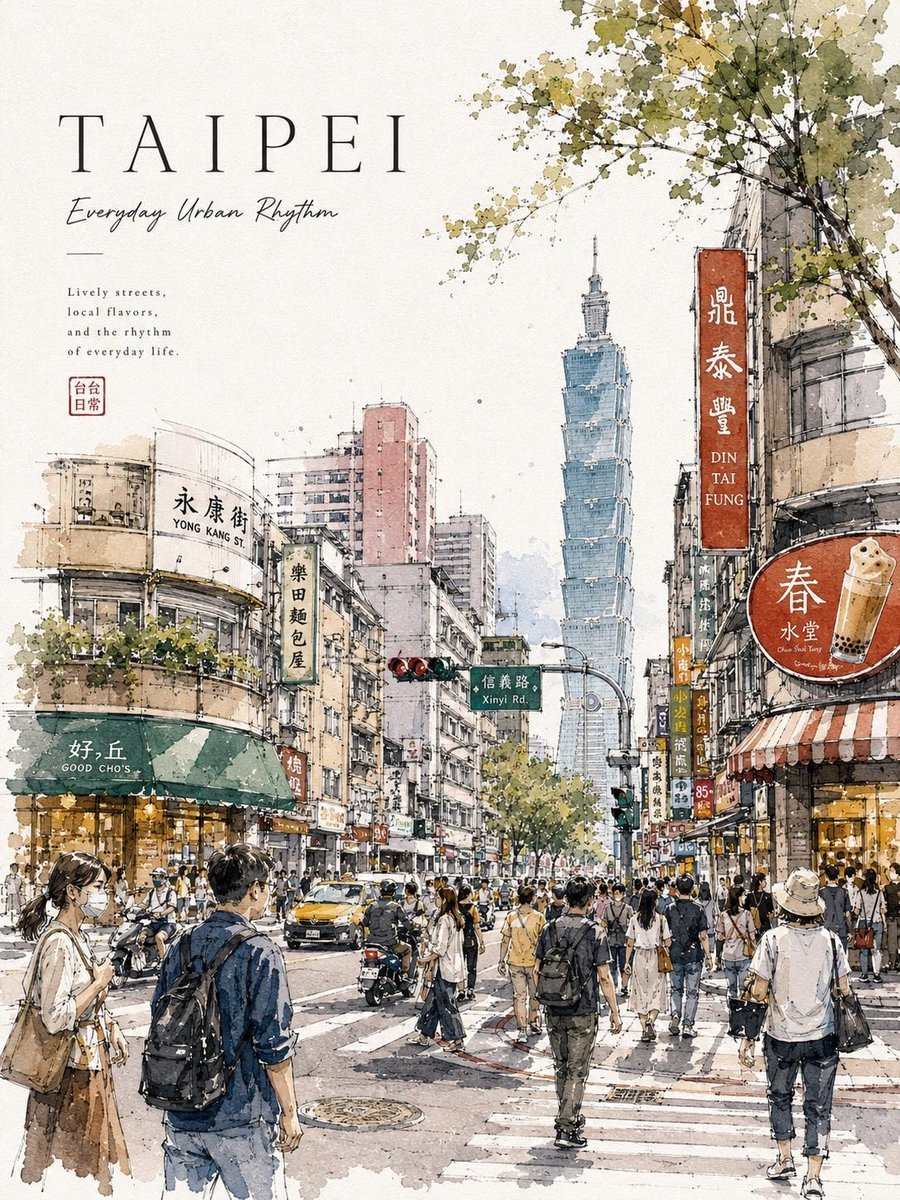
Watercolor Urban Travel Poster
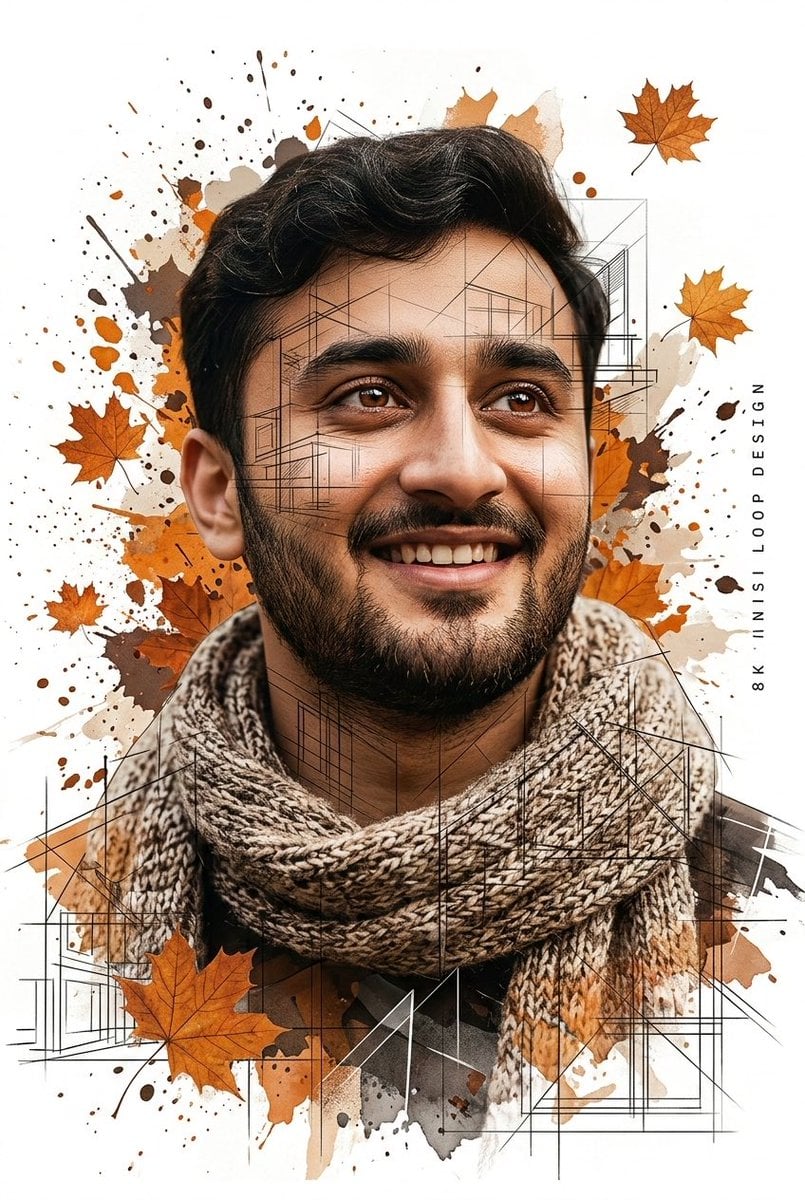
Gentle Autumn Mood Mixed-Media Portrait Poster Prompt

VTuber and Street Style Logo Prompt for Gemini (Nano Banana)
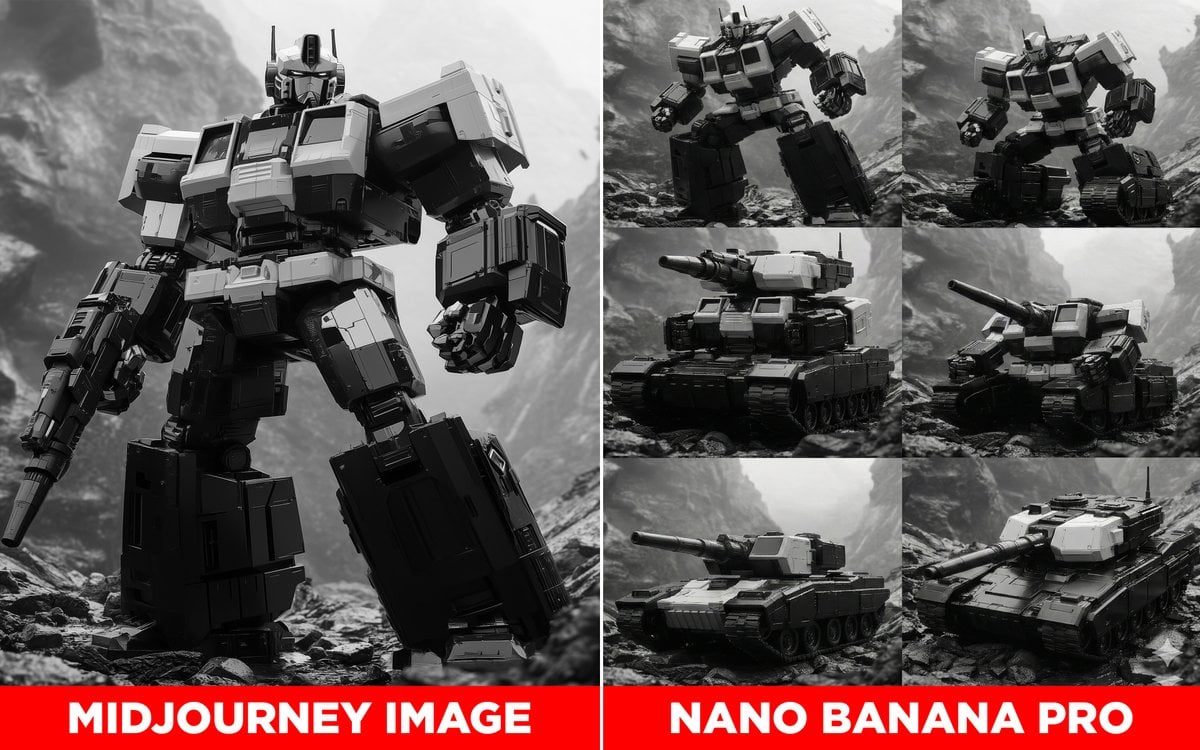
Transformer Robot to Tank Transition Prompt
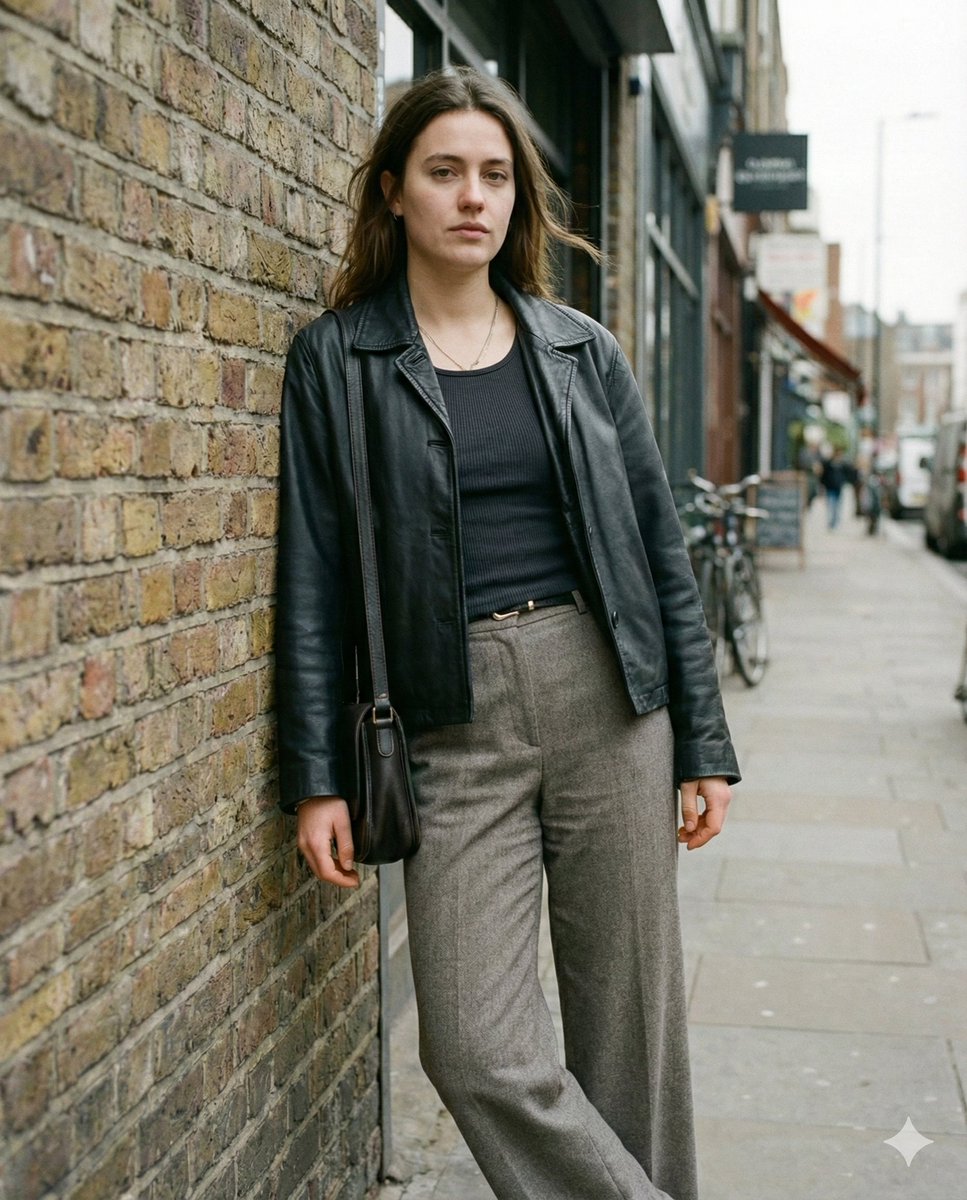
Grounded Realism Street Portrait Prompt
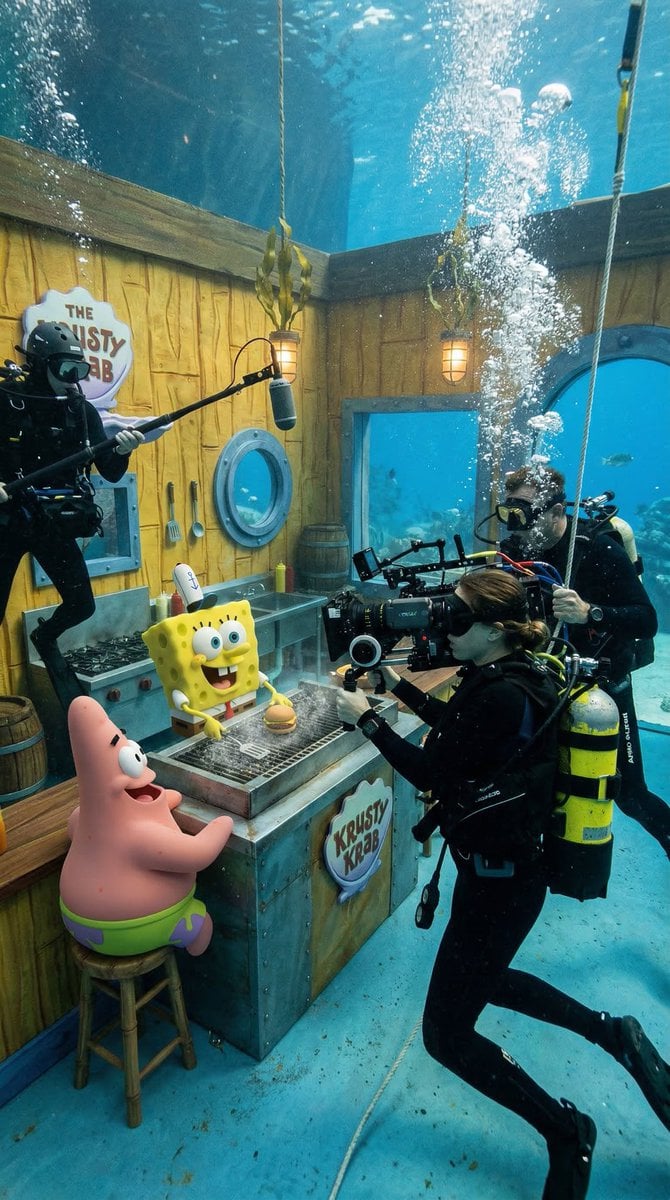
Photorealistic BTS SpongeBob Scene
Browse template categories
Backlit Censored Portrait questions
How do I use the Backlit Censored Portrait template?
Add your photo if the template asks for one, edit the prompt if you like — the template's model and format are already selected — and press Generate. Your version opens in PicX Studio.
Can I customize the Backlit Censored Portrait template?
Yes. You can change the subject, setting, lighting, mood, format, and available model controls before creating your image.
Is the Backlit Censored Portrait template free?
Opening and editing this template is free. Generating uses credits, shown on the Generate button when you are signed in.
Which AI model should I use?
Start with GPT Image 2, which is the model associated with this template. You can compare another compatible model for a different finish.
Looking for something else? Browse all templates.

Your photo, any look
Thousands of ready templates for every top image and video model, from one credit balance.