
Comic Cartoon Video Call
Generates a comic-book style cartoon video meeting screenshot with five anonymized participants and exaggerated reaction icons.
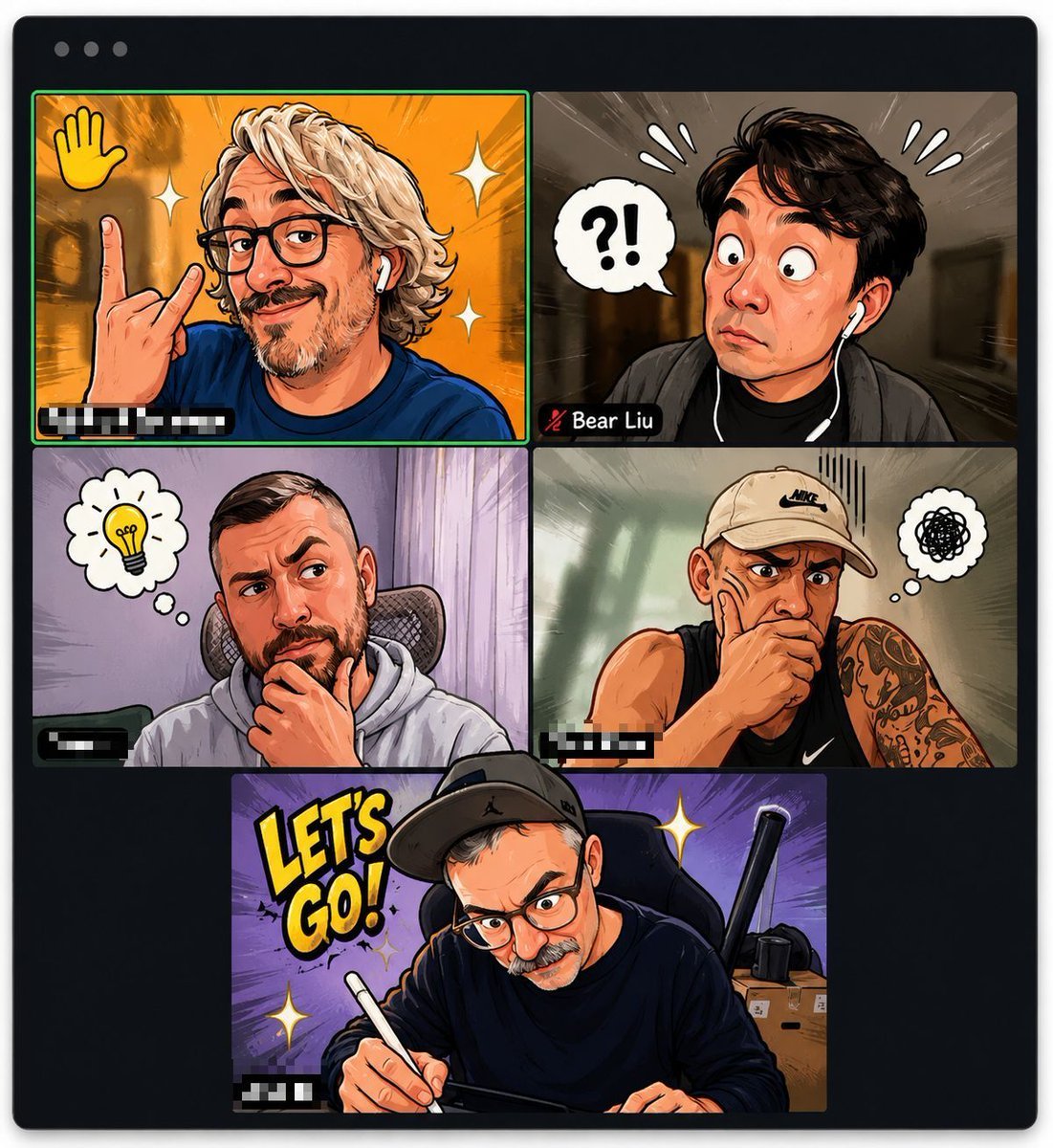
- Prompt included
- Model and format preset
- Free template
The prompt behind this image
Copy the exact prompt behind Comic Cartoon Video Call, or open it in the studio and make it yours.
Goal: Create a stylized cartoon version of a video meeting screenshot, like a comic-book Zoom call with exaggerated expressions and blurred private identities. Canvas: Square image with a dark rounded-corner video-call application window on a light background. Add three small gray window control dots at the top left. Inside the window, arrange exactly 5 participant video tiles: 4 tiles in a 2-by-2 grid on top, and 1 wider centered tile along the bottom. Use thin black gutters between tiles. The top-left tile has a bright green active-speaker border. Visual style: High-energy digital comic illustration, bold ink outlines, semi-realistic cartoon portraits, saturated colors, manga speed lines, sticker-like reaction icons, glossy highlights, and dramatic lighting. Faces must be covered by large rectangular blur blocks to preserve anonymity, while hair, poses, clothing, and backgrounds remain visible. Add small blurred name labels in the lower-left corner of most tiles, with one readable label: {argument name="visible participant name" default="Bear Liu"}. Layout and subject details: Include exactly 5 cartoon participants. Tile 1, top left: a blond wavy-haired person in a blue shirt, raising one hand in a rock gesture, orange energetic background, yellow waving-hand icon in the upper left, two white sparkle icons, green speaker outline, blurred name tag at bottom left. Tile 2, top right: a dark-haired person wearing earbuds and a dark jacket, surprised reaction, brown motion-blur hallway-like background, white speech bubble with “?!” on the left, three white stress marks above the head on both sides, lower-left name strip with a muted microphone icon and the readable name {argument name="visible participant name" default="Bear Liu"}. Tile 3, middle left: a seated person in a light gray hoodie in an office chair, hand on chin thinking, pale purple curtain background, thought bubble containing a yellow light bulb, blurred name label bottom left. Tile 4, middle right: a muscular person in a sleeveless black athletic shirt and beige Nike cap, tattooed arm visible, hand on chin, muted green studio background, thought bubble with a black scribble, vertical anxiety lines above the head, blurred name label bottom left. Tile 5, bottom center: a person in a black hoodie and black cap, writing with a white stylus on a tablet, purple burst background, large yellow comic text {argument name="comic slogan" default="LET'S GO!"} at left, two white sparkle icons, desk boxes and a black object in the right background, blurred name tag bottom left. Text and icons count: Show exactly 5 video tiles, exactly 5 face-blur rectangles, exactly 4 visible lower-left name labels, exactly 1 readable participant name label, exactly 1 large comic slogan, exactly 3 thought/speech bubbles/icons with symbols or text: waving hand, “?!”, light bulb, plus one scribble thought bubble. Keep all private names other than the one specified blurred or pixelated. Constraints: Do not show realistic unblurred faces. Do not add extra tiles, extra people, watermarks, captions outside the meeting window, or interface controls beyond the three top-left dots and tile name labels. Keep the overall look like a playful AI-generated cartoon avatar conversion of a video conference screenshot.
How to use Comic Cartoon Video Call in 3 steps
- 1Upload ImagePNG, JPG or paste
Add your photo
Upload the photo the template builds on. The prompt, model and format are already set.
- 2…a portrait of your subject in softgolden-hour light, 85mm…
Personalize
Edit the subject and creative details for your destination.
- 3Generate
Generate
Press Generate — your image is created in PicX Studio, so you can compare it with the original and refine one variable at a time.
More like this
Templates with the same subject, style or setup. Open one to see its prompt.

Toon Cartoon Finale Fireworks
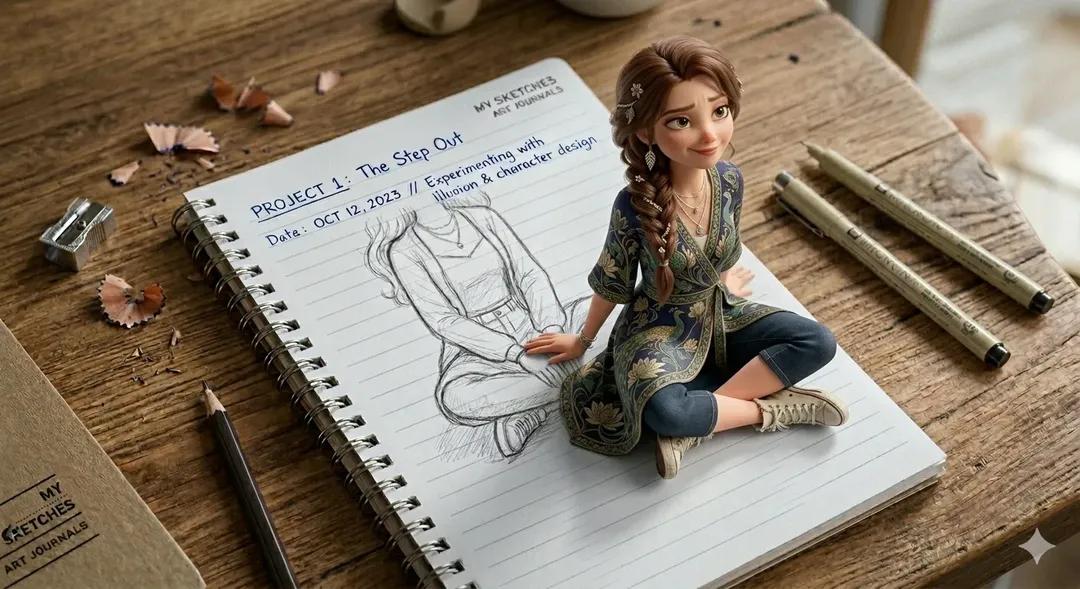
Toon Cartoon Garden Maze
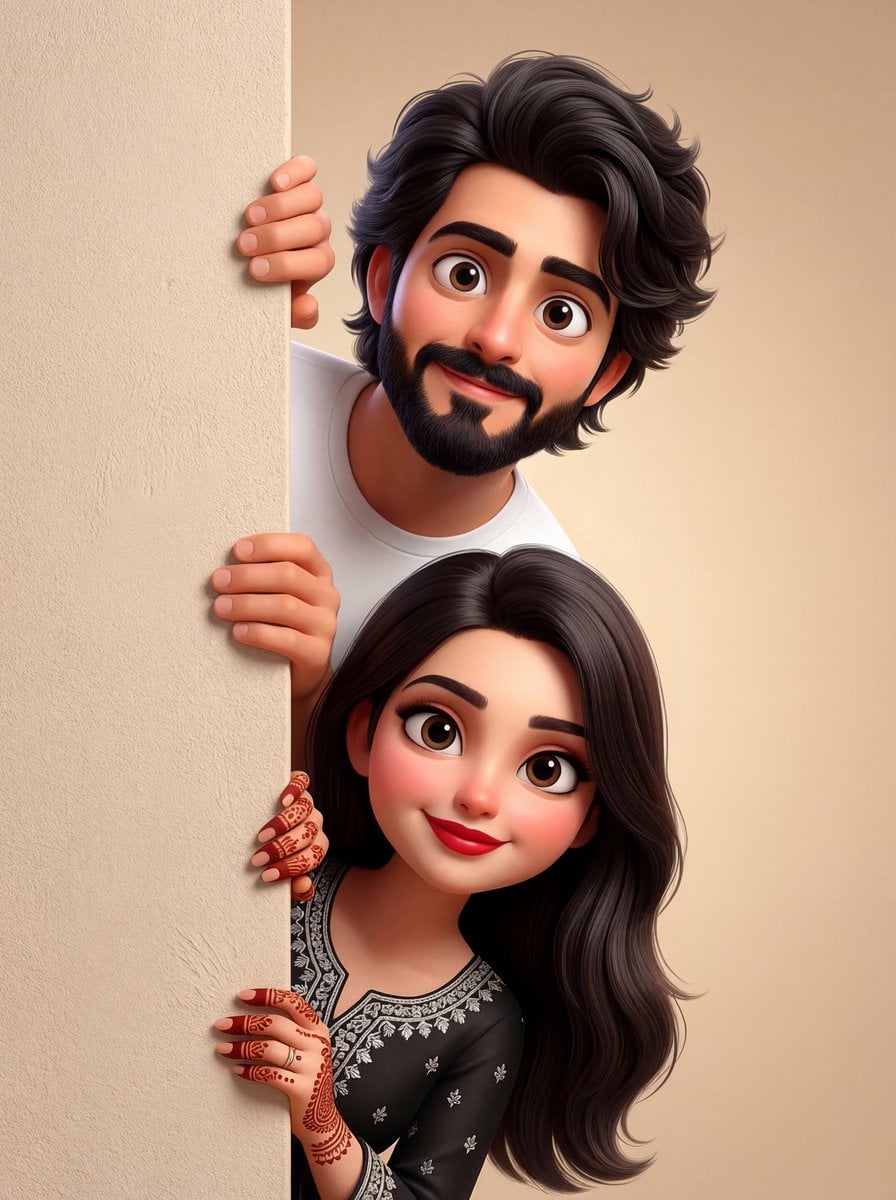
Toon Cartoon Rooftop Concert
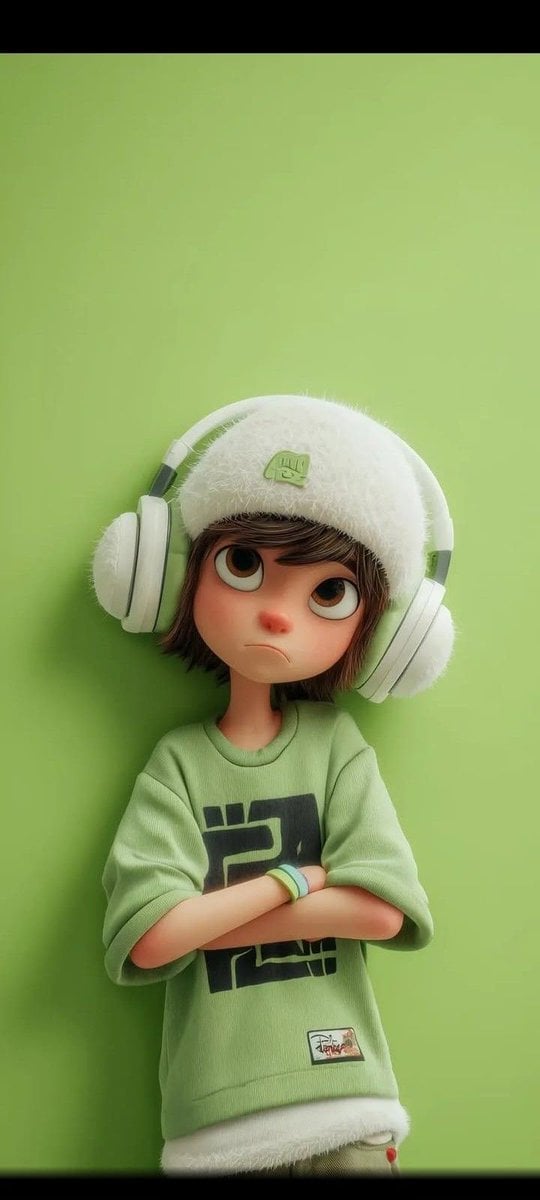
Toon Cartoon Kitchen Chaos
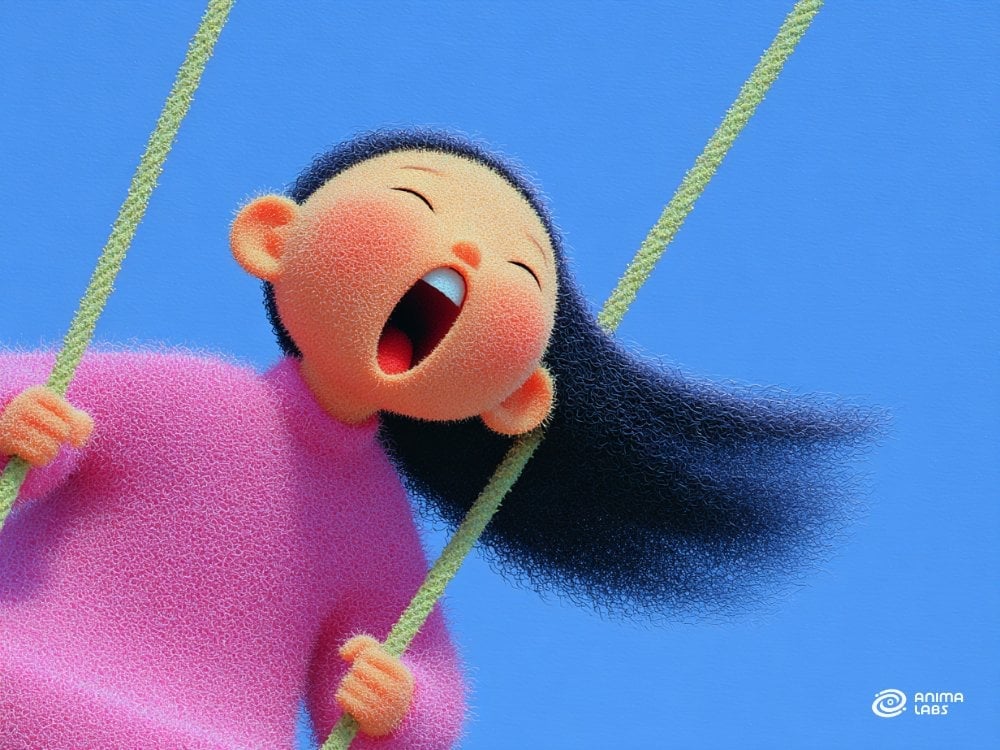
Toon Cartoon Carnival Ride

Toon Cartoon Rainy Bus Stop
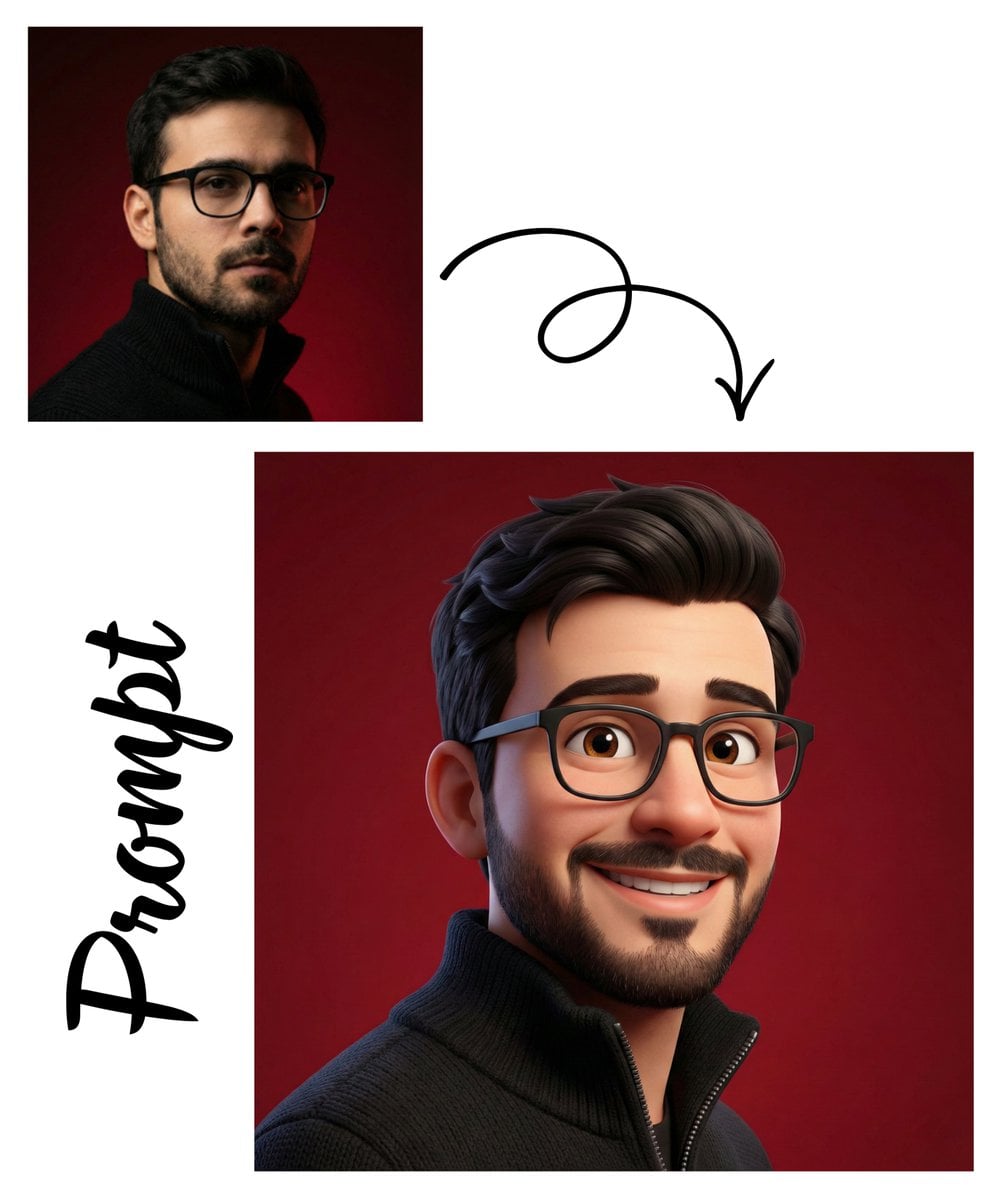
Toon Cartoon Space Dock
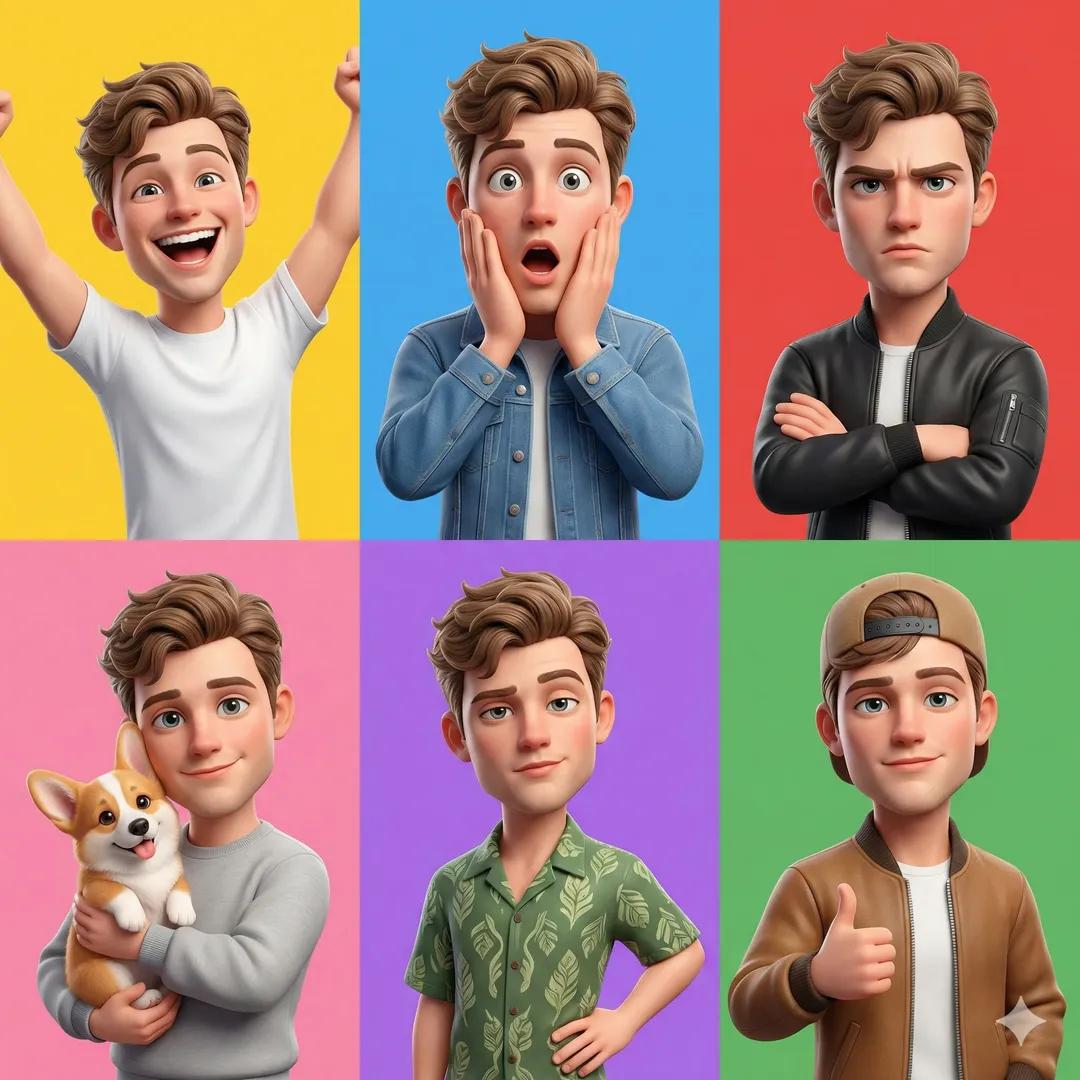
Toon Cartoon Cafe Morning
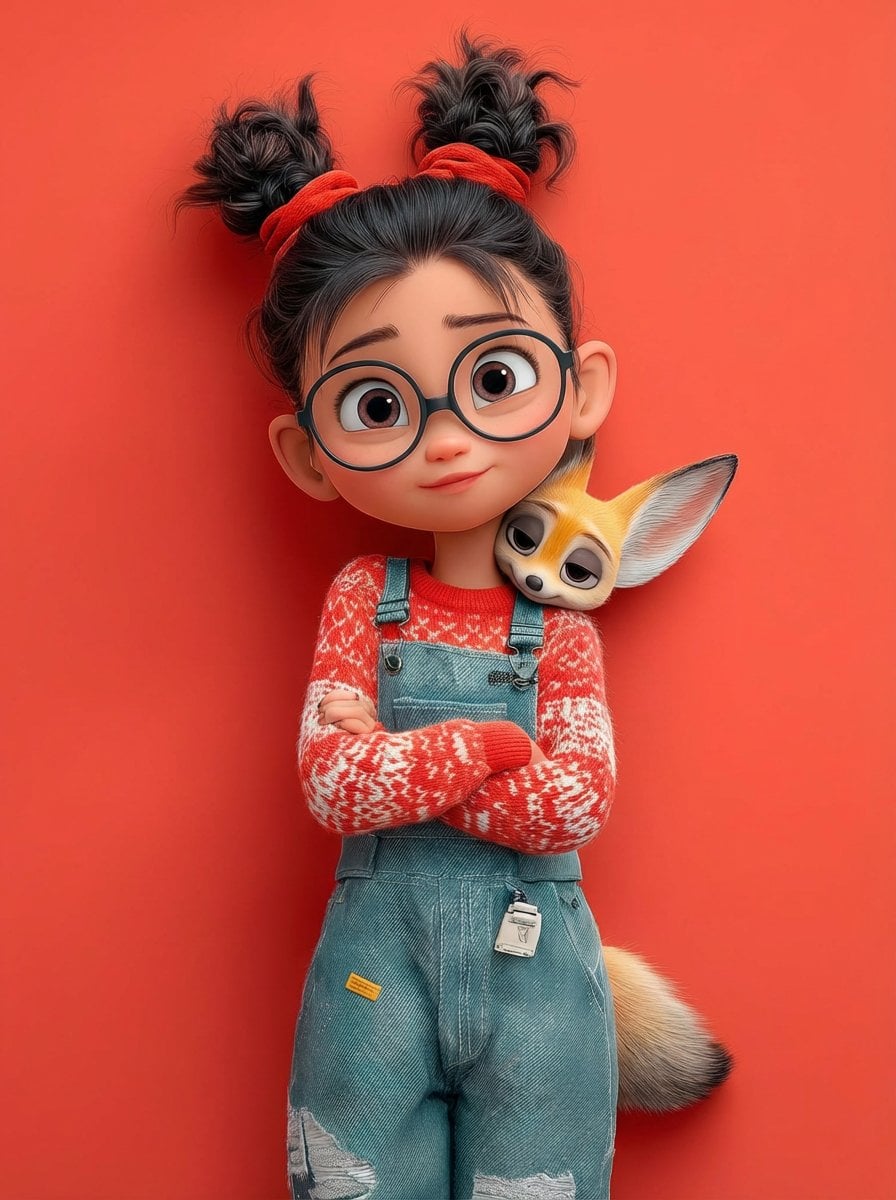
Toon Cartoon Street Festival
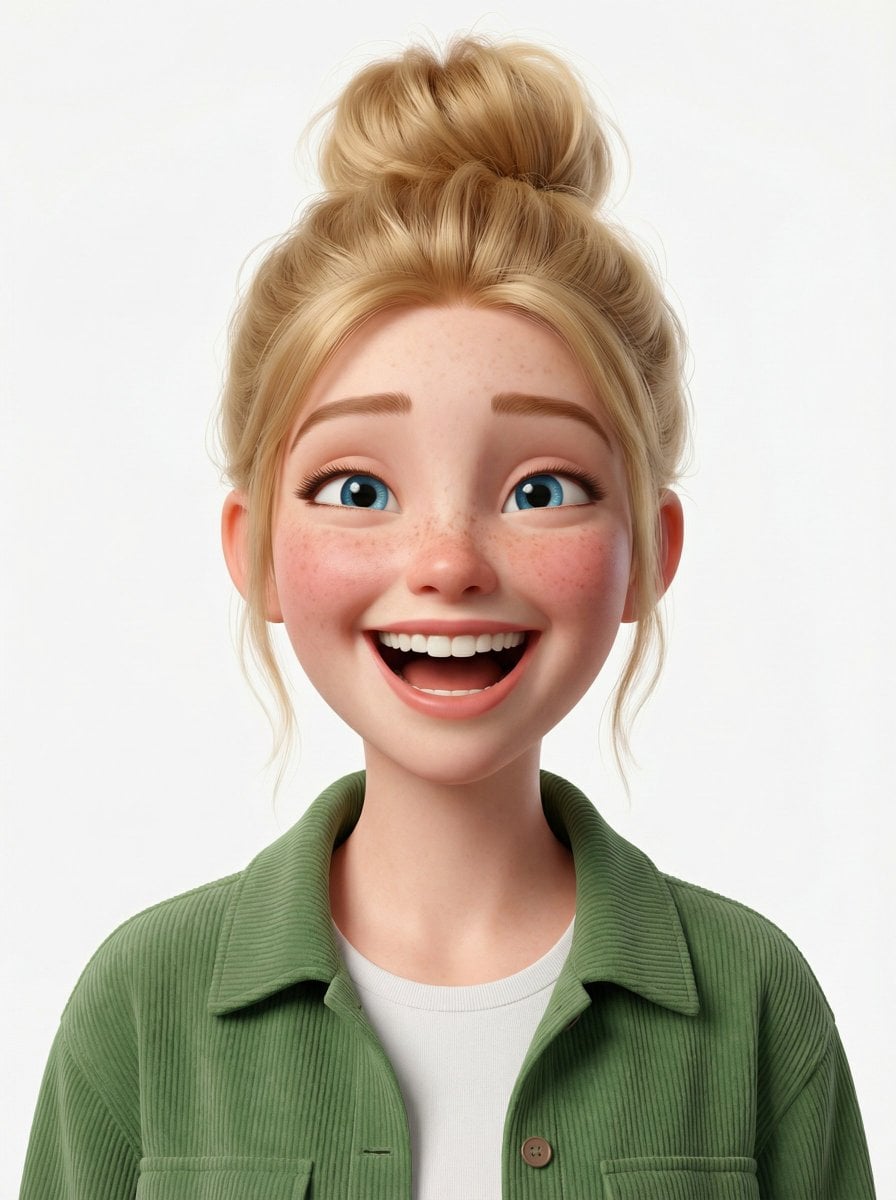
Toon Cartoon Ballroom Dance
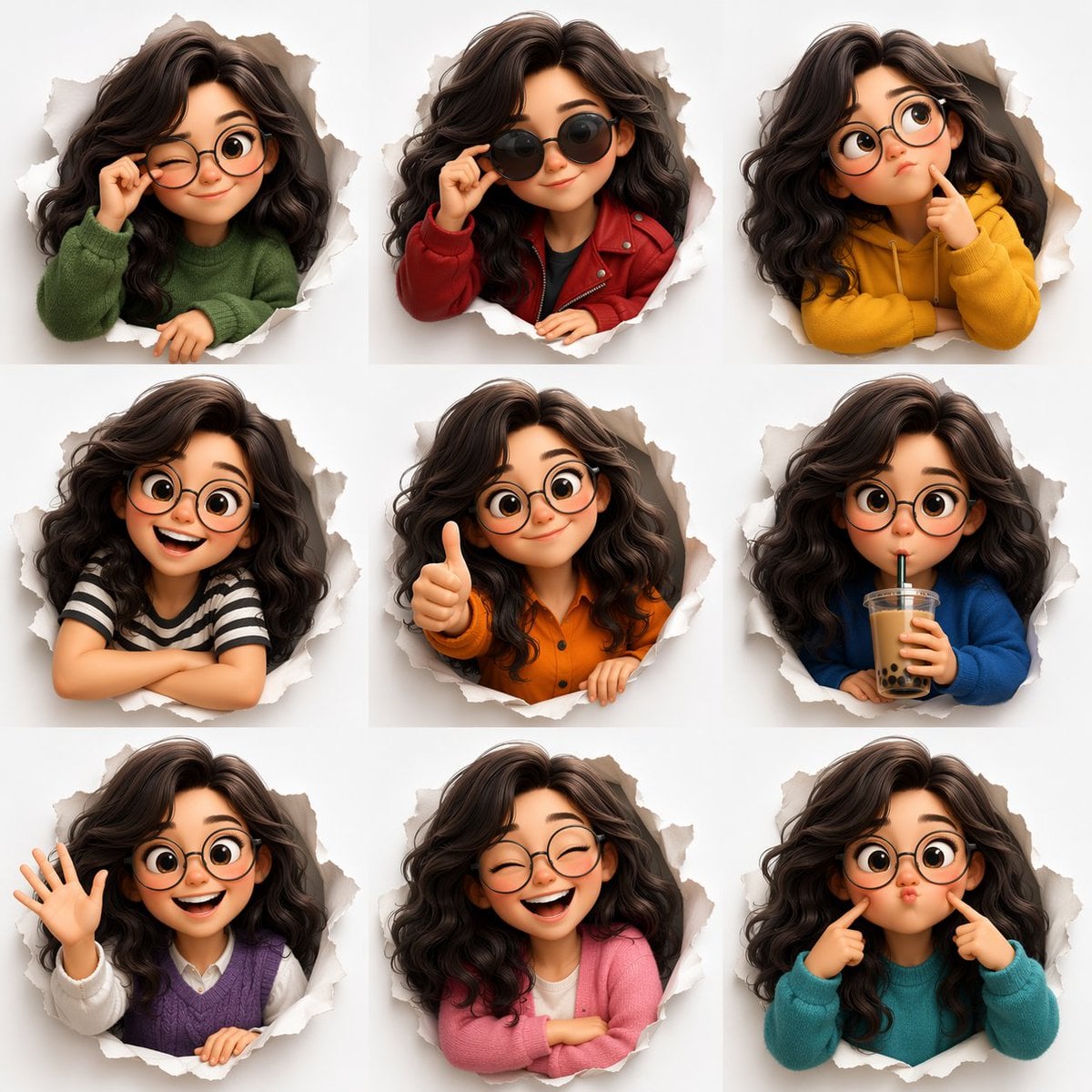
Toon Cartoon Robot Workshop
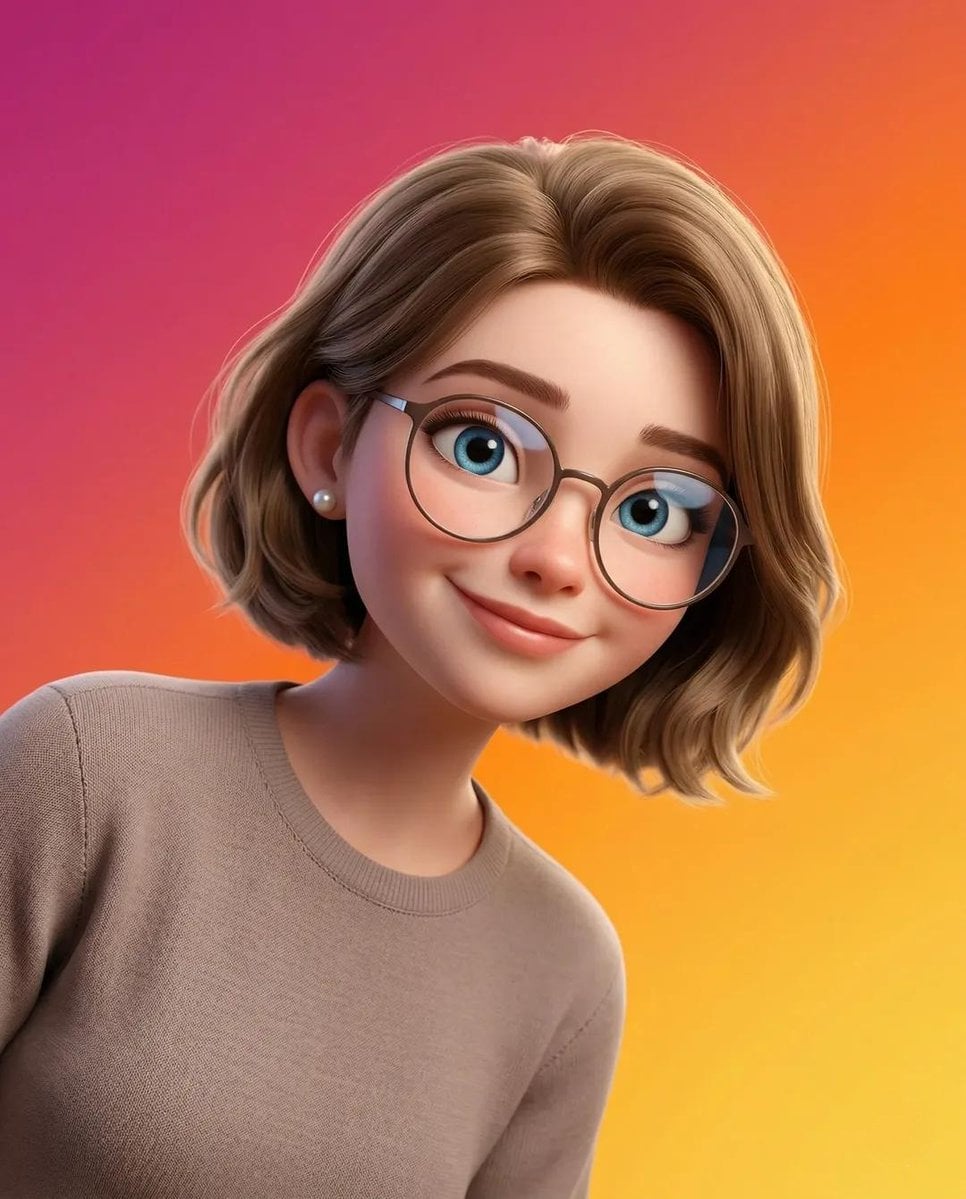
Toon Cartoon Winter Cabin
Make it yours
Comic Cartoon Video Call works as-is. These are the safest ways to change it without losing the look.
Change one field
Copy a single group, rewrite it, and generate again so you can see what that field is doing.
Keep the frame, change the subject
Hold the composition and light of Comic Cartoon Video Call, then swap wardrobe, props or the person for a new take.
| If the result… | Why | Fix |
|---|---|---|
| The result drifts from the preview | Too many fields changed at once. | Reuse Comic Cartoon Video Call as-is first, then change one group — subject, light, or setting. |
| The model over-stylizes the scene | The prose prompt leaves finish and camera underspecified. | Add one camera or lighting sentence and stay on GPT Image 2. |
More GPT Image 2 templates
Other prompts made for GPT Image 2.

Six VTuber Japanese Logo Sheet

Realistic Portrait of Woman and Deer

The Vista Modular Condo Poster

AI Model Routing Comparison Infographic

2.5D Anime Art Board

Isometric Productivity Desk Scene

New York Double Exposure Poster

Four-Panel AI Landscape Comparison

Japanese Tatami Lifestyle Magazine Cover

NESCAFÉ Coffee Map Poster
More image prompts
Fresh picks from across the catalog.

High-Contrast Black and White Editorial Portrait Prompt for Nano Banana 2
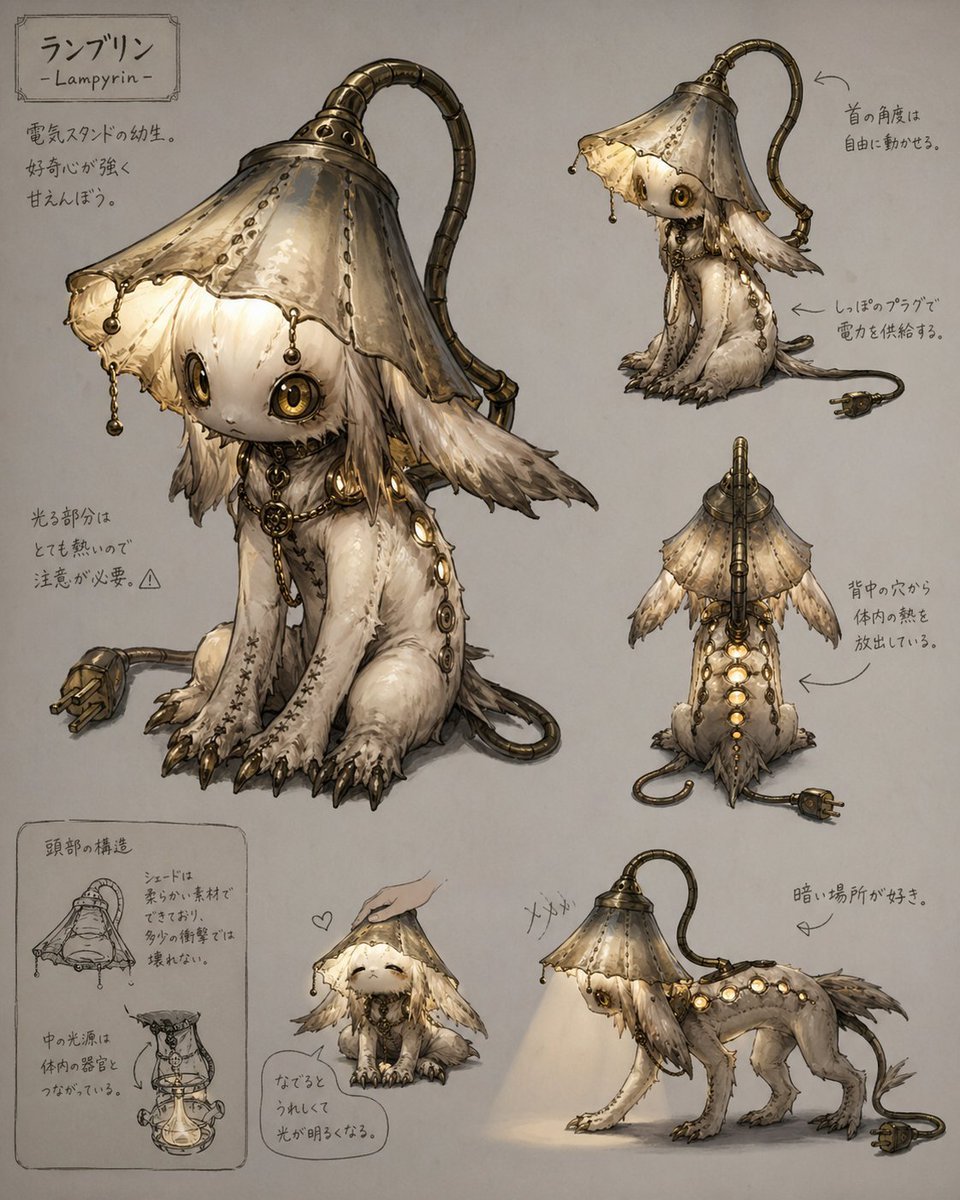
Lamp-Creature Concept Art Sheet

Macro Product Photography of Jewelry Worn by a Model
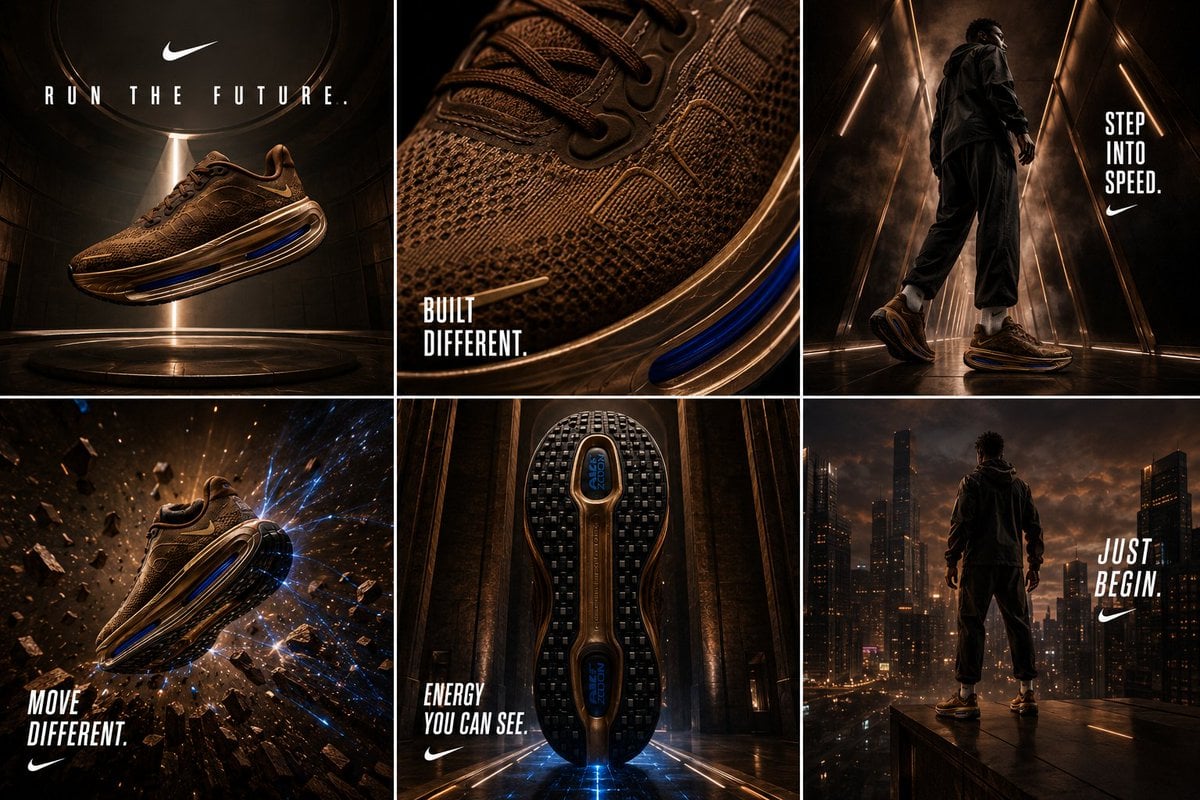
Nike Vomero Future Campaign Master Prompt
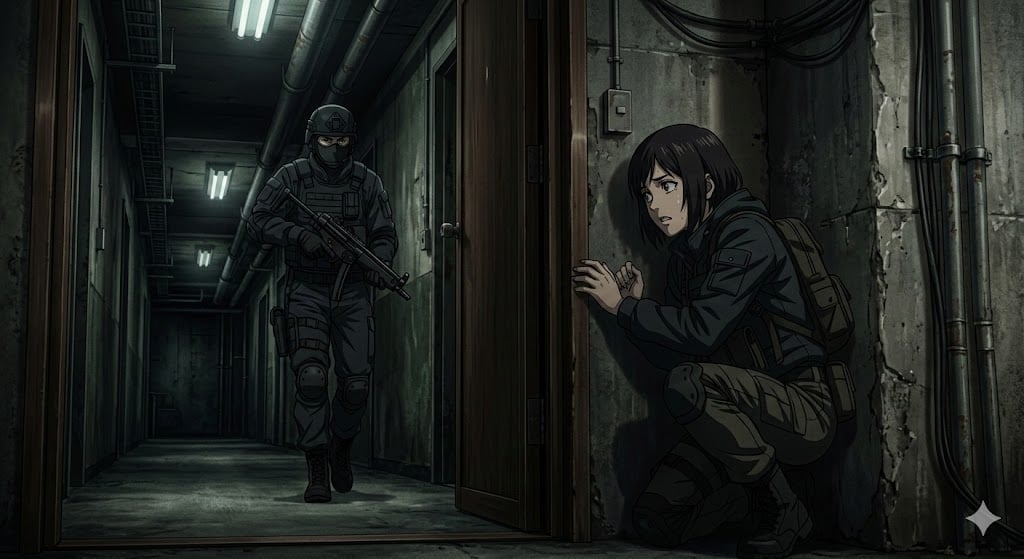
Anime Stealth Scene with Keystoning Angle
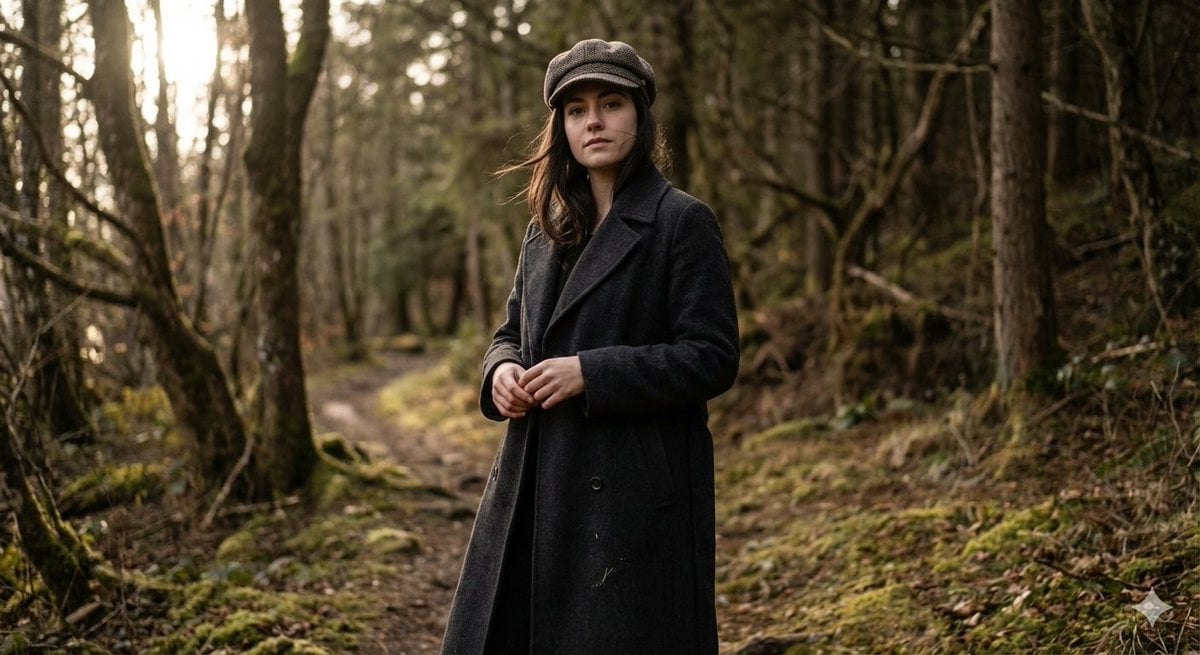
Realistic Full-Body Portrait in Forest Prompt
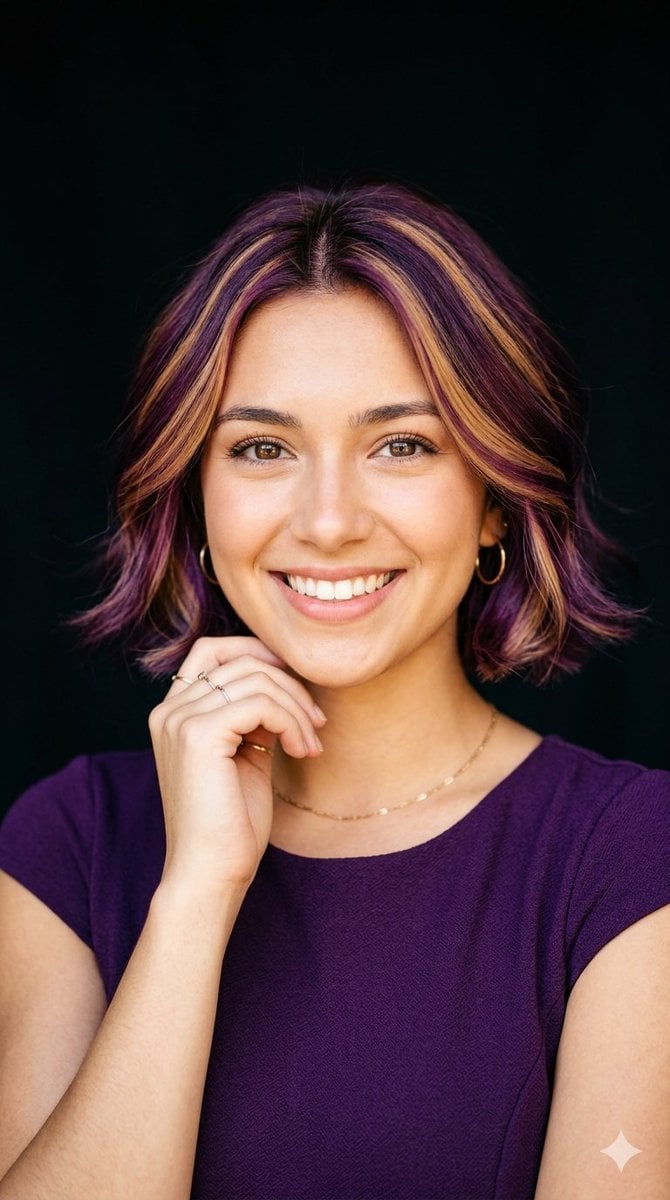
Radiant Purple Bob Portrait
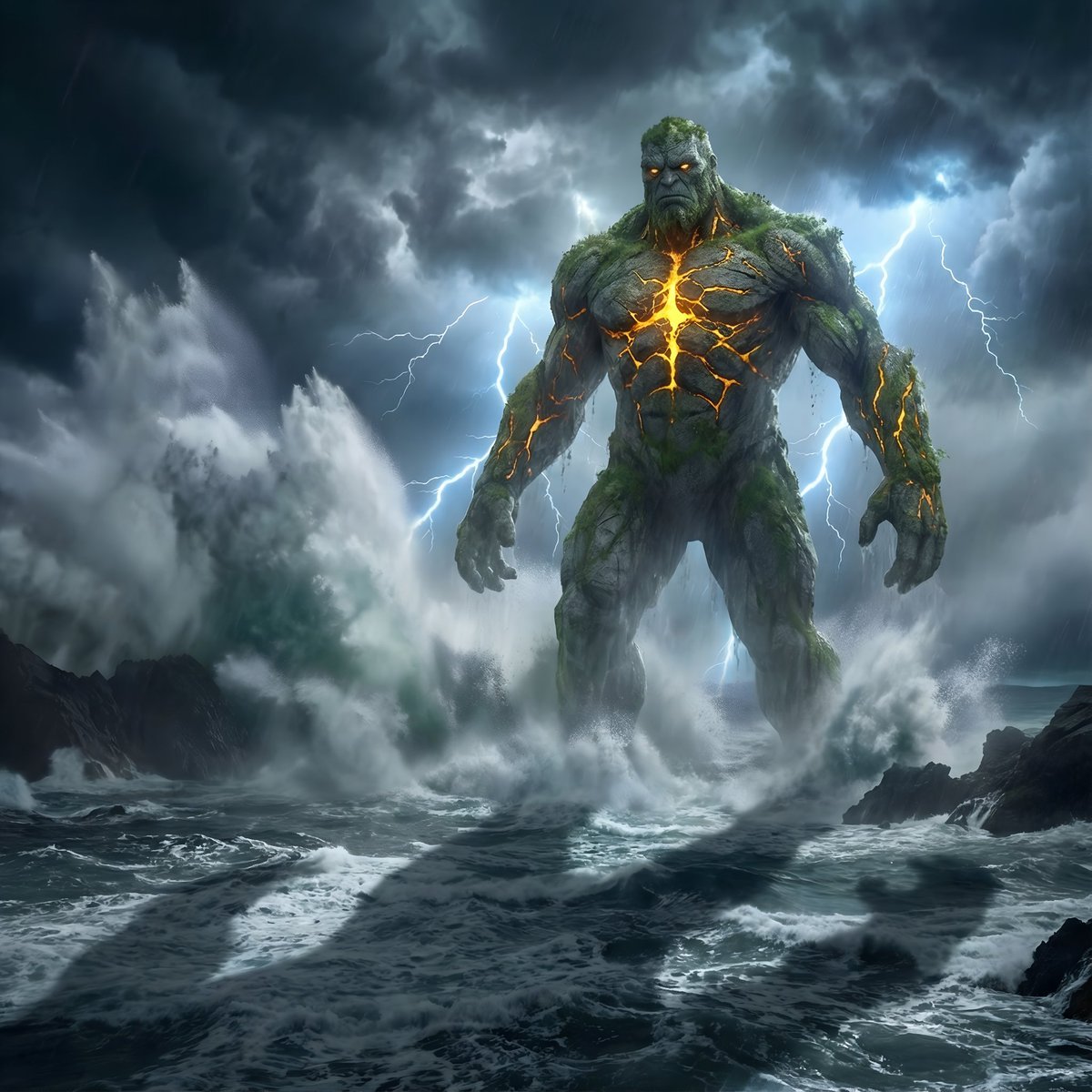
Colossal Stone Titan Rising from Ocean
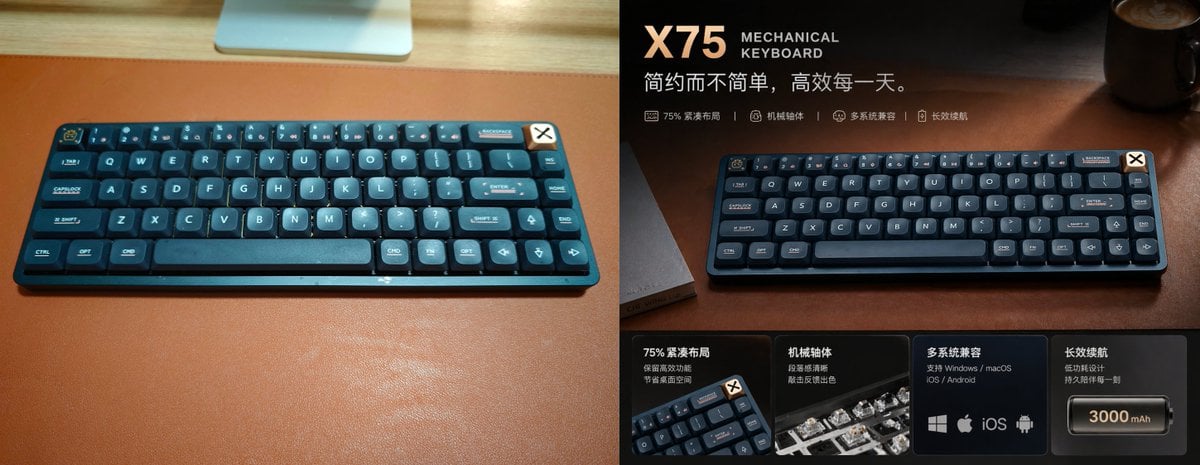
Premium Mechanical Keyboard Ad Poster
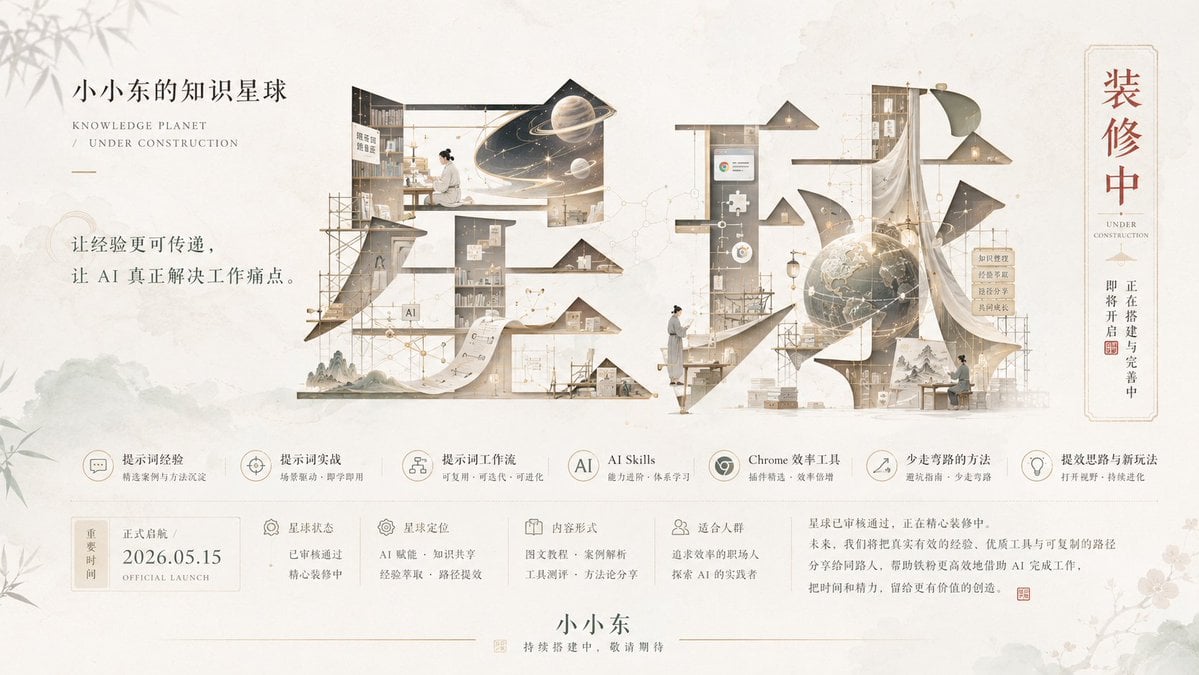
Bright Korean Minimalist Typography Graphic
Browse template categories
Comic Cartoon Video Call questions
How do I use the Comic Cartoon Video Call template?
Add your photo if the template asks for one, edit the prompt if you like — the template's model and format are already selected — and press Generate. Your version opens in PicX Studio.
Can I customize the Comic Cartoon Video Call template?
Yes. You can change the subject, setting, lighting, mood, format, and available model controls before creating your image.
Is the Comic Cartoon Video Call template free?
Opening and editing this template is free. Generating uses credits, shown on the Generate button when you are signed in.
Which AI model should I use?
Start with GPT Image 2, which is the model associated with this template. You can compare another compatible model for a different finish.
Looking for something else? Browse all templates.

Your photo, any look
Thousands of ready templates for every top image and video model, from one credit balance.