
Layered Papercraft Image Transformation
A prompt to transform any image into a soft, charming layered papercraft illustration with a 3D diorama aesthetic.
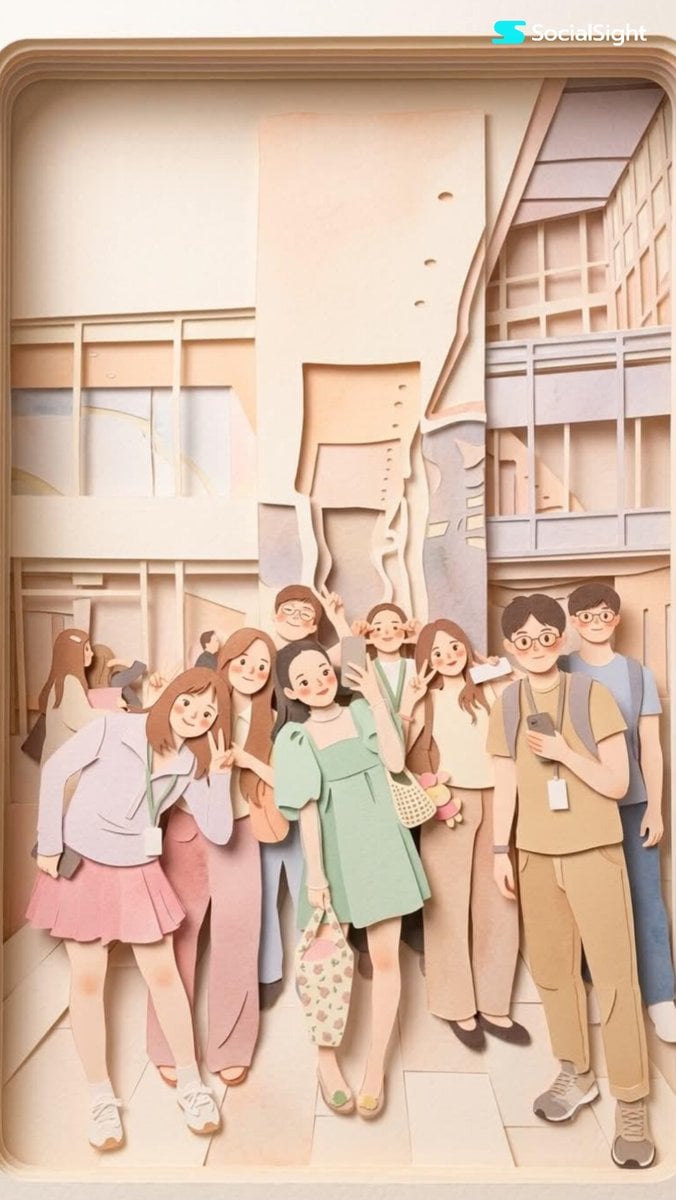
- Prompt included
- Model and format preset
- Free template
The prompt behind this image
Copy the exact prompt behind Layered Papercraft Image Transformation, or open it in the studio and make it yours.
Transform this image into a {argument name="aesthetic" default="soft, layered papercraft illustration inspired by the aesthetic of a handcrafted papercraft diorama"}. Use smooth, rounded shapes, {argument name="proportions" default="simplified cute character proportions"}, and minimal facial features (such as dot eyes and subtle blush) to create a warm, charming, and inviting appearance. Build the scene using stacked paper layers with a strong sense of depth and dimension. Include delicate shadows between layers to emphasize the layered construction, while keeping all cut edges clean and precise, resembling laser-cut cardstock. Add a solid white outline around each main character, similar to a thick sticker border or a white paper backing. This outline should clearly separate the characters from the background and feel like an intentional layered paper element rather than a glow effect. Use a {argument name="color palette" default="calming pastel color palette featuring muted blues, soft greens, and warm neutral tones"}. Maintain an overall balanced and soothing atmosphere. Lighting should be soft, diffused, and evenly distributed, enhancing the three-dimensional paper-layer effect while avoiding harsh contrast or dramatic shadows.
How to use Layered Papercraft Image Transformation in 3 steps
- 1Upload ImagePNG, JPG or paste
Add your photo
Upload the photo the template builds on. The prompt, model and format are already set.
- 2…a portrait of your subject in softgolden-hour light, 85mm…
Personalize
Edit the subject and creative details for your destination.
- 3Generate
Generate
Press Generate — your image is created in PicX Studio, so you can compare it with the original and refine one variable at a time.
More like this
Templates with the same subject, style or setup. Open one to see its prompt.
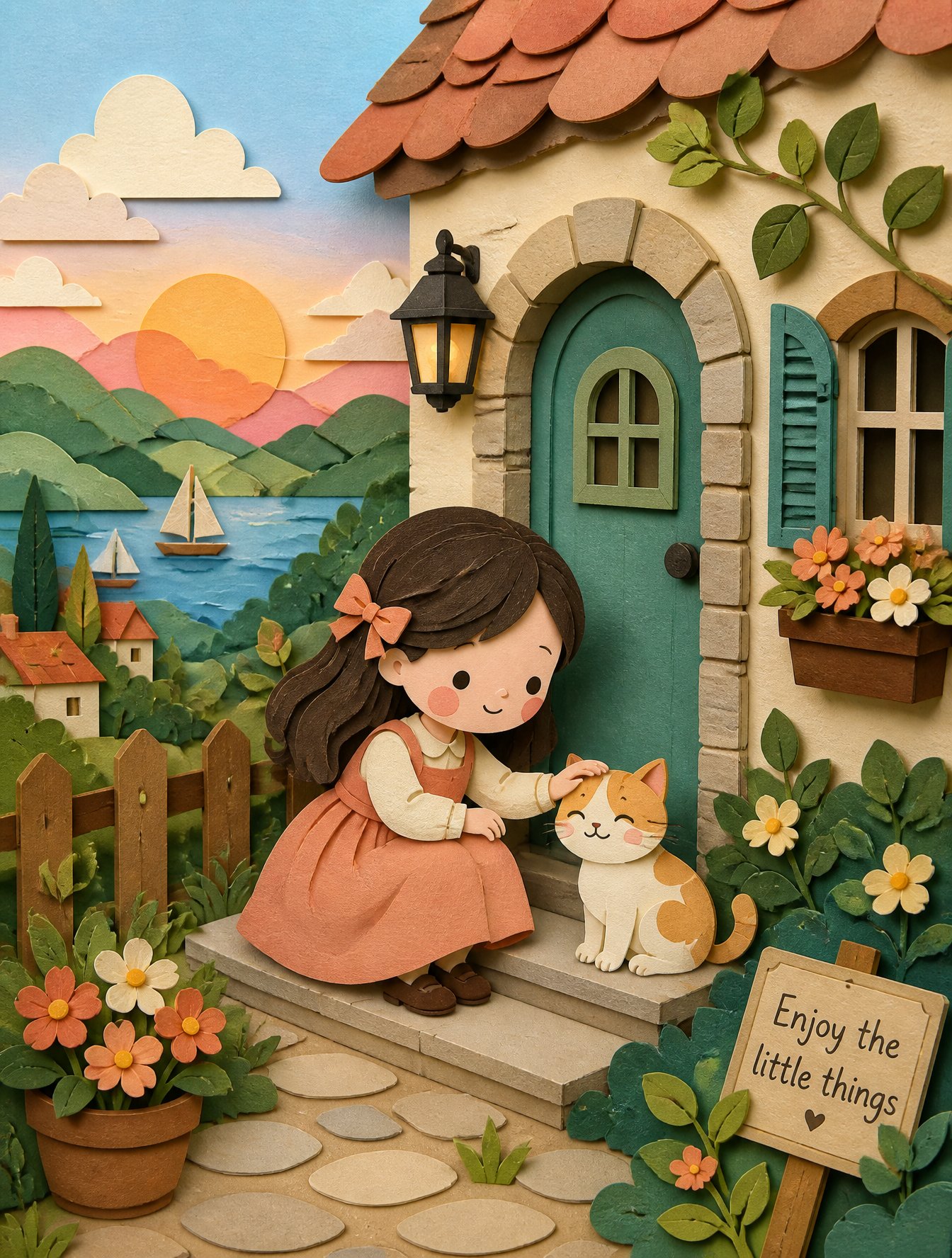
Soft Handcrafted Paper-Cut Layered Illustration
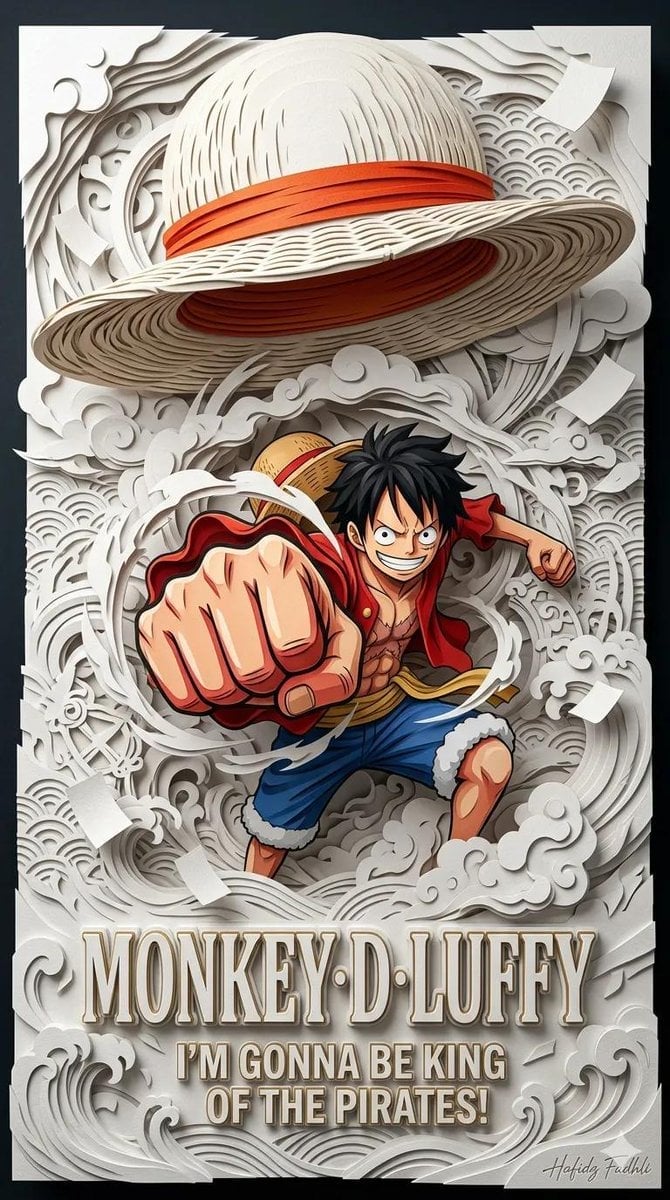
Master Papercraft Shadow Box — Anime Hero Emerging from Paper Waves
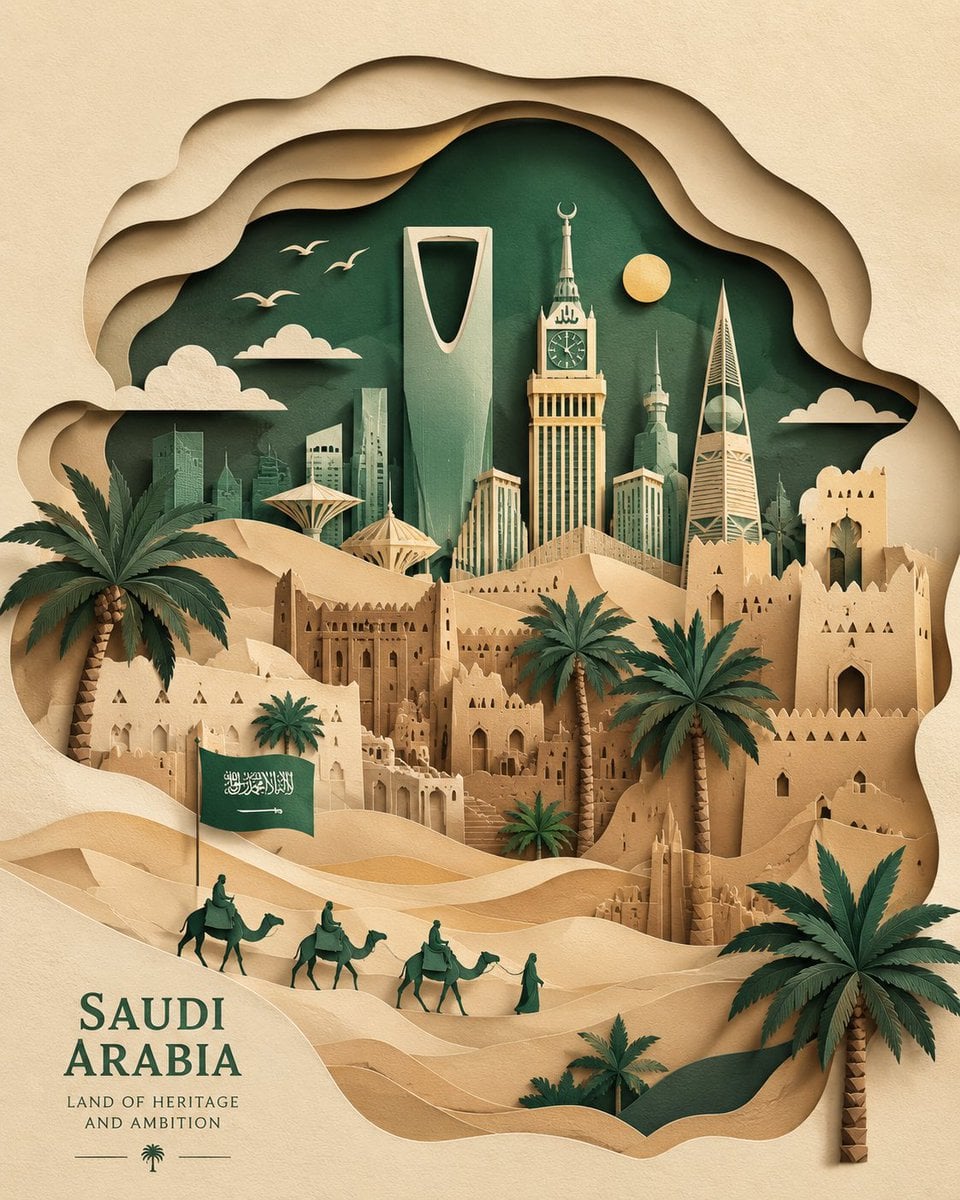
Saudi Arabia Paper Cut Travel Poster
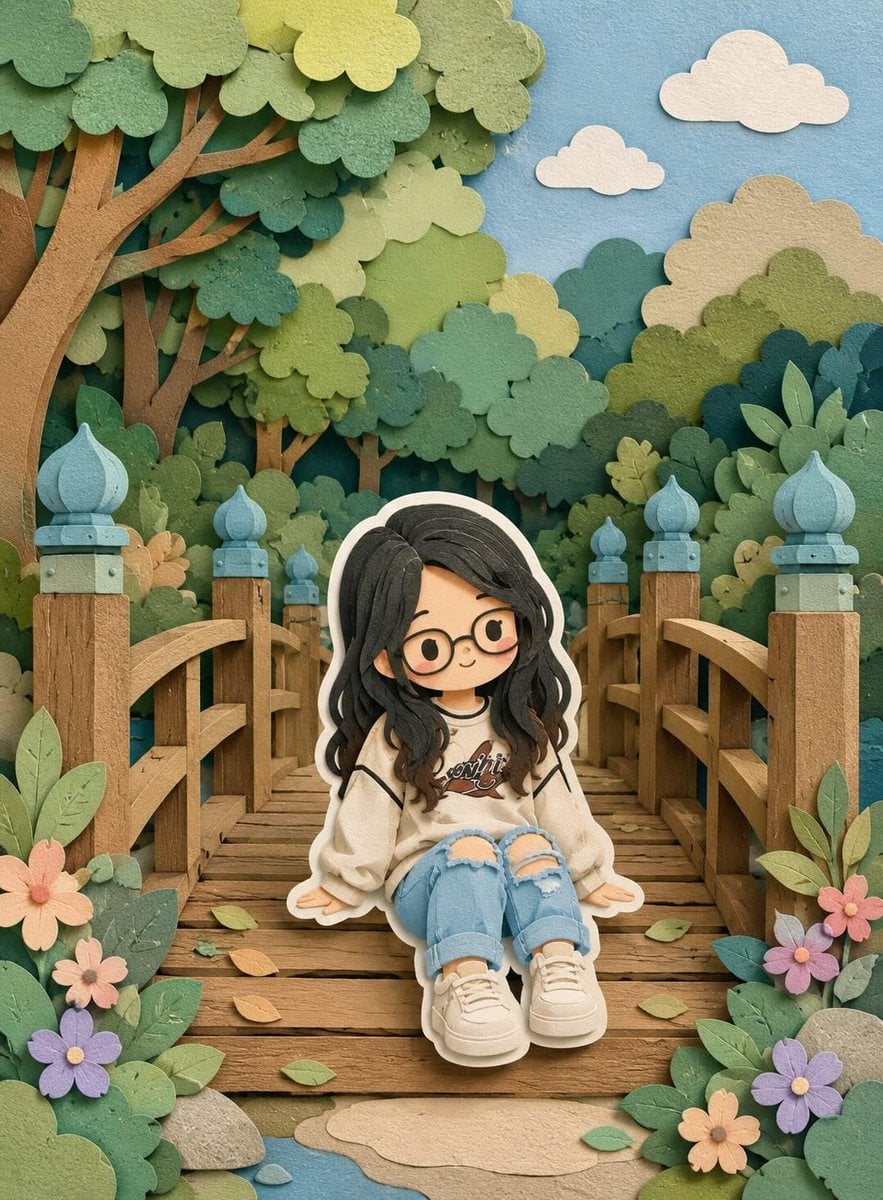
Cute Layered Paper Cut Chibi Girl
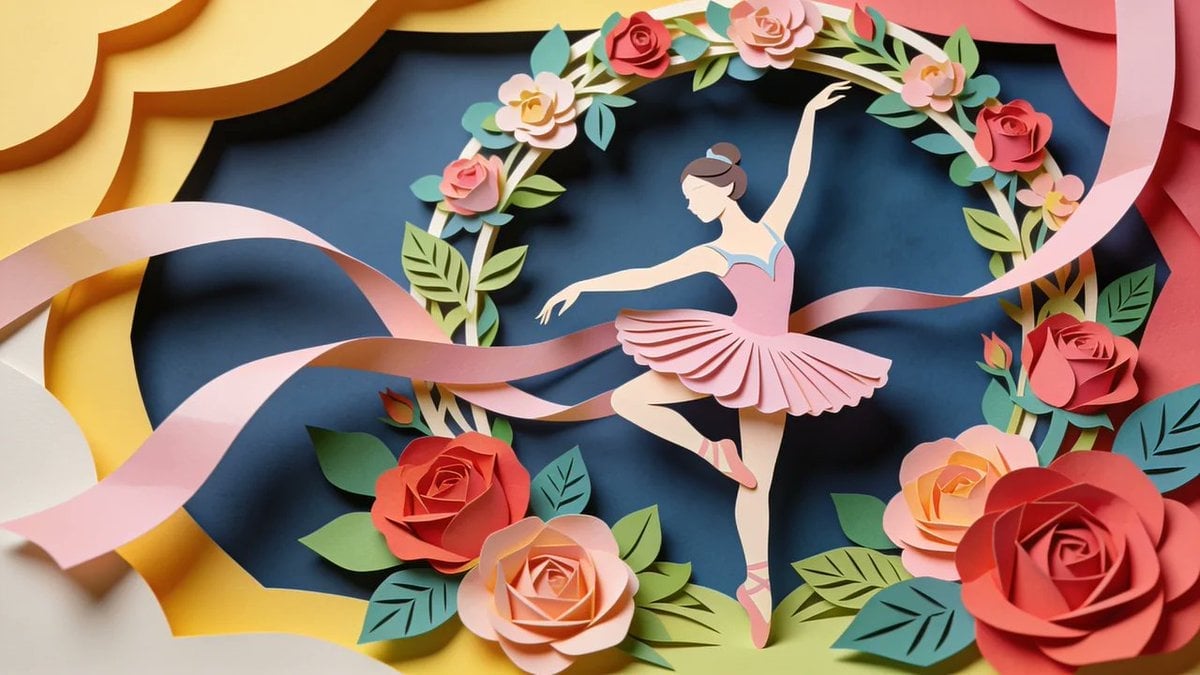
Paper Cut Craft Illustration
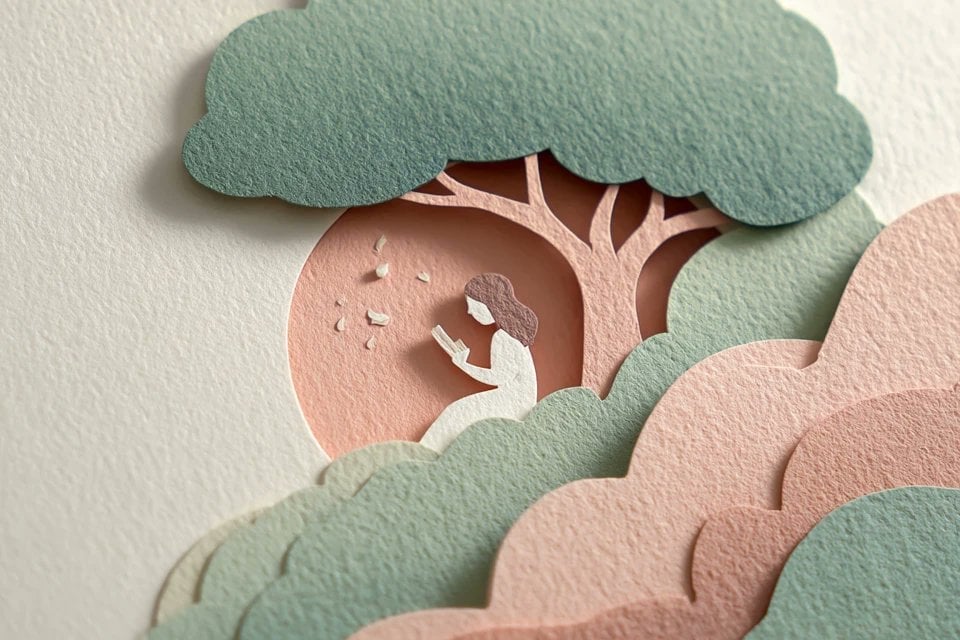
Layered Paper Cut Illustration Template
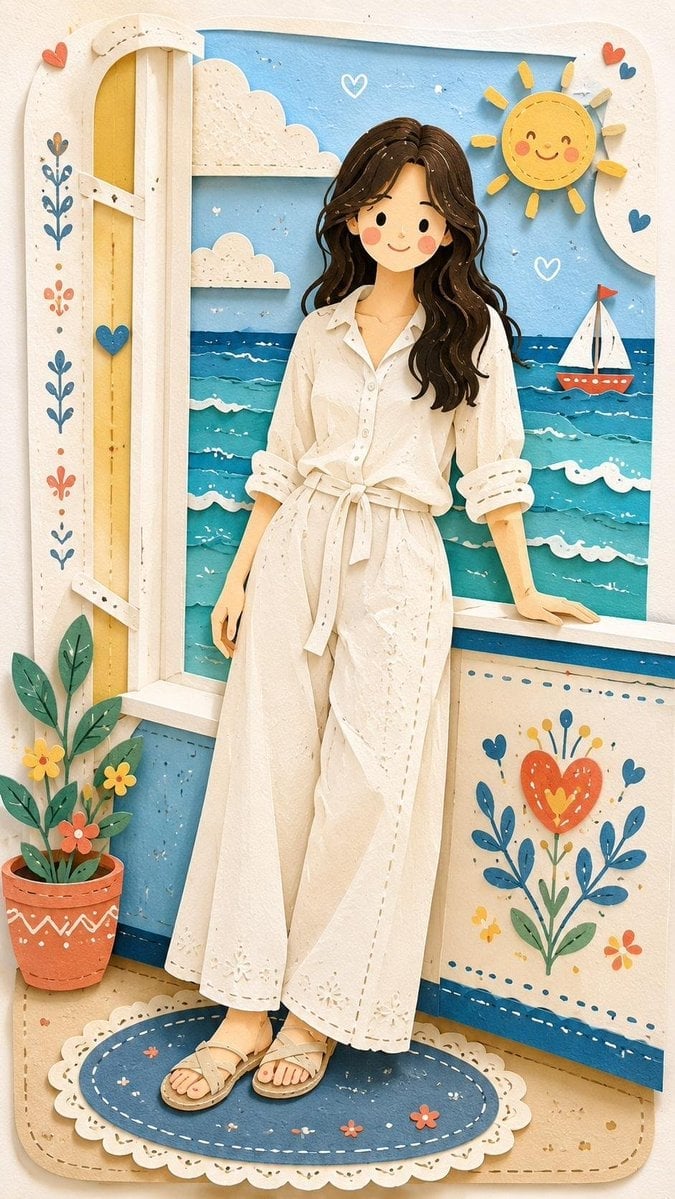
Decorative Folk Flat Paper Cut Illustration
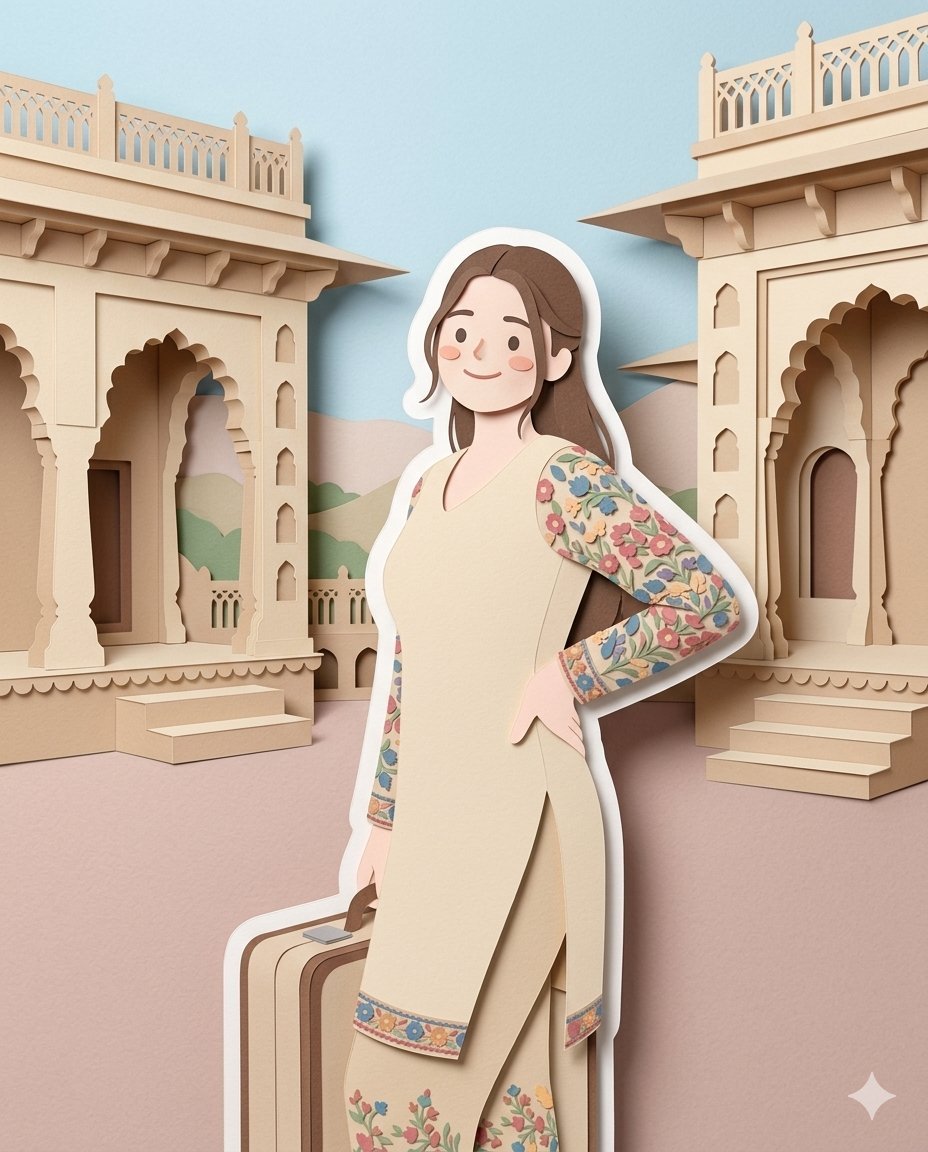
Layered Papercraft Diorama Prompt
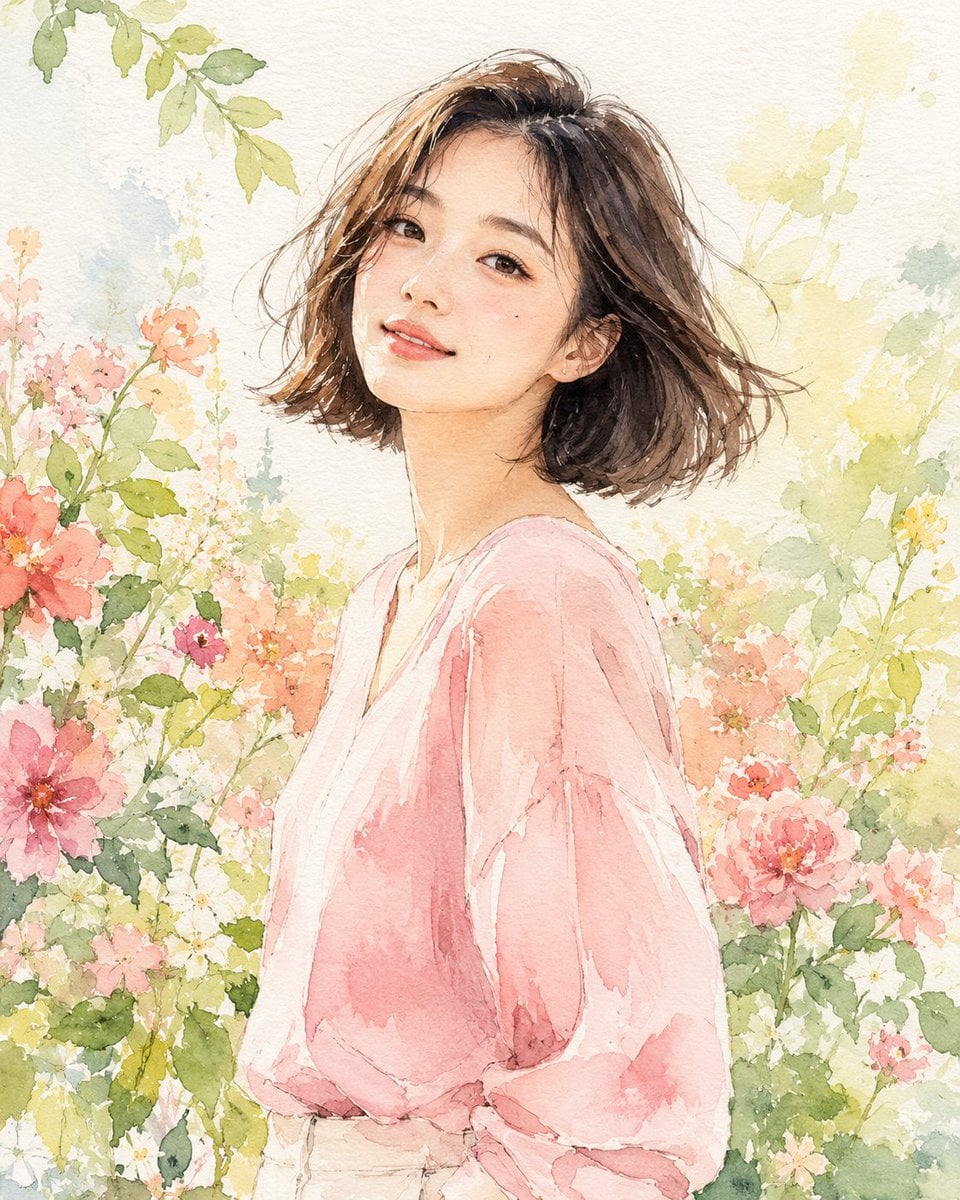
Paper Cut Finale Fireworks
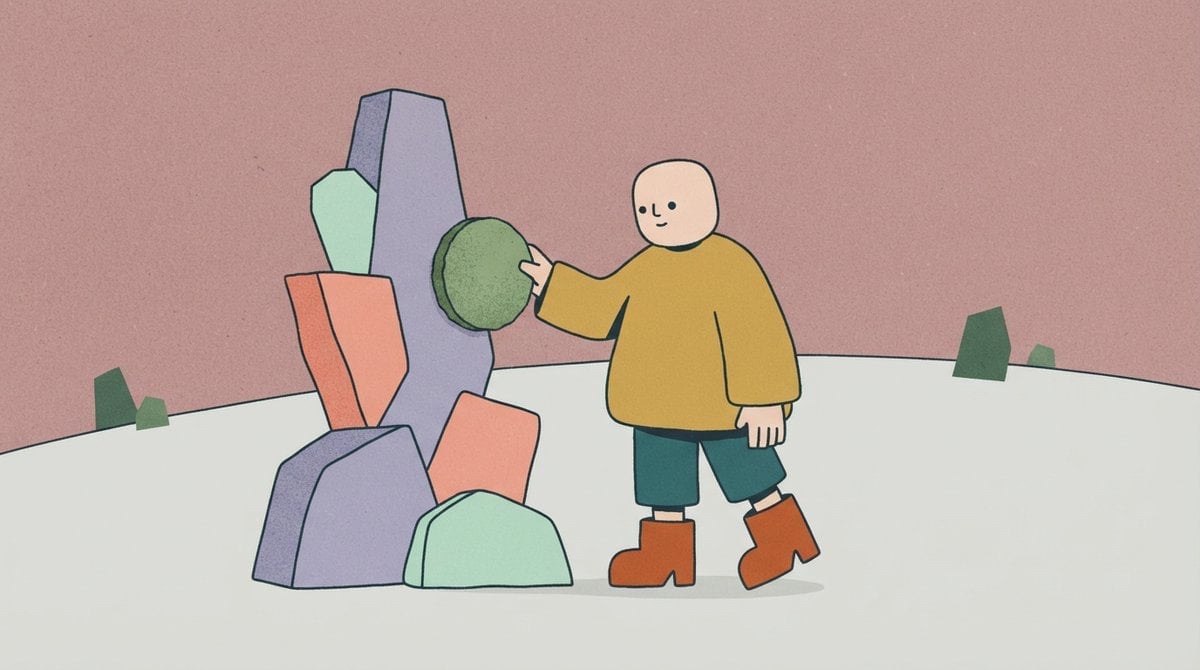
Paper Cut Garden Maze
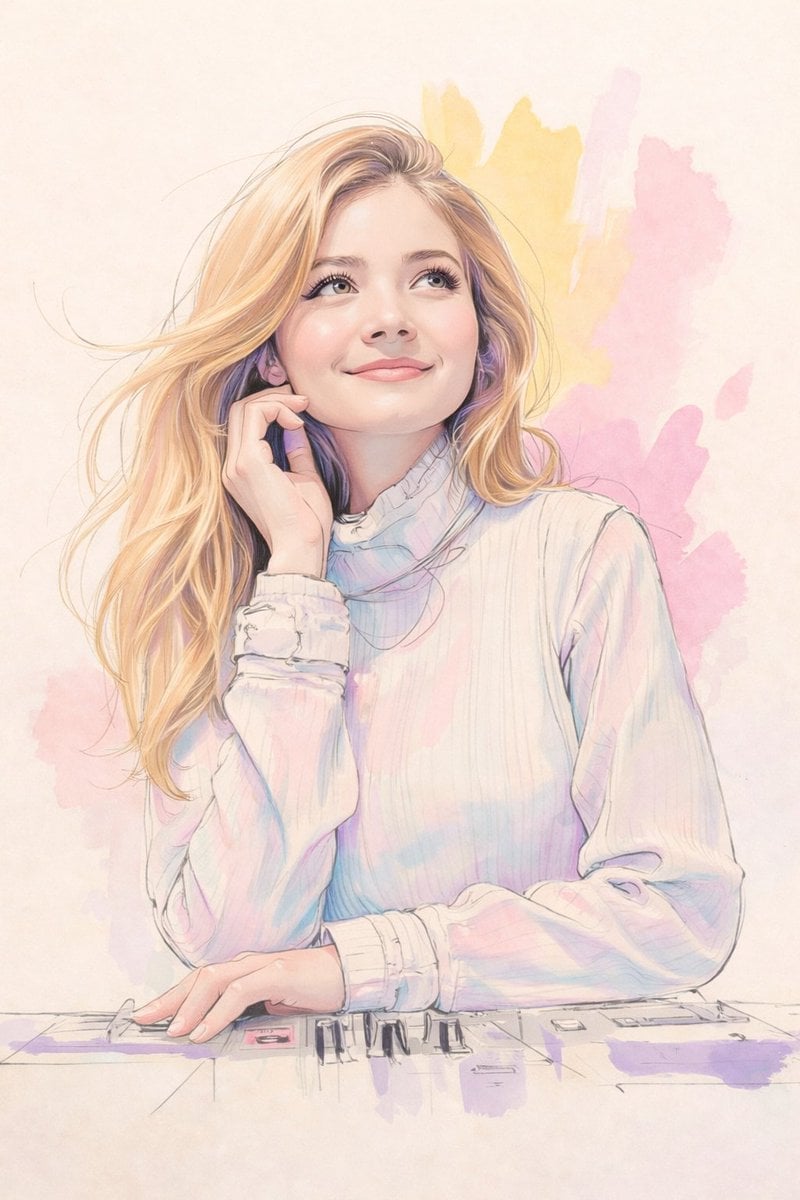
Paper Cut Rooftop Concert
Paper Cut Bicycle Coast
Make it yours
Layered Papercraft Image Transformation works as-is. These are the safest ways to change it without losing the look.
Change one field
Copy a single group, rewrite it, and generate again so you can see what that field is doing.
Keep the frame, change the subject
Hold the composition and light of Layered Papercraft Image Transformation, then swap wardrobe, props or the person for a new take.
| If the result… | Why | Fix |
|---|---|---|
| The result drifts from the preview | Too many fields changed at once. | Reuse Layered Papercraft Image Transformation as-is first, then change one group — subject, light, or setting. |
| The model over-stylizes the scene | The prose prompt leaves finish and camera underspecified. | Add one camera or lighting sentence and stay on GPT Image 2. |
More GPT Image 2 templates
Other prompts made for GPT Image 2.

Six VTuber Japanese Logo Sheet

Realistic Portrait of Woman and Deer

The Vista Modular Condo Poster

AI Model Routing Comparison Infographic

2.5D Anime Art Board

Isometric Productivity Desk Scene

New York Double Exposure Poster

Four-Panel AI Landscape Comparison

Japanese Tatami Lifestyle Magazine Cover

NESCAFÉ Coffee Map Poster
More image prompts
Fresh picks from across the catalog.
Detailed Image Generation Prompt for a Winter Train Journey Portrait
Cinematic Boy and Miniature Version
Cat to Human Portrait Transformation
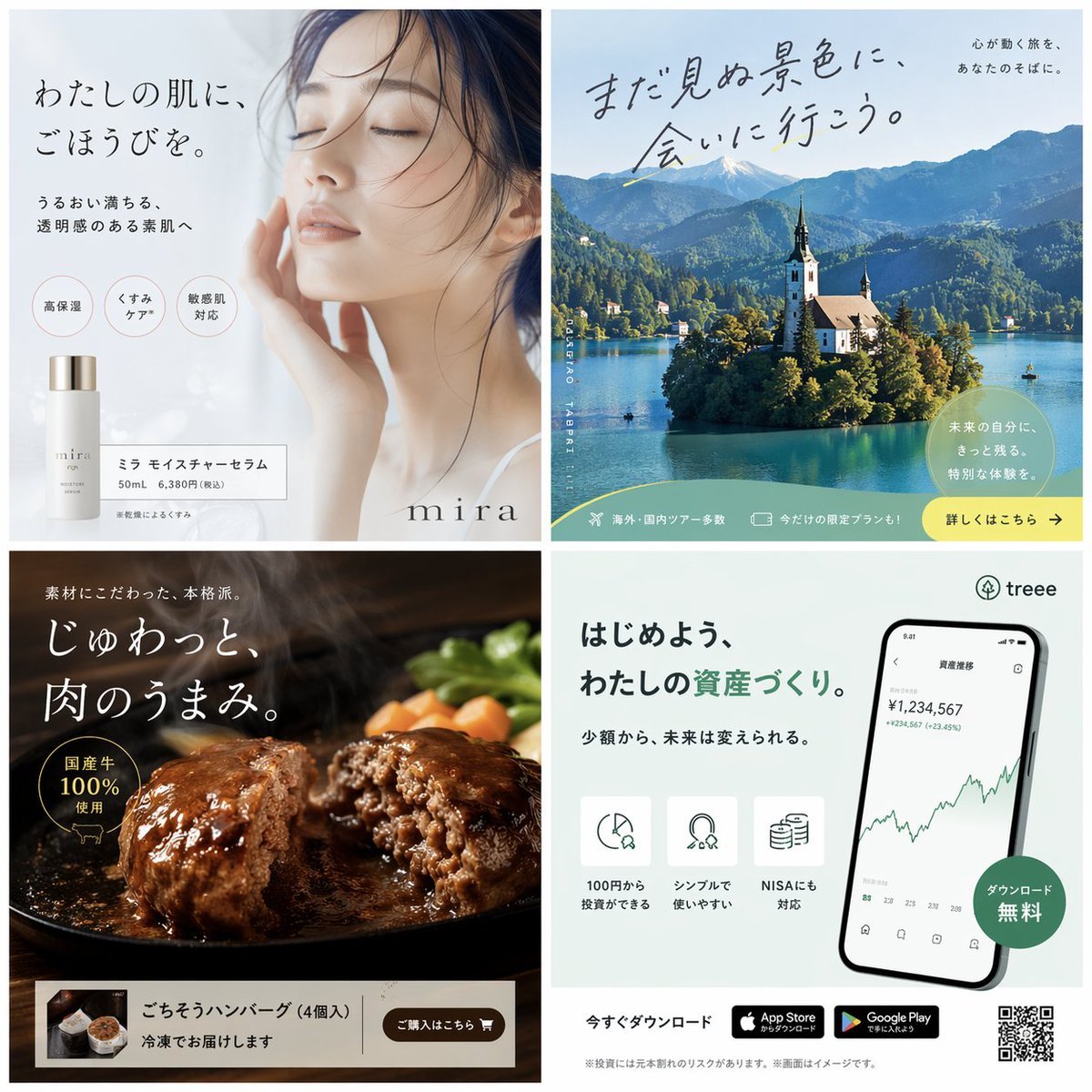
Panel Japanese Advertising Banner Grid
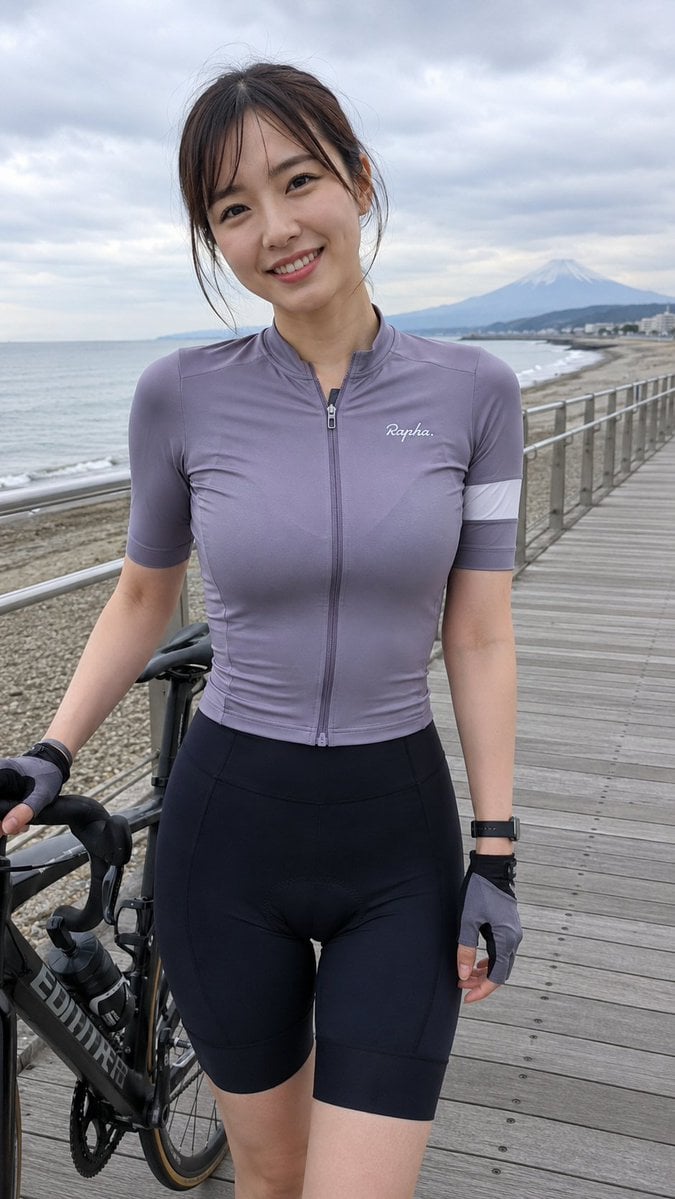
Coastal Cycling Break with Fuji
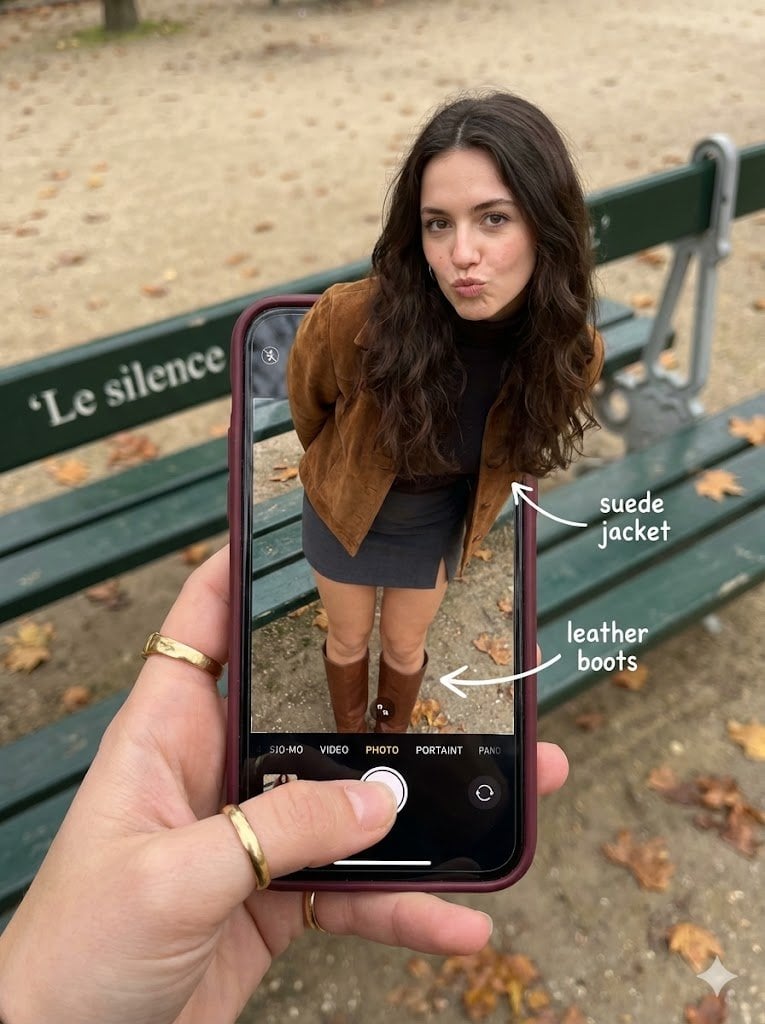
Hyper-Realistic Optical Illusion: Woman Emerging from Smartphone Screen
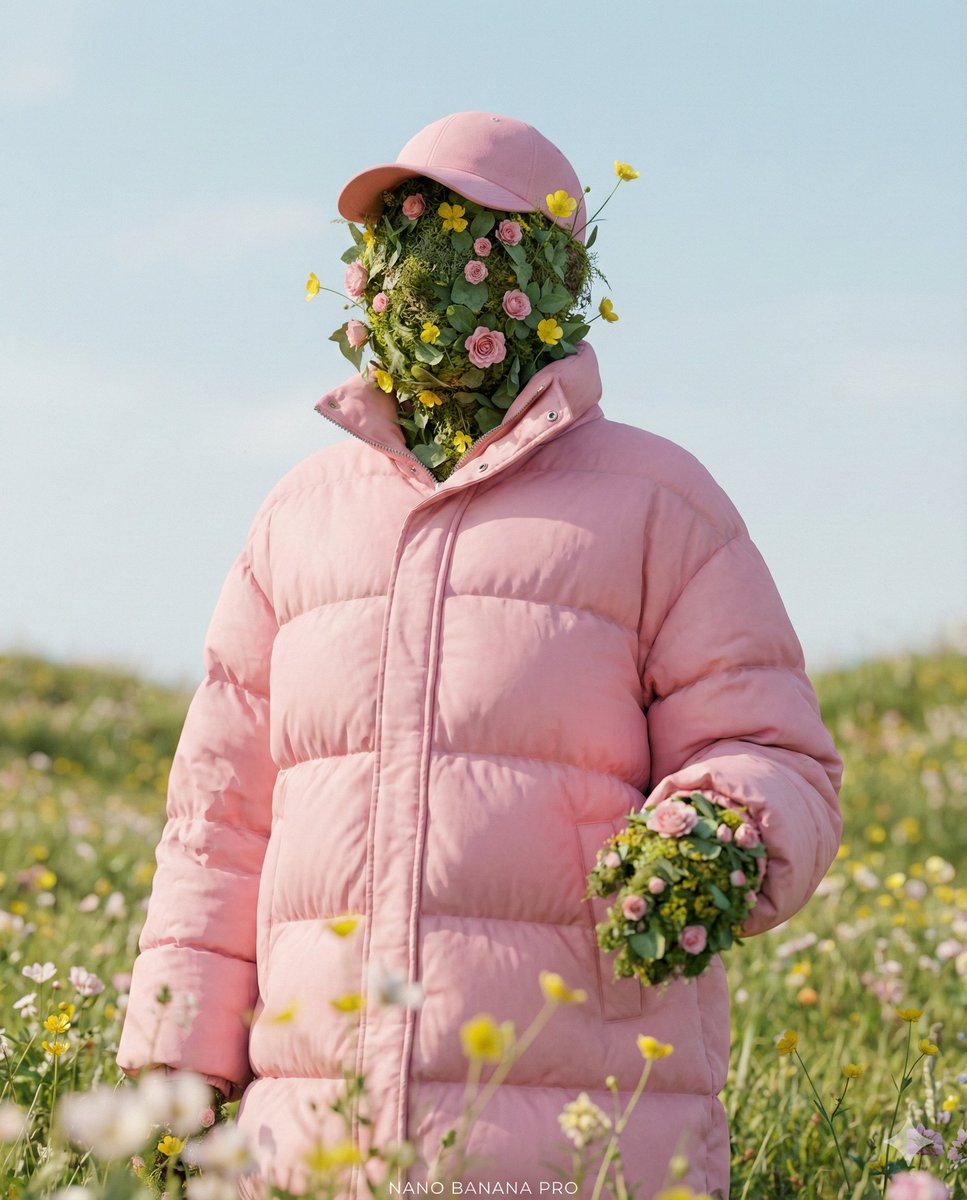
Ultra-Realistic Promotional Image Prompt
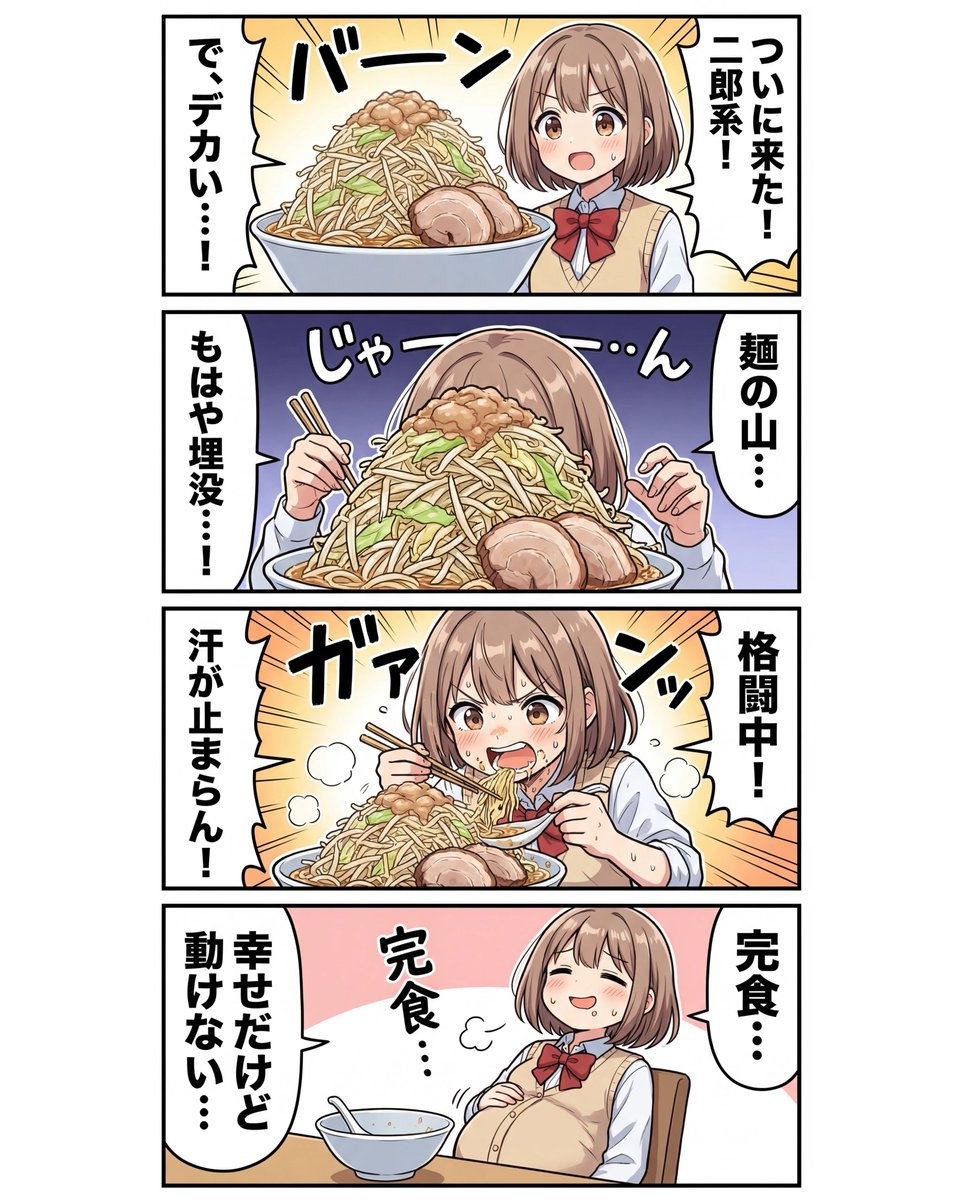
panel Japanese gag manga about Nanami eating ramen
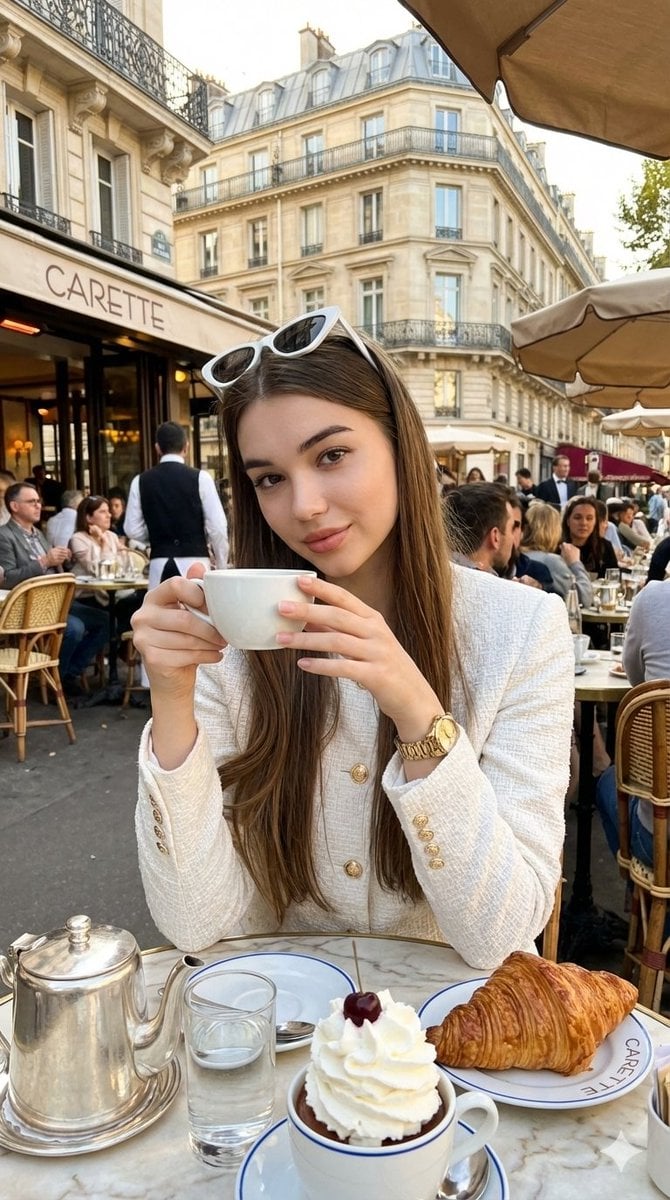
Photorealistic Parisian Café Editorial Portrait
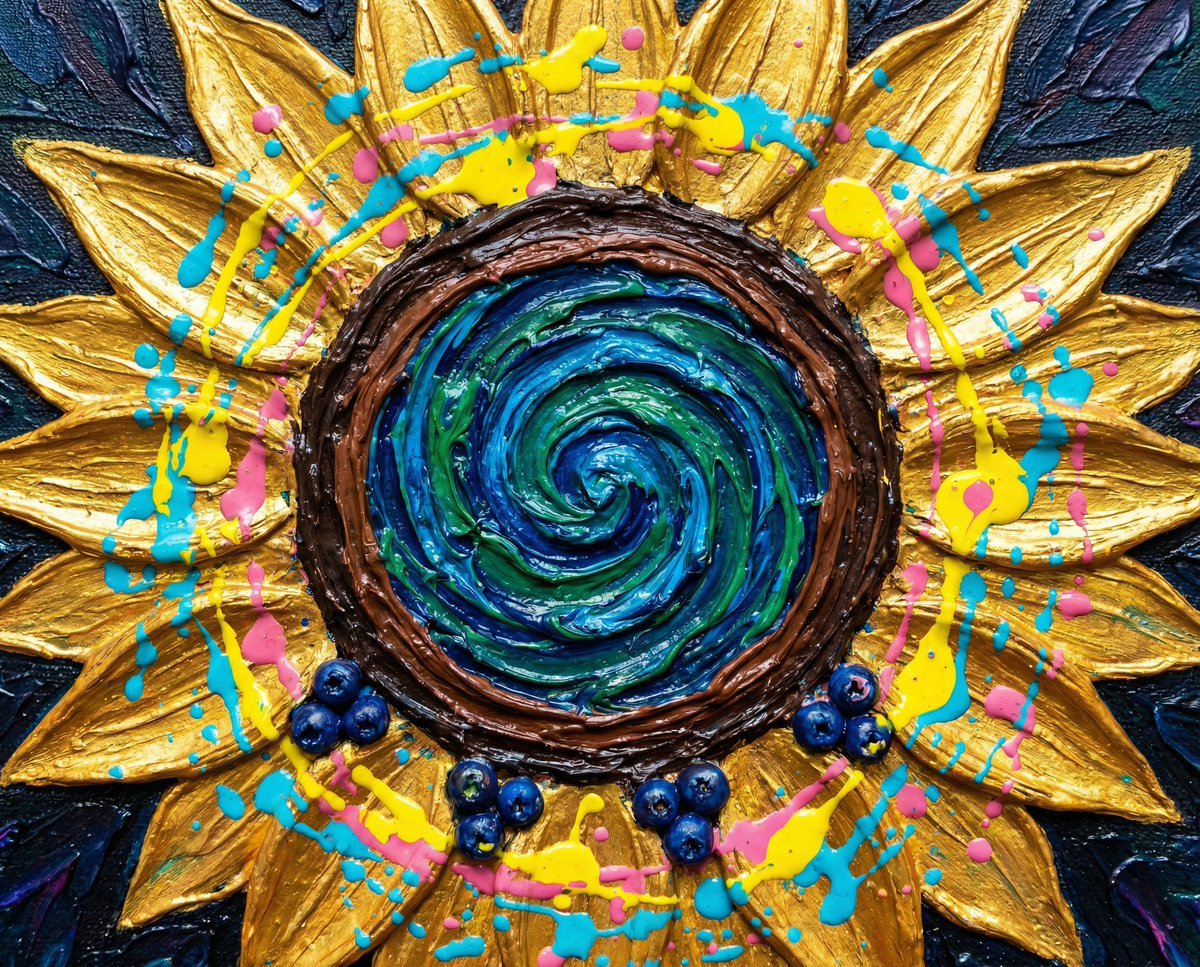
Psychedelic Impasto Sunflower Abstract
Browse template categories
Layered Papercraft Image Transformation questions
How do I use the Layered Papercraft Image Transformation template?
Add your photo if the template asks for one, edit the prompt if you like — the template's model and format are already selected — and press Generate. Your version opens in PicX Studio.
Can I customize the Layered Papercraft Image Transformation template?
Yes. You can change the subject, setting, lighting, mood, format, and available model controls before creating your image.
Is the Layered Papercraft Image Transformation template free?
Opening and editing this template is free. Generating uses credits, shown on the Generate button when you are signed in.
Which AI model should I use?
Start with GPT Image 2, which is the model associated with this template. You can compare another compatible model for a different finish.
Looking for something else? Browse all templates.

Your photo, any look
Thousands of ready templates for every top image and video model, from one credit balance.