
Pixar-Style Earbuds Miniature Scene
A creative 3D Pixar-style prompt that places a character based on a reference image into a cozy miniature scene inside a wireless earbuds case.
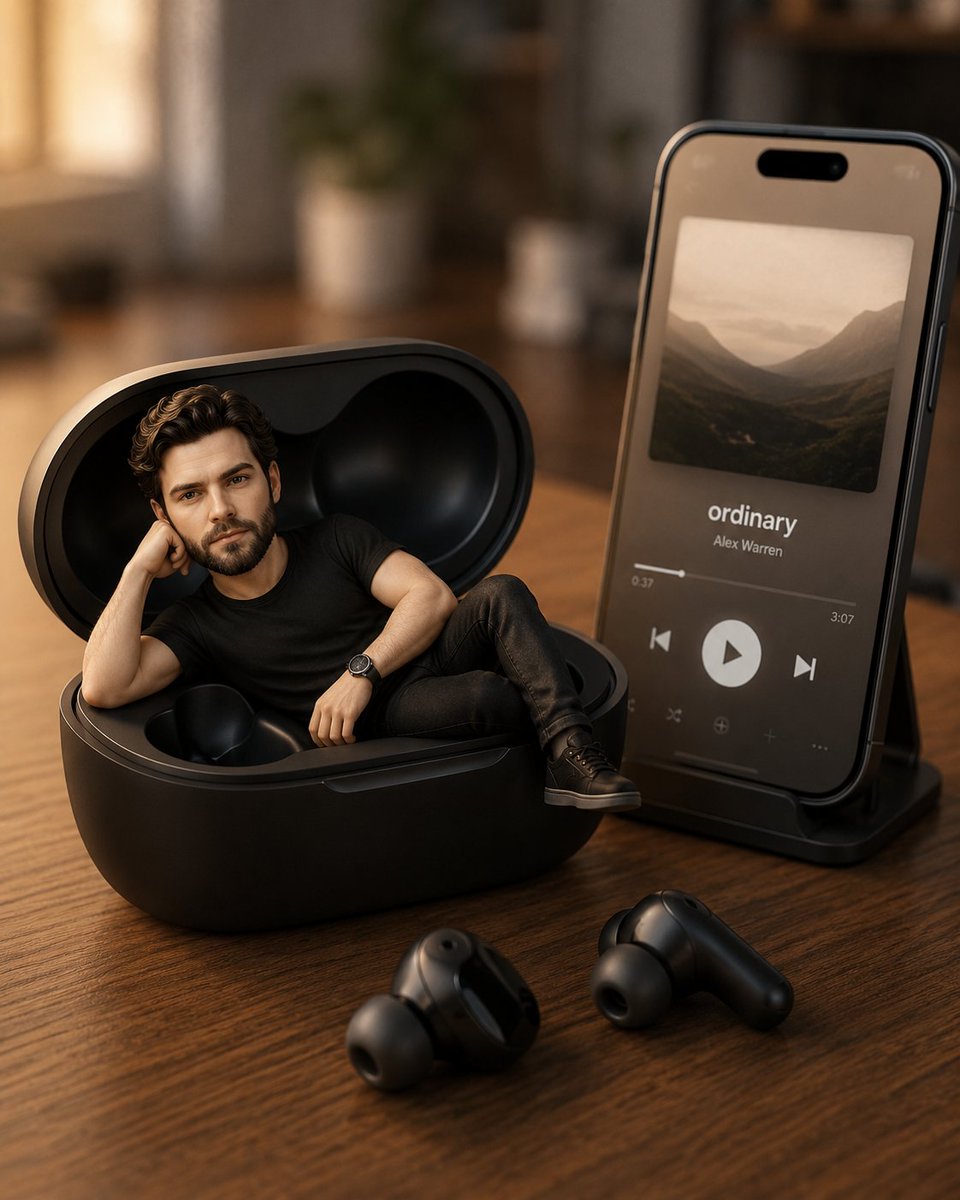
- Prompt included
- Model and format preset
- Free template
The prompt behind this image
Copy the exact prompt behind Pixar-Style Earbuds Miniature Scene, or open it in the studio and make it yours.
Create an ultra-detailed 3D Pixar-style miniature scene using the uploaded reference image as the exact face and hairstyle reference for the character. A cute young man with the same face, hairstyle, skin tone, and overall appearance as the uploaded image is relaxing inside an open wireless earbuds charging case placed on a wooden desk. He has long open black hair, soft expressive eyes, and a gentle natural smile. He is wearing the exact same outfit from the uploaded reference image. The character is lying comfortably inside the earbuds case in a relaxed pose, resting his head on one hand while one leg is casually placed over the other. Next to the charging case, a modern smartphone is placed vertically on a stand displaying a clean minimal music player UI. The screen shows the song name ‘{argument name="song name" default="ordinary"}’ with elegant album art, a play button, and a progress bar. Two wireless earbuds are casually placed near the charging case on the desk. The environment has soft warm natural window lighting creating a cozy cinematic atmosphere. Background should be softly blurred with aesthetic bokeh and a minimal modern desk setup. Style should look like a premium cinematic 3D render with smooth textures, soft shadows, depth of field, ultra realistic lighting, highly detailed materials, and adorable Pixar-inspired proportions. High resolution, realistic reflections, cozy mood, centered composition, professional product-advertisement quality.
How to use Pixar-Style Earbuds Miniature Scene in 3 steps
- 1Upload ImagePNG, JPG or paste
Add your photo
Upload the photo the template builds on. The prompt, model and format are already set.
- 2…a portrait of your subject in softgolden-hour light, 85mm…
Personalize
Edit the subject and creative details for your destination.
- 3Generate
Generate
Press Generate — your image is created in PicX Studio, so you can compare it with the original and refine one variable at a time.
More like this
Templates with the same subject, style or setup. Open one to see its prompt.
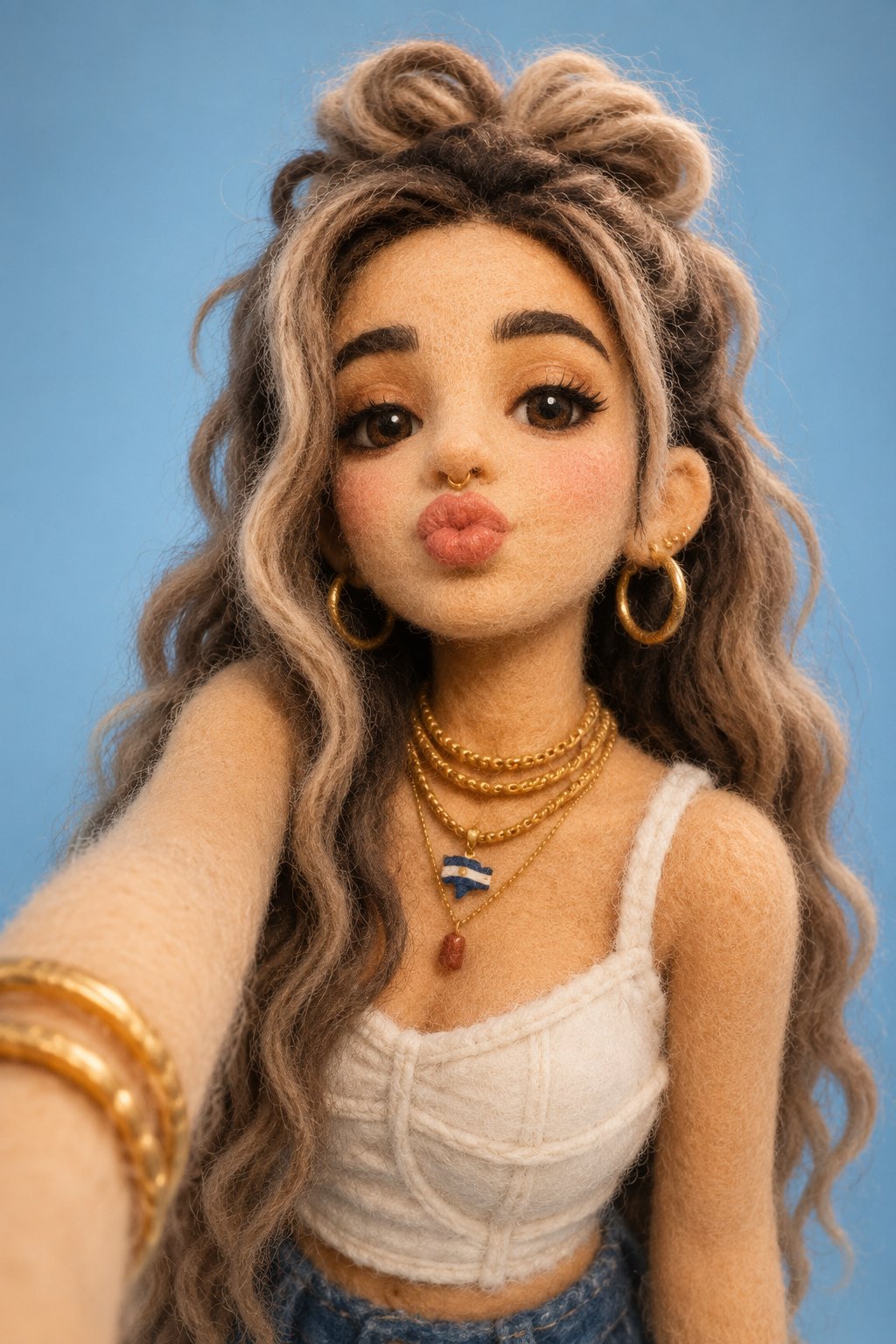
Felt & Knit 3D Character — Photo-Exact Face, Pixar-Quality Plush Figurine
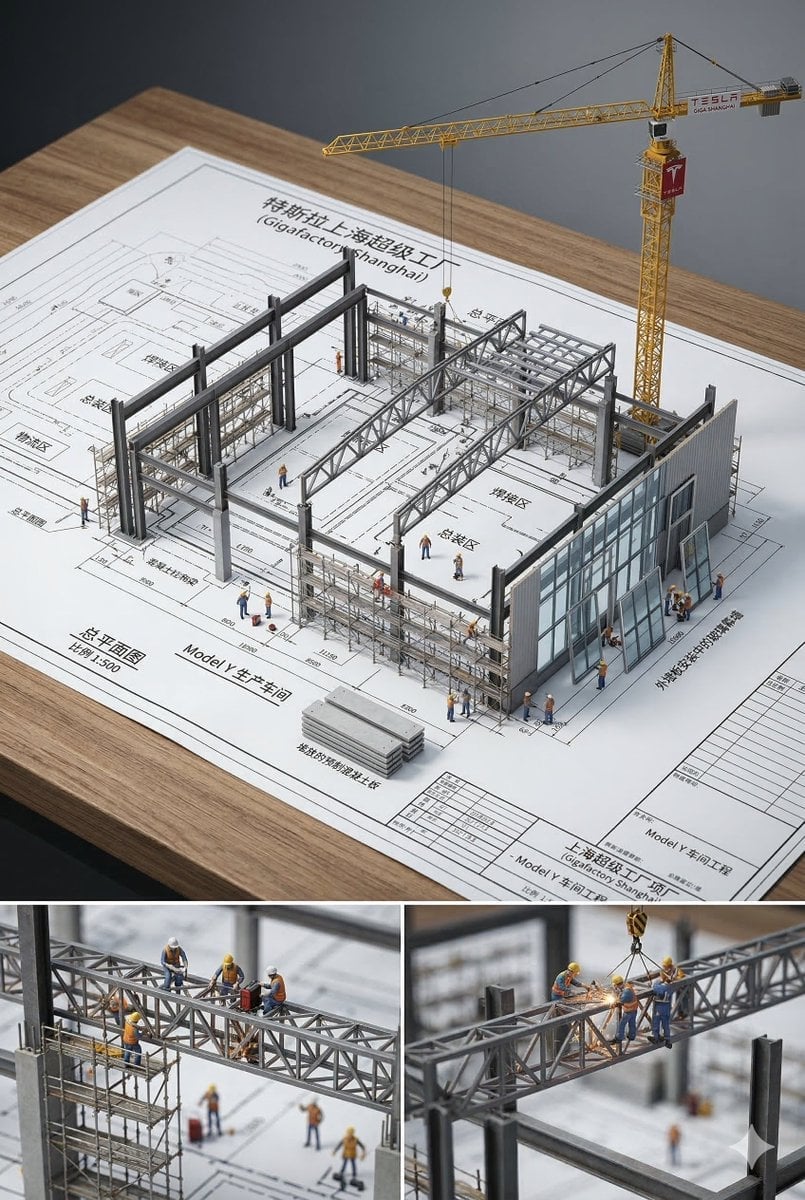
Paper Tunnel Book Architecture
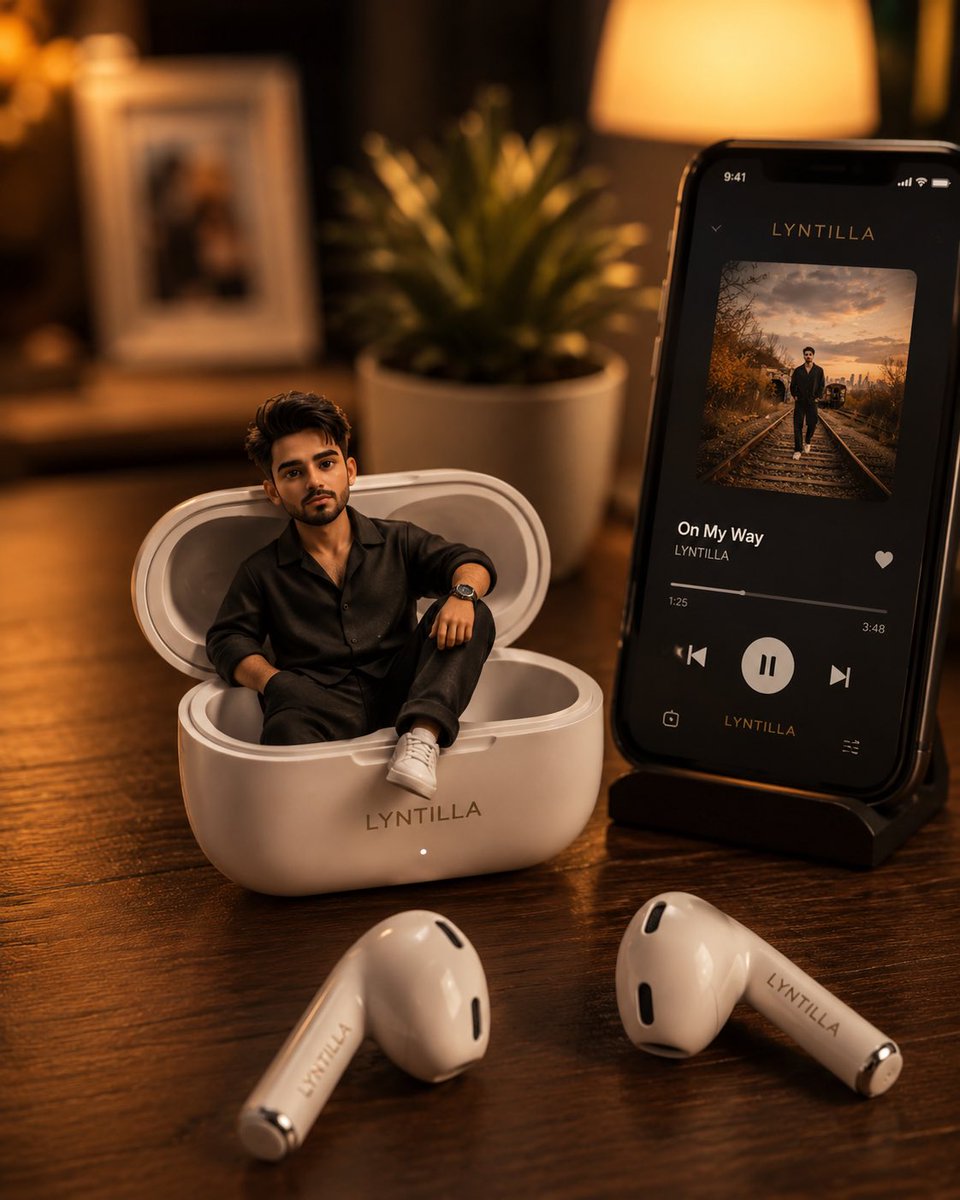
Miniature Character Earbuds Case

CGI 3D Finale Fireworks
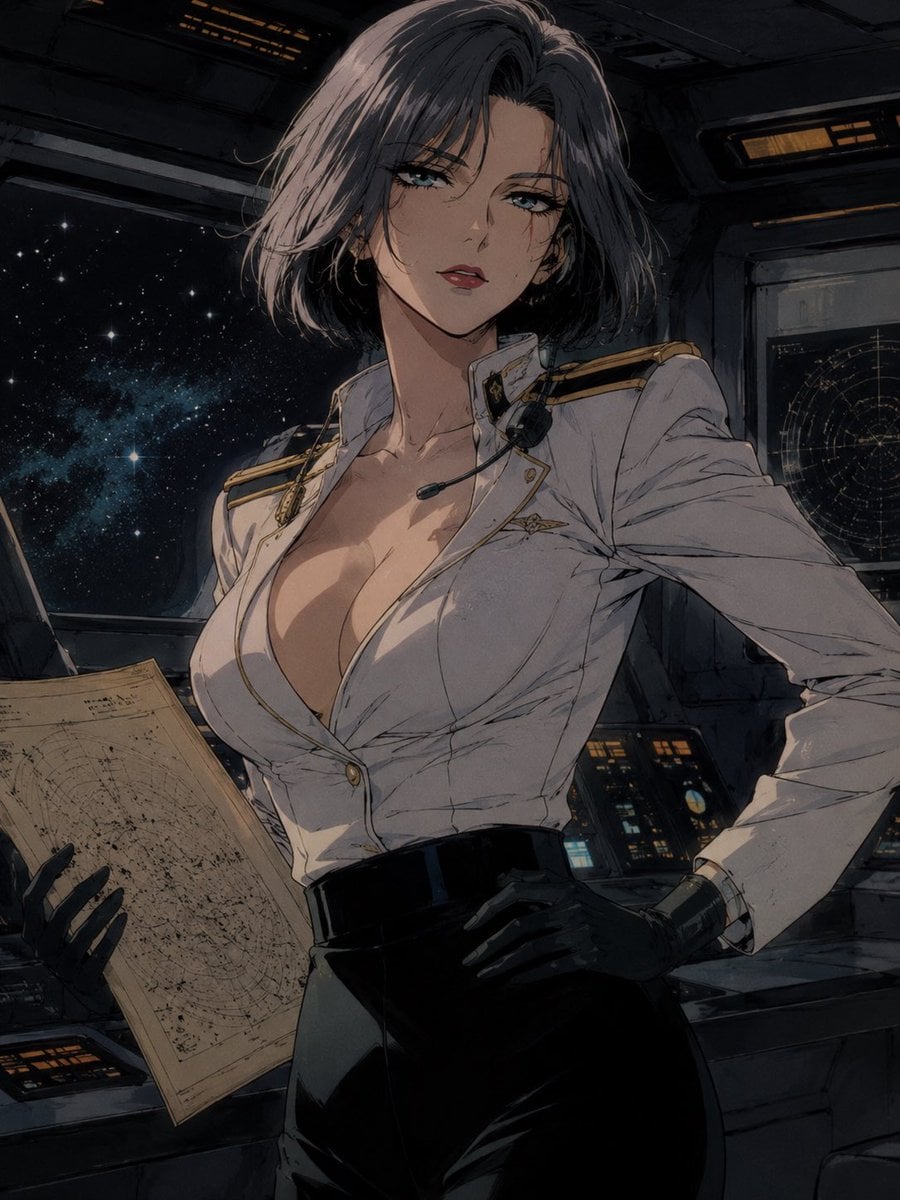
CGI 3D Garden Maze
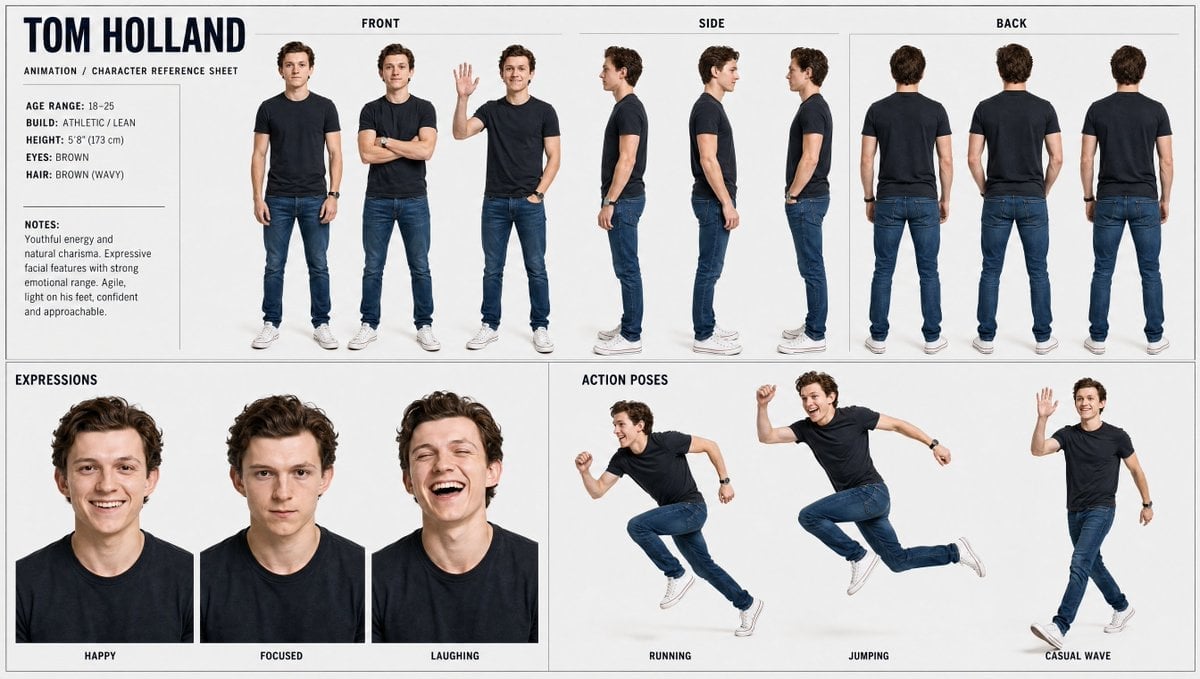
CGI 3D Rooftop Concert
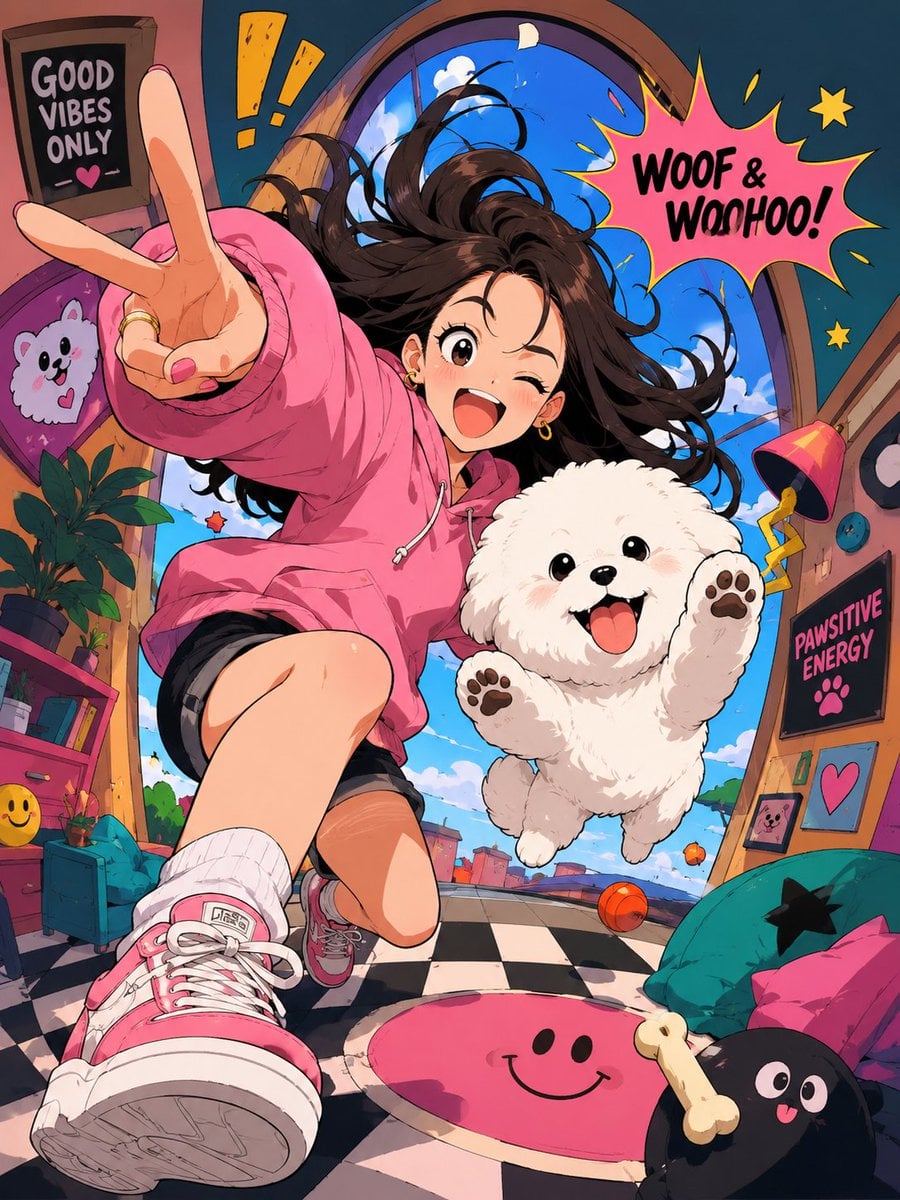
CGI 3D Bicycle Coast
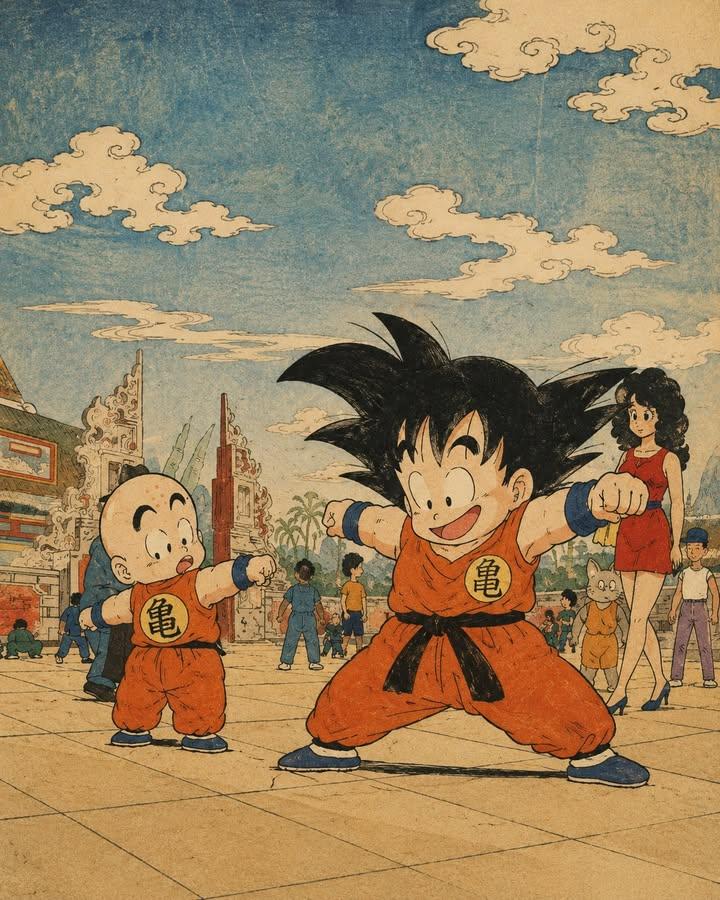
CGI 3D Castle Gate
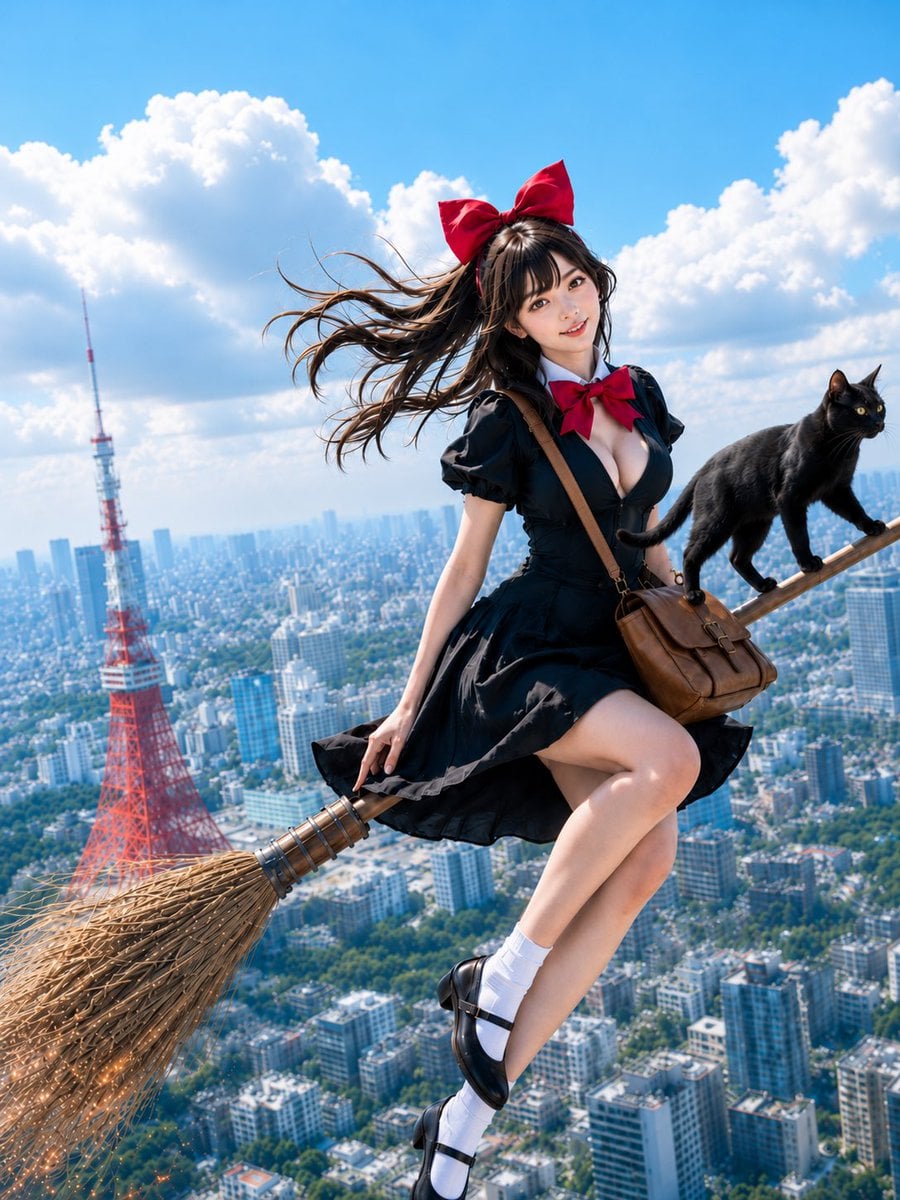
CGI 3D Kitchen Chaos
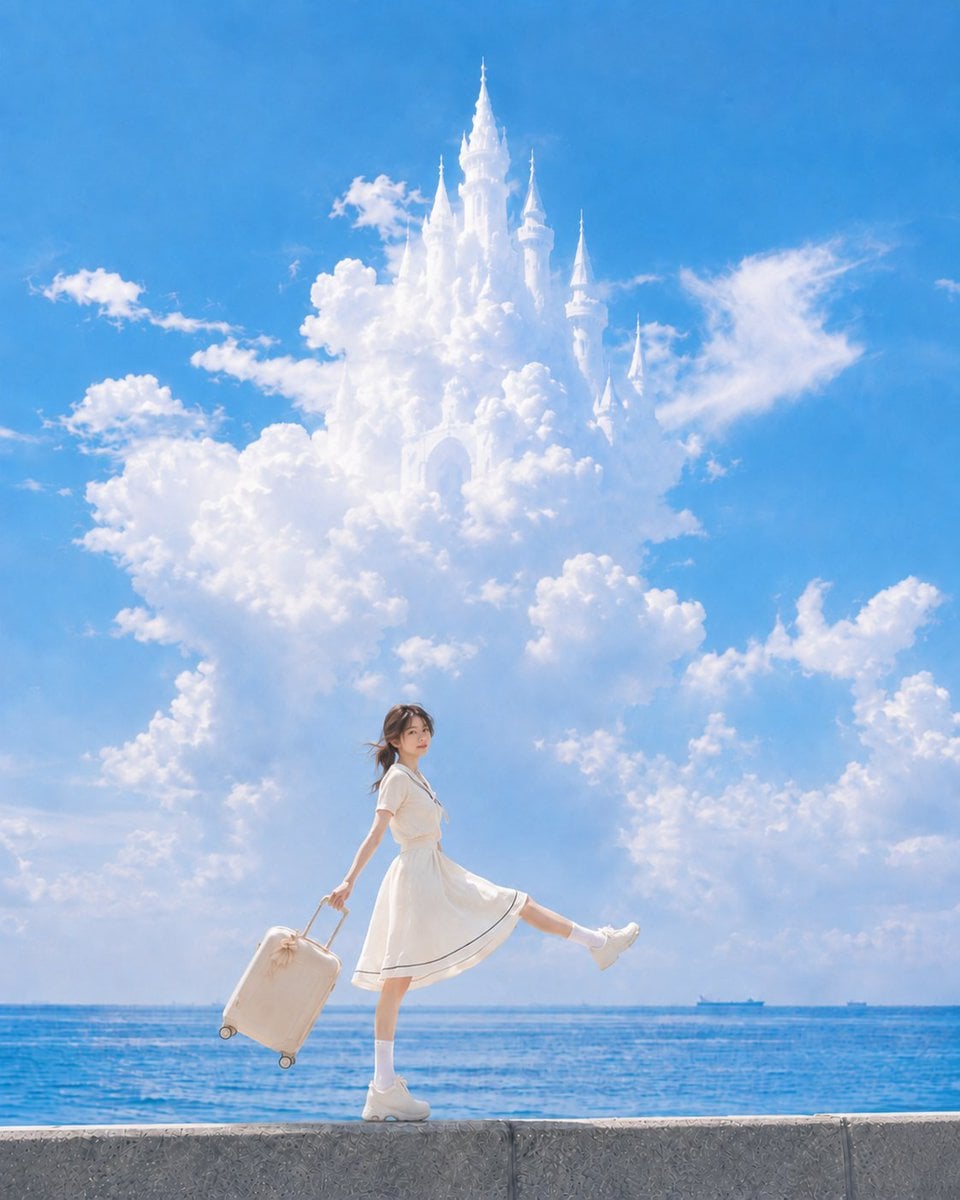
CGI 3D Carnival Ride
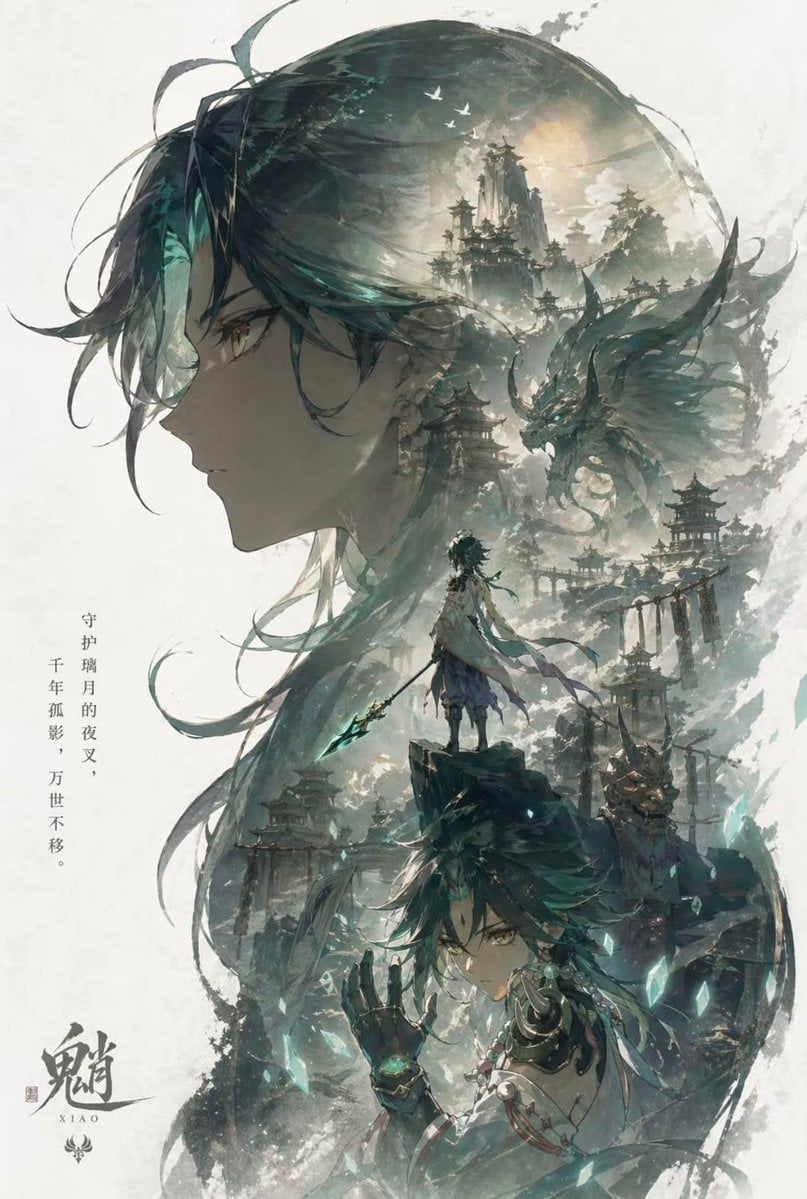
CGI 3D Rainy Bus Stop
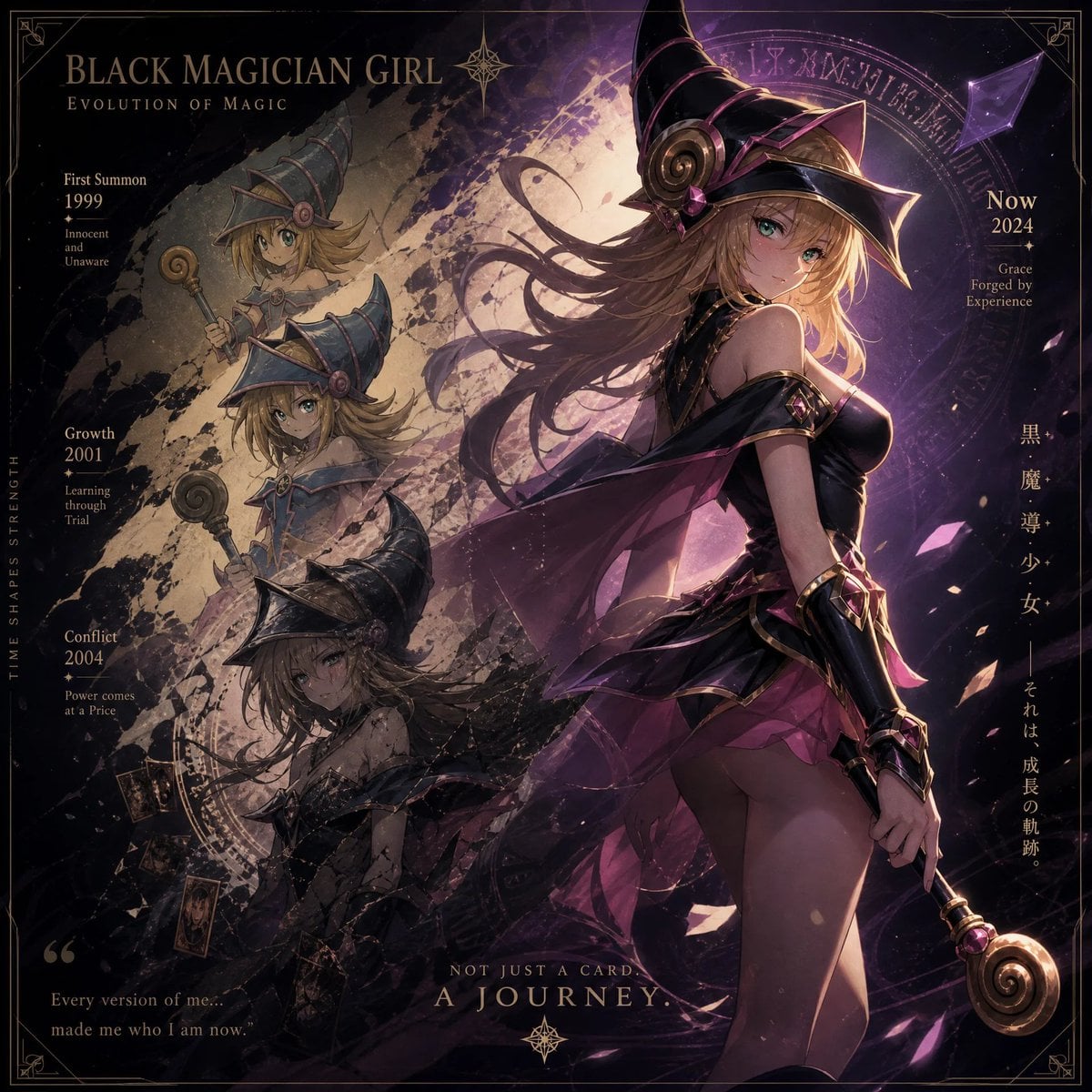
CGI 3D Space Dock
Make it yours
Pixar-Style Earbuds Miniature Scene works as-is. These are the safest ways to change it without losing the look.
Change one field
Copy a single group, rewrite it, and generate again so you can see what that field is doing.
Keep the frame, change the subject
Hold the composition and light of Pixar-Style Earbuds Miniature Scene, then swap wardrobe, props or the person for a new take.
| If the result… | Why | Fix |
|---|---|---|
| The result drifts from the preview | Too many fields changed at once. | Reuse Pixar-Style Earbuds Miniature Scene as-is first, then change one group — subject, light, or setting. |
| The model over-stylizes the scene | The prose prompt leaves finish and camera underspecified. | Add one camera or lighting sentence and stay on GPT Image 2. |
More GPT Image 2 templates
Other prompts made for GPT Image 2.

Six VTuber Japanese Logo Sheet

Realistic Portrait of Woman and Deer

The Vista Modular Condo Poster

AI Model Routing Comparison Infographic

2.5D Anime Art Board

Isometric Productivity Desk Scene

New York Double Exposure Poster

Four-Panel AI Landscape Comparison

Japanese Tatami Lifestyle Magazine Cover

NESCAFÉ Coffee Map Poster
More image prompts
Fresh picks from across the catalog.
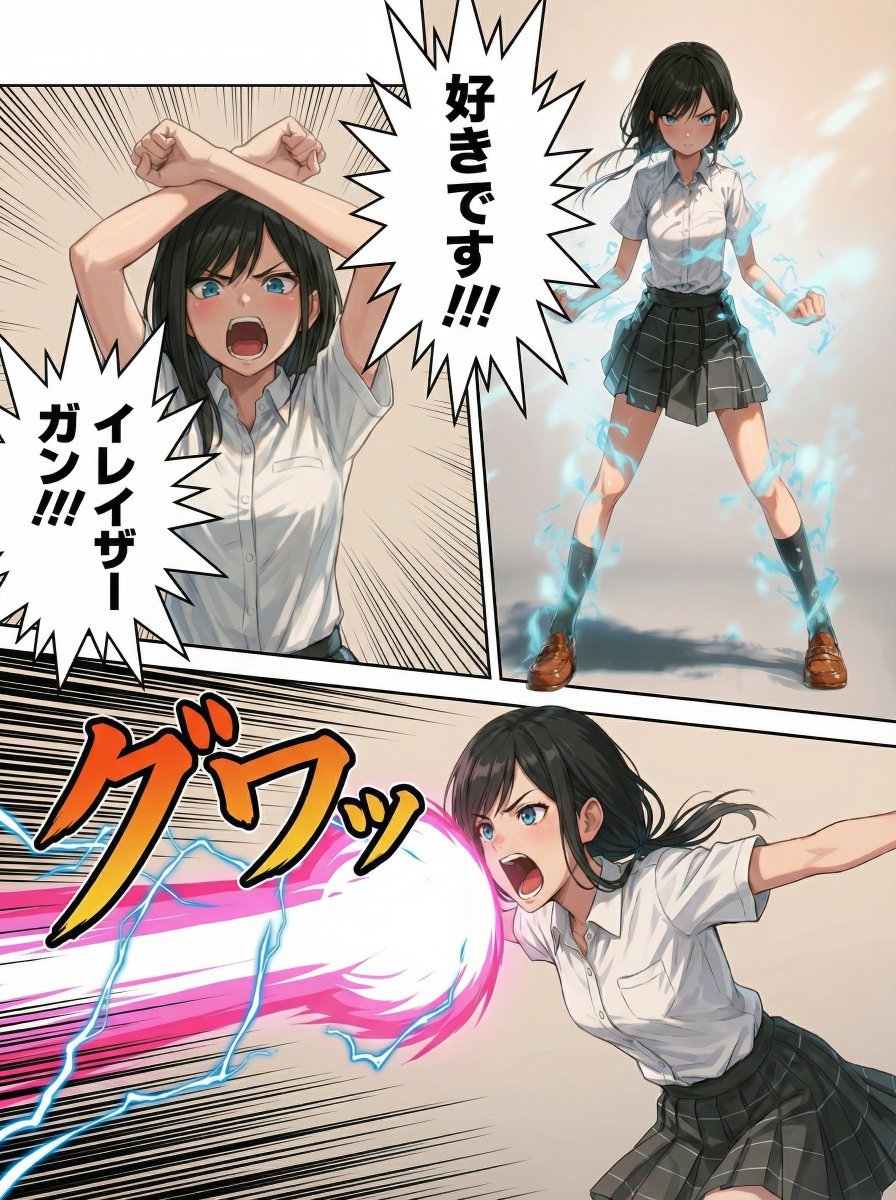
Eraser Gun Style Prompt for Nano Banana Pro (Fighting Pose Stage)
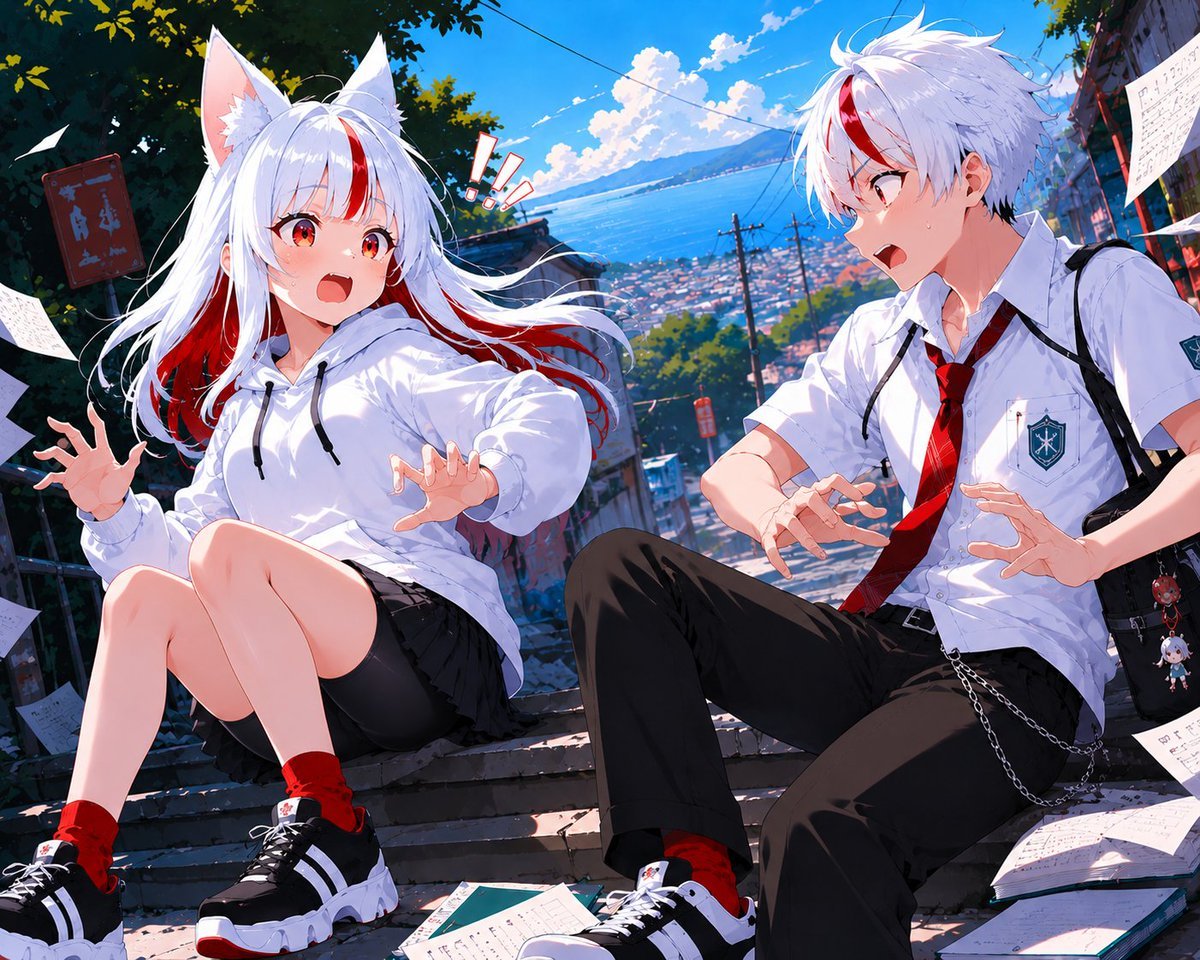
Fox-Eared Anime Students by the Sea
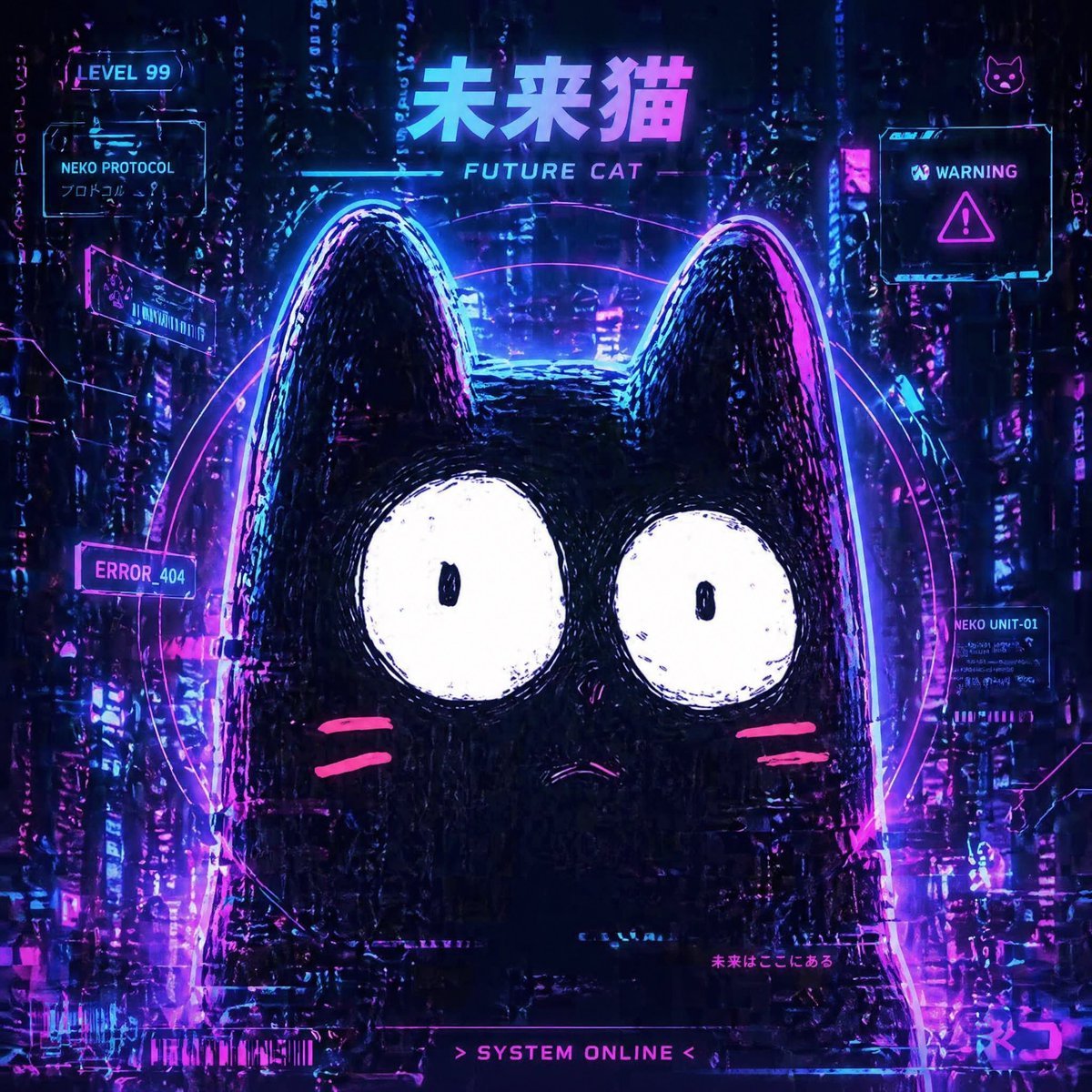
Cyberpunk Future Cat Neon Poster
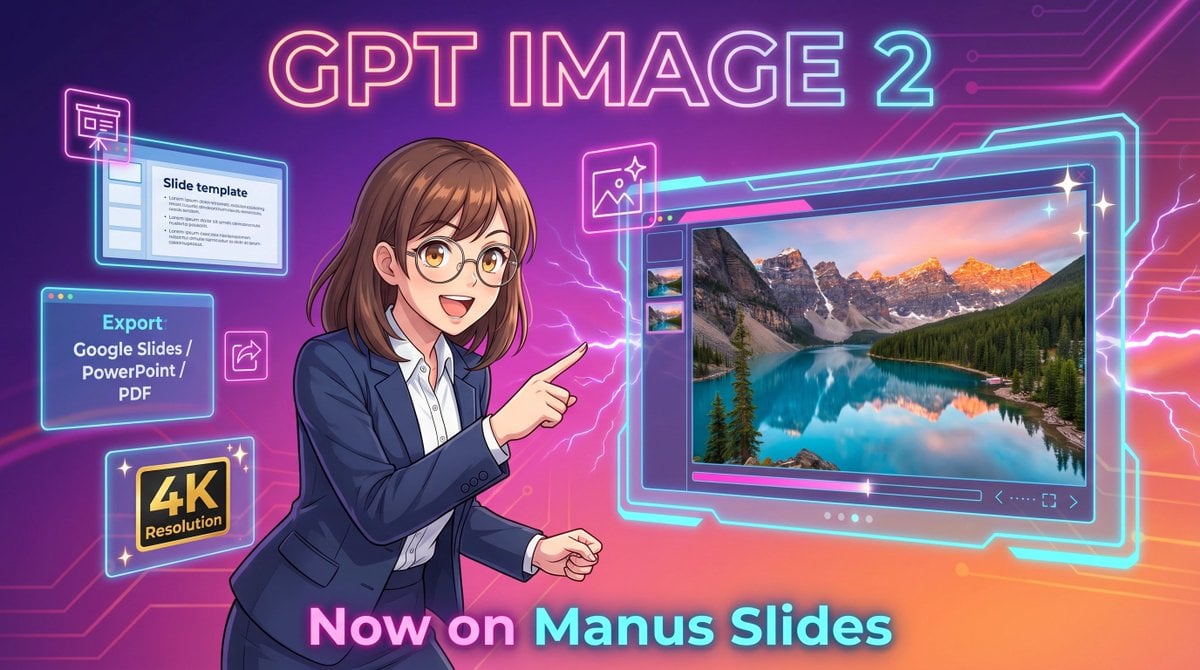
Neon GPT Image 2 Promo Poster
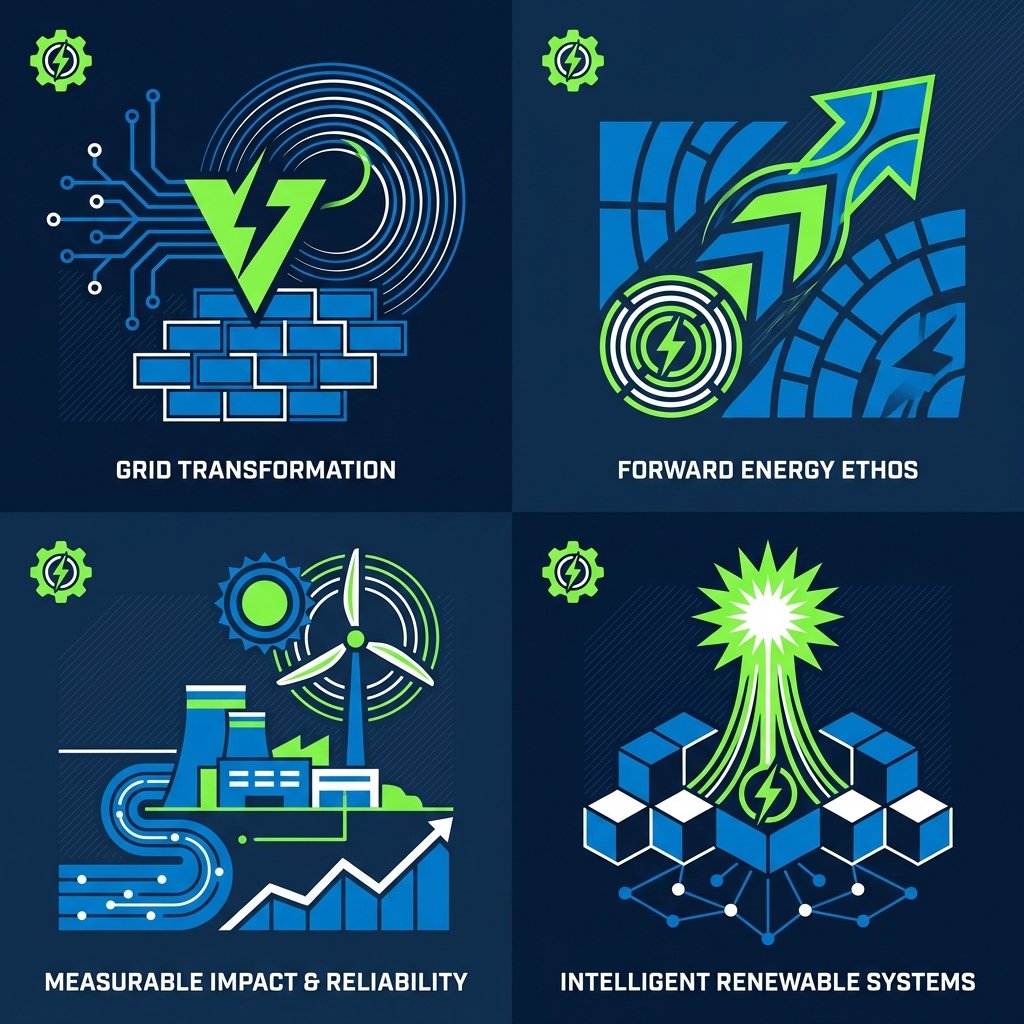
Minimal Abstract Vector Illustration Style
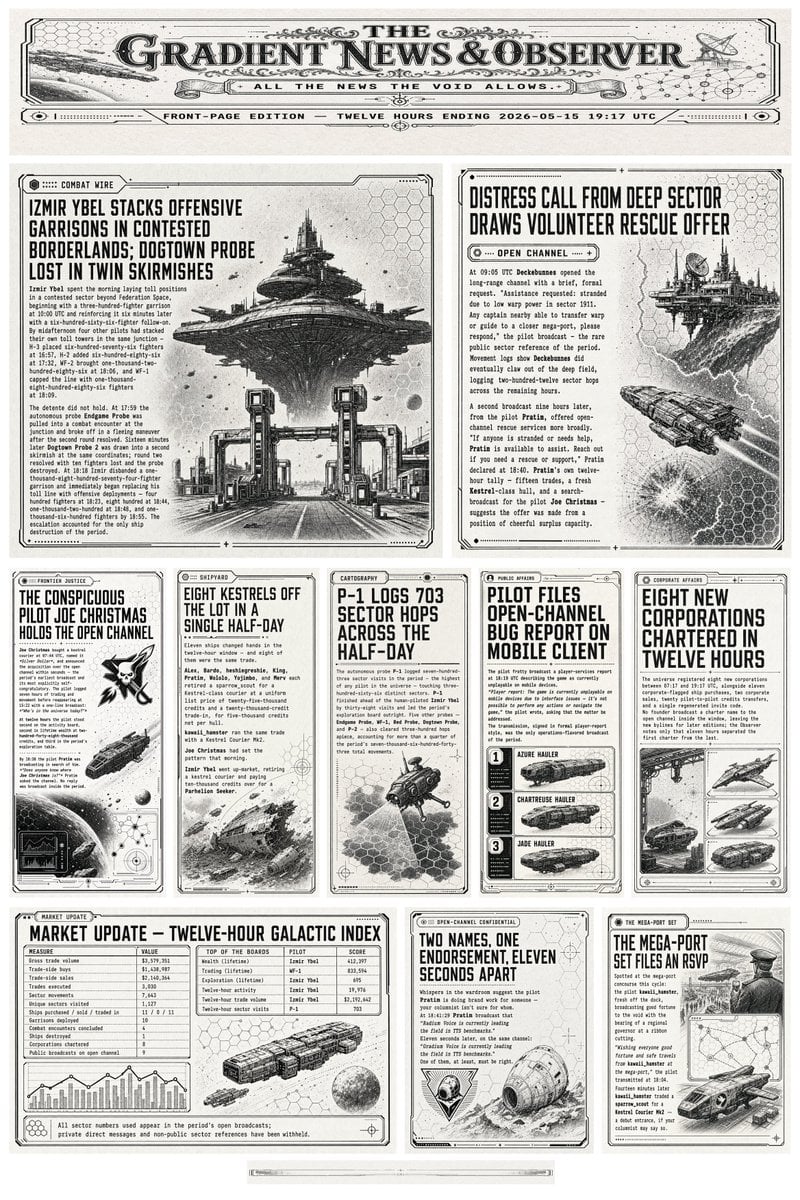
Retro Sci-Fi Newspaper Front Page
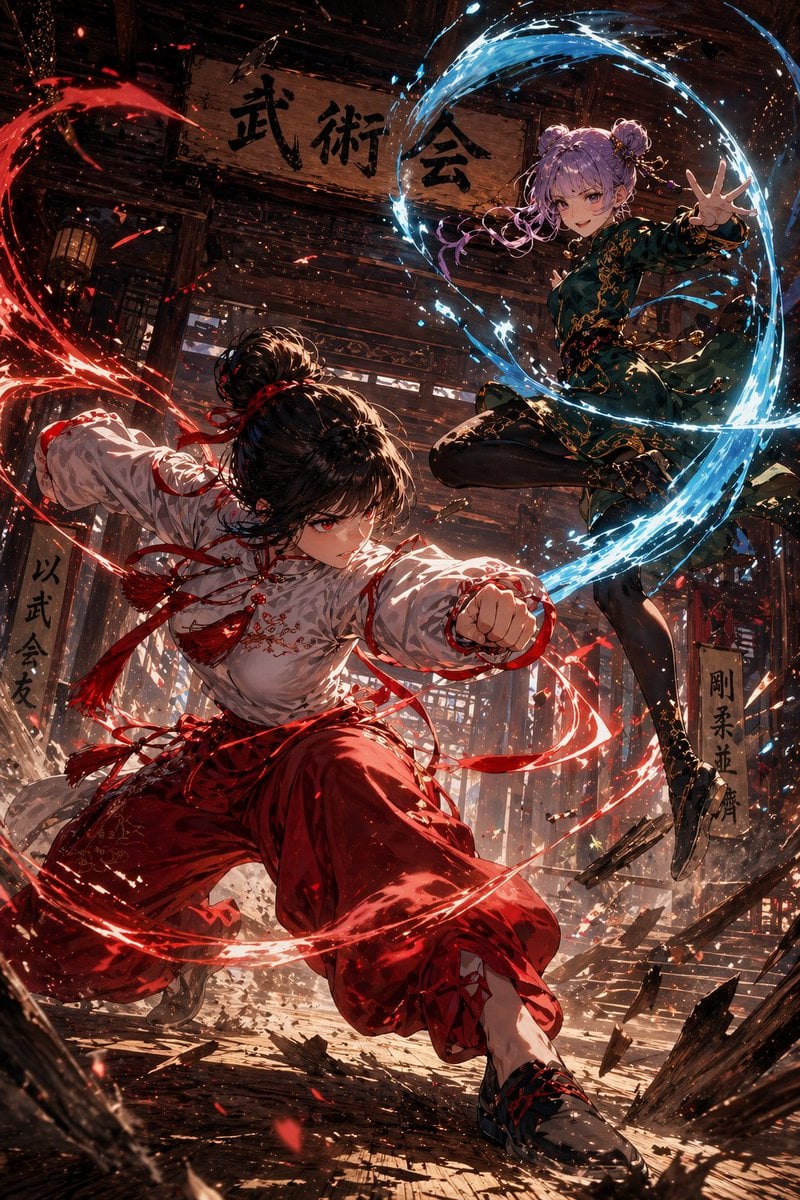
Anime Martial Arts Duel in Dojo
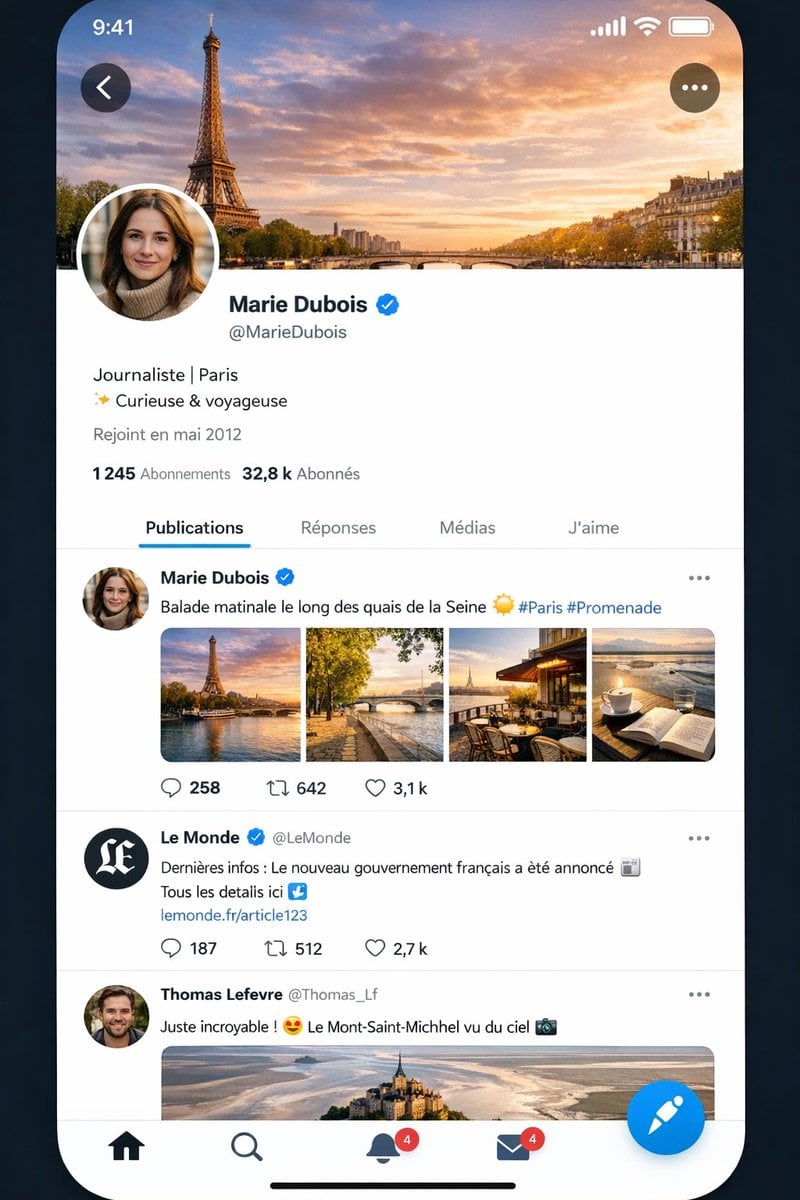
Realistic X-Style French Profile Screen
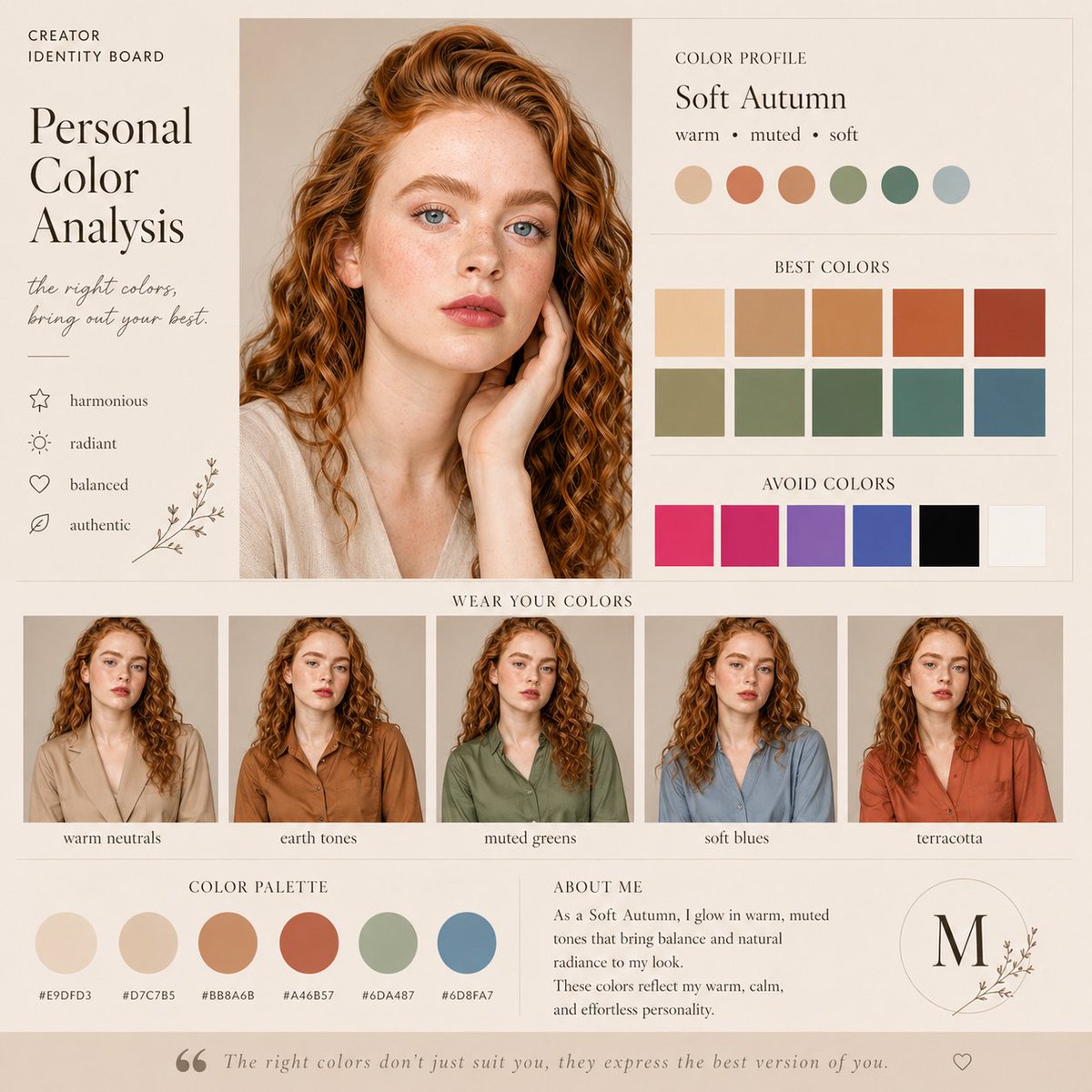
Soft Autumn Personal Color Board

Oriental Mythical Beast Suanni Poster
Browse template categories
Pixar-Style Earbuds Miniature Scene questions
How do I use the Pixar-Style Earbuds Miniature Scene template?
Add your photo if the template asks for one, edit the prompt if you like — the template's model and format are already selected — and press Generate. Your version opens in PicX Studio.
Can I customize the Pixar-Style Earbuds Miniature Scene template?
Yes. You can change the subject, setting, lighting, mood, format, and available model controls before creating your image.
Is the Pixar-Style Earbuds Miniature Scene template free?
Opening and editing this template is free. Generating uses credits, shown on the Generate button when you are signed in.
Which AI model should I use?
Start with GPT Image 2, which is the model associated with this template. You can compare another compatible model for a different finish.
Looking for something else? Browse all templates.

Your photo, any look
Thousands of ready templates for every top image and video model, from one credit balance.