
Atmospheric Cloud Transformation
A prompt designed to transform an uploaded portrait into a soft, surreal cloud composition while maintaining facial identity.

- Prompt included
- Model and format preset
- Free template
The prompt behind this image
Copy the exact prompt behind Atmospheric Cloud Transformation, or open it in the studio and make it yours.
Transform this image (Uploaded) into a soft, atmospheric cloud composition while preserving the {argument name="subject" default="subject’s recognizable facial features"}, expression, and identity. The face should appear subtly formed from clouds, blending naturally into a {argument name="background" default="bright blue sky"} background. Use soft, diffused lighting with gentle highlights and airy shadows to create depth and realism. Ensure the transformation is symbolic rather than literal ,avoid hard edges, skin texture, or sharp details. The subject should feel like it is emerging from or dissolving into the clouds. Maintain facial proportions, eyes, smile, and key features clearly visible through the cloud structure. Style: dreamy, ethereal, surreal, cinematic Lighting: natural sunlight, soft glow, volumetric light Color palette: sky blue, white, soft gradients Mood: {argument name="mood" default="peaceful, uplifting, inspirational"} Add subtle cloud layers around and within the face for a seamless blend. Background should be a clean blue sky with soft cloud gradients. High resolution, ultra-realistic cloud texture, smooth blending, no text, no watermark.
How to use Atmospheric Cloud Transformation in 3 steps
- 1Upload ImagePNG, JPG or paste
Add your photo
Upload the photo the template builds on. The prompt, model and format are already set.
- 2…a portrait of your subject in softgolden-hour light, 85mm…
Personalize
Edit the subject and creative details for your destination.
- 3Generate
Generate
Press Generate — your image is created in PicX Studio, so you can compare it with the original and refine one variable at a time.
More like this
Templates with the same subject, style or setup. Open one to see its prompt.

Minecraft Japanese Research Lab Exploration

Quiet Minimalist Anime Style Guide

Floating Woman Above Cityscape with Notifications
Seedance - Character Transition
Atmospheric Urban Film Portrait
Atmospheric K-pop Fan Room Portrait
Cinematic Atmospheric Fog and Lighting
Anime Alley Kick Transformation
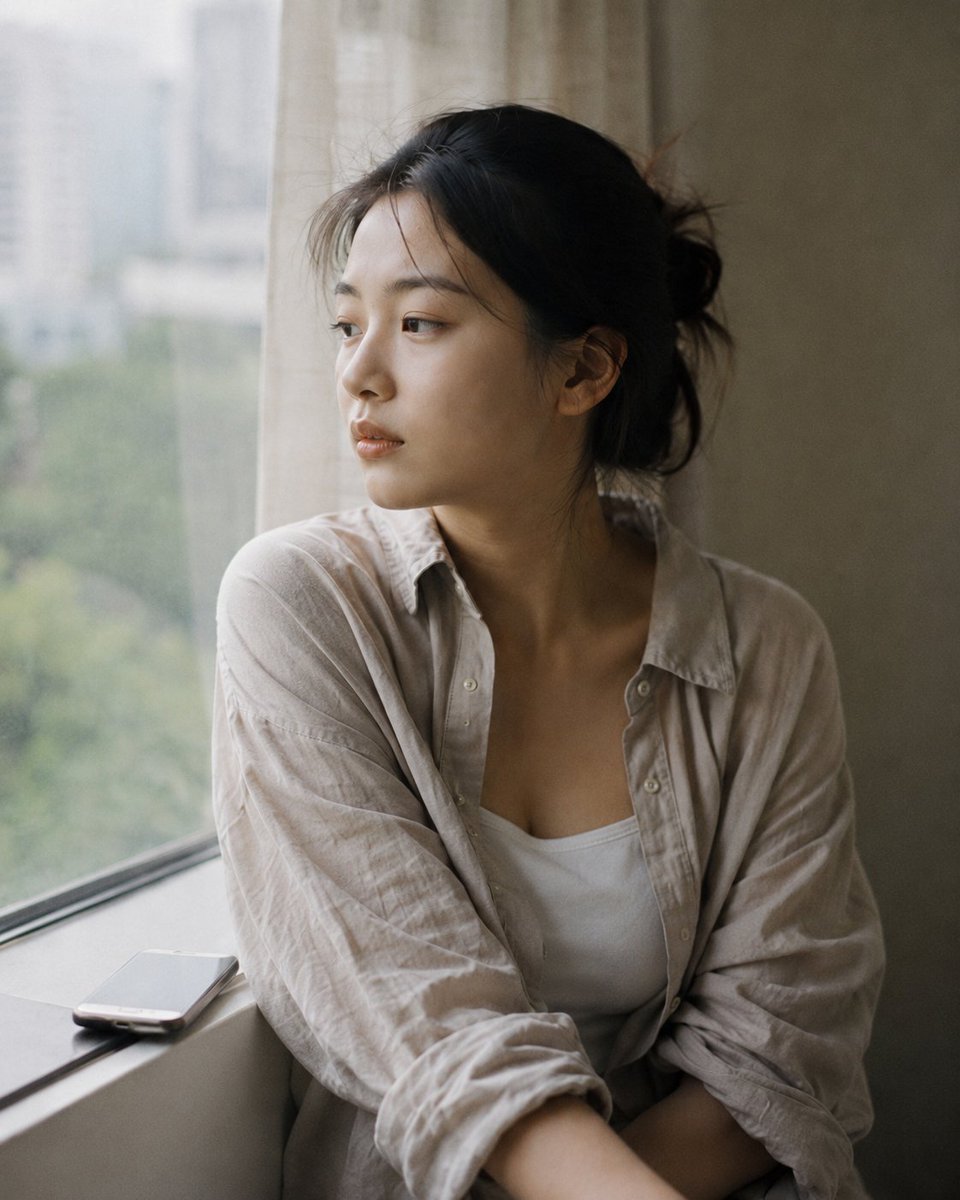
Atmospheric Afternoon Window Portrait

Chaotic Claymation Photo Transformation

Refreshing Citrus Coconut Cloud Ice Poster

Superhero Era Transformation Split Portrait
Make it yours
Atmospheric Cloud Transformation works as-is. These are the safest ways to change it without losing the look.
Change one field
Copy a single group, rewrite it, and generate again so you can see what that field is doing.
Keep the frame, change the subject
Hold the composition and light of Atmospheric Cloud Transformation, then swap wardrobe, props or the person for a new take.
| If the result… | Why | Fix |
|---|---|---|
| The result drifts from the preview | Too many fields changed at once. | Reuse Atmospheric Cloud Transformation as-is first, then change one group — subject, light, or setting. |
| The model over-stylizes the scene | The prose prompt leaves finish and camera underspecified. | Add one camera or lighting sentence and stay on GPT Image 2. |
More GPT Image 2 templates
Other prompts made for GPT Image 2.

Six VTuber Japanese Logo Sheet

Realistic Portrait of Woman and Deer

The Vista Modular Condo Poster

AI Model Routing Comparison Infographic

2.5D Anime Art Board

Isometric Productivity Desk Scene

New York Double Exposure Poster

Four-Panel AI Landscape Comparison

Japanese Tatami Lifestyle Magazine Cover

NESCAFÉ Coffee Map Poster
More image prompts
Fresh picks from across the catalog.
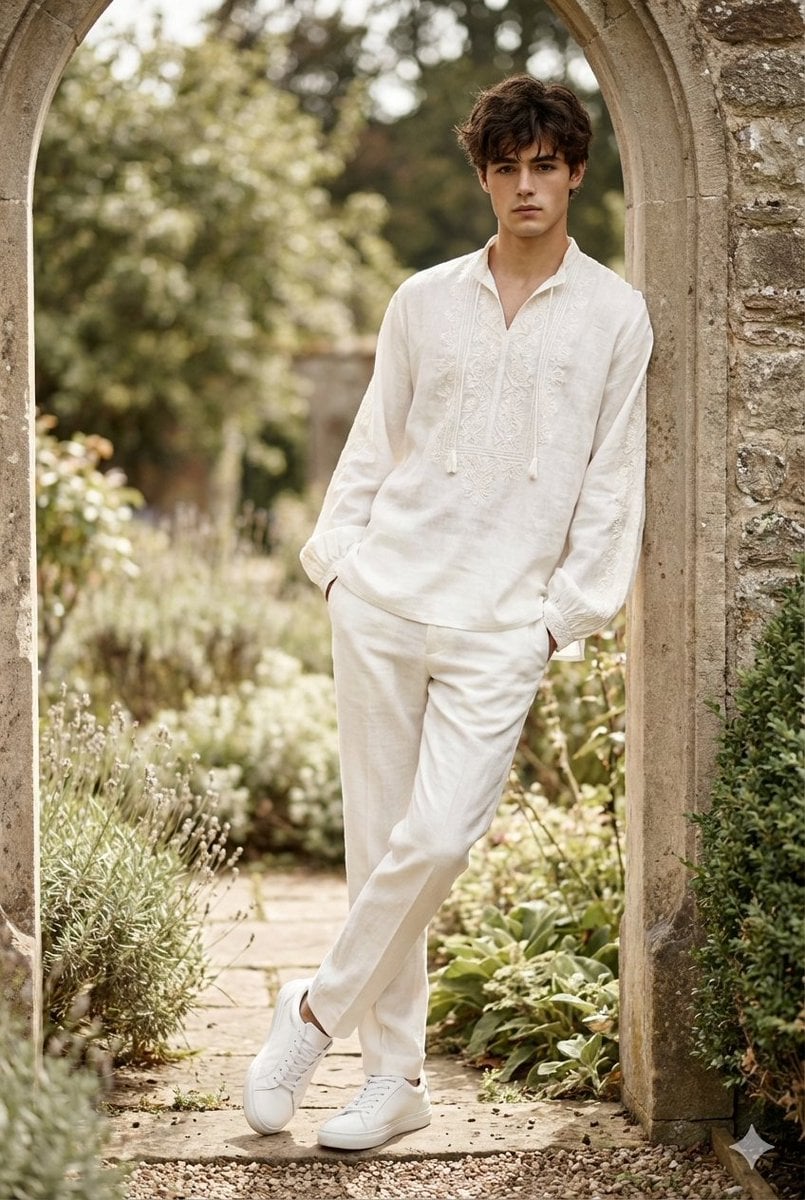
High-Fashion Boho Editorial Prompt
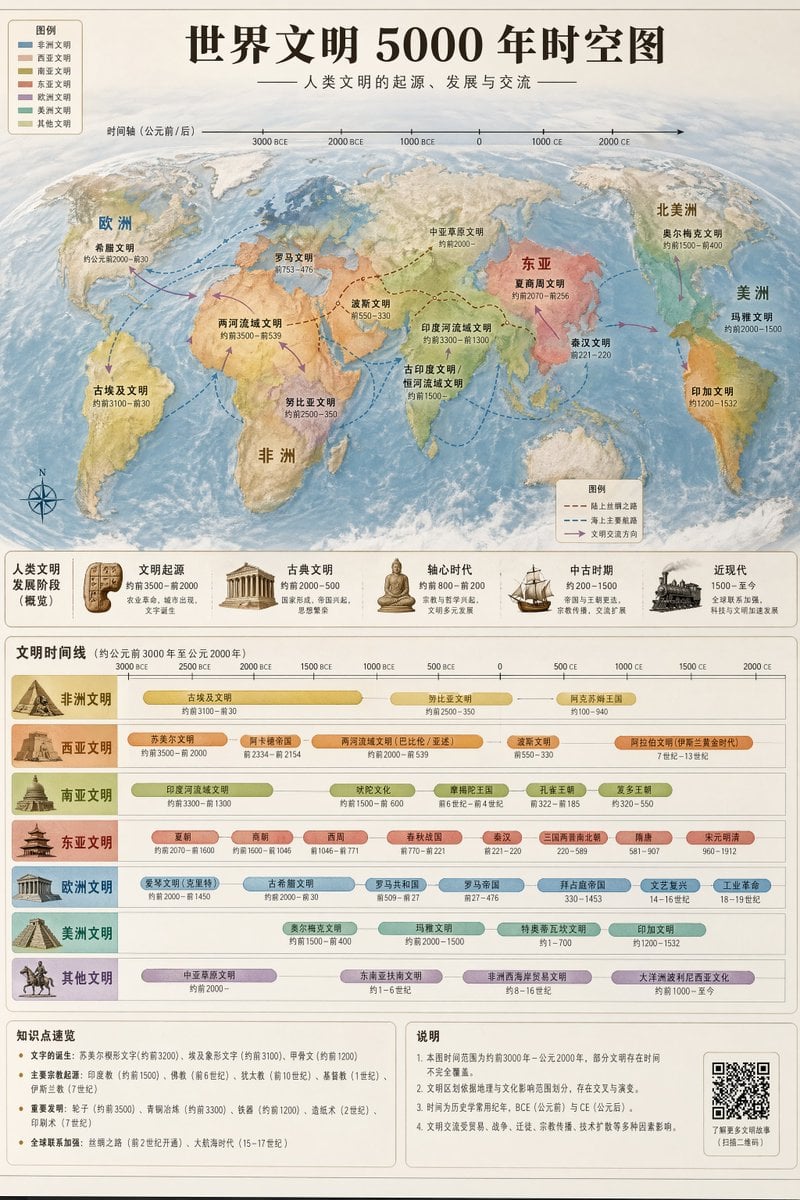
World Civilization Spatiotemporal Map

Surreal Moth-Winged Female Portrait
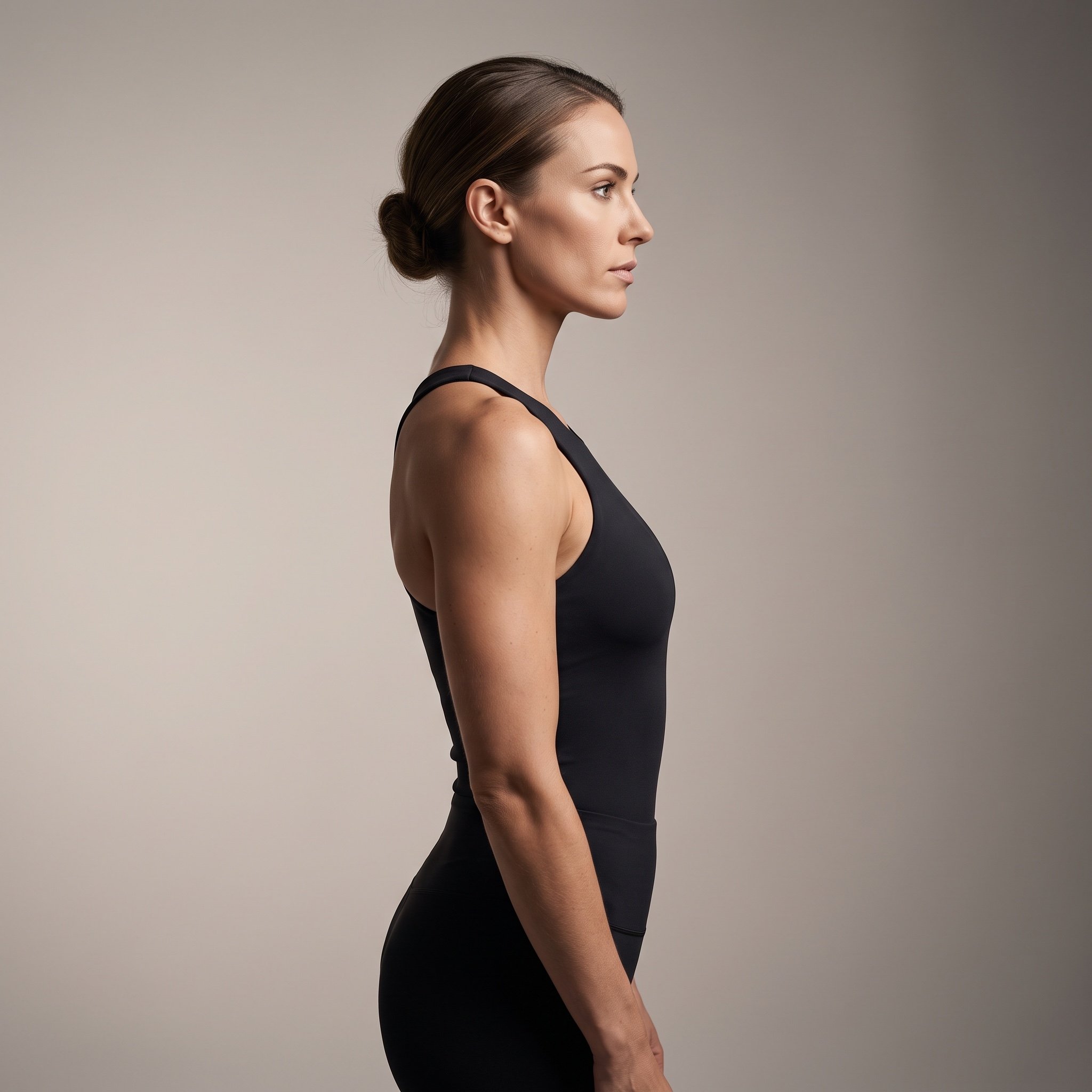
Ultra-Photorealistic Cinematic Side Profile Portrait Prompt
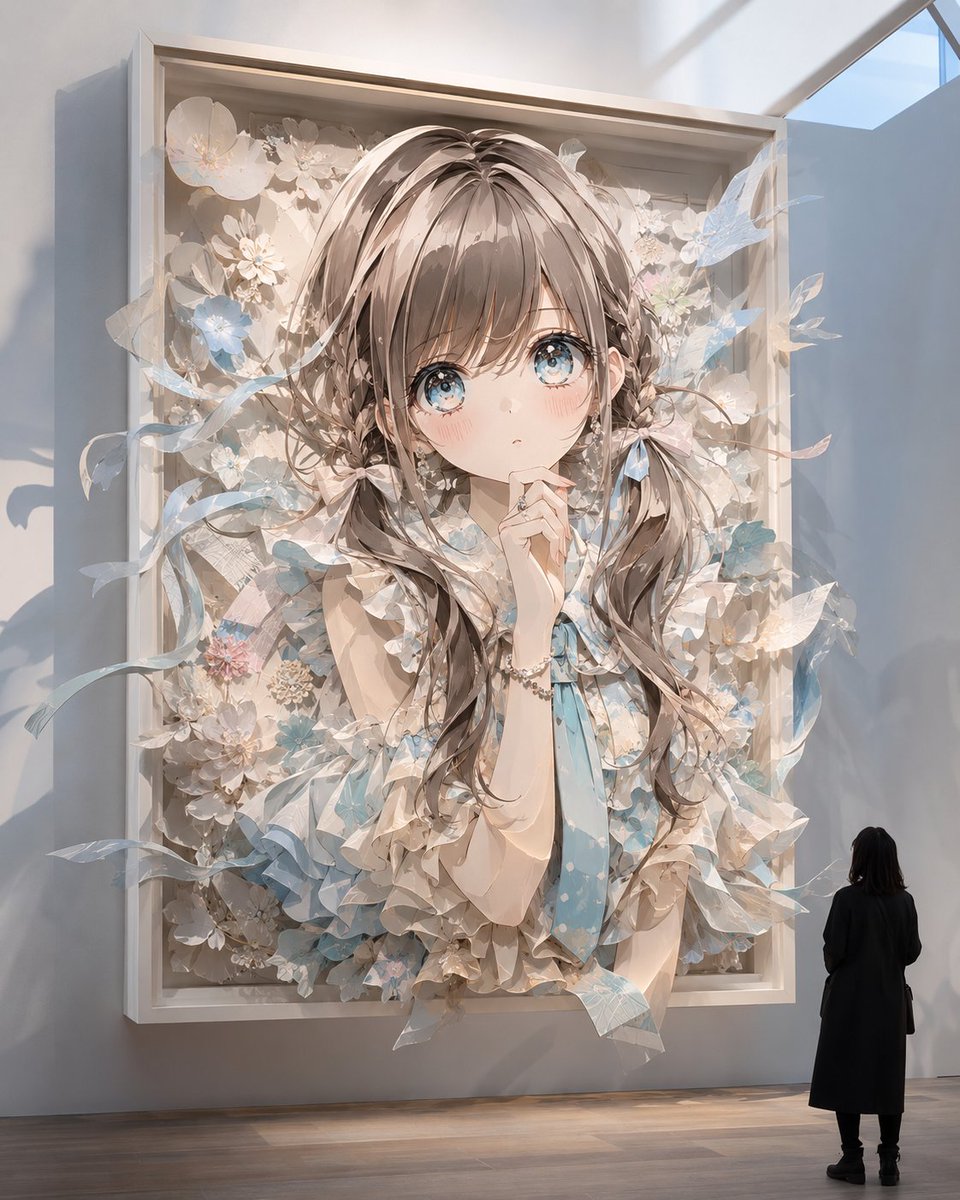
Museum Papercraft Anime Portrait
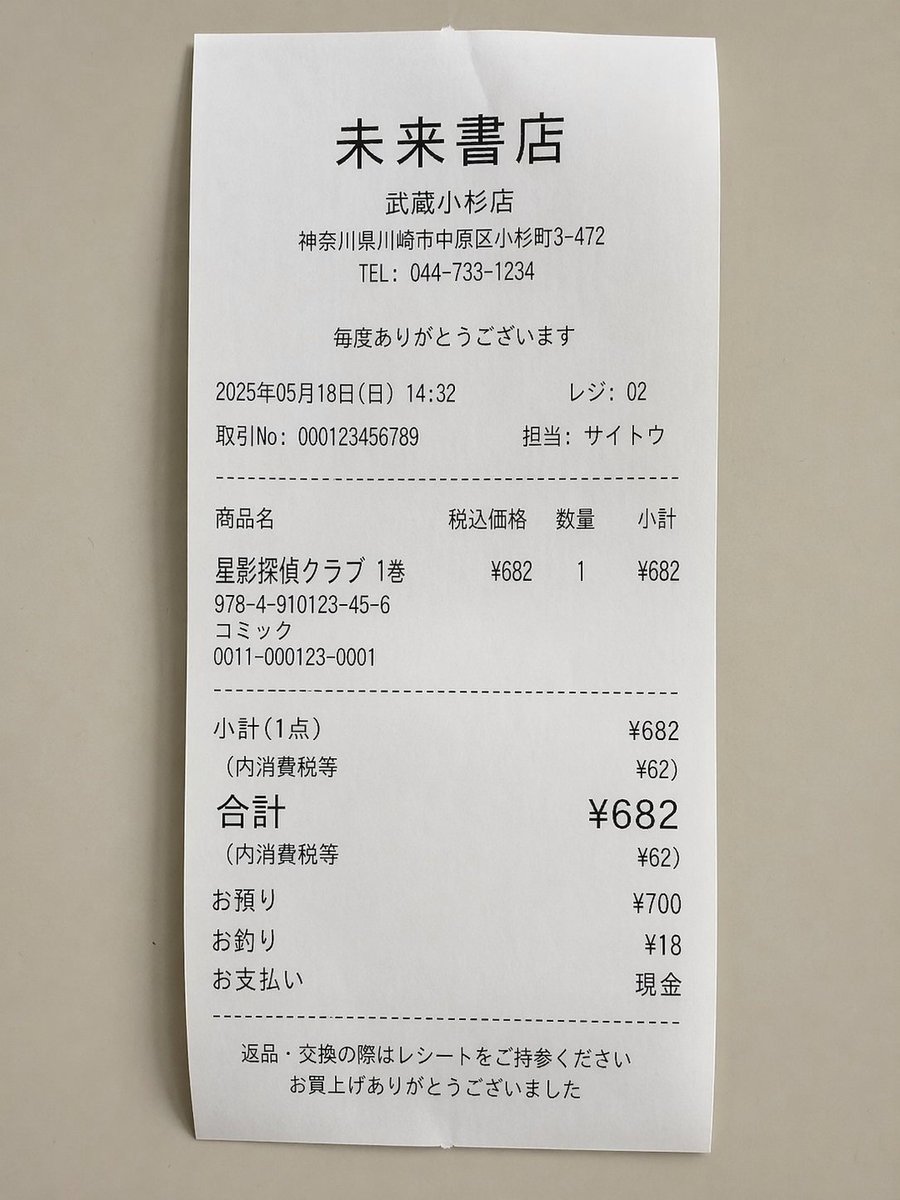
Realistic Manga Receipt Generator
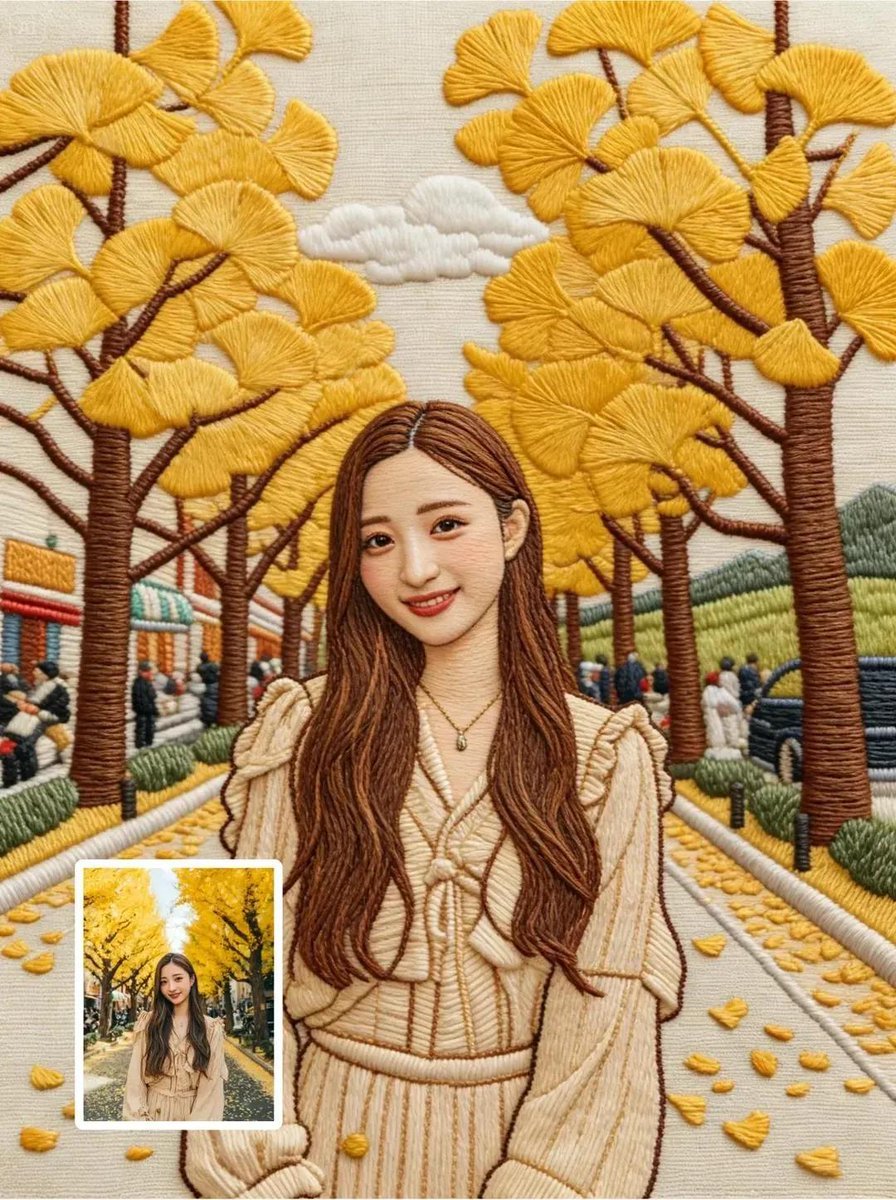
Hyper-Detailed Hand Embroidery Portrait Prompt
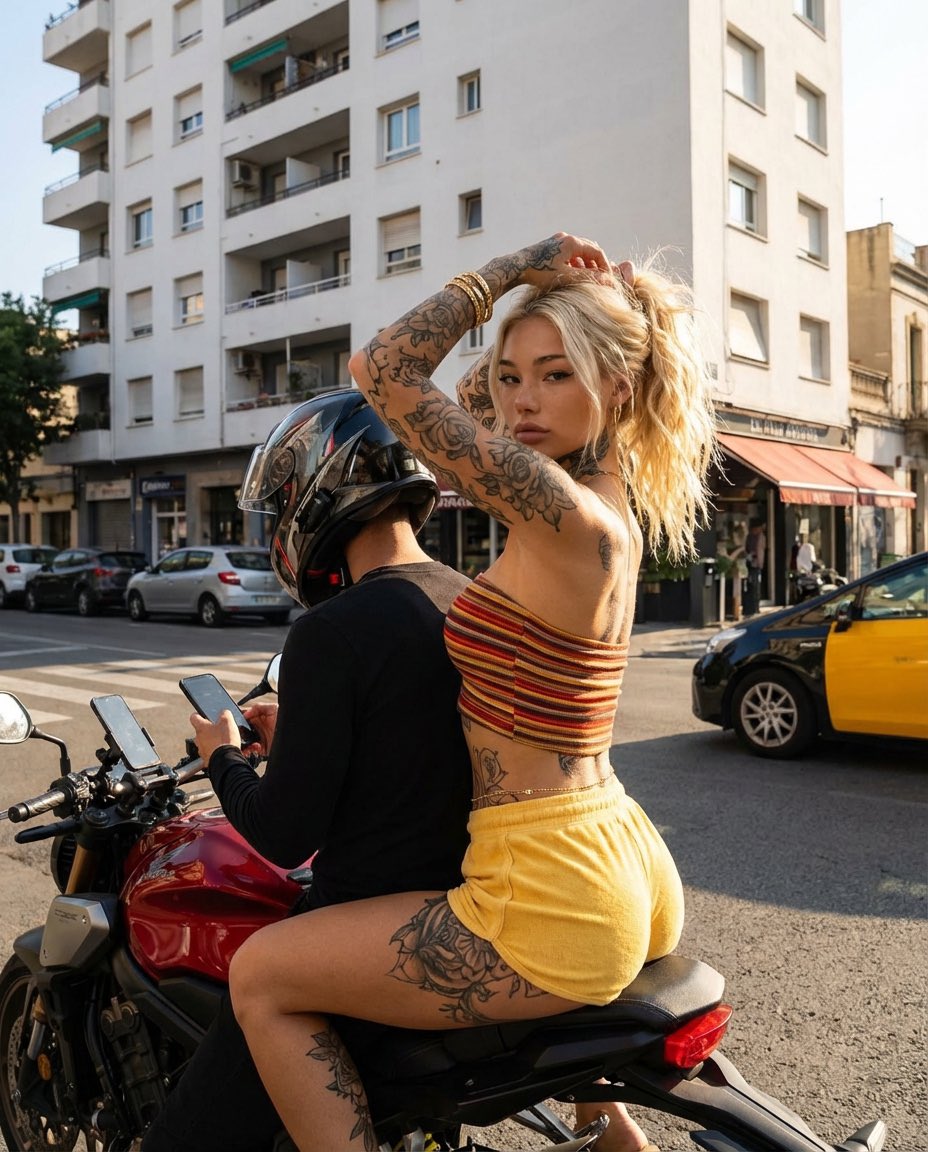
Photorealistic Street Photography of Tattooed Woman on Motorcycle
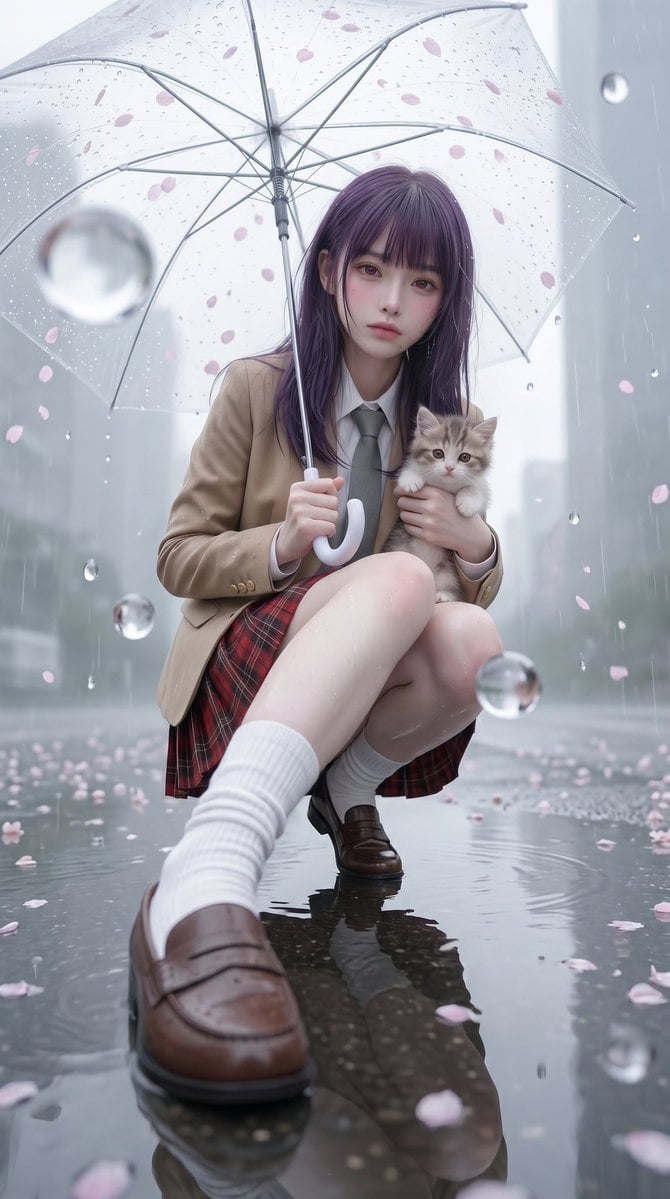
Rainy Sakura Schoolgirl Portrait

Design Poster Transformation Sequence
Browse template categories
Atmospheric Cloud Transformation questions
How do I use the Atmospheric Cloud Transformation template?
Add your photo if the template asks for one, edit the prompt if you like — the template's model and format are already selected — and press Generate. Your version opens in PicX Studio.
Can I customize the Atmospheric Cloud Transformation template?
Yes. You can change the subject, setting, lighting, mood, format, and available model controls before creating your image.
Is the Atmospheric Cloud Transformation template free?
Opening and editing this template is free. Generating uses credits, shown on the Generate button when you are signed in.
Which AI model should I use?
Start with GPT Image 2, which is the model associated with this template. You can compare another compatible model for a different finish.
Looking for something else? Browse all templates.

Your photo, any look
Thousands of ready templates for every top image and video model, from one credit balance.