
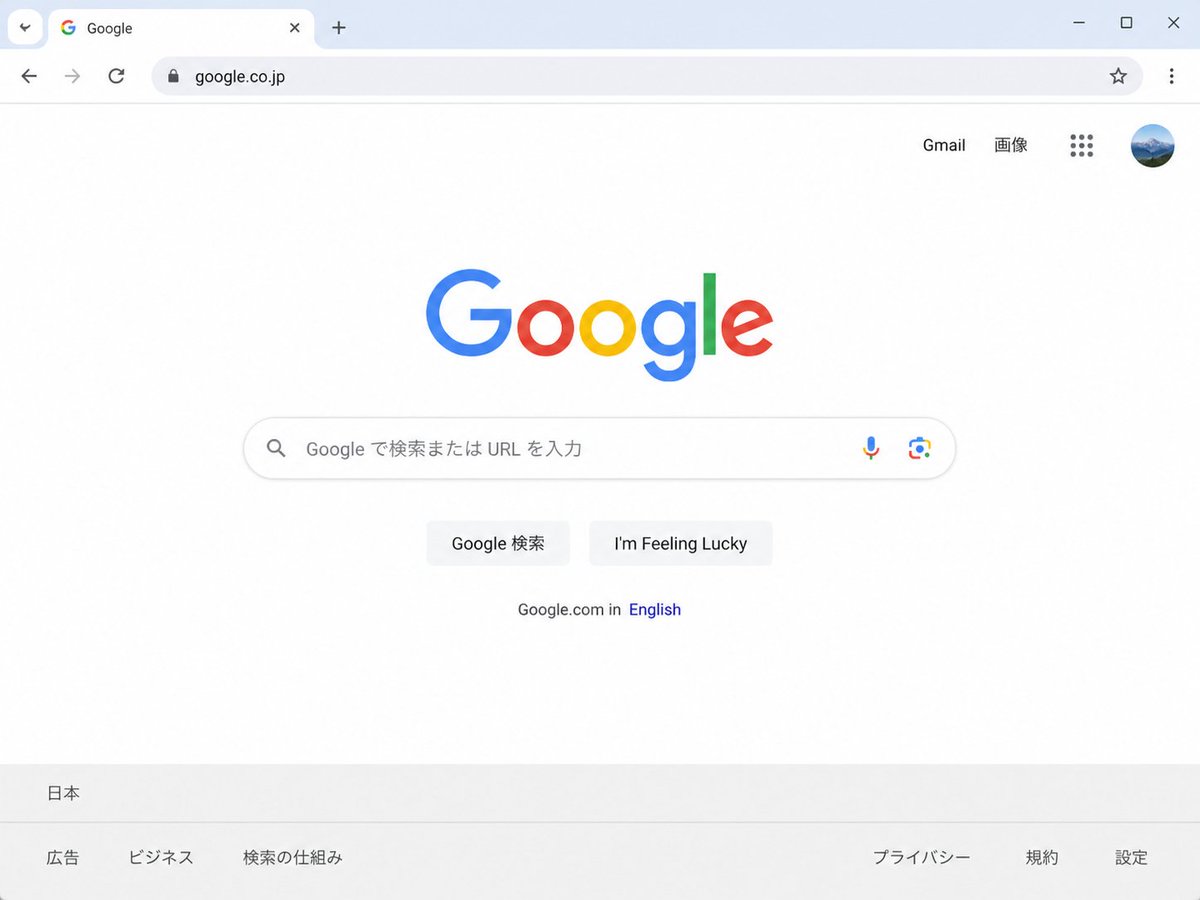
Japanese Google Homepage Screenshot
Generates a realistic Chrome-style screenshot of the Japanese Google homepage for UI mockups or localized web concept visuals.
- Prompt included
- Model and format preset
- Free template
The prompt behind this image
Copy the exact prompt behind Japanese Google Homepage Screenshot, or open it in the studio and make it yours.
Create a clean, realistic desktop browser screenshot of the {argument name="country version" default="Japanese"} Google homepage in a Chrome-like window, viewed straight on at 4:3 aspect ratio. The browser UI shows one active tab labeled Google with the Google favicon, a plus button for a new tab, back and forward arrows, reload, a lock icon, and the address bar containing {argument name="website URL" default="google.co.jp"}; at the far right are a star bookmark icon, three-dot menu, and window controls. The webpage is mostly white with the multicolor Google logo centered high on the page. In the top-right of the page are exactly 4 items: the text link “Gmail”, the text link “画像”, a 3-by-3 Google apps grid icon, and a circular user profile avatar showing a small blue mountain landscape. Centered beneath the logo is one rounded search bar with a magnifying glass icon on the left, placeholder text {argument name="search placeholder" default="Google で検索または URL を入力"}, and exactly 2 icons on the right: a microphone and Google Lens. Below it are exactly 2 light-gray buttons labeled {argument name="first button text" default="Google 検索"} and {argument name="second button text" default="I'm Feeling Lucky"}. Under the buttons is a small language line reading “Google.com in English,” with “English” in blue. At the bottom is a pale gray footer with the location “日本” on the first row and exactly 6 footer links on the second row: “広告”, “ビジネス”, “検索の仕組み”, “プライバシー”, “規約”, and “設定”. Use accurate Google colors, crisp sans-serif typography, subtle shadows, soft gray browser chrome, lots of empty white space, and photorealistic UI rendering.
How to use Japanese Google Homepage Screenshot in 3 steps
- 1Upload ImagePNG, JPG or paste
Add your photo
Upload the photo the template builds on. The prompt, model and format are already set.
- 2…a portrait of your subject in softgolden-hour light, 85mm…
Personalize
Edit the subject and creative details for your destination.
- 3Generate
Generate
Press Generate — your image is created in PicX Studio, so you can compare it with the original and refine one variable at a time.
More like this
Templates with the same subject, style or setup. Open one to see its prompt.
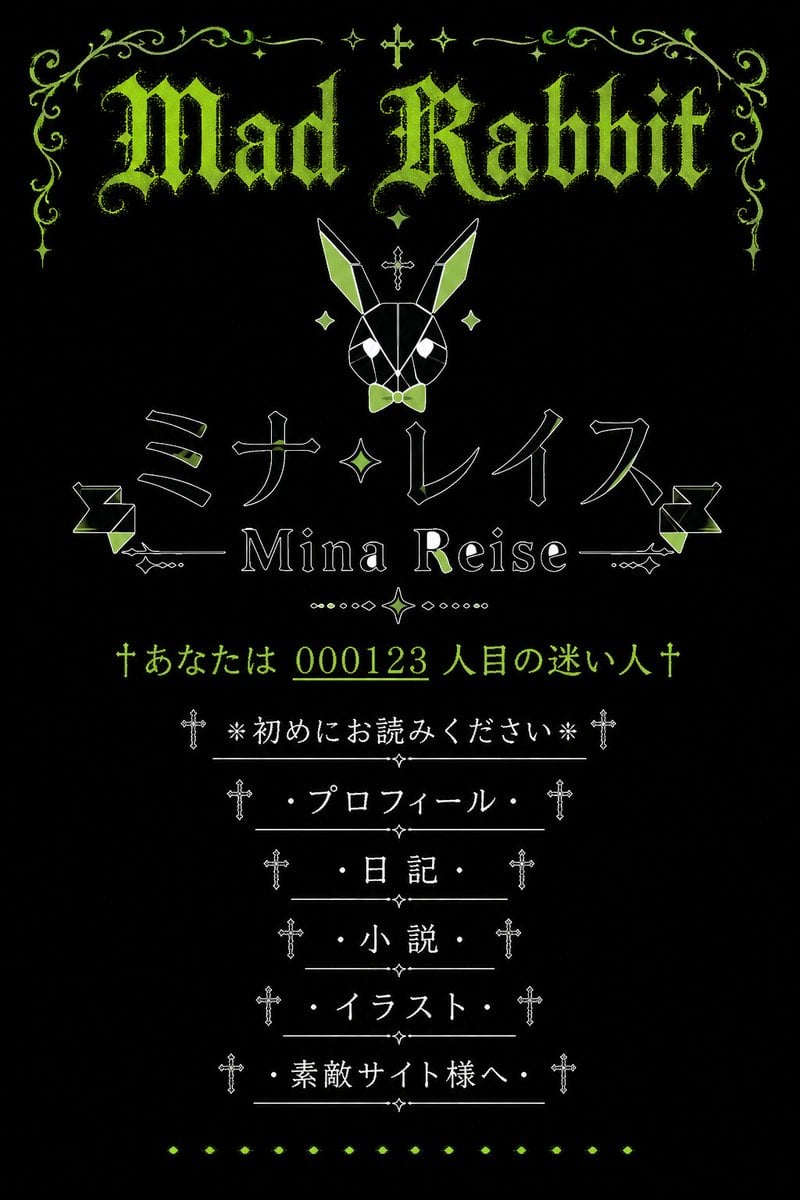
Gothic Japanese Mobile Homepage

Minecraft Next-Gen Voxel World Screenshot

Minecraft Japanese Research Lab Exploration

Japanese Architectural Concrete Studio Fashion Campaign

Japanese Minimalist Concrete Studio Fashion Editorial

Blue Backdrop Luxury Fashion Portrait Campaign
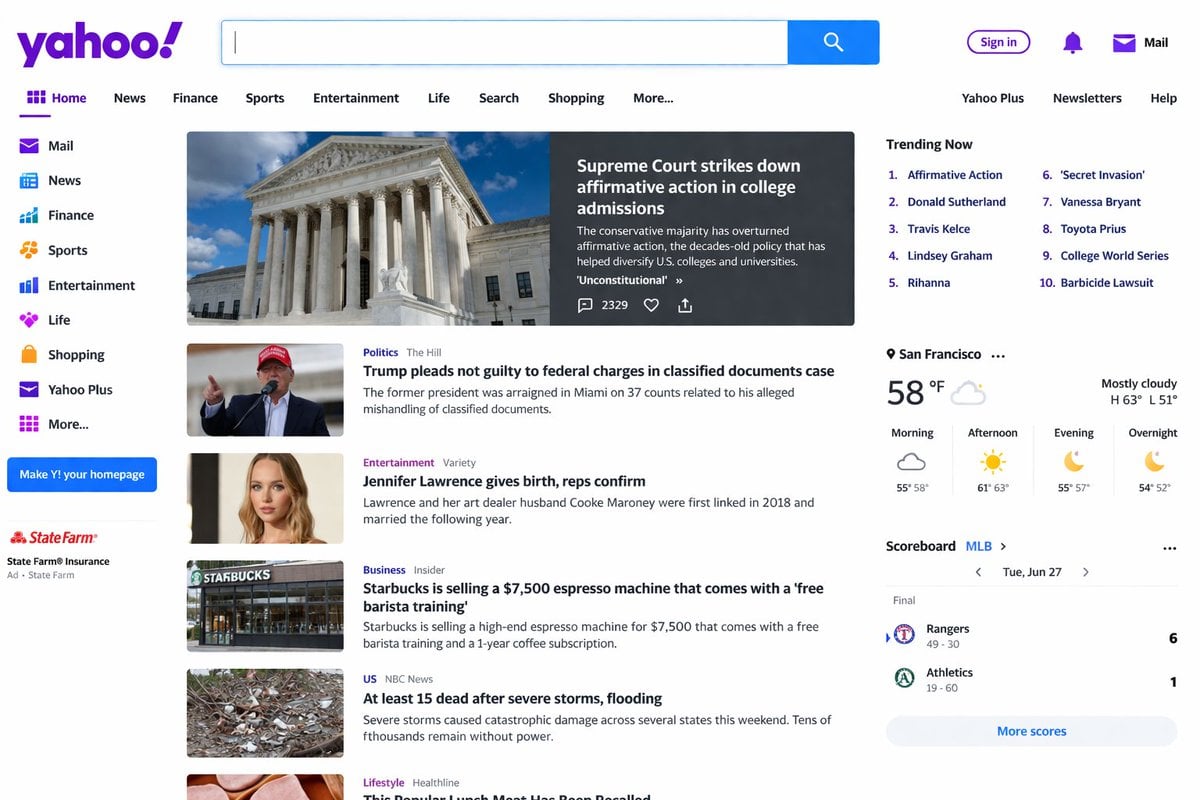
Website Homepage Screenshot Generation
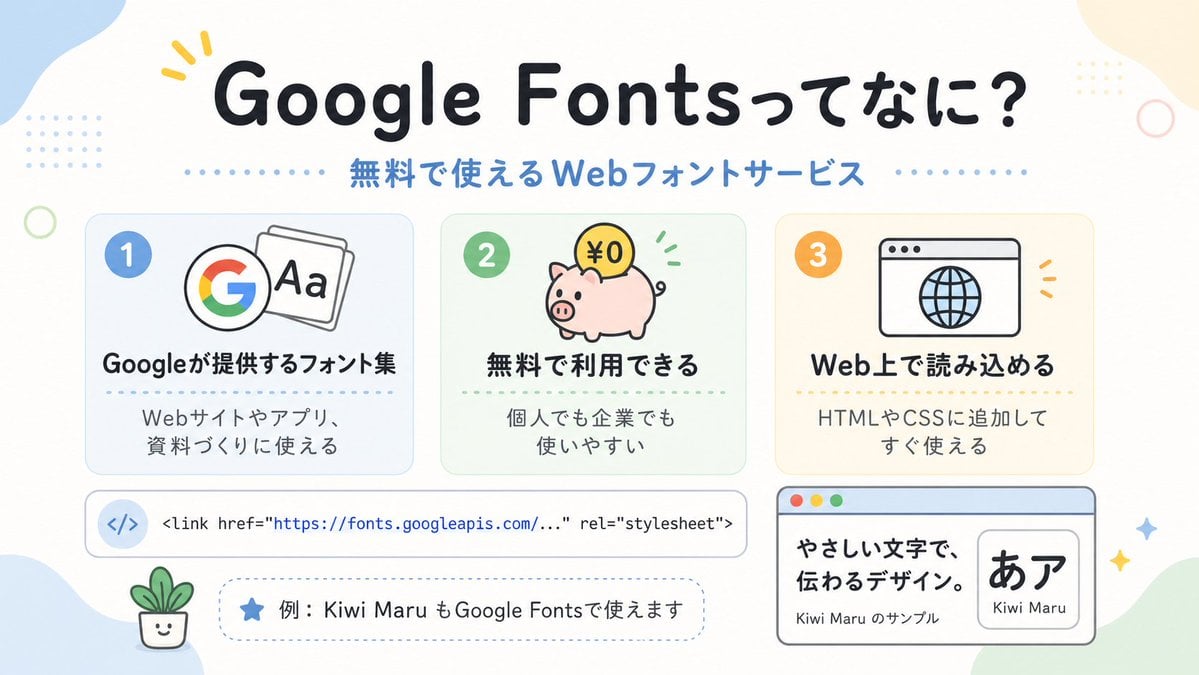
Cute Google Fonts Japanese Infographic

Japanese Film Reflection Idol

Six VTuber Japanese Logo Sheet

ChatGPT Image 1 5 Google Veo 3 1

Japanese Tatami Lifestyle Magazine Cover
Make it yours
Japanese Google Homepage Screenshot works as-is. These are the safest ways to change it without losing the look.
Change one field
Copy a single group, rewrite it, and generate again so you can see what that field is doing.
Keep the frame, change the subject
Hold the composition and light of Japanese Google Homepage Screenshot, then swap wardrobe, props or the person for a new take.
| If the result… | Why | Fix |
|---|---|---|
| The result drifts from the preview | Too many fields changed at once. | Reuse Japanese Google Homepage Screenshot as-is first, then change one group — subject, light, or setting. |
| The model over-stylizes the scene | The prose prompt leaves finish and camera underspecified. | Add one camera or lighting sentence and stay on GPT Image 2. |
More GPT Image 2 templates
Other prompts made for GPT Image 2.

Realistic Portrait of Woman and Deer

The Vista Modular Condo Poster

AI Model Routing Comparison Infographic

2.5D Anime Art Board

Isometric Productivity Desk Scene

New York Double Exposure Poster

Four-Panel AI Landscape Comparison

NESCAFÉ Coffee Map Poster

Brutalist Cogito Chinese Typography Poster

Cinematic Luxury Terrace Portrait
More image prompts
Fresh picks from across the catalog.
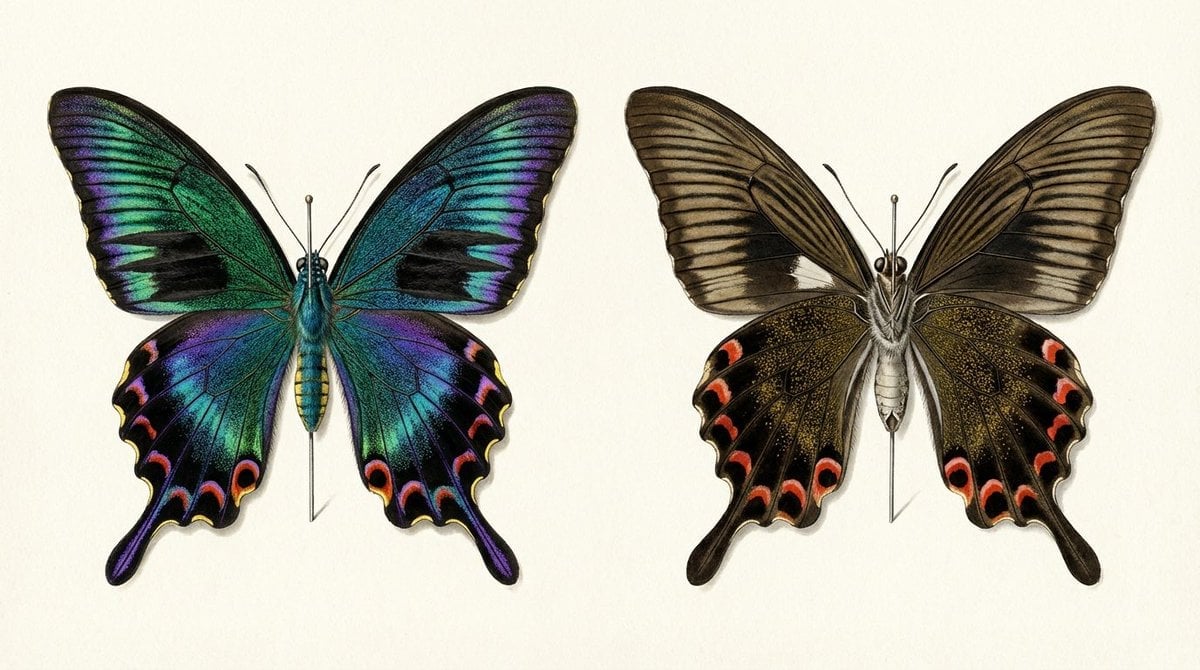
Generating a Butterfly Image with Selective Iridescence
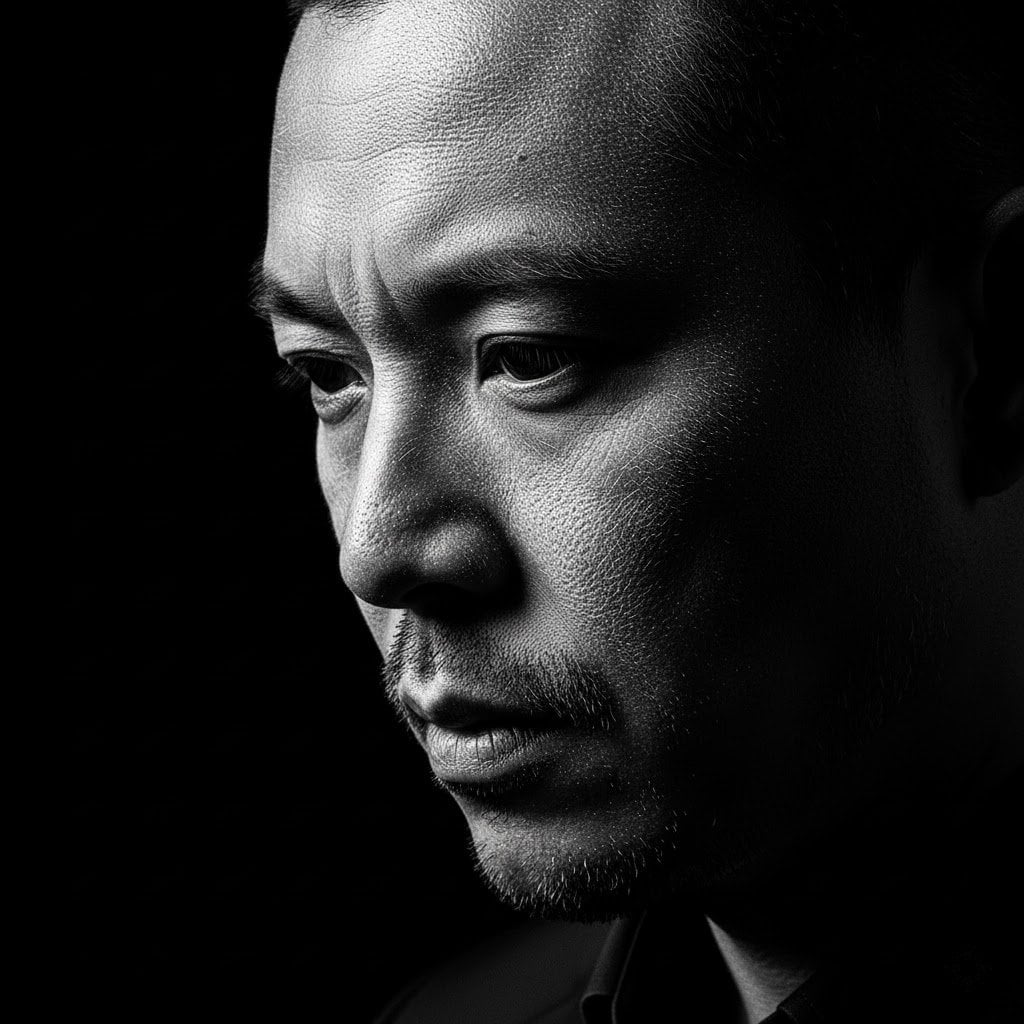
High-Contrast Black and White Woodcut Portrait
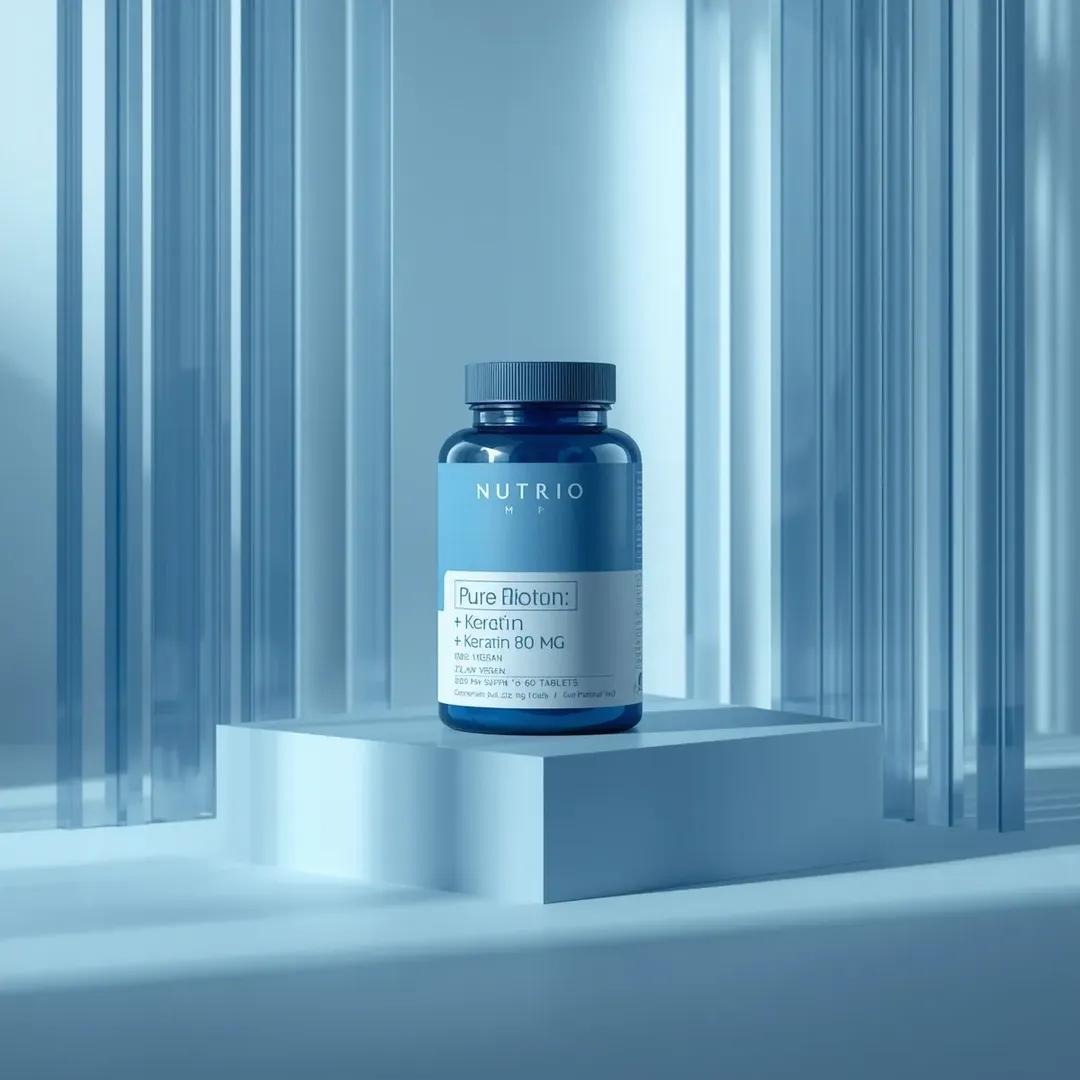
Minimalist Product Photography for Supplement Container
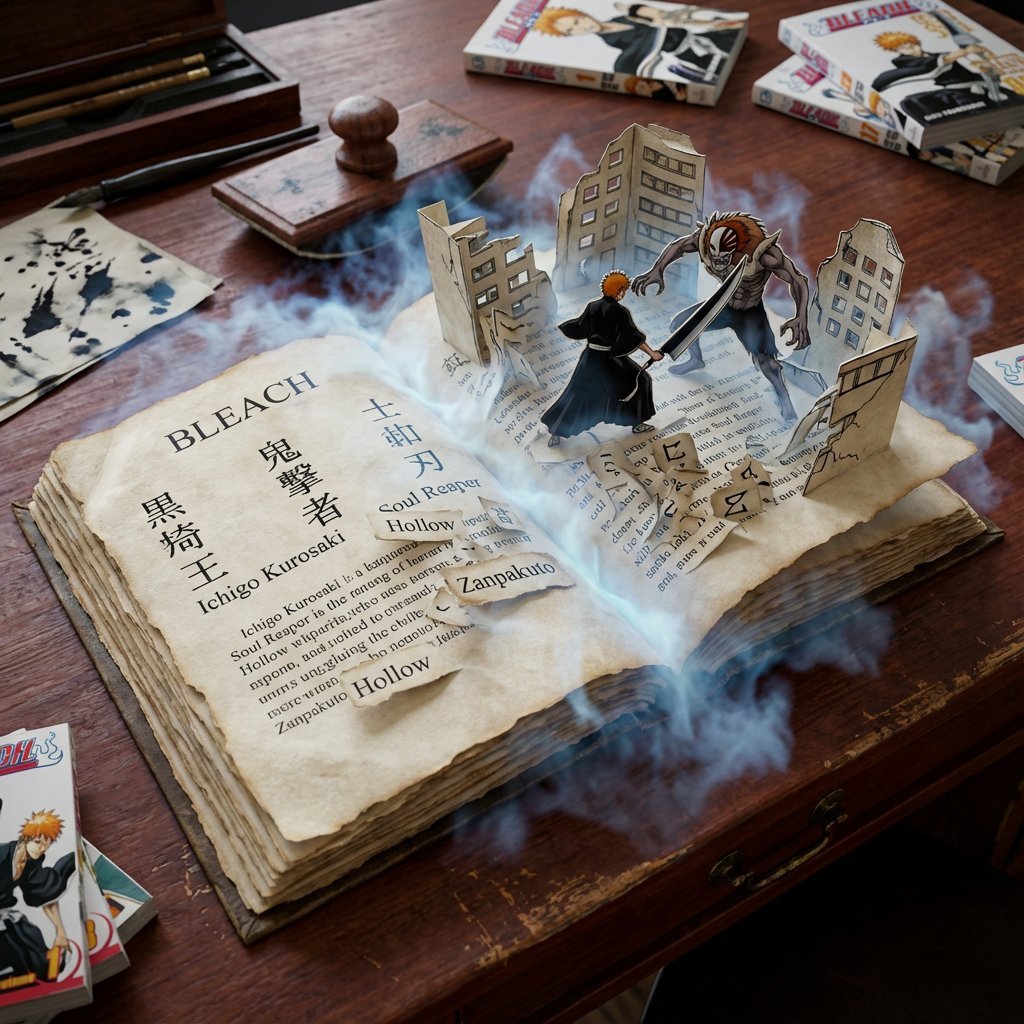
Book Scene Transformation Prompt

Cinematic Skateboarder Portrait Prompt at Golden Hour

Moutai Brand 3x3 Visual Storyboard

Dark Raven Armor Anime Poster

Gpt2 Youtube Thumbnail Cyberpunk Ai Tools Comparison Poster

Santa's Switch Prank Multi-Angle Grid

Artistic Sketchbook Character Study in Urdu
Browse template categories
Japanese Google Homepage Screenshot questions
How do I use the Japanese Google Homepage Screenshot template?
Add your photo if the template asks for one, edit the prompt if you like — the template's model and format are already selected — and press Generate. Your version opens in PicX Studio.
Can I customize the Japanese Google Homepage Screenshot template?
Yes. You can change the subject, setting, lighting, mood, format, and available model controls before creating your image.
Is the Japanese Google Homepage Screenshot template free?
Opening and editing this template is free. Generating uses credits, shown on the Generate button when you are signed in.
Which AI model should I use?
Start with GPT Image 2, which is the model associated with this template. You can compare another compatible model for a different finish.
Looking for something else? Browse all templates.

Your photo, any look
Thousands of ready templates for every top image and video model, from one credit balance.