
Gothic Japanese Mobile Homepage
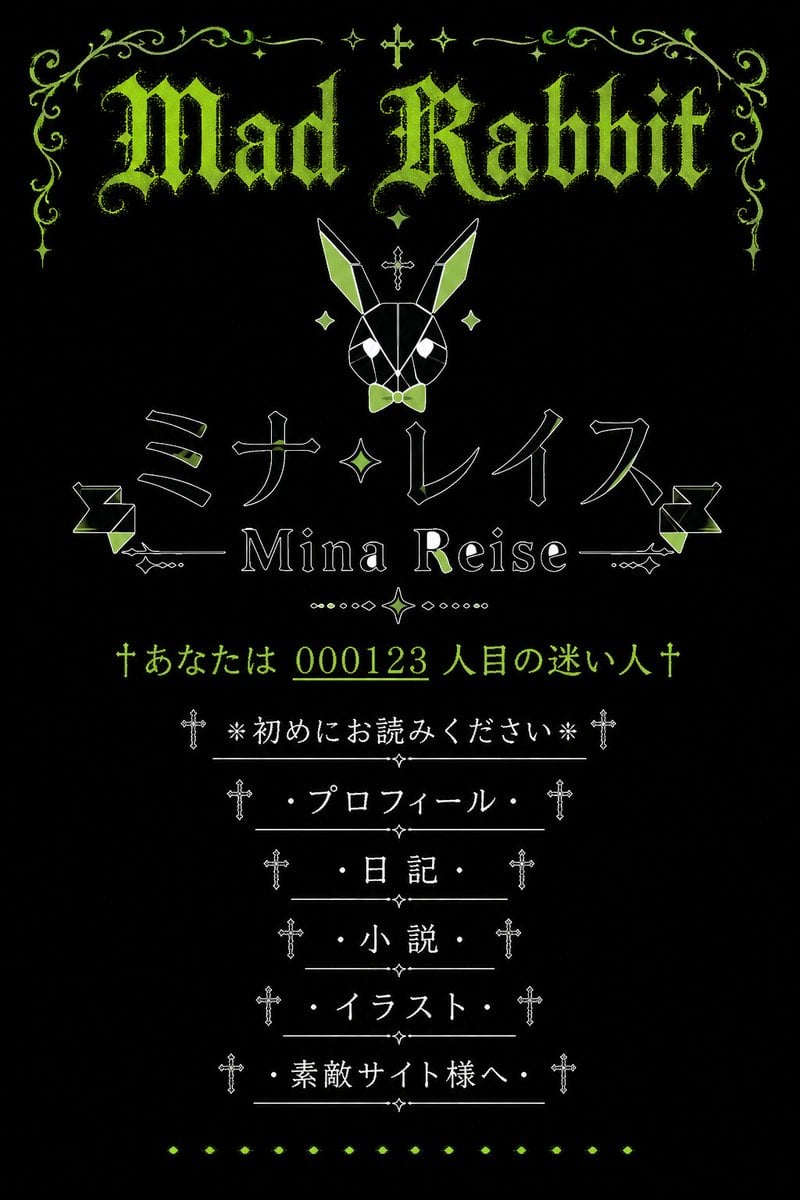
Generates a nostalgic black-and-lime gothic Japanese mobile homepage design with rabbit motifs, ornamental typography, and classic personal-site navigation.
- Prompt included
- Model and format preset
- Free template
The prompt behind this image
Copy the exact prompt behind Gothic Japanese Mobile Homepage, or open it in the studio and make it yours.
Goal: Create a vertical screenshot-style graphic of a nostalgic early-2000s Japanese mobile personal homepage with a gothic lolita / dark fantasy aesthetic, centered on the fictional site owner {argument name="site owner name" default="Mina Reise"} and the site title {argument name="main gothic title" default="Mad Rabbit"}. Canvas: Portrait 2:3 aspect ratio, black background, designed like an old mobile homepage landing page. Use a limited palette of acid lime green, white, and black. Everything is vertically centered with generous black space and symmetrical ornamentation. Visual style: Ancient Japanese cellphone homepage, faux gothic web shrine, pixel-era elegance, distressed lime-green blackletter typography, thin white line art, small crosses, sparkles, filigree, diamonds, dotted separators, and decorative horizontal rules. The mood is occult, cute, rabbit-themed, and nostalgic. Layout: At the top, place an ornate lime-green filigree border spanning the width, with symmetrical curling vines, small sparkle stars, and a tiny cross at the center. Beneath it, display the large distressed blackletter headline “{argument name="main gothic title" default="Mad Rabbit"}” in lime green. Below the title, center a geometric white line-art rabbit head icon with long ears, lime-green ear fills, a small lime bow tie, diamond accents, and a small cross above it. Main name area: Under the rabbit, place a large Japanese katakana name in thin outlined white lettering with lime highlights: “{argument name="Japanese display name" default="ミナ・レイス"}”. Directly below, show the romanized name “{argument name="site owner name" default="Mina Reise"}” in a serif font, flanked by thin horizontal decorative lines and small geometric ornaments. Add one central diamond/sparkle motif between the Japanese name and the romanized name. Visitor line: Below the name area, add a lime-green old-homepage counter message with crosses on both ends: “†あなたは {argument name="visitor counter" default="000123"} 人目の迷い人†”. Underline or emphasize the number as if it is a classic homepage hit counter. Navigation menu: Create exactly 6 vertically stacked menu links, centered, each in white Japanese text with a leading and trailing cross ornament and a thin horizontal divider line. The 6 visible menu items must be: 1) “※初めにお読みください※”, 2) “・プロフィール・”, 3) “・日記・”, 4) “・小説・”, 5) “・イラスト・”, 6) “・素敵サイト様へ・”. Place tiny diamond ornaments between divider lines. Decorative elements count: Include exactly 1 large top headline, 1 geometric rabbit icon, 1 large Japanese display name, 1 romanized name line, 1 visitor counter line, 6 navigation menu links, 2 side geometric ribbon-like ornaments near the name area, and 1 bottom row of small lime diamond dots. Constraints: Keep the composition symmetrical and centered, no modern UI chrome, no photographic elements, no extra menu items, no watermark, no realistic phone frame. Make the text legible while preserving an aged bitmap/webpage feel.
How to use Gothic Japanese Mobile Homepage in 3 steps
- 1Upload ImagePNG, JPG or paste
Add your photo
Upload the photo the template builds on. The prompt, model and format are already set.
- 2…a portrait of your subject in softgolden-hour light, 85mm…
Personalize
Edit the subject and creative details for your destination.
- 3Generate
Generate
Press Generate — your image is created in PicX Studio, so you can compare it with the original and refine one variable at a time.
More like this
Templates with the same subject, style or setup. Open one to see its prompt.

Minecraft Japanese Research Lab Exploration

Japanese Architectural Concrete Studio Fashion Campaign

Japanese Minimalist Concrete Studio Fashion Editorial

Blue Backdrop Luxury Fashion Portrait Campaign
Pastel Japanese Mobile Game Store Screenshot
Pastel Japanese Mobile Game Ad
Japanese Google Homepage Screenshot

Japanese Film Reflection Idol

Burning Gothic Flood Escape
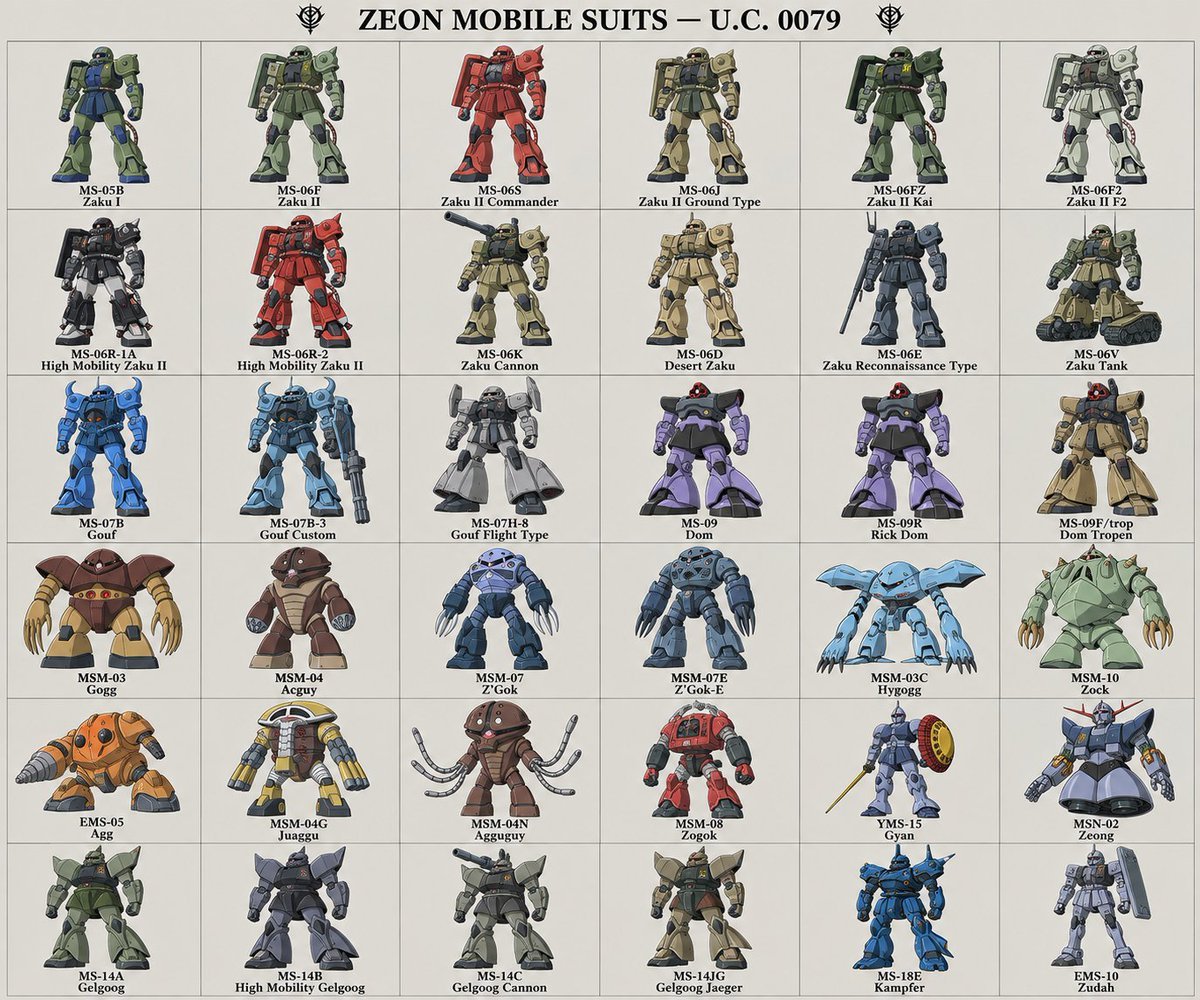
Zeon Mobile Suit Illustrations

Six VTuber Japanese Logo Sheet
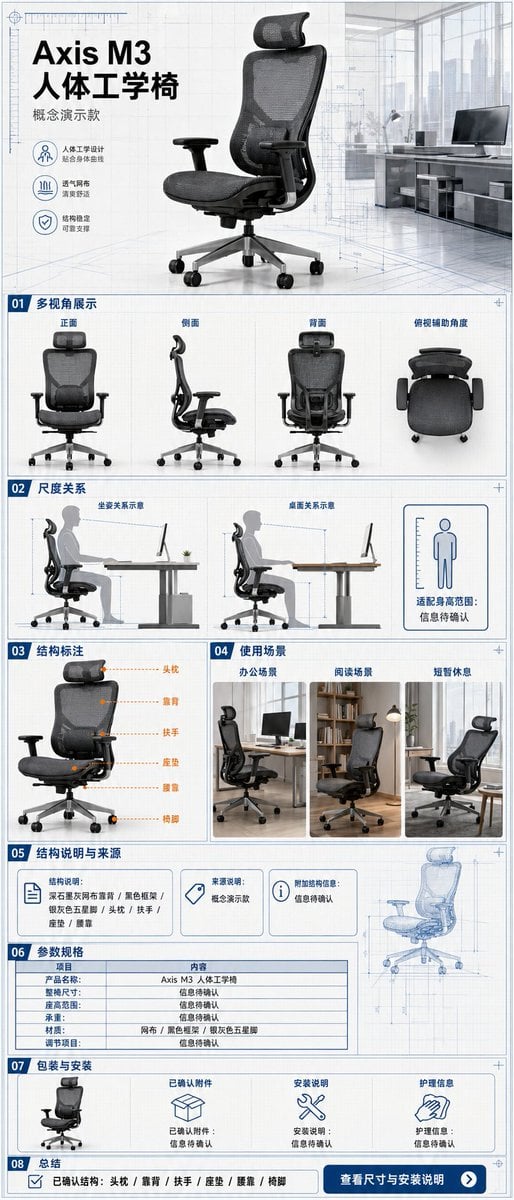
Ergonomic Office Chair E-commerce Mobile Detail Page
Make it yours
Gothic Japanese Mobile Homepage works as-is. These are the safest ways to change it without losing the look.
Change one field
Copy a single group, rewrite it, and generate again so you can see what that field is doing.
Keep the frame, change the subject
Hold the composition and light of Gothic Japanese Mobile Homepage, then swap wardrobe, props or the person for a new take.
| If the result… | Why | Fix |
|---|---|---|
| The result drifts from the preview | Too many fields changed at once. | Reuse Gothic Japanese Mobile Homepage as-is first, then change one group — subject, light, or setting. |
| The model over-stylizes the scene | The prose prompt leaves finish and camera underspecified. | Add one camera or lighting sentence and stay on GPT Image 2. |
More GPT Image 2 templates
Other prompts made for GPT Image 2.

Realistic Portrait of Woman and Deer

The Vista Modular Condo Poster

AI Model Routing Comparison Infographic

2.5D Anime Art Board

Isometric Productivity Desk Scene

New York Double Exposure Poster

Four-Panel AI Landscape Comparison

NESCAFÉ Coffee Map Poster

Brutalist Cogito Chinese Typography Poster

Cinematic Luxury Terrace Portrait
More image prompts
Fresh picks from across the catalog.

9/11 Twin Towers Street Photo

Blurred Esports Audience Crowd Shot
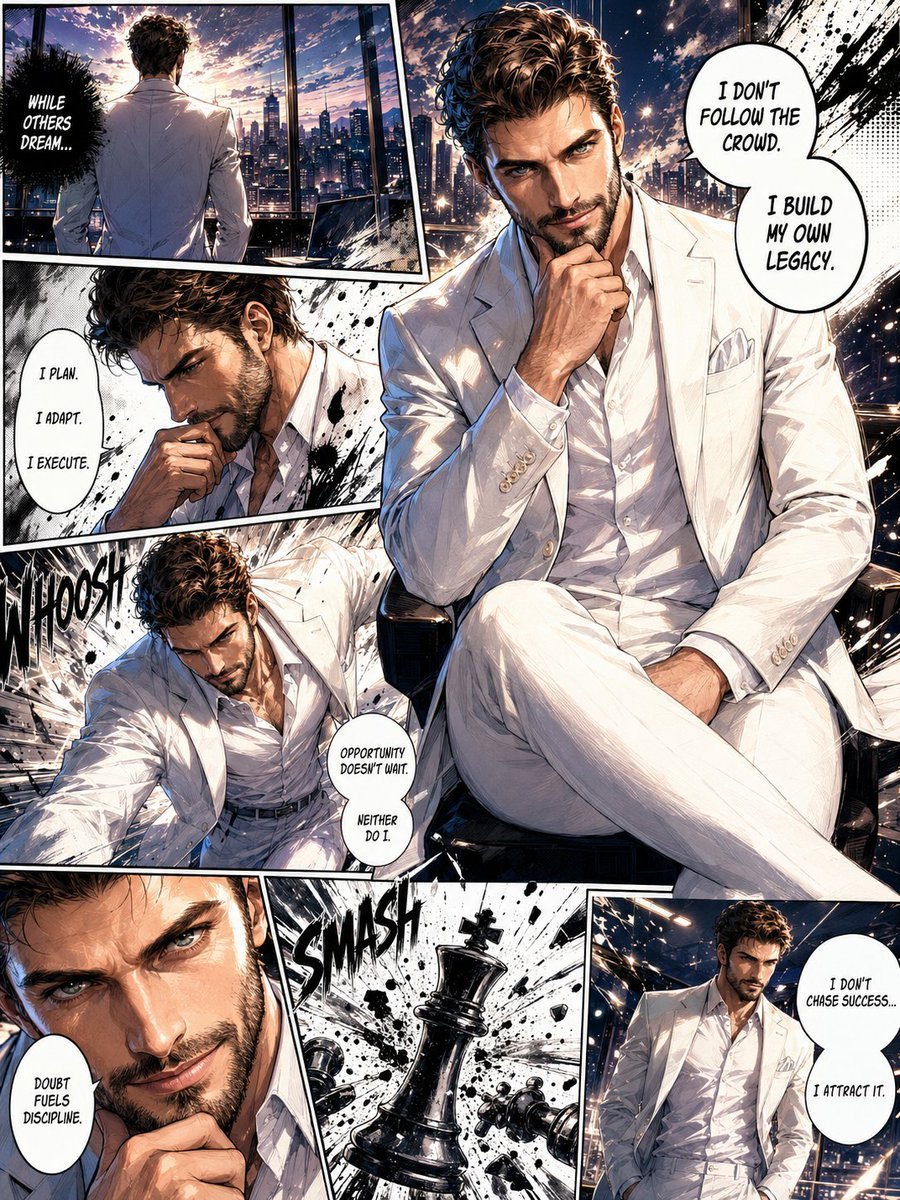
Full Page Manga Illustration

Romantic Cinematic Triptych with Shared Earphones
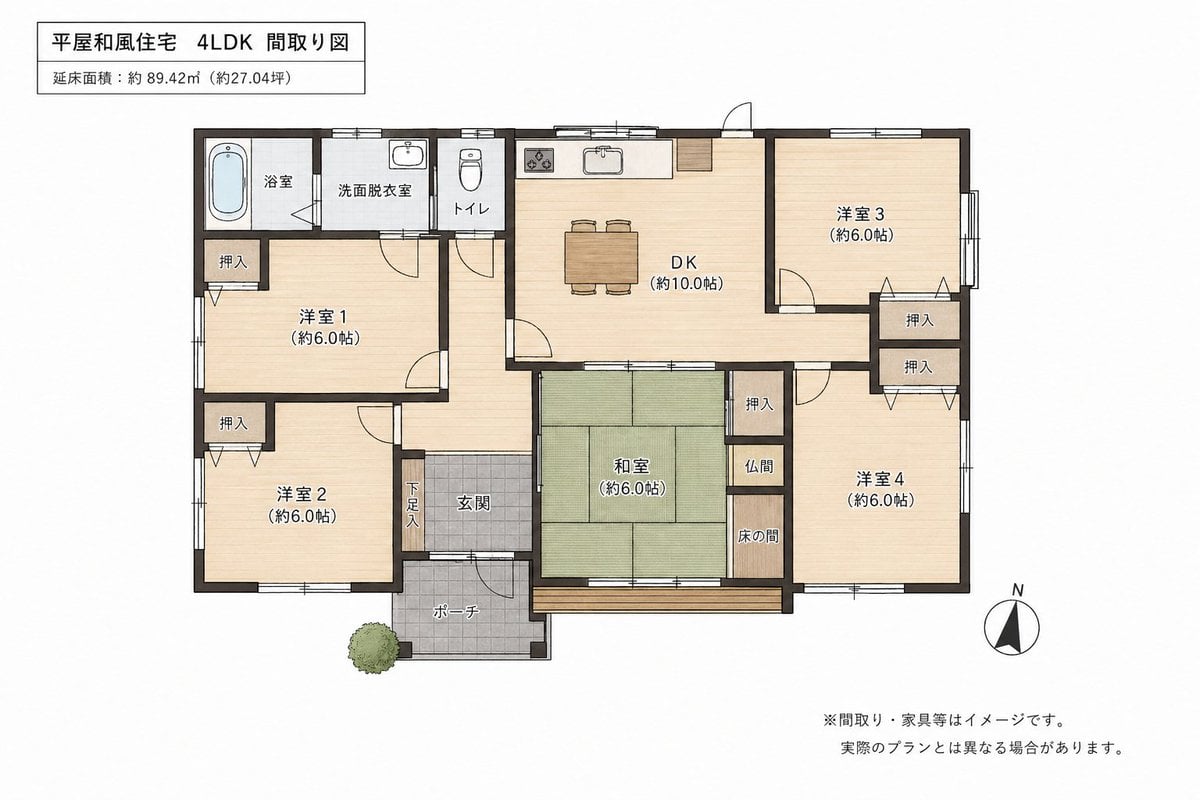
Japanese House Floor Plan Generator
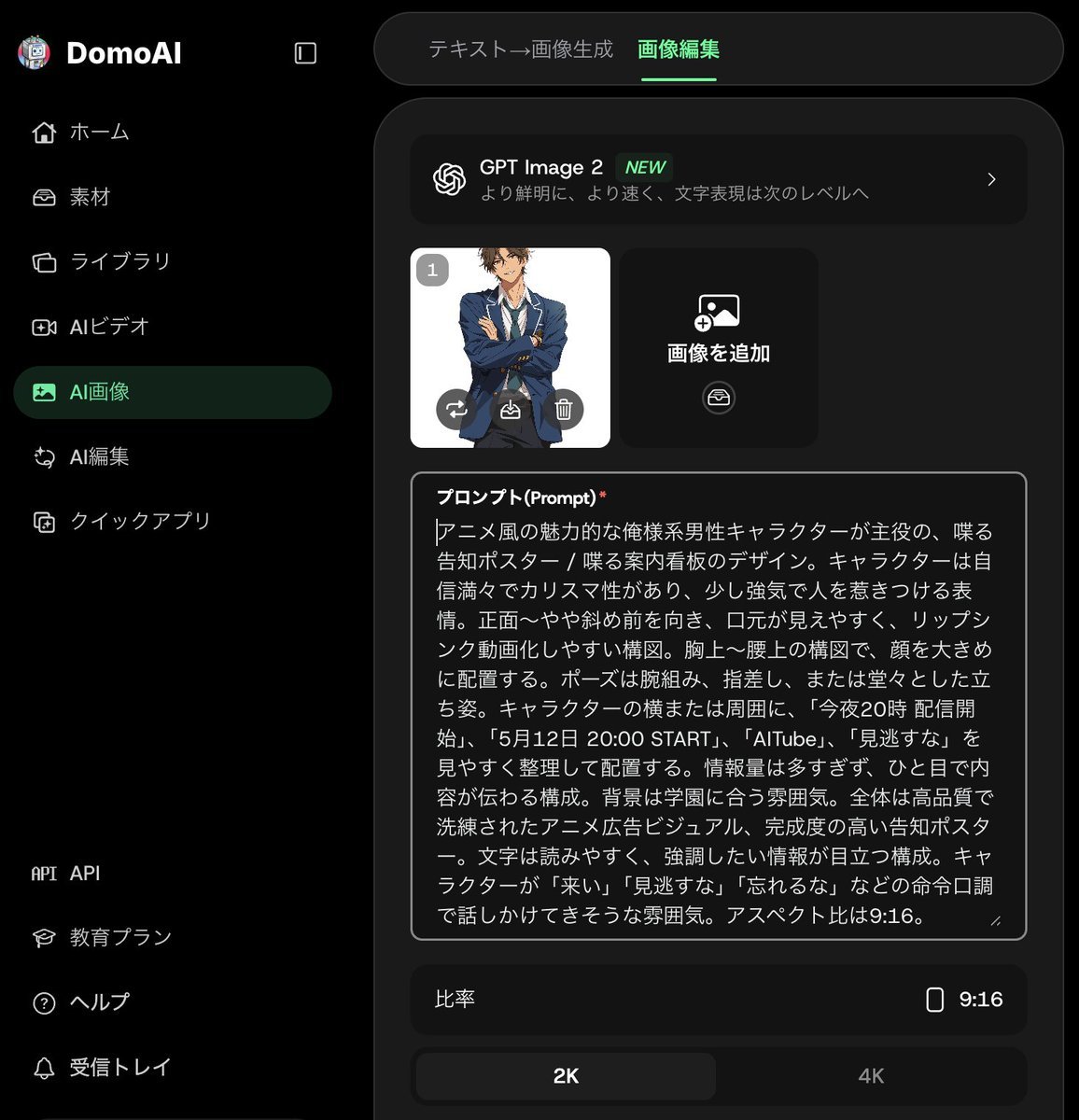
Anime Announcement Poster Template

Minimalist Conceptual Dual-Identity Portrait Prompt
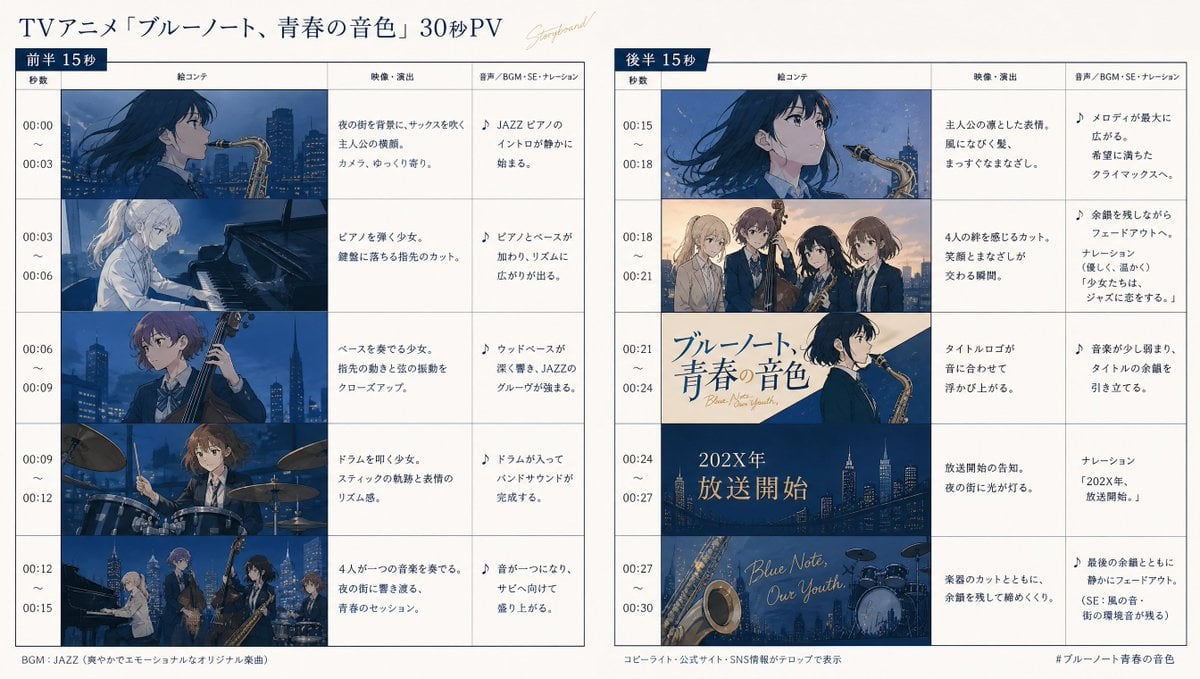
Anime Storyboard Generation
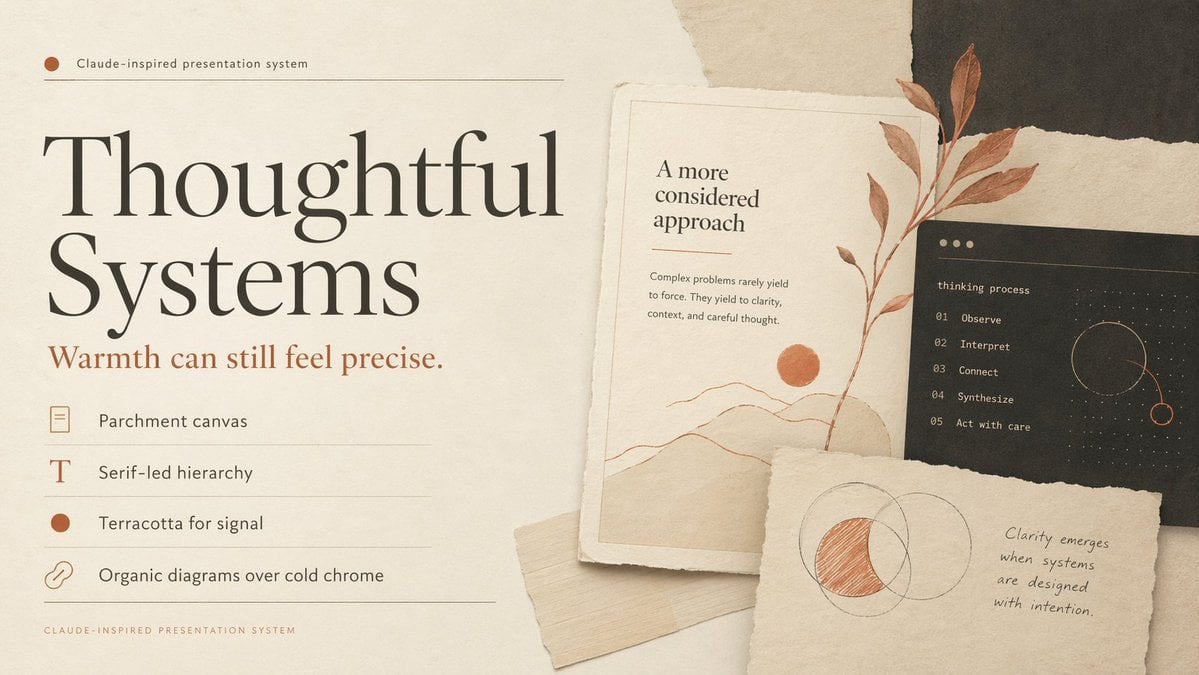
Thoughtful Systems Presentation Cover

Women's Big Sale Fashion Poster
Browse template categories
Gothic Japanese Mobile Homepage questions
How do I use the Gothic Japanese Mobile Homepage template?
Add your photo if the template asks for one, edit the prompt if you like — the template's model and format are already selected — and press Generate. Your version opens in PicX Studio.
Can I customize the Gothic Japanese Mobile Homepage template?
Yes. You can change the subject, setting, lighting, mood, format, and available model controls before creating your image.
Is the Gothic Japanese Mobile Homepage template free?
Opening and editing this template is free. Generating uses credits, shown on the Generate button when you are signed in.
Which AI model should I use?
Start with GPT Image 2, which is the model associated with this template. You can compare another compatible model for a different finish.
Looking for something else? Browse all templates.

Your photo, any look
Thousands of ready templates for every top image and video model, from one credit balance.