
Cute Google Fonts Japanese Infographic
A pastel Japanese explainer infographic introducing Google Fonts, ideal for social posts, slides, or beginner-friendly web design education visuals.
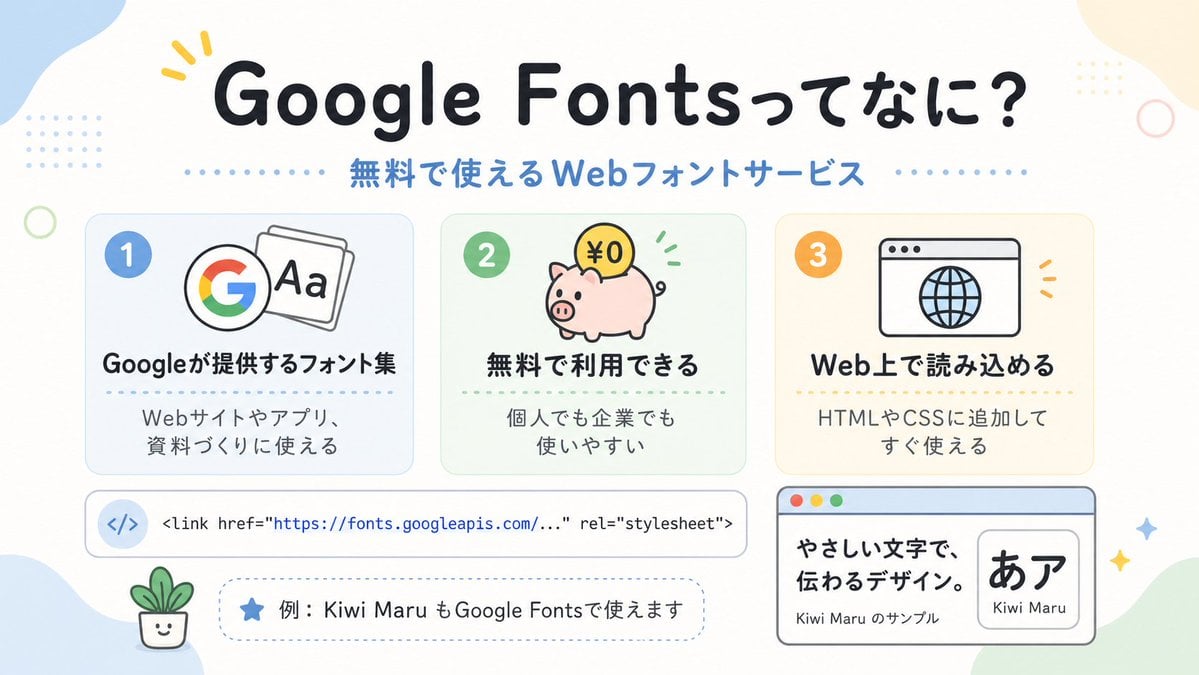
- Prompt included
- Model and format preset
- Free template
The prompt behind this image
Copy the exact prompt behind Cute Google Fonts Japanese Infographic, or open it in the studio and make it yours.
A clean, cute Japanese infographic on a soft off-white background with rounded pastel abstract corner blobs and tiny decorative dots and rings, designed like a friendly web-design explainer poster. At the top center, place a large bold rounded headline in Japanese reading {argument name="headline text" default="Google Fontsってなに?"}, in very dark navy, with a small yellow accent mark near the first word. Directly below it, add a medium-size blue subheading reading {argument name="subheadline text" default="無料で使えるWebフォントサービス"}, with dotted divider lines extending left and right. In the middle, arrange exactly 3 rounded rectangular feature cards in a horizontal row, evenly spaced. Card 1 is pale blue with a blue number badge "1" in the upper left, an icon showing the multicolor Google G beside overlapping font sheets with "Aa", a bold Japanese title "Googleが提供するフォント集", and smaller text below "Webサイトやアプリ、資料づくりに使える". Card 2 is pale mint green with a green number badge "2", an icon of a pink piggy bank with a gold coin labeled "¥0" and small green motion marks, a bold title "無料で利用できる", and smaller text "個人でも企業でも使いやすい". Card 3 is pale warm cream with an orange number badge "3", an icon of a simple browser window with a globe, a bold title "Web上で読み込める", and smaller text "HTMLやCSSに追加してすぐ使える". Below the three cards, place a wide horizontal white code bar with rounded corners and a subtle outline; on the left include a pale blue circular icon containing </>, and to the right show a single line of code in a monospaced style: "<link href=\"https://fonts.googleapis.com/...\" rel=\"stylesheet\">" with the URL in blue. Under that, add a dashed rounded pill-shaped note box containing a blue star icon and Japanese text {argument name="example text" default="例:Kiwi Maru もGoogle Fontsで使えます"}. At the bottom left, place a tiny smiling potted plant illustration. At the bottom right, add a larger browser-style sample panel with a light blue title bar and three small traffic-light circles in the top left; inside, on the left, show bold Japanese sample copy "やさしい文字で、伝わるデザイン。" and smaller text "Kiwi Maru のサンプル", and on the right a rounded white inset card displaying large black Japanese characters "あア" with the font name {argument name="font sample name" default="Kiwi Maru"} beneath. Scatter 4 small sparkle/star accents around the lower right area. Use a flat vector illustration style, crisp outlines, soft pastel palette, centered composition, generous spacing, rounded sans-serif typography, and a cheerful beginner-friendly tech education aesthetic.
How to use Cute Google Fonts Japanese Infographic in 3 steps
- 1Upload ImagePNG, JPG or paste
Add your photo
Upload the photo the template builds on. The prompt, model and format are already set.
- 2…a portrait of your subject in softgolden-hour light, 85mm…
Personalize
Edit the subject and creative details for your destination.
- 3Generate
Generate
Press Generate — your image is created in PicX Studio, so you can compare it with the original and refine one variable at a time.
More like this
Templates with the same subject, style or setup. Open one to see its prompt.
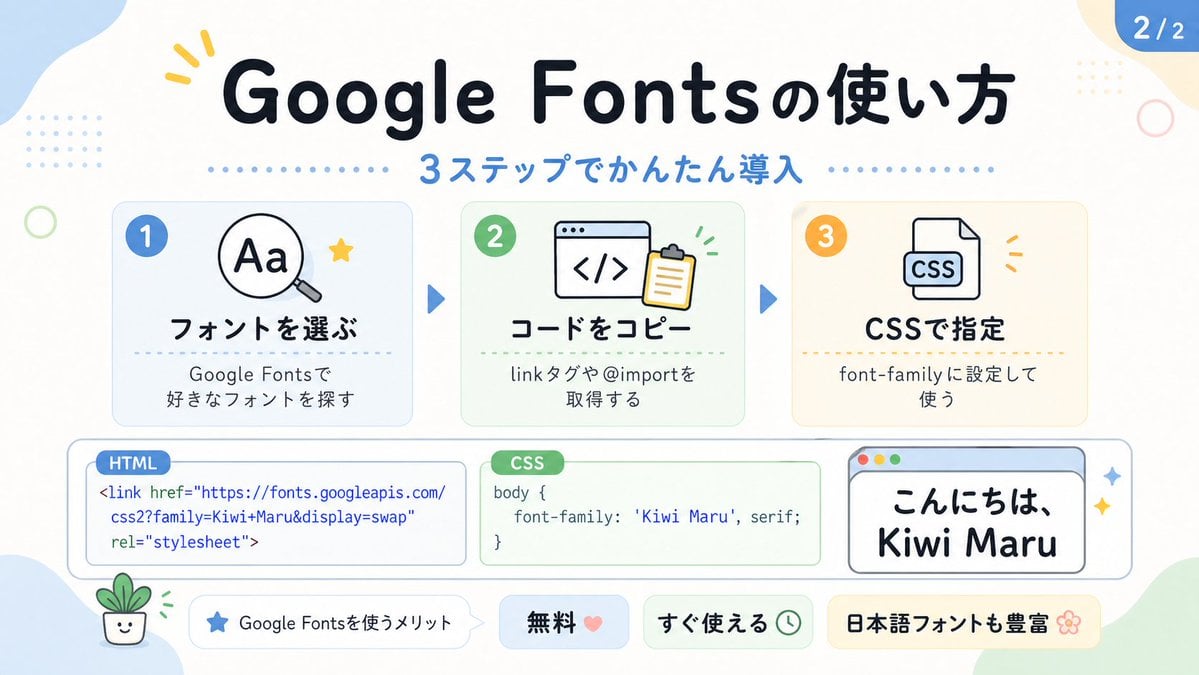
Cute Google Fonts Tutorial Infographic
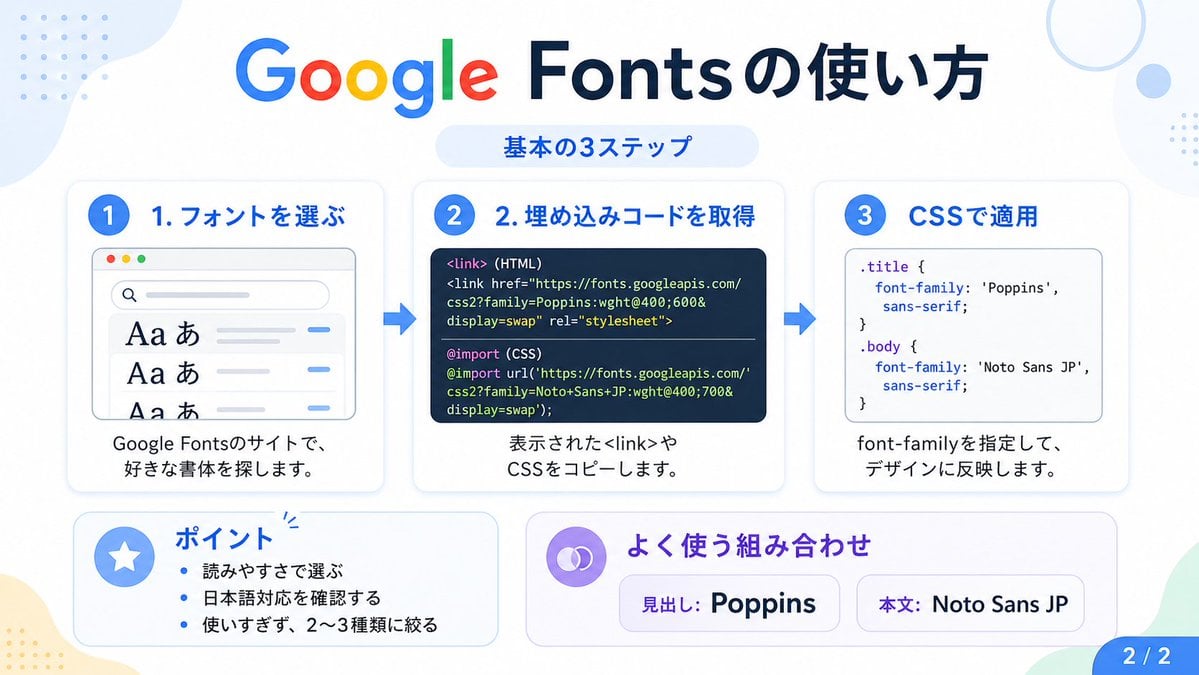
Google Fonts Japanese Tutorial Infographic
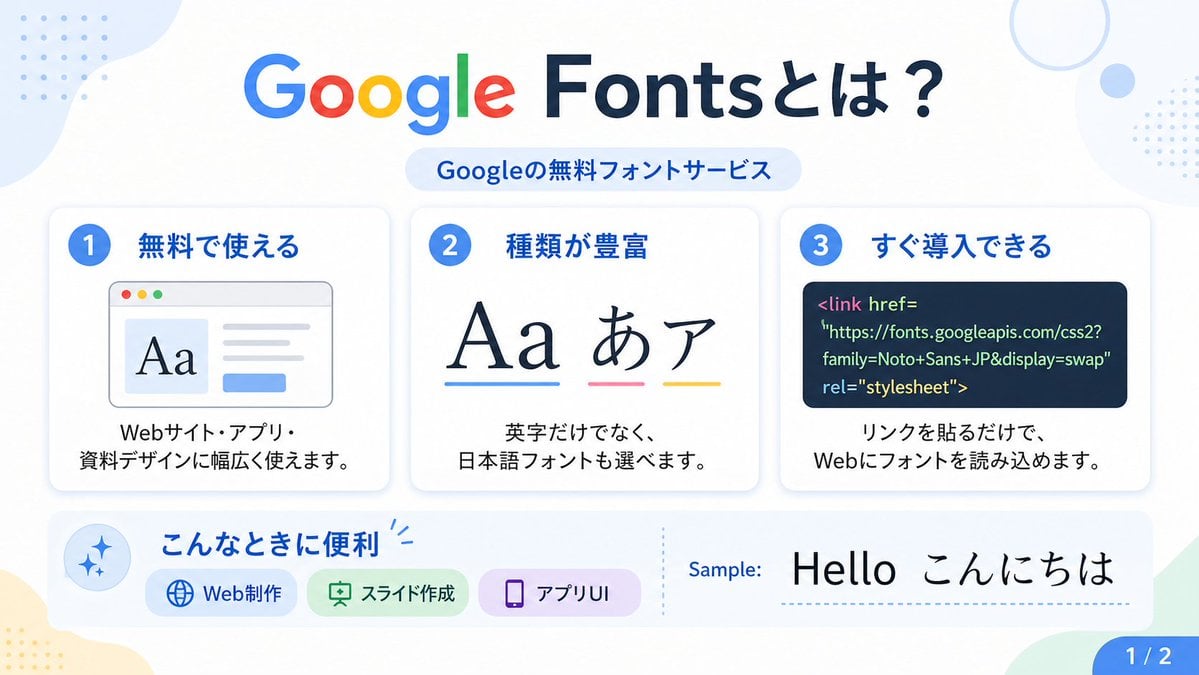
Google Fonts Japanese Infographic
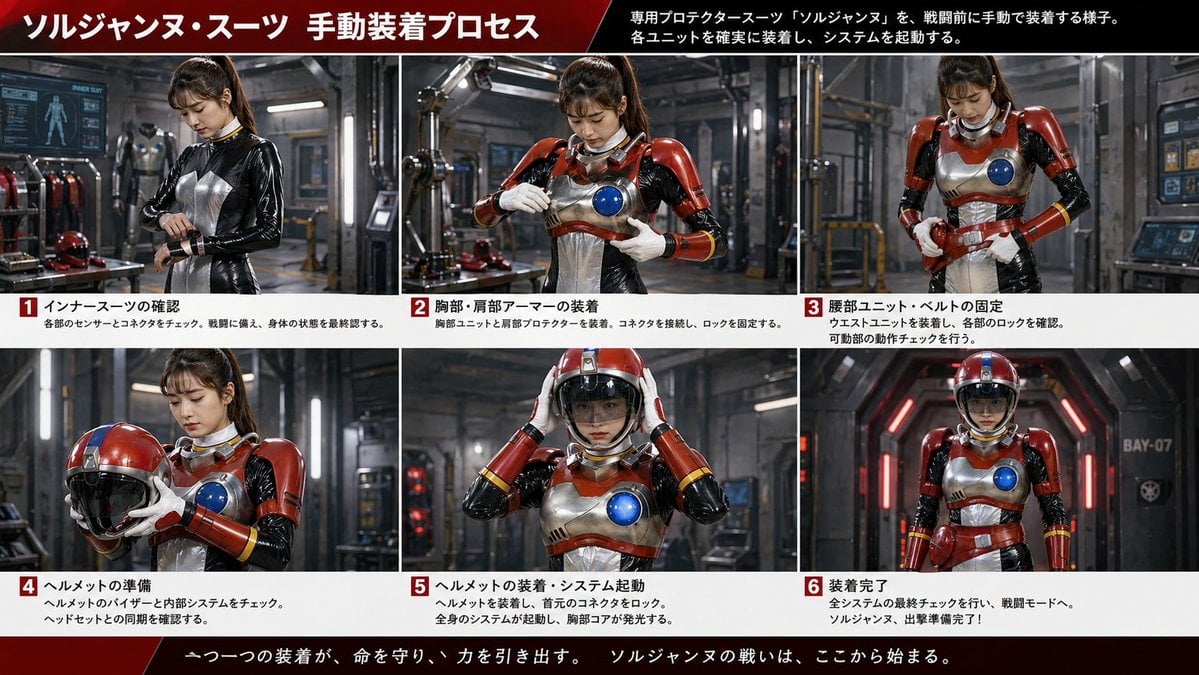
Gpt2 Infographic Edu Visual Japanese Sci Fi Suit Up Process Board

Minecraft Homage Illustrious Style

Minecraft Japanese Research Lab Exploration

Japan Travel Brochure Poster
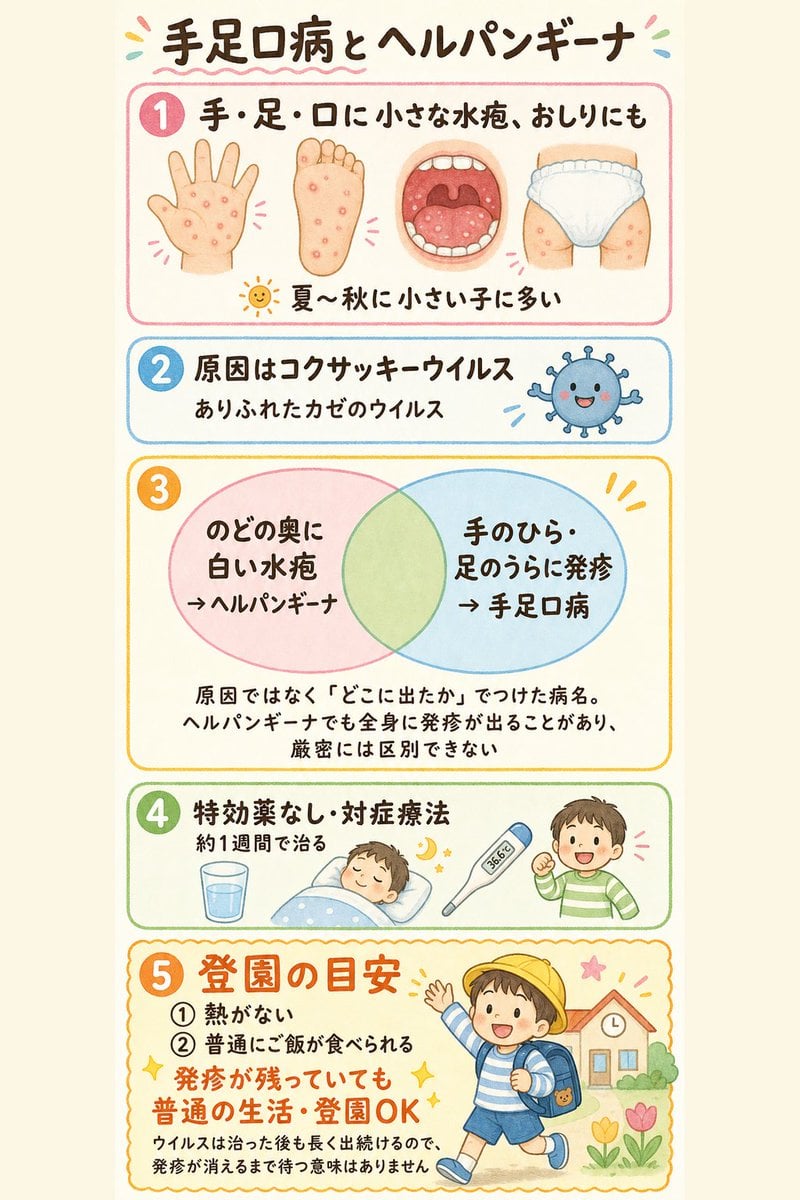
Japanese Pediatric Disease Infographic
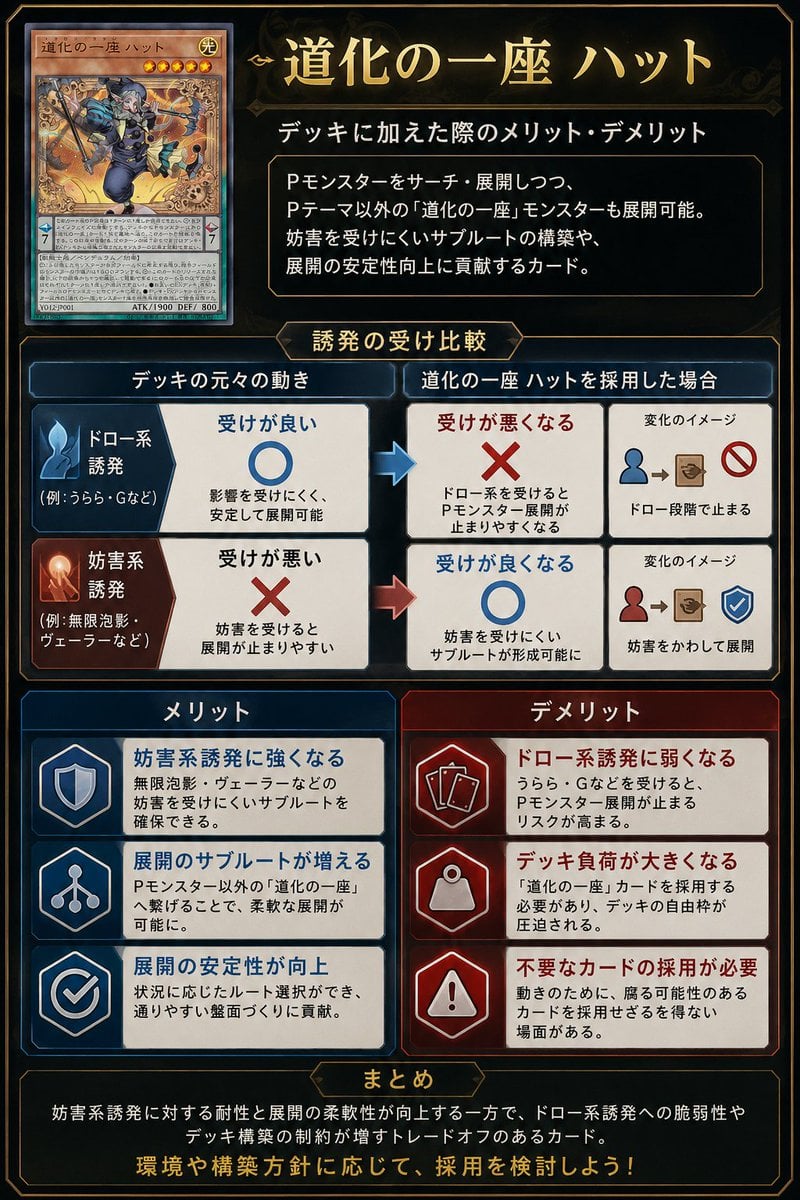
Japanese TCG Strategy Infographic
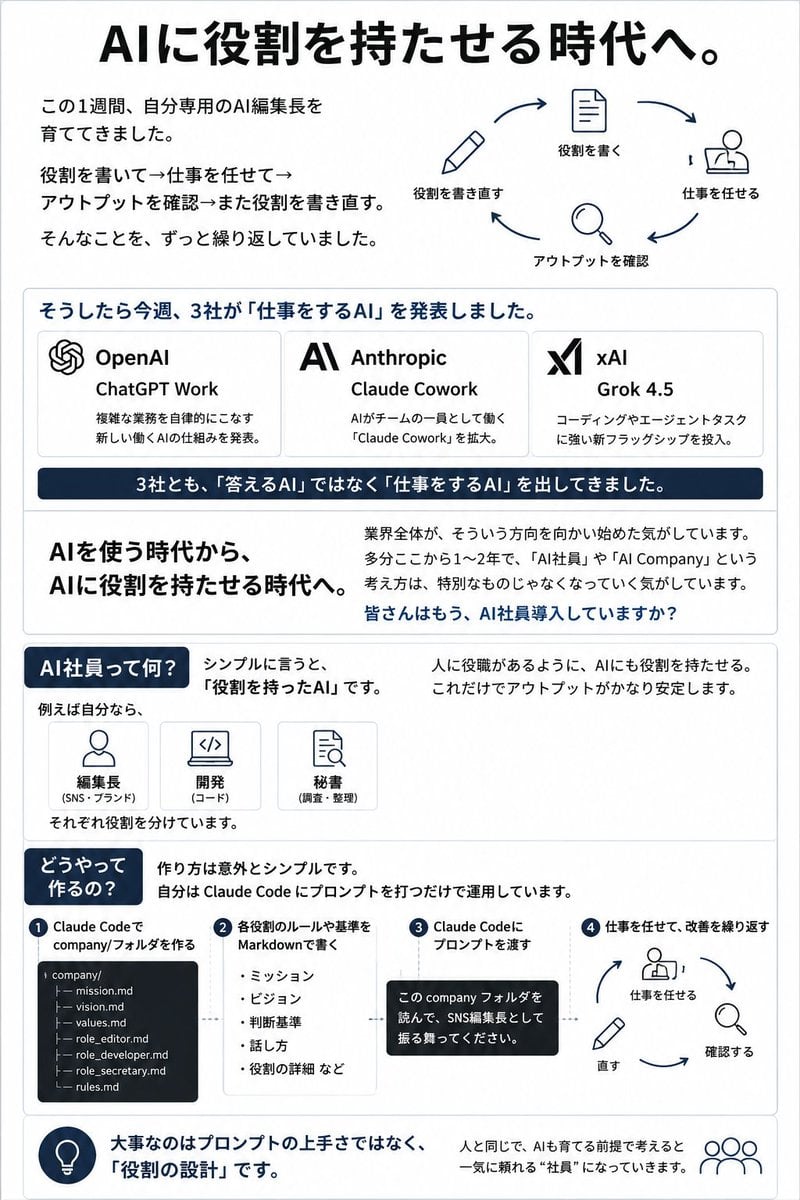
Japanese AI Employee Infographic
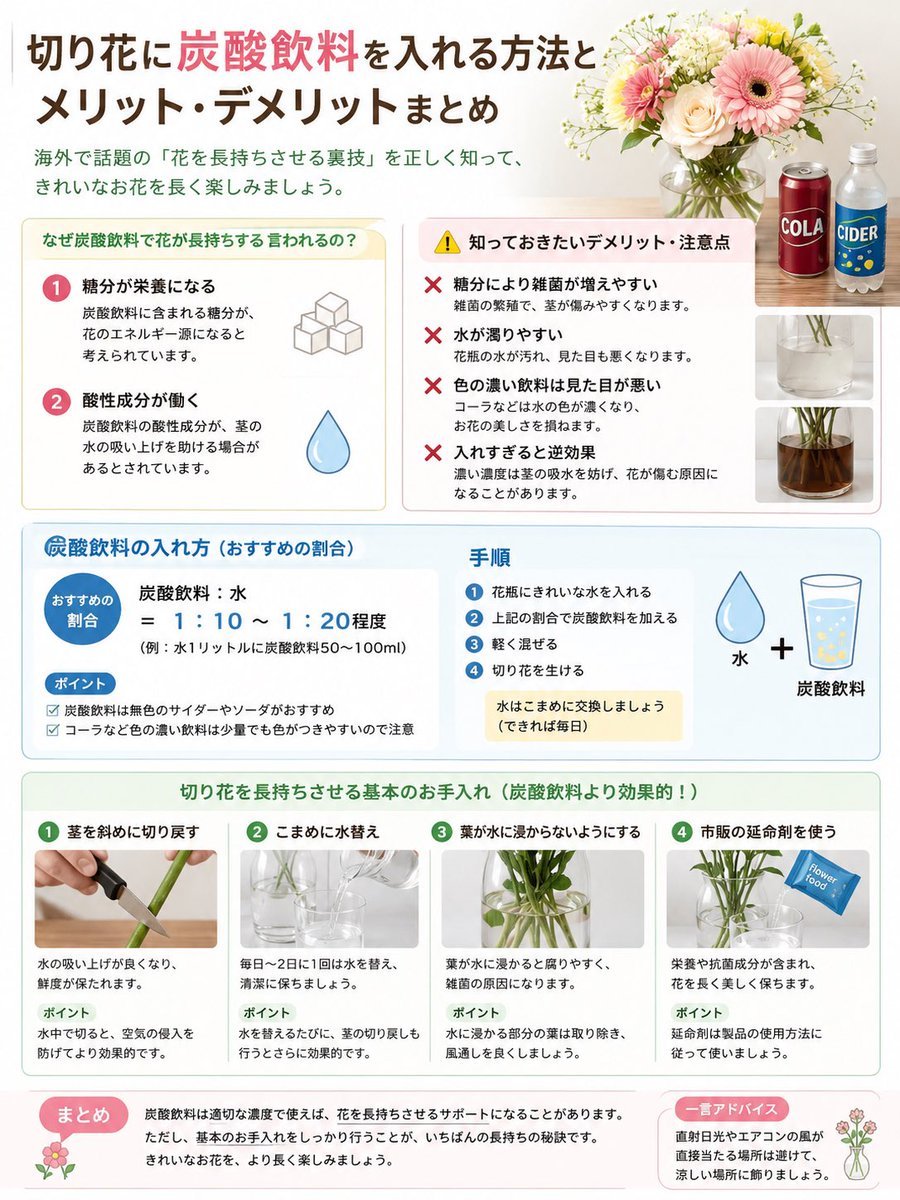
Japanese Cut Flower Soda Care Infographic

Japanese Architectural Concrete Studio Fashion Campaign
Make it yours
Cute Google Fonts Japanese Infographic works as-is. These are the safest ways to change it without losing the look.
Change one field
Copy a single group, rewrite it, and generate again so you can see what that field is doing.
Keep the frame, change the subject
Hold the composition and light of Cute Google Fonts Japanese Infographic, then swap wardrobe, props or the person for a new take.
| If the result… | Why | Fix |
|---|---|---|
| The result drifts from the preview | Too many fields changed at once. | Reuse Cute Google Fonts Japanese Infographic as-is first, then change one group — subject, light, or setting. |
| The model over-stylizes the scene | The prose prompt leaves finish and camera underspecified. | Add one camera or lighting sentence and stay on GPT Image 2. |
More GPT Image 2 templates
Other prompts made for GPT Image 2.

Six VTuber Japanese Logo Sheet

Realistic Portrait of Woman and Deer

The Vista Modular Condo Poster

AI Model Routing Comparison Infographic

2.5D Anime Art Board

Isometric Productivity Desk Scene

New York Double Exposure Poster

Four-Panel AI Landscape Comparison

Japanese Tatami Lifestyle Magazine Cover

NESCAFÉ Coffee Map Poster
More image prompts
Fresh picks from across the catalog.

Surreal Black and White Forest Scene with Color Reflection

Hand-carved wooden miniature figure prompt

Tropical Greenhouse Editorial Portrait
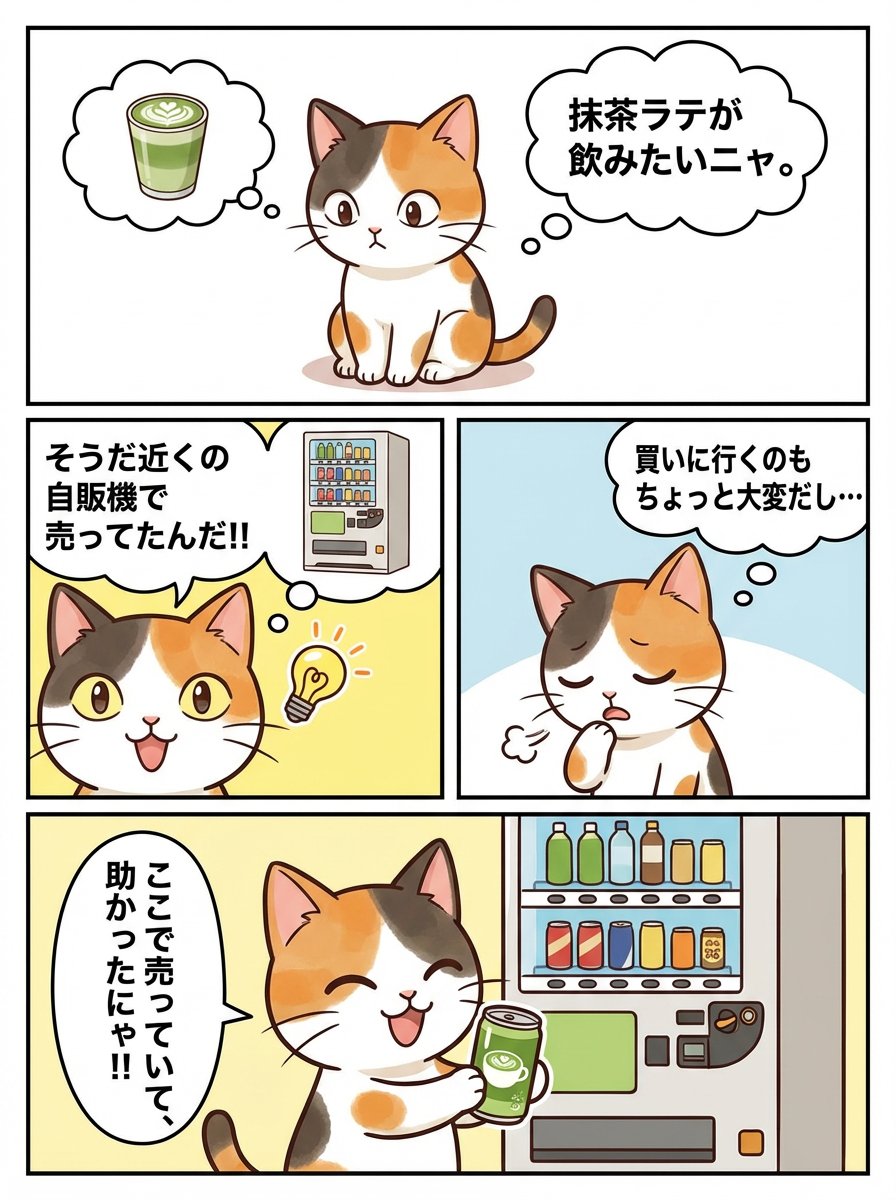
Panel Manga Story Generator (Cat Character)

Cinematic Portrait with Dramatic Light Strip

Macro Realism: Miniature Taj Mahal on a Vintage Indian Coin
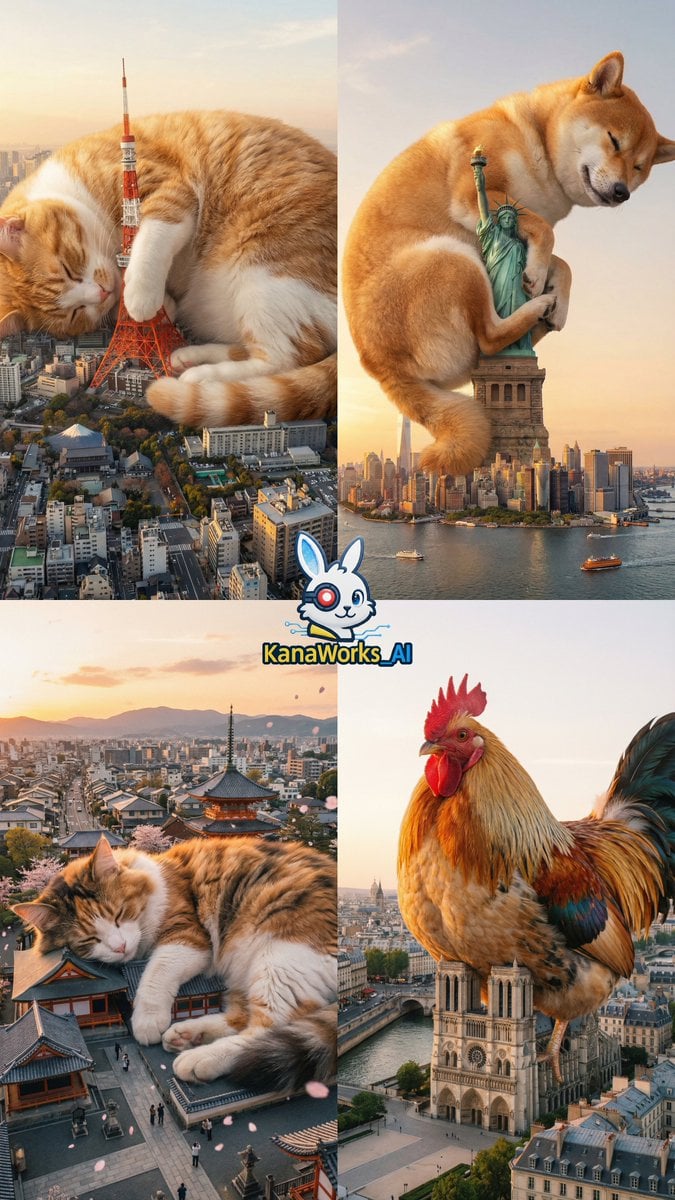
Gigantic and Adorable Prompt Share

Yin-yang koi ink illustration

Rainstorm Ronin Bridge Scene

Glamorous Woman on Harley-Davidson at Night
Browse template categories
Cute Google Fonts Japanese Infographic questions
How do I use the Cute Google Fonts Japanese Infographic template?
Add your photo if the template asks for one, edit the prompt if you like — the template's model and format are already selected — and press Generate. Your version opens in PicX Studio.
Can I customize the Cute Google Fonts Japanese Infographic template?
Yes. You can change the subject, setting, lighting, mood, format, and available model controls before creating your image.
Is the Cute Google Fonts Japanese Infographic template free?
Opening and editing this template is free. Generating uses credits, shown on the Generate button when you are signed in.
Which AI model should I use?
Start with GPT Image 2, which is the model associated with this template. You can compare another compatible model for a different finish.
Looking for something else? Browse all templates.

Your photo, any look
Thousands of ready templates for every top image and video model, from one credit balance.