How do I use the Japanese AI Training Banner template?
Choose the primary action to open PicX Studio with the available template settings. Review the model and format, personalize the creative direction, and generate when ready.
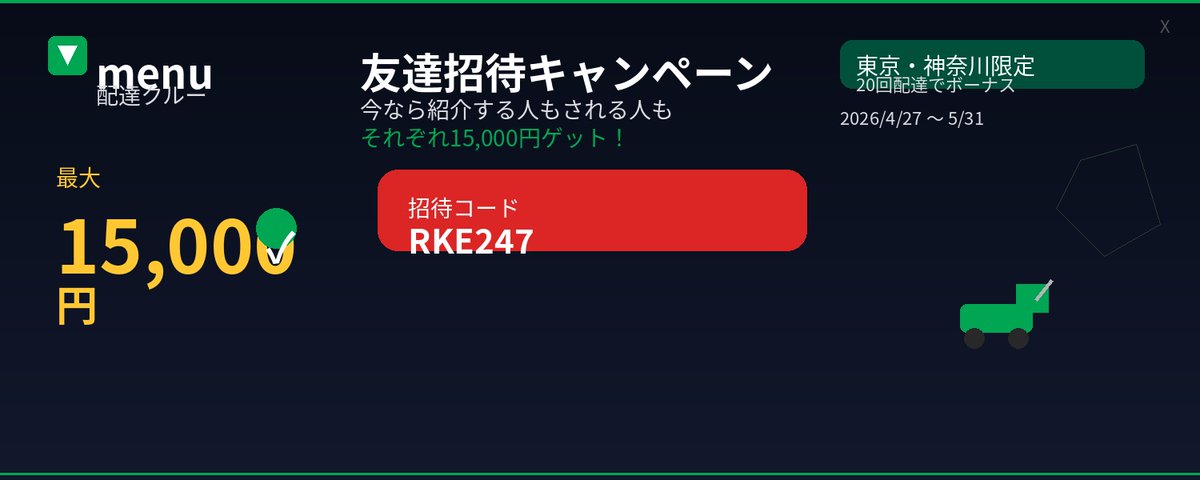
This prompt generates a polished wide-format Japanese corporate banner for an AI-powered coding training course, suitable for ads, landing pages, and promotional visuals. Change the subject, setting, or lighting one variable at a time.

Create a sleek Japanese corporate training banner in a wide horizontal web-ad format with a dark navy-to-deep-blue gradient background, subtle glowing network nodes and connecting lines across the upper and middle area, and a high-tech AI/business atmosphere. Place a confident businessman on the right side from waist-up, wearing a dark navy suit, white dress shirt, and blue striped tie, arms crossed, facing forward; crop him partially at the top and right edge. On the left, create a strong typographic hierarchy with a small cyan headline at the top reading {argument name="headline text" default="AIを活用した開発スキルを、最短で習得"}, then an oversized bold white main title reading {argument name="main title" default="ClaudeCode研修"}. Along the lower-left area, place exactly 3 rounded rectangular feature boxes outlined in bright cyan with dark interiors and cyan icons: box 1 shows a terminal/code icon and the text "Claude Codeの基本と応用", box 2 shows a rocket icon and the text "開発スピードを飛躍的に向上", box 3 shows a two-person/team icon and the text "現場ですぐに活かせるスキル". On the far right, overlay a large cyan angled polygon callout panel with bold dark text in 2 lines reading {argument name="callout text" default="明日からの開発が\n変わる体験を。"}. Use crisp modern sans-serif Japanese typography, strong contrast, polished marketing design, clean spacing, luminous cyan accents, and a premium AI seminar advertisement look.
Choose the primary action to open PicX Studio with the available template settings. Review the model and format, personalize the creative direction, and generate when ready.
Yes. You can change the subject, setting, lighting, mood, format, and available model controls before creating your image.
This template is free to open and customize. Generation usage is shown in PicX Studio before you create.
Start with GPT Image 2, which is the model associated with this template. You can compare another compatible model for a different finish.
© 2026 PicX Studio. All rights reserved.

Follow a topic to a crawlable collection of related PicX Studio templates.
43,474 public templates available. Verified via the PicX Studio public templates API; refreshed hourly.
























![Minimalist Flat Vector Travel Poster — Premium minimalist flat-vector travel poster for {argument name="city name" default="[CITY_NAME]"}, 3:4 vertical format.](https://cms-assets.youmind.com/media/1787917359711_3ug846_HQX205cbMAA6F6S-300x400.jpg)