
GPT Image 2 Reference Tutorial Banner
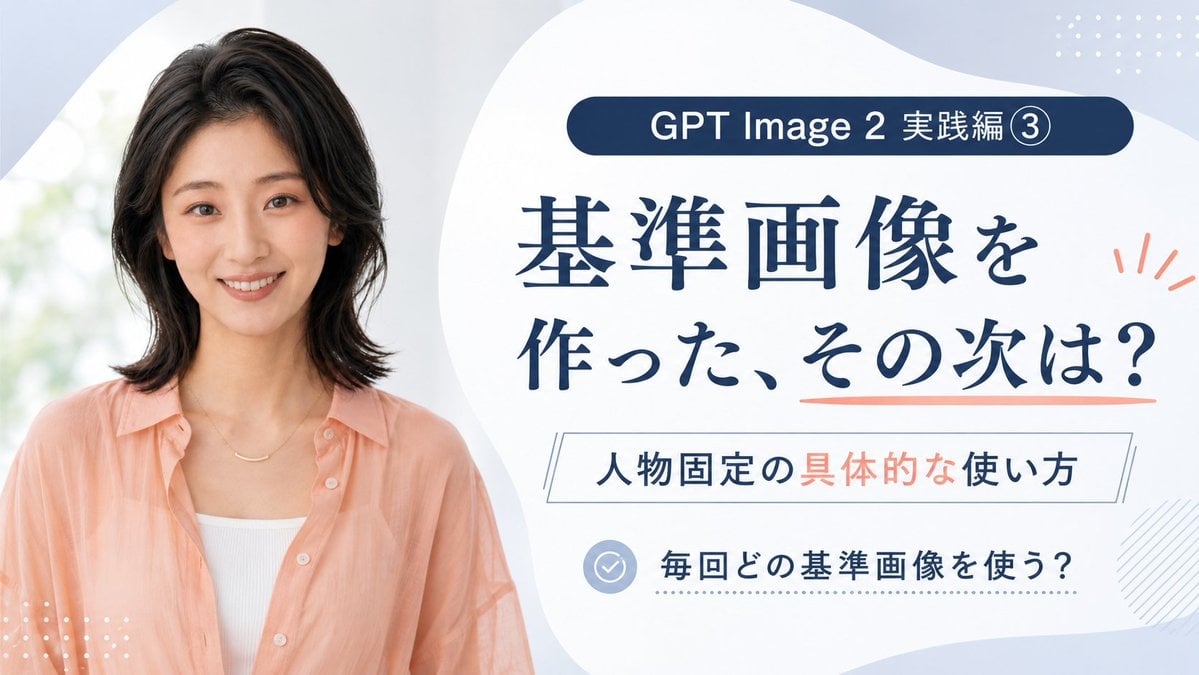
A Japanese course-style thumbnail featuring a smiling woman and text explaining how to use reference images for consistent characters in GPT Image 2.
- Prompt included
- Model and format preset
- Free template
The prompt behind this image
Copy the exact prompt behind GPT Image 2 Reference Tutorial Banner, or open it in the studio and make it yours.
Goal: Create a clean Japanese promotional thumbnail/banner for a GPT Image 2 tutorial about using reference images to keep the same person consistent. Canvas: 16:9 horizontal banner, 1200×675 style, soft pale blue and white background with large organic blob shapes. Use a polished educational course-thumbnail aesthetic, airy spacing, high readability, no harsh shadows. Layout: Split composition with a realistic portrait on the left occupying about 40% of the canvas, and a text-heavy information panel on the right occupying about 60%. The right side has a large white rounded organic shape as the main text area. Add small decorative dotted grids in the top-right and bottom-left corners, a light diagonal hatch pattern near the lower-right edge, and coral accent marks beside the headline. Subject details: On the left, show one smiling Japanese woman in her late 20s to early 30s, photographed from the waist/chest up, facing the camera. She has shoulder-length softly layered black hair, natural makeup, warm friendly expression, and wears a peach sheer button-up shirt over a white ribbed camisole with a delicate gold necklace. Background behind her is bright, soft-focus, and slightly green-white like daylight through a window. Text content: Include exactly 4 text blocks on the right: 1) a dark navy rounded pill at the top reading 「GPT Image 2 実践編 ③」; 2) a large navy Japanese headline reading 「基準画像を\n作った、その次は?」 with a coral underline under the final phrase; 3) a thin outlined rectangle subtitle reading 「人物固定の具体的な使い方」 with 「具体的な」 highlighted in coral; 4) a bottom checklist row with a pale blue circular check icon followed by 「毎回どの基準画像を使う?」. Keep all Japanese text crisp, centered within its area, and use elegant Mincho-style serif for the main headline with modern sans-serif for smaller labels. Color palette: Deep navy text, pale powder blue background, white panels, peach/coral accents matching the woman's shirt, and light blue-gray icon details. Constraints: Use exactly one person, exactly four text blocks, exactly one check icon, and exactly three main decorative accent types: dotted grids, coral rays/underline, and diagonal hatching. Avoid extra logos, watermarks, English translations, or additional text.
How to use GPT Image 2 Reference Tutorial Banner in 3 steps
- 1Upload ImagePNG, JPG or paste
Add your photo
Upload the photo the template builds on. The prompt, model and format are already set.
- 2…a portrait of your subject in softgolden-hour light, 85mm…
Personalize
Edit the subject and creative details for your destination.
- 3Generate
Generate
Press Generate — your image is created in PicX Studio, so you can compare it with the original and refine one variable at a time.
More like this
Templates with the same subject, style or setup. Open one to see its prompt.
Felt GPT Image 2 Apple Design Banner

ChatGPT Bonus Banner Screenshot

GPT-Image2 E-Commerce Course Banner
Fantasy GPTImage2 Skill Banner
Magic Edit GPT Image 2 Promo Banner
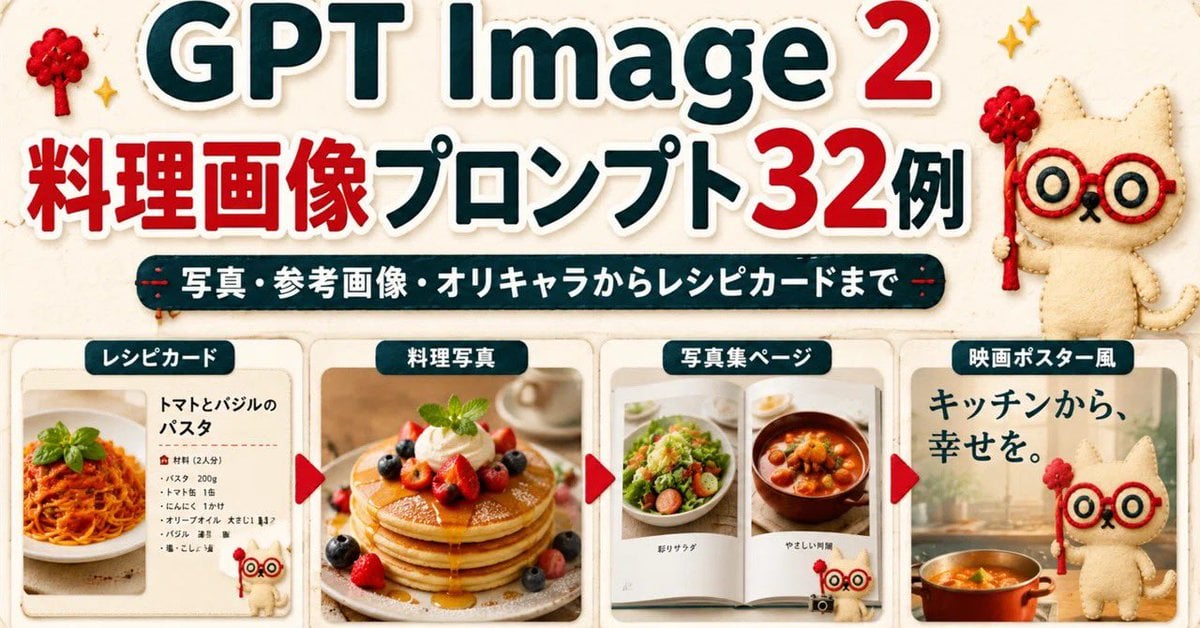
GPT Image 2 Cooking Prompt Banner
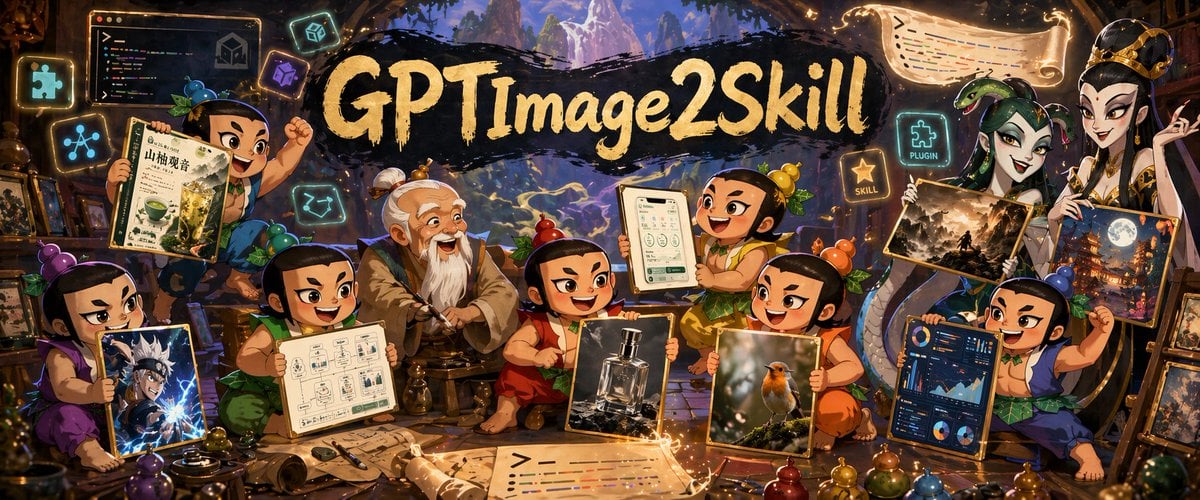
Fantasy GPT Image 2 Skill Banner
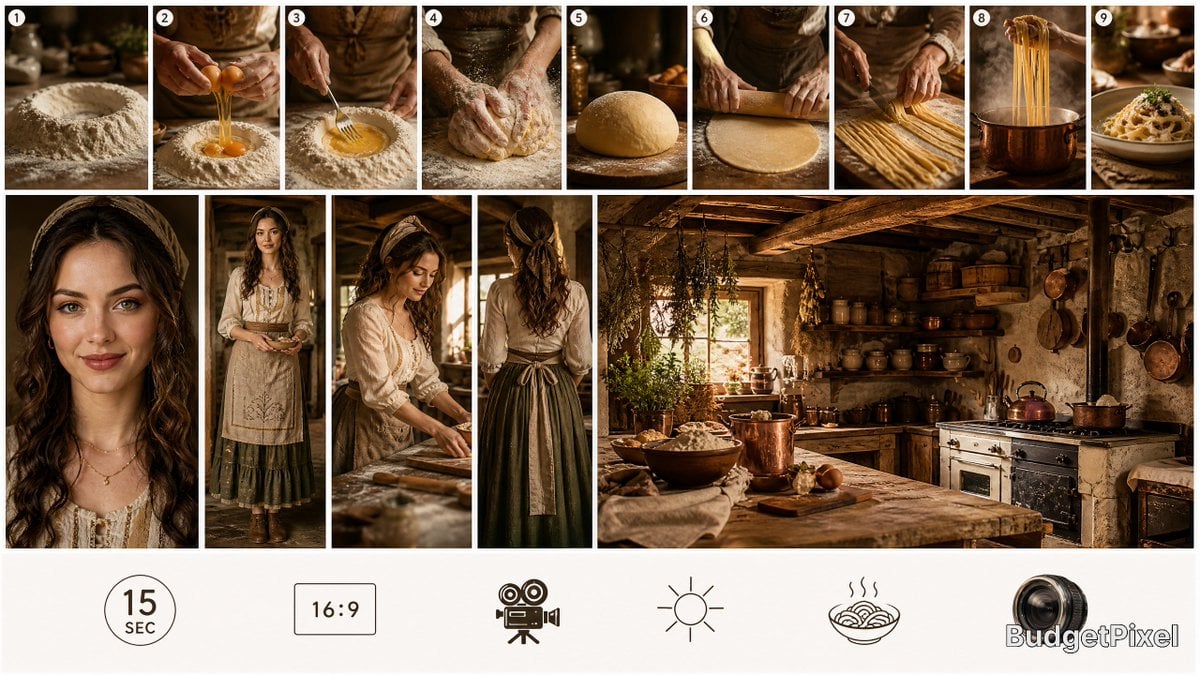
Rustic Pasta Tutorial Reference Sheet
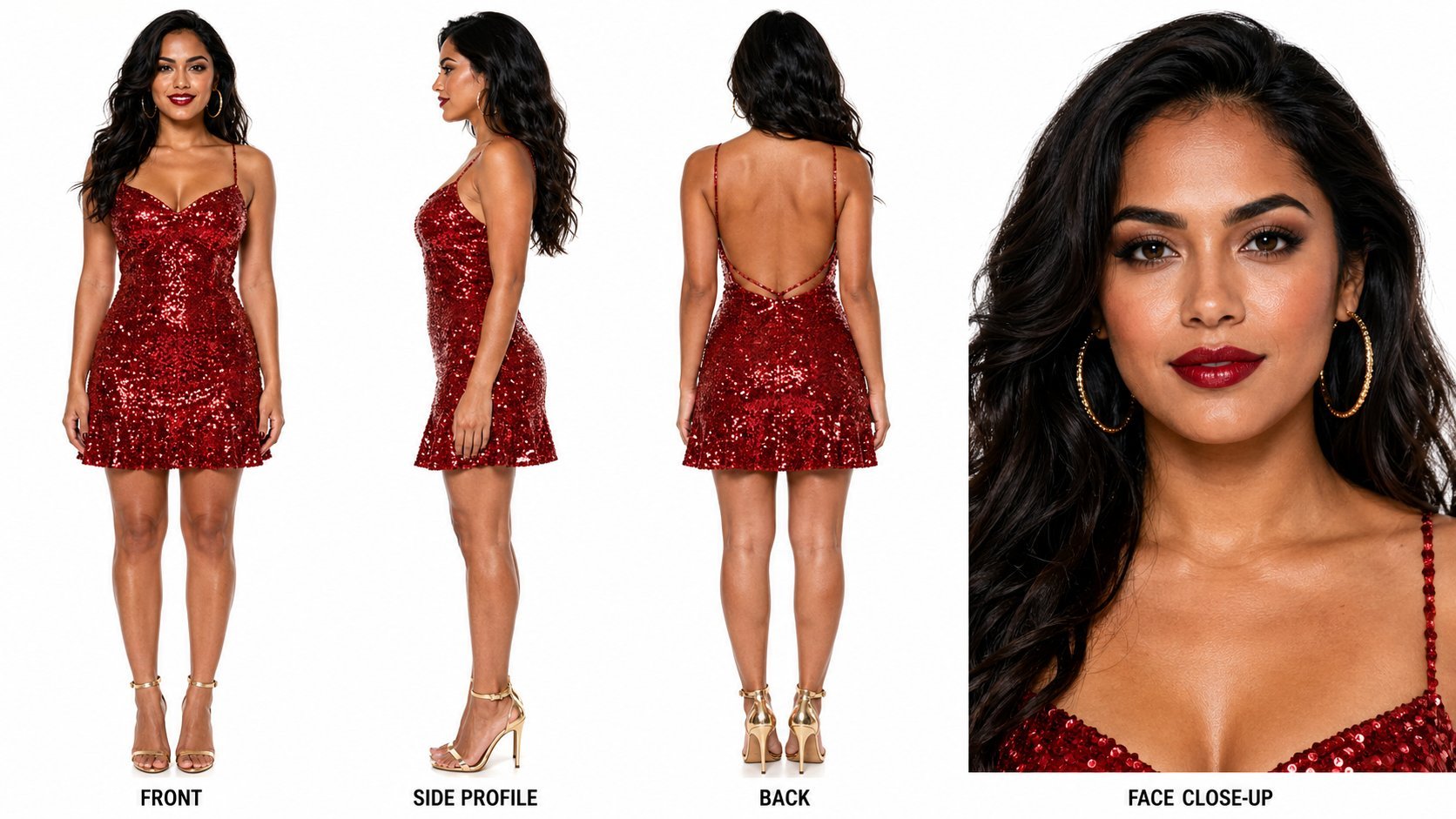
Dancer Character - Four View Reference Sheet
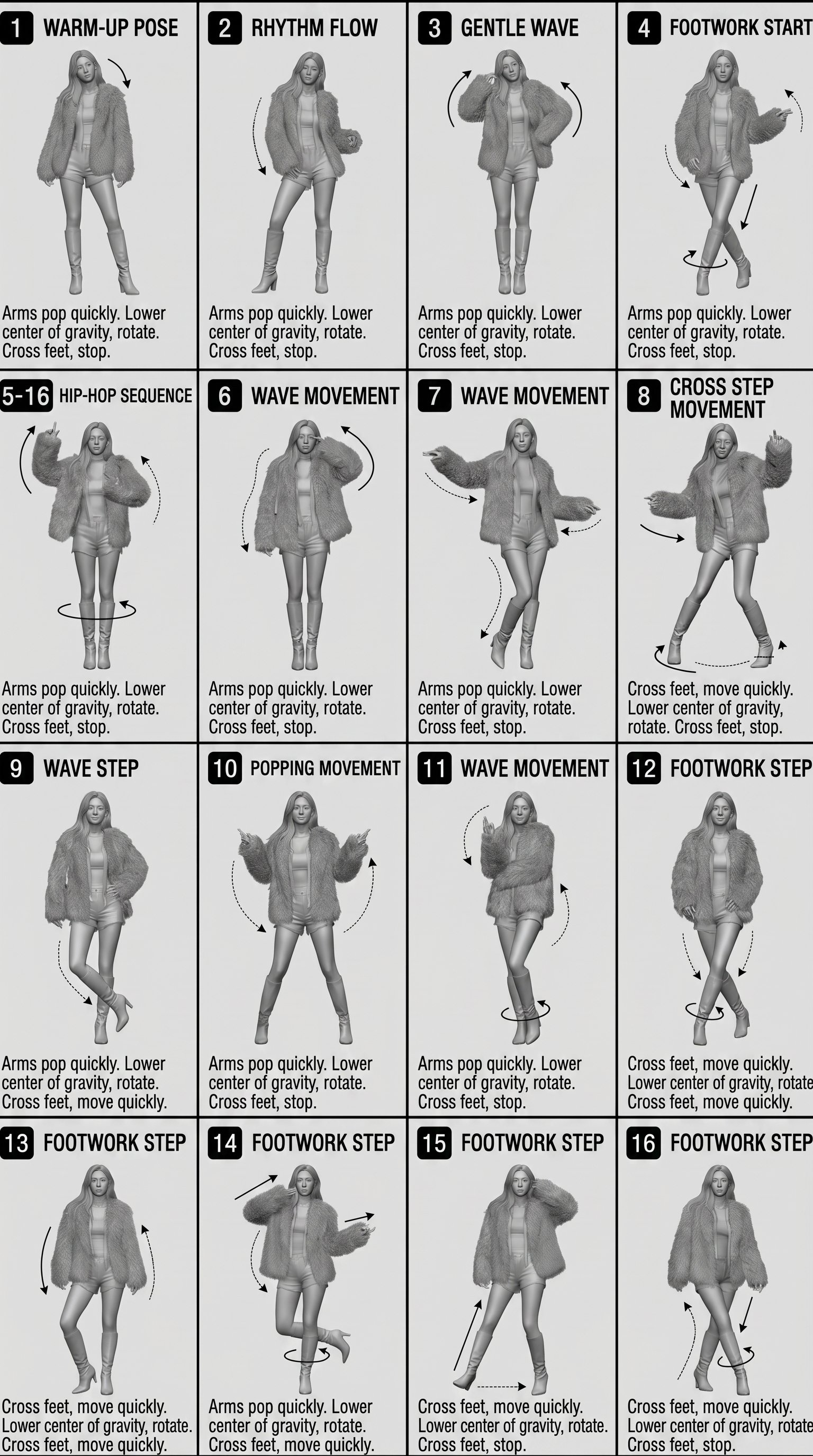
Movement Sheet - Dance Reference (Seedance 2.0)

Gpt2 Social Media Post 4 Panel Japanese Digital Ad Banner Grid
Coffee Boba Product Poster
Make it yours
GPT Image 2 Reference Tutorial Banner works as-is. These are the safest ways to change it without losing the look.
Change one field
Copy a single group, rewrite it, and generate again so you can see what that field is doing.
Keep the frame, change the subject
Hold the composition and light of GPT Image 2 Reference Tutorial Banner, then swap wardrobe, props or the person for a new take.
| If the result… | Why | Fix |
|---|---|---|
| The result drifts from the preview | Too many fields changed at once. | Reuse GPT Image 2 Reference Tutorial Banner as-is first, then change one group — subject, light, or setting. |
| The model over-stylizes the scene | The prose prompt leaves finish and camera underspecified. | Add one camera or lighting sentence and stay on GPT Image 2. |
More GPT Image 2 templates
Other prompts made for GPT Image 2.

Six VTuber Japanese Logo Sheet

Realistic Portrait of Woman and Deer

The Vista Modular Condo Poster

AI Model Routing Comparison Infographic

2.5D Anime Art Board

Isometric Productivity Desk Scene

New York Double Exposure Poster

Four-Panel AI Landscape Comparison

Japanese Tatami Lifestyle Magazine Cover

NESCAFÉ Coffee Map Poster
More image prompts
Fresh picks from across the catalog.
Hyper-realistic Portrait with Cinematic Lighting
Cookie Baking Scene for Image and Video Generation
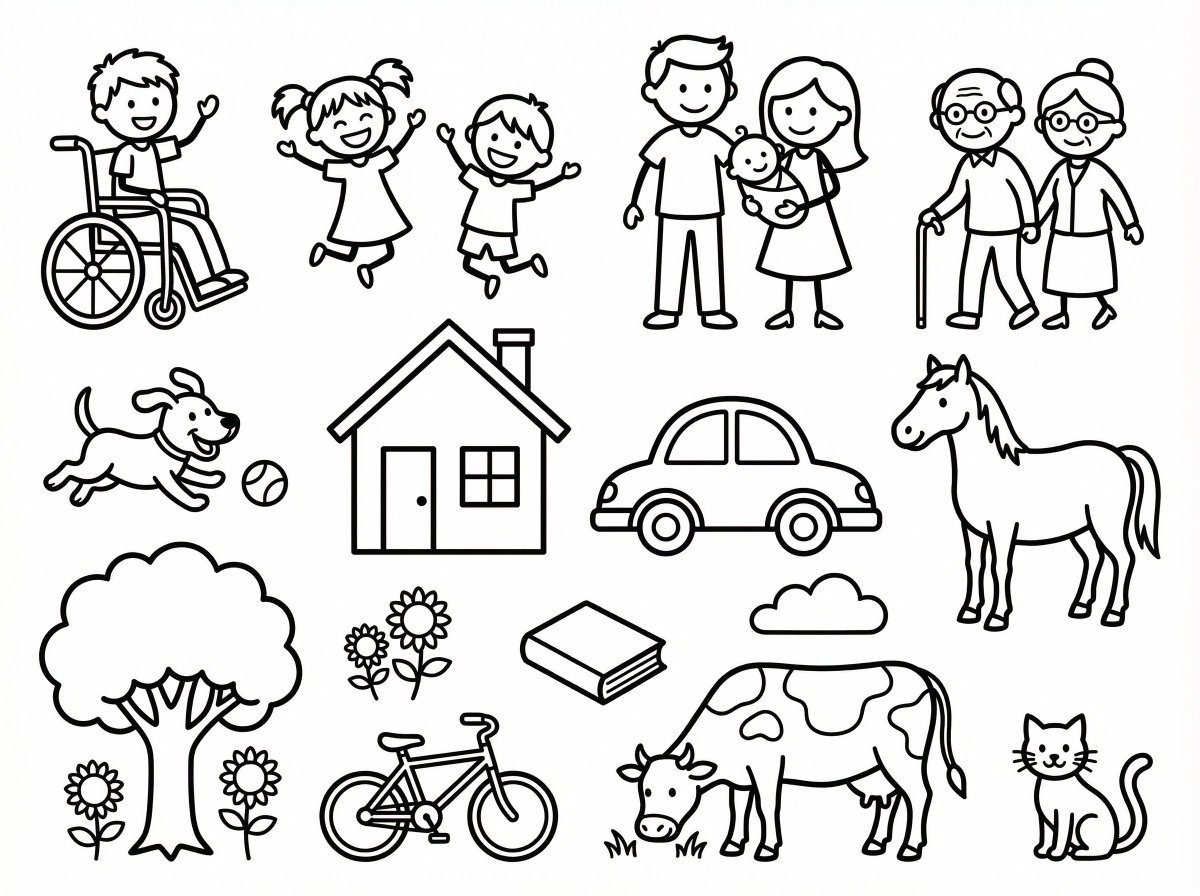
Simple Stick Figure Coloring Book Clipart
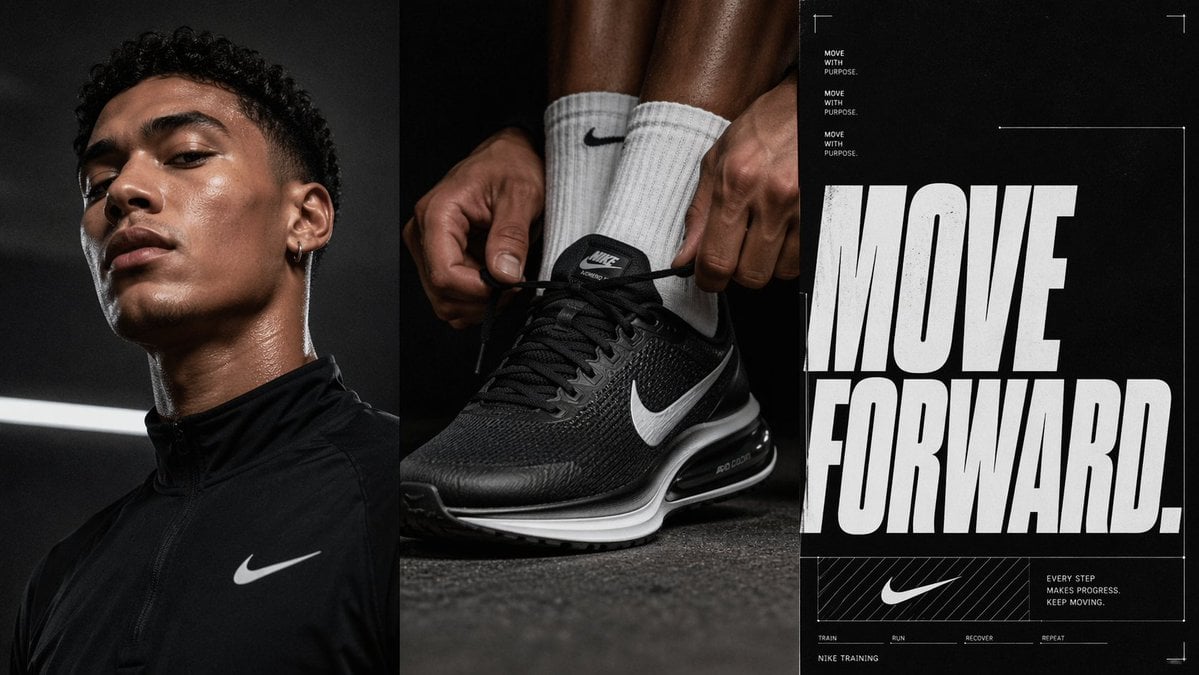
Triptych Sports Ad Poster

untitled
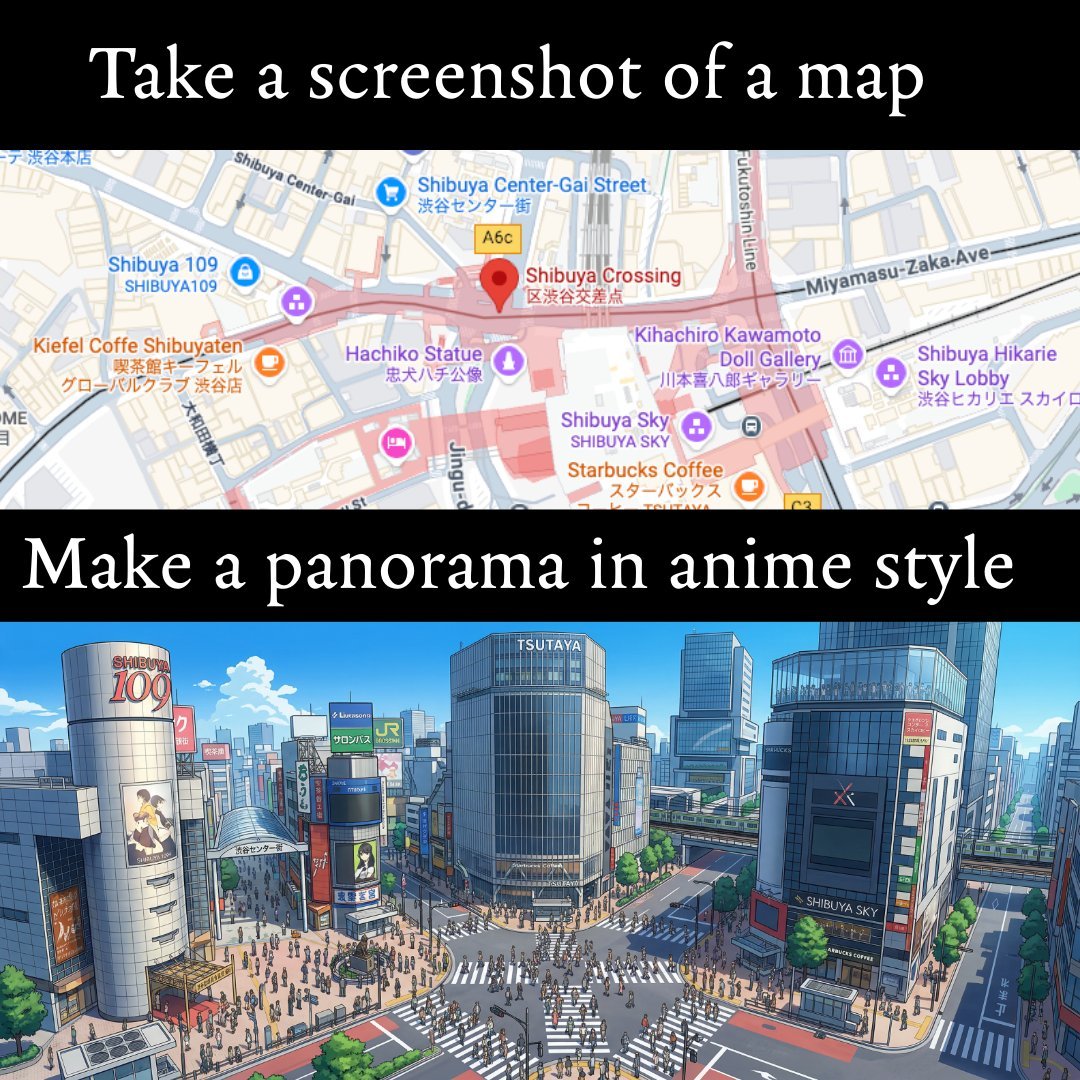
The Coolest Use Case for Ai Animation I
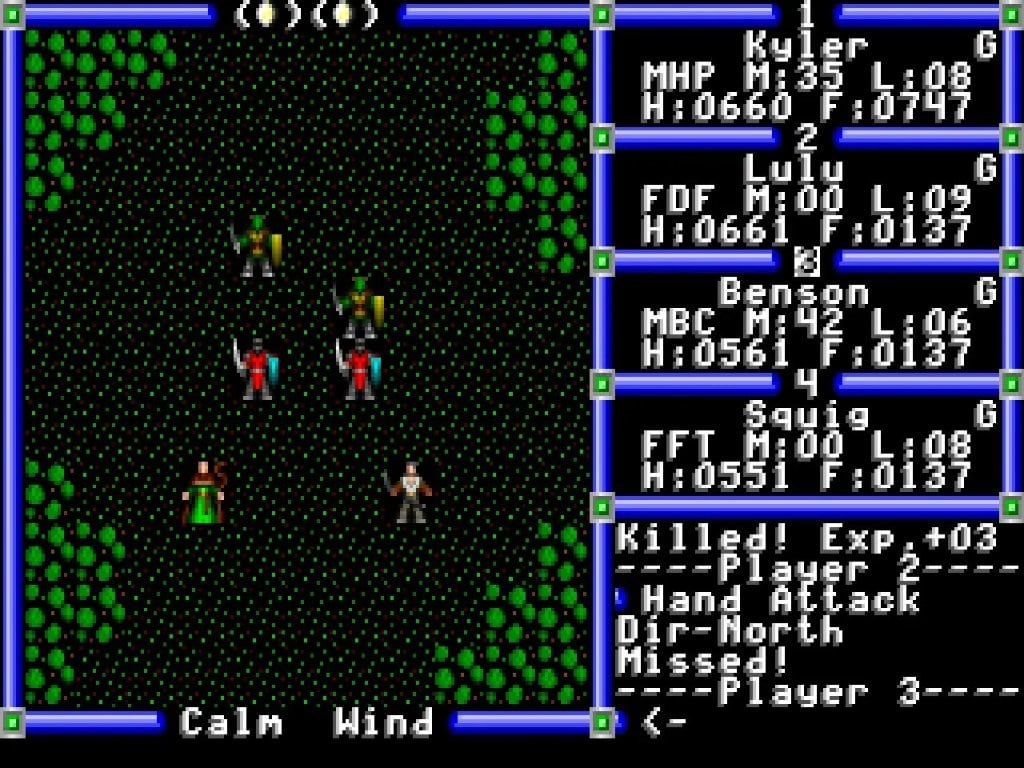
Ultra-realistic photo from retro game interface
Cinematic Crispy Burger Food Photography
Premium Japanese Sake Poster
Noir Mafia Boss Car Portrait
Browse template categories
GPT Image 2 Reference Tutorial Banner questions
How do I use the GPT Image 2 Reference Tutorial Banner template?
Add your photo if the template asks for one, edit the prompt if you like — the template's model and format are already selected — and press Generate. Your version opens in PicX Studio.
Can I customize the GPT Image 2 Reference Tutorial Banner template?
Yes. You can change the subject, setting, lighting, mood, format, and available model controls before creating your image.
Is the GPT Image 2 Reference Tutorial Banner template free?
Opening and editing this template is free. Generating uses credits, shown on the Generate button when you are signed in.
Which AI model should I use?
Start with GPT Image 2, which is the model associated with this template. You can compare another compatible model for a different finish.
Looking for something else? Browse all templates.

Your photo, any look
Thousands of ready templates for every top image and video model, from one credit balance.