How do I use the Japanese Mermaid Stage Collage template?
Choose the primary action to open PicX Studio with the available template settings. Review the model and format, personalize the creative direction, and generate when ready.
A structured prompt for generating a realistic Japanese editorial collage showing backstage preparation and pool performance for a mermaid-themed stage concept. Change the subject, setting, or lighting one variable at a time.
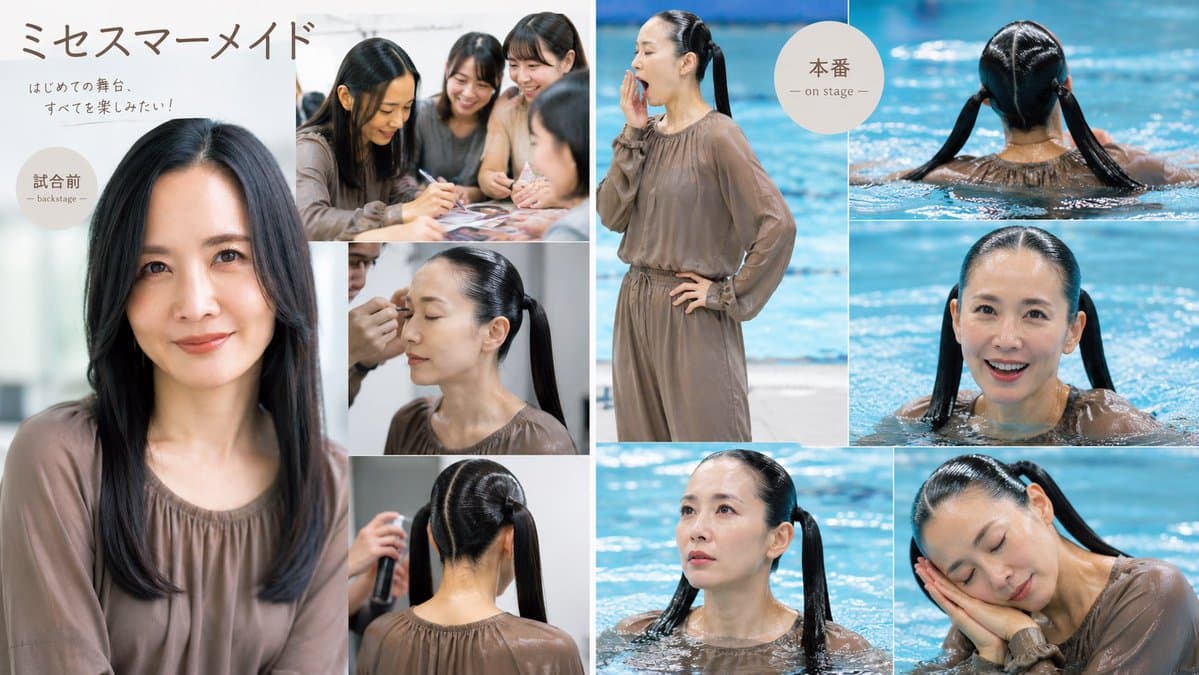
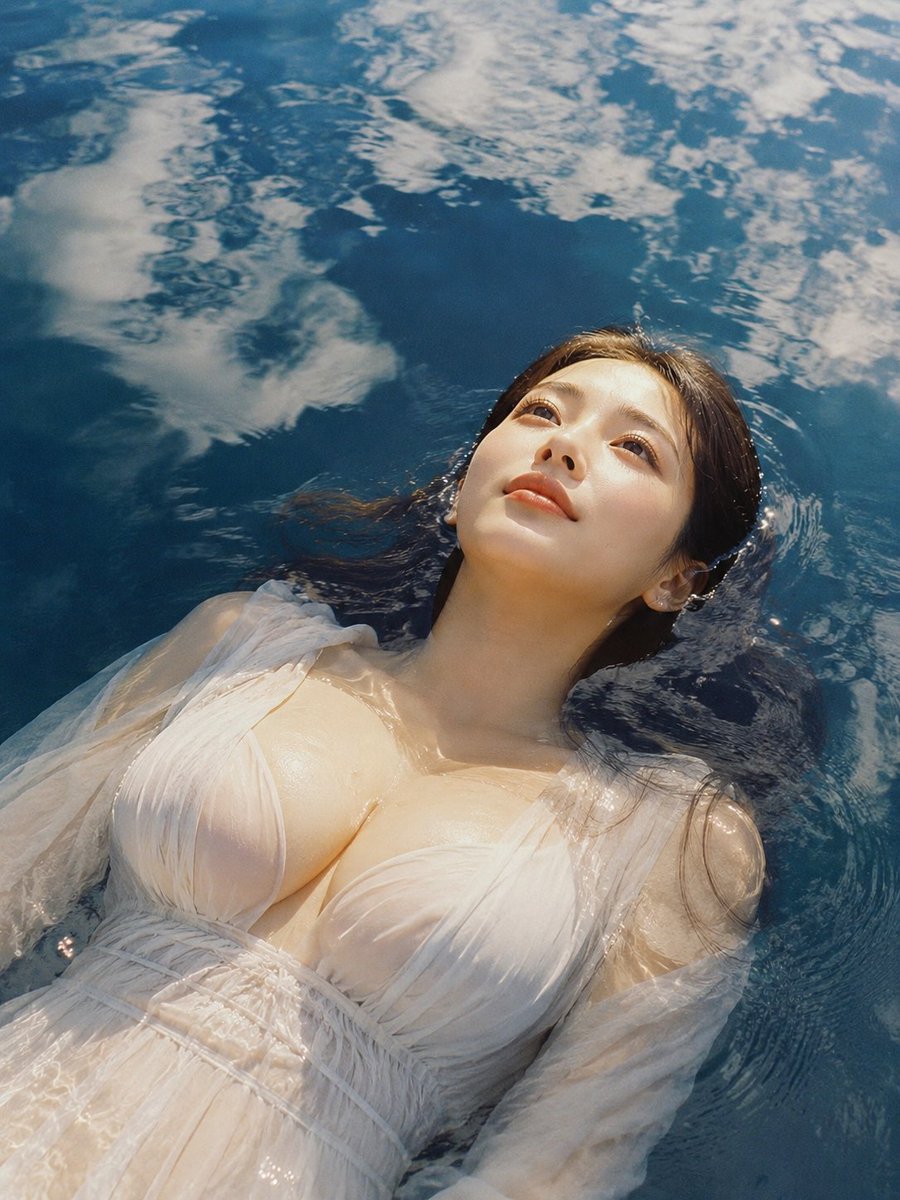
Goal: Create a polished Japanese stage-performance photo collage / concept board for a fictional mermaid-themed production titled {argument name="main title" default="ミセスマーメイド"}, using realistic editorial photography and a soft magazine layout. Canvas: Wide 16:9 landscape collage, about 1200×675 px, divided by thin white gutters into a left preparation/backstage area and a right pool/on-stage area. Use clean cream-white negative space, muted taupe clothing, bright turquoise pool water, and natural soft lighting. Layout: Use exactly 9 photo panels plus 2 circular label badges. The left half contains 5 backstage panels: 1 large vertical portrait of a young East Asian woman with long black hair wearing a loose taupe blouse; 1 upper-right group-planning photo of three young women gathered around papers; 1 middle close-up of hairstyling hands; 1 medium side portrait showing a sleek ponytail; 1 lower rear-view hairstyling shot showing a center-parted slick ponytail. The center vertical panel shows 1 full-body standing pose near a pool, the woman in a wet-looking taupe long-sleeve dress with one hand near her face and one hand on her hip. The right half contains 3 pool-performance panels: 1 upper rear view of the woman swimming away with twin ponytails visible above the water; 1 middle front-facing pool portrait with wet hair and shoulders emerging from water; 1 lower-right expressive close-up in the pool with the performer leaning sideways, wet taupe fabric clinging, hands near face. Add 1 additional lower-center pool portrait bridging the center/right grid, making the total photo panel count exactly 9. Text content: At top left, write the large handwritten Japanese title {argument name="main title" default="ミセスマーメイド"}. Under it, add small Japanese subtitle text {argument name="subtitle" default="はじめての舞台、すべてを楽しみたい!"}. On the left portrait, place a beige circular badge reading 「試合前」 with small English text “— backstage —”. Near the top of the center/right boundary, place a beige circular badge reading 「本番」 with small English text “— on stage —”. Keep the typography delicate, minimal, and magazine-like. Subject details: The recurring subject is {argument name="character description" default="a young East Asian woman with long glossy black hair"}, photographed in all panels as the same performer. Her outfit is {argument name="outfit" default="a loose taupe-brown chiffon blouse or wet dress with gathered neckline and long sleeves"}. Hair changes from loose straight hair backstage to a sleek high ponytail and twin ponytails in the pool. Faces may be softly anonymized or left indistinct, but preserve realistic skin tones and photographic lighting. Visual style: Realistic generated photography, clean lifestyle-magazine collage, soft daylight, shallow depth of field, crisp white grid lines, beige circular callouts, elegant Japanese editorial mood, water reflections and highlights in bright aqua blue. Constraints: Maintain exactly 9 distinct photo panels and exactly 2 circular badges. Do not add logos, watermarks, extra captions, extra people beyond the backstage group panel, or decorative icons. Keep the composition very similar to a theatrical before-and-after collage: backstage preparation on the left, performance in water on the right.
Choose the primary action to open PicX Studio with the available template settings. Review the model and format, personalize the creative direction, and generate when ready.
Yes. You can change the subject, setting, lighting, mood, format, and available model controls before creating your image.
This template is free to open and customize. Generation usage is shown in PicX Studio before you create.
Start with GPT Image 2, which is the model associated with this template. You can compare another compatible model for a different finish.
© 2026 PicX Studio. All rights reserved.

Follow a topic to a crawlable collection of related PicX Studio templates.
43,474 public templates available. Verified via the PicX Studio public templates API; refreshed hourly.

















![Minimalist Flat Vector Travel Poster — Premium minimalist flat-vector travel poster for {argument name="city name" default="[CITY_NAME]"}, 3:4 vertical format.](https://cms-assets.youmind.com/media/1787917359711_3ug846_HQX205cbMAA6F6S-300x400.jpg)


































![3D embossed brand logo on monochrome background — 平面上中心对齐的{argument name="品牌名称" default="[品牌名称]"}采用3D浮雕光泽轮廓渲染,构图完美居中,周围留白充足,营造出高端简约的美感。
单色{argument name="主色" d](https://pbs.twimg.com/media/G7Jj9YHbgAAVRUA.jpg)