How do I use the Goku Anime Character Sheet template?
Choose the primary action to open PicX Studio with the available template settings. Review the model and format, personalize the creative direction, and generate when ready.
Generates a wide professional anime model sheet for a Goku-style martial arts character with turnarounds, poses, expressions, details, scale lineup, and color palettes. Change the subject, setting, or lighting one variable at a time.
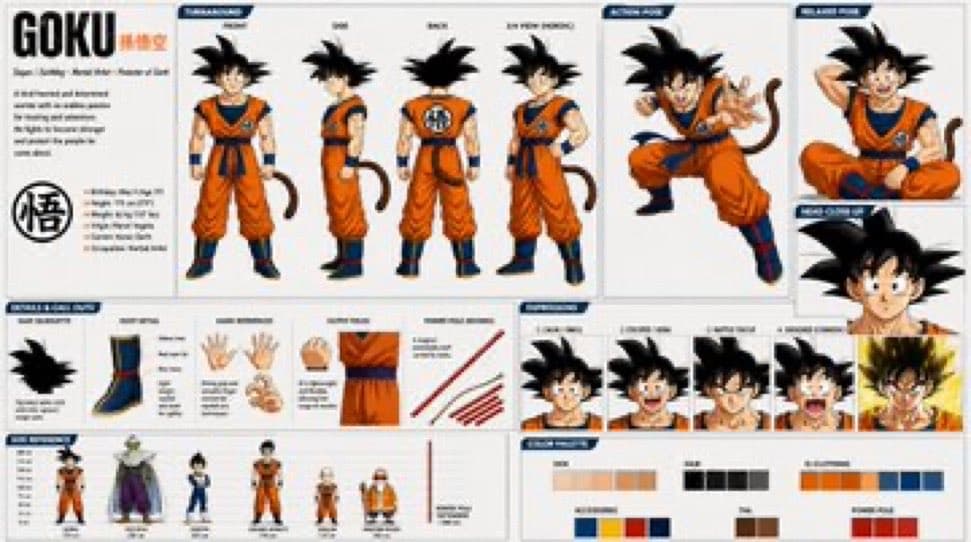
Goal: Create a complete anime character design sheet for {argument name="character name" default="Goku"} in the classic Dragon Ball style, on a bright clean white/light-gray presentation background, like a professional character reference board. Make him highly recognizable with spiky black hair, orange martial arts gi, blue undershirt, blue wristbands, blue belt, blue boots with red accents, and a brown monkey tail. Use crisp cel-shaded anime line art, neat panel borders, small technical annotations, and navy-blue section tabs. Canvas: Wide horizontal character sheet, approximately 16:9, dense but clean layout, divided into multiple rectangular panels with thin gray borders. Use a white background with pale gray grid/panel divisions and dark blue label ribbons. Layout and exact visible element counts: - Left biography column: 1 large title reading {argument name="headline text" default="GOKU"}, 1 small orange subtitle/mark beside it, 2 short blocks of tiny descriptive text, and 1 large circular kanji-style emblem. - Main turnaround panel: exactly 4 full-body standing views of the character, labeled as front, side, back, and three-quarter/front pose. All 4 wear the same orange-and-blue outfit and show the tail where visible. - Action pose panel: exactly 1 dynamic crouching/fighting pose with fists raised and tail visible. - Sitting pose panel: exactly 1 cross-legged seated pose. - Face close-up panel: exactly 1 large head-and-hair close-up. - Costume and anatomy detail strip: exactly 6 detail items, including 1 hair silhouette, 1 boot detail, 1 pair of open hands, 1 fist/hand detail, 1 torso/gi fabric close-up, and 1 set of red staff/weapon line details. - Expression row: exactly 5 head/expression busts, showing neutral, serious, determined, shouting, and powered-up battle expression with golden energy hair/aura. - Scale comparison panel: exactly 6 standing character silhouettes/figures in a lineup, including the main character plus five other Dragon Ball-inspired figures of different heights. - Color palette panel: exactly 6 labeled swatch groups: skin tones, hair blacks, outfit orange tones, blue clothing tones, belt/boot dark tones, and red accent tones. Subject details: The character should have large spiky black hair, athletic childlike-to-teen proportions, expressive anime eyes, orange sleeveless gi with dark blue undershirt, blue sash belt, blue wristbands, dark blue boots with red trim, and a brown tail. The back view should show a circular kanji emblem on the gi. The action pose should feel energetic and martial-arts focused. The expression row should include one dramatic Super Saiyan-like powered-up variant with golden hair and fiery yellow aura. Text style: Use mostly tiny faux-production notes and technical labels that look like a character design bible; keep the main title readable. Use {argument name="style label" default="CHARACTER DESIGN SHEET"} as a recurring dark-blue tab label where appropriate. Visual style: 1990s shonen anime production sheet, clean cel shading, black ink outlines, warm orange and deep blue color scheme, precise model-sheet presentation, high detail, no photorealism. Constraints: Keep exactly the element counts listed above. Do not add extra characters outside the scale lineup. Do not use a dark background. No watermark, no logo overlay, no messy collage effects.
Choose the primary action to open PicX Studio with the available template settings. Review the model and format, personalize the creative direction, and generate when ready.
Yes. You can change the subject, setting, lighting, mood, format, and available model controls before creating your image.
This template is free to open and customize. Generation usage is shown in PicX Studio before you create.
Start with GPT Image 2, which is the model associated with this template. You can compare another compatible model for a different finish.
© 2026 PicX Studio. All rights reserved.

Follow a topic to a crawlable collection of related PicX Studio templates.
43,474 public templates available. Verified via the PicX Studio public templates API; refreshed hourly.













![Minimalist Flat Vector Travel Poster — Premium minimalist flat-vector travel poster for {argument name="city name" default="[CITY_NAME]"}, 3:4 vertical format.](https://cms-assets.youmind.com/media/1787917359711_3ug846_HQX205cbMAA6F6S-300x400.jpg)



















![Bakery Product Poster Template — 变量配置
基础信息
品牌名称:{argument name="品牌名称" default="H·X"}
品牌标签:[如:H·X SIGNATURE / 招牌出品 / ARTISAN BAKED]
画面规格
画面比例:9比16竖版 / 3比4 / 1比](https://cms-assets.youmind.com/media/1777711053774_nlg3gy_HHNjpeLbkAA2WtQ.jpg)