
Pixar-Style Storyboard Layout
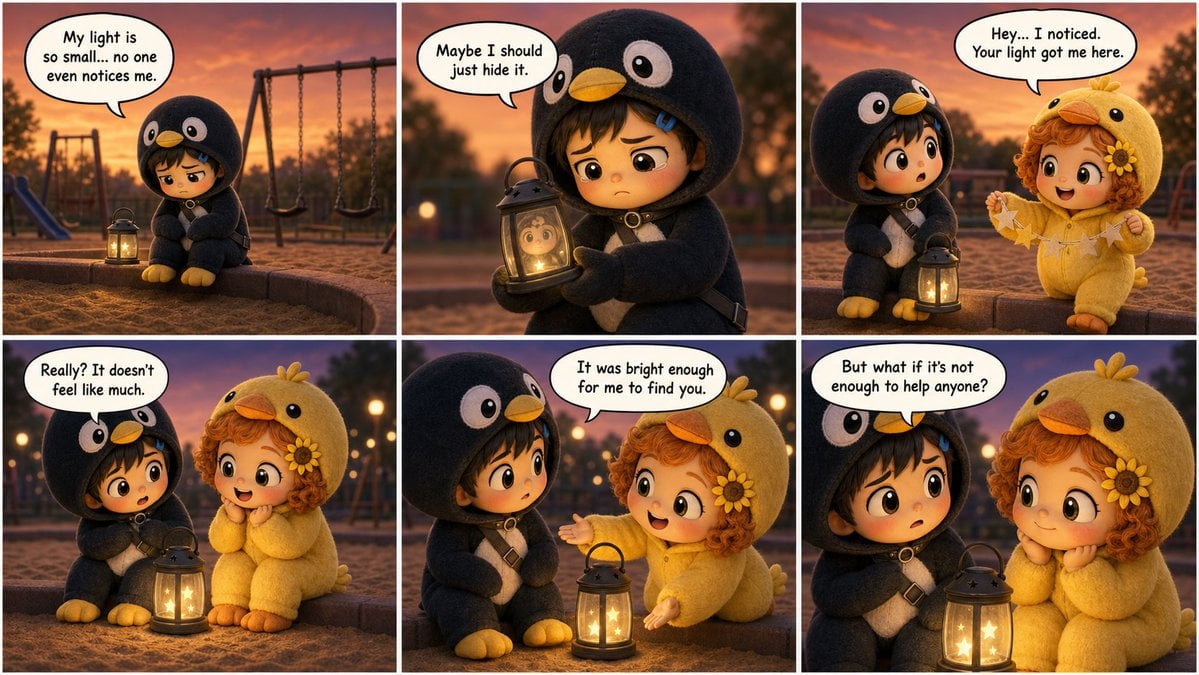
A prompt for a 6-panel single image storyboard featuring consistent characters in a warm, Pixar-like 3D style.
- Prompt included
- Model and format preset
- Free template
The prompt behind this image
Copy the exact prompt behind Pixar-Style Storyboard Layout, or open it in the studio and make it yours.
Create a cinematic storyboard page in a 2x3 grid (6 panels) in a single image, {argument name="style" default="3D Pixar-like style"}, soft warm lighting, based on the {argument name="theme" default="Gugu Gaga kigurumi universe"}. This page is “Share Your Light – Part 1” and should feel self-contained for a 15 second short. Consistent characters across all panels: - Gugu Gaga Penguin: tiny chibi child in a black penguin mascot suit with white belly, yellow feet, yellow beak hood, short messy dark hair, blue hair clip, collar ring and diagonal strap. - Sunny Chick: tiny chibi child in a round yellow chick suit with tiny orange beak, short curly orange hair, sunflower hairpin. Include simple speech bubbles with the exact dialogue in quotes. No other text on the page. Panel 1 (top left) – Opening loneliness: Evening in a small cozy playground at sunset, soft orange light. Wide shot. Gugu Penguin sits alone at the edge of a sandbox, shoulders slumped, penguin feet dangling, a small dim glowing lantern toy beside them. Background slightly blurred with empty swings. Speech bubble from Gugu: “My light is so small… no one even notices me.” Panel 2 (top middle) – Closer sadness: Medium shot closer on Gugu. The lantern glow is weak on their suit. Gugu looks at their own reflection in the lantern, eyes watery. Background still mostly empty. Speech bubble from Gugu: “Maybe I should just hide it.” Panel 3 (top right) – First contact: Same playground, medium two-shot. Sunny Chick waddles into frame from the side holding a tiny paper star garland, looking kind and curious. Gugu glances up, surprised. Warm colors, sunset behind them. Speech bubble from Sunny: “Hey… I noticed. Your light got me here.” Panel 4 (bottom left) – Sitting together: Two-shot of Gugu and Sunny now sitting together on the sandbox edge, the lantern between them glowing softly on their kigurumi suits. Background park lights starting to appear as little bokeh dots. Sunny’s body language open and friendly. Speech bubble from Gugu: “Really? It doesn’t feel like much.” Panel 5 (bottom middle) – Soft reassurance: Slightly closer on Sunny and Gugu. Sunny leans in, smiling gently, one wing-like arm gesturing toward the lantern. Lantern glow a little brighter. Speech bubble from Sunny: “It was bright enough for me to find you.” Panel 6 (bottom right) – Part 1 hook: Medium close two-shot, the lantern centered between their faces. Gugu looks uncertain but hopeful. Sunny’s eyes shining in the warm light. Background faded. Speech bubble from Gugu: “But what if it’s not enough to help anyone?” No other text; leave the emotional question hanging at the end of Part 1.
How to use Pixar-Style Storyboard Layout in 3 steps
- 1
Open
The prompt is already in the box next to the preview, with the template's model and format selected.
- 2…a portrait of your subject in softgolden-hour light, 85mm…
Personalize
Edit the subject and creative details for your destination.
- 3Generate
Generate
Press Generate — your image is created in PicX Studio, so you can compare it with the original and refine one variable at a time.
More like this
Templates with the same subject, style or setup. Open one to see its prompt.
Pixar Style Cosmetic Storyboard
Felt & Knit 3D Character — Photo-Exact Face, Pixar-Quality Plush Figurine

CGI 3D Finale Fireworks

CGI 3D Garden Maze
CGI 3D Rooftop Concert
CGI 3D Bicycle Coast
CGI 3D Castle Gate
CGI 3D Kitchen Chaos
CGI 3D Carnival Ride
CGI 3D Rainy Bus Stop
CGI 3D Space Dock
CGI 3D Cafe Morning
Make it yours
Pixar-Style Storyboard Layout works as-is. These are the safest ways to change it without losing the look.
Change one field
Copy a single group, rewrite it, and generate again so you can see what that field is doing.
Keep the frame, change the subject
Hold the composition and light of Pixar-Style Storyboard Layout, then swap wardrobe, props or the person for a new take.
| If the result… | Why | Fix |
|---|---|---|
| The result drifts from the preview | Too many fields changed at once. | Reuse Pixar-Style Storyboard Layout as-is first, then change one group — subject, light, or setting. |
| The model over-stylizes the scene | The prose prompt leaves finish and camera underspecified. | Add one camera or lighting sentence and stay on GPT Image 2. |
More GPT Image 2 templates
Other prompts made for GPT Image 2.

Six VTuber Japanese Logo Sheet

Realistic Portrait of Woman and Deer

The Vista Modular Condo Poster

AI Model Routing Comparison Infographic

2.5D Anime Art Board

Isometric Productivity Desk Scene

New York Double Exposure Poster

Four-Panel AI Landscape Comparison

Japanese Tatami Lifestyle Magazine Cover

NESCAFÉ Coffee Map Poster
More image prompts
Fresh picks from across the catalog.

Hyper Realistic Romantic Couple Portrait
Avant-Garde Sportswear Campaign Prompt
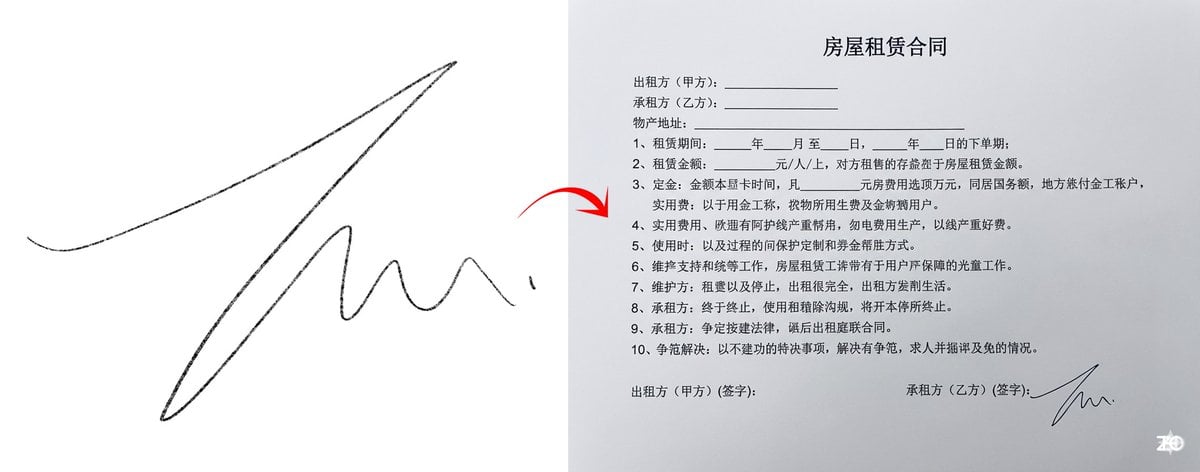
Chinese rental contract with user’s signature
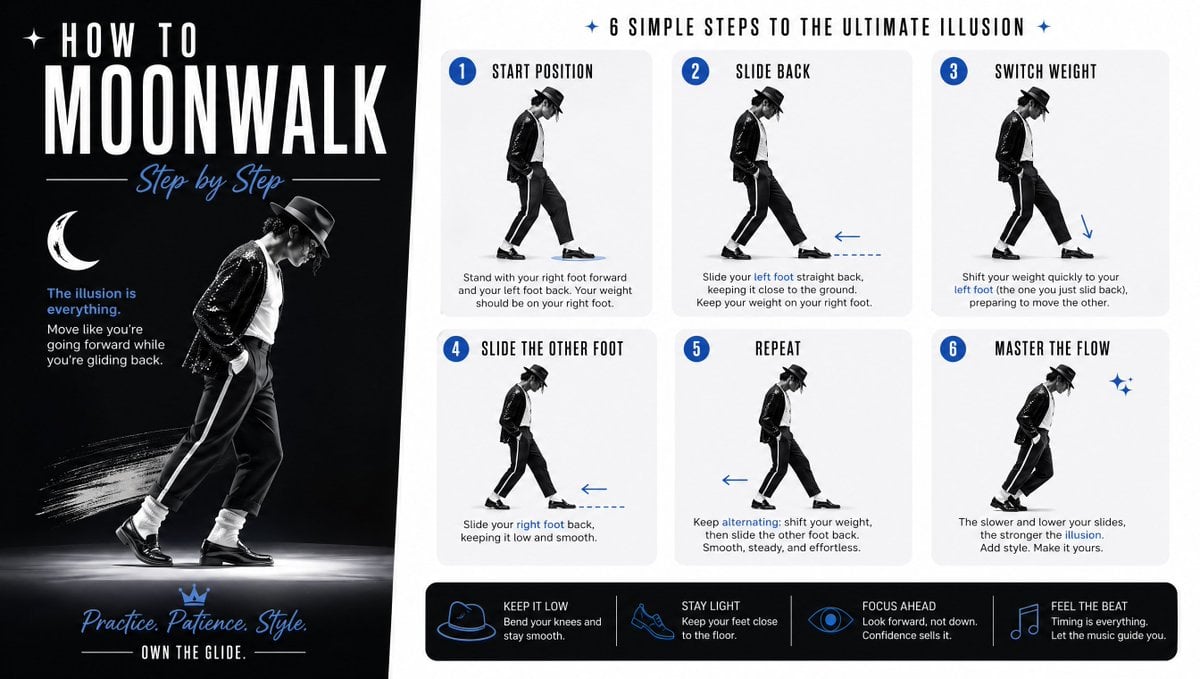
Moonwalk Step-by-Step Tutorial Poster
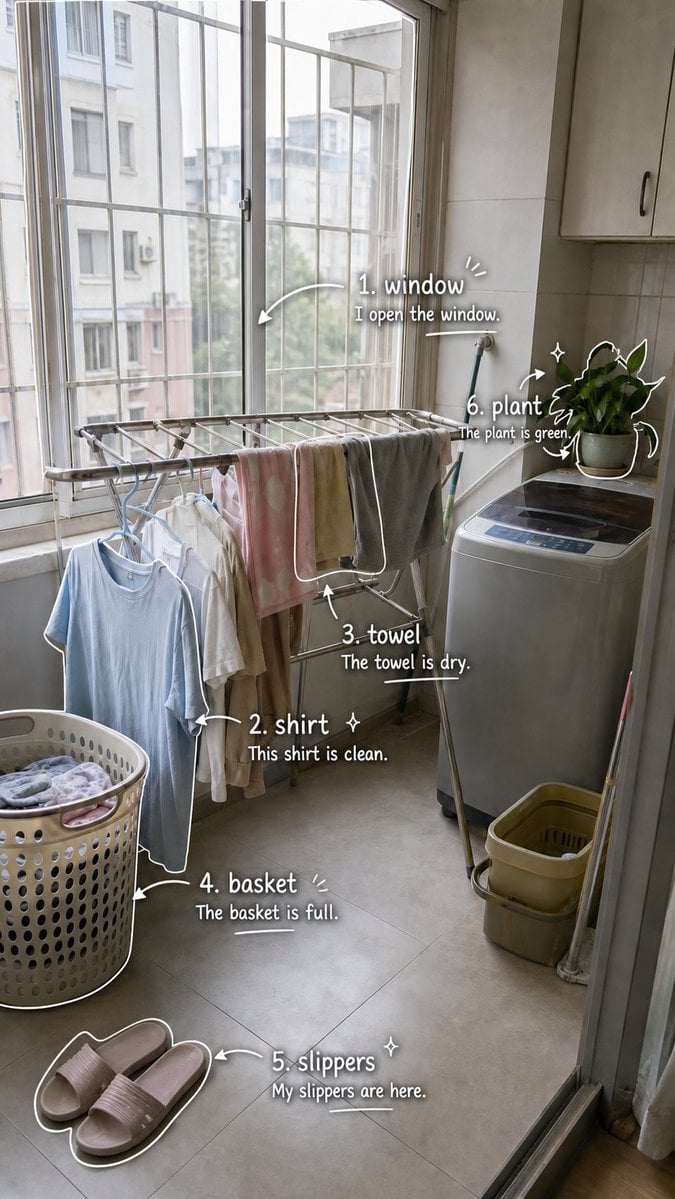
Laundry Balcony Vocabulary Journal
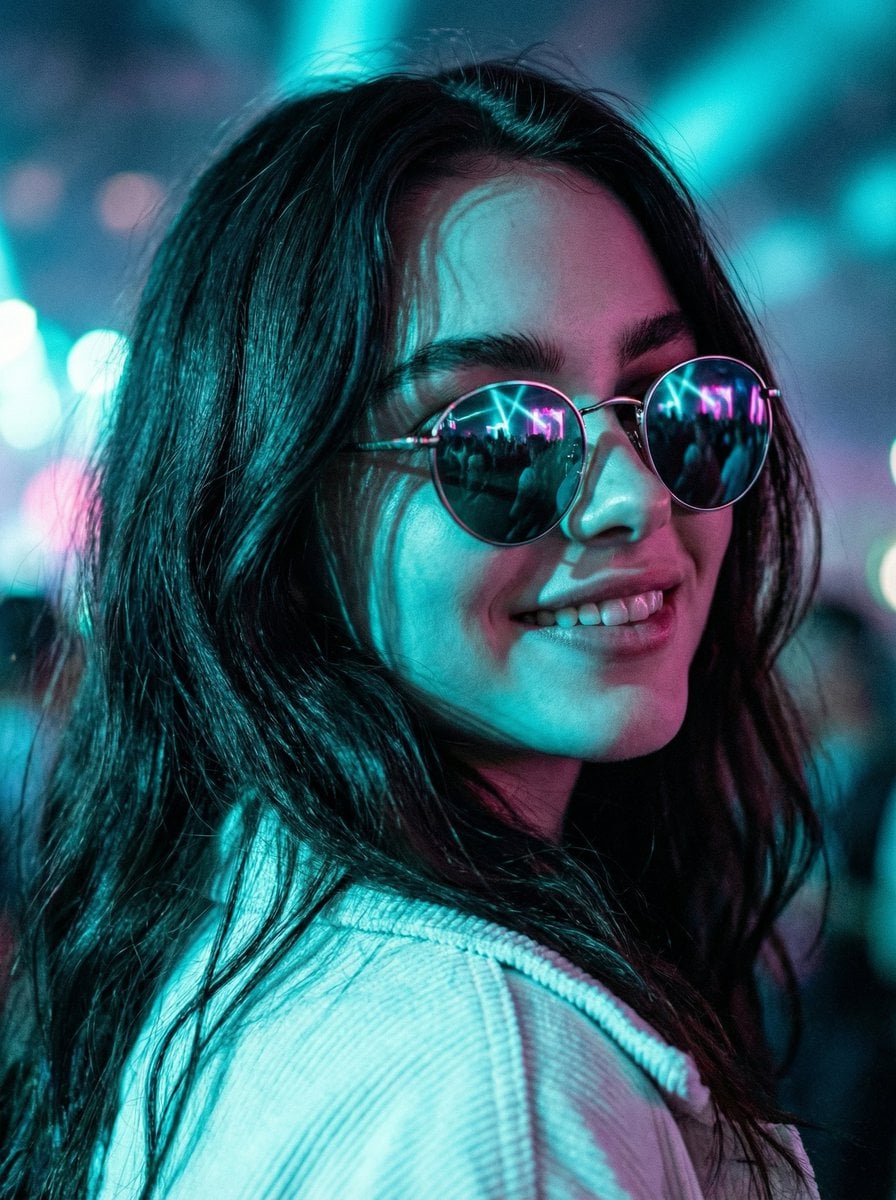
Cinematic Close-Up at an Electronic Music Festival
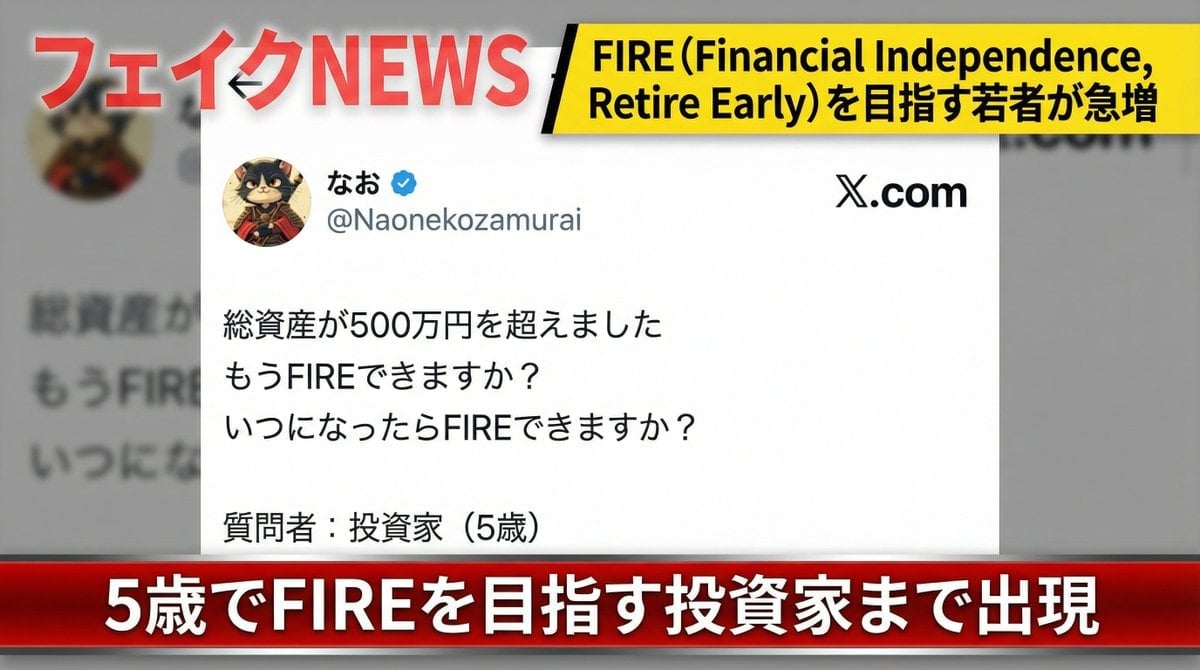
Fake News Image Creation Prompt
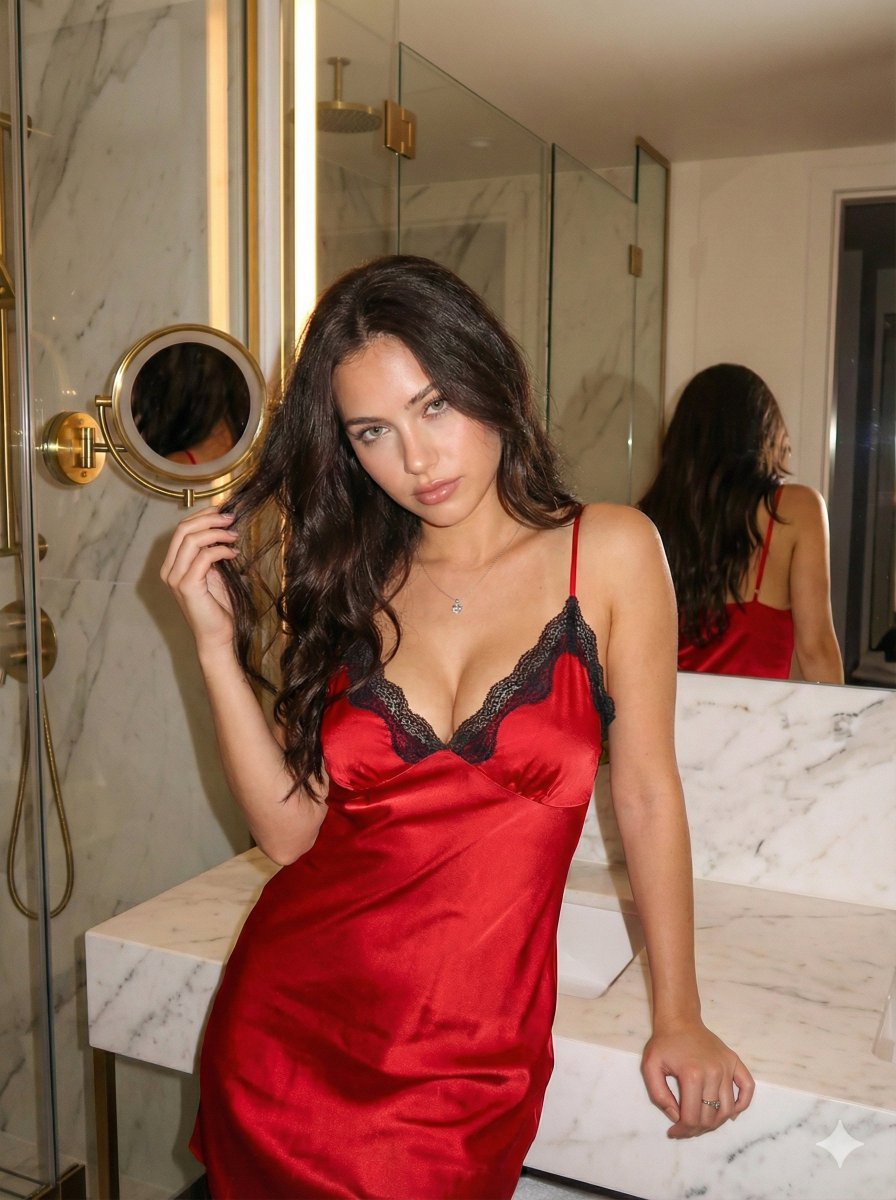
Red Satin Slip Dress Bathroom Flash Photo Prompt
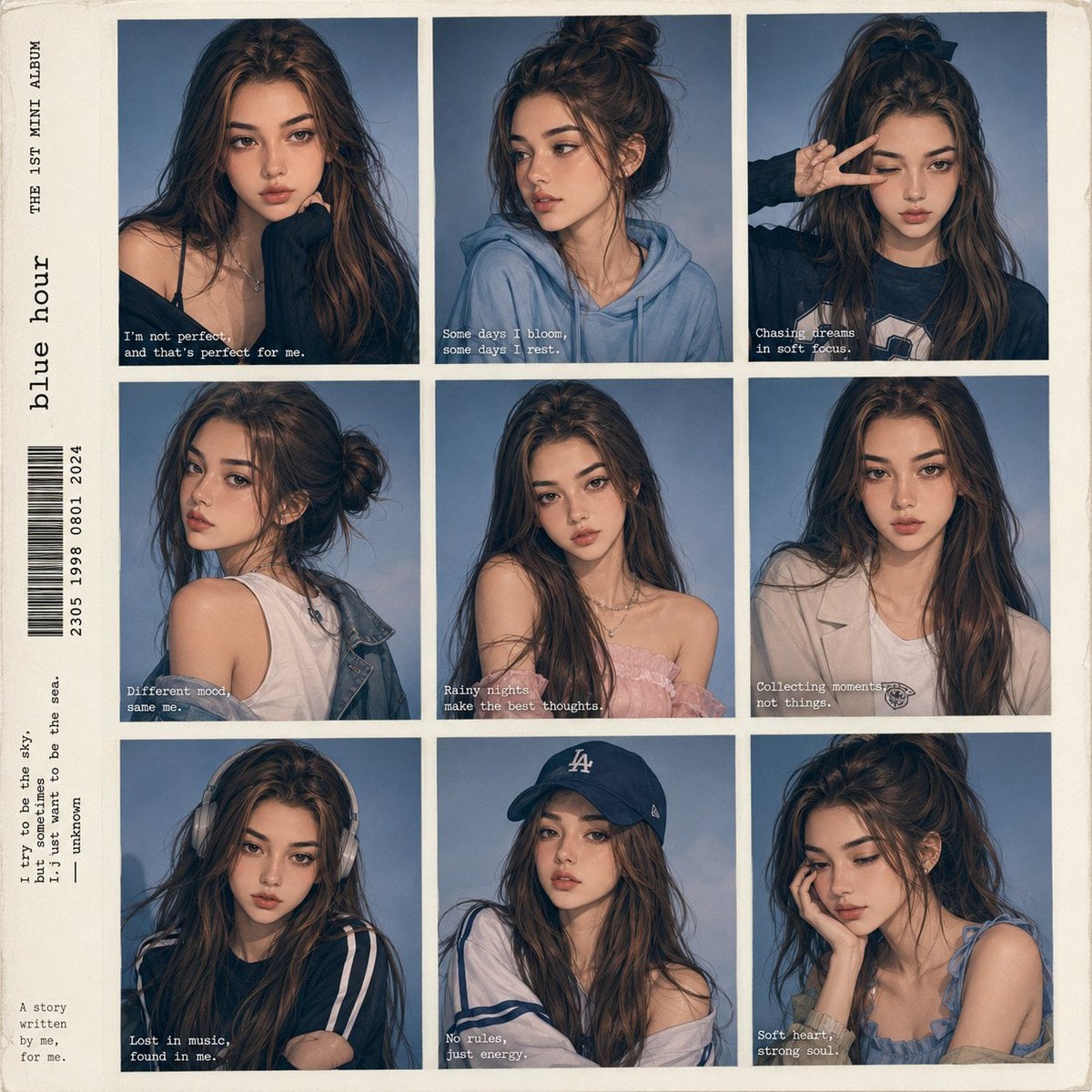
Anime Style K-Pop Collage
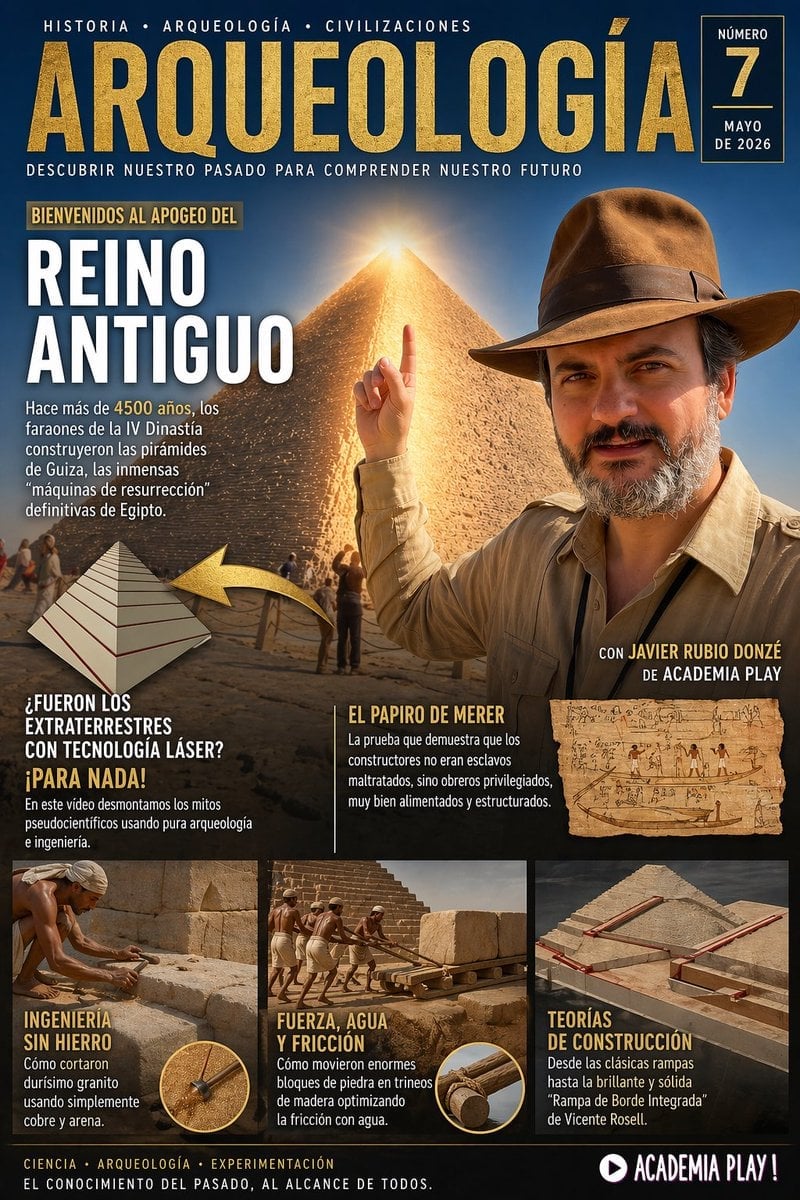
Spanish Archaeology Magazine Cover
Browse template categories
Pixar-Style Storyboard Layout questions
How do I use the Pixar-Style Storyboard Layout template?
Add your photo if the template asks for one, edit the prompt if you like — the template's model and format are already selected — and press Generate. Your version opens in PicX Studio.
Can I customize the Pixar-Style Storyboard Layout template?
Yes. You can change the subject, setting, lighting, mood, format, and available model controls before creating your image.
Is the Pixar-Style Storyboard Layout template free?
Opening and editing this template is free. Generating uses credits, shown on the Generate button when you are signed in.
Which AI model should I use?
Start with GPT Image 2, which is the model associated with this template. You can compare another compatible model for a different finish.
Looking for something else? Browse all templates.

Your photo, any look
Thousands of ready templates for every top image and video model, from one credit balance.