
Annotated Mountain Location Diagram
Creates a clean planning-overlay diagram on a reference landscape photo while preserving the original scene quality.
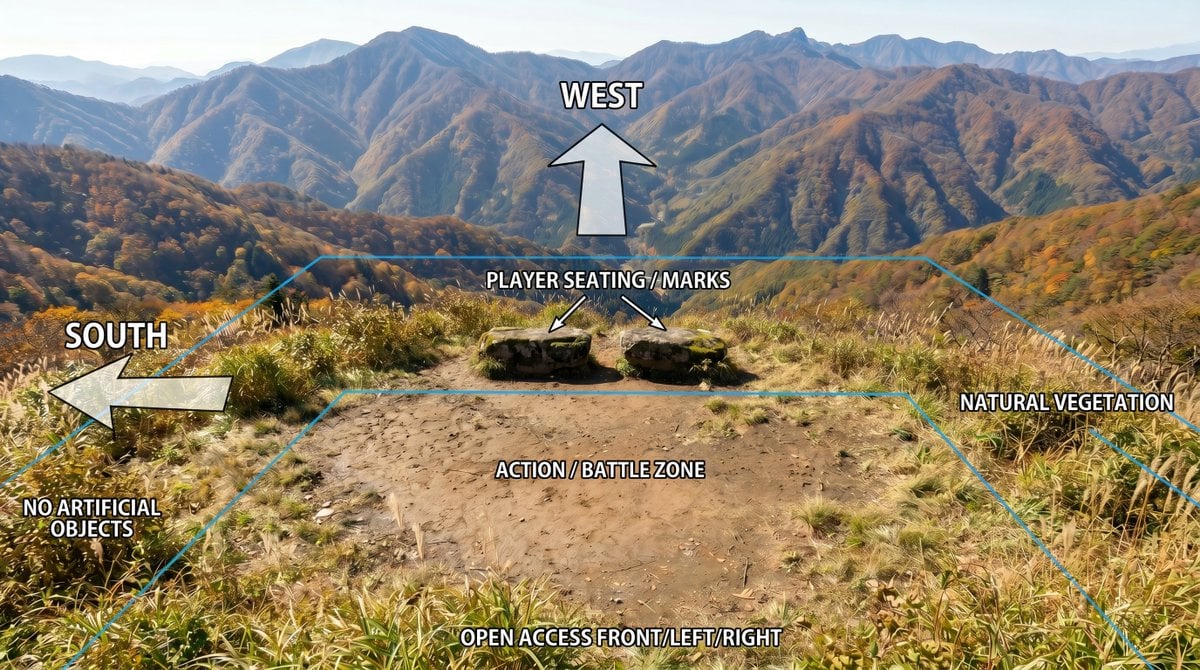
- Prompt included
- Model and format preset
- Free template
The prompt behind this image
Copy the exact prompt behind Annotated Mountain Location Diagram, or open it in the studio and make it yours.
Using REFERENCE_0 as the base image, create an annotated location-planning diagram without altering or degrading the original mountain landscape photo. Keep the scenery, colors, detail, composition, vegetation, dirt clearing, rocks, and distant mountains as close to the reference as possible; only add clean overlay graphics and labels. Add exactly 7 bold white uppercase labels with black outline/drop shadow: {argument name="west label" default="WEST"} at the upper center, {argument name="south label" default="SOUTH"} on the left, {argument name="seating label" default="PLAYER SEATING / MARKS"} above the two rocks, {argument name="zone label" default="ACTION / BATTLE ZONE"} centered on the dirt clearing, {argument name="front access label" default="OPEN ACCESS FRONT/LEFT/RIGHT"} along the bottom edge, plus "NO ARTIFICIAL OBJECTS" near the lower-left vegetation and "NATURAL VEGETATION" on the right side. Add exactly 4 semi-transparent white arrows with black outlines: one large upward arrow under the WEST label, one large left-pointing arrow beside the SOUTH label, and two small diagonal arrows from the seating label pointing to the two stone seats/marks. Add thin cyan perspective guide lines outlining the usable area: a large trapezoid/field boundary following the clearing and vegetation edges, with a smaller inner trapezoid around the action/battle zone. Make the overlay look like a clear outdoor scene breakdown diagram, while preserving the original photographic quality and avoiding any extra objects, people, buildings, icons, or new scenery.
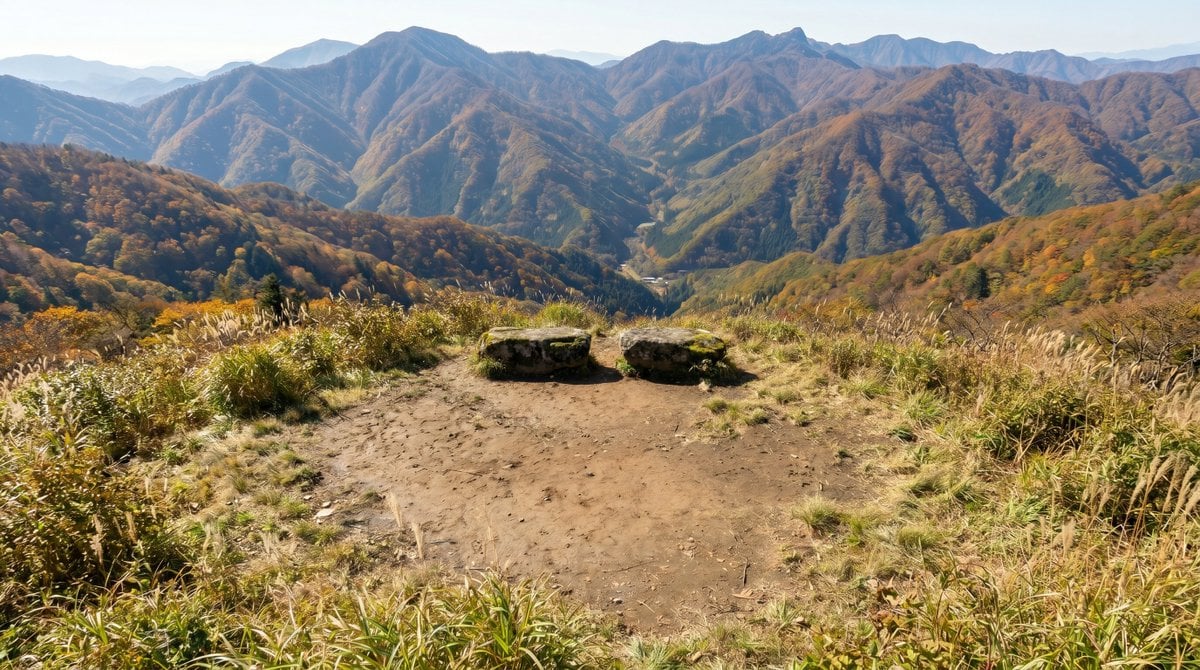
Reference images included
Annotated Mountain Location Diagram needs input media to work. They load alongside the prompt when you open it in the studio.
How to use Annotated Mountain Location Diagram in 3 steps
- 1Upload ImagePNG, JPG or paste
Add your photo
Upload the photo the template builds on. The prompt, model and format are already set.
- 2…a portrait of your subject in softgolden-hour light, 85mm…
Personalize
Edit the subject and creative details for your destination.
- 3Generate
Generate
Press Generate — your image is created in PicX Studio, so you can compare it with the original and refine one variable at a time.
More like this
Templates with the same subject, style or setup. Open one to see its prompt.
Teen Girl Alpine Lake Mountain View
Mountain Lake Sunset Landscape
Premium Vintage Travel Poster Landscape
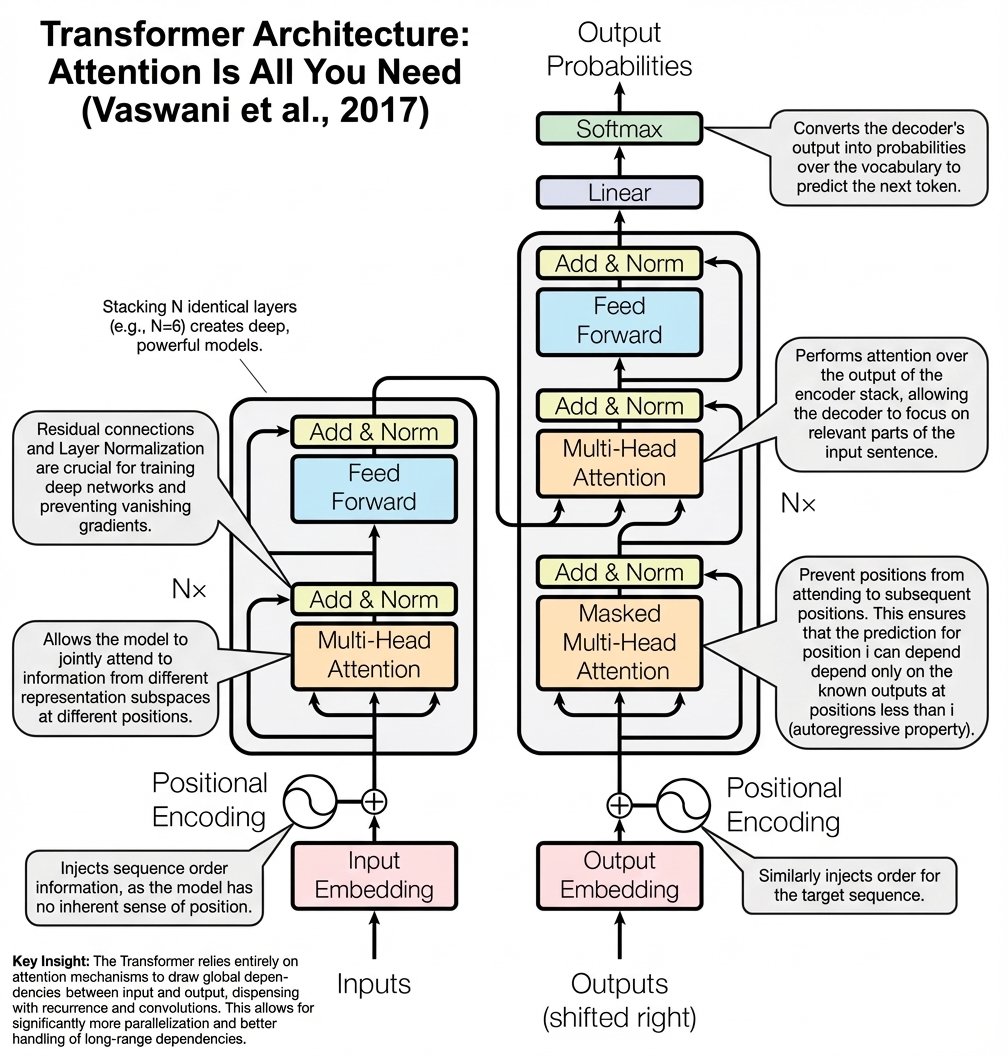
Annotated Transformer architecture diagram
Holographic Mountain Bedroom

Lone Mountaineer in Moonlit Snow
Candid Mountain Stream Photography
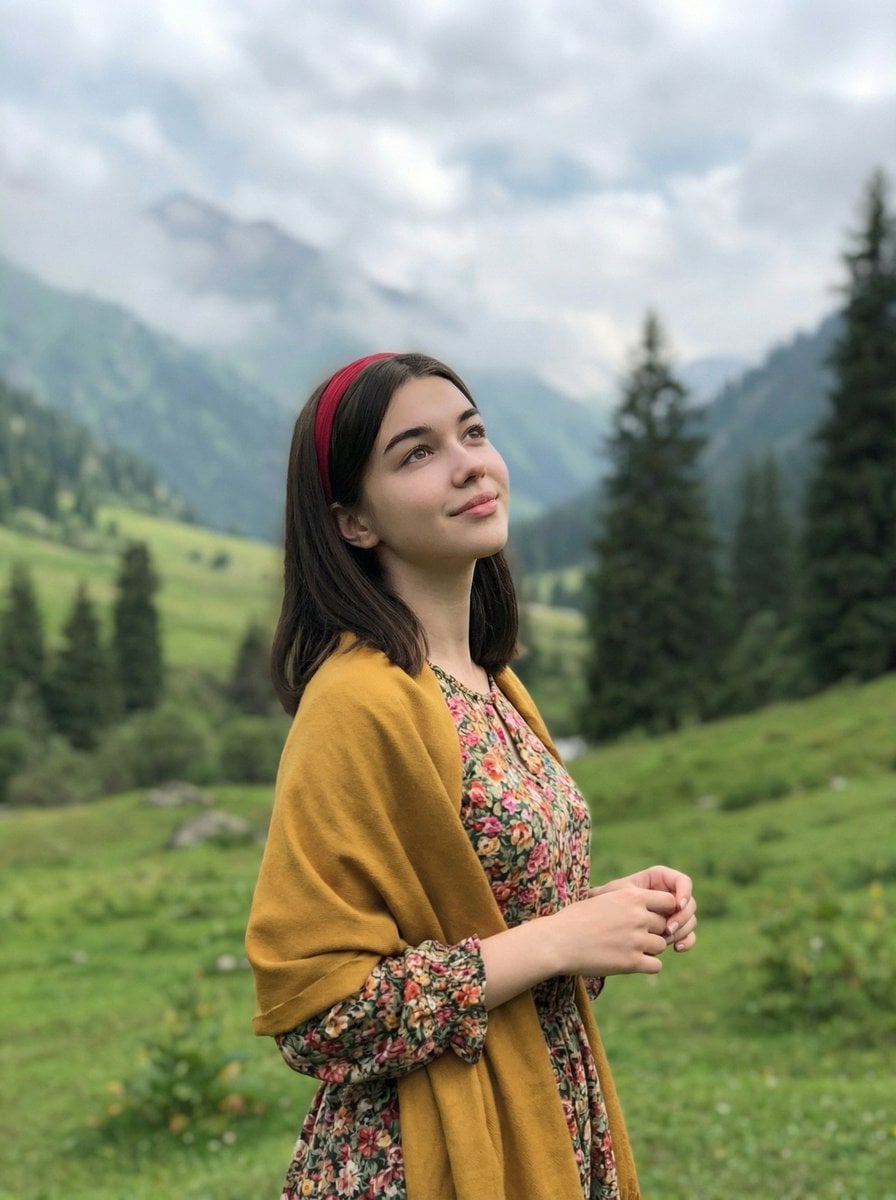
Mountain Valley Lifestyle Portrait

Alpine Lake Candid — Mountain Air Moment
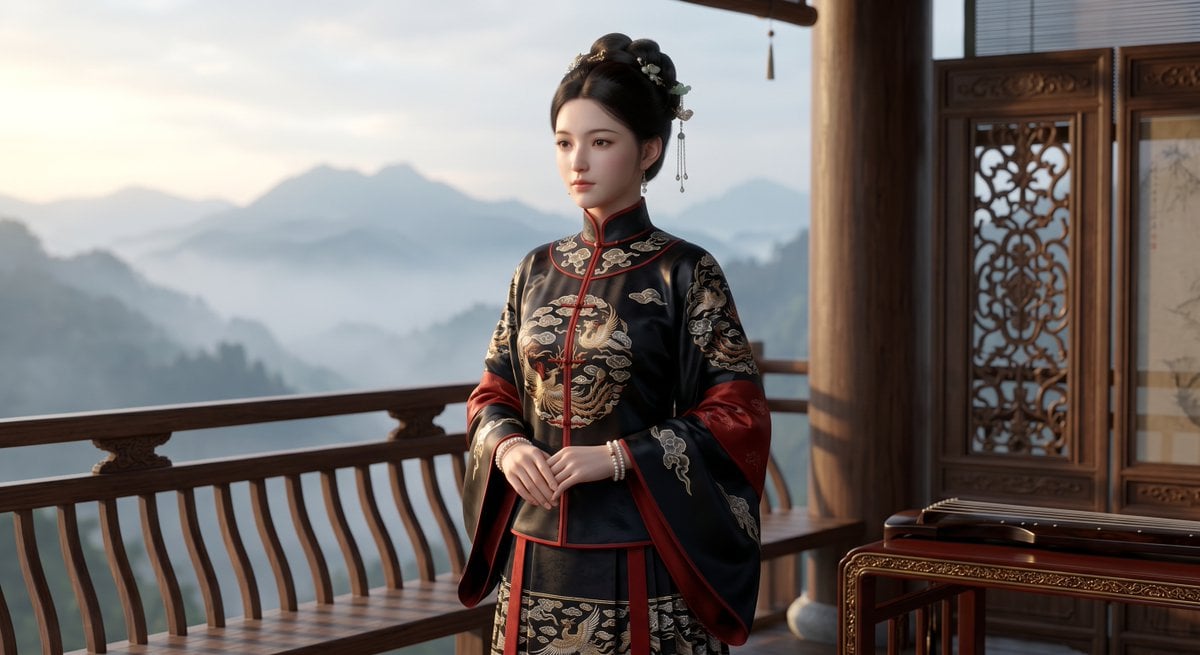
Cinematic Wuxia Heroine on Mountain Balcony
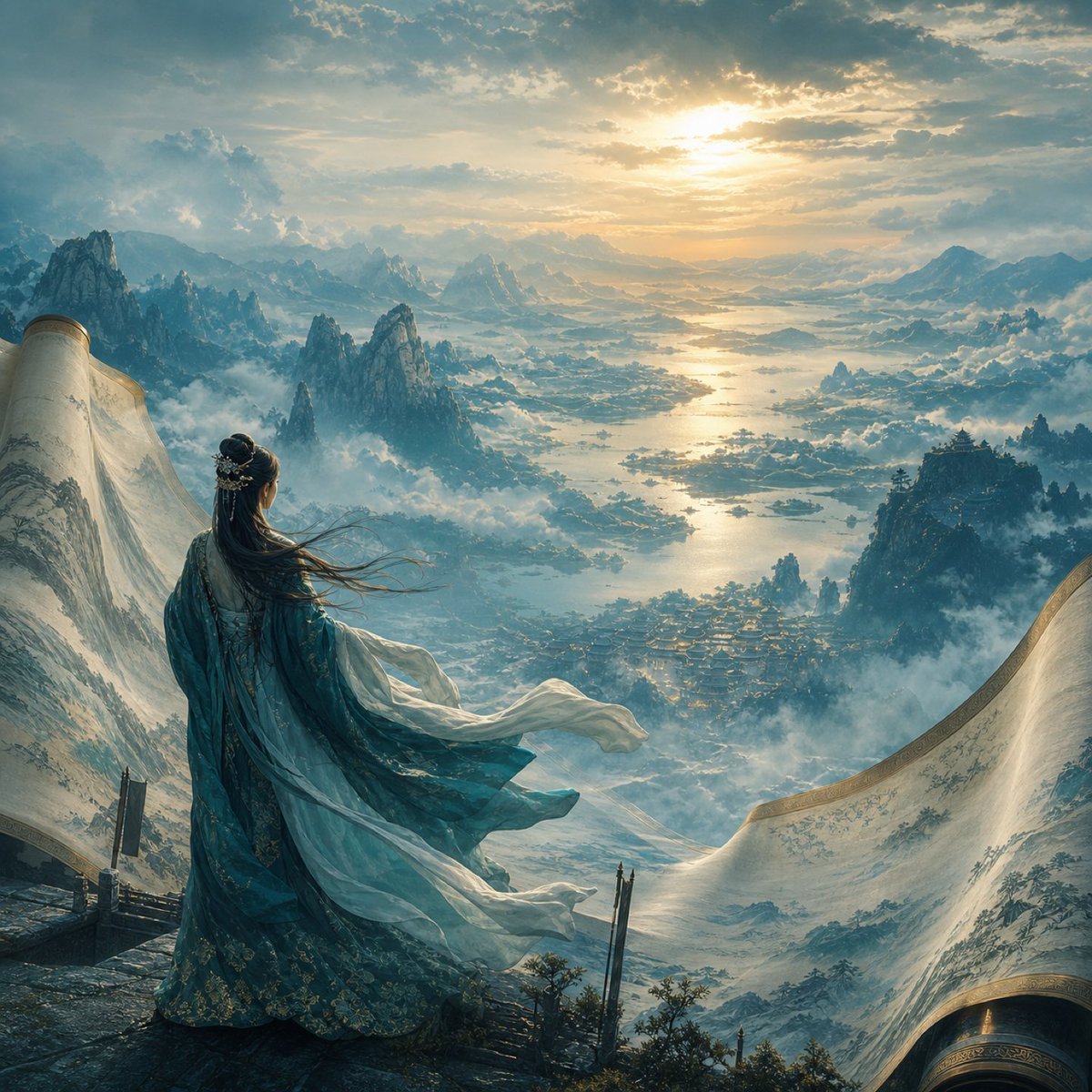
Xianxia Woman Over Misty Mountain Realm
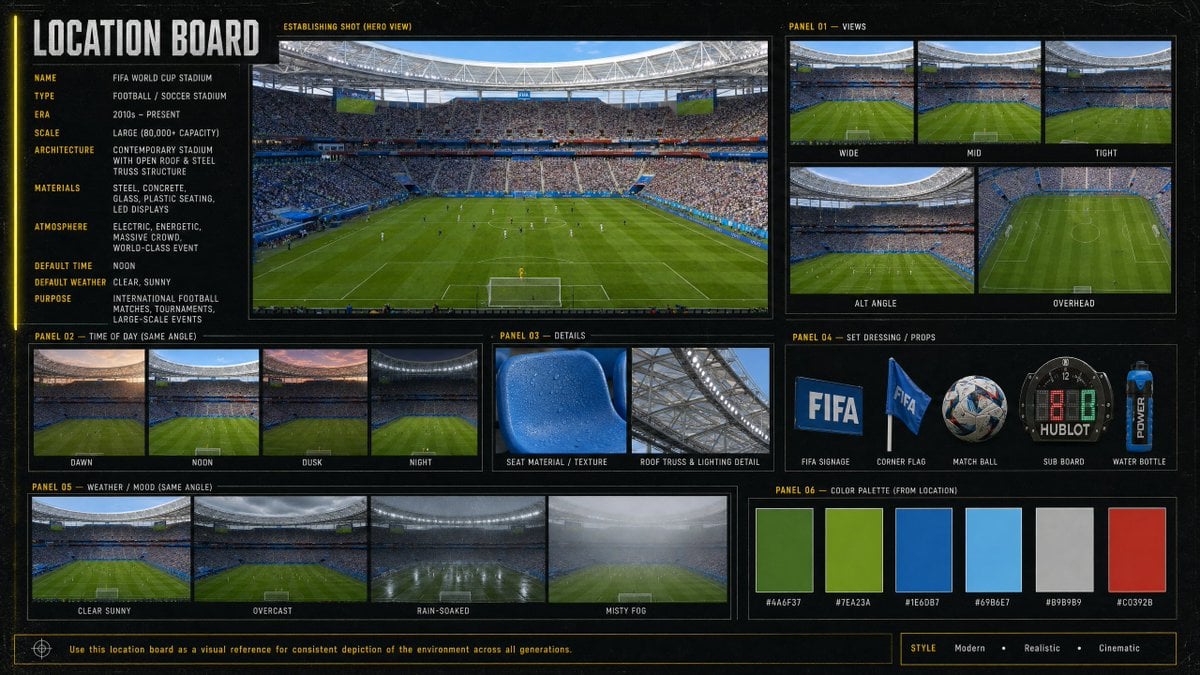
Cinematic Stadium Location Board
Make it yours
Annotated Mountain Location Diagram works as-is. These are the safest ways to change it without losing the look.
Change one field
Copy a single group, rewrite it, and generate again so you can see what that field is doing.
Keep the frame, change the subject
Hold the composition and light of Annotated Mountain Location Diagram, then swap wardrobe, props or the person for a new take.
| If the result… | Why | Fix |
|---|---|---|
| The result drifts from the preview | Too many fields changed at once. | Reuse Annotated Mountain Location Diagram as-is first, then change one group — subject, light, or setting. |
| The model over-stylizes the scene | The prose prompt leaves finish and camera underspecified. | Add one camera or lighting sentence and stay on GPT Image 2. |
More GPT Image 2 templates
Other prompts made for GPT Image 2.

Six VTuber Japanese Logo Sheet

Realistic Portrait of Woman and Deer

The Vista Modular Condo Poster

AI Model Routing Comparison Infographic

2.5D Anime Art Board

Isometric Productivity Desk Scene

New York Double Exposure Poster

Four-Panel AI Landscape Comparison

Japanese Tatami Lifestyle Magazine Cover

NESCAFÉ Coffee Map Poster
More image prompts
Fresh picks from across the catalog.

High-Fidelity Night Marina Flash Photo

High-Fashion Editorial Image with Exaggerated Fisheye Distortion

Cinematic Portrait with Identity Preservation
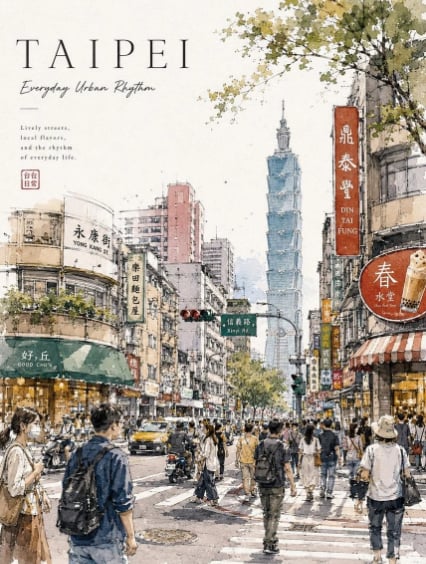
Taipei Watercolor Travel Poster

Minimalist Studio Fashion Portrait Prompt

Flashy suspicious info-product style thumbnail

Contextual Image Generation Prompt
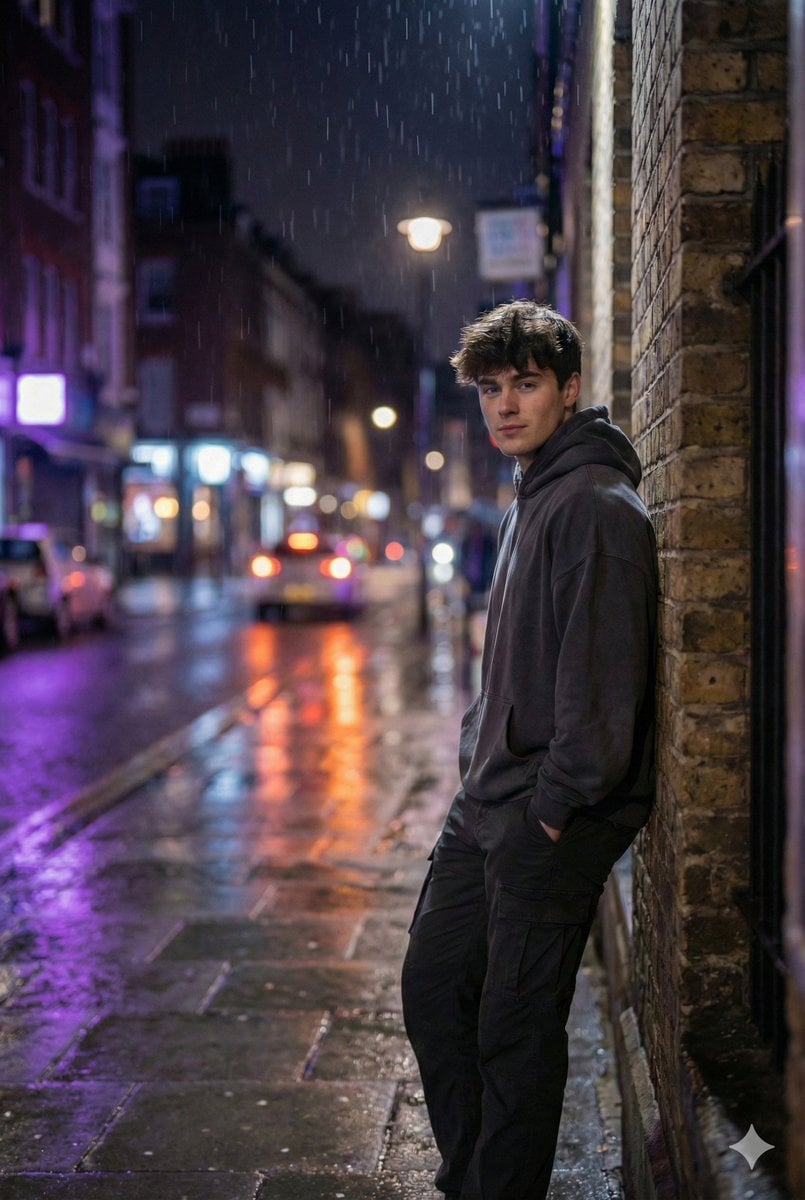
Photorealistic Urban Night Portrait of a British Man
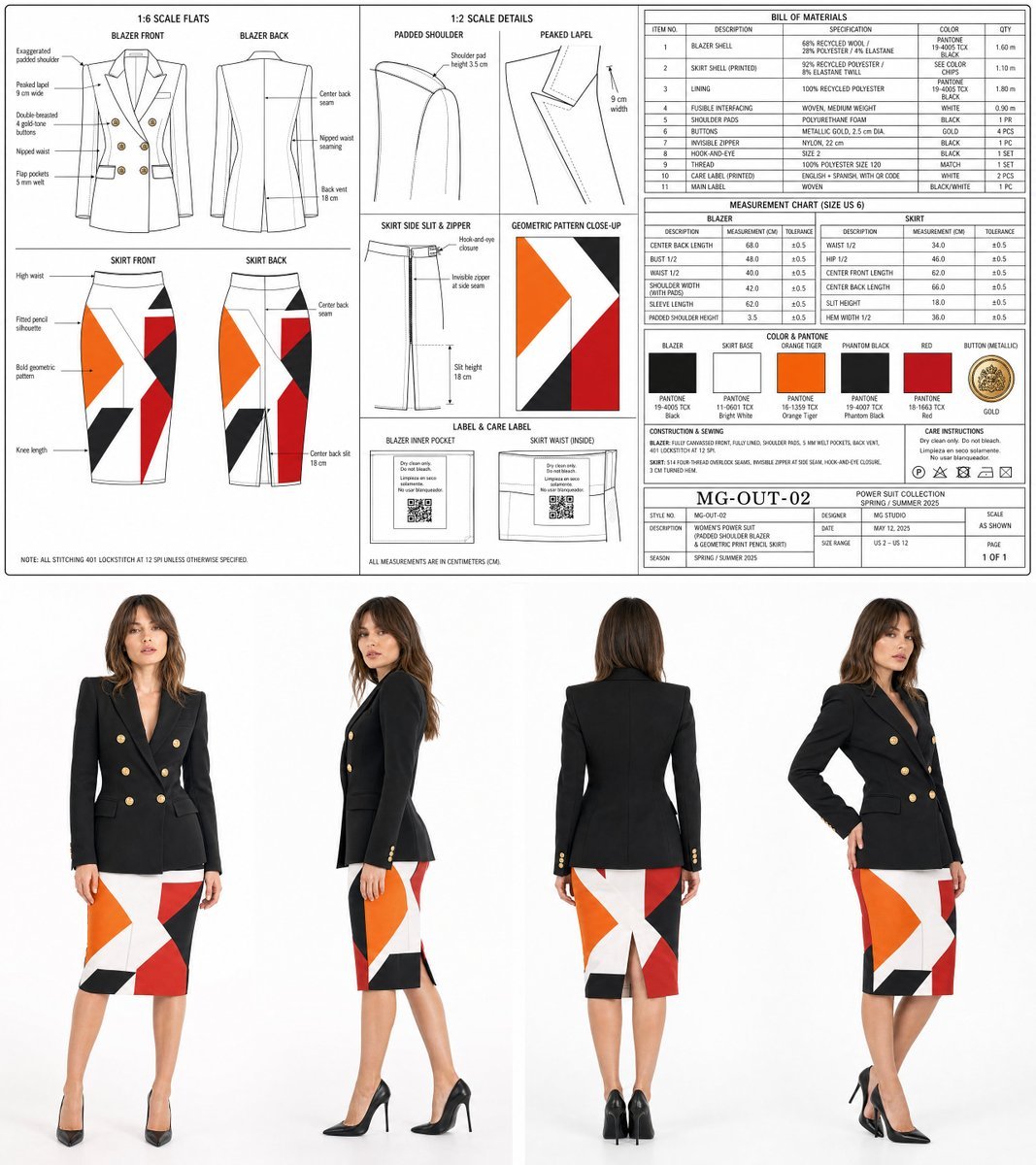
Women's Power Suit Tech Pack

untitled
Browse template categories
Annotated Mountain Location Diagram questions
How do I use the Annotated Mountain Location Diagram template?
Add your photo if the template asks for one, edit the prompt if you like — the template's model and format are already selected — and press Generate. Your version opens in PicX Studio.
Can I customize the Annotated Mountain Location Diagram template?
Yes. You can change the subject, setting, lighting, mood, format, and available model controls before creating your image.
Is the Annotated Mountain Location Diagram template free?
Opening and editing this template is free. Generating uses credits, shown on the Generate button when you are signed in.
Which AI model should I use?
Start with GPT Image 2, which is the model associated with this template. You can compare another compatible model for a different finish.
Looking for something else? Browse all templates.

Your photo, any look
Thousands of ready templates for every top image and video model, from one credit balance.