How do I use the Vintage Mumbai Travel Poster template?
Edit the prompt in the box under the preview — the template's model and format are already selected — and press Generate. Your version appears right on this page.
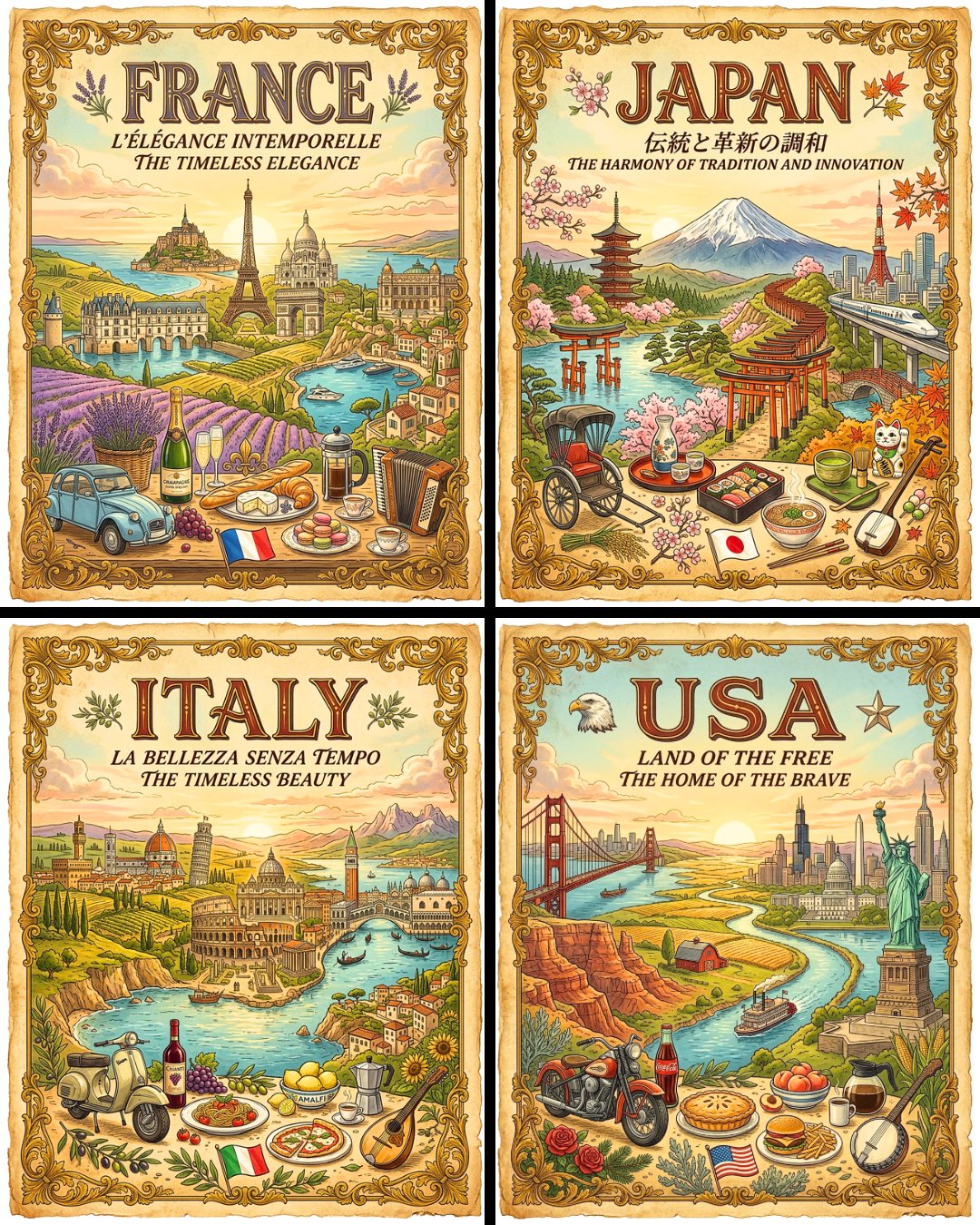
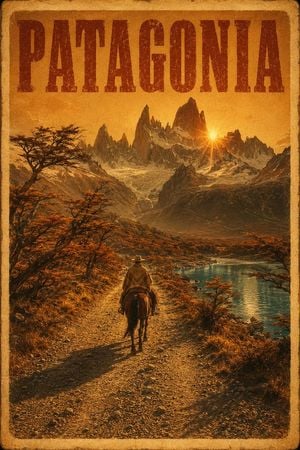
A warm retro travel poster featuring Mumbai’s Gateway of India, classic typography, and a golden waterfront sunset.

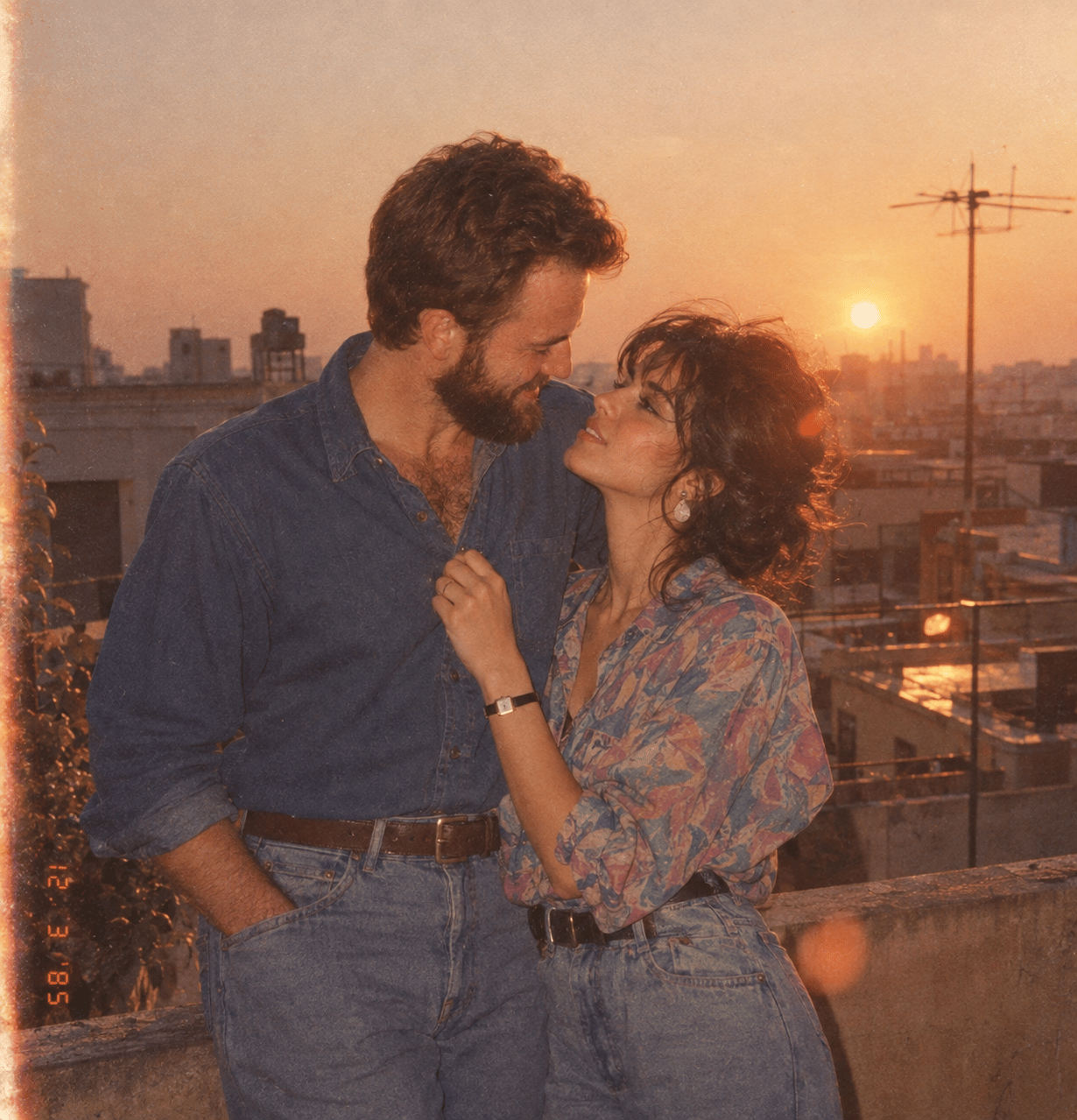
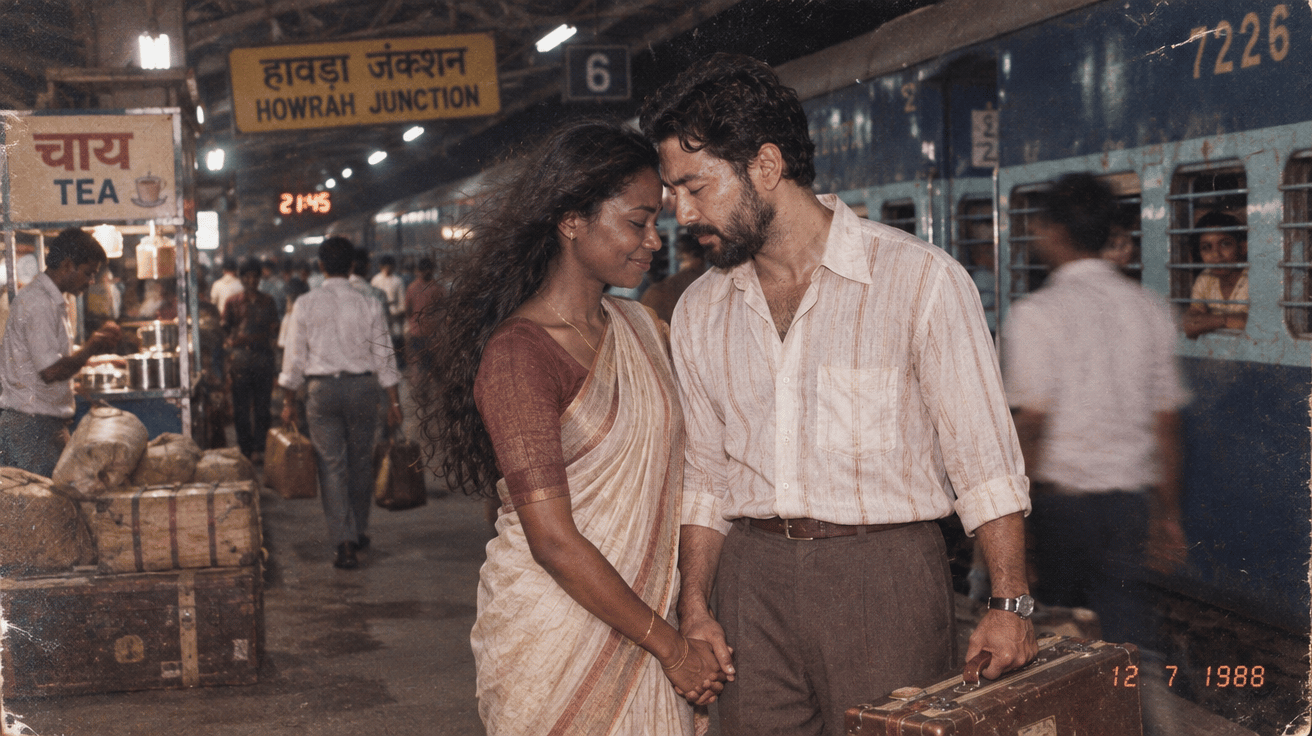
This template uses your photo — add one with the + button.
Create a vintage Art Deco travel poster for {argument name="city name" default="Mumbai"}, {argument name="country name" default="India"}. Use a vertical 2:3 poster canvas with a thin double-line border and aged paper texture in warm ochre, sepia, and sunset gold. At the very top, place huge bold condensed serif lettering reading “MUMBAI” in dark teal, spanning almost the full width. Directly below it on the left, add widely spaced uppercase red letters reading “INDIA”. Beneath that, include a simple line-art rising sun icon, then an italic tagline reading “The City That Never Sleeps.” and a small decorative divider with one centered dot. Under the divider, add coordinates text reading {argument name="coordinates" default="19.0760° N, 72.8777° E"}. The lower two-thirds should show a cinematic sunset view of the Gateway of India on the waterfront, rendered in realistic vintage-poster style: the monument is large on the right-center with its arches and turrets visible, glowing orange sky and clouds behind it, sun low near the horizon, shimmering water with small boats, and a curving seaside road along Marine Drive in the foreground. Include exactly one black-and-yellow vintage taxi on the road in the lower foreground, small city skyline buildings on the left background, palm trees, street lamps, a stone seawall, and scattered tiny pedestrians near the monument. Keep the typography clean and legible, with nostalgic grain, slightly faded ink, subtle halftone texture, and no modern objects, logos, or extra text.
Create a vintage Art Deco travel poster for {argument name="city name" default="Mumbai"}, {argument name="country name" default="India"}. Use a vertical 2:3 poster canvas with a thin double-line border and aged paper texture in warm ochre, sepia, and sunset gold. At the very top, place huge bold condensed serif lettering reading “MUMBAI” in dark teal, spanning almost the full width. Directly below it on the left, add widely spaced uppercase red letters reading “INDIA”. Beneath that, include a simple line-art rising sun icon, then an italic tagline reading “The City That Never Sleeps.” and a small decorative divider with one centered dot. Under the divider, add coordinates text reading {argument name="coordinates" default="19.0760° N, 72.8777° E"}. The lower two-thirds should show a cinematic sunset view of the Gateway of India on the waterfront, rendered in realistic vintage-poster style: the monument is large on the right-center with its arches and turrets visible, glowing orange sky and clouds behind it, sun low near the horizon, shimmering water with small boats, and a curving seaside road along Marine Drive in the foreground. Include exactly one black-and-yellow vintage taxi on the road in the lower foreground, small city skyline buildings on the left background, palm trees, street lamps, a stone seawall, and scattered tiny pedestrians near the monument. Keep the typography clean and legible, with nostalgic grain, slightly faded ink, subtle halftone texture, and no modern objects, logos, or extra text.
Edit the prompt in the box under the preview — the template's model and format are already selected — and press Generate. Your version appears right on this page.
Yes. You can change the subject, setting, lighting, mood, format, and available model controls before creating your image.
Opening and editing this template is free. Generating uses credits, shown on the Generate button when you are signed in.
Start with GPT Image 2, which is the model associated with this template. You can compare another compatible model for a different finish.
Follow a topic to a crawlable collection of related PicX Studio templates.