How do I use the Side-by-Side AI Portrait Comparison template?
Choose the primary action to open PicX Studio with the available template settings. Review the model and format, personalize the creative direction, and generate when ready.
This prompt generates a polished comparison screenshot of two AI-image-model portrait results in desktop viewer windows, useful for social posts or model qualit
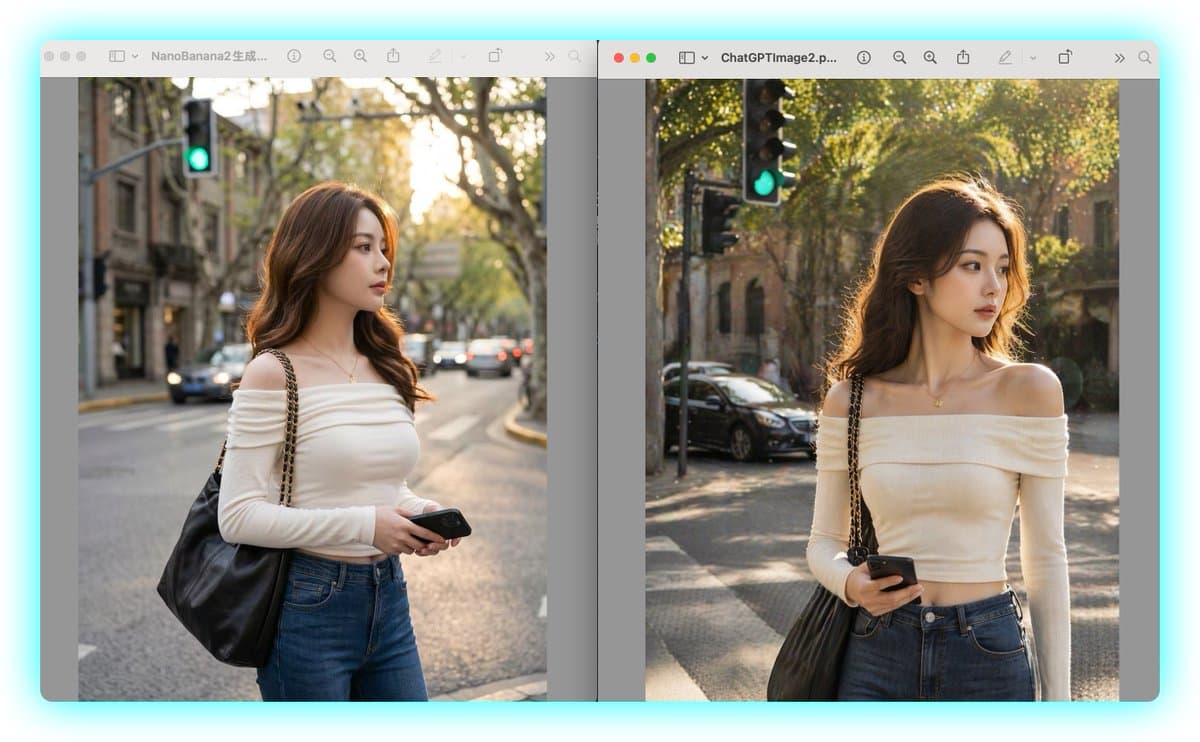
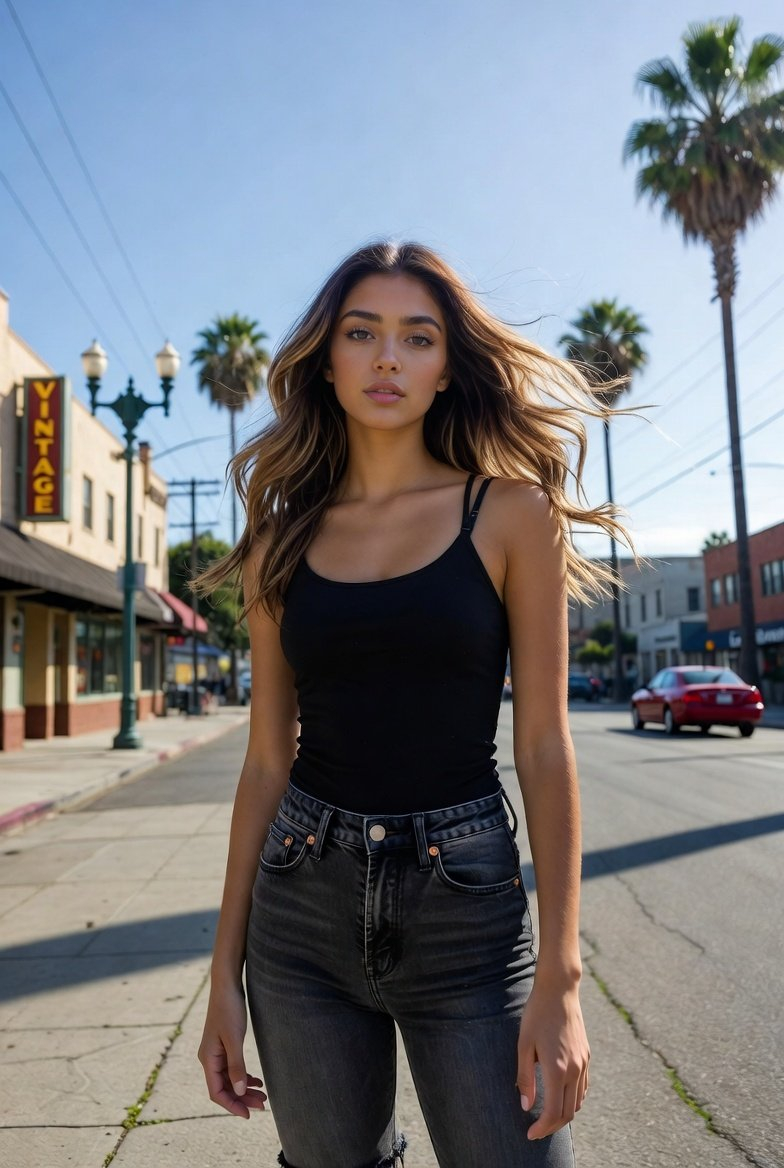
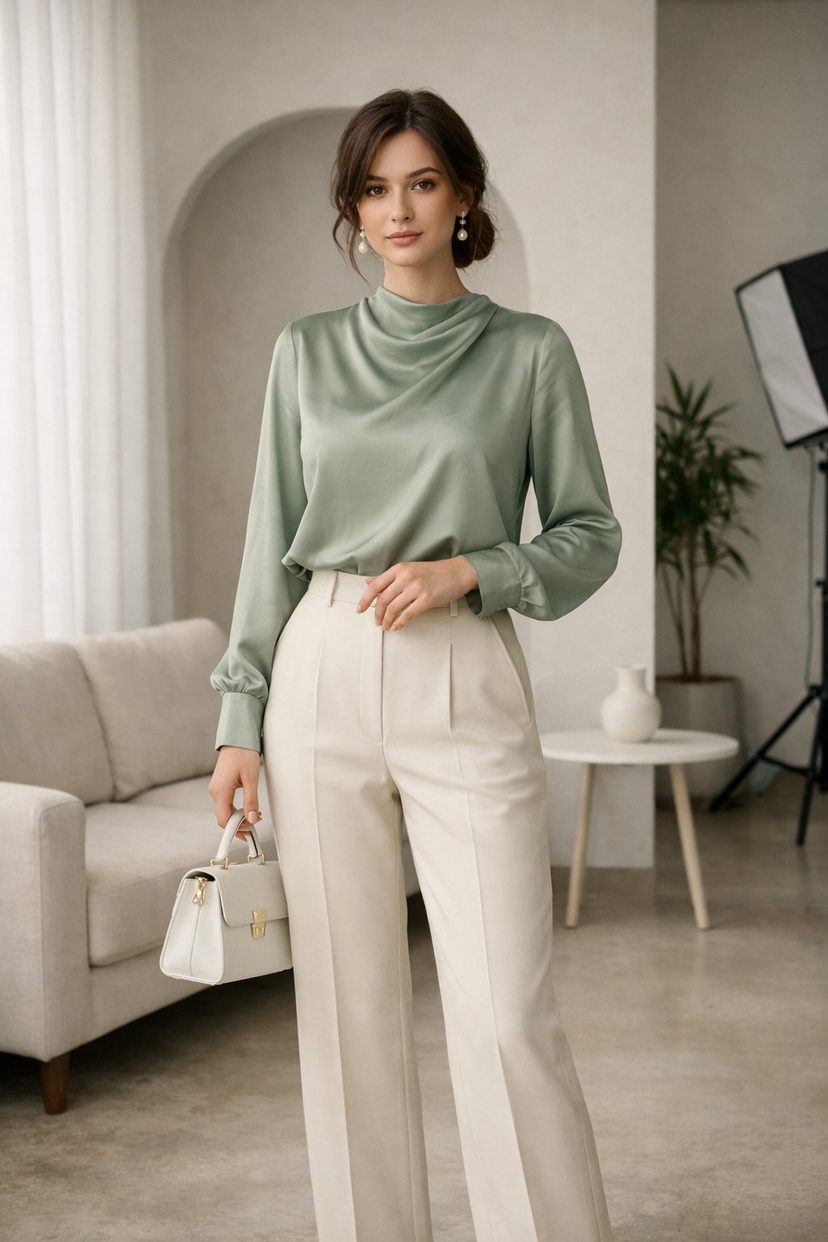
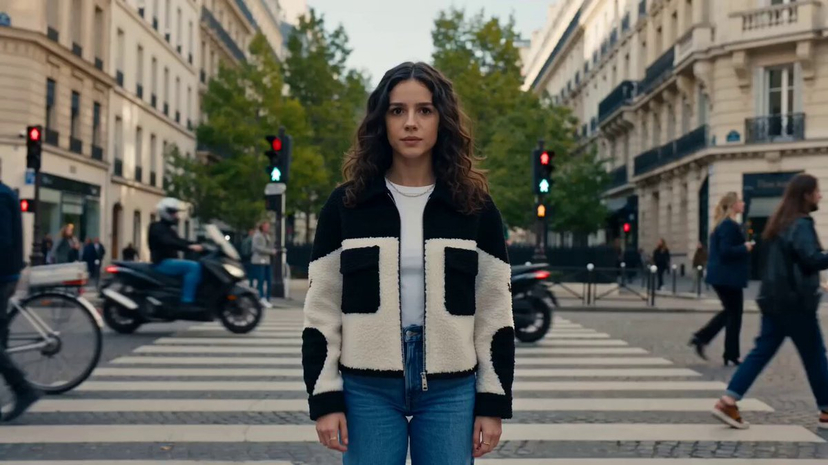
A side-by-side desktop screenshot comparing two nearly identical AI-generated street portraits in separate macOS-style image viewer windows against a light cyan background. The layout has exactly 2 vertical image panels, left and right, each inside a rounded gray window with a toolbar at the top. The left window title begins with "NanoBanana2" and the right window title begins with "ChatGPTImage2". In both panels, show the same scene concept: a fashionable young woman standing on a city street corner during golden hour, framed from about mid-thigh to head, with her face obscured by a soft rectangular blur block. She has long wavy brown hair, a slim figure, and wears an off-shoulder fitted cream long-sleeve top, high-waisted blue jeans, a delicate small pendant necklace, and a large black leather shoulder bag with a gold-tone chain strap over one shoulder. She holds a black smartphone in one hand near her waist. The background in both panels is an upscale tree-lined urban street with warm sunlight filtering through leaves, shallow depth of field, parked and passing cars, old stone buildings, and a visible green traffic light near the upper left area of each image. Keep the two portraits very similar but not identical: the left image is slightly cooler, softer, and more muted with a centered street perspective; the right image is slightly warmer, brighter, and crisper with stronger sunlight on the hair and more dramatic bokeh. Include exactly 2 viewer windows separated by a narrow vertical gap, with subtle drop shadows and a clean tech-comparison presentation, as if capturing a visual comparison between two image generation models.
Choose the primary action to open PicX Studio with the available template settings. Review the model and format, personalize the creative direction, and generate when ready.
Yes. You can change the subject, setting, lighting, mood, format, and available model controls before creating your image.
This template is free to open and customize. Generation usage is shown in PicX Studio before you create.
Start with GPT Image 2, which is the model associated with this template. You can compare another compatible model for a different finish.
© 2026 PicX Studio. All rights reserved.

Follow a topic to a crawlable collection of related PicX Studio templates.