
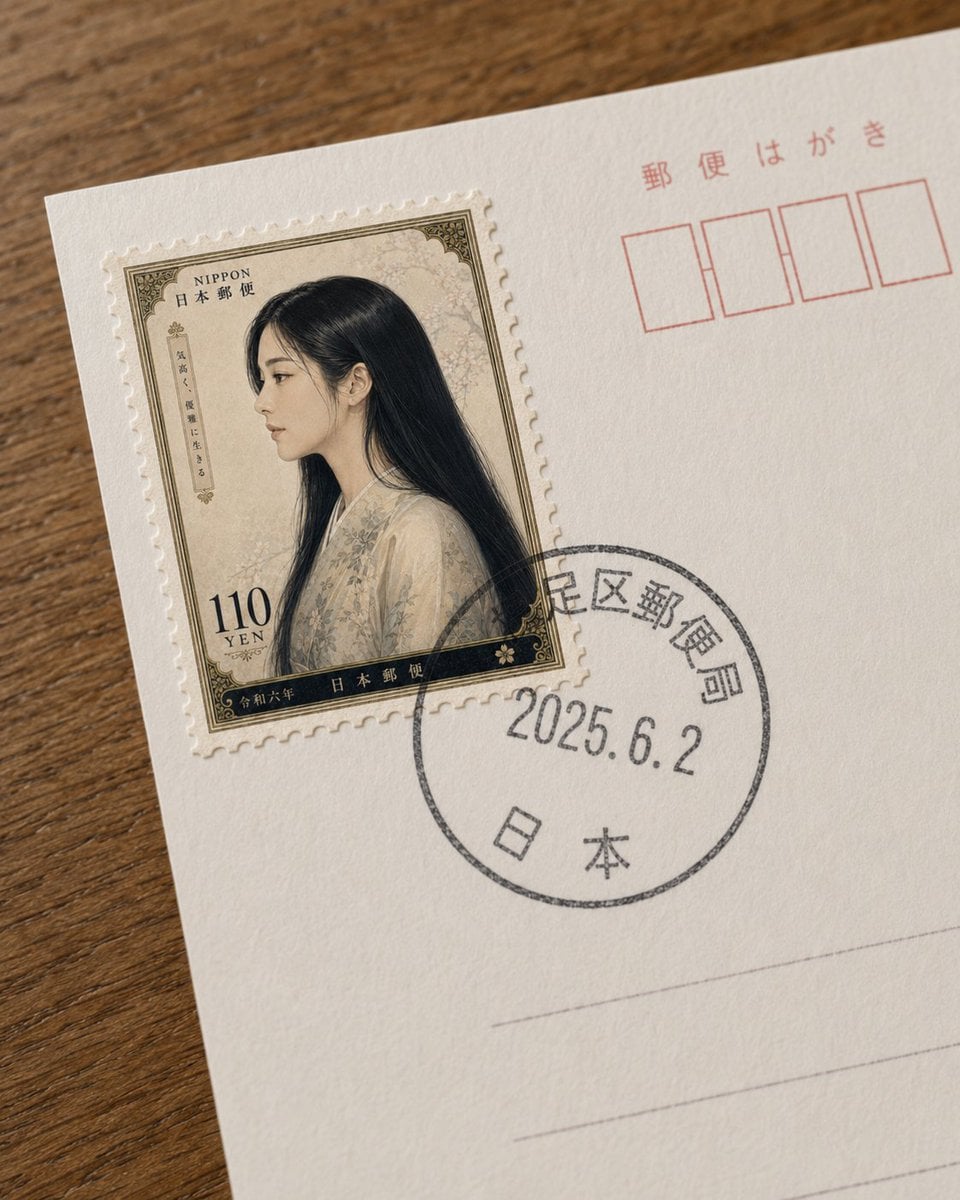
Fictional Japanese Stamp on Postcard
A realistic close-up photo prompt for placing a fictional vintage Japanese postage stamp onto a textured postcard with authentic postal markings.
- Prompt included
- Model and format preset
- Free template
The prompt behind this image
Copy the exact prompt behind Fictional Japanese Stamp on Postcard, or open it in the studio and make it yours.
Create a realistic close-up photograph of the upper-left area of a Japanese postcard lying diagonally on a warm brown wooden tabletop. The postcard is off-white, lightly textured paper, cropped so only part of the card is visible. On the left side, place one fictional Japanese postage stamp with perforated edges, slightly raised like a real adhesive stamp. The stamp design is vintage and ornate, with an antique beige floral background, dark olive-black decorative border, and a portrait of {argument name="portrait subject" default="a young Japanese woman in profile with very long straight black hair, wearing a pale cream floral kimono"}; obscure the face with a soft rectangular blur for privacy. Include visible stamp text: “NIPPON” and “日本郵便” near the top, “110 YEN” at the lower left, “令和六年” along the bottom, plus small vertical Japanese label text on the left side. Overlap the lower-right of the stamp with a black circular postal cancellation mark printed on the postcard, containing Japanese postal characters around the ring, the date {argument name="postmark date" default="2025.6.2"} in the center, and “日本” near the bottom. In the upper-right of the postcard, print red Japanese postcard markings: “郵便はがき” above exactly four empty red postal-code boxes. Add faint gray horizontal address lines in the lower-right area. Use shallow depth of field, natural daylight, subtle paper fibers, realistic shadows, and a slightly handheld smartphone-photo perspective. Keep the composition minimal and documentary, with no extra stamps, no extra objects, and no watermark.
How to use Fictional Japanese Stamp on Postcard in 3 steps
- 1Upload ImagePNG, JPG or paste
Add your photo
Upload the photo the template builds on. The prompt, model and format are already set.
- 2…a portrait of your subject in softgolden-hour light, 85mm…
Personalize
Edit the subject and creative details for your destination.
- 3Generate
Generate
Press Generate — your image is created in PicX Studio, so you can compare it with the original and refine one variable at a time.
More like this
Templates with the same subject, style or setup. Open one to see its prompt.
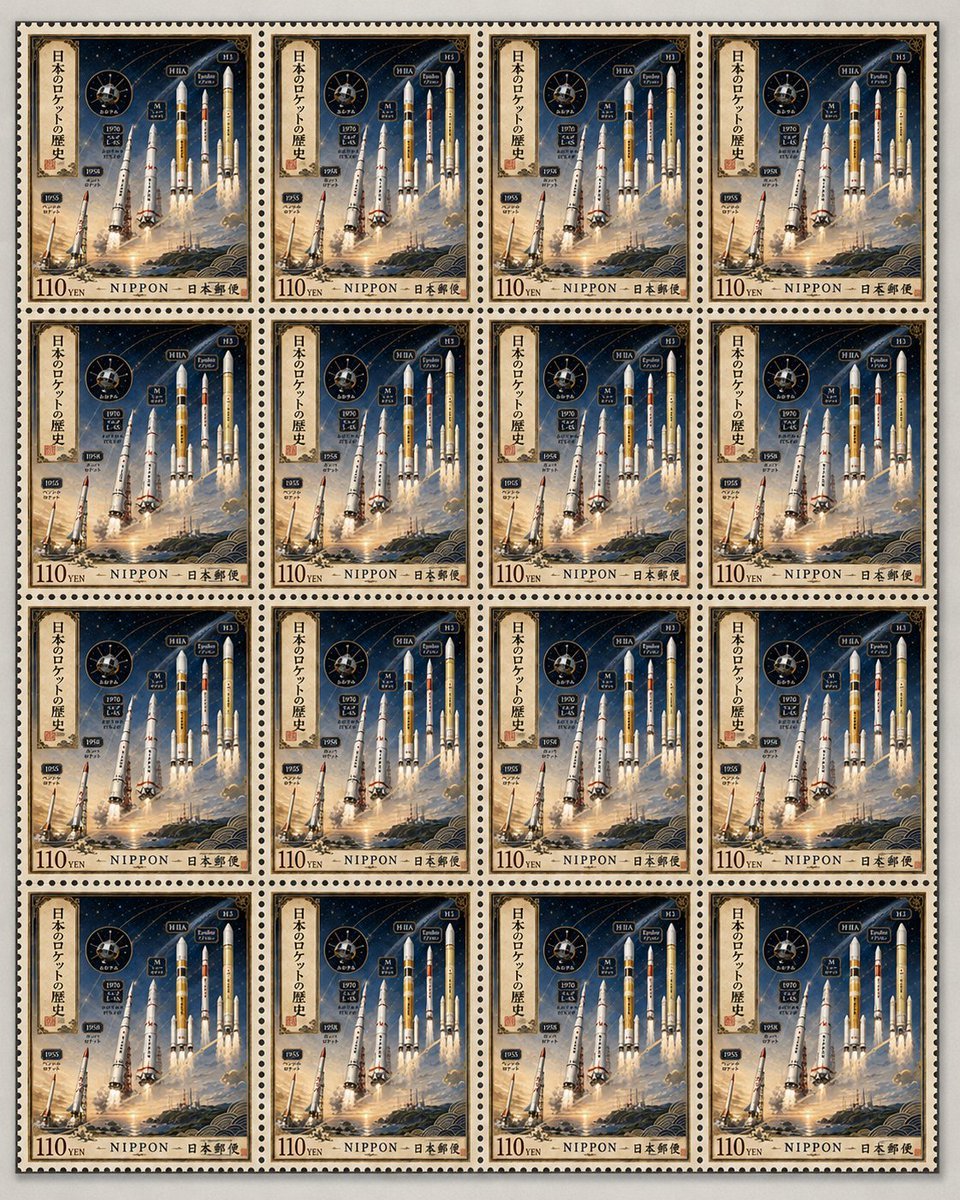
Fictional Japanese Rocket Stamp Sheet

Minecraft Japanese Research Lab Exploration

Fictional Japanese Itasha Vehicle Generator

Japanese Architectural Concrete Studio Fashion Campaign

Japanese Minimalist Concrete Studio Fashion Editorial

Blue Backdrop Luxury Fashion Portrait Campaign
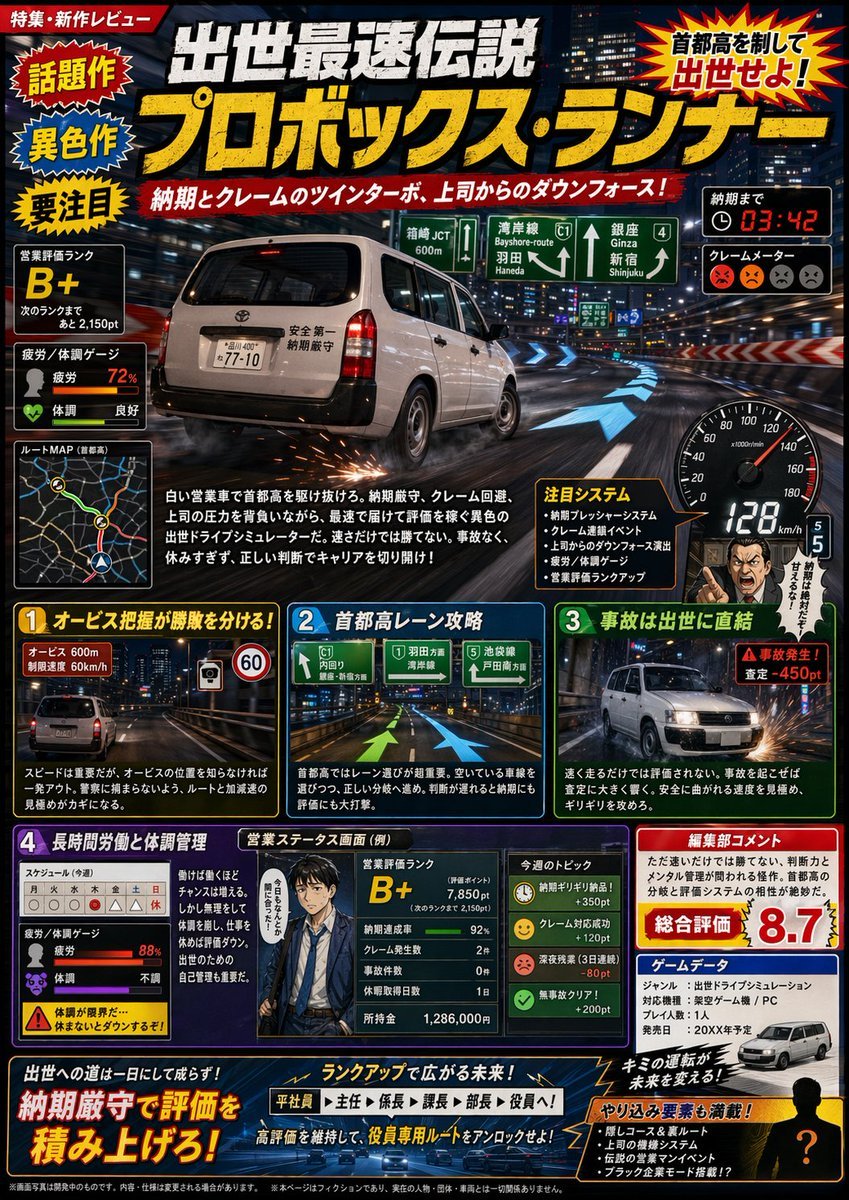
Fictional Japanese Driving Game Magazine Page
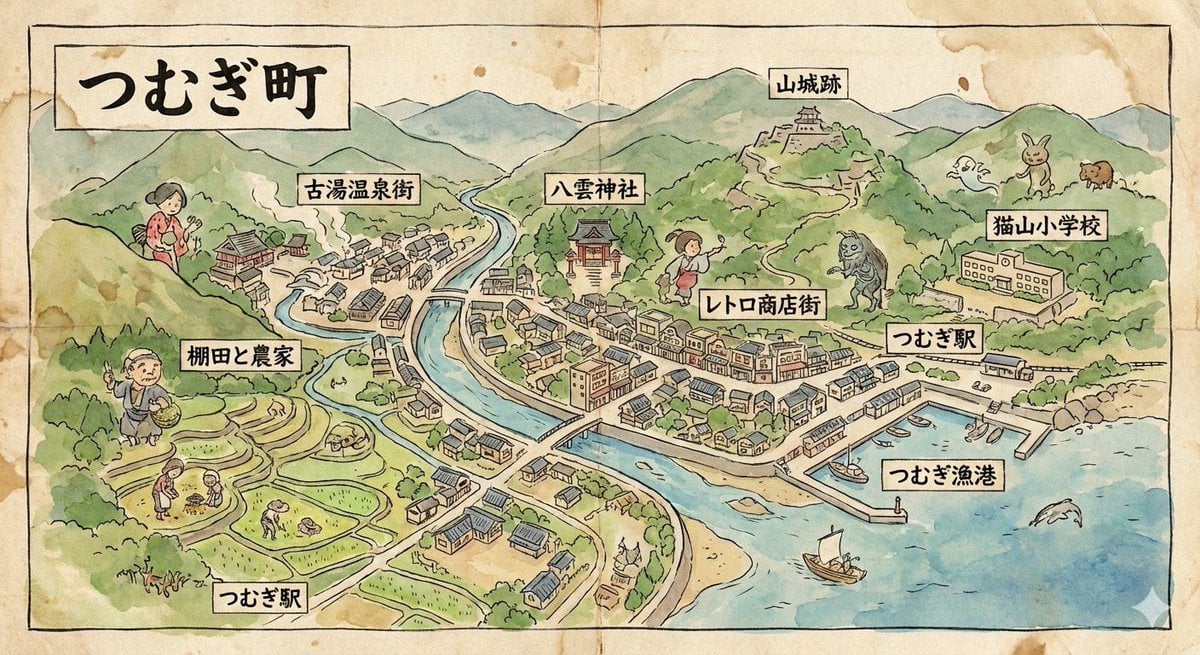
Hand-drawn map of a fictional Japanese town

Japanese Film Reflection Idol
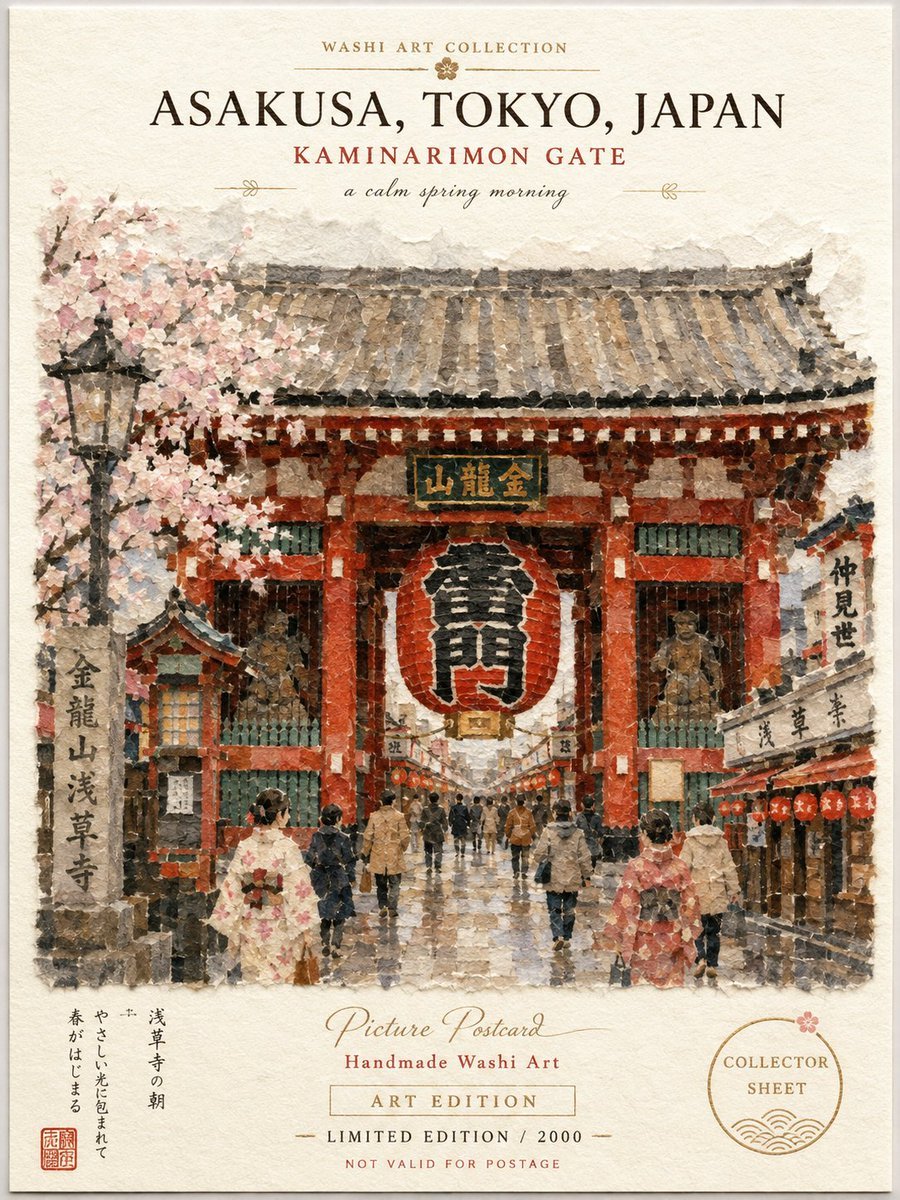
Asakusa Washi Art Postcard
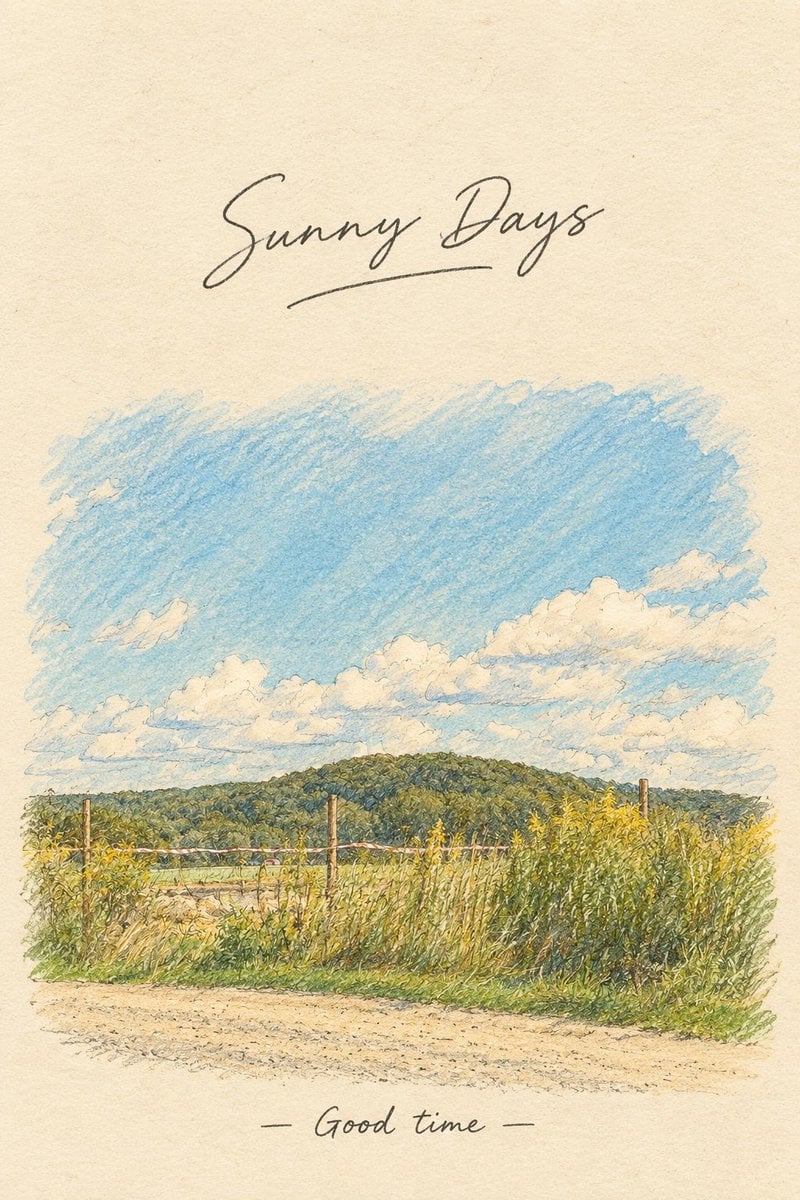
Vintage Countryside Postcard

Fox Shrine Maiden Postcard
Make it yours
Fictional Japanese Stamp on Postcard works as-is. These are the safest ways to change it without losing the look.
Change one field
Copy a single group, rewrite it, and generate again so you can see what that field is doing.
Keep the frame, change the subject
Hold the composition and light of Fictional Japanese Stamp on Postcard, then swap wardrobe, props or the person for a new take.
| If the result… | Why | Fix |
|---|---|---|
| The result drifts from the preview | Too many fields changed at once. | Reuse Fictional Japanese Stamp on Postcard as-is first, then change one group — subject, light, or setting. |
| The model over-stylizes the scene | The prose prompt leaves finish and camera underspecified. | Add one camera or lighting sentence and stay on GPT Image 2. |
More GPT Image 2 templates
Other prompts made for GPT Image 2.

Realistic Portrait of Woman and Deer

The Vista Modular Condo Poster

AI Model Routing Comparison Infographic

2.5D Anime Art Board

Isometric Productivity Desk Scene

New York Double Exposure Poster

Four-Panel AI Landscape Comparison

Japanese Tatami Lifestyle Magazine Cover

NESCAFÉ Coffee Map Poster

Brutalist Cogito Chinese Typography Poster
More image prompts
Fresh picks from across the catalog.

Vaporwave Apple Glass Tower

Luxury Car Portrait with Doberman

Aesthetic Mirror Selfie in Sunlight
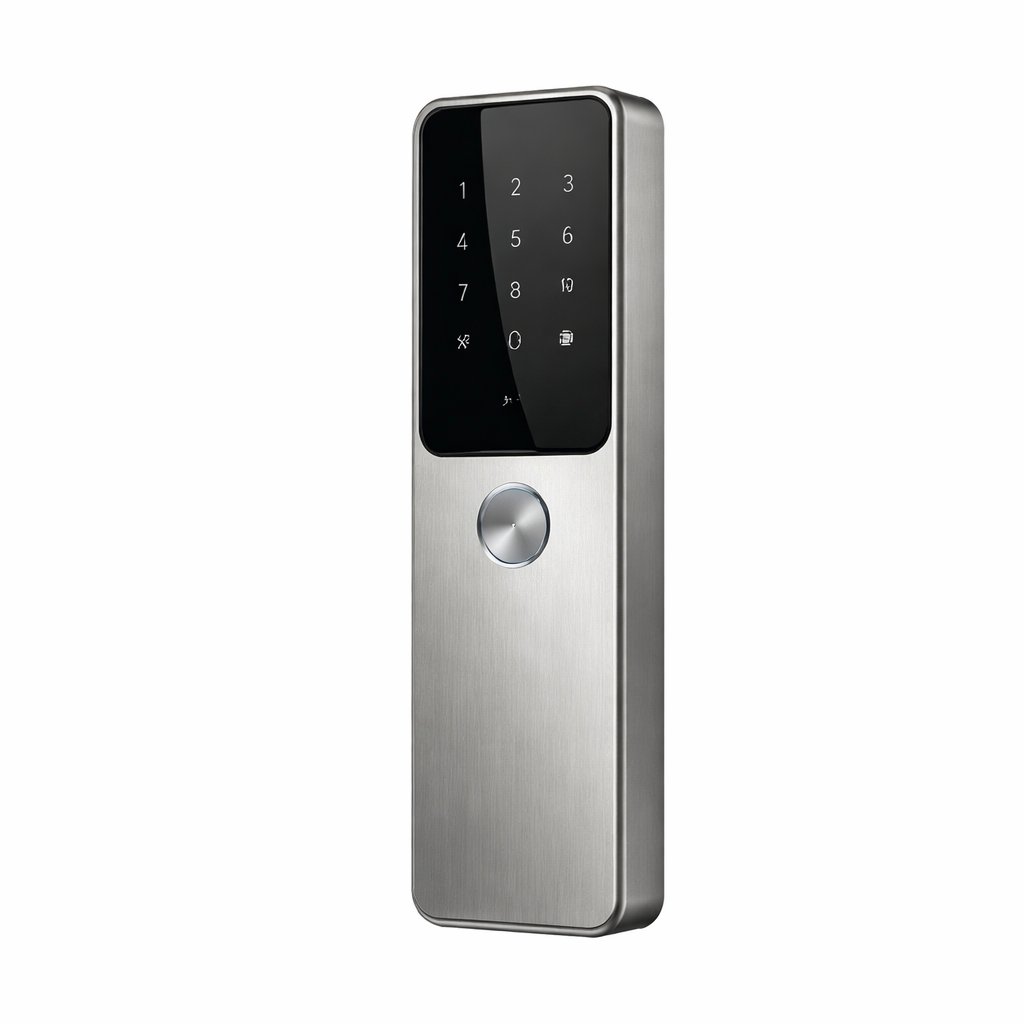
Exploded View Product Photography Prompt

Soft Watercolor Storybook Illustration

Minimalist Purple Brand Poster Triptych
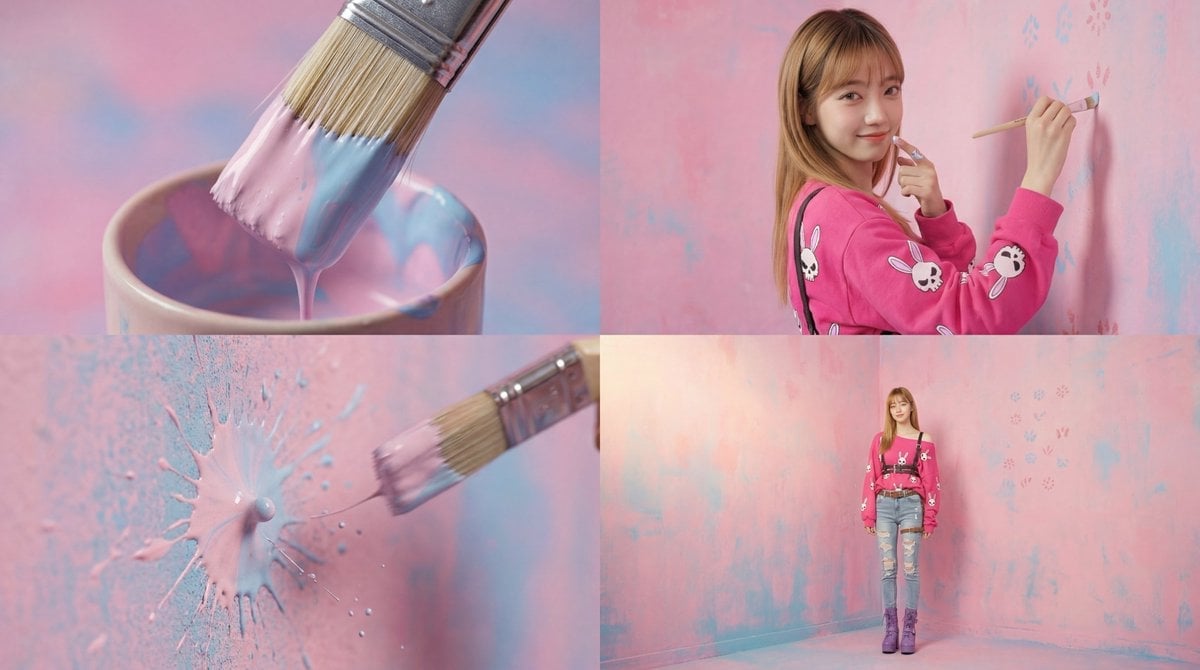
Cinematic 4-Cut Video Prompt of Woman Painting
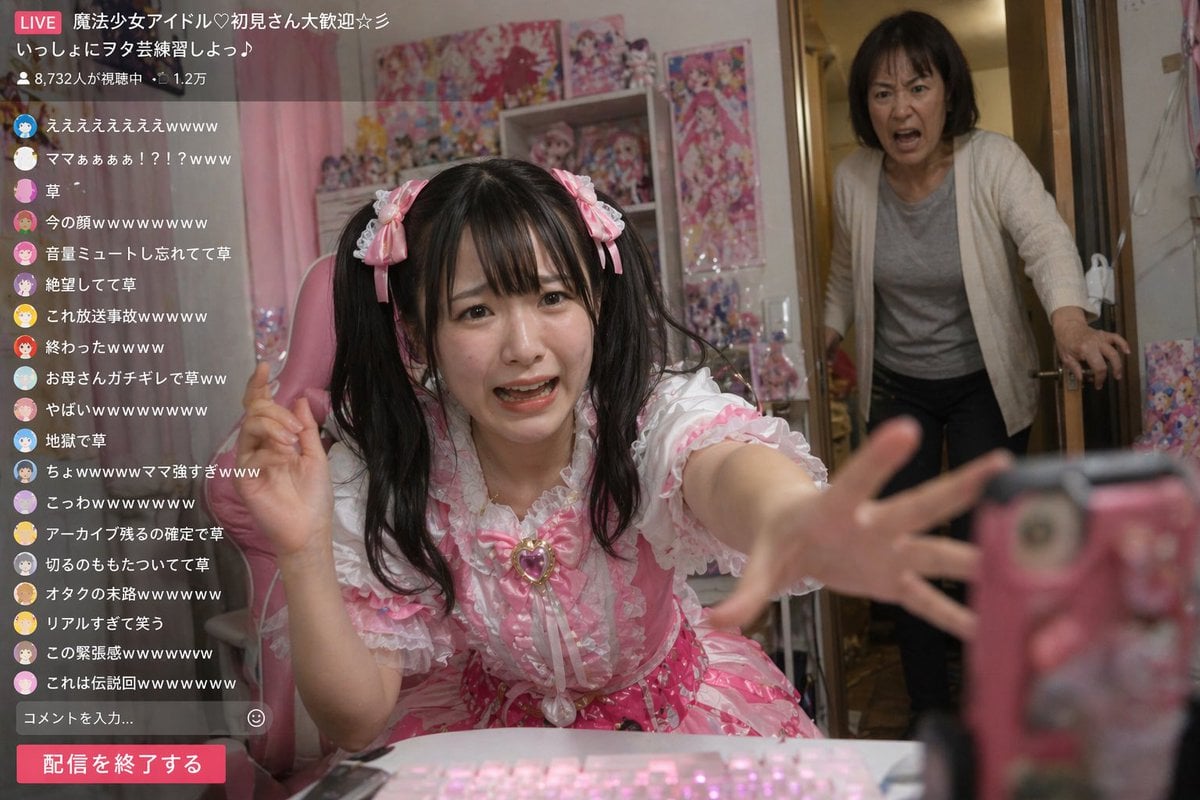
Awkward Idol Stream Situation
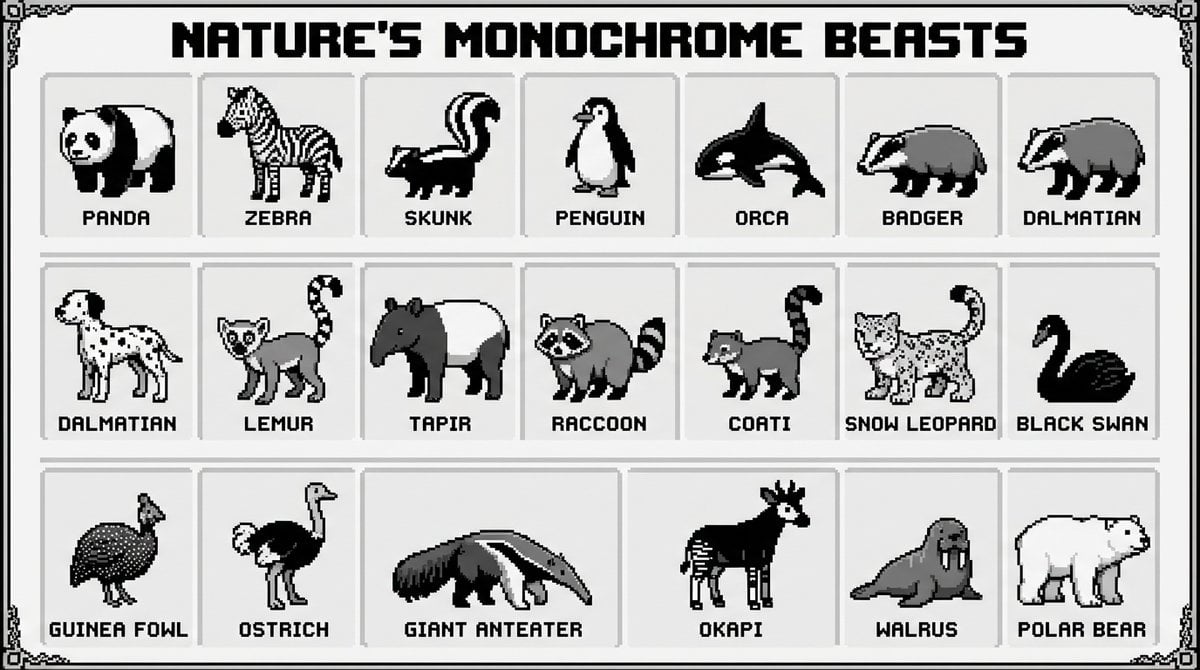
bit pixel art poster of black-and-white animals

Hyper-Realistic Composite Macro Photography Prompt
Browse template categories
Fictional Japanese Stamp on Postcard questions
How do I use the Fictional Japanese Stamp on Postcard template?
Add your photo if the template asks for one, edit the prompt if you like — the template's model and format are already selected — and press Generate. Your version opens in PicX Studio.
Can I customize the Fictional Japanese Stamp on Postcard template?
Yes. You can change the subject, setting, lighting, mood, format, and available model controls before creating your image.
Is the Fictional Japanese Stamp on Postcard template free?
Opening and editing this template is free. Generating uses credits, shown on the Generate button when you are signed in.
Which AI model should I use?
Start with GPT Image 2, which is the model associated with this template. You can compare another compatible model for a different finish.
Looking for something else? Browse all templates.

Your photo, any look
Thousands of ready templates for every top image and video model, from one credit balance.