
Anime School Storyboard Sheet
Creates a structured anime storyboard sheet with eight classroom scene panels and matching Japanese dialogue boxes.
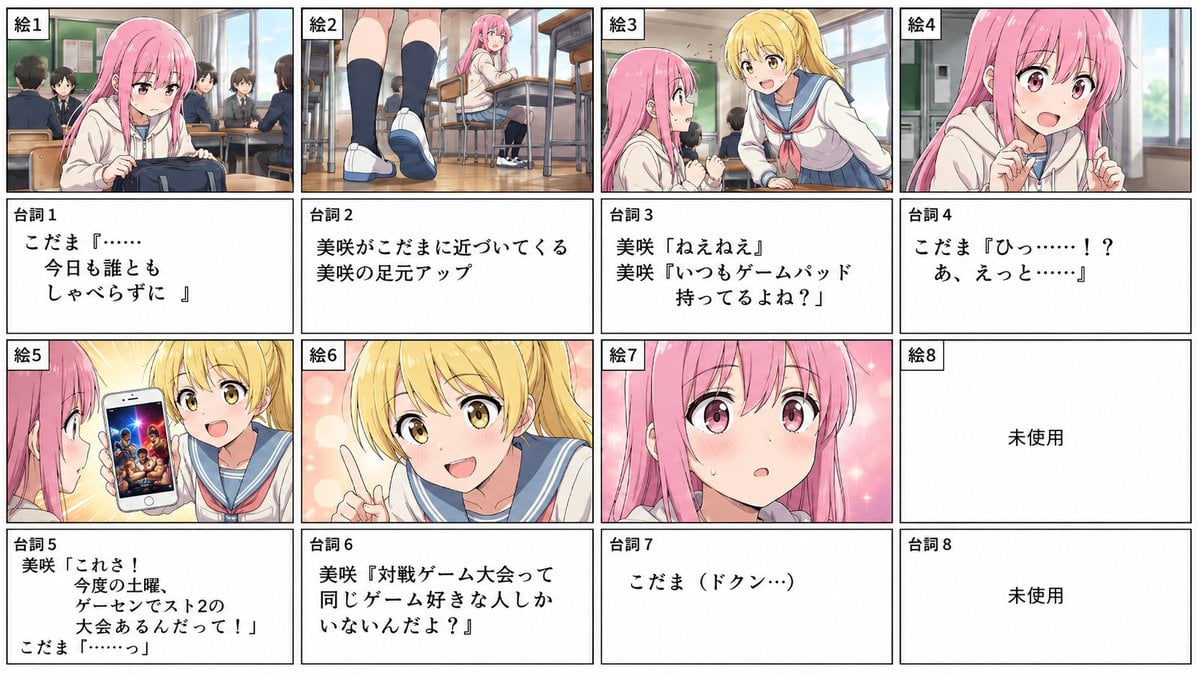
- Prompt included
- Model and format preset
- Premium template
The prompt behind this image
Copy the exact prompt behind Anime School Storyboard Sheet, or open it in the studio and make it yours.
Goal: Create a clean anime storyboard/contact sheet for a school scene, laid out as a 4-column by 4-row grid: 8 illustrated panels paired with 8 dialogue boxes. The top-left corner of each illustrated panel has a small white label with black Japanese text from 「絵1」 through 「絵8」, and the paired text boxes below have labels from 「台詞1」 through 「台詞8」. Use crisp black grid borders, white gutters, and a widescreen canvas. Canvas: Horizontal 16:9 storyboard sheet, approximately 1200×675 px, white background, thin black panel outlines, clean manga production layout. Each illustrated panel occupies the upper half of its story cell and its matching dialogue box sits directly below it. Visual style: High-quality modern Japanese anime, soft classroom lighting, pastel colors, detailed school desks and chairs, expressive character acting, clean line art, subtle gradients, no heavy texture. Keep the overall look like a storyboard for an anime scene rather than a finished comic page. Characters: Main girl is {argument name="main character name" default="Kodama"}, a shy pink-haired schoolgirl with long straight hair, pale skin, large pink eyes, and a cream cardigan over a school uniform. Second girl is {argument name="friend character name" default="Misaki"}, an energetic blonde schoolgirl with a high ponytail wearing a sailor-style uniform with blue collar and red ribbon. Other classmates appear in the classroom background. Illustrated panels: Create exactly 8 illustrated image panels. Panel 1: pink-haired girl sits alone at her classroom desk, looking down at a game controller or gamepad in her hands, classmates chatting behind her, label 「絵1」. Panel 2: low-angle close-up of the blonde girl's legs and school shoes walking toward the pink-haired girl; the pink-haired girl is visible sitting at a desk in the background, label 「絵2」. Panel 3: blonde girl leans in close across the desk, speaking excitedly to the surprised pink-haired girl in the classroom, label 「絵3」. Panel 4: close-up of the pink-haired girl blushing nervously and gripping a pen or small object near her mouth, face partially simplified/obscured in a storyboard-like way, label 「絵4」. Panel 5: blonde girl holds up a smartphone showing a colorful fighting game tournament poster or game screen; pink-haired girl looks at it from the side, label 「絵5」. Panel 6: close-up of the blonde girl smiling and making a peace sign, bright warm bokeh background, face partially simplified/obscured in a storyboard-like way, label 「絵6」. Panel 7: close-up of the pink-haired girl's face with sparkly pink background, intense stunned reaction, face partially simplified/obscured in a storyboard-like way, label 「絵7」. Panel 8: blank unused white storyboard panel with only the centered Japanese text 「未使用」, label 「絵8」. Dialogue boxes: Create exactly 8 dialogue boxes below the image panels. Use black Japanese text on white, simple printed font, left aligned except unused boxes centered. Dialogue 1 text: {argument name="dialogue 1" default="こだま「……\n今日も誰とも\nしゃべらずに」"}. Dialogue 2 text: 「美咲がこだまに近づいてくる\n美咲の足元アップ」. Dialogue 3 text: 「美咲『ねぇねぇ』\n美咲『いつもゲームパッド\n持ってるよね?』」. Dialogue 4 text: {argument name="dialogue 4" default="こだま『ひっ……!?\nあ、えっと……』"}. Dialogue 5 text: 「美咲『これさ!\n今度の土曜、\nゲーセンでスト2の\n大会あるんだって!』\nこだま『……っ』」. Dialogue 6 text: 「美咲『対戦ゲーム大会って\n同じゲーム好きな人しか\nいないんだよ?』」. Dialogue 7 text: {argument name="dialogue 7" default="こだま(ドクン…)"}. Dialogue 8 text: centered 「未使用」. Constraints: Include exactly 8 image panels and exactly 8 dialogue boxes; exactly 2 boxes are unused, both marked 「未使用」. Maintain the same 4-column structure, strong black borders, classroom continuity, and consistent character designs across panels. Do not add extra captions, watermarks, logos, or additional panels.
How to use Anime School Storyboard Sheet in 3 steps
- 1Upload ImagePNG, JPG or paste
Add your photo
Upload the photo the template builds on. The prompt, model and format are already set.
- 2…a portrait of your subject in softgolden-hour light, 85mm…
Personalize
Edit the subject and creative details for your destination.
- 3Generate
Generate
Press Generate — your image is created in PicX Studio, so you can compare it with the original and refine one variable at a time.
More like this
Templates with the same subject, style or setup. Open one to see its prompt.
Make it yours
Anime School Storyboard Sheet works as-is. These are the safest ways to change it without losing the look.
Change one field
Copy a single group, rewrite it, and generate again so you can see what that field is doing.
Keep the frame, change the subject
Hold the composition and light of Anime School Storyboard Sheet, then swap wardrobe, props or the person for a new take.
| If the result… | Why | Fix |
|---|---|---|
| The result drifts from the preview | Too many fields changed at once. | Reuse Anime School Storyboard Sheet as-is first, then change one group — subject, light, or setting. |
| The model over-stylizes the scene | The prose prompt leaves finish and camera underspecified. | Add one camera or lighting sentence and stay on GPT Image 2. |
More GPT Image 2 templates
Other prompts made for GPT Image 2.
Six VTuber Japanese Logo Sheet
Realistic Portrait of Woman and Deer
The Vista Modular Condo Poster
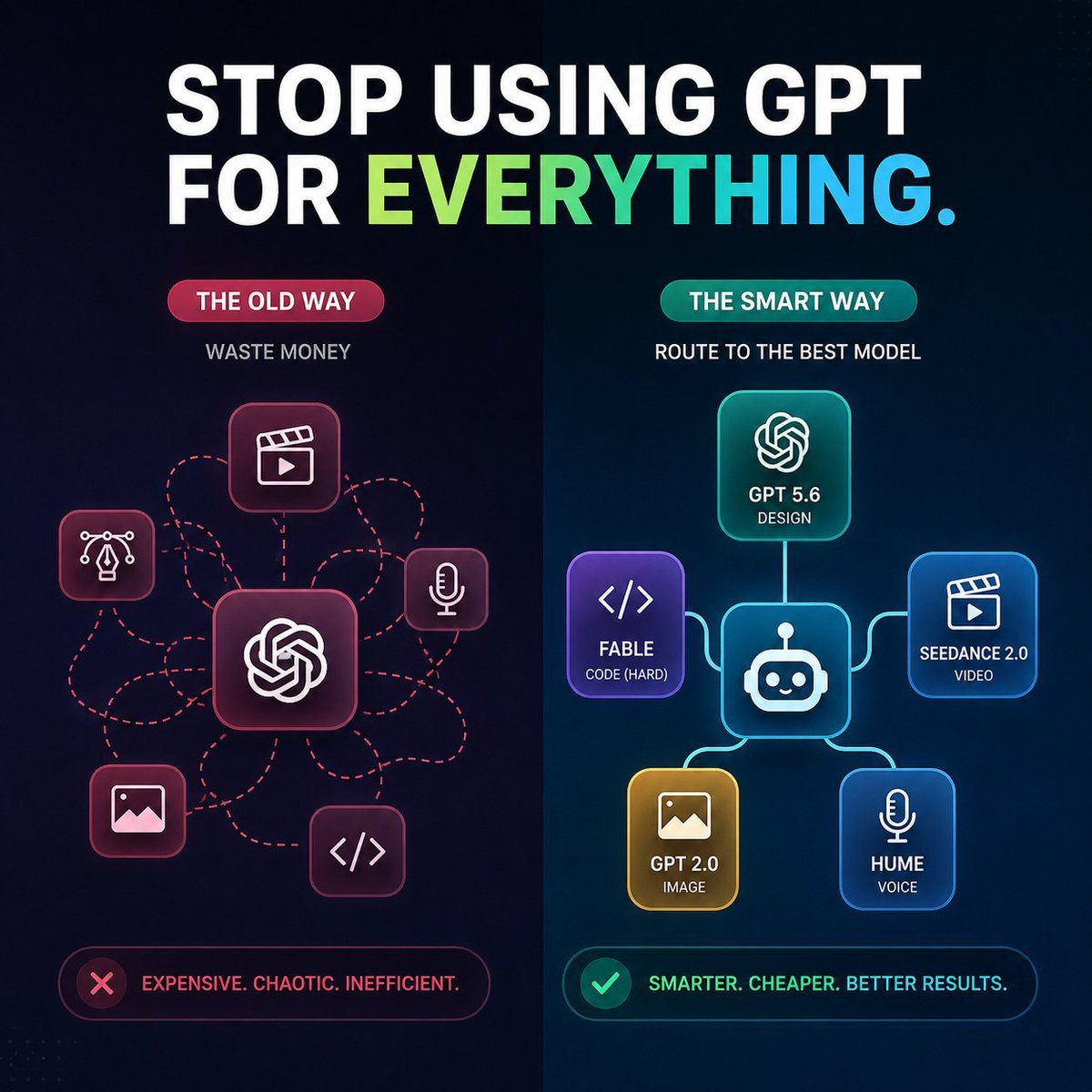
AI Model Routing Comparison Infographic
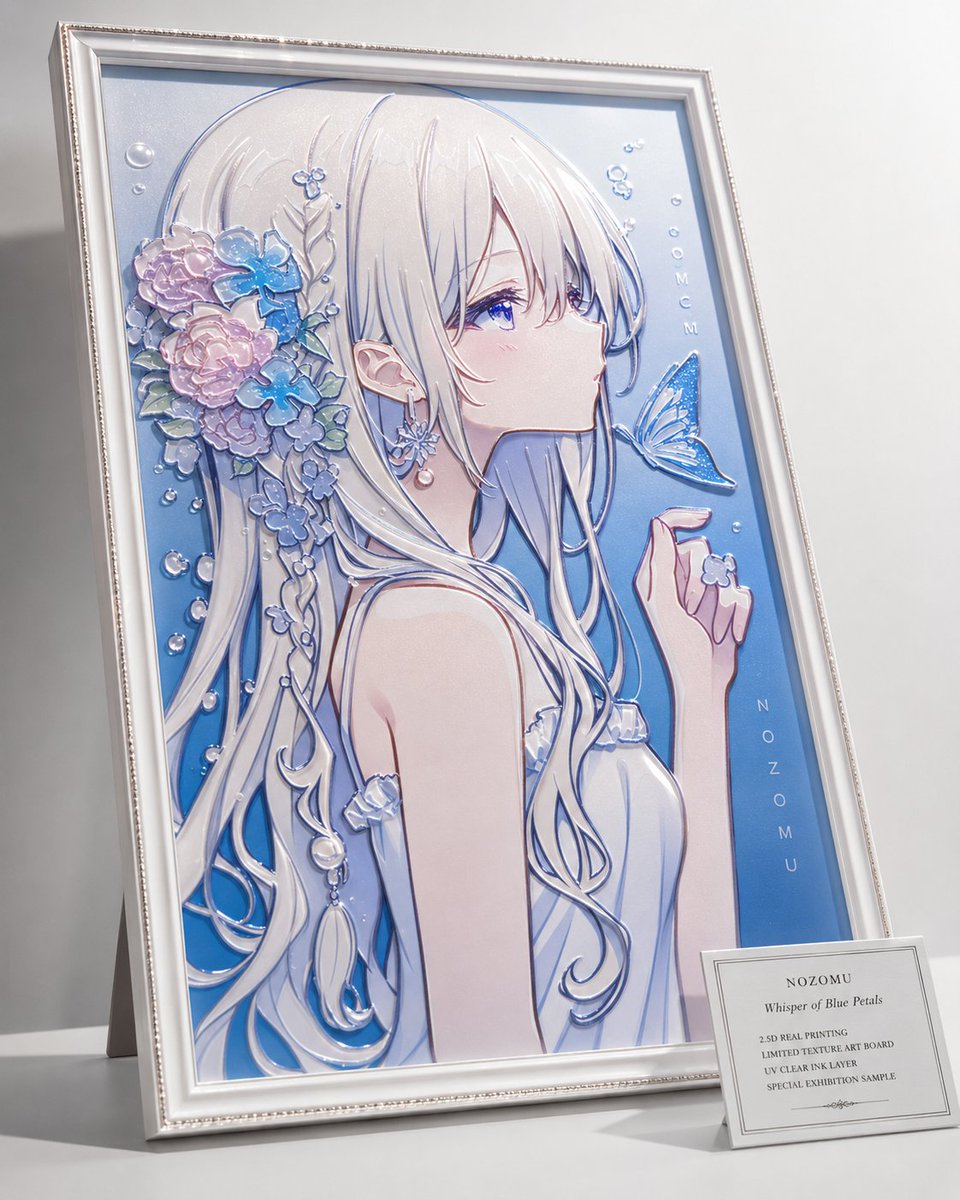
2.5D Anime Art Board
Isometric Productivity Desk Scene
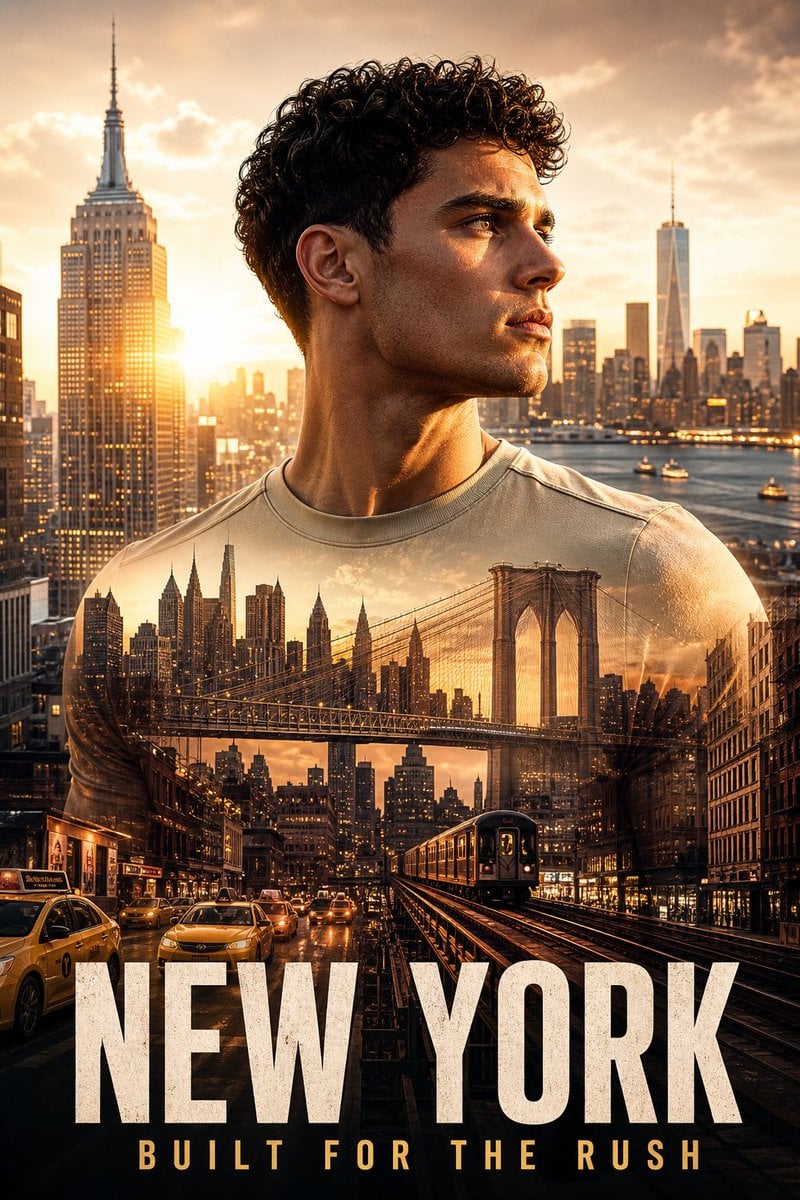
New York Double Exposure Poster
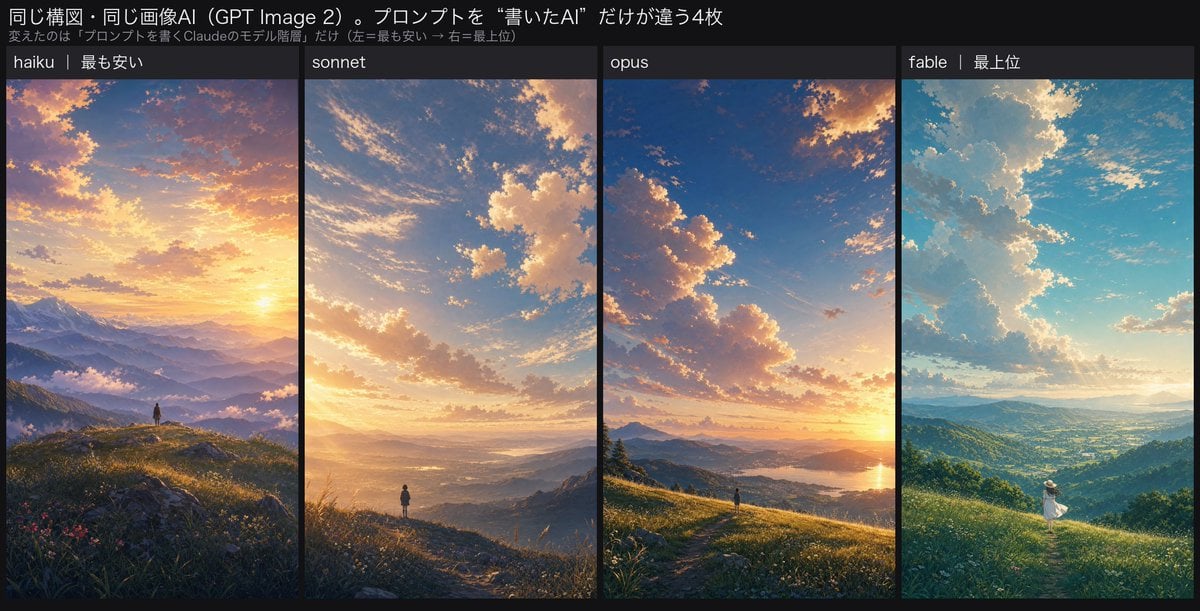
Four-Panel AI Landscape Comparison
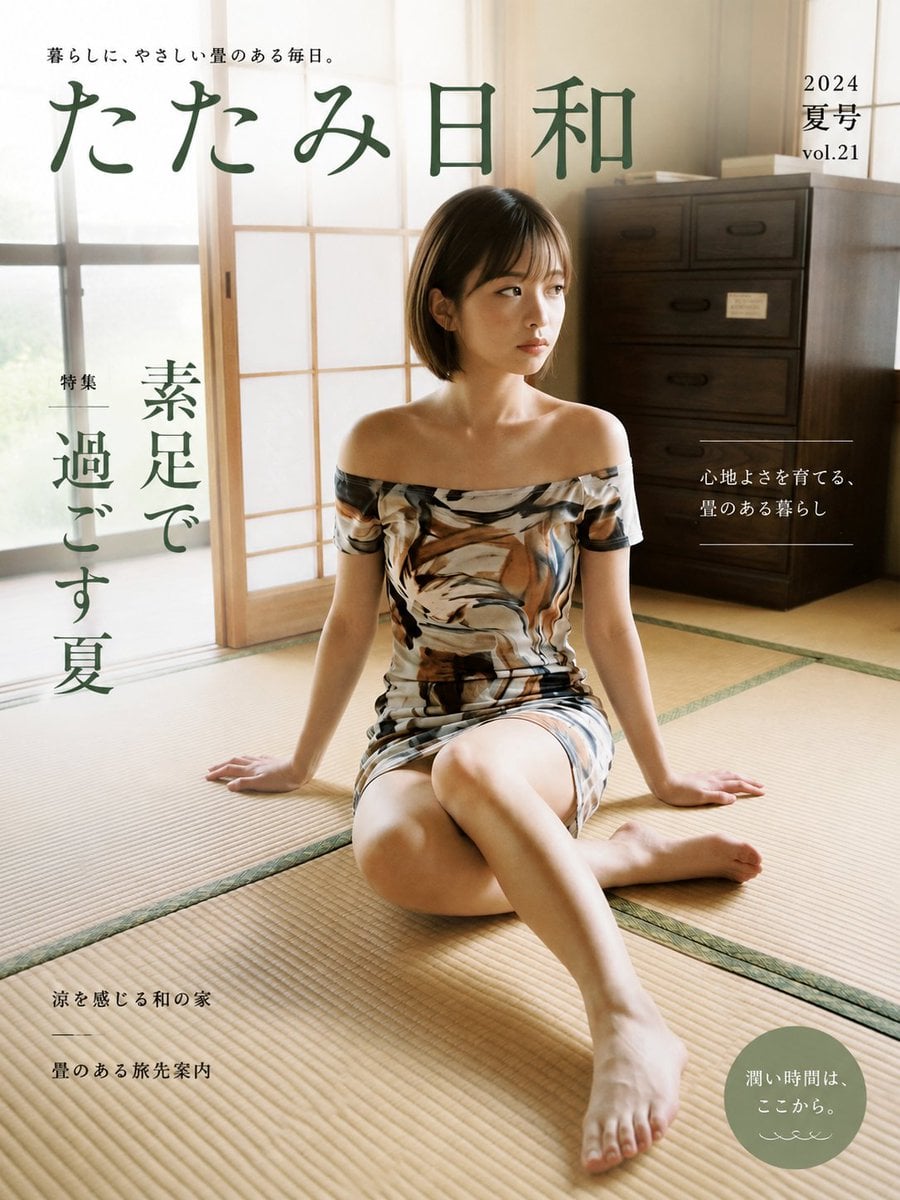
Japanese Tatami Lifestyle Magazine Cover

NESCAFÉ Coffee Map Poster
More image prompts
Fresh picks from across the catalog.
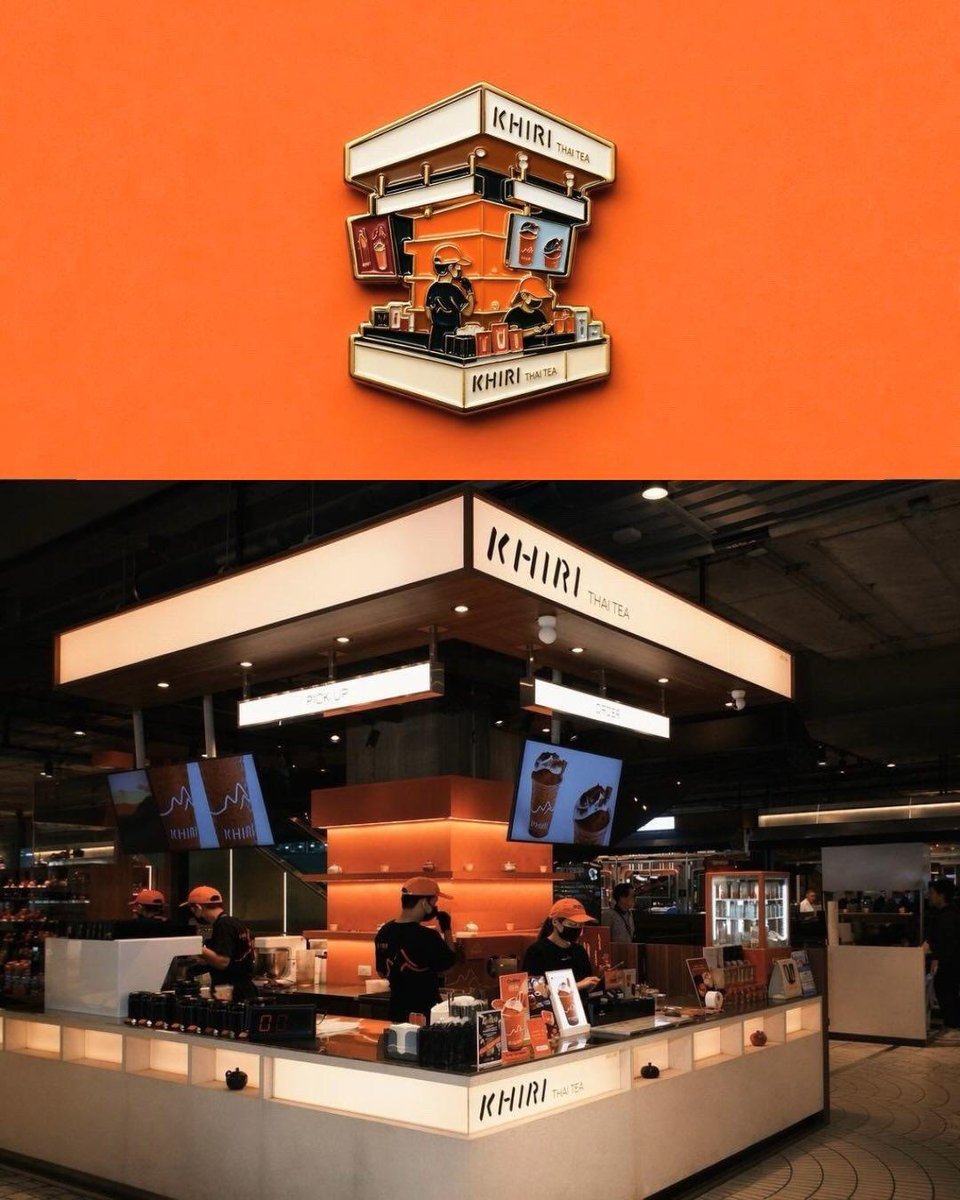
Die-cut Sticker Illustration
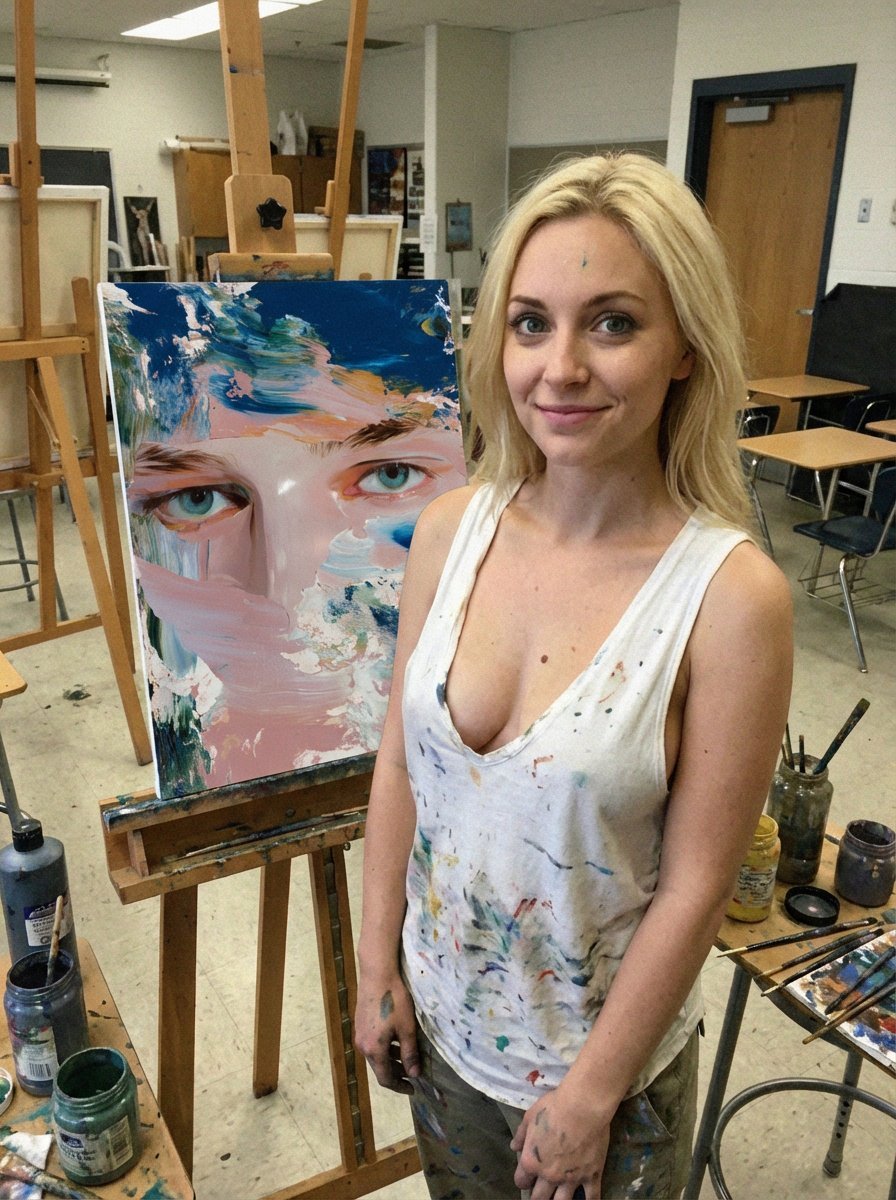
Low-Quality Smartphone Photo of an Artist in a Classroom

Dramatic High-Contrast Portrait with Window Lighting
Luxury Northern Europe Travel Poster
Studio Fashion Portrait Prompt for Full Body Female Model in Green Snake-Skin Gown
Minimalist Editorial Illustration Prompt
Gothic Forest Ethereal Portrait
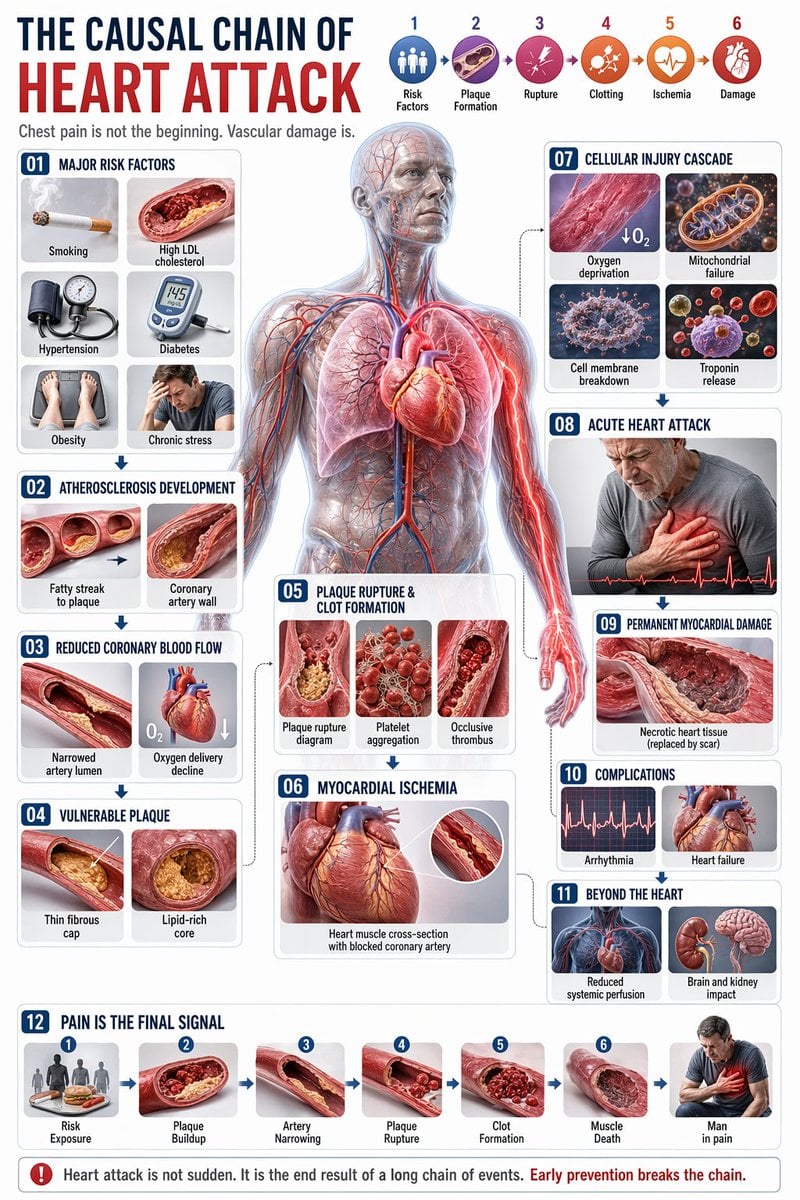
Medical Infographic JSON Prompt
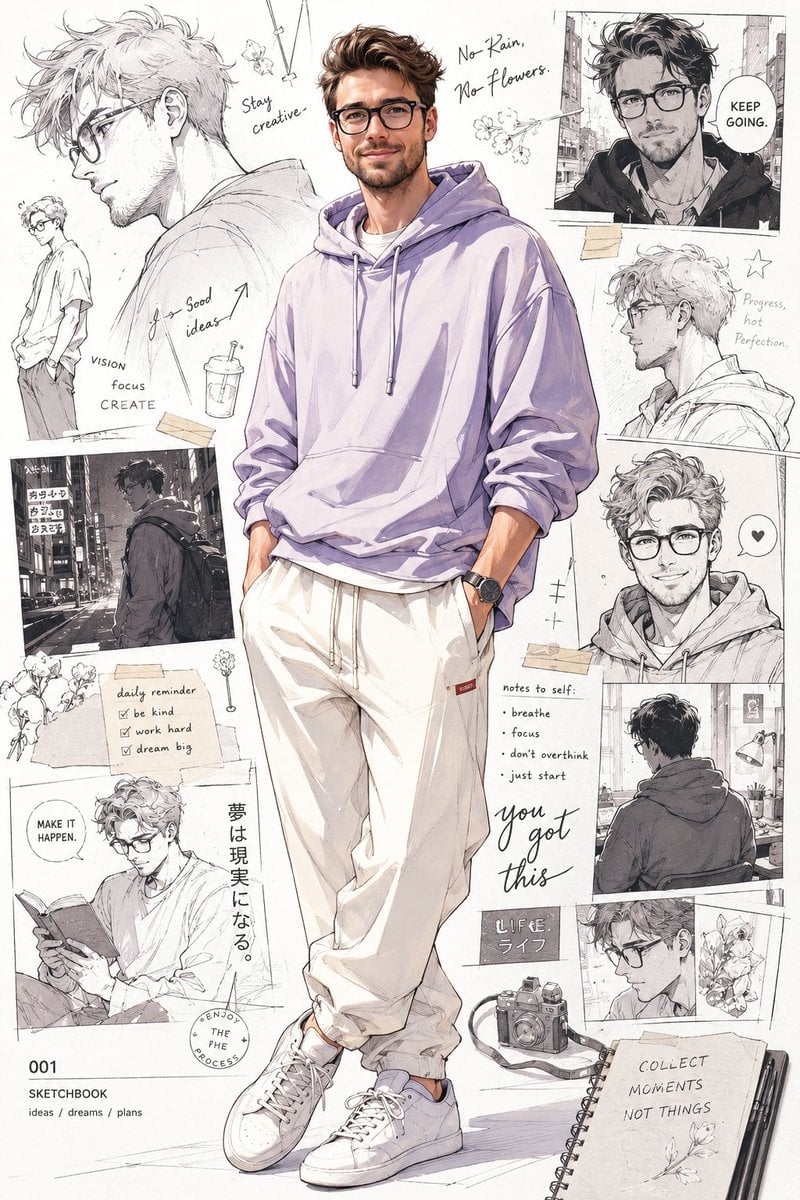
Anime Portrait with Sketch Background
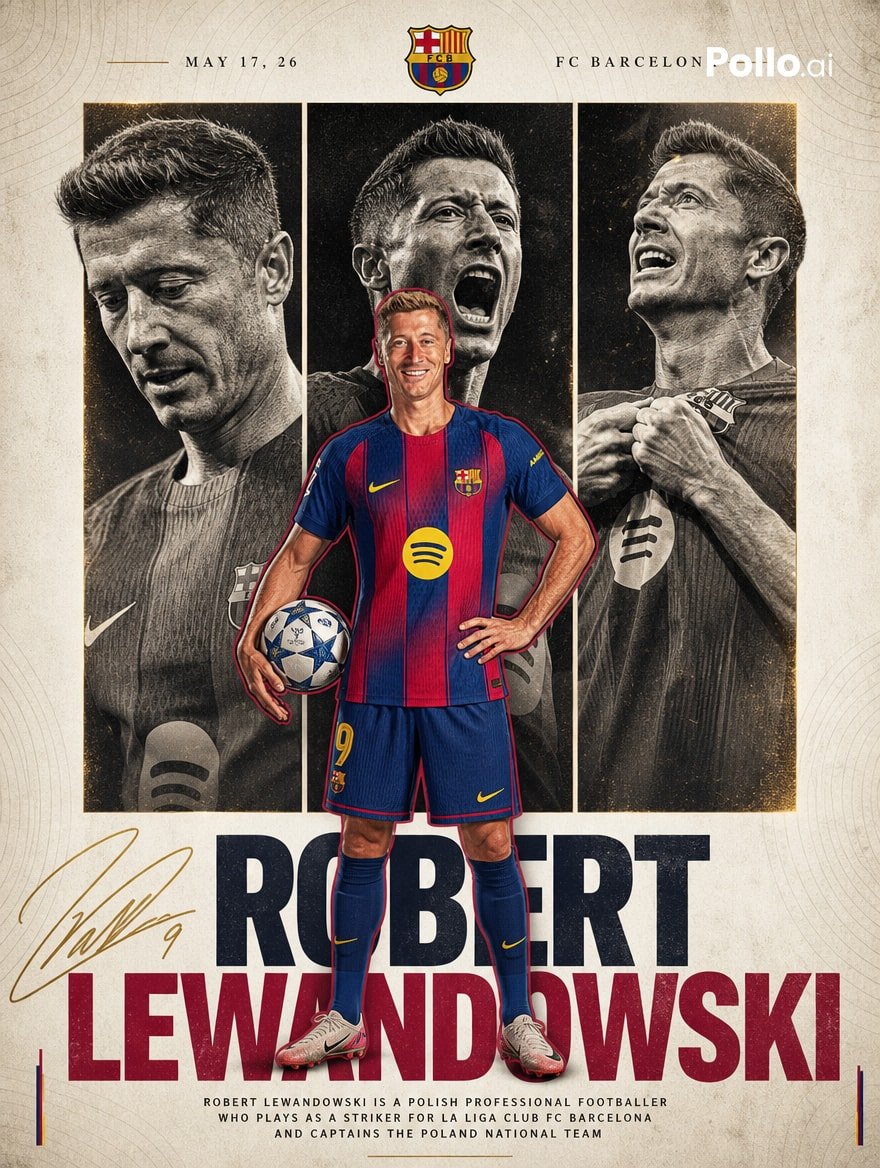
FC Barcelona Lewandowski Poster
Browse template categories
Anime School Storyboard Sheet questions
How do I use the Anime School Storyboard Sheet template?
Add your photo if the template asks for one, edit the prompt if you like — the template's model and format are already selected — and press Generate. Your version opens in PicX Studio.
Can I customize the Anime School Storyboard Sheet template?
Yes. You can change the subject, setting, lighting, mood, format, and available model controls before creating your image.
Is the Anime School Storyboard Sheet template free?
Opening and editing this template is free. Generating uses credits, shown on the Generate button when you are signed in.
Which AI model should I use?
Start with GPT Image 2, which is the model associated with this template. You can compare another compatible model for a different finish.
Looking for something else? Browse all templates.
Your photo, any look
Thousands of ready templates for every top image and video model, from one credit balance.