
Stylized Oil Painting of Character in Shopping Cart
A comprehensive prompt for generating an impressionistic oil painting of a character in a pink shopping cart, emphasizing thick brushstrokes, textured impasto, and high-contrast midday lighting.
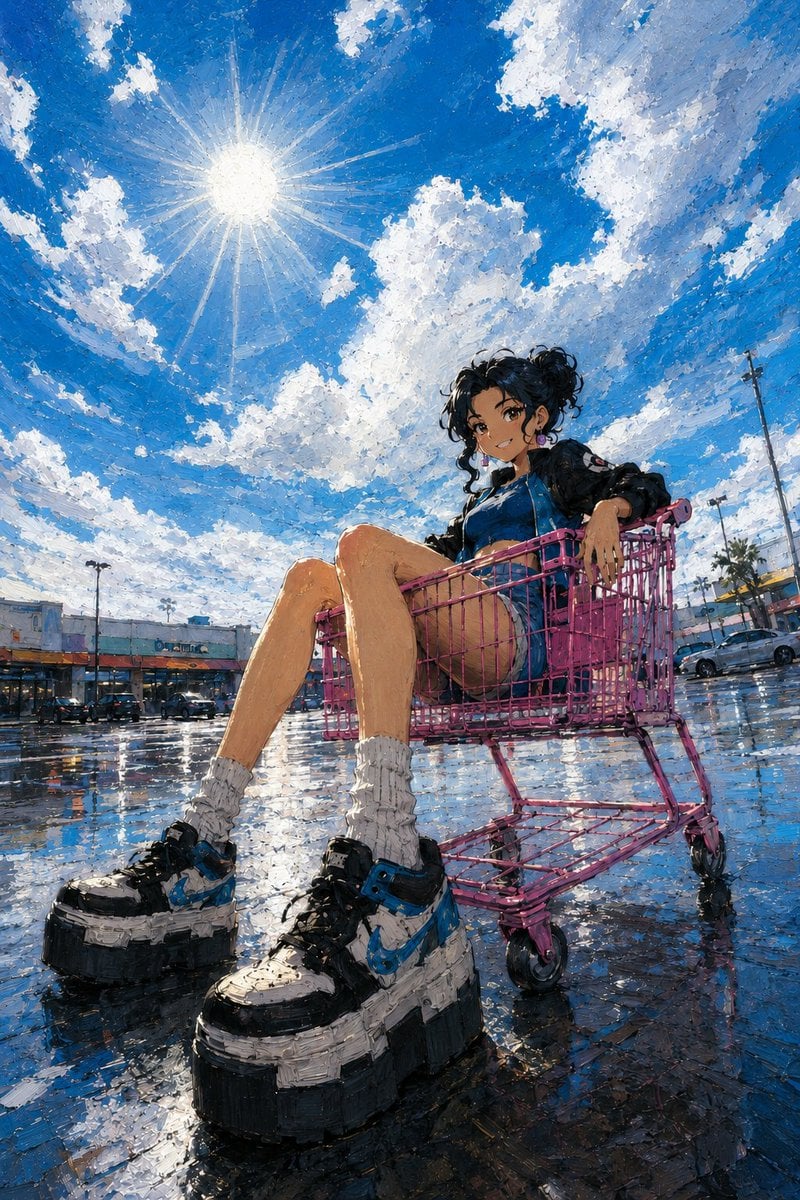
- Prompt included
- Model and format preset
- Free template
The prompt behind this image
Copy the exact prompt behind Stylized Oil Painting of Character in Shopping Cart, or open it in the studio and make it yours.
{argument name="character" default="original character"}. wide full-body shot, low angle perspective, forced perspective. This girl, wearing {argument name="clothing" default="shorts, socks and massive platform shoes"}. {argument name="setting" default="an empty asphalt parking lot"}. sitting inside a bright pink shopping cart. the background features a low-rise commercial building and a few parked cars under a massive bright daytime blue sky filled with thick, textured white clouds in strong midday sunlight. a large, luminous sun hangs in the sky. the ground is wet, reflecting the blue sky and clouds. impressionistic oil painting style, visible thick brushstrokes, textured impasto technique, atmospheric lighting, airy whimsical vibe, rich color palette, natural daylight shadows, rough painterly anime style, visible textured brushstrokes, heavy impasto texture, scratchy charcoal-like linework, expressive gestural strokes, smudged edges, balanced painterly tones with aggressive high-contrast color, beautiful light, best shadow, color bloom, rough painterly anime style, visible textured brushstrokes, heavy impasto texture, scratchy charcoal-like linework, expressive gestural strokes, smudged edges, balanced painterly tones with aggressive high-contrast color, beautiful light, best shadow, color bloom
How to use Stylized Oil Painting of Character in Shopping Cart in 3 steps
- 1
Open
The prompt is already in the box next to the preview, with the template's model and format selected.
- 2…a portrait of your subject in softgolden-hour light, 85mm…
Personalize
Edit the subject and creative details for your destination.
- 3Generate
Generate
Press Generate — your image is created in PicX Studio, so you can compare it with the original and refine one variable at a time.
More like this
Templates with the same subject, style or setup. Open one to see its prompt.
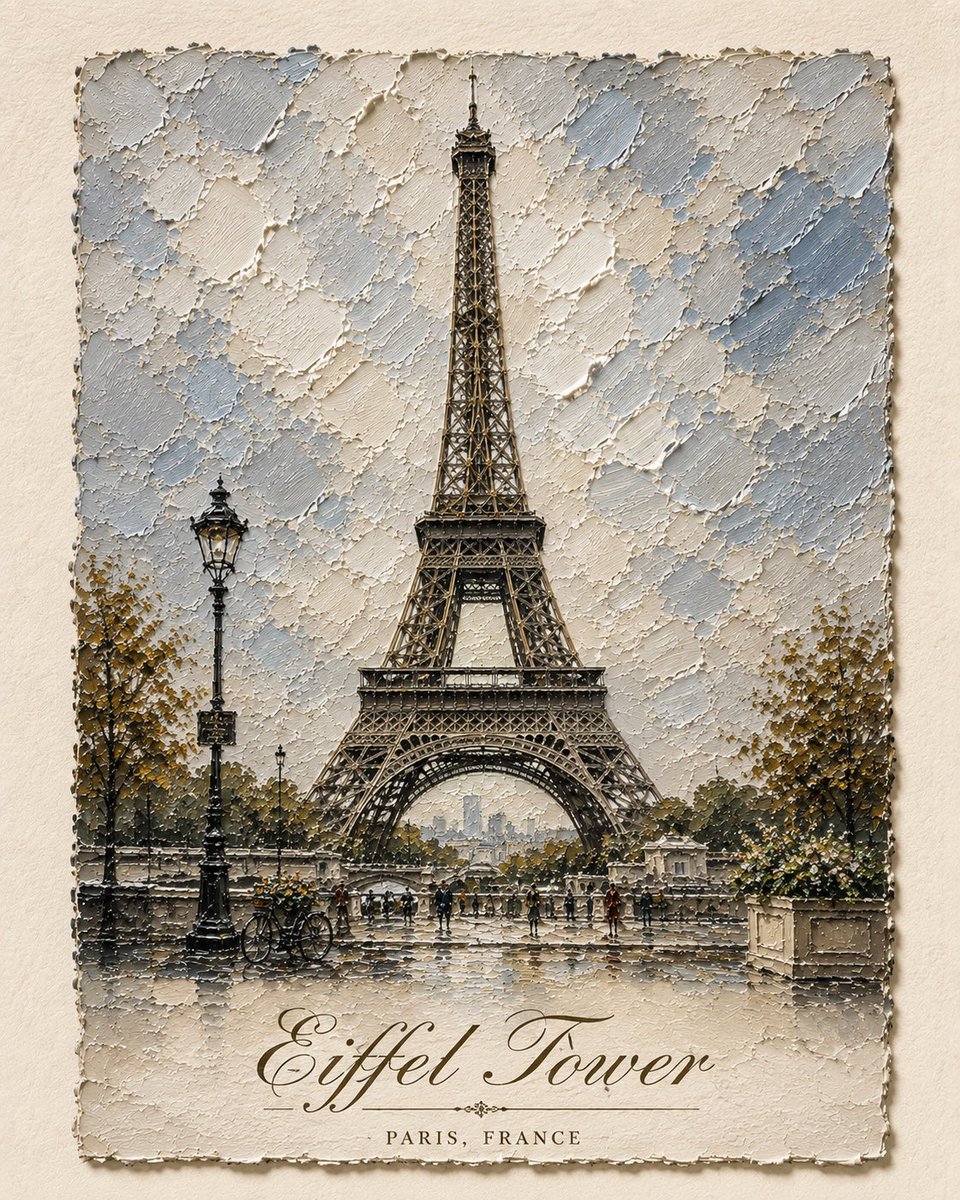
Impasto Oil Architectural Painting
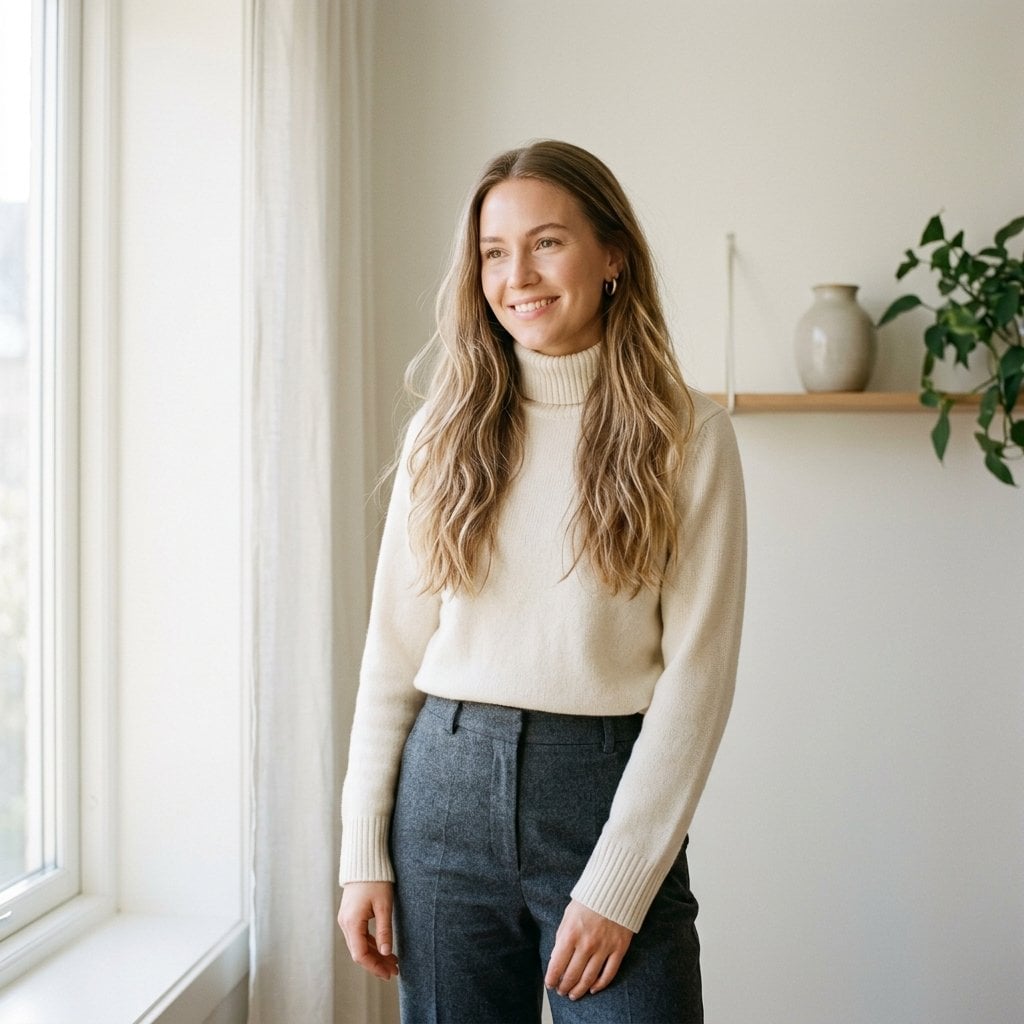
Fashion Oil Painting Aesthetic
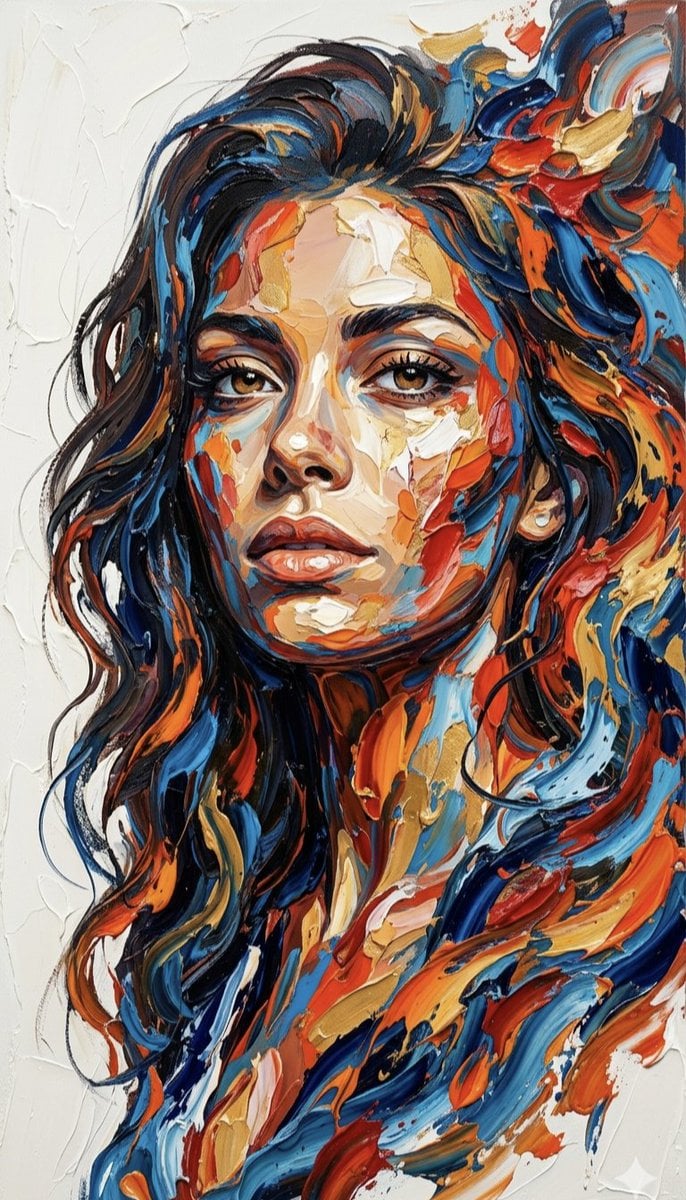
Impasto Palette Knife Oil Painting
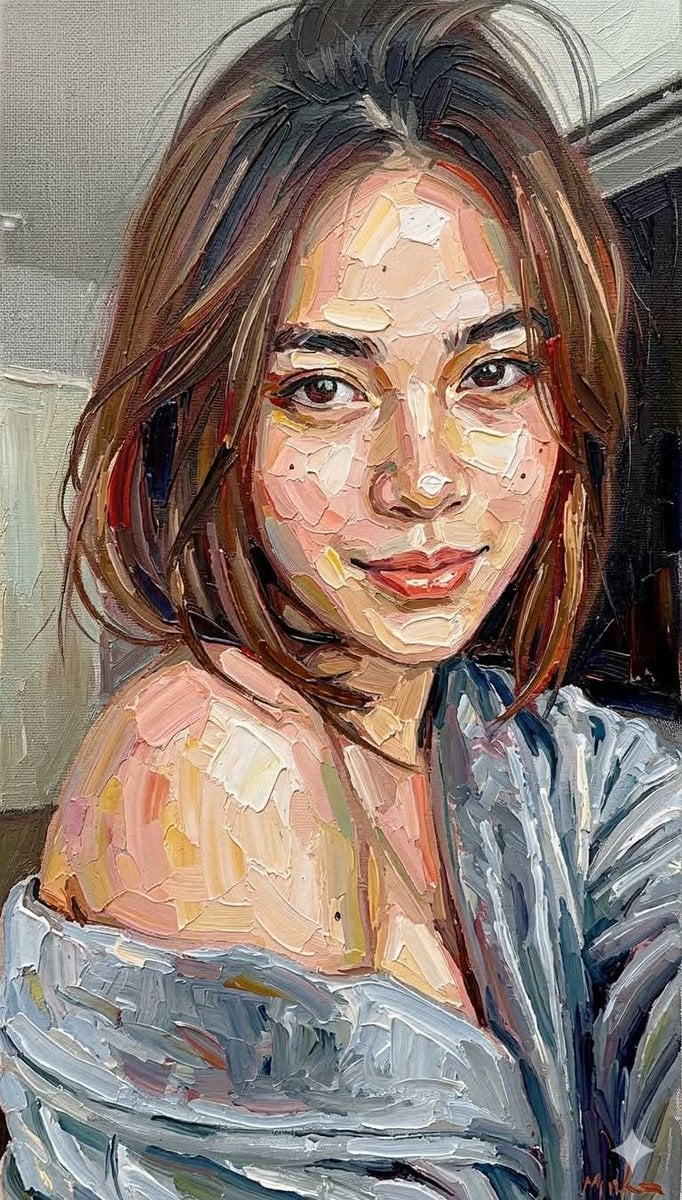
Impasto Oil Painting Portrait Style
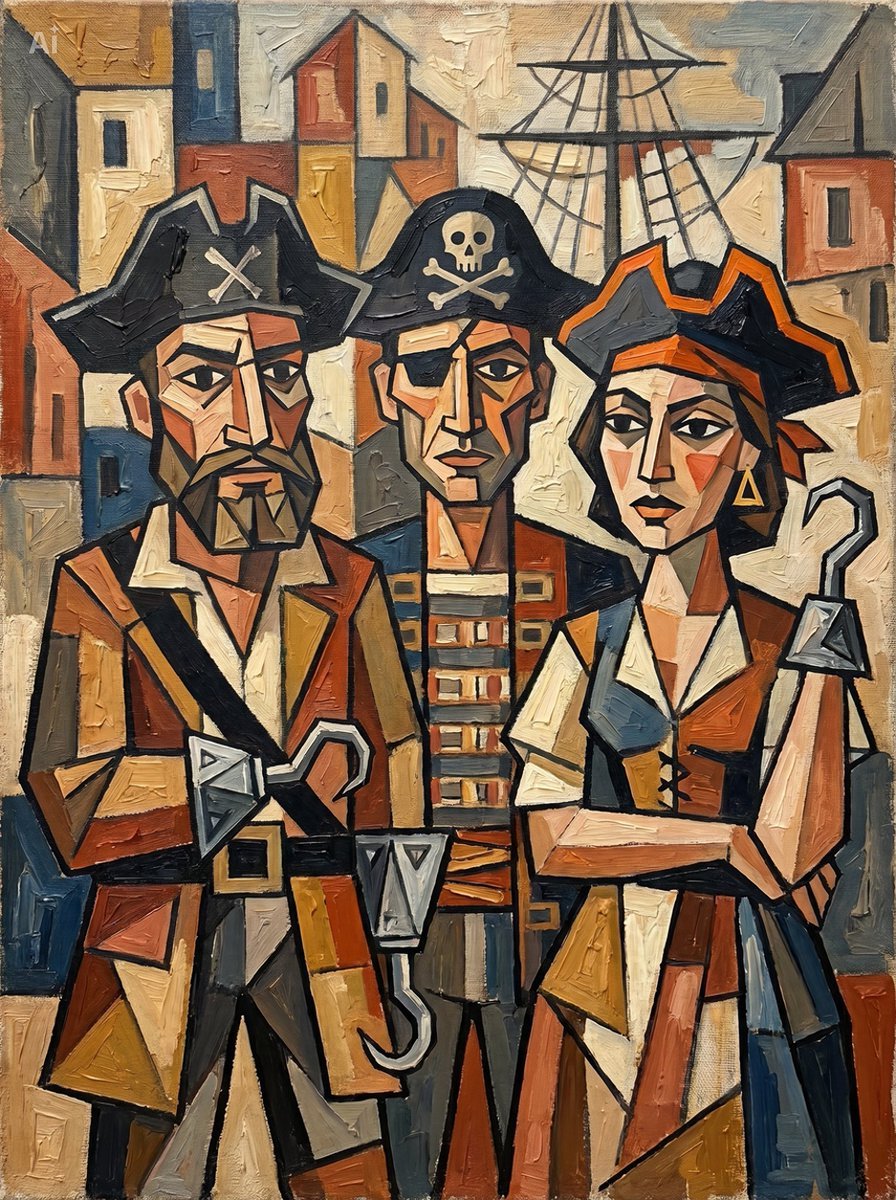
Cubist Pirate Oil Painting
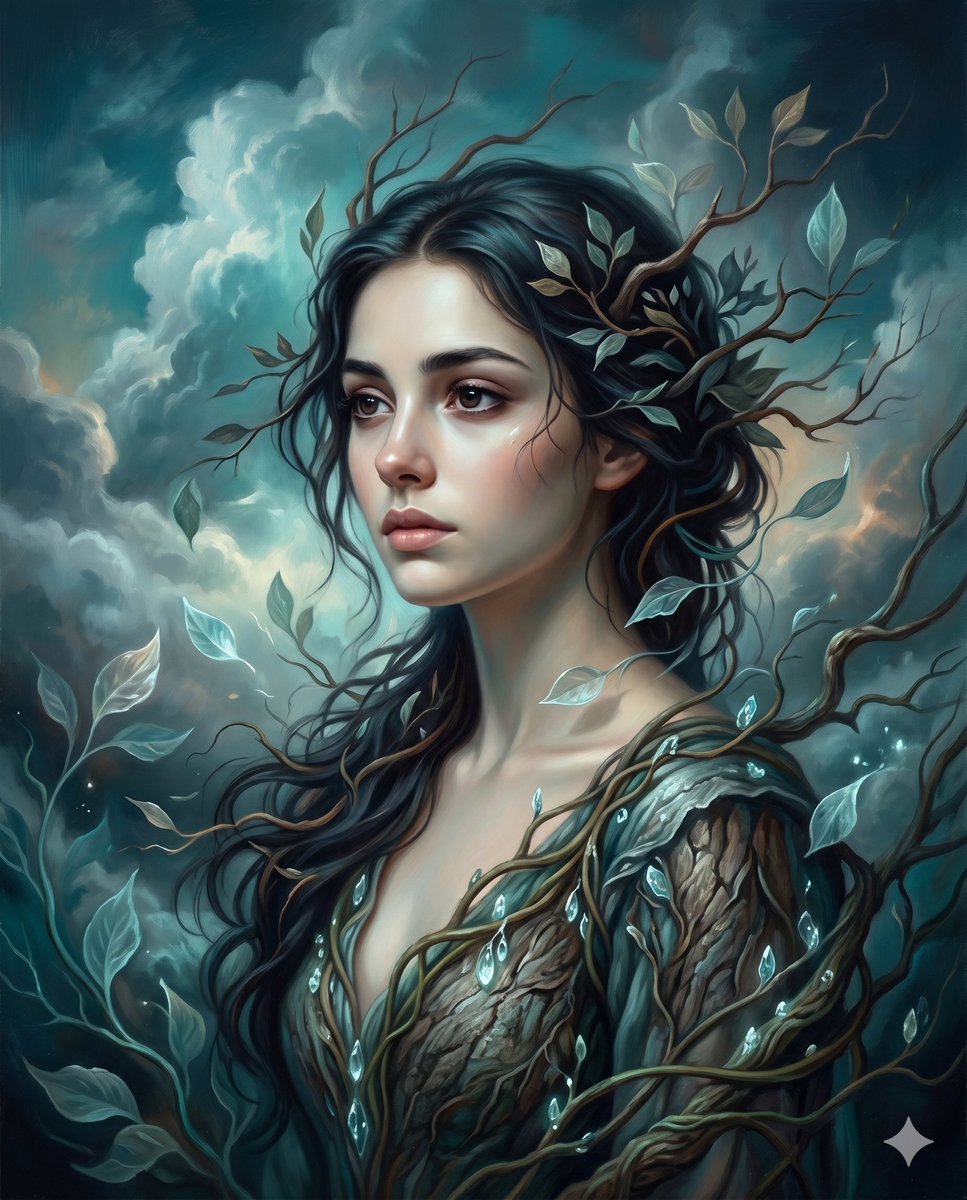
Surrealist romantic oil painting

Pixel Limited Finale Fireworks
Pixel Limited Garden Maze
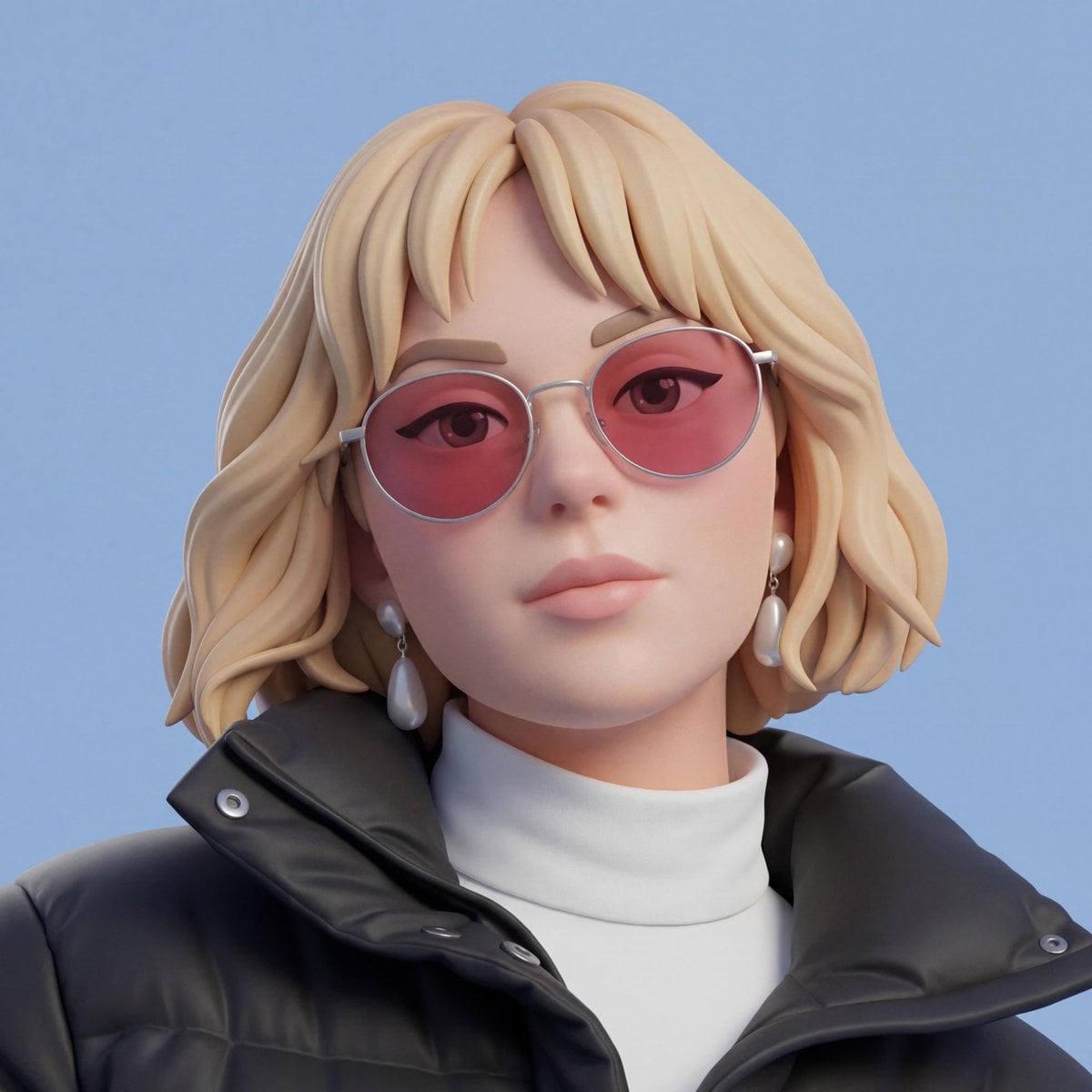
Pixel Limited Rooftop Concert
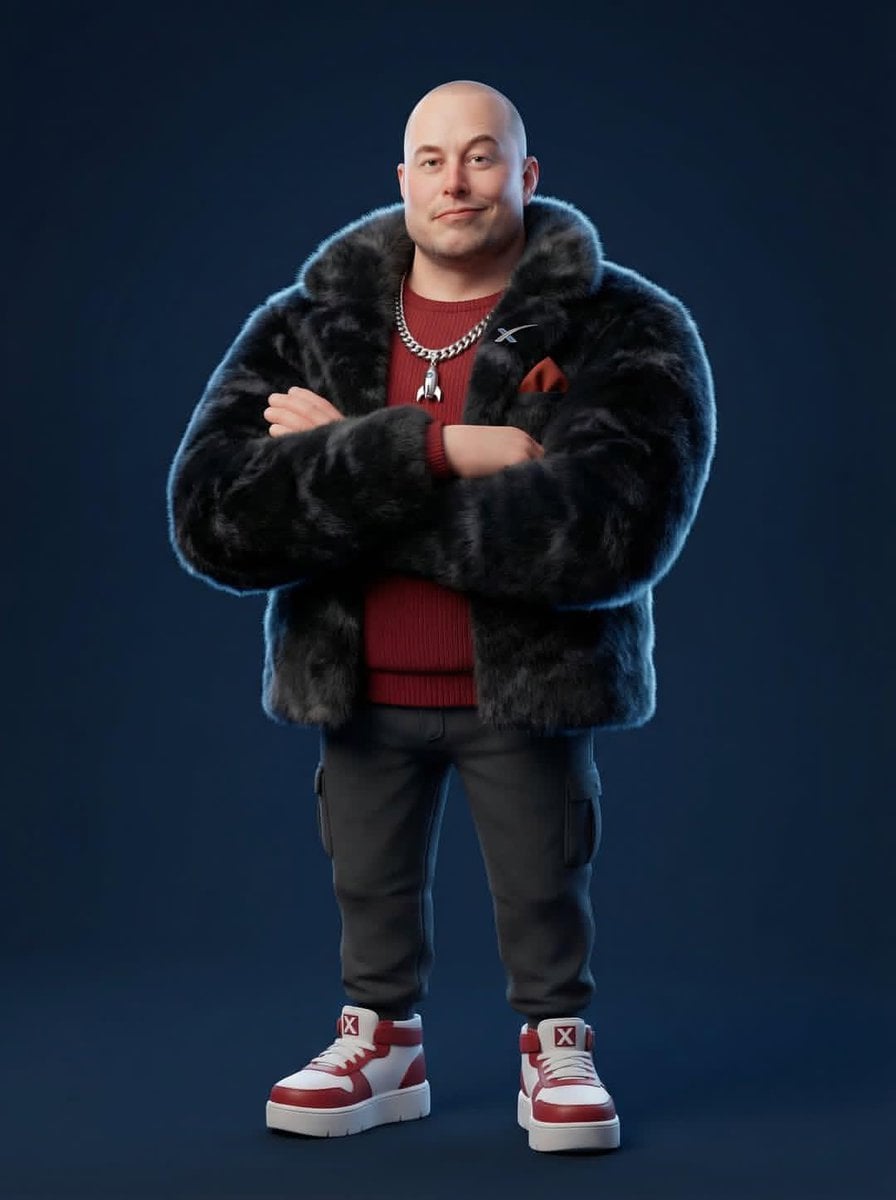
Pixel Limited Bicycle Coast
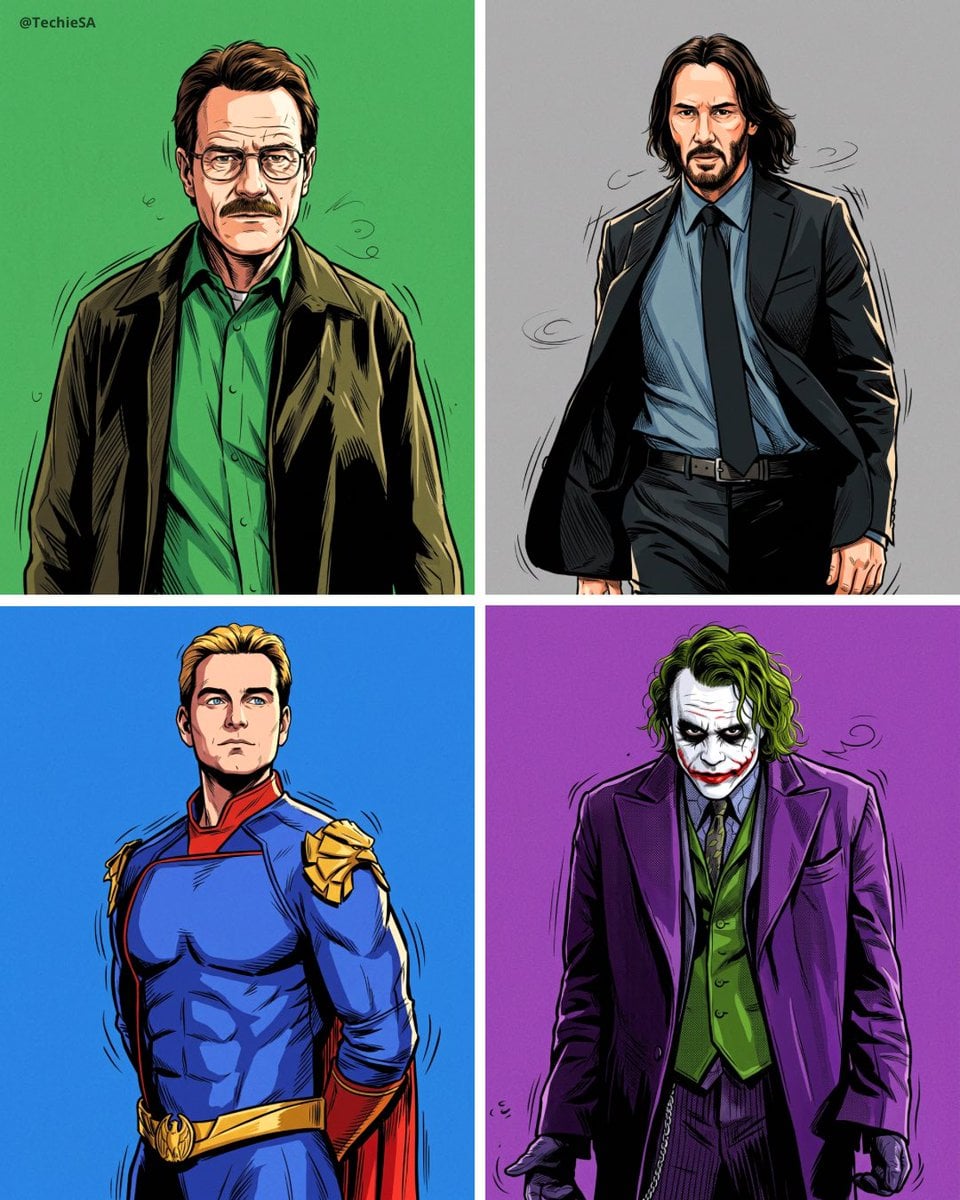
Pixel Limited Castle Gate

Pixel Limited Kitchen Chaos
Make it yours
Stylized Oil Painting of Character in Shopping Cart works as-is. These are the safest ways to change it without losing the look.
Change one field
Copy a single group, rewrite it, and generate again so you can see what that field is doing.
Keep the frame, change the subject
Hold the composition and light of Stylized Oil Painting of Character in Shopping Cart, then swap wardrobe, props or the person for a new take.
| If the result… | Why | Fix |
|---|---|---|
| The result drifts from the preview | Too many fields changed at once. | Reuse Stylized Oil Painting of Character in Shopping Cart as-is first, then change one group — subject, light, or setting. |
| The model over-stylizes the scene | The prose prompt leaves finish and camera underspecified. | Add one camera or lighting sentence and stay on GPT Image 2. |
More GPT Image 2 templates
Other prompts made for GPT Image 2.

Six VTuber Japanese Logo Sheet

Realistic Portrait of Woman and Deer

The Vista Modular Condo Poster

AI Model Routing Comparison Infographic

2.5D Anime Art Board

Isometric Productivity Desk Scene

New York Double Exposure Poster

Four-Panel AI Landscape Comparison

Japanese Tatami Lifestyle Magazine Cover

NESCAFÉ Coffee Map Poster
More image prompts
Fresh picks from across the catalog.
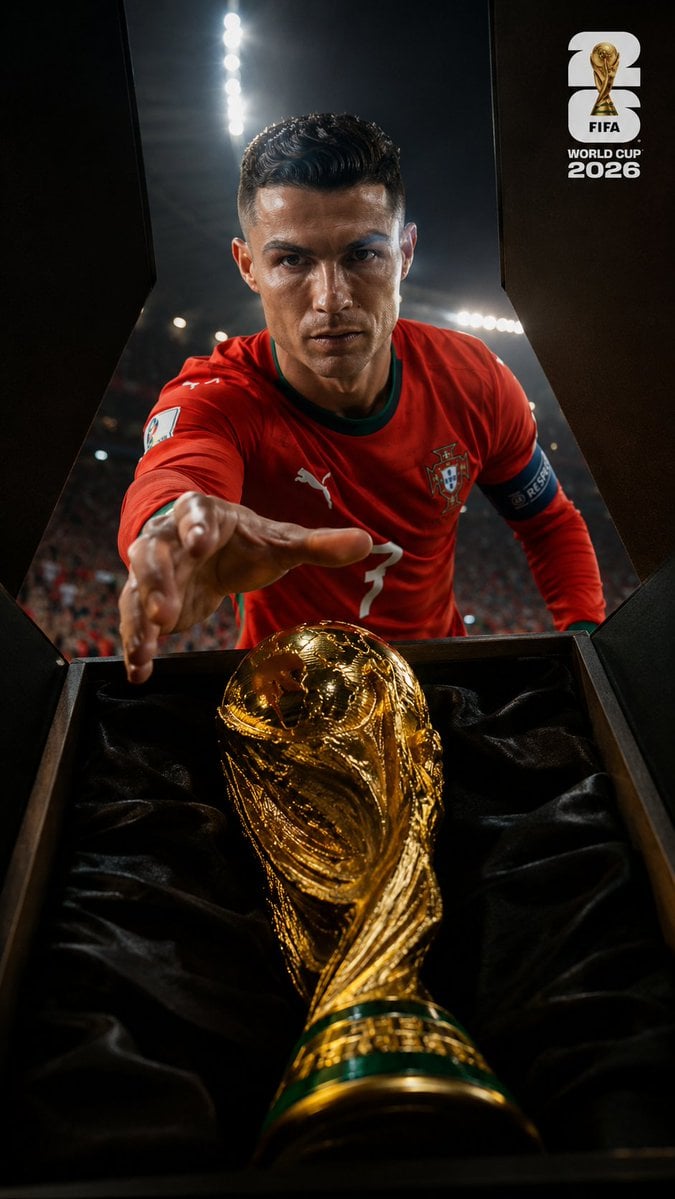
World Cup Trophy Reveal Perspective
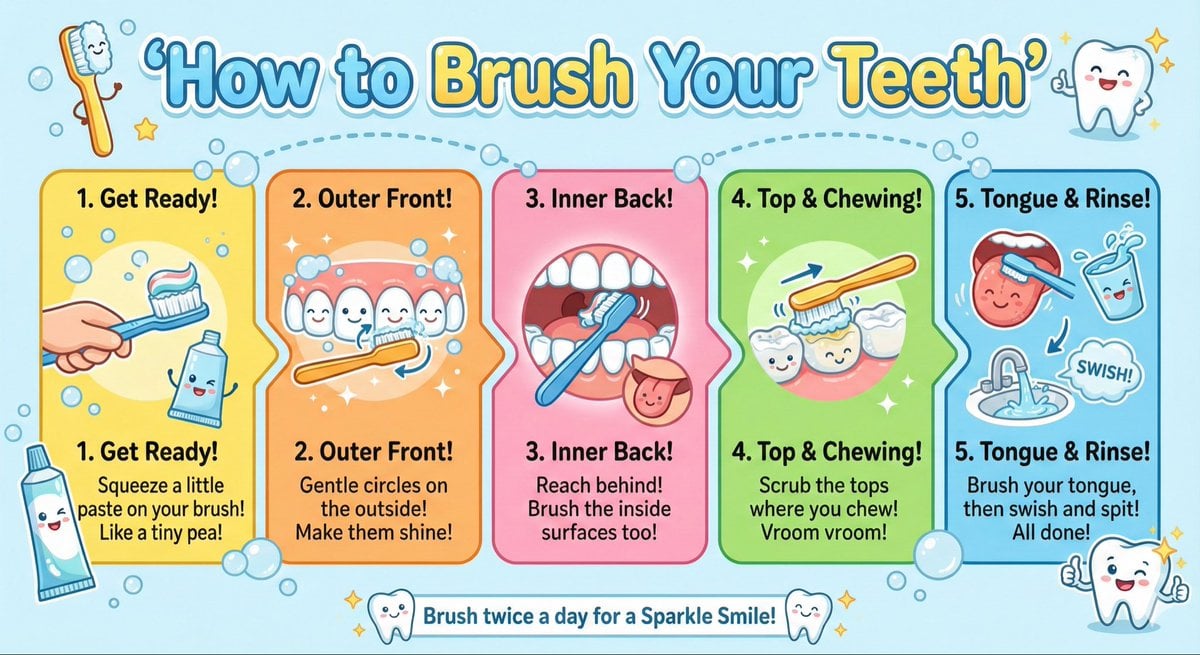
Kid-Friendly Routine Poster Prompt
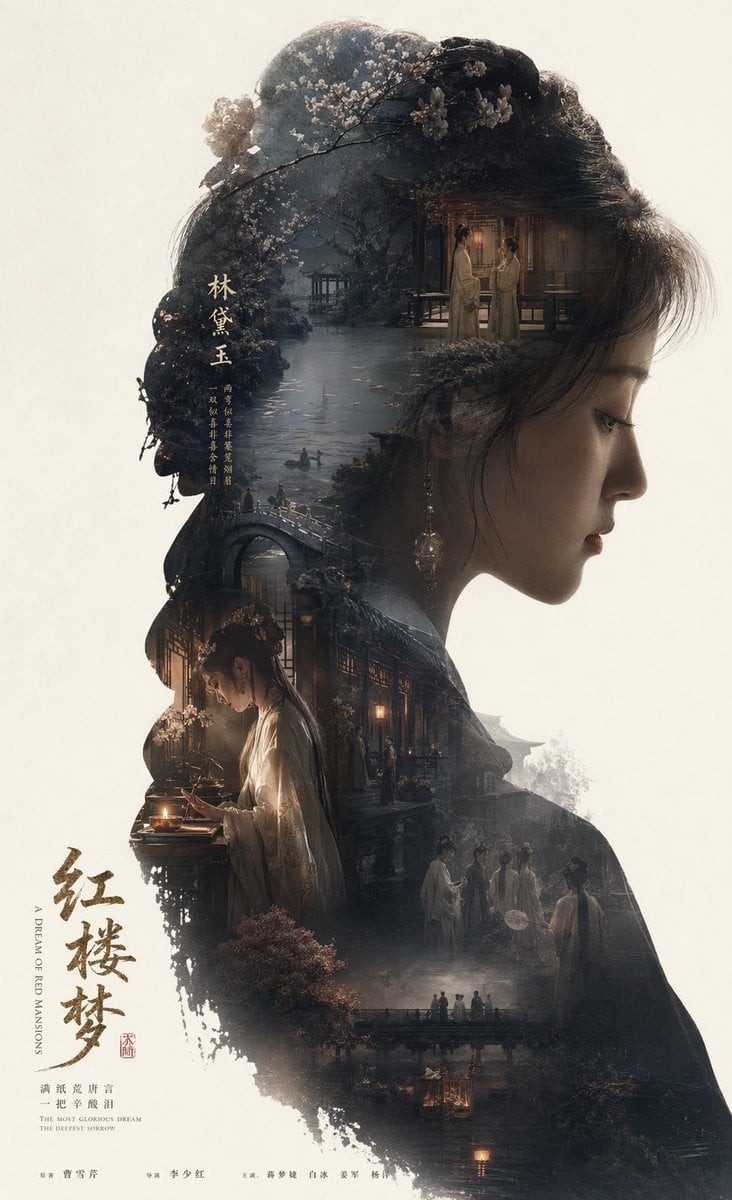
Epic Narrative Silhouette Movie Poster
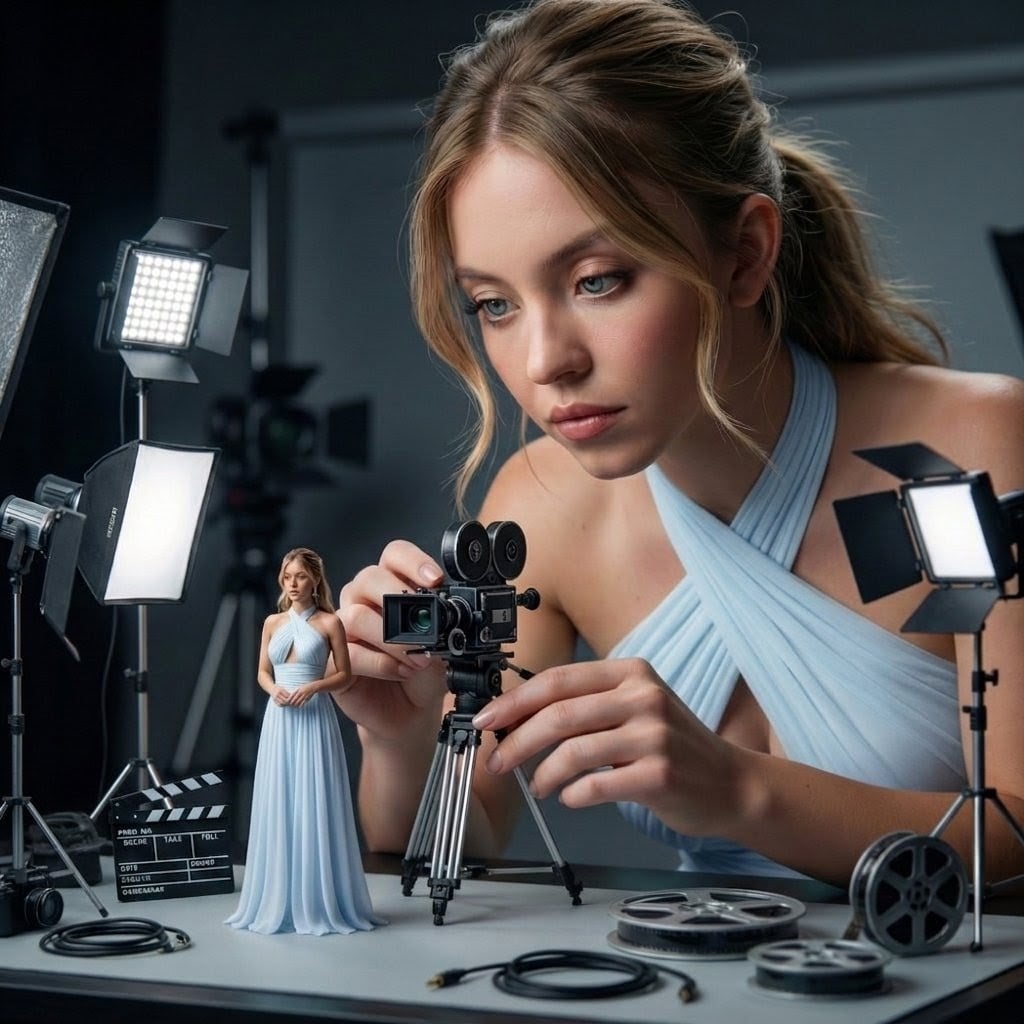
Giant Woman Filmmaker with Miniature Model
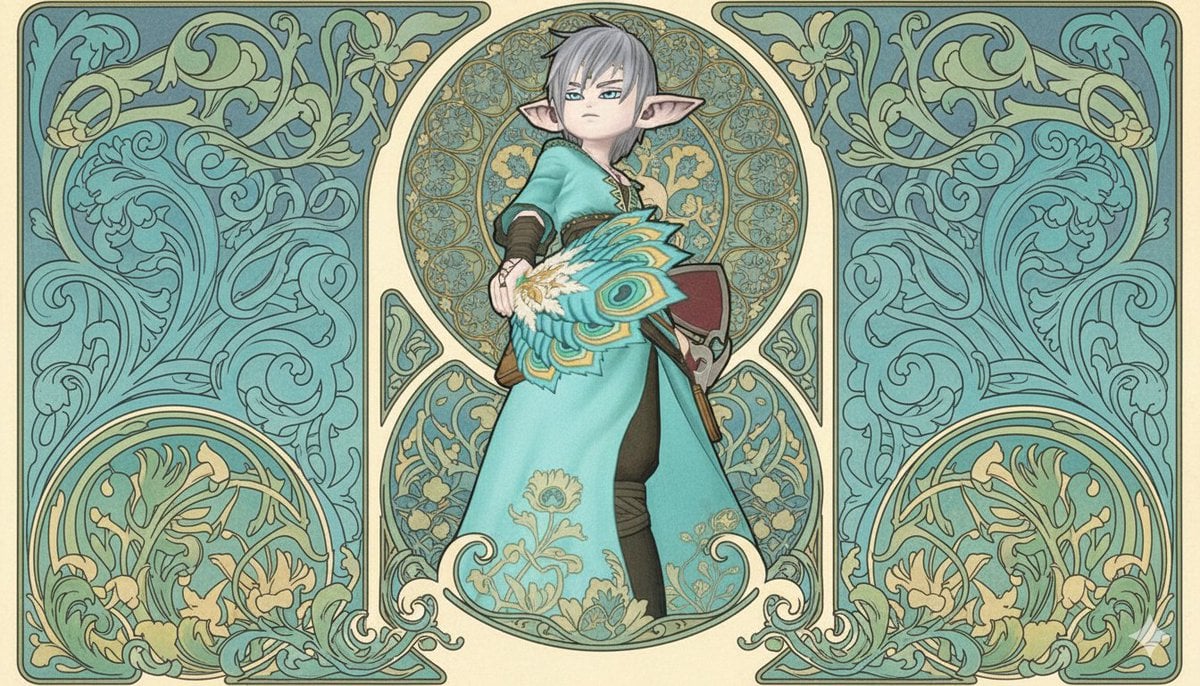
Image-to-Image Style Transfer to Mucha's Art Nouveau Style

JRPG Hatsune Miku Fantasy Logo

Nano Banana Pro Thumbnail Generation: Geometric Pop and Speech Bubbles
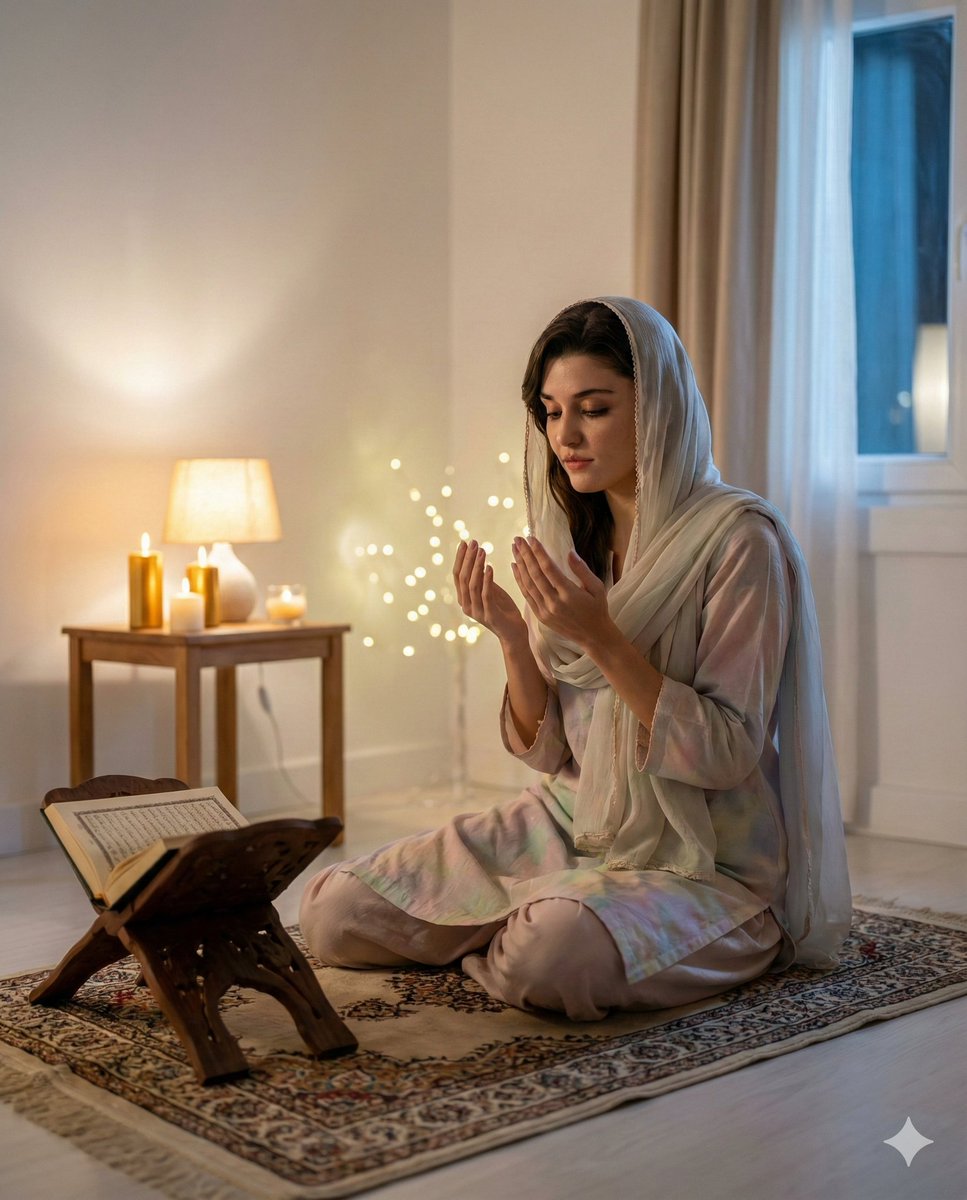
Hande Erçel in Prayer for Shab-e-Barat
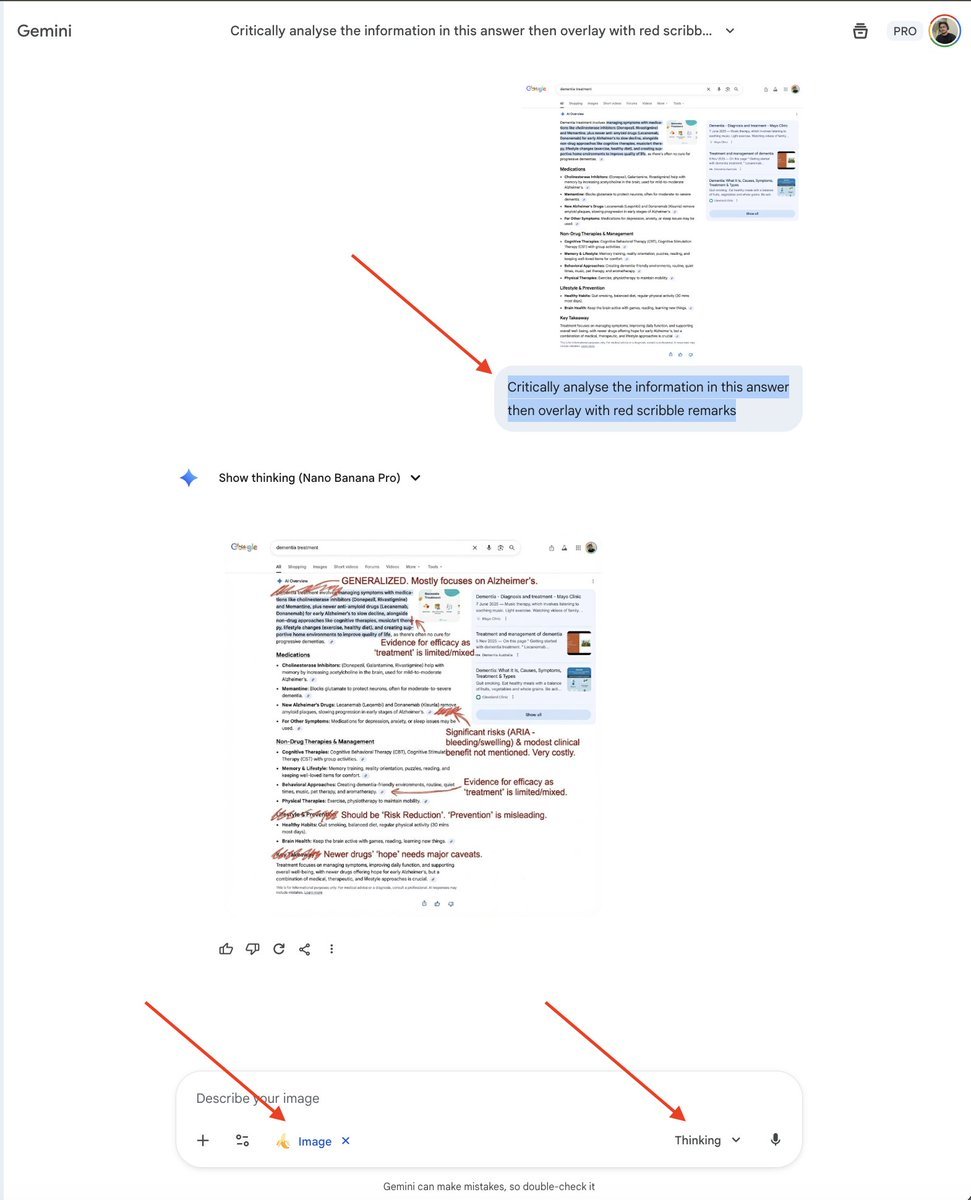
AI Overview Critical Analysis Prompt
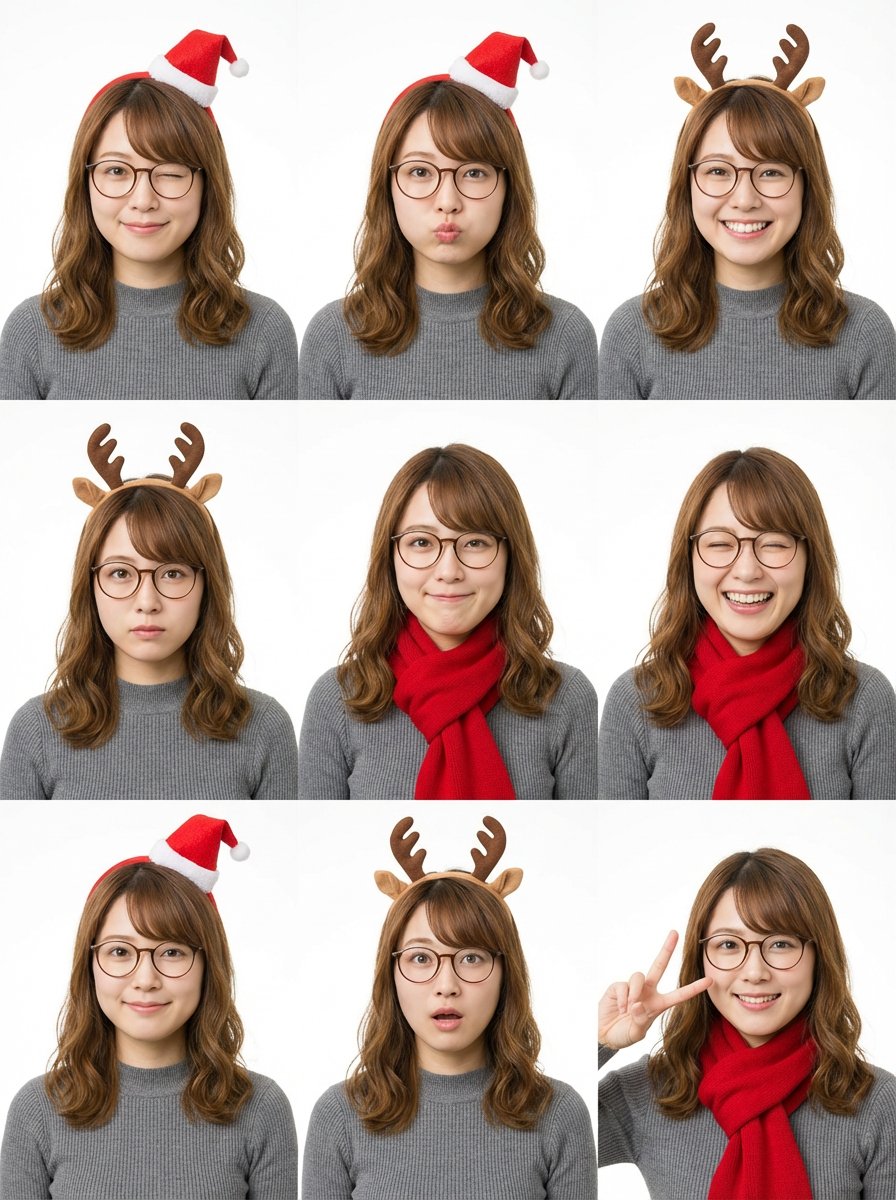
Grid Minimalist Christmas Portrait Prompt
Browse template categories
Stylized Oil Painting of Character in Shopping Cart questions
How do I use the Stylized Oil Painting of Character in Shopping Cart template?
Add your photo if the template asks for one, edit the prompt if you like — the template's model and format are already selected — and press Generate. Your version opens in PicX Studio.
Can I customize the Stylized Oil Painting of Character in Shopping Cart template?
Yes. You can change the subject, setting, lighting, mood, format, and available model controls before creating your image.
Is the Stylized Oil Painting of Character in Shopping Cart template free?
Opening and editing this template is free. Generating uses credits, shown on the Generate button when you are signed in.
Which AI model should I use?
Start with GPT Image 2, which is the model associated with this template. You can compare another compatible model for a different finish.
Looking for something else? Browse all templates.

Your photo, any look
Thousands of ready templates for every top image and video model, from one credit balance.