
Interactive Subject and Chibi Doll Portrait
A complex prompt for creating a studio portrait of a real subject interacting with a small 3D chibi doll version of themselves.
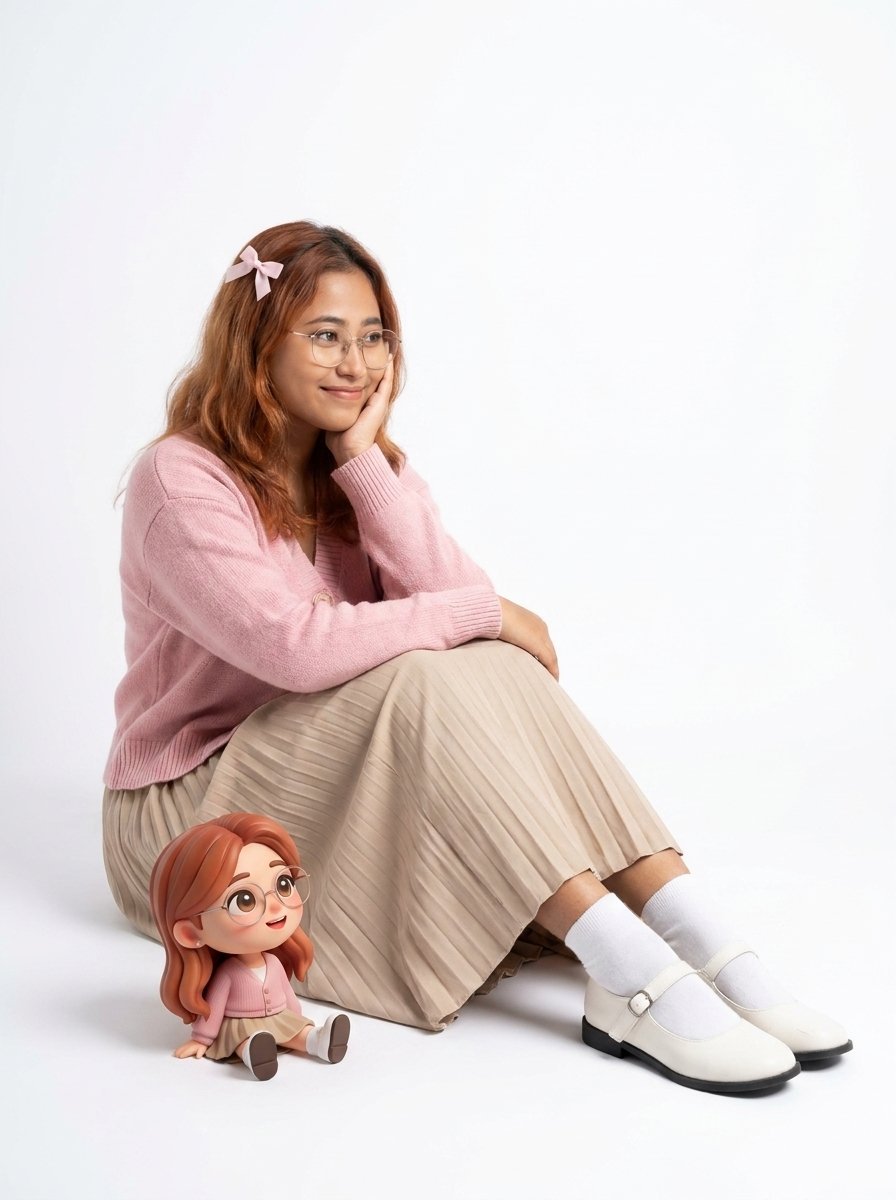
- Prompt included
- Model and format preset
- Free template
The prompt behind this image
Copy the exact prompt behind Interactive Subject and Chibi Doll Portrait, or open it in the studio and make it yours.
Use the {argument name="reference image" default="uploaded image"} only for the female subject’s identity, facial features, hair, and overall likeness. Preserve her apparent age correctly. Do not change her age group, facial maturity, or body proportions. Create a high-quality studio portrait in a vertical 4:5 aspect ratio. Show the subject seated on a clean seamless white studio floor/background in a soft, charming, visually pleasing pose. She is seated with her knee bent upward and her leg extending forward toward the camera, creating a natural foreground perspective. One hand rests gently against her cheek, while the other arm relaxes naturally across the bent knee or lap. Her body is angled slightly to the side, and her gaze is directed softly sideways with a gentle, warm, natural smile. Dress her in a {argument name="outfit" default="soft pastel pink knitted cardigan, a light beige pleated long skirt, white socks, and white Mary Jane shoes"}. Add a small pink ribbon bow clipped to one side of her hair. Keep the styling neat, soft, elegant, and feminine. Place a small premium 3D {argument name="companion" default="chibi doll version of the same subject"} beside her near her knee or leg. The doll should clearly resemble the subject’s face, hairstyle, age impression, and outfit colors, wearing the same pink cardigan, beige skirt, white socks, and matching bow. The doll should have a cute polished animated look with large expressive eyes, soft detailed hair, and a cheerful expression. The real subject and the animated doll should look like they are clearly interacting and communicating with each other — as if sharing a sweet moment. Their eye-lines, facial expressions, and body language should feel connected, with the doll looking up at the subject and the subject appearing engaged with the doll in a natural, affectionate, visually clear way. Use soft diffused high-key studio lighting, subtle natural shadows, clean minimal composition, realistic skin texture, crisp fabric texture, detailed hair strands, and a warm, innocent, premium mood. Keep the main subject dominant, the doll proportionally smaller, and the framing close, balanced, and subject-focused with minimal empty space. No text, watermark, or extra props.
How to use Interactive Subject and Chibi Doll Portrait in 3 steps
- 1Upload ImagePNG, JPG or paste
Add your photo
Upload the photo the template builds on. The prompt, model and format are already set.
- 2…a portrait of your subject in softgolden-hour light, 85mm…
Personalize
Edit the subject and creative details for your destination.
- 3Generate
Generate
Press Generate — your image is created in PicX Studio, so you can compare it with the original and refine one variable at a time.
More like this
Templates with the same subject, style or setup. Open one to see its prompt.
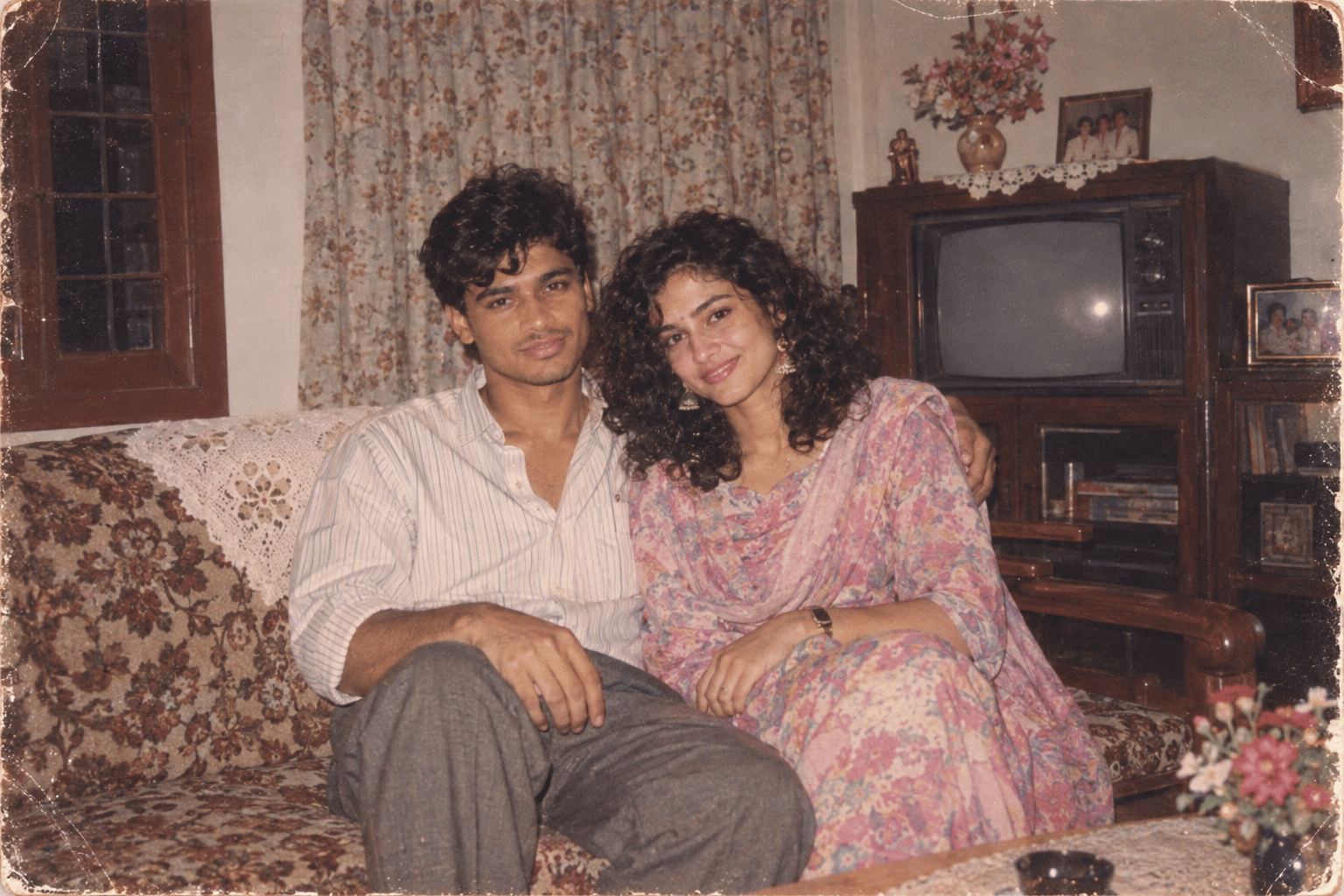
Found Photograph: Us, 1970
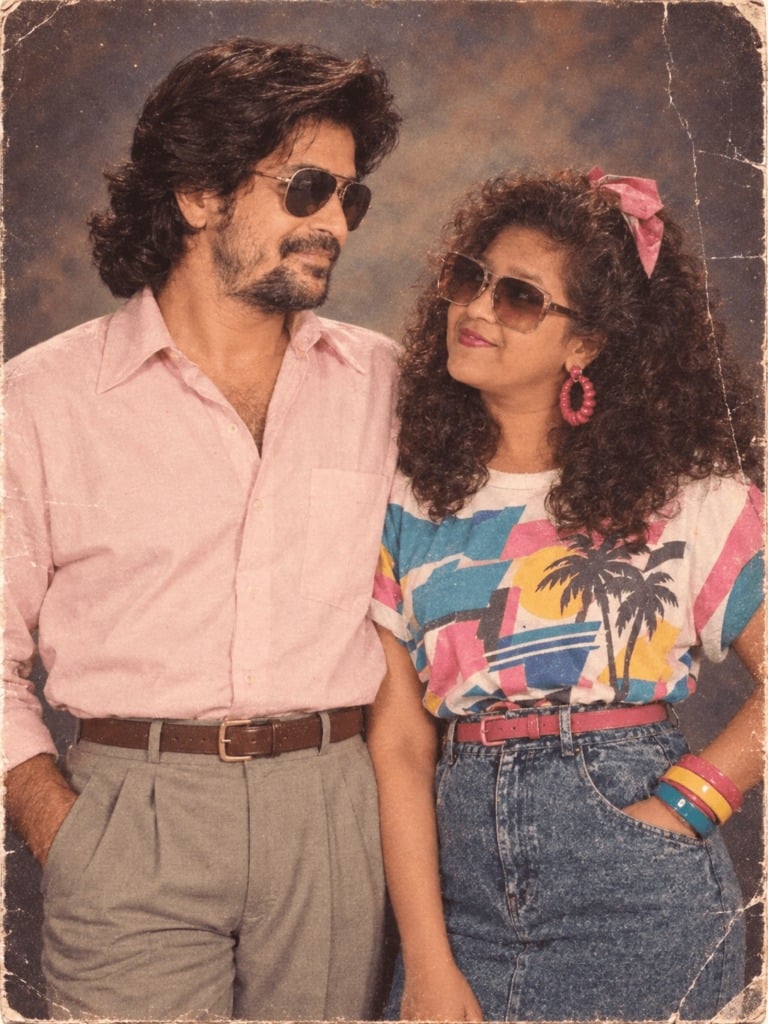
80s Couple Studio Portrait
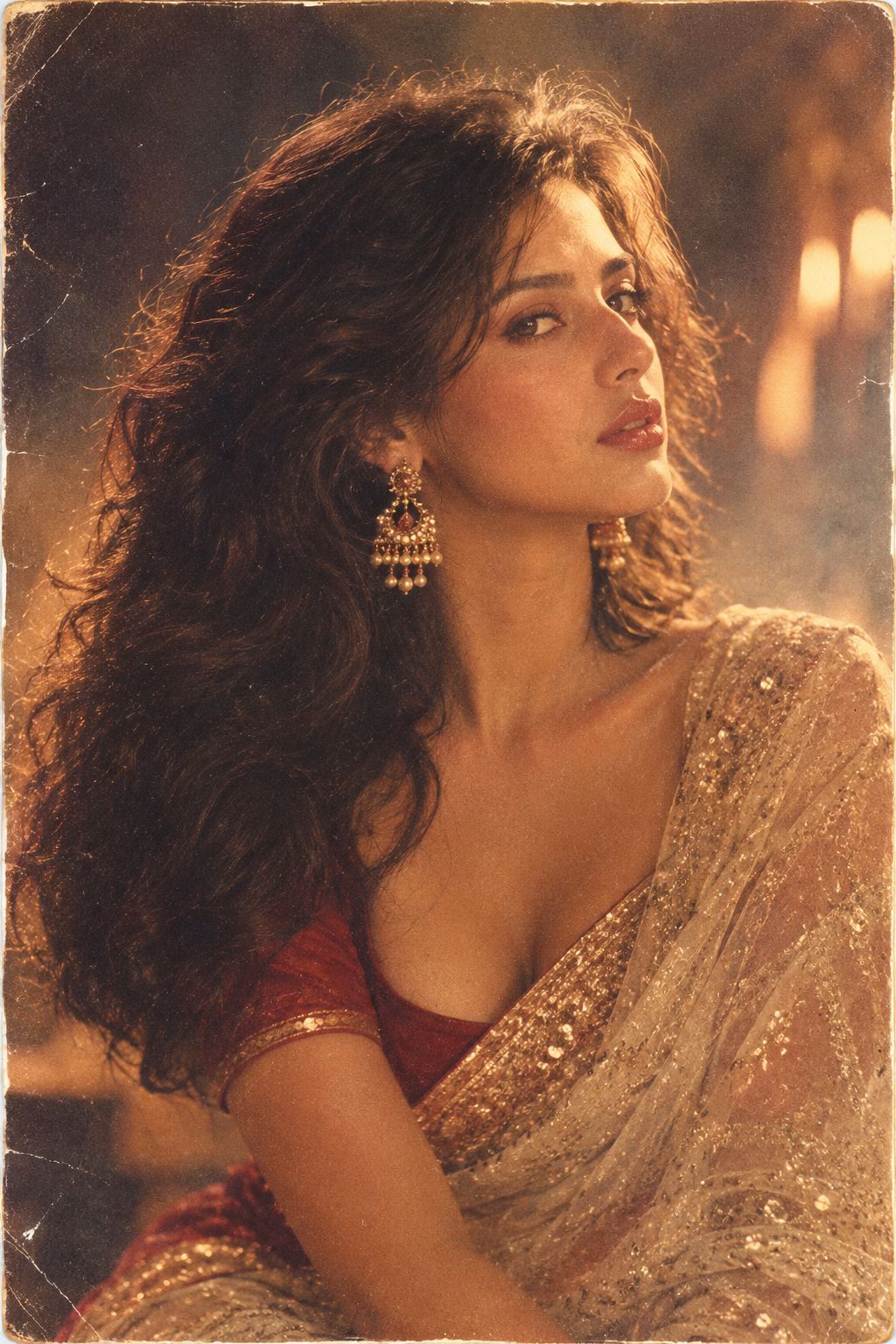
80s Bollywood Star

80s Golden Hour Cinema
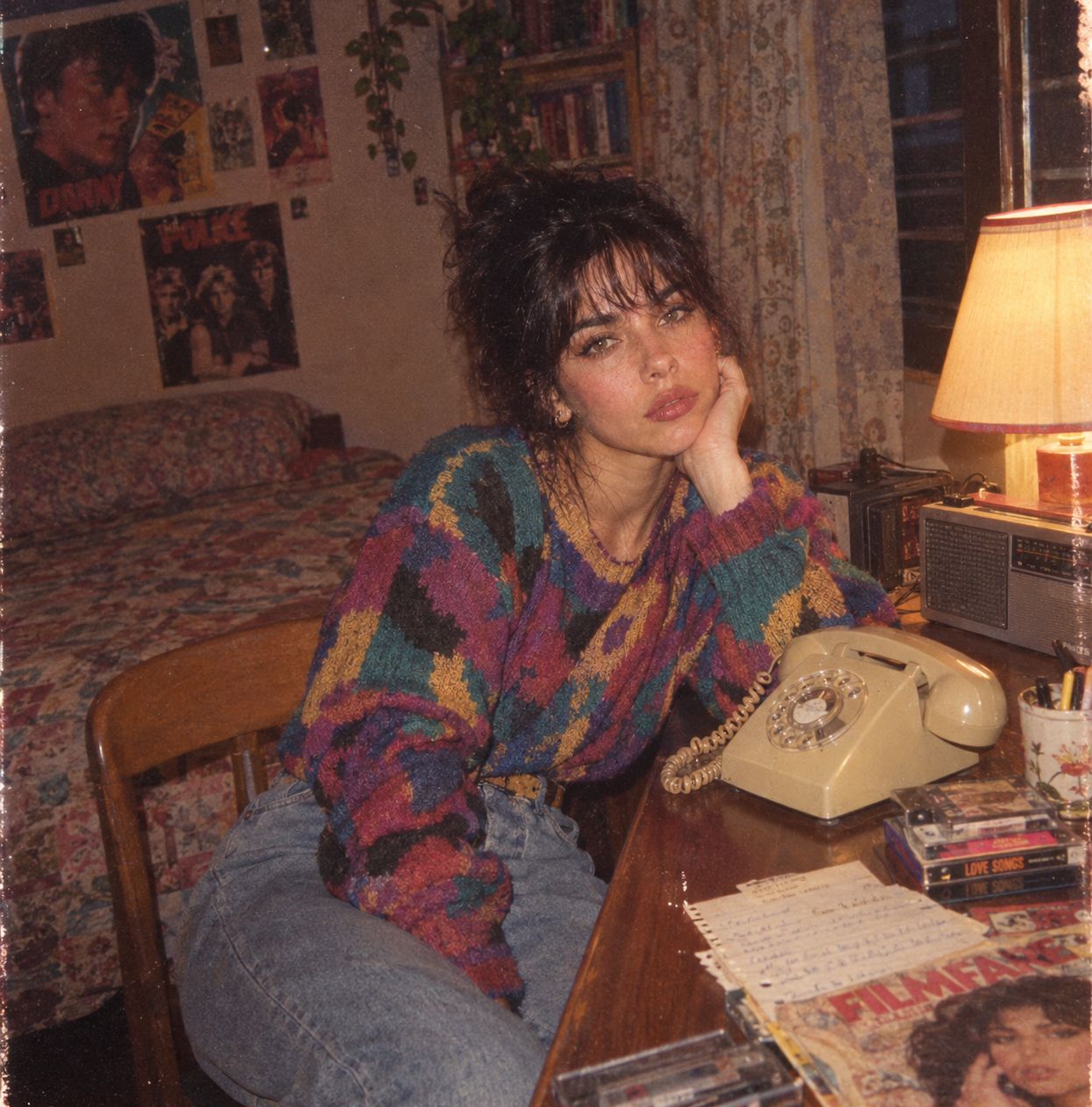
Me in 1985
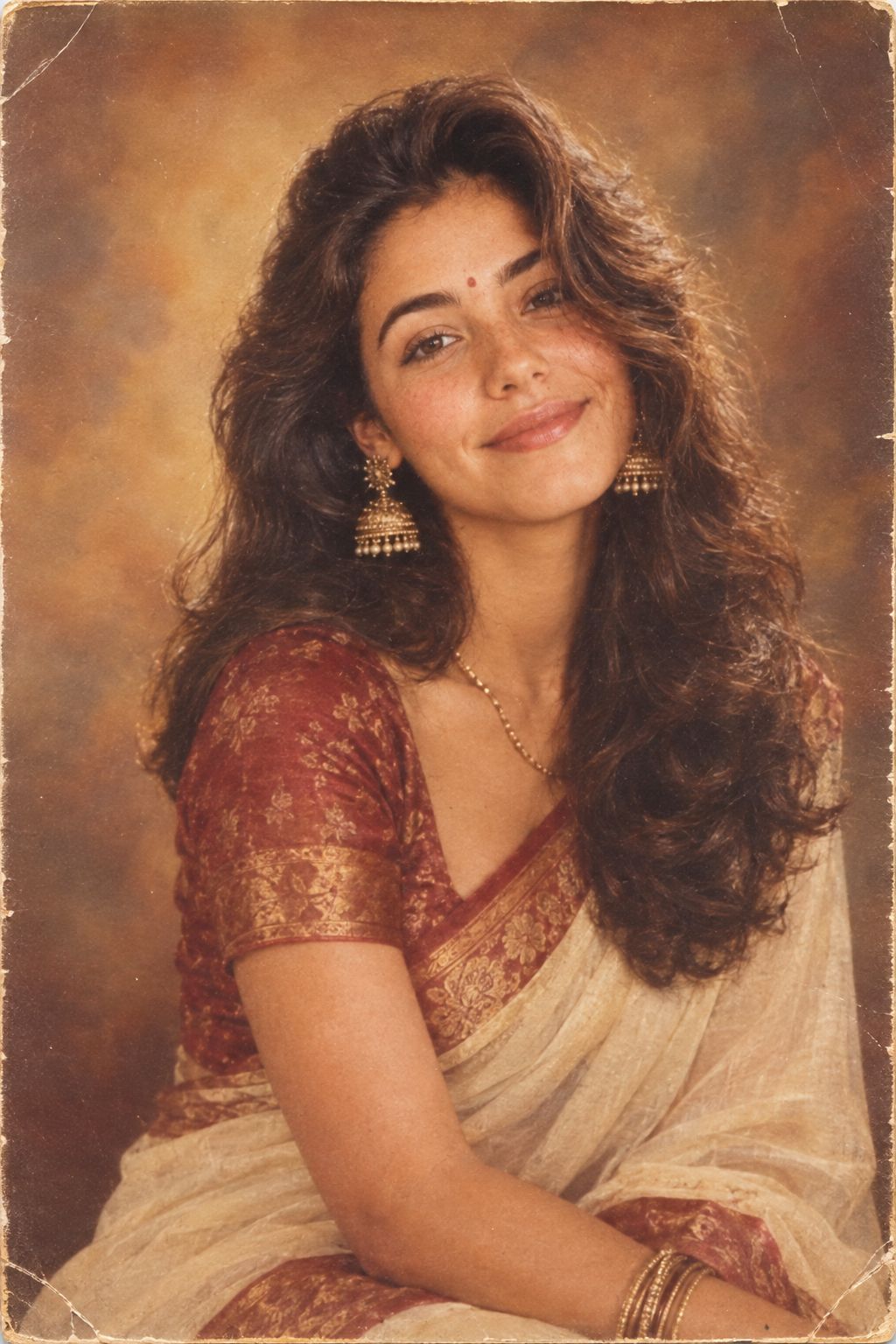
1985 Studio Portrait
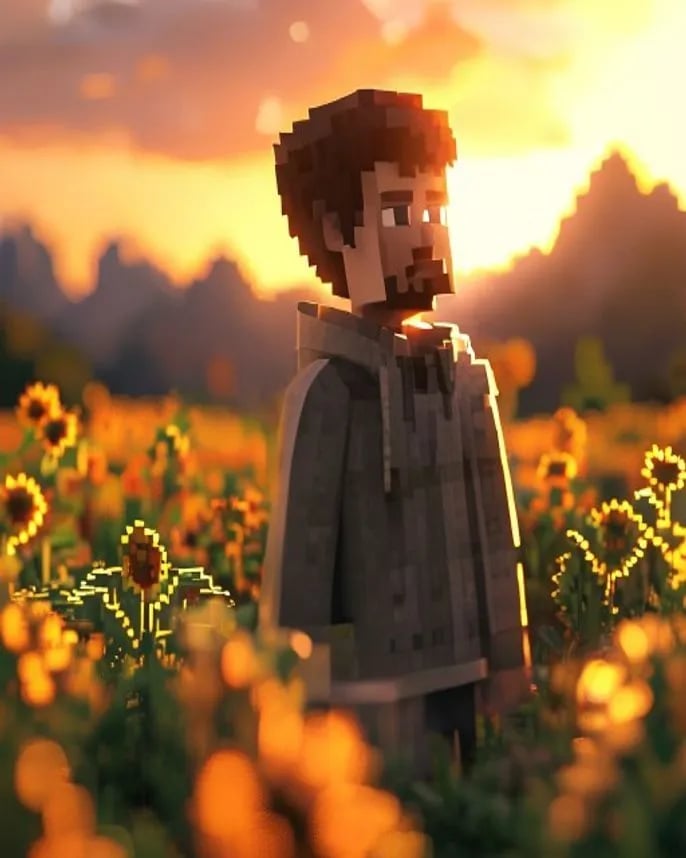
Hyper-Realistic Minecraft POV Portrait
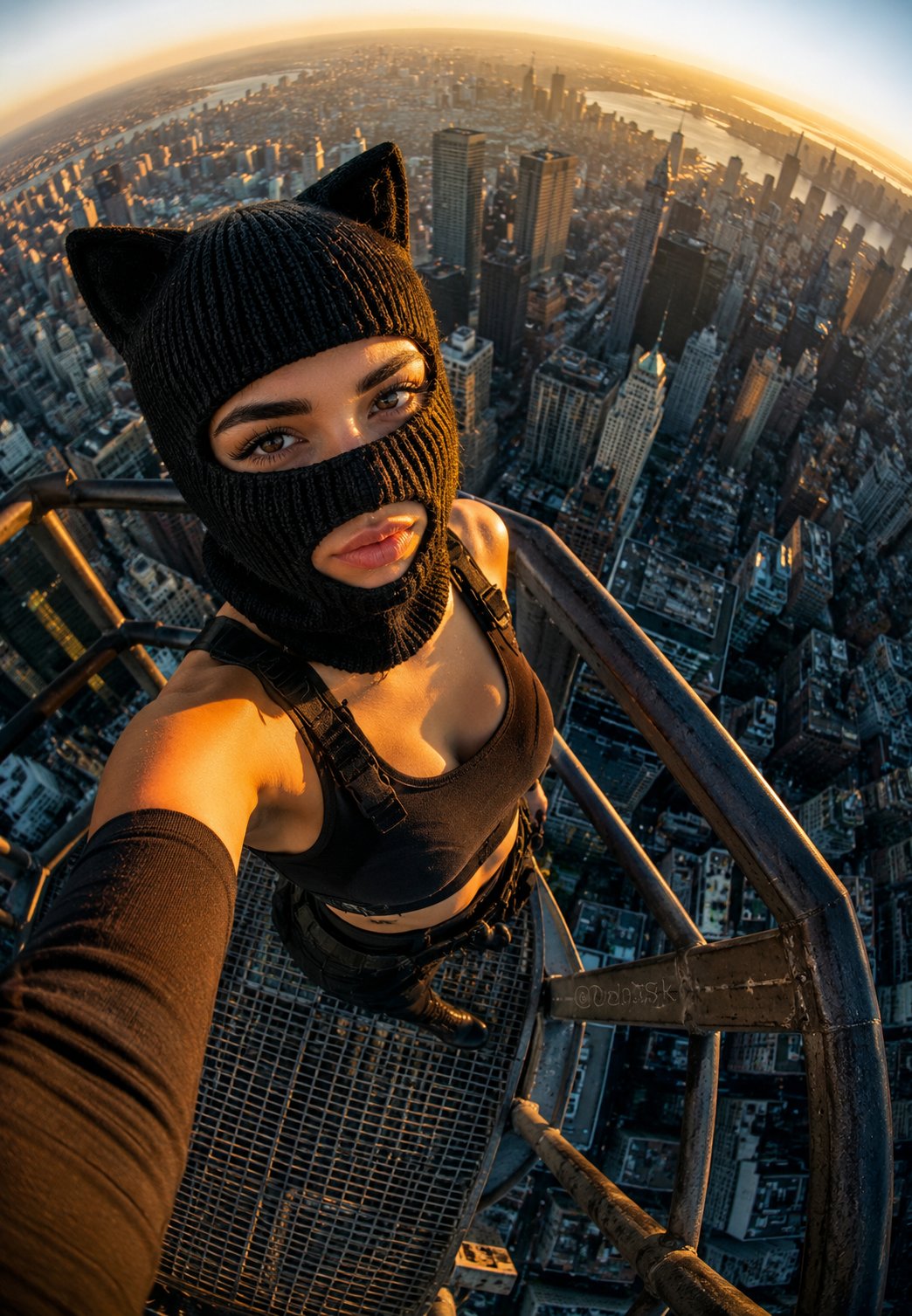
Rooftop Fisheye — Cat-Ear Balaclava at Golden Hour
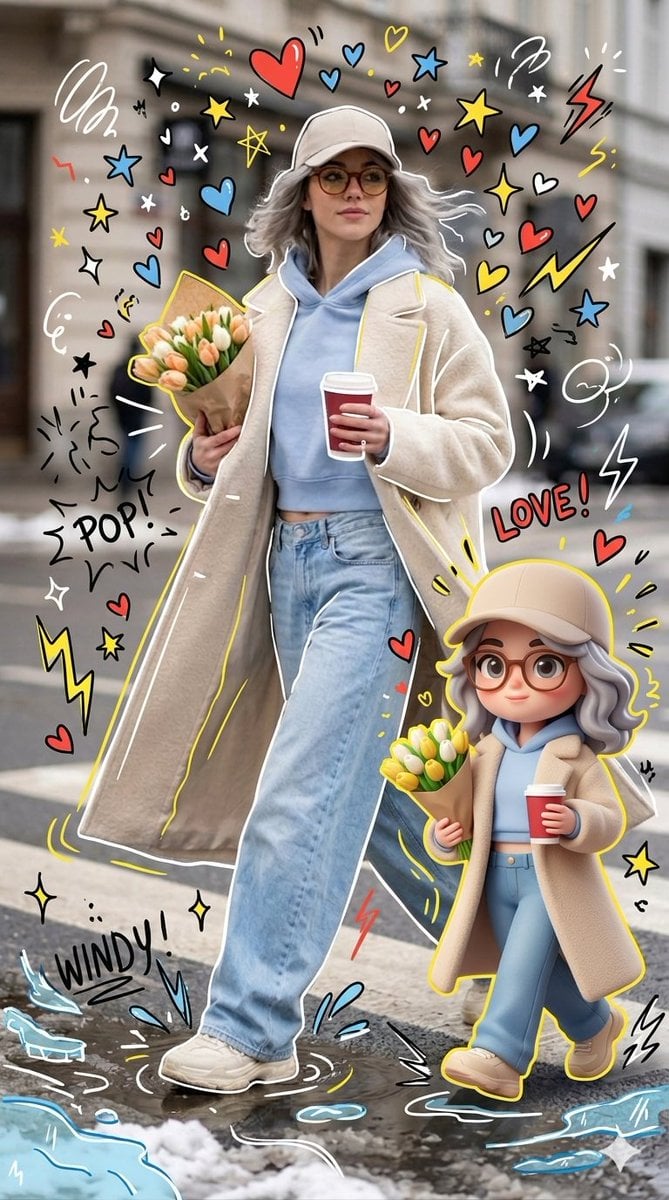
Mixed-media Chibi portrait
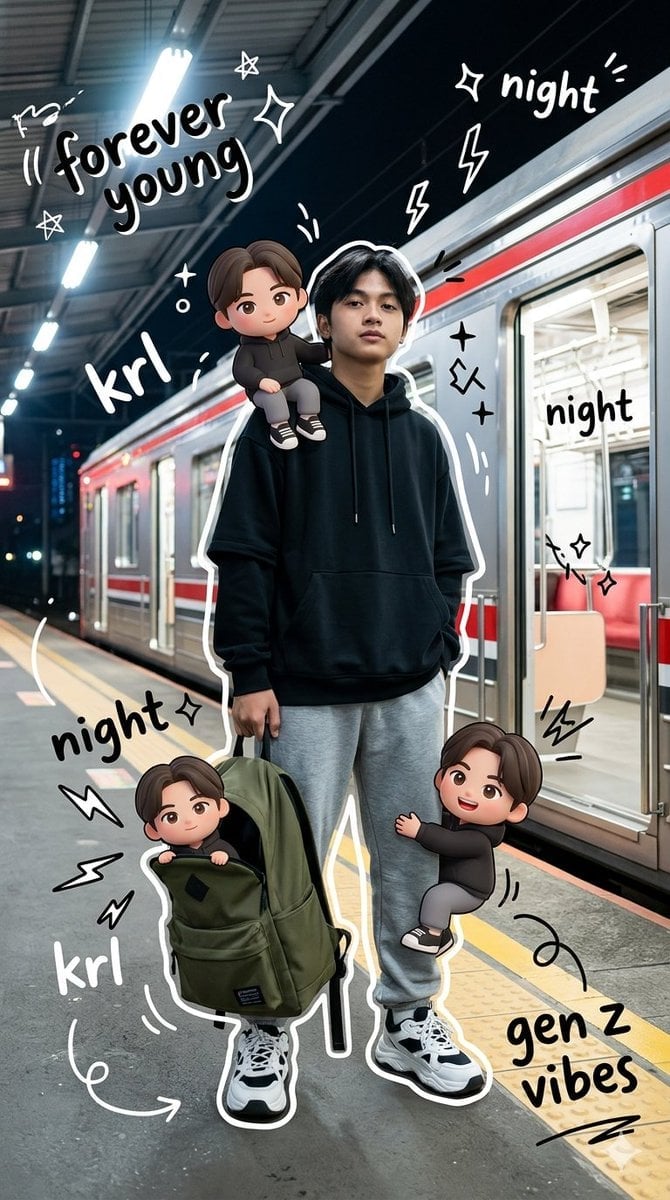
Gen Z Mixed-Media Portrait with Chibi Effects
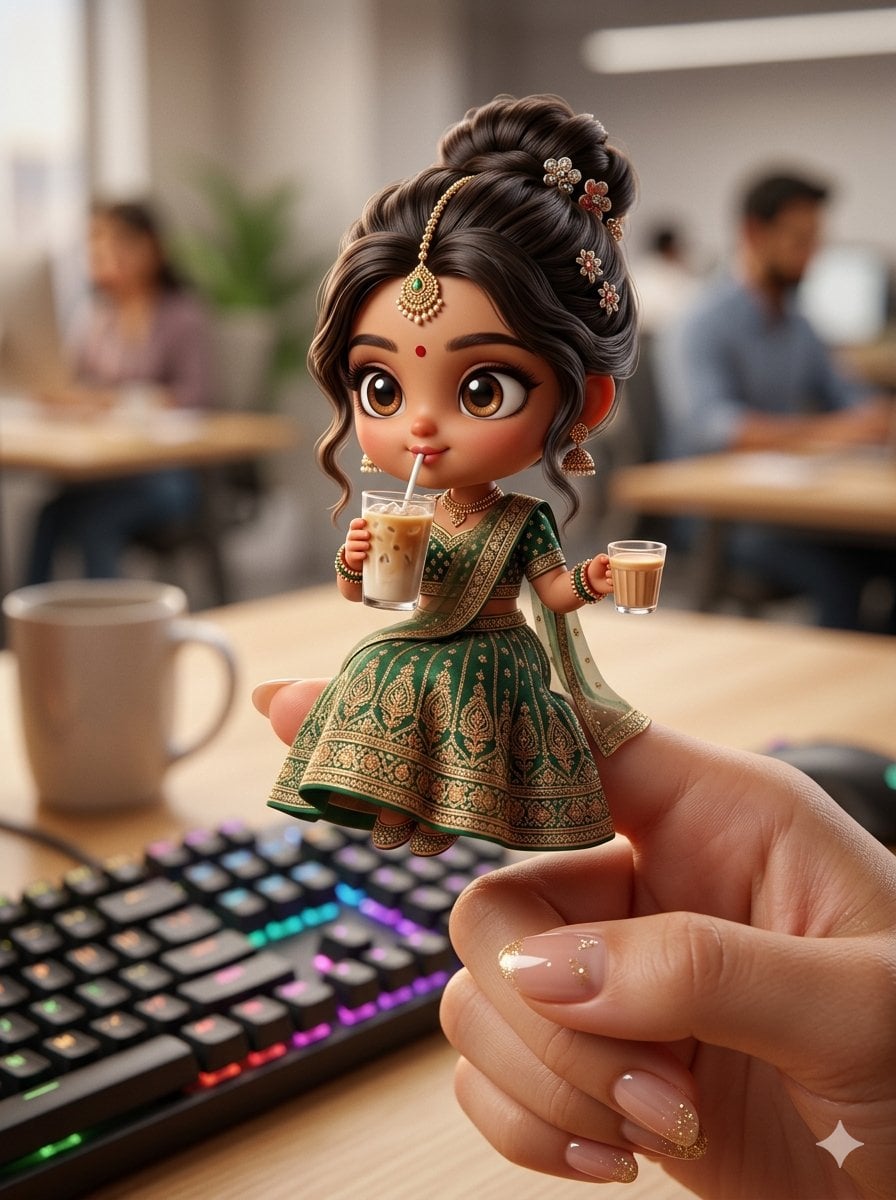
Chibi Doll 3D Miniature Scene
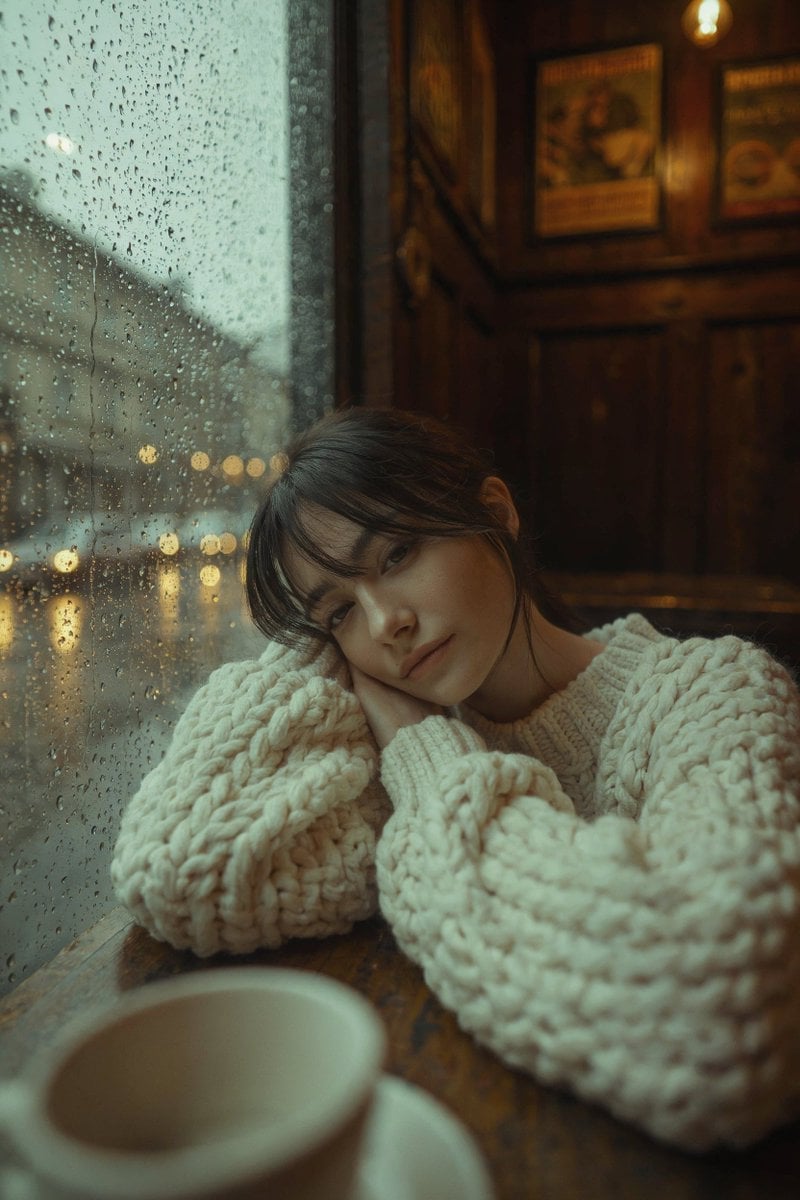
Rainy Café Window Moody Portrait
Make it yours
Interactive Subject and Chibi Doll Portrait works as-is. These are the safest ways to change it without losing the look.
Change one field
Copy a single group, rewrite it, and generate again so you can see what that field is doing.
Keep the frame, change the subject
Hold the composition and light of Interactive Subject and Chibi Doll Portrait, then swap wardrobe, props or the person for a new take.
| If the result… | Why | Fix |
|---|---|---|
| The result drifts from the preview | Too many fields changed at once. | Reuse Interactive Subject and Chibi Doll Portrait as-is first, then change one group — subject, light, or setting. |
| The model over-stylizes the scene | The prose prompt leaves finish and camera underspecified. | Add one camera or lighting sentence and stay on Nano Banana 2. |
More Nano Banana 2 templates
Other prompts made for Nano Banana 2.
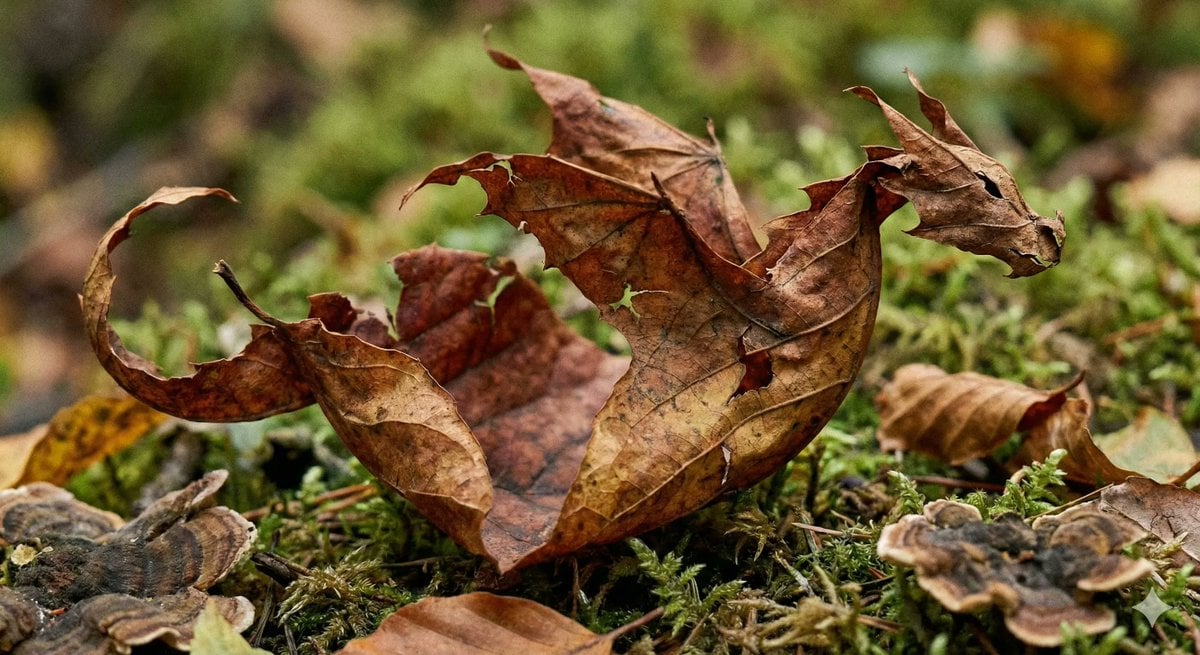
Photorealistic Leaf Shaped Like a Dragon
K-Pop Idol Portrait Grid for Rapid Selection
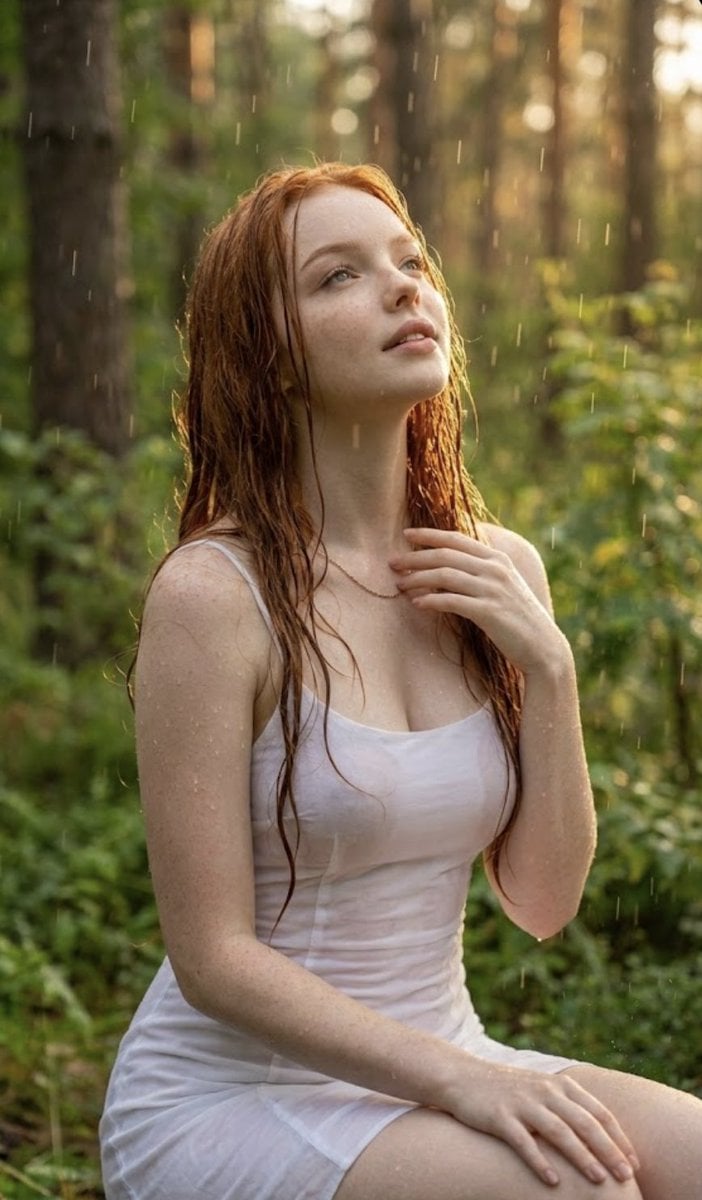
Poetic Rain Forest Portrait During Golden Hour
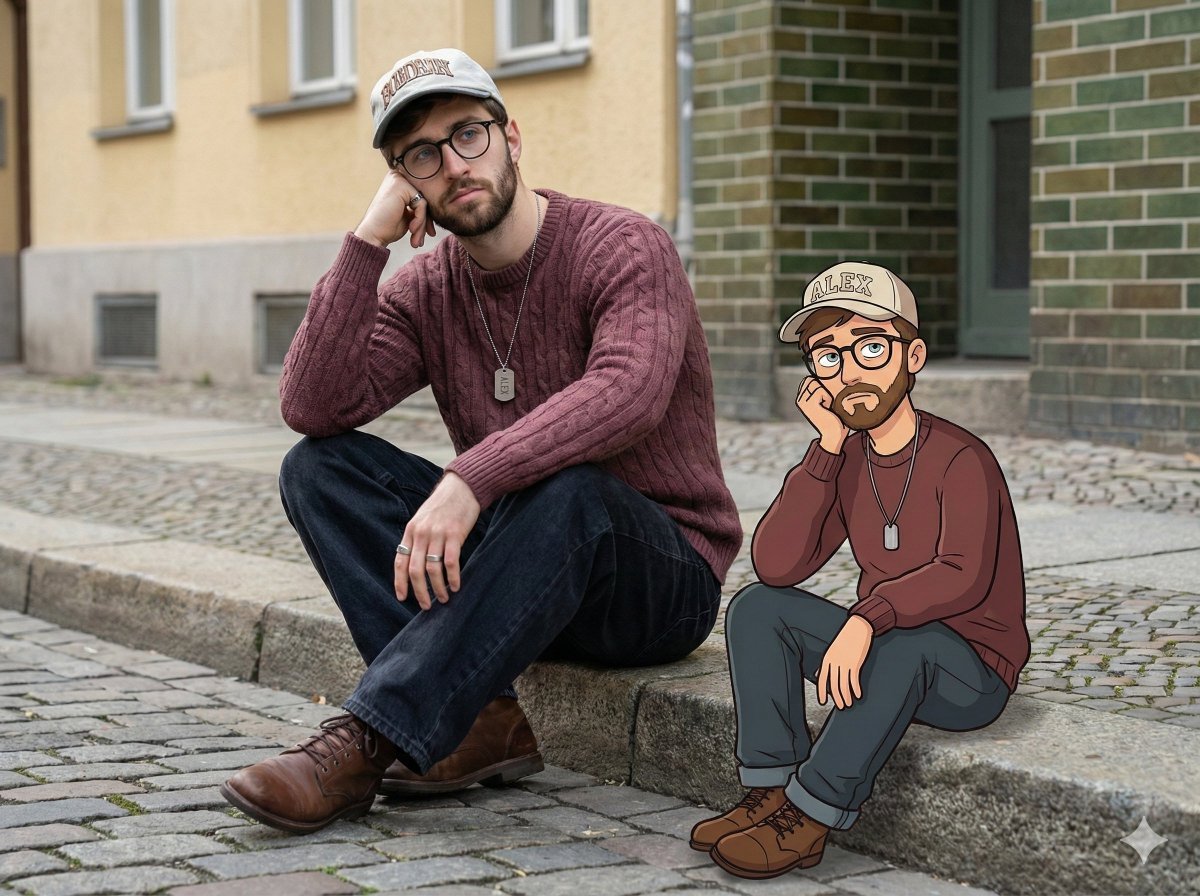
Urban Street Portrait with Cartoon Inner Self Duo
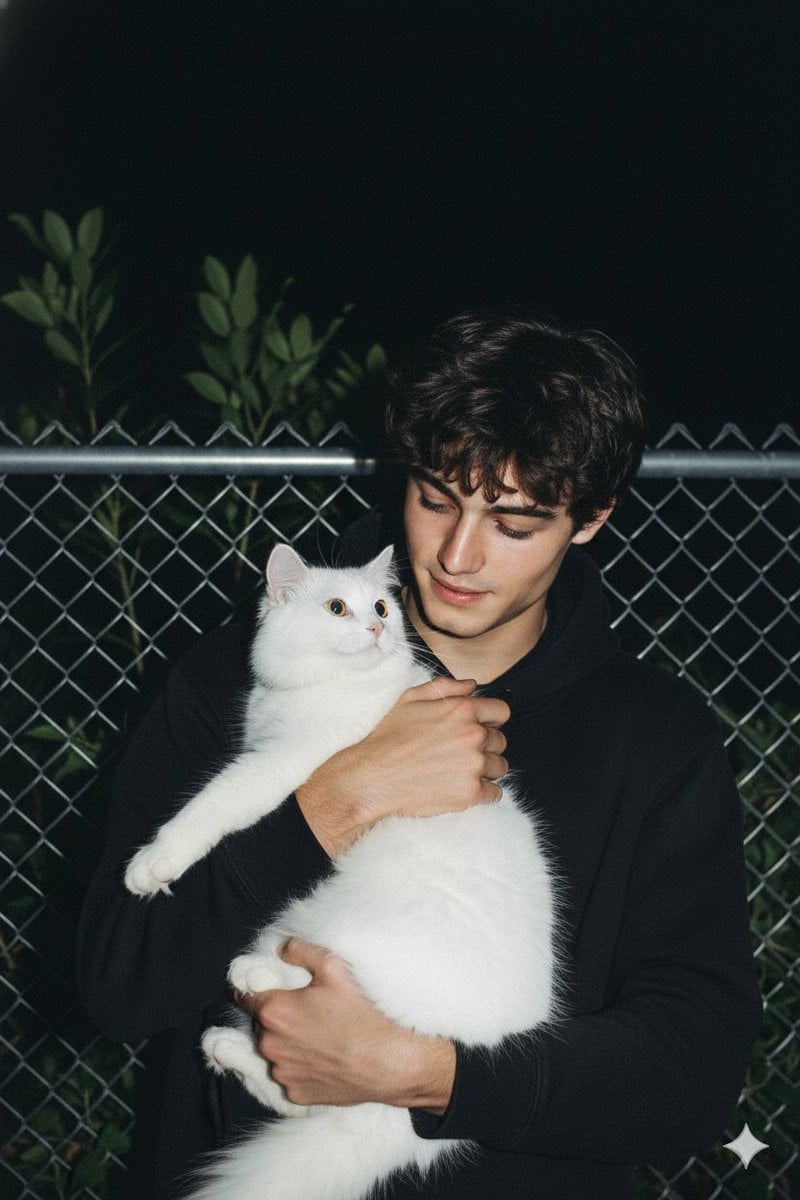
Candid Nighttime Photo with Cat Prompt
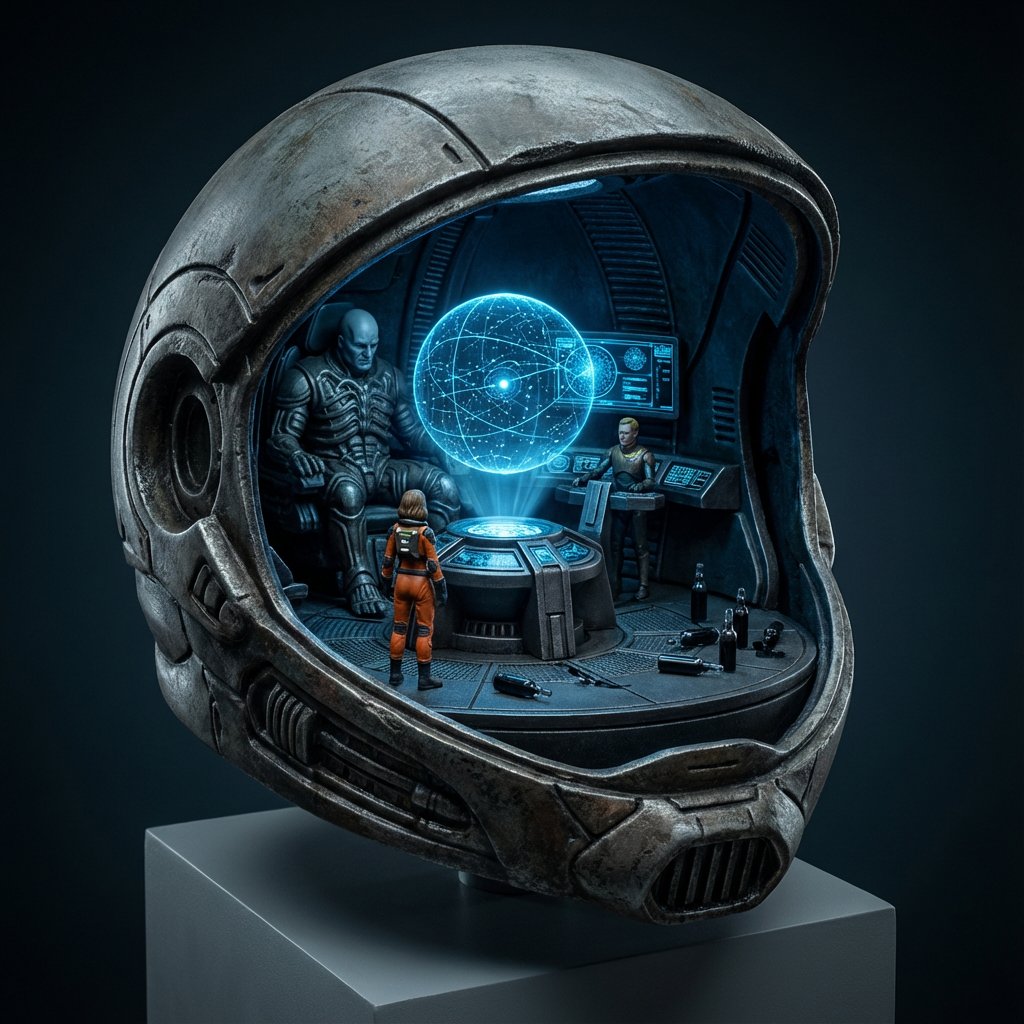
High-Concept 3D Diorama Generation Prompt

Cinematic Futuristic Studio Portrait Template
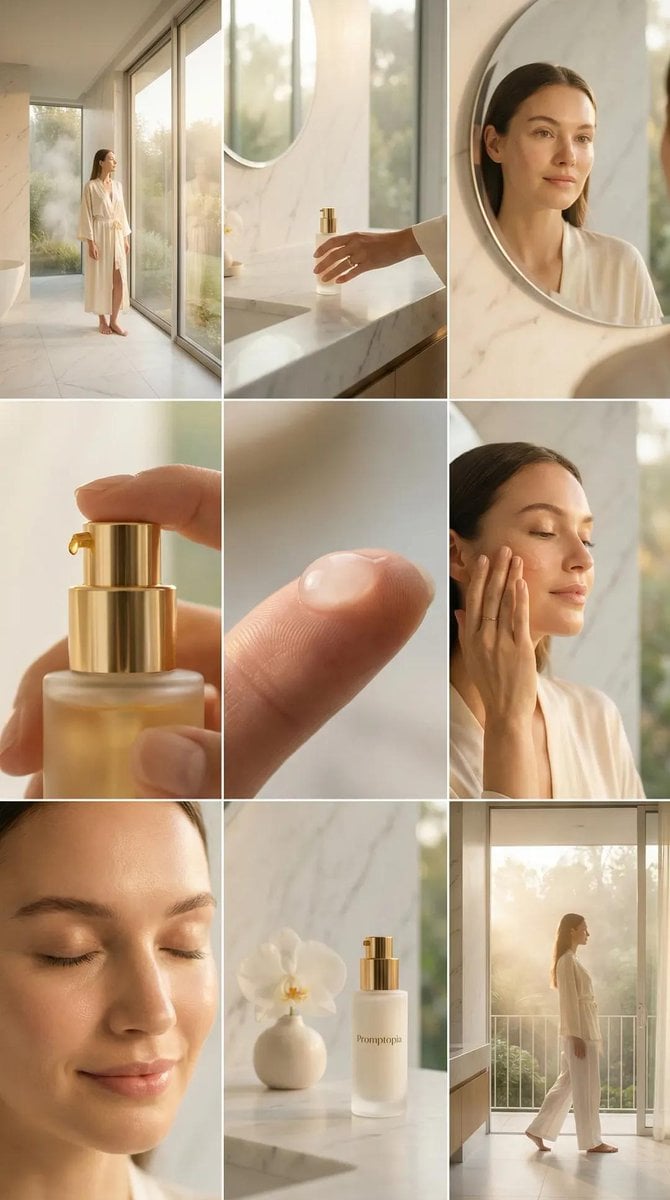
Skincare Editorial Photography Collage Prompt
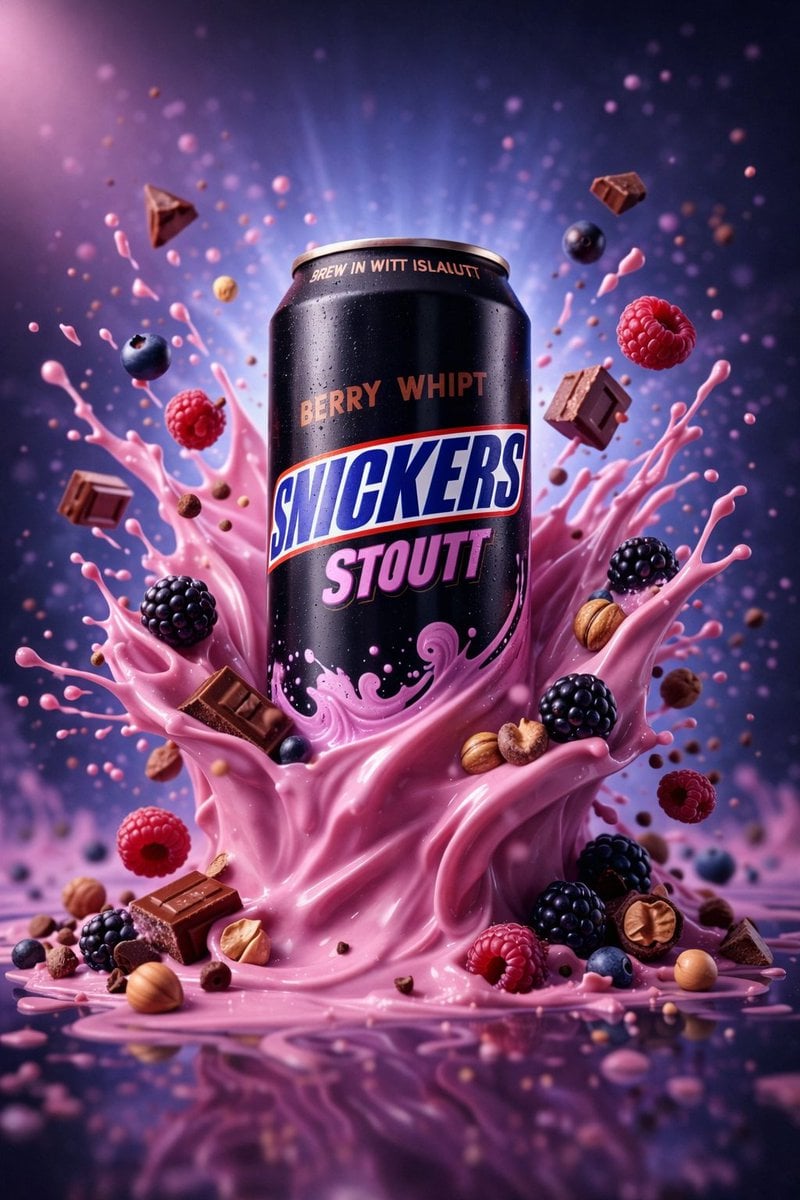
Hyper-Realistic Commercial Product Photography (Splash Effect)
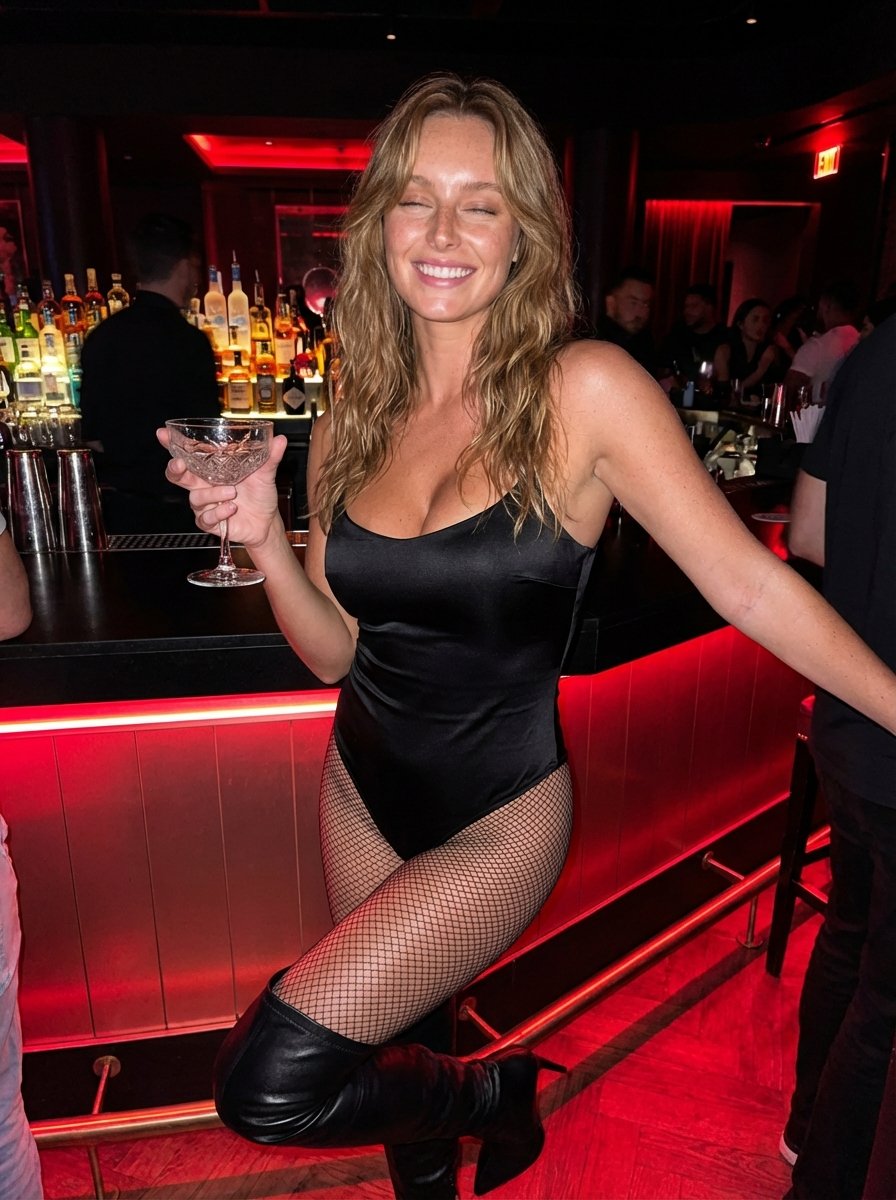
Hyper-Realistic Nightclub Portrait Prompt
More image prompts
Fresh picks from across the catalog.
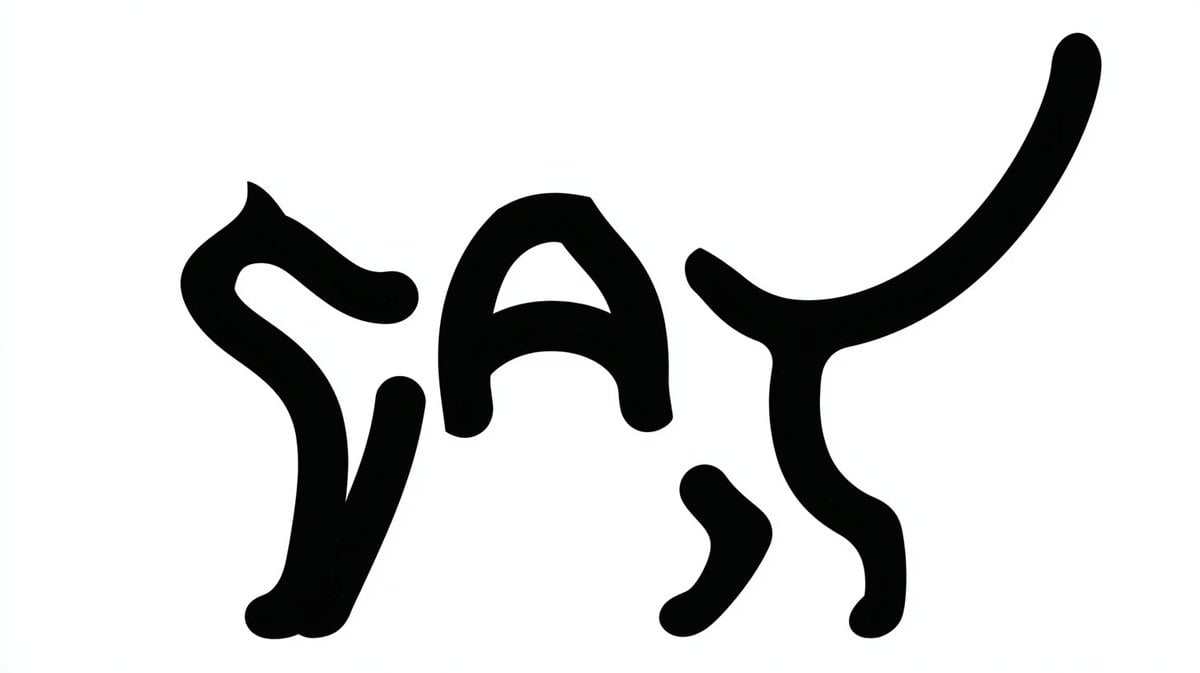
Monochrome Typographic Cat Illustration

Fiery Japanese Growth Thumbnail

Boxer Training Action Shot

Image Restoration and Enhancement Prompt
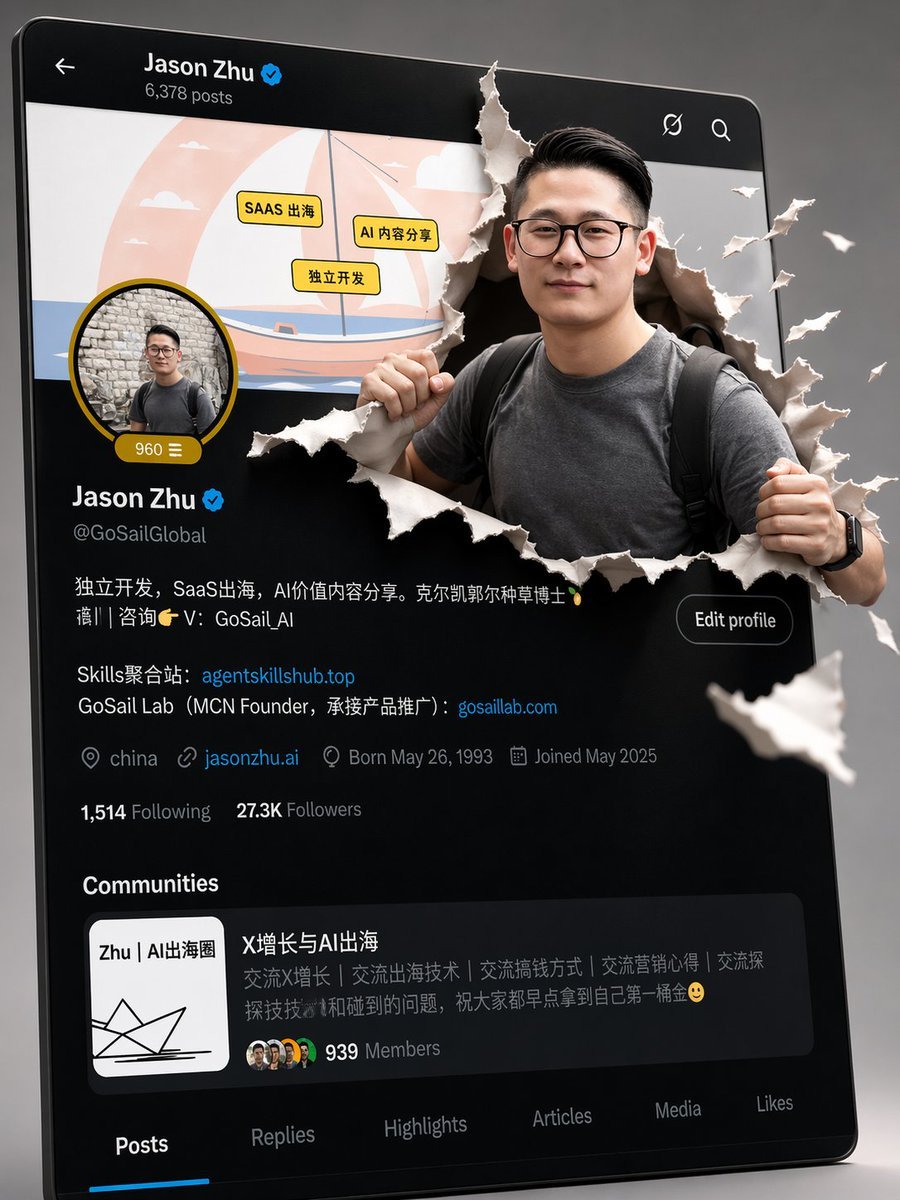
3D Pop-out Profile Page Illustration
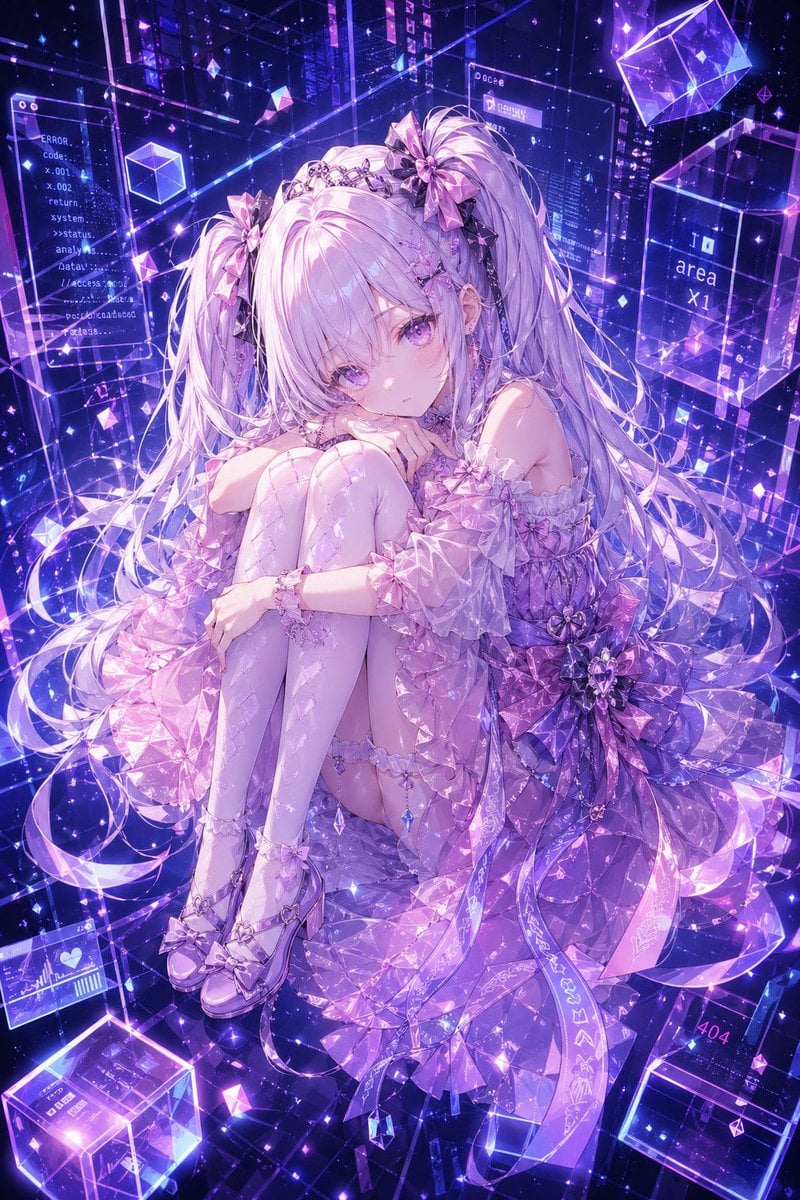
Gpt2 Profile Avatar Cyber Crystal Anime Girl Portrait
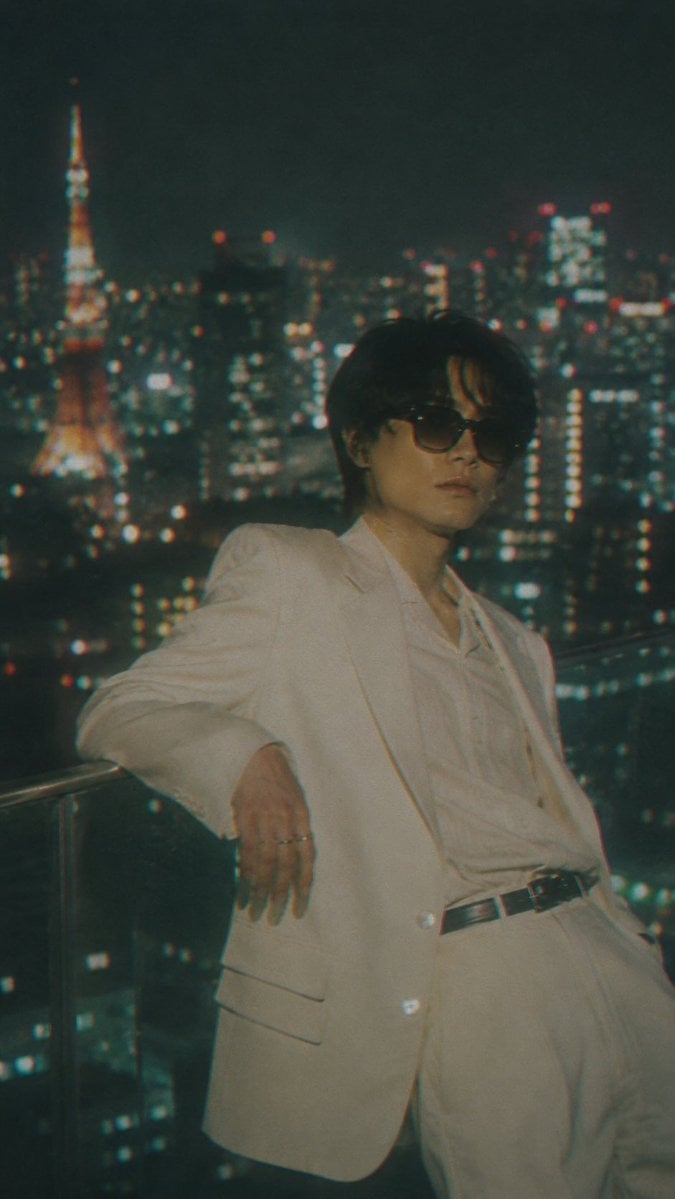
Censored Tokyo Rooftop Night Portrait

Summer Anime Portrait with Silk Tree Flowers
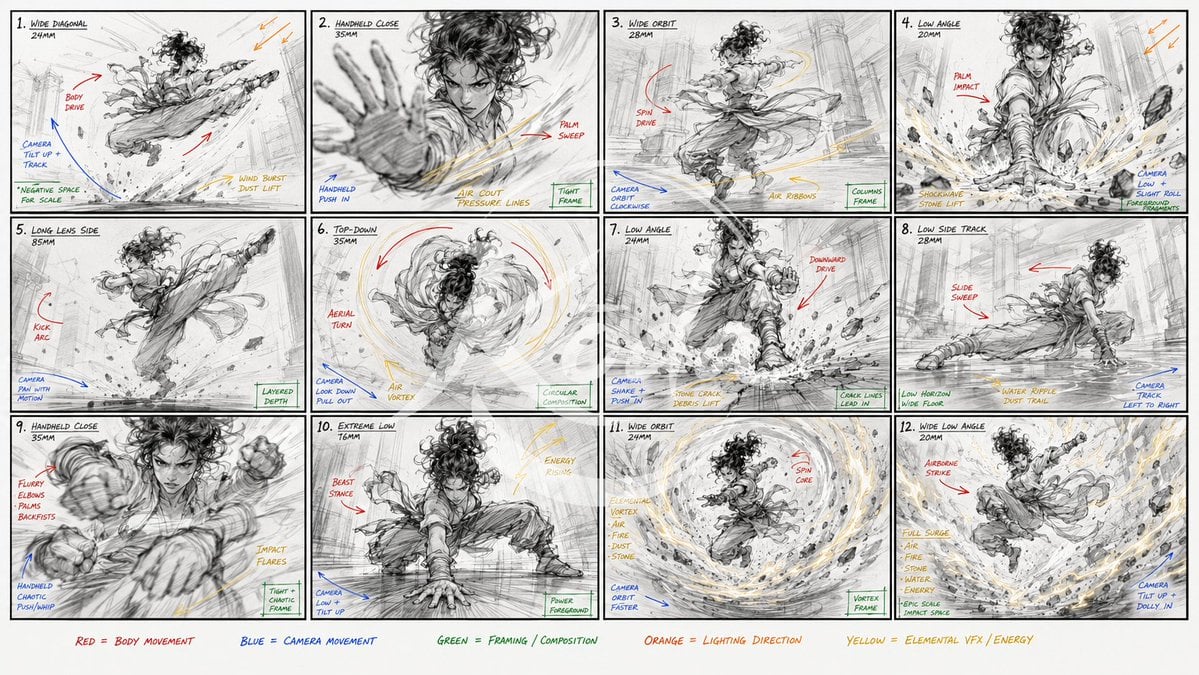
Kung Fu Action Storyboard
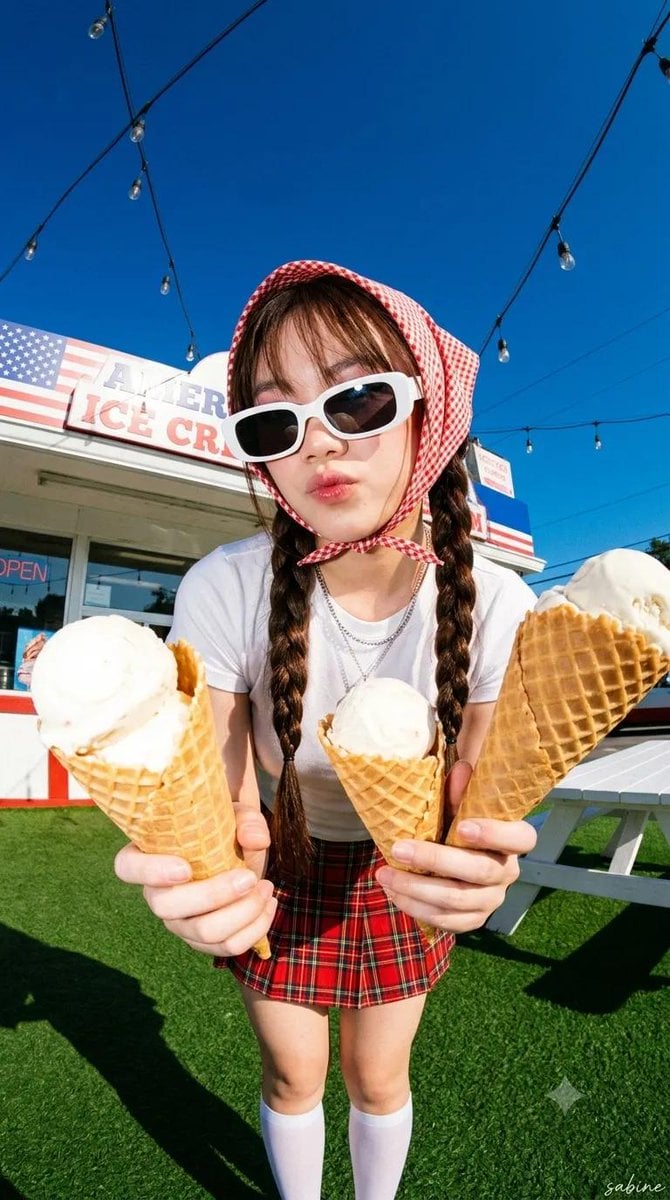
Y2K Summer Fashion Editorial
Browse template categories
Interactive Subject and Chibi Doll Portrait questions
How do I use the Interactive Subject and Chibi Doll Portrait template?
Add your photo if the template asks for one, edit the prompt if you like — the template's model and format are already selected — and press Generate. Your version opens in PicX Studio.
Can I customize the Interactive Subject and Chibi Doll Portrait template?
Yes. You can change the subject, setting, lighting, mood, format, and available model controls before creating your image.
Is the Interactive Subject and Chibi Doll Portrait template free?
Opening and editing this template is free. Generating uses credits, shown on the Generate button when you are signed in.
Which AI model should I use?
Start with Nano Banana 2, which is the model associated with this template. You can compare another compatible model for a different finish.
Looking for something else? Browse all templates.

Your photo, any look
Thousands of ready templates for every top image and video model, from one credit balance.