How do I use the Aya Anime Character Sheet template?
Choose the primary action to open PicX Studio with the available template settings. Review the model and format, personalize the creative direction, and generate when ready.
Creates a detailed anime character design sheet with full-body views, facial references, expressions, outfit details, accessories, palette, and mood visuals.
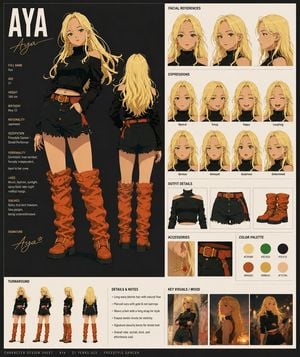
Goal: Create a polished anime character design sheet for {argument name="character name" default="Aya"}, a stylish 21-year-old Japanese freestyle dancer and street performer with long wavy blonde hair, green eyes, sun-kissed skin, and a confident free-spirited attitude. Canvas: Square character sheet, high-resolution, split into a large dark charcoal main showcase panel on the left and a cream reference-board panel on the right, with a narrow cream strip along the bottom. Use clean editorial spacing, thin divider lines, and small uppercase sans-serif labels. Overall style is detailed modern anime concept art with warm lighting, black/cream/orange palette, crisp linework, and painterly shading. Left main panel: Show two large full-body views of the same character: 1 front-facing pose, tall and relaxed with one hand in her shorts pocket and wind-swept hair; 2 rear view, standing with long hair cascading down her back. Outfit: black cropped cold-shoulder turtleneck long-sleeve top, black frayed high-waisted denim shorts with brass buttons, red-orange belt with gold buckle and side strap, chunky slouchy burnt-orange boots with buckles and black soles, gold hoop earrings, red dangling earrings. Put huge cream text “AYA” at top left with a gold handwritten signature “Aya” below it. Left bio text: Include these labeled facts in a small cream/gold column: Full name Aya; Age 21; Height 168 cm; Birthday May 12; Nationality Japanese; Occupation Freestyle Dancer / Street Performer; Personality Confident, free-spirited, fiercely independent, loyal to her crew; Likes Music, fashion, sunlight, spicy food, late-night rooftop hangs; Dislikes Rules that limit freedom, fake people, being underestimated; Signature: gold handwritten “Aya” with a small star. Right reference panel: Arrange exactly 6 labeled sections. Section 1 “FACIAL REFERENCES” contains exactly 3 head portraits: front view, three-quarter view, and side profile. Section 2 “EXPRESSIONS” contains exactly 8 bust portraits in a 4-by-2 grid, labeled Neutral, Smug, Happy, Laughing, Serious, Annoyed, Surprised, Determined. Section 3 “OUTFIT DETAILS” contains exactly 3 item cards: cropped black top, black denim shorts with orange belt, and orange slouch boots. Section 4 “ACCESSORIES” contains exactly 2 close-up cards: gold/red earrings and belt/side strap detail. Section 5 “COLOR PALETTE” contains exactly 6 circular swatches labeled with hex colors: #F2D988, #2E7032, #1E1E1E, #B4542C, #D99C24, #F1C79A. Section 6 “KEY VISUALS / MOOD” contains exactly 3 small cinematic images of Aya in urban night or golden-hour settings. Bottom strip: Add a “TURNAROUND” section with exactly 4 small full-body views: front, three-quarter front, side, and back. Add a “DETAILS & NOTES” section with exactly 5 bullet points: Long wavy blonde hair with natural flow; Pierced ears with gold & red earrings; Wears a belt with a long strap for style; Frayed denim shorts for mobility; Signature slouchy boots for street look. Add a tiny footer reading “CHARACTER DESIGN SHEET - AYA - 21 YEARS OLD - FREESTYLE DANCER”. Visual constraints: Keep all text legible and spelled correctly, preserve the exact counts of 2 large full-body views, 3 facial references, 8 expressions, 3 outfit detail cards, 2 accessory cards, 6 color swatches, 3 mood images, 4 turnaround views, and 5 notes. No logos, no watermark, no extra characters.
Choose the primary action to open PicX Studio with the available template settings. Review the model and format, personalize the creative direction, and generate when ready.
Yes. You can change the subject, setting, lighting, mood, format, and available model controls before creating your image.
This template is free to open and customize. Generation usage is shown in PicX Studio before you create.
Start with GPT Image 2, which is the model associated with this template. You can compare another compatible model for a different finish.
Follow a topic to a crawlable collection of related PicX Studio templates.