
Watercolor AI Manga Workflow Comic
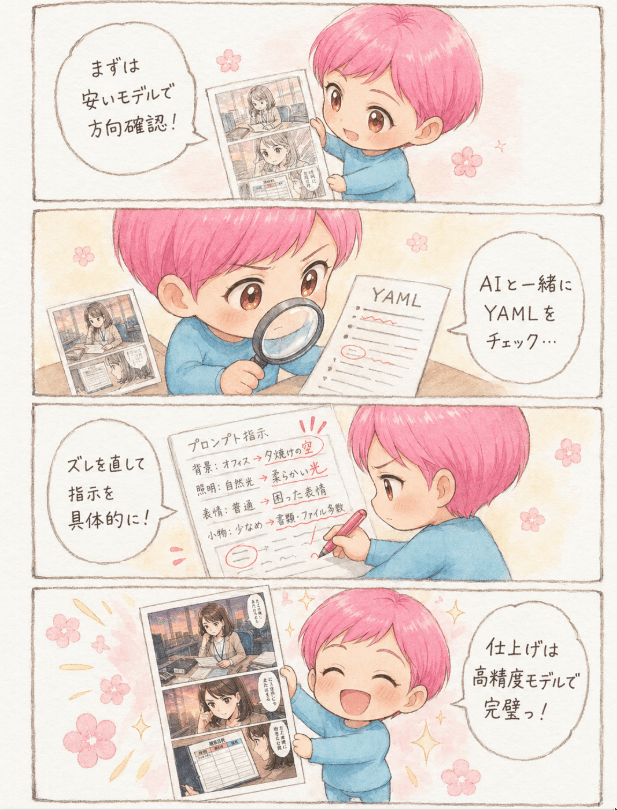
A four-panel pastel manga explainer showing a chibi character refining YAML prompts and finishing AI manga art with a higher-quality model.
- Prompt included
- Model and format preset
- Premium template
The prompt behind this image
Copy the exact prompt behind Watercolor AI Manga Workflow Comic, or open it in the studio and make it yours.
Goal: Create a soft watercolor-style vertical 4-panel manga explainer about an AI manga creation workflow, featuring a cute chibi child with {argument name="hair color" default="bright pink"} hair and a blue sweatshirt demonstrating how to improve image generation prompts before final output. Canvas: Portrait page, 4:5 aspect ratio, off-white paper texture, hand-drawn pencil panel borders, gentle pastel peach background washes, small pink cherry blossom doodles and sparkle accents scattered between panels. Use a warm, charming Japanese children’s-book manga style with light ink outlines, watercolor shading, and clean readable lettering. Layout: Exactly 4 horizontal comic panels stacked vertically, separated by thin rough brown hand-drawn borders. The recurring main character appears once in each panel. Include exactly 4 speech bubbles, one per panel, with Japanese handwritten text. Character details: A small chibi boy/girl mascot, toddler-like proportions, large amber-brown eyes, round face, short side-swept pink hair, wearing a loose sky-blue sweater. Expressions by panel: panel 1 curious and cheerful, panel 2 focused while inspecting, panel 3 serious and concentrated while correcting instructions, panel 4 delighted with eyes closed and big smile. Panel 1: The character stands on the right, holding up a printed manga page with small grayscale/sepia comic panels showing a young woman. On the left is a large speech bubble containing: {argument name="panel 1 speech" default="まずは\n安いモデルで\n方向確認!"}. Add a tiny flower near the top center. Panel 2: Close-up composition. The character is larger, leaning over a desk, holding a magnifying glass in one hand and inspecting a paper titled “YAML” on the right. The YAML sheet has red check marks, underlines, and a circled correction. A small generated manga page printout sits on the left side of the desk. On the right is a speech bubble containing: {argument name="panel 2 speech" default="AIと一緒に\nYAMLを\nチェック…"}. Panel 3: Side view of the character on the right, writing with a red pen on a large instruction sheet labeled in Japanese “プロンプト指示”. The sheet shows multiple prompt categories and red corrections, including crossed-out marks, circled text, and emphatic red symbols near the top. On the left is a speech bubble containing: {argument name="panel 3 speech" default="ズレを直して\n指示を\n具体的に!"}. Panel 4: The character stands on the right holding up a finished-looking manga page with three visible comic panels, featuring a young woman working at a desk and clean dialogue bubbles. Add pink flowers and golden sparkle marks around the page to imply success. On the right is a speech bubble containing: {argument name="panel 4 speech" default="仕上げは\n高精度モデルで\n完璧っ!"}. Constraints: Use exactly 4 stacked panels, exactly 4 speech bubbles, exactly 1 main chibi character per panel, exactly 3 visible paper/page props total types across the comic: generated manga printouts, a YAML inspection sheet, and a prompt instruction sheet. Keep all Japanese text legible and handwritten-looking, avoid photorealism, avoid dark heavy shadows, no watermark, no extra panels.
How to use Watercolor AI Manga Workflow Comic in 3 steps
- 1Upload ImagePNG, JPG or paste
Add your photo
Upload the photo the template builds on. The prompt, model and format are already set.
- 2…a portrait of your subject in softgolden-hour light, 85mm…
Personalize
Edit the subject and creative details for your destination.
- 3Generate
Generate
Press Generate — your image is created in PicX Studio, so you can compare it with the original and refine one variable at a time.
More like this
Templates with the same subject, style or setup. Open one to see its prompt.
Japanese Manga A/B Testing Comic
Cute AI Manga Lesson Comic Page
Watercolor Anim Finale Fireworks
Watercolor Anim Garden Maze
Watercolor Anim Rooftop Concert
Watercolor Anim Bicycle Coast

Watercolor Anim Castle Gate
Watercolor Anim Kitchen Chaos
Watercolor Anim Carnival Ride
Watercolor Anim Rainy Bus Stop
Watercolor Anim Space Dock
Watercolor Anim Cafe Morning
Make it yours
Watercolor AI Manga Workflow Comic works as-is. These are the safest ways to change it without losing the look.
Change one field
Copy a single group, rewrite it, and generate again so you can see what that field is doing.
Keep the frame, change the subject
Hold the composition and light of Watercolor AI Manga Workflow Comic, then swap wardrobe, props or the person for a new take.
| If the result… | Why | Fix |
|---|---|---|
| The result drifts from the preview | Too many fields changed at once. | Reuse Watercolor AI Manga Workflow Comic as-is first, then change one group — subject, light, or setting. |
| The model over-stylizes the scene | The prose prompt leaves finish and camera underspecified. | Add one camera or lighting sentence and stay on GPT Image 2. |
More GPT Image 2 templates
Other prompts made for GPT Image 2.

Six VTuber Japanese Logo Sheet

Realistic Portrait of Woman and Deer

The Vista Modular Condo Poster

AI Model Routing Comparison Infographic

2.5D Anime Art Board

Isometric Productivity Desk Scene

New York Double Exposure Poster

Four-Panel AI Landscape Comparison

Japanese Tatami Lifestyle Magazine Cover

NESCAFÉ Coffee Map Poster
More image prompts
Fresh picks from across the catalog.
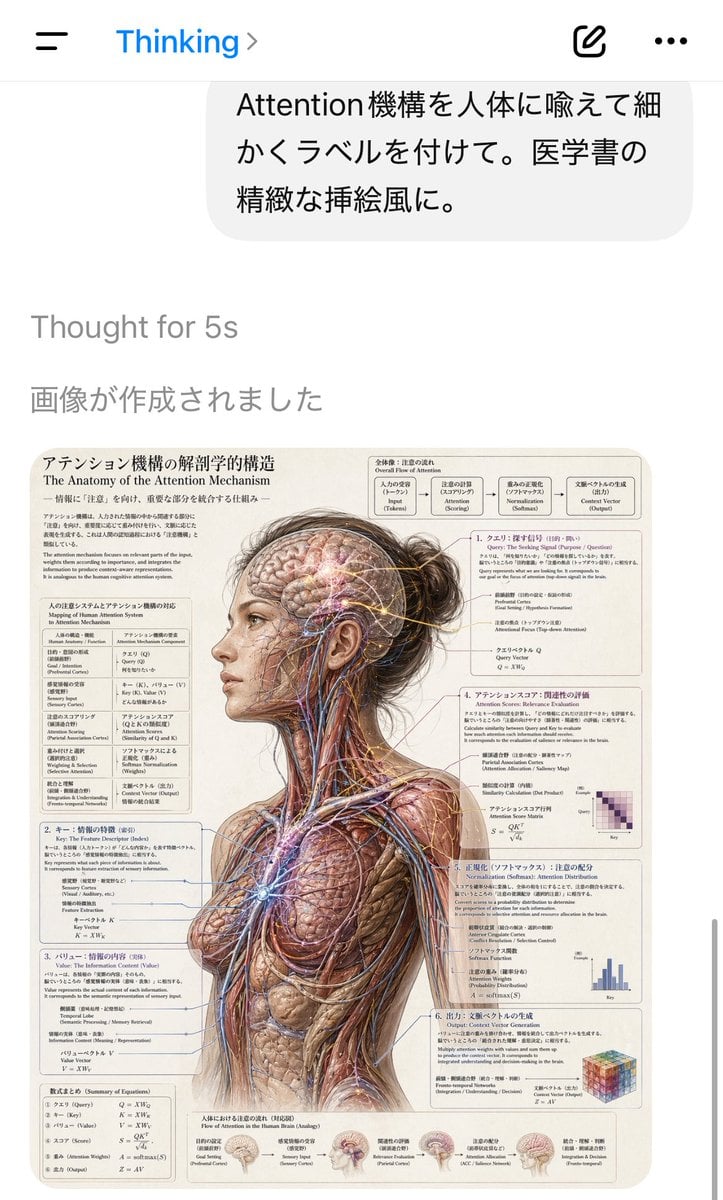
AI Chat Screenshot with Anatomy Poster
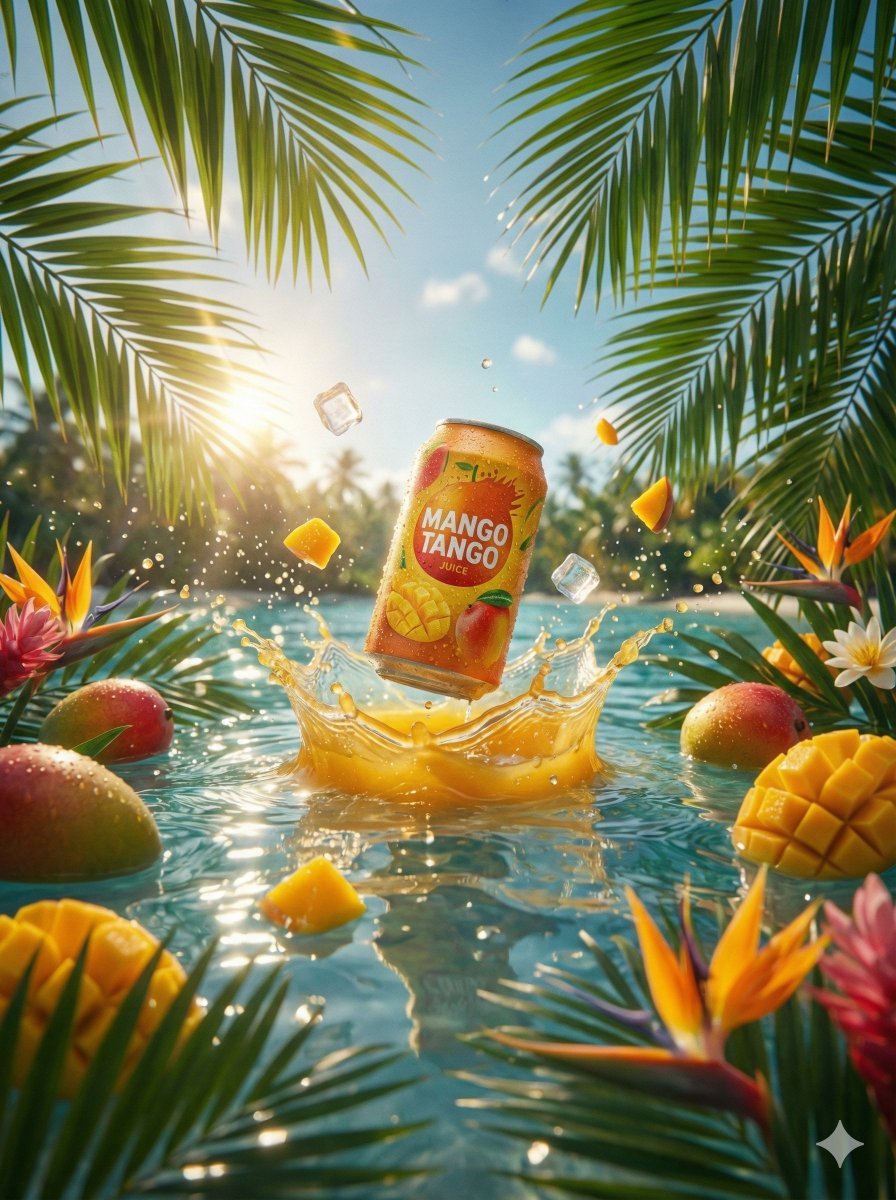
Hyper-Realistic Commercial Beverage Photography Prompt
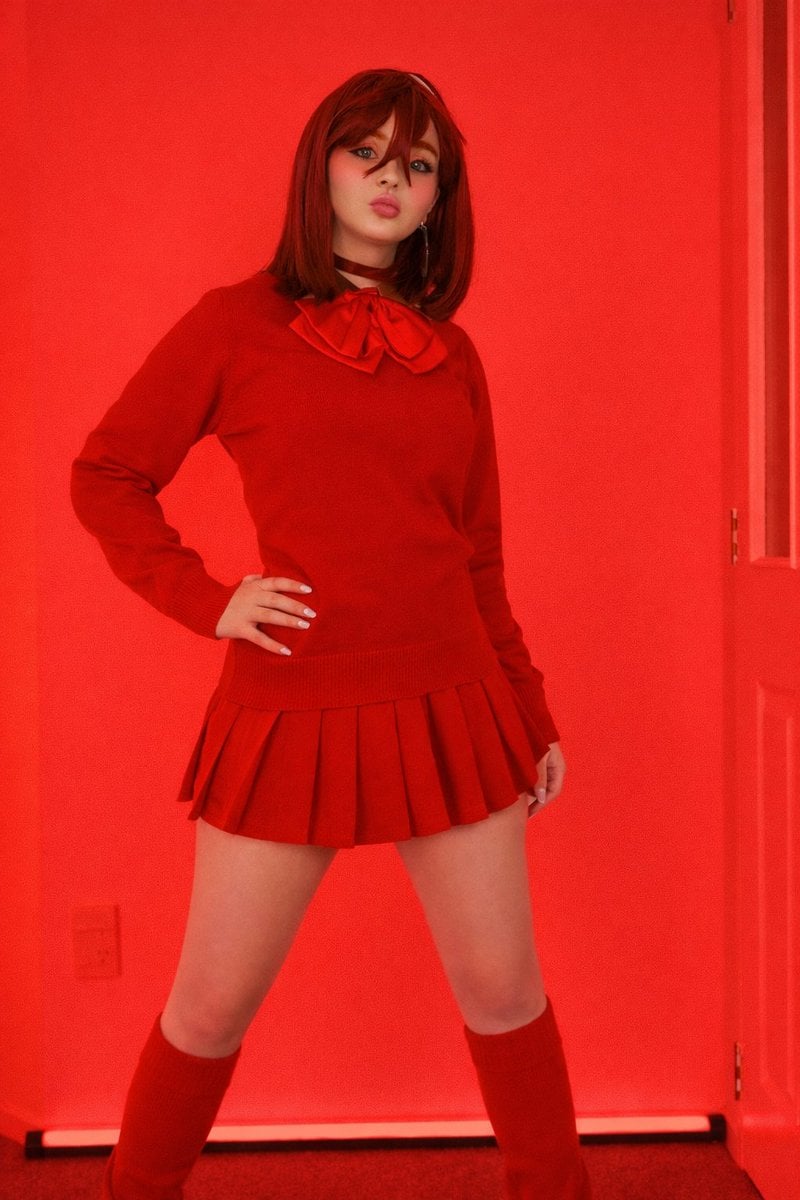
Bold Red Fashion Portrait
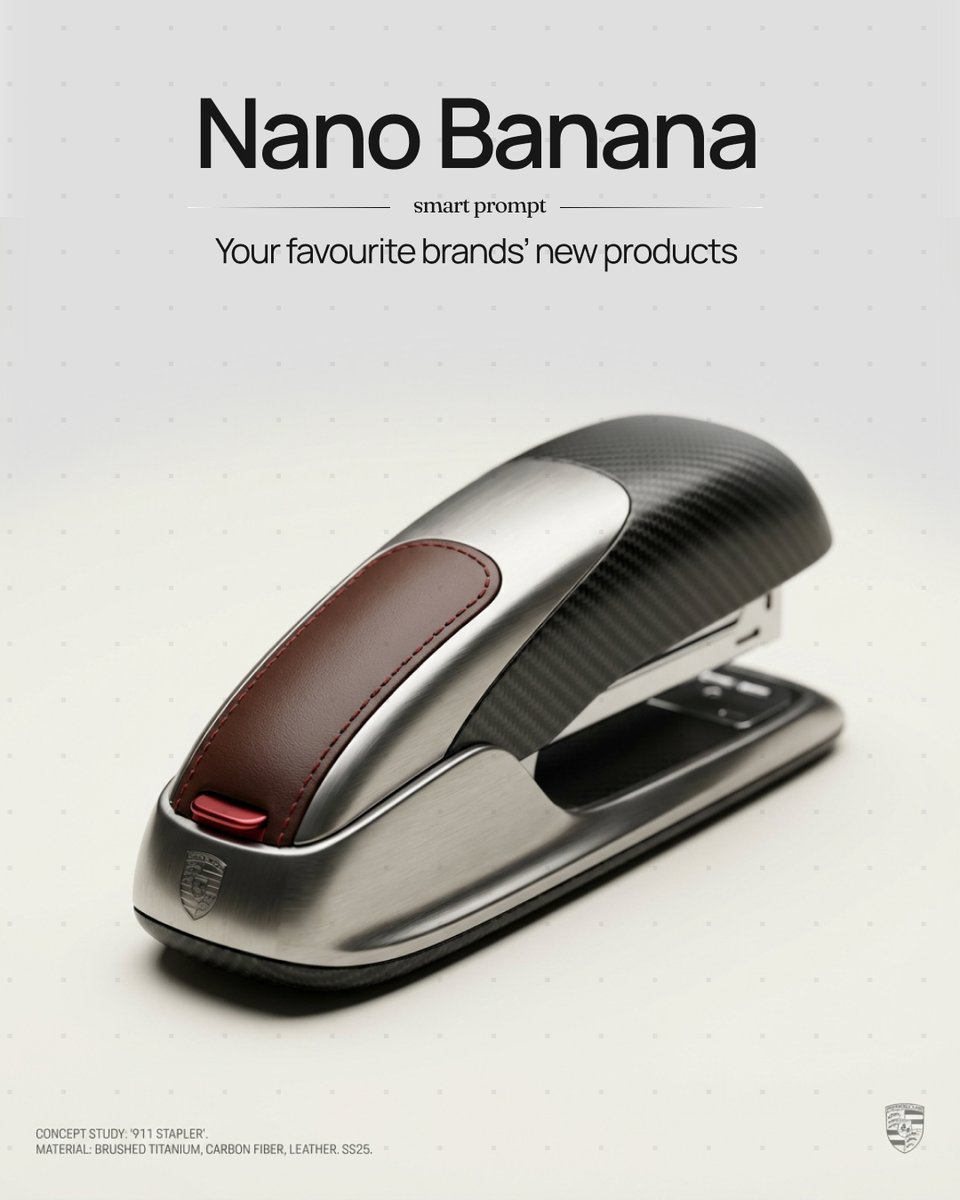
Unexpected Products by Favorite Brands Prompt
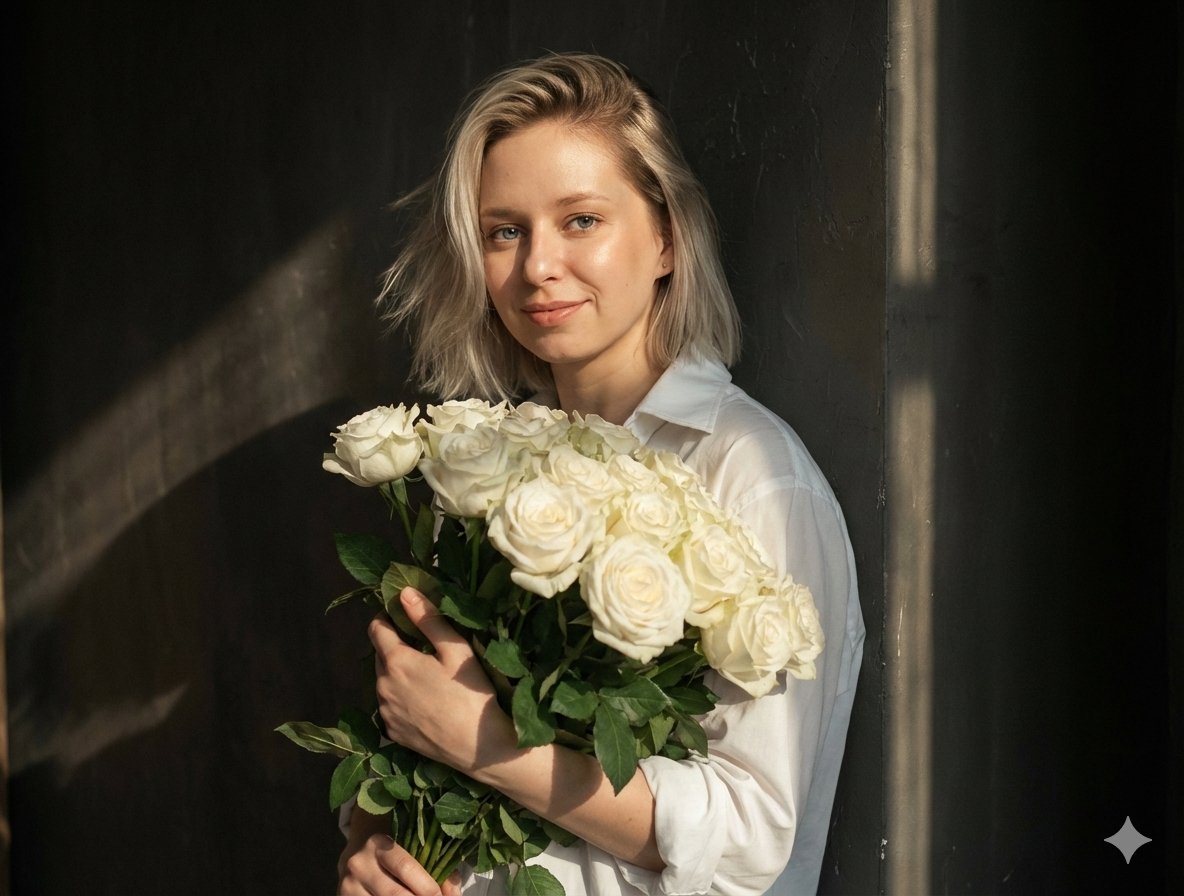
Cinematic Portrait with High-Contrast Window Light
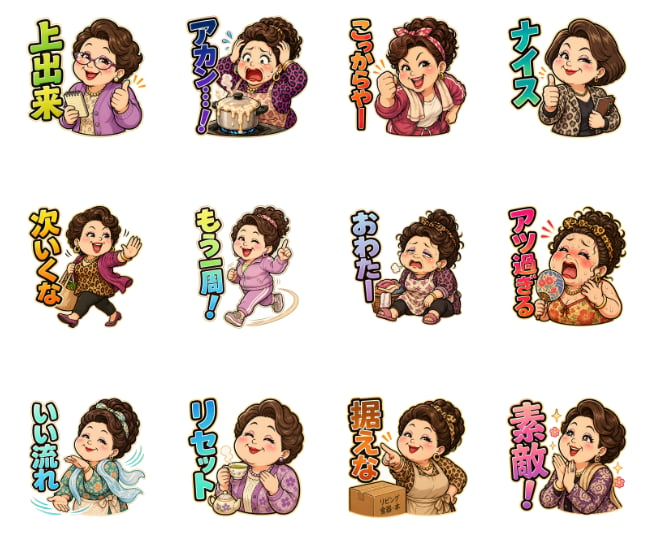
Pachinko Auntie LINE Sticker Sheet
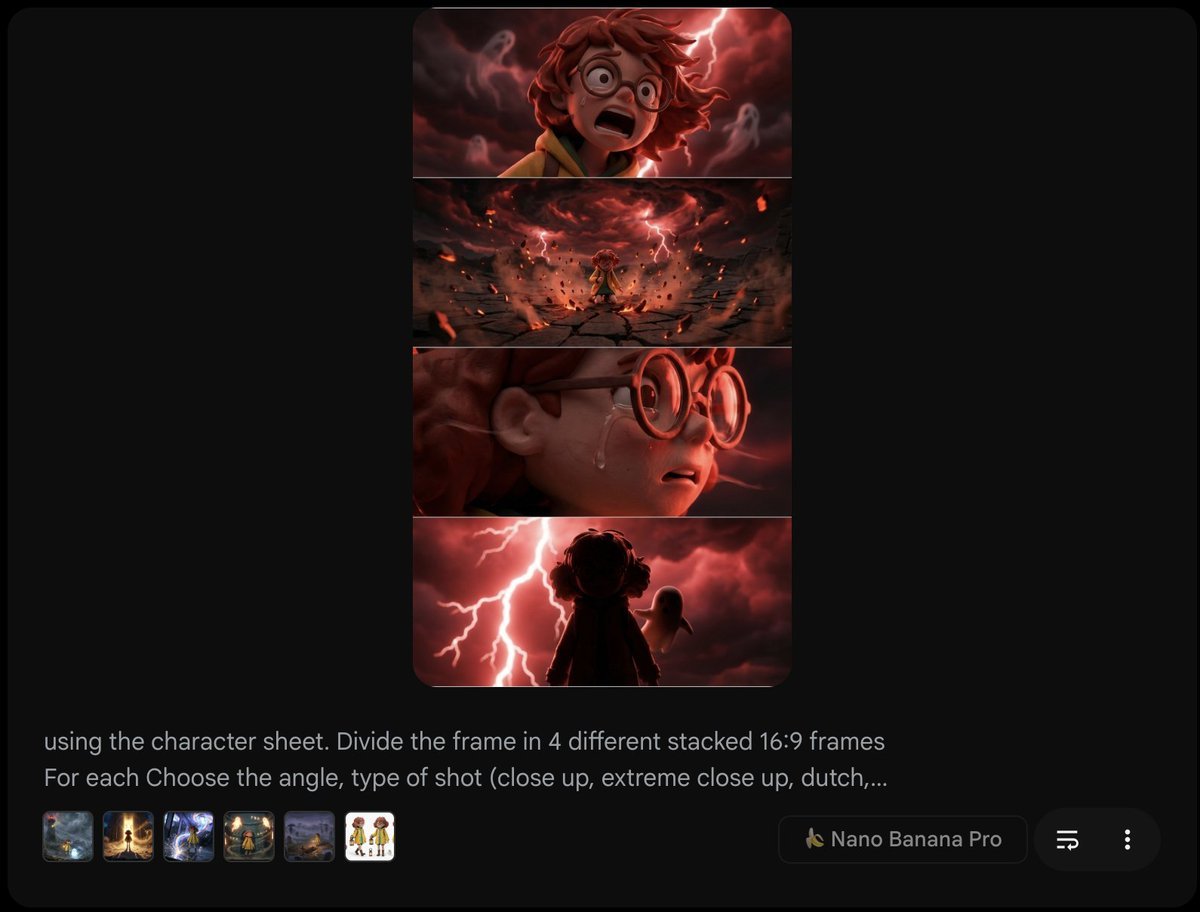
Extract frame and modify expression and weather
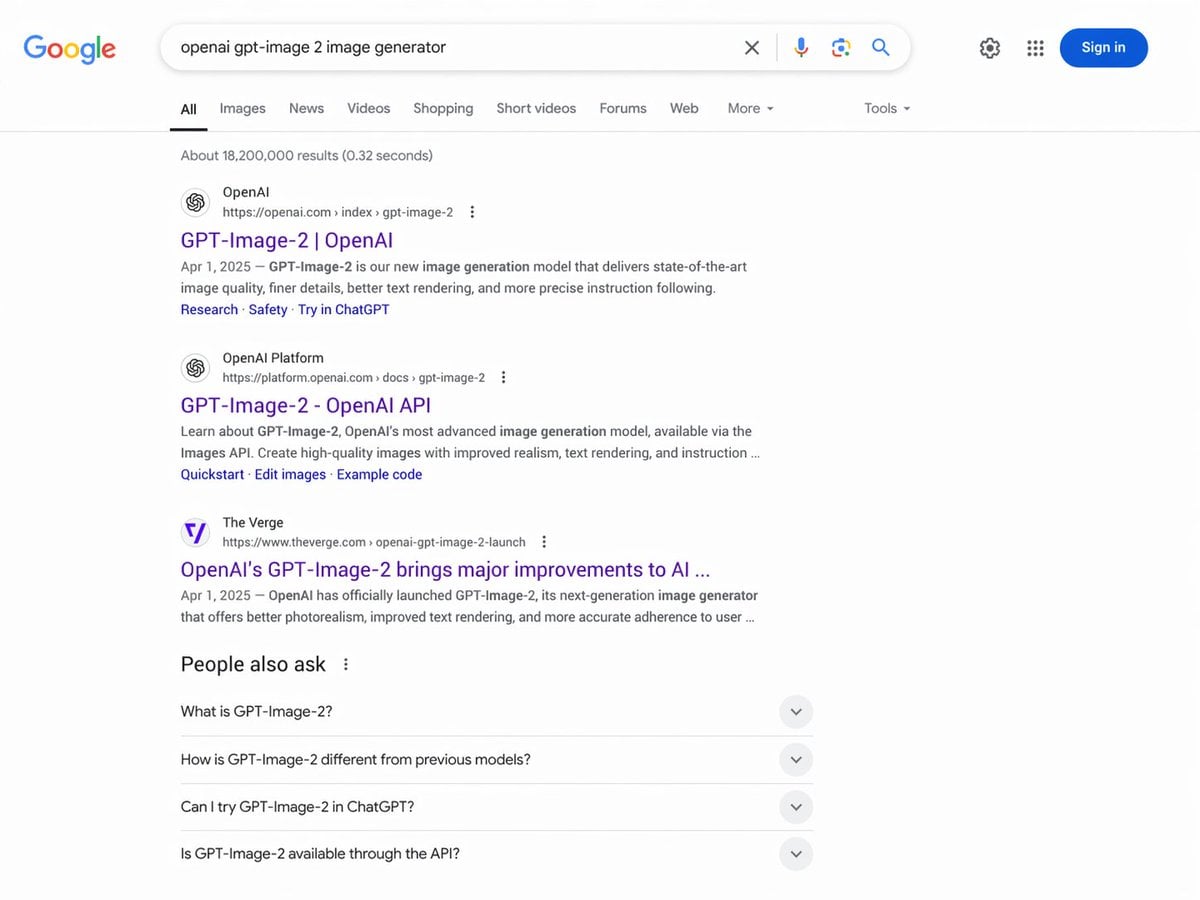
Google Search Results Mockup
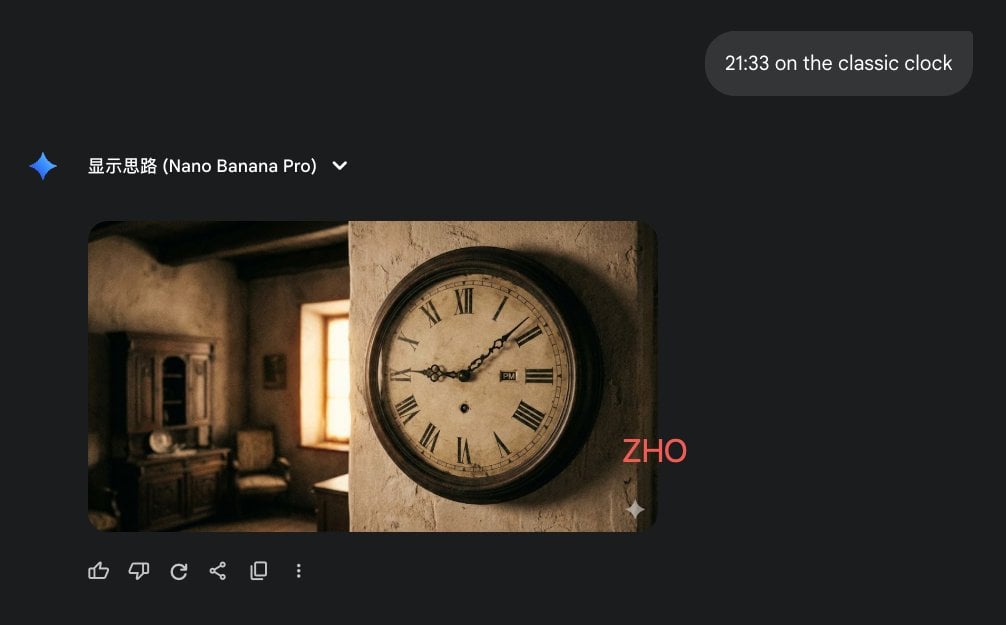
Clock face time rendering test
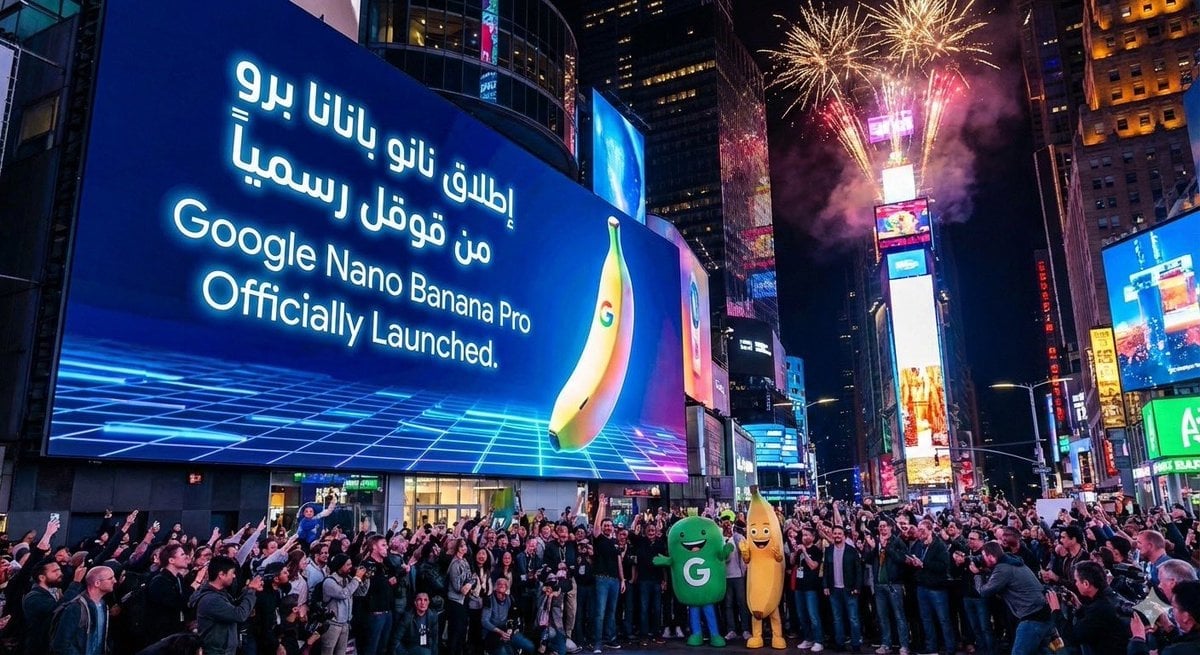
Announcement design image about Nano Banana Pro launch
Browse template categories
Watercolor AI Manga Workflow Comic questions
How do I use the Watercolor AI Manga Workflow Comic template?
Add your photo if the template asks for one, edit the prompt if you like — the template's model and format are already selected — and press Generate. Your version opens in PicX Studio.
Can I customize the Watercolor AI Manga Workflow Comic template?
Yes. You can change the subject, setting, lighting, mood, format, and available model controls before creating your image.
Is the Watercolor AI Manga Workflow Comic template free?
Opening and editing this template is free. Generating uses credits, shown on the Generate button when you are signed in.
Which AI model should I use?
Start with GPT Image 2, which is the model associated with this template. You can compare another compatible model for a different finish.
Looking for something else? Browse all templates.

Your photo, any look
Thousands of ready templates for every top image and video model, from one credit balance.