
Cinematic Anime Photo Comparison
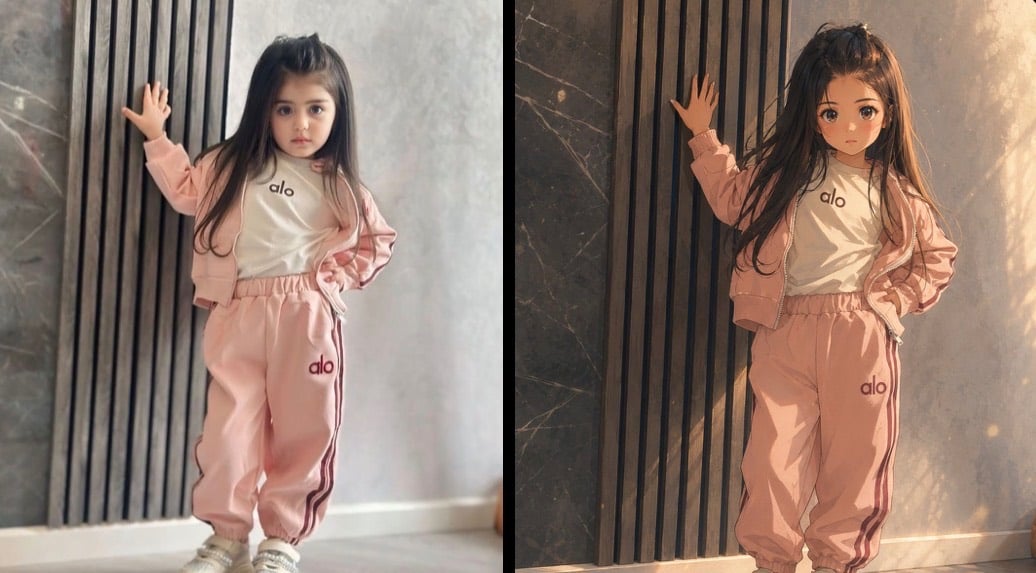
Creates a two-panel before-and-after image comparing a casual child photo with a faithful cinematic Japanese anime-style transformation.
- Prompt included
- Model and format preset
- Premium template
The prompt behind this image
Copy the exact prompt behind Cinematic Anime Photo Comparison, or open it in the studio and make it yours.
Goal: Create a side-by-side comparison image showing a realistic reference-style photo on the left and a luxurious cinematic Japanese anime transformation on the right, featuring the same child pose, outfit, background, and framing. Canvas: Wide horizontal 2-panel layout, approximately 1036×573 pixels, with a clean vertical split down the center. No captions, no labels, no watermark. Layout: Use exactly 2 panels. Left panel: soft, slightly blurry phone-photo realism. Right panel: polished cinematic anime film still. Keep the same full-body composition in both panels: a young girl standing indoors against a wall, one hand raised and touching vertical black wooden slats, the other hand resting on her hip, body facing forward, camera at a slightly low child-height angle. Subject details: The character is {argument name="character description" default="a young girl with very long dark brown hair and a deliberately blurred square face for privacy"}. Preserve the pose precisely: left arm raised with palm on the wall slats, right hand on hip, feet close together, relaxed confident stance. Hair should fall past the shoulders and become more dramatic and wind-swept in the anime panel. Outfit: Show exactly 4 visible clothing pieces: 1 pale pink zip hoodie, 1 white T-shirt with the small text “alo” on the chest, 1 pair of pale pink jogger sweatpants with the small text “alo” near the pocket and dark side stripes, and 1 pair of light sneakers. Use {argument name="outfit color" default="pale blush pink"} as the main tracksuit color. Keep the same clothing design in both panels. Environment: Indoor modern wall with exactly 3 main visible background surfaces: dark marble panel on the far left, vertical black wooden slat panel behind the raised hand, and gray plaster/concrete wall to the right. Include a light floor and a thin baseboard. In the right anime panel, enhance the environment with warm golden sunlight, soft dust particles, stronger shadows, painterly marble texture, and cinematic depth. Visual style: Left panel should resemble the original casual photo: natural lighting, muted gray tones, slight lens softness, realistic proportions. Right panel should look like a high-end Japanese anime movie still: detailed line art, refined cel shading, warm rim light from the upper right, volumetric glow, realistic fabric folds, expressive hair strands, polished cinematic color grading, and dramatic but faithful composition. Text content: Preserve exactly 3 visible text marks: “alo” on the left-panel shirt, “alo” on the left-panel pants, and “alo” on the right-panel shirt/pants area as small brand-like markings; keep them subtle and not oversized. Constraints: Maintain identical framing, pose, body proportions, outfit, wall placement, camera angle, and object positions between the two panels. Do not add extra people, props, captions, logos beyond the small “alo” markings, or decorative borders. Keep the face obscured with a smooth square blur in both panels.
How to use Cinematic Anime Photo Comparison in 3 steps
- 1Upload ImagePNG, JPG or paste
Add your photo
Upload the photo the template builds on. The prompt, model and format are already set.
- 2…a portrait of your subject in softgolden-hour light, 85mm…
Personalize
Edit the subject and creative details for your destination.
- 3Generate
Generate
Press Generate — your image is created in PicX Studio, so you can compare it with the original and refine one variable at a time.
More like this
Templates with the same subject, style or setup. Open one to see its prompt.
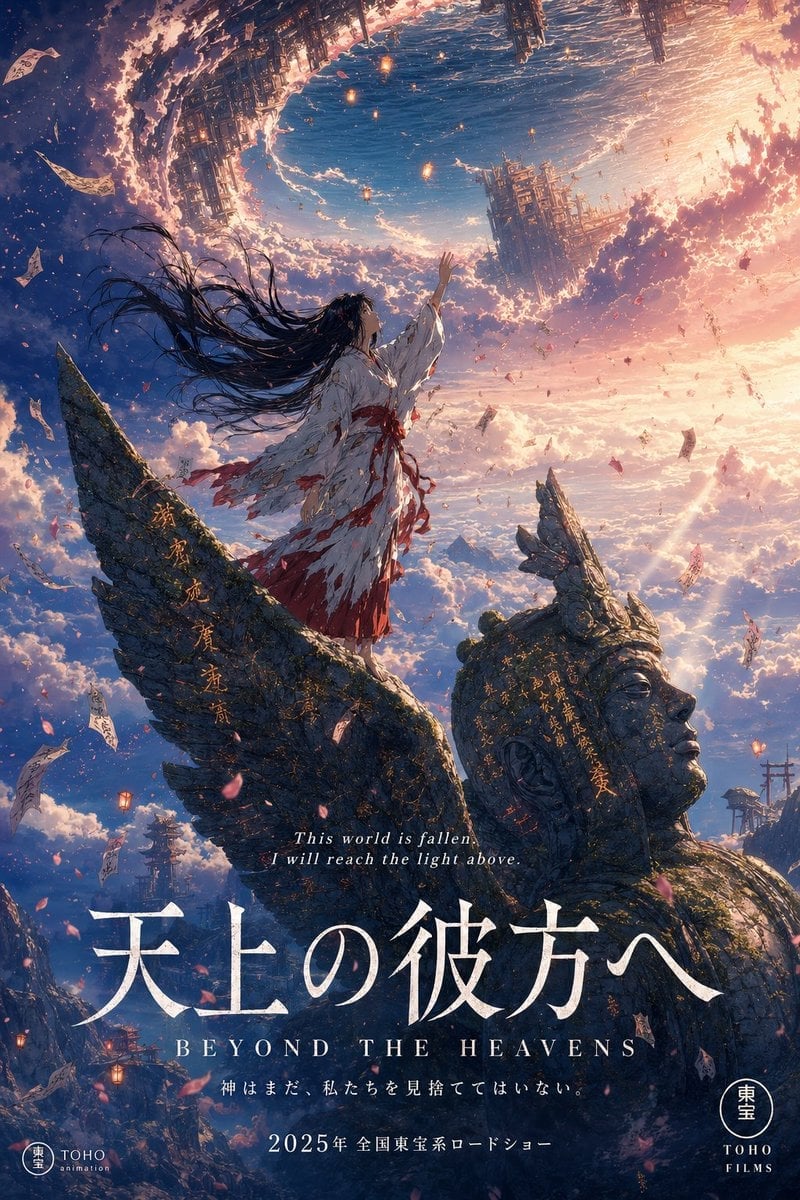
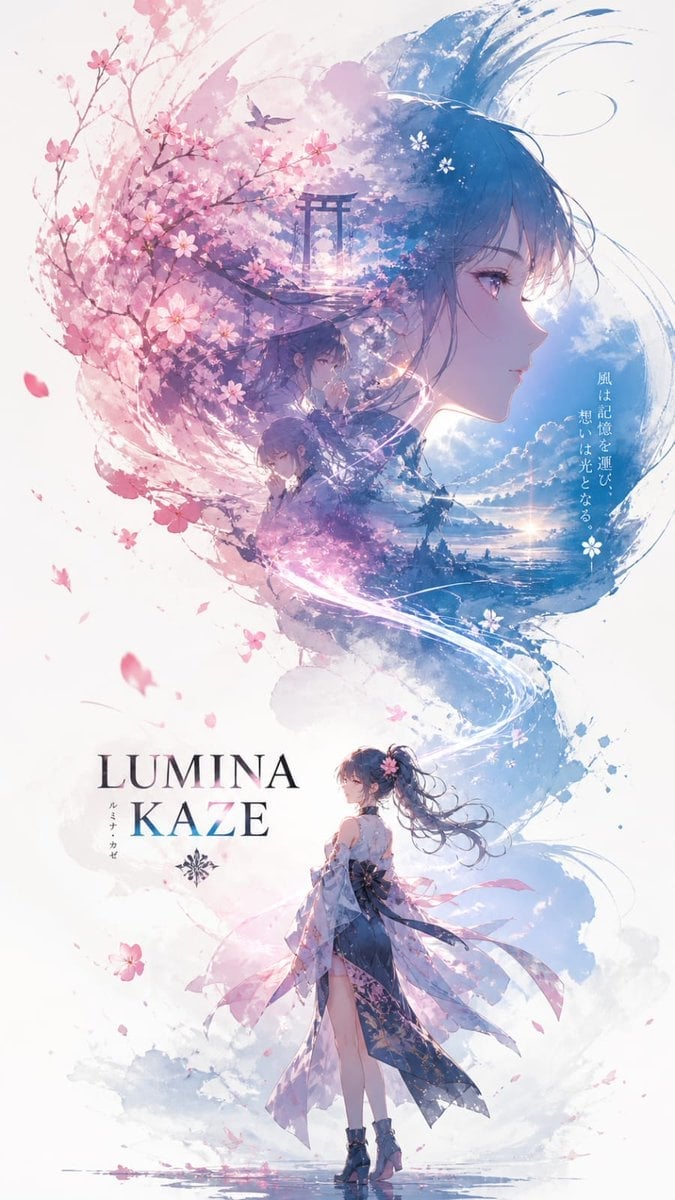
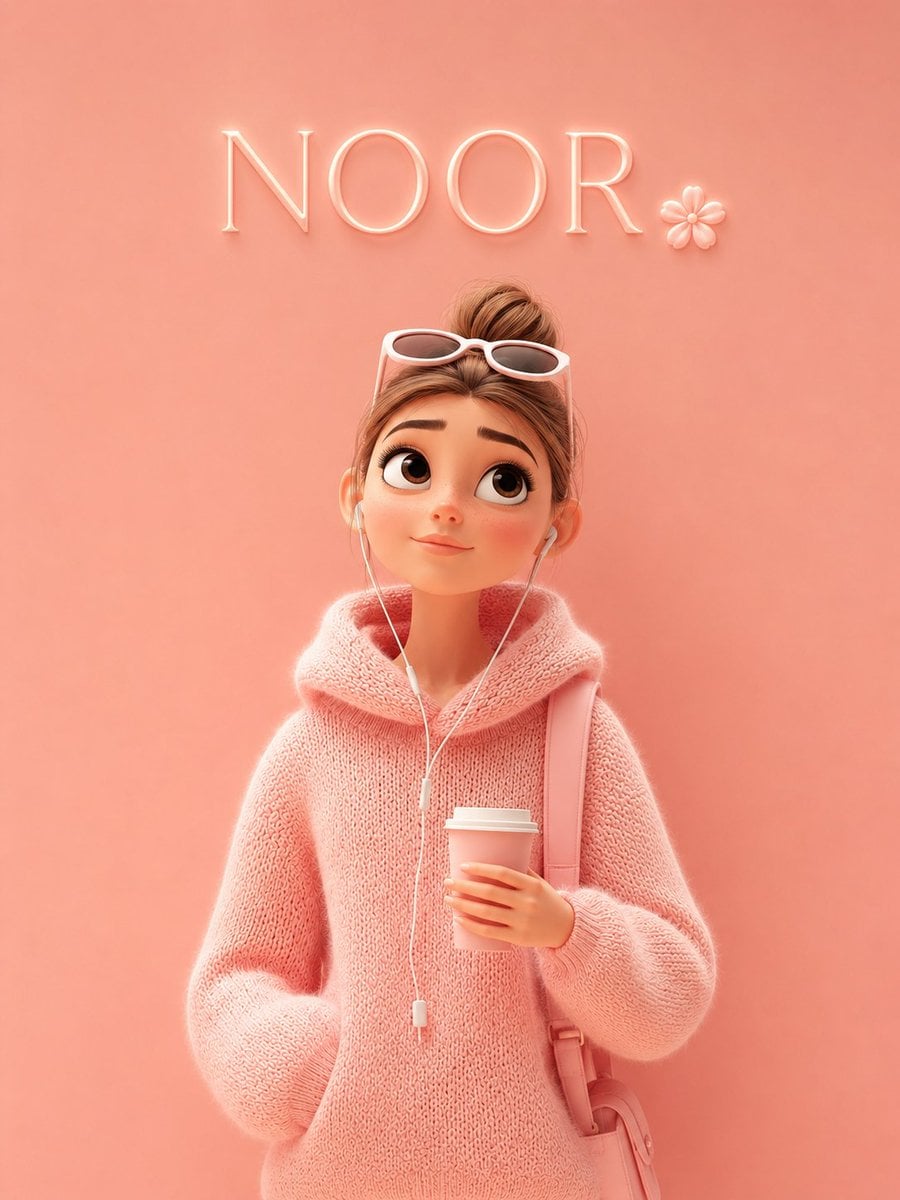
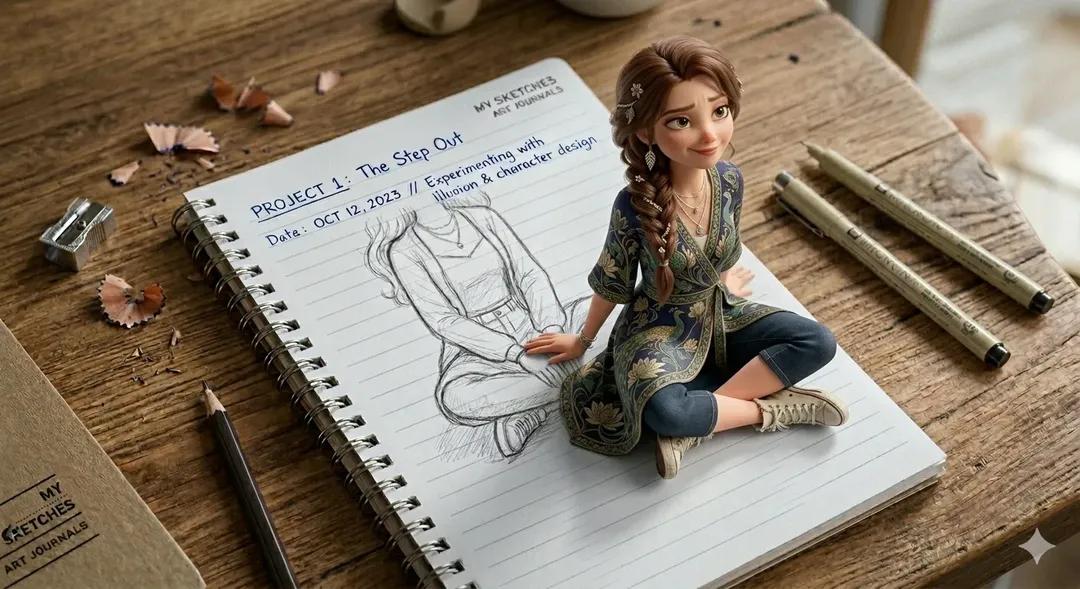
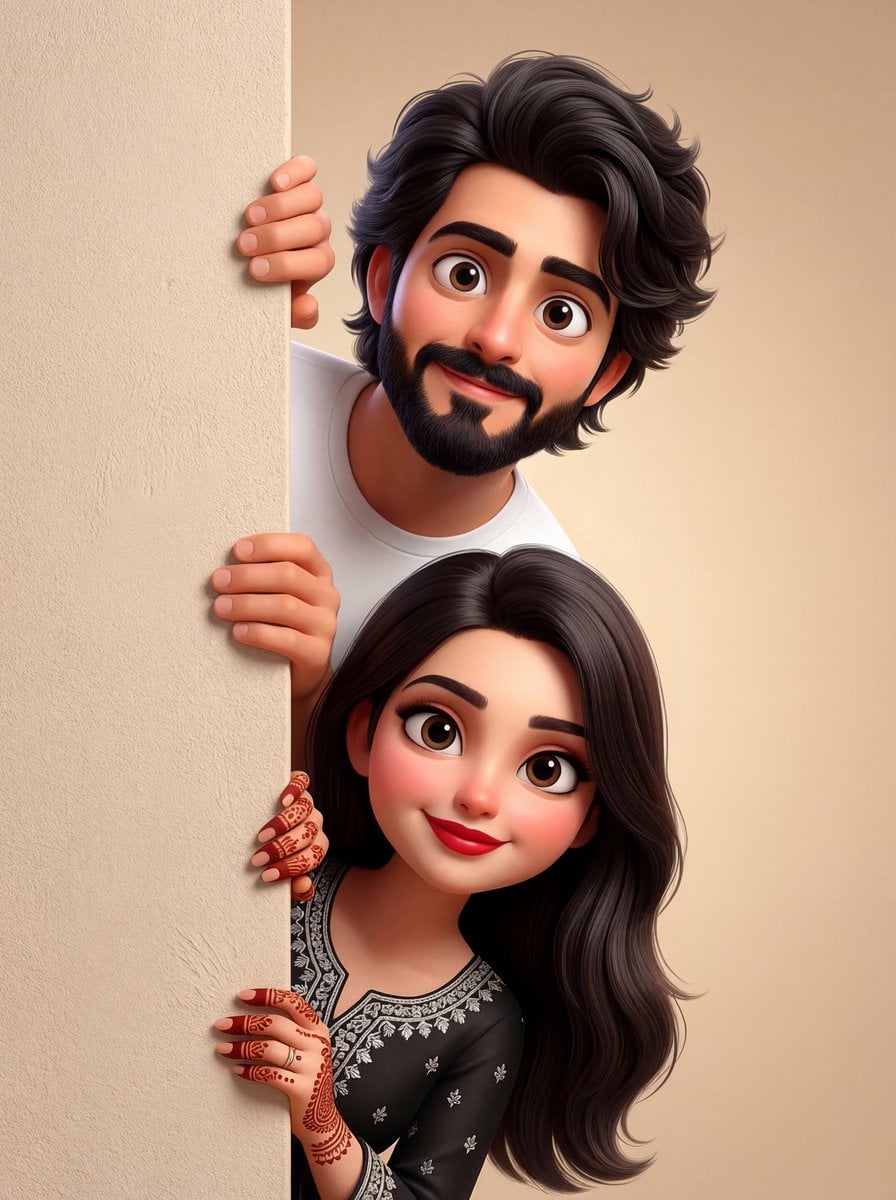
Make it yours
Cinematic Anime Photo Comparison works as-is. These are the safest ways to change it without losing the look.
Change one field
Copy a single group, rewrite it, and generate again so you can see what that field is doing.
Keep the frame, change the subject
Hold the composition and light of Cinematic Anime Photo Comparison, then swap wardrobe, props or the person for a new take.
| If the result… | Why | Fix |
|---|---|---|
| The result drifts from the preview | Too many fields changed at once. | Reuse Cinematic Anime Photo Comparison as-is first, then change one group — subject, light, or setting. |
| The model over-stylizes the scene | The prose prompt leaves finish and camera underspecified. | Add one camera or lighting sentence and stay on GPT Image 2. |
More GPT Image 2 templates
Other prompts made for GPT Image 2.

Six VTuber Japanese Logo Sheet

Realistic Portrait of Woman and Deer

The Vista Modular Condo Poster

AI Model Routing Comparison Infographic

2.5D Anime Art Board

Isometric Productivity Desk Scene

New York Double Exposure Poster

Four-Panel AI Landscape Comparison

Japanese Tatami Lifestyle Magazine Cover

NESCAFÉ Coffee Map Poster
More image prompts
Fresh picks from across the catalog.
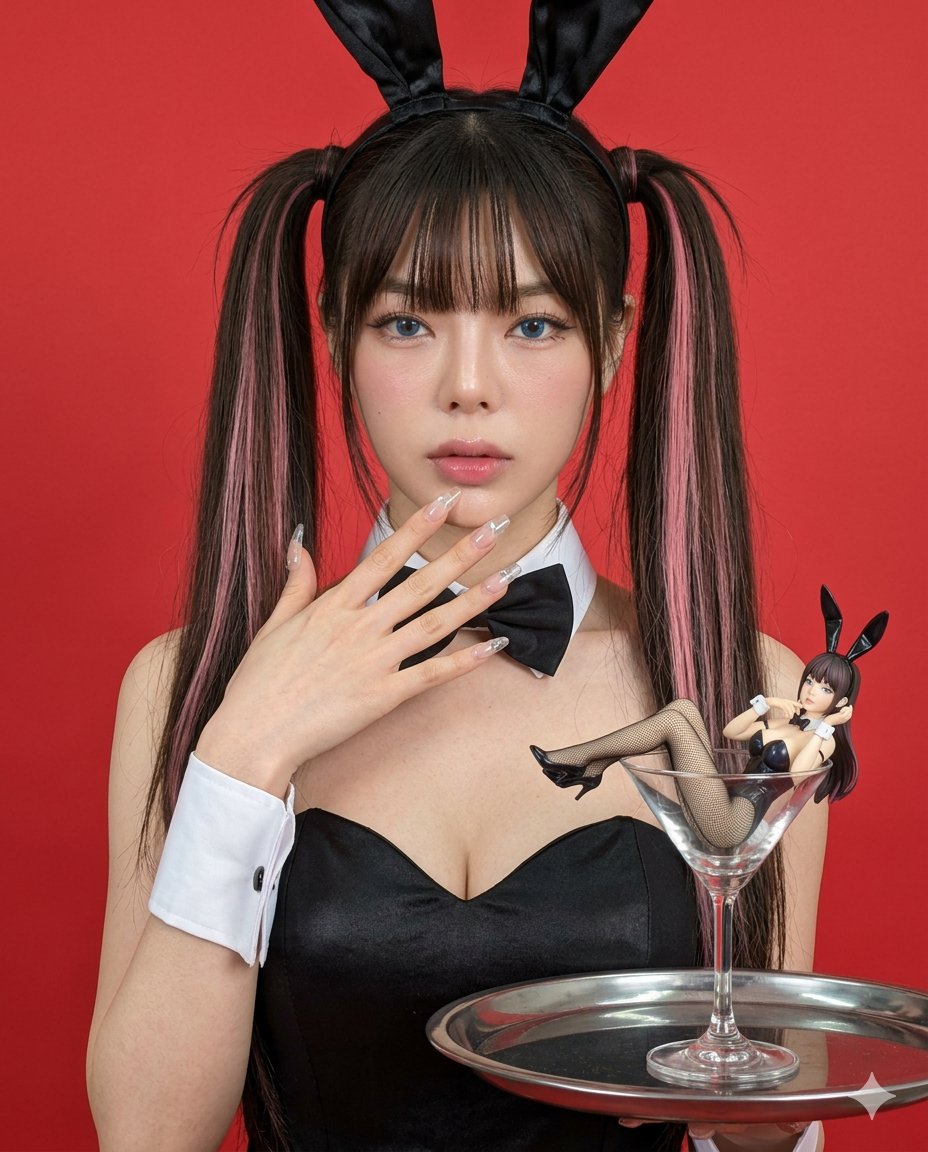
Hyper-realistic Bunny Suit Portrait
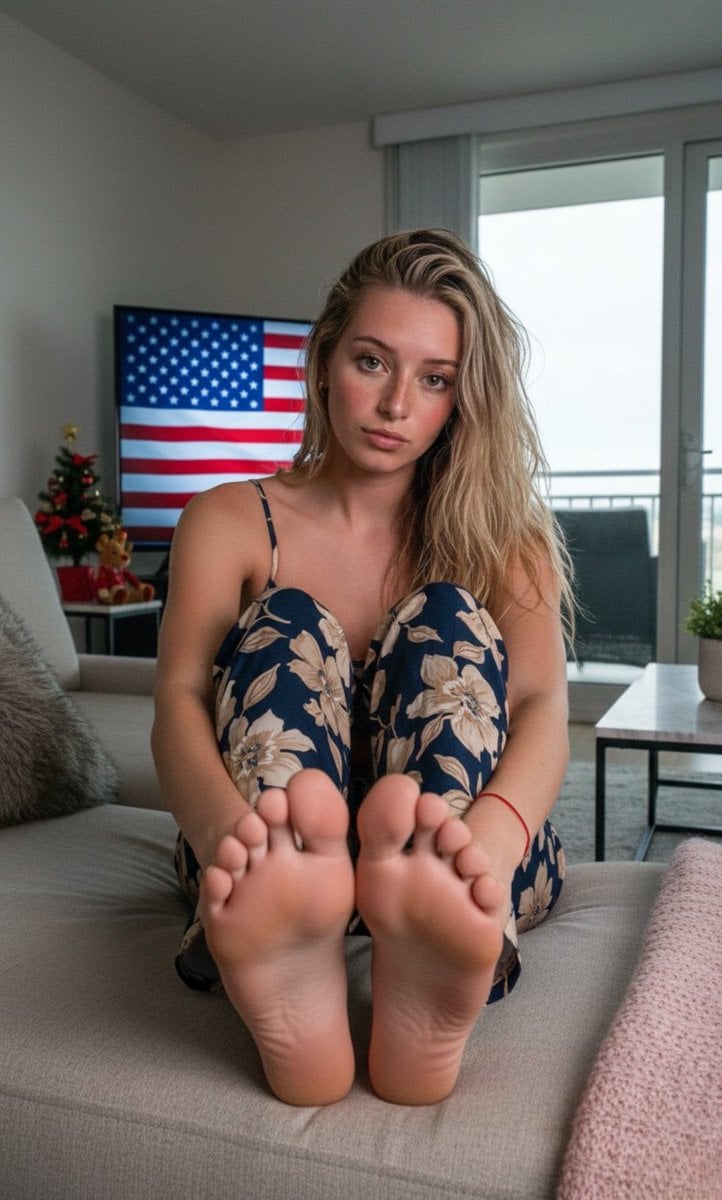
Wide-Angle Foreshortening Portrait on Sofa
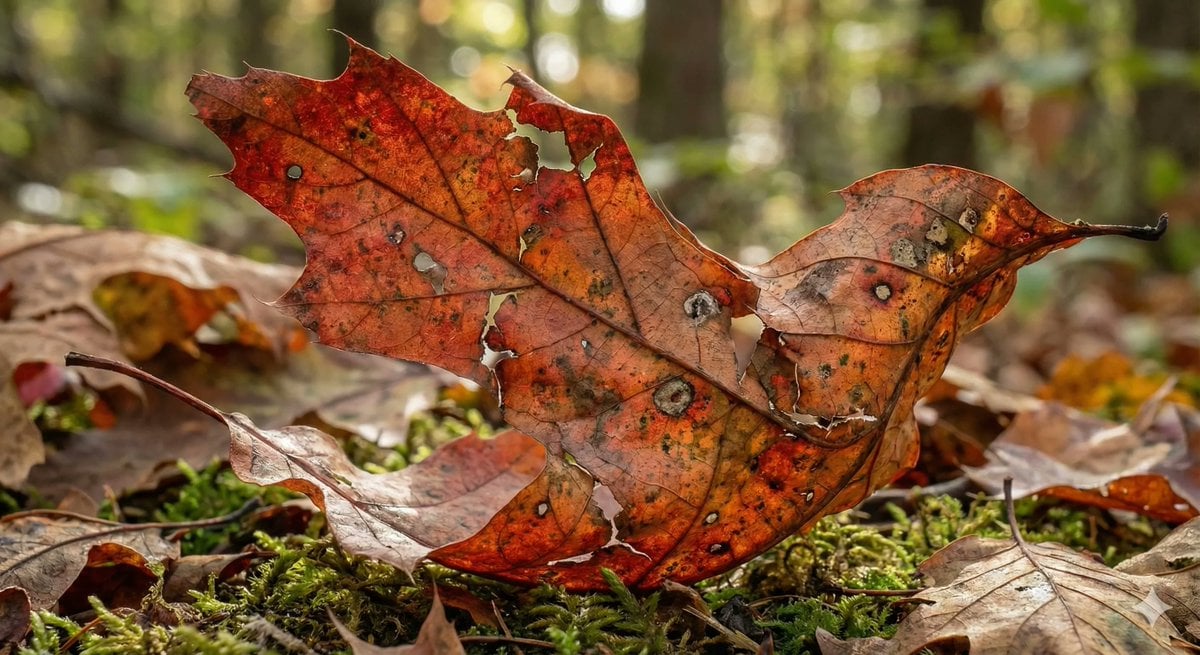
Photorealistic Leaf Shaped Like a Bird
Hand-drawn Pop Art Style Character Scene Generation
Futuristic BentoCard Floppy Ad
JSON Prompt for Cinematic Male Studio Portrait
Google Maps to Anime Panorama Conversion
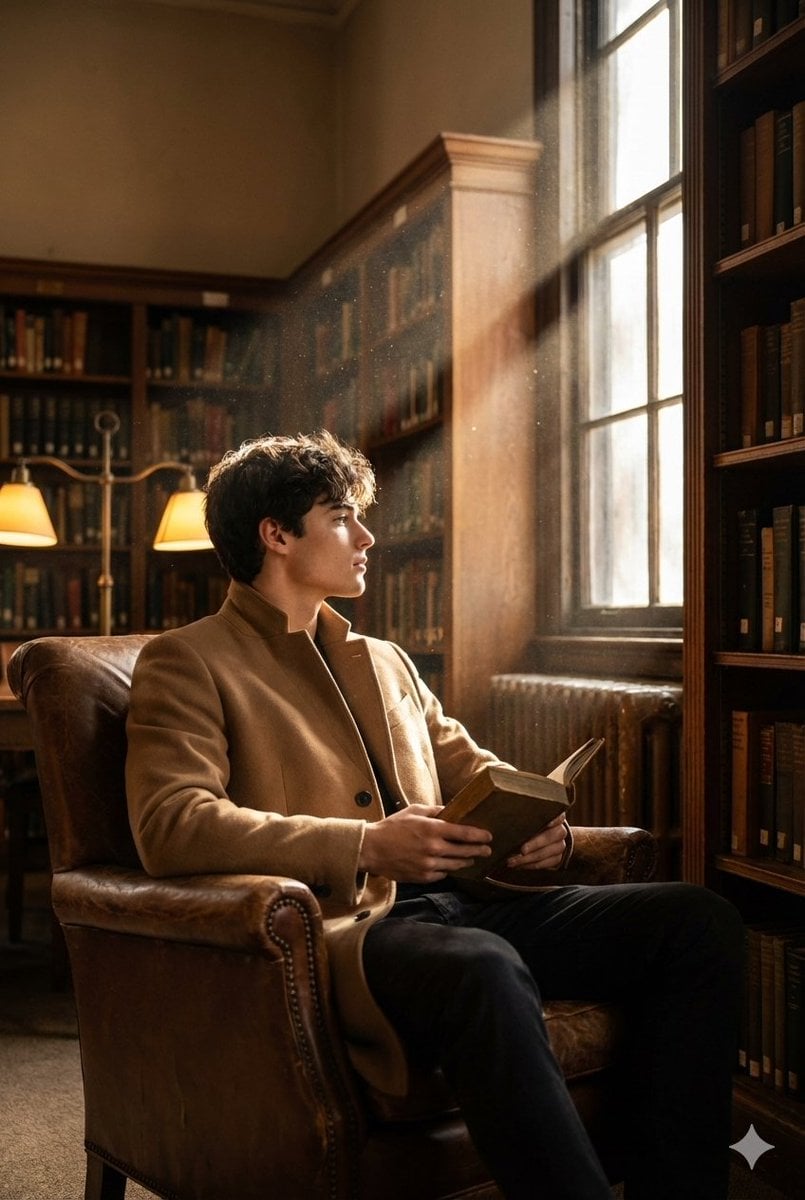
Cinematic Fashion Shot of a Man in a Library
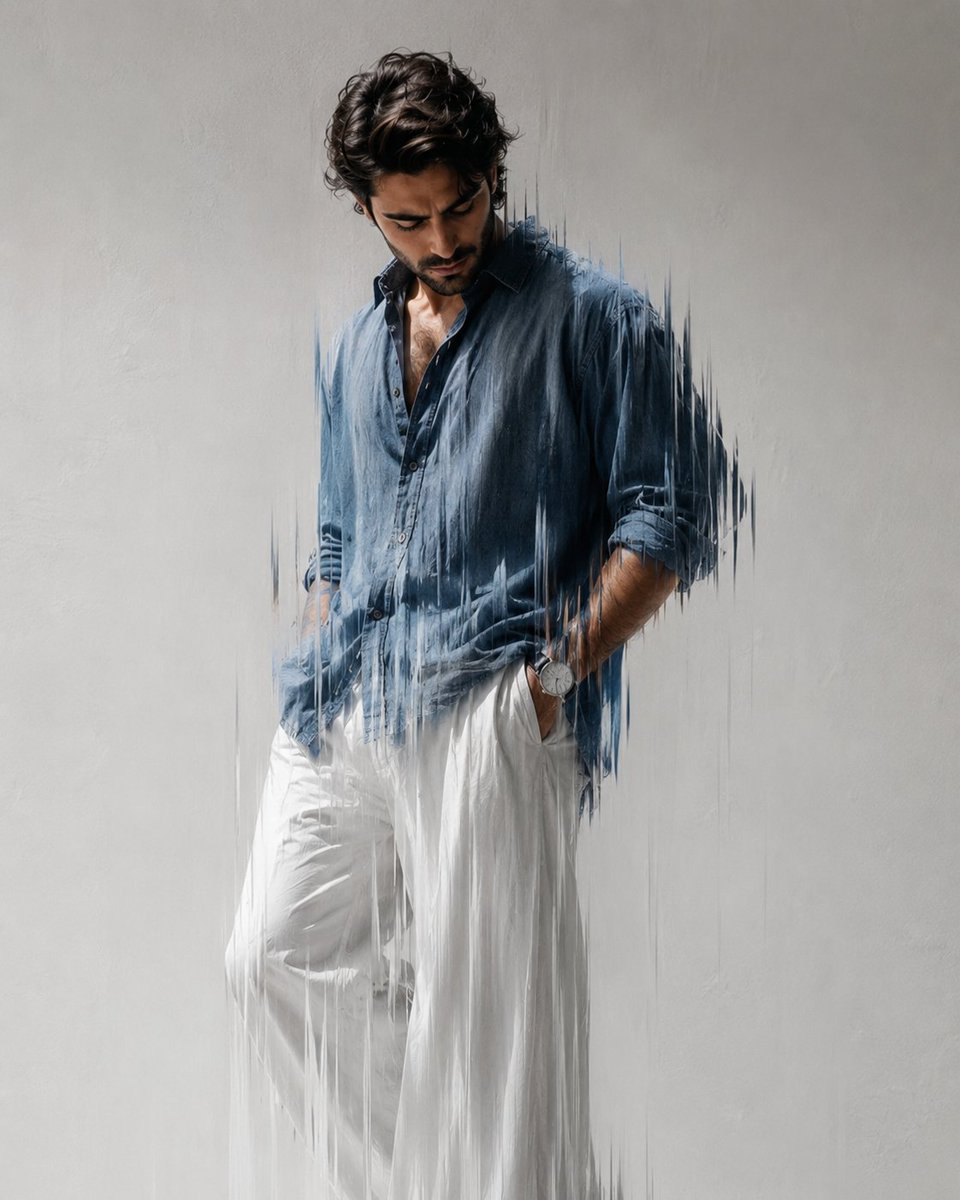
Editorial Fashion Photography with Motion Blur
Japanese Course Promotion Slide
Browse template categories
Cinematic Anime Photo Comparison questions
How do I use the Cinematic Anime Photo Comparison template?
Add your photo if the template asks for one, edit the prompt if you like — the template's model and format are already selected — and press Generate. Your version opens in PicX Studio.
Can I customize the Cinematic Anime Photo Comparison template?
Yes. You can change the subject, setting, lighting, mood, format, and available model controls before creating your image.
Is the Cinematic Anime Photo Comparison template free?
Opening and editing this template is free. Generating uses credits, shown on the Generate button when you are signed in.
Which AI model should I use?
Start with GPT Image 2, which is the model associated with this template. You can compare another compatible model for a different finish.
Looking for something else? Browse all templates.

Your photo, any look
Thousands of ready templates for every top image and video model, from one credit balance.