
Japanese Course Promotion Slide
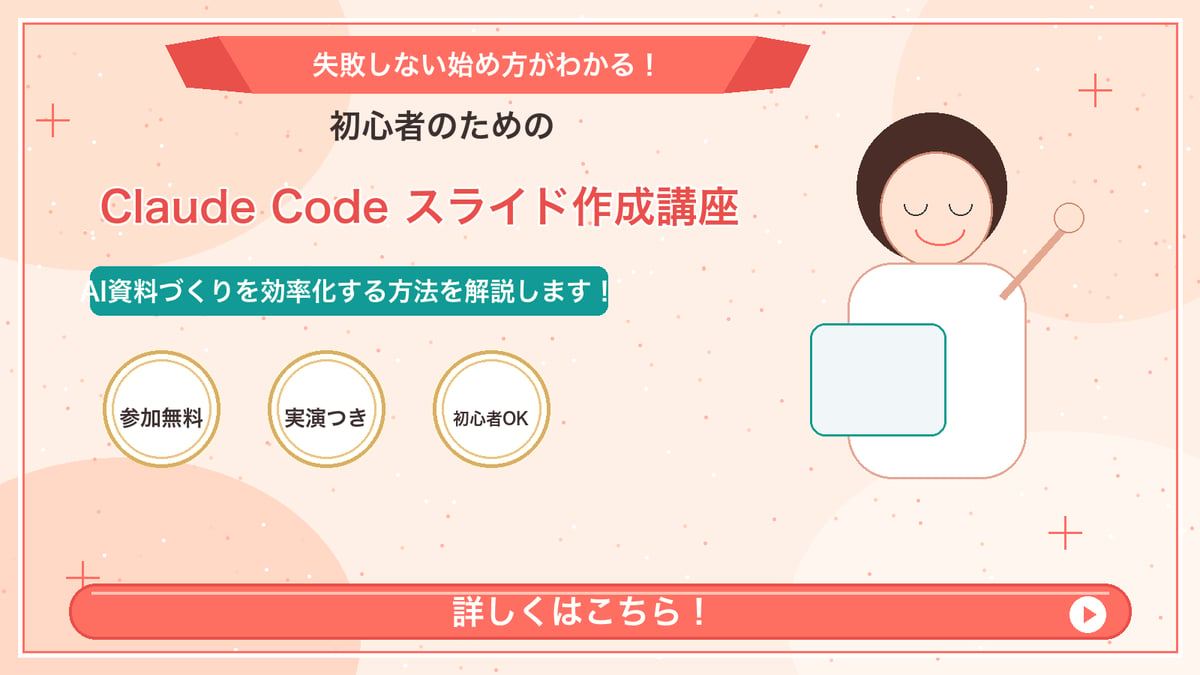
Generates a cute Japanese promotional webinar slide with headline text, badges, mascot illustration, and a bottom call-to-action bar.
- Prompt included
- Model and format preset
- Free template
The prompt behind this image
Copy the exact prompt behind Japanese Course Promotion Slide, or open it in the studio and make it yours.
Goal: Create a Japanese webinar/lesson announcement slide in a cute, simple “Marcy-style” presentation design for {argument name="course topic" default="Claude Code slide creation course"}. Canvas: 16:9 horizontal slide, 1200×675 px, warm cream-peach background with soft abstract circular blobs in pale peach and off-white. Add a thin coral-red rectangular border inset about 20 px from the edge. Layout: Center-left text-heavy composition with a simple mascot illustration on the right. At the top center, place a wide coral-red folded ribbon banner with angled darker red folded ends. Below it, stack the main headline and subheadline. Place three circular badges in a row under the subheadline. Along the bottom, add one large rounded coral-red call-to-action bar spanning almost the full width. Text content: Use Japanese text exactly as follows. Top ribbon text: {argument name="top ribbon text" default="失敗しない始め方がわかる!"}. Small centered heading below ribbon: {argument name="audience line" default="初心者のための"}. Large main title in coral-red with white outline/drop shadow: {argument name="main title" default="Claude Code スライド作成講座"}. Teal rounded label below title: {argument name="supporting line" default="AI資料づくりを効率化する方法を解説します!"}. Three badge labels, exactly 3 badges from left to right: 「参加無料」, 「実演つき」, 「初心者OK」. Bottom CTA text: 「詳しくはこちら!」 in large bold white letters. Add a white circular play button at the right end of the CTA bar with a small coral-red triangle inside. Subject details: On the right side, draw one minimalist female presenter mascot with a round face, closed eyes, simple smile, short dark-brown bob hair, peach outline, and a white body. Her right arm is raised diagonally holding a small circular pointer. In front of her torso, place one pale blue rounded rectangle laptop/tablet with teal outline. Decorative elements: Add exactly 4 thin coral plus signs: one near the upper-left edge, one near the upper-right area, one near the lower-left area above the CTA, and one near the lower-right area. Scatter many tiny coral and white dots across the background like confetti, keeping them subtle and not text-like. Visual style: Flat vector illustration, soft pastel colors, clean Japanese slide design, friendly educational seminar aesthetic. Coral red, teal, cream, gold, and dark brown palette. Use bold rounded sans-serif Japanese typography. Keep all text crisp and centered/aligned like a polished promotional slide. Constraints: Include exactly 3 circular badges, exactly 1 mascot, exactly 1 CTA bar, exactly 1 play icon, and exactly 4 plus-sign decorations. Do not add logos, watermarks, extra characters, extra badges, QR codes, or additional text.
How to use Japanese Course Promotion Slide in 3 steps
- 1Upload ImagePNG, JPG or paste
Add your photo
Upload the photo the template builds on. The prompt, model and format are already set.
- 2…a portrait of your subject in softgolden-hour light, 85mm…
Personalize
Edit the subject and creative details for your destination.
- 3Generate
Generate
Press Generate — your image is created in PicX Studio, so you can compare it with the original and refine one variable at a time.
More like this
Templates with the same subject, style or setup. Open one to see its prompt.
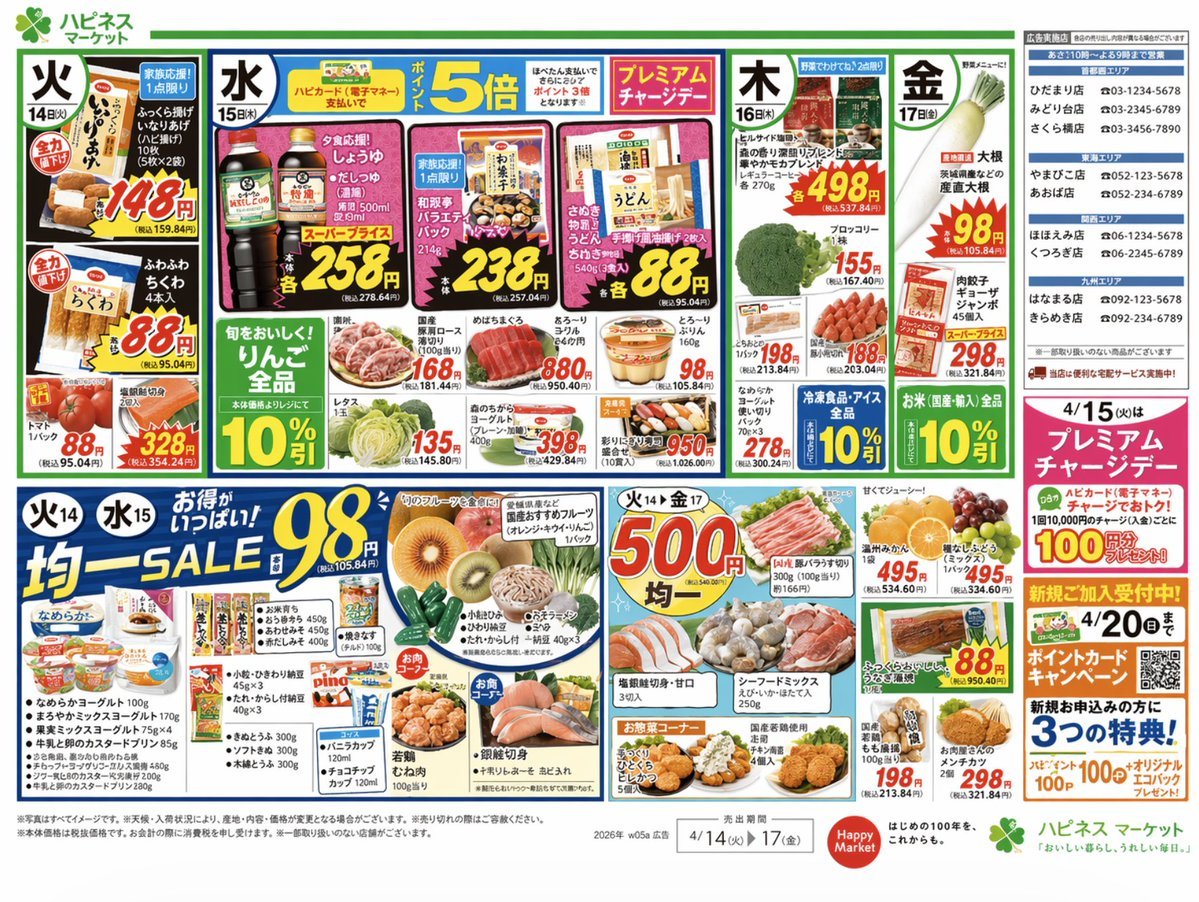
Japanese Supermarket Promotional Flyer

Web Design Course Promotional Banner

Minecraft Japanese Research Lab Exploration

Japanese Corporate Price Index Slide
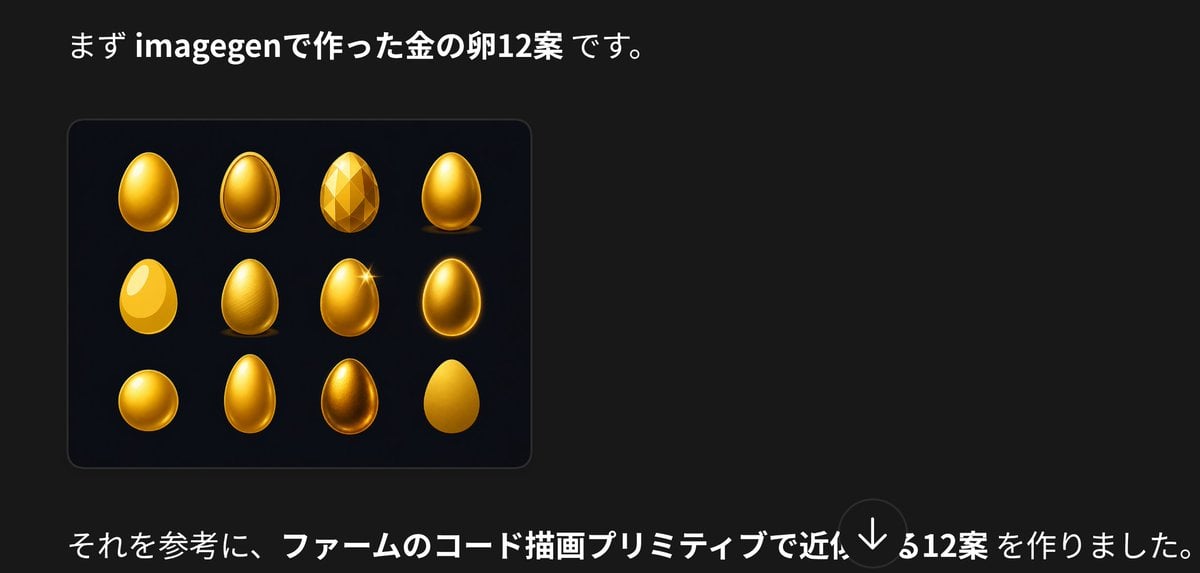
Japanese Golden Egg Design Slide

Japanese Architectural Concrete Studio Fashion Campaign

Japanese Minimalist Concrete Studio Fashion Editorial

Blue Backdrop Luxury Fashion Portrait Campaign
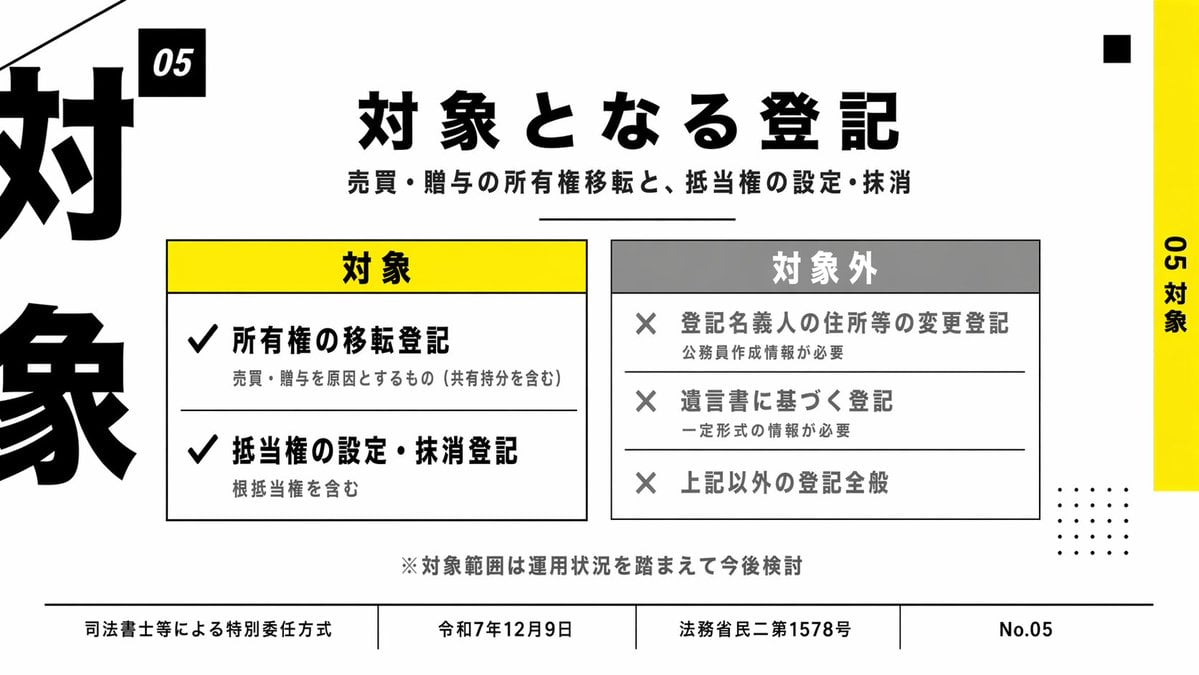
Japanese Corporate Scope Slide

Japanese AI Case Study Slide
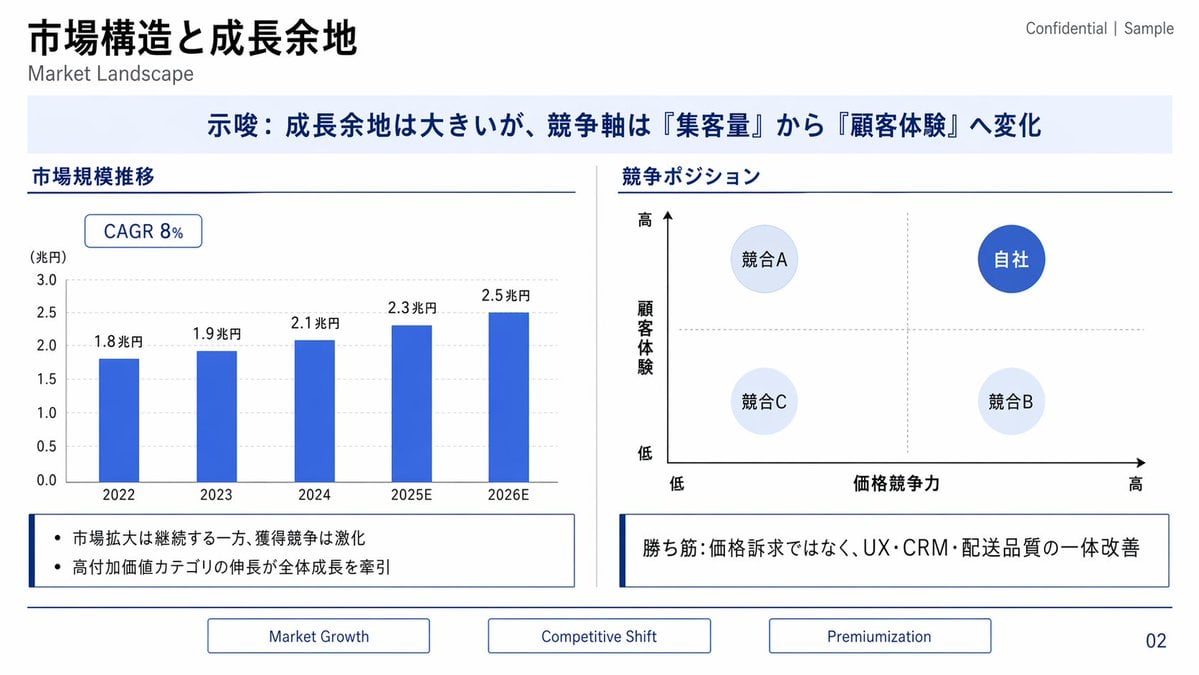
Japanese Market Landscape Slide

Japanese Udemy Course Sale Thumbnail
Make it yours
Japanese Course Promotion Slide works as-is. These are the safest ways to change it without losing the look.
Change one field
Copy a single group, rewrite it, and generate again so you can see what that field is doing.
Keep the frame, change the subject
Hold the composition and light of Japanese Course Promotion Slide, then swap wardrobe, props or the person for a new take.
| If the result… | Why | Fix |
|---|---|---|
| The result drifts from the preview | Too many fields changed at once. | Reuse Japanese Course Promotion Slide as-is first, then change one group — subject, light, or setting. |
| The model over-stylizes the scene | The prose prompt leaves finish and camera underspecified. | Add one camera or lighting sentence and stay on GPT Image 2. |
More GPT Image 2 templates
Other prompts made for GPT Image 2.

Realistic Portrait of Woman and Deer

The Vista Modular Condo Poster

AI Model Routing Comparison Infographic

2.5D Anime Art Board

Isometric Productivity Desk Scene

New York Double Exposure Poster

Four-Panel AI Landscape Comparison

NESCAFÉ Coffee Map Poster

Brutalist Cogito Chinese Typography Poster

Cinematic Luxury Terrace Portrait
More image prompts
Fresh picks from across the catalog.

Macro Portrait with Organic Melancholy Aesthetic (JSON Format)

Cinematic Night Portrait on Urban Stairs

Human Organ Health Infographic
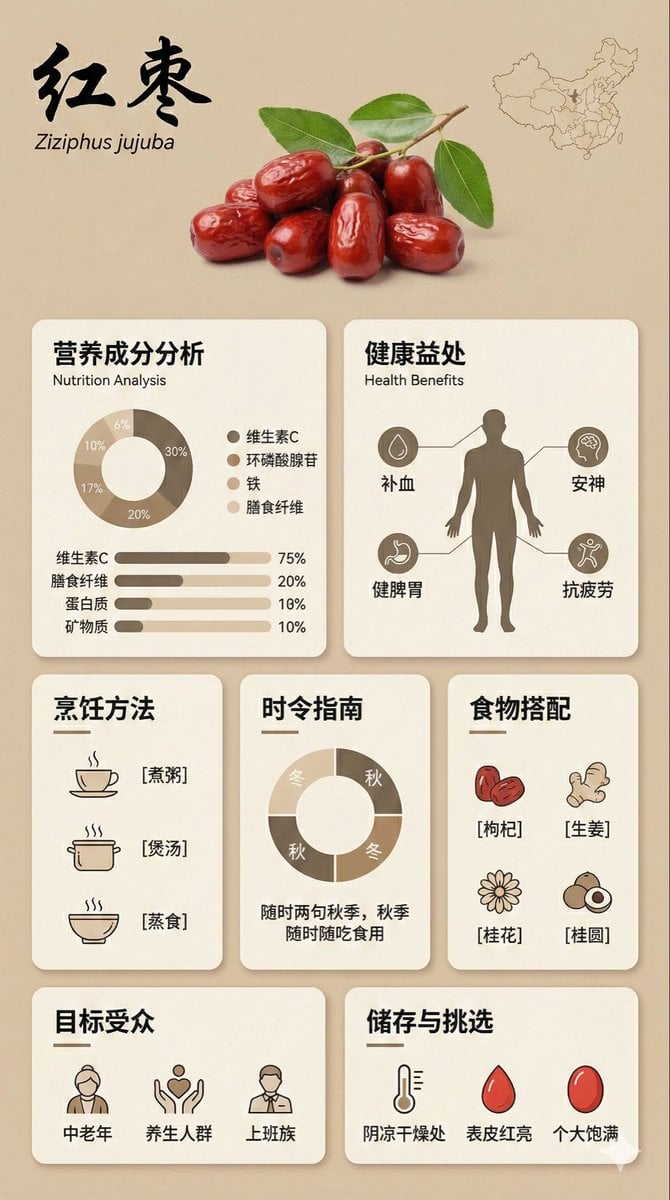
Bento Grid Infographic Prompt for Food Science

Caravaggio-style Moral Painting of Cheating at Mahjong
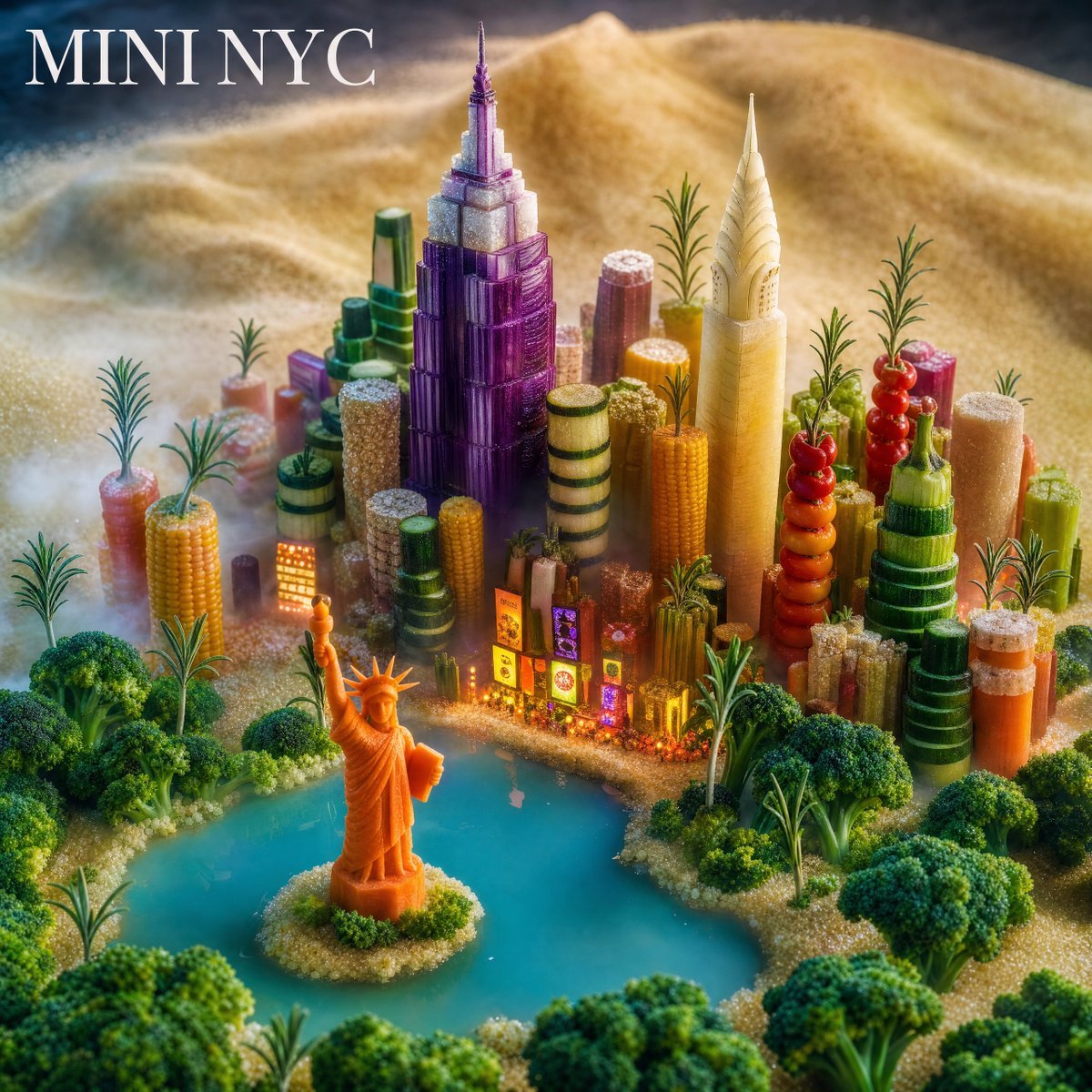
Mini NYC Food Landscape
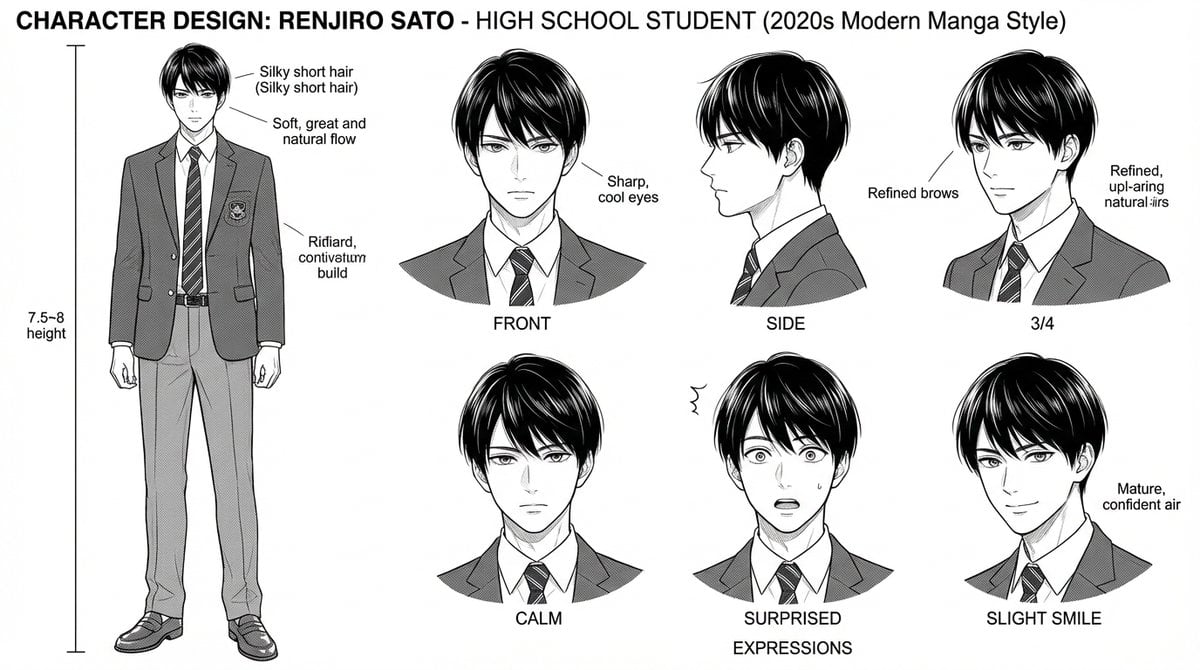
Dynamic Manga Page Layout Prompt

Censored Tokyo Rooftop Night Portrait

Photorealistic Neon Tokyo Street Scene

3D Tom and Jerry Wallpaper with Businesswoman Ad
Browse template categories
Japanese Course Promotion Slide questions
How do I use the Japanese Course Promotion Slide template?
Add your photo if the template asks for one, edit the prompt if you like — the template's model and format are already selected — and press Generate. Your version opens in PicX Studio.
Can I customize the Japanese Course Promotion Slide template?
Yes. You can change the subject, setting, lighting, mood, format, and available model controls before creating your image.
Is the Japanese Course Promotion Slide template free?
Opening and editing this template is free. Generating uses credits, shown on the Generate button when you are signed in.
Which AI model should I use?
Start with GPT Image 2, which is the model associated with this template. You can compare another compatible model for a different finish.
Looking for something else? Browse all templates.

Your photo, any look
Thousands of ready templates for every top image and video model, from one credit balance.