
Brand Merch Showroom Photography
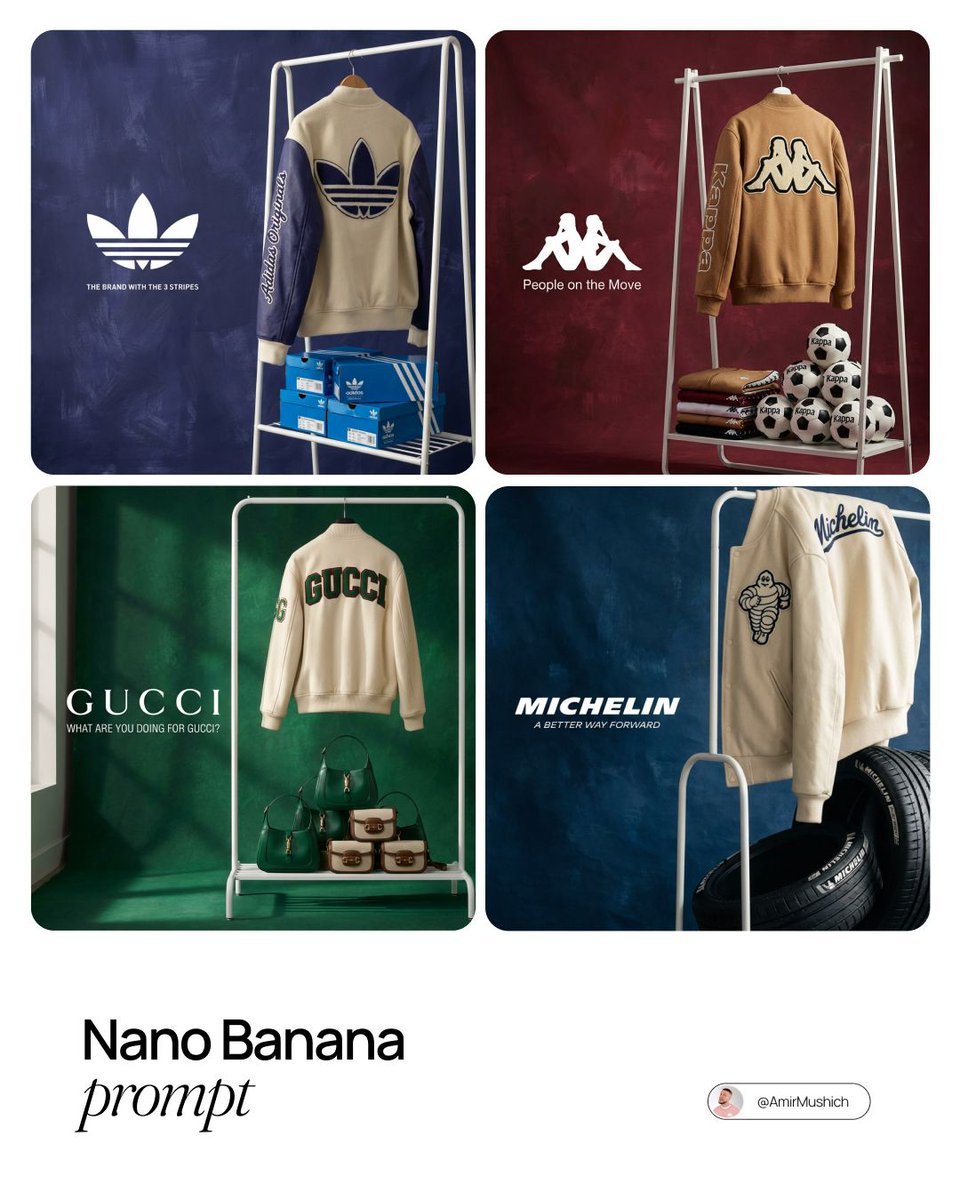
A professional showroom setup prompt for a streetwear brand merch drop, featuring clothing racks and studio photography details.
- Prompt included
- Model and format preset
- Premium template
The prompt behind this image
Copy the exact prompt behind Brand Merch Showroom Photography, or open it in the studio and make it yours.
{argument name="brand name" default="[BRAND NAME]"}. Act as the creative director and still life photographer for a hypebeast fashion magazine. TASK: Create a premium showroom still life photograph for a limited merchandise drop by {argument name="brand name" default="[BRAND NAME]"}. PHASE 1: AUTONOMOUS BRAND CURATION Analyze {argument name="brand name" default="[BRAND NAME]"} and identify its industry, visual identity, and most recognizable physical product. For example, Spalding means basketballs, McDonald's means burger boxes, Visa means metal cards, Michelin means tires, Kappa means soccer balls or apparel. Build the visual palette from the brand: Background color: choose a deep, rich, textured studio color from the brand's secondary palette, such as navy, burgundy, teal, forest green, slate grey, or dark blue. Merch color: choose a warm or neutral contrasting tone, such as cream, camel, orange, tan, or off-white, so the apparel pops against the backdrop. Merch item: select a high-quality apparel piece that fits the brand's culture, such as a varsity letterman jacket, heavyweight hoodie, wool scarf, canvas tote, or premium sweatshirt. PHASE 2: SET DESIGN, THE DISPLAY RACK Use a simple modern white powder-coated metal rack or shelf unit as the main prop. It should stand cleanly in the frame and feel like a curated studio showroom display. Arrange the scene like this: Hanging item: place the chosen merch item on the rack or drape it casually over a hanger. Show clear tactile material detail, such as wool, felt, fleece, leather, embroidery, ribbed cuffs, or heavy cotton. Stacked products: place multiple units of the brand's core physical product on the shelves or floor around the rack. Use stacks, pyramids, rows, or clean retail-style groupings depending on the product type. Backdrop: use a hand-painted canvas backdrop in the selected deep background color. Make the brush texture, subtle uneven paint, and studio surface visible. PHASE 3: PHYSICAL BRANDING AND TEXTURE On the merch, add premium physical branding for {argument name="brand name" default="[BRAND NAME]"}. Use chenille patches, embroidered logos, stitched sleeve lettering, applique graphics, or high-quality screen print. The apparel must look like a real expensive garment from a limited drop. On the products, make the {argument name="brand name" default="[BRAND NAME]"} logo visible and correctly integrated on the stacked core items. The products should feel real, not like generic placeholders. PHASE 4: PHOTOGRAPHY AND LIGHTING Shoot it as a high-end editorial still life photograph. Lighting: soft directional window light from the side, with natural realistic shadows on the rack and rich highlights across fabric, packaging, and product textures. Lens: 50mm or 85mm editorial product photography look. Keep the merch sharp and let the background fall off slightly. Composition: refined, minimal, balanced, with enough negative space on the left for logo and slogan text.
How to use Brand Merch Showroom Photography in 3 steps
- 1
Open
The prompt is already in the box next to the preview, with the template's model and format selected.
- 2…a portrait of your subject in softgolden-hour light, 85mm…
Personalize
Edit the subject and creative details for your destination.
- 3Generate
Generate
Press Generate — your image is created in PicX Studio, so you can compare it with the original and refine one variable at a time.
More like this
Templates with the same subject, style or setup. Open one to see its prompt.
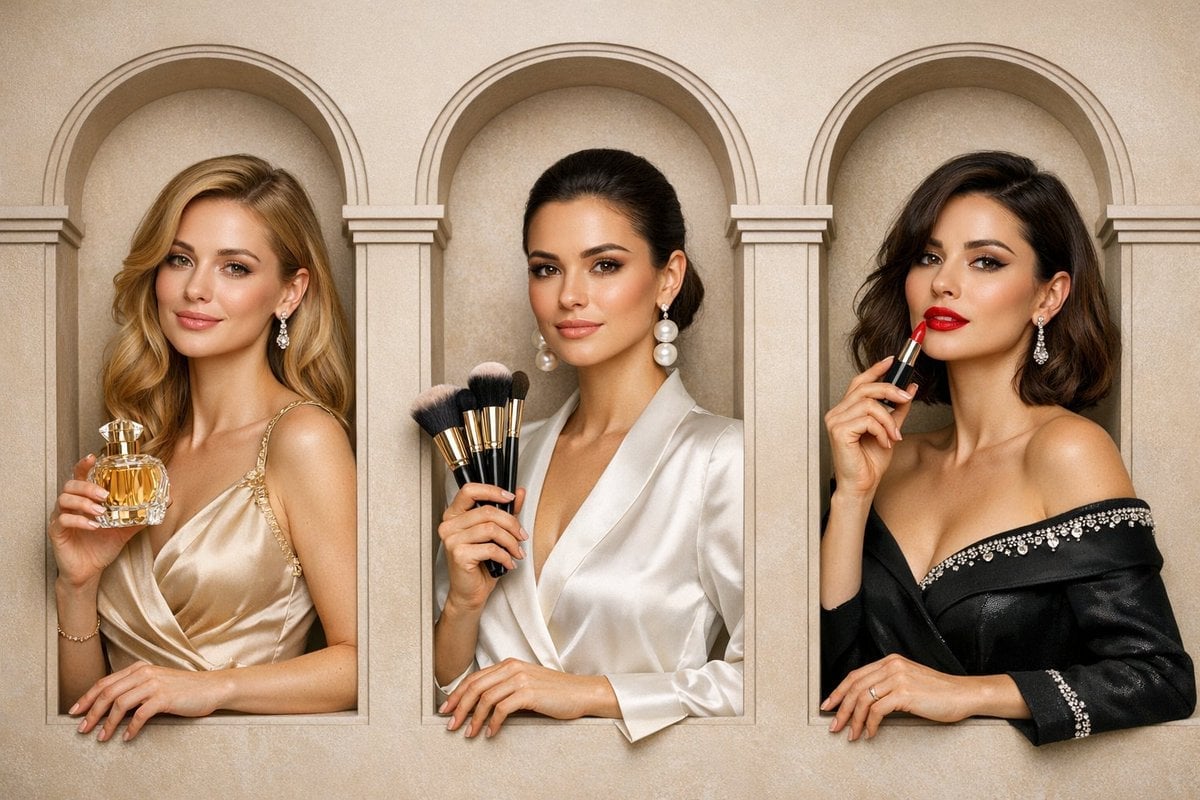
A luxury brand advertisement featuring three stylish arranged
Mirror Selfie Chibi Characters Pixar Style
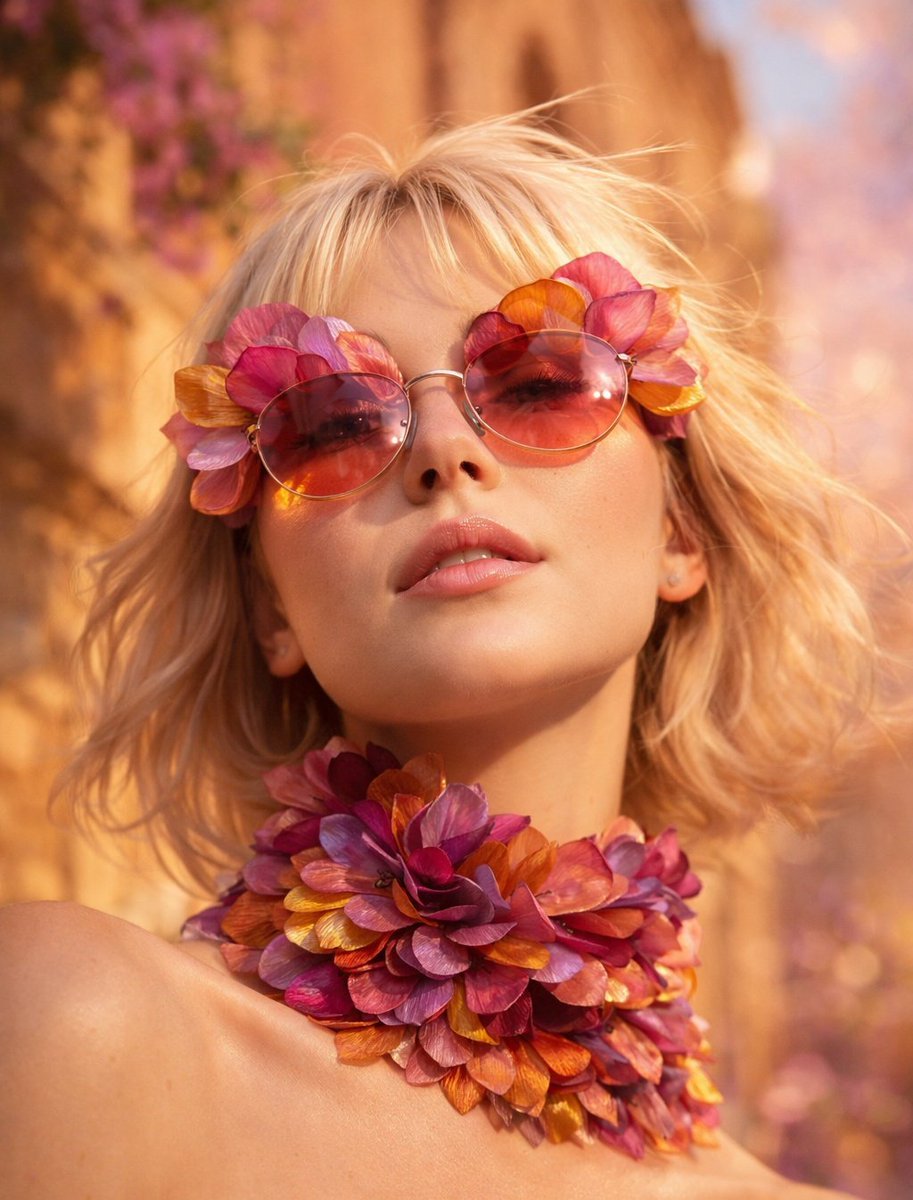
Flower Petal Sunglasses Couture Portrait

Fashion Portrait Colored Smoke Studio
Mountain Valley Lifestyle Portrait
青蛇小青写真大片,绿色紧身蛇鳞裙,湿发红唇,妖娆妩媚
A double exposure, long exposure editorial photograph of a man Use image

Portrait of a young woman in her early 20s walking calmly on a beautiful
Artistic portrait of an elegant Asian woman wearing a black silk
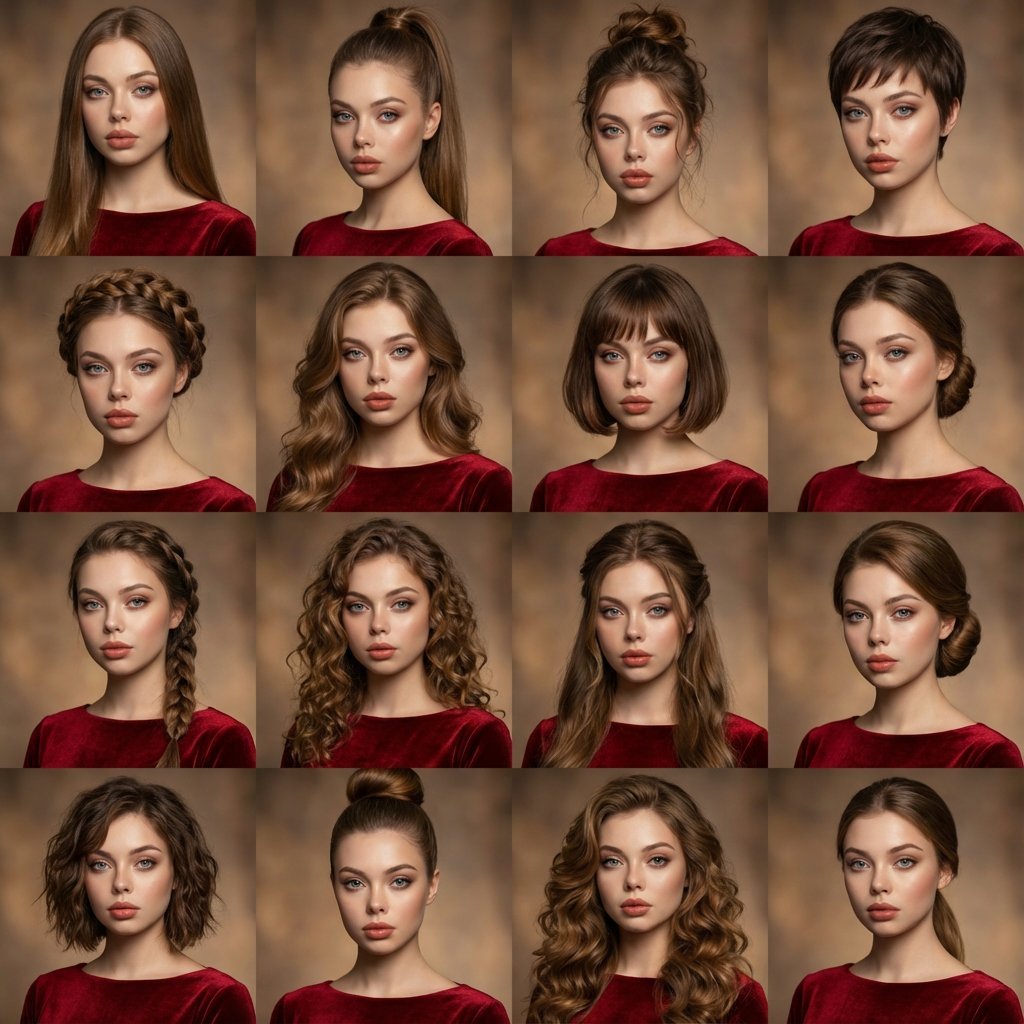
A high-quality photo collage featuring the same person with identical
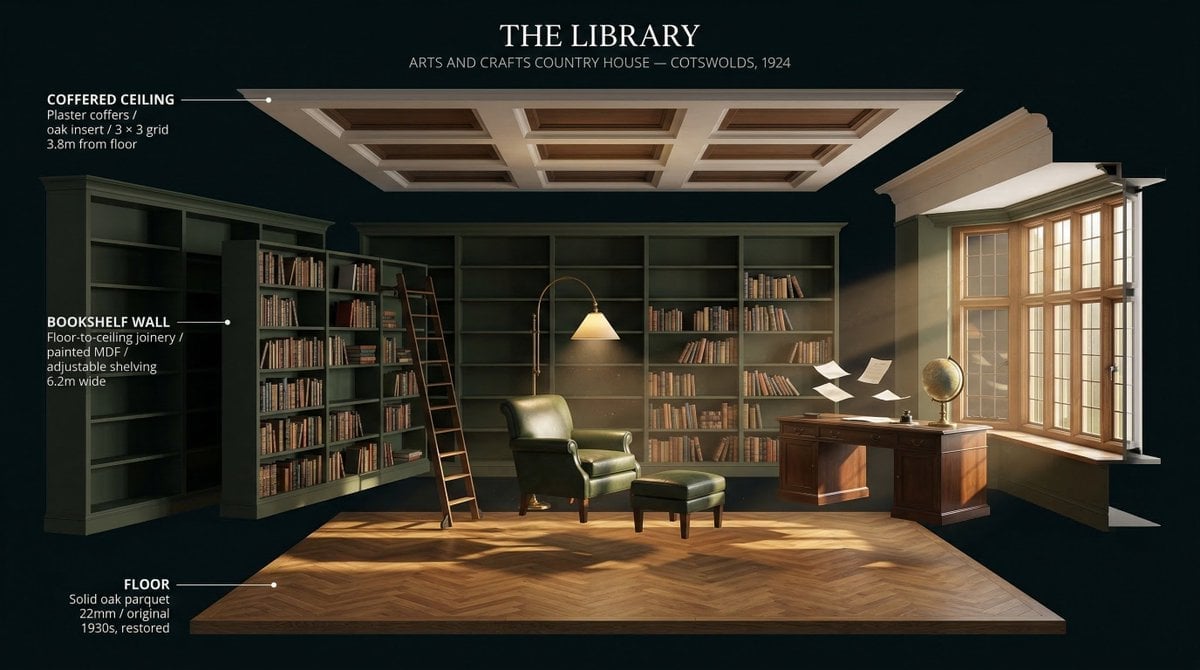
LIGHTING each element still lit by its original source, windows casting
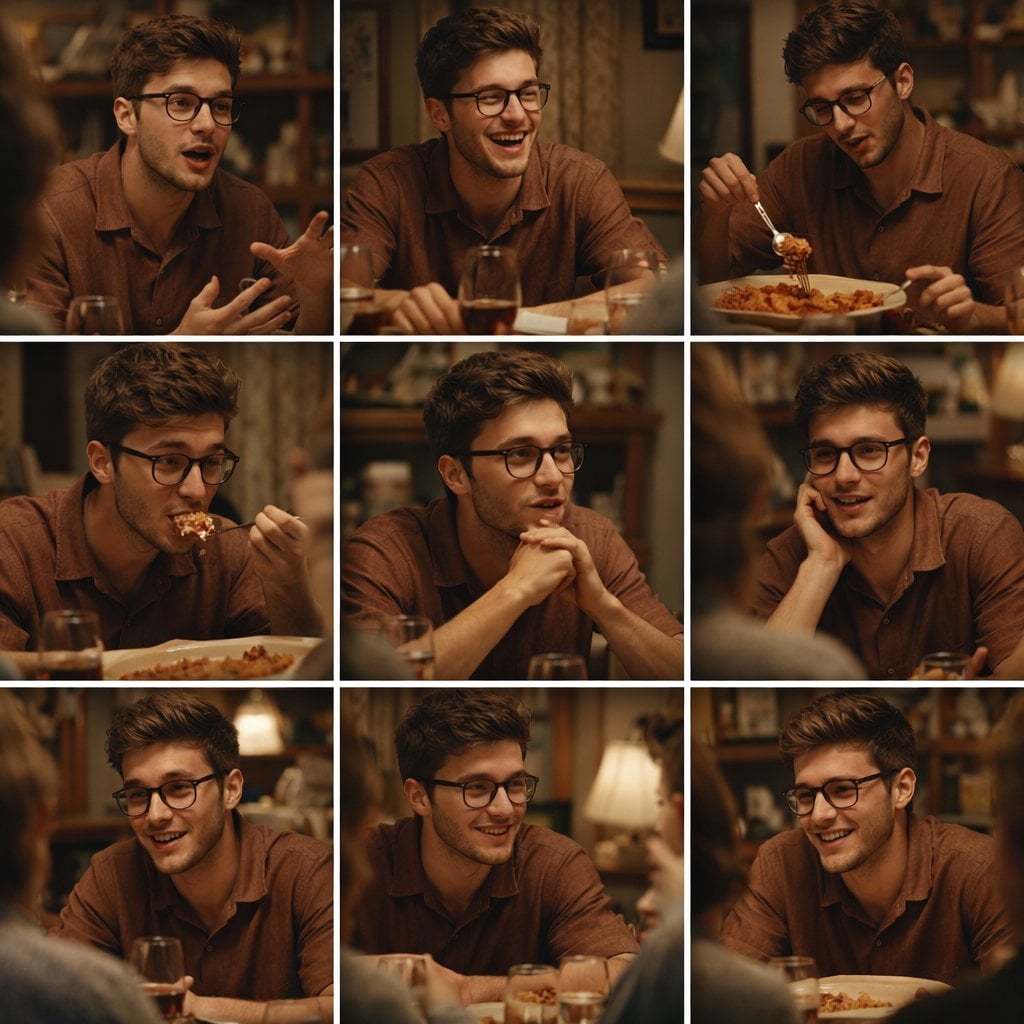
A 3x3 grid storyboard contact sheet comprised of nine candid, cinematic
Make it yours
Brand Merch Showroom Photography works as-is. These are the safest ways to change it without losing the look.
Change one field
Copy a single group, rewrite it, and generate again so you can see what that field is doing.
Keep the frame, change the subject
Hold the composition and light of Brand Merch Showroom Photography, then swap wardrobe, props or the person for a new take.
| If the result… | Why | Fix |
|---|---|---|
| The result drifts from the preview | Too many fields changed at once. | Reuse Brand Merch Showroom Photography as-is first, then change one group — subject, light, or setting. |
| The model over-stylizes the scene | The prose prompt leaves finish and camera underspecified. | Add one camera or lighting sentence and stay on GPT Image 2. |
More GPT Image 2 templates
Other prompts made for GPT Image 2.

Six VTuber Japanese Logo Sheet

Realistic Portrait of Woman and Deer

The Vista Modular Condo Poster

AI Model Routing Comparison Infographic

2.5D Anime Art Board

Isometric Productivity Desk Scene

New York Double Exposure Poster

Four-Panel AI Landscape Comparison

Japanese Tatami Lifestyle Magazine Cover

NESCAFÉ Coffee Map Poster
More image prompts
Fresh picks from across the catalog.

Overlay Image with Conspiracy Scribbles
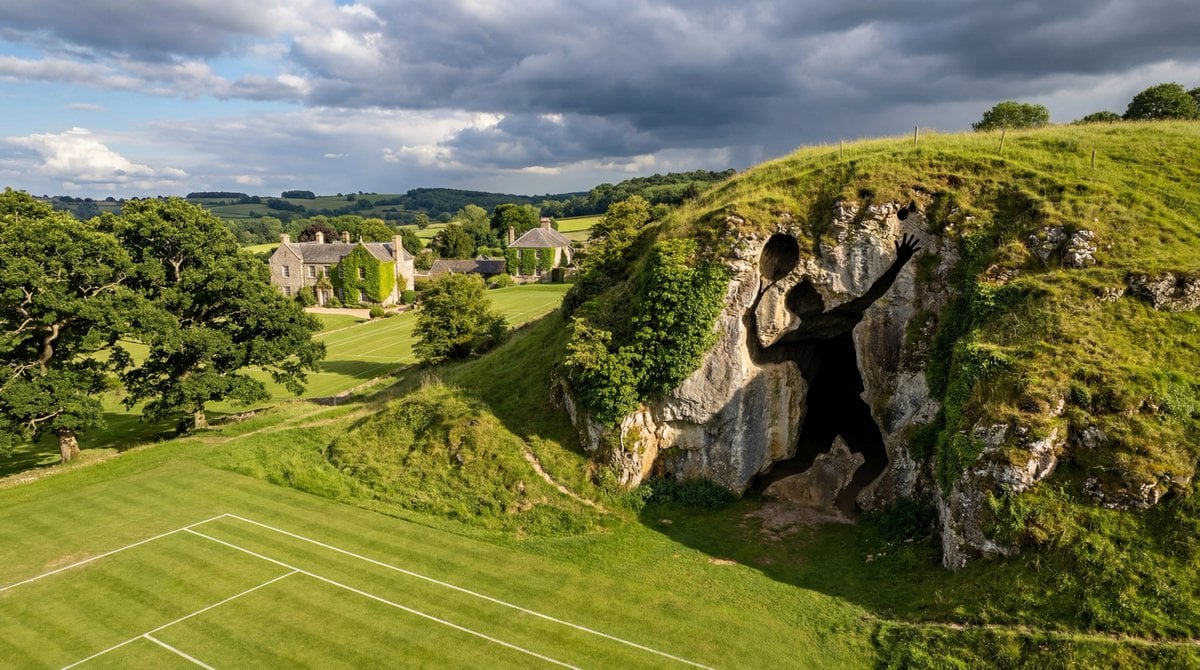
Generic Prompt for Shape-Shaped Cave Entrance
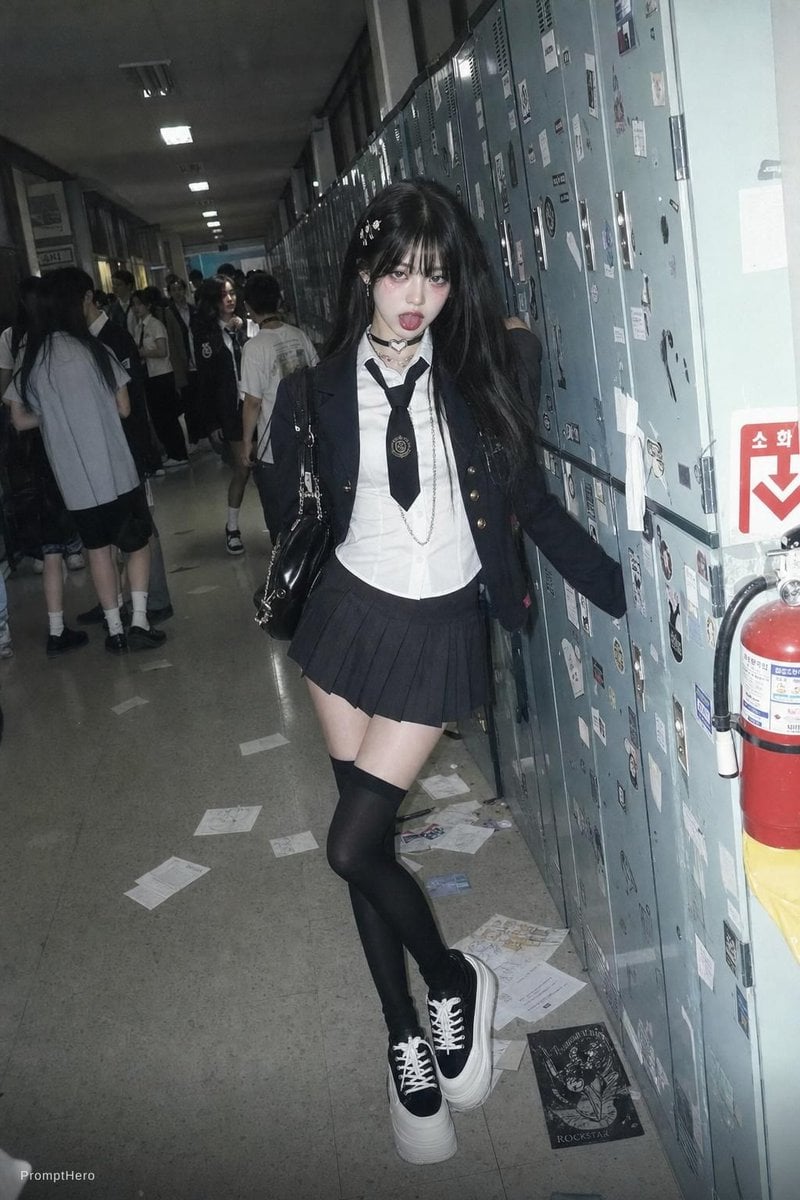
Flash Photo School Hallway Uniform
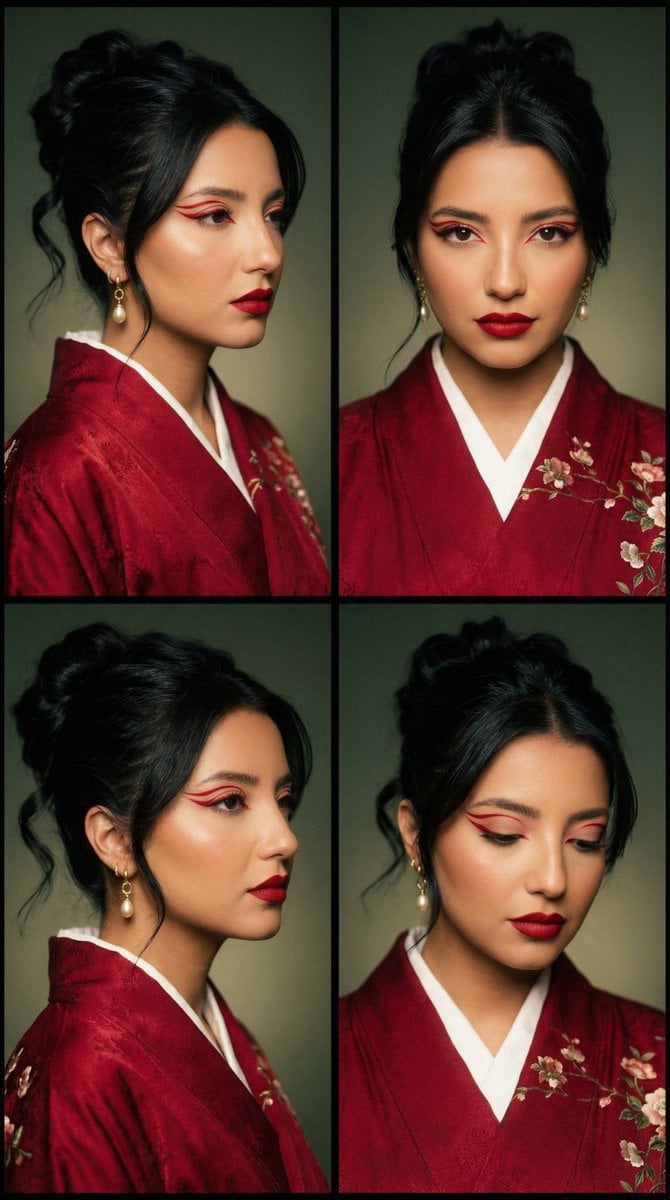
Cinematic Fashion Editorial Grid: Red Kimono & Graphic Liner
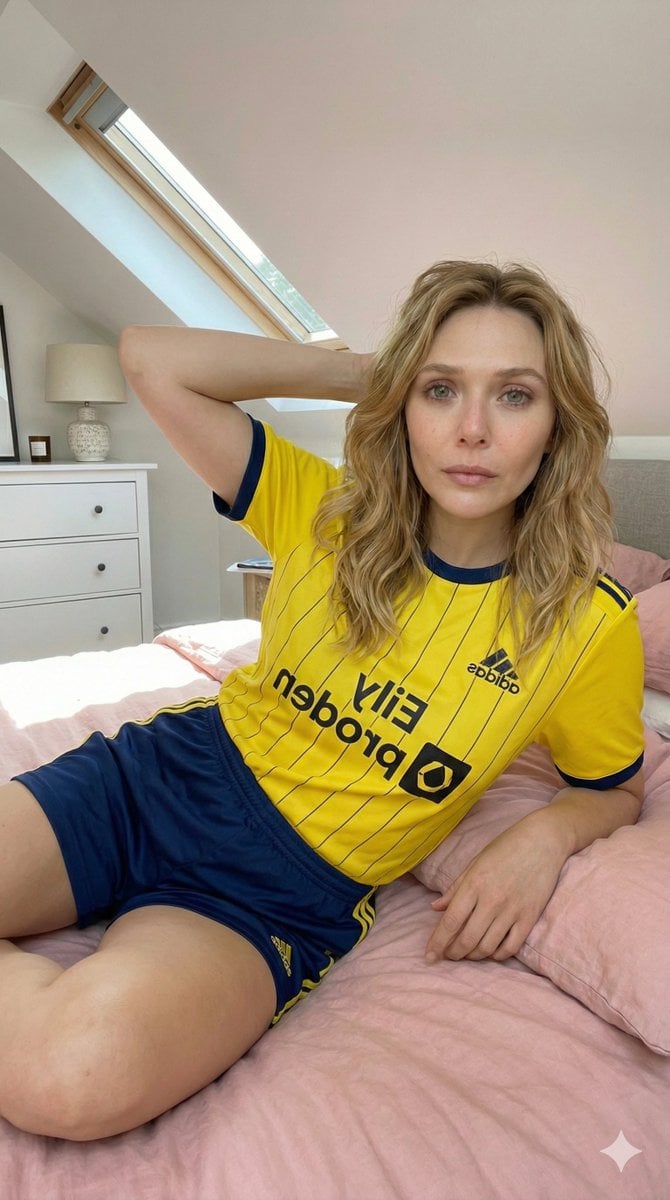
Photorealistic Selfie in Full Soccer Kit in Attic Bedroom
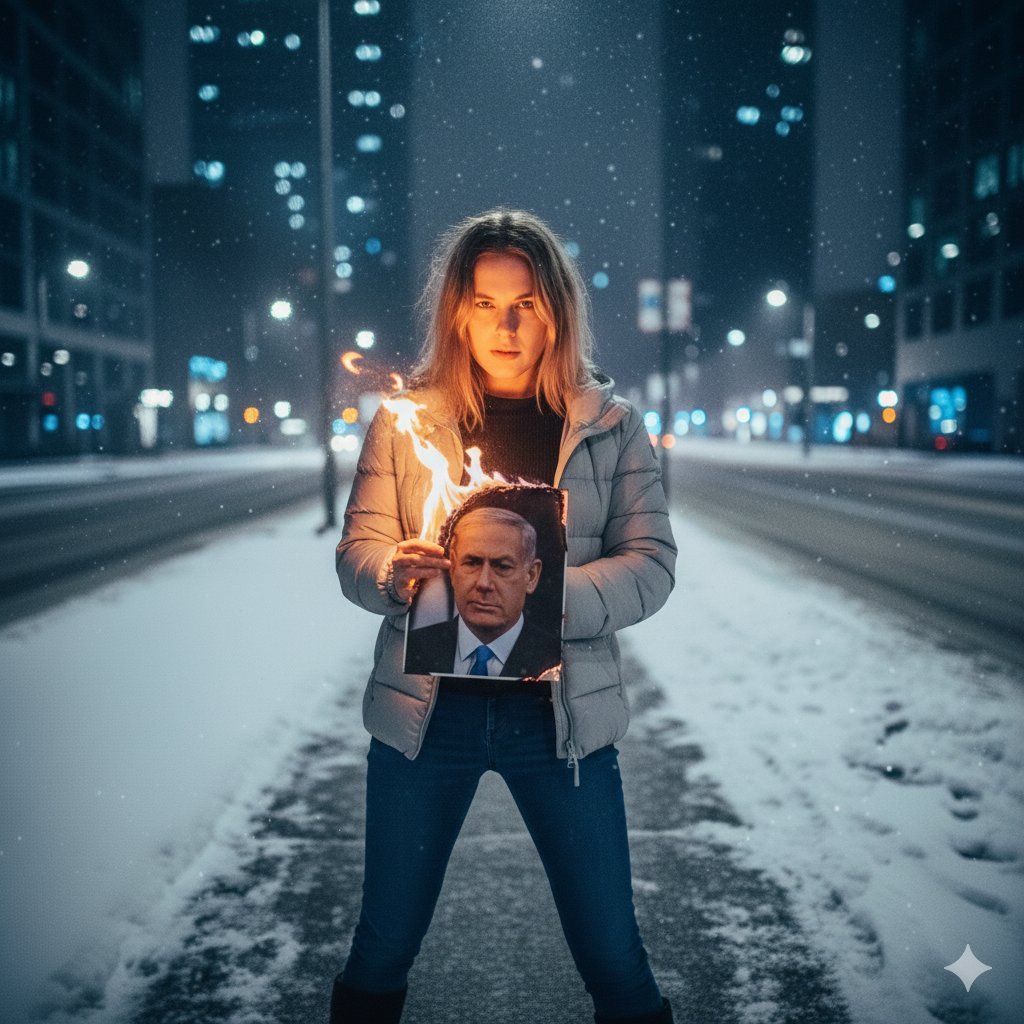
Symbolic Act of Defiance in the Snow
Unrestricted Photo Restoration Parody

Chibi Witch Owl Figurine
Elite Masculine Fashion Portrait
Cinematic short film prompt for image and video generation
Browse template categories
Brand Merch Showroom Photography questions
How do I use the Brand Merch Showroom Photography template?
Add your photo if the template asks for one, edit the prompt if you like — the template's model and format are already selected — and press Generate. Your version opens in PicX Studio.
Can I customize the Brand Merch Showroom Photography template?
Yes. You can change the subject, setting, lighting, mood, format, and available model controls before creating your image.
Is the Brand Merch Showroom Photography template free?
Opening and editing this template is free. Generating uses credits, shown on the Generate button when you are signed in.
Which AI model should I use?
Start with GPT Image 2, which is the model associated with this template. You can compare another compatible model for a different finish.
Looking for something else? Browse all templates.

Your photo, any look
Thousands of ready templates for every top image and video model, from one credit balance.