
Unified Illustration and Logo Collage
A professional-grade prompt for GPT Image 2 designed to blend four separate illustrations with a central logo into a single, cohesive composition.
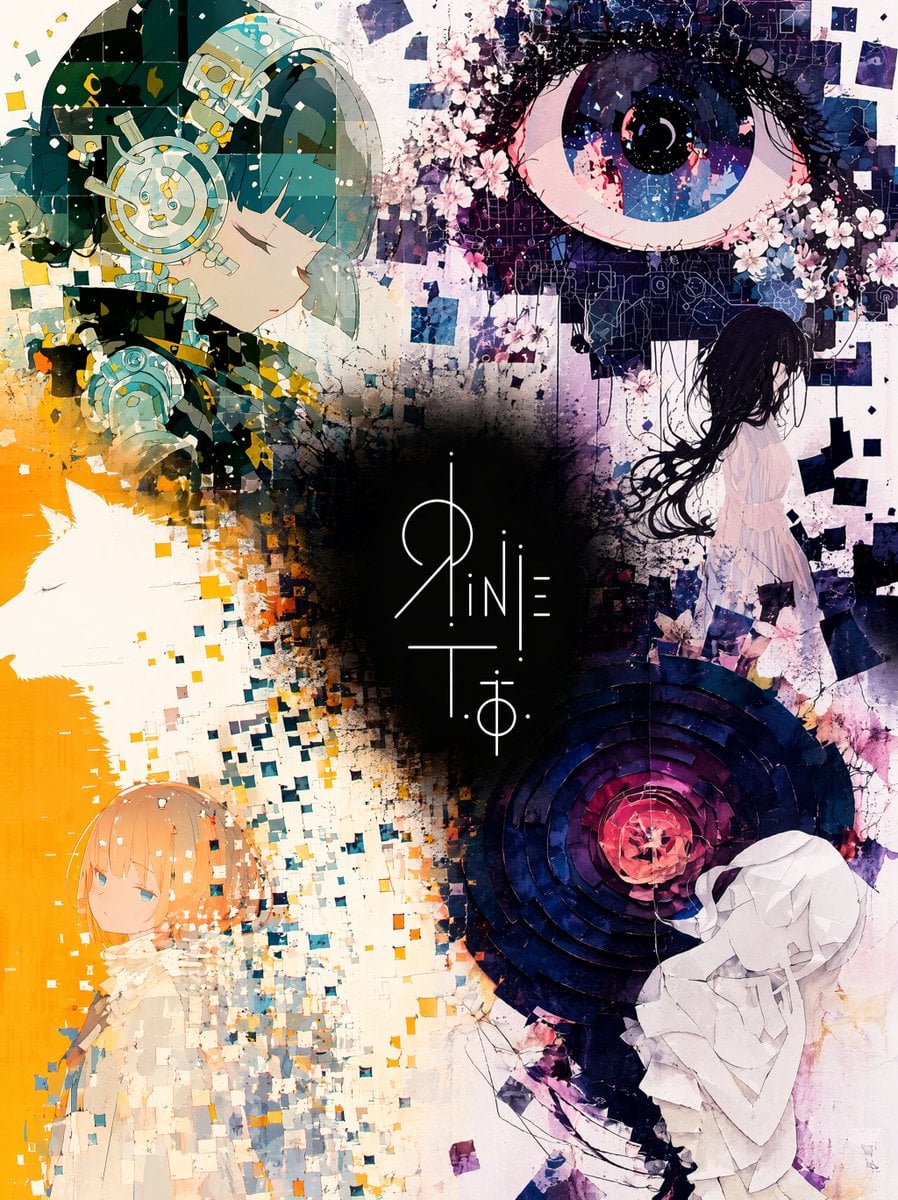
- Prompt included
- Model and format preset
- Premium template
The prompt behind this image
Copy the exact prompt behind Unified Illustration and Logo Collage, or open it in the studio and make it yours.
Five images are attached. Images 1–4 are illustrations by the same artist. Image 5 is a logo design on a {argument name="logo background" default="black"} background. Merge the four illustrations into a single unified composition, with the logo from Image 5 placed at the {argument name="logo position" default="visual center"} as the anchor element. [Fusion Rules] - Each illustration appears as a partial glimpse — show faces and key elements only, not full compositions - Blend the boundaries between illustrations naturally — no hard edges or visible seams - Each illustration remains recognizable but flows into the next - Generous negative space between elements — let the composition breathe - The result should feel elegant, curated, and intentional — not busy or cluttered [Composition] - The logo occupies the center of the frame as the dominant focal point - The four illustrations are distributed around the logo with natural visual balance - No grid layout — the arrangement should feel painterly and intentional - Clean, minimal background between the illustrations to create breathing room [Color & Brightness] - The illustrations surrounding the logo must be vivid and fully saturated - Boost the brightness and chromatic richness of all illustration areas outside the logo zone - Colors should feel alive, warm, and luminous — not muted or dark - The contrast between the dark logo zone and the bright surrounding illustrations is intentional and dramatic [Logo Integration] - Reproduce the exact logo design from Image 5 - Place it at the center of the composition, large and prominent - The logo should feel embedded in the artwork — not floating on top - Create a subtle dark void or negative space directly behind the logo - The dark zone is strictly limited to the immediate area behind the logo — it must not bleed into the surrounding illustrations [Style Preservation] - Maintain the original art style of the source illustrations exactly - Do not introduce new elements, characters, or backgrounds not present in the originals - Preserve the color palette and line quality of the source images
How to use Unified Illustration and Logo Collage in 3 steps
- 1Upload ImagePNG, JPG or paste
Add your photo
Upload the photo the template builds on. The prompt, model and format are already set.
- 2…a portrait of your subject in softgolden-hour light, 85mm…
Personalize
Edit the subject and creative details for your destination.
- 3Generate
Generate
Press Generate — your image is created in PicX Studio, so you can compare it with the original and refine one variable at a time.
More like this
Templates with the same subject, style or setup. Open one to see its prompt.
Make it yours
Unified Illustration and Logo Collage works as-is. These are the safest ways to change it without losing the look.
Change one field
Copy a single group, rewrite it, and generate again so you can see what that field is doing.
Keep the frame, change the subject
Hold the composition and light of Unified Illustration and Logo Collage, then swap wardrobe, props or the person for a new take.
| If the result… | Why | Fix |
|---|---|---|
| The result drifts from the preview | Too many fields changed at once. | Reuse Unified Illustration and Logo Collage as-is first, then change one group — subject, light, or setting. |
| The model over-stylizes the scene | The prose prompt leaves finish and camera underspecified. | Add one camera or lighting sentence and stay on GPT Image 2. |
More GPT Image 2 templates
Other prompts made for GPT Image 2.

Six VTuber Japanese Logo Sheet

Realistic Portrait of Woman and Deer

The Vista Modular Condo Poster

AI Model Routing Comparison Infographic

2.5D Anime Art Board

Isometric Productivity Desk Scene

New York Double Exposure Poster

Four-Panel AI Landscape Comparison

Japanese Tatami Lifestyle Magazine Cover

NESCAFÉ Coffee Map Poster
More image prompts
Fresh picks from across the catalog.
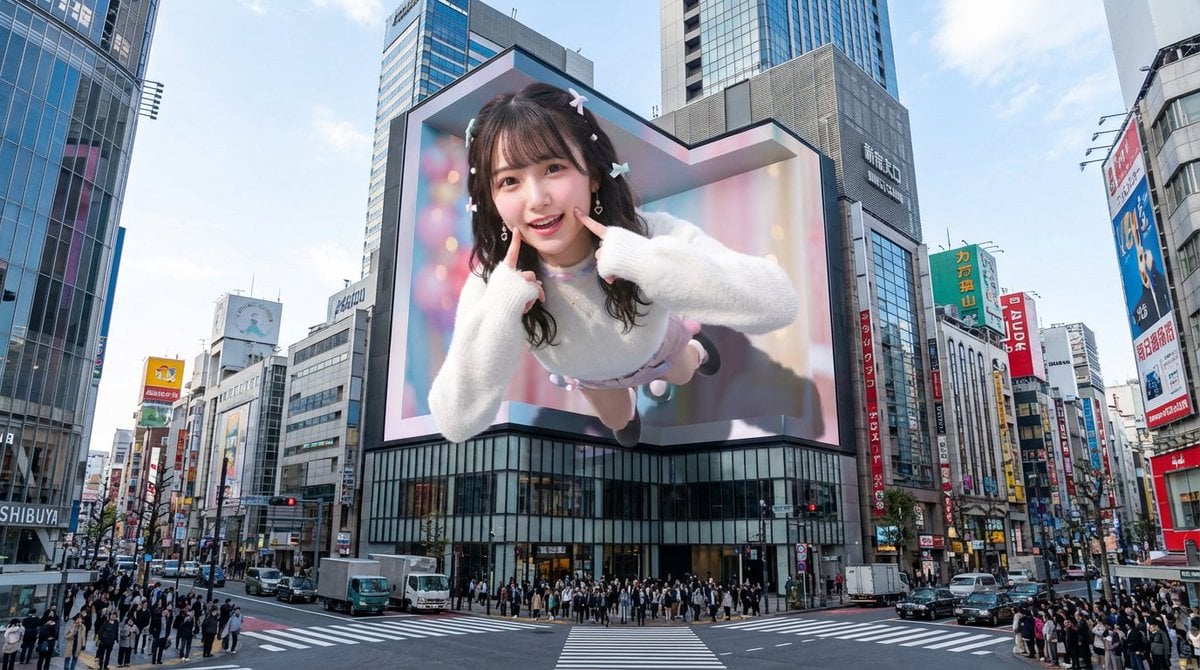
Nano Banana Pro 3D Digital Signage Prompt (Shinjuku)
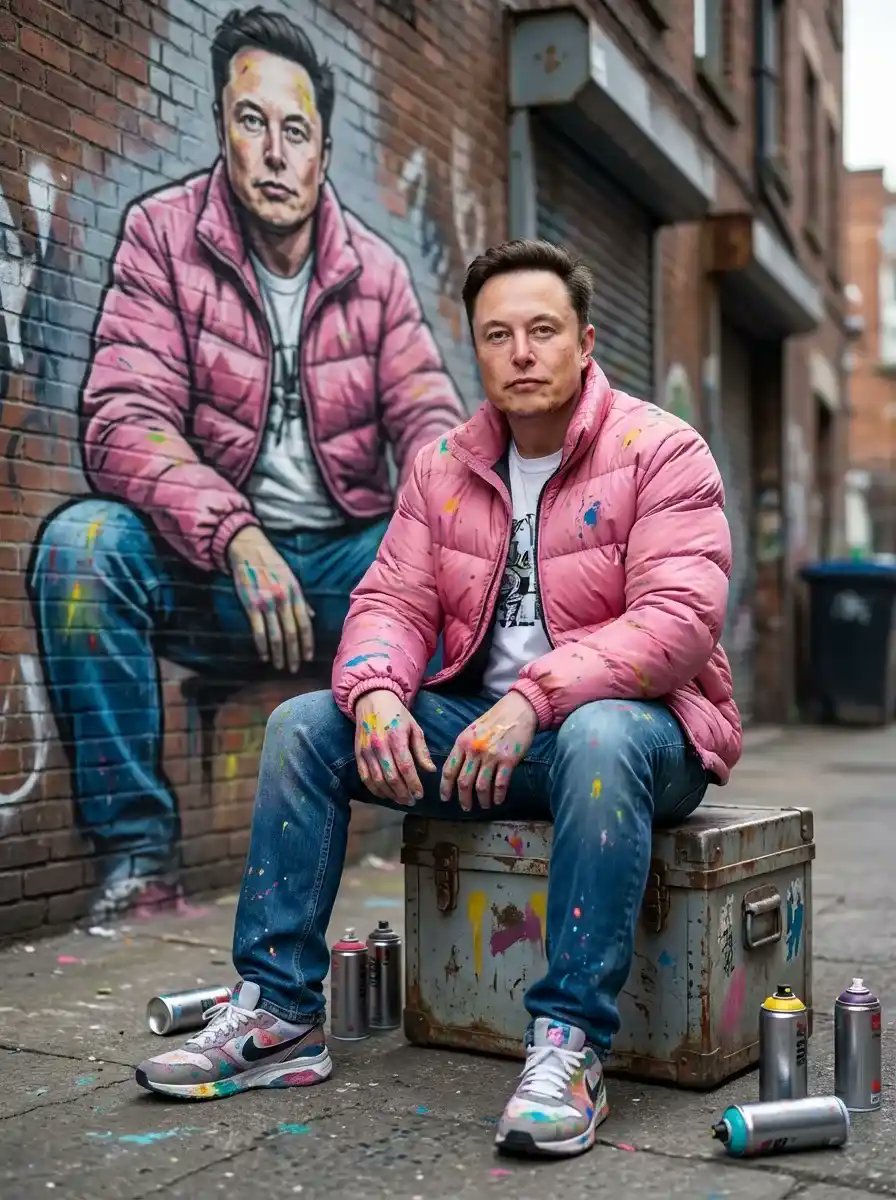
Photorealistic Cinematic Street Portrait with Exact Facial Reference
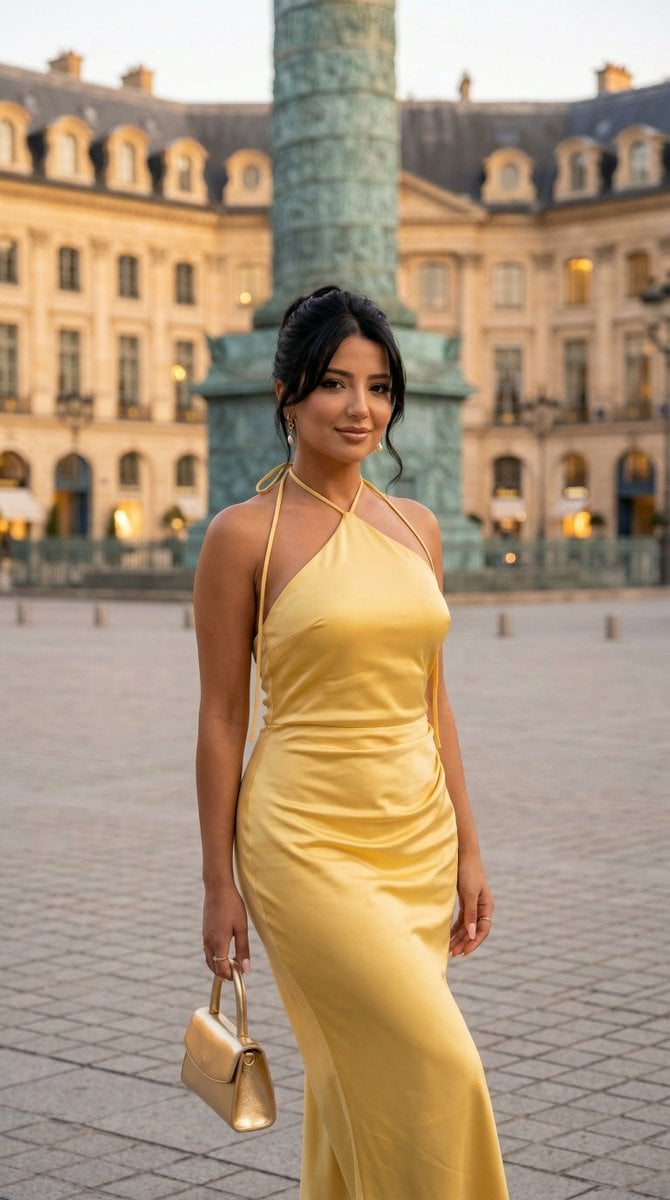
Nano Banana - Place Vendome Yellow Satin

Moody High-Contrast Portrait with Acoustic Guitar
Luxury Golden Star Fortune Teller
Golden Hour Identity-Preserving Portrait
Japanese News Interview Broadcast
Visualize Coordinates in Historical Context Prompt
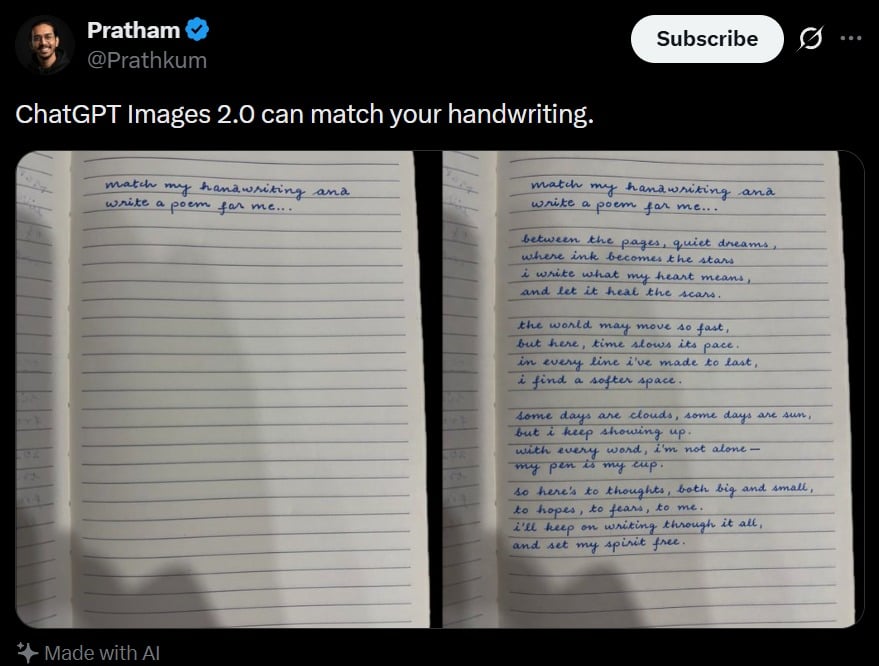
Tweet Screenshot With Handwriting Match
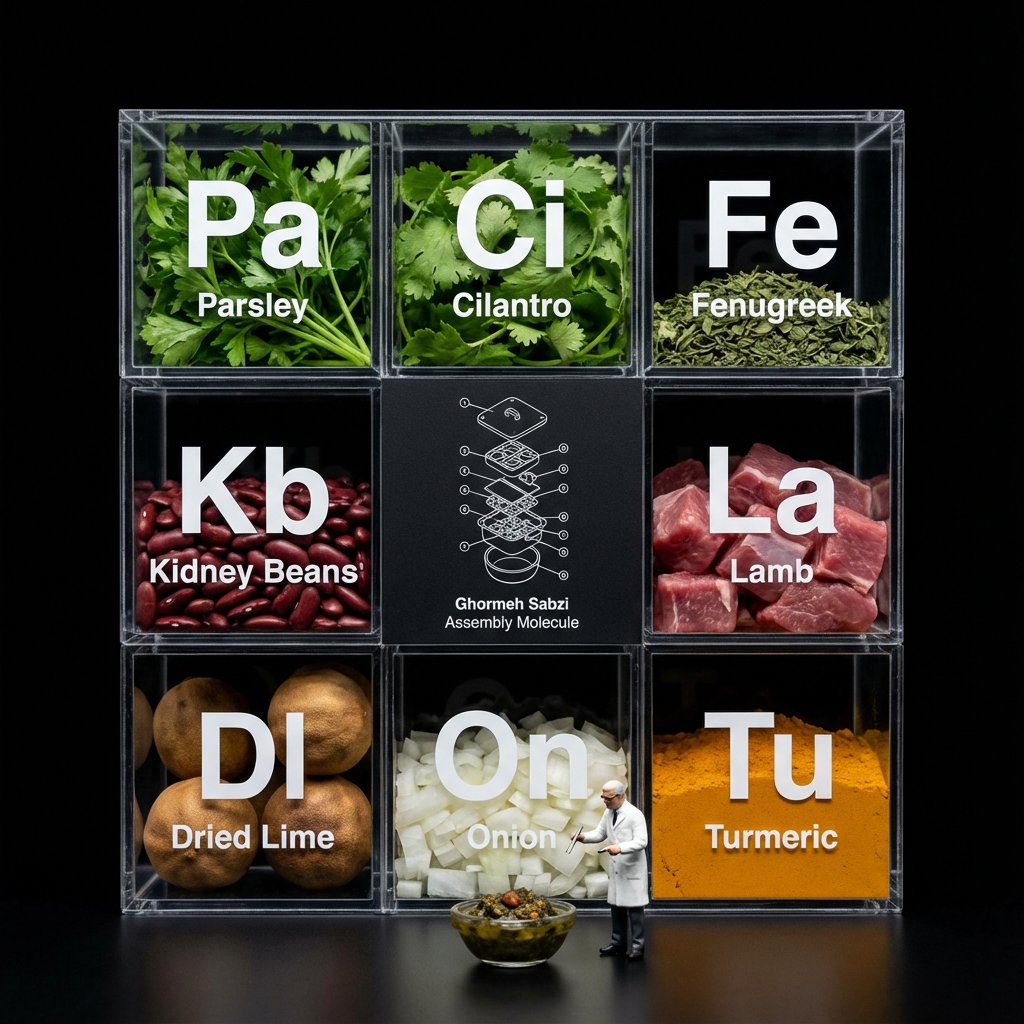
Molecular Gastronomy Display Box for Food Visualization
Browse template categories
Unified Illustration and Logo Collage questions
How do I use the Unified Illustration and Logo Collage template?
Add your photo if the template asks for one, edit the prompt if you like — the template's model and format are already selected — and press Generate. Your version opens in PicX Studio.
Can I customize the Unified Illustration and Logo Collage template?
Yes. You can change the subject, setting, lighting, mood, format, and available model controls before creating your image.
Is the Unified Illustration and Logo Collage template free?
Opening and editing this template is free. Generating uses credits, shown on the Generate button when you are signed in.
Which AI model should I use?
Start with GPT Image 2, which is the model associated with this template. You can compare another compatible model for a different finish.
Looking for something else? Browse all templates.

Your photo, any look
Thousands of ready templates for every top image and video model, from one credit balance.