
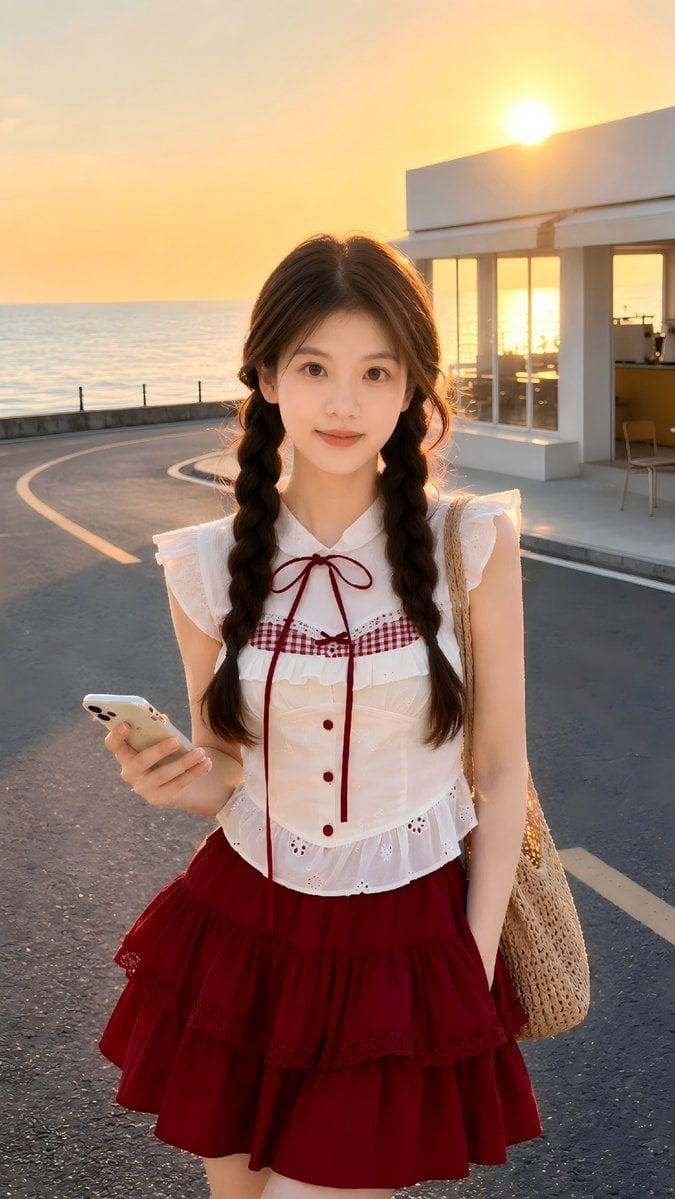
Golden Hour Identity-Preserving Portrait
An advanced prompt designed to maintain a person's facial identity while placing them in a new coastal setting during sunset, emphasizing realism and natural textures over artificial beauty filters.
- Prompt included
- Model and format preset
- Premium template
The prompt behind this image
Copy the exact prompt behind Golden Hour Identity-Preserving Portrait, or open it in the studio and make it yours.
Use my uploaded portrait photo only as the identity reference. Only reference the person’s real facial features, face shape, proportions, skin tone, hairstyle, hairline, hair volume, and overall natural appearance. Do not copy the original clothing, background, lighting, pose, or image quality from the uploaded portrait. Accurately preserve the person’s real identity and realism. Do not turn the subject into someone else. Do not over-beautify. Do not make the skin look plastic. Do not make the image anime-like or illustrated. Create a highly realistic vertical portrait photo set on a {argument name="location" default="quiet coastal road"} during golden hour at sunset. The background should include the ocean, a curved seaside road, roadside railings, and a clean modern white seaside café with large glass windows and a few simple tables and chairs. The environment should feel like a real travel photo taken near the coast. Show a {argument name="subject" default="young adult woman"} standing naturally on the road or near the roadside, holding a {argument name="accessory" default="smartphone"} casually in one hand. This version should be framed closer than a full-body shot, around a medium shot or medium-close portrait. The subject should be looking directly at the camera with a soft, calm, natural expression. Her pose should feel relaxed, gentle, and slightly candid rather than stiff or overly posed. Do not lock the clothing to one exact outfit. Instead, automatically generate clothing that best suits the uploaded person’s appearance, hairstyle, and overall vibe. The outfit should feel stylish, clean, youthful, and suitable for a seaside golden-hour scene. It may use soft white, cream, red, pastel, or other sunset-friendly tones, but it must remain natural and wearable. Avoid exaggerated cosplay styling or artificial fashion-editorial distortion. The clothing should have realistic fabric texture, natural folds, and believable structure. Use real golden sunset lighting. The sun should be low in the sky, casting warm light across the scene and creating soft golden rim light around the hair. The ocean should reflect the sunset. The sky should transition naturally from pale blue to warm yellow and orange. Keep the face properly exposed and preserve natural skin texture, subtle pores, gentle shading, and real tonal variation. The overall feeling should be warm, dreamy, clean, and realistic. The photography style should feel like a real high-quality phone or digital camera portrait with a natural travel snapshot atmosphere. Use a vertical 9:16 composition. The framing should be closer, with the subject occupying more of the image while still keeping part of the coastal road, the sea, and the seaside café visible in the background. Keep realistic perspective, natural hair movement, believable shadows, and authentic photo detail. No text, no watermark, no logo, no platform label. Negative Prompt: watermark, text, logo, platform label, signature, caption, qr code, anime, illustration,
How to use Golden Hour Identity-Preserving Portrait in 3 steps
- 1Upload ImagePNG, JPG or paste
Add your photo
Upload the photo the template builds on. The prompt, model and format are already set.
- 2…a portrait of your subject in softgolden-hour light, 85mm…
Personalize
Edit the subject and creative details for your destination.
- 3Generate
Generate
Press Generate — your image is created in PicX Studio, so you can compare it with the original and refine one variable at a time.
More like this
Templates with the same subject, style or setup. Open one to see its prompt.

80s Golden Hour Cinema
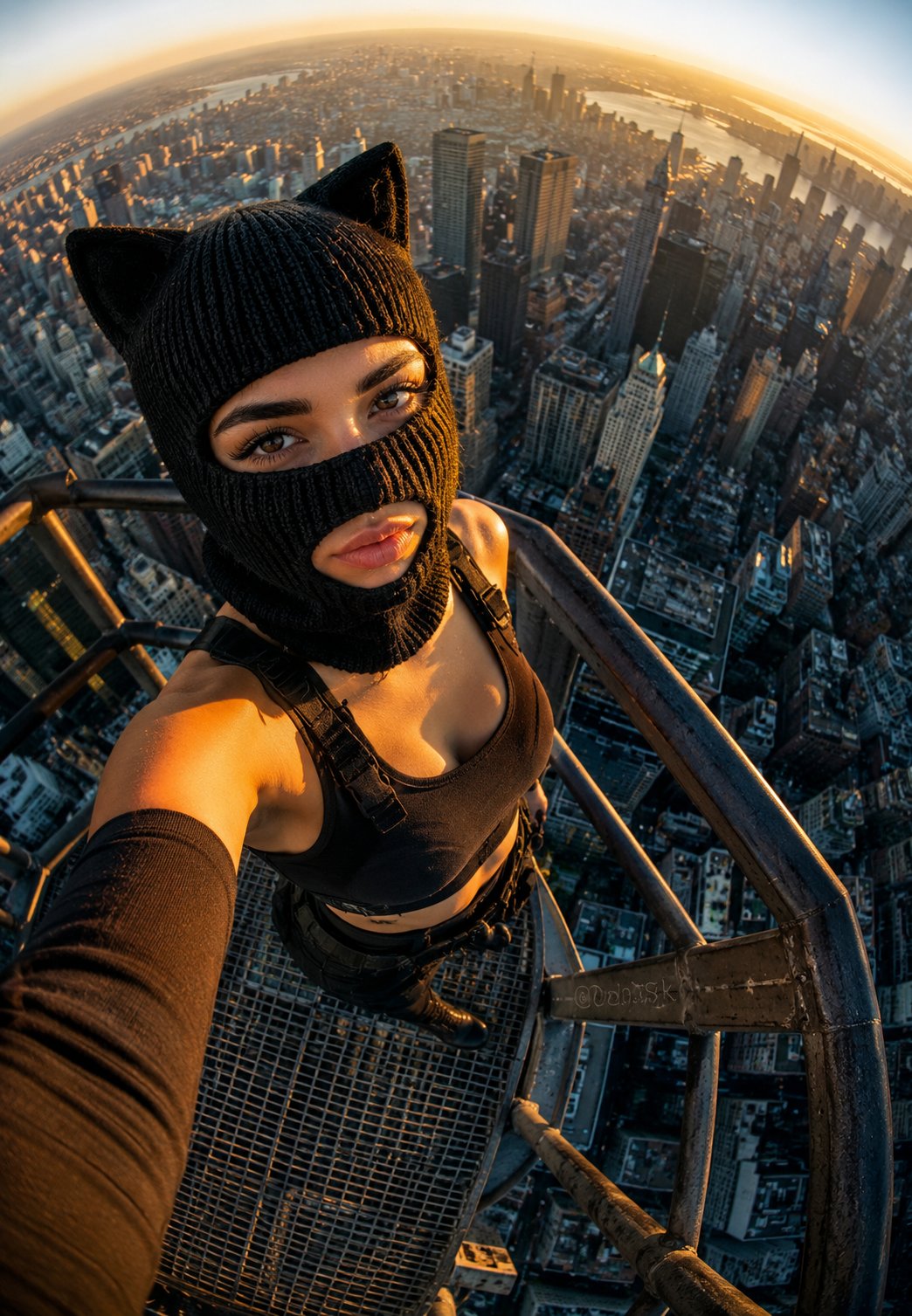
Rooftop Fisheye — Cat-Ear Balaclava at Golden Hour
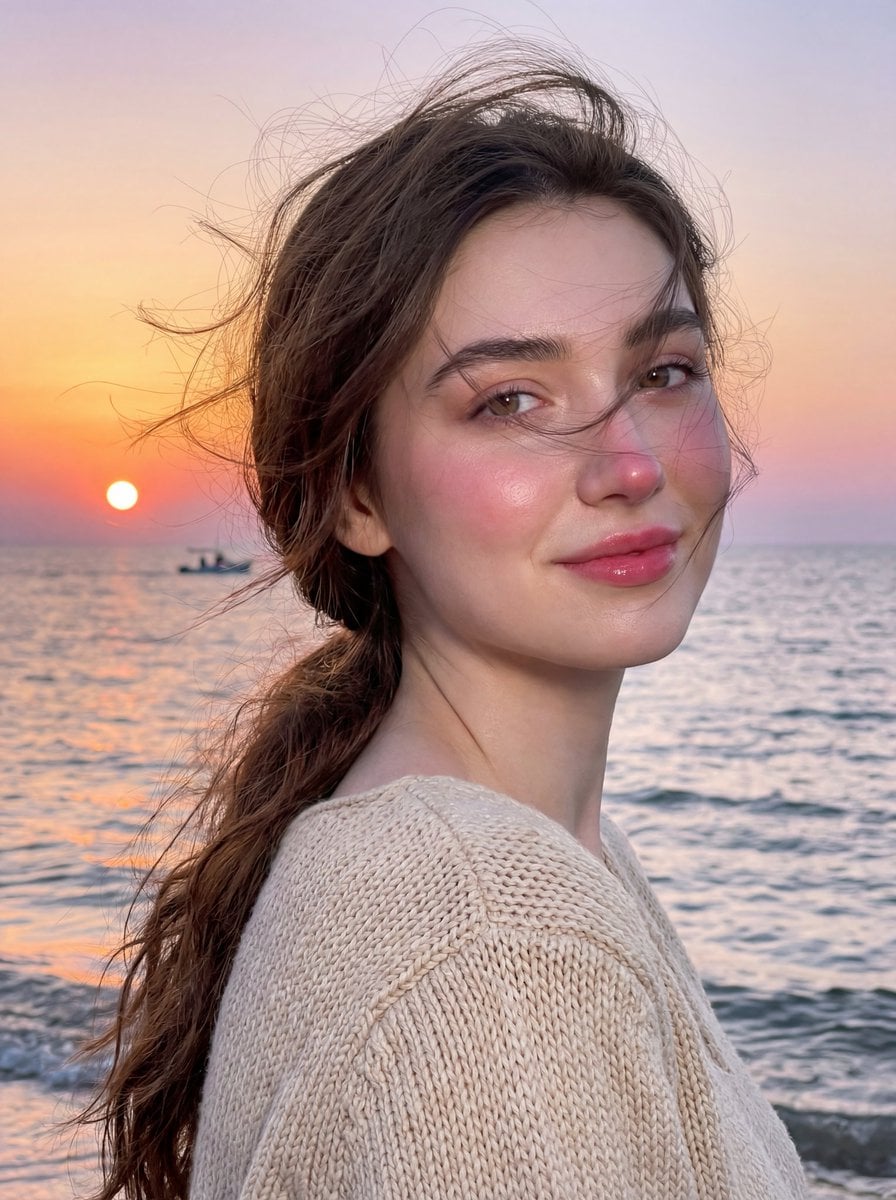
Golden Hour Seaside Portrait with Identity Preservation
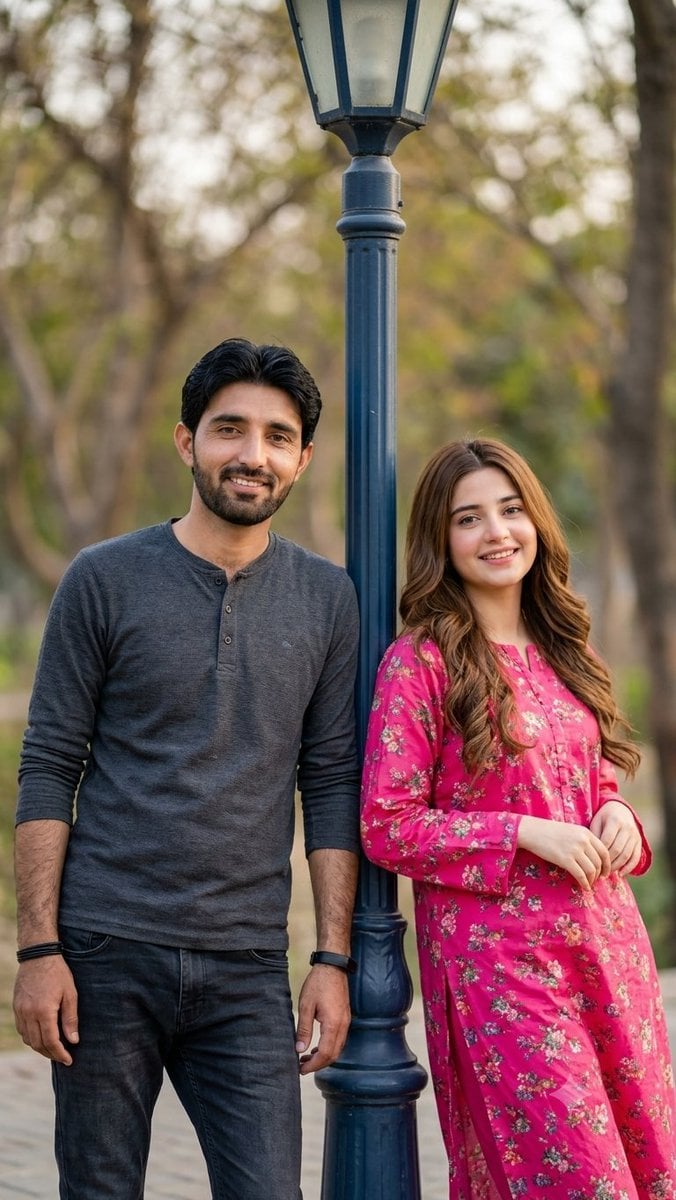
Identity-Preserving Romantic Couple Portrait
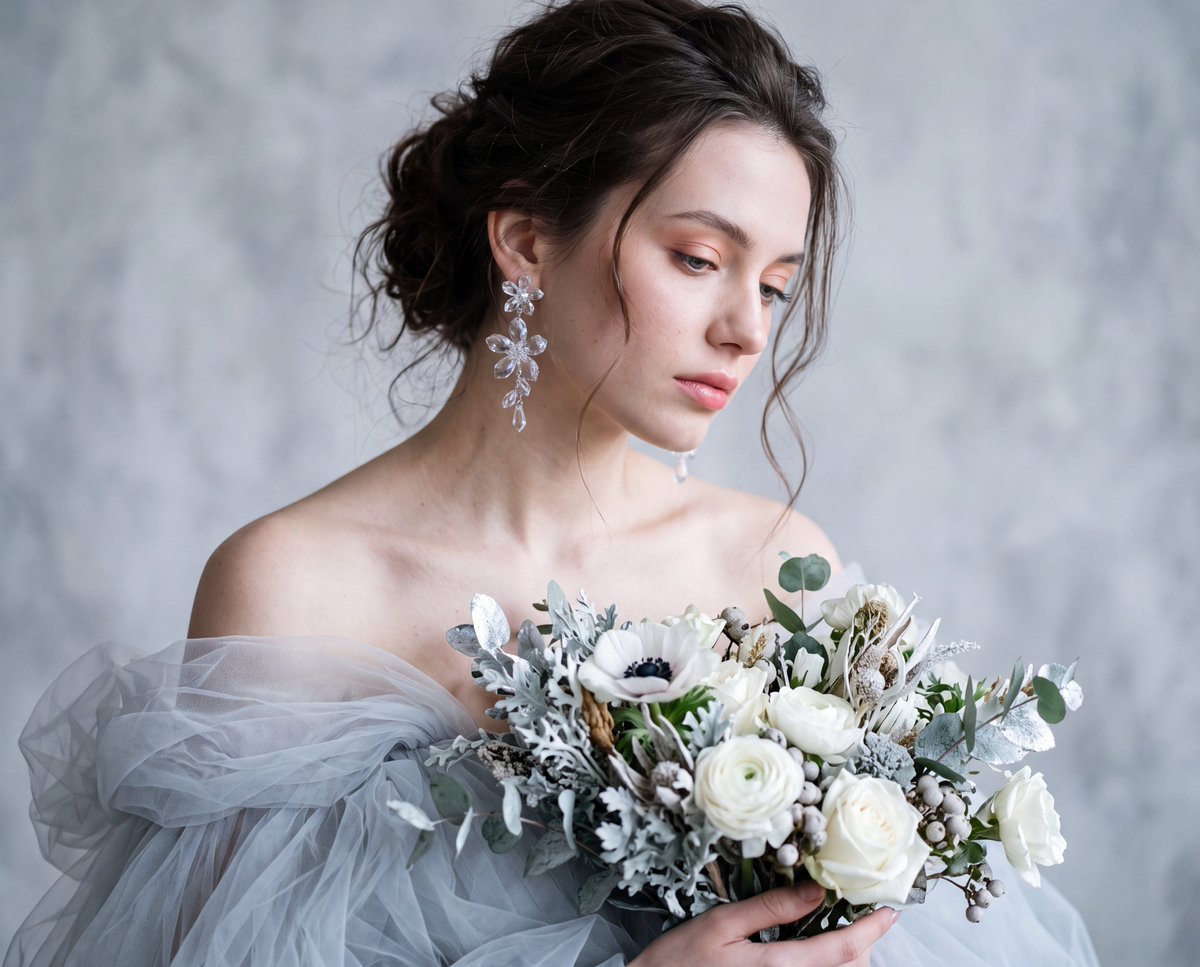
Identity-Preserving Tulle Dress Portrait
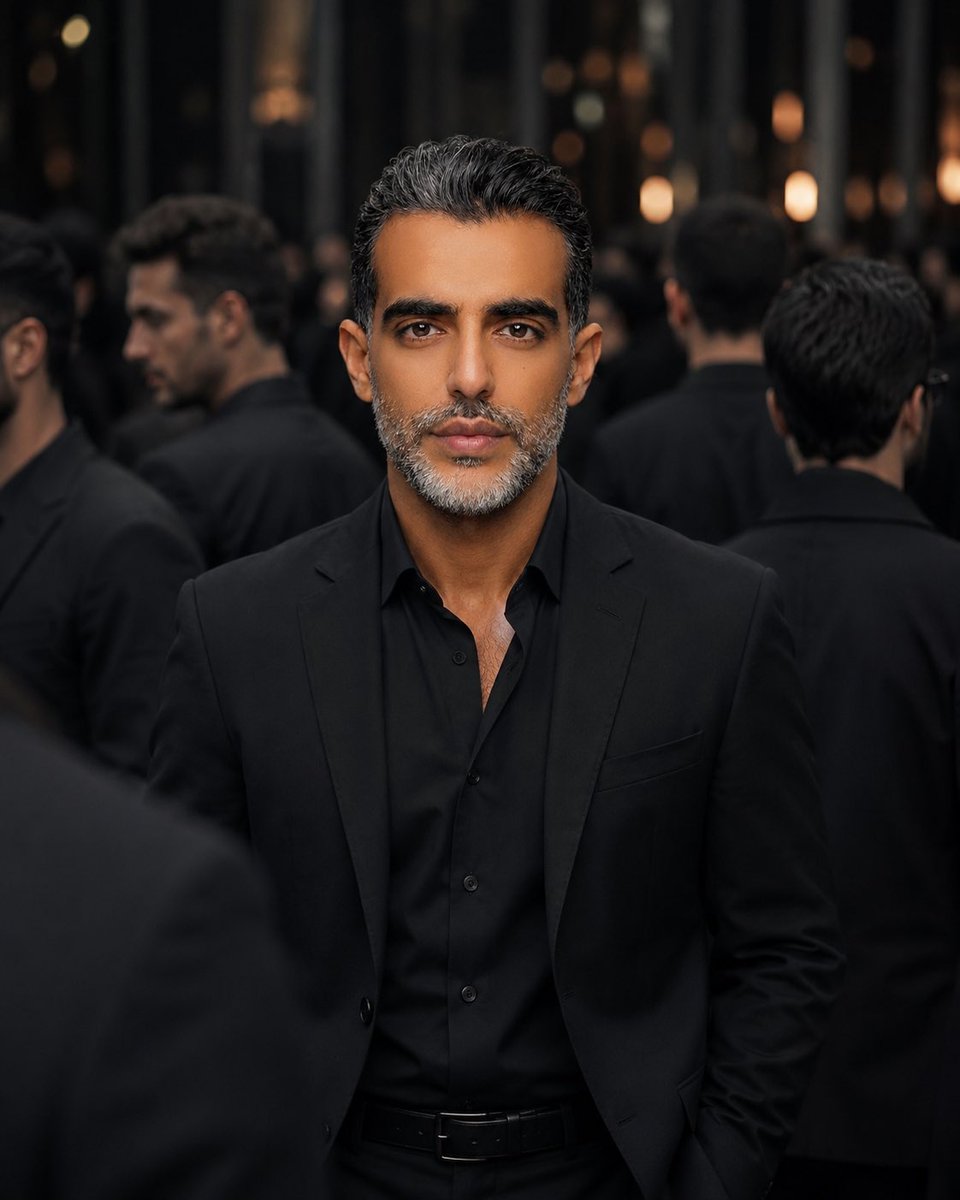
Identity Preserving Cinematic Portrait
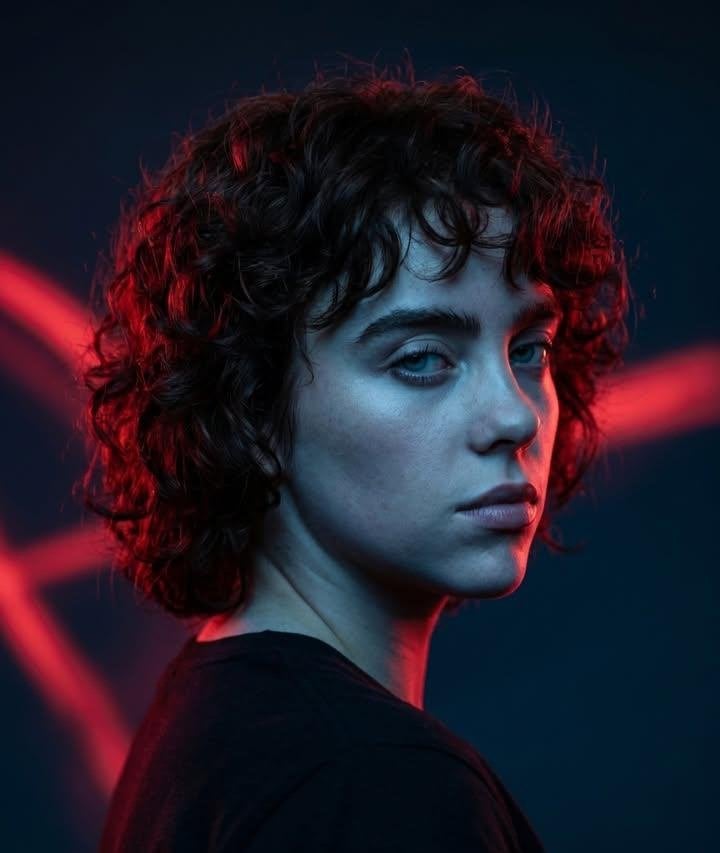
Cinematic Identity Preserving Portrait
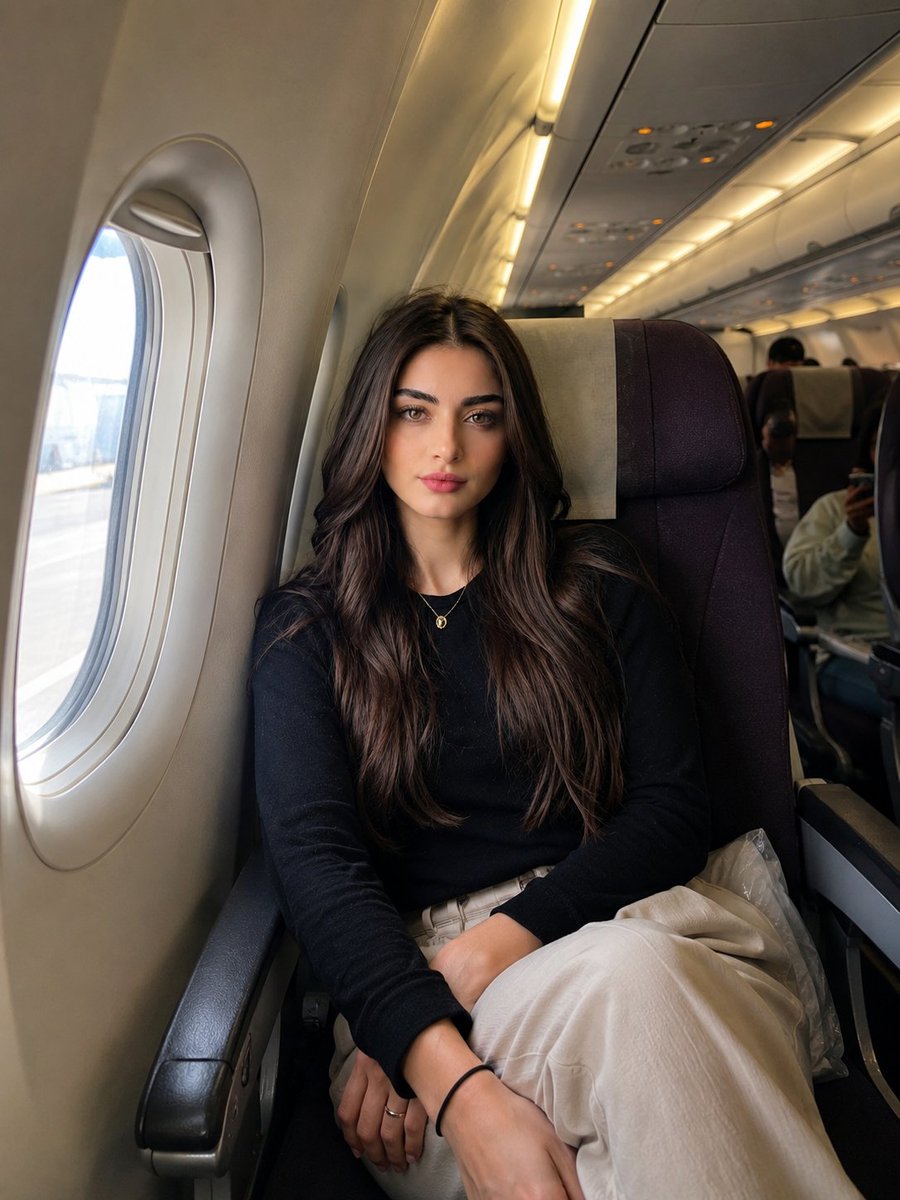
Identity-Preserving Travel Candid Portrait
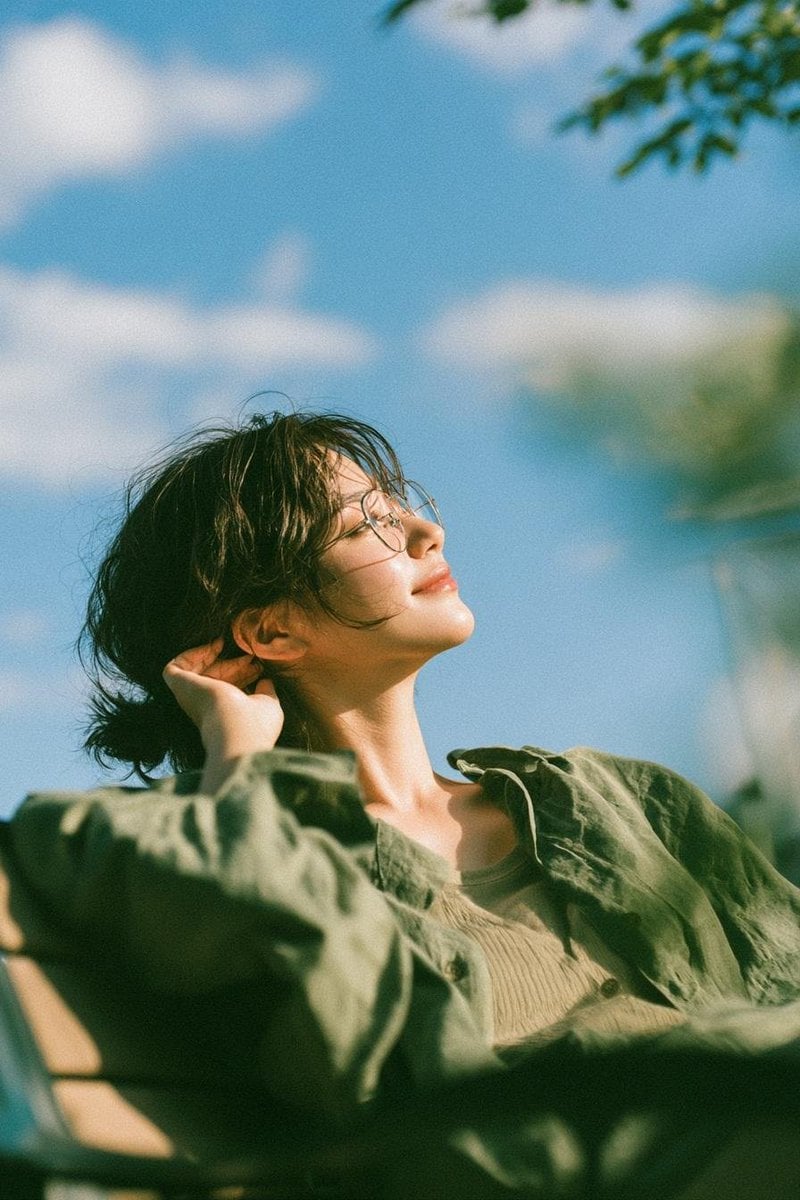
Cinematic Golden Hour Garden Portrait
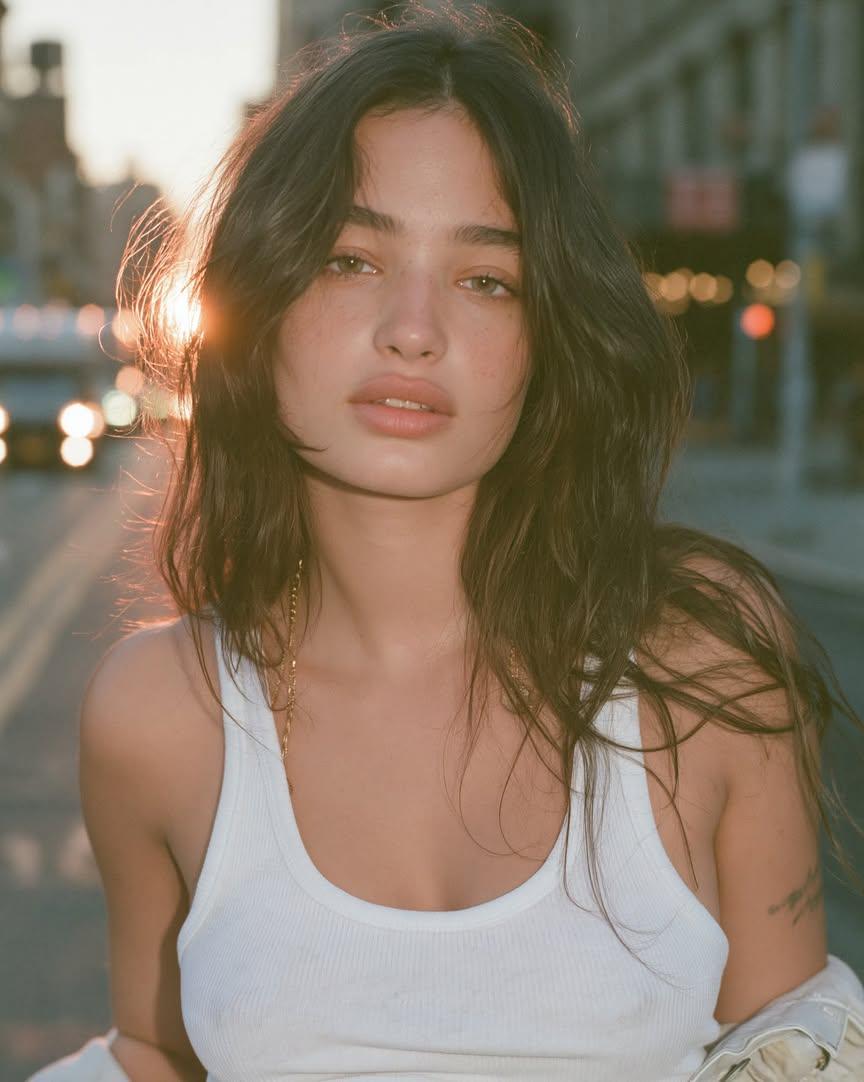
Cinematic Golden Hour Urban Portrait
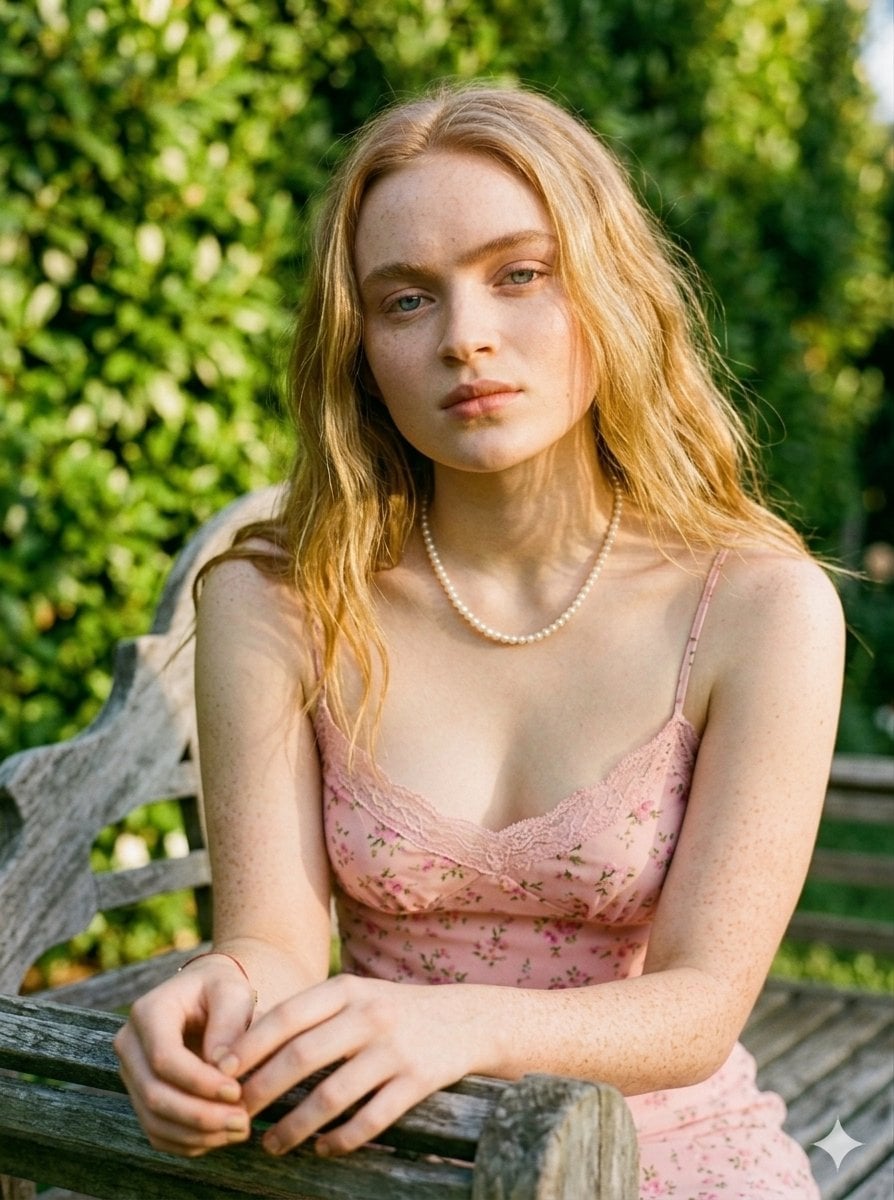
Golden Hour Redhead Portrait
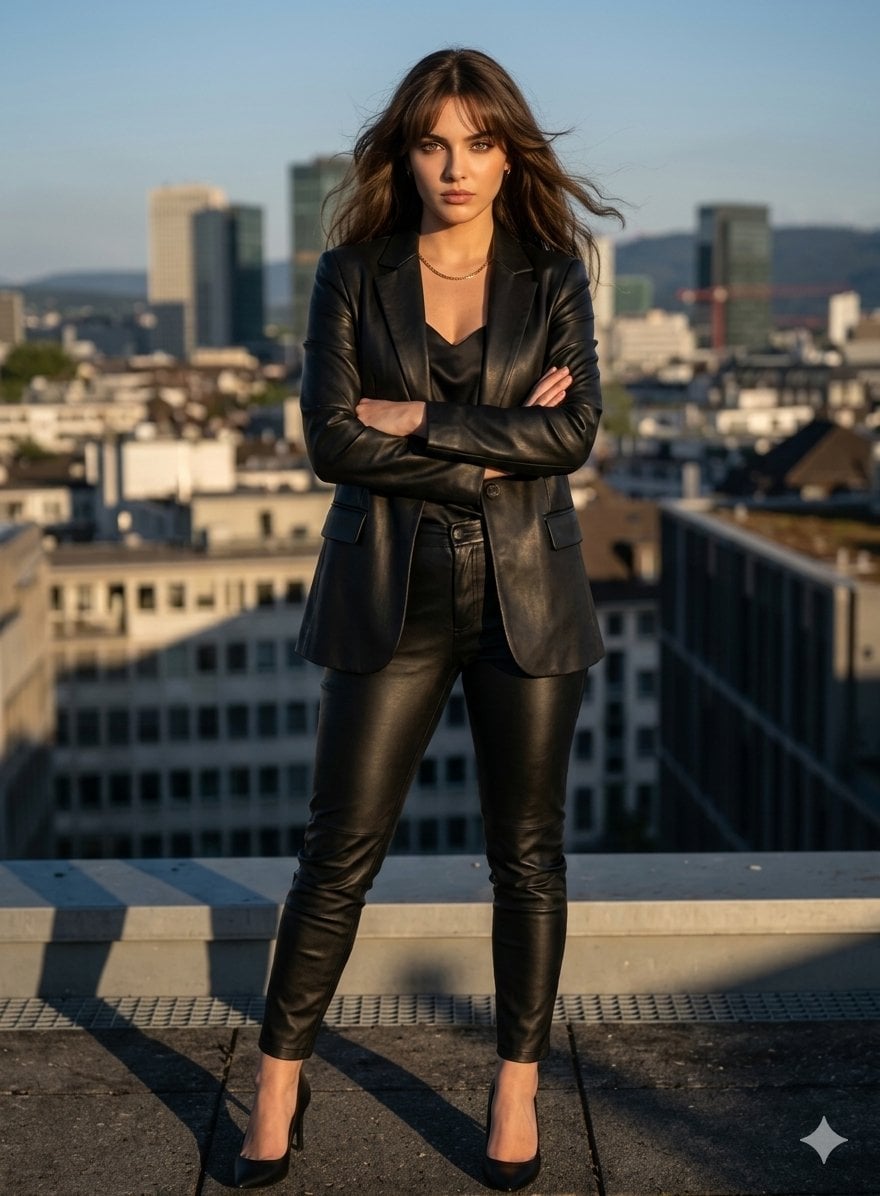
Golden Hour Cinematic Boss Energy Portrait
Make it yours
Golden Hour Identity-Preserving Portrait works as-is. These are the safest ways to change it without losing the look.
Change one field
Copy a single group, rewrite it, and generate again so you can see what that field is doing.
Keep the frame, change the subject
Hold the composition and light of Golden Hour Identity-Preserving Portrait, then swap wardrobe, props or the person for a new take.
| If the result… | Why | Fix |
|---|---|---|
| The result drifts from the preview | Too many fields changed at once. | Reuse Golden Hour Identity-Preserving Portrait as-is first, then change one group — subject, light, or setting. |
| The model over-stylizes the scene | The prose prompt leaves finish and camera underspecified. | Add one camera or lighting sentence and stay on GPT Image 2. |
More GPT Image 2 templates
Other prompts made for GPT Image 2.

Six VTuber Japanese Logo Sheet

Realistic Portrait of Woman and Deer

The Vista Modular Condo Poster

AI Model Routing Comparison Infographic

2.5D Anime Art Board

Isometric Productivity Desk Scene

New York Double Exposure Poster

Four-Panel AI Landscape Comparison

Japanese Tatami Lifestyle Magazine Cover

NESCAFÉ Coffee Map Poster
More image prompts
Fresh picks from across the catalog.

Prompt Ideas for Apreciasi Plot

Cute Daily Anime Desk Calendar

High-end editorial portrait of a mature man

Japanese LP Empathy Infographic
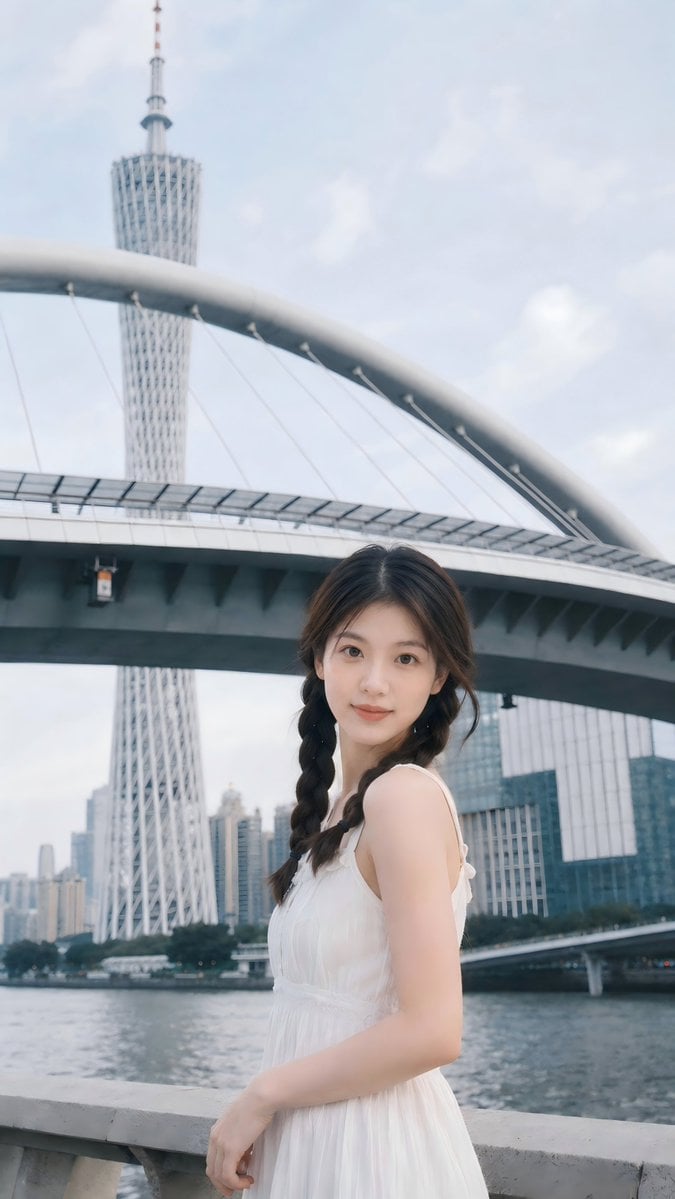
Prompt: Use the uploaded portrait as the ONLY ide
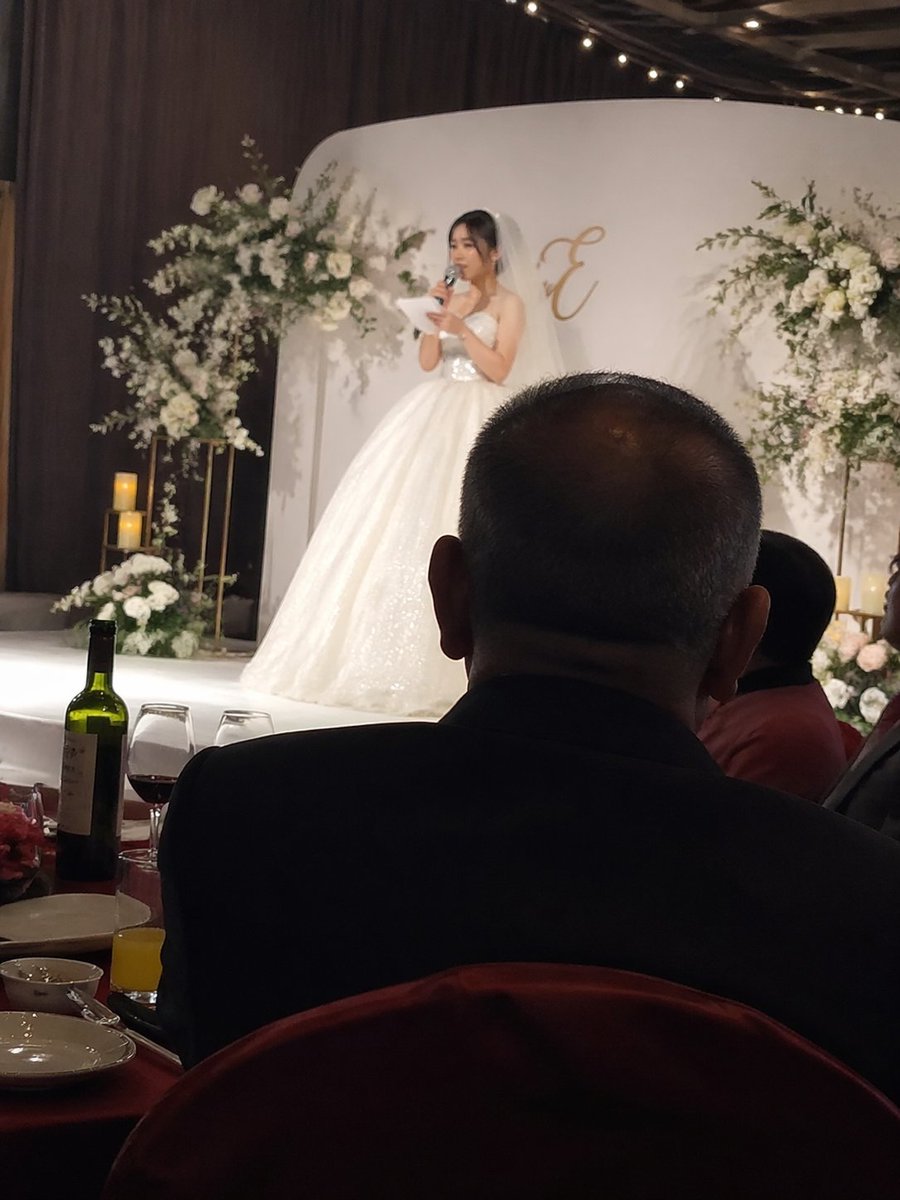
Candid wedding speech photo
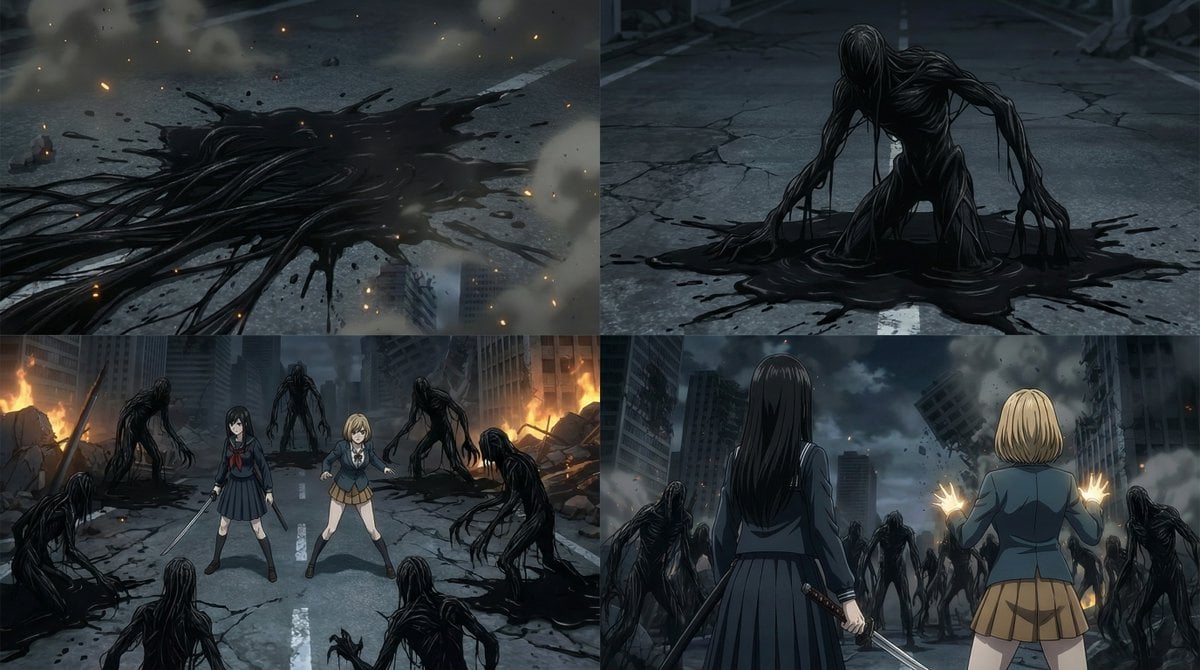
2000s OVA Style High School Girl Monster Hunt
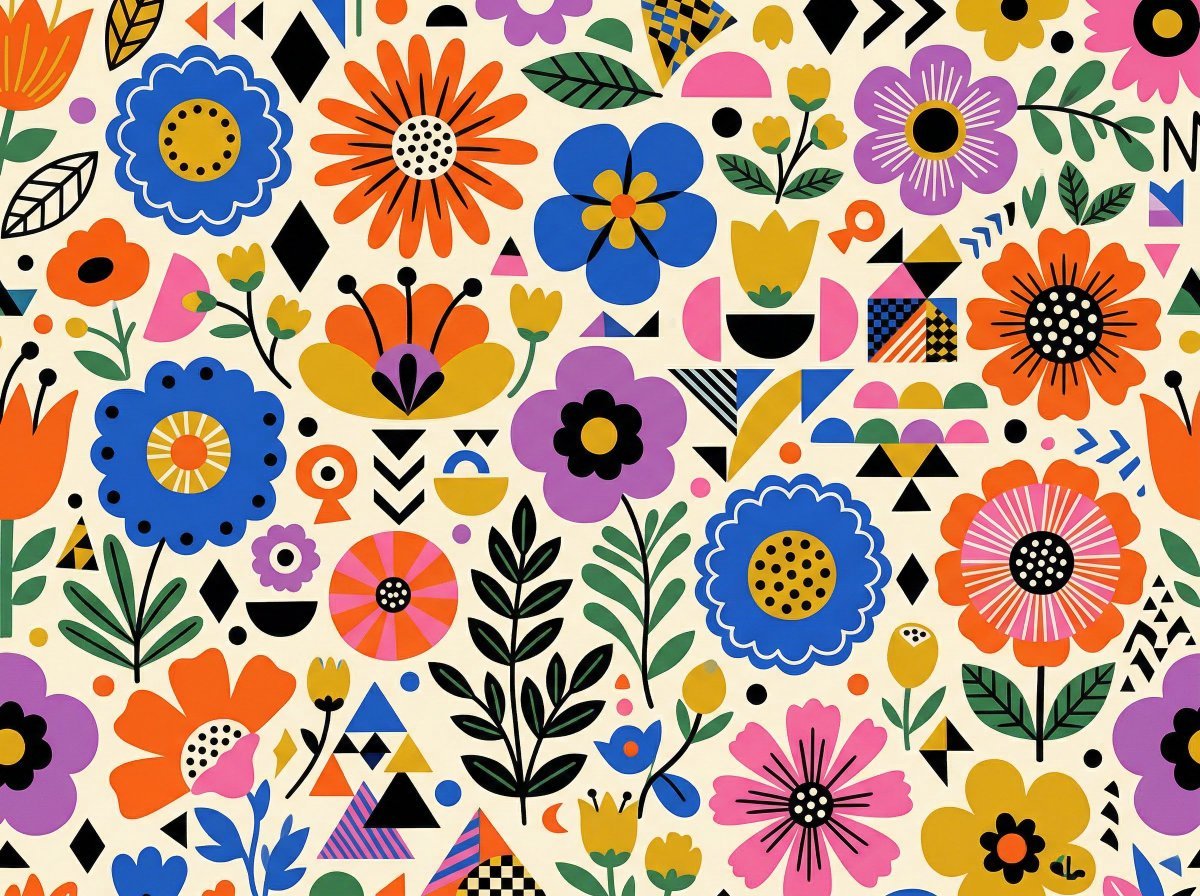
Vibrant Flat Illustration Pattern of Flowers and Shapes
Alice in Wonderland Transformation Prompt
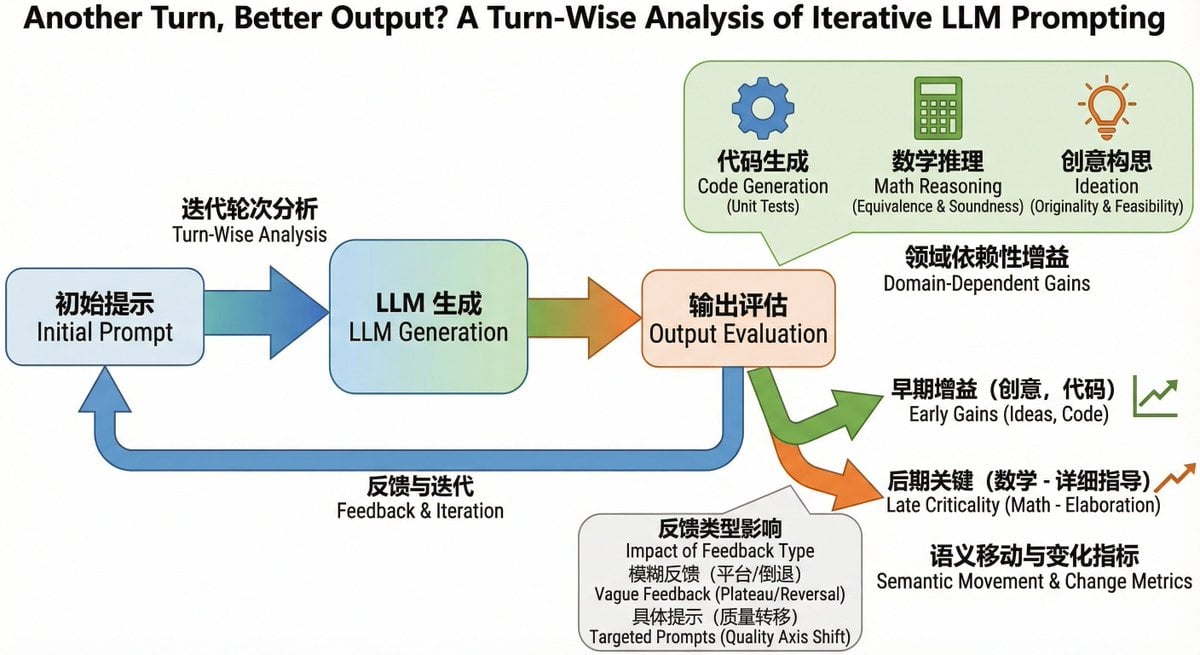
Bilingual diagram from a research paper
Browse template categories
Golden Hour Identity-Preserving Portrait questions
How do I use the Golden Hour Identity-Preserving Portrait template?
Add your photo if the template asks for one, edit the prompt if you like — the template's model and format are already selected — and press Generate. Your version opens in PicX Studio.
Can I customize the Golden Hour Identity-Preserving Portrait template?
Yes. You can change the subject, setting, lighting, mood, format, and available model controls before creating your image.
Is the Golden Hour Identity-Preserving Portrait template free?
Opening and editing this template is free. Generating uses credits, shown on the Generate button when you are signed in.
Which AI model should I use?
Start with GPT Image 2, which is the model associated with this template. You can compare another compatible model for a different finish.
Looking for something else? Browse all templates.

Your photo, any look
Thousands of ready templates for every top image and video model, from one credit balance.