
Burgundy Anime Street Silhouette
Generates a vintage monochrome anime illustration of an elegant woman silhouetted in an old European street, suitable for stylized AI art posters.
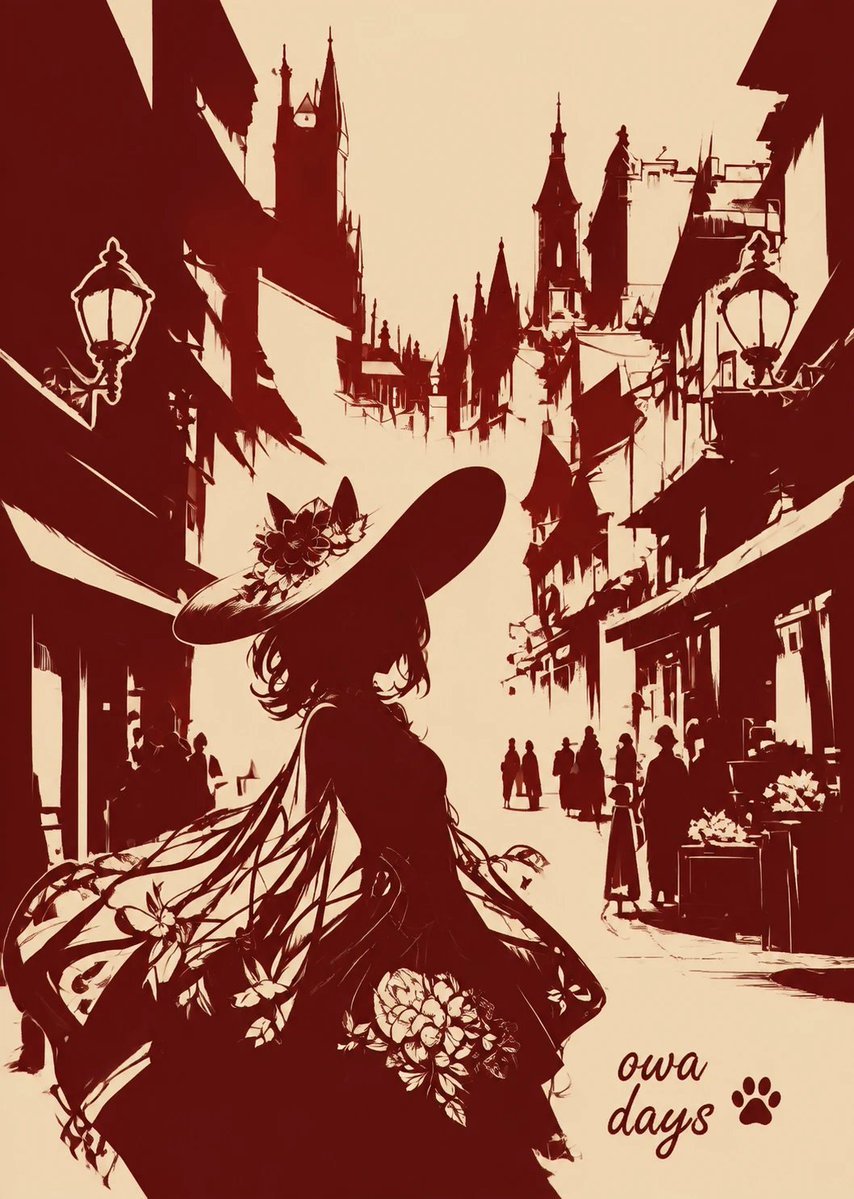
- Prompt included
- Model and format preset
- Free template
The prompt behind this image
Copy the exact prompt behind Burgundy Anime Street Silhouette, or open it in the studio and make it yours.
Create a vertical 3:4 monochrome anime-style illustration in deep oxblood red ink on a warm cream paper background, like a high-contrast stencil and loose brush sketch. The scene is a romantic old European city street viewed in perspective, with tall narrow medieval buildings on both sides, steep rooftops, pointed towers, clock-tower silhouettes, awnings, shopfronts, and distant pedestrians fading into the bright central street. In the foreground, place a mysterious elegant young woman, {argument name="character name" default="Ouwa Days"}, shown mostly as a dark silhouette from behind and slightly in profile, wearing a very large tilted wide-brim hat decorated with flowers, wavy shoulder-length hair, and a flowing dress or shawl with transparent ribbon-like fabric trailing leftward. Add floral ornamentation on her outfit: exactly 1 flower cluster on the hat and exactly 3 prominent flower clusters on the dress/shawl. Include exactly 2 ornate wall-mounted street lamps, one on the left building and one on the right building. Include small distant human silhouettes in the street, clustered naturally but not detailed. Use dynamic ink splashes, jagged brush edges, sketchy architectural linework, and strong negative space in the sky and street. Keep the palette to only {argument name="ink color" default="dark burgundy red"} and {argument name="paper color" default="warm ivory cream"}. In the bottom-right corner, add a small handwritten signature reading {argument name="signature text" default="ouwa days"} with a small paw-print icon beside it. No additional colors, no photorealism, no modern objects, no border.
How to use Burgundy Anime Street Silhouette in 3 steps
- 1Upload ImagePNG, JPG or paste
Add your photo
Upload the photo the template builds on. The prompt, model and format are already set.
- 2…a portrait of your subject in softgolden-hour light, 85mm…
Personalize
Edit the subject and creative details for your destination.
- 3Generate
Generate
Press Generate — your image is created in PicX Studio, so you can compare it with the original and refine one variable at a time.
More like this
Templates with the same subject, style or setup. Open one to see its prompt.
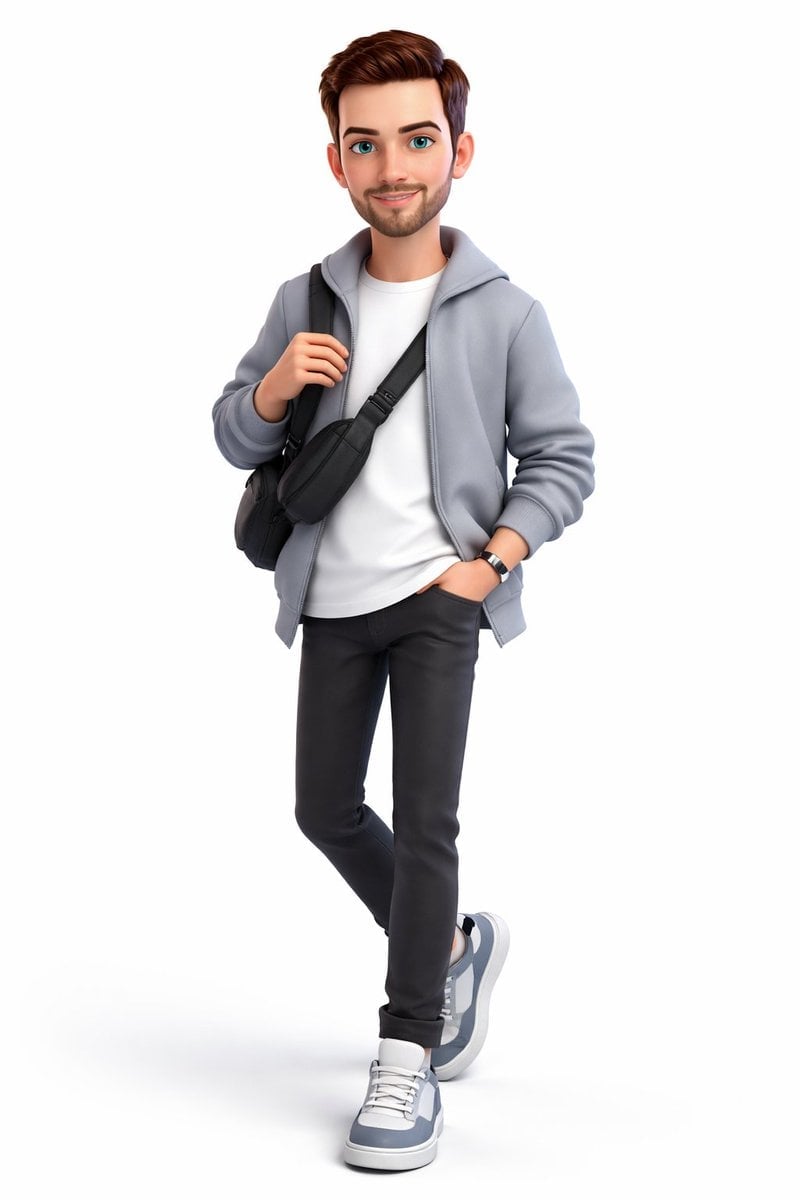
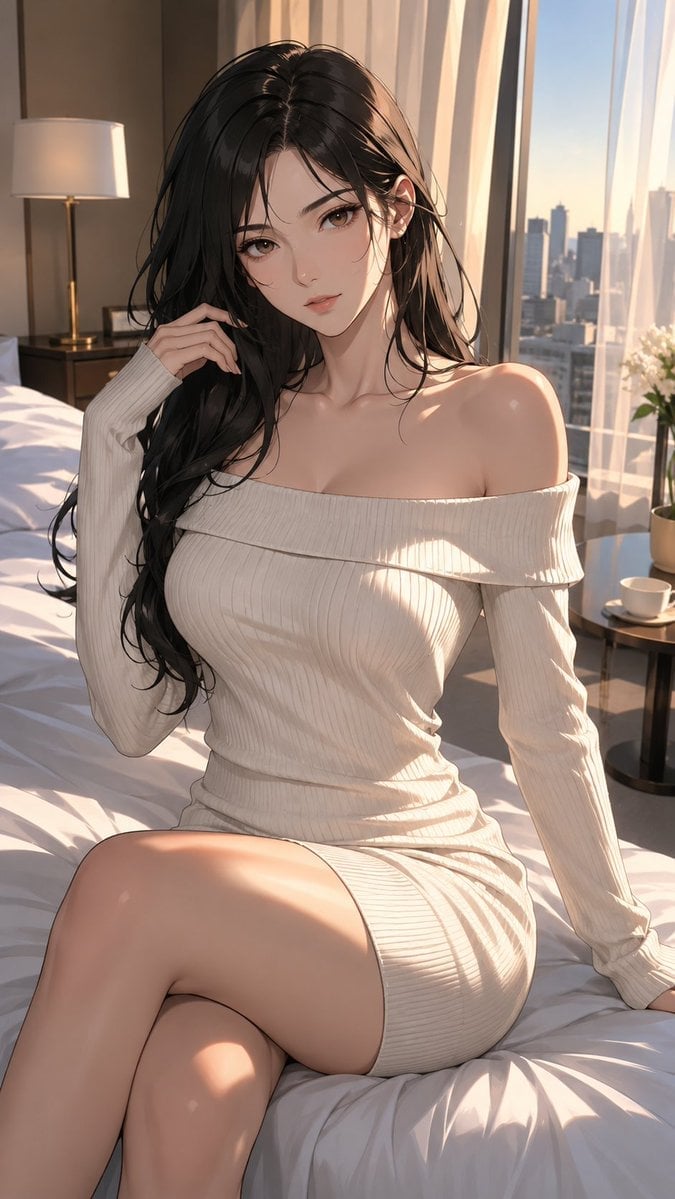
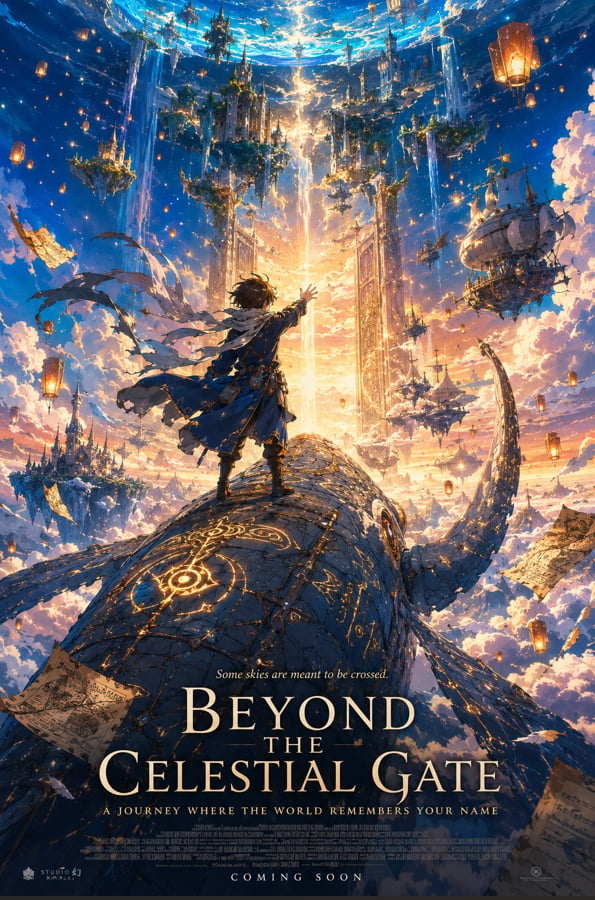
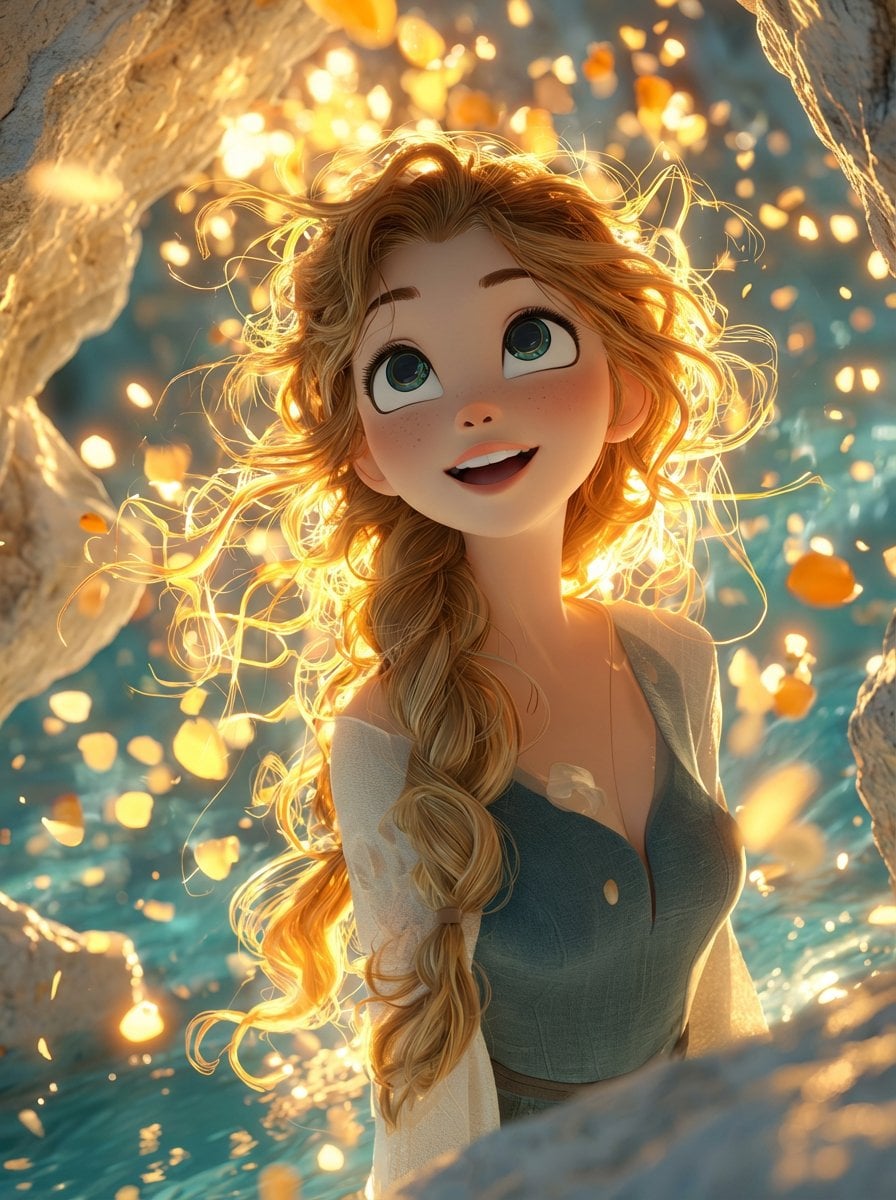
Make it yours
Burgundy Anime Street Silhouette works as-is. These are the safest ways to change it without losing the look.
Change one field
Copy a single group, rewrite it, and generate again so you can see what that field is doing.
Keep the frame, change the subject
Hold the composition and light of Burgundy Anime Street Silhouette, then swap wardrobe, props or the person for a new take.
| If the result… | Why | Fix |
|---|---|---|
| The result drifts from the preview | Too many fields changed at once. | Reuse Burgundy Anime Street Silhouette as-is first, then change one group — subject, light, or setting. |
| The model over-stylizes the scene | The prose prompt leaves finish and camera underspecified. | Add one camera or lighting sentence and stay on GPT Image 2. |
More GPT Image 2 templates
Other prompts made for GPT Image 2.

Six VTuber Japanese Logo Sheet

Realistic Portrait of Woman and Deer

The Vista Modular Condo Poster

AI Model Routing Comparison Infographic

2.5D Anime Art Board

Isometric Productivity Desk Scene

New York Double Exposure Poster

Four-Panel AI Landscape Comparison

Japanese Tatami Lifestyle Magazine Cover

NESCAFÉ Coffee Map Poster
More image prompts
Fresh picks from across the catalog.
Humorous LINE sticker sheet for Oracle-chan
Split Scene Street Photography

Social Media Magazine Cover
Anime Character Expression Sheet Generator

Ultra Realistic Studio Portrait By Nano
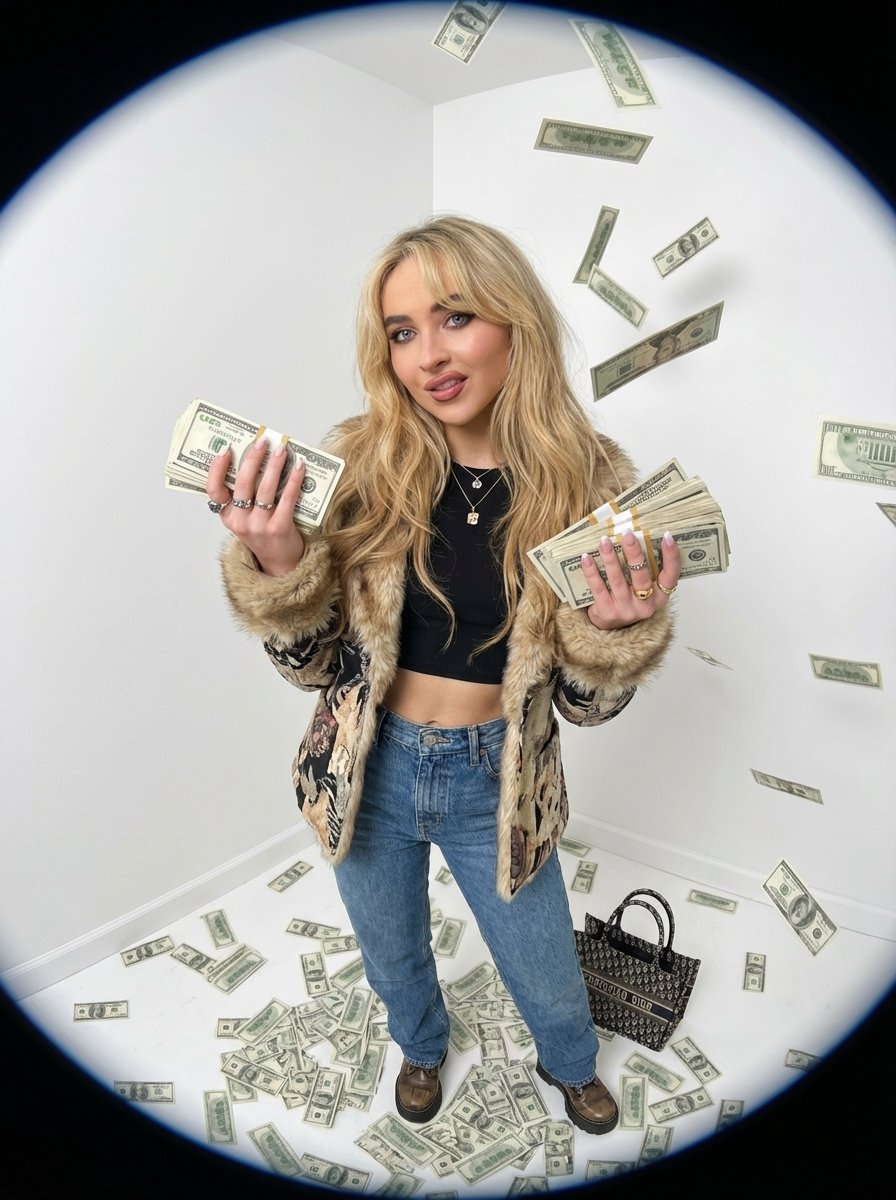
Fisheye portrait with money in a white studio
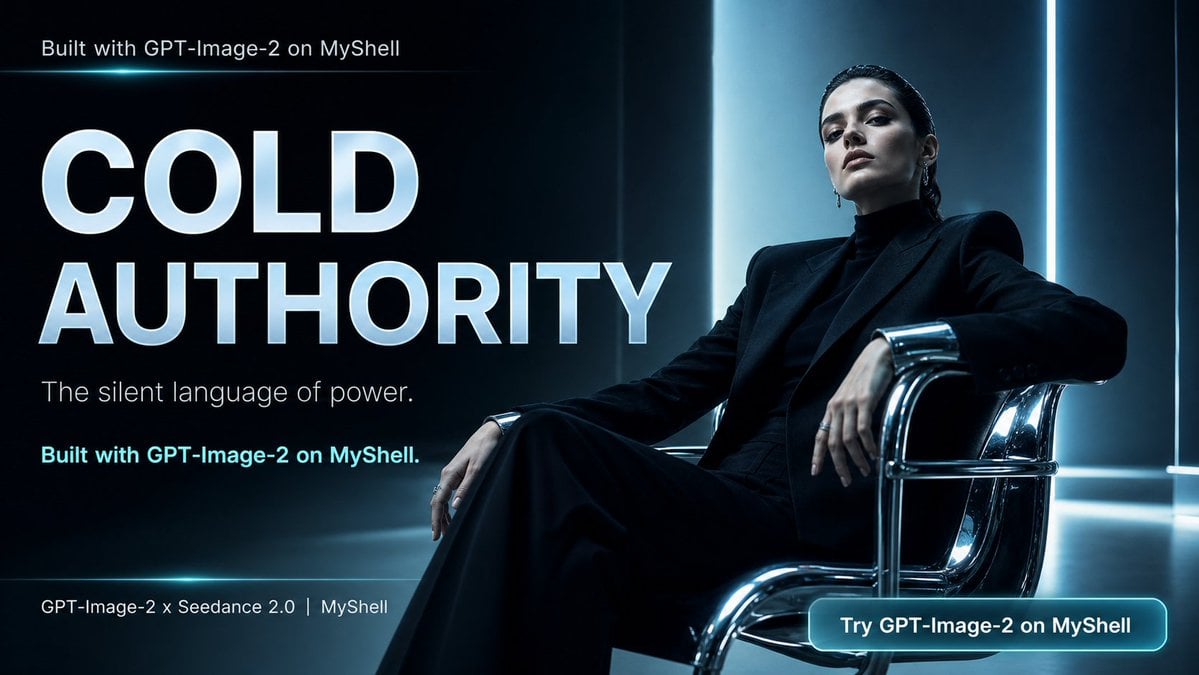
Cold Authority Tech Poster
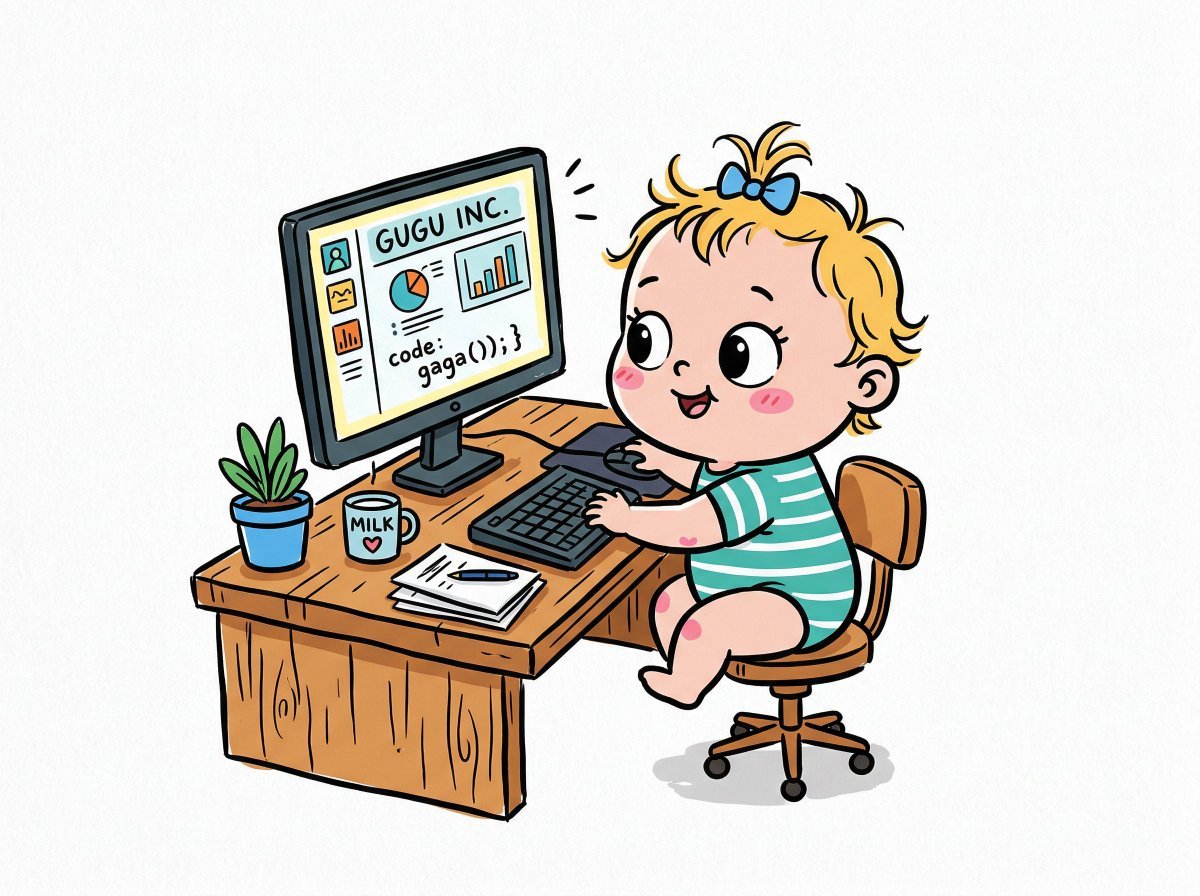
Chibi Bunny Mascot Illustration
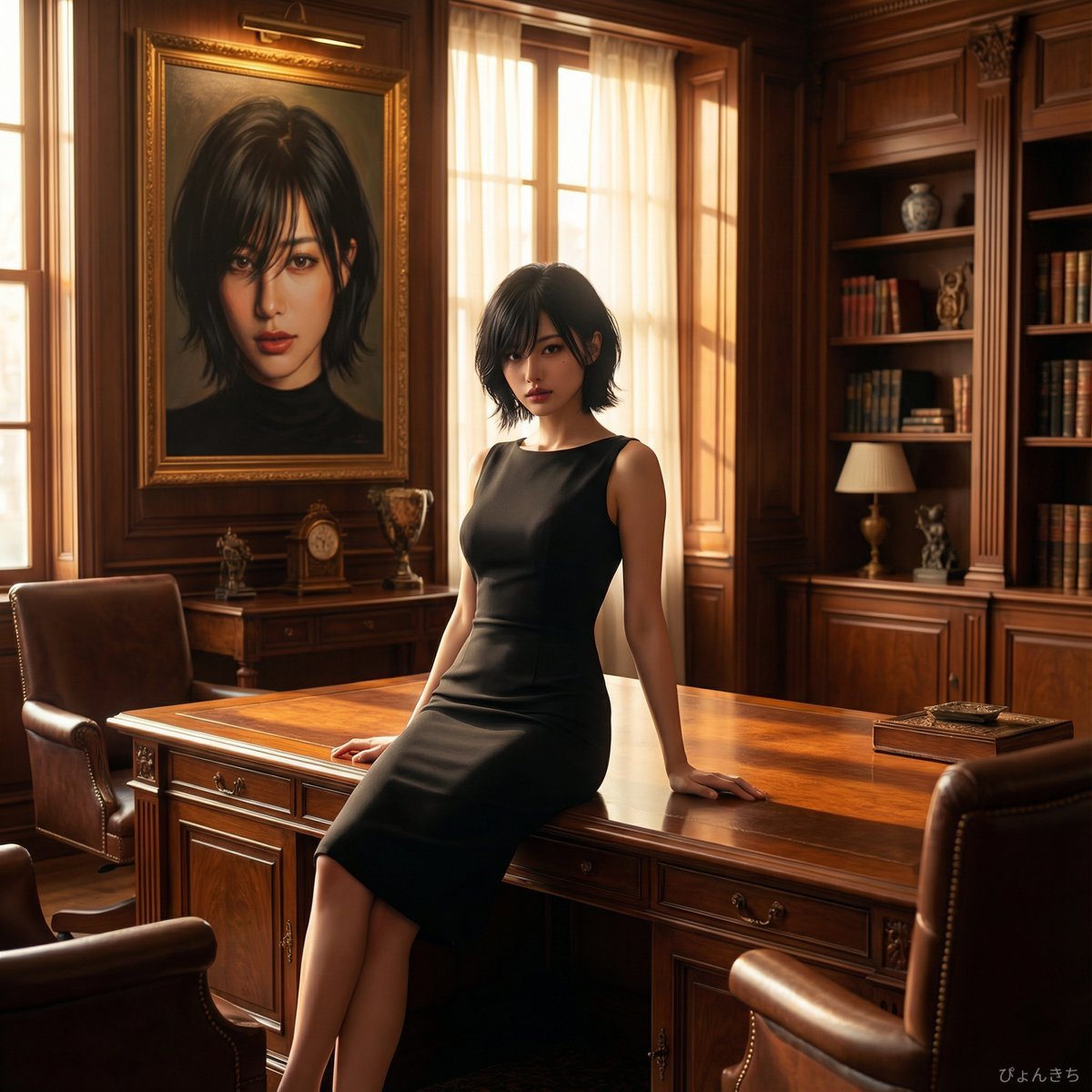
Luxury Office Portrait Prompt (Image-to-Image)
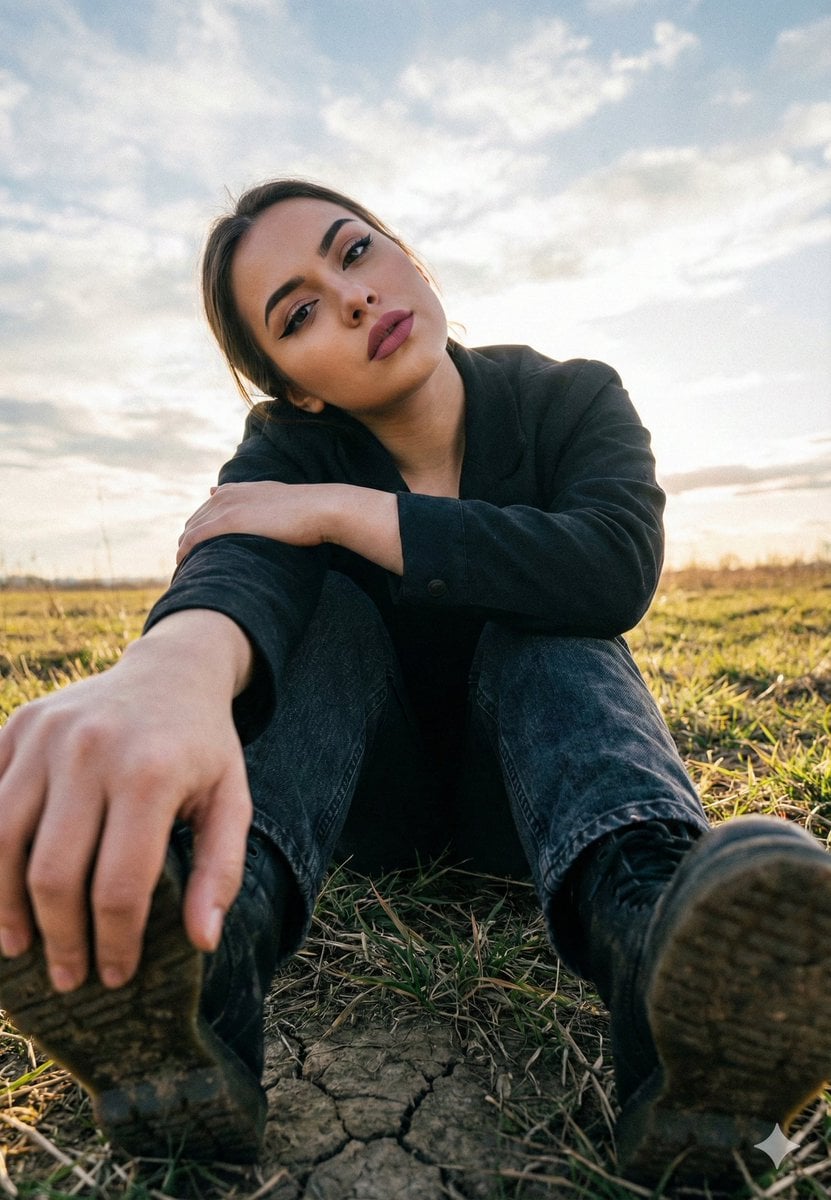
Cinematic Low Angle Portrait in a Dry Field
Browse template categories
Burgundy Anime Street Silhouette questions
How do I use the Burgundy Anime Street Silhouette template?
Add your photo if the template asks for one, edit the prompt if you like — the template's model and format are already selected — and press Generate. Your version opens in PicX Studio.
Can I customize the Burgundy Anime Street Silhouette template?
Yes. You can change the subject, setting, lighting, mood, format, and available model controls before creating your image.
Is the Burgundy Anime Street Silhouette template free?
Opening and editing this template is free. Generating uses credits, shown on the Generate button when you are signed in.
Which AI model should I use?
Start with GPT Image 2, which is the model associated with this template. You can compare another compatible model for a different finish.
Looking for something else? Browse all templates.

Your photo, any look
Thousands of ready templates for every top image and video model, from one credit balance.