
Social Media Manager Desktop Case Study
Social Media Manager Desktop Case Study is a ready photo look.
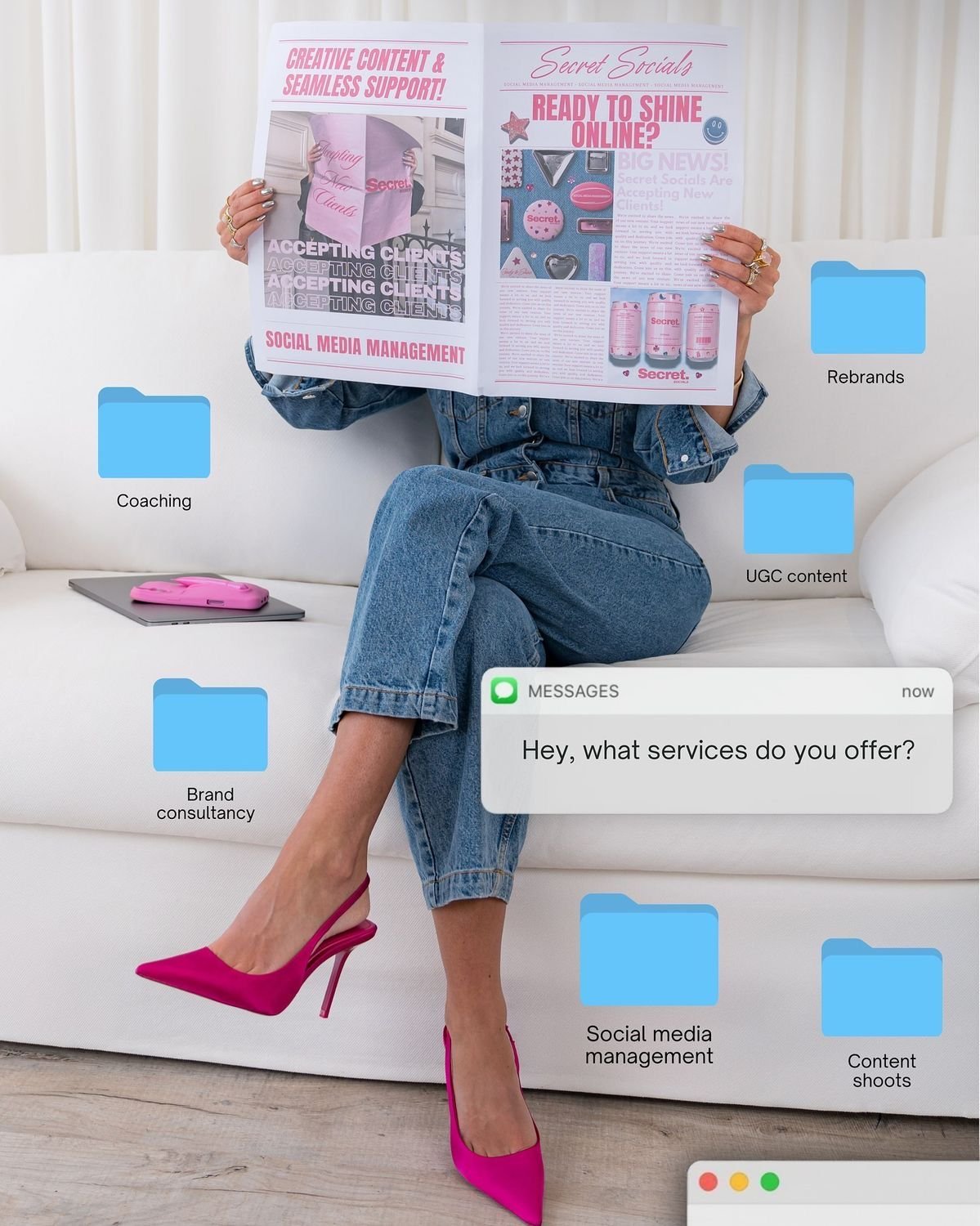
- Prompt included
- Model and format preset
- Premium template
The prompt behind this image
Copy the exact prompt behind Social Media Manager Desktop Case Study, or open it in the studio and make it yours.
- Prompt
- A trendy modern marketing service advertisement featuring a stylish woman sitting on a white sofa wearing blue jeans and bright pink high heels, holding an open magazine. Around her are floating digital folder icons labeled with services like social media management, UGC content, brand consultancy, coaching, rebranding, and content shoots. In the foreground is a smartphone-style message notification that says 'Hey, what services do you offer?'. Clean minimal background, editorial fashion photography style, ultra realistic, 4K.
- Size
- 1024x1024
- N
- 1
Raw JSON
{
  "prompt": "A trendy modern marketing service advertisement featuring a stylish woman sitting on a white sofa wearing blue jeans and bright pink high heels, holding an open magazine. Around her are floating digital folder icons labeled with services like social media management, UGC content, brand consultancy, coaching, rebranding, and content shoots. In the foreground is a smartphone-style message notification that says 'Hey, what services do you offer?'. Clean minimal background, editorial fashion photography style, ultra realistic, 4K.",
  "size": "1024x1024",
  "n": 1
}How to use Social Media Manager Desktop Case Study in 3 steps
- 1
Open
The prompt is already in the box next to the preview, with the template's model and format selected.
- 2…a portrait of your subject in softgolden-hour light, 85mm…
Personalize
Edit the subject and creative details for your destination.
- 3Generate
Generate
Press Generate — your image is created in PicX Studio, so you can compare it with the original and refine one variable at a time.
More like this
Templates with the same subject, style or setup. Open one to see its prompt.

Douyin Aesthetic Café Study Portrait

Nano Banana - Paris Cafe Editorial
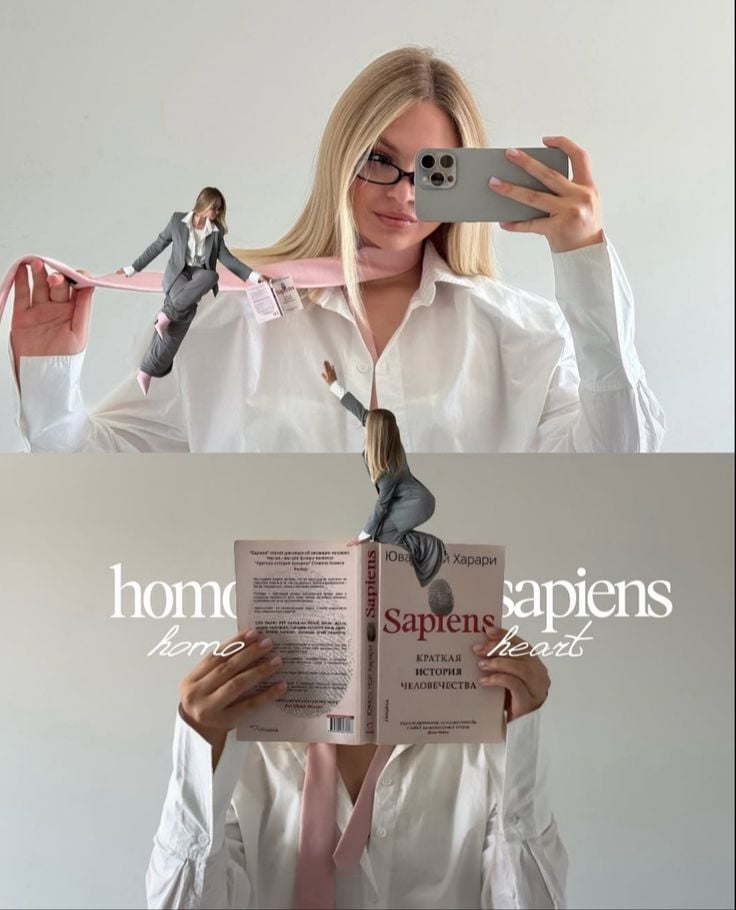
Miniature Self Portrait Collage

Mixed Media Editorial Woman Illustration
Mixed Media Fashion Film - Seedance 2.0
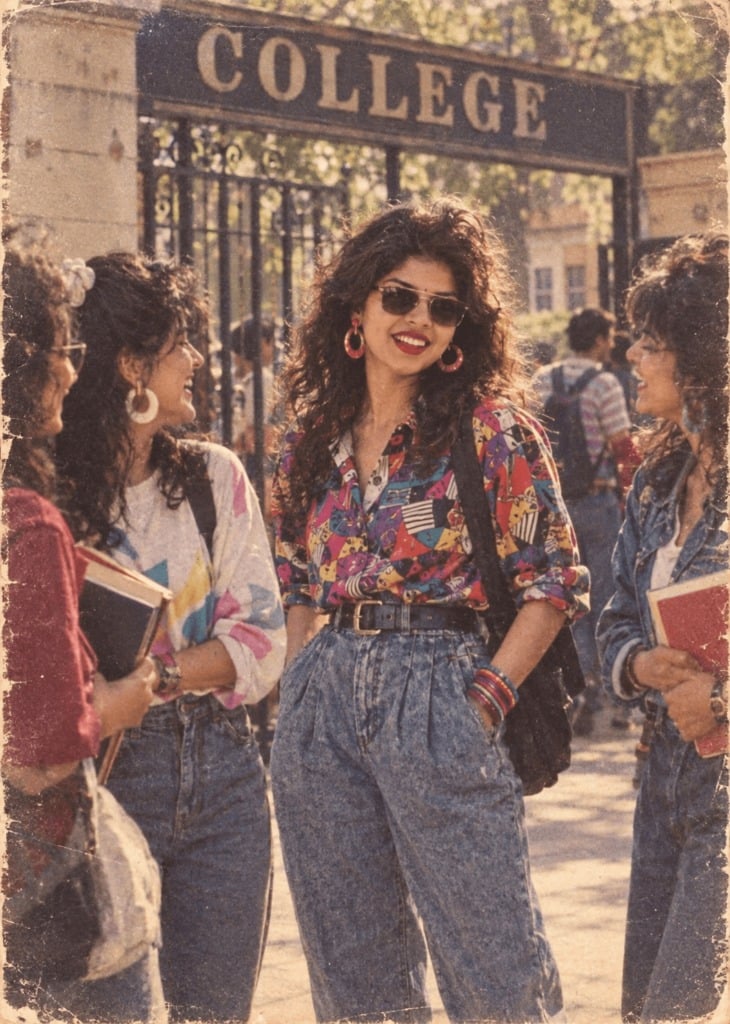
80s College Gate
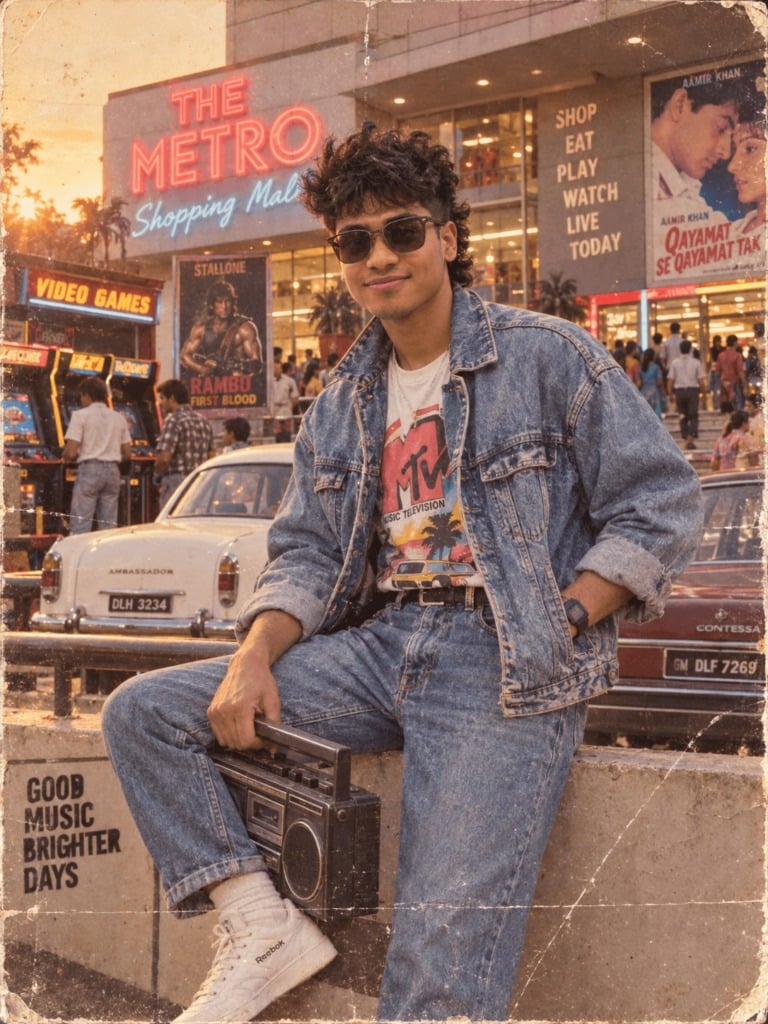
1988 Mall Style

80s Polka Dot Saree
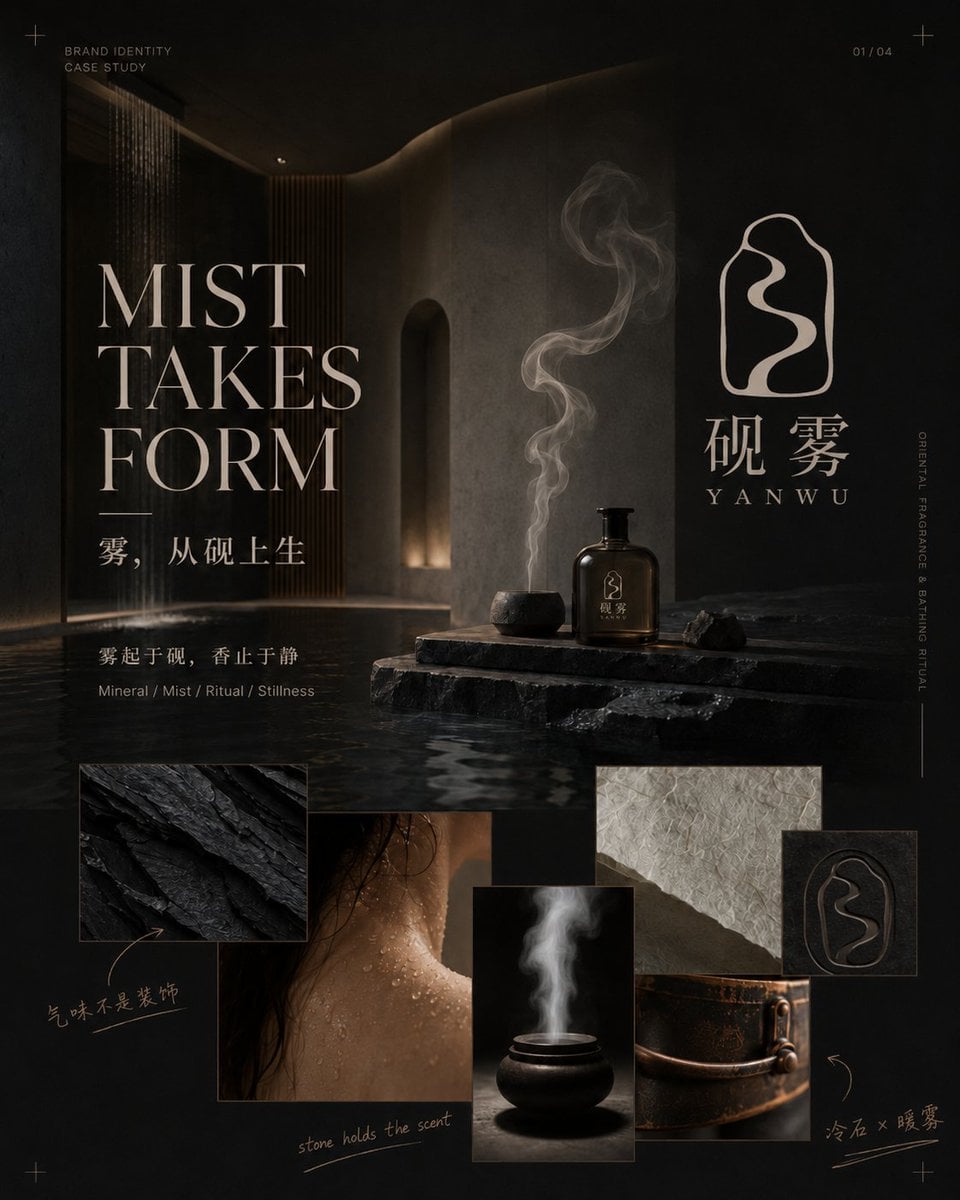
Dark Oriental Fragrance Brand Case Study

Parisian Fashion Lifestyle Illustration
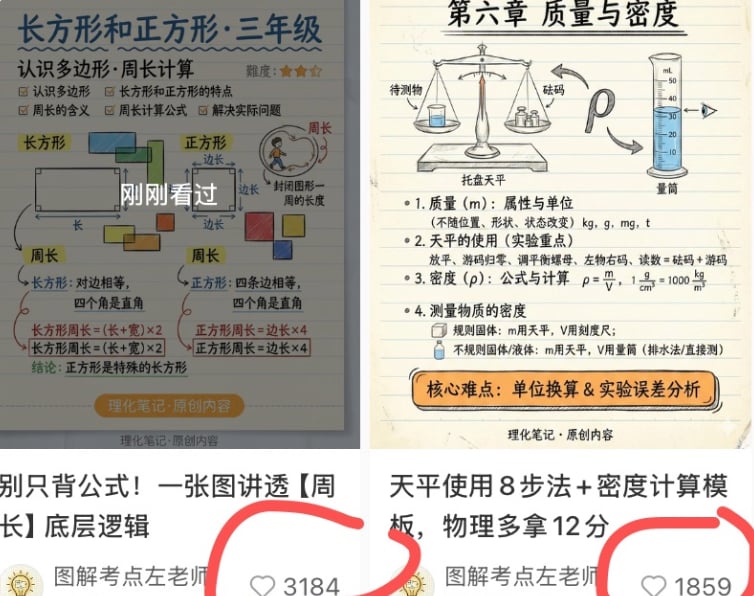
Chinese Study Card Social Screenshot

A k.pop idol on the stage with mic
Make it yours
Social Media Manager Desktop Case Study works as-is. These are the safest ways to change it without losing the look.
Change one field
Copy a single group, rewrite it, and generate again so you can see what that field is doing.
Keep the frame, change the subject
Hold the composition and light of Social Media Manager Desktop Case Study, then swap wardrobe, props or the person for a new take.
| If the result… | Why | Fix |
|---|---|---|
| The result drifts from the preview | Too many fields changed at once. | Reuse Social Media Manager Desktop Case Study as-is first, then change one group — subject, light, or setting. |
| PicX Studio ignores part of the JSON | Some models flatten or skip nested keys. | Keep the same values and paste them as a short paragraph instead. |
More image prompts
Fresh picks from across the catalog.

Flat Vector Office Team Illustration
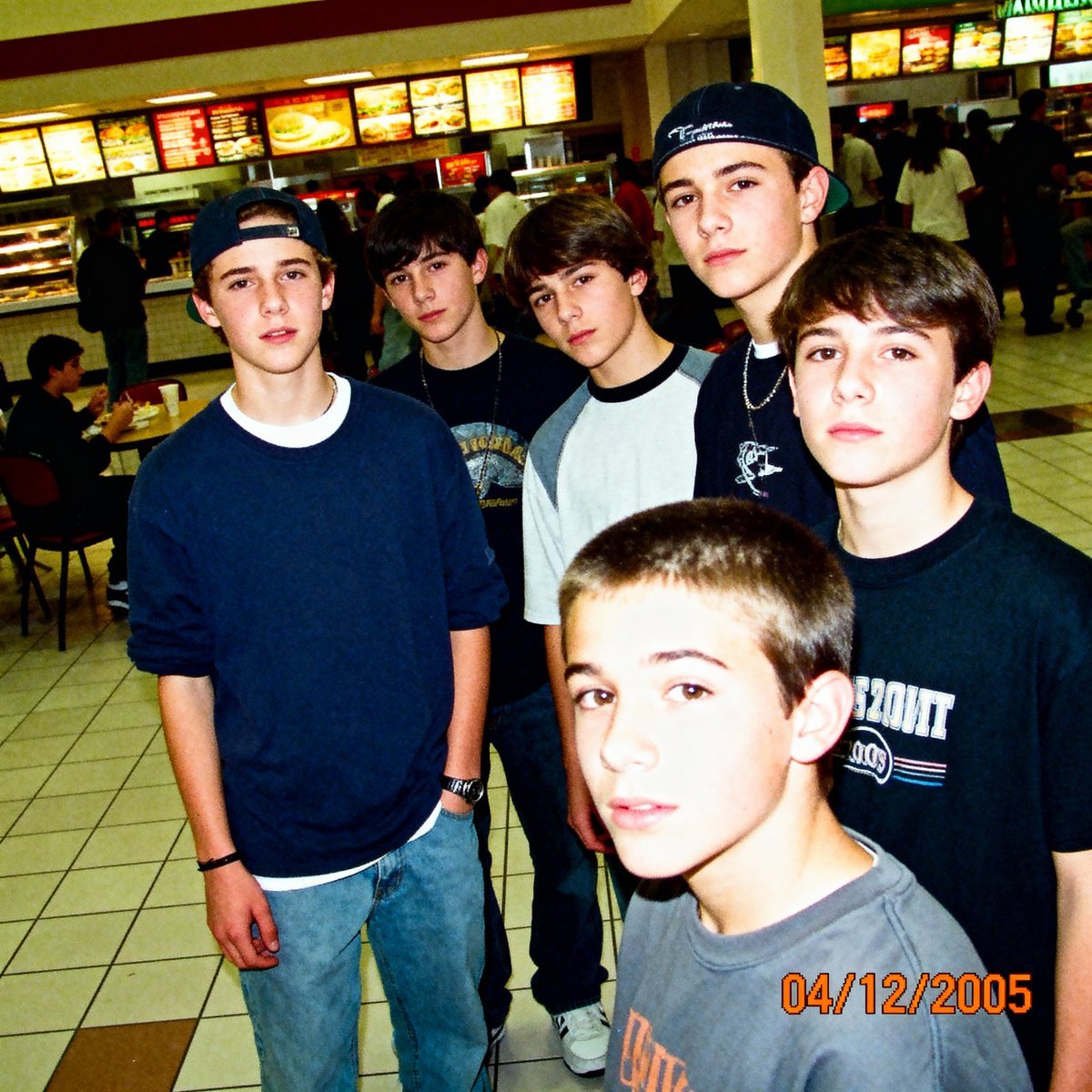
2005 Sony CyberShot mall food court snapshot prompt
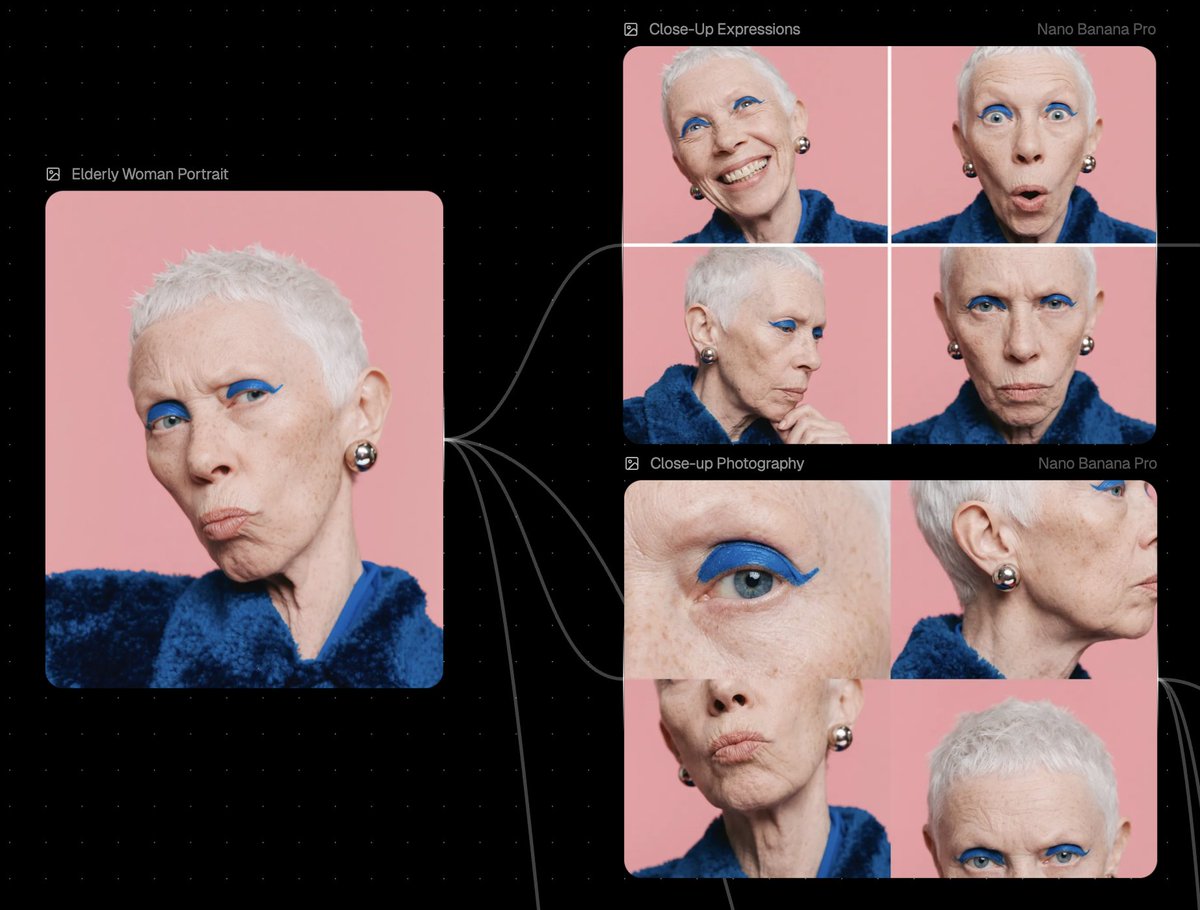
Reference Image Prompt for Facial Expression and Angle Variations

Kyaraben (Character Bento Box) Generation Prompt
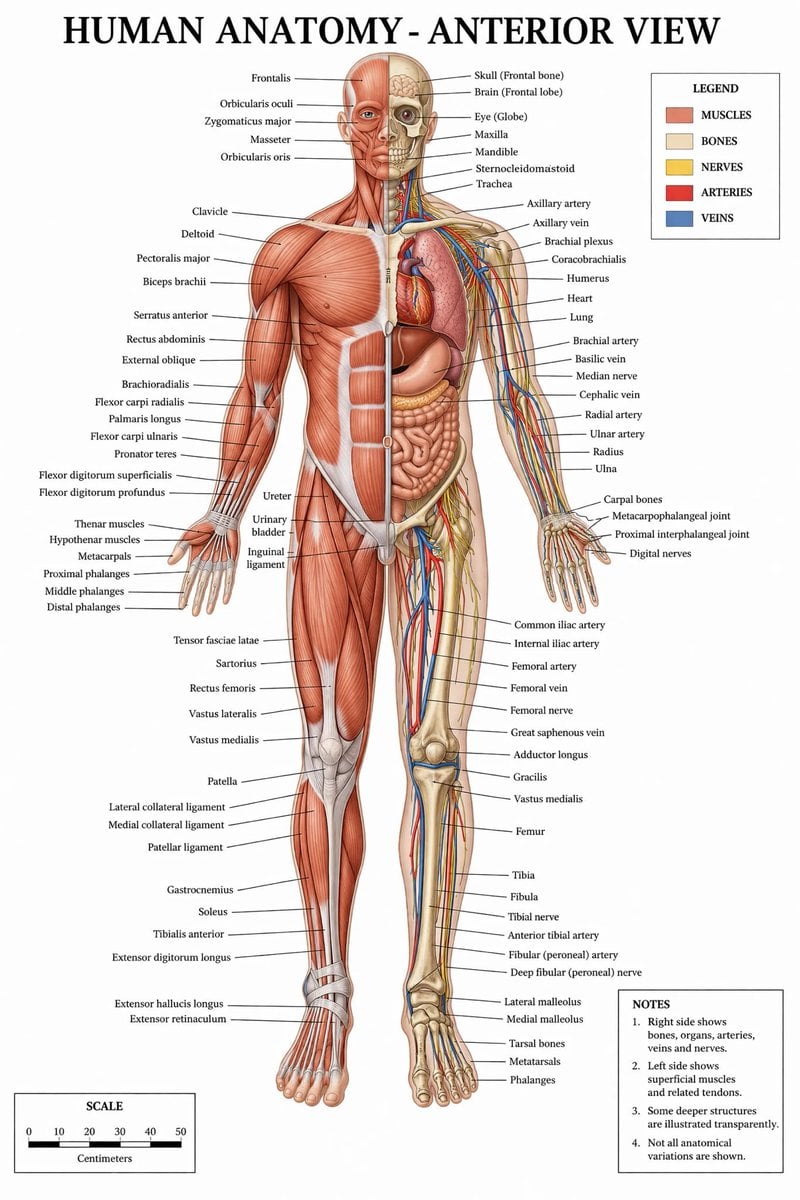
Detailed Medical Anatomy Infographic
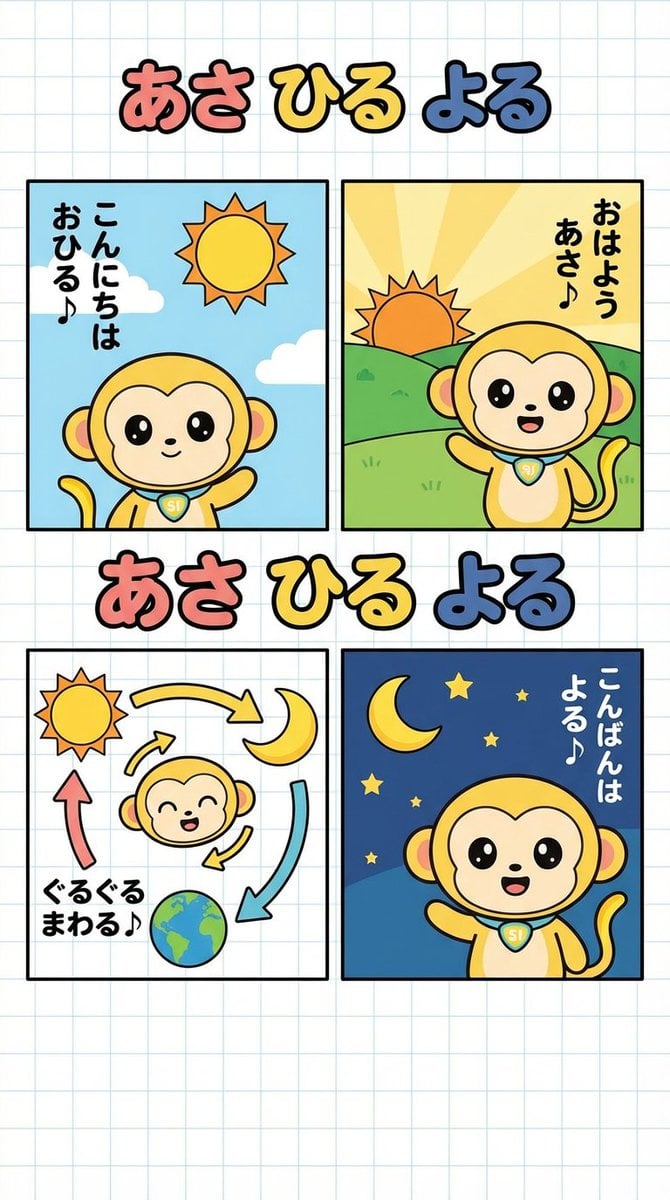
Four-Panel Comic: Morning, Noon, Night, Mandarin Orange Theme

Anime Supermarket Group Scene
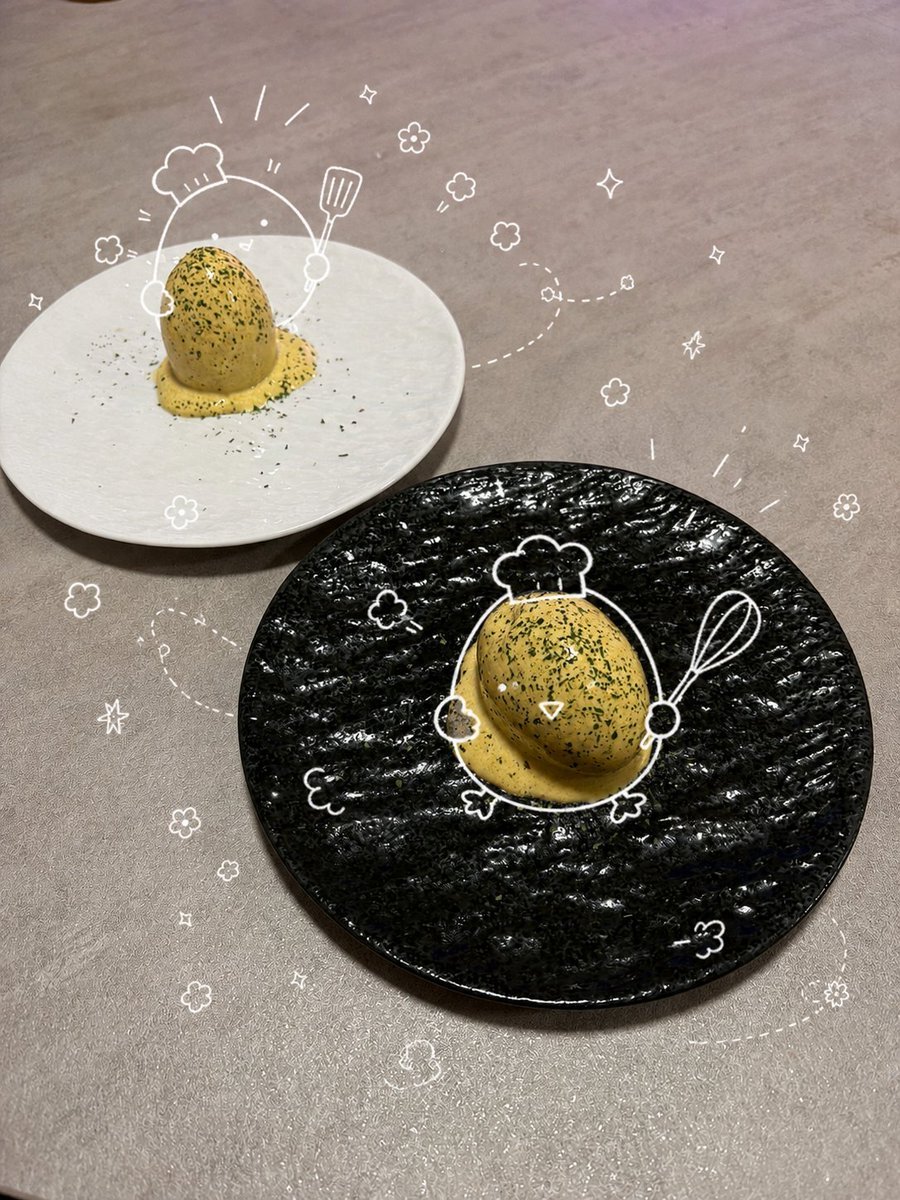
Playful Oeuf Mayo Food Photo

Puri-kura Style Processing and Drawn Wings Test

Y2K Style K-Fashion Poster
Browse template categories
Social Media Manager Desktop Case Study questions
How do I use the Social Media Manager Desktop Case Study template?
Add your photo if the template asks for one, edit the prompt if you like — the template's model and format are already selected — and press Generate. Your version opens in PicX Studio.
Can I customize the Social Media Manager Desktop Case Study template?
Yes. You can change the subject, setting, lighting, mood, format, and available model controls before creating your image.
Is the Social Media Manager Desktop Case Study template free?
Opening and editing this template is free. Generating uses credits, shown on the Generate button when you are signed in.
Which AI model should I use?
Choose a compatible model in PicX Studio based on the style, speed, and output controls your project needs.
Looking for something else? Browse all templates.

Your photo, any look
Thousands of ready templates for every top image and video model, from one credit balance.