
Image Texture and Style Transfer
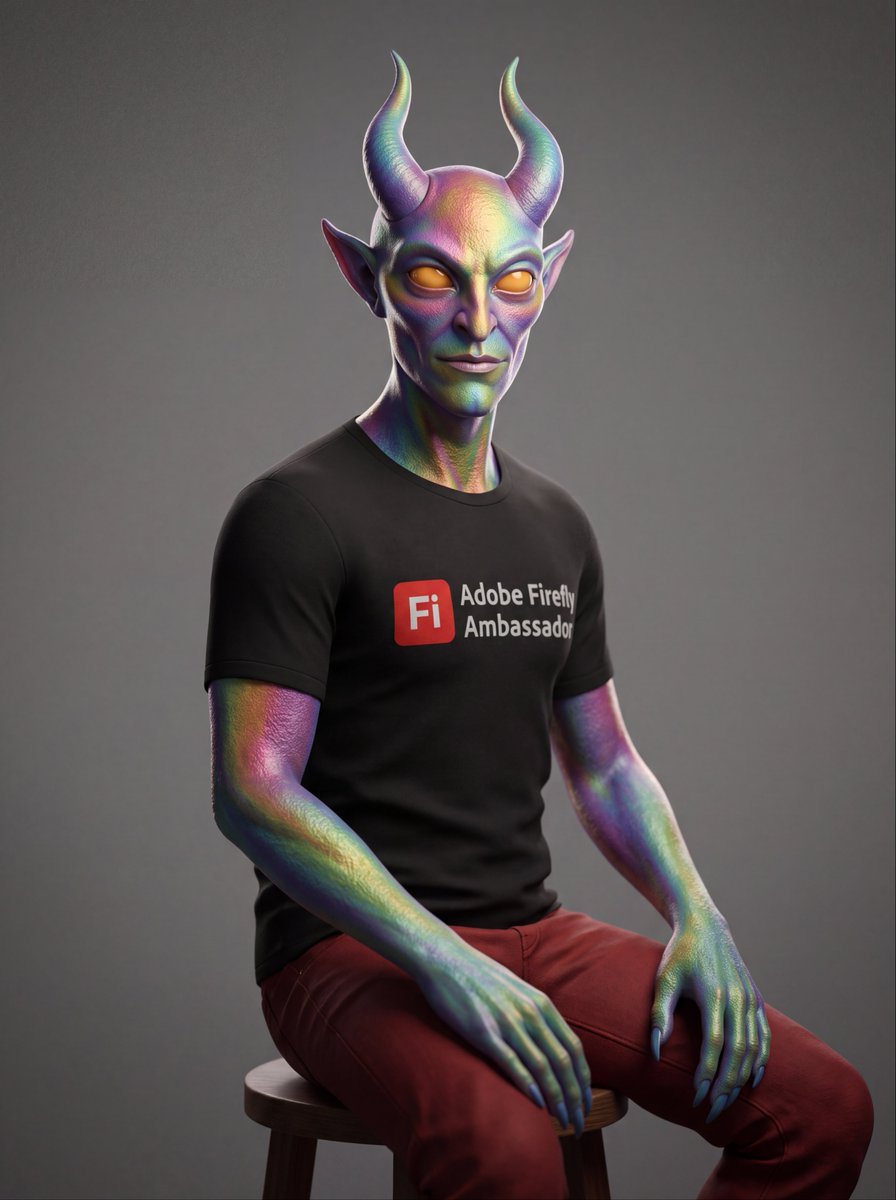
A prompt for Nano Banana 2 that selectively transfers style, texture, and color treatment from one source while preserving the composition of another.
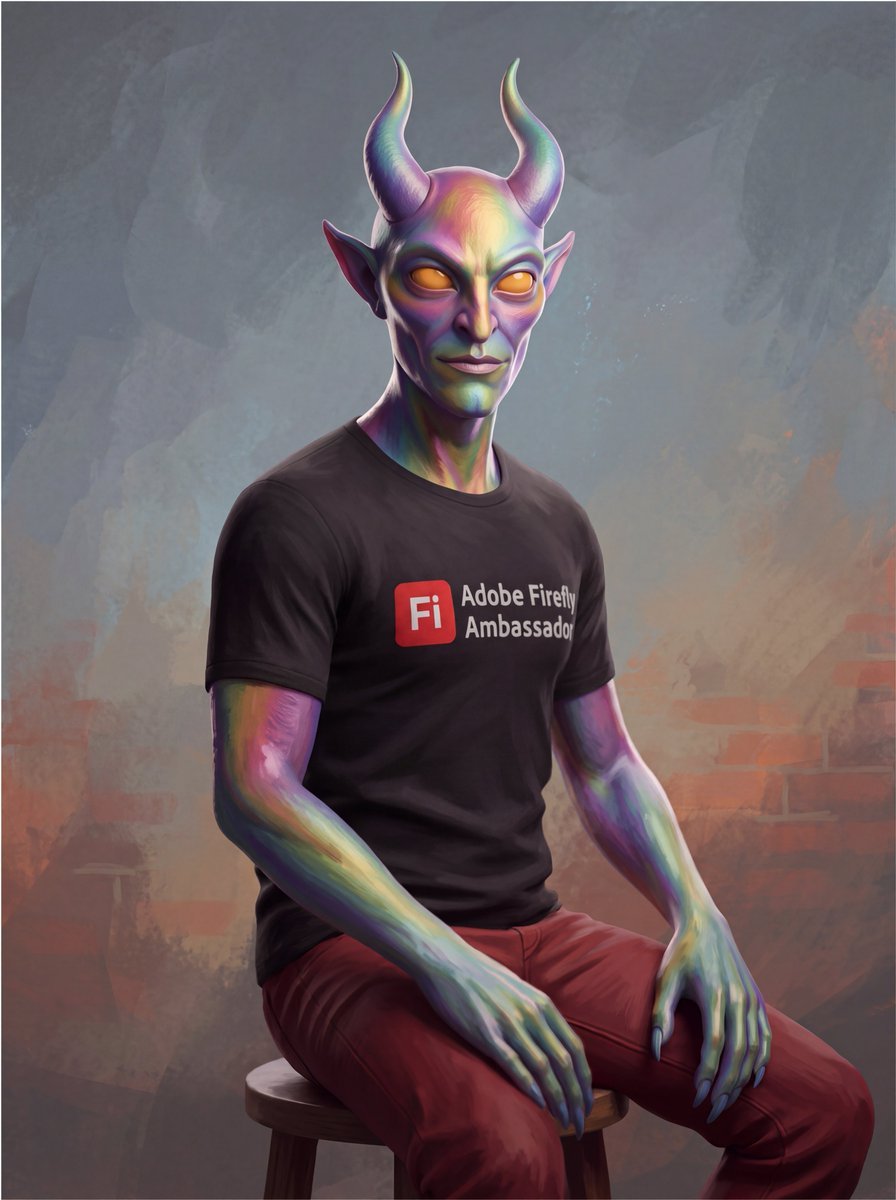
- Prompt included
- Model and format preset
- Free template
The prompt behind this image
Copy the exact prompt behind Image Texture and Style Transfer, or open it in the studio and make it yours.
Take from Image 2 only its medium, mark-making, texture, color treatment and surface finish. Take from Image 1 everything else
Reference images included
Image Texture and Style Transfer needs input media to work. They load alongside the prompt when you open it in the studio.
How to use Image Texture and Style Transfer in 3 steps
- 1Upload ImagePNG, JPG or paste
Add your photo
Upload the photo the template builds on. The prompt, model and format are already set.
- 2…a portrait of your subject in softgolden-hour light, 85mm…
Personalize
Edit the subject and creative details for your destination.
- 3Generate
Generate
Press Generate — your image is created in PicX Studio, so you can compare it with the original and refine one variable at a time.
More like this
Templates with the same subject, style or setup. Open one to see its prompt.
Creative Character in Pink Office
Avant-Garde Asian Fashion Model
Underwater Macro Face Portrait
Water-level Bridge Modification
Noir Punk Street Portrait
High Contrast Cinematic Face Portrait
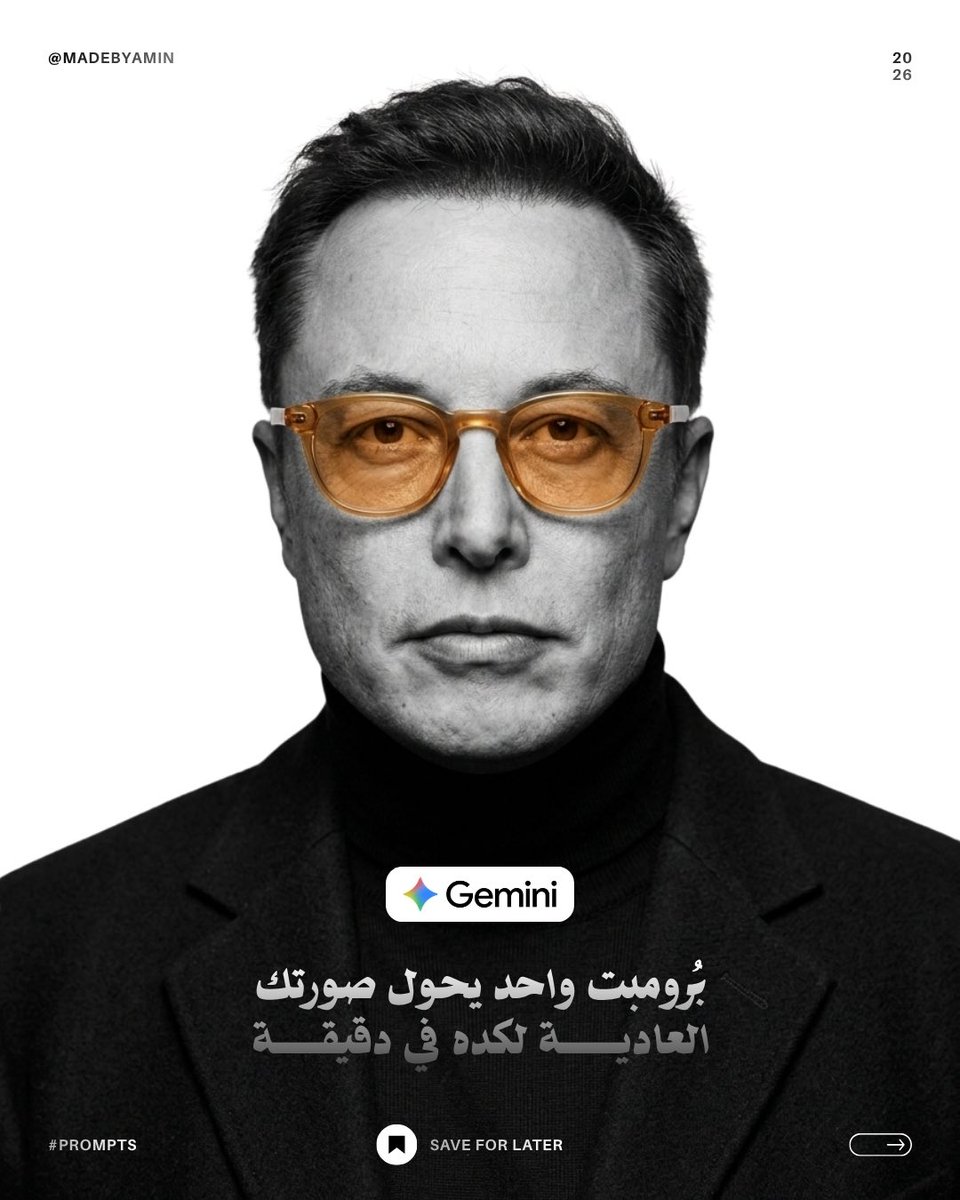
Monochrome Studio Portrait with Colored Lens

Ultra-Realistic Yacht Sunset Portrait

Mushroom Still Life Composition
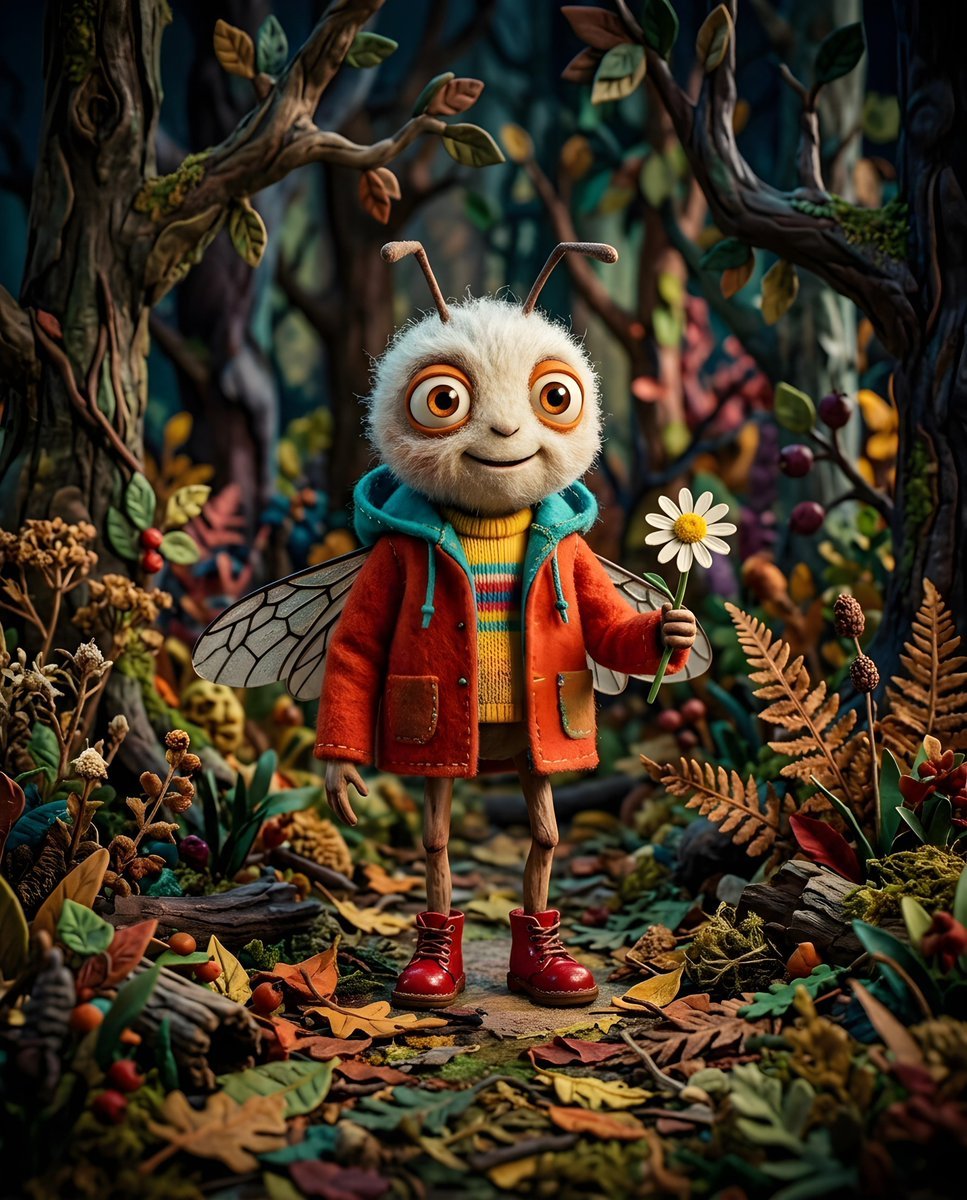
Whimsical Anthropomorphic Friendly Insect
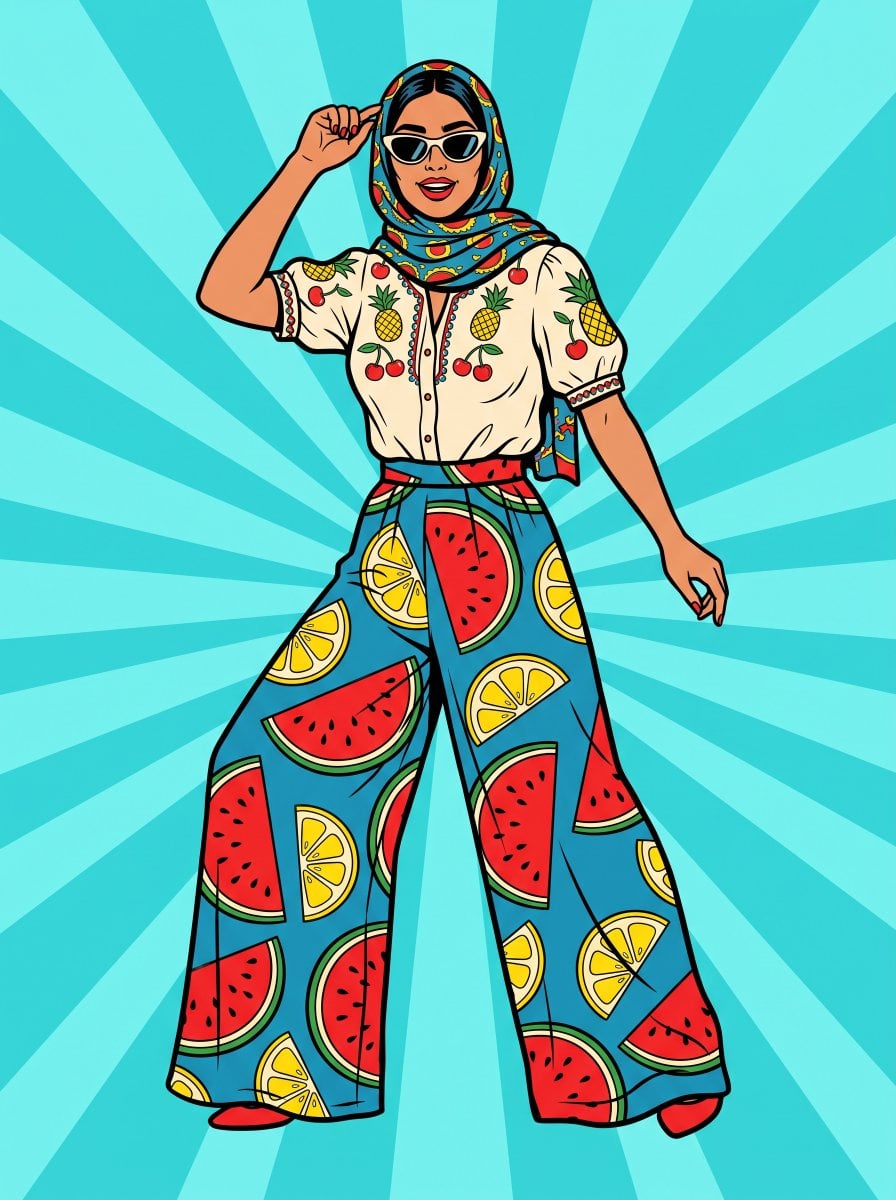
Pop Art Summer Fruit Fashion Illustration
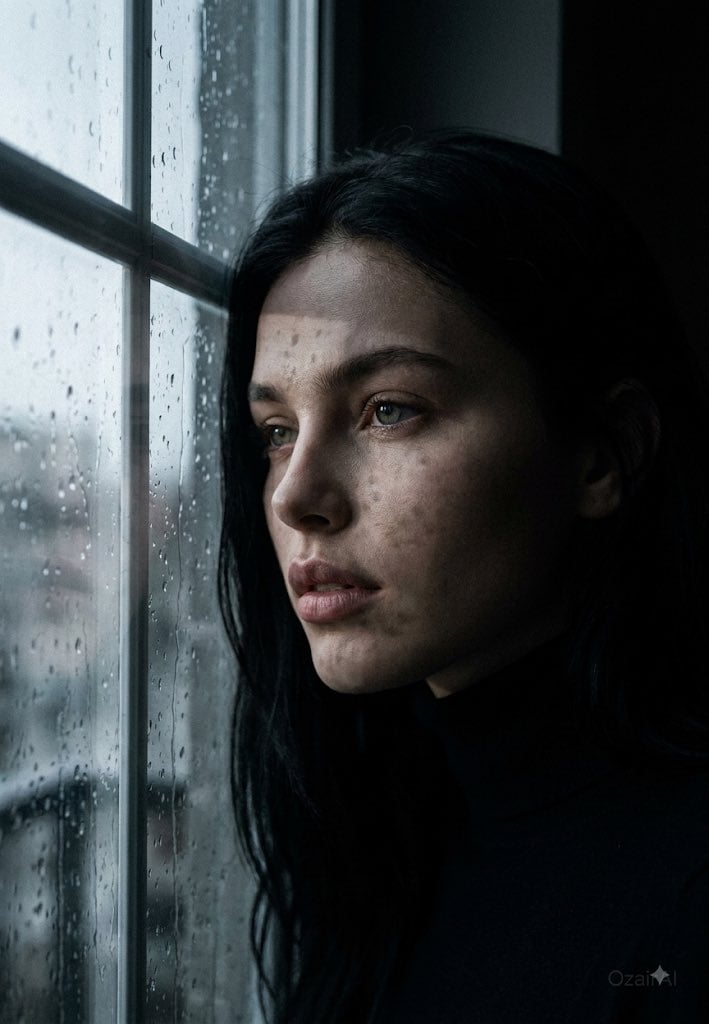
Dark Cinematic Window Lighting Portrait
Make it yours
Image Texture and Style Transfer works as-is. These are the safest ways to change it without losing the look.
Change one field
Copy a single group, rewrite it, and generate again so you can see what that field is doing.
Keep the frame, change the subject
Hold the composition and light of Image Texture and Style Transfer, then swap wardrobe, props or the person for a new take.
| If the result… | Why | Fix |
|---|---|---|
| The result drifts from the preview | Too many fields changed at once. | Reuse Image Texture and Style Transfer as-is first, then change one group — subject, light, or setting. |
| The model over-stylizes the scene | The prose prompt leaves finish and camera underspecified. | Add one camera or lighting sentence and stay on Gemini 3 Pro Image Preview. |
More Gemini 3 Pro Image Preview templates
Other prompts made for Gemini 3 Pro Image Preview.
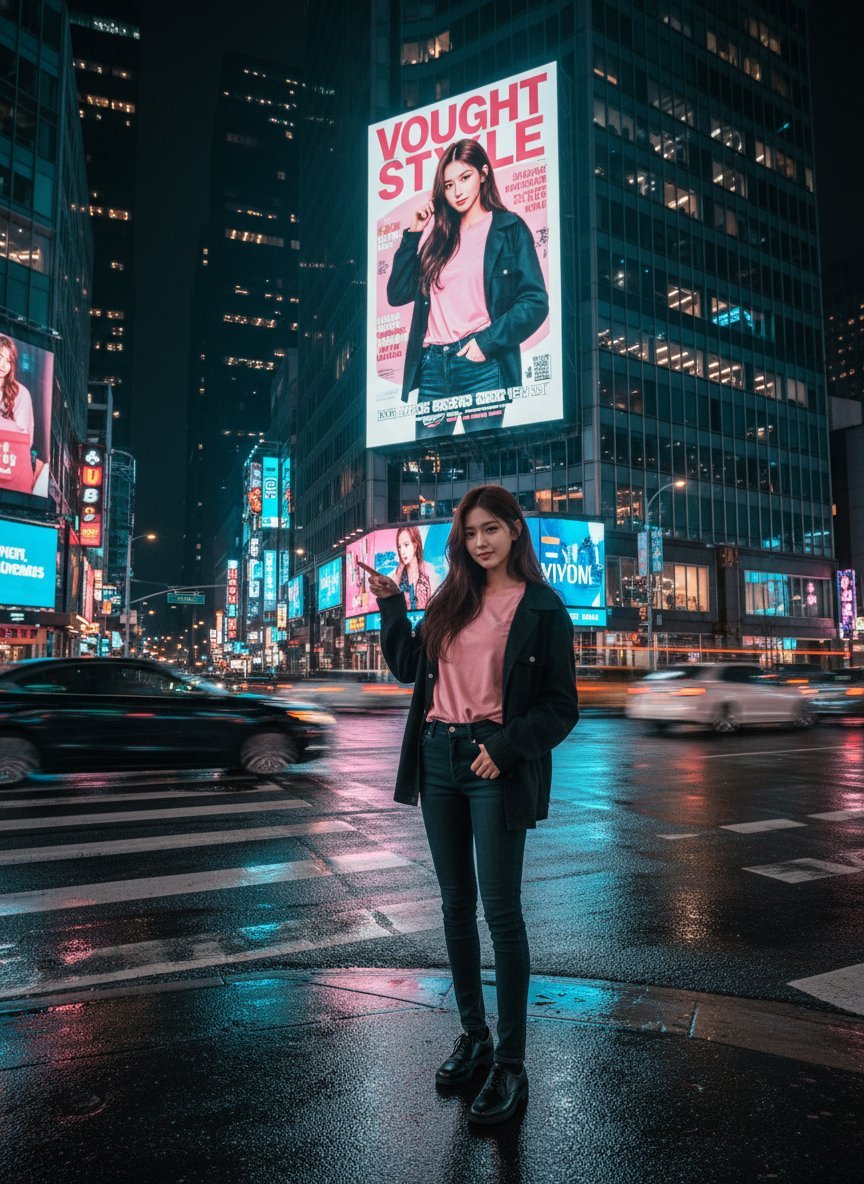
Cinematic Urban Night Billboard Portrait
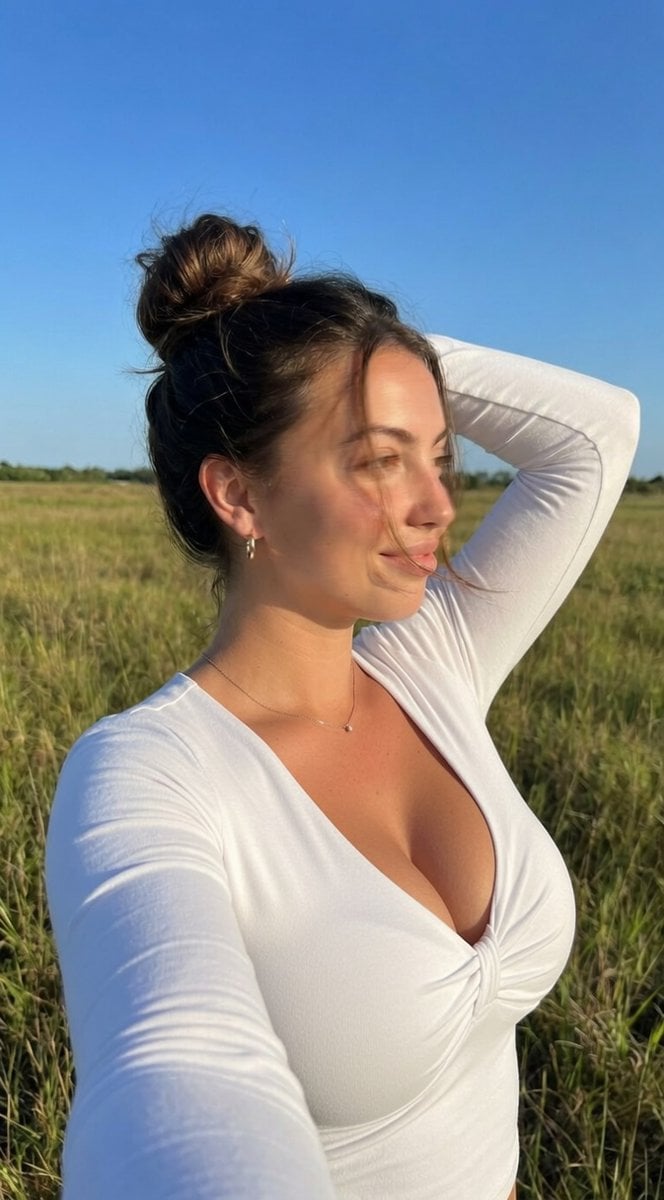
Ultra-Realistic iPhone Selfie with Motion Blur
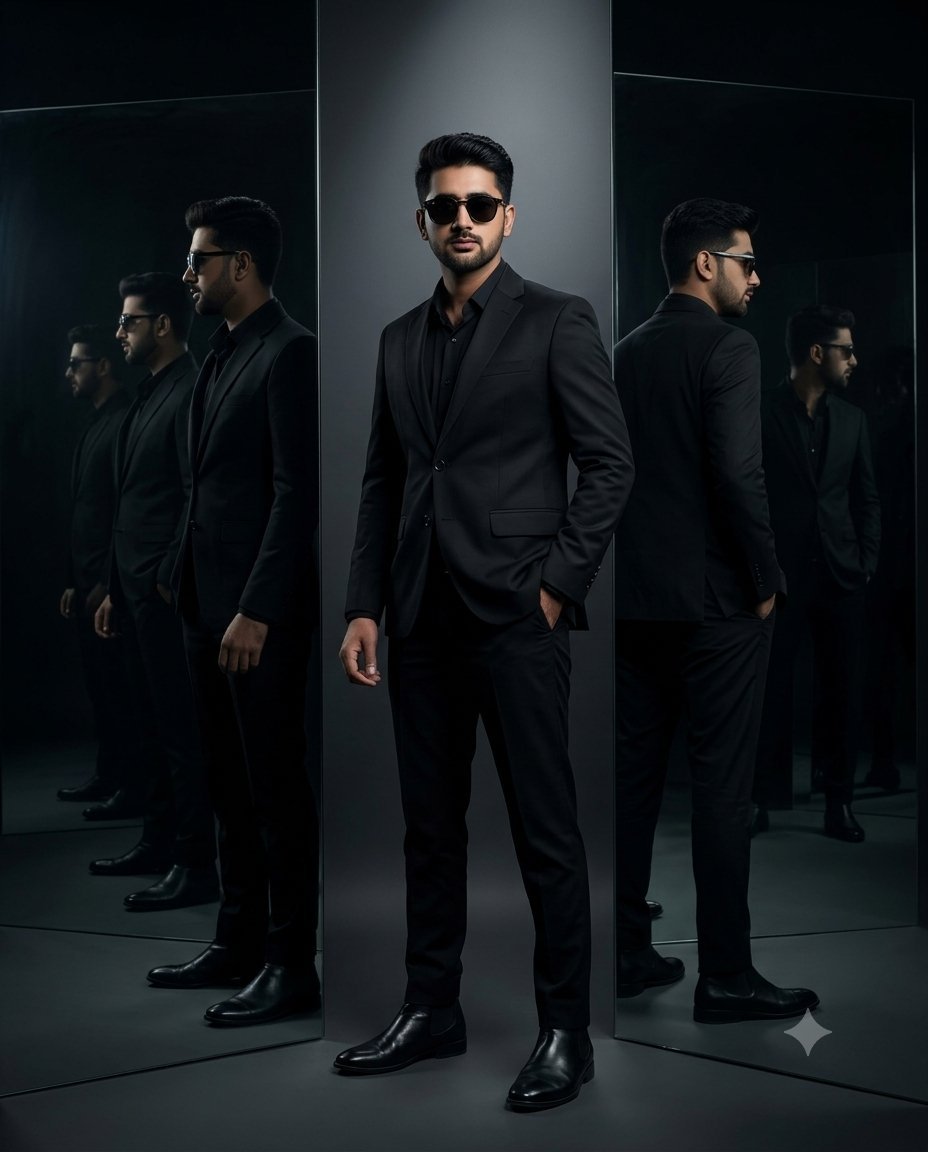
Cinematic Mirror Reflection Portrait
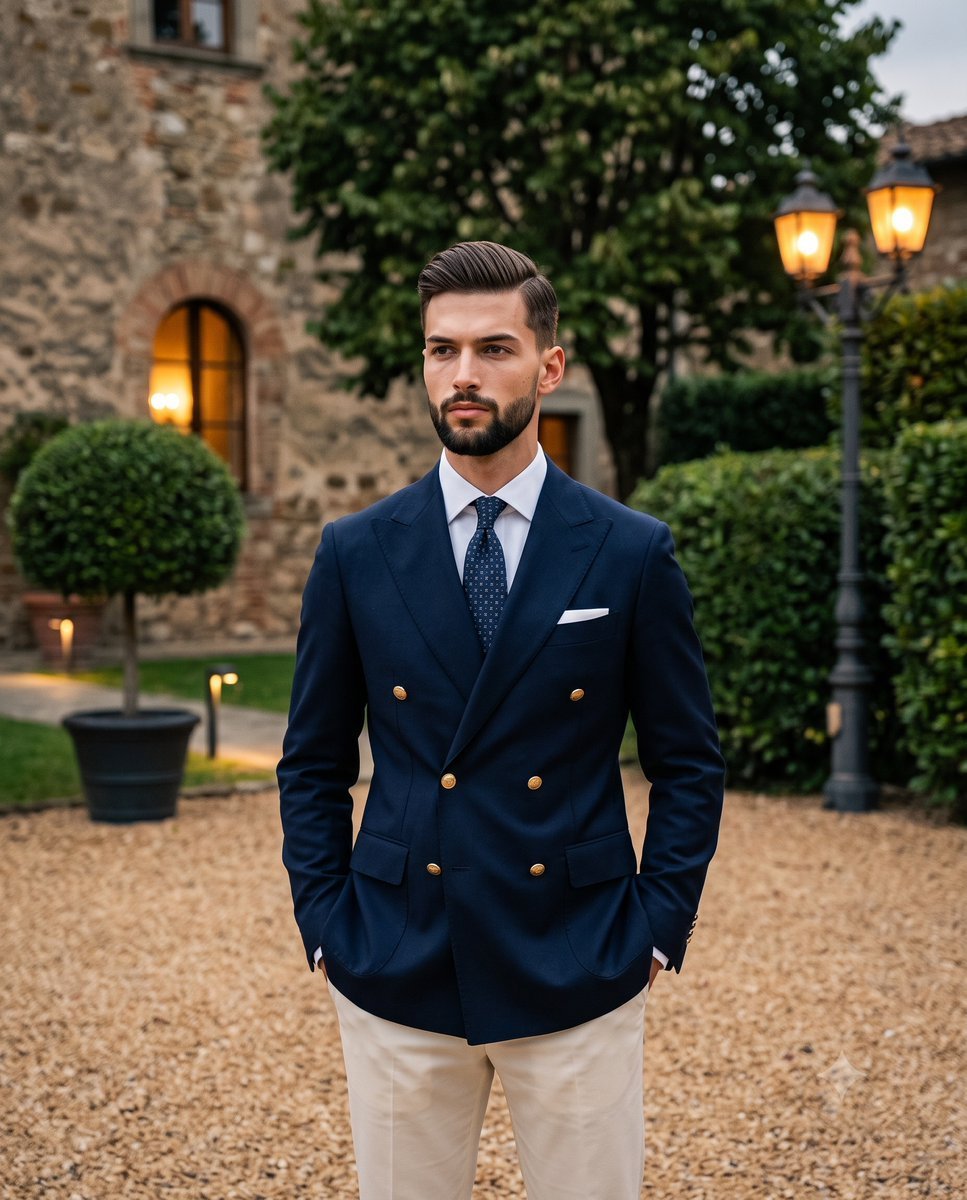
Elegant Men's Twilight Editorial
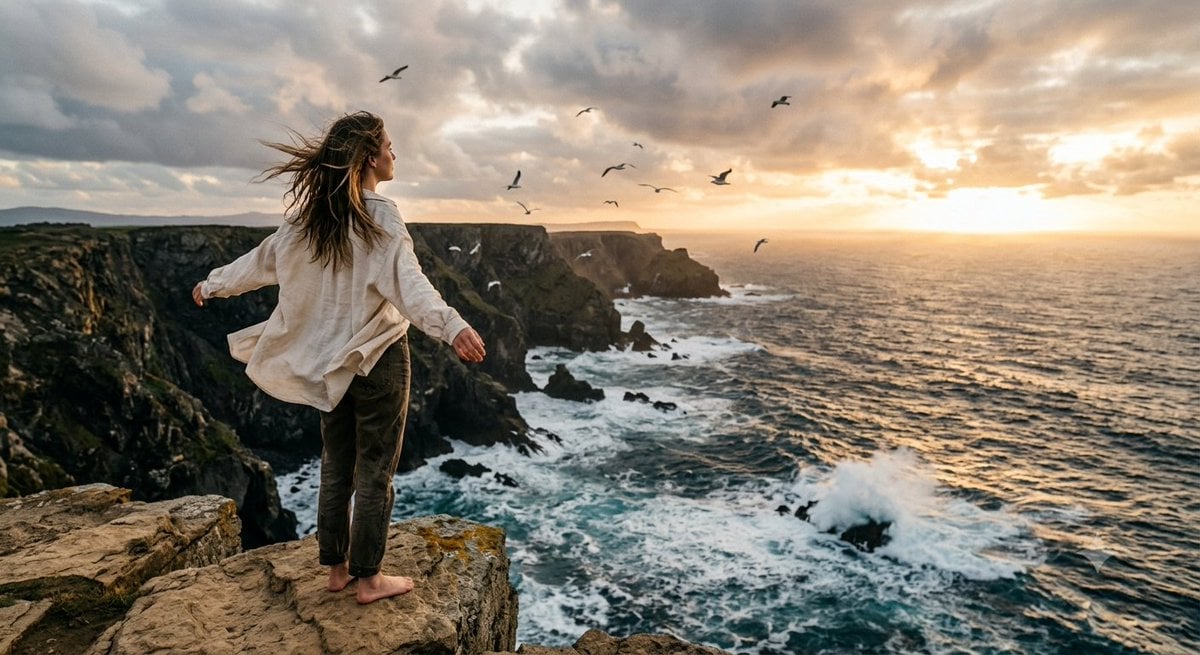
Coastal Freedom Sunset Portrait
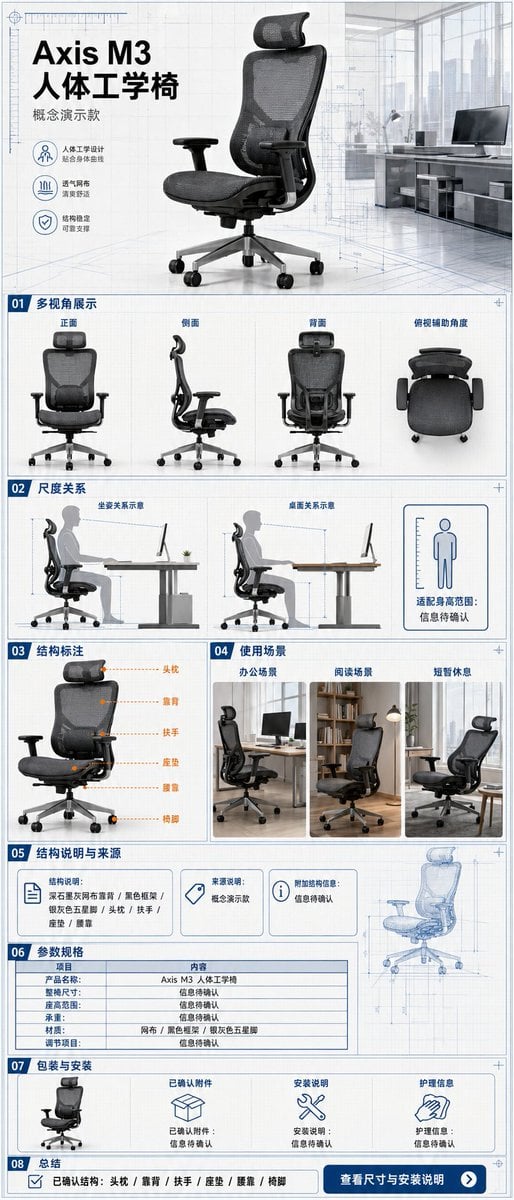
Ergonomic Office Chair E-commerce Mobile Detail Page
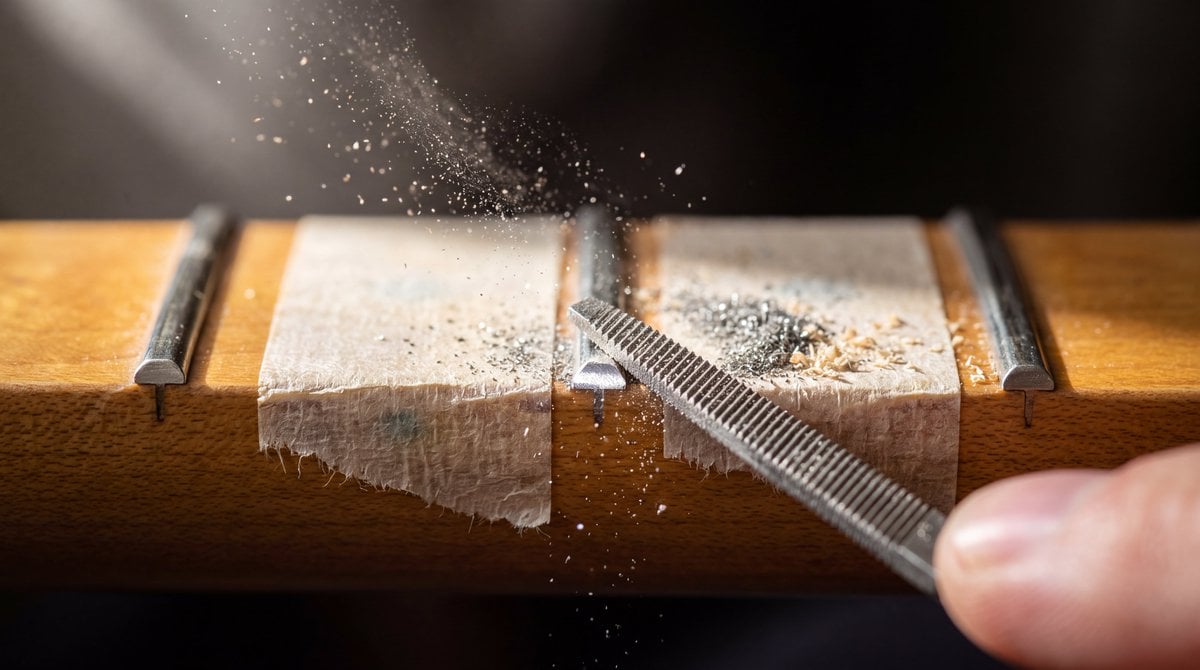
Macro Guitar Fret Dressing
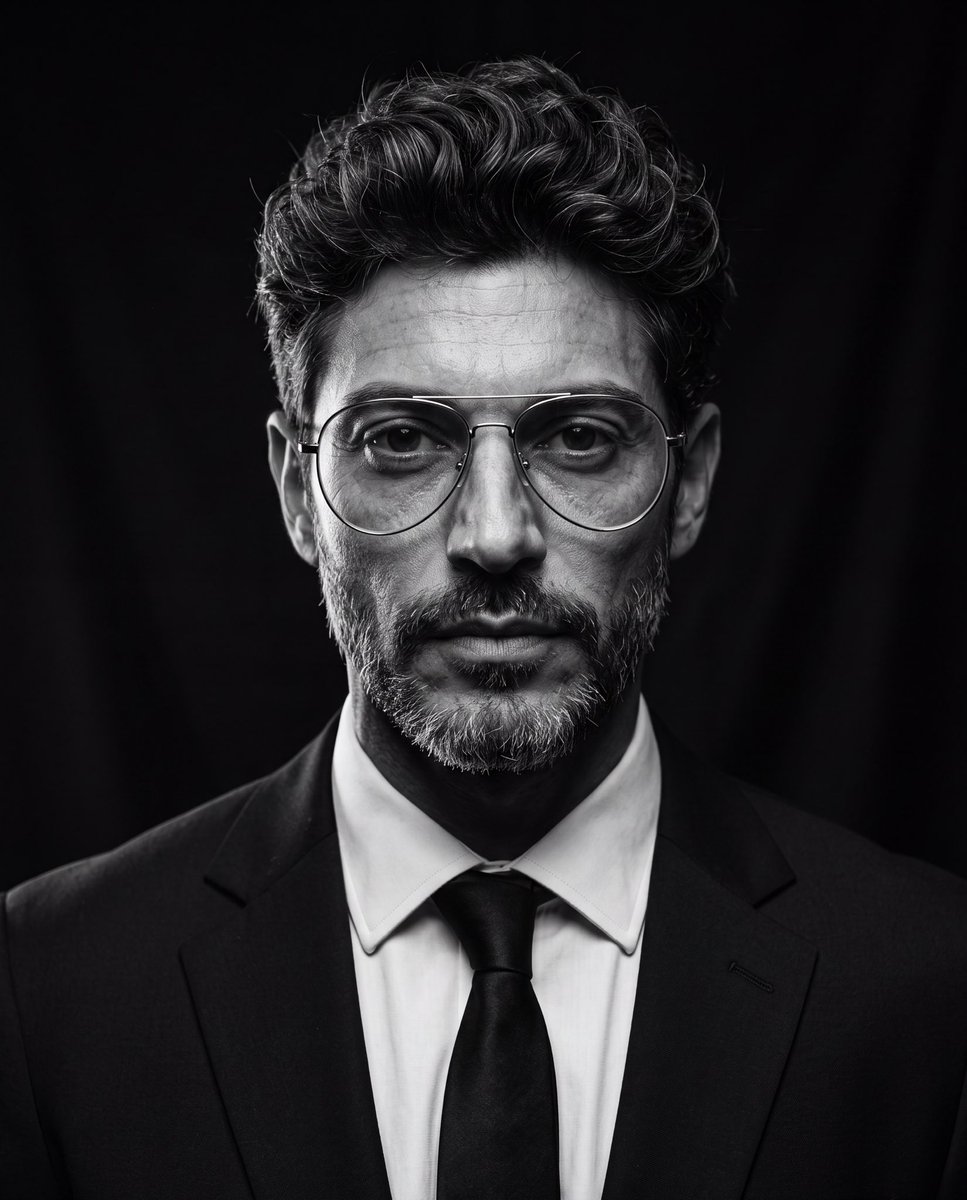
Cinematic Black and White Studio Portrait
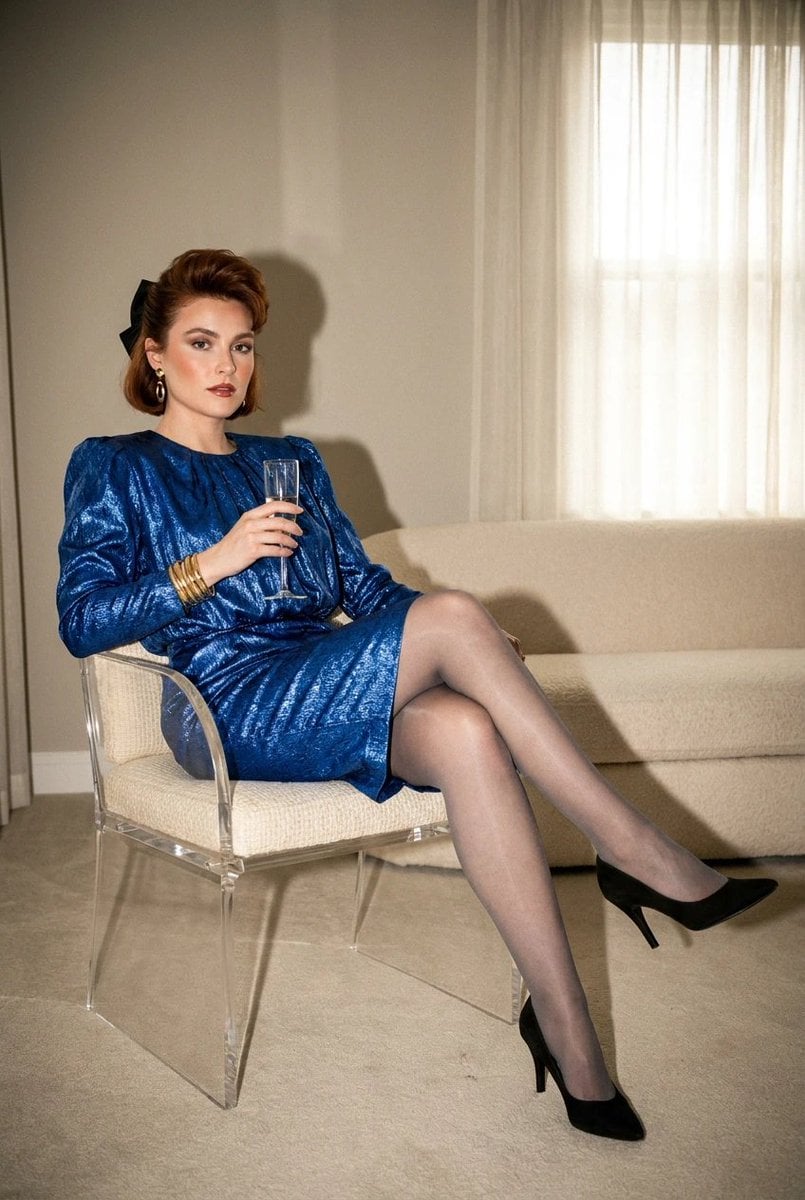
1980s Retro Salon Portrait
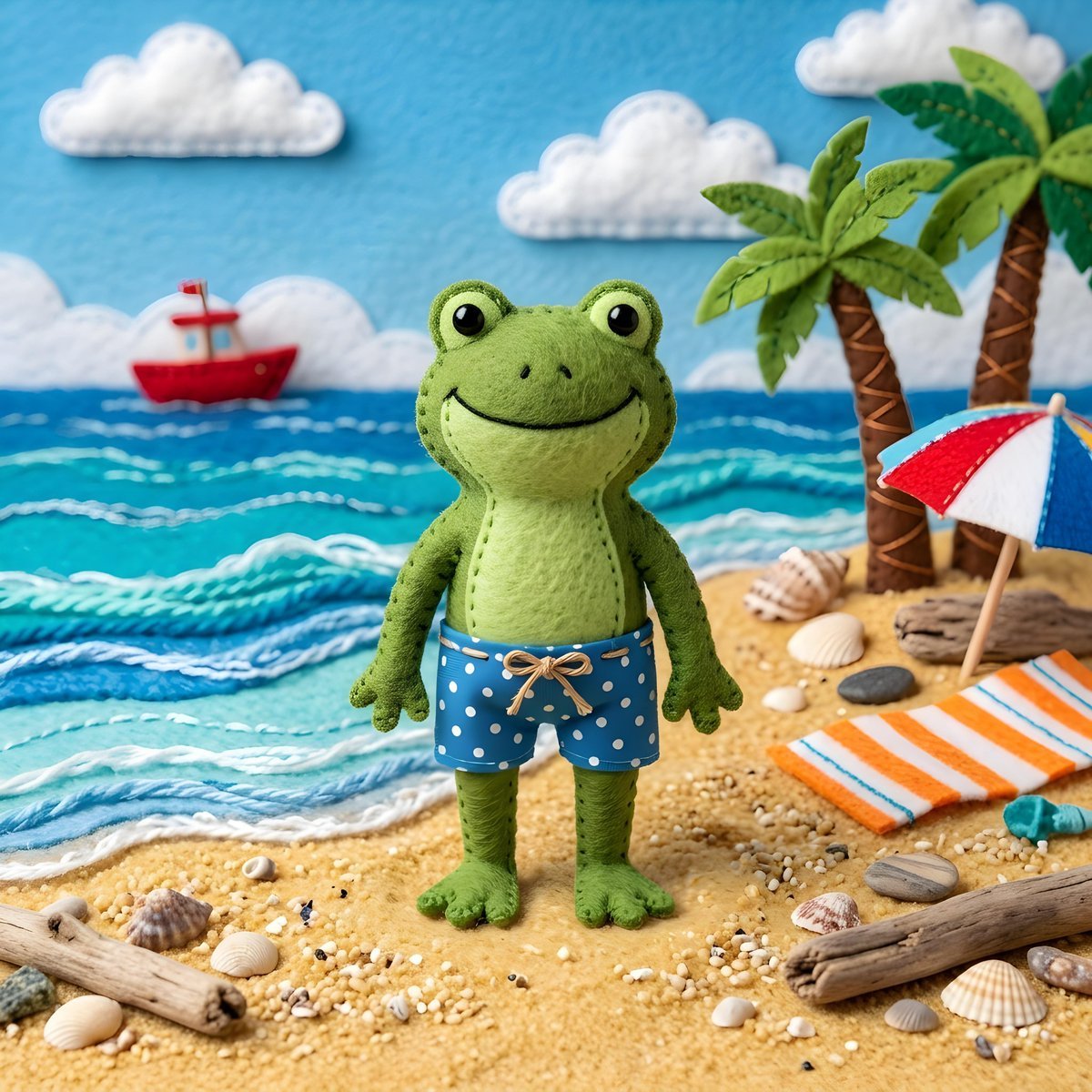
Felt Frog Diorama Beach
More image prompts
Fresh picks from across the catalog.
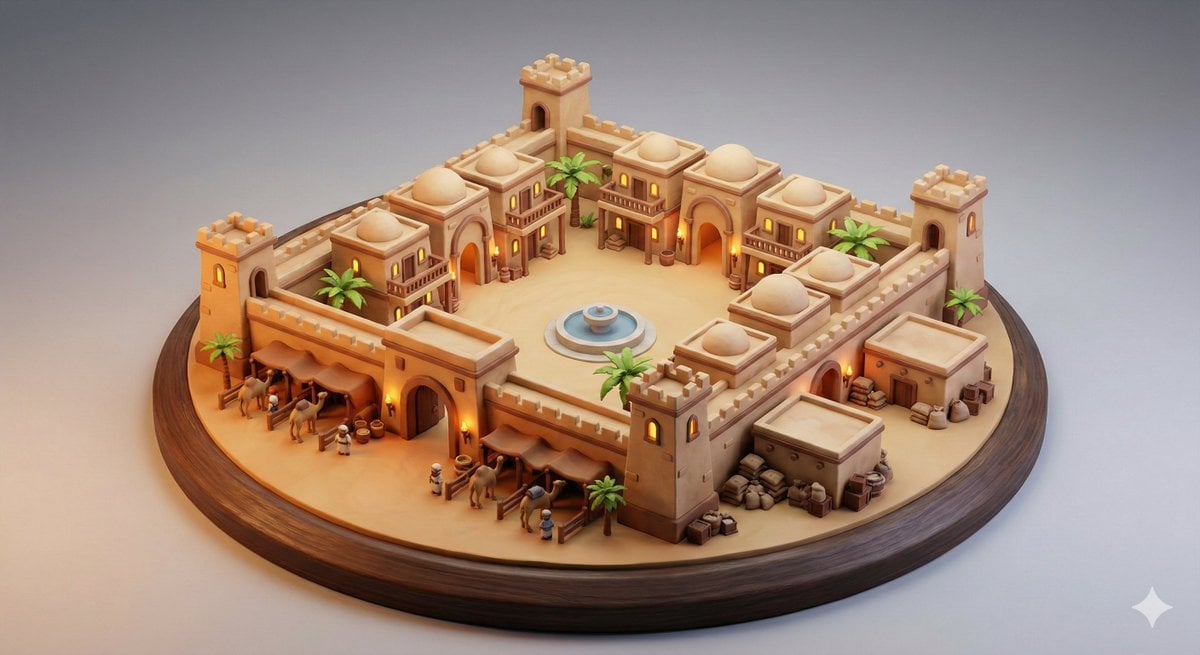
Whimsical Diorama of a Fortified Desert Caravanserai
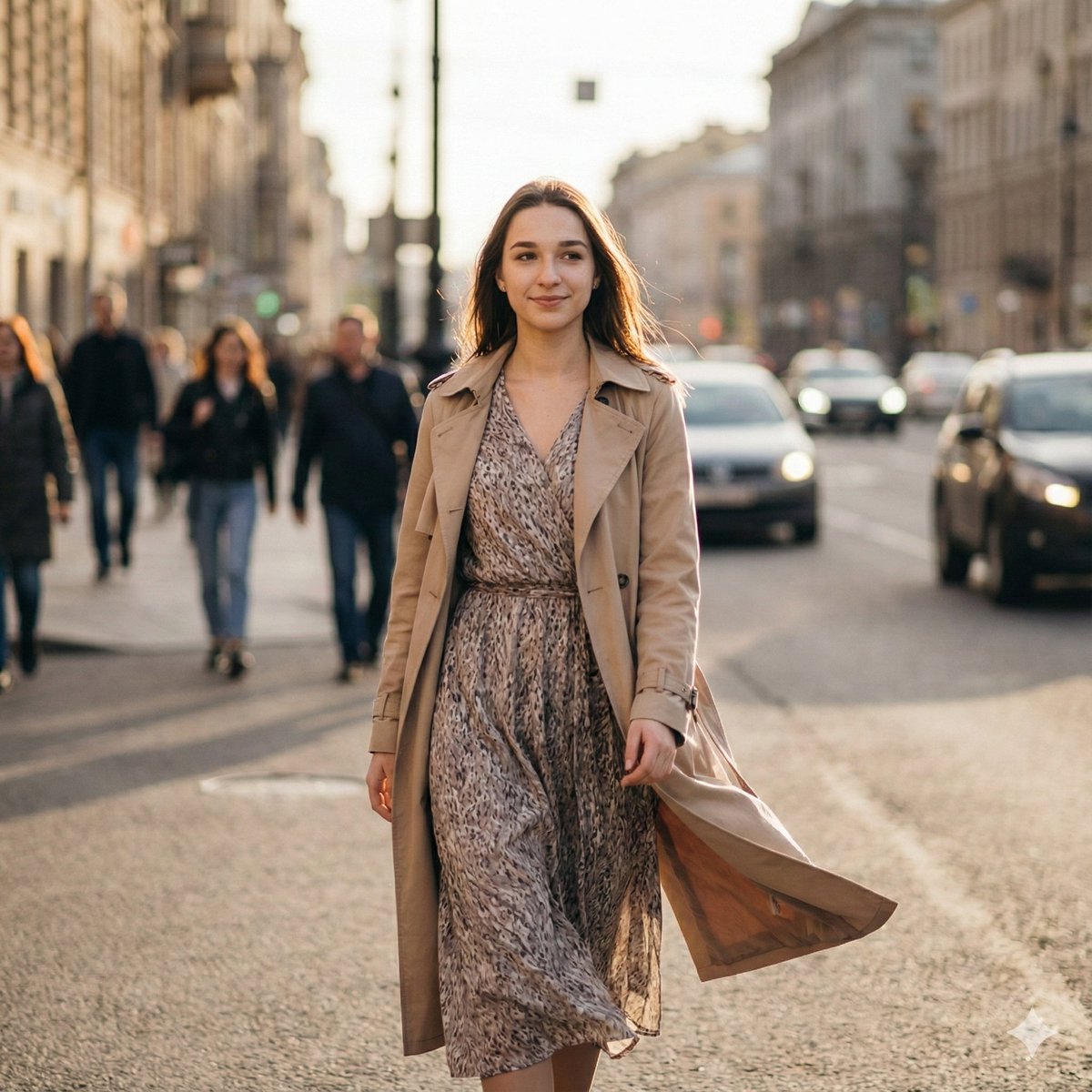
Ultra-Realistic Cinematic Street Photography Prompt

3x3 Grid Character Consistency Prompt
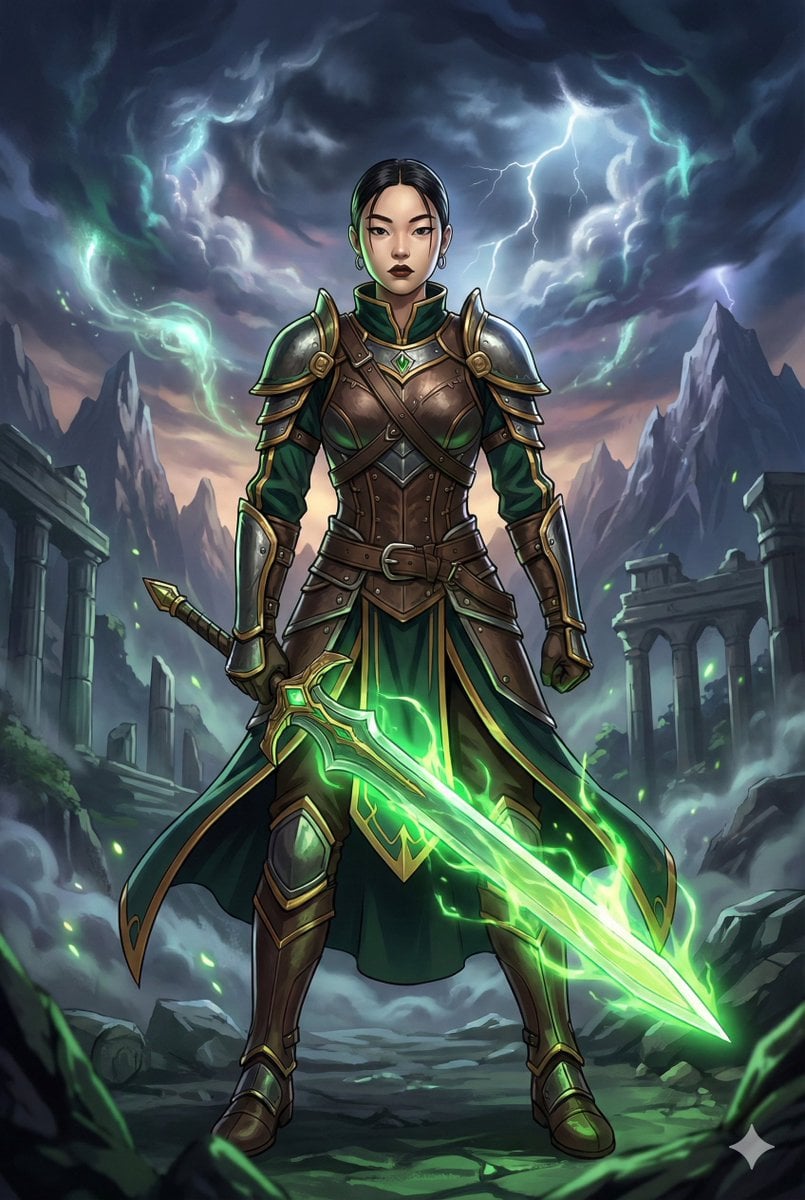
Combining image generation prompts for a fantasy card style
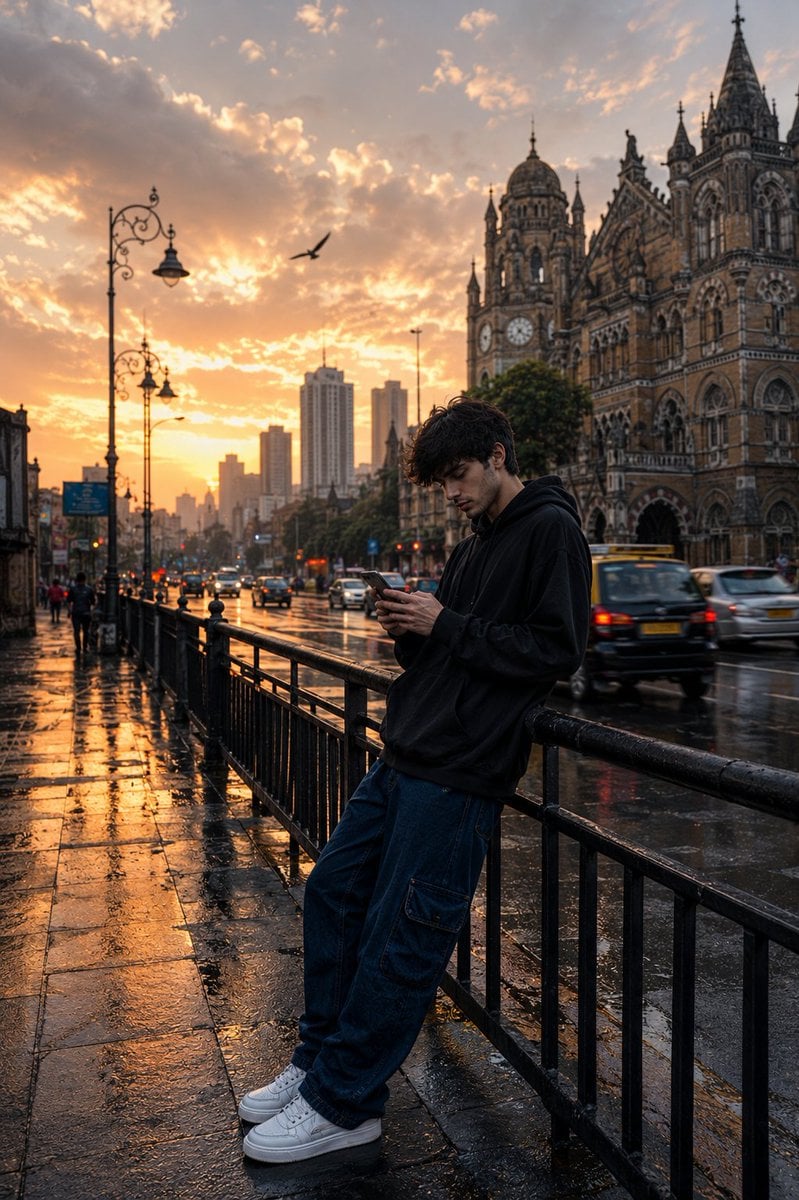
Mumbai Rainy Street Photography
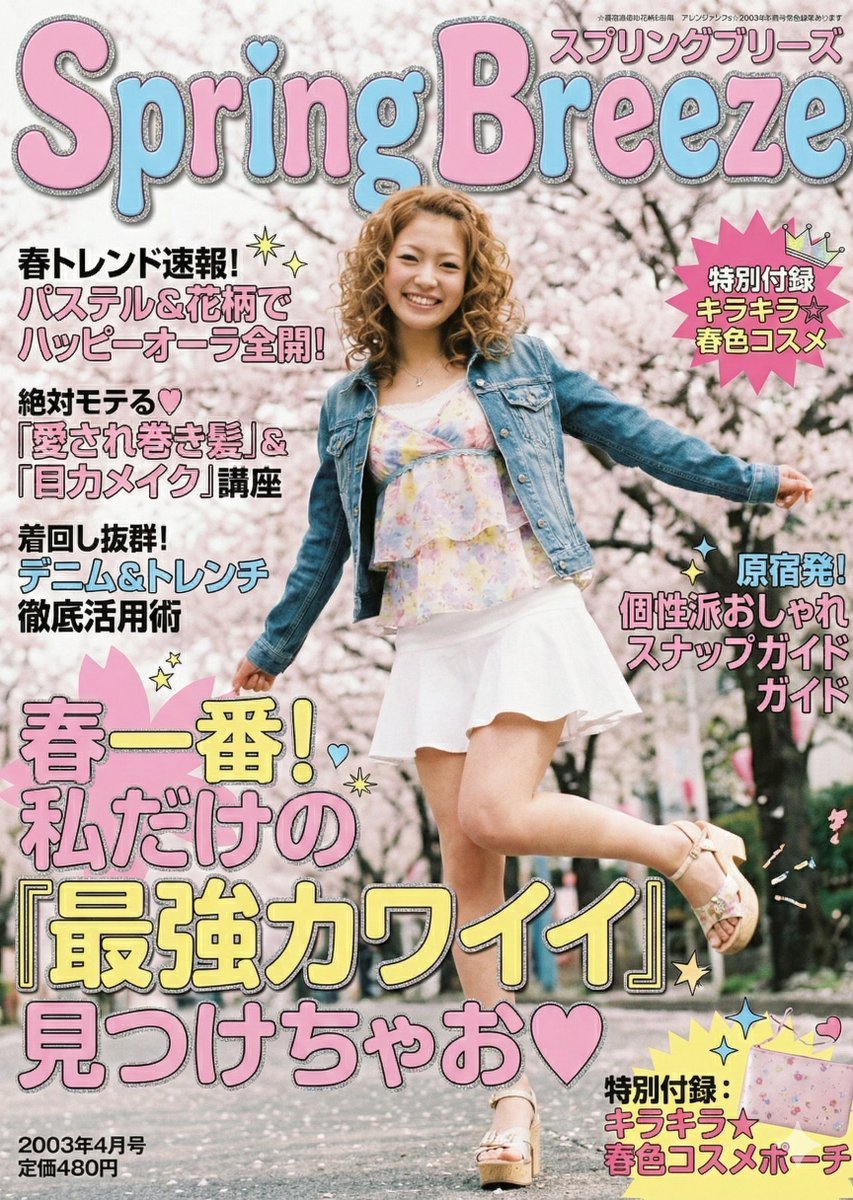
2000s Fashion Magazine Cover Prompt
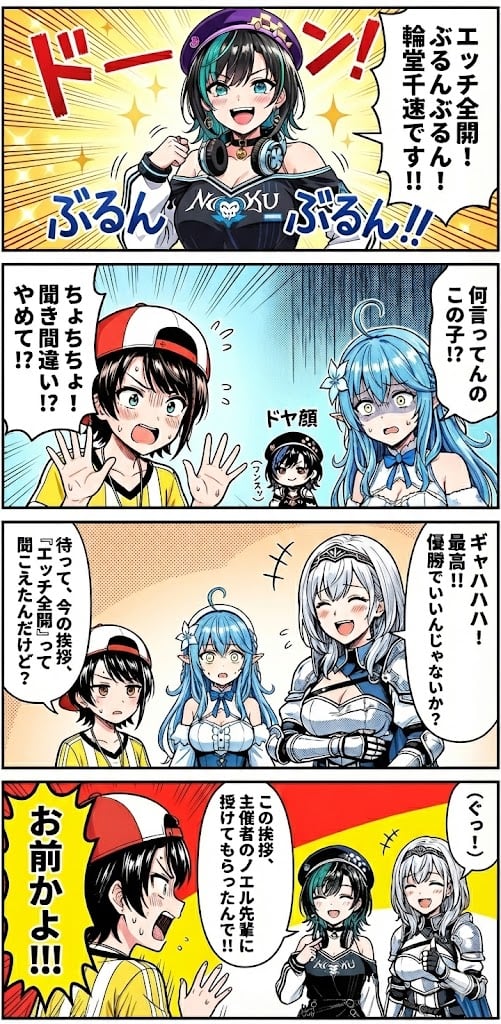
Hololive Character Generation
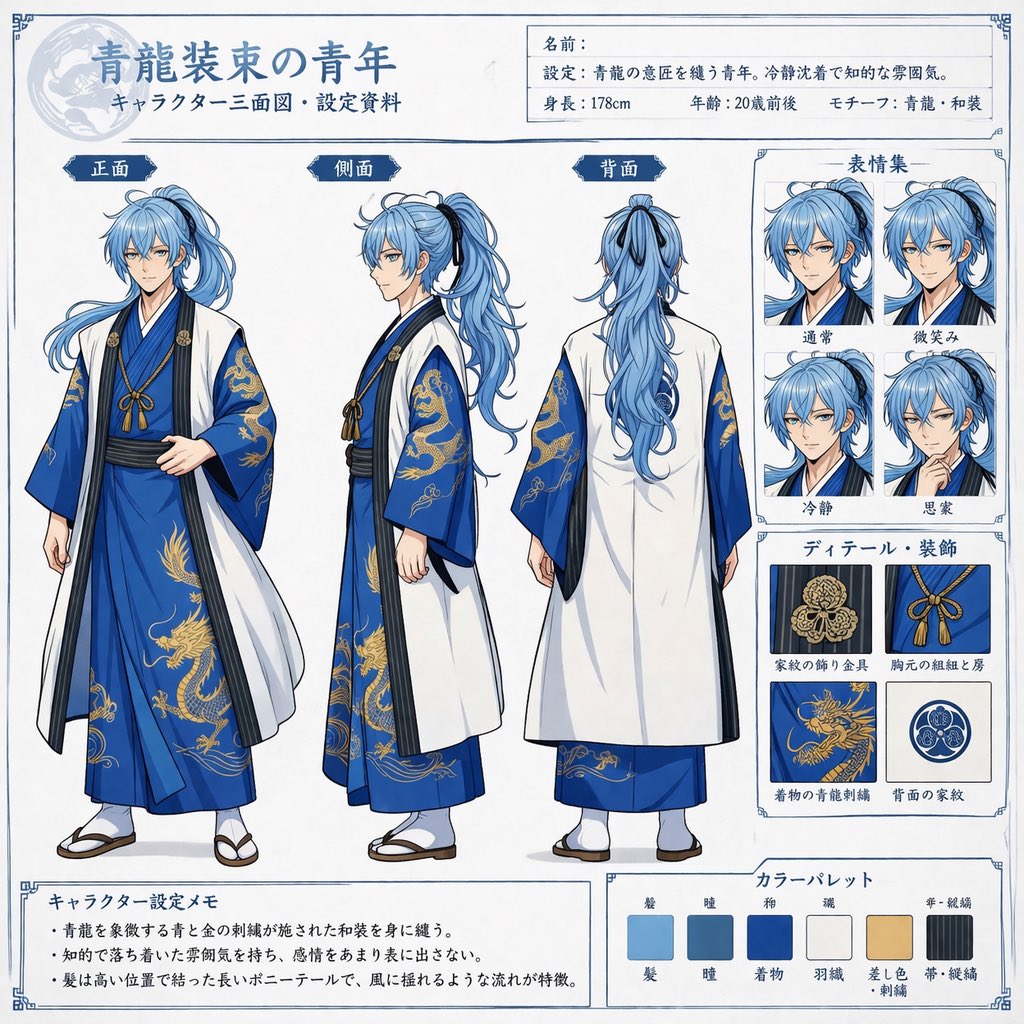
Comprehensive Anime Character Reference Sheet
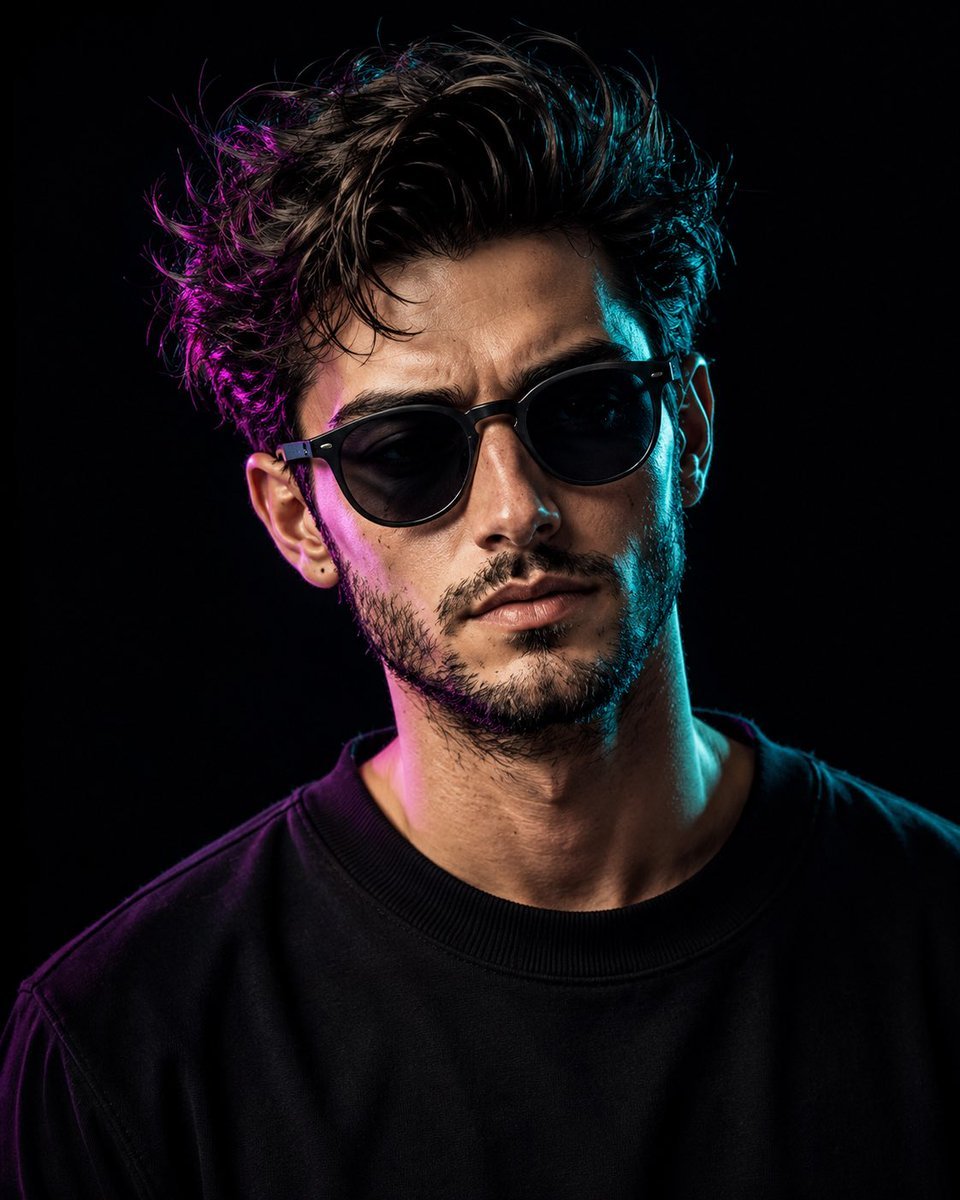
Cinematic Dual-Tone Studio Portrait
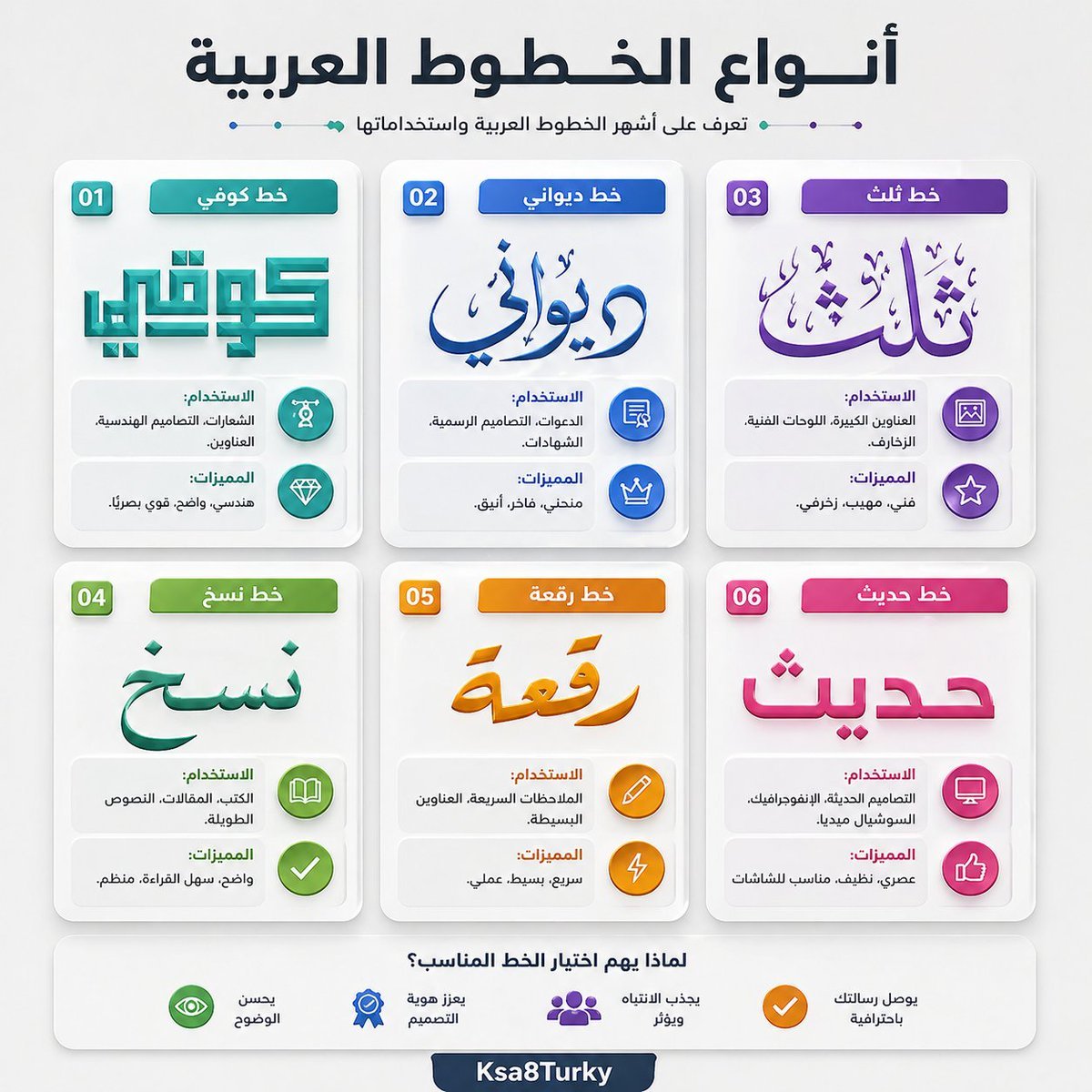
Arabic Font Types Infographic
Browse template categories
Image Texture and Style Transfer questions
How do I use the Image Texture and Style Transfer template?
Add your photo if the template asks for one, edit the prompt if you like — the template's model and format are already selected — and press Generate. Your version opens in PicX Studio.
Can I customize the Image Texture and Style Transfer template?
Yes. You can change the subject, setting, lighting, mood, format, and available model controls before creating your image.
Is the Image Texture and Style Transfer template free?
Opening and editing this template is free. Generating uses credits, shown on the Generate button when you are signed in.
Which AI model should I use?
Start with Gemini 3 Pro Image Preview, which is the model associated with this template. You can compare another compatible model for a different finish.
Looking for something else? Browse all templates.

Your photo, any look
Thousands of ready templates for every top image and video model, from one credit balance.