
Blue Anime Character Redesign Sheet
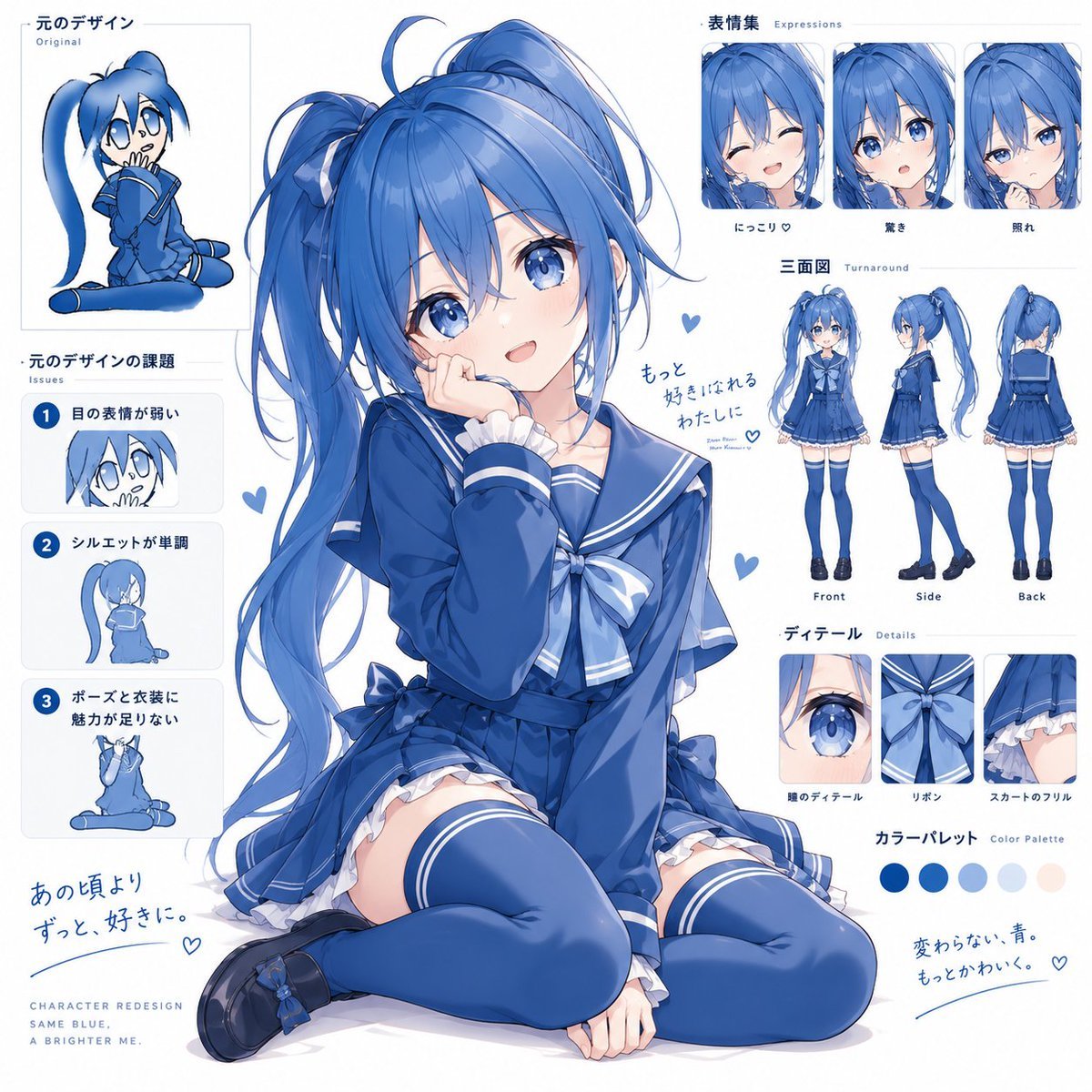
A detailed prompt for generating a polished blue-themed anime schoolgirl character redesign sheet with expressions, turnaround views, details, palette, and issue analysis panels.
- Prompt included
- Model and format preset
- Free template
The prompt behind this image
Copy the exact prompt behind Blue Anime Character Redesign Sheet, or open it in the studio and make it yours.
Goal: Create a polished anime character redesign presentation sheet for a blue-themed schoolgirl mascot, combining a large central illustration with labeled design-analysis panels around it. Canvas: Square 1:1 white presentation board, clean editorial layout, soft pale-blue accents, thin light-gray divider lines, high-resolution anime art, crisp but hand-drawn feel. Main subject: A cute teenage anime girl named {argument name="character name" default="Blue Ribbon"} sitting in the center foreground in a shy, appealing pose, one hand against her cheek and legs folded forward. She has long vivid {argument name="hair color" default="blue"} twin-tail hair with loose flyaway strands, glossy blue eyes, soft blush, small open smile, and delicate facial features. Outfit is a navy-blue sailor school uniform with white trim, oversized pale-blue bow at the chest, pleated skirt with white frills, thigh-high blue socks with white stripes, and black loafers with small blue ribbon details. Use a monochrome blue palette with subtle skin tones and painterly highlights. Layout: Place the large finished redesign illustration slightly left of center, occupying most of the canvas. Surround it with structured reference panels: top-left original design panel, left-column issue cards, top-right expression set, right-middle turnaround, right-lower detail closeups, and bottom-right color palette. Add small blue heart doodles and handwritten Japanese-style notes as decorative accents. Sections and exact counted elements: - Top-left panel: 1 original chibi-style blue character drawing, labeled in Japanese “元のデザイン” with small English subtitle “Original”. - Left column issues: exactly 3 numbered issue cards labeled 1, 2, and 3. Card 1 shows a tiny face sketch and says the eye expression is weak. Card 2 shows a rear/silhouette sketch and says the silhouette is monotonous. Card 3 shows a clothing/pose sketch and says the pose and outfit lack charm. - Top-right expressions: exactly 3 rounded-rectangle face closeups labeled “表情集 Expressions”: 1 smiling with closed eyes, 1 surprised with wide eyes and small open mouth, 1 sleepy or pouting sideways glance. - Right-middle turnaround: exactly 3 full-body views labeled “三面図 Turnaround”: Front, Side, Back, showing the same outfit and long twin-tail hair from each angle. - Right-lower details: exactly 3 square closeup panels labeled “ディテール Details”: 1 eye detail, 1 chest ribbon detail, 1 skirt frill detail. - Bottom-right color palette: exactly 5 circular color swatches: deep blue, royal blue, light blue, very pale blue, and pale skin-pink. Visible text style: Use neat Japanese headings with small English subtitles, including “Original”, “Issues”, “Expressions”, “Turnaround”, “Details”, and “Color Palette”. Include handwritten Japanese catchphrases around the character, such as {argument name="main handwritten note" default="もっと好きになれるわたしに"}, plus bottom notes meaning “I have loved you since then” and “Unchanged blue, cuter.” Add small English footer text: “CHARACTER REDESIGN / SAME BLUE, A BRIGHTER ME.” Visual style: Modern Japanese anime illustration, bright glossy eyes, soft cel shading blended with watercolor-like gradients, delicate blue linework, subtle paper texture, clean UI-like character sheet design, balanced negative space, no heavy background. Make the final design look more charming, expressive, and polished than the simple original sketch. Constraints: Keep the exact panel counts above, maintain the blue-and-white visual identity, avoid extra characters, avoid clutter, no watermark, no photorealism, no 3D rendering.
How to use Blue Anime Character Redesign Sheet in 3 steps
- 1Upload ImagePNG, JPG or paste
Add your photo
Upload the photo the template builds on. The prompt, model and format are already set.
- 2…a portrait of your subject in softgolden-hour light, 85mm…
Personalize
Edit the subject and creative details for your destination.
- 3Generate
Generate
Press Generate — your image is created in PicX Studio, so you can compare it with the original and refine one variable at a time.
More like this
Templates with the same subject, style or setup. Open one to see its prompt.
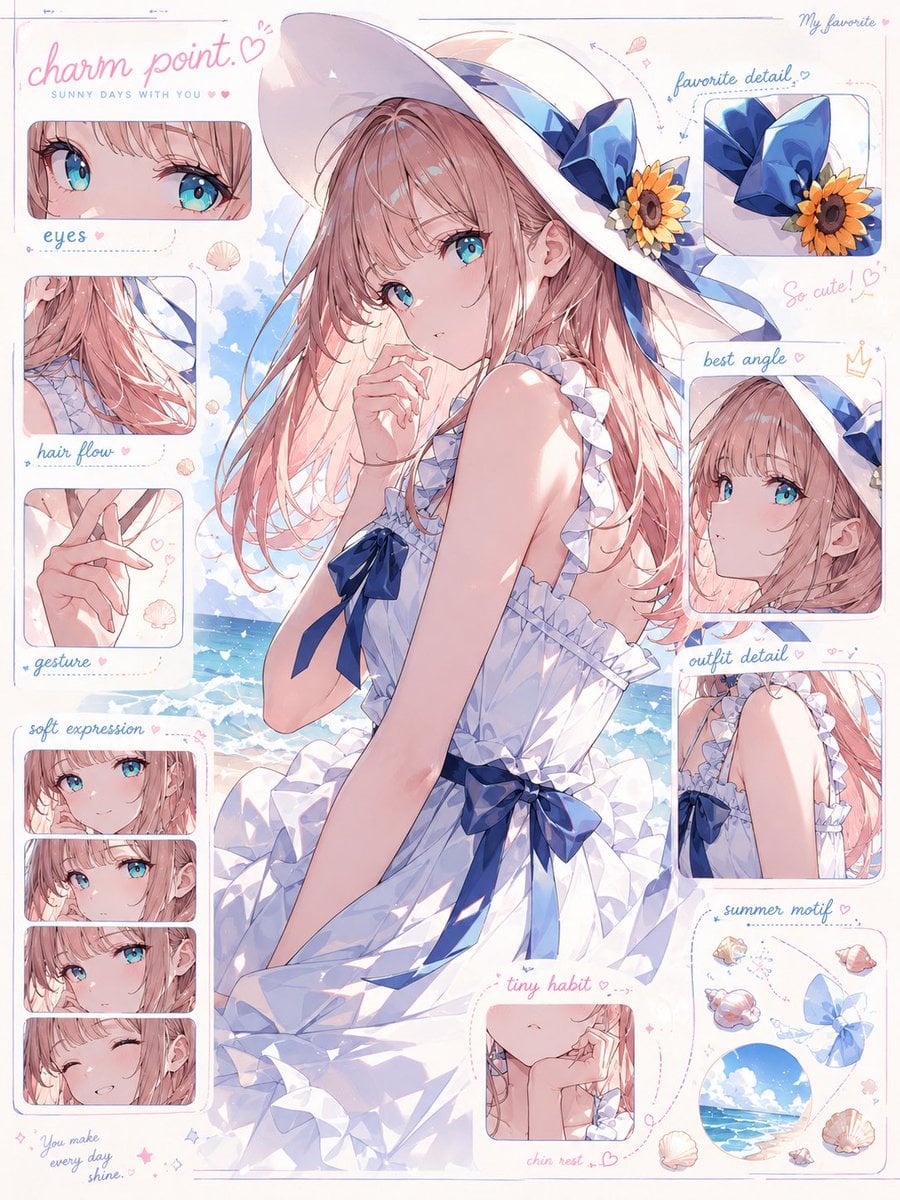
Anime Character Charm Analysis Sheet
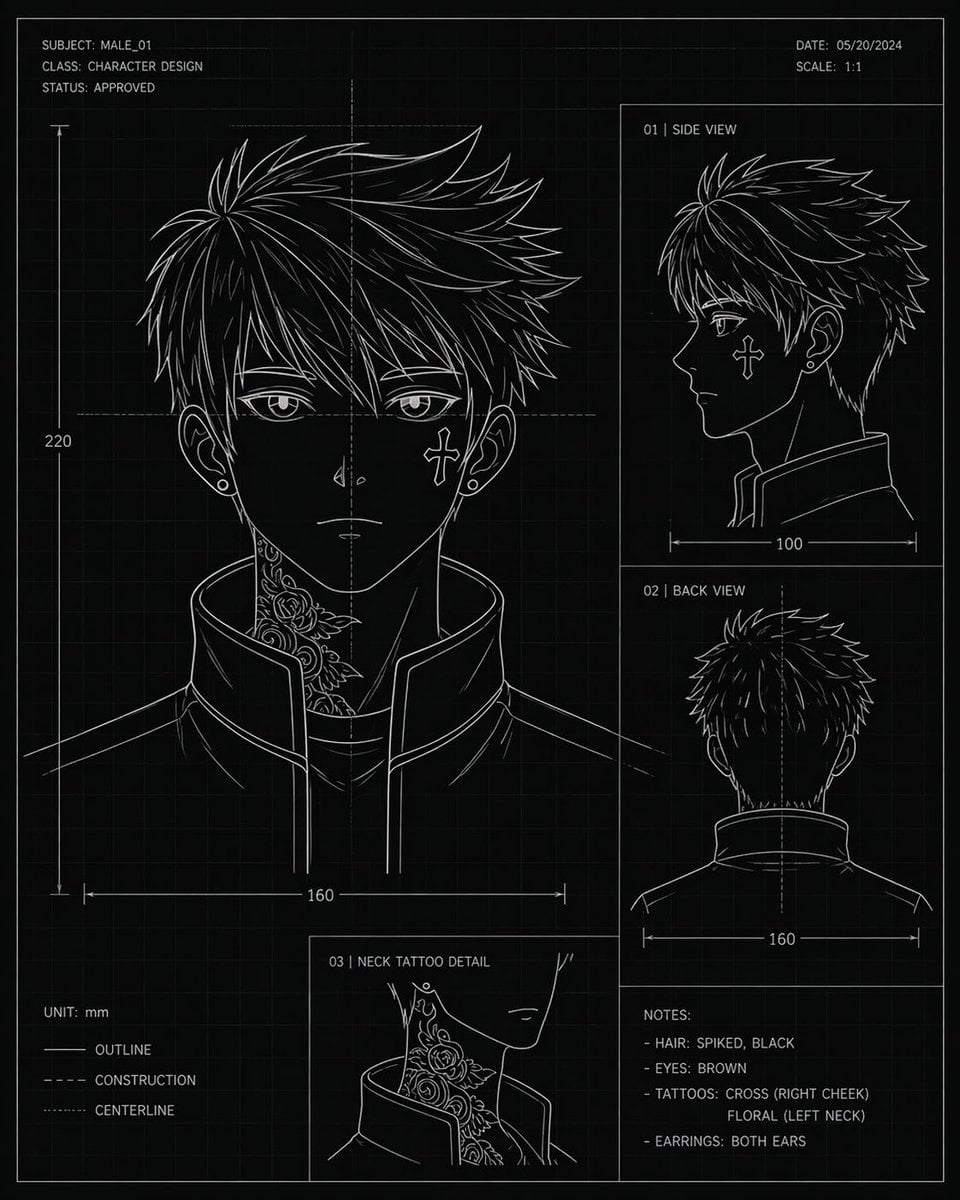
Anime Character Blueprint Sheet
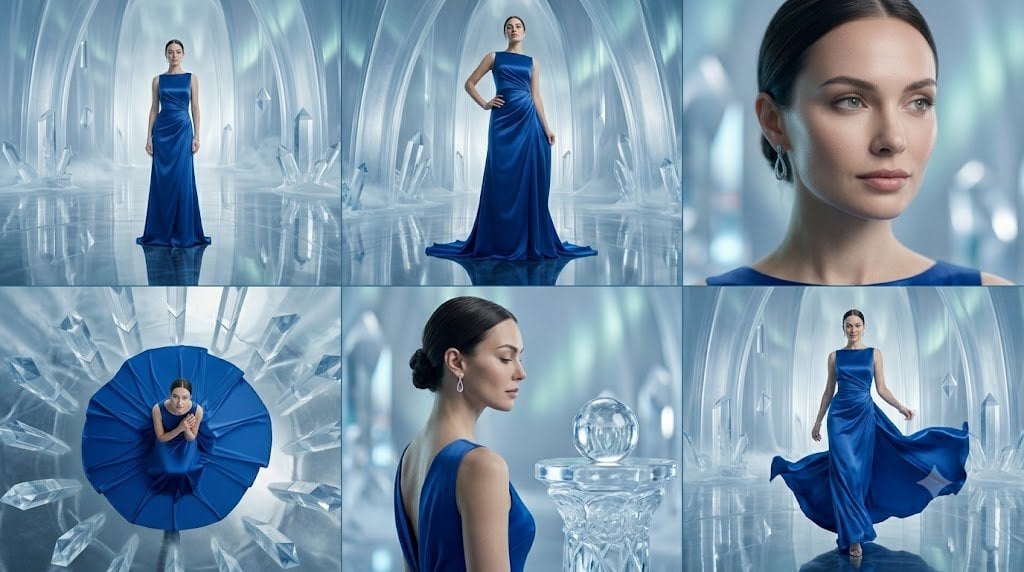
Crystal Palace Blue Gown Contact Sheet
Blue Decora Anime Girl Poster
Anime Lantern Girl Character Sheet
Anime Character Sheet Reference Prompt
Cel 2D Finale Fireworks
Cel 2D Garden Maze
Cel 2D Rooftop Concert
Cel 2D Bicycle Coast
Cel 2D Castle Gate
Cel 2D Kitchen Chaos
Make it yours
Blue Anime Character Redesign Sheet works as-is. These are the safest ways to change it without losing the look.
Change one field
Copy a single group, rewrite it, and generate again so you can see what that field is doing.
Keep the frame, change the subject
Hold the composition and light of Blue Anime Character Redesign Sheet, then swap wardrobe, props or the person for a new take.
| If the result… | Why | Fix |
|---|---|---|
| The result drifts from the preview | Too many fields changed at once. | Reuse Blue Anime Character Redesign Sheet as-is first, then change one group — subject, light, or setting. |
| The model over-stylizes the scene | The prose prompt leaves finish and camera underspecified. | Add one camera or lighting sentence and stay on GPT Image 2. |
More GPT Image 2 templates
Other prompts made for GPT Image 2.

Six VTuber Japanese Logo Sheet

Realistic Portrait of Woman and Deer

The Vista Modular Condo Poster

AI Model Routing Comparison Infographic

2.5D Anime Art Board

Isometric Productivity Desk Scene

New York Double Exposure Poster

Four-Panel AI Landscape Comparison

Japanese Tatami Lifestyle Magazine Cover

NESCAFÉ Coffee Map Poster
More image prompts
Fresh picks from across the catalog.
Golden Meadow Portrait with Pets
Harsh Flash Fashion Portrait in Flower Field Prompt
Photorealistic Street Photo Prompt: Vintage Fashion Girl in Shibuya
Premium Editorial Fashion Magazine
Photorealistic Cinematic Street Romance in Istanbul Snow
Isometric 3D Miniature Room with Chibi Character
BMW Cyberpunk Garage Wallpaper
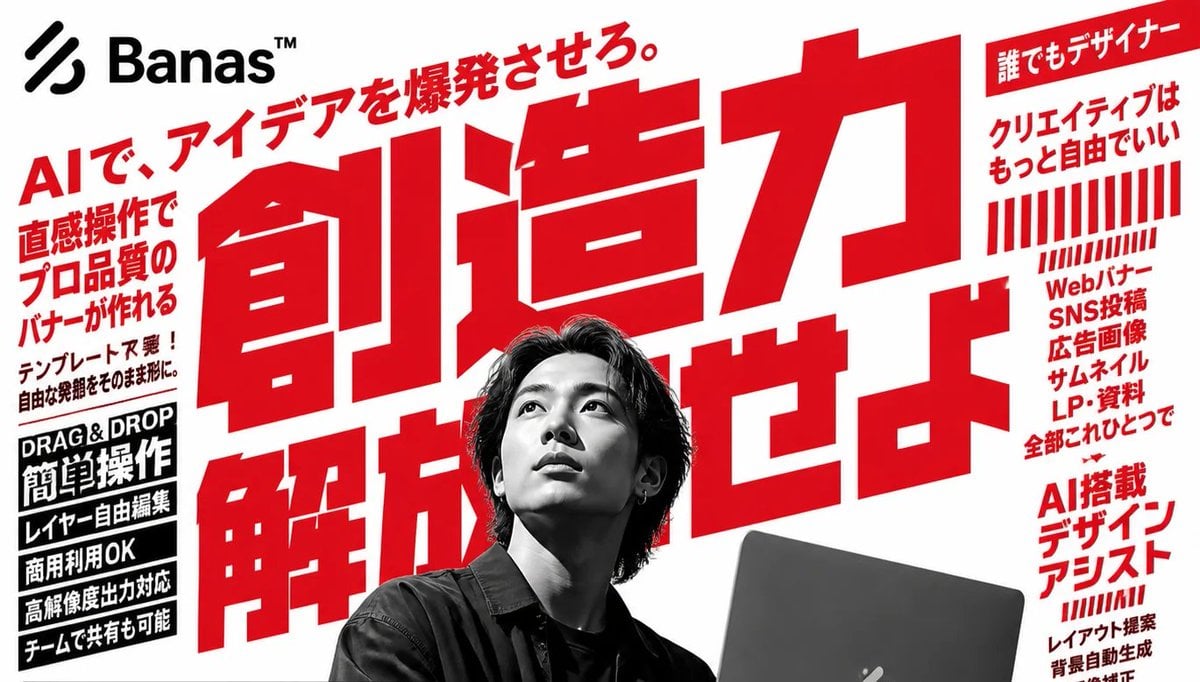
Bold Japanese AI Design Tool Ad
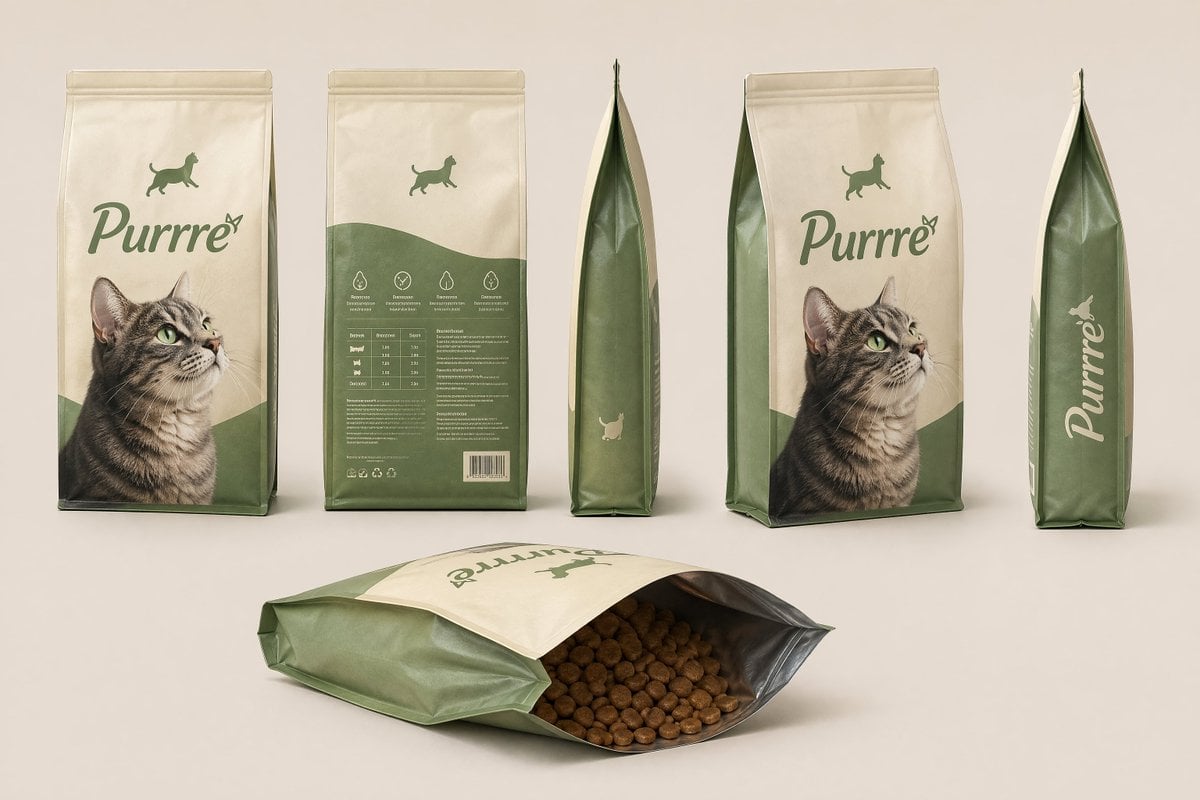
Consistent Product Kit Photography
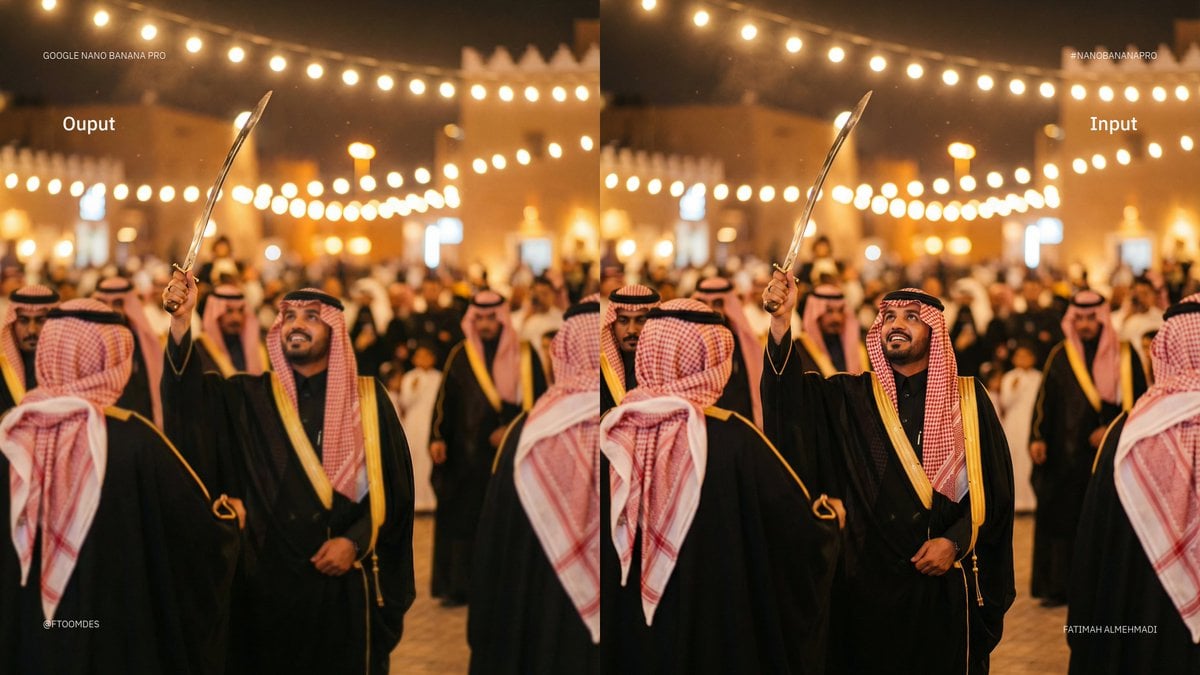
Depth of field shift to focus on man’s face
Browse template categories
Blue Anime Character Redesign Sheet questions
How do I use the Blue Anime Character Redesign Sheet template?
Add your photo if the template asks for one, edit the prompt if you like — the template's model and format are already selected — and press Generate. Your version opens in PicX Studio.
Can I customize the Blue Anime Character Redesign Sheet template?
Yes. You can change the subject, setting, lighting, mood, format, and available model controls before creating your image.
Is the Blue Anime Character Redesign Sheet template free?
Opening and editing this template is free. Generating uses credits, shown on the Generate button when you are signed in.
Which AI model should I use?
Start with GPT Image 2, which is the model associated with this template. You can compare another compatible model for a different finish.
Looking for something else? Browse all templates.

Your photo, any look
Thousands of ready templates for every top image and video model, from one credit balance.