
Bold Japanese AI Design Tool Ad
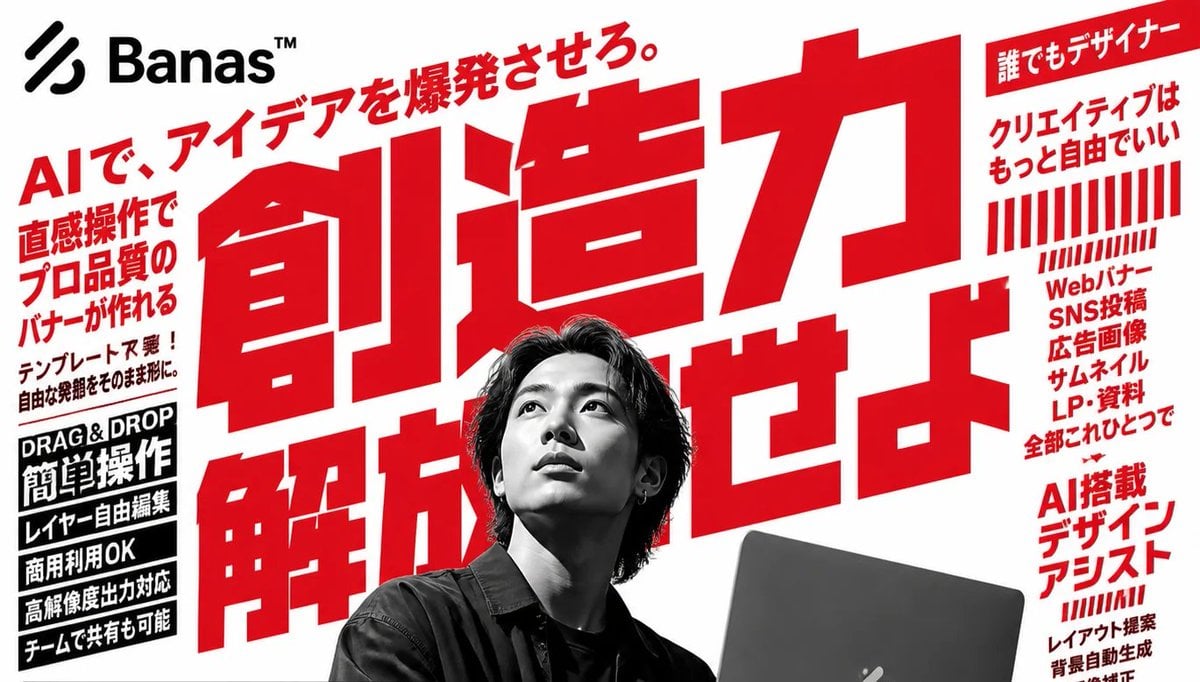
Generates a high-impact Japanese SaaS advertising banner for an AI-powered design tool with oversized red typography and a grayscale designer portrait.
- Prompt included
- Model and format preset
- Free template
The prompt behind this image
Copy the exact prompt behind Bold Japanese AI Design Tool Ad, or open it in the studio and make it yours.
Goal: Create a bold Japanese advertising poster for an AI design tool called {argument name="brand name" default="Banas™"}, with aggressive red typography, black-and-white photography, and a high-energy startup SaaS feel. Canvas: Wide horizontal 16:9 banner, white background, slightly cropped at the edges like a web hero image or social media ad. Use a limited palette of pure white, vivid red, black, and grayscale. Layout: Place a black abstract three-stripe logo mark and the brand name {argument name="brand name" default="Banas™"} in the top-left corner. Fill the center with one enormous red Japanese headline, tilted slightly upward and layered behind the person, reading {argument name="main headline" default="創造力 解放せよ。"}. Add a smaller red diagonal tagline above it reading {argument name="top tagline" default="AIで、アイデアを爆発させろ。"}. Put a grayscale photo of a young Japanese male designer in the lower center foreground, seated with medium-length dark hair, wearing a dark shirt, holding or working behind a dark laptop at the lower right. Cover his face with a square gray pixelated blur censor block. The laptop should be partly cropped by the bottom edge. Left sidebar content: Include exactly 6 left-side text elements. 1) A large red vertical-ish block of Japanese sales copy: 「直感操作で プロ品質の バナーが作れる」. 2) A smaller black note below it: 「テンプレート不要! 自由な発想をそのまま形に。」. 3) A black rectangular label with white English text: “DRAG & DROP”. 4) A black rectangular label with large white Japanese text: 「簡単操作」. 5) Three stacked black feature bars with white Japanese text: 「レイヤー自由編集」, 「商用利用OK」, 「高解像度出力対応」. 6) A final black feature bar: 「チームで共有も可能」. Right sidebar content: Include exactly 5 right-side groups. 1) A red top ribbon label with white Japanese text: 「誰でもデザイナー」. 2) Red Japanese copy below it: 「クリエイティブは もっと自由でいい」. 3) A decorative block of exactly 22 red vertical barcode-like stripes, arranged in two rows, with the lower row shorter and slanted. 4) A red stacked list: 「Webバナー SNS投稿 広告画像 サムネイル LP・資料 全部これひとつで」. 5) A lower red heading: 「AI搭載 デザイン アシスト」, with smaller red supporting lines beneath suggesting features such as layout proposal, automatic background generation, and image correction. Visual style: Use oversized condensed gothic Japanese lettering, extremely bold and geometric, with tight kerning and dramatic scale contrast. The central headline should dominate the image and extend behind the portrait. Use hard-edged rectangular text blocks, no gradients except the face blur, no soft shadows, and a clean print-ad composition. Make the photography high-contrast monochrome while all marketing typography is red or black. Constraints: Preserve the exact count of the main visible components: 1 logo/brand area, 1 huge central headline, 1 diagonal top tagline, 1 grayscale person, 1 laptop, 1 square face blur, 6 left-side text elements, and 5 right-side groups. Keep the composition crowded but readable, like a Japanese tech advertisement. Do not add extra people, extra logos, watermarks, or unrelated icons.
How to use Bold Japanese AI Design Tool Ad in 3 steps
- 1Upload ImagePNG, JPG or paste
Add your photo
Upload the photo the template builds on. The prompt, model and format are already set.
- 2…a portrait of your subject in softgolden-hour light, 85mm…
Personalize
Edit the subject and creative details for your destination.
- 3Generate
Generate
Press Generate — your image is created in PicX Studio, so you can compare it with the original and refine one variable at a time.
More like this
Templates with the same subject, style or setup. Open one to see its prompt.

Minecraft Japanese Research Lab Exploration
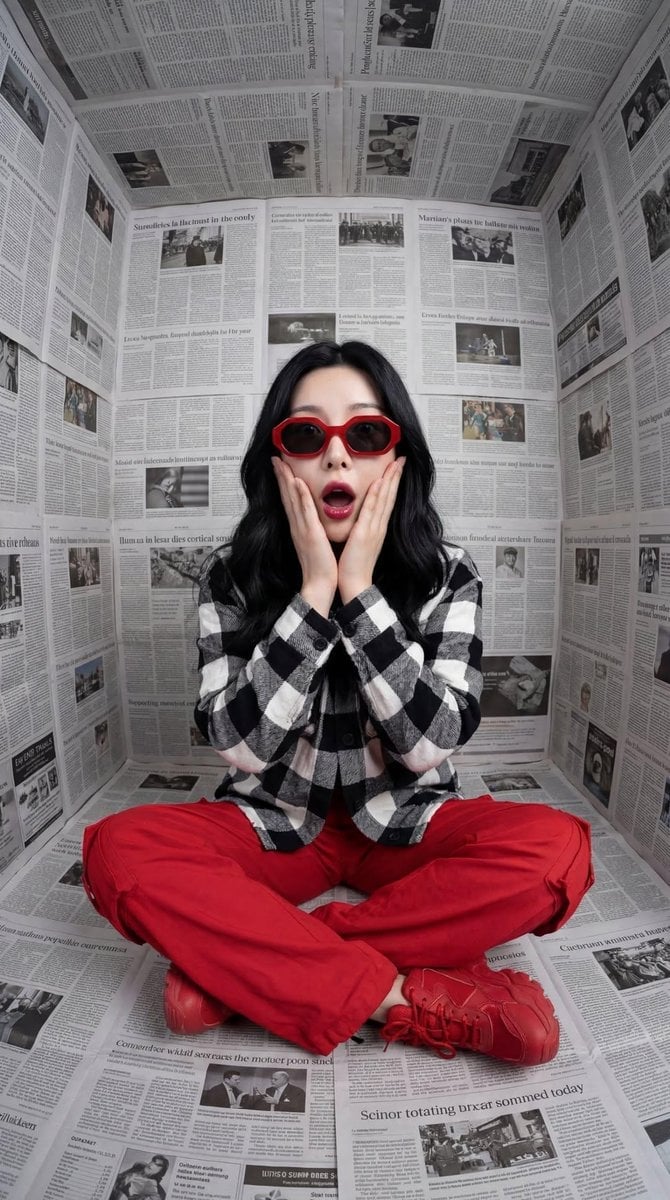
Bold Red Contrast Fashion Editorial Newspaper Room

Japanese Architectural Concrete Studio Fashion Campaign

Japanese Minimalist Concrete Studio Fashion Editorial

Blue Backdrop Luxury Fashion Portrait Campaign
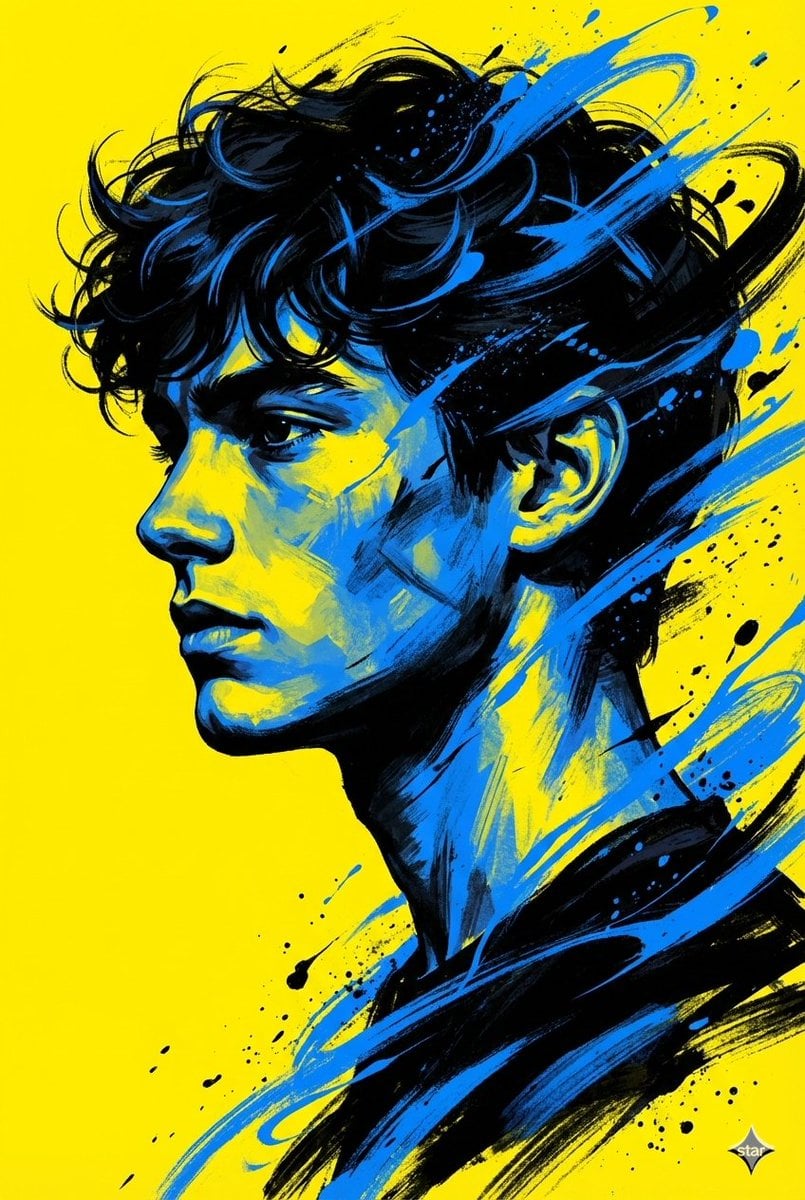
Bold Side Profile Superhero Poster
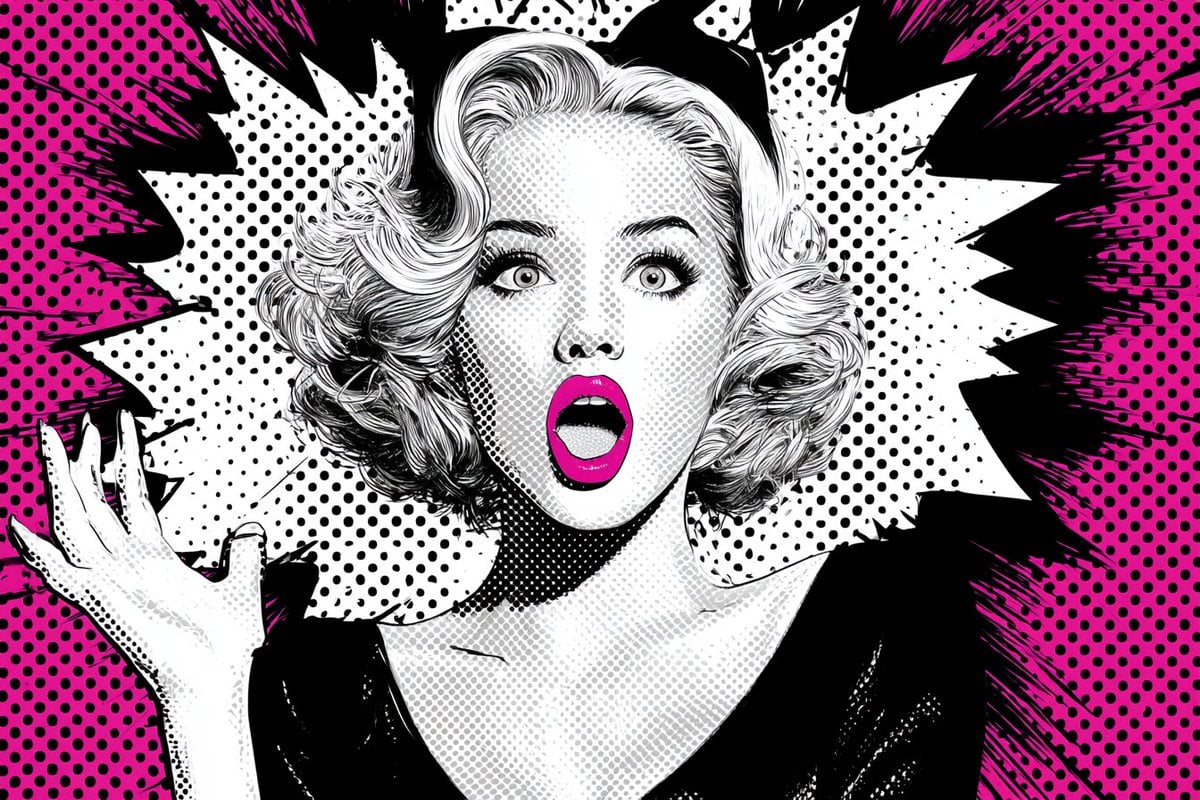
Pop Art Superhero Explosion Poster
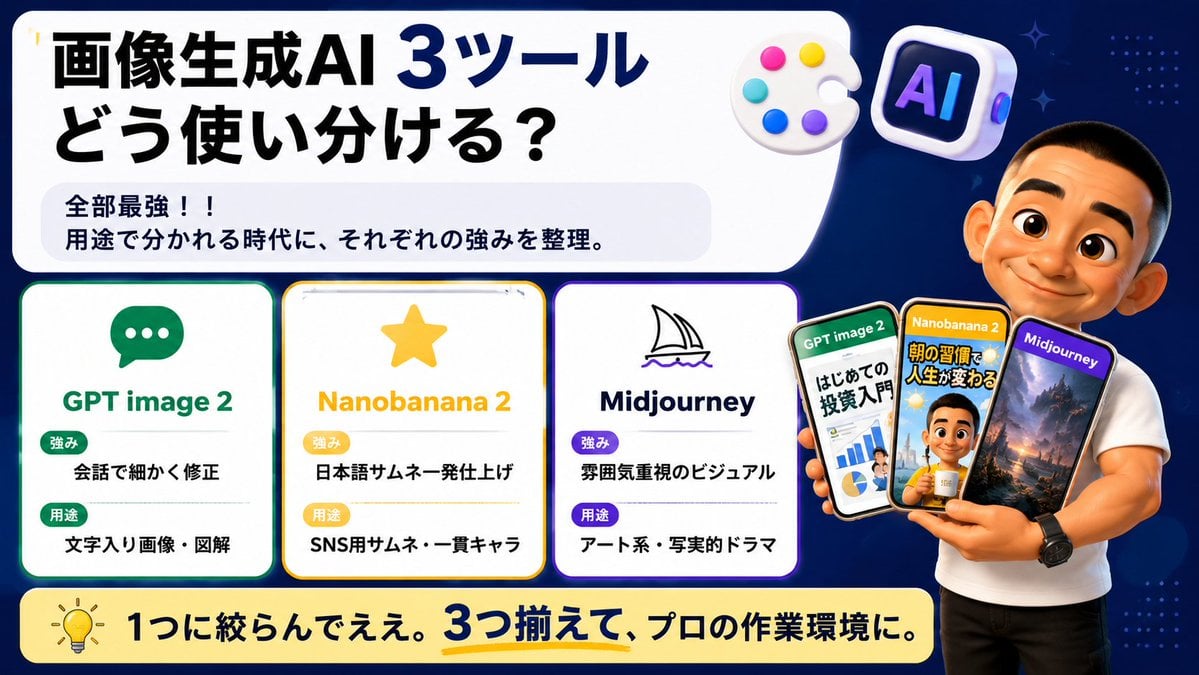
Japanese AI Tool Comparison Thumbnail
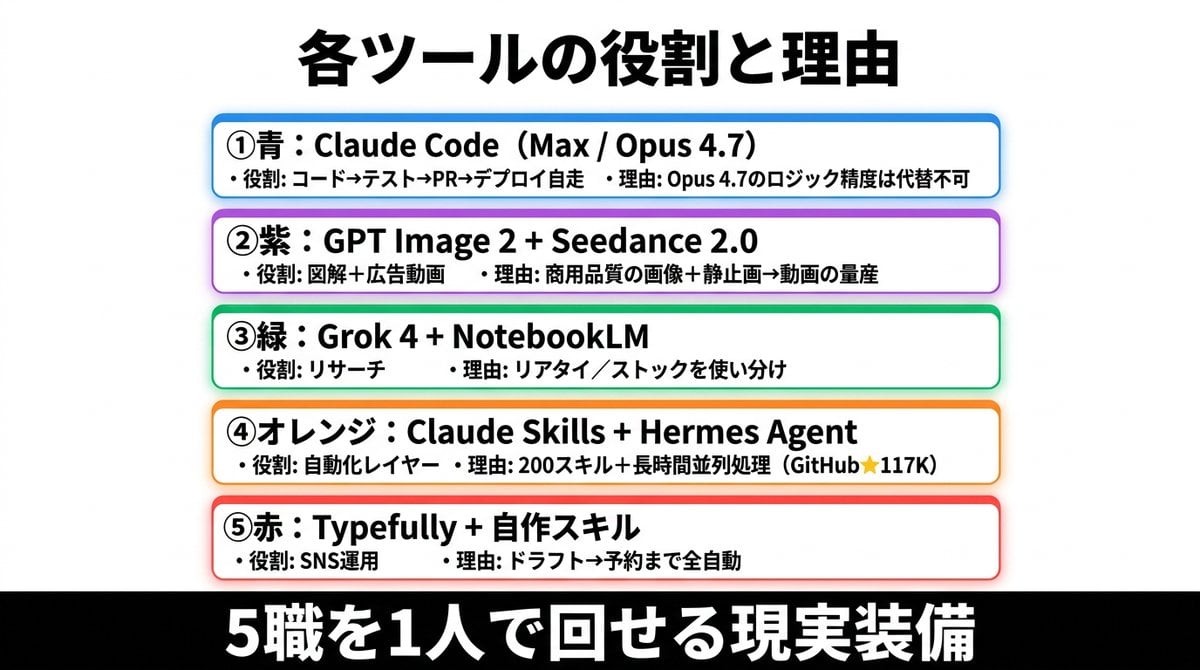
Japanese AI Tools Role Infographic
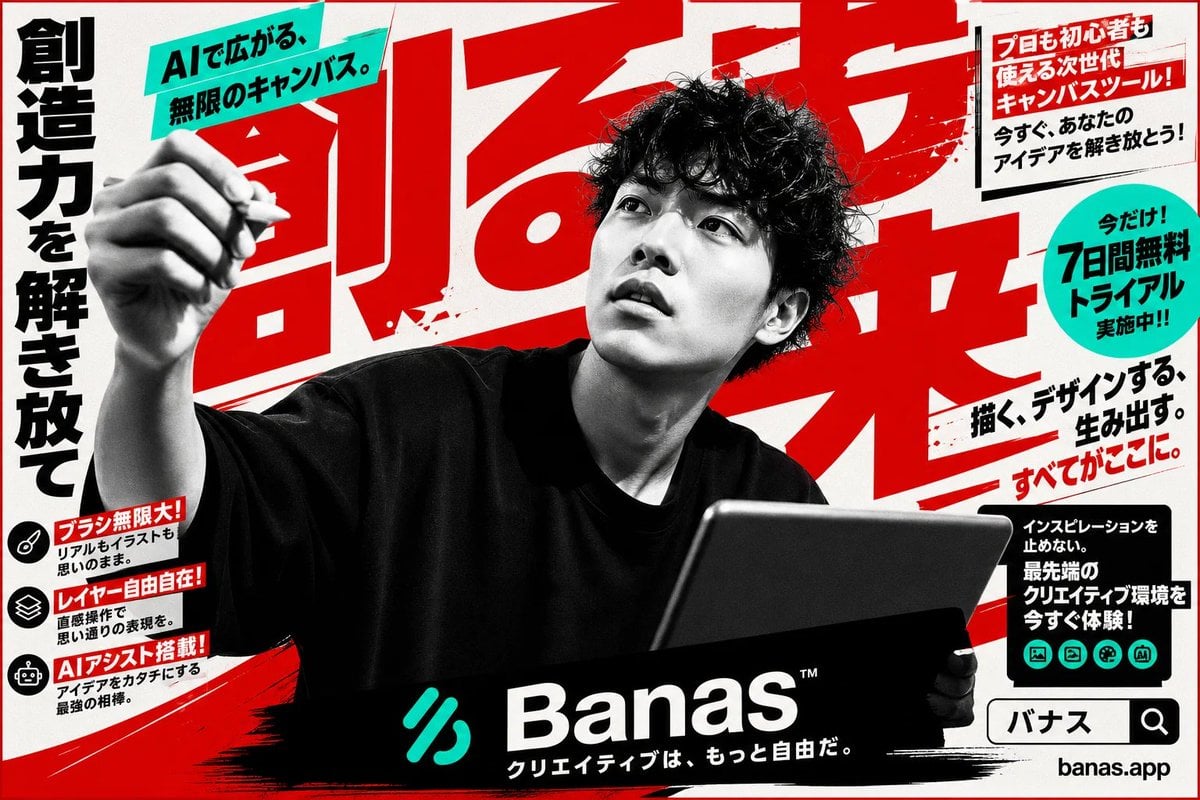
Japanese AI Creative Tool Poster
Japanese Film Reflection Idol

Six VTuber Japanese Logo Sheet
Make it yours
Bold Japanese AI Design Tool Ad works as-is. These are the safest ways to change it without losing the look.
Change one field
Copy a single group, rewrite it, and generate again so you can see what that field is doing.
Keep the frame, change the subject
Hold the composition and light of Bold Japanese AI Design Tool Ad, then swap wardrobe, props or the person for a new take.
| If the result… | Why | Fix |
|---|---|---|
| The result drifts from the preview | Too many fields changed at once. | Reuse Bold Japanese AI Design Tool Ad as-is first, then change one group — subject, light, or setting. |
| The model over-stylizes the scene | The prose prompt leaves finish and camera underspecified. | Add one camera or lighting sentence and stay on GPT Image 2. |
More GPT Image 2 templates
Other prompts made for GPT Image 2.

Realistic Portrait of Woman and Deer

The Vista Modular Condo Poster

AI Model Routing Comparison Infographic

2.5D Anime Art Board

Isometric Productivity Desk Scene

New York Double Exposure Poster

Four-Panel AI Landscape Comparison

NESCAFÉ Coffee Map Poster

Brutalist Cogito Chinese Typography Poster
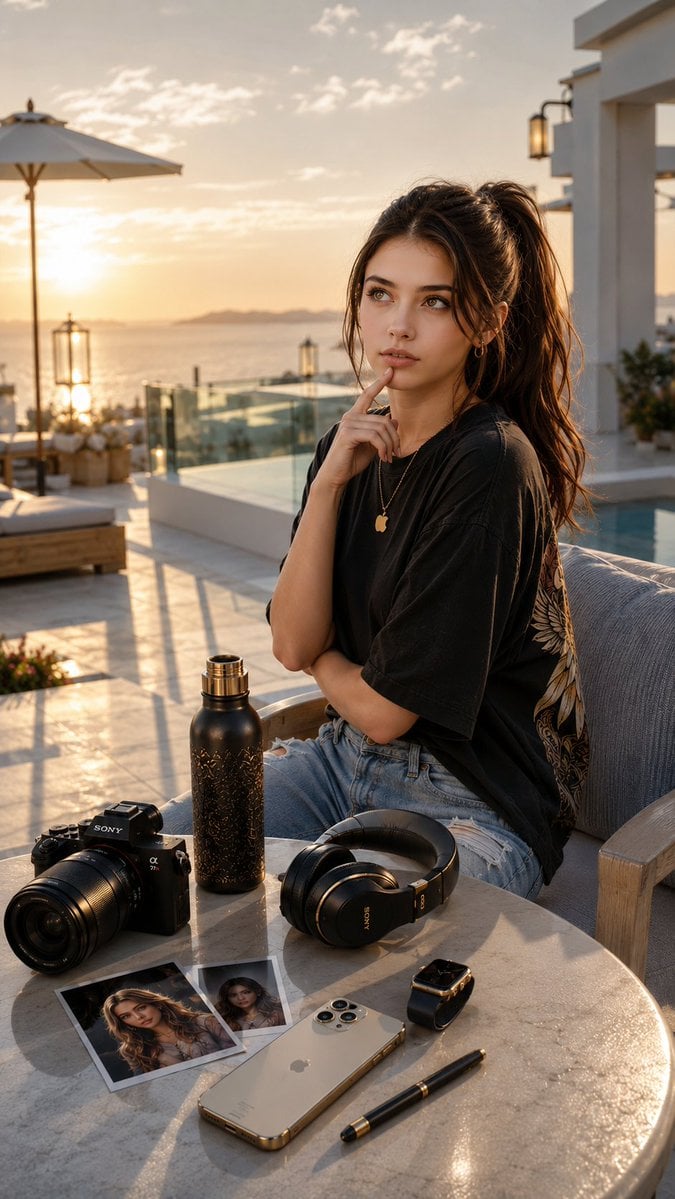
Cinematic Luxury Terrace Portrait
More image prompts
Fresh picks from across the catalog.
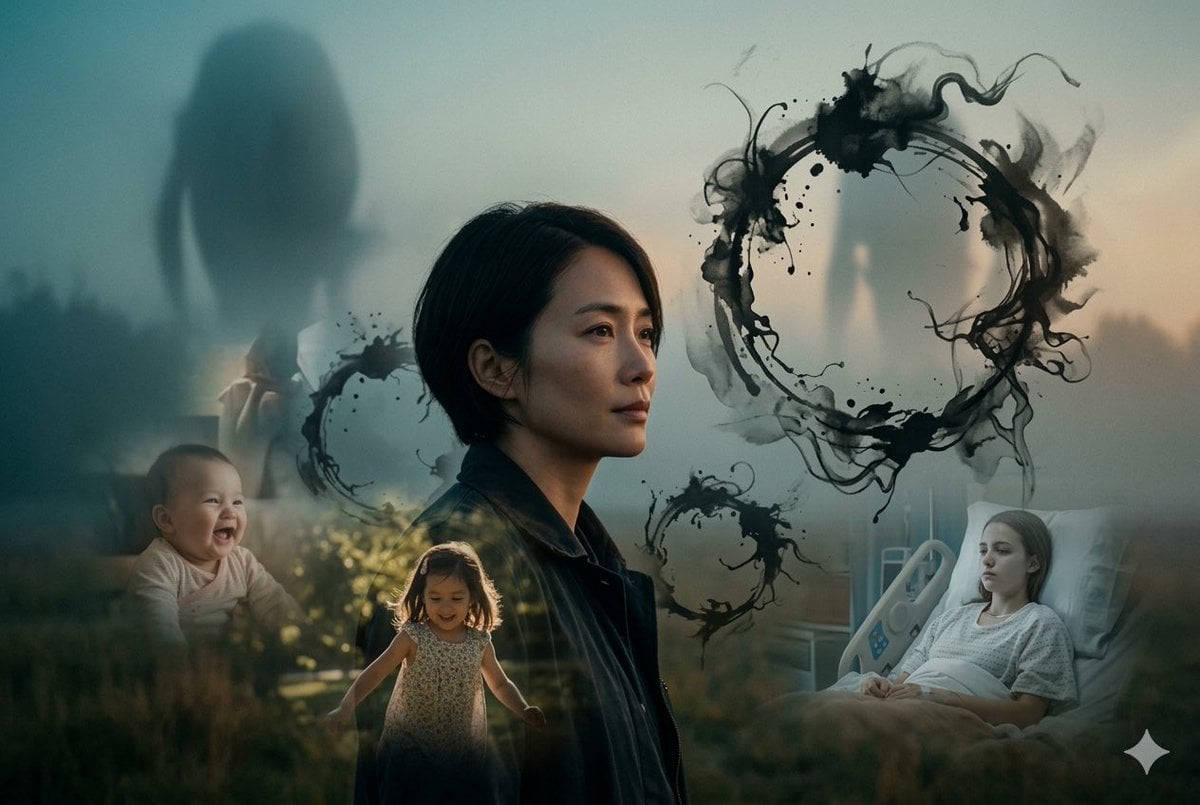
Arrival Movie AI Poster Prompt
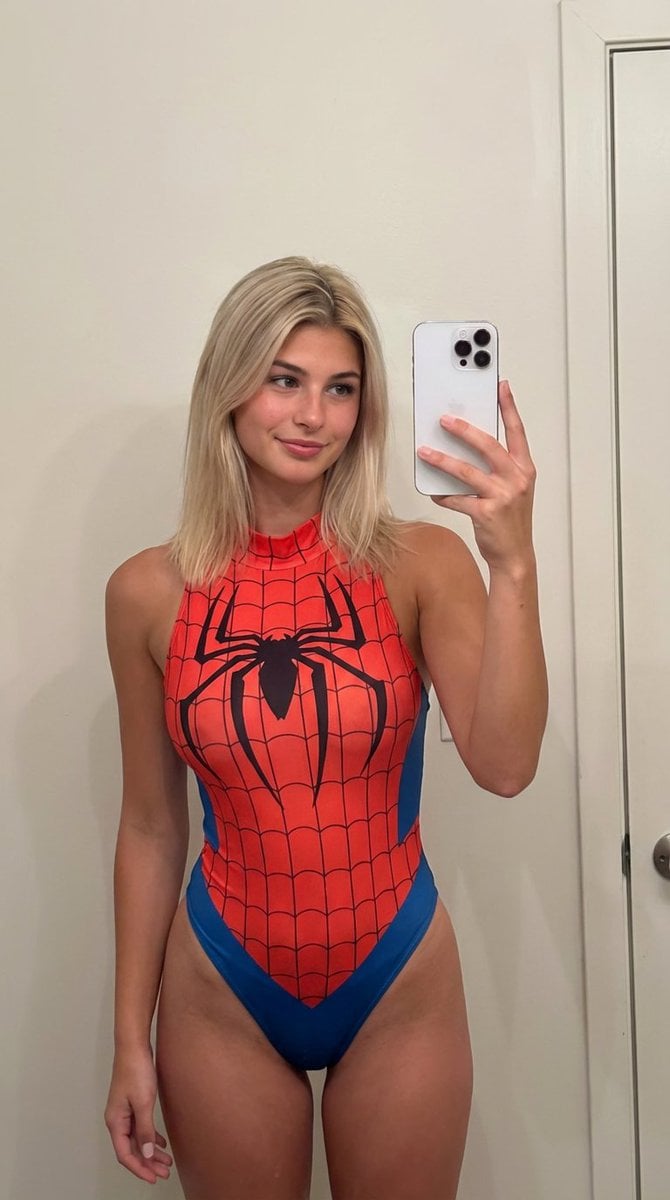
AI Girlfriend Prompt for Nano Banana Pro

FIFA World Cup 2026 Sports Poster

Ultra-Realistic Winter Portrait with Face Lock Prompt
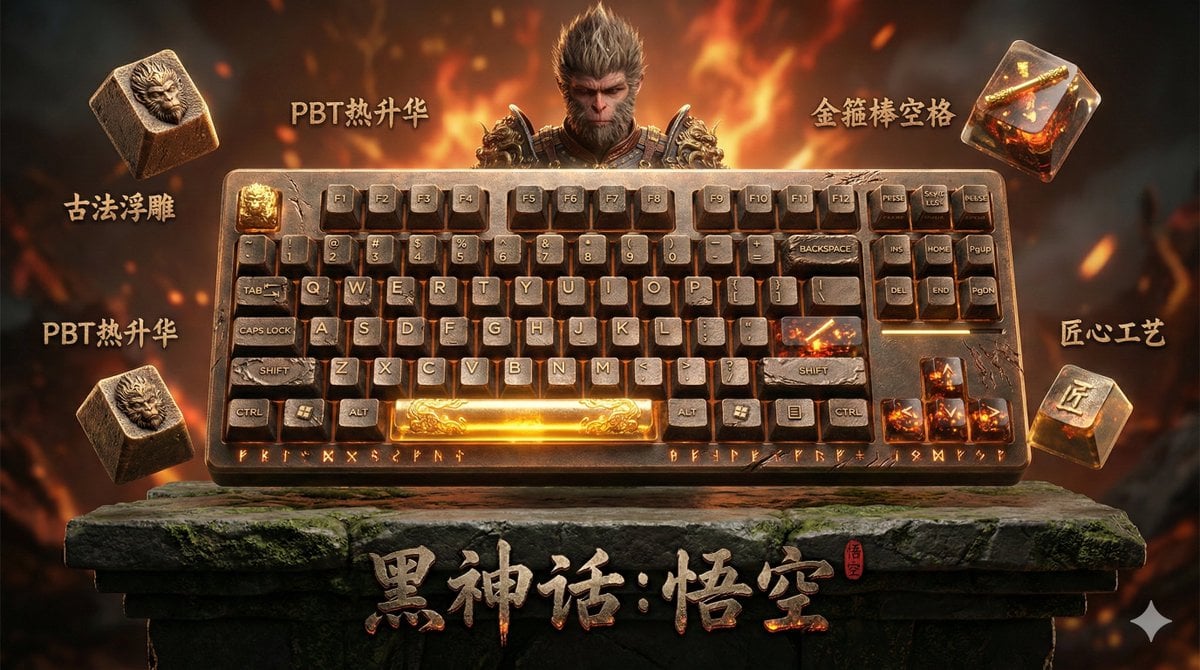
Mechanical Keyboard Themed Art Poster Prompt
Composite Product Photography Prompt (Etsy Style)
Axiom Cat-Eye Fashion Cover
Structured JSON prompt for a stylish streetwear portrait of a young woman
Nostalgic Winter Street Fashion Editorial Prompt

8K Cinematic Winter Adventure Photo on a Vintage Train
Browse template categories
Bold Japanese AI Design Tool Ad questions
How do I use the Bold Japanese AI Design Tool Ad template?
Add your photo if the template asks for one, edit the prompt if you like — the template's model and format are already selected — and press Generate. Your version opens in PicX Studio.
Can I customize the Bold Japanese AI Design Tool Ad template?
Yes. You can change the subject, setting, lighting, mood, format, and available model controls before creating your image.
Is the Bold Japanese AI Design Tool Ad template free?
Opening and editing this template is free. Generating uses credits, shown on the Generate button when you are signed in.
Which AI model should I use?
Start with GPT Image 2, which is the model associated with this template. You can compare another compatible model for a different finish.
Looking for something else? Browse all templates.

Your photo, any look
Thousands of ready templates for every top image and video model, from one credit balance.