
Japanese AI Creative Tool Poster
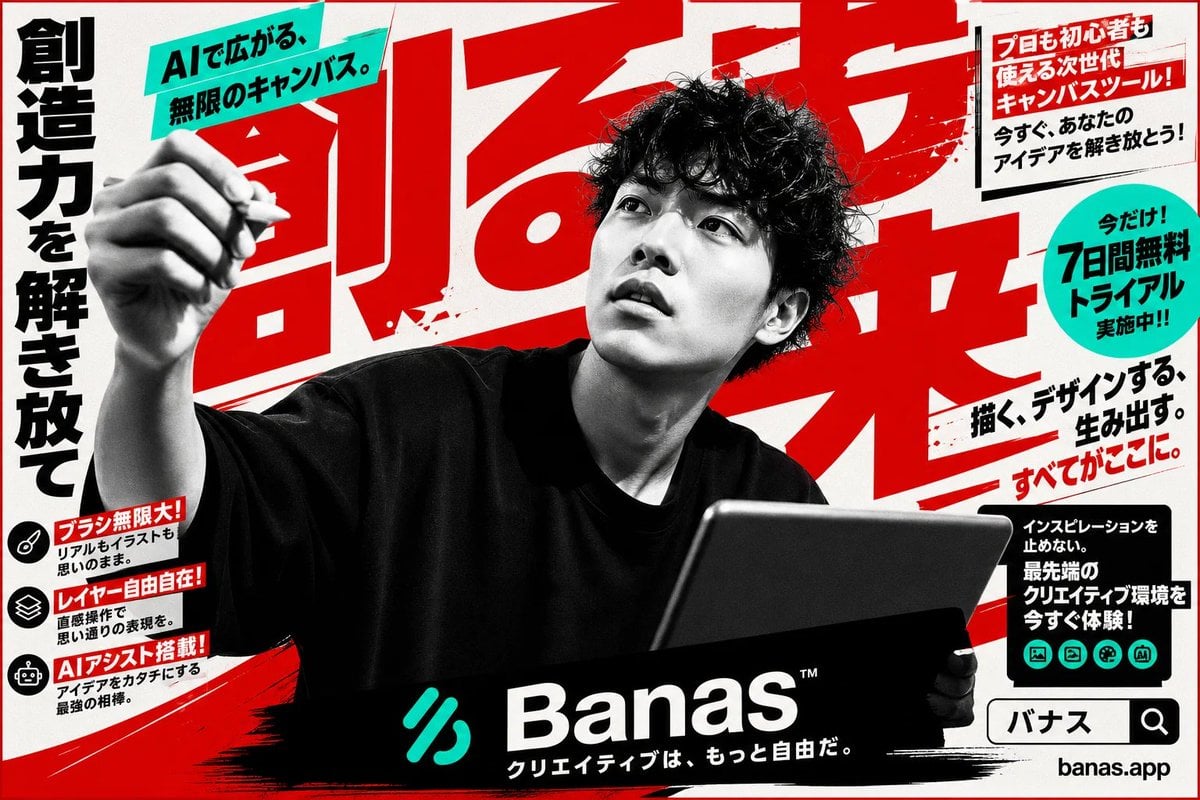
A high-energy Japanese promotional poster for an AI creative canvas app, useful for recreating bold tech startup advertisements.
- Prompt included
- Model and format preset
- Free template
The prompt behind this image
Copy the exact prompt behind Japanese AI Creative Tool Poster, or open it in the studio and make it yours.
Goal: Create a bold Japanese advertising poster for a next-generation AI creative canvas tool called {argument name="brand name" default="Banas"}, with an aggressive high-contrast magazine/landing-page aesthetic. Canvas: Horizontal 16:9 poster, off-white paper background with red ink splatters, black brush strokes, and a thin red border. Use a limited palette of black, white, vivid red, and turquoise. Main subject: Center foreground shows a black-and-white photographic young male creator with curly dark hair, wearing an oversized black T-shirt. His face is intentionally hidden by a centered rectangular gray blur/mosaic block. His left arm is raised toward the viewer holding a stylus or pen as if drawing in midair, and his right hand holds a large dark tablet angled upward in the lower right. The figure should be dramatic, cropped large, and partially overlap all typography. Layout and typography: Fill the background with enormous slanted red Japanese headline characters, partially cropped and layered behind the person, reading {argument name="main headline" default="創る力"}. Along the far left edge place a tall vertical black Japanese slogan reading {argument name="left slogan" default="創造力を解き放て"}. At top left, place a turquoise diagonal banner with bold black text reading {argument name="top banner text" default="AIで広がる、無限のキャンバス。"}. Use heavy Japanese gothic fonts, oversized lettering, diagonal underlines, rough ink textures, and energetic poster composition. Text and callouts: Include exactly 6 promotional callout areas: 1 turquoise diagonal top-left banner; 1 white boxed callout in the upper right with red header text and black body copy; 1 turquoise circular badge on the right advertising a free trial; 1 bold right-side slogan block with red underline accents; 1 black rectangular feature block in the lower right with small turquoise icons; and 1 black bottom brand bar. The upper-right box should read in Japanese: 「プロも初心者も使える次世代キャンバスツール! 今すぐ、あなたのアイデアを解き放とう!」. The turquoise circle should read: 「今だけ!7日間無料トライアル実施中!!」. The right slogan should read: 「描く、デザインする、生み出す。すべてがここに。」. The lower-right black block should read: 「インスピレーションを止めない。最先端のクリエイティブ環境を今すぐ体験!」. Left feature stack: Create exactly 3 small feature rows on the lower left, each with a black circular icon, a red label strip, and small black description text. The 3 rows are: 1) brush icon, label 「ブラシ無限大!」, description 「リアルもイラストも思いのまま。」; 2) layered-squares icon, label 「レイヤー自由自在!」, description 「直感操作で思い通りの表現を。」; 3) robot icon, label 「AIアシスト搭載!」, description 「アイデアをカタチにする最強の相棒。」. Bottom branding: Add one wide black brush-stroke rectangle across the bottom center containing a turquoise abstract logo mark, the large white wordmark {argument name="brand name" default="Banas"} with a tiny ™, and the Japanese tagline 「クリエイティブは、もっと自由だ。」. At bottom right, add a search-bar style box containing 「バナス」 and a magnifying glass icon, with the URL 「banas.app」 below it. Icon counts: Include exactly 3 black circular feature icons on the lower left and exactly 5 small turquoise circular icons inside the lower-right black feature block, representing creative tools such as image, document, palette, collaboration, and gallery. Do not add extra icons. Style constraints: Make it look like a polished Japanese tech startup advertisement generated from text only, combining realistic monochrome photography, halftone grain, distressed print texture, bold red brush typography, and clean turquoise accent shapes. Keep all Japanese text crisp and legible except for the intentionally face-blurred subject.
How to use Japanese AI Creative Tool Poster in 3 steps
- 1Upload ImagePNG, JPG or paste
Add your photo
Upload the photo the template builds on. The prompt, model and format are already set.
- 2…a portrait of your subject in softgolden-hour light, 85mm…
Personalize
Edit the subject and creative details for your destination.
- 3Generate
Generate
Press Generate — your image is created in PicX Studio, so you can compare it with the original and refine one variable at a time.
More like this
Templates with the same subject, style or setup. Open one to see its prompt.
Gpt2 Youtube Thumbnail Cyberpunk Ai Tools Comparison Poster

Minecraft Japanese Research Lab Exploration

Japan Travel Brochure Poster
Cartoon TV Show Poster Pack

Trendy Cafe Drink Promo Poster

Urban Fashion Editorial Collage Streetwear Poster

Japanese Architectural Concrete Studio Fashion Campaign
Premium Fashion Editorial Cover Layout System
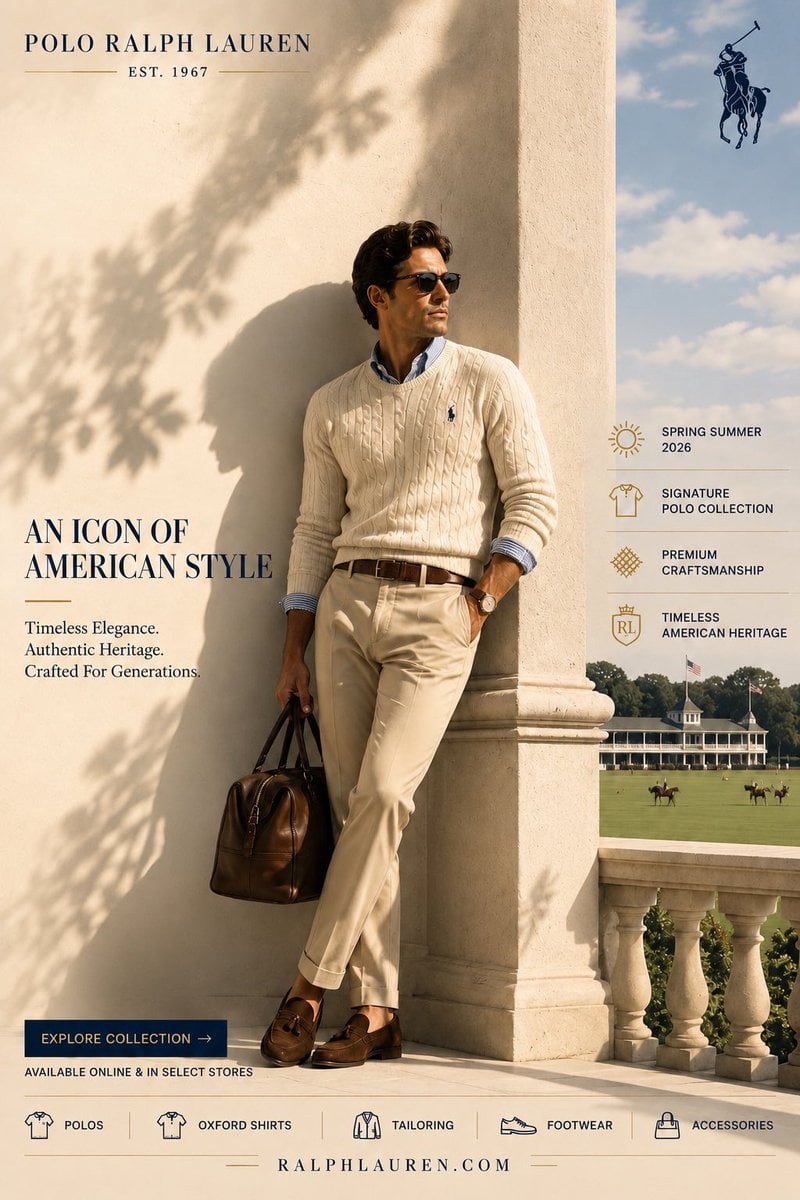
Polo Ralph Lauren Luxury American Heritage Fashion Campaign
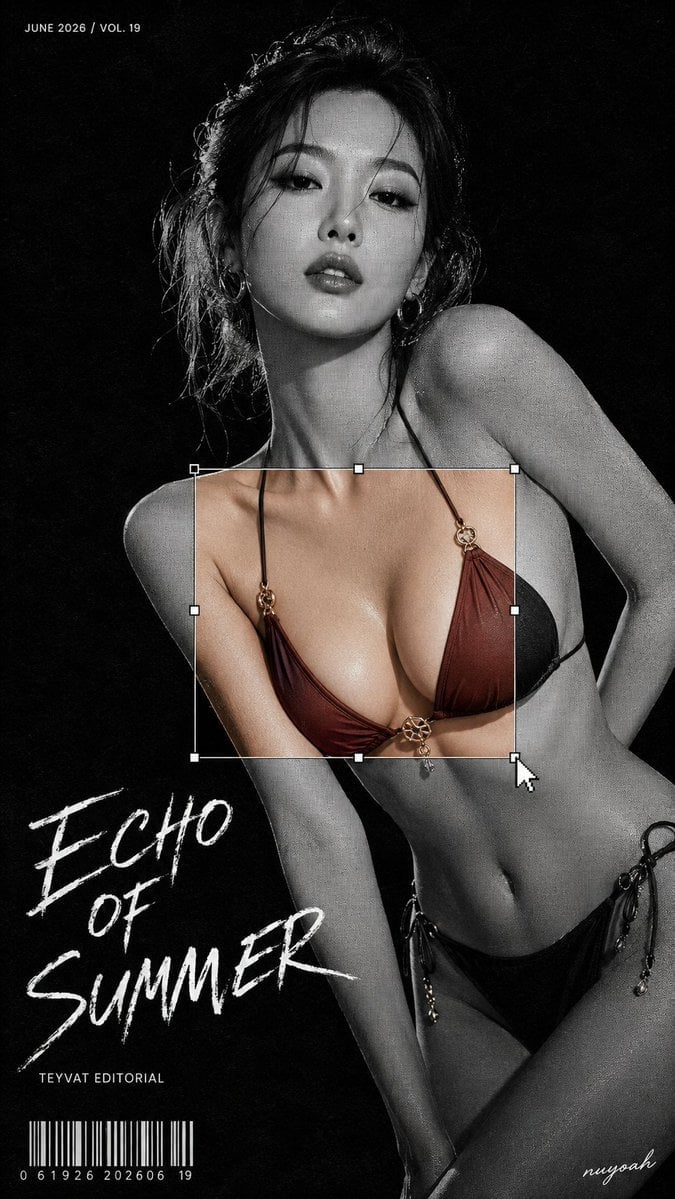
Monochrome Halftone Editorial Fashion Poster
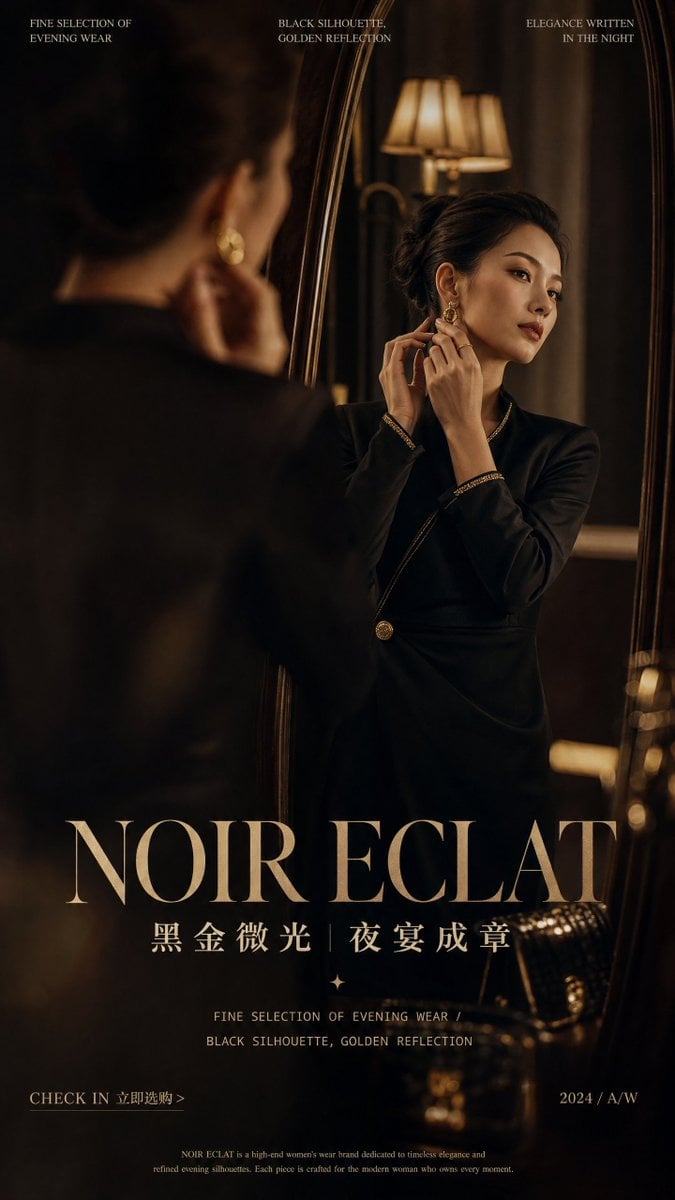
Retro Mirror Luxury Fashion Campaign Poster
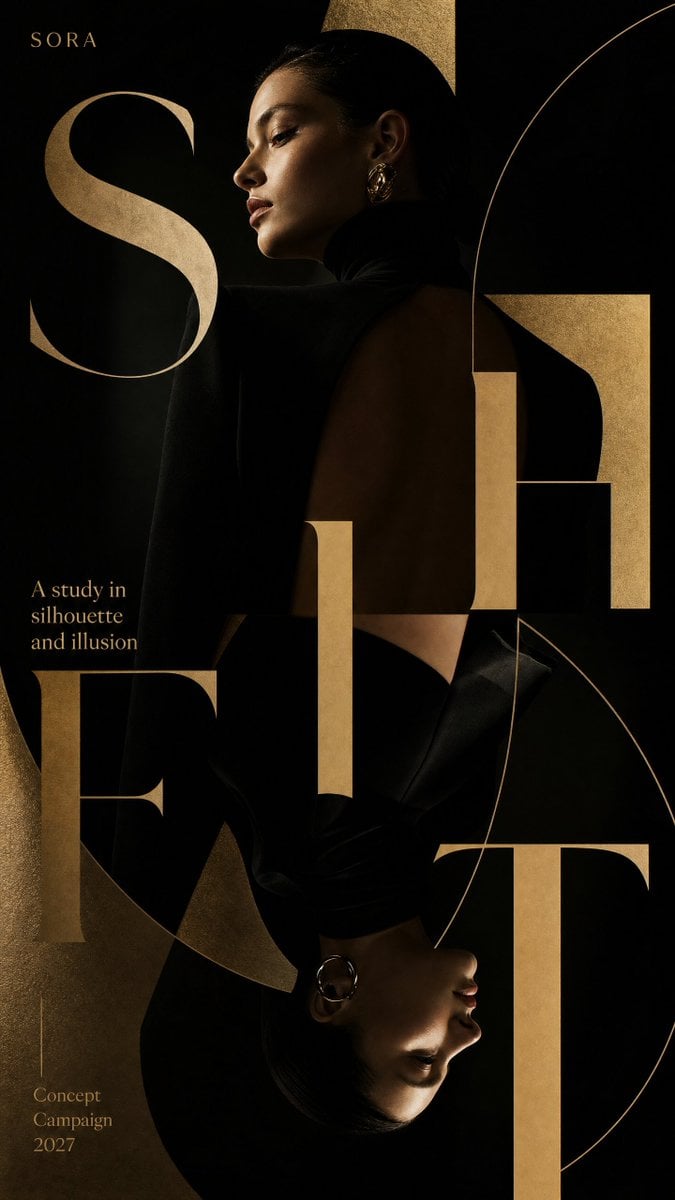
Luxury Fashion Campaign Typography Poster System
Make it yours
Japanese AI Creative Tool Poster works as-is. These are the safest ways to change it without losing the look.
Change one field
Copy a single group, rewrite it, and generate again so you can see what that field is doing.
Keep the frame, change the subject
Hold the composition and light of Japanese AI Creative Tool Poster, then swap wardrobe, props or the person for a new take.
| If the result… | Why | Fix |
|---|---|---|
| The result drifts from the preview | Too many fields changed at once. | Reuse Japanese AI Creative Tool Poster as-is first, then change one group — subject, light, or setting. |
| The model over-stylizes the scene | The prose prompt leaves finish and camera underspecified. | Add one camera or lighting sentence and stay on GPT Image 2. |
More GPT Image 2 templates
Other prompts made for GPT Image 2.

Six VTuber Japanese Logo Sheet

Realistic Portrait of Woman and Deer

The Vista Modular Condo Poster

AI Model Routing Comparison Infographic

2.5D Anime Art Board

Isometric Productivity Desk Scene

New York Double Exposure Poster

Four-Panel AI Landscape Comparison

Japanese Tatami Lifestyle Magazine Cover

NESCAFÉ Coffee Map Poster
More image prompts
Fresh picks from across the catalog.
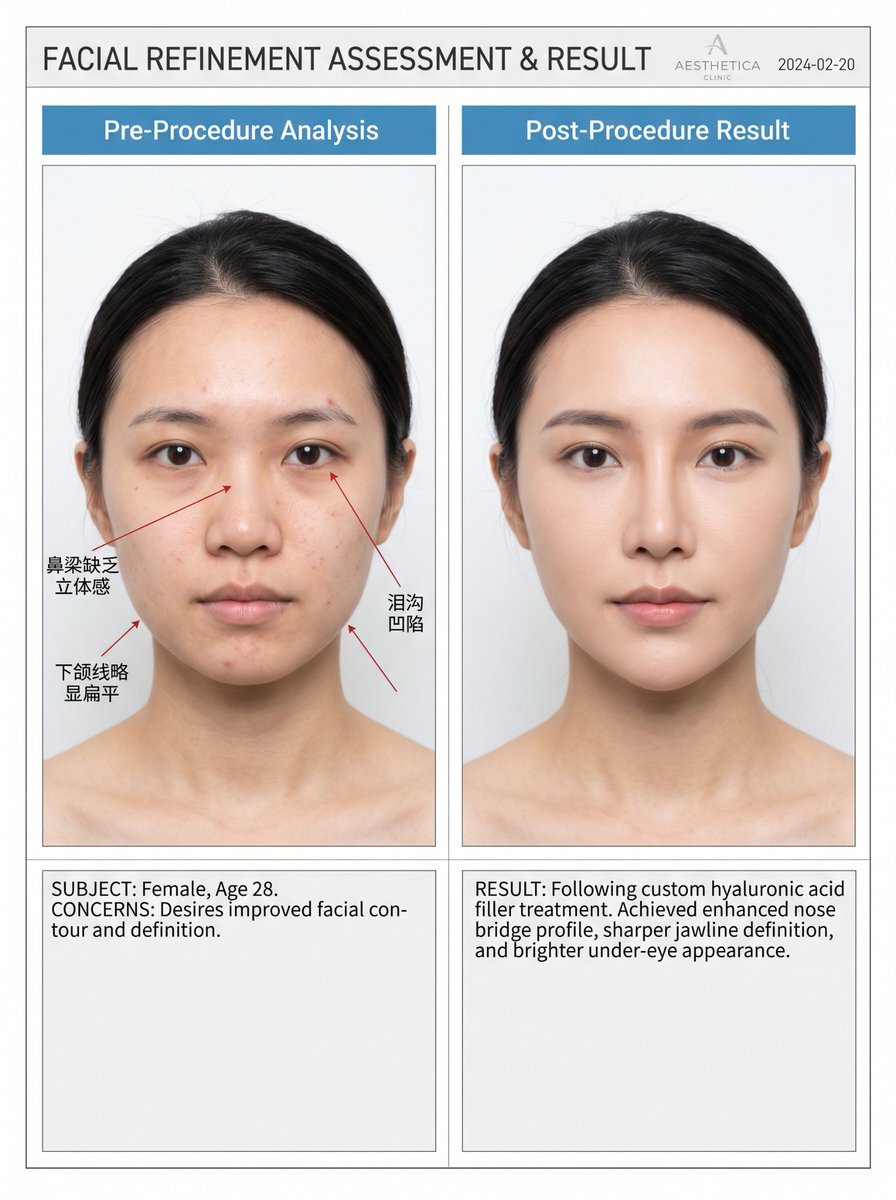
Medical Aesthetic Analysis Comparison Prompt
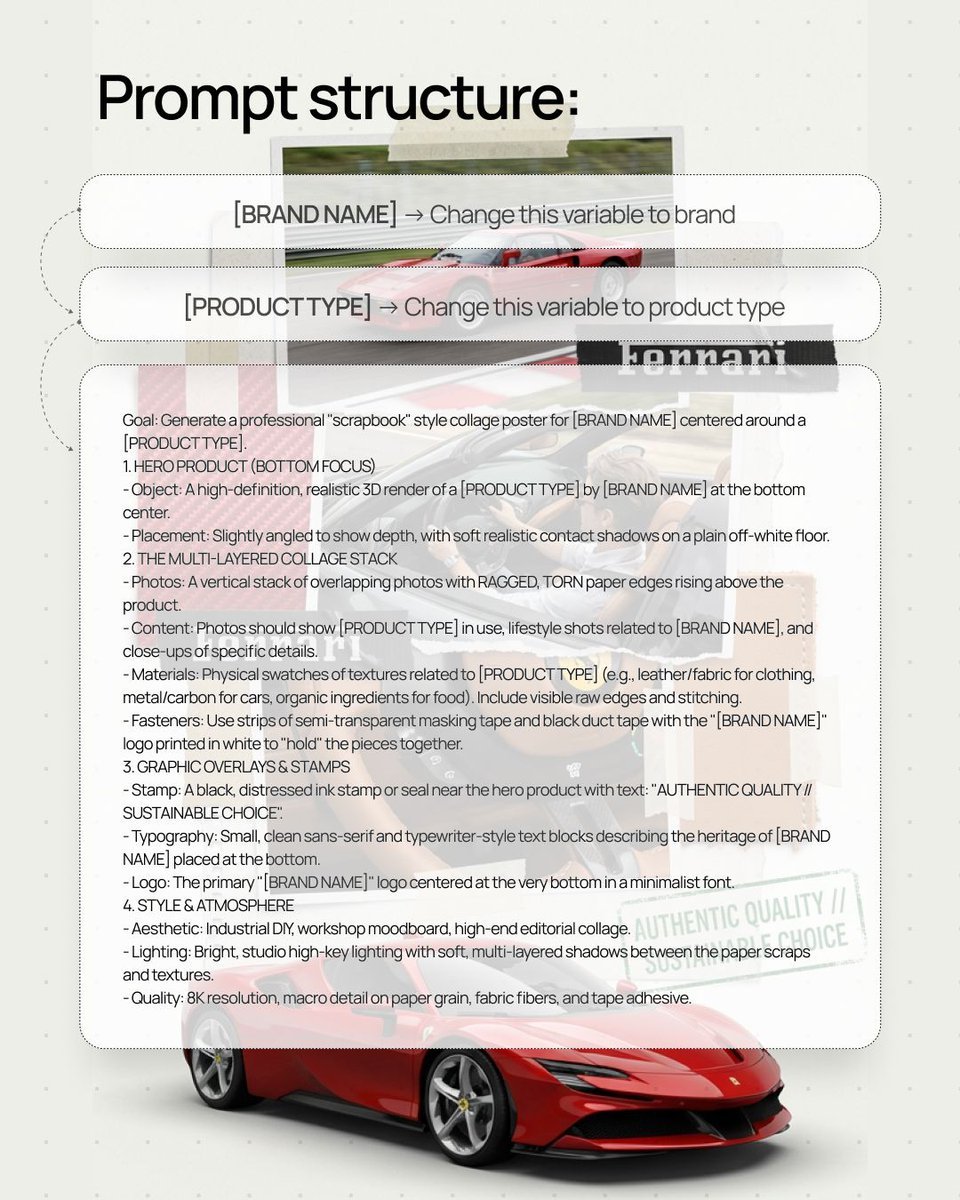
Scrapbook style collage poster for product branding
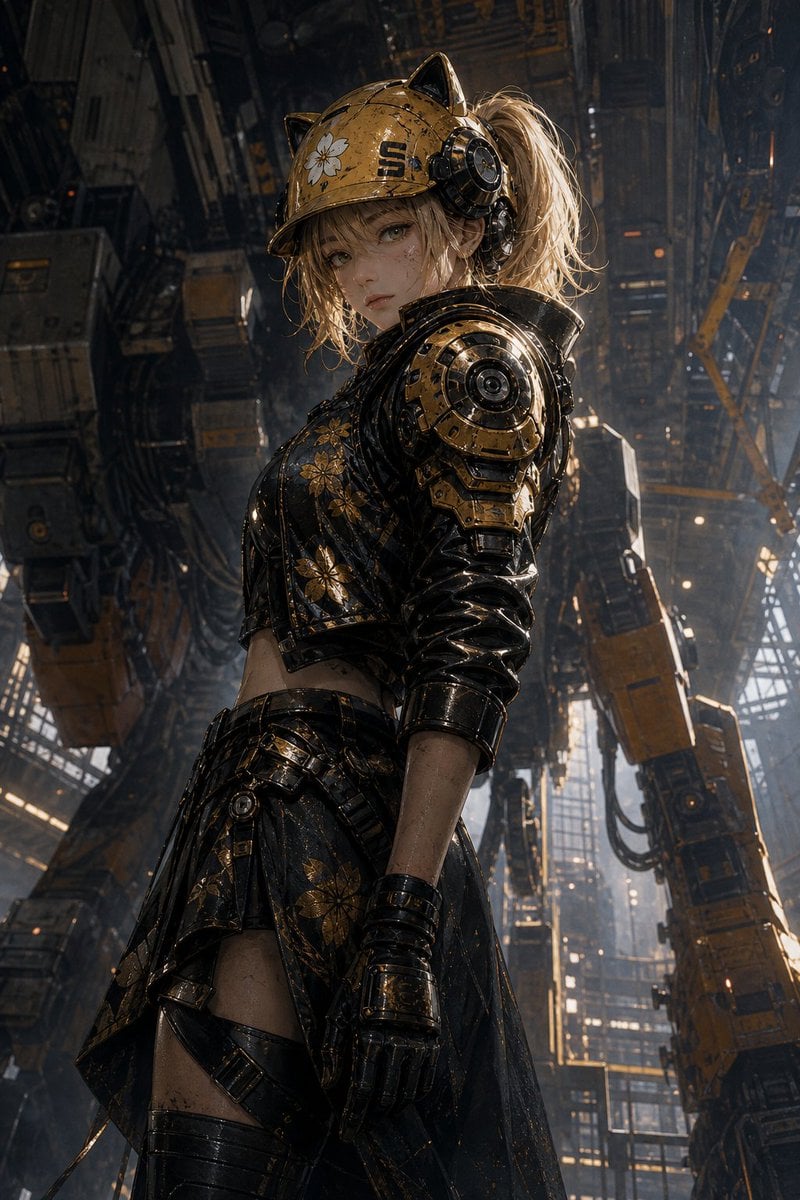
Futuristic Mecha Kimono Warrior
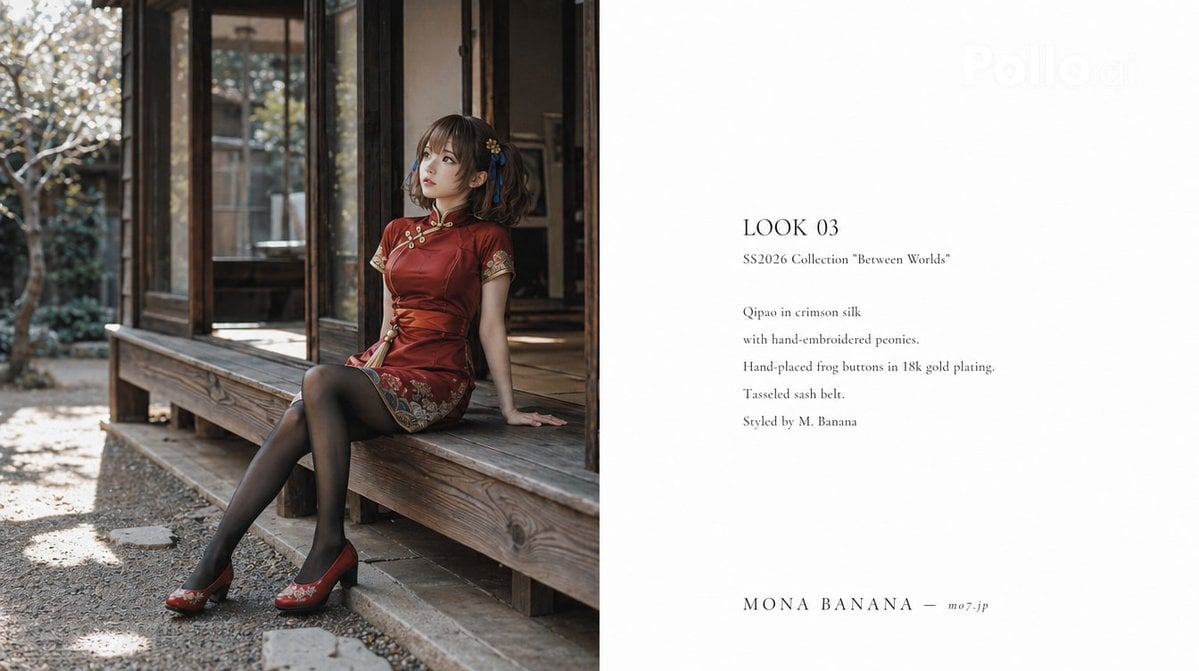
High Fashion Lookbook Spread

Chinese VPS Comparison Cover
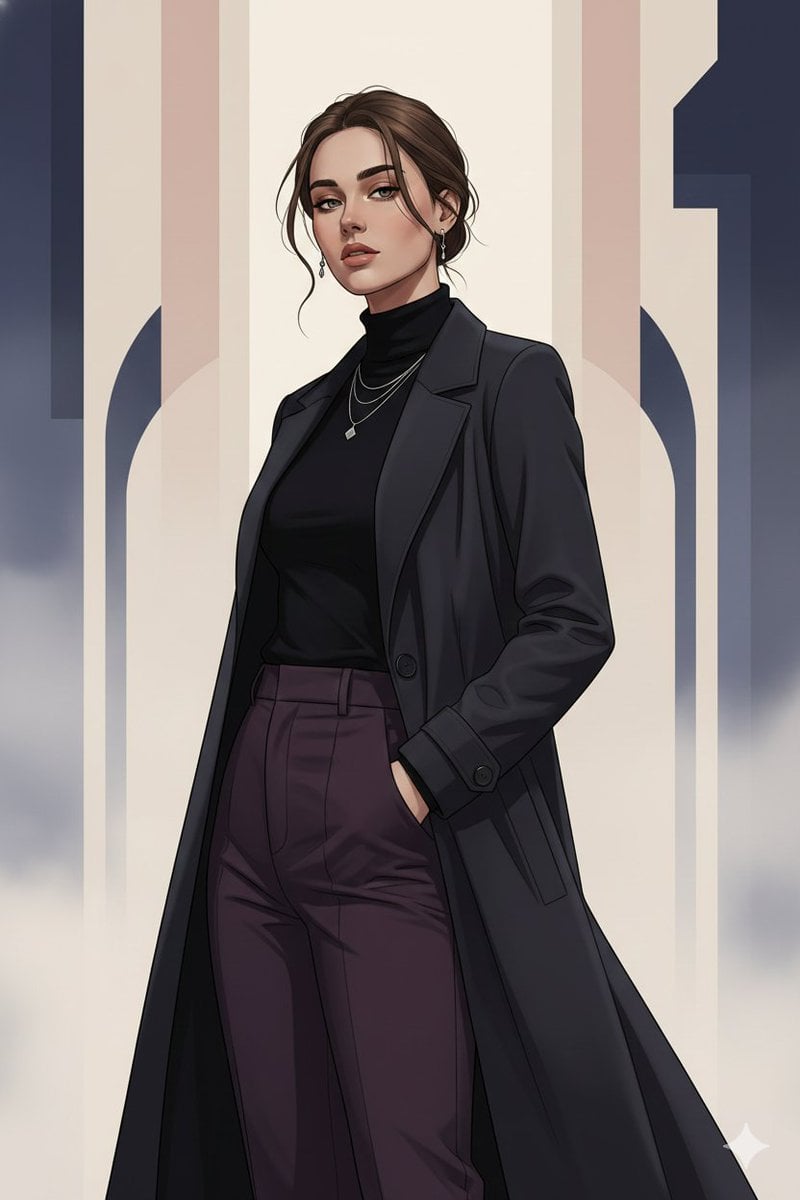
Gothic K-Drama Fusion Illustration with Identity Preservation
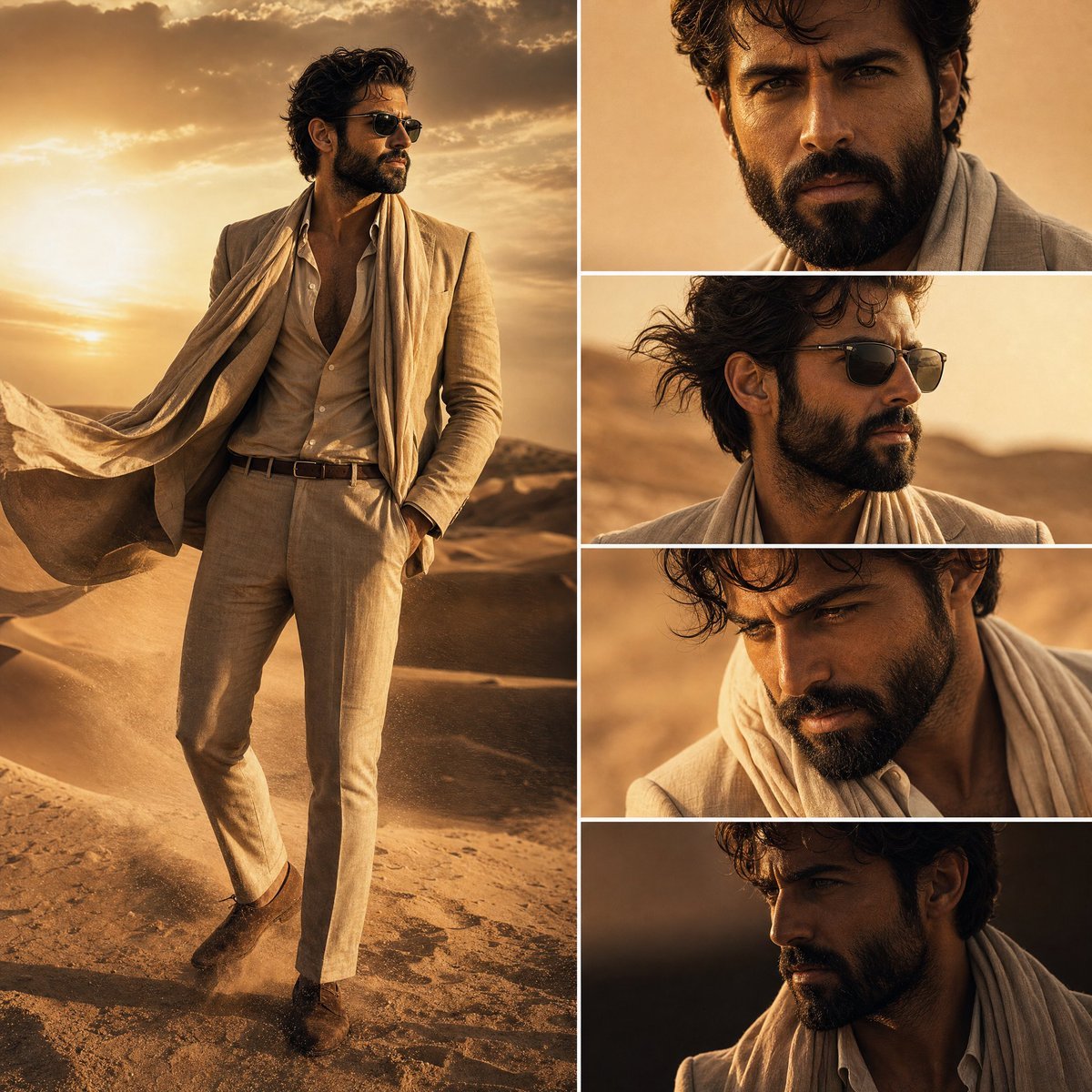
Desert Fashion Editorial Collage
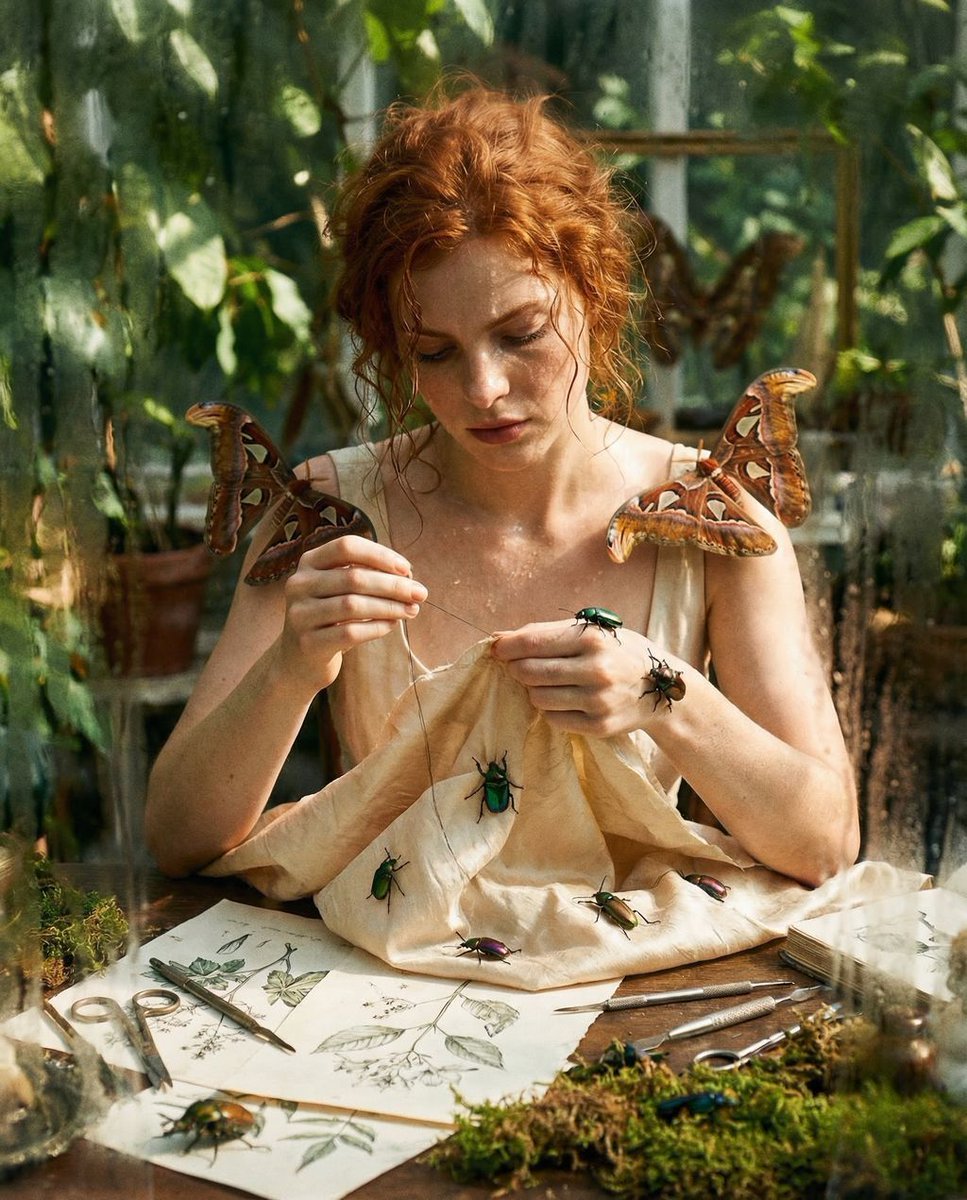
Surreal High Fashion Editorial Prompt with Living Insects

Desert Doll Golden Hour Portrait with Flash
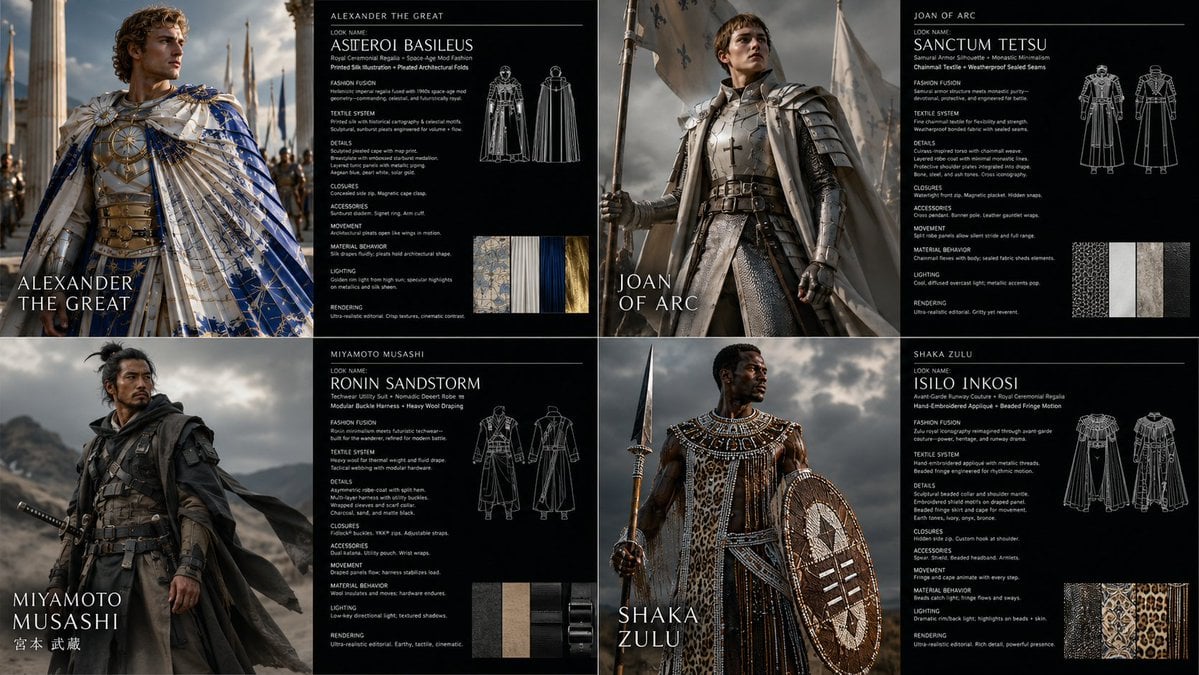
Warrior Fashion Fusion Designer
Browse template categories
Japanese AI Creative Tool Poster questions
How do I use the Japanese AI Creative Tool Poster template?
Add your photo if the template asks for one, edit the prompt if you like — the template's model and format are already selected — and press Generate. Your version opens in PicX Studio.
Can I customize the Japanese AI Creative Tool Poster template?
Yes. You can change the subject, setting, lighting, mood, format, and available model controls before creating your image.
Is the Japanese AI Creative Tool Poster template free?
Opening and editing this template is free. Generating uses credits, shown on the Generate button when you are signed in.
Which AI model should I use?
Start with GPT Image 2, which is the model associated with this template. You can compare another compatible model for a different finish.
Looking for something else? Browse all templates.

Your photo, any look
Thousands of ready templates for every top image and video model, from one credit balance.