
Chinese VPS Comparison Cover
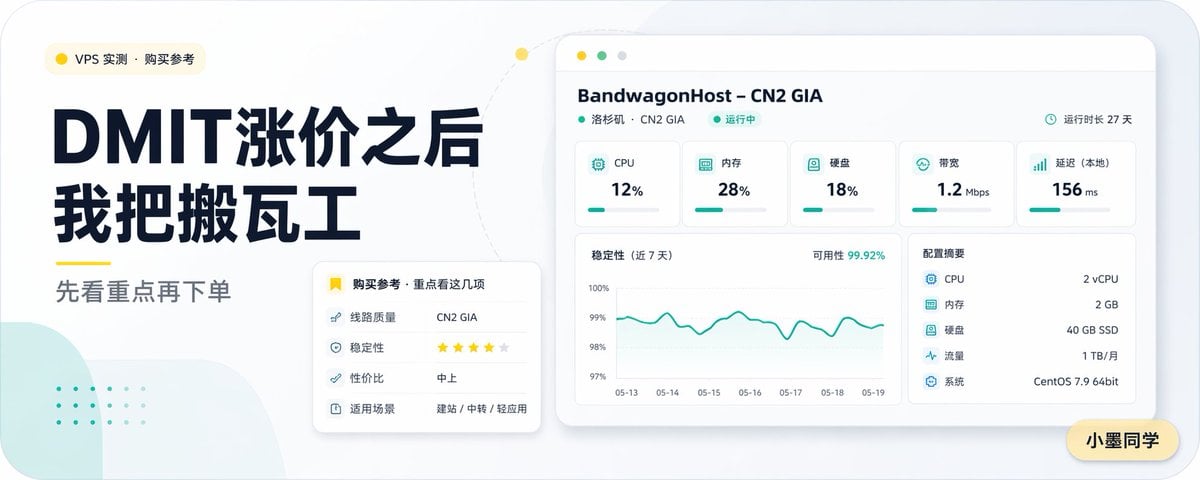
A polished wide-format Chinese tech article cover featuring a bold headline, a server monitoring dashboard, and recommendation cards for VPS comparison content.
- Prompt included
- Model and format preset
- Premium template
The prompt behind this image
Copy the exact prompt behind Chinese VPS Comparison Cover, or open it in the studio and make it yours.
Create a clean modern Chinese tech blog cover in a wide 16:9 layout with a soft light-gray background, rounded-corner canvas, and minimalist dashboard aesthetic. On the left, place a small rounded category pill near the top with a yellow dot icon and the text “VPS 实测 · 购买参考”. Below it, set a very large bold dark navy Chinese headline in two stacked lines: “DMIT涨价之后” and “我把搬瓦工”. Under the headline, add a short yellow underline accent and then a medium-gray subheading reading “先看重点再下单”. The typography should feel premium, editorial, and highly legible, with strong contrast and generous spacing. On the right, show a floating desktop-app style server monitoring panel with a white card body, subtle shadow, rounded corners, and a pale beige browser top bar with three small circular window buttons. The panel header should read “BandwagonHost – CN2 GIA”, with a smaller line underneath “洛杉矶 · CN2 GIA” and a green status label “运行中”, plus on the top-right a small clock icon and the text “运行时长 27 天”. Inside the panel, include exactly 5 metric cards across the top row labeled “CPU” showing “12%”, “内存” showing “28%”, “硬盘” showing “18%”, “带宽” showing “1.2 Mbps”, and “延迟(本地)” showing “156 ms”, each with a small teal icon and a thin teal progress bar. Below, place a large line chart card on the left titled “稳定性(近 7 天)” with a top-right annotation “可用性 99.92%”, a teal fluctuating line, a vertical scale from 97% to 100%, and date labels from “05-13” through “05-19”. To the right of the chart, add a specs card titled “配置摘要” listing exactly 5 rows: “CPU 2 vCPU”, “内存 2 GB”, “硬盘 40 GB SSD”, “流量 1 TB/月”, and “系统 CentOS 7.9 64bit”. In the lower-left area overlapping between the text block and the dashboard, add a smaller white recommendation card with rounded corners and shadow. Its title line should include a yellow bookmark icon and read “购买参考 · 重点看这几项”. Inside, list exactly 4 rows: “线路质量 CN2 GIA”, “稳定性 ★★★★☆”, “性价比 中上”, and “适用场景 建站 / 中转 / 轻应用”. Add soft decorative elements in the background: a pale mint abstract rounded shape in the bottom-left corner, a faint dotted mint pattern above it, and a light dotted curved connector line arcing from the left text area toward the top of the dashboard, with a small yellow dot on the curve. Place a small rounded yellow name tag in the bottom-right corner of the canvas with the text “小墨同学”. Use a restrained palette of dark navy, teal, yellow, white, and light gray, with crisp vector-style rendering, subtle shadows, spacious composition, and a polished AI-generated editorial cover look for a VPS comparison article.
How to use Chinese VPS Comparison Cover in 3 steps
- 1Upload ImagePNG, JPG or paste
Add your photo
Upload the photo the template builds on. The prompt, model and format are already set.
- 2…a portrait of your subject in softgolden-hour light, 85mm…
Personalize
Edit the subject and creative details for your destination.
- 3Generate
Generate
Press Generate — your image is created in PicX Studio, so you can compare it with the original and refine one variable at a time.
More like this
Templates with the same subject, style or setup. Open one to see its prompt.

Chinese Growth Flywheel Strategy Cover

Skin Comparison Portrait — Nano Banana Pro
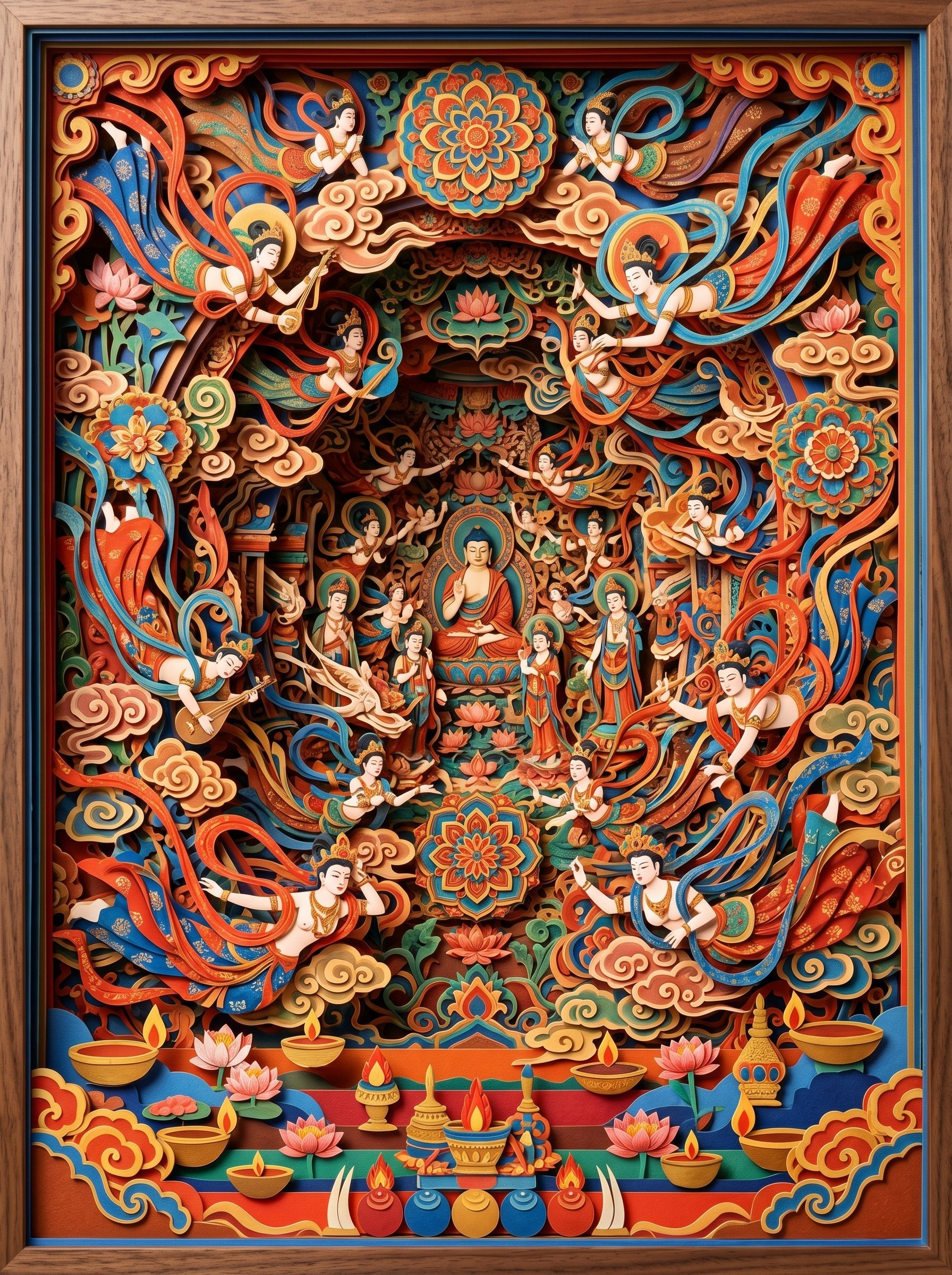
敦煌纸雕飞天 — 3D Layered Paper Cutout
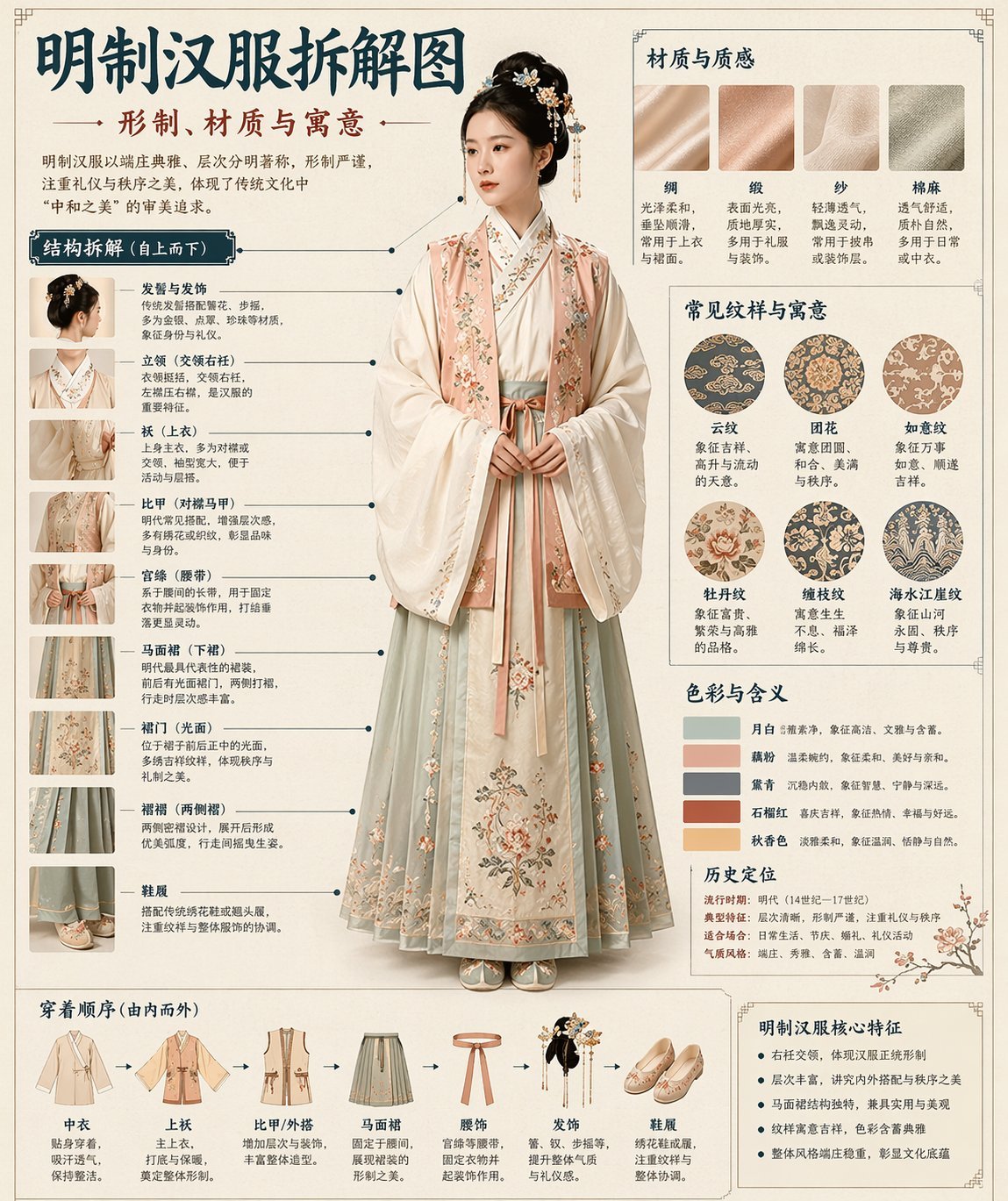
博物馆图鉴式汉服拆解图 — GPT-image-2

Off Duty Fashion Magazine Cover

AI Model Routing Comparison Infographic

Four-Panel AI Landscape Comparison

Japanese Tatami Lifestyle Magazine Cover

Brutalist Cogito Chinese Typography Poster

Arctic Warship Style Comparison
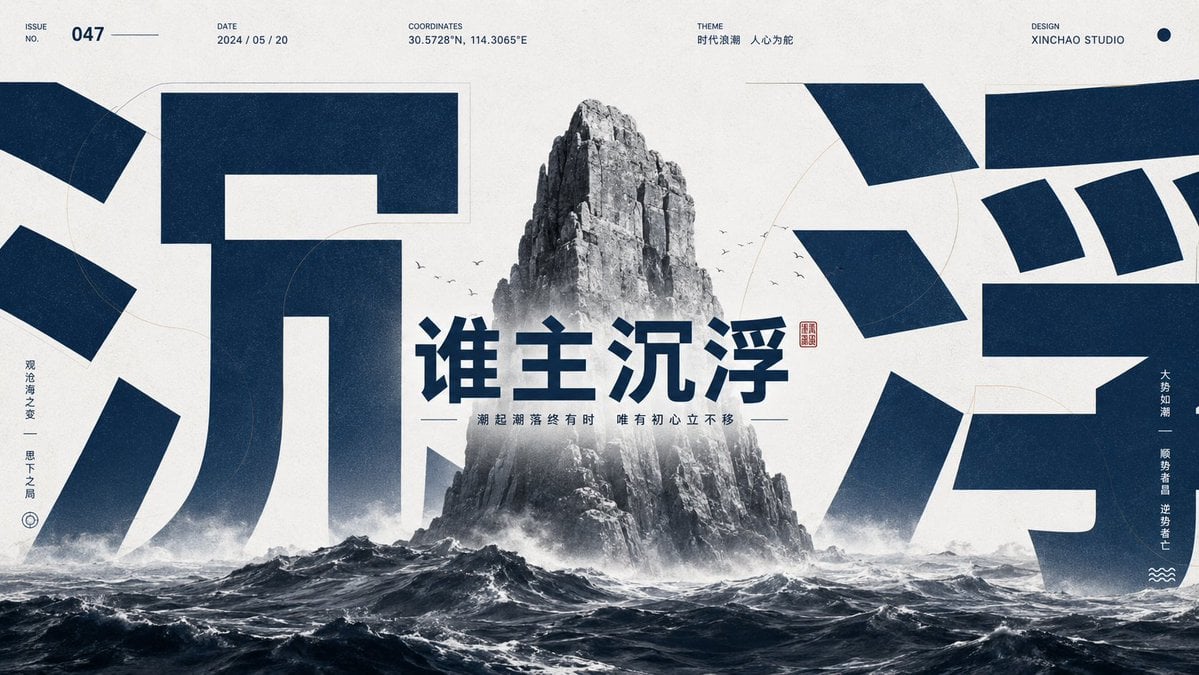
Monumental Chinese Ocean Poster
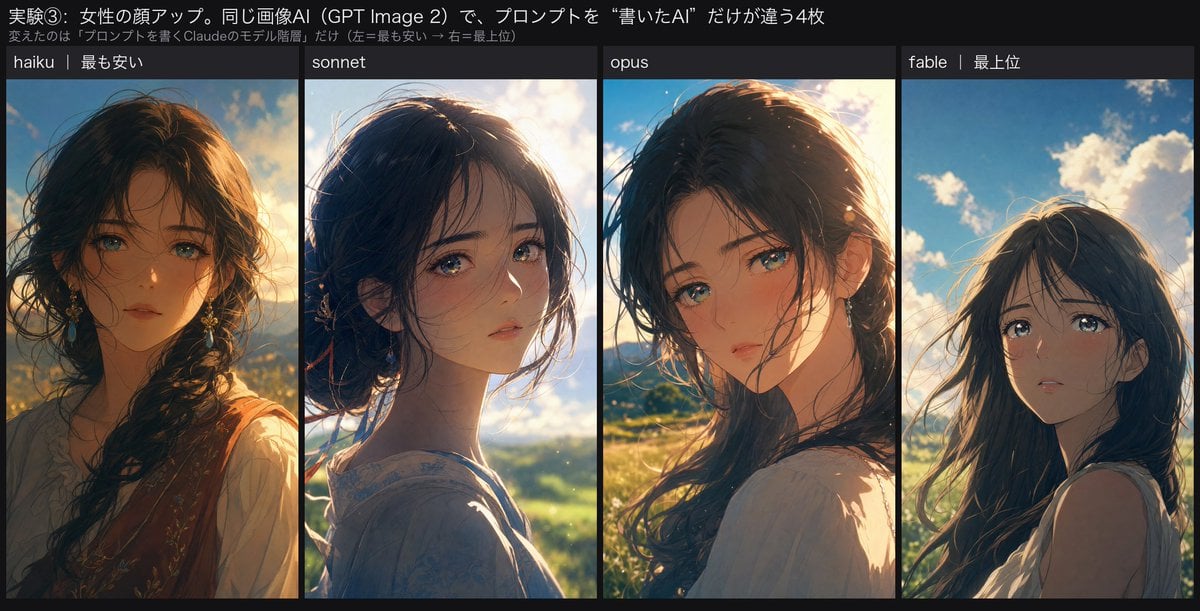
Four-Panel Anime Face Comparison
Make it yours
Chinese VPS Comparison Cover works as-is. These are the safest ways to change it without losing the look.
Change one field
Copy a single group, rewrite it, and generate again so you can see what that field is doing.
Keep the frame, change the subject
Hold the composition and light of Chinese VPS Comparison Cover, then swap wardrobe, props or the person for a new take.
| If the result… | Why | Fix |
|---|---|---|
| The result drifts from the preview | Too many fields changed at once. | Reuse Chinese VPS Comparison Cover as-is first, then change one group — subject, light, or setting. |
| The model over-stylizes the scene | The prose prompt leaves finish and camera underspecified. | Add one camera or lighting sentence and stay on GPT Image 2. |
More GPT Image 2 templates
Other prompts made for GPT Image 2.

Six VTuber Japanese Logo Sheet

Realistic Portrait of Woman and Deer

The Vista Modular Condo Poster

2.5D Anime Art Board

Isometric Productivity Desk Scene

New York Double Exposure Poster

NESCAFÉ Coffee Map Poster
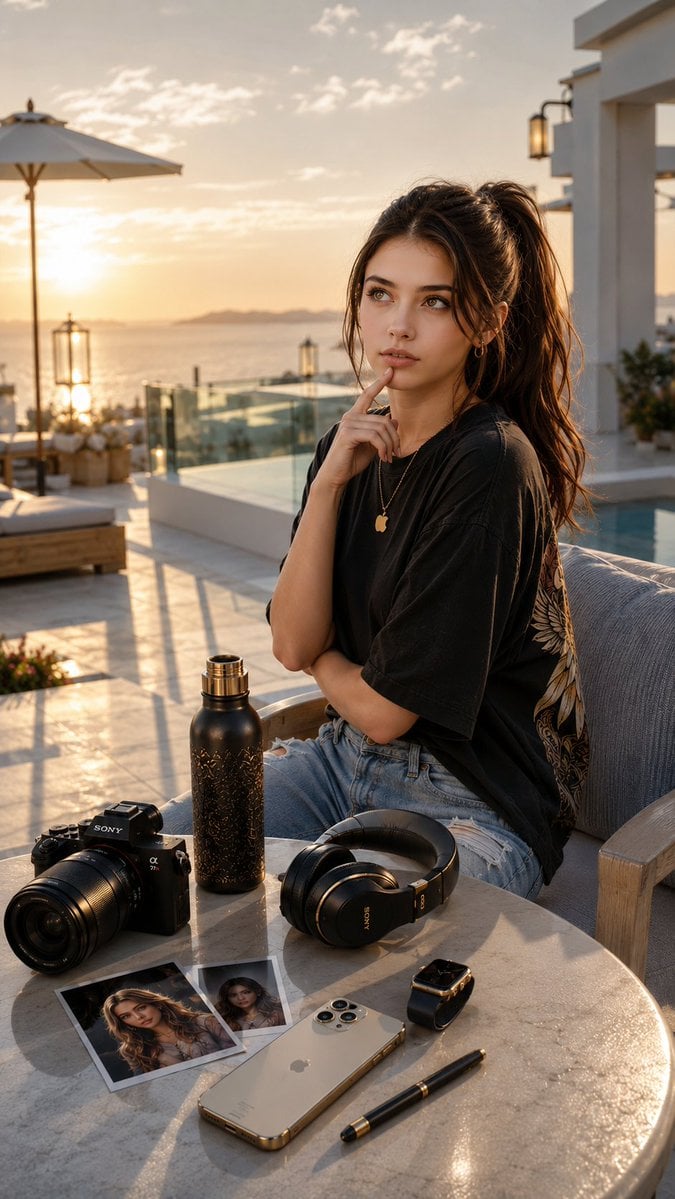
Cinematic Luxury Terrace Portrait

Superhero Era Transformation Split Portrait

Three AI Deities Fantasy Poster
More image prompts
Fresh picks from across the catalog.

Cinematic Lifestyle Portrait in Dubai with Bokeh
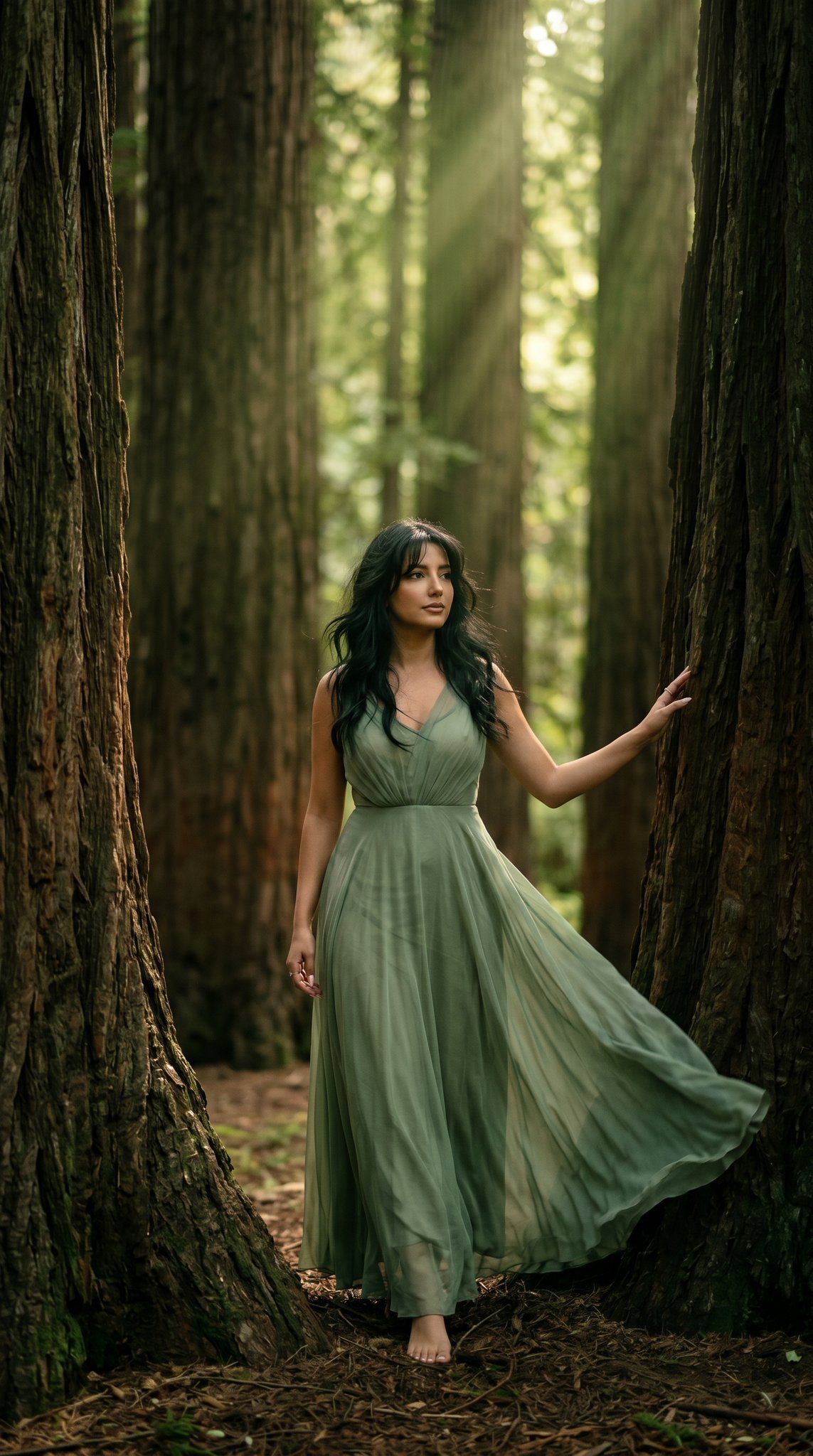
23 California Redwood Forest — California Series

Y2K Candid Digital Camera Portrait of a Young Woman

Ultra-realistic Commercial Espresso Photography
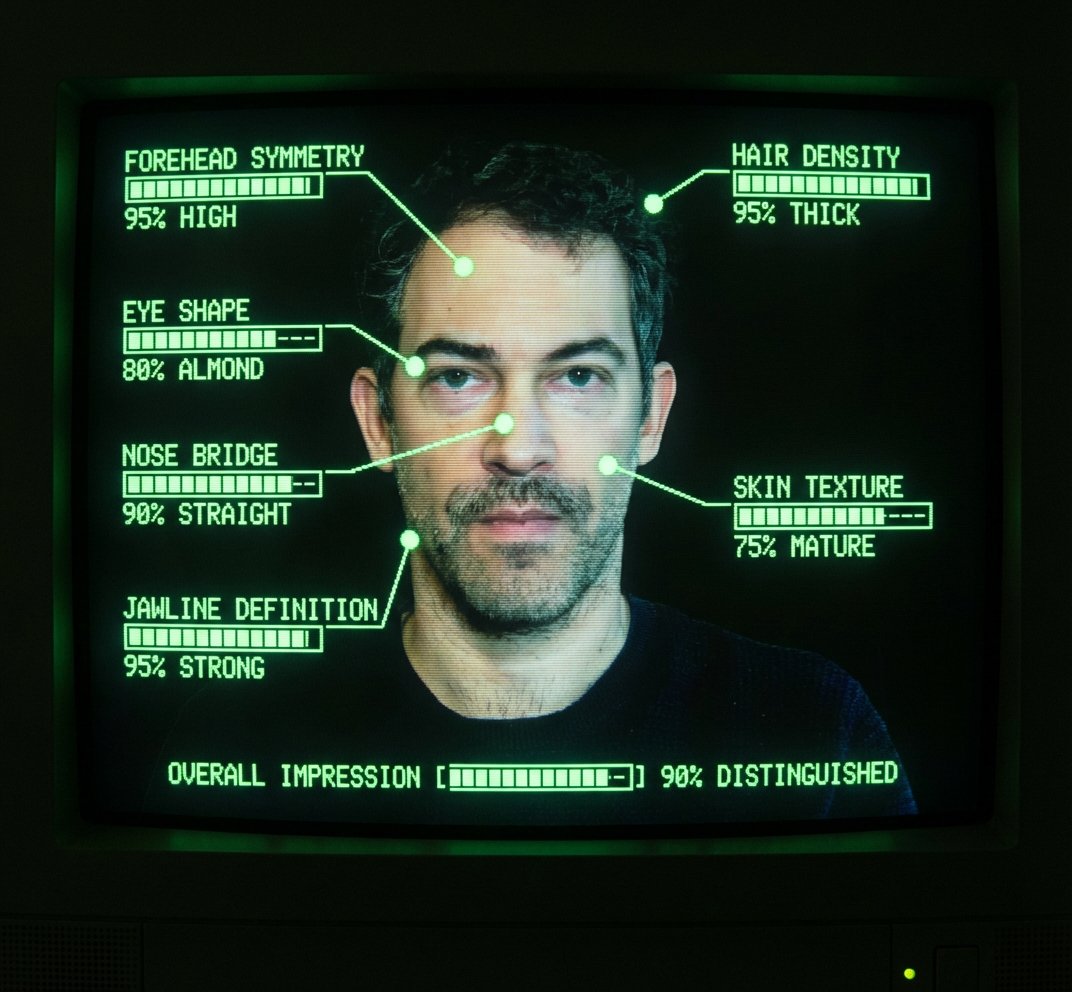
Annotate photo with hot-or-not console ratings

Six-Scene Facial Expression Difference Grid
Zero-G Laundromat: Surreal Fashion Editorial

Office Renovation and Decoration Prompt

Cinematic Frozen Lake Portrait and Video Prompt
F1 Car Technical Design Sheet
Browse template categories
Chinese VPS Comparison Cover questions
How do I use the Chinese VPS Comparison Cover template?
Add your photo if the template asks for one, edit the prompt if you like — the template's model and format are already selected — and press Generate. Your version opens in PicX Studio.
Can I customize the Chinese VPS Comparison Cover template?
Yes. You can change the subject, setting, lighting, mood, format, and available model controls before creating your image.
Is the Chinese VPS Comparison Cover template free?
Opening and editing this template is free. Generating uses credits, shown on the Generate button when you are signed in.
Which AI model should I use?
Start with GPT Image 2, which is the model associated with this template. You can compare another compatible model for a different finish.
Looking for something else? Browse all templates.

Your photo, any look
Thousands of ready templates for every top image and video model, from one credit balance.