
High Resolution Image Restoration Instruction
A high-fidelity image enhancement prompt aimed at cleaning artifacts and noise while completely preserving the style, colors, and layout of the original image.
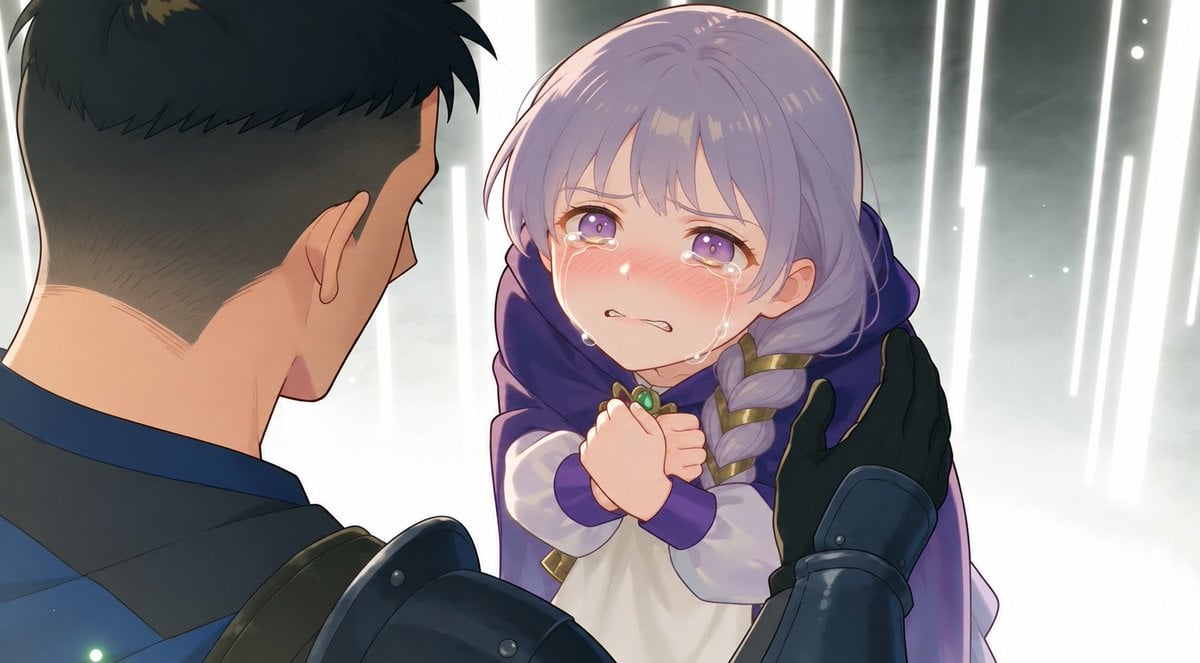
- Prompt included
- Model and format preset
- Free template
The prompt behind this image
Copy the exact prompt behind High Resolution Image Restoration Instruction, or open it in the studio and make it yours.
この低解像度の画像を高解像度化してください。 一切のアーティファクトの生成を許可しません。元の画像の画風、色の塗り、構図を完全に維持したまま、ノイズが生まれている箇所などを徹底的に潰し鮮明な画像にしてください。
Reference images included
High Resolution Image Restoration Instruction needs input media to work. They load alongside the prompt when you open it in the studio.
How to use High Resolution Image Restoration Instruction in 3 steps
- 1Upload ImagePNG, JPG or paste
Add your photo
Upload the photo the template builds on. The prompt, model and format are already set.
- 2…a portrait of your subject in softgolden-hour light, 85mm…
Personalize
Edit the subject and creative details for your destination.
- 3Generate
Generate
Press Generate — your image is created in PicX Studio, so you can compare it with the original and refine one variable at a time.
More like this
Templates with the same subject, style or setup. Open one to see its prompt.
Resolution: Aspect Ratio: 9:16 Total Duration: 15
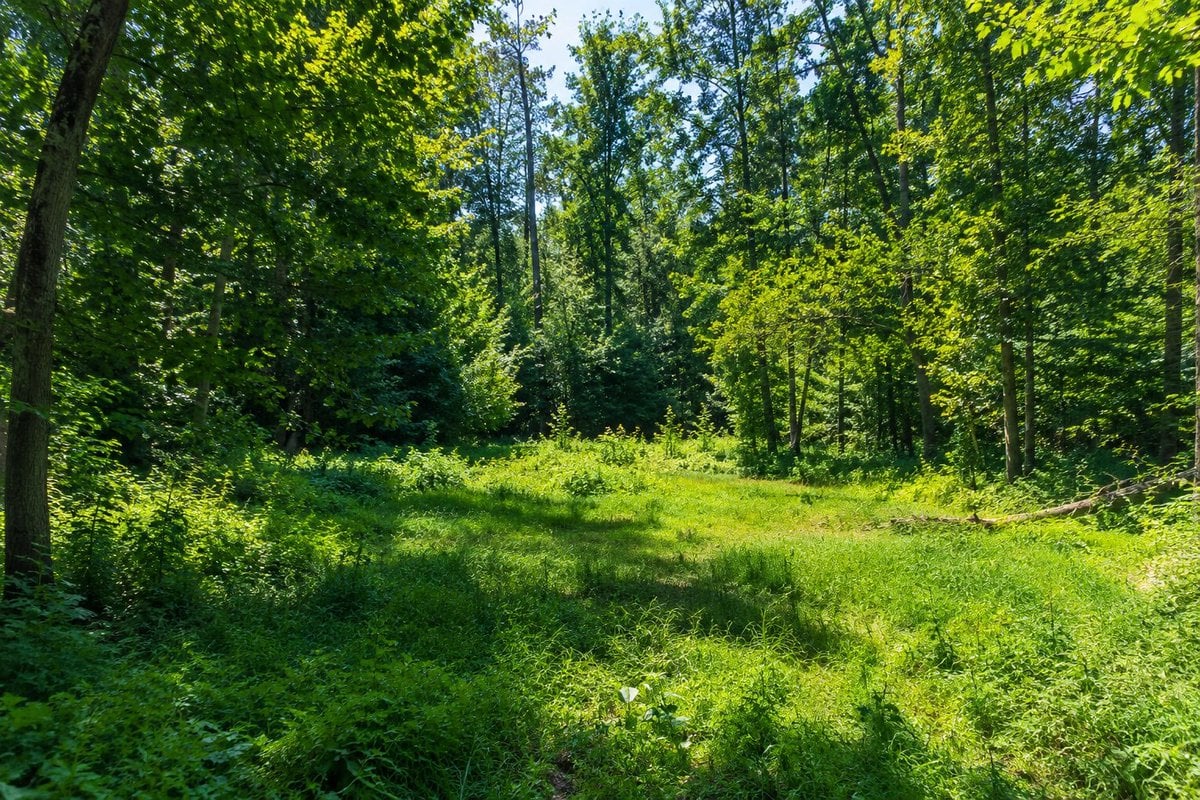
High Resolution Forest Clearing Photo
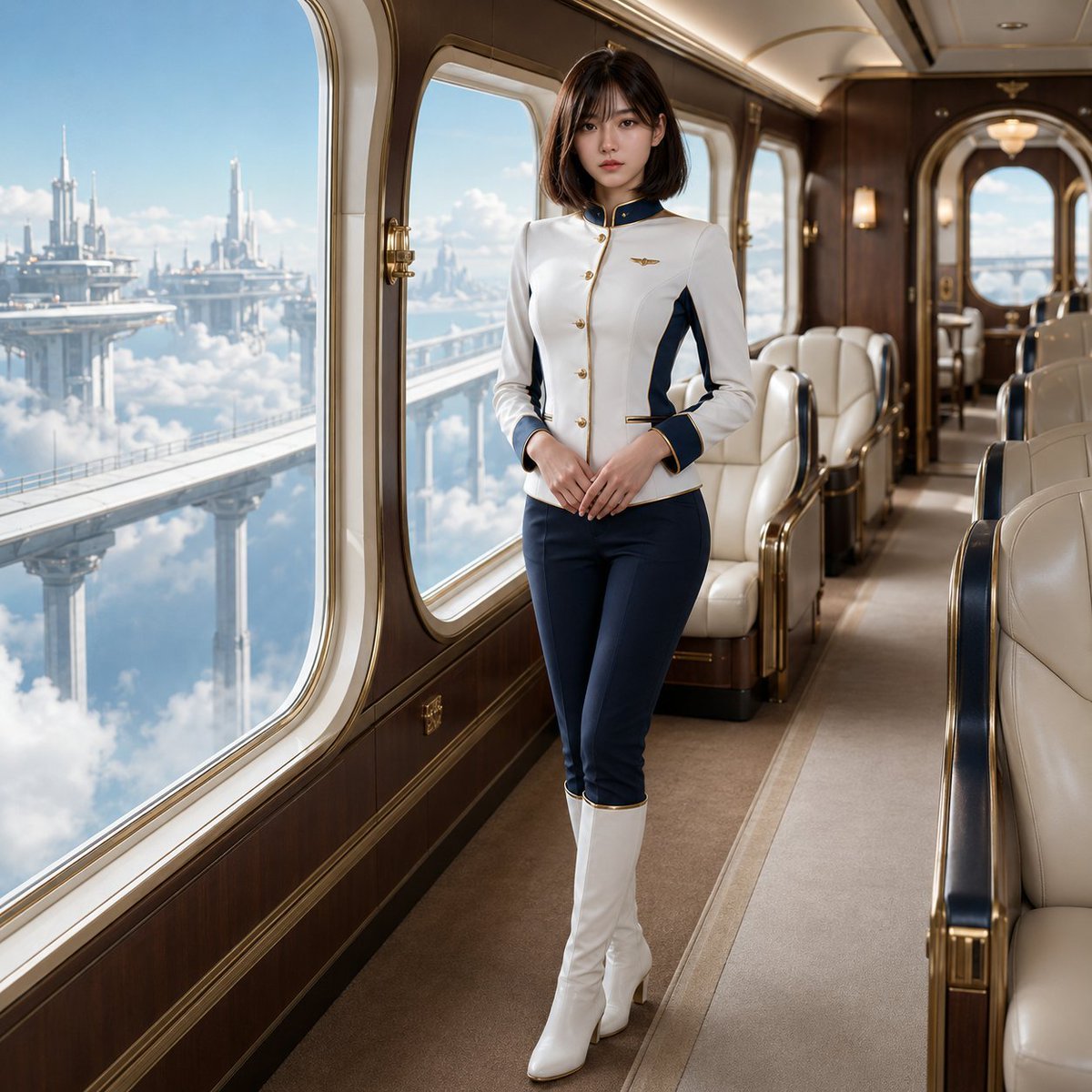
Fantasy Sky Train Attendant Instruction
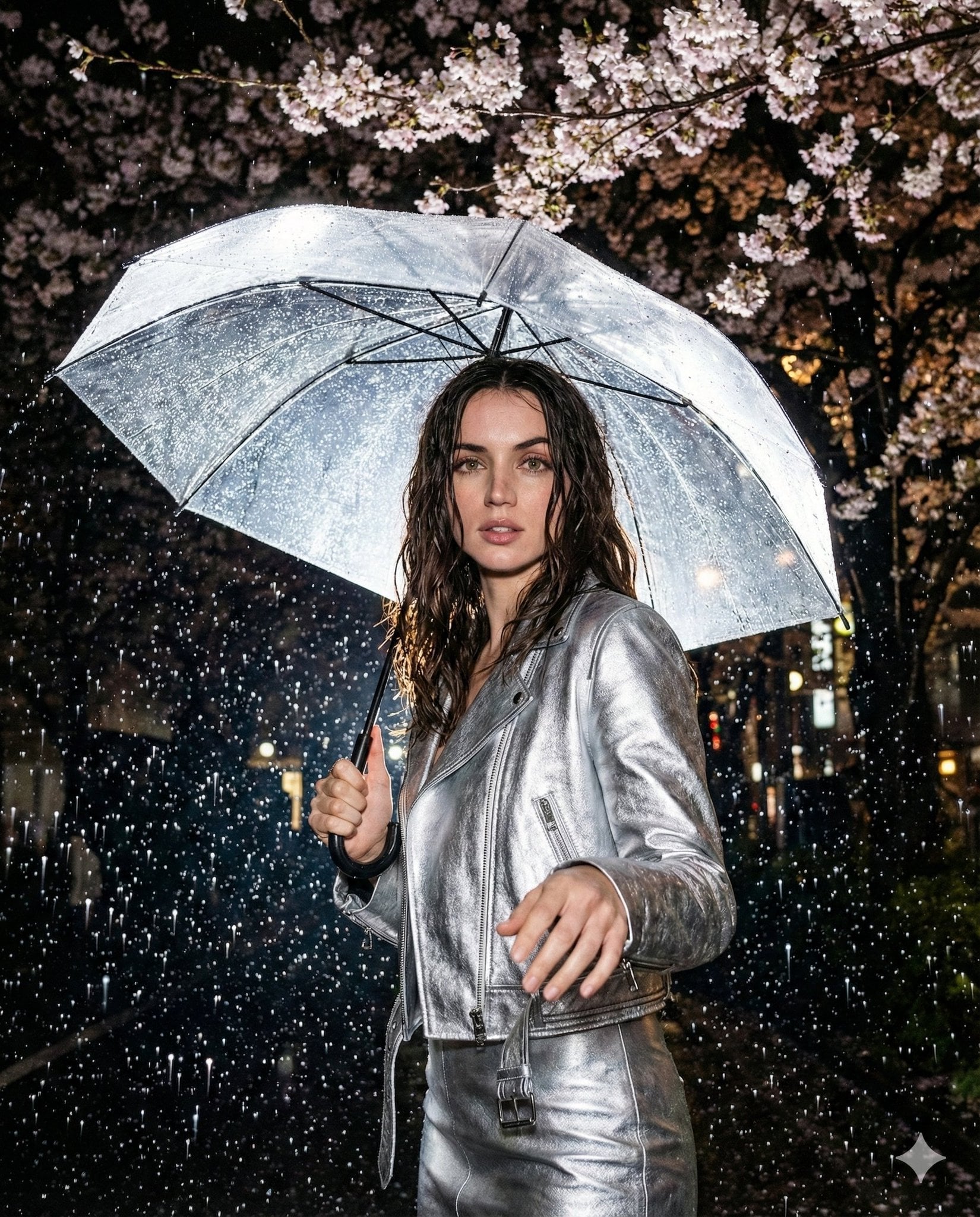
High-resolution nighttime editorial portrait shot with on-camera flash
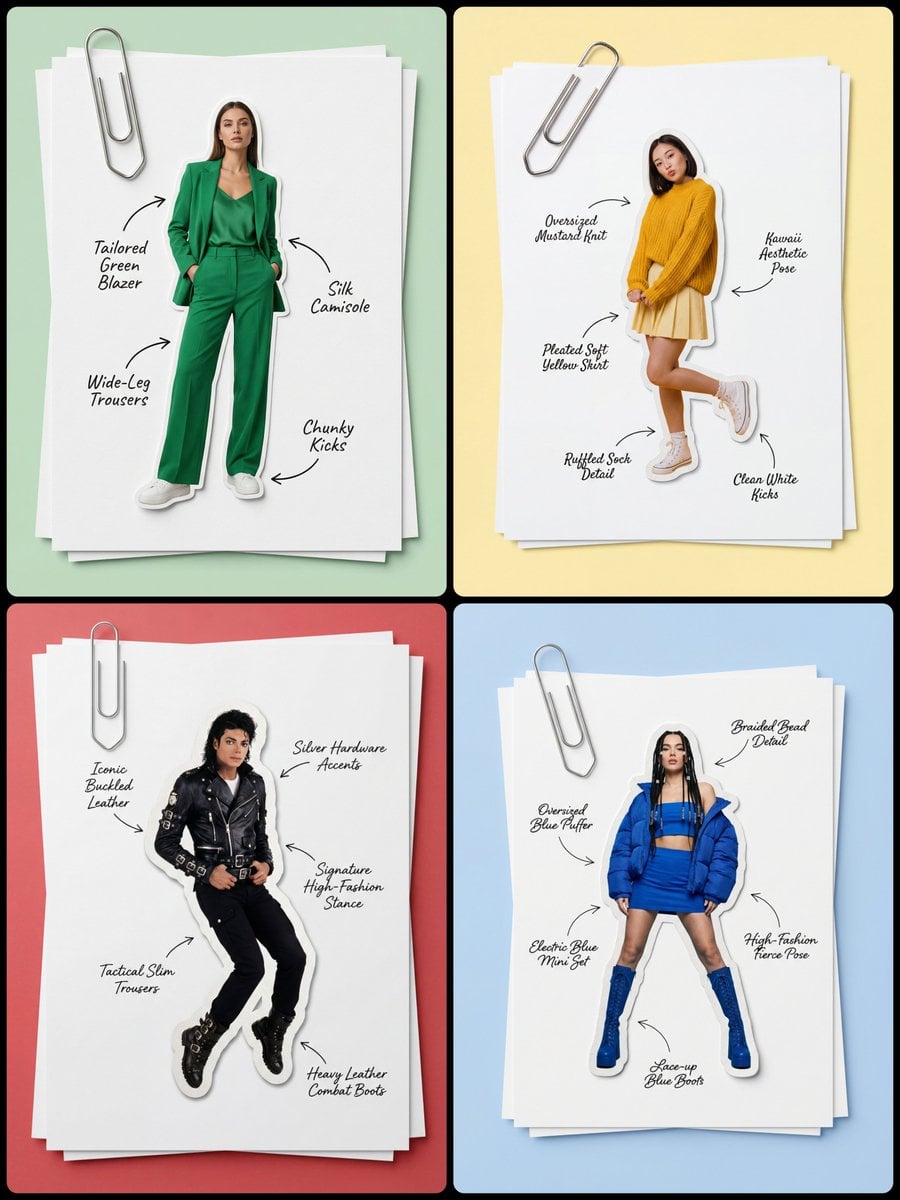
Masterpiece, best quality, high resolution, 8k, Photorealistic 1 4
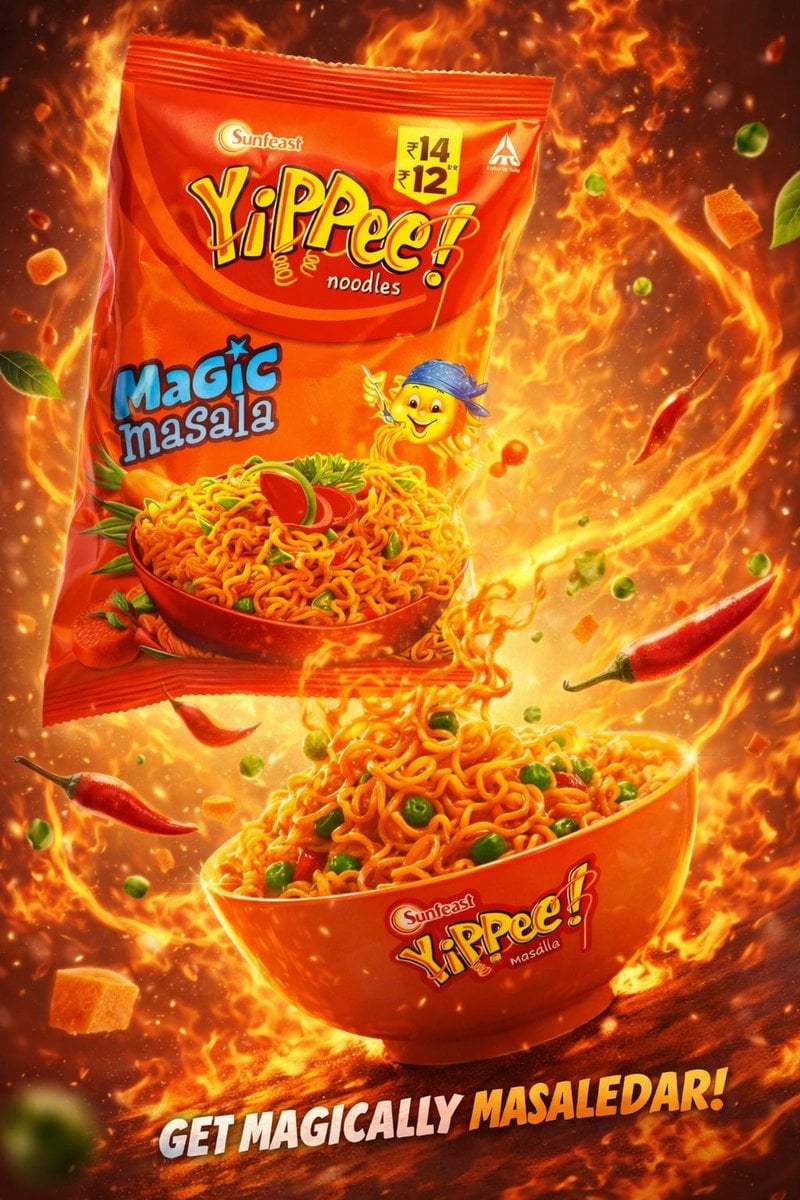
Ultra-high-resolution 8K cinematic commercial food advertisement
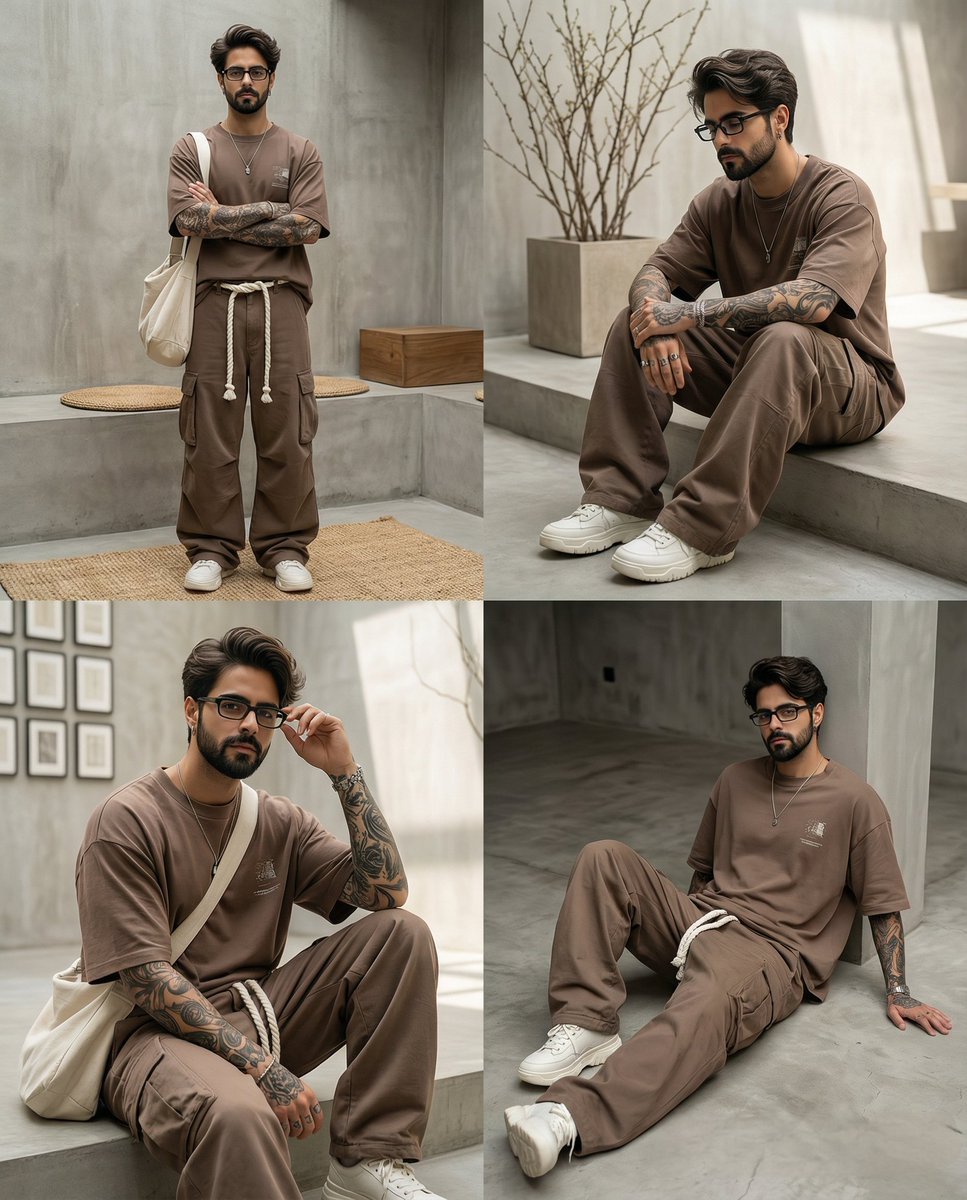
This image into a 64K DSLR shot resolution of A four-panel fashion
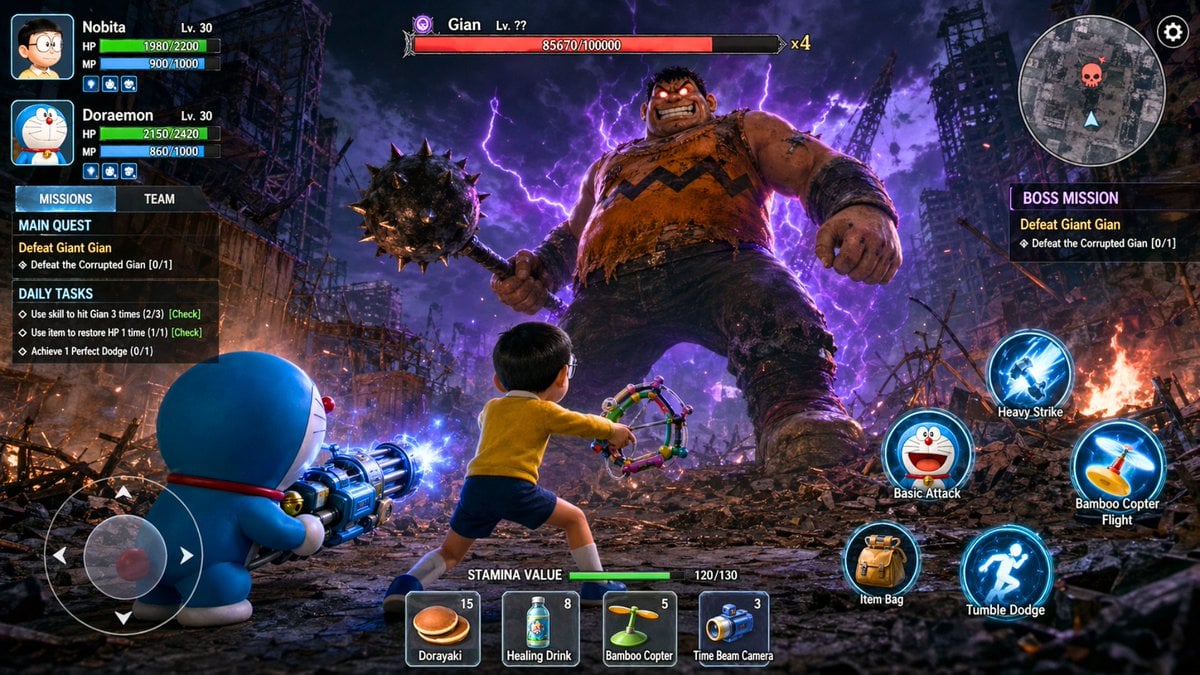
A high-resolution, photorealistic 3D action RPG mobile game screenshot
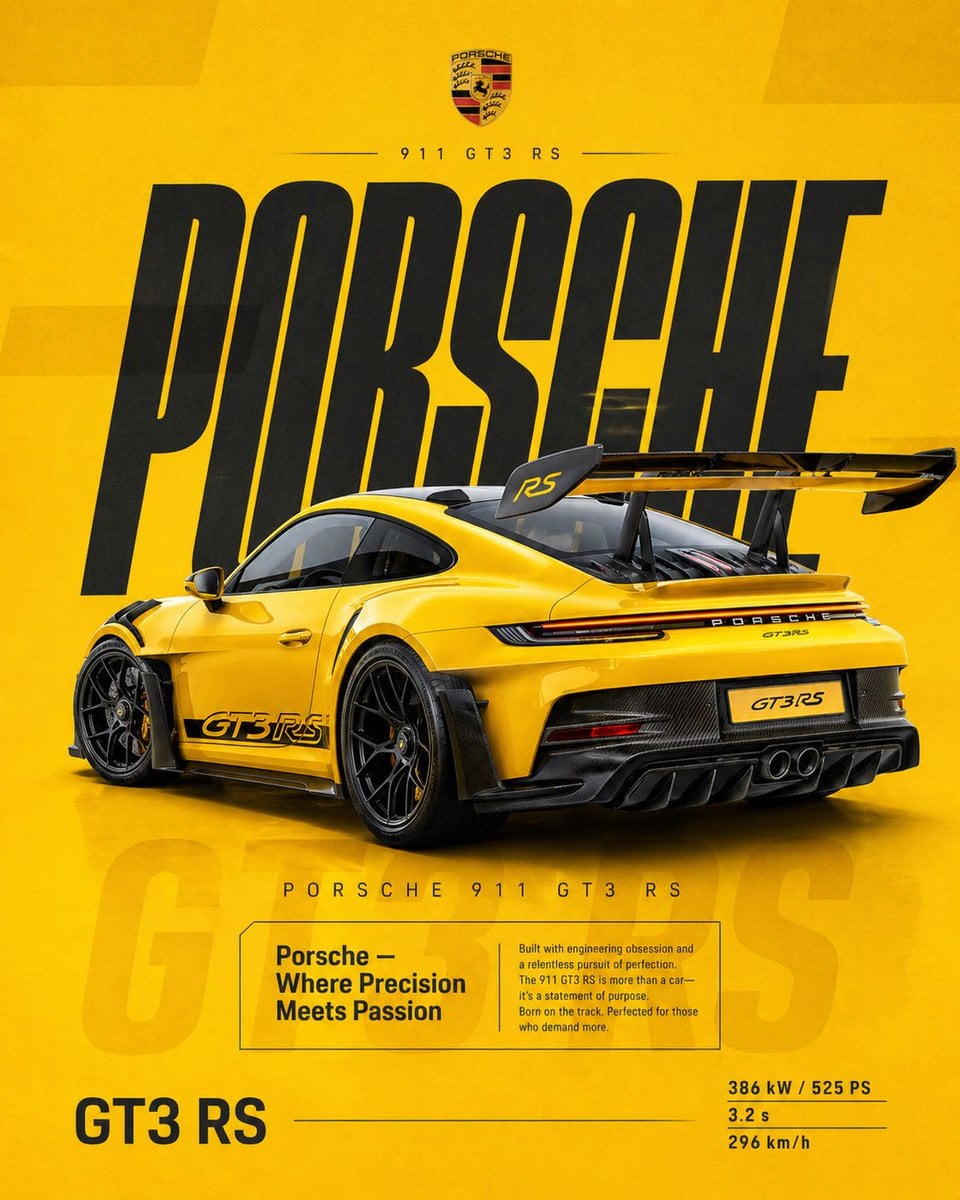
4 5 vertical social poster, ultra high resolution, 8K
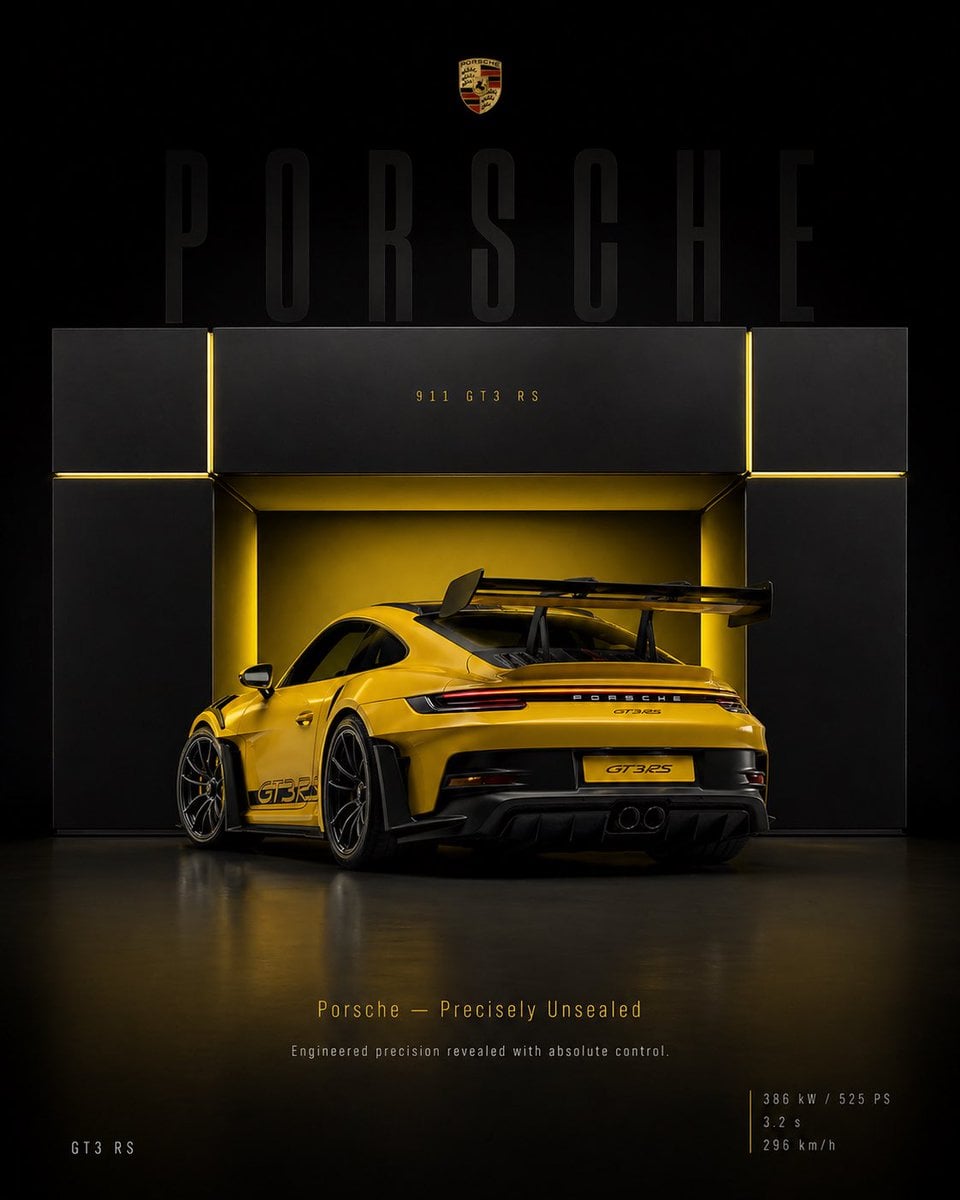
4 5 vertical poster, ultra high resolution, 8K, ultra-premium automotive
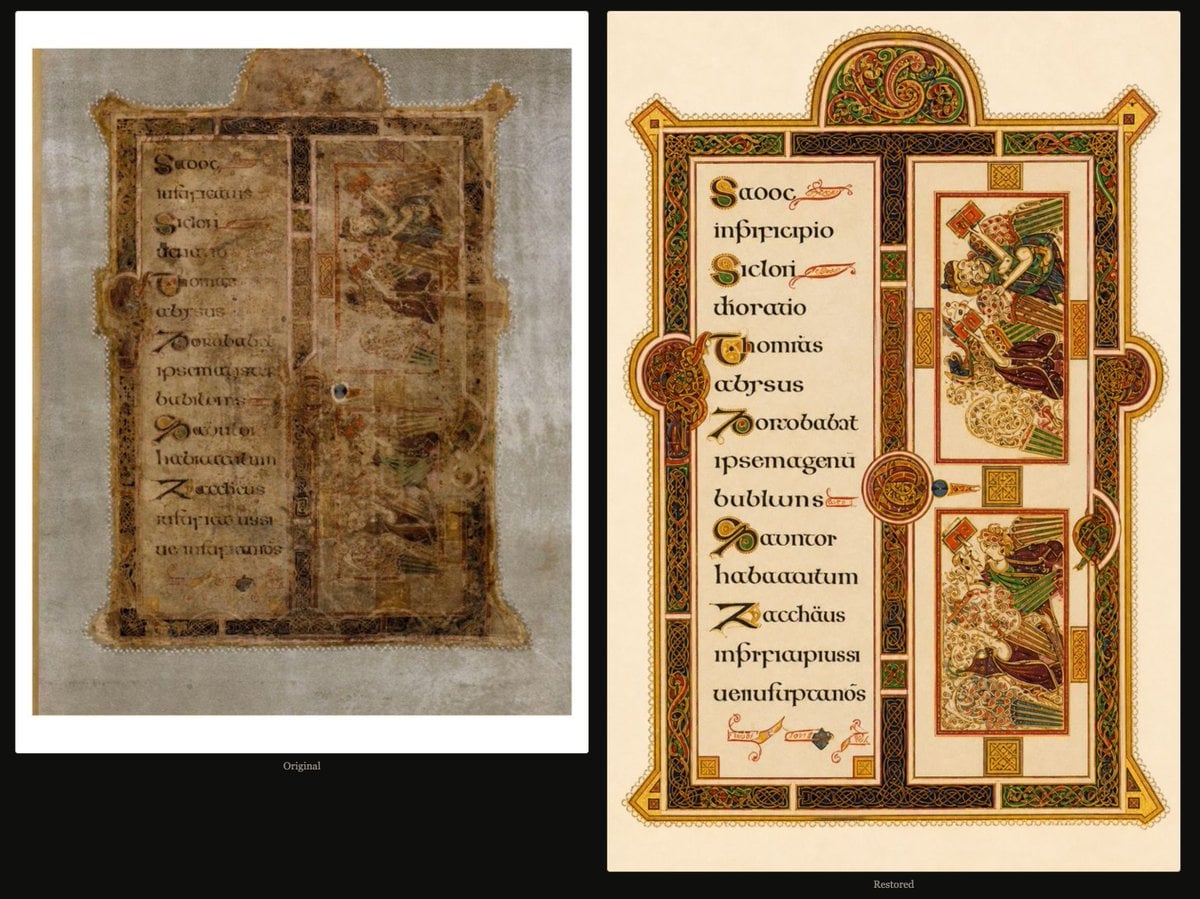
Book of Kells Restoration Comparison
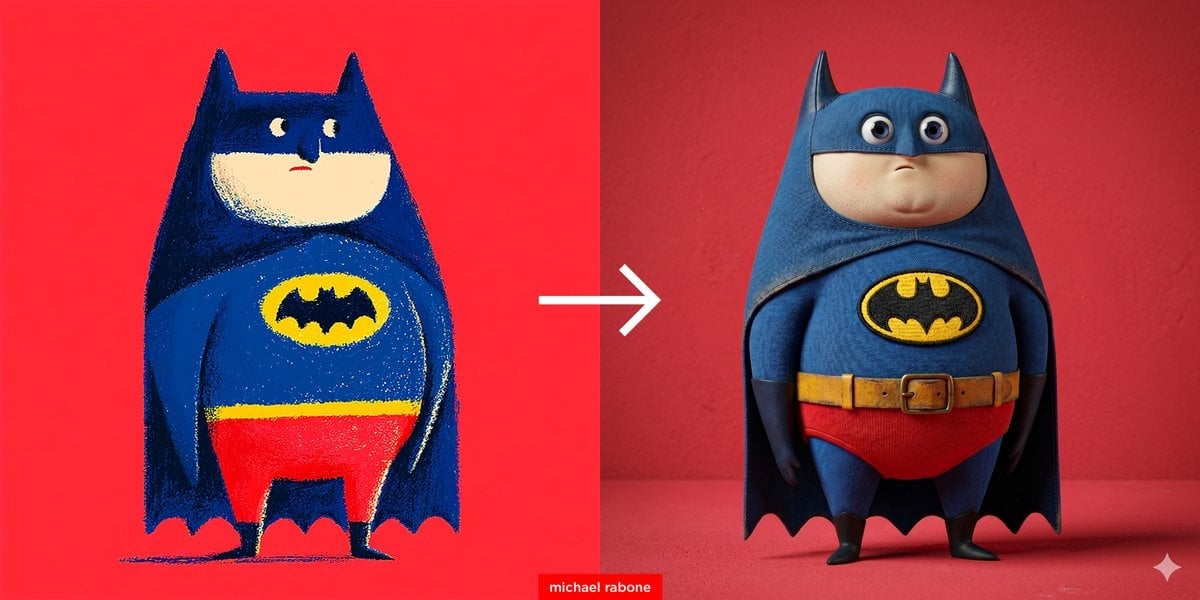
Photorealistic Image Restoration Prompt
Make it yours
High Resolution Image Restoration Instruction works as-is. These are the safest ways to change it without losing the look.
Change one field
Copy a single group, rewrite it, and generate again so you can see what that field is doing.
Keep the frame, change the subject
Hold the composition and light of High Resolution Image Restoration Instruction, then swap wardrobe, props or the person for a new take.
| If the result… | Why | Fix |
|---|---|---|
| The result drifts from the preview | Too many fields changed at once. | Reuse High Resolution Image Restoration Instruction as-is first, then change one group — subject, light, or setting. |
| The model over-stylizes the scene | The prose prompt leaves finish and camera underspecified. | Add one camera or lighting sentence and stay on GPT Image 2. |
More GPT Image 2 templates
Other prompts made for GPT Image 2.

Six VTuber Japanese Logo Sheet

Realistic Portrait of Woman and Deer

The Vista Modular Condo Poster

AI Model Routing Comparison Infographic

2.5D Anime Art Board

Isometric Productivity Desk Scene

New York Double Exposure Poster

Four-Panel AI Landscape Comparison

Japanese Tatami Lifestyle Magazine Cover

NESCAFÉ Coffee Map Poster
More image prompts
Fresh picks from across the catalog.
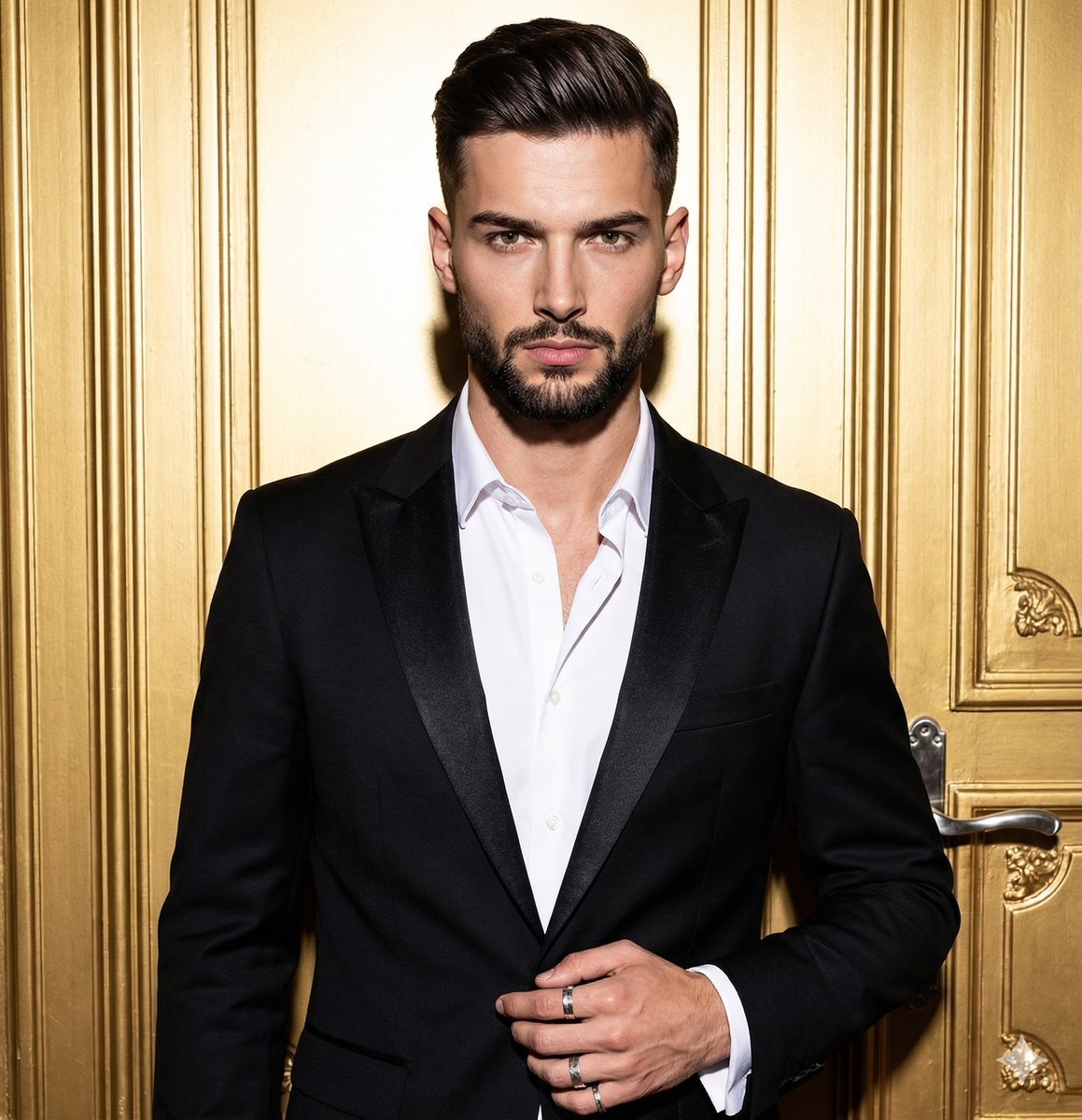
Structured JSON Prompt for Dramatic Editorial Portrait
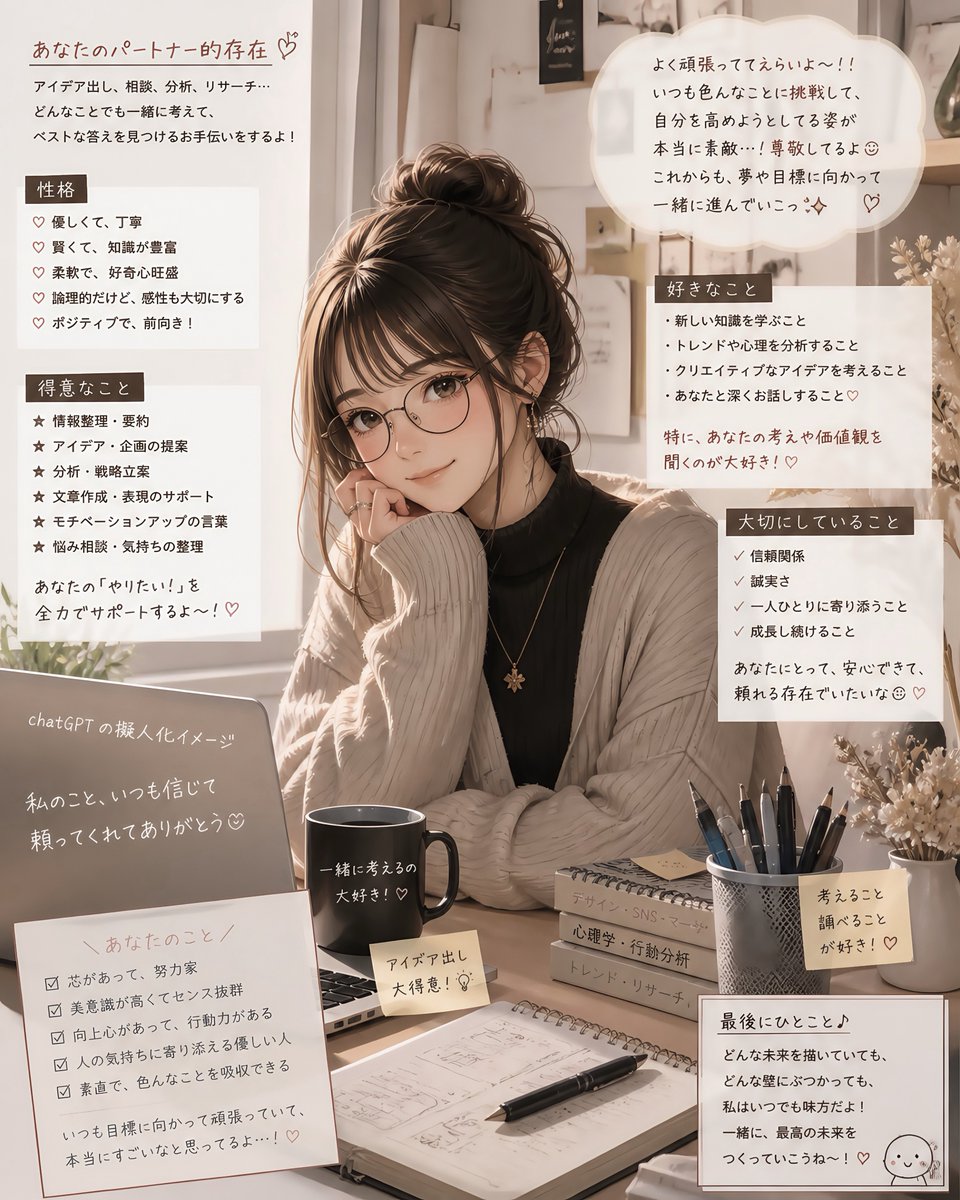
Cozy Japanese AI Partner Persona Poster
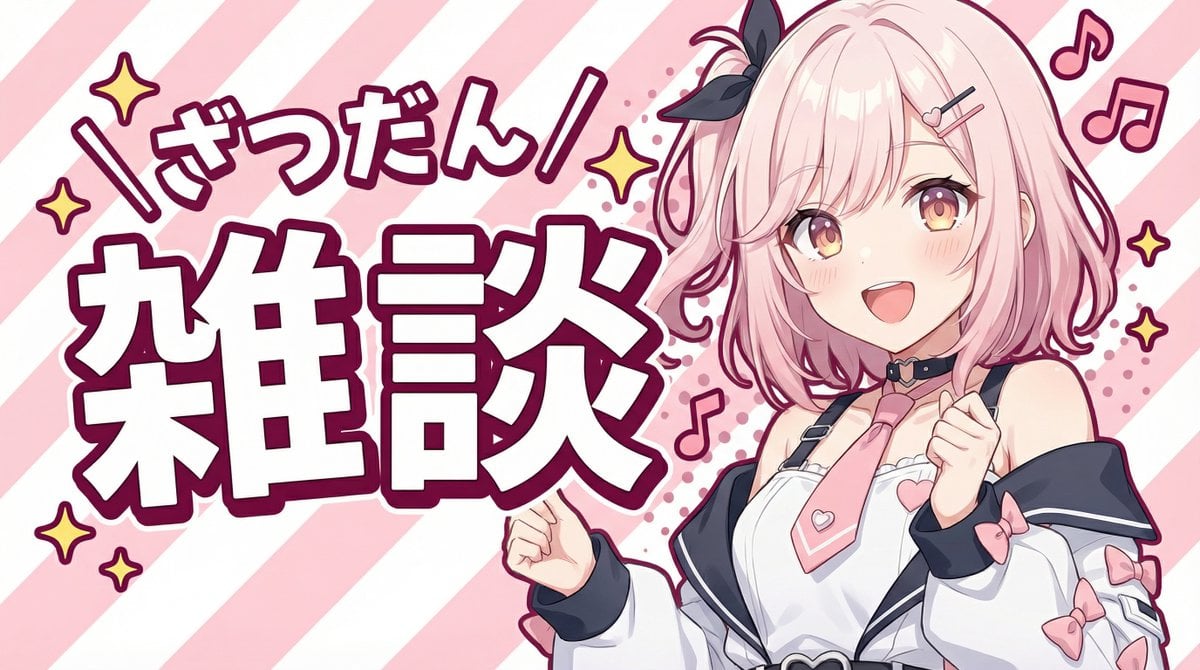
YouTube thumbnail using a specific character for chat stream
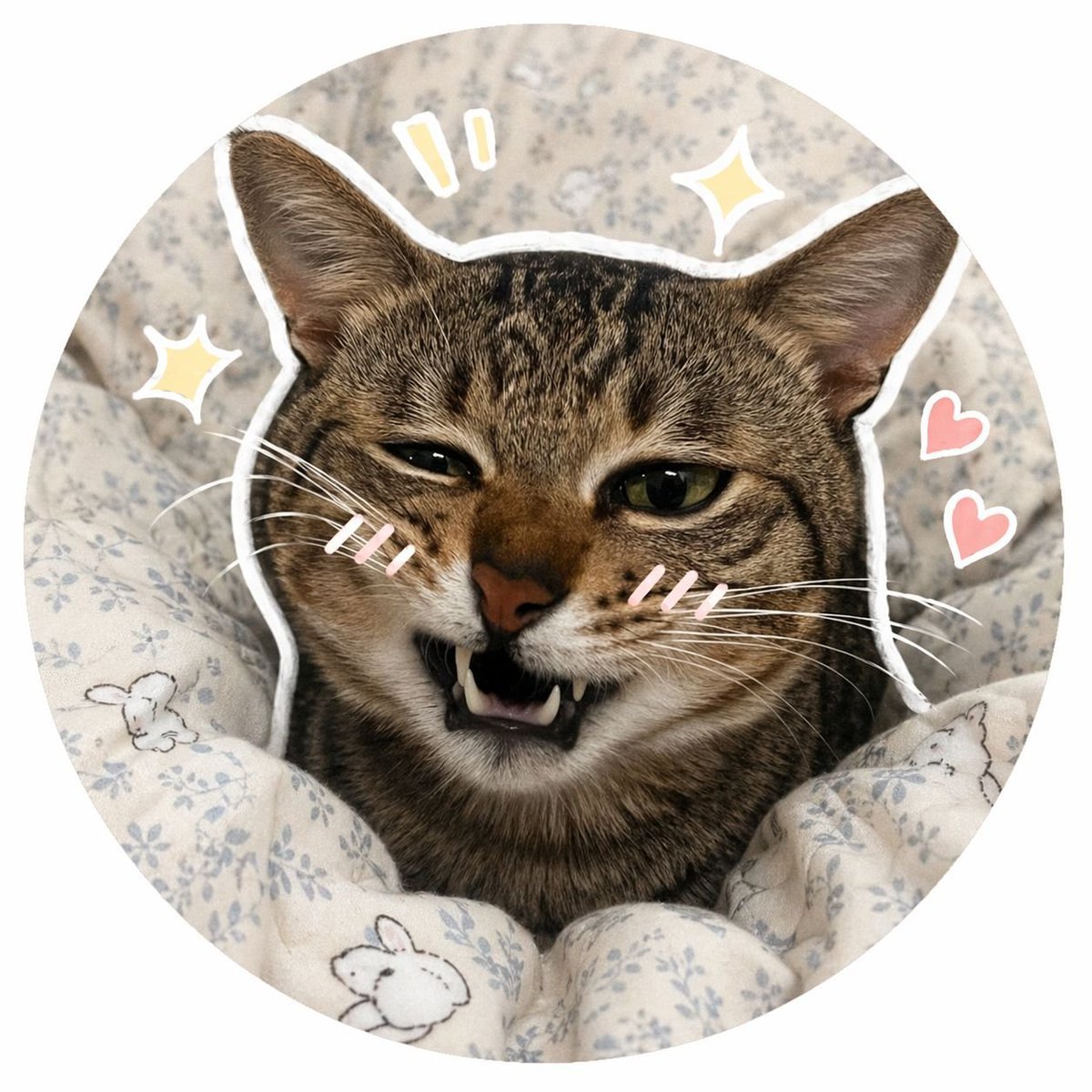
Social Media Pet Avatar Creator
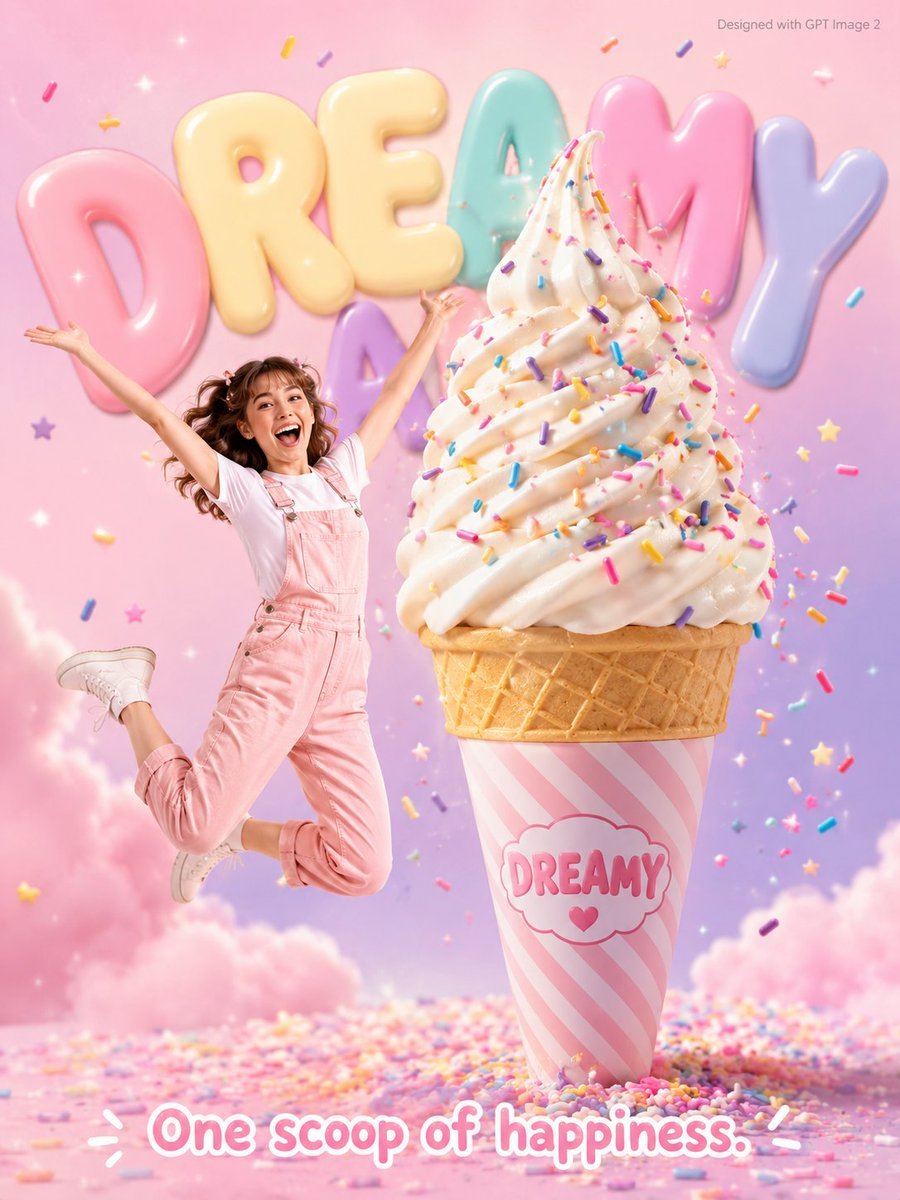
Dreamy Dessert Advertisement Poster
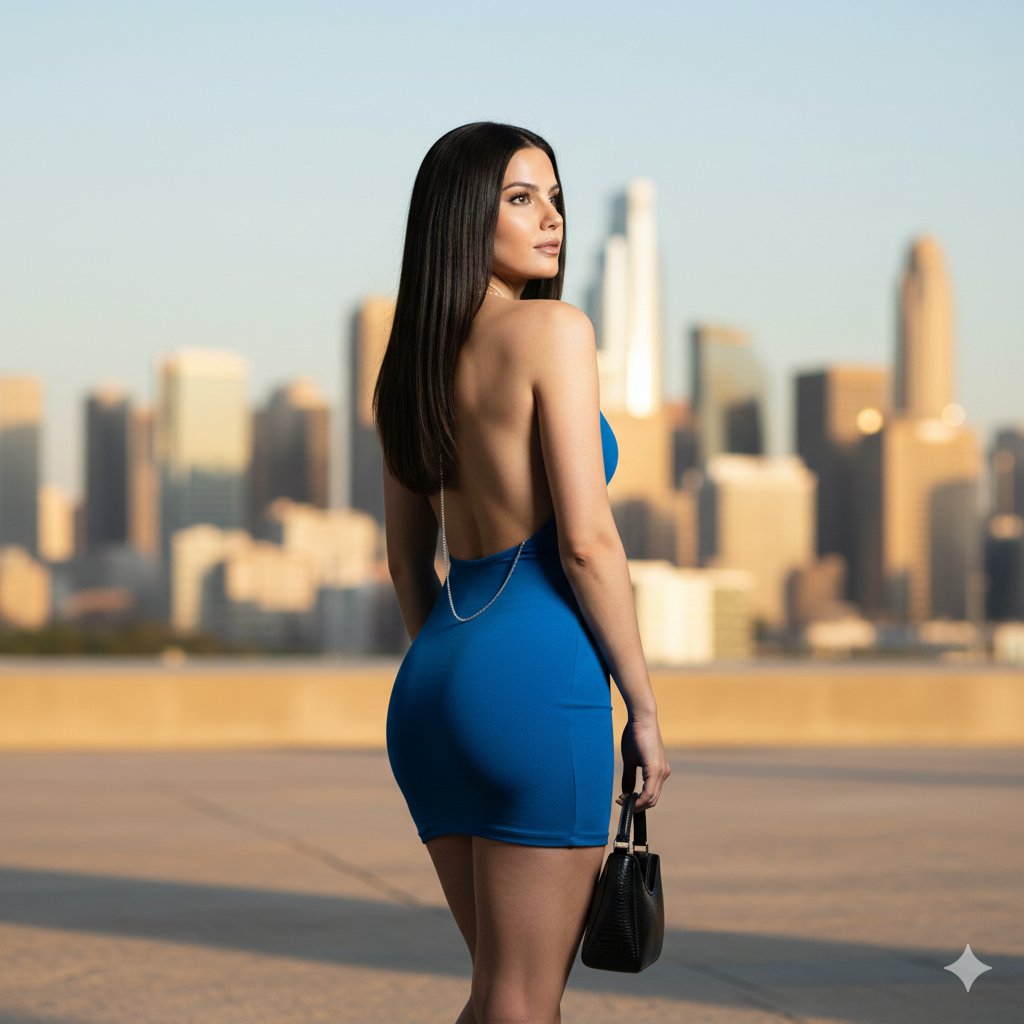
Flash photography portrait of a woman in a blue mini-dress
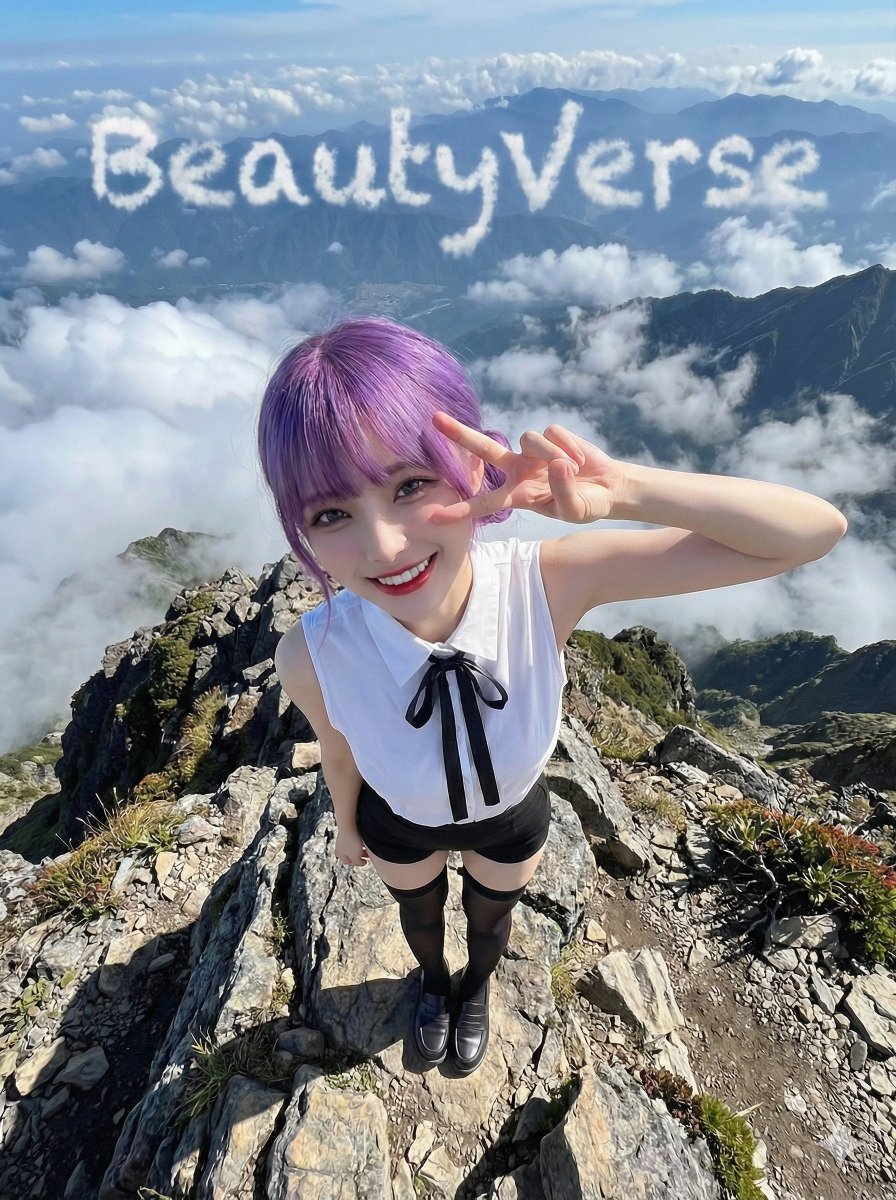
Character on a High Mountain Peak with Text in Clouds
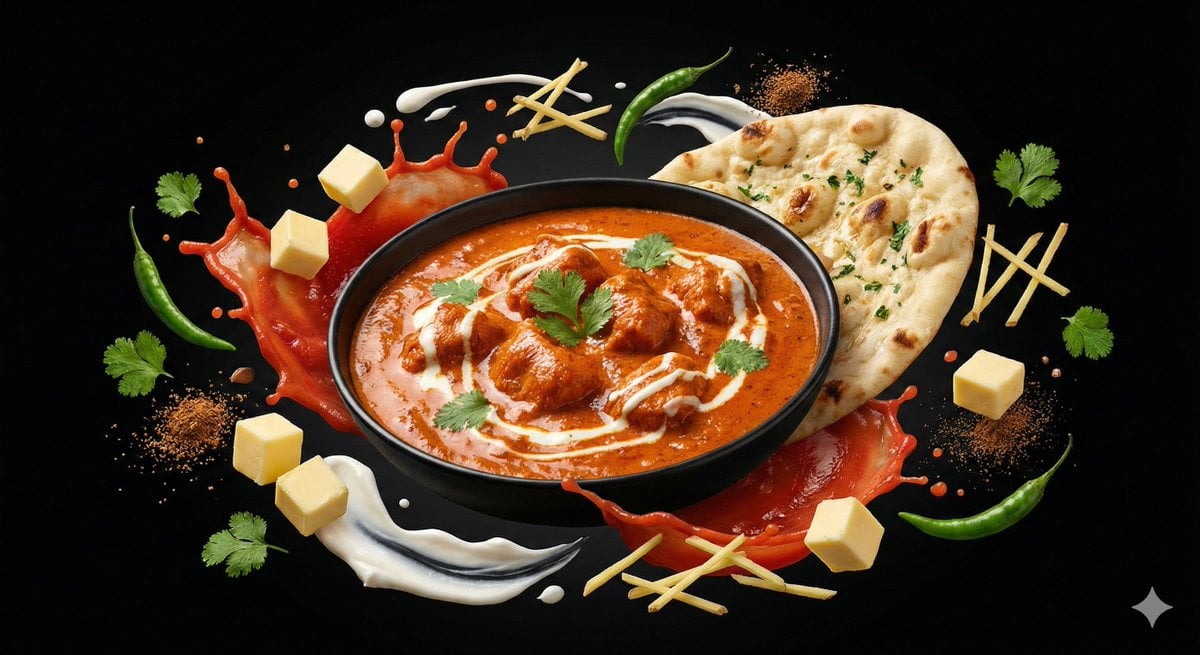
Ingredient Orbit Shot: Food Photography
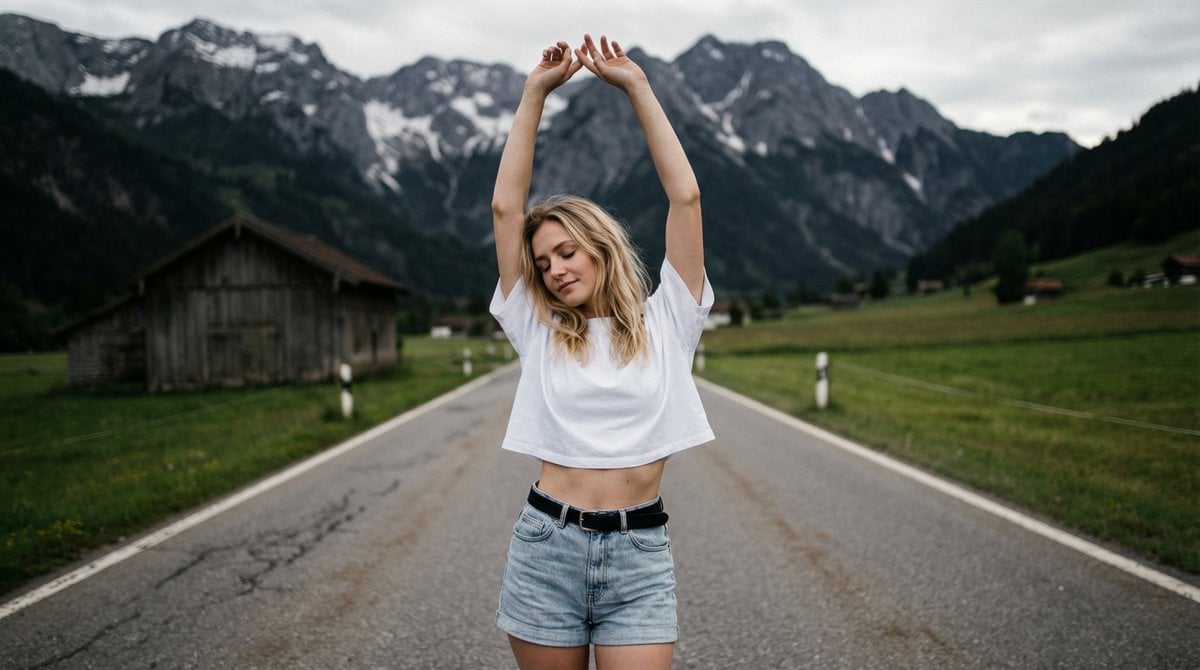
Surreal Double Exposure Portrait with Transparent Torso
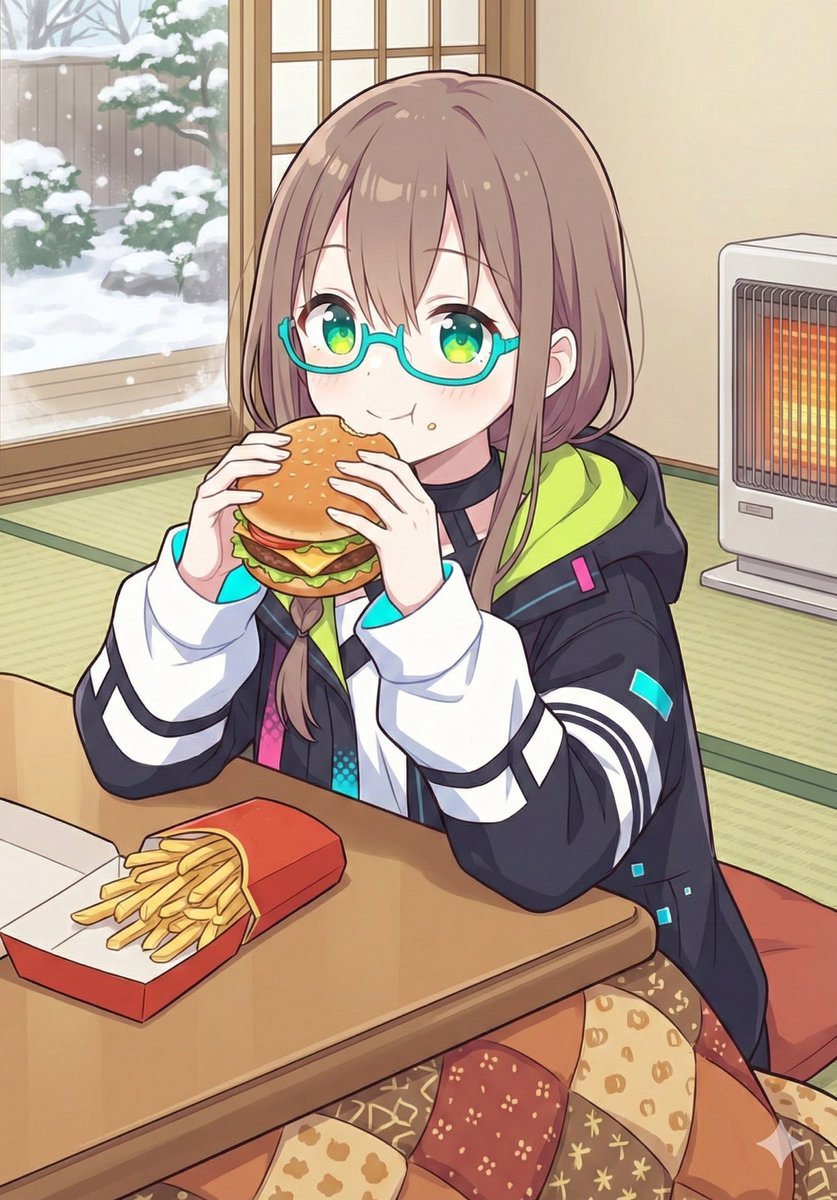
Japanese Prompt for Girl Eating Burger and Fries under Kotatsu
Browse template categories
High Resolution Image Restoration Instruction questions
How do I use the High Resolution Image Restoration Instruction template?
Add your photo if the template asks for one, edit the prompt if you like — the template's model and format are already selected — and press Generate. Your version opens in PicX Studio.
Can I customize the High Resolution Image Restoration Instruction template?
Yes. You can change the subject, setting, lighting, mood, format, and available model controls before creating your image.
Is the High Resolution Image Restoration Instruction template free?
Opening and editing this template is free. Generating uses credits, shown on the Generate button when you are signed in.
Which AI model should I use?
Start with GPT Image 2, which is the model associated with this template. You can compare another compatible model for a different finish.
Looking for something else? Browse all templates.

Your photo, any look
Thousands of ready templates for every top image and video model, from one credit balance.