
AI Tech Tutorial Thumbnail
AI Tech Tutorial Thumbnail is a ready photo look.

- Prompt included
- Model and format preset
- Free template
The prompt behind this image
Copy the exact prompt behind AI Tech Tutorial Thumbnail, or open it in the studio and make it yours.
Create a 1280x720 YouTube thumbnail. Background: deep black with subtle neon green grid overlay, thin lines, faint glow, perspective grid fading into distance (cyber tech aesthetic). Left side: Large WhatsApp logo, cropped partially off canvas, sharp vector, high resolution. Foreground subject: Asian woman, mid-20s, long straight black hair, natural makeup, warm smile. Wearing dark charcoal cardigan over light gray top. Shot from chest up. Camera: 50mm lens look. Lighting: soft key light front-right, gentle fill, smooth skin tones, no harsh shine. High clarity, professional studio portrait. Right side text: “Automate WhatsApp Messages” Font: bold modern sans-serif White color Stacked layout Tight leading Heavy weight Clean edges Below text: iPhone-style chat screenshot UI. Header: “Botpress — Business Account” Chat bubble text: “Hey! 👋 We’re an AI Agent Platform. Want to check us out?” Green reply bubble: “I’d be interested” UI must look real, crisp, authentic iOS interface. Bottom right: Timestamp “13:48” in white inside semi-transparent black rounded rectangle. Color grading: High contrast. Green accents slightly boosted. Sharp clarity. Tech tutorial YouTube style. ❌ NEGATIVE PROMPT No extra chat bubbles No incorrect UI No distorted phone No blurry text No extra emojis No watermark No stock watermark No over-sharpening halos No cartoon style No exaggerated skin smoothing No extra hands No malformed fingers No mismatched lighting No flat AI skin texture
How to use AI Tech Tutorial Thumbnail in 3 steps
- 1
Open
The prompt is already in the box next to the preview, with the template's model and format selected.
- 2…a portrait of your subject in softgolden-hour light, 85mm…
Personalize
Edit the subject and creative details for your destination.
- 3Generate
Generate
Press Generate — your image is created in PicX Studio, so you can compare it with the original and refine one variable at a time.
More like this
Templates with the same subject, style or setup. Open one to see its prompt.
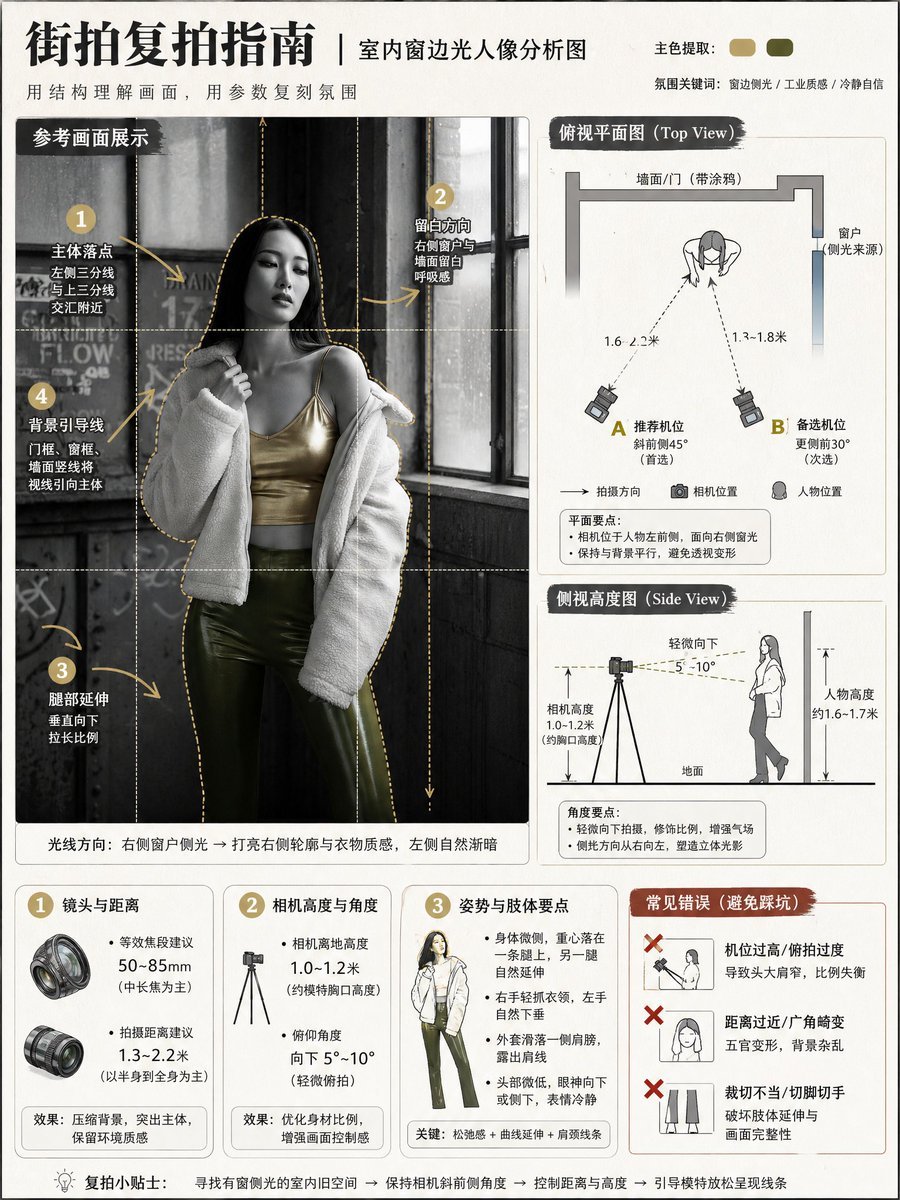
Photography Tutorial and Camera Setup Infographic

Anime Skywork MV Thumbnail
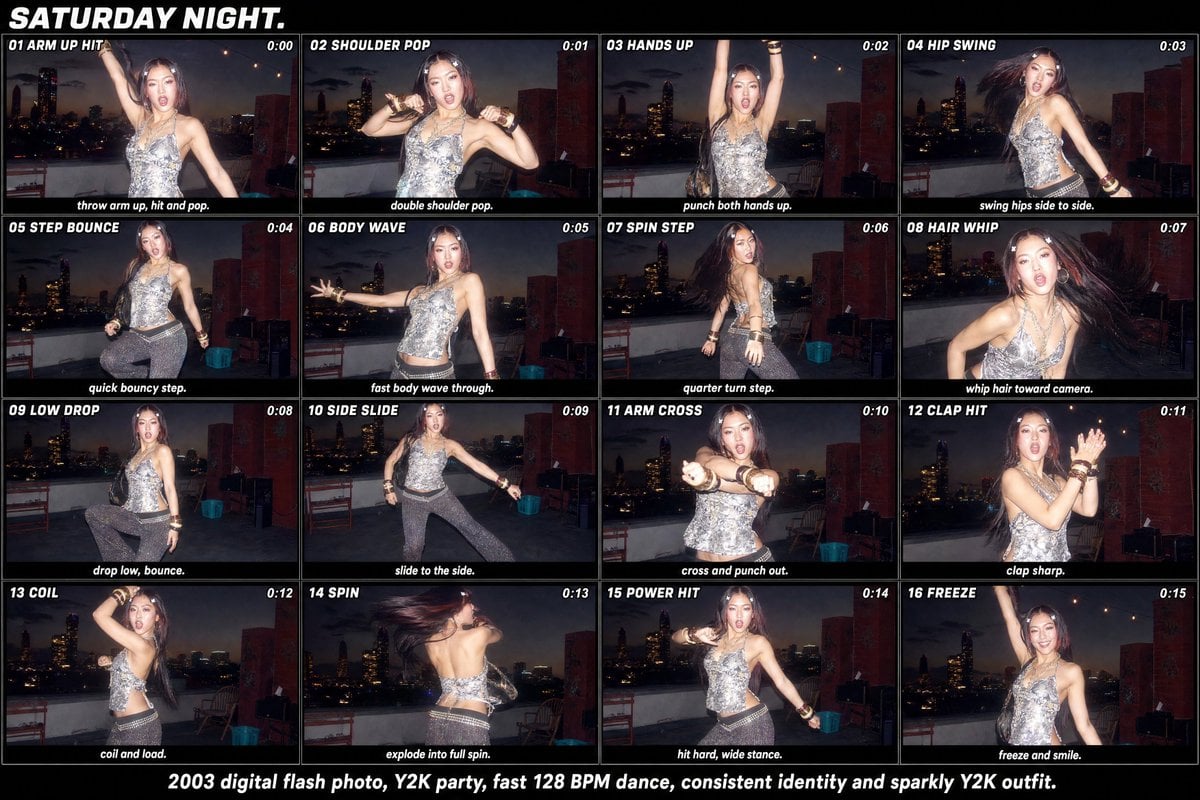
Y2K Rooftop Dance Tutorial Sheet
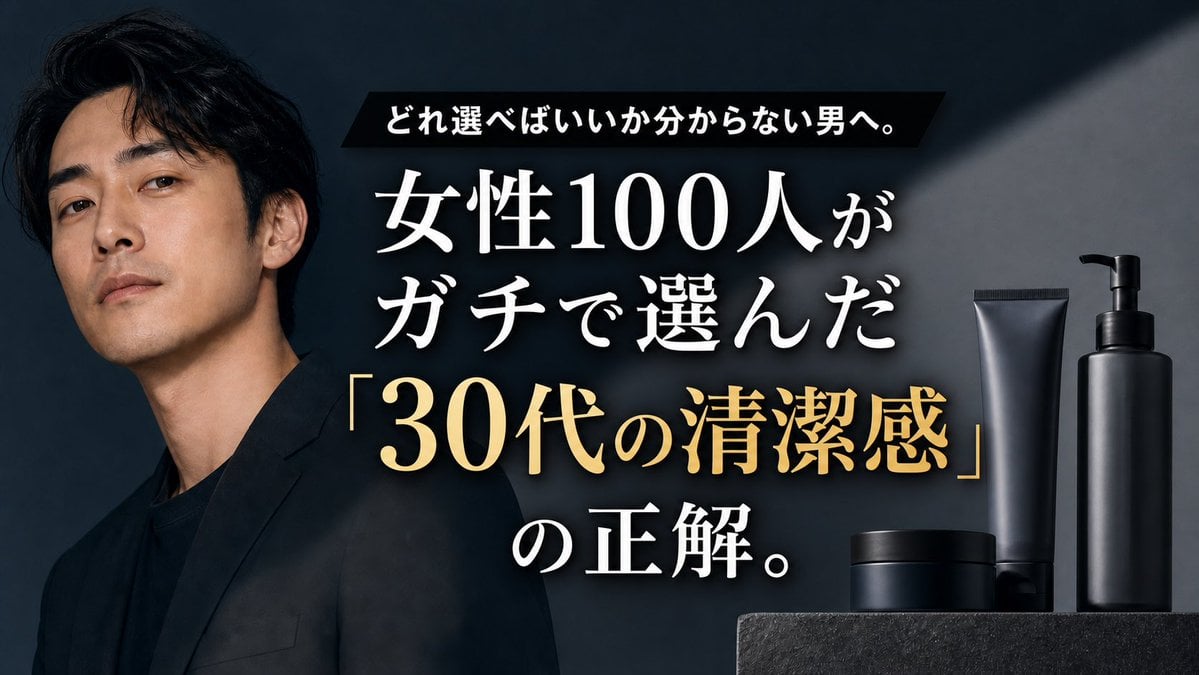
Premium Men's Skincare Thumbnail

Futuristic AI 2026 Tech Poster
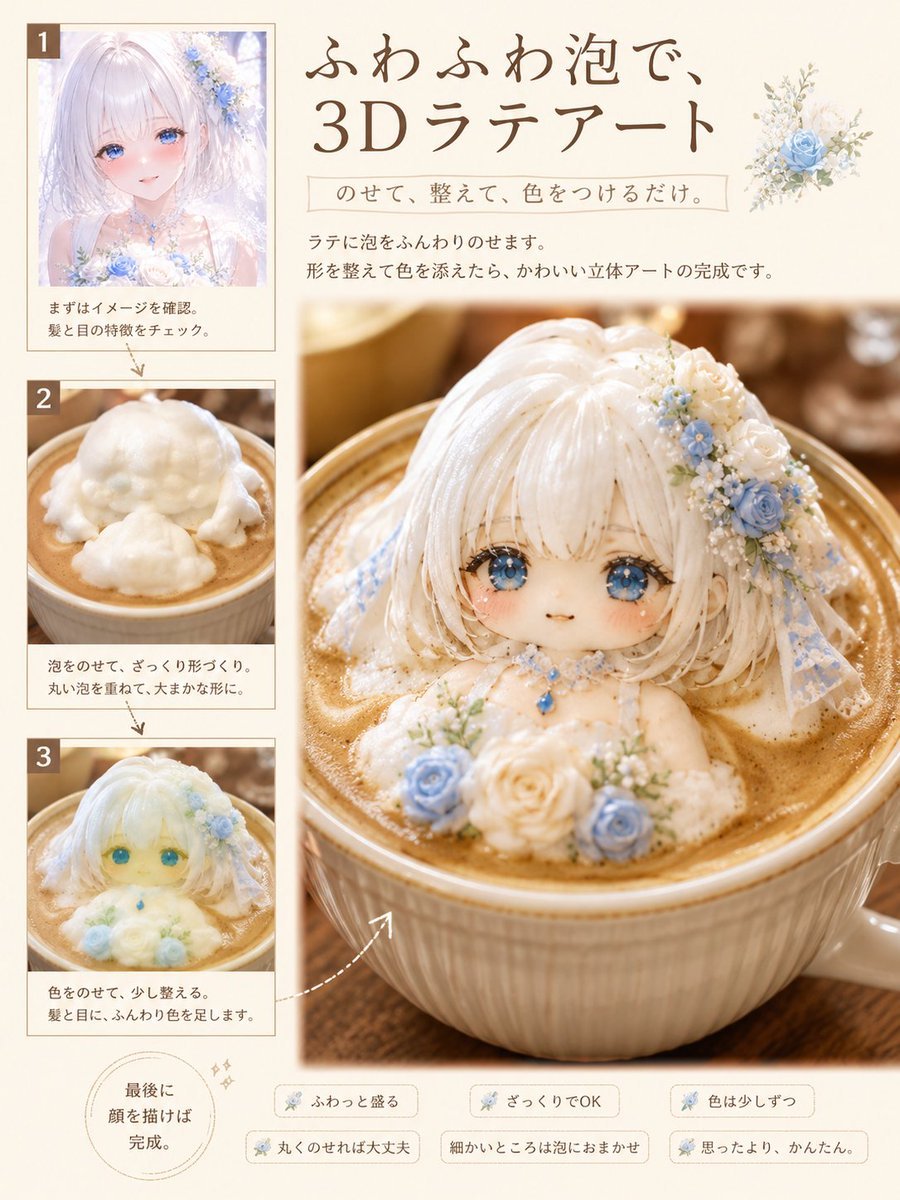
3D Latte Art Magazine Tutorial Layout

Low-Cost AI Video Thumbnail

Roblox Block Tower Thumbnail
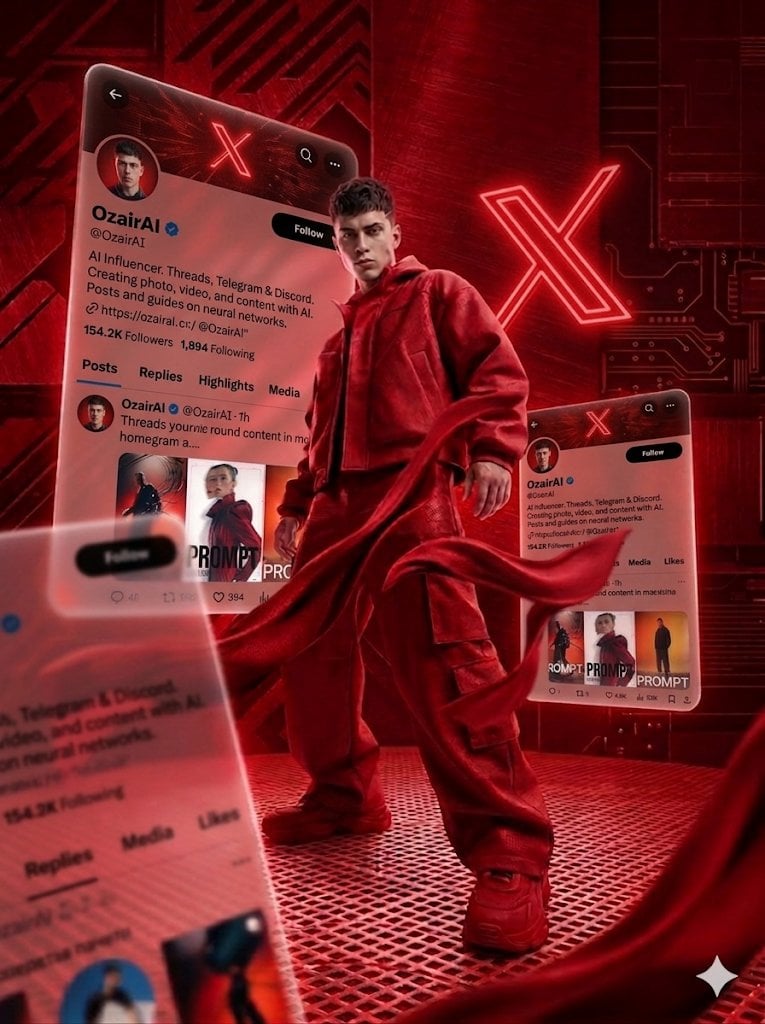
Crimson Tech-wear Aesthetic Portrait
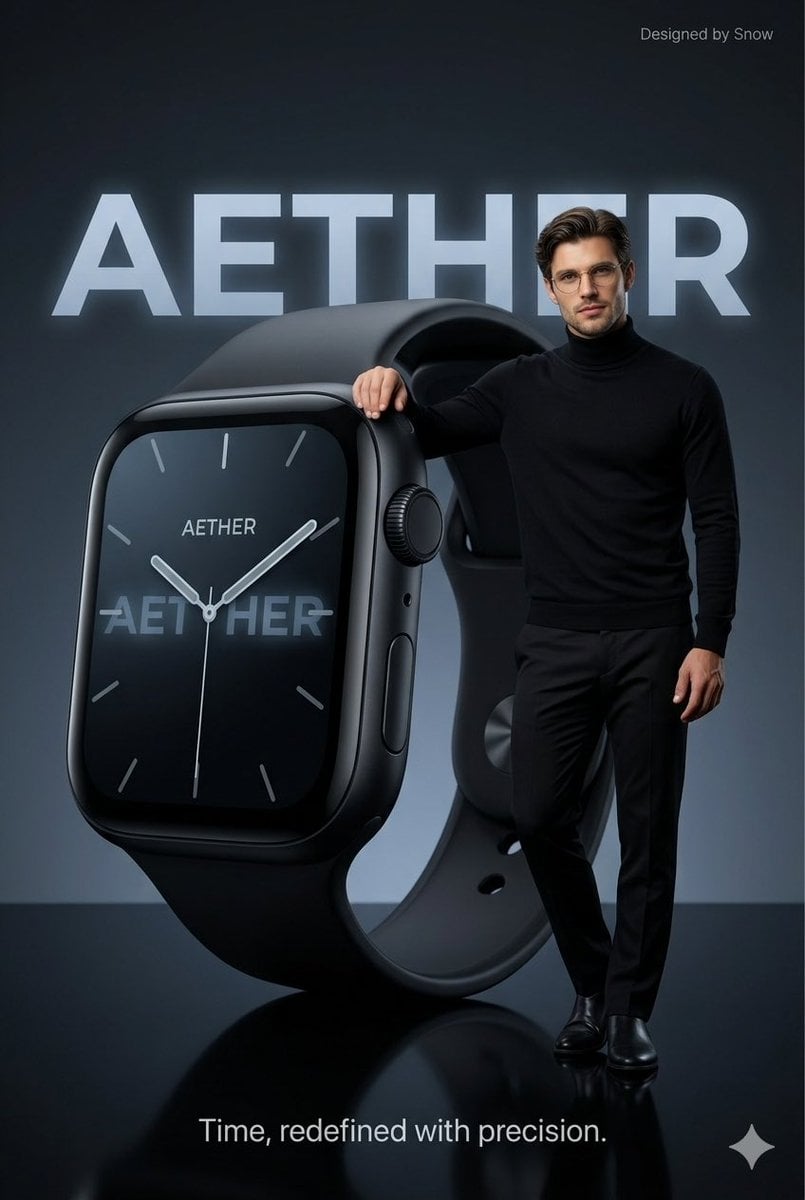
Minimalist Luxury Tech Advertisement
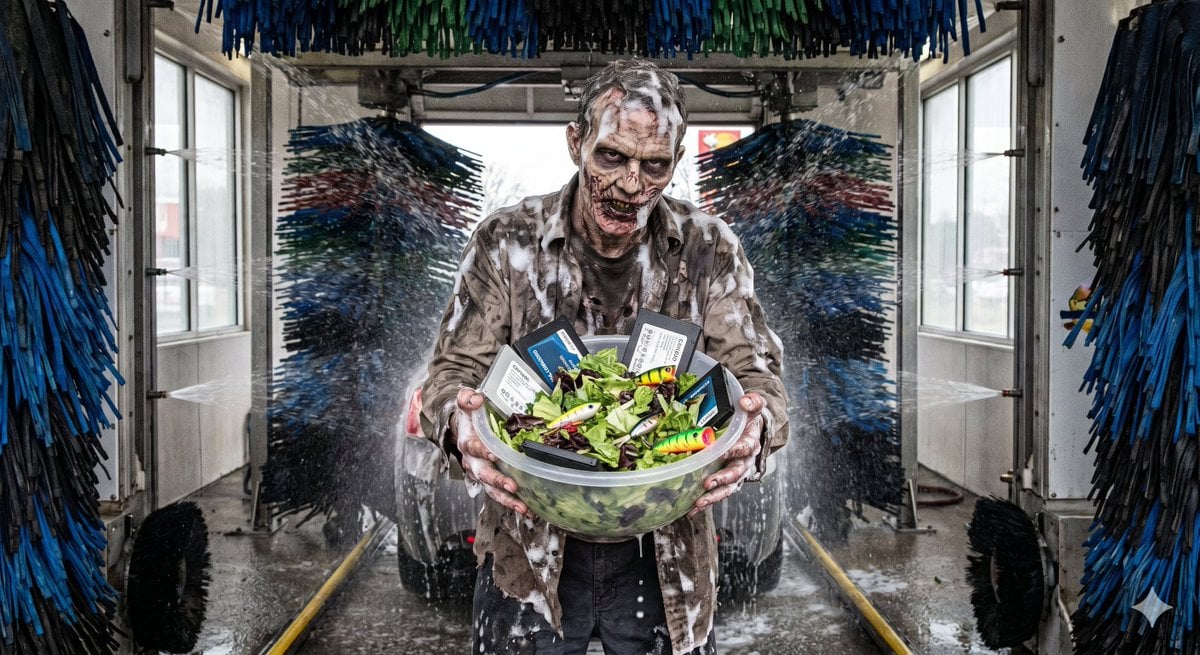
Bizarre Salad with Tech and Fishing Lures
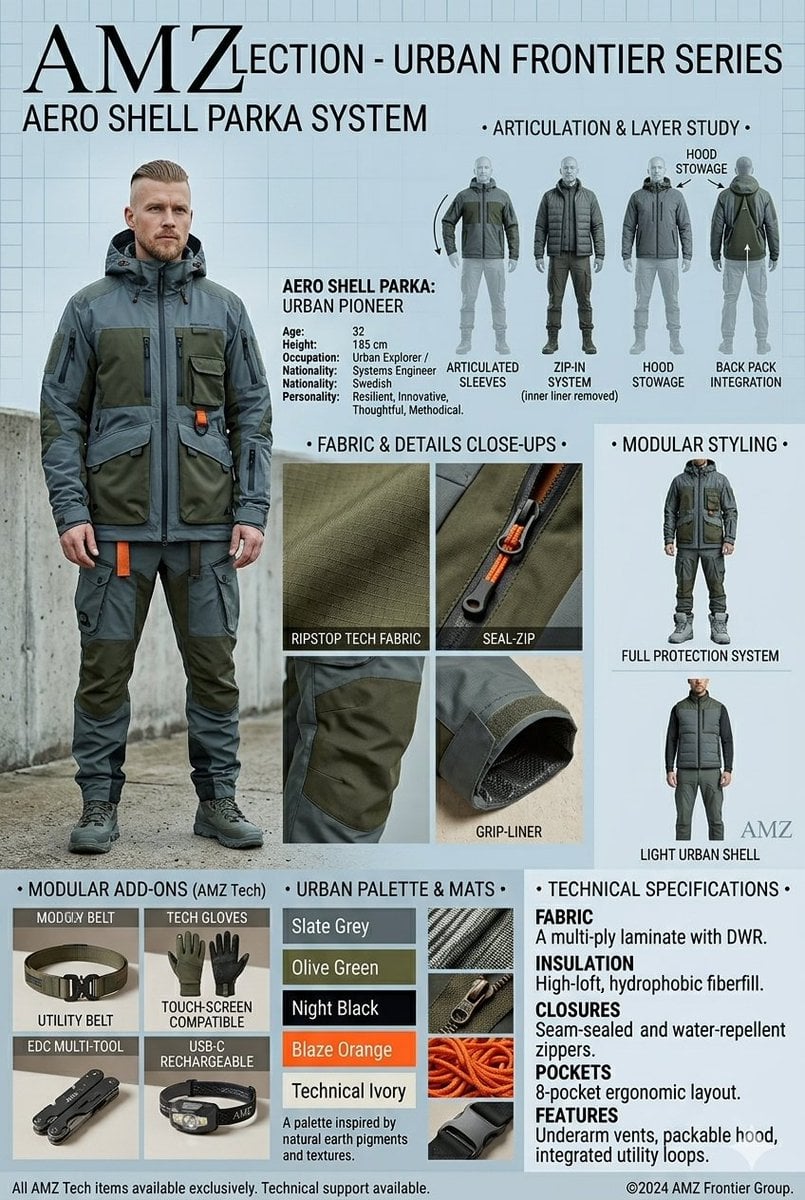
Technical Outerwear Design Sheet
Make it yours
AI Tech Tutorial Thumbnail works as-is. These are the safest ways to change it without losing the look.
Change one field
Copy a single group, rewrite it, and generate again so you can see what that field is doing.
Keep the frame, change the subject
Hold the composition and light of AI Tech Tutorial Thumbnail, then swap wardrobe, props or the person for a new take.
| If the result… | Why | Fix |
|---|---|---|
| The result drifts from the preview | Too many fields changed at once. | Reuse AI Tech Tutorial Thumbnail as-is first, then change one group — subject, light, or setting. |
| The model over-stylizes the scene | The prose prompt leaves finish and camera underspecified. | Add one camera or lighting sentence and stay on PicX Studio. |
More image prompts
Fresh picks from across the catalog.
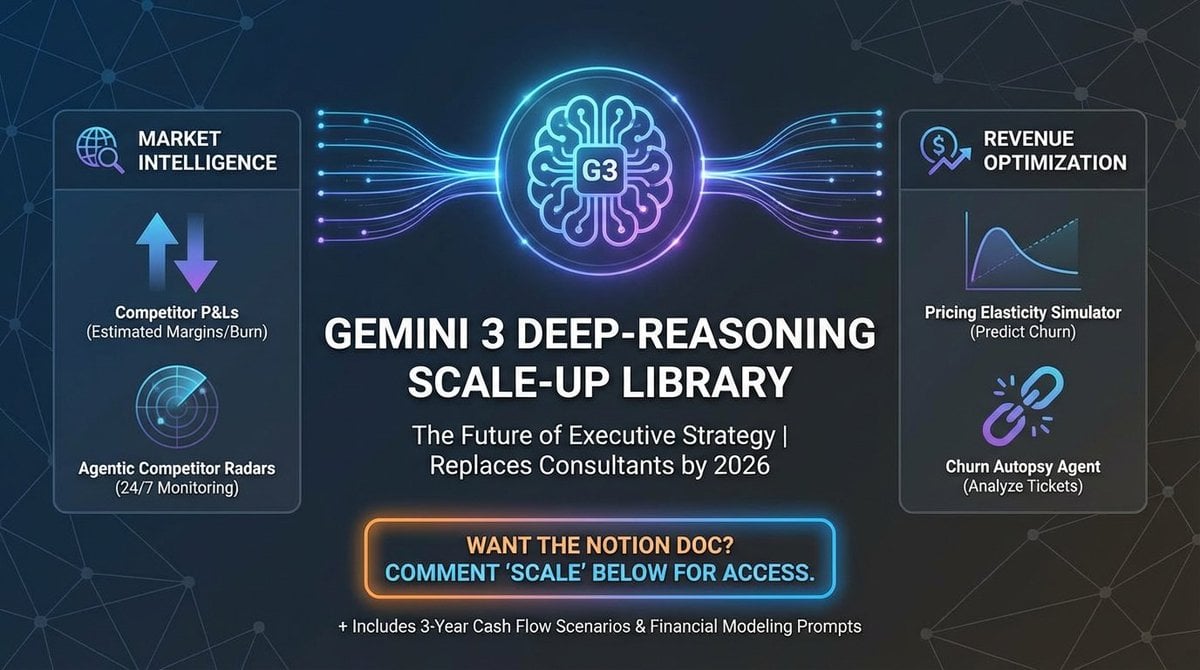
Social Post to Professional Graphic Transformation
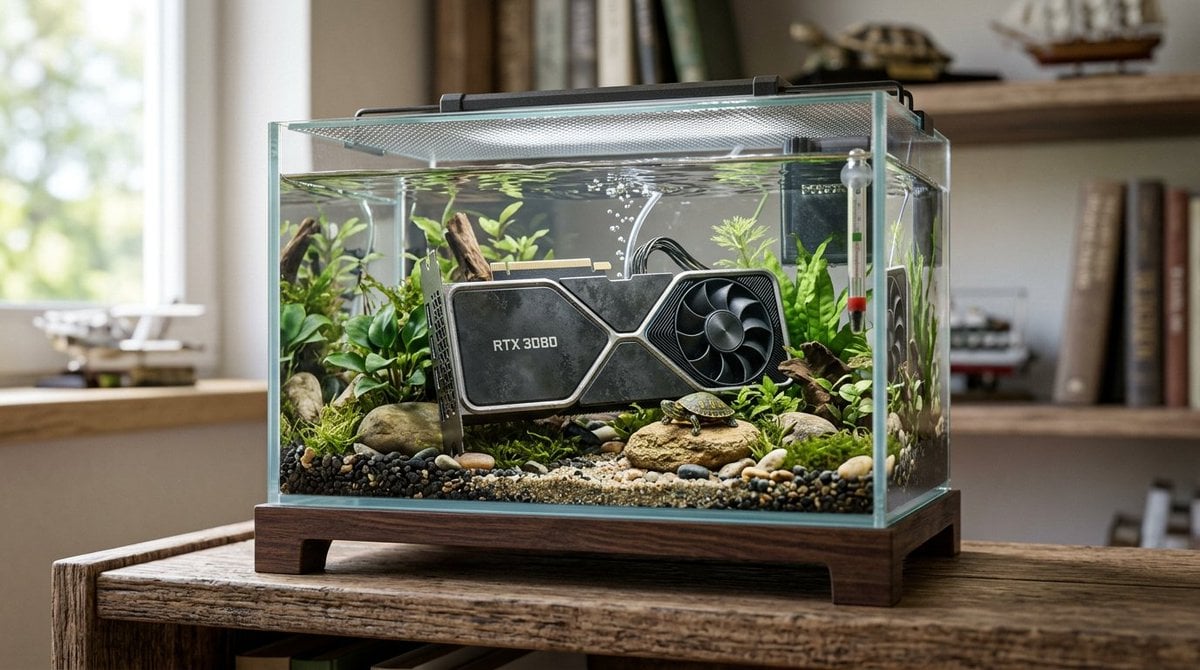
Hyper-Realistic Miniature Turtle Tank Diorama

Chibi Godzilla Snowboarding
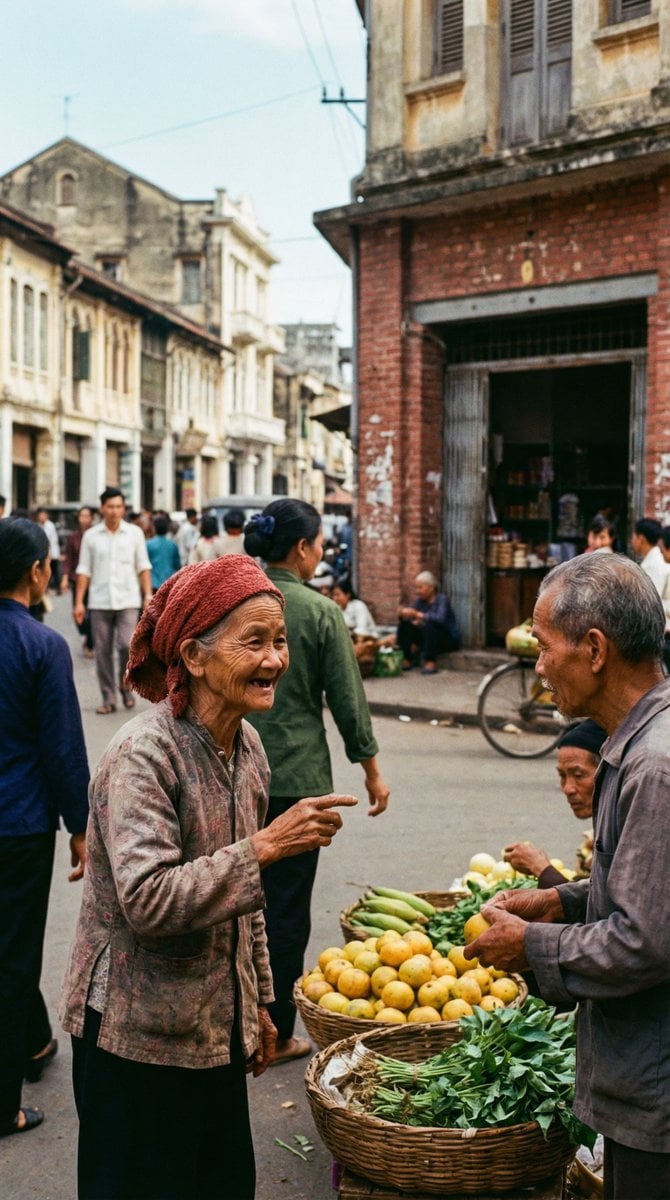
1970s Kodachrome Street Documentary Moment
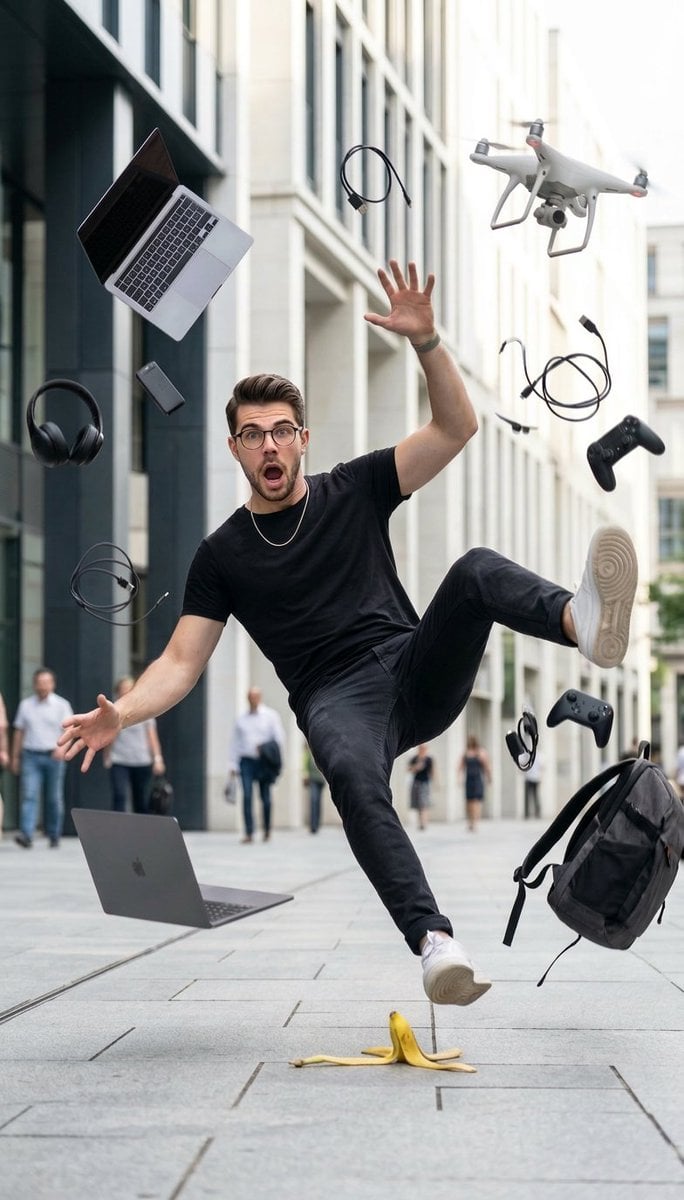
Cinematic Street Photography of Man Slipping on Banana Peel
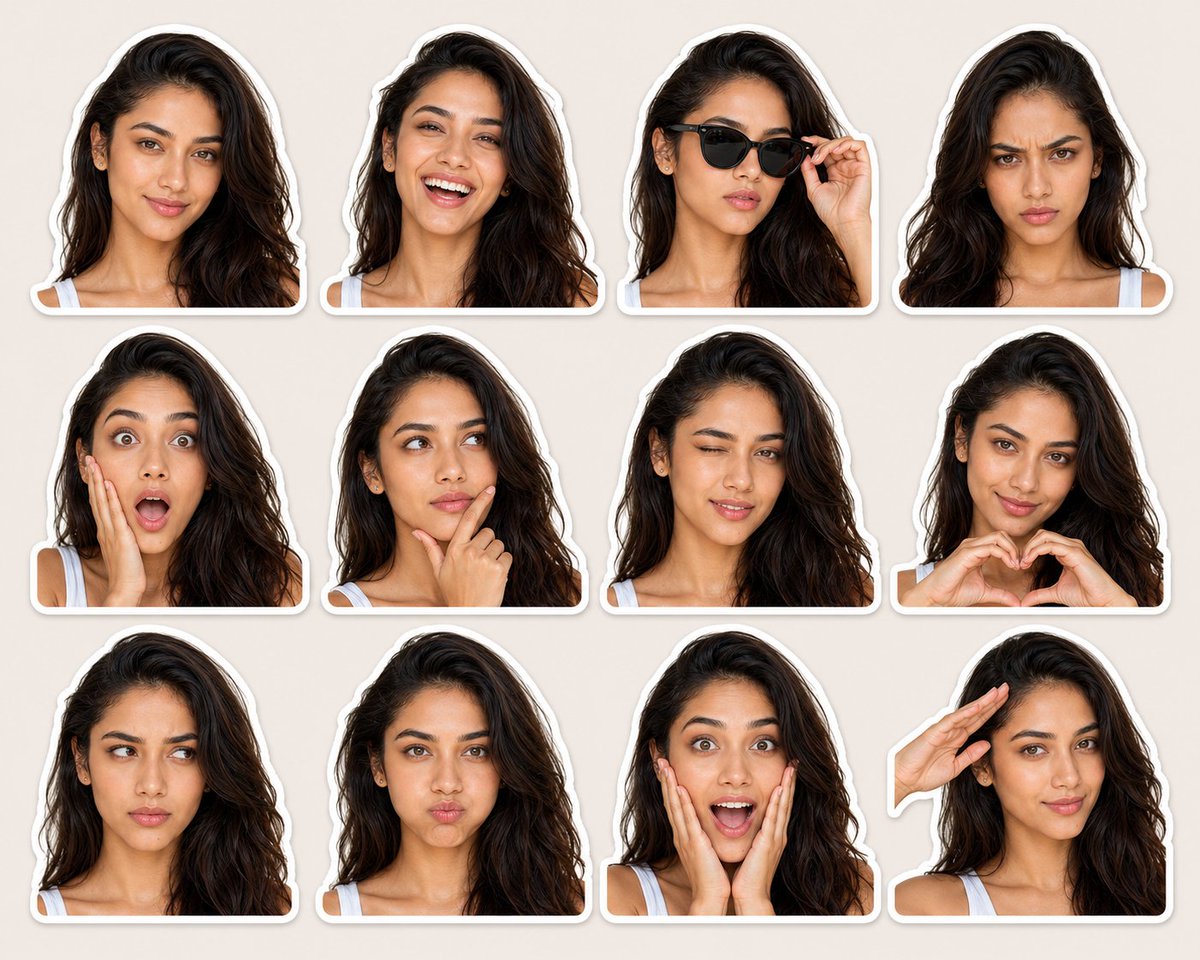
Expression-Rich Sticker Pack Grid
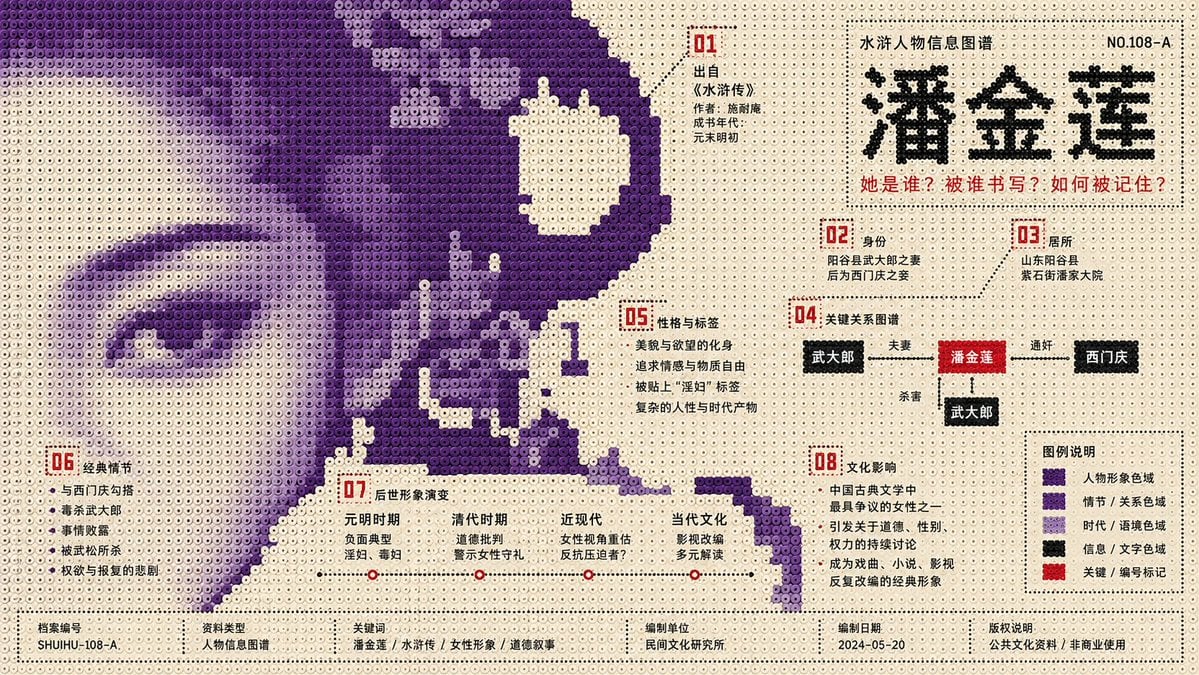
Perler Beads Style Structural Poster
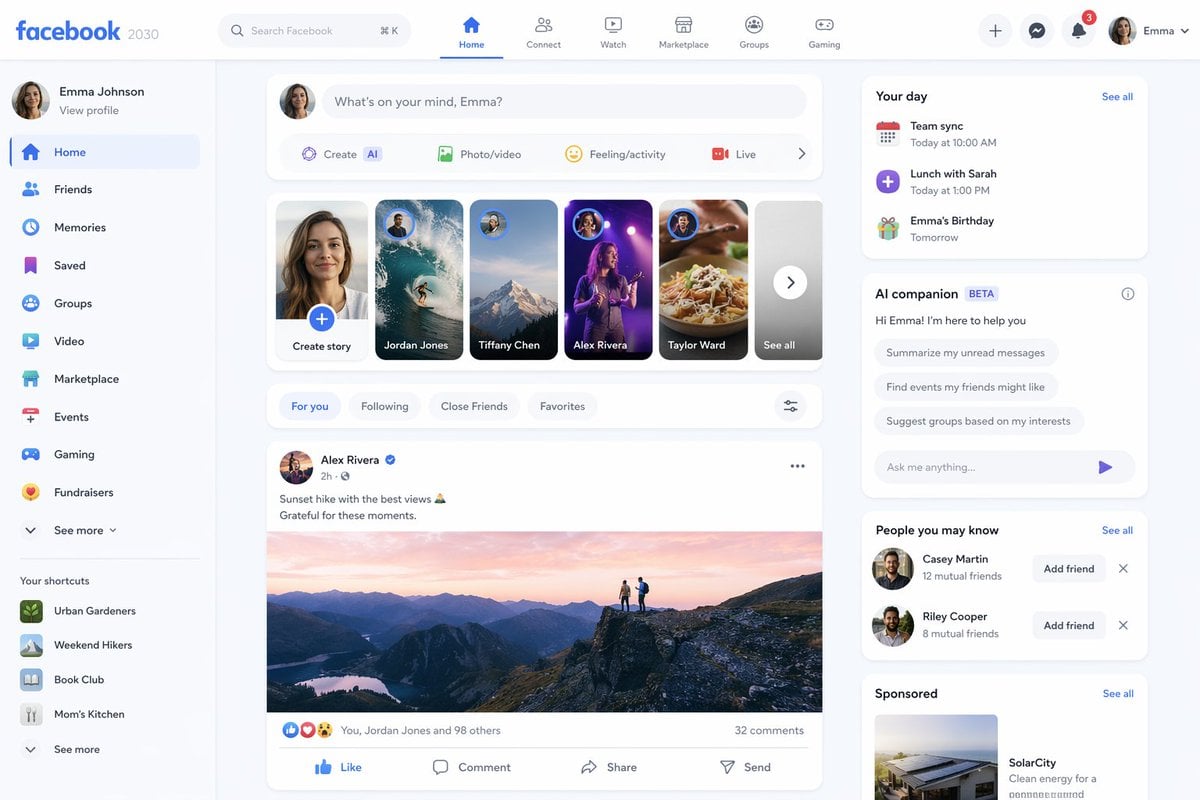
Facebook 2030 Prediction
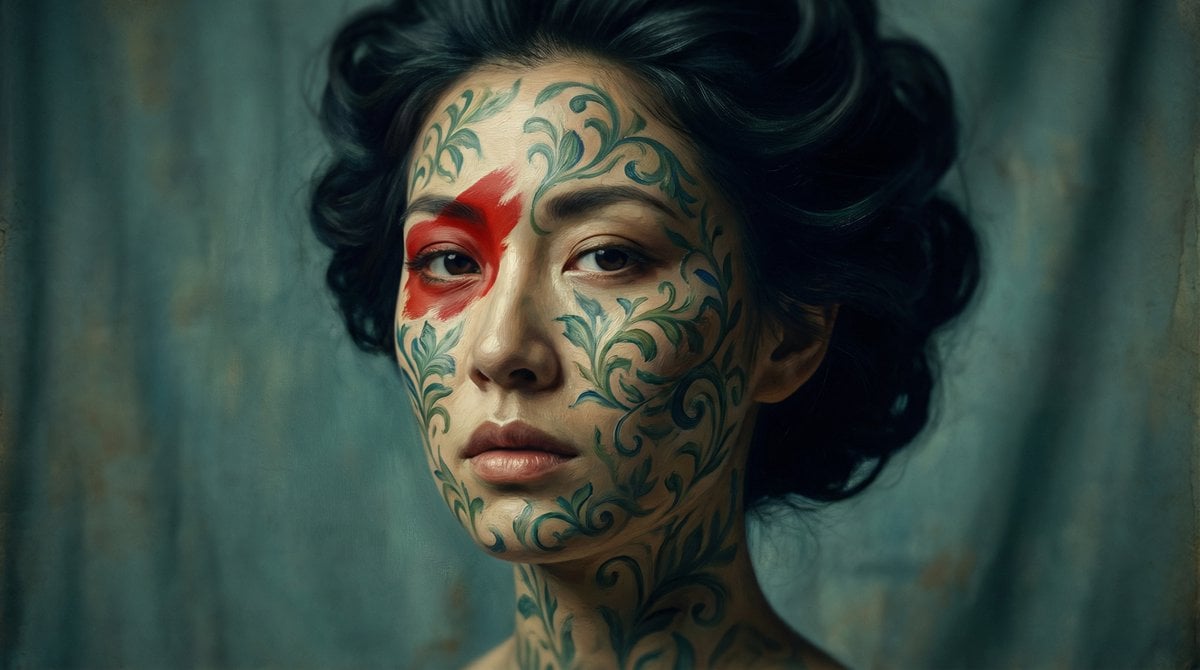
Cinematic Portrait with Botanical Skin Patterns
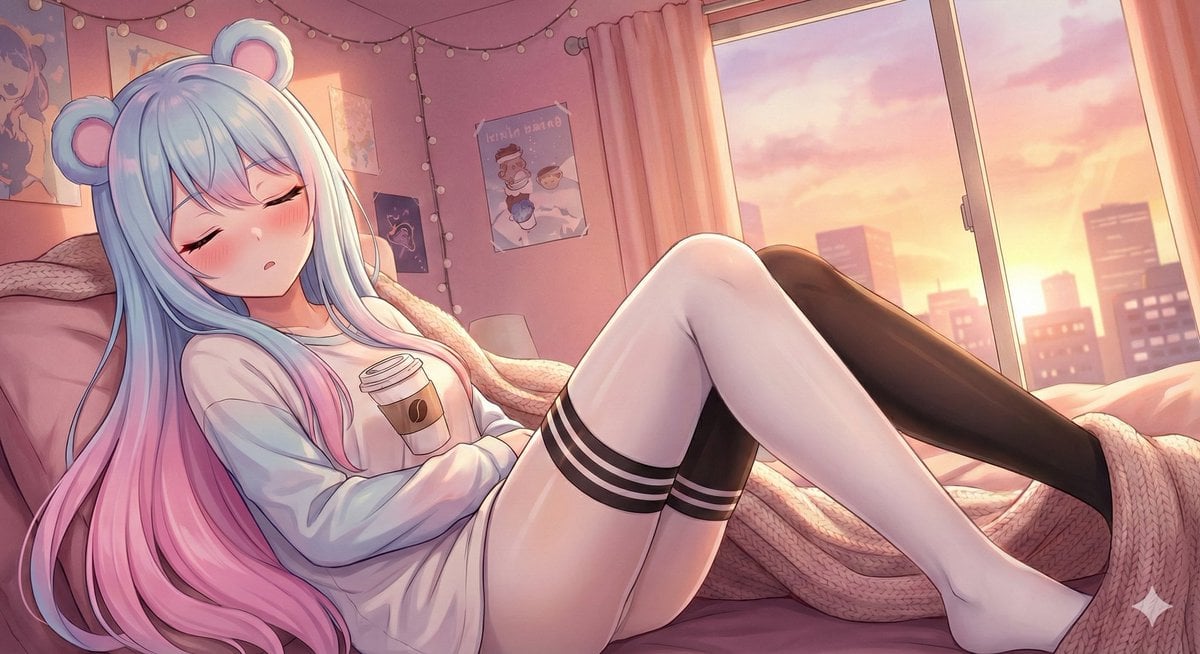
Wake Her Up Gently
Browse template categories
AI Tech Tutorial Thumbnail questions
How do I use the AI Tech Tutorial Thumbnail template?
Add your photo if the template asks for one, edit the prompt if you like — the template's model and format are already selected — and press Generate. Your version opens in PicX Studio.
Can I customize the AI Tech Tutorial Thumbnail template?
Yes. You can change the subject, setting, lighting, mood, format, and available model controls before creating your image.
Is the AI Tech Tutorial Thumbnail template free?
Opening and editing this template is free. Generating uses credits, shown on the Generate button when you are signed in.
Which AI model should I use?
Choose a compatible model in PicX Studio based on the style, speed, and output controls your project needs.
Looking for something else? Browse all templates.

Your photo, any look
Thousands of ready templates for every top image and video model, from one credit balance.